
CT08V MEPHISTO EXCLUSIVE SENATOR CHESS COMPUTER SYSTEM - Chess - Game Computers SAITEK - Free user manual and instructions
Find the device manual for free CT08V MEPHISTO EXCLUSIVE SENATOR CHESS COMPUTER SYSTEM SAITEK in PDF.


| Product type | Chess computer |
| Brand | Saitek |
| Model | CT08V Mephisto Exclusive Senator |
| Dimensions | 194 × 96 × 25 mm |
| Weight | 0.25 kg |
| External power supply | 9V DC 300mA mains adapter (ref. HGN 5009) |
| Internal power (backup) | 3V CR2032 lithium battery |
| Display | LCD screen |
| Board | Luxury board with integrated sensors |
| Processor | 32-bit RISC |
| Playing levels | 64 levels (Classic, Tournament, Sudden Death, Fun, Training, Infinite, Mate Search) |
| Main functions | En passant, castling, promotion, take back, 2-player mode, Info mode, move suggestions, teaching mode, clock, automatic play |
| Opening book | Complete library with repertoire selection (passive, active, tournament) |
| Mate search | Up to 8 moves |
| Game memory | Automatic save on power off (via battery) |
| Number of keys | 16 keys |
| Module connection | 40 pins |
| Manual languages | French, German, English (manual provided) |
| Maintenance and cleaning | Clean with a soft cloth, avoid chemicals, do not expose to moisture or extreme temperatures |
| Safety | Do not insert or remove modules when the computer is turned on |
| Batteries and repairability | Replaceable backup battery (CR2032); reset via ACL button |
Frequently Asked Questions - CT08V MEPHISTO EXCLUSIVE SENATOR CHESS COMPUTER SYSTEM SAITEK
User questions about CT08V MEPHISTO EXCLUSIVE SENATOR CHESS COMPUTER SYSTEM SAITEK
0 question about this device. Answer the ones you know or ask your own.
Ask a new question about this device
Download the instructions for your Chess - Game Computers in PDF format for free! Find your manual CT08V MEPHISTO EXCLUSIVE SENATOR CHESS COMPUTER SYSTEM - SAITEK and take your electronic device back in hand. On this page are published all the documents necessary for the use of your device. CT08V MEPHISTO EXCLUSIVE SENATOR CHESS COMPUTER SYSTEM by SAITEK.
USER MANUAL CT08V MEPHISTO EXCLUSIVE SENATOR CHESS COMPUTER SYSTEM SAITEK
Exclusive Senator Chess Computer System
Complete with Exclusive Board, Chess Pieces, Senator Module and LCD Module
Instructions
Bedienungsanleitung
Mode d'emploi
Endorsed by
QUICK START
To play a game right away, without reading the entire manual first, simply follow these Quick Start steps!
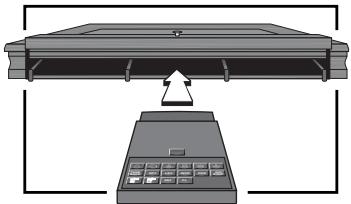
1 First, make sure that your Exclusive Board is turned off. Never insert a module while the Exclusive Board is on!
2 Open the drawer in the front of your Exclusive Board, and swing the handle up. You will see three slots. Insert the Senator and LCD Modules into any of the three slots available, pushing them until they are firmly in place.
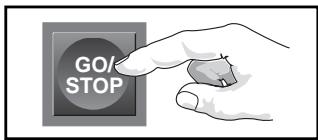
3 Turn the Exclusive Board on, and then press GO/STOP on the Senator Module for at least one second to turn the module on. If the computer doesn't respond, press GO/ STOP one more time.
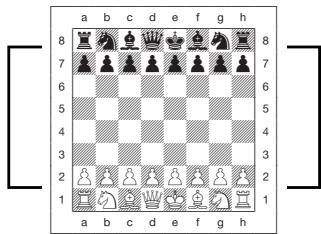
4 Set up the chess pieces in the initial starting position, with the White pieces closest to you. Make sure all the pieces are centered on their squares!

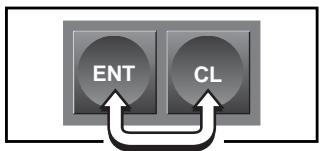
5 To reset the module for a NEW GAME of chess, simultaneously press the ENT and CL keys.
6 Enter your moves by simply making them on the board. When the computer moves, board lights indicate its move. If you installed the LCD Module in Step 2, the display will show the piece, the color, and the from and to squares of the computer's move. Here, the computer wants to move its Black pawn from E7 to E5. Lift the Black pawn and make the move on the board. This completes the computer's move, and now it's your turn again. Enjoy your game!
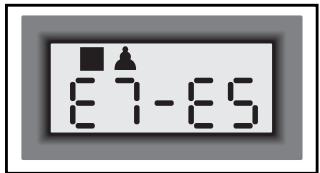
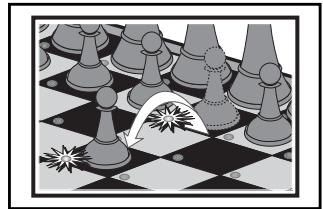
Press GO/STOP at any time to turn the Senator Module off (before switching off the Exclusive Board). Your current game (up to 200 individual moves) will be stored in memory. When you switch back on, you can continue playing right where you left off.
KEYS AND FEATURES
-
CONNECTOR: 40-pin edge connector plugs the Senator and LCD modules into your Exclusive Board.
-
PIECE SYMBOL KEYS: Used in Verify and Position Modes. Also used for pawn promotions.
-
GAME KEYS
-
TAKE BACK KEY: Press to enter Take Back Mode; within Take Back Mode, press to move forward by 10 moves at a time (or to the final/initial position in memory). Also used to enter Two Player Mode.
-
OPT KEY (OPTION): Press to enter Option Mode; within Option Mode, press to cycle through the main option groups.
-
LEV KEY (LEVEL): Press to enter Level Mode; within Level Mode, press to skip over eight levels at a time.
INFO KEY: Press to enter Info Mode; within Info Mode, press to cycle through the main info groups. Press during your move to request a hint.
-
POS KEY (POSITION): Press to enter Position Mode.
-
GO/STOP KEY: Press to turn the module on/off. Your current game will be saved in memory (up to 200 individual moves).
-
WHITE: and BLACK: KEYS: Press to change levels one at a time in Level Mode, and to cycle through options in Option and Info Modes. Also used to set the color in Position Mode. Within Take Back Mode, press to move backward/forward one move at a time.
-
ENT KEY (ENTER): Press together with CL to reset for a NEW GAME. Press to change sides with the computer, and press while the computer is thinking to force it to move. Press to turn option settings on and off, to select Bronstein Clock settings, and to exit Level Mode with your new level selected. Press to clear the board in Position Mode, then press again to confirm. Within Take Back Mode, press to move to the final/initial position in memory.
-
CL KEY (CLEAR): Press together with ENT to reset for a NEW GAME. Press to exit Option, Verify, and Position Modes. Press to exit Take Back Mode and Two Player Mode. Press to clear Info displays and cancel Clear Board requests in Position Mode. Press to speed up the computer's play in the opening when Auto Play is activated. Press to cancel Level Mode if you decide not to make changes.
-
ACL: In base of unit; used to eliminate static discharge (see Section 7.1).
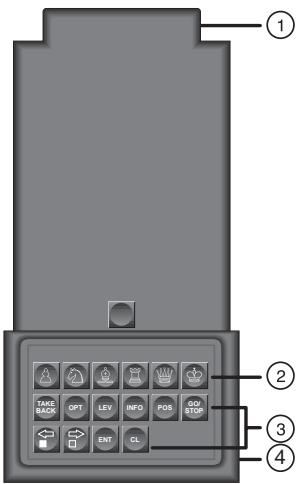
TABLE OF CONTENTS
QUICK START
KEYS AND FEATURES
INTRODUCTION
1. GETTING STARTED!
1.1 Power Off? Plug In the Modules
1.2 Power On; Set Up the Pieces
1.3 Ready? Try Out Your New Opponent!
1.4 Now It's the Computer's Turn
1.5 Change Your Mind? Take Back
1.6 Game Over? Why Not Play Again
1.7 Too Easy/Hard? Change the Level
2. MORE FEATURES TO EXPLORE
2.1 Whose Move? Check the Display
2.2 Special Chess Moves
2.3 Illegal Moves
2.4 Check, Mate, and Draw
2.5 Interrupting the Computer's Search
2.6 Changing Sides with the Computer
2.7 Two Player Mode
2.8 Playing Black from the Bottom
2.9 Built-In Openings
2.10 Thinking on the Opponent's Time
2.11 Game Memory
3. THE PLAYING LEVELS
Setting a Playing Level
3.1 Normal Playing Levels
3.2 Tournament Levels
3.3 Speed Chess Levels
3.4 Fun Levels
3.5 Infinite Level
3.6 Problem Solving Levels
3.7 Training Levels
4. INFO MODE: WATCH THE COMPUTER THINK
Using Info Mode
4.1 Principal Variation
4.2 Search Information
4.3 Chess Clock Information
4.4 Move Count/Game Moves
4.5 Want a Hint? Just Ask!
5. OPTIONS FOR FUN AND VARIETY
Selecting Game Options
5.1 Operation Mode Options
5.2 Playing Mode Options
5.3 Rotating Display Options
6. VERIFYING/SETTING UP POSITIONS
6.1 Verifying Positions
6.2 Changing and Setting Up Positions
7. TECHNICAL DETAILS
7.1 The ACL Function
7.2 Care and Maintenance
7.3 Battery Information
7.4 Technical Specifications
TROUBLESHOOTING GUIDE
INTRODUCTION
Congratulations on your purchase of the new and exciting Exclusive Senator Chess Computer System. This unique system, combining the elegant Exclusive Chessboard with the Senator and LCD Modules, has been designed to provide you with an extremely powerful chess opponent—as well as one which offers a vast array of special features! Once the Senator Module is inserted into the Exclusive Board and turned on, the Senator's strong chess program takes over. Backed by a powerful 32-bit RISC processor, the Senator will challenge even the most advanced players—yet it also includes many features aimed specifically at beginners. The companion LCD Module gives you access to a great variety of additional game options. Working hand-in-hand with the Senator Module, the LCD Module will allow you to fully explore all of the Senator's special features. This Chess Computer System is simply the perfect chess partner for anyone, and we guarantee that your games will never again be the same. Just a quick glance through the features and options described in this manual will give you a good idea of what's in store for you!
1. GETTING STARTED
1.1 Power Off? Plug In the Modules
Plug your AC adapter into the back of the Exclusive Board and into your power supply. Always make sure your chess computer is OFF before inserting or removing modules.
CAUTION: NEVER INSERT OR REMOVE A MODULE WHILE THE COMPUTER IS ON. DOING SO COULD DAMAGE YOUR CHESS COMPUTER!
Open the drawer in the front of your computer, and swing the handle up. Insert the Senator and LCD Modules into any of the open slots, pushing them in until they are firmly seated.
1.2 Power On; Set Up the Pieces
Turn the chess computer on, and then activate the Senator Module by pressing its GO/STOP key for at least 1 second. Set up the pieces in their starting positions, with the White pieces nearest to you. Once the
computer recognizes that you are setting up the initial position, it automatically resets itself for a new game! You can also simultaneously press ENT and CL on the module to reset the computer for a NEW GAME of chess.
The computer will not play until all pieces are centered on their squares. If the H8 Rook is off the board, for example, or if it is too far off-center in its square, the H8 light will remain on until you center the Rook correctly.
1.3 Ready? Try Out Your New Opponent!
Begin playing chess as you normally would—pick up your piece and make your move on the board. After you have moved, the computer will beep and start thinking for Black.
You may notice that the computer often moves instantly at the beginning of a game, instead of taking time to think. This is because it is playing from memory, using a built-in "book" of opening moves (for more information, see Section 2.9).
1.4 Now It's the Computer's Turn
When the computer makes its move, it beeps and turns on board lights to indicate its move—the lights in the from and to squares flash alternately. The computer's move is also shown in the display window on LCD module. Check it out—you'll see the from and to squares of the computer's move, along with the color and type of piece it is moving. Pick up the indicated piece and move it on the board to complete the computer's move. And it's your turn again...
1.5 Change Your Mind? Take Back
When you're playing against this module, nothing is "set in stone"—you can change your mind or decide to play a different move whenever you want! When it's your turn, simply press TAKE BACK. Then press WHITE/←, and the display and board lights will indicate the move to be taken back. Pick up the indicated piece, and move it back to the square it came from to complete the take-back. Press WHITE/← again if you want to take back another move. You can take back up to 200 individual moves (100 moves for each side). To resume play at any point, press CL and make another move.
After taking back a capture, the computer reminds you to put the captured piece back on the board—the lights for the capture square and the original location of the captured piece will come on. The LCD also
shows the capture square, along with the piece and color symbols for the captured piece. Put the indicated piece back on the board to complete the take-back.
The TAKE BACK feature also offers some "express" options which allow you to go back and forth in your game rapidly, without having to take back or replay each individual move. This can come in very handy, for example, if you want to go back to an earlier position in a game and play on from there.
See "EXPRESS TAKE-BACK FEATURES" for a chart showing all your options at a glance.
After pressing TAKE BACK, you can do the following:
- Press ENT to jump forward to the final position of a game or back to the initial position in memory (up to 200 individual moves).
- Press TAKE BACK again to jump forward in 10-move steps (or to the final/initial position in memory).
- Press WHITE/← or BLACK/⇒ to jump backward or forward one individual move at a time.
Press CL when you reach your desired position. You can then verify the board and restore the position (as described in Section 6), and resume play.
1.6 Game Over? Why Not Play Again
Whenever you finish a game (or if you give up on your current game), it's easy to start over again. Reset the Senator Module by pressing ENT and CL together. The NEW GAME sound signifies that the computer is ready for another game of chess. The same playing level will be in effect, but you can change it if you'd like, as explained in Section 3.
IMPORTANT: Pressing ENT and CL together for a NEW GAME clears your current game from the computer's memory—be careful not to press these keys by mistake!
1.7 Too Easy/Hard? Change the Level
When you first turn your computer on, it's automatically set to Normal Playing Level 4 (five seconds a move). However, you have 64 different levels to choose from—you'll want to try them all out! For descriptions of the playing levels and how to change levels, see Section 3.
EXPRESS TAKE-BACK FEATURES

1. Press TAKE BACK.
You now have the following options:

- ENT jumps forward to the final position or back to the initial position of the game (up to 200 individual moves).

- TAKE BACK jumps forward by 10 moves at a time (or to the final/initial position in memory).

- WHITE/← jumps backward one move at a time.

- BLACK jumps forward one move at a time.

- When you reach your desired position, press CL to return to normal play.
- Verify and restore the board, as described in Section 6.
For more details, see Section 1.5.
2. MORE FEATURES TO EXPLORE
2.1 Whose Move? Check the Display
When the computer plays Black, the display flashes the black square (the symbol for Black). After the computer has moved, a white square is displayed steadily to show that it is now White's turn to move. You can tell at a glance if the computer is currently thinking, and which side is to move.
2.2 Special Chess Moves
Captures: Captures are played on the board exactly as in a normal game of chess—pick up your piece, take the captured piece off the board, and put your piece down on the capture square. Captures are displayed as in E5xF4.
En Passant Captures: In this type of capture, the computer reminds you to remove the captured pawn by lighting that square. As soon as you remove the pawn, the computer beeps to signify completion of the move.
Castling: The computer automatically recognizes castling after the King is moved. After you have moved the King, the board lights remind you to move the Rook. Note that Kingside castling is displayed as - , and Queenside castling as - - .
Pawn Promotions: When your pawn reaches the eighth rank, the computer beeps to indicate that a promotion is taking place, and it automatically assumes that you are promoting to a Queen. Simply replace the pawn with a Queen to complete the promotion. If you wish to underpromote to a Knight, Bishop, or Rook, first remove the pawn from the board (the display will automatically show the Queen symbol). Next, press the PIECE SYMBOL KEY on the Senator Module which corresponds to your desired promotion piece, and that symbol will show in the display. Put the new piece down on the eighth rank—the computer immediately recognizes your new piece and begins thinking about its next move! When the computer's pawn promotes, first pick up its pawn as usual. You'll notice that the display shows both the pawn and the promoted piece. Put the piece down on the indicated square to complete the move. Remember to change the piece on the board after a pawn is promoted!
2.3 Illegal Moves
Your computer will never accept an illegal move. If you try to make one, you'll hear a low beep, and the display will simply continue to show the square the piece came from. Move the piece back to its original square to cancel the illegal move indication. Now, make another move to continue the game.
If you move the computer's piece to an incorrect square, you won't hear the normal beep that sounds when a move is completed. Instead, the computer's correct to square lights, and the board won't accept any other move. If this happens, pick the piece up again, and move the piece to that square to complete the move. You can check the display for the correct move, if necessary.
If you pick up a piece, but decide not to move it after all, put the piece back down on that same square again to cancel; then make a different move. If you change your mind after entering your whole move, take the move back as described in Section 1.5.
2.4 Check, Mate, and Draw
When your King is in check, the computer first displays its move as usual. After the move is made, CHEEY flashes in the display for a few seconds, along with the checking move. The display then goes back to showing the clock.
If the computer discovers a forced mate against its opponent, it first displays its move as usual. After the move has been made on the board, the computer flashes a mate announcement along with the move for several seconds (e.g., ∓ in 2 for a mate in two moves). The display then goes back to showing the clock.
When a game ends in checkmate, you'll hear beeps and the display will flash mRtE (along with the mating move) for a short time after the move is made. The display then goes back to showing the clock.
The computer recognizes draws by stalemate, three-fold repetition, the 50-move rule and insufficient material. After a draw has occurred, the display flashes the type of draw: End for stalemate or draw by insufficient materials, End:3 for three-fold repetition, and End:50 for a draw by the 50-move rule. The display then goes back to showing the clock.
2.5 Interrupting the Computer's Search
Think the computer is taking too long to move? You can interrupt it any time. Simply press ENT while the computer is thinking, and it will stop and play the best move it has found so far. This feature can be handy on the higher levels, where the computer can take a long time to move, and on the Infinite Level, where the computer thinks indefinitely unless you stop it.
On the Problem Solving Levels, pressing ENT won't force the computer to make a move. Instead, the computer will sound an error beep and display -- -- -- to indicate that it was interrupted before it found a mate. To continue play, switch to another level.
2.6 Changing Sides with the Computer
To change sides with the computer, simply press ENT when it's your turn—and the computer will make the next move for your side. Change sides as often as you wish.
2.7 Two Player Mode
Besides taking back moves as described in Section 1.5, the TAKE BACK key is also used to activate Two Player Mode. Normally, the
computer automatically answers with a countermove whenever you enter a move. If you activate Two Player Mode with TAKE BACK, however, you can enter any number of moves one by one, without allowing the computer to answer. To exit Two Player Mode at any time, press CL. If it's the computer's turn when you exit Two Player Mode, press ENT after exiting Two Player Mode and the computer will make the next move. The following are some great ways to use this feature:
- Play through master games. Press CL then ENT to see what the computer would do in any position!
- Keep records of your own chess games. When a game is over, play to any position to see how other moves or different strategies might have affected the outcome.
- Study opening lines by entering them manually.
- Play against a friend, with the computer acting as referee. It will monitor your game, checking all moves for legality.
When playing against another person, if either side should need help from the computer, press INFO to see a suggested move.
2.8 Playing Black from the Bottom
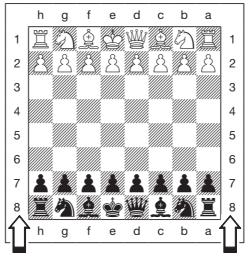
See "PLAYING BLACK FROM THE BOTTOM? HERE'S THE POSITION" for a diagram showing the correct piece set-up.
Want to depart from the usual standard and let the computer play the White pieces from the top? Then try out this interesting feature! Set up the board with the Black pieces closest to you, as shown in the diagram in this section. Press ENT and CL together to reset for a NEW GAME, and then press ENT again. The computer will reverse sides—watch as it makes the first move for White from the top of the board.
When you play Black from the bottom, note that the board notation is reversed.
2.9 Built-In Openings
At the beginning of a game, the computer will often move instantly on many levels. This is because the Senator Module is playing from memory, using its own built-in "book" of opening chess moves. This book contains thousands of positions, including most major openings and many positions from grandmaster play. If the current board position is in its book, the computer plays a response to that position automatically, instead of having to think about the move!
Also included is a unique user-selectable book feature, which lets you
PLAYING BLACK FROM THE BOTTOM? HERE'S THE POSITION
If you play Black from the bottom of the board, as described in Section 2.8, be sure to set up the pieces correctly! Notice that the Kings and Queens are positioned differently, and the board notation is reversed.
choose from different types of opening books, or even turn the book off, if desired. For complete details, see Section 5.2.
2.10 Thinking on the Opponent's Time
As you play, you may notice that the computer sometimes replies to your moves immediately, even in the middle of games played on the higher levels. This is because the computer thinks on your time, using the time you are taking for your move to think ahead and plan its own strategies. It tries to guess the move you are likely to make, and then calculates its responses for that particular move while you are still thinking. If the computer has guessed right, there's no reason for it to keep on thinking—it immediately plays the move it has already found.
You can disable this feature, if you'd like, by turning on the Easy Mode option. For more information, see Section 5.2.
2.11 Game Memory
Press GO/STOP on the Senator Module at any time to interrupt and save your game. Play is then suspended, and the module stores your current game in memory (up to 200 individual moves). When you switch back on again (by pressing GO/STOP for at least 1 second), you can continue right where you left off!
Note: If you press GO/STOP while computer is searching, you need to press CL after switching back on.
IMPORTANT NOTES:
- Always press GO/STOP to turn the Senator Module off BEFORE switching off the Exclusive Board. Otherwise, game memory will be
lost and you may need to press GO/STOP more than once to start the module up after switching the Exclusive Board back on.
- Always switch the Exclusive Board on BEFORE pressing GO/STOP to turn the Senator Module on. Otherwise game memory will be lost and you will have to use the ACL function to reset the computer, as described in Section 7.1.
- After switching the Exclusive Board off, wait at least 4 seconds before unplugging the Senator Module, in order to avoid any electrical interference.
3. THE PLAYING LEVELS
Your Senator Module offers 64 different playing levels. When you set the level, keep in mind that when the computer has more time to think about its moves, it becomes stronger and plays better—just like a human player! For an overview of all the levels, refer to the Level Chart. The levels are also described individually in this section.
Setting a Playing Level
See "USE THIS CHART TO SELECT A PLAYING LEVEL" for a look at how to set levels and an overview of all 64 levels.
Press LEV to enter Level Mode, and the computer displays the current playing level. When you enter Level Mode the first time, the module is set on Level 4 (with an average response time of five seconds a move), and the display shows 0:05 . Change levels one at a time by using the BLACK and WHITE keys. As a shortcut, press LEV repeatedly to skip over eight levels at a time. When the display shows your desired level, press ENT to enter your new level into the computer and exit Level Mode.
If you press LEV to verify the level but you don't want to actually change levels, press CL. This lets you exit Level Mode without changing the level or clock settings, even while the computer is thinking.
Other important points to remember regarding levels:
- Changing the level always resets the chess clocks.
- We don't recommend changing levels while the computer is thinking, since the clock is reset and the current search is aborted. If you must do this, first press ENT to abort the computer's search, and make its move on the board. Then, take back the computer's move
and change the level. Finally, press ENT to make the computer start thinking on the new level.
3.1 Normal Playing Levels
| LEVEL | TIME PER MOVE | DISPLAY |
| 1 | 1 second | L 0:0 |
| 2 | 2 seconds | L 0:02 |
| 3 | 3 seconds | L 0:03 |
| 4 | 5 seconds | L 0:05 |
| 5 | 10 seconds | L 0:10 |
| 6 | 15 seconds | L 0:15 |
| 7 | 20 seconds | L 0:20 |
| 8 | 30 seconds | L 0:30 |
| 9 | 45 seconds | L 0:45 |
| 10 | 1 minute | L 1:00 |
| 11 | 1.5 minutes | L 1:30 |
| 12 | 2 minutes | L 2:00 |
| 13 | 3 minutes | L 3:00 |
| 14 | 5 minutes | L 5:00 |
| 15 | 10 minutes | L 10:00 |
| 16 | 15 minutes | L 15:00 |
When you choose one of the Normal Playing Levels, you are selecting an average response time for the computer. Note that the times are averaged over a large number of moves. In the opening and endgame, the computer tends to play faster, but in complicated middlegame positions, it may take longer to move.
3.2 Tournament Levels
| LEVEL | TOTAL TIME / NUMBER OF MOVES | DISPLAY |
| 17 | 1 hr. 30 min. / 40 moves | 1: 30: 40 |
| 18 | 1 hr. 45 min. / 35 moves | 1: 45: 35 |
| 19 | 1 hr. 45 min. / 40 moves | 1: 45: 40 |
| 20 | 1 hr. 30 min. / 35 moves | 1: 30: 39 |
| 21 | 2 hrs. / 40 moves | 2: 00: 40 |
| 22 | 2 hrs. 30 min. / 45 moves | 2: 30: 45 |
| 23 | 2 hrs. / 50 moves | 2: 00: 50 |
| 24 | 3 hrs. / 40 moves | 3: 00: 40 |
The Tournament Levels require you to make a certain number of moves within a given amount of time. If a player exceeds the allotted time for a given number of moves, the computer flashes "time" (E:1E)
USE THIS CHART TO SELECT A PLAYING LEVEL
1.

Press LEV to enter Level Mode.
- Next, select your level, using the chart on the right. Cycle through until your level is displayed, as follows:

- Press BLACK to increase levels by one.

- Press WHITE/← to decrease levels by one.

- Press LEV to increase levels by eight.
3.

Finally, press ENT to exit Level Mode, using your new level!
For more details, see Section 3.
| 30 sec. per move L 0:30 Level 8 | 15 min. per move L 15:00 Level 16 | 40 moves in 3:00 3:00:40 Level 24 | 90 min. per game 1:30:99 Level 32 | Infinite Level 9:39:99 Level 40 | Mate in 8 moves 9:39:99 Level 48 | 8 ply search PLY:8 Level 56 | 16 ply search PLY:15 Level 64 |
| 20 sec. per move L 0:20 Level 7 | 10 min. per move L 10:00 Level 15 | 50 moves in 2:00 2:00:50 Level 23 | 60 min. per game 1:00:99 Level 31 | 7 sec. per move Fun:7 Level 39 | Mate in 7 moves 1:00:7 Level 47 | 7 ply search PLY:7 Level 55 | 15 ply search PLY:15 Level 63 |
| 15 sec. per move L 0:15 Level 6 | 5 min. per move L 5:00 Level 14 | 45 moves in 2:30 2:30:45 Level 22 | 45 min. per game 0:45:99 Level 30 | 6 sec. per move Fun:6 Level 38 | Mate in 6 moves 1:00:6 Level 46 | 6 ply search PLY:6 Level 54 | 14 ply search PLY:14 Level 62 |
| 10 sec. per move L 0:10 Level 5 | 3 min. per move L 3:00 Level 13 | 40 moves in 2:00 2:00:40 Level 21 | 30 min. per game 0:30:99 Level 29 | 5 sec. per move Fun:5 Level 37 | Mate in 5 moves 1:00:5 Level 45 | 5 ply search PLY:5 Level 53 | 13 ply search PLY:13 Level 61 |
| 5 sec. per move L 0:05 Level 4 | 2 min. per move L 2:00 Level 12 | 35 moves in 1:30 1:30:35 Level 20 | 20 min. per game 0:20:99 Level 28 | 4 sec. per move Fun:4 Level 36 | Mate in 4 moves 1:00:4 Level 44 | 4 ply search PLY:4 Level 52 | 12 ply search PLY:12 Level 60 |
| 3 sec. per move L 0:03 Level 3 | 1.5 min. per move L 1:30 Level 11 | 40 moves in 1:45 1:45:40 Level 19 | 15 min. per game 0:15:99 Level 27 | 3 sec. per move Fun:3 Level 35 | Mate in 3 moves 1:00:3 Level 43 | 3 ply search PLY:3 Level 51 | 11 ply search PLY:11 Level 59 |
| 2 sec. per move L 0:02 Level 2 | 1 min. per move L 1:00 Level 10 | 35 moves in 1:45 1:45:35 Level 18 | 10 min. per game 0:10:99 Level 26 | 2 sec. per move Fun:2 Level 34 | Mate in 2 moves 1:00:2 Level 42 | 2 ply search PLY:2 Level 50 | 10 ply search PLY:10 Level 58 |
| 1 sec. per move L 0:01 Level 1 | 45 sec. per move L 0:45 Level 9 | 40 moves in 1:30 1:30:40 Level 17 | 5 min. per game 0:05:99 Level 25 | 1 sec. per move Fun:1 Level 33 | Mate in 1 move 1:00:1 Level 41 | 1 ply search PLY:1 Level 49 | 9 ply search PLY:9 Level 57 |
along with the elapsed time, to show that the game is over. If you wish, you can continue to play even after the time has run out.
If you choose a Tournament Level, you may want to set the clocks to display countdown time instead of elapsed time (see Section 5.1). When game time runs out, the countdown clock automatically reverts back to the normal clock display.
You also have the option of using Bronstein Clock time controls when playing Tournament games. For details, see Section 5.1.
3.3 Speed Chess Levels
| LEVEL | TIME PER GAME | DISPLAY |
| 25 | .5 minutes | 0:05:9 |
| 26 | 10 minutes | 0:10:9 |
| 27 | 15 minutes | 0:15:9 |
| 28 | 20 minutes | 0:20:9 |
| 29 | 30 minutes | 0:30:9 |
| 30 | 45 minutes | 0:45:9 |
| 31 | 60 minutes | 1:00:9 |
| 32 | 90 minutes | 1:30:9 |
On the Speed Chess Levels (also called Blitz or Sudden Death Levels), you set the total time for the whole game. If game time is exceeded, the computer flashes "time" (E INE) along with the elapsed time, to show that the game is over.
If you select a Speed Chess Level, you may want to set the chess clocks to display countdown time instead of elapsed time (see Section 5.1). When game time runs out, the countdown clock automatically reverts back to the normal clock display.
You also have the option of using Bronstein Clock time controls when playing Speed Chess games. For details, see Section 5.1.
3.4 Fun Levels
| LEVEL | TIME PER MOVE | DISPLAY |
| 33 | 1 second | Fun: 1 |
| 34 | 2 seconds | Fun: 2 |
| 35 | 3 seconds | Fun: 3 |
| 36 | 4 seconds | Fun: 4 |
| 37 | 5 seconds | Fun: 5 |
| 38 | 6 seconds | Fun: 6 |
| 39 | 7 seconds | Fun: 7 |
Are you a novice or beginning chess player? If so, these levels are
NEED HELP CHOOSING A LEVEL? SOME TIPS FOR YOU!
- Are you a beginning player? You have lots of choices! Check out the Fun Levels or the lower Training Levels. They restrict the computer's search depth in different ways, resulting in weaker play and giving you the chance to learn about the game and maybe even beat the computer.
- Are you an intermediate or more advanced player? Try the Normal, Training, or Tournament Levels. The Normal Levels go from easy up to a difficult 15-minute response time, and the Tournament Levels are extremely challenging. Don't forget to try the Speed Chess Levels for some fast and exciting games! By the way, for Tournament and Speed Chess games, you can activate the Bronstein Clock option, as noted in Section 5.1.
- Want to experiment? Use the Problem Solving Levels to solve problems up to mate in eight—try searching from a position in one of your own games, or set up an actual mate problem. Or, choose the Infinite Level to have the computer analyze complicated positions for hours or even days.
meant especially for you! On these unusual playing levels, the Senator Module causes your computer to be much more "human" than most chess computers—it gives everyone a chance to win, in a world where chess machines are typically relentless and often quite difficult to beat. Even though the general consensus seems to be that computers never make mistakes, on the Fun Levels, your computer actually will. Various handicaps are built into the Fun Levels, demonstrating common mistakes made by beginners. Level 33 is the weakest level.
Even after you have mastered the Fun Levels, they can still be a valuable training tool. You can start a game on a Fun Level, for example, and, when the computer makes a bad move, you can switch to a normal level and try to convert your advantage to a win, playing against the stiffer opposition of a higher level!
3.5 Infinite Level
| LEVEL | MOVE TIME | DISPLAY |
| 40 | No time limit | 9:99:9 |
On the Infinite Level, the computer will search indefinitely, until it finds a forced mate or forced move; until it has fully searched the position to its maximum depth; or until you press ENT to stop the search. If you halt the search, the computer makes the move it currently thinks is best.
Try experimenting with this level—set up some interesting board positions and let the computer analyze them for you. It will think for hours or even days on end, trying to come up with the best possible move! And you can even watch the computer as it thinks—take advantage of the unique Rotating Display feature described in Section 5.3.
3.6 Problem Solving Levels
| LEVEL | PROBLEM | DISPLAY |
| 41 | Mate in 1 | \( \text{井} \) : 1 |
| 42 | Mate in 2 | \( \text{井} \) : 2 |
| 43 | Mate in 3 | \( \text{井} \) : 3 |
| 44 | Mate in 4 | \( \text{井} \) : 4 |
| 45 | Mate in 5 | \( \text{井} \) : 5 |
| 46 | Mate in 6 | \( \text{井} \) : 6 |
| 47 | Mate in 7 | \( \text{井} \) : 7 |
| 48 | Mate in 8 | \( \text{井} \) : 8 |
Selecting one of these levels activates a special Mate Finder Program. If you have a position where there may be a mate and you would like the computer to find it, set the computer on one of the Problem Solving Levels. The Senator Module can solve mates in up to eight moves. Mates in one to five are usually found quite quickly, whereas solutions taking six to eight moves may take quite some time. If there is no mate present or the computer can't find a mate, it will beep and display dashes (-- - - - ) . You may continue playing, if desired, by simply switching to another level.
3.7 Training Levels
| LEVEL | DISPLAY | LEVEL | DISPLAY |
| 49 | PLY: 1 | 57 | PLY: 9 |
| 50 | PLY: 2 | 58 | PLY: 10 |
| 51 | PLY: 3 | 59 | PLY: 11 |
| 52 | PLY: 4 | 60 | PLY: 12 |
| 53 | PLY: 5 | 61 | PLY: 13 |
| 54 | PLY: 6 | 62 | PLY: 14 |
| 55 | PLY: 7 | 63 | PLY: 15 |
| 56 | PLY: 8 | 64 | PLY: 16 |
On the Training Levels, the computer's search depth is limited to a certain number of moves, as shown above. As you cycle through the levels, the computer displays PL 3 : # for each level. A “ply” is an individual move (a move for either side), and “#” is the number representing the search depth. For example, on Level 49, the computer searches to a depth of one ply, and thus looks ahead only one individual move. On this level, therefore, it will often overlook a mate in one. This produces weaker play, giving beginners a chance win,
4. INFO MODE: WATCH THE COMPUTER THINK
Imagine this: You're playing chess against a friend, and it's his move. You'd love to know what move he's thinking about, and you'd really like to get his opinion of the board position. But, of course, you won't ask—because that's just not done! Well, guess what—when you enhance the capabilities of your computer with the Senator Module and the LCD Module, you can ask anything you want, and you'll get all the answers. In fact, with the help of these two modules, you can get an incredible amount of information about the computer's thought process. On request, it will show you the move it's thinking of, the line of play it expects after that move, its evaluation of the current board position, how deeply it's searching, and more. As you can imagine, studying this information can help you learn so much more about chess.
Using Info Mode
How do you access all this game information? By using Info Mode at any time! If you do this while the computer is thinking, you'll see the information displays change as the computer considers different moves and searches deeper.
See "INFO MODE AT A GLANCE" for a chart summarizing all the Info Mode displays.
Game information is divided into three groups, and pressing INFO cycles from one group to another. The BLACK/=> and WHITE/< keys can be used to cycle through the displays within each of the groups. Press CL to exit Info Mode and go back to the normal clock.
After learning about Info Mode, take a look at Section 5.3 for a description of the Rotating Display. Selecting this feature makes the computer automatically cycle through the requested information in one-second intervals every time it thinks about its move—you can actually watch the computer think out loud! Whenever requested information is not available, the display will show dashes (- - - - - ) .
4.1 Principal Variation
Press INFO the first time to get information on the principal variation (the predicted line of play, or the sequence of moves the computer thinks will be made). The first display you will see is the move the computer is currently thinking of making. This principal variation is shown to a maximum depth of six individual moves. Press BLACK/=> repeatedly to scroll forward through all the moves:
- Moves 1 through 6 of the predicted line of play.
Press WHITE/← to scroll backwards and see the previous displays again. Press CL to return to the normal clock display.
Since the first move of the predicted line of play is the move the computer assumes you will make, you can also consider this move as a hint. So—whenever you need help, press INFO on your turn.
4.2 Search Information
Press INFO a second time for information on the computer's search. Press BLACK repeatedly to scroll forward through these displays:
- Evaluation of the current position (based on a pawn being worth 1.0 points; a positive number indicates White is ahead).
- Two numbers: (a) current search depth (number of individual moves the computer is looking ahead); and (b) number of moves the computer has examined so far.
- The move currently being considered.
- The search speed (number of positions or nodes searched every second).
Press WHITE/← to scroll backwards and see the previous displays again. Press CL to return to the normal clock display.
4.3 Chess Clock Information
Press INFO a third time for chess clock information. The clocks keep track of the time for both sides. Press BLACK/=> repeatedly to scroll forward through the clock displays:
- Elapsed time since the last move was made.
INFO MODE AT A GLANCE
PRINCIPAL VARIATION INFO:

X1 - Move 1 (predicted line of play)
- Move 2 (predicted line of play)
Move 3 (predicted line of play) - Move 4 (predicted line of play)
- Move 5 (predicted line of play) - Move 6 (predicted line of play)
SEARCH INFO:

X2 · Evaluation of current position

2 numbers: Search depth + number of moves examined so far
Current move under consideration
- Positions searched per second
CHESS CLOCK INFO:

X3 · Elapsed time since last move

A Elapsed time for White
Elapsed time for Black
Remaining time for White
- Remaining time for Black
*Speed Chess/Tournament Levels only
MOVE COUNT INFO:

X4 • Current move number so far
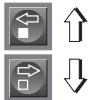
- Moves of the current game

Press CL at any time to exit Info Mode.
For details, see Section 4.
- Total elapsed time for White.
Total elapsed time for Black. - Remaining time for White (Speed Chess/Tournament Levels only).
- Remaining time for Black (Speed Chess/Tournament Levels only).
Press WHITE to scroll backwards and see the previous displays again. Press CL to return to the normal clock display.
The clocks stop when you take back a move, verify levels, select options, verify a position, or turn the module off with GO/STOP. However, the times are kept in memory, and the clocks resume as soon as play is continued. When you change levels, board positions, or press ENT and CL for a new game, the clocks are always reset to 0:00:00.
4.4 Move Count/Game Moves
Press INFO a fourth time to show the move number in the game so far. Pressing WHITE/← repeatedly will scroll backwards through the moves of your game (up to 200 individual moves).
- Current move number so far.
- Moves of the current game.
Press BLACK to go forward through the moves again at any point. Press CL to return to the normal clock display.
4.5 Want a Hint? Just Ask!
If you ever need advice on a move, you can always ask for a hint. Simply press INFO when it's your turn to move, and the computer will show a suggested move for your side.
5. OPTIONS FOR FUN AND VARIETY
Your Senator Module offers many other exciting game options, which are user-selectable at any time. They are described individually in this section, and summarized in the Option Mode Chart.
Selecting Game Options
See "THE BASICS OF OPTION MODE: HERE'S HOW!" for a complete overview of this feature.
The game options are divided into three groups: Operation Mode, Playing Mode, and Rotating Display Mode. Pressing OPT cycles from one group to another. Each group contains eight different options, and
the BLACK and WHITE keys are used to cycle through the options within each of the groups. For each option (except option for Bronstein clock), a plus (+) in the display indicates the displayed option is ON, and a minus (-) means the option is OFF. Press ENT to turn each option on or off as it is displayed.
For the Bronstein Clock, press ENT to cycle through the time settings. The clock option you choose to display will be the selected time control when you exit Option Mode. If you decide not to turn the Bronstein Clock on, press ENT until the display shows b.c 0 again.
After you have made all your option selections from any or all of the option groups, press CL to return to normal game play.
When the computer is first powered on, certain default options are set. Options which are ON at the first startup are shown in the chart with a (+), and options which are OFF are shown with a (-). When you reset for a new game, most of your selected options are carried over to your next game. An exception is Auto Play, which is automatically set back to OFF when you start another game. To return the module to its default settings, select ESE in Option Mode, and then press ENT and CL simultaneously after the LED and LCD scan tests have been completed.
5.1 Operation Mode Options
Press OPT once to select the Operation Mode Options. Then use the BLACK and WHITE keys to select options within this group, and press ENT to turn options on (+) or off (-) . For the Bronstein Clock, press ENT to cycle through the time settings.
a. Auto Play
On:+Ruto Off:-Ruto
In a normal game against the computer, you make your move and the computer makes its countermove. If you turn Auto Play on, however, you can actually watch the computer play against itself. This feature can be very useful for studying the computer's tactics and strategies. Simply set the computer on a high level—Level 58, for example, where it searches to a depth of 10 ply for each move. Then, let the computer play against itself for hours or even days! When the game ends, you can take back up to the last 200 individual moves and replay them on the board. This lets you study the results of the computer's work at your leisure.
Some notes regarding Auto Play:
-
To speed up the computer's play in the opening, press CL while it's still playing from its built-in book of openings.
-
Auto Play will be cancelled if you press ENT during a game to abort the computer's search.
- This option will go back to its default setting of OFF whenever you press ENT and CL together for a NEW GAME.
b. Sound with Keypress
On:+Sd Off:-Sd
This option lets you turn off the sound that accompanies a keypress. You'll still hear beeps when the computer moves, when you press GO/ STOP, reset for a NEW GAME, or make an illegal move or keypress.
c. Silent Mode
On: +S IL Off: -S IL
Normally, the computer always beeps when it has found its move. For completely silent operation, turn on Silent Mode.
d. Coach Mode
On: +Coch Off: -Coch
Selecting +Coch turns on special coaching features that encourage you to concentrate on your strategic planning. In Coach Mode, the computer looks over your shoulder while you play, watching what you do and helping you when you need assistance! Here, the computer will warn you if you are in danger of losing a piece. If one of your pieces is threatened by a lesser valued piece, for example, the computer will sound warning beeps and flash the board light of the threatened piece for a few seconds. To continue the game, make your next move (or take back both the computer's and your last move and make a different one).
With Coach Mode on, the computer will also sound warning beeps if it thinks you have committed a blunder and your move is about to lead to an avoidable material loss. It does this by sounding warning beeps and flashing the move it intends to make. You can either enter the computer's move, or take back your own move and make another one.
e. Ticking Clock
On: +b c Off: -b c
When you turn this option on, you activate a ticking sound that makes the computer's clock sound like a real chess clock. Just imagine—you can create the atmosphere of a championship chess tournament in your own living room!
f. Countdown Clock
On:+c:dn Off:-c:dn
Turning this option on causes the computer to display the countdown time instead of the elapsed time. This option can only be used with the Tournament and Speed Chess Levels.
g. Bronstein Clock
On: bc 2 → bc 5 → bc 10 → bc 15 → bc 20 → bc 30 → bc 60 Off: bc 0
On the Speed Chess and Tournament Levels, you have a fixed amount of time for each game, and the time decreases as you think. On these levels, players often find themselves running out of time towards the end of the game—struggling to try and make good moves in a hurry, and often ending up making inferior moves instead. The Bronstein Clock offers special time controls that help alleviate such problems! This is done by adding a certain amount of time after each move, where the time for the whole game is only reduced if you go over this fixed time.
Here's an example: Let's say you're playing Speed Chess Level 28, where you have a total of 20 minutes for the whole game. Activating the bc iD option will give you an extra 10 seconds per move maximum (added after you make your move). Note that you can't gain extra time or increase overall thinking time by playing each move more quickly, because:
- If you use 7 seconds to make your move, only 7 seconds will be added to your total time, not 10 seconds.
- If you use 10 seconds or more to make your move, only 10 seconds will be added to your total time.
When the Bronstein Clock option is displayed, press ENT repeatedly to select your desired time setting, as described below:
| BRONSTEIN CLOCK SETTINGS | DISPLAY |
| Bronstein Clock off | bc 0 |
| 2 sec. added after each move | bc 2 |
| 5 sec. added after each move | bc 5 |
| 10 sec. added after each move | bc 10 |
| 15 sec. added after each move | bc 15 |
| 20 sec. added after each move | bc 20 |
| 30 sec. added after each move | bc 30 |
| 60 sec. added after each move | bc 60 |
THE BASICS OF OPTION MODE: HERE'S HOW!
- Press OPT repeatedly to select a Mode.

x 1 = OPERATIONMODE (Roto ...) x 2 = PLAYINGMODE (SEL . . .) x 3 = ROTATINGDISPLAYMODE (rd: 1 ...) x 4 = backtoOPERATIONMODelea .
- Next, select your option(s), using the Option Chart below. Cycle through the options within each mode:

- Press BLACK to cycle forward.

- Press WHITE/< to cycle backward.

When your option is displayed, press ENT to toggle it on (+) or off (-) . (For the Bronstein Clock, press ENT repeatedly to select a time setting.)
- Finally, press CL to exit Option Mode, using your new option(s).

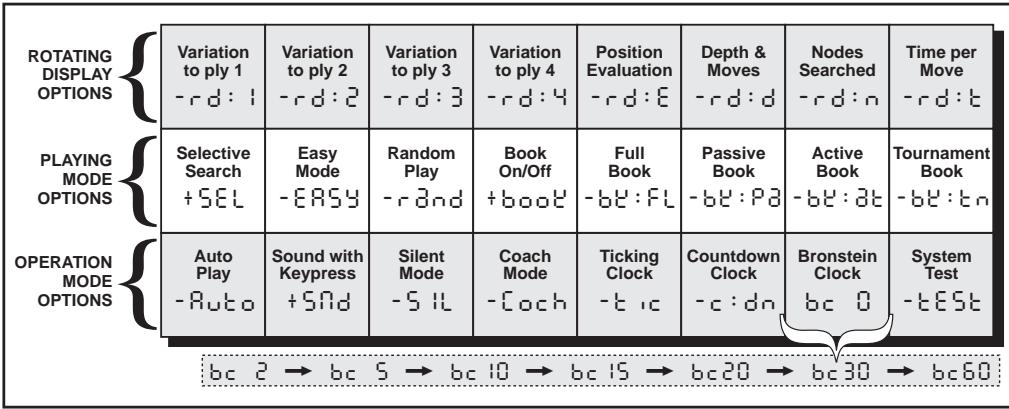
For more details, see Section 5.
h. System Test
On: +E5E Off: -E5E
Turning this option on causes the module to run an internal test program. To stop the test, press ENT and CL together to reset the module for a NEW GAME. CAUTION: Selecting +E S E will clear your game from memory. This option is included mainly for technical troubleshooting by an authorized service center in the event of a malfunction.
5.2 Playing Mode Options
Press OPT twice to select the Playing Mode Options. Then use the BLACK and WHITE keys to select options within this group, and press ENT to turn options on (+) or off (-).
a. Selective Search
On:+SEL Off:-SEL
The program in this Senator Module normally uses a Selective Search algorithm. This allows the computer to see combinations that
would otherwise take much longer to compute. Turning this option off makes the program switch to a powerful Brute Force algorithm. This search method minimizes the risk of an occasional oversight. Note that the Problem Solving Levels always use the Brute Force method.
b. Easy Mode
Want to beat your computer more often? Try turning on Easy Mode, which prevents the computer from thinking on your time. This weakens all the playing levels without affecting the computer's time controls. Normally, as described in Section 2.10, the computer thinks on your time, using the time you are contemplating your next move to think ahead and plan its strategies. This is part of what makes your computer such a tough opponent. By using Easy Mode to make all the levels weaker, you effectively have many more levels to choose from!
c. Random Play
On:+rAnd Off:-rAnd
Turn this option on for greater variety of play. Instead of selecting one single best move, the computer will then choose one of the best moves to play by consulting its built-in Randomizer.
d. Book On/Off
On:+boo Off:-boo
If you ever want to completely lock out the computer's built-in book of openings, set this option to -boo'. When the book is off, the computer is forced to take time to think of its moves from the beginning of the game, rather than making its moves from memory. For complete details on openings, see Section 2.9. If you turn the book completely off, the other book options (described below) are also automatically disabled.
e. Full Book
On: +bE:FL Off:-bE:FL
Turning on the Full Book option gives the computer the freedom to choose any move from its built-in book of openings, so you'll see a greater variety of opening lines being played. If this option is selected, the Passive, Active, and Tournament Book options are disabled.
With this option on, you may see the computer make some questionable moves. This is because its built-in book of openings must contain responses to certain lines of play (even questionable lines), in case they
are played. While the computer would not make these moves on its own, it needs to know how to respond to them in the best way. Therefore, when you turn on the Full Book, the computer could potentially play one of these moves.
f.Passive Book
On:+bP:Pa Off:-bP:Pa
Selecting the Passive Book option forces the computer to give preference to passive openings and closed positions when deciding which lines to play. If this option is selected, the Active and Tournament Book options are disabled.
g.Active Book
On:+b:3b Off:-b:3b
When this option is activated, the computer will give preference to active lines and open positions when deciding which lines to play. If this option is selected, the Passive and Tournament Book options are disabled.
h. Tournament Book
On:+b:En Off:-b:En
When you turn the Tournament Book option on, the computer is forced to always select the best possible line of play in every opening. While this results in the best chess play, it also narrows down the computer's choice of moves by limiting its available book lines. If this option is selected, the Active and Passive Book options are disabled.
5.3 Rotating Display Options
Normally, the LCD Module's display shows the time for the player to move. However, the computer can also display other information, as described in Section 4 (Info Mode). The Rotating Display feature works hand-in-hand with Info Mode, since it allows you to choose which of the Info Displays you want to see, and then cycles your choices in one-second increments. You may turn on any or all of the Rotating Display options, as desired.
IMPORTANT: The Rotating Display feature is only activated WHILE THE COMPUTER IS THINKING.
Press OPTION twice to select the Rotating Display Options. Then use the BLACK and WHITE keys to select the options you
want to see rotated in the display. The options are described below and summarized in the Option Mode Chart in this section. Press ENT to turn these options on (+) or off (-) .
If you think the display information is changing too quickly when it rotates, press INFO to freeze the display. Successive presses of INFO and the BLACK/ and WHITE/ keys will allow you to cycle through the displays manually, as described in Section 4. To start the display rotation again, press OPT followed by CL. In any event, when the computer starts thinking about its next move, the display starts rotating again automatically.
The game information you can see while the computer is thinking includes the following:
- r d:1 to r d:4 = predicted line of play (up to four individual moves)
- r ap : E = evaluation of the current position
- r dot d : d = search depth and number of moves examined so far
- r dot d : n = number of nodes searched per second
- r dot d : t = amount of time the move has taken so far
Whenever requested information is not available, the display will show a series of dashes (-- - - - )
For complete descriptions of these options and details on how to interpret the displays, see Section 4.
6.VERIFYING/SETTING UP POSITIONS
6.1 Verifying Positions
See "IT'S EASY TO VERIFY PIECES!" for an example of using Verify Mode.
If you should knock over the chess pieces or if you think your board position may be incorrect, you can have the computer verify all the piece locations for you!
When it's your turn, press one of the PIECE SYMBOL KEYS (▲, ▲, □, or ▲). The computer will show you where the first piece of that type is located on the board—the display window shows the piece symbol, color, and square, and a board light also indicates the square. Press the same PIECE SYMBOL KEY again to see the location of the next piece of that same type. All the White pieces are shown first, and then the Black pieces. When there are no more pieces of that type on
IT'S EASY TO VERIFY PIECES!

- Set up the pieces for a new game, and press ENT and CL together to reset the module. Display: 0:00:00
- Press the KNIGHT Key. Display: , , (the first White Knight). Board light on: B1.
- Press KNIGHT again. Display: , , (the second White Knight). Board light on: G1.
- Press KNIGHT again. Display: ■, b8 (the first Black Knight). Board light on: B8.
- Press KNIGHT again. Display: ■,▲,G8 (the second Black Knight). Board light on: G8.
- Press KNIGHT again. Display: (no more Knights on the board).
- Repeat to verify any other piece! Press CL to exit Verify Mode.
For more details, see Section 6.1.
the board, only the piece symbol remains in the display.
Want to verify some more pieces? Simply repeat the above procedure using the other PIECE SYMBOL KEYS, verifying the entire board if desired. Press CL at any time to return to normal play.
6.2 Changing and Setting Up Positions
See "TRY OUT POSITION MODE" to get an idea of how this feature works.
Caution: All previous moves in your current game will be erased from memory if you make any changes to your position during the game!
Position Mode is a feature which lets you set up special board positions to play from, or problems you would like the computer to solve. Press POS to enter Position Mode, and -POS - will show in the display. You can change or set up a position whenever it is your turn to move. After setting up your new position, press CL to exit Position Mode.
- To remove a piece from the board, simply pick up the piece and physically remove it from the board. Notice that the display window indicates the piece type and color, along with a minus sign (-) and the square location.
- To move a piece from one square to another, pick up the piece from its original square, and put it down on the new square. As you do this, the display will show a minus sign (-) for the first square, and a plus sign (+) for the second square.
- To add a piece to the board, first press the PIECE SYMBOL KEY for that piece (▼, ▼, △, ▲, or ▲). Make sure the display shows the correct color symbol for the piece you want to add. If it does not, press BLACK/⇒ or WHITE/<⇒ to change the color. When the display shows the correct piece type and color, place that piece on the desired square. The display shows a plus sign (+), along with the location for that square. To add another piece of the same type, simply put another piece on the board. To add a different piece, press a different PIECE SYMBOL KEY and follow the same steps outlined above.
- To clear the board, press ENT while you are in Position Mode. The display will show [---] to symbolize an empty chessboard. Press ENT once more to confirm that you do want to clear the board. Then add pieces as described previously. If you decide not to clear the board, press CL instead of ENT to cancel. This feature can be handy when you want to set up a position with only a few pieces, where it would be much easier to start out with an empty board!
- Once you have changed the board position as described above, make sure the color indicator in the display is showing the correct color of the side to move. Change the color, if necessary, by pressing BLACK/=> or WHITE/<=
- To exit Position Mode, press CL. This returns you to normal game play, with your new board position!
Note that any legal position can be set up using the above outlined procedures. The computer will not allow you to set up an illegal position, such as one where there are more than the prescribed number of pieces for a normal game, or one where a King is in check and is not to
TRY OUT POSITION MODE

-
Set up the pieces for a new game, and press ENT and CL together to reset the module. Display: 0:00:00
-
Press POS to enter Position Mode. Display: -POS-.

- Pick up the White pawn from Square E2, and remove it from the board. Display: , , - 2 .

- Put that same pawn down on Square E3 to add it to the board. Display: , , + 3 .

- Pick up the Black Queen from Square D8, and remove it from the board. Display: ■, -, -d8.

- Put the Black Queen down on Square H5 to add it to the board. Display: ■, -, + H5.

- Press WHITE/← to change the color to move next to White.

- Press CL to return to normal game play. For more details, see Section 6.2.
move. In such cases, the computer will simply beep when you press CL, and you will not be allowed to exit Position Mode. Check the position using the PIECE SYMBOL KEYS, and correct the position (by adding a piece, removing a piece, or moving an incorrectly placed piece). Then press CL to exit Position Mode.
7. TECHNICAL DETAILS
7.1 The ACL Function
Computers sometimes "lock up" due to static discharge or other electrical disturbances. If this occurs, ensure that the Senator Module and LCD module are installed and the Exclusive Board is powered on. Use a pin or another sharp object to press into the hole marked ACL in the base of unit for at least one second. This resets the computer and clears its memory.
7.2 Care and Maintenance
Your chess computer and modules are precision electronic devices, and should never be subjected to rough handling or exposed to extreme temperatures or moisture. Do not use chemical agents to clean them, as they can cause damage.
7.3 Battery Information
As described in Section 2.11, your game is retained in memory whenever you press GO/STOP on the Senator Module. The module has a 3-Volt Lithium battery installed for this purpose. To prevent possible loss of your current game information due to a weak battery, we recommend that you replace the battery approximately every 12 months.
7.4 Technical Specifications
Keys:
16
Battery:
1 x 3V Lithium button cell (CR2032)
Connection to board:
40-pin edge connector
Dimensions:
194× 96× 25mm
Weight:
.25 kg
Saitek reserves the right to make technical changes without notice in the interest of progress.
CONDITIONS OF WARRANTY
- Warranty period is 2 years from date of purchase with proof of purchase submitted.
- Operating instructions must be followed.
- Product must not have been damaged as a result of defacement, misuse, abuse, neglect, accident, destruction or alteration of the serial number, improper electrical voltages or currents, repair, alteration or maintenance by any person or party other than our own service facility, an authorized service center, use or installation of non-Saitek replacement parts in the product or the modification of this product in any way, or the incorporation of this product into any other products, or damage to the

by accident, fire, floods, lightning, or acts of God, or any use violative of instructions furnished by Saitek plc.
- Obligations of Saitek shall be limited to repair or replacement with the same or similar unit, at our option. To obtain repairs under this warranty, present the product and proof of purchase (e.g., bill or invoice) to the authorized Saitek Technical Support Center (listed on the separate sheet packaged with this product) transportation charges prepaid. Any requirements that conflict with any state or Federal laws, rules and/or obligations shall not be enforceable in that particular territory and Saitek will adhere to those laws, rules, and/or obligations.
- When returning the product for repair, please pack it very carefully, preferably using the original packaging materials. Please also include an explanatory note.
- IMPORTANT: To save yourself unnecessary cost and inconvenience, please check carefully that you have read and followed the instructions in this manual.
- This warranty is in Lieu of all other expressed warranties, obligations or liabilities. ANY IMPLIED WARRANTYES, OBLIGATIONS, OR LIABILITIES, INCLUDING BUT NOT LIMITED TO THE IMPLIED WARRANTYES OF MERCHANTABILITY AND FITNESS FOR A PARTICULAR PURPOSE, SHALL BE LIMITED IN DURATION TO THE DURATION OF THIS WRITTEN LIMITED WARRANTY. Some states do not allow limitations on how long an implied warranty lasts, so the above limitations may not apply to you. IN NO EVENT SHALL WE BE LIABLE FOR ANY SPECIAL OR CONSEQUENTIAL DAMAGES FOR BREACH OF THIS OR ANY OTHER WARRANTY, EXPRESS OR IMPLIED, WHATSO-EVER Some states do not allow the exclusion or limitation of special, incidental or consequential damages, so the above limitation may not apply to you. This warranty gives you specific legal rights, and you may also have other rights which vary from state to state.
Information for Customers in the United States:
FCC Compliance and Advisory Statement
Warning: Changes or modifications to this unit not expressly approved by the party responsible for compliance could void the user's authority to operate the equipment.
This device complies with Part 15 of the FCC Rules. Operation is subject to the following two conditions:
- This device may not cause harmful interference, and
- This device must accept any interference received, including interference that may cause undesired operation
NOTE: This equipment has been tested and found to comply with the limits for a Class B digital device, pursuant to Part 15 of the FCC Rules. These limits are designed to provide reasonable protection against harmful interference in a residential installation. This equipment generates, uses and can radiate radio frequency energy and, if not installed and used in accordance with the instructions, may cause harmful interference to radio communications. However, there is no guarantee that interference will not occur in a particular installation. If this equipment does cause harmful interference to radio or television reception, which can be determined by turning the equipment off and on, the user is encouraged to try to correct the interference by one or more of the following measures:
- Reorient or relocate the receiving antenna.
- Increase the separation between the equipment and receiver.
- Connect the equipment into an outlet on a circuit different from that to which the receiver is connected.
- Consult the dealer or an experienced radio/TV technician for help.
Saitek Industries, 2295 Jefferson Street, Torrance, CA 90501, USA
Information for Customers in Canada:
Operation is subject to the following two conditions:
This device may not cause interference, and
This device must accept any interference, including interference that may cause undesired operation of the device.
This Class B digital apparatus complies with Canadian ICES-0003.
TROUBLESHOOTING GUIDE
| SYMPTOMS | POSSIBLE CAUSES | ACTION TO TAKE |
| The module doesn't function. | ·The module has not been inserted properly. ·Electro static discharge. ·You have pressed GO/STOP to turn on the module while Exclusive Board is off. | ·Power off the computer, and disconnect the module. Plug the module back in, making sure it is seated correctly. ·Press ACL to reset computer and clear the memory (see section 7.1). ·Press ACL to reset computer and clear the memory (see section 7.1). |
| The computer doesn't react, behaves erratically, or " freezes" during a game. | ·Wrong or defective adapter. ·The module has not been inserted properly. ·Electrostatic discharge. | ·Use the HGN 5009 (9V 300mA) adapter. ·Turn the power off, and try reinserting the module. ·Press ACL to reset computer and clear the memory (see section 7.1). |
| The computer won't make a move. | ·Two Player Mode may be turned on. ·You may be on a level where the computer thinks for a long time. | ·The computer only plays automatic responses to your moves if Two Player Mode is off (see Section 2.7). ·To force the computer to make a move, press ENT. |
| The computer won't accept your move. | ·Is it your turn? Is your King in check? Will your move put your King into check? Are you trying to castle incorrectly? ·The computer is thinking (its color symbol is flashing). | ·Review the chess rules. Verify the position to make sure it is correct (see Section 6.1). ·To interrupt the computer, press ENT. |
| The light in the to square is on, even after moving the computer's piece. | ·You have not entered the computer's last move correctly (wrong from or to square). | ·Pick the piece up again, and the computer will light the correct to square. Put the piece down on the indicated square. Check the display for the correct move. |
| You can't exit Position Mode by pressing CL. | ·You have set up an illegal position. A King may be in check and is not to move, you may have too many pawns on the board, etc. | ·Check your position, and make necessary changes (see Section 6.2). Press CL again to exit Position Mode. |
| The display is showing ______. | ·You are in Position Mode, and have pressed ENT to clear the board. | ·To clear the board, press ENT once more; to cancel, press CL (see Section 6.2). |
| The computer seems to be making illegal moves. | ·The computer has made a special move, such as castling, en passant, or a pawn promotion. ·Your position is incorrect—pieces have been moved. | ·Review the chess rules. Verify the position (see Section 6.1). ·Verify the position (see Section 6.1). |
| The computer is silent. | ·The Silent Mode option may be activated. | ·Check the option settings (see Section 5.1). |
| The computer is making instant or irrational moves. | ·The computer may be on a level where it moves quickly and plays weaker because its search depth is limited. | ·Press LEV to see which level is selected (see Section 3). Change to another level, if desired. |
| Your game and settings are not retained in memory when the module is turned off. | ·The module's battery is weak or bad. ·You have not pressed GO/STOP to switch the module off before switching off the Exclusive Board. | ·Replace the 3-Volt Lithium battery every 12 months. ·Press GO/STOP to turn the module off before switching off the Exclusive Board. |
SCHNELLSTART
| STufe | MATTSUCHE | ANZEIGE |
| 41 | Matt in 1 | €,in: 5 |
| 42 | Matt in 2 | €,in: 2 |
| 43 | Matt in 3 | €,in: 3 |
| 44 | Matt in 4 | €,in: 4 |
| 45 | Matt in 5 | €,in: 5 |
| 46 | Matt in 6 | €,in: 6 |
| 47 | Matt in 7 | €,in: 7 |
| 48 | Matt in 8 | €,in: 8 |
x 1 = COMPUTEREINSTELLUNGEN (Ruto . . .) x 2 = SPIELEINSTELLUNGEN (SEL . . .) x 3 = ROTIERENDEANZEIGE (rd: 1 ...) x 4 = zur
An:+r and Aus:-r and
2. DES FONCTIONS A DECOUVRIR
2. DES FONCTIONS A DECOUVRIR
x 1 = OPTIONSDEMODEFONCTIONNEMENT (Rota . . .) x 2 = OPTIONSENMODEDEJEU (SEL . . .) x 3 = OPTIONSENAFFICHAGECYCLIQUE (rd: l ...) x 4 = deretourOPTIONSDEMODEDFONCTIONNEMENT ...

Active: bc 2 → bc 5 → bc 10 → bc 15 → bc 20 → bc 30 → bc 60
Désactive: bc 0


- Exclusive Senator Chess Computer System
- QUICK START
- KEYS AND FEATURES
- TABLE OF CONTENTS
- INTRODUCTION
- GETTING STARTED!
- MORE FEATURES TO EXPLORE
- THE PLAYING LEVELS
- INFO MODE: WATCH THE COMPUTER THINK
- OPTIONS FOR FUN AND VARIETY
- VERIFYING/SETTING UP POSITIONS
- TECHNICAL DETAILS
- TROUBLESHOOTING GUIDE
- GETTING STARTED
- Power Off? Plug In the Modules
- CAUTION: NEVER INSERT OR REMOVE A MODULE WHILE THE COMPUTER IS ON. DOING SO COULD DAMAGE YOUR CHESS COMPUTER!
- Power On; Set Up the Pieces
- Ready? Try Out Your New Opponent!
- Now It's the Computer's Turn
- Change Your Mind? Take Back
- See "EXPRESS TAKE-BACK FEATURES" for a chart showing all your options at a glance.
- Game Over? Why Not Play Again
- Too Easy/Hard? Change the Level
- EXPRESS TAKE-BACK FEATURES
- Press TAKE BACK.
- Whose Move? Check the Display
- Special Chess Moves
- Illegal Moves
- Check, Mate, and Draw
- Interrupting the Computer's Search
- Changing Sides with the Computer
- Two Player Mode
- Playing Black from the Bottom
- Built-In Openings
- PLAYING BLACK FROM THE BOTTOM? HERE'S THE POSITION
- Thinking on the Opponent's Time
- Game Memory
- IMPORTANT NOTES:
- Setting a Playing Level
- Normal Playing Levels
- Tournament Levels
- USE THIS CHART TO SELECT A PLAYING LEVEL
- Speed Chess Levels
- Fun Levels
- NEED HELP CHOOSING A LEVEL? SOME TIPS FOR YOU!
- Infinite Level
- Problem Solving Levels
- Training Levels
- Using Info Mode
- See "INFO MODE AT A GLANCE" for a chart summarizing all the Info Mode displays.
- Principal Variation
- Search Information
- Chess Clock Information
- INFO MODE AT A GLANCE
- PRINCIPAL VARIATION INFO:
- SEARCH INFO:
- CHESS CLOCK INFO:
- MOVE COUNT INFO:
- Move Count/Game Moves
- Want a Hint? Just Ask!
- Selecting Game Options
- Operation Mode Options
- a. Auto Play
- b. Sound with Keypress
- c. Silent Mode
- d. Coach Mode
- e. Ticking Clock
- f. Countdown Clock
- g. Bronstein Clock
- THE BASICS OF OPTION MODE: HERE'S HOW!
- h. System Test
- Playing Mode Options
- a. Selective Search
- b. Easy Mode
- c. Random Play
- d. Book On/Off
- e. Full Book
- f.Passive Book
- g.Active Book
- h. Tournament Book
- Rotating Display Options
- IMPORTANT: The Rotating Display feature is only activated WHILE THE COMPUTER IS THINKING.
- 6.VERIFYING/SETTING UP POSITIONS
- Verifying Positions
- IT'S EASY TO VERIFY PIECES!
- Changing and Setting Up Positions
- TRY OUT POSITION MODE
- The ACL Function
- Care and Maintenance
- Battery Information
- Technical Specifications
- CONDITIONS OF WARRANTY
- Information for Customers in the United States:
- FCC Compliance and Advisory Statement
- Information for Customers in Canada:
- SCHNELLSTART
- DES FONCTIONS A DECOUVRIR
Brand : SAITEK
Model : CT08V MEPHISTO EXCLUSIVE SENATOR CHESS COMPUTER SYSTEM
Category : Chess - Game Computers