USER MANUAL CHESS TRAINER SAITEK
Want to play a game without reading the entire manual first? Little Alec will be glad to help! Simply follow these Quick Start steps...
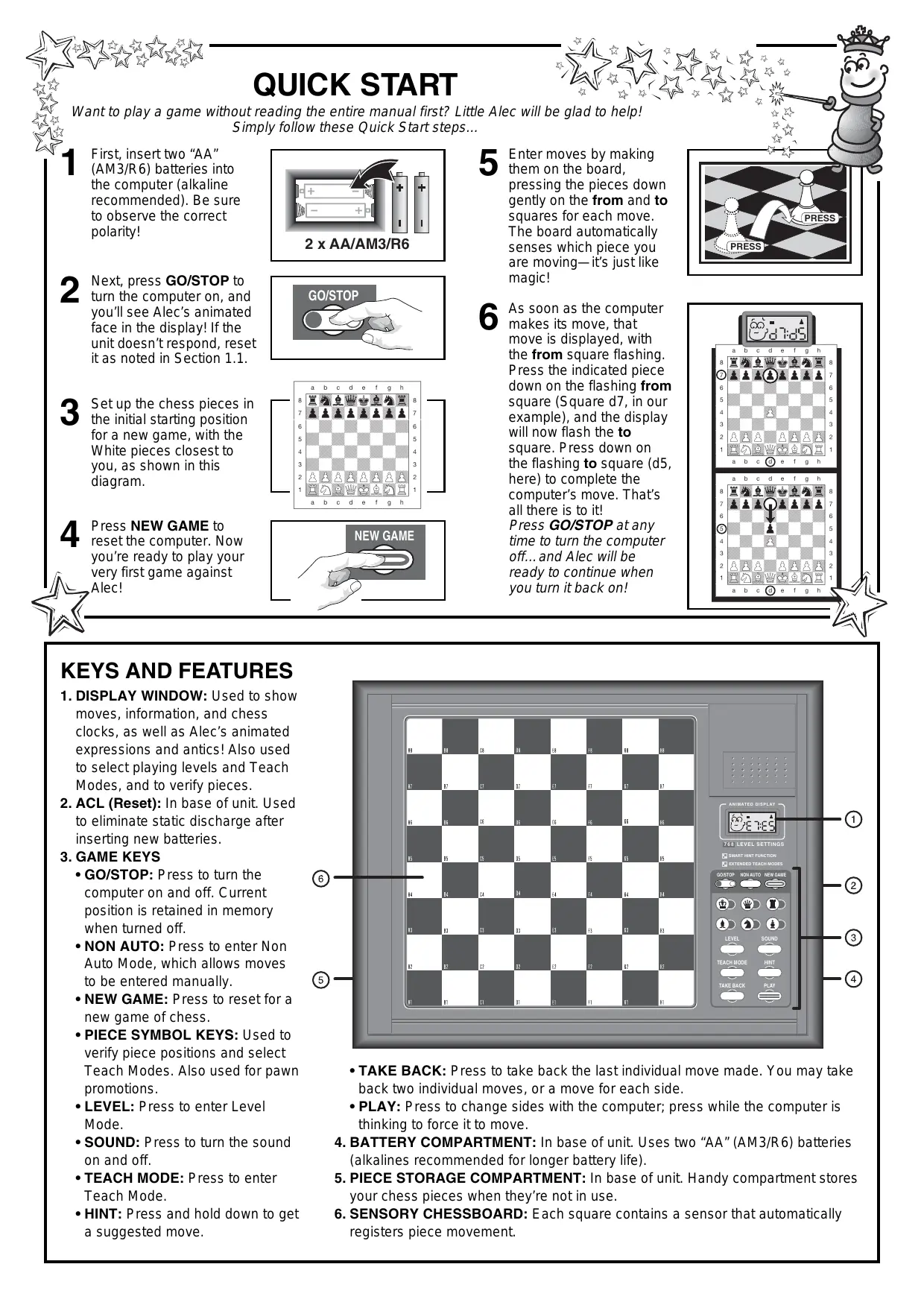
1 First, insert two "AA" (AM3/R6) batteries into the computer (alkaline recommended). Be sure to observe the correct polarity!
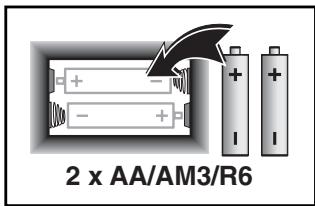
2 Next, press GO/STOP to turn the computer on, and you'll see Alec's animated face in the display! If the unit doesn't respond, reset it as noted in Section 1.1.
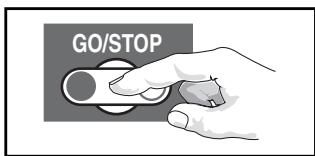
3 Set up the chess pieces in the initial starting position for a new game, with the White pieces closest to you, as shown in this diagram.
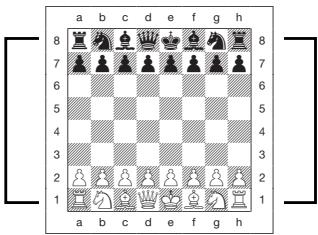
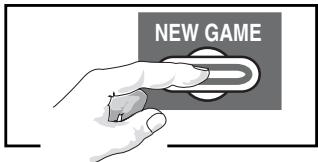
Press NEW GAME to reset the computer. Now you're ready to play your very first game against Alec!
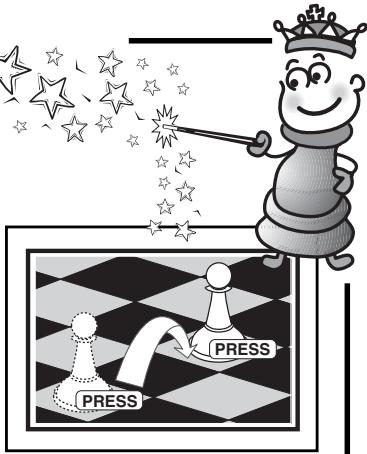
5 Enter moves by making them on the board, pressing the pieces down gently on the from and to squares for each move. The board automatically senses which piece you are moving—it's just like magic!
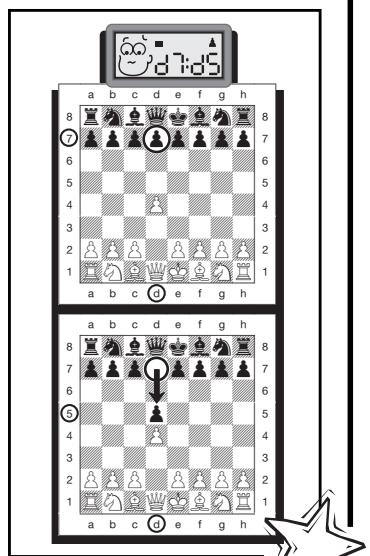
As soon as the computer makes its move, that move is displayed, with the from square flashing. Press the indicated piece down on the flashing from square (Square d7, in our example), and the display will now flash the to square. Press down on the flashing to square (d5, here) to complete the computer's move. That's all there is to it! Press GO/STOP at any time to turn the computer off...and Alec will be ready to continue when you turn it back on!
KEYS AND FEATURES
-
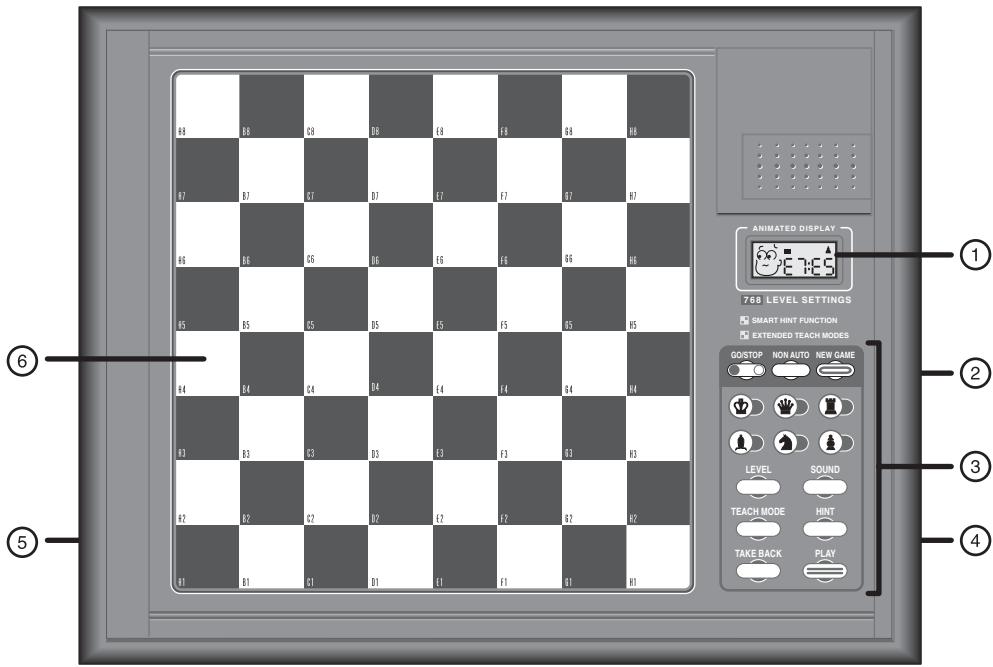
DISPLAY WINDOW: Used to show moves, information, and chess clocks, as well as Alec's animated expressions and antics! Also used to select playing levels and Teach Modes, and to verify pieces.
-
ACL (Reset): In base of unit. Used to eliminate static discharge after inserting new batteries.
3. GAME KEYS
GO/STOP: Press to turn the computer on and off. Current position is retained in memory when turned off.
- NON AUTO: Press to enter Non Auto Mode, which allows moves to be entered manually.
- NEW GAME: Press to reset for a new game of chess.
- PIECE SYMBOL KEYS: Used to verify piece positions and select Teach Modes. Also used for pawn promotions.
LEVEL: Press to enter Level Mode.
- SOUND: Press to turn the sound on and off.
- TEACH MODE: Press to enter Teach Mode.
- HINT: Press and hold down to get a suggested move.
- TAKE BACK: Press to take back the last individual move made. You may take back two individual moves, or a move for each side.
-
PLAY: Press to change sides with the computer; press while the computer is thinking to force it to move.
-
BATTERY COMPARTMENT: In base of unit. Uses two "AA" (AM3/R6) batteries (alkalines recommended for longer battery life).
- PIECE STORAGE COMPARTMENT: In base of unit. Handy compartment stores your chess pieces when they're not in use.
- SENSORY CHESSBOARD: Each square contains a sensor that automatically registers piece movement.
TABLE OF CONTENTS
QUICK START KEYS AND FEATURES INTRODUCTION
- LET'S GET STARTED!
1.1 First, Install the Batteries
1.2 Ready to Play? Here's How to Move!
1.3 Now It's the Computer's Turn
1.4 Change Your Mind? Take Back!
1.5 Game Over? Why Not Play Again!
1.6 Too Easy/Hard? Change the Level!
2. ADDITIONAL FEATURES
2.1 Whose Move? Check Display!
2.2 Special Chess Moves
2.3 Illegal Moves
2.4 Check, Mate, and Draw
2.5 Interrupting the Computer's Search
2.6 Changing Sides with the Computer
2.7 Need Help? Ask for a Hint!
2.8 Chess Clocks
2.9 Built-In Openings
2.10 Auto Power Down
2.11 Game Memory
- THE PLAYING LEVELS
3.1 Fun Levels
3.2 Fixed Depth Levels
3.3 Casual Levels
4. SPECIAL MODES TO EXPLORE
4.1 Verify Mode
4.2 Non Auto Mode
4.3 Teach Mode
5. TECHNICAL DETAILS
5.1 The ACL Function
5.2 Care and Maintenance
5.3 Technical Specifications
TROUBLESHOOTING GUIDE

INTRODUCING... ALEC, THE LITTLE ALCHEMIST!
So happy to meet you—and so glad that we'll be enjoying the wonderful world of chess together!
You might ask yourself, "What is this little guy doing inside my computer?" It's simple: I LOVE CHESS! And, what better way to enjoy the game whenever possible, than to be here every single time you turn your computer on! Chess is truly a magical game—it's fun, exciting, and intellectually stimulating. You simply couldn't ask for a better way to spend your time! So, my goal in life is to be your constant companion, ready and willing to play whenever you are!
If you see me grinning, don't worry—I'm not making fun of you... I'm just delighting in my own chess abilities! And, when you see me cry after I lose a game, don't feel too sorry for me—I might just beat you the next time around!
Have a fabulous time, and be sure to explore this manual to discover all the great features your chess computer has to offer. Plus, watch out for the "stars" throughout the manual—they'll alert you to charts and diagrams that will help you to understand your computer better! As for me, I'll look forward to enjoying many great games with you, now and for a long time to come...!
Have fun!
Alec
1. LET'S GET STARTED!
Whether you're just starting to learn about chess or you've already discovered this great game, you're going to benefit from your new chess computer in so many ways! After all, it's a very unique combination of opponent and tutor! And, by the way, your computer knows and follows the rules of chess—and you can be sure that it will never cheat! For those who haven't played before, we have included a brief overview of the rules to get you started. For more detailed information, why not visit your local library, where you're sure to find lots of interesting chess books!
1.1 First, Install the Batteries
Your chess computer runs on two "AA" (AM3/R6) batteries. Insert the batteries into the compartment in the base of the unit, as shown in the Quick Start. Use fresh alkaline batteries for longer battery life!
Turn the computer on by pressing GO/STOP, and a beep will signal that the game is ready to play. If the computer
should fail to respond (static discharge can sometimes cause it to lock up), use a paper clip or another sharp object to press down into the hole marked ACL in the base of the unit for at least one second. This will reset the computer.
1.2 Ready to Play? Here's How to Move!
Okay, it's time to start a game! It's so easy—just follow these steps:
a. Press GO/STOP to turn the computer on, if you haven't already done so. You'll see Little Alec's face appear in the display—he'll be your constant playing companion from now on!
b. Press NEW GAME to reset the computer for a new game of chess. Set up the pieces in their starting positions, with the White pieces nearest to you, as shown in the Quick Start.
c. To make a move, lightly press down on the piece you want to move until you hear a beep—and the sensory board will recognize your piece automatically. Check out the display—it now shows the square that you pressed, along with the piece and color symbols for your chosen piece! This information flashes alternately with the clock display.
d. Take your piece and gently press it down on the square you are moving to. You'll hear a second beep as the computer confirms the move. You've just made your first full move of the game! Next, it's the computer's turn to move for Black.
At the start of a game, the computer will often move instantly because it is playing from memory, using its built-in "book" of opening moves. For details, see Section 2.9.
1.3 Now It's the Computer's Turn
When the computer moves, it beeps and displays its move, with the from square flashing. Press the indicated piece down on the flashing from square until you hear a beep. The display now flashes the square the piece is moving to. Move that same piece to the indicated to square and press it down to complete the computer's move. And it's your turn again...
Note that the following may sometimes occur while the computer is thinking:
Game keys may need to be pressed down for two to three seconds before the computer responds.
- The clock display may occasionally skip a few seconds, and the duration between consecutive seconds may appear to be uneven. Game play will not be affected.
1.4 Change Your Mind? Take Back!
When you're playing chess against this computer, nothing is "set in stone"—you can change your mind or decide to play a different move whenever you want! You can take back two individual moves, or one move for each side.
To take back the last move played, press TAKE BACK. The display will show the piece symbol, the color symbol, and the move to be taken back, with the original to square flashing. Press the piece down on that square. You now see the from square flashing. Press the piece down on the flashing from square to complete the take-back.
If the move taken back was a capture, the computer reminds you to put the captured piece back on the board by displaying the piece type and color, and flashing the square location. Press this piece down on the indicated square. To take back another move, press TAKE BACK again. To continue the game, either make your next move or press PLAY to have the computer move next.
1.5 Game Over? Why Not Play Again!
Whenever you finish a game (or if you give up on your current game), it's easy to start over again! Simply press NEW GAME, and the computer will reset itself, putting all the pieces back in their initial starting positions. The same
playing level will be in effect, but you can change it if you'd like, as explained in Section 3.
IMPORTANT: Pressing NEW GAME clears the current game from memory—be careful not to press this key by mistake!
1.6 Too Easy/Hard? Change the Level!
Your computer offers 64 levels of skill, each of which corresponds to one of the 64 board squares—making level selection so easy! Together with the built-in Teach Modes, you have a choice of 768 level setting combinations!
For complete details on all the playing levels, along with instructions on selecting levels, see Section 3.
2. ADDITIONAL FEATURES
2.1 Whose Move? Check the Display!
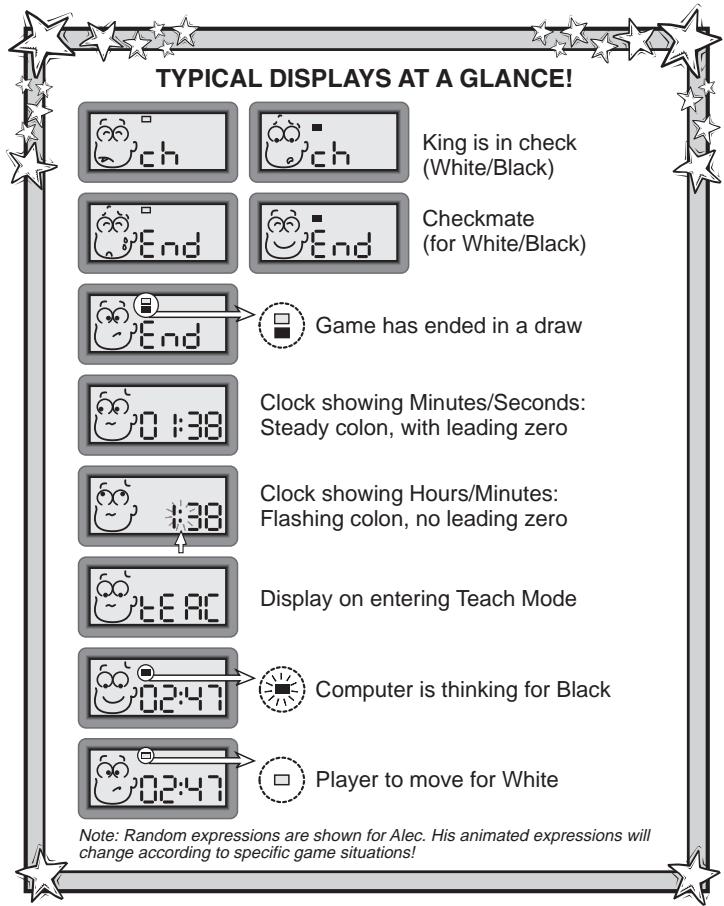
You can always tell at a glance if the computer is currently thinking, and which side is to move—just by taking a look at the color symbols (■ for Black and □ for White)! Whenever the computer is thinking, the color symbol for the side it is playing flashes in the display. When it is your turn to move, the color symbol for your side shows steadily.
2.2 Special Chess Moves
Captures: To capture, press down lightly on the piece you want to move, take the captured piece off the board, and press your piece down on the square of the captured piece.
En Passant: In an en passant capture, the computer reminds you to remove the captured pawn from the board by flashing the pawn's location in the display. Press down on the captured pawn before removing it from the board.
Castling: The computer automatically recognizes castling after the King is moved. After you have pressed the King down on its from and to squares, the computer displays the Rook's move, with the from square flashing. Press down on this square, and the display flashes the square the Rook should move to. Press down on the Rook's to square to complete the move.
Pawn Promotion: When you promote a pawn, first press your pawn down on the from square, as usual. The computer will flash the from square and the symbols for the pawn and Queen, along with the clock display. You now have two choices: (a) To promote to a Queen, simply complete your move by pressing your pawn down on the to square. The promotion will take place automatically, accompanied by a series of beeps. (b) To underpromote to a Knight, Bishop, or Rook, press the PIECE SYMBOL KEY for your desired promotion piece (▲, ▲, or △). That symbol will be displayed, and pressing your pawn down on the to square will complete your move. When promoting, always remember to change your piece on the board! When the computer promotes a pawn, the display shows its move, as usual, with the from square flashing. You'll notice, though, that the display shows the symbol for the pawn plus the symbol for the computer's promoted piece. Press on the from square, and the to square flashes. Press down on the to square, change the computer's piece on the board, and continue your game!
2.3 Illegal Moves
Your computer will never accept an illegal move! If you try to make one, you'll hear a low beep and the display will alternate between showing the from square and the time. Either move that same piece to another square, or press the piece back down on its original from square and move a different piece.
If you don't move the computer's piece correctly, you'll also hear an error beep. This means you are either moving the wrong piece, or moving the computer's piece to the wrong square. Check the display and make the move again.
If you press down on a piece and the from square is
displayed, but you decide not to make that move, simply press down on that same square again to cancel. Then make another move. If you change your mind after entering your whole move, take the move back as described in Section 1.4.
Caution: Be careful when playing with the sound turned off, since you won't be able to hear the error beeps!
2.4 Check, Mate, and Draw
Check: When the computer puts your King in check, the computer first displays the move as usual. After the move is made, the display alternates between the time and ch, along with if White is in check or if Black is in check. When you put the computer's King in check, the display shows ch then starts thinking.
Checkmate: When a game ends in checkmate, you'll hear a series of beeps and the display will flash End, along with if White has won or if Black has won. Notice how delighted Little Alec is when he wins—and how sad he gets when he loses a game!
Draws: The computer recognizes draws by stalemate and immediate three-fold repetition. After a draw has occurred, the display will flash End and both of the color symbols (□ and ■), along with the drawing move.
2.5 Interrupting the Computer's Search
Think the computer is taking too long to move? No problem--you can interrupt it any time! Simply press PLAY while the computer is thinking, and it will stop and make the move it is currently considering.
This feature can come in handy for those of you who are impatient—especially when using Fixed Depth Levels C6 and higher, where the computer can occasionally take an hour or more to make its move.
2.6 Changing Sides with the Computer
To change sides with the computer, press PLAY when it's your turn to move—and the computer will make the next move for your side. Change sides as often as you wish!
Want the computer to play the first move for White at the start of a new game? Press NEW GAME to reset the computer, and then press PLAY!
GET TO KNOW ALEC'S MANY MOODS!
Not sure what Alec's trying to tell you?
Wondering why he looks so happy, so sad, or so annoyed?
Here are some of his expressions!

"I really do love this game—especially when I'm winning!"

"I can't believe I really lost this game... Won't you please give me another chance?"

"Looks like we've got a pretty even game so far..."

"Yes, I'd say that mate is right around the corner!"/ "Go ahead—promote my pawn for me!"

"This isn't good-- I can't believe you've got the advantage!"

"Hey—you captured my piece while I wasn't looking!"/ "Oh, no! How did you manage to check my King?"

"What happened here? I thought I was winning..."

"Ha, ha! Capturing your pieces sure is fun!"/ "Better watch out for your King—I'm coming after him!"

"Wow, this is great—I really improved my position!"

"Hey--are you still there? You sure are taking a long time!"/ "I hate to admit it, but I guess this game's a draw!"
Want to watch the computer play chess against itself? Press PLAY after each move—and watch as the computer plays for both sides of the board, one move after another. Study its strategies, and you might improve your own game!
2.7 Need Help? Ask for a Hint!
It's easy to get assistance from the computer whenever you need it. On your turn, simply press and hold down HINT. The computer will show H int briefly, and it will then display a move suggestion for you!
Note that pressing and holding HINT repeatedly may give you more than one suggested move in certain positions. The computer may take a few seconds to display a hint especially in complicated positions.
2.8 Chess Clocks
Your computer contains a built-in chess clock that keeps track of the time, with a four-digit display showing the total elapsed time for the side to move (computer or player) while that side is thinking. Here's an easy way to differentiate between the time displays at a glance:
- For the first hour, the display will show MM:SS (Minutes:Seconds), with a steady colon in the middle and a leading zero.
- If the total elapsed time exceeds one hour, you'll see HH:MM (Hours:Minutes), with a flashing colon in the middle and no leading zero.
Please also note the following points in regard to the chess clocks:
- The clocks will stop in certain situations, such as when moves are taken back, or when levels are changed or verified. In these cases, the times are retained in memory, and the clock resumes when play is continued.
- Occasionally, while the computer is thinking, the display may skip a few seconds, or the duration between con
secutive seconds may appear to be uneven. Your game will not be affected.
2.9 Built-In Openings
At the beginning of a game, the computer will often move instantly on many levels. This is because it is playing from memory, using its own built-in "book" of opening chess moves, which includes most major openings. If the current board position is in its book, the computer will play a response to that position automatically, instead of having to think about the move!
2.10 Auto Power Down
Whenever it's your turn to move and you haven't made a move or pressed a key for 20 minutes, the computer will automatically turn itself off to conserve batteries. To continue your game, press GO/STOP to turn the unit back on. Note that the computer will not turn itself off while it is thinking.
2.11 Game Memory
If you want to interrupt your game for any reason, you may do so by pressing GO/STOP. Play is then suspended, and the computer will store your current position for up to two years (with fresh alkaline batteries). When you switch back on again, you and Alec can simply continue right where you left off!
3. THE PLAYING LEVELS
With 768 level settings to choose from (incorporating the Teach Modes), you can definitely learn and grow with this chess computer! When you set the level, keep in mind that the more time the computer has to think about its moves, the stronger and better it plays—just like a human player!
Check out "A QUICK AND EASY GUIDE TO LEVEL SELECTION!" for an overview of all the levels.
As shown in the Level Selection Chart, each playing level corresponds to one of the 64 board squares. The levels are categorized into three different groups: Fun Levels (Squares A1-B8), Fixed Depth Levels (Squares C1-D8), and Casual Levels (Squares E1-H8). On the higher levels, the computer thinks more deeply and becomes a progressively more challenging opponent. The highest level in each of the groups produces the best moves the computer can make within the constraints of that particular level setting. Try experimenting a little—start out with some of the lower level settings, and advance to the more difficult levels as your skills grow!
Note that on some of the higher levels, the computer may take a long time to complete its search. If you want to force the computer to stop thinking and make a move, simply press PLAY at any time.
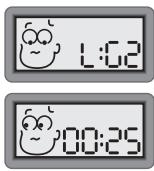
Press LEVEL to enter Level Mode, and the current level is shown, with the display alternating between the Level Square and the Level Name. As an example, Level E4 (Casual Level 4), which is the default level at the first power-up, displays as L:E4 and 00:04. To change the level, press a board square (using the Level Selection Chart as a guide), and that level will be displayed. Press LEVEL again to exit Level Mode, with your newly selected playing level in effect.
Other important points to remember regarding levels:
- If you press LEVEL to verify the level, but you don't want to change levels, press LEVEL again to exit without making any changes.
- You can use LEVEL to check the playing level while the computer is thinking, but you cannot change the level until it's your turn to move.
- Pressing NEW GAME resets the computer and retains the current playing level.
A QUICK AND EASY GUIDE TO LEVEL SELECTION!
Press LEVEL to enter Level Mode.
- Next, select your level, using the chart on the right. Simply locate your level square and press down on the square to display that level!
For example: To select Level G2 (with an average computer response time of 25 seconds per move), press Square G2. The display will alternate between L:G2 and D:25.
Finally, press LEVEL again to exit Level Mode. Now you can start playing on your newly selected level!
For more details on the levels, see Section 3.
| Fun Level 8
Fu 8
A8 | Fun Level 16
Fu 15
B8 | 3+ ply search
Fd 8
C8 | 6 ply search
Fd 15
D8 | 8 sec.
per move
00:08
E8 | 16 sec.
per move
00:15
F8 | 55 sec.
per move
00:55
G8 | 15 min.
per move
15:00
H8 |
| Fun Level 7
Fu 7
A7 | Fun Level 15
Fu 15
B7 | 3 ply search
Fd 7
C7 | 5++ ply search
Fd 15
D7 | 7 sec.
per move
00:07
E7 | 15 sec.
per move
00:15
F7 | 50 sec.
per move
00:50
G7 | 10 min.
per move
10:00
H7 |
| Fun Level 6
Fu 6
A6 | Fun Level 14
Fu 14
B6 | 2++ ply search
Fd 6
C6 | 5+ ply search
Fd 14
D6 | 6 sec.
per move
00:08
E6 | 14 sec.
per move
00:14
F6 | 45 sec.
per move
00:45
G6 | 6 min.
per move
06:00
H6 |
| Fun Level 5
Fu 5
A5 | Fun Level 13
Fu 13
B5 | 2+ ply search
Fd 5
C5 | 5 ply search
Fd 13
D5 | 5 sec.
per move
00:05
E5 | 13 sec.
per move
00:13
F5 | 40 sec.
per move
00:40
G5 | 5 min.
per move
05:00
H5 |
| Fun Level 4
Fu 4
A4 | Fun Level 12
Fu 12
B4 | 2 ply search
Fd 4
C4 | 4++ ply search
Fd 12
D4 | 4 sec.
per move
00:04
E4 | 12 sec.
per move
00:12
F4 | 35 sec.
per move
00:35
G4 | 4 min.
per move
04:00
H4 |
| Fun Level 3
Fu 3
A3 | Fun Level 11
Fu 11
B3 | 1++ ply search
Fd 3
C3 | 4+ ply search
Fd 11
D3 | 3 sec.
per move
00:03
E3 | 11 sec.
per move
00:11
F3 | 30 sec.
per move
00:30
G3 | 3 min.
per move
03:00
H3 |
| Fun Level 2
Fu 2
A2 | Fun Level 10
Fu 10
B2 | 1+ ply search
Fd 2
C2 | 4 ply search
Fd 10
D2 | 2 sec.
per move
00:02
E2 | 10 sec.
per move
00:10
F2 | 25 sec.
per move
00:25
G2 | 2 min.
per move
02:00
H2 |
| Fun Level 1
Fu 1
A1 | Fun Level 9
Fu 9
B1 | 1 ply search
Fd 1
C1 | 3++ ply search
Fd 9
D1 | 1 sec.
per move
00:01
E1 | 9 sec.
per move
00:09
F1 | 20 sec.
per move
00:20
G1 | 1 min.
per move
01:00
H1 |
3.1 Fun Levels (Squares A1-B8)
| LEVEL SQUARE | ALTERNATING DISPLAY | LEVEL SQUARE | ALTERNATING DISPLAY |
| A1...... | L:R1 / F0 1 | B1...... | L:b1 / F0 9 |
| A2...... | L:R2 / F0 2 | B2...... | L:b2 / F0 10 |
| A3...... | L:R3 / F0 3 | B3...... | L:b3 / F0 11 |
| A4...... | L:R4 / F0 4 | B4...... | L:b4 / F0 12 |
| A5...... | L:R5 / F0 5 | B5...... | L:b5 / F0 13 |
| A6...... | L:R6 / F0 6 | B6...... | L:b6 / F0 14 |
| A7...... | L:R7 / F0 7 | B7...... | L:b7 / F0 15 |
| A8...... | L:R8 / F0 8 | B8...... | L:b8 / F0 16 |
If you are a novice or beginning player, the Fun Levels are especially for you—they'll give you the opportunity to beat the computer for a change! Here, the computer does not exhaustively search for the best available move, as you would normally expect. Instead, it disregards scores and uses a strong randomizer to deliberately weaken play—which causes it to sometimes make moves that are not necessarily the best it has found. This variability makes the computer prone to some very human errors in judgment. Beat the computer by capitalizing on its mistakes, and you may soon discover that you can win games against friends in the same manner! The Fun Levels start out easy and get a little stronger as they go, allowing you to strengthen your playing abilities along the way.
3.2 Fixed Depth Levels (Squares C1-D8)
| LEVEL SQUARE | SEARCH DEPTH | ALTERNATING DISPLAY |
| C1 | 1 ply | L:c1 / Fd 1 |
| C2 | 1 ply+ | L:c2 / Fd 2 |
| C3 | 1 ply++ | L:c3 / Fd 3 |
| C4 | 2 ply | L:c4 / Fd 4 |
| C5 | 2 ply+ | L:c5 / Fd 5 |
| C6 | 2 ply++ | L:c6 / Fd 6 |
| C7 | 3 ply | L:c7 / Fd 7 |
| C8 | 3 ply+ | L:c8 / Fd 8 |
| D1 | 3 ply++ | L:d1 / Fd 9 |
| D2 | 4 ply | L:d2 / Fd 10 |
D3 4 ply+ Ld3/Fd11
D4 4 ply++ Ld4/Fd12
D5 5 ply ... L-dS / Fd13
D6 5 ply+ Ld5/Fd14
D7 5 ply++ ...Ld1 / Fd1S
D8 6 ply L:d8/Fd15
On the Fixed Depth Levels, the computer's search depth is limited to a certain number of moves, or ply. A "ply" is an individual move, or a move for either side. For example, on Level C1, the computer searches to a depth of one ply, and thus looks ahead only one individual move. On this level, therefore, it will often overlook a mate in one. This produces weaker play, giving beginners a better chance of beating the computer! Use these levels to sharpen your skills—as you conquer each level, graduate to the next!
The levels marked with plus signs (+ and ++) indicate small, incremental jumps in the search depth. On these levels, the computer will look ahead that particular number of ply, plus a few extra moves (+), or a few more selected extra moves (++).
Note that the computer may take a long time to move on some of the Fixed Depth Levels. On Levels C6 and above, for instance, it might not be unusual for the computer to think for an hour or more. Please be assured that this is normal for these particular levels! To interrupt the computer and force it to make a move, simply press PLAY.
3.3 Casual Levels (Squares E1-H8)
| LEVEL SQUARE | TIME PER MOVE | ALTERNATING DISPLAY |
| E1 | 1 second | L:E1 / 00:01 |
| E2 | 2 seconds | L:E2 / 00:02 |
| E3 | 3 seconds | L:E3 / 00:03 |
| E4 | 4 seconds | L:E4 / 00:04 |
| E5 | 5 seconds | L:E5 / 00:05 |
| E6 | 6 seconds | L:E6 / 00:06 |
| E7 | 7 seconds | L:E7 / 00:07 |
| E8 | 8 seconds | L:E8 / 00:08 |
| F1 | 9 seconds | L:F1 / 00:09 |
IT'S EASY TO VERIFY PIECES!

- Press NEW GAME and set up the pieces in the initial starting position.


- Press ROOK. Display: White Rook on Square A1.


- Press ROOK again. Display: White Rook on Square H1.

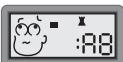
- Press ROOK again. Display: Black Rook on Square A8.


- Press ROOK again. Display: Black Rook on Square H8.


- Press ROOK again. Display: No more Rooks. Repeat for any other piece! To continue, make the next move.
For more details, see Section 4.1.
SELECTING A TEACH MODE GAME!
Here, we'll choose to study Bishops and Rooks. Remember that Kings and Pawns are always on the board.


- Press TEACH MODE.

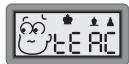
- Press BISHOP. Bishops added. On the board: Kings, Pawns, Bishops.

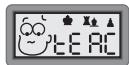
- Press ROOK. Rooks added. On the board: Kings, Pawns, Bishops, Rooks.

- Press TEACH MODE again. The computer resets for a new game, with only Kings, Pawns, Bishops, and Rooks on the board—be sure to set up only those pieces!
For more details, see Section 4.3.
F2 10 seconds L:F2 / 00:10
F3 11 seconds L:F3 / 00:11
F4 12 seconds L:F4 / 00:12
F5 13 seconds L:FS / 00:13
F6 14 seconds L:F6 / 00:14
F7 15 seconds L:F7 / 00:15
F8 16 seconds L:F8 / 00:16
G1 20 seconds L:G1/00:20
G2..... 25 seconds .. L:G2 / 00:25
G3..... 30 seconds .. L:G3 / 00:30
G4 35 seconds L:G4 / 00:35
G5. 40 seconds L:CS / 00:40
G6 45 seconds L:06 / 00:45
G7 50 seconds L:G7 / 00:50
G8 55 seconds L:08 / 00:55
H1 1 minute L:H / 0:00
H2 2 minutes L:H2 / 02:00
H3 3 minutes L:H3 / 03:00
H4 4 minutes L:89 / 04:00
H5 5 minutes LHS / 05:00
H6 6 minutes L:H5 / 05:00
H7 10 minutes L:H7 / 10:00
H8 15 minutes L:R8 / 15:00
The Casual Levels allow you to control the computer's strength by limiting the time it has to think for each move. When you choose one of these levels, you are selecting the computer's response time per move. As the levels go up, the computer becomes stronger—and the more time you give the computer, the better it will play!
Note that in the opening and endgame, the computer tends to play faster.
4. SPECIAL MODES TO EXPLORE
4.1 Verify Mode
See "IT'S EASY TO VERIFY PIECES!" for a step-by-step example of using Verify Mode.
If you should knock over the chess pieces or if you think your board position may be incorrect, the computer can verify all the piece locations for you!
When it's your turn, press one of the PIECE SYMBOL KEYS. The computer will show the symbol for that piece, along with the square location of the first piece of that type. Press that same PIECE SYMBOL KEY repeatedly to see the board locations of all pieces of that same type. All the White pieces () are shown first, and then all the Black pieces (■) . When there are no more pieces of that type, the computer will sound a double beep and show two dashes, along with the piece symbol and the symbol for White. When there are
no more Bishops on the board, for example, you'll see displayed, along with and The computer will then return to your previous game display.
To verify other pieces, repeat the same steps using the other PIECE SYMBOL KEYS. When you're finished, simply make your next move.
Note that the computer will exit Verify Mode automatically if no keystresses are made for about five seconds.
4.2 Non Auto Mode
Normally, the computer automatically answers with a countermove whenever you enter a move. If you press NON AUTO to enter Non Auto Mode, however, you can enter any number of moves one by one, without allowing the computer to answer!
Since you won't be playing against Alec in this mode, he'll disappear as soon as you press NON AUTO! Don't worry, though—when you return to normal play, Little Alec will be back!
This feature can be used in a number of ways:
- Play through master chess games. Press PLAY to see what the computer would do in any position!
- Study opening book lines by entering them manually.
- Replay to any board position for further study.
- Play chess against a friend, with the computer acting as referee. It will monitor your game, checking all moves for legality and keeping track of the time for both sides! If you should need help with a move, press PLAY and the computer will make the next move for your side. After the computer has moved, Non Auto Mode remains in effect, and you can continue your game!
To exit Non Auto Mode and return to normal game play at any time, press NON AUTO again. A double beep will verify that this mode has been cancelled, and Alec will reappear in the display! Note that Non Auto Mode is also automatically cancelled whenever you press NEW GAME.
4.3 Teach Mode
See "SELECTING A TEACH MODE GAME!" for an illustrated look at trying out Teach Mode!
Your computer offers 11 Teach Modes, which allow you to study basic moves and master the tactics of the individual chess pieces, one by one! For each Teach Mode game, the only pieces on the board will be Kings, Pawns, and your choice of one or two selected piece types. This allows beginners to concentrate on one or two pieces at a time, without losing focus and being distracted by other pieces on the board! More developed players can use the Teach Modes to practice using selected combinations.
Whenever it's your turn to move, follow these steps to select one of the Teach Mode games:
a. Press TEACH MODE. The display shows EERC.
b. Press one or two of the PIECE SYMBOL KEYS, depending on which piece(s) you would like to study. The display will show the selected piece(s) as the keys are pressed. The listing below shows all the different piece combinations, and the keys you should press to select them.
c. After making your piece selection(s), press TEACH MODE again. The computer will reset for a new game, using only the pieces you have chosen. Remember to set up only those pieces on the board!
Use this list to select one of the Teach Modes:
PRESS TO STUDY THESE PIECES DISPLAY
Kings+Pawns
Kings+Pawns+Knights
Kings+Pawns+Bishops
Kings+Pawns+Rooks
Kings+Pawns+Queens
+....Kings+Pawns+Knights+Bishops
A+X....Kings+Pawns+Knights+Rooks.
A+....Kings+Pawns+Knights+Queens.
+K ....... Kings+Pawns+Bishops+Rooks
+....Kings+Pawns+Bishops+Queens
+....Kings+Pawns+Rooks+Queens
Please also note the following regarding the Teach Modes:
- If you press more than two PIECE SYMBOL KEYS, only the last two pieces displayed will be selected when you press TEACH MODE to start the game.
- If no PIECE SYMBOL KEY is pressed in step (b) above, pressing TEACH MODE again will exit Teach Mode and return you to your previous game.
- To exit Teach Mode and return to a standard, 32-piece game at any time, press NEW GAME.
5. TECHNICAL DETAILS
5.1 The ACL Function
Computers can sometimes "lock up" due to static discharge or various other electrical disturbances. If this should happen, use a pin or another sharp object to press into the hole marked ACL in the base of the unit for at least one second. This resets the computer.
5.2 Care and Maintenance
Your chess computer is a precision electronic device, and should not be subjected to rough handling or exposed to extreme temperatures or moisture. Remove the batteries before cleaning the unit, and do not use chemicals or liquids to clean it, as they may damage the plastic.
Weak batteries should be replaced promptly, since they can leak and damage the computer. Please also note the following regarding the use of batteries: Use only alkaline or zinc carbon batteries. Do not mix different types of batteries or new and used batteries. Do not recharge non-rechargeable batteries. Use only the recommended batteries or equivalent. Be sure to observe the correct polarity when inserting batteries. Remove worn out batteries from the unit promptly. Do not short circuit the supply terminals.
5.3 Technical Specifications
Keys: 15
LCD Display: Viewing area 30 × 13 ~mm
Sound: Piezo-electric buzzer
Batteries: 2 "AA" (AM3/R6) cells
Dimensions: 314 × 252 × 34 ~mm
Please retain this information for future reference.
Saitek reserves the right to make technical changes without notice in the interest of progress.
CONDITIONS OF WARRANTY
-
Warranty period is 2 years from date of purchase with proof of purchase submitted.
-
Operating instructions must be followed.
-
Product must not have been damaged as a result of defacement, misuse, abuse, neglect, accident, destruction or alteration of the serial number, improper electrical voltages or currents, repair, alteration or maintenance by any person or party other than our own service facility or an authorized service center, use or installation of non-Saitek replacement parts in the product or the modification of this product in any way, or the incorp o product into any other products, or damage to the pro by accident, fire, floods, lightning, or acts of God, or a violative of instructions furnished by Saitek plc.

-
Obligations of Saitek shall be limited to repair or replacement with the same or similar unit, at our option. To obtain repairs under this warranty, present the product and proof of purchase (e.g., bill or invoice) to the authorized Saitek Technical Support Center (listed on the separate sheet packaged with this product) transportation charges prepaid. Any requirements that conflict with any state or Federal laws, rules and/or obligations shall not be enforceable in that particular territory and Saitek will adhere to those laws, rules, and/or obligations.
-
When returning the product for repair, please pack it very carefully, preferably using the original packaging materials. Please also include an explanatory note.
- IMPORTANT: To save yourself unnecessary cost and inconvenience, please check carefully that you have read and followed the instructions in this manual.
- This warranty is in Lieu of all other expressed warranties, obligations or liabilities. ANY IMPLIED WARRANTYES, OBLIGATIONS, OR LIABILITIES, INCLUDING BUT NOT LIMITED TO THE IMPLIED WARRANTYES OF MERCHANTABILITY AND FITNESS FOR A PARTICULAR PURPOSE, SHALL BE LIMITED IN DURATION TO THE DURATION OF THIS WRITTEN LIMITED WARRANTY. Some states do not allow limitations on how long an implied warranty lasts, so the above limitations may not apply to you. IN NO EVENT SHALL WE BE LIABLE FOR ANY SPECIAL OR CONSEQUENTIAL DAMAGES FOR BREACH OF THIS OR ANY OTHER WARRANTY, EXPRESS OR IMPLIED, WHATSO-EVER Some states do not allow the exclusion or limitation of special, incidental or consequential damages, so the above limitation may not apply to you. This warranty gives you specific legal rights, and you may also have other rights which vary from state to state.
FCC Compliance and Advisory Statement
Warning: Changes or modifications to this unit not expressly approved by the party responsible for compliance could void the user's authority to operate the equipment.
This device complies with Part 15 of the FCC Rules. Operation is subject to the following two conditions:
- This device may not cause harmful interference, and
- This device must accept any interference received, including interference that may cause undesired operation
NOTE: This equipment has been tested and found to comply with the limits for a Class B digital device, pursuant to Part 15 of the FCC Rules. These limits are designed to provide reasonable protection against harmful interference in a residential installation. This equipment generates, uses and can radiate radio frequency energy and, if not installed and used in accordance with the instructions, may cause harmful interference to radio communications. However, there is no guarantee that interference will not occur in a particular installation. If this equipment does cause harmful interference to radio or television reception, which can be determined by turning the equipment off and on, the user is encouraged to try to correct the interference by one or more of the following measures:
- Reorient or relocate the receiving antenna.
- Increase the separation between the equipment and receiver.
- Connect the equipment into an outlet on a circuit different from that to which the receiver is connected.
- Consult the dealer or an experienced radio/TV technician for help.
Saitek Industries, 2295 Jefferson Street, Torrance, CA 90501, USA
| TROUBLESHOOTING GUIDE |
| SYMPTOMS | POSSIBLE CAUSES | ACTION TO TAKE |
| The computer doesn't react, or "freezes" during your game. | · Batteries are not inserted properly.
· Batteries are weak or bad.
· Static discharge or an electrical disturbance has caused a lock-up. | · Insert batteries as shown in the Quick Start.
· Replace the batteries.
· Press into the hole marked ACL, as described in Section 1.1. |
| The display is dim. | · Batteries are weak. | · Replace the batteries. |
| The computer won't play a move. | · Non Auto Mode may be in effect.
· You may be on a level where the computer thinks for a long time. | · The computer only responds automatically if Non Auto Mode is off (see Section 4.2).
· Check the level (see Section 3). To interrupt the computer's search, press PLAY. |
| The computer won't accept your move. | · Is it your turn? Is your King in check? Will your move put your King in check? Did you move the Rook first when castling? Are you moving to an illegal square?
· The computer is thinking.
· You have entered the computer's last move incorrectly (pressed the wrong from or to square). | · Make sure that you are familiar with the rules. Use TAKE BACK to reconstruct the last move that was made.
· To interrupt the computer, press PLAY.
· Check the displayed move. Press the correct square to complete the computer's move. |
| The computer seems to be making illegal or irrational moves. | · The computer has made a special move (en passant, castle, pawn promotion).
· Your board position is incorrect.
· You may be on a Fun Level, where the computer deliberately weakens play. | · Review the chess rules. Use TAKE BACK to reconstruct the last move.
· Verify the board (see Section 4.1).
· Check the level (see Section 3). |
| The computer is silent. | · The SOUND key has been pressed to turn the sound off. | · Press SOUND again to turn the sound back on. |
| Alec is not showing in the display. | · Non Auto Mode is in effect. Since you are not playing against the computer in this mode, Alec is not displayed. | · When you exit Non Auto Mode and return to normal play, Alec will reappear. |
| The clock is displayed while verifying pieces. | · The computer exits Verify Mode if no keys are pressed for about 5 seconds. | · Start verifying again by pressing one of the PIECE SYMBOL KEYS. |
| The display skips seconds, or the time between seconds seems uneven. | · This can sometimes occur while the computer is thinking. | · Your game will not be affected. |
| There is no response when a key is pressed. | · This can sometimes occur while the computer is thinking. | · Hold the key down for 2 to 3 seconds, until the computer responds. |
| The computer turns itself off while you are thinking about your move. | · If no moves are made or keys pressed for 20 minutes, the unit powers down to conserve batteries. | · Your game has been stored in memory. To resume play, press GO/STOP. |
SCHNELLSTART
Batterien: 2 "AA" (AM3/R6) cells ---
Masse: 314 × 252 × 34 ~mm
4.1 Mode verification
4.1 Mode verification
Pilas: 2 pilas "AA" (AM3/R6) ---
Dimensiones: 314 × 252 × 34 ~mm