
SCALEO EV - Personal computer FUJITSU SIEMENS - Free user manual and instructions
Find the device manual for free SCALEO EV FUJITSU SIEMENS in PDF.



| Product Type | Multimedia personal computer |
| Brand | Fujitsu Siemens |
| Model | SCALEO EV |
| Power Supply | FlexATX power supply unit, 100-240 V, 50-60 Hz, consumption ≤ 5 W at shutdown |
| Rear Connectors | HDMI, VGA, S-Video, SCART TV and AUX, 7.1 audio outputs, USB 2.0 (x4), FireWire 1394, external SATA, LAN, antenna and radio inputs, IR emitter |
| Front Connectors | USB 2.0, FireWire 1394, S-Video and Composite Video inputs, stereo audio inputs, headphone output, microphone input, multi-card reader |
| Main Functions | DVD player/recorder, television (cable/terrestrial/digital), FM radio, support for 5.1/7.1 surround sound, reading and writing memory cards (CompactFlash, SD, Memory Stick, etc.), Wi-Fi connectivity, infrared remote control |
| Operating System | Microsoft Windows Vista Home Premium pre-installed |
| Included Peripherals | Wireless keyboard with integrated touchpad and mouse, remote control, HDMI, SCART and power cables, restoration CD |
| Maintenance and Cleaning | Turn off and unplug before cleaning. Use a soft, slightly damp cloth, do not use aerosol products or solvents. Do not block ventilation openings. |
| Safety | Lithium battery replaceable by a professional. Plug into a grounded power outlet. Use shielded cables for electromagnetic compatibility. Do not open the case yourself. |
| Spare Parts and Repairability | Repairs must be carried out by qualified personnel. Contact the dealer or Fujitsu Siemens customer service. The warranty is void if unauthorized opening occurs. |
| Operating Conditions | Ambient temperature 10-35 °C, relative humidity 20-85% without condensation, transport temperature -25 to 60 °C |
| Noise Level | Max. 55 dB(A) |
Frequently Asked Questions - SCALEO EV FUJITSU SIEMENS
User questions about SCALEO EV FUJITSU SIEMENS
0 question about this device. Answer the ones you know or ask your own.
Ask a new question about this device
Download the instructions for your Personal computer in PDF format for free! Find your manual SCALEO EV - FUJITSU SIEMENS and take your electronic device back in hand. On this page are published all the documents necessary for the use of your device. SCALEO EV by FUJITSU SIEMENS.
USER MANUAL SCALEO EV FUJITSU SIEMENS
© Fujitsu Siemens Computers 2007
SAP: 10600889248
FSP:440000316
Published by
Fujitsu Siemens Computers GmbH
All rights reserved, including rights created by patent grant or registration of a utility model. All designations used in this document may be trademarks, the use of which by third parties for their own purposes could violate the rights of their owners. We reserve the right to change delivery options or make technical modifications.
.de
.com
.fr
.it
.nl
.de
The information in this manual is subject to change without prior notification.
Despite every care being taken in its production, we cannot rule out the possibility that this manual may contain errors or omissions. No liability whatsoever is accepted for errors or loss of data as a consequence of this.
We recommend reading this manual carefully before operating the system for the first time.
The trademarks used are protected by the respective owners.
All other trademarks are trademarks or registered trademarks of the respective owner and are acknowledged as protected.
Copyright © Fujitsu Siemens Computers GmbH 2007.
All rights reserved, in particular (also extracts) those relating to translation, reprinting, reproduction by means of copying or similar processes.
Any infringements will result in the payment of compensation.
All rights reserved, in particular for the granting of patents or registration of Community Trademarks.
We reserve the right to make technical changes and alter delivery options.
Contents
1 Your SCALEO EV 1
2 Safety, Precautionary and Compliance Instructions 2
3 Items supplied 6
4 Starting Up 7
4.1 Connections and Controls 7
4.1.1 Connections on the rear 7
4.1.2 Connections, displays and controls on the front 10
4.1.3 Multicard reader 12
4.1.4 Keyboard 13
4.2 Preparing the SCALEO EV. 16
4.2.1 Inserting/replacing the batteries for the remote control and keyboard.... 16
4.2.2 Connecting antenna 16
4.2.3 Connecting the radio (optional) 16
4.2.4 Connecting the TV 16
Connecting to HDMI 17
Connecting to SCART TV. 18
Connecting to S-Video Out 19
Connecting to VGA (optional) 20
4.2.5 Connecting audio 20
Analogue stereo connection 21
Soundsystem 5.1 21
Soundsystem 7.1 21
Digital audio connection 21
4.2.6 Connecting additional devices 21
USB devices 21
Serial ATA devices 22
Connecting devices to SCART AUX connection (Loop through) 22
Connecting devices to the AV-IN connections on the front of the SCALEO EV 23
Connecting devices to SCART AUX. 24
Connecting set-top box to S-VIDEO IN /VIDEO IN on the rear of the SCALEO EV 24
SCALEO EV with one tuner 24
SCALEO with one TV card with two tuners (dual tuner card) 25
4.2.7 Connecting the power cable 25
4.3 Initial startup 27
4.3.1 Switching on your SCALEO EV for the first time 27
4.3.2 Initial settings 27
4.3.3 First Steps 30
4.3.4 Hardware Wizard 30
4.3.5 Windows Updates 30
4.3.6 Setting up Windows Media Center in Windows Vista 31
Required setup 32
Optional setup 35
5 Operating the SCALEO EV. 56
5.1 Switching on the SCALEO EV. 56
5.2 Starting Windows Media Center in Windows Vista 56
5.3 Closing the Windows Media Center in Windows Vista 56
5.4 Switching off the SCALEO EV. 56
5.4.1 Standby 56
5.4.2 Shutting down the computer 56
5.5 Software information 57
6 Troubleshooting (FAQ) 58
6.1 Software error messages 58
6.2 System error messages 58
7 Transporting the System 61
8 Guarantee Services 61
9 Return of Old Units 61
10 Technical Data and Operating Conditions 62
11 Supplement to the Operating Instructions 63
1 Your SCALEO EV ...
... is a high-tech product which provides you with the perfect combination of maximum quality, reliability and performance.
The Microsoft Windows Vista Home Premium operating system provides a diverse range of multimedia options. Play back music, burn DVDs, record videos or watch TV. Connect the SCALEO EV to your TV and control it with the remote control or keyboard. The SCALEO EV supports Dolby Surround 7.1.
Based on a design concept for a multimedia system, the SCALEO EV is a digital media platform for the whole family. This digital media platform enables you to watch TV and record programmes, as well as play back digital audio or video files. Films and music can be enjoyed when connected to a hi-fi system.
The integral multicard reader makes the SCALEO EV the ideal multimedia system, which can be used for reading and writing to memory cards of different types. It supports the most common flash memories, including CompactFlash card (type I and II), IBM Microdrive, SmartMedia card (3.3 V), SecureDigital card, MultiMedia card and Memory Stick. This makes the SCALEO EV the perfect partner for your digital photos.
Videos and music require a large amount of memory. Therefore you can burn your data onto CD or DVD.
This manual is designed to provide you with an overview of the standard configuration as well as useful tips and information for the operation of your SCALEO EV. It explains how to set up and start your SCALEO EV and solve any difficulties that may arise.
You can find further information on your SCALEO EV in the electronic user manuals. The component documentation corresponding to your configuration will automatically be copied to the "Manuals" folder during initial startup. This documentation can be accessed after initial startup under "Start" - "All Programs" - "Manuals". The documentation for the components and the user manuals is also supplied in electronic form on the Drivers & Utility DVD in case reinstallation is required.
2 Safety, Precautionary and Compliance Instructions
Your SCALEO EV complies with the relevant safety regulations for IT equipment. Should you have any questions with regard to whether you can use the SCALEO EV where intended please contact your sales agent or our service department.
Deviations from the Microsoft Installation Manual for Windows Vista Home Premium may occur during installation as a result of technical progress.
Risk of electrocution
- The unit requires a safety-tested power cable which complies with the regulations of the country of use.
- Check the cables and power plug for signs of damage on a regular basis.
- The SCALEO EV may only be connected to a power socket installed in accordance with regulations.
- You may only operate the SCALEO EV if its rated voltage matches the local mains voltage.
- Safe disconnection from the mains supply is only guaranteed by removing the power plug from the mains socket. Just because the on/off button is not illuminated, does not mean that the unit is isolated. Simply switching off the SCALEO EV and add-on devices is not enough.
Risk of explosion
- General warnings: Your system is equipped with a replaceable lithium battery. The battery may only be replaced by trained service personnel. Contact our service engineers.
- Electromagnetic compatibility
- External units, such as LCD TVs, may only be connected to the interface ports with screened cables to meet the harmonised standards according to EMC legislation (Act on the Electromagnetic Compatibility of Equipment).
Computer set-up
Do not use any components and modules other than those recommended by the manufacturer when setting up your SCALEO EV. The SCALEO EV components have been functionally and thermally tailored to each other in such a way that enables the manufacturer to guarantee trouble-free operation. If you have any questions, please contact your specialist dealer or the hotline.
- Repairs to the SCALEO EV may only be carried out by authorised persons. Unauthorised opening and incorrect repairs may pose considerable risk to the user (risk of electric shock or fire).
- Before you change, install or remove any components, disconnect the mains plug and, if applicable, detach the telephone cable from the SCALEO EV (pull out the plug).
- The proper operation (according to IEC 60950/EN 60950) of the SCALEO EV is only guaranteed with a fully attached housing and covers for installation slots (electrical shock, cooling, fire prevention, noise suppression).
- The SCALEO EV may only be opened by authorised personnel. Tampering with the unit will result in a loss of the right to guarantee claims and the
discontinuation of the manufacturer's guarantee obligation to uphold the harmonised standards according to the law regarding the electromagnetic compatibility of units and low voltage directive.
- All integrated circuits and memory modules, as well as the contacts on all sockets and plugs, are susceptible to static electricity. Protect these from static electricity. The effect of static electricity, rapid vibrations or strong electromagnetic fields on the SCALEO EV may cause faults. Touch an earthed object or wear a ground strap to divert any electrostatic charge from your body.
- All ports are only designed for connection of safety extra-low voltage (SELV).
- Should the BIOS need to be updated, only Fujitsu Siemens Computers updates are to be used.
Important information
Fujitsu Siemens Computers guarantees the balance of services for the device configuration supplied. The power supply unit installed in the SCALEO EV can be loaded with a maximum of 85% of the rated power on a continuing basis. In case of system changes/expansions, please refer to the power specifications on the power supply unit of your PC. These specifications are located directly on the power supply unit, making it necessary to open the housing. Alternatively, the information can be obtained from your service partner.
All the directives and information stated above must be always be followed.
Optical drives
- Use only completely perfect storage media (e.g. CD, DVD) in your optical drive to avoid data loss, damage to the SCALEO EV and injury.
Each CD/DVD should be checked for damage such as fine cracks, fractures or similar prior to insertion in the drive. - Note that additional adhesive changes the mechanical properties of a CD/DVD and may lead to an imbalance.
- Damaged and unbalanced CDs/DVDs may break at high drive speeds (data loss). Under some circumstances, sharp-edged fractures may penetrate the cover of the drive (damage to the machine) and be thrown out of the machine (risk of injury, in particular to exposed parts of the body such as face and neck).
-
Look after the optical drive and prevent mechanical damage as well as premature wearing of the storage media by taking the following advice:
-
Only insert CDs/DVDs in the drive when required and remove them after use.
- Store the CDs/DVDs in appropriate cases. Protect them from heat and direct sunlight.
Cleaning
- Switch off the SCALEO EV and any peripherals, removing the plug from the socket.
- Use a non-abrasive cleaning product and/or a lightly dampened cloth.
- Avoid using cleaning sprays and any kind of solution containing alcohol or other flammable liquids. Do not use any abrasive powder or cleaning agent which dissolves plastic for cleaning.
Additional notes for proper operation
- Position the SCALEO EV so that there is adequate air for cooling. Never cover the ventilation slots on the unit. This could cause overheating and thus shorten the life of your unit.
- Protect your SCALEO EV from very high humidity, direct sunlight as well as high and extremely low temperatures. If the machine is brought from a cold environment into a warmer installation site, condensation may occur. Wait until the temperature of the device has equalised and it is completely dry before you put it into operation (approx. 2 to 4 hours).
- The device is not waterproof. Do not immerse the device in water and protect it from spray (rain, sea water).
- Should abnormal odour or smoke be produced and in emergencies (e.g. damage to the housing, operating controls or power cables, and liquid or foreign bodies entering the unit), switch off the SCALEO EV immediately, remove the plug and contact your sales agent or our hotline/Help Desk.
- Do not smoke in the vicinity of the SCALEO EV, as particles of ash may settle inside your computer.
- Do not eat or drink over the keyboard as crumbs or liquids may cause it to malfunction.
- Ensure that the cables from the computer do not pose any risk (danger of stumbling) and cannot be damaged.
- The computer should preferably be transported in the original packaging as it has been specially designed for the system unit.
- Use a high quality double-screened cable to connect the printer.
The ID plate may also be located on the underside of the casing. - The hard disk has already been formatted and the operating system has been installed. It will only need to be formatted if the drive has to be reconfigured.
- The enclosed Product Recovery DVD can only be used to restore/install your operating system if a motherboard with a Fujitsu Siemens Computers BIOS is being used.
- Consumer PC systems are not suitable for high security and medical applications.
Data backup
- Create backup copies of your work files on a regular basis. This is the only way to protect against data loss, e.g. in the event of a hard disk fault.
- No liability shall be accepted for loss of data.
Special handling of batteries and rechargeable batteries
- The batteries/rechargeable batteries in our units do not contain any Cd or Hg compounds.
- Further information on disposing batteries can be found in the electronic manuals (installed on the computer or available on the Drivers & Utilities DVD).

The device may not be disposed of with the municipal waste (household rubbish). This device is labelled in accordance with European Directive 2002/96/EU on Waste Electrical and Electronic Equipment - WEEE.
The directive details the Europe-wide regulations regarding the return and recycling of waste equipment. Please use the return and collection systems available to you for disposal of devices which are no longer required. Further information on this topic can be found at www.fujitsu Siemens.com
3 Items supplied
| Item | Description | Photo |
| 1. | SCALEO EV User Manual | |
| 2. | SCALEO EV with W-LAN antenna | |
| 3. | Keyboard with integrated mouse including batteries (AAA) | |
| 4. | Remote control with batteries (AA) | |
| 5. | Power cable | |
| 6. | SCART cable | |
| 7. | HDMI cable | |
| 8. | Recovery media |
4 Starting Up
4.1 Connections and Controls
4.1.1 Connections on the rear
Most of the connections are located on its rear. Which connections are present and where they can be found depends on the particular model.
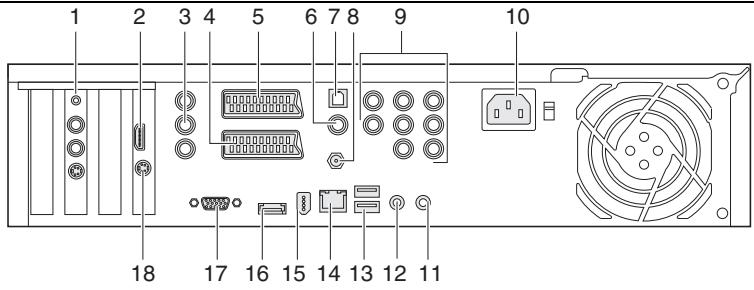
Fig. 1
1 = TV receiver card (cable, terrestrial analogue or digital)
2 = HDMI OUT
3 = Component Video Out green: Y connection blue: Pb connection red: Pr connection
4 = SCART AUX connection
5 = SCART TV connection
6 = Digital Audio Out (optical)
7 = Digital Audio Out (coaxial)
8 = WIRELESS LAN
9 = 7.1 Channel Audio Out connections
10 = Mains connection
11 = Remote IR Transmitter OUT (IR Blaster)
12 = Remote IR Transmitter OUT (IR Blaster)
13 = USB ports
14 = LAN connection
15 = IEEE Firewire 1394 connection
16 = ext.SATA
17 = VGA connection
18 = optional: S-Video OUT connection
Legend for figure 1 "Connections on the rear"
| Connection | Icon/Description | Examples for connection | |
| 1 | TV card | Optional:Remote control receiverAntenna connection (analogueAM/FM signal)Optional:Radio connectionOptional:S-Video IN - input. Forconnecting a video recorder | |
| 2 | HDMI OUT | High Definition MultimediaInterfaceHDMI-compatible TV | |
| 3 | COMPONENTVIDEO OUT | green:Y connectionblue:Pb connectionred:Pr connectionConnection TV with ComponentVideo IN connection | |
| 4 | SCART-AUX | VHS recorder, DVD player | |
| 5 | SCART-TV | TV | |
| 6 | DIGITALAUDIO OUT | Digital Audio Out (optical)Digital optical sound connection | |
| 7 | DIGITALAUDIO OUT | Digital Audio Out (coaxial)Digital sound connection | |
| 8 | WIRELESSLAN | Antenna for wireless localnetwork | |
| 9 | CENTRESUBRLLS-RS-LR-R | 7.1 Channel Audio OutCentreSubwooferLoudspeaker rightLoudspeaker leftSurround rightSurround leftLoudspeaker rear rightLoudspeaker rear left | |
| 10 | Mains connection - SCALEOEV power supply | ||
| 11 | IR | Remote IR | |
| 12 | ○ | IR | Remote IR (e.g. Microsoft® Windows Vista Home Premium IR Blaster) |
| 13 | 2 x USB socket | ←→ | Connection for USB 2.0 devices e.g. printer |
| 14 | = | LAN, network or xDSL | |
| 15 | ○ | ○← | Firewire IEEE 1394 Camcorder, digital camera, bulk memory device |
| 16 | ←→ | ext. SATA | external Serial ATA external hard disk |
| 17 | ○○○○○ | VGA | VGA connection Monitor |
| 18 | 4-pin socket | TV OUT | Optional: Connection TV with S-Video IN connection |
Important information on USB 2.0: In order to guarantee a reliable data transfer rate, we recommend that you use USB connecting cable with a maximum length of 4m.
Important information on eSATA: In order to guarantee a reliable data transfer rate, we recommend that you use an eSATA connecting cable with a maximum length of 2 m.
4.1.2 Connections, displays and controls on the front
The front side features various indicators and controls, some of which are optional depending on the construction. Gently pressing in the centre of the panel door will open it, giving you access to the connections on the front.
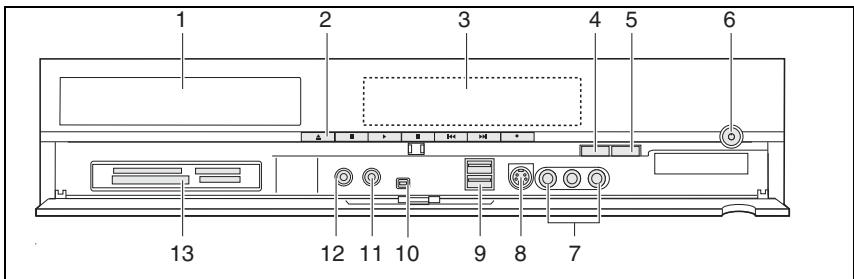
Fig. 2
1 = DVD recorder
2 = Operating buttons
3 = Status display
4 = CONNECT-Connection button for wirelesskeyboard
5 = SLEEP - Microsoft® Windows
Vista Home Premium key for
AWAY Mode
6 = On/off switch
7 = yellow:VIDEO-In connection
white: AUDIO-In connection left
red: AUDIO-In connection right
8 = S-Video In connection (composite)
9 = USB port
10 = Firewire IEEE 1934
11 = Earphones / Loudspeaker
12 = Microphone
13 = Multicard reader
Legend for figure 2 "Connections, displays and controls on the front"
| Connection/decription | Icon/description | Examples for connection/description | |
| 1 | DVD recorder | ||
| 2 | ▲ | Operating buttons | Correspond to the remote control buttons. Information on how to use the buttons can be found in the documentation and the online help for the Microsoft® Windows Vista Home Premium operating system. |
| ■ | |||
| ► | |||
| II | |||
| ↔ | |||
| ► | |||
| ● | |||
| 3 | Status display | Indicates the operational status of the unit | |
| 4 | On/off switch | Switches the unit on or off. Illuminated blue – switched on Flashing yellow – Standby/AWAY mode Not illuminated – Sleep mode (hibernate) or disconnected | |
| 5 | CONNECT | Connection button for wireless keyboard | |
| 6 | SLEEP | For Microsoft® Windows Vista Home Premium (AWAY mode) | |
| 7 | VIDEO IN AUDIO IN R AUDIO IN L | VHS recorder, DVD player | |
| 8 | S VIDEO IN | VHS recorder, DVD player | |
| 9 | Connection for USB 2.0 devices e.g. printer | ||
| 10 | Firewire IEEE 1394 Camcorder, digital camera, bulk memory devices | ||
| 11 | Earphones/Loudspeaker | ||
| 12 | Microphone | ||
| 13 | Multicard reader |
.com
4.1.3 Multicard reader
Your SCALEO EV is equipped with a multicard reader on the front. The multicard reader can be used to read and write to memory cards of different types.
The following cards are supported: CompactFlash I/II, IBM Micro Drive, SmartMedia, MultiMedia, Secure Digital, Memory Stick, Memory Stick Pro, xD.
IMPORTANT! If the access display (LED) is illuminated, please do not remove a memory medium as data loss may occur and the memory medium may be irreversibly damaged. Disconnect the drive in the operating system by right-clicking on the drive and selecting the Eject menu item.
Information on handling memory cards:
- Memory sticks and SD cards are inserted into the memory slot with the contacts facing downwards.
The SmartMedia card is inserted in the slot with the contacts facing upwards. - With CompactFlash and Microdrive, please note that these should be inserted in the corresponding slot with the contacts facing forwards and the type label upwards.
IMPORTANT! Do not use force, for the memory media can be easily inserted in and also removed from the intended slot.
4.1.4Keyboard
The SCALEO EV is operated with a wireless keyboard with TouchPad and mouse buttons. The most important buttons are described below.
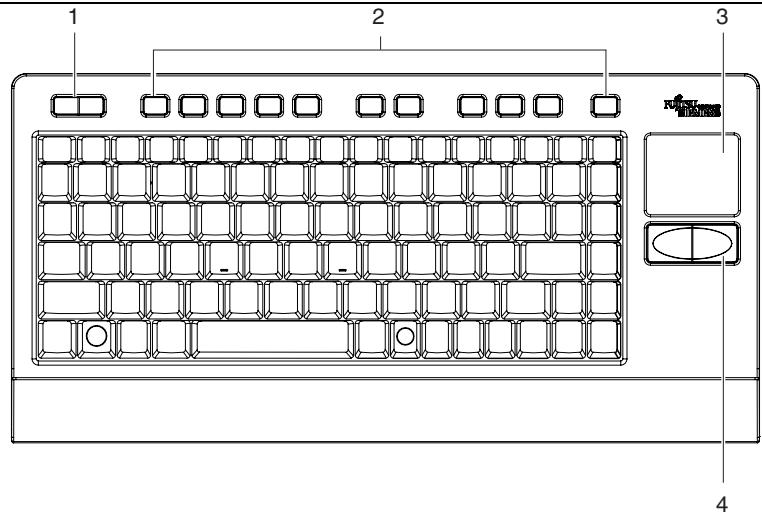
Fig. 3
1 = Left and right mouse buttons
3 = TouchPad
2 = Multimedia keys
4 = Left and right mouse buttons
Multimedia keys (from left to right)

EPG - Starts the Electronic Program Guide.

Live TV - Starts the current TV programmes.

Record TV - Starts the "Recording TV Programmes"
Channel down - Changes the TV channel or Internet page downwards.
Ch+
Channel up - Changes the TV channel or Internet page upwards.
Volume down - Lowers the volume.
+ Volume up - Increases the volume.

Mute - Switches the loudspeakers on or off.

Sleep - Switches the SCALEO EV into Sleep mode.
General keys
- RETURN, ENTER – executes a command or, when entering text, begins a new line.
- BACKSPACE <> - Deletes one character to the left.
- SPACEBAR - Moves the cursor to the right and inserts an empty space.
- TAB key - In word processing programs, skips to the next tab stop or moves the cursor depending on the program.
- SHIFT < > - Displays the letter in upper case or a special character.
CAPS LOCK < > - Permanently activates upper case characters or characters on the second level. and - The function of these keys is program-dependent and they are always pressed in combination with other keys. - Displays special characters which are shown as a third option on some keys. - The function of this key is program-dependent. - Used by the operating system and a few user programs. Breaks the display. - Generates a copy of the screen contents in the cache.
Cursor keys
The function of these keys is program-dependent.
- <>, <>, <>, <> - Moves the cursor up, down, right or left.
/ - Skips to the beginning/end of the line or to the top left/bottom right corner of the screen. / - Moves the display of screen page up or down.
Function keys F1 to F12
These have a different meaning depending on the application being used. Their meaning in the operating system is detailed in the associated manual.
Virtual number pad
The keyboard has a virtual number pad. The keys of the virtual number pad correspond to the numbers and icons on the top right of the corresponding keys. If you have switched on the virtual number pad, you can output the characters which appear on the top right of the keys.
Keys specific to Microsoft® Windows Vista Home Premium
The description can be found in the Microsoft® Windows Vista Home Premium manual or in the online help for the operating system.
Functions accessed by pressing several keys simultaneously
The following key combinations are used in the Microsoft® Windows Vista Home Premium operating system control panel; their function is to some extent program-dependent:
<Ctrl> + <Alt> + <Del> - Starts the task manager. If this combination of keys is pressed for a second time, the system will be rebooted.
4.2 Preparing the SCALEO EV
4.2.1 Inserting/replacing the batteries for the remote control and keyboard
Note: When the computer is delivered, the required batteries are already inserted in the keyboard and protected against premature use by a plastic strip. Before using the keyboard for the first time, remove the plastic strip from the battery compartment without opening it.
Note: The batteries for the remote control are included in the delivery. Please insert the batteries in the remote control battery compartment.
Use four AAA mignon batteries for the keyboard and two AA mignon batteries for the remote control.
Open the battery cover on the underside of the keyboard or remote control.
If you wish to replace the batteries: Remove the old batteries from the battery compartment. Only exchange the used batteries for a completely new set.
Insert the new batteries in the compartment. Check that the polarity is correct (indicated on the base of the battery compartment).
Replace the cover.
When replacing the batteries please refer to the information on recycling.
Note: Should you not use the keyboard for a long period of time, please remove the batteries.
4.2.2 Connecting antenna
With your SCALEO EV, you can use various connection options (analogue cable, terrestrial or digital terrestrial). Depending on its design, your SCALEO EV will have one or two TV tuners. If you have one TV tuner, then you can only record and view one programme. If you have two TV tuners, then you can simultaneously watch one programme while recording another.
Connect the antenna cable to the TV connection on the SCALEO EV (rear) and the antenna connection box or room antenna.
4.2.3 Connecting the radio (optional)
Connect the radio cable to the radio connection on the SCALEO EV (rear) and the radio connection box or room antenna.
4.2.4 Connecting the TV
The SCALEO EV offers the following connections for TV or monitor: HDMI, SCART, S-Video Out or VGA (optional).
If you have connected your TV/monitor via HDMI, S-Video Out (component) or VGA, you should set an appropriate resolution. Otherwise the image displayed may not be optimal.
Connecting to HDMI
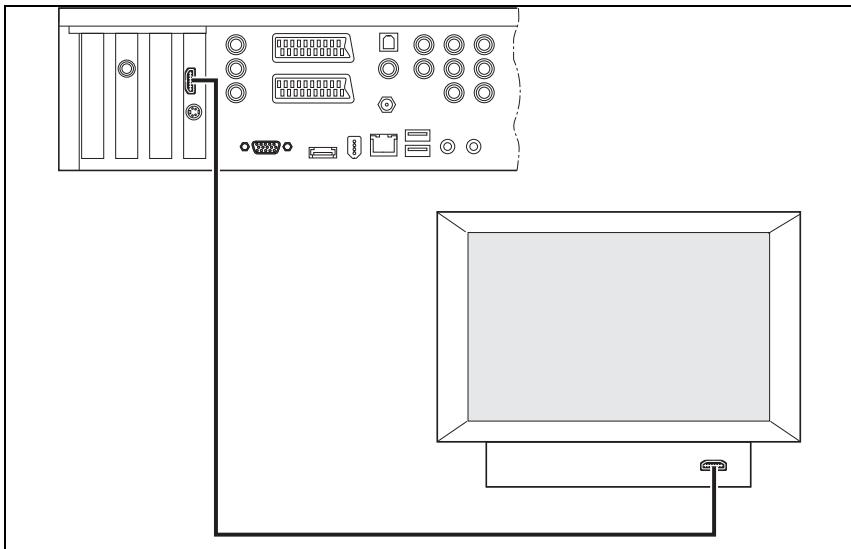
Fig. 4
Connect the HDMI connection of your SCALEO EV and the HDMI connection of your TV/monitor with an HDMI cable.
If you do not use a "HDMI to HDMI cable", additionally connect the audio output of the SCALEO EV with an audio amplifier or with the audio inputs of your TV/monitor for fidelity.
Information on connecting flatscreen TVs with the Scaleo EV via HDMI
Fujitsu Siemens Computer recommends that you use an HDMI to DVI (Digital Visual Interface) adapter to connect your SCALEO EV to a digital flatscreen TV. This recommendation is because the HDMI connection was specially developed for consumer electronic devices. However, problems with the picture may arise when several devices are connected. The DVI interface on TVs can identify these and adjust itself. It is also possible to connect your SCALEO EV via the SCART interface or the VGA interface.
Connecting to SCART TV
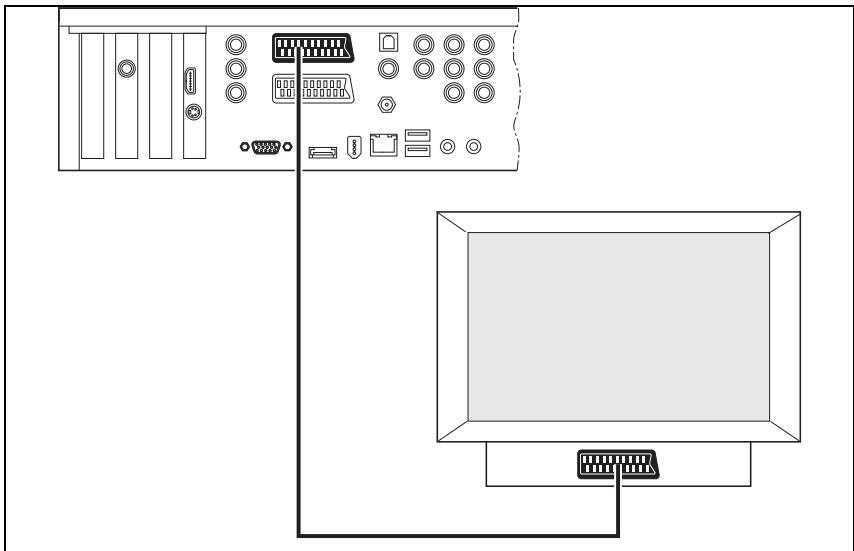
Fig. 5
Connect the SCART TV connection of the SCALEO EV and the SCART connection of your TV/monitor with a SCART cable.
Connecting to S-Video Out
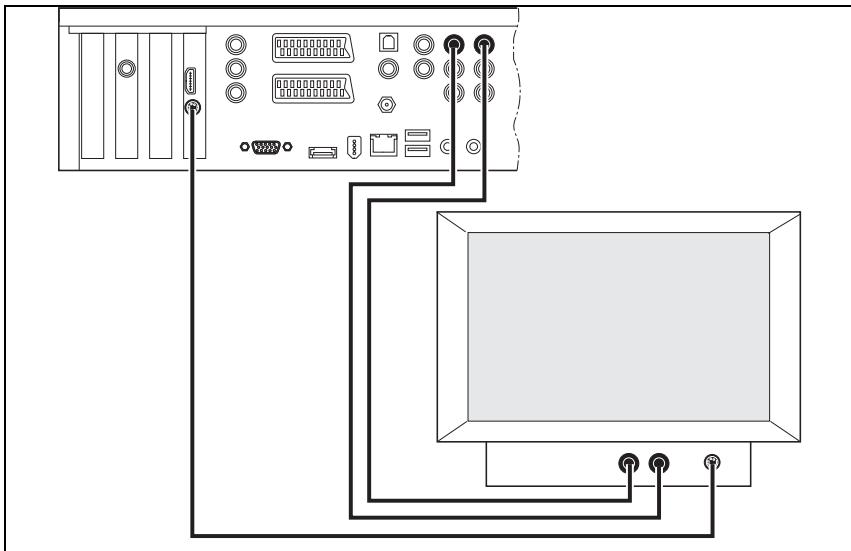
Fig. 6
Connect the S-Video OUT connection of your SCALEO EV and the S-Video IN connection of your TV/monitor with an S-Video cable.
For fidelity, connect either with an audio amplifier or with the audio inputs of your TV/monitor.
Connecting to VGA (optional)
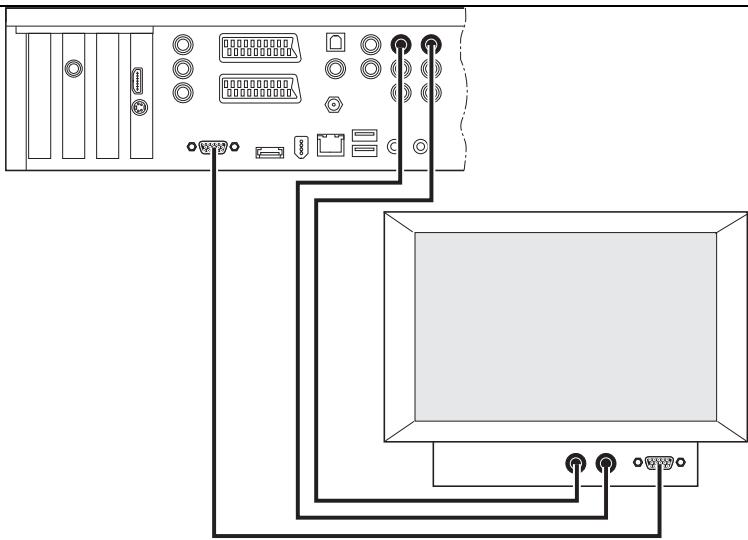
Fig. 7
Connect the VGA connection of your SCALEO EV and the VGA connection of your TV/monitor with a VGA cable.
For fidelity, connect either with an audio amplifier or with the audio inputs of your TV/monitor.
4.2.5 Connecting audio
Your SCALEO EV offers you connections for analogue and digital fidelity.
The connections you use depend on your audio amplifier. Depending on the options offered by your amplifier, you can connect your SCALEO EV either coaxially or optically.
You can select either purely analogue or purely digital playback, or you can simultaneously operate the analogue outputs and one of the digital outputs.
In order to connect external audio devices, you require appropriate cables. These are available from specialist suppliers. You should also refer to the operating instructions for your audio device.
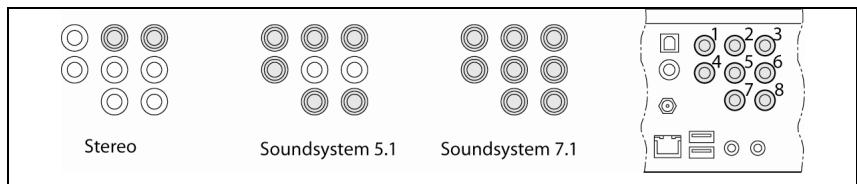
Fig. 8
Analogue stereo connection
Connect the AUDIO OUT connections R and L (2 and 3) and the corresponding AUDIO IN connections of your amplifier with an audio cable.
Soundsystem 5.1
Connect the AUDIO OUT connections R and L (2 and 3) and the corresponding AUDIO IN connections of your amplifier with an audio cable.
Connect the AUDIO OUT connections R-R and R-L (7 and 8) and the corresponding AUDIO IN connections of your amplifier with an audio cable.
Connect the AUDIO OUT connections CENTRE (1) and SUB (4) and the corresponding AUDIO IN connections of your amplifier with an audio cable.
Soundsystem 7.1
Connect the AUDIO OUT connections R and L (2 and 3) and the corresponding AUDIO IN connections of your amplifier with an audio cable.
Connect the AUDIO OUT connections R-R and R-L (5 and 6) and the corresponding AUDIO IN connections of your amplifier with an audio cable.
Connect the AUDIO OUT connections CENTRE (1) and SUB (4) and the corresponding AUDIO IN connections of your amplifier with an audio cable.
Connect the AUDIO OUT connections R-R and R-L (7 and 8) and the corresponding AUDIO IN connections of your amplifier with an audio cable.
Digital audio connection
Connect the DIGITAL AUDIO OUT connection and the corresponding digital AUDIO IN connection of the audio amplifier with a coaxial cable.
Connect the optical DIGITAL AUDIO OUT connection and the corresponding digital AUDIO IN connection of the audio amplifier with an optical fibre cable.
4.2.6 Connecting additional devices
USB devices
You have four USB ports available for connecting additional devices. Additional USB devices such as printers, external hard drives (Storagebird), Memory Stick, etc. can be connected here.
Serial ATA devices
You have an SATA interface available for connecting additional devices. There you can connect other SATA devices such as external hard disks, DVD drives etc.
Your SCALEO EV has a number of connections, both on the front and rear, to which additional devices may be connected.
Connecting devices to SCART AUX connection (Loop through)
We recommend that additional devices such as a DVD player or video recorder for playback or recording be connected directly to the TV.
If your TV has no free SCART connection, you can connect a conventional DVD player or video recorder to the AUX connection of your SCALEO EV.
Note: The SCALEO EV must be in Hibernate mode or switched off in order for you to view films on the connected device. The plug must not be removed!
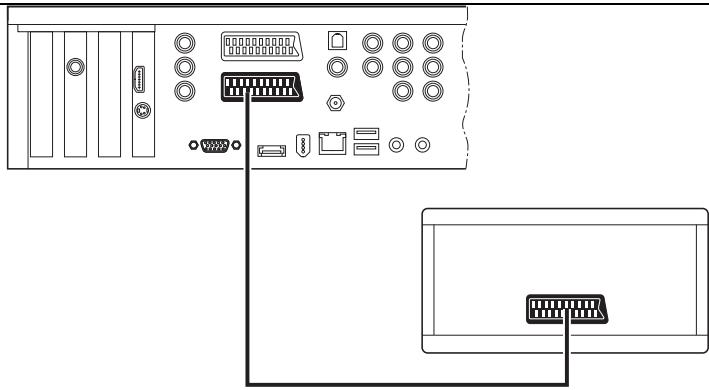
Fig. 9
Connect the SCART AUX connection of the SCALEO EV and the SCART connection of the DVD player/video recorder with a SCART cable.
To view recordings from the video recorder/DVD recorder, switch the SCALEO EV to Highbate mode or off.
Images and sound are transmitted from the SCART AUX connection to the SCART TV connection and output on the TV.
Note: The SCART-AUX connection and the front connections for S-Video and Video-In cannot be used in parallel, as both connections access the same TV tuner.
If you wish to record from two different external signal sources in parallel and have a unit with 2 tuners, you must connect one signal source directly with the TV card via the Video IN connection to the TV card and the other signal source via the SCART AUX connection or the front connection for S-Video or the front connection for Video IN.
For example, you can digitise and record video cassettes using the Microsoft Windows Vista Home Premium operating system and with additional programs.
The image and sound signals are relayed from the SCART AUX, S-VIDEO IN/VIDEO IN connection (front) to the SCART TV connection and displayed on the TV.
Using the S-VIDEO IN (front), VIDEO IN (front) and SCART AUX connections, you can record from video recorders, DVD players or video cameras.
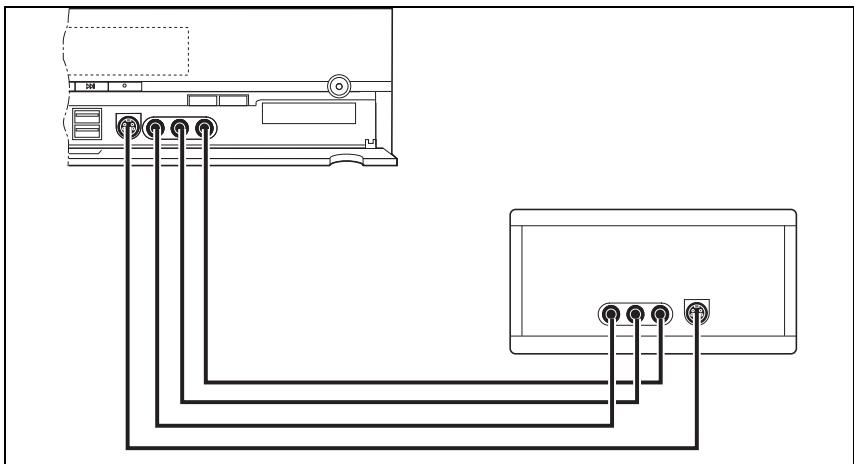
Connecting devices to the AV-IN connections on the front of the SCALEO EV
Fig. 10
Connect the external device to the SCALEO EV via the S-VIDEO IN or the VIDEO IN connection.
If necessary, connect the analogue audio outputs of the external device with the AUDIO IN connections of your SCALEO EV.
Connecting devices to SCART AUX
You can also connect the external device to the SCART AUX connection of the SCALEO EV using a SCART cable.
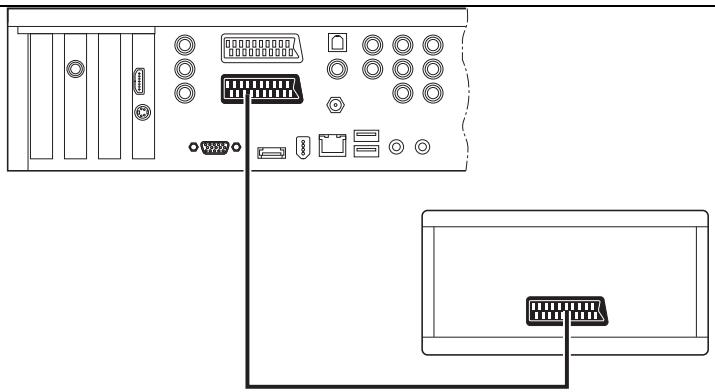
Fig. 11
Connecting set-top box to S-VIDEO IN /VIDEO IN on the rear of the SCALEO EV
SCALEO EV with one tuner
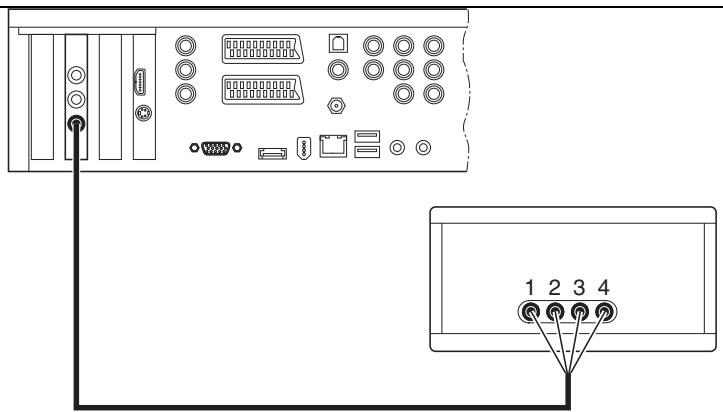
Fig. 12
Connect the external device to the SCALEO EV via the S-VIDEO or the VIDEO connection.
If necessary, connect the analogue audio outputs of the external device with the AUDIO IN connections of your SCALEO EV.
Note: While you are recording a programme, you cannot also watch TV.
SCALEO with one TV card with two tuners (dual tuner card)
You must connect two identical set-top boxes to a SCALEO EV with a dual tuner TV card (identical unit, identical configuration). Microsoft® Windows Vista Home Premium handles both TV tuners and the devices connected to them identically.
You will find further information in the online help for Microsoft® Windows Vista Home Premium.
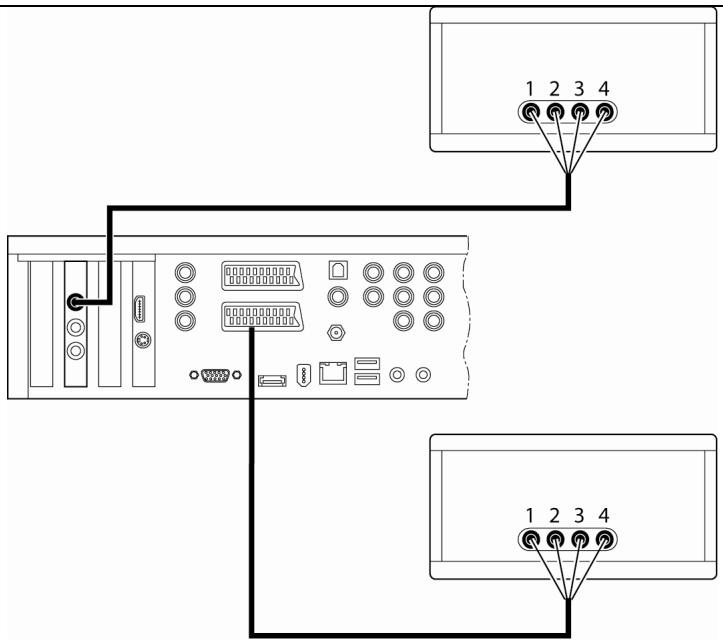
Fig. 13
Connect the external devices with the SCALEO EV via the VIDEO IN and the SCART AUX connection (see fig. 13).
4.2.7 Connecting the power cable
Before switching on the SCALEO EV, connect all peripheral devices (e.g. TV, printer). Please take note of the information in the "Connections" chapters when doing this.
- First connect the power cable supplied to the power socket on the SCALEO EV and then plug it into a mains power socket installed in accordance with the regulations and with a rated voltage range corresponding to the specification on the label on the rear of the device.
Power-saving tips!
We recommend connecting the system and the peripherals to a standard switchable plug strip. This makes disconnecting the entire system from the mains easier, safer and clearer.
Computer systems and their peripherals that do not have a mains switch and are connected to the mains are in "Standby" mode. Power consumption is inevitable in this mode. In "Standby" mode the system will maintain certain functions, e.g. Wake On LAN. To isolate the system you must either disconnect the mains plug or switch the system off at a plug strip.
Please note that the manufacturers of some peripheral devices (e.g. some printers) do not recommend turning off the mains voltage.
4.3 Initial startup
The Microsoft Windows Vista Home Premium operating system is already preinstalled on your SCALEO EV.
4.3.1 Switching on your SCALEO EV for the first time
Switch the TV/monitor on.
Switch on the SCALEO EV at the on/off button. The SCALEO EV boots up.
Open the flap on the front of the SCALEO EV.
Repeatedly press the CONNECT key and the key for wireless connection to the keyboard until the keyboard responds.
4.3.2 Initial settings
The screenshots used in this manual are to be used only for orientation and, depending on your software and hardware configuration, may differ from what you see on your screen.
You must make a few settings during the initial startup. To do this, follow the on-screen instructions.
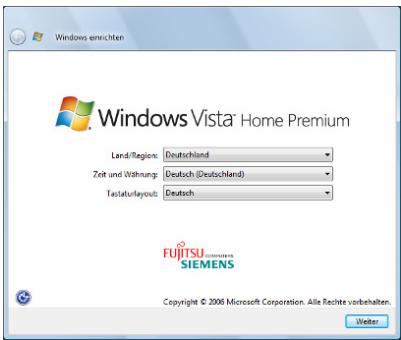
Fig. 14
Select your desired region, language and keyboard type and click on "Next" (Weiter).
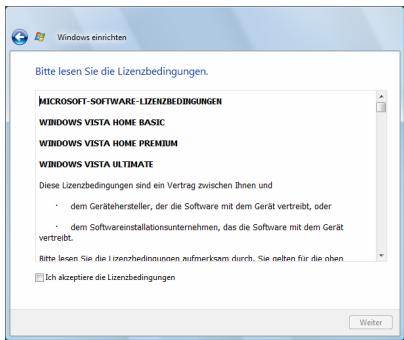
Fig. 15
Read through the end user license agreement, accept its conditions and click on "Next" (Weiter).
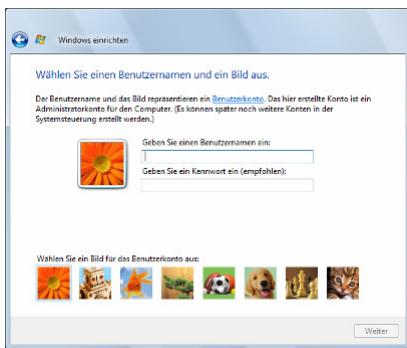
Fig. 16
Select a user name and an image for your user account.
Enter a password and click on "Next" (Weiter). (optional)
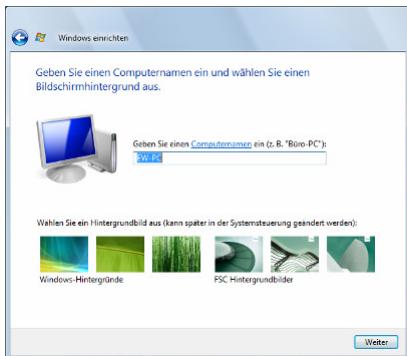
Fig. 17
Select a computer name and a wallpaper and click on "Next" (Weiter).
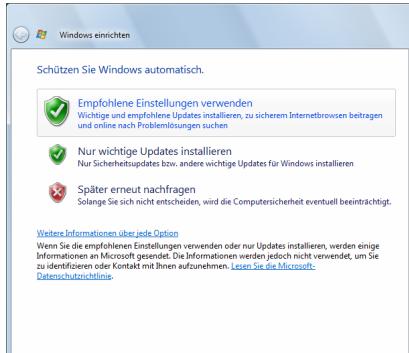
Fig. 18
Here you can activate and configure the Windows automatic protection.
Click on the desired option.
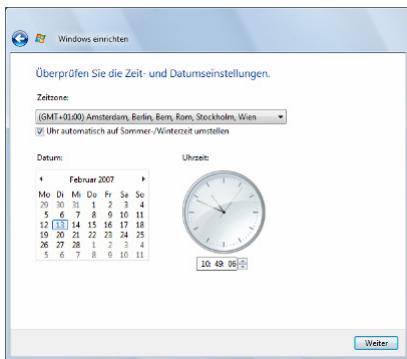
Fig. 19
Set the date, time and time zone.
Click on "Next" (Weiter) to complete the settings.
Follow the instructions on screen until fig. 20 appears.
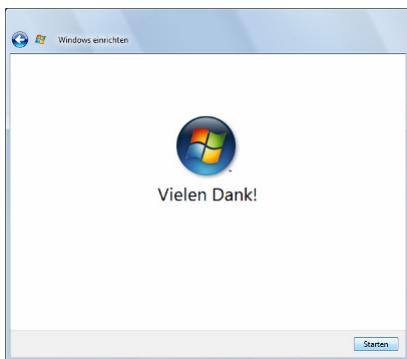
Fig. 20
Click on "Start" (Starten).
Vista checks the performance of your system and executes the adjustments which you have specified in the setup procedure.
The Windows desktop will appear.
Enter your password (if a password was specified).
The Windows welcome window opens and "First Steps" starts.
4.3.3 First Steps
When you start your Microsoft Windows Vista Home Premium for the first time, the "First Steps" window appears.
The system is checked.
The following functions can be carried out in the "First Steps" menu:
▶ Click on "SystemViewer".
In the system overview you can call up information about individual components of your SCALEO EV.
▶ Click on "Back" (Zurück).
▶ Click on "System comparison" (System Vergleich).
For service purposes, "Compare" (System Vergleich) allows you to track the changes made to your system since it was delivered.
▶ Click on "Back" (Zurück).
▶ Click on "System test" (Systemtest).
For service purposes, "System test" (Systemtest) allows you to carry out a short or a full test of your system.
▶ Click on "Back" (Zurück).
▶ Click on the "Close window" (Fenster schlieben) icon.
4.3.4 Hardware Wizard
When you start your Microsoft Windows Vista Home Premium for the first time, the "Hardware Wizard" (Hardware-Assistant) window may appear (e.g. if you have connected an additional USB component).
Note: The Intel VII settings icon can be found on the desktop.
Click on the icon and follow the on-screen instructions.
4.3.5 Windows Updates
Note: When you start your Microsoft Windows Vista Home Premium for the first time, the "Windows updates are being loaded" (Windows-Updates werden geladen) message may appear.
4.3.6 Setting up Windows Media Center in Windows Vista
Press the green "START" key on your remote control. When starting your Windows Media Center for the first time, the "Windows Media Setup Wizard" (Windows Media-Setupassistent) will appear.
▶ Click on "Next" (Weiter).
There are two parts to setting up the Windows Media Center:
- Required setup
- Windows Media Center checks components such as the Internet connection and remote control.
- Optional setup
-
Setup of additional functions and expanded settings, for example:
-
configuration of TV cards, TV signals and TV programmes,
- optimising the display of Windows Media Center on your monitor,
- configuration of stereo and surround sound speakers.
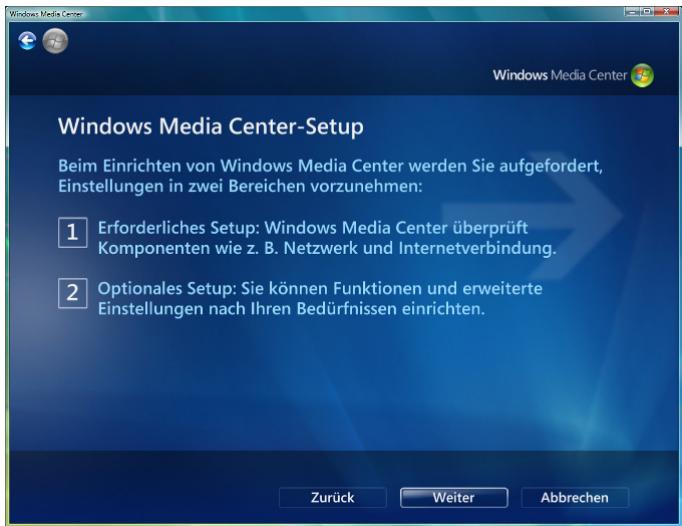
Fig. 21
Select 1 or 2 and click on "Next" (Weiter).
Required setup
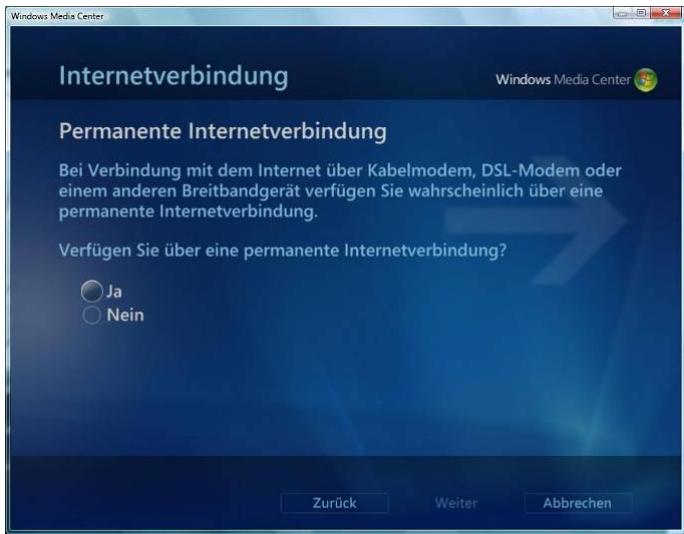
Fig. 22
Select an option and then click on "Next" (Weiter).
Note: There is a charge for the Internet connections.
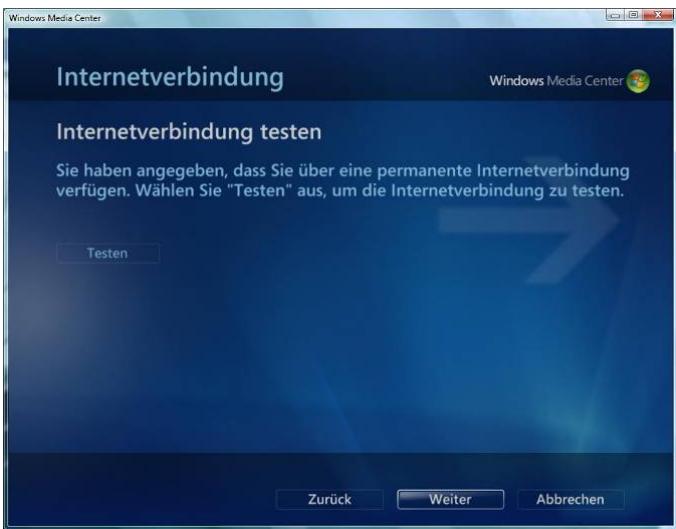
Fig. 23
▶ Click on "Next" (Weiter).
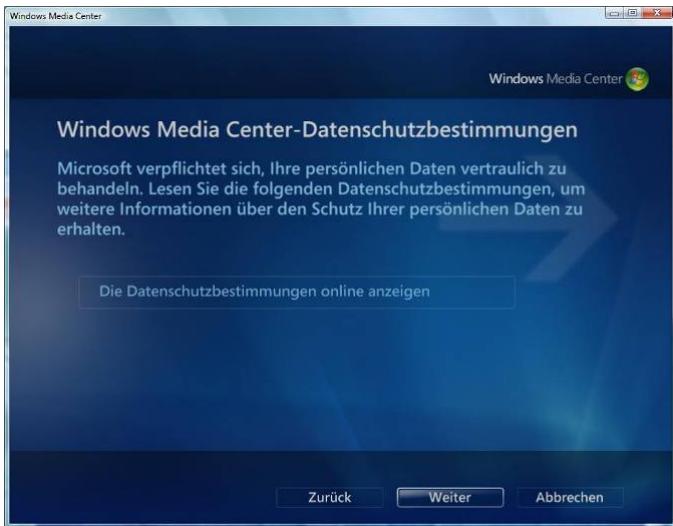
Fig. 24
▶ Click on "Next" (Weiter).
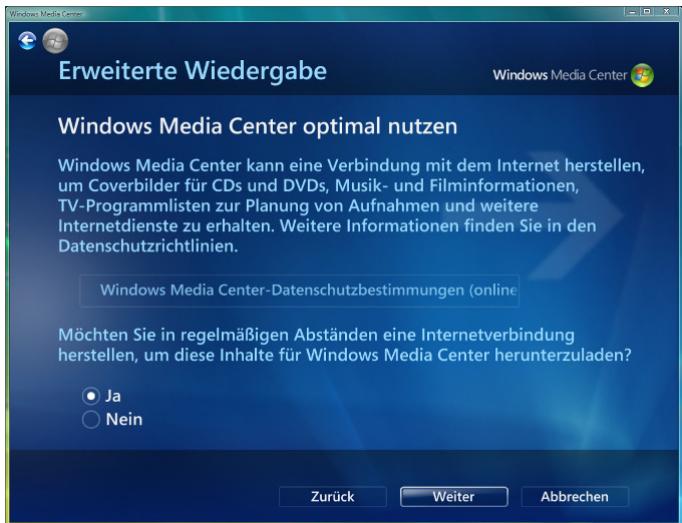
Fig. 25
Select whether you want Windows Media Center to automatically create an Internet connection and click on "Next" (Weiter).
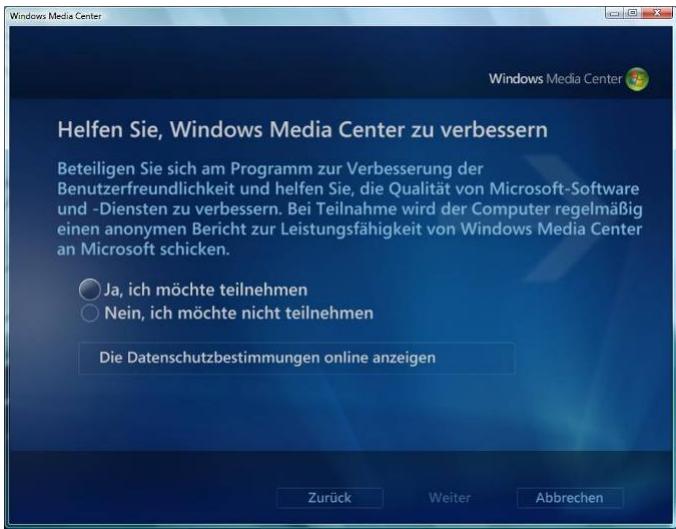
Fig. 26.
Select whether you wish to participate in the improvement of Windows Media Center and click on "Next" (Weiter).
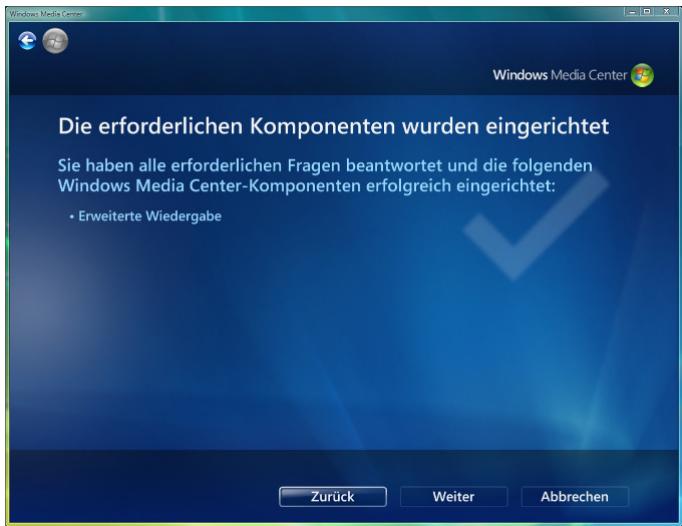
Fig. 27
▶ Click on "Next" (Weiter).
Optional setup
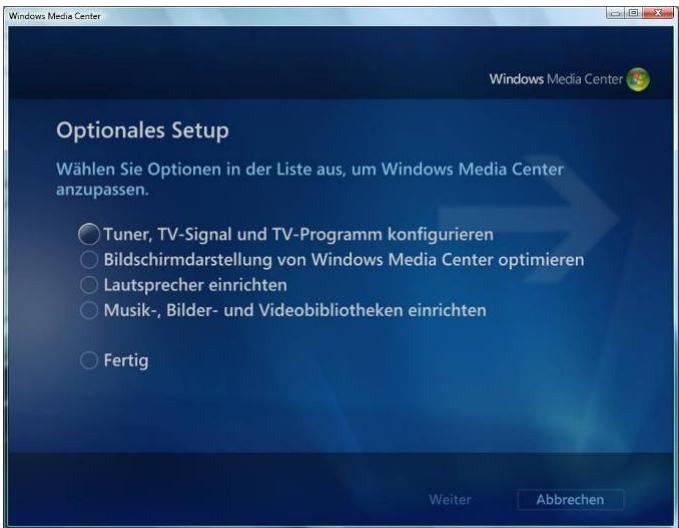
Fig. 28
Select the TV configuration in "Optional Setup" (Optionales Setup) and click on "Next" (Weiter).
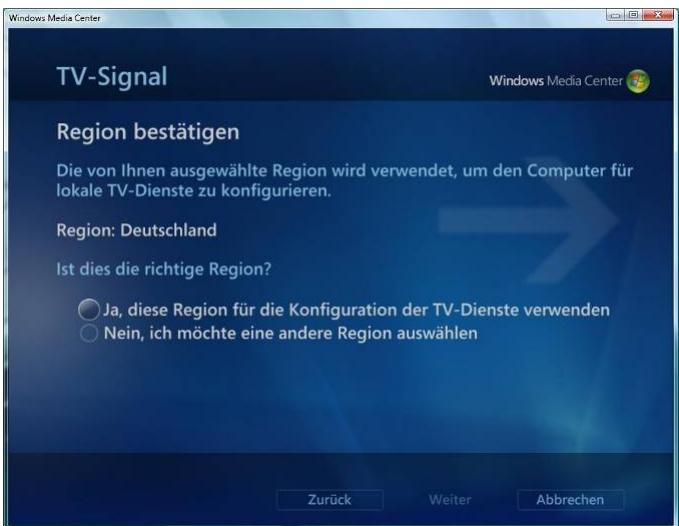
Fig. 29
Select and confirm the country/region and click on "Next" (Weiter).
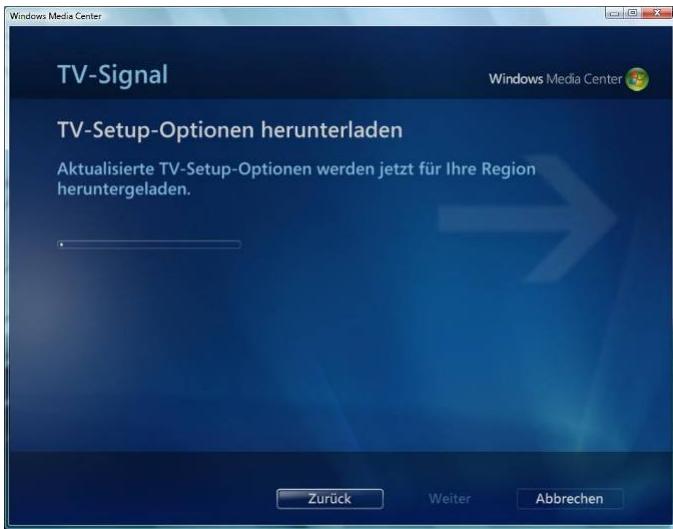
Fig. 30
If there is an existing Internet connection, the updates for the TV setup options will be automatically downloaded. Once the update is complete, click on "Next" (Weiter).
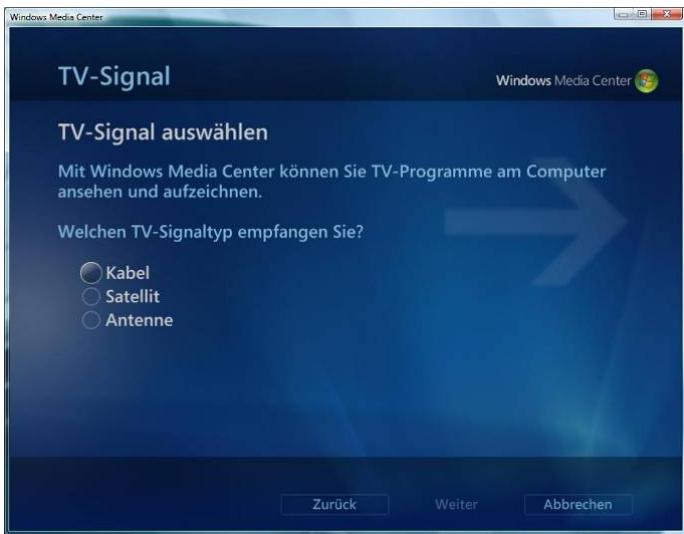
Fig. 31
Select the TV signal type and click on "Next" (Weiter).
Note: Note which type of TV signal is available to you (cable, satellite or aerial).
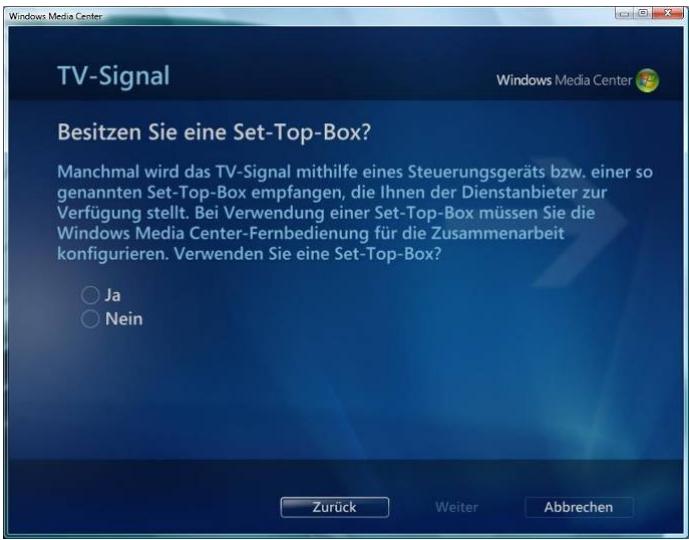
Fig. 32
Select an option and then click on "Next" (Weiter).
Note: A set-top box may also be a SAT receiver.
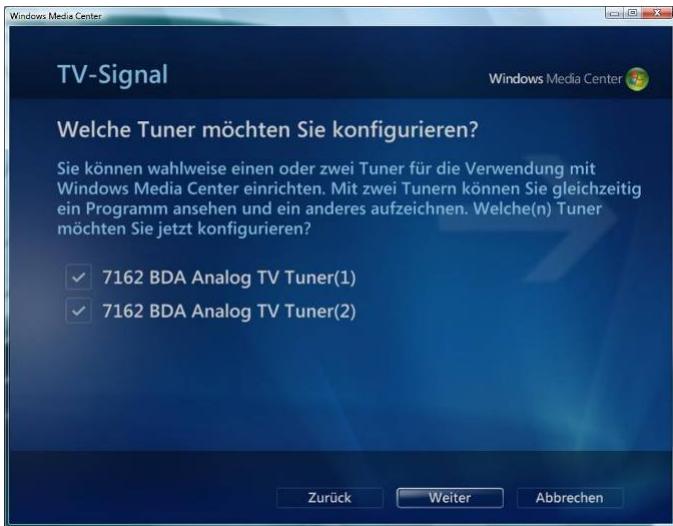
Fig. 33
Depending on the number of TV tuners installed, you can now configure these. Select the tuner and then click on "Next" (Weiter).
Note: Take note of the connections when operating with 2 SAT receivers. (See also under: "SCALEO with one TV card with two tuners (dual tuner card)"
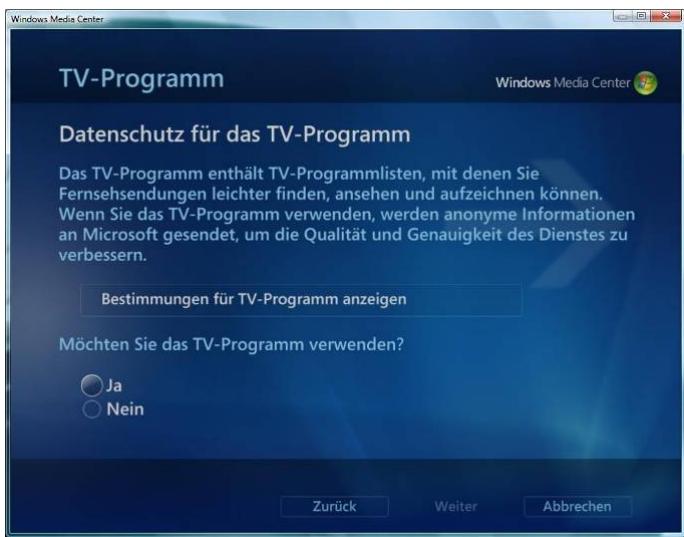
Fig. 34
Select an option and then click on "Next" (Weiter).
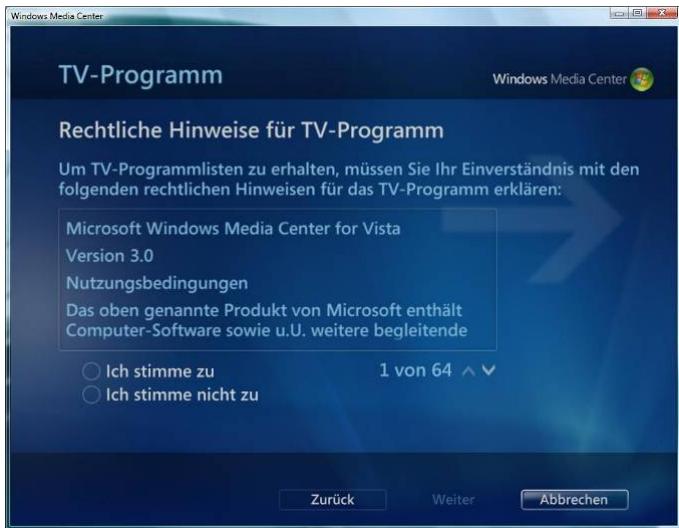
Fig. 35
Select an option and then click on "Next" (Weiter).
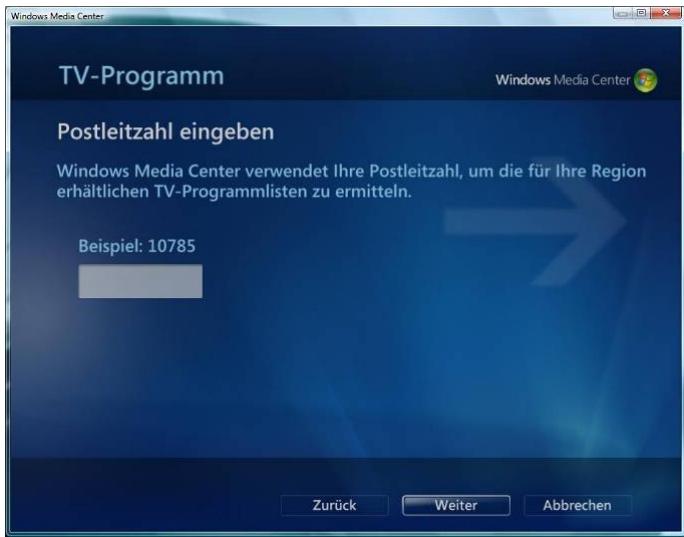
Fig. 36
Enter your postcode and click on "Next" (Weiter).
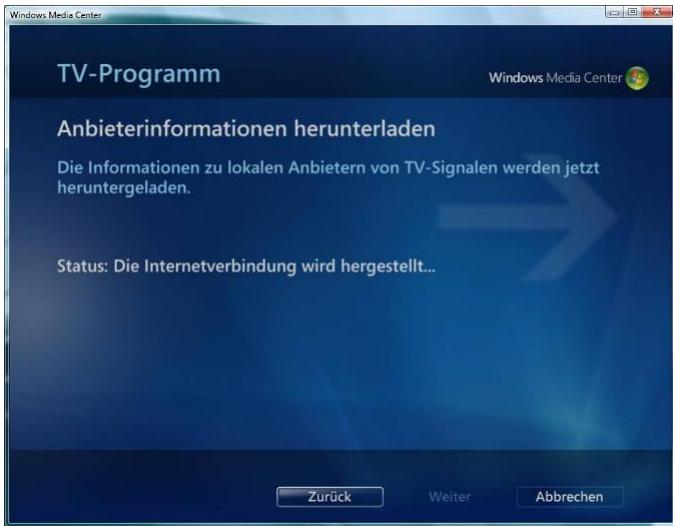
Fig. 37
.com
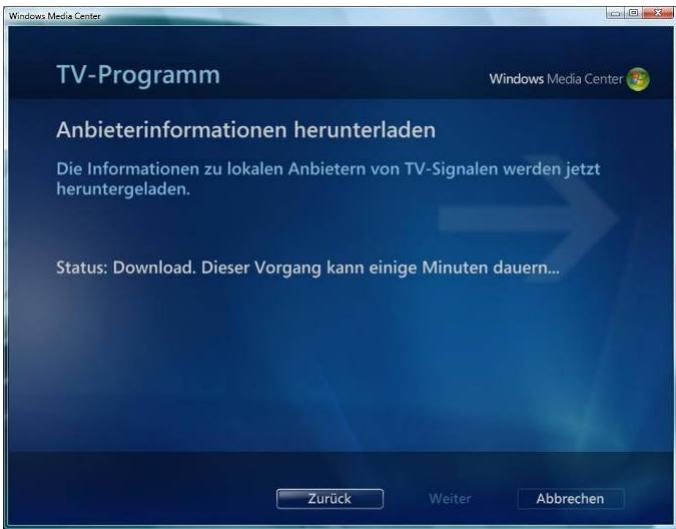
Fig. 38
Wait until the end of the download.
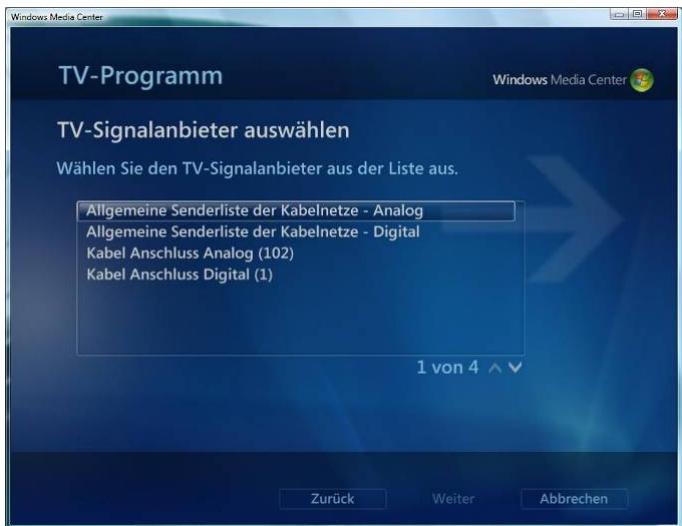
Fig. 39
Select the station list and click on "Next" (Weiter).
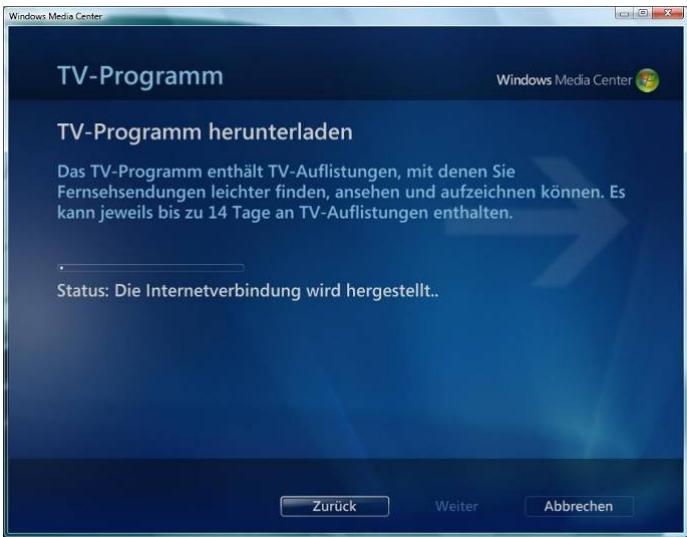
Fig. 40
Wait until the TV programme has downloaded, ...
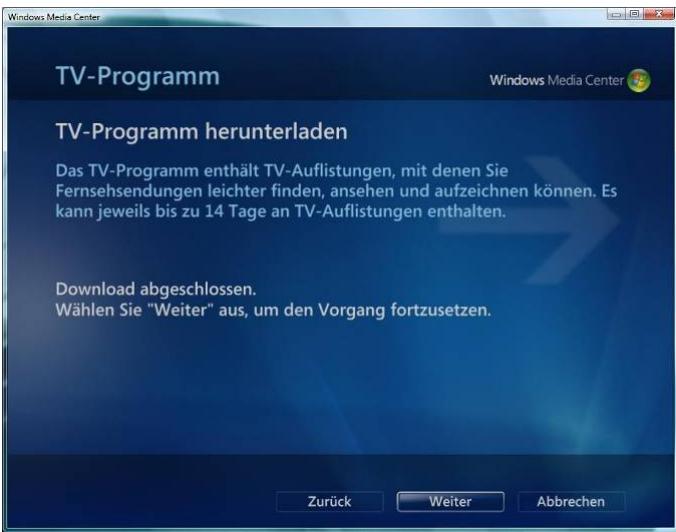
Fig. 41
... then click on "Next" (Weiter).
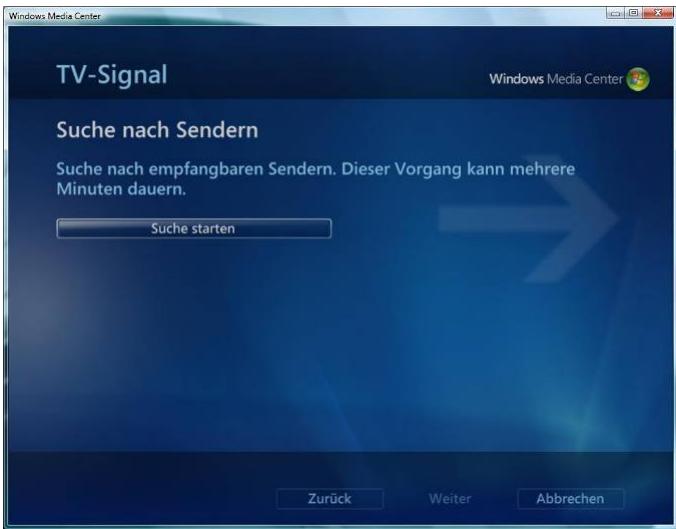
Fig. 42
Select "Start search" (Suche starten) to search for stations and click on "Next" (Weiter).
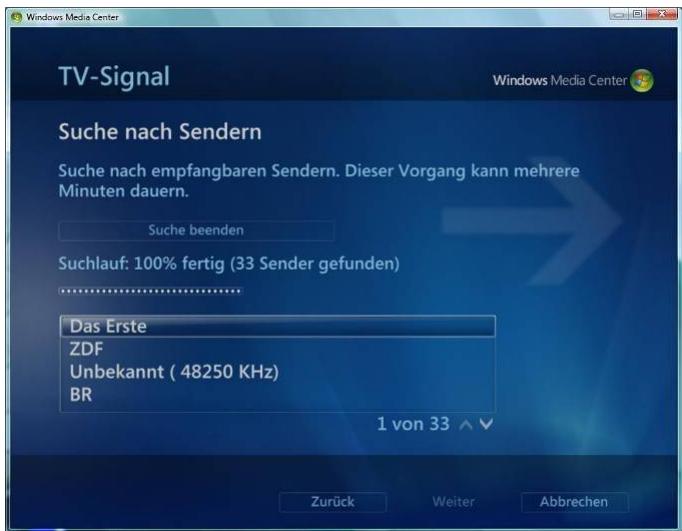
Fig. 43
▶ Click on "Next" (Weiter).
Screen appearance
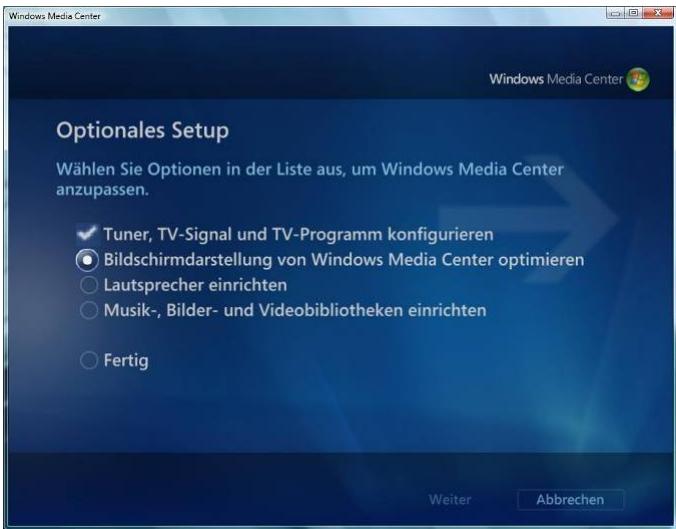
Fig. 44
In "Optional Setup" (Optionales Setup), select "Optimise Windows Media Center screen" (Bildschirmdarstellung von Windows Media Center optimieren) and click on "Next" (Weiter).
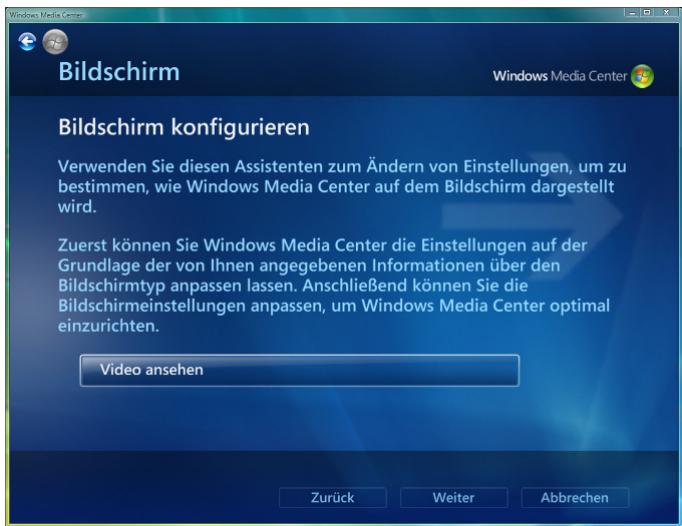
Fig. 45
Note: You have the option of viewing a test video here.
Note: Use the "Back arrow" to return to the menu and continue with your settings.
▶ Click on "Next" (Weiter).
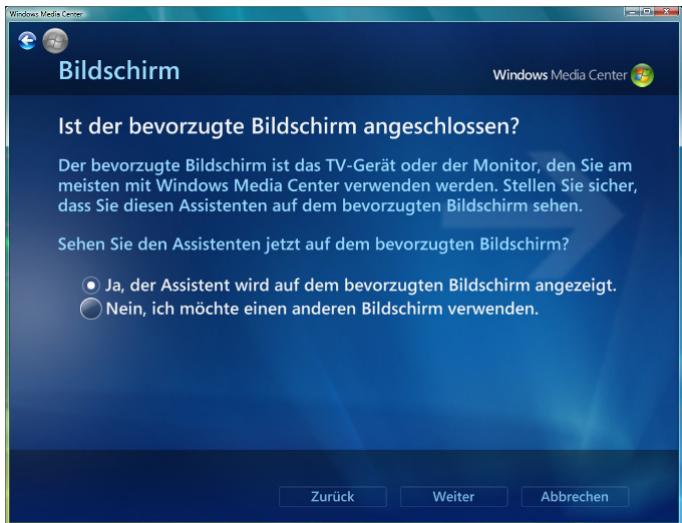
Fig. 46
Select whether the wizard is to be displayed on the preferred screen and click on "Next" (Weiter).
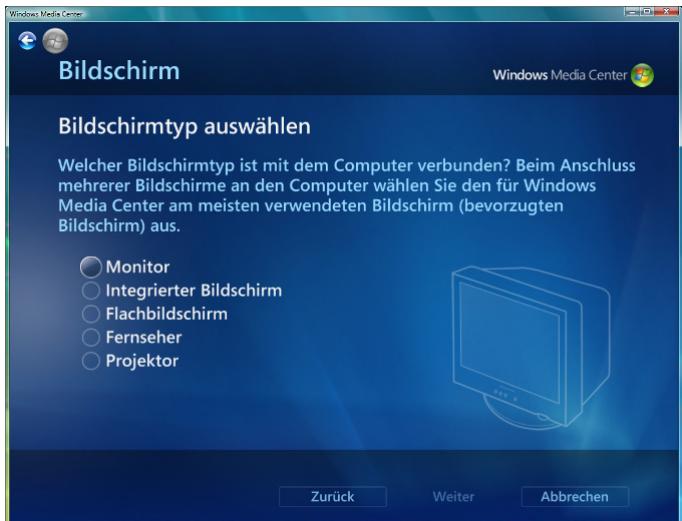
Fig. 47
Select the screen type for which you are making settings and click on "Next" (Weiter).
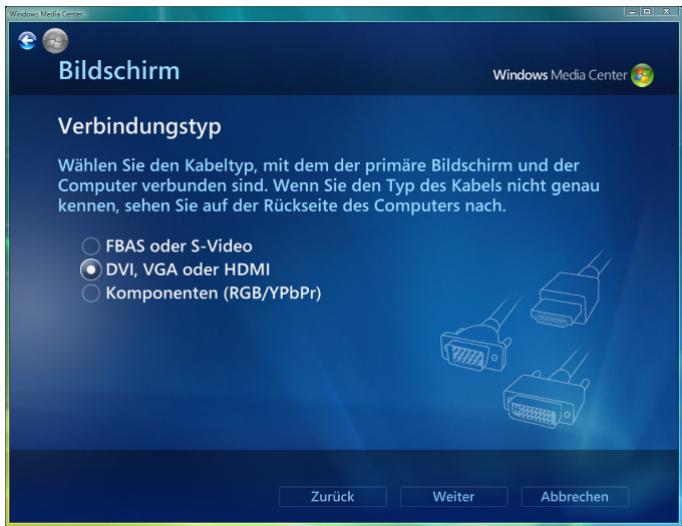
Fig. 48
Select the cable type with which your primary screen and the Media Center PC are connected and click on "Next" (Weiter).
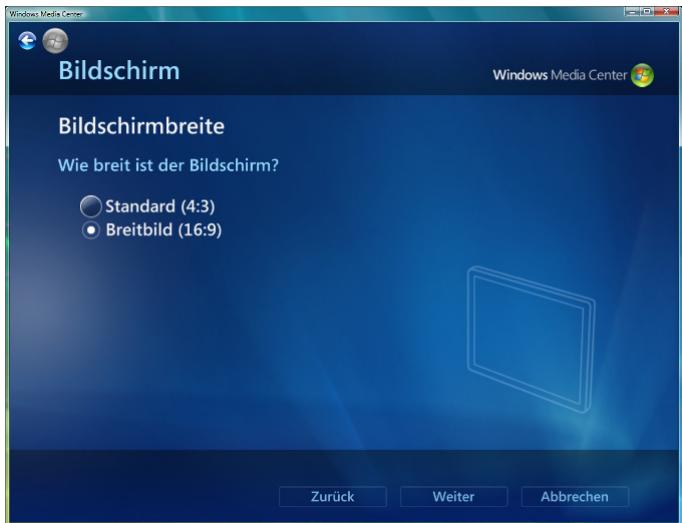
Fig. 49
Select your desired screen width and click on "Next" (Weiter).
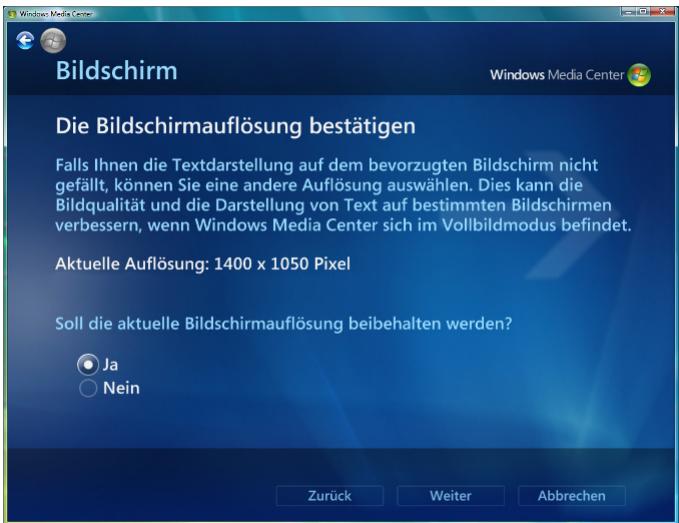
Fig. 50
Confirm the screen resolution and click on "Next" (Weiter).
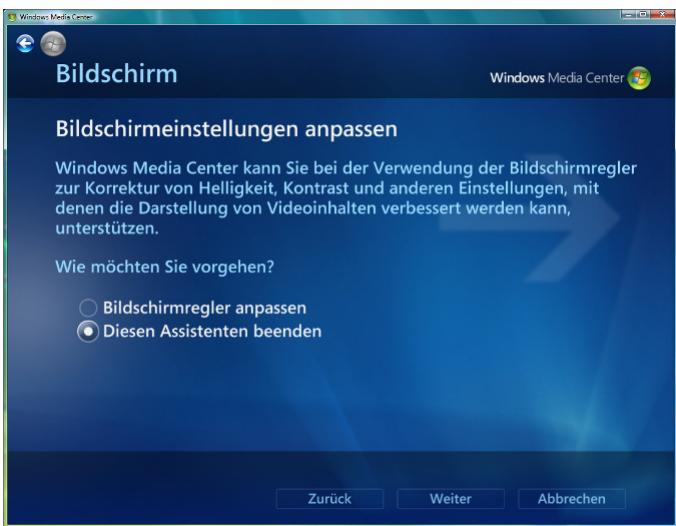
Fig. 51
Select the desired option and click on "Next" (Weiter).
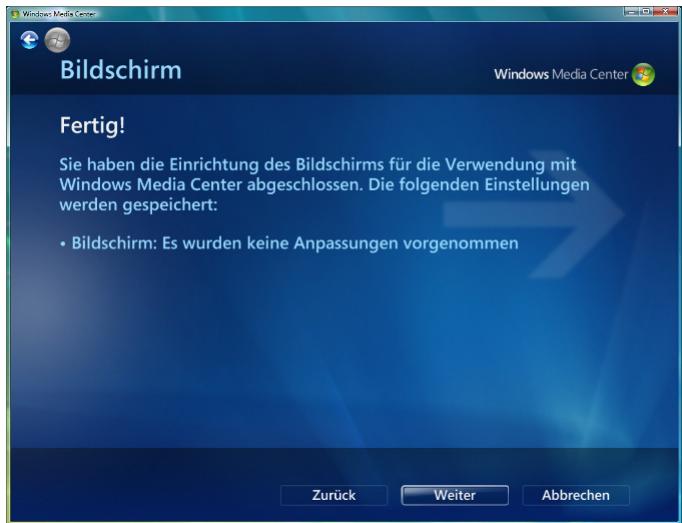
Fig. 52
▶ Click on "Next" (Weiter).
.com
Setting up the loudspeakers
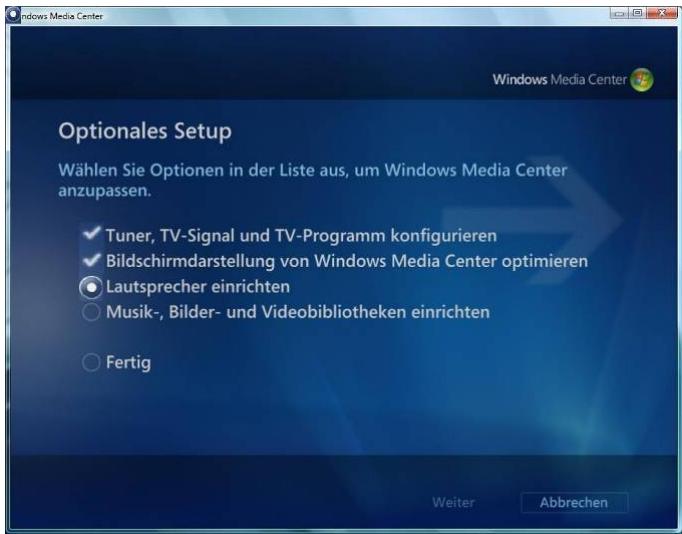
Fig. 53
Select "Loudspeaker Setup" (Lautsprecher einrichten) in "Optional Setup" (Optionales Setup) and click on "Next" (Weiter).
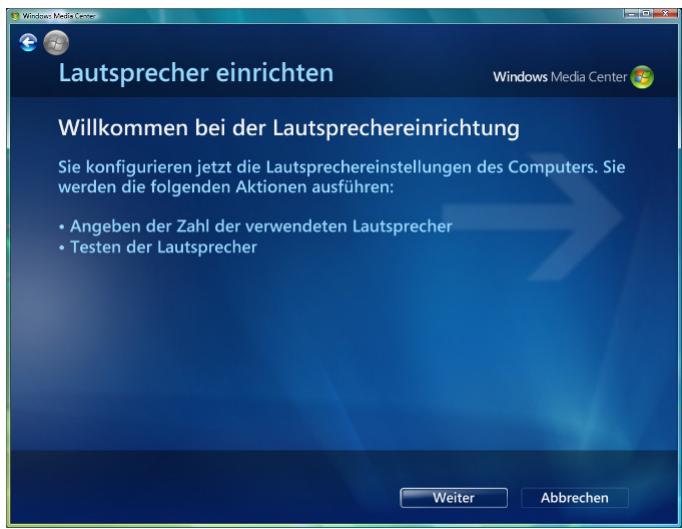
Fig. 54
▶ Click on "Next" (Weiter).
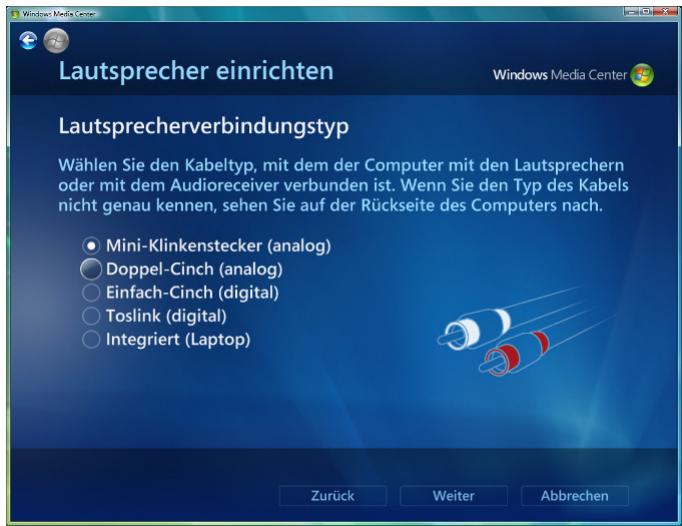
Fig. 55
Select the type of loudspeaker connection and click on "Next" (Weiter).
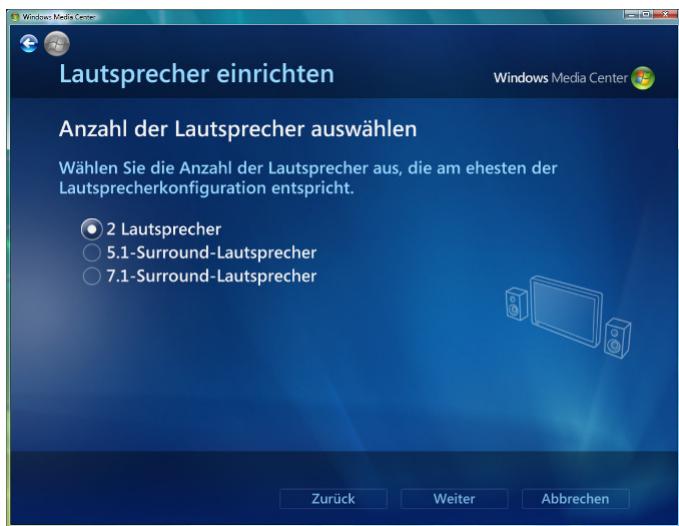
Fig. 56
Select the number of loudspeakers which most closely corresponds to your loudspeaker configuration and click on "Next" (Weiter).
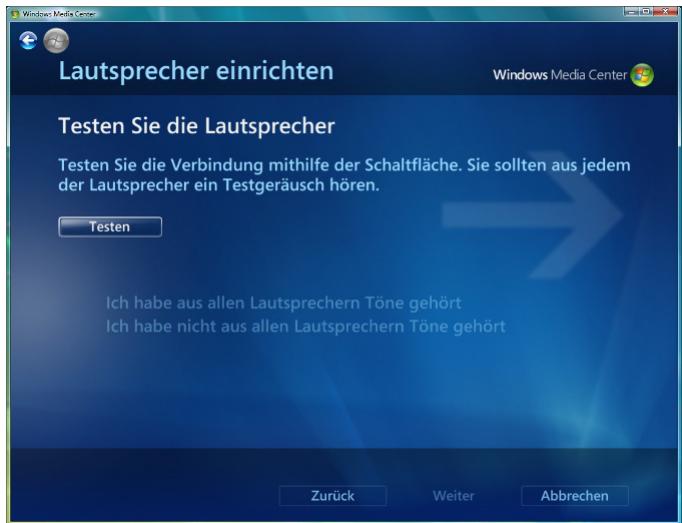
Fig. 57
▶ Click on "Test" (Testen).
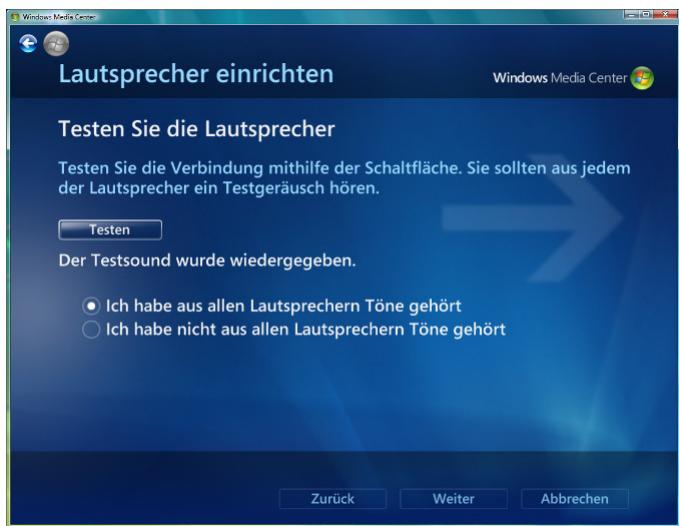
Fig. 58
Confirm that you have heard sound from all loudspeakers and click on "Next" (Weiter).
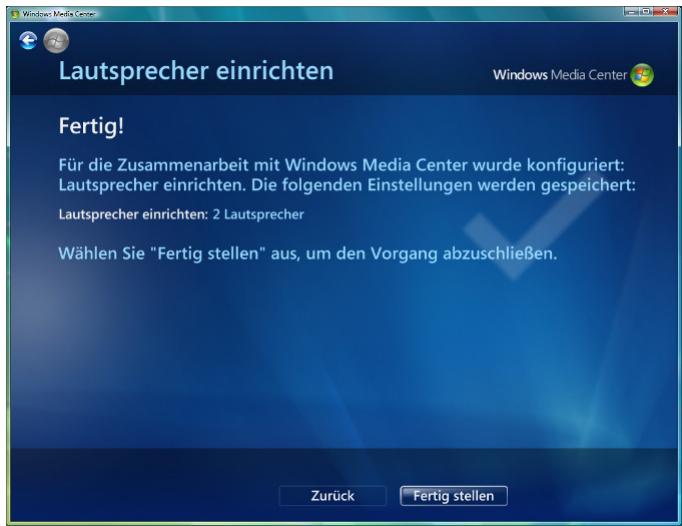
Fig. 59
Click on "Finish" (Fertig stellen).
Setting up music, photo and video libraries
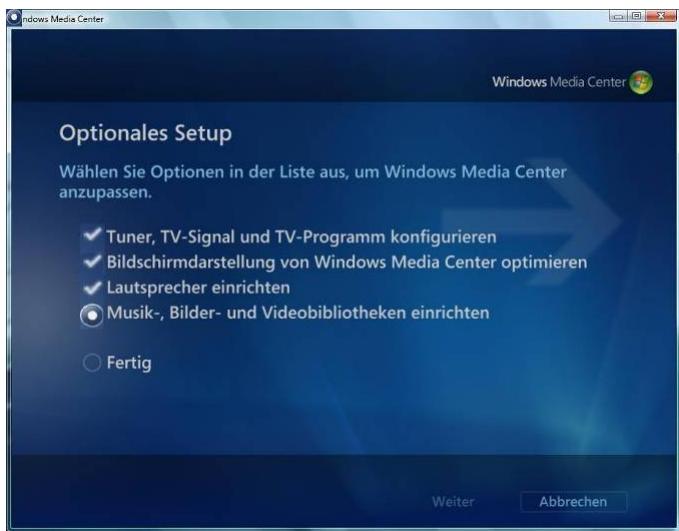
Fig. 60
Select "Music, photo and video libraries" (Musik-, Bilder- und Videobibliotheken) in "Optional Setup" (Optionales Setup) and click on "Next" (Weiter).
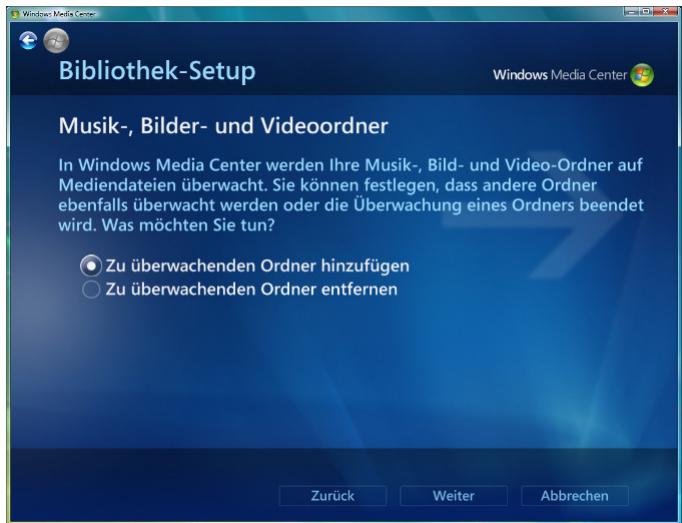
Fig. 61
Select "Add to watched folders" (Zu überwachende Ordner hinzufugen) and click on "Next" (Weiter).
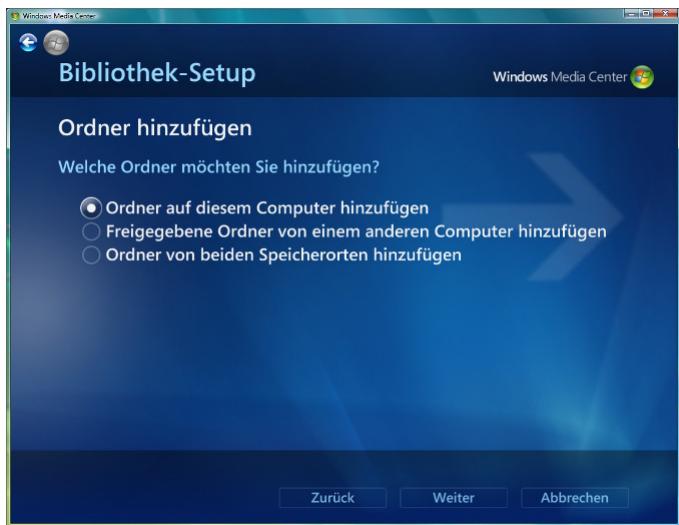
Fig. 62
Select which folder you wish to add and click on "Next" (Weiter).
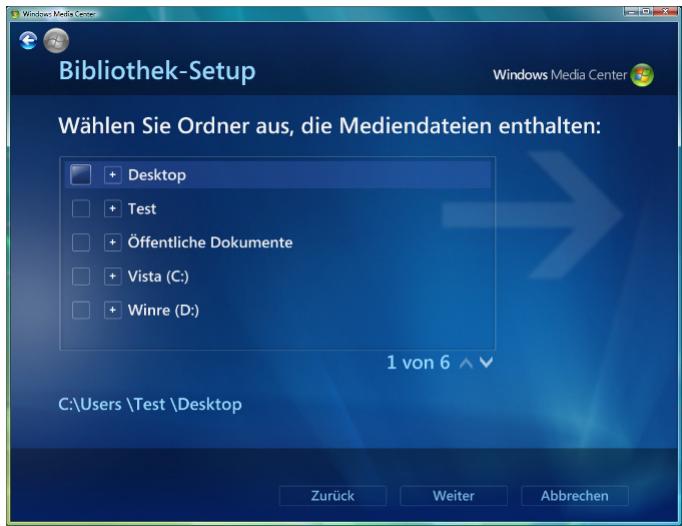
Fig. 63
Select the desired folder and click on "Next" (Weiter).
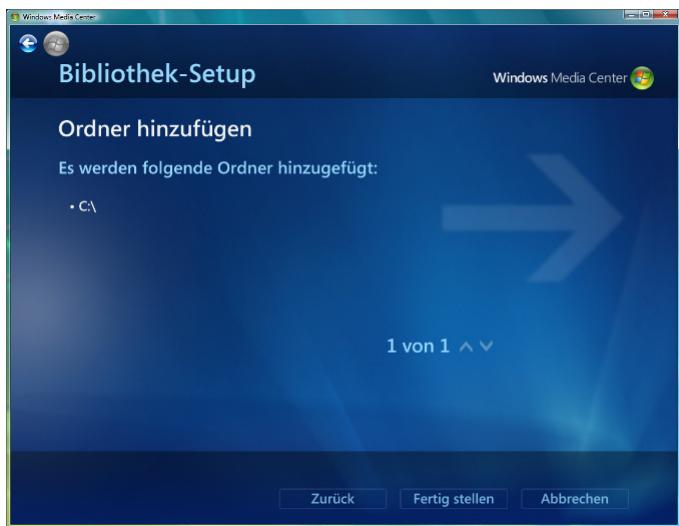
Fig. 64
Click on "Finish" (Fertig stellen).
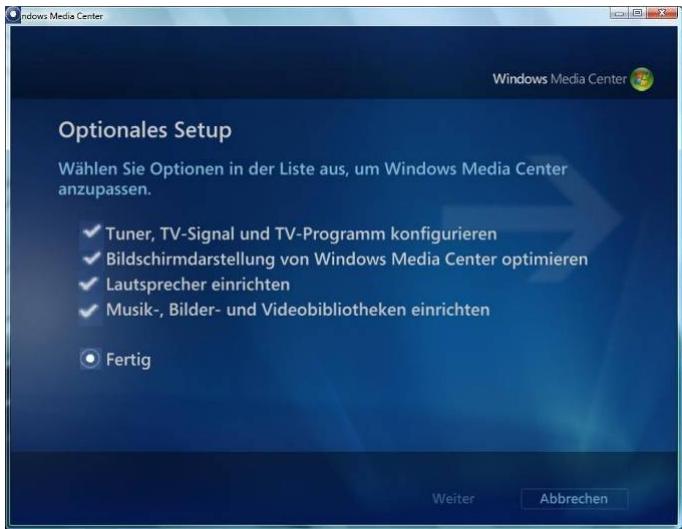
Fig. 65
Select "Finish" (Fertig) and click on "Next" (Weiter).
Closing Windows Media Center Setup Wizard
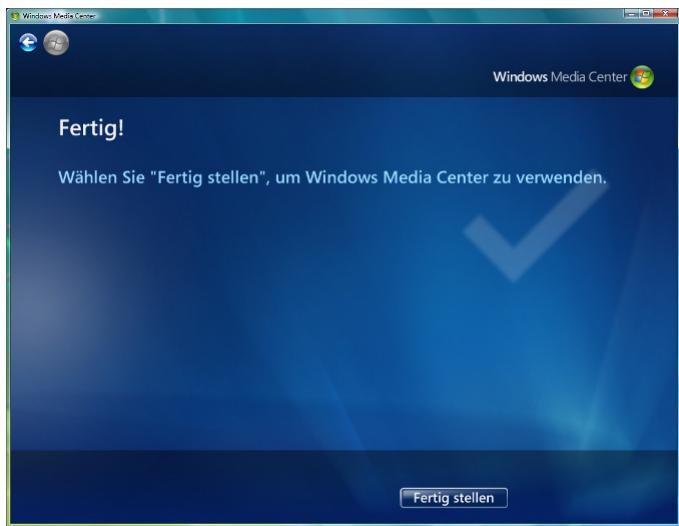
Fig. 66
Click on "Finish" (Fertig stellen).
The Windows Media Center start menu is displayed.
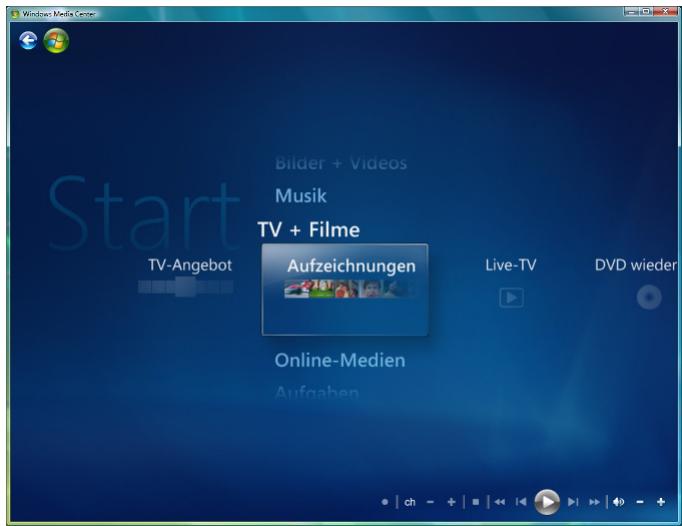
Fig. 67
When you next switch on your SCALEO EV, it will be ready to use. You can use the operating system.
You can find the pre-installed software under: "Start" - "All Programs"
If your system has the Microsoft® Windows Vista Home Premium, you can call up the multimedia functions via the appropriate functions in the operating system. For further information refer to the Microsoft® Windows Vista Home Premium documentation.
5 Operating the SCALEO EV
5.1 Switching on the SCALEO EV
Switch the TV/monitor on.
Switch on the SCALEO EV at the on/off button. Your SCALEO EV displays the log-on screen.
Select your user account and enter your user password if required. The Microsoft Windows Vista Home Premium interface is displayed.
5.2 Starting Windows Media Center in Windows Vista
Press the green "START" key on your remote control. The Windows Media Center will be displayed in the Windows Vista interface.
5.3 Closing the Windows Media Center in Windows Vista
To close the Windows Media Center in Windows Vista, click on the cross on the title bar. The Microsoft Windows Vista Home Premium interface is displayed.
5.4 Switching off the SCALEO EV
5.4.1 Standby
Press the OFF button on the remote control or the keyboard. Your SCALEO EV will switch to standby and can be turned on again by pressing the ON/OFF button on the front of the unit or pressing any key on the keyboard several times.
5.4.2 Shutting down the computer
Press the on/off button on the front of the unit. Your SCALEO EV will shut down completely and can be switched on again by pressing the on/off button on the front of the unit.
5.5 Software information
Information on system restore disks
If no system restore disks (CDs/DVDs) are supplied with your system, you must create these yourself. This is possible once only. We strongly recommend that you back up the factory default settings of the hard disk onto CDs or DVDs. This process is described in the "Restoring Installed Software" manual supplied.
If you have not created such system restore disks, Fujitsu Siemens Computers can offer to supply installation disks (operating system, drivers, applications) on a chargeable basis. Further information is supplied with your machine, or you can contact Siemens-Fujitsu service in your country. The phone number (chargeable calls) can be found in the warranty information under "local help desks".
Fujitsu Siemens Computers accepts no liability for loss of data due to the use of unsuitable disk media.
Information on pre-installed Microsoft® programs and operating systems
If your PC is equipped with one of the following programs or one of these operating systems, please take note of the following information:
Information on Microsoft® Windows Vista Home Premium
Fujitsu Siemens Computers has pre-installed Microsoft® Windows Vista Home Premium in such a way that you can use the product immediately. If you want to change critical hardware components, it may be necessary to reactivate the system. In this case, follow the program instructions after changing the hardware. In case of any queries, please contact our Help Desk (www.fujitsu-siemens.com/support).
Information on Microsoft Works
Microsoft has provided user activation for Microsoft® Works. Follow the program instructions after starting the program. In case of queries, please contact our Help Desk (www.fujitsu-siemens.com/support).
6 Troubleshooting (FAQ)
There are two general types of error message:
- Software error messages
System error messages
6.1 Software error messages
Software error messages are displayed on the screen by the operating system or an application. These messages generally appear after you have started the operating system or when you run an application. If this type of error message appears, refer to the manual for the respective application or the operating system to find out how to resolve this error.
6.2 System error messages
A system error message indicates a computer problem
The following checklist describes how you can eliminate small problems yourself. In the event of serious defects, you may have to contact your dealer or the hotline. Please refer to the relevant sections of the service documents supplied.
The computer will not start
Your mains socket may be faulty. Check whether the mains socket is working by connecting another electrical appliance, e.g. a table lamp.
Your SCALEO EV may not be connected to the power socket/plug strip.
To isolate the SCALEO EV, disconnect the mains plug. Check all the connections, reconnect to the mains and switch on the SCALEO EV again.
Nothing appears on the TV/monitor
Make sure that the TV/monitor is switched on.
Check that the SCALEO EV and the TV/monitor are correctly connected.
Consult the TV/monitor documentation to determine which connections can be used for the Video IN signal (e.g. S-Video IN or Composite IN).
Are you using a screen saver? Press the "Shift" key to restore the display.
Are you using the automatic power-saving function? These functions switch the SCALEO EV to power-saving mode. Press any key or move the trackball to leave this mode.
With the SLEEP key, you have switched the SCALEO EV into the AWAY mode. Press the AWAY key to reactivate the SCALEO EV.
Set the contrast and brightness of the TV/monitor.
Check the cable connection between the TV/monitor and the SCALEO EV.
The keyboard is not responding
Restore the wireless connection. Simultaneously press the CONNECT button (front of the SCALEO EV) and the button for restoring the wireless keyboard connection.
The program with which you are working may be "hanging". Press "CTRL+ALT+DEL" to end the task. If nothing happens, restart the computer.
The batteries are drained. Replace the batteries.
The image is distorted
Another unit nearby, e.g. a printer, may be causing the problem. Move any units which produce strong magnetic fields away from the monitor.
Check the display settings of the TV/monitor. You will find further information on this subject in the operating instructions for your TV/monitor.
The keyboard produces characters other than those shown on the keys
Check that the FN key, NUM LOCK key or CAPS LOCK key are pressed according to your requirements. Pressing the Shift key again reverses the lock (depending on the operating system).
A keyboard driver is activated which uses a keyboard layout different to your country-specific keyboard. The help function in your operating system provides you with information on changing the language-specific keyboard.
The display "CMOS clear" appears.
The internal battery is flat and must be replaced. Contact our service engineers.
The system is no longer reacting
The system hangs – if not reacting to on/off button being pressed, then depress the on/off button for approx. 5 seconds. The system will reboot.
Is there HDMI (High Definition Multimedia Interface) compatibility?
The HDMI interface has been developed for the fully digital transmission of audio and video data. HDMI was specifically developed for the private consumer electronics sector as more and more digital components are being used. One component of the HDMI interface is the HDCP copy protection (High-bandwidth Digital Content Protection) and it is normally in use on all HDMI-compatible devices on the market.
Note: Making copies of protected data media by bypassing copy protection is illegal.
HDMI is downwards compatible to DVI-D. With devices which have a DVI input with HDCP support, all that is required is a small adapter as the DVI connector does not have the same format as the HDMI connector. However, a monitor cannot then decrypt and play back the audio signals. On 23 August 2005, HDMI v1.2 was officially adopted. It is fully downwards compatible to HDMI v1.0/1.1. A 1-bit audio stream was included as an expansion, as used for example with the SACD (Super Audio Compact Disc). A few new secondary video formats were also included in
order to support higher refresh rates up to 240 Hz and more conventional PC video formats, for example.
As not every TV offers full support, we recommend that, initially, you connect the device to the TV via a DVI adapter or the Scart interface. This will ensure that you always see an image on your TV and that the Media Center can adjust its settings.
Information on connecting flatscreen TVs with the Scaleo EV via HDMI
Fujitsu Siemens Computer recommends that you use an HDMI to DVI (Digital Visual Interface) adapter to connect your SCALEO EV to a digital flatscreen TV. This recommendation is because the HDMI connection was specially developed for consumer electronic devices. However, problems with the picture may arise when several devices are connected. The DVI interface on TVs can identify these and adjust itself. It is also possible to connect your SCALEO EV via the SCART interface or the VGA interface.
7 Transporting the System
If you transport your SCALEO EV computer over a long distance, for example in a vehicle, you must ensure that the data carriers will not be damaged during the transport. Before transporting the computer in a vehicle, always make a complete backup of the hard disk to external disks.
If you are transporting the SCALEO EV only a short distance, i.e. only to another room or to a different desk, a backup need not necessarily be carried out. However, you still must make sure that the machine is transported carefully.
For the onward shipment of the product or other transport, use the original packaging or other suitable packaging which provides protection against shock and impact.
Detach all external cable connections and transport all devices separately and only in their original packaging or in other suitable packaging which guarantees protection against shock and impact.
Do not drop the SCALEO EV and do not expose it to severe vibrations.
CAUTION! The computer should ideally be transported in the original packaging which has been specifically designed for this purpose.
8 Guarantee Services
For our systems, we generally grant warranty claims in accordance with the German Civil Code (BGB) as well as additional warranty services on agreement (see the corresponding service documentation for details).
The system you have purchased has been produced to environmentally friendly standards and strict quality standards by our company, which is certified to DIN ISO 9001 and DIN EN ISO 144001. We provide a statutory guarantee on all of our products, or an extended warranty by arrangement.
9 Return of Old Units
Information on these subjects can be found on the Drivers & Utilities DVD provided or on your SCALEO EV under "Start" - "All Programs" - "Manuals" in the "SYSTEM - RETURNING" folder.
10 Technical Data and Operating Conditions
| Technical specification | |
| Power drain when unit is switched off - FlexATX power supply unit | ≤ 5 W (0 W only possible when directly disconnected from the power supply - disconnect the power plug or switch off the unit with the on/off switch on the rear of the housing) |
| Rated voltage ranges (according to information on label found on rear of unit) | 100 V-240 V or 100 V-127 V/200 V-240 V |
| Rated frequency | 50 Hz-60Hz |
| Rated input current (corresponding to details on the label on the rear of the unit) | 5 A-3 A or 6 A/3 A |
| Operating conditions | |
| Ambient temperature | 10 ... 35°C 20 ... 85% relative non-condensing humidity -25 °C to 60 °C |
| Transport temperature | |
| Volume | |
| Sound power level (DIN EN27779, ISO3744, ISO 9296, RAL UZ-78) | max. 55 dB (A) |
| Unit classification | |
| Protective rating | I |
| Pollution class | 2 |
| Surge voltage category | II |
11 Supplement to the Operating Instructions
Guidelines and Environmental Protection
An important characteristic of our products, alongside quality and performance, is environmental friendliness.
Protection of resources with energy-saving functions
Our units generally have energy-saving modes.
Device safety
The units meet the requirements of the low voltage directive 2006/95/EC certified in accordance with EN 60950-1:2001 and the directive on electromagnetic compatibility 2004/108/EC.
Guarantee of electromagnetic compatibility
All data and signal cables must be provided with sufficient shielding. The minimum requirement is a Category 5 shielded cable for 10/100 Ethernet, or Category 5e for Gigabit Ethernet. All housing covers must be installed as described in the operating instructions.
Lasers
If your system has an optical drive such as a CD-ROM, CD-RW, DVD or combined drive, the following applies:
With closed PC housings, the optical drives used correspond to laser class 1 in accordance with IEC 60825-1. These contain light-emitting diodes (LED) which under some circumstances may generate a stronger light beam than laser class 1. A direct glance into this beam, even with protective eyewear, is dangerous and may lead to injury. Therefore, no parts of the optical drive housing are to be removed.
Operating instructions
The documentation delivered with the unit has been printed solely on chlorine-free paper.
Notes on the electronic documentation
Further information about your computer can be found in the electronic documentation. The component documentation corresponding to your configuration will automatically be copied to the "Manuals" folder during initial start-up. This documentation can be accessed after initial startup under "Start" - "All Programs" - "Manuals". In some descriptions there is no reference to Microsoft Windows Vista. These documents remain valid in relation to their hardware description and their operating parameters.
If no disks were supplied with your system, refer to the enclosed manual for information on restoring your system.
- Published by
- Contents
- Your SCALEO EV ...
- Safety, Precautionary and Compliance Instructions
- Risk of electrocution
- Risk of explosion
- Computer set-up
- Important information
- Optical drives
- Cleaning
- Additional notes for proper operation
- Data backup
- Special handling of batteries and rechargeable batteries
- Starting Up
- Connections and Controls
- Connections on the rear
- Connections, displays and controls on the front
- Multicard reader
- 4.1.4Keyboard
- Multimedia keys (from left to right)
- General keys
- Cursor keys
- Function keys F1 to F12
- Virtual number pad
- Keys specific to Microsoft® Windows Vista Home Premium
- Functions accessed by pressing several keys simultaneously
- Preparing the SCALEO EV
- Inserting/replacing the batteries for the remote control and keyboard
- Connecting antenna
- Connecting the radio (optional)
- Connecting the TV
- Connecting to HDMI
- Information on connecting flatscreen TVs with the Scaleo EV via HDMI
- Connecting to SCART TV
- Connecting to S-Video Out
- Connecting to VGA (optional)
- Connecting audio
- Analogue stereo connection
- Soundsystem 5.1
- Soundsystem 7.1
- Digital audio connection
- Connecting additional devices
- USB devices
- Serial ATA devices
- Connecting devices to SCART AUX connection (Loop through)
- Connecting devices to SCART AUX
- Connecting set-top box to S-VIDEO IN /VIDEO IN on the rear of the SCALEO EV
- SCALEO EV with one tuner
- SCALEO with one TV card with two tuners (dual tuner card)
- Connecting the power cable
- Power-saving tips!
- Initial startup
- Switching on your SCALEO EV for the first time
- Initial settings
- First Steps
- Hardware Wizard
- Windows Updates
- Setting up Windows Media Center in Windows Vista
- Required setup
- Optional setup
- Screen appearance
- Setting up the loudspeakers
- Setting up music, photo and video libraries
- Closing Windows Media Center Setup Wizard
- Operating the SCALEO EV
- Switching on the SCALEO EV
- Starting Windows Media Center in Windows Vista
- Closing the Windows Media Center in Windows Vista
- Switching off the SCALEO EV
- Standby
- Shutting down the computer
- Software information
- Information on system restore disks
- Information on pre-installed Microsoft® programs and operating systems
- Information on Microsoft® Windows Vista Home Premium
- Information on Microsoft Works
- Troubleshooting (FAQ)
- Software error messages
- System error messages
- A system error message indicates a computer problem
- The computer will not start
- Nothing appears on the TV/monitor
- The keyboard is not responding
- The image is distorted
- The keyboard produces characters other than those shown on the keys
- The display "CMOS clear" appears.
- The system is no longer reacting
- Is there HDMI (High Definition Multimedia Interface) compatibility?
- Transporting the System
- Guarantee Services
- Return of Old Units
- Supplement to the Operating Instructions
Brand : FUJITSU SIEMENS
Model : SCALEO EV
Category : Personal computer