
ACTIVY MEDIA SERVER 150 - Media Server FUJITSU SIEMENS - Free user manual and instructions
Find the device manual for free ACTIVY MEDIA SERVER 150 FUJITSU SIEMENS in PDF.



| Product type | Multimedia server (NAS) with file sharing, FTP server, web server, and UPnP AV server |
| Dimensions | 209 × 135 × 72 mm |
| Power supply | External AC adapter +12V DC / 3A, maximum power consumption 36 W |
| Network interface | Gigabit Ethernet 10/100/1000 Base-T (RJ-45), auto-negotiation |
| External ports | 2 USB 2.0/1.1 ports, 1 eSATA port |
| Storage capacity | Internal 3.5-inch hard drive (capacity not specified, typically 250 GB or more) |
| Supported protocols | CIFS/SMB (Windows), FTP, HTTP, UPnP AV |
| Multimedia formats | Audio: MP3, WMA, WAV, LPCM, OGG, FLAC; Images: JPEG; Video: AVI, MPEG, MPG, MP4, WMV, VOB |
| Number of users | Up to 50 user accounts, 32 simultaneous connections |
| Main functions | File server (Samba), FTP server, web server, UPnP AV server, automatic backup via Backup button, user and group management, IP/MAC filtering |
| Configuration and interface | Graphical user interface (GUI) accessible via web browser (http://ams150), multilingual (FR, EN, DE, IT, ES) |
| Maintenance and cleaning | Clean with a dry, soft cloth. Do not use cleaning sprays, alcohol, or flammable liquids. Protect from moisture and extreme temperatures. |
| Security | Imperatively change the default administrator password. Use a hardware firewall for Internet access. Avoid vibrations and shocks. Disconnect USB/eSATA devices via the interface before removal. |
| Spare parts and repairability | Contact an authorized Fujitsu Siemens dealer for any repairs. Do not open the device yourself. |
| General information | DHCP client by default, fixed IP support. Support for files >4 GB. Firmware update via GUI. Compatible with Windows XP. CE marking. |
| Ambient conditions | Avoid direct sunlight, high humidity, and extreme temperatures. Place on a non-slip surface. |
Frequently Asked Questions - ACTIVY MEDIA SERVER 150 FUJITSU SIEMENS
User questions about ACTIVY MEDIA SERVER 150 FUJITSU SIEMENS
0 question about this device. Answer the ones you know or ask your own.
Ask a new question about this device
Download the instructions for your Media Server in PDF format for free! Find your manual ACTIVY MEDIA SERVER 150 - FUJITSU SIEMENS and take your electronic device back in hand. On this page are published all the documents necessary for the use of your device. ACTIVY MEDIA SERVER 150 by FUJITSU SIEMENS.
USER MANUAL ACTIVY MEDIA SERVER 150 FUJITSU SIEMENS
All rights reserved, including rights created by patent grant or registration of a utility model. All designations used in this document may be trademarks, the use of which by third parties for their own purposes could violate the rights of their owners. We reserve the right to change delivery options or make technical modifications.
Benutzerhandbuch
ACTIVY Media Server 150
| Folder settings & permissions | |||
| Folder name | Share | Change folder name | |
| Folder description | Share to all | Change description | |
| Save | |||
| Please set user's limit for this folder | |||
| Authentication-free access | |||
| No access for all users | |||
| Read-only access for all users | |||
| ReadWrite access for all users | |||
| Current access permission for all users | |||
| Group - Permissions setting | |||
| Sales | □ Group applied | ○ No access ○ Read-only ○ Read and write | |
| Marketing | □ Group applied | ○ No access ○ Read-only ○ Read and write | |
| User - Permissions setting | |||
| admin | ○ No access ○ Read-only ○ Read and write | ||
| peter | ○ No access ○ Read-only ○ Read and write | ||
| john | ○ No access ○ Read-only ○ Read and write | ||
| Folder name | ||
| Old folder name | Share | |
| New folder name | NewShare | |
| Folder description | Share to all | |
| Note | Folder name is limited to 15 characters. Description is limited to 48 characters. | |
| Apply | Undo Back | |
| Folder Configuration | ||
| Folder name | NewShare | |
| Description | Share to all | |
| Change Back | ||
Please set user's limit for this folder
Authentication-free access
No access for all users
Read-only access for all users
ReadWrite access for all users
Current access permission for all users
| Group - Permissions setting | |
| Sales | □ Group applied ○ No access ○ Read-only ○ Read and write |
| Marketing | □ Group applied ○ No access ○ Read-only ○ Read and write |
| User - Permissions setting | |
| peter | ○ No access ○ Read-only ○ Read and write |
| admin | ○ No access ○ Read-only ○ Read and write |
Host Name (Hostname) (1~15
Zeichen):
Network > Host name setting
Host IP address
Host name setting
Host name
AMS150
Workgroup
WorkGroup
Description
Note
-
Host name and workgroup are limited to 15 characters, description is limited to 48 characters.
-
Characters allowed: a~z A~Z 0~9! $^A() - {}
Apply
Undo
Back
System > Administrator setting
| Administrator | Time | User | Group |
| Administrator setting | Apply Cancel Back | ||
| Administrator name | admin | ||
| Old password | |||
| New password | |||
| Re-enter new password | |||
| Note | Please provide administrator name and password from 4 to 16 characters. Periodically change the administrator name and password to ensure security. | ||
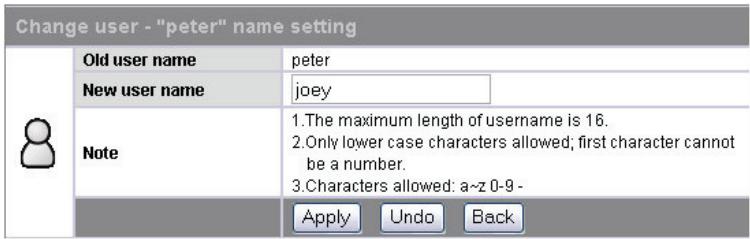
| Change user - "peter" name setting | ||
| Old user name | peter | |
| New user name | joey | |
| Note | 1.The maximum length of username is 16. 2.Only lower case characters allowed; first character cannot be a number. 3.Characters allowed: a-z 0-9- | |
| Apply Undo Back | ||
| Add user setting | |||
| User name | mark | ||
| New password | *** | ||
| Re-enter new password | *** | ||
| User description | mark | ||
| FTP access | Yes No | ||
| Note | 1.When the FTP is enabled, this user is allowed to use FTP access. 2.A password that differs from the "User name" is recommended. 3.Description is limited to 48 characters. 4.User name and password are limited to 16 characters. 5.Only lower case characters allowed; first character cannot be a number. 6.Characters allowed: a-z 0-9- | ||
| Apply Undo Back | |||
| Option > IP filter setting | |||
| FTP | Security IP | Security MAC | File download |
| IP filter setting | |||
| IP access check | Denied | ||
| IP address 1 | 192.168.1.3 | ||
| IP address 2 | |||
| IP address 3 | |||
| IP address 4 | |||
| IP address 5 | |||
| IP address 6 | |||
| IP address 7 | |||
| IP address 8 | |||
| IP address 9 | |||
| IP address 10 | |||
| Apply Back | |||
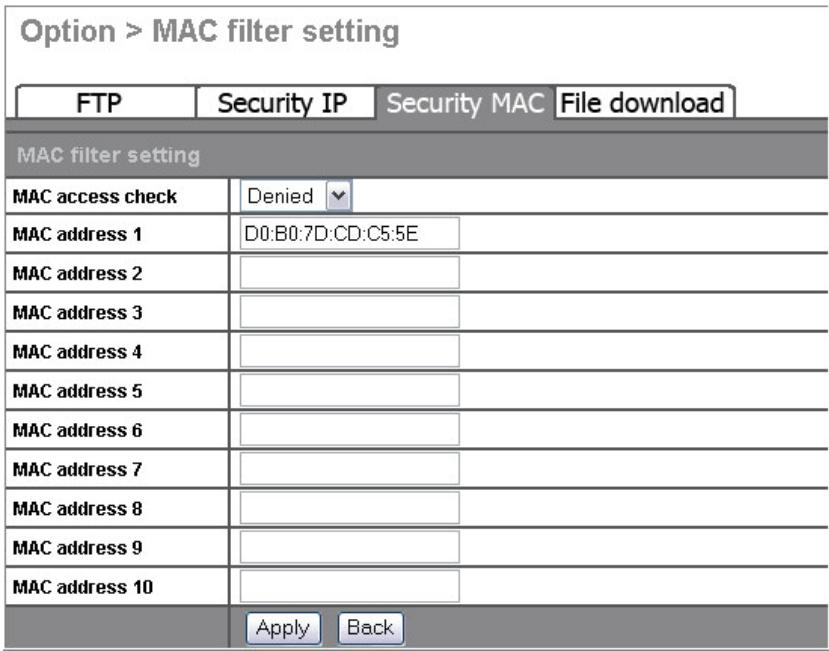
| Option > MAC filter setting | ||
| FTP | Security IP | Security MAC File download |
| MAC filter setting | ||
| MAC access check | Denied | |
| MAC address 1 | D0:B0:7D:CD:C5:5E | |
| MAC address 2 | ||
| MAC address 3 | ||
| MAC address 4 | ||
| MAC address 5 | ||
| MAC address 6 | ||
| MAC address 7 | ||
| MAC address 8 | ||
| MAC address 9 | ||
| MAC address 10 | ||
| Apply Back | ||
-
Port number must be between 1 and 65535.
-
Web folder is the location of all your HTML files. Web server will start from "index.htm", if it exists
Apply
Undo
Back
/mnt/Media,/mnt/Share/MyPictures,/mnt/Lisa
Copyright (C) 1989, 1991 Free Software Foundation, Inc.
51 Franklin Street, Fifth Floor, Boston, MA 02110-1301, USA
The information in this manual is subject to change without prior notification. We have taken every care during the preparation of this manual, however, the possibility of errors or omissions cannot be excluded. No liability whatsoever is accepted for errors or loss of data as a consequence of this.
All rights reserved, including those for photocopies and storage in electronic media. The trademarks used are protected by the respective owners.
We recommend reading this manual carefully before operating ACTIVY Media Server 150 for the first time.
Contents
1 Overview 1
1.1 General Information 1
1.2 Safety Information 1
1.3 Packaging Contents 2
1.4 Introduction 3
1.4.1 Front Panel 3
1.4.2 Rear Panel 5
2 Installation Guide 7
2.1 Hardware Installation 7
2.1.1 Connect ACTIVY Media Server 150 to your Local Area Network (LAN). 7
2.1.2 Power on the ACTIVY Media Server 150
2.1.3 Power off the ACTIVY Media Server 150
2.1.4 Connect external USB devices to the ACTIVY Media Server 150 ......... 7
2.1.5 Connect an external eSATA drive to the ACTIVY Media Server 150 ....... 7
2.2 Software Installation 8
2.2.1 Making Connection with the ACTIVY Media Server 150.8
3 Management Guide 11
3.1 Starting the Graphic User Interface (GUI) 11
3.2 Using the Graphic User Interface (GUI) 13
3.2.1 Understanding the GUI 13
3.2.2 Menu items list 14
3.3 Status 15
Items 15
Information 15
3.4 Disk 16
3.4.1 Folder- Folder Configuration 16
3.4.1.1 To Configure Folder Properties 16
3.4.1.2 To Add a New Folder 21
3.4.1.3 To Delete a Folder 22
3.4.2 Disk-HD Configuration 22
3.5 Network 23
3.5.1 Host- Host Name Setting 23
3.5.2 IP Address- IP address Setting 23
3.5.2.1 To Disable DHCP Client 23
3.5.2.2 To Configure a fixed IP Address for the Device 24
3.5.2.3 Jumbo Mode 24
3.6 System 25
3.6.1 Administrator-Administrator Setting 25
3.6.2 Time- System Time Setting 26
3.6.3 User-User Configuration 26
3.6.3.1 To Configure a User 27
3.6.3.2 To Add a New User 28
3.6.3.3 To delete a user 29
3.6.4 Group-Group Configuration 30
3.6.4.1 To add a new group 30
3.6.4.2 To delete a group 31
3.6.4.3 To configure a group 32
3.7 Option 33
3.7.1 FTP-FTP Configuration 33
3.7.2 Security IP-IP Filter Setting 34
3.7.3 Security MAC- MAC Filter Setting 35
3.7.4 File Download- File Download Configuration 36
3.8 Maintenance 36
3.8.1 Upload/ Download Your Configuration 37
3.8.1.1 Backup the Device Configuration Status: 37
3.8.1.2 Restore the ACTIVY Media Server 150 configuration: 38
3.8.2 Code Page 38
3.8.3 Firmware Upgrade 38
3.8.4 Restart the System 39
3.8.5 Reset to Factory Default 39
3.7.6 Select GUI Language 39
3.8.7 Sleep mode 40
3.8.8 System Shut Down 40
3.8.9 Load Firmware extensions 40
3.9 Web Server 41
3.9.1 Administration WEB 41
3.9.2 Web Server Configuration 41
3.10 AV Server 42
3.11 USB/eSATA 44
3.11.1 USB - Detail 44
3.11.2 USB - Disk Setup 44
Appendix 46
Trouble Shooting 46
Product Features 51
GNU GENERAL PUBLIC LICENSE 52
1 Overview
1.1 General Information
Thank you for purchasing the ACTIVY Media Server 150. This device represents a flexible, economical, effective and compact data storage and sharing solution for your home or office network.
The integrated Audio/Video server functionality allows you to share all your music, pictures, video using UPnP-enabled client devices like media players or digital media adapters
One of the major advantages of the ACTIVY Media Server 150 is its compact size which makes it extremely portable. Moreover, minimum expenditure is required to operate the ACTIVY Media Server 150 and it is compatible with any PC or notebook which has an Ethernet port. It can be also connected directly to your PC or notebook with Ethernet interface.
The ACTIVY Media Server 150 can be easily connected to the network using the LAN cable supplied. It can be automatically recognized by the computer and you can now use the ACTIVY Media Server 150 as a network drive. The device includes a FTP server and a Web server. The FTP server allows users to backup and share files with using any FTP client programme. The Web server provides an easy way to share information using a web browser.
The device is compatible with Windows® XP®. The setup procedure and management interface are simple and user-friendly.
This manual is designed to provide you with an overview of the performance features of your ACTIVY Media Server 150, and offers useful tips and information on how to use it. In addition to details on how to install ACTIVY Media Server 150, it also explains what applications are available and how you can resolve any issues that may arise.
Important security notice:
After successful installation of the ACTIVY Media Server 150 it is highly recommended to change the default administrator's user name and password from "admin" to a different value. See chapter Management Guide - System - Administrator Settings for detailed instruction.
1.2 Safety Information
- Only qualified personnel should carry out technical work on the device.
- When cleaning, avoid using cleaning sprays and any kind of solution containing alcohol or other flammable liquids.
- Avoid overheating. This may reduce the life of your device.
-
Protect your device from very high humidity, direct sunlight as well as high and extremely low temperatures.
-
Do not place any liquids on or next to the unit.
- If the device is brought from a cold environment into a warmer installation site, bedewing may occur. Wait until the temperature of the device has equalised and it is completely dry before you put it into operation.
- As this device contains a hard disk drive, particular care must be taken to ensure that it is not exposed to vibrations during operation. Never place the device on its edge, as the hard disk mechanism could be damaged if it were to topple over. If carrying the device in a bag, make sure that it is well secured.
- Please use the included AC/DC mains adapter only for your device.
- Before plugging in the cable, check the Ethernet ports of the system to be used for any damage.
- Use only those cables which are intended for the application and for proper operation of the device. Use the designated ports and do not try to force the connection.
- Check the cable regularly for damage. Damaged cables must be replaced immediately.
- Ensure that no objects enter the connection sockets.
- Use the supplied power supply unit solely to operate the device. If it is connected to other devices, the devices or power supply unit may be damaged.
If the device is damaged, it may no longer be used under any circumstances. Please contact the authorised Fujitsu Siemens Service. - We recommend that you place the devices on a non-slip surface. Please note that the rubber/plastic feet on the devices may damage the surface..
CE Mark

This version of this device supplied satisfies the requirements of EU Directives 89/336/EEC "Electromagnetic Compatibility" and 73/23/EEC "Low Voltage".
1.3 Packaging Contents
Before getting started, please verify that your package includes the following items:
1x ACTIVY Media Server 150 unit
1x Power adapter and 1x AC adapter cable (EU)
1x Quick Installation Guide
1x CAT 5e Ethernet cable
1x CD ROM with user manual, recycling instructions, firmware and troubleshooting tool
1.4 Introduction
1.4.1 Front Panel
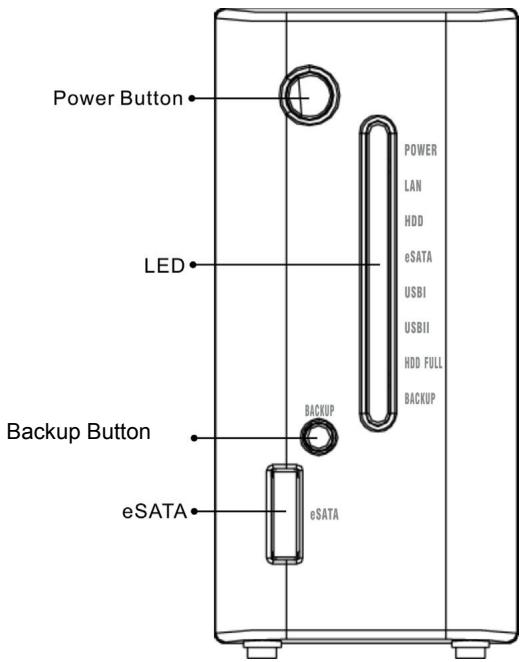
Power Button
To switch the device on, press this Power button for 2 seconds after connecting the device to an appropriate power outlet with the provided power cord. To power off, press the button for two seconds until Power LED starts to blink.
LEDs Definition
| LED | Status | |
| Power | Steady Blue | Power on |
| Blinking Blue | System starting\closing | |
| Off | Power off | |
| LAN | Steady Green | Valid Connection at 1000 Mbps |
| Blinking Green | Data transmitting at 1000 Mbps | |
| Steady Amber | Valid Connection at 10/100 Mbps | |
| Blinking Amber | Data transmitting at 10/100 Mbps | |
| HDD | Blinking Amber | Data transmitting on HDD |
| Off | No HDD acting | |
| eSATA | Blinking Amber | Data transmitting or receiving on eSATA port. |
| Off | Invalid connection on eSATA port. | |
| USB I | Steady Green | Valid connection on USB I port. |
| Off | Invalid connection on USB I port. | |
| USB II | Steady Green | Valid connection on USB II port. |
| Off | Invalid connection on USBII port. | |
| HDD FULL | Steady Red | HDD has run out of space. |
| Off | Space available on HDD | |
| Backup | Steady Amber | Data copying from USB I to internal HD. |
| Off | Data copying finished. |
Backup Button
Press this button to copy the contents (files) from a device connected to the USB I port to the internal HD. A new folder will be created automatically in the "Share" folder. This new folder is named according to the date / time when the backup process has been performed.
Note: 1. This backup function supports only devices connected to the USB I port.
2. The Backup LED illuminates while data copying. Do not remove this device from USB I port before the Backup LED turns off.
eSATA connector
You can connect this port with an external eSATA device (external harddrive).
Important warning: If you like to unplug an eSATA device, always explicitly request a "remove" in the USB / eSATA menu of the ACTIVY Media Server 150, Otherwise data loss may occur!
1.4.2 Rear Panel
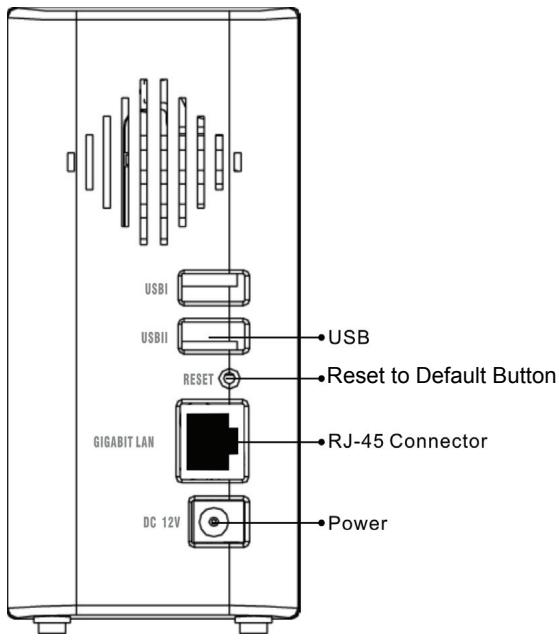
Reset to Default Button
Press and hold the Reset Default Button for 4 seconds to reset all configurations to factory default settings.
Note: 1. All configurations and settings that have been altered will be removed from the device.
- The device also supports restoring factory default settings by software. To get instruction how to restore to factory default parameters using the web based user interface, see" Reset to Factory Default"
LAN Port
Connect the port with RJ-45 cable to your network switch, IP sharing router, your PC or Notebook computer.
Note: To get instruction how to connect the device to your LAN, refer to "Making Connection with the Device".
USB Port
Connect this port with your USB Storage devices.
Note: USB devices must comply with the USB Mass Storage device standard in order to function properly.
Important warning:
If you like to unplug a USB device, always explicitly request a "remove" in the USB / eSATA menu of the ACTIVY Media Server 150, Otherwise data loss may occur!
Power Adapter Socket
The socket for connecting the power adapter.
2 Installation Guide
2.1 Hardware Installation
2.1.1 Connect ACTIVITY Media Server 150 to your Local Area Network (LAN)
- Connect one end of a RJ-45 cable to the LAN port on the device.
- Connect the other end of the cable to your IP sharing router or switch or to your PC or Notebook computer.
2.1.2 Power on the ACTIVY Media Server 150
- Connect the included power cord with the power adapter
- Connect the power plug to a power outlet.
- Push the power button to power the ACTIVY Media Server 150 on.
2.1.3 Power off the ACTIVY Media Server 150
- Press the button for two seconds until Power LED starts to blink.
- It is essential that the device be switched off using the power button prior to removing the power connection. Otherwise data may be lost.
2.1.4 Connect external USB devices to the ACTIVY Media Server 150
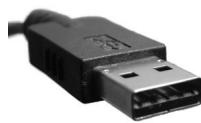
The device features two USB ports that allow users to connect external USB storage devices, like USB flash drives (Memorysticks) and external USB harddrives. Find the USB cable that came with your USB storage device. Insert the USB Type A end of the cable to the ACTIVY Media Server 150, the other end to your USB storage.
Note:
a) The Type A end of the USB cable is the end that usually connects to your computer.
b) If you are connecting an external HD to the USB ports on the device, we highly recommend users to use the power
adapter of the external HD to supply sufficient power for your external HD.
2.1.5 Connect an external eSATA drive to the ACTIVY Media Server 150
The device equips one eSATA port that allows users to connect an eSATA device. Please find the cable that came with your eSATA device. Connect your device to the "eSATA" port on front panel.
Note:
a) You have to power on your eSATA device before powering on the ACTIVY Media Server 150. Otherwise, your eSATA device won't be detected.
b) Some vendors of external eSATA devices do not supply the correct cable. Only standardized eSATA plugs can be connected to the ACTVY Media Server 150.
2.2 Software Installation
2.2.1 Making Connection with the ACTIVY Media Server 150
The ACTIVY Media Server 150 is set to act as a DHCP client as default. This means that in most network environments, the device will receive a network address automatically. No further network setup is needed. If you experience difficulties to connect to the ACTIVY Media Server 150, please refer to the section Troubleshooting in this manual
Map a drive letter to a folder on the ACTIVY Media Server 150
By mapping your ACTIVY Media Server 150, you can access it easily in My Computer. Press Start button on Windows desktop => Press Search => Press "Computer or People" => Press "A computer on the network" and a new window will appear. => Type AMS150 in the Computer Name field and then press Search button.
You will see the following window.
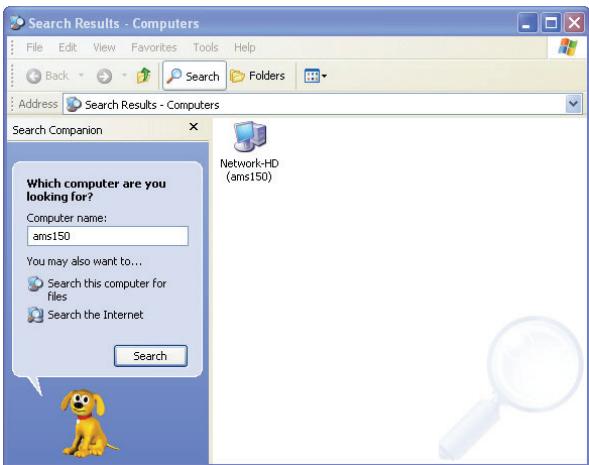
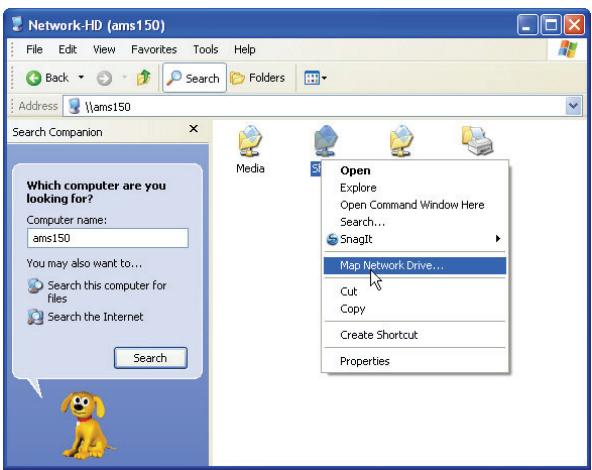
Point to the "Network-HD (ams150)", double click with the mouse.
Choose the folder you want to map, click mouse on its right button and click Map
Network Drive.
Note: 1. If you are unable to find the ACTIVY Media Server 150 using "search for computers" please refer to the section Troubleshooting 2. It is recommended to set the workgroup name of the ACTIVY Media Server 150 to the same value as your existing network. This will speed up the search for the device in the network and make it more reliable. See chapter Host name setting in the section Network of this manual.
The following window will appear
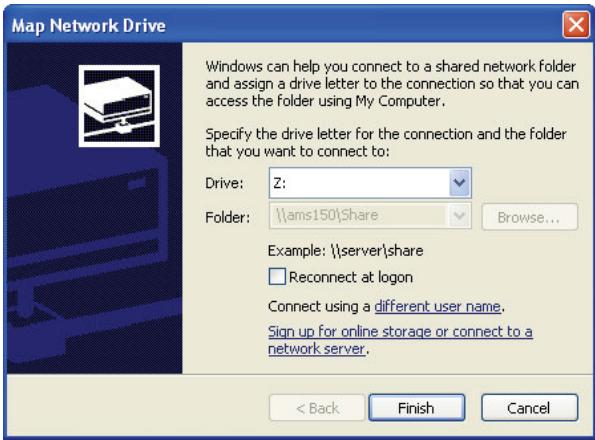
Choose a Drive letter you want to map. Press Finish button to complete mapping. As the following window illustrates, you can now access ACTIVY Media Server 150 easily in My Computer.
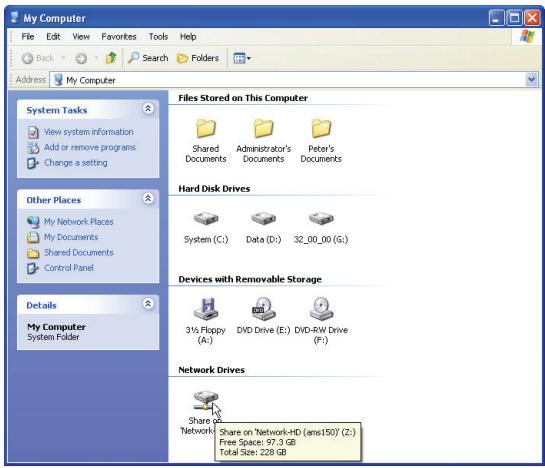
Note: 1. As default, the folder "Share" is created automatically. All users can read or write in this folder.
- You can change the access permissions for any created user and for any folder. Please see the chapter "To Configure Folder Properties" for details
- To add or configure an user account, please see "To Configure a User"
- If you desire to get access to a folder using a different username/ password from the name that you have used before, it might be necessary to log off to your operation system and to log on again.
- If access to a folder is restricted by permissions, the following window will appear:
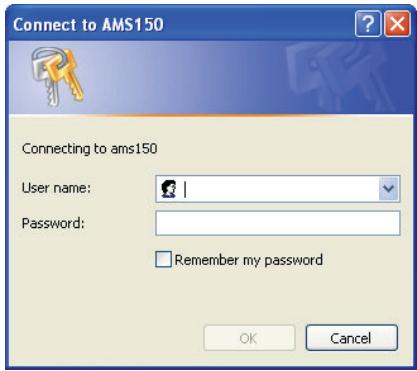
Please enter a valid user name and password to get access to the folder
3 Management Guide
Read this chapter to understand the management interface of the device and how to manage the device.
3.1 Starting the Graphic User Interface (GUI)
The Graphic User Interface (GUI) is the management interface of this device. Most parameters and settings are configured over the GUI.
- To get access to the GUI, open your web browser, enter http://ams150 and press Enter.
Note: In case you have connected the ACTIVY Media Server 150 to a PC or Notebook computer directly or if there is no DHCP server in your network, you can also enter http://169.254.0.1. Please make sure your PC has also an address in the range 169.254.xxxx.xxx - see the Troubleshooting section of this manual if you experience difficulties during access
If your Microsoft Windows XP computer has the "UPNP user interface" installed, the ACTIVY Media Server 150 will appear under "My Network Places" immediately. You can double click the AMS150 icon to access the GUI. To enable the UPnP user interface under Microsoft Windows XP, enter the Control Panel, Add or remove programs, Add/remove Windows components, select "Networking services" and click "Details". Check "UPnP user interface" and press OK.
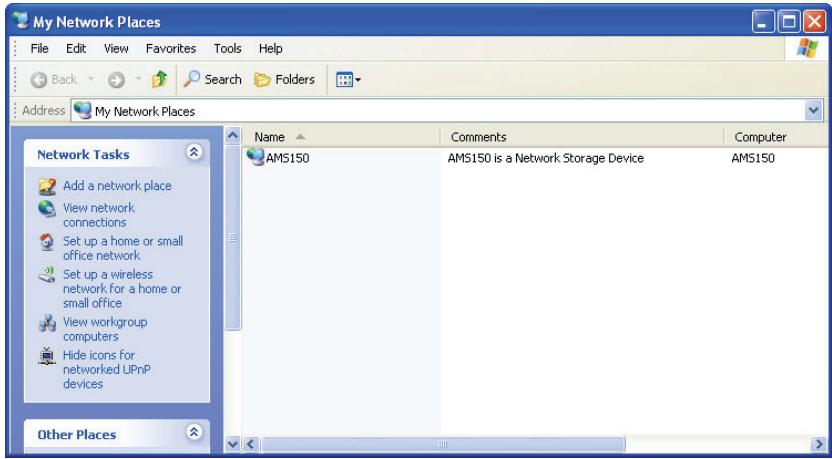
2. The login windows pops up.
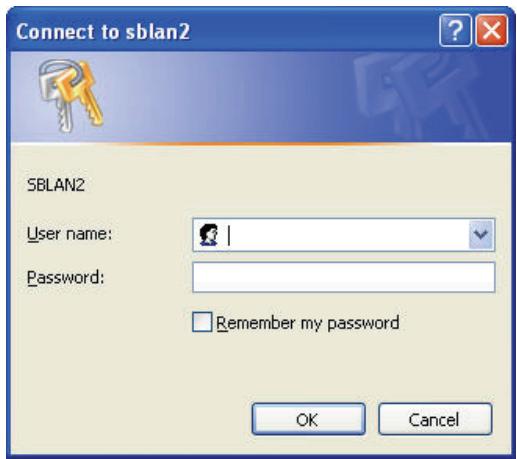
3. Enter the administrator's user name and password.
4. Click OK. The GUI opens.
Note:
- The default user name is "admin" (without quotes) and password is "admin" (without quotes). To change the username or password, please refer to "Administrator-Administrator Setting."
- For security reasons, it is highly advised to change the administrator's user name and password after the first login.
- The User Name and Password are case sensitive and alphanumeric.
3.2 Using the Graphic User Interface (GUI)
This section provides an introduction to the GUI.
3.2.1 Understanding the GUI
The GUI is consisted of the following components,
- Configuration categories: Located on the left side of each page is the configuration menu. It lists the configuration categories of the ACTIVY Media Server 150. To get access to each category, click on one of the categories.
- Configuration items: Located on the right side of each page. Shows the items that can be configured. You can click on the tabs on top to access each sub-category.
Note: For detail information about configuring each item, please refer to the instruction for each configuration category.
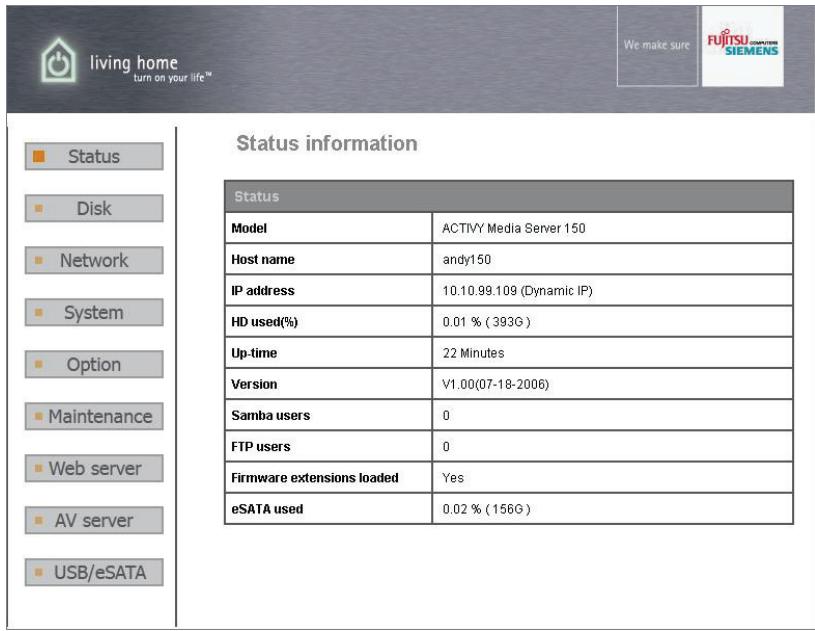
3.2.2 Menu items list
The following table lists the information and items that you can configure with the GUI. For detail instruction, please refer to the following chapter.
| Category | Sub-category | Information |
| Status | Status | Shows the status information of this device including Host name, IP address, HD used percentage, system up-time, firmware version, current Samba users and FTP users, information on firmware extensions and if there is an eSA device connected. |
| Disk | Folder | Allows to add a new folder, delete a folder, change folder-access permissions and to set folder properties. |
| Disk | Allows to format the internal hard disk | |
| Network | Host | To change the device's host name, Work group name and description. |
| IP address | To configure the network settings for the device including DHCP enable/ disable, IP address, Subnet Mask, Gateway, DNS servers, and Jumbo mode selecting. | |
| System | Administrator | To change the administrator name and password. |
| Time | To set up the system time zone, synchronize time and assign a timeserver for the device. | |
| User | To add a new user, delete a user, setup user permissions and change user properties. | |
| Group | Organize users in groups. Add users to groups or delete users from groups. | |
| Option | FTP | Change FTP properties including enable/disable FTP Server, Port number, Timeout setting and enable/disable anonymous access. |
| Security IP | To configure the allowed or denied IP addresses for getting access to the device. | |
| Security MAC | To configure the allowed or denied MAC addresses for getting access to the device. | |
| File Download | To add, delete download tasks or change download task properties. | |
| Maintenance | Maintenance | Provides device maintenance including backup the status of your configuration to the device, select code page, firmware upgrade, system restart, reset to factory default, language selection, sleep mode settings, system shut down, load of firmware extensions |
| Web Server | Web Server | To change the Web server properties. |
| AV Server | AV Server | To enable and configure the audio/video server (A/V server) function. |
| USB/eSATA | Detail | Shows information of a connected USB device. (a connected eSATA device is not displayed here – see the Status page) |
| Disk Setup | To setup, remove or format a USB or eSATA device that is connected to the ACTIVY Media Server 150. |
3.3 Status
The Status page shows the following information of the device. To open the Status page, click the Status on the configuration categories list.
| Items | Information |
| Model | The model name of the device |
| Host name | The network name identification of this device. |
| IP-address | The IP address of the device |
| HD used (%) | The usage of HD in percent (Total amount of HD) |
| Up-time | The estimated time that the device is powered on |
| Version | The firmware version of the device. |
| Samba Users | The number of users that are currently using the device by Samba |
| FTP Users | The number of users that are currently using the device by FTP client |
| Firmware extensions Loaded | Indicates if the firmware extension file has been installed. |
| eSATA used | The usage of eSATA drive (if a eSATA drive is connected) |
Note: This page shows the device information only. To make configuration settings, please refer to the instructions in the following chapters.
| Status information | |
| Status | |
| Model | ACTIVY Media Server 150 |
| Host name | AMS150 |
| IP address | 192.168.111.9 (Dynamic IP) |
| HD used(%) | 0.02 % (245G) |
| Up-time | 4 Minutes |
| Version | V1.00(07-21-2006) |
| Samba users | 0 |
| FTP users | 0 |
| Firmware extensions loaded | Yes |
| eSATA used | 0.01 % (246G) |
3.4 Disk
The Disk page allows users to:
- Add and delete folders.
- Change the access permissions of folders.
- Format the built into the ACTIVY Media Server 150 hard disk.
To open the Disk page, click on "Disk" in the main menu
3.4.1 Folder- Folder Configuration
The folder configuration allows users to add folders, delete folders and change folder properties.
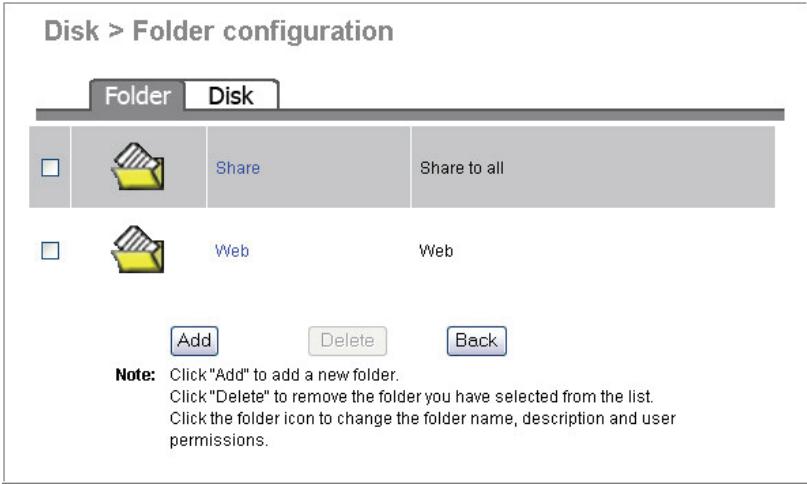
3.4.1.1 To Configure Folder Properties
Click on the folder that you are going to configure.

The folder configuration page shows up. This page allows users to:
- Change Folder Name/ Folder Description.
- Add or remove authorized users or groups for this folder.
- Change access permissions for users and groups.
| Folder settings & permissions | |||
| Folder name | Share | Change folder name | |
| Folder description | Share to all | Change description | |
| Save | |||
| Please set user's limit for this folder | |||
| Authentication-free access No access for all users Read-only access for all users ReadWrite access for all users Current access permission for all users | |||
| Group - Permissions setting | |||
| Sales | □ Group applied | ○ No access ○ Read-only ○ Read and write | |
| Marketing | □ Group applied | ○ No access ○ Read-only ○ Read and write | |
| User - Permissions setting | |||
| admin | ○ No access ○ Read-only ○ Read and write | ||
| peter | ○ No access ○ Read-only ○ Read and write | ||
| john | ○ No access ○ Read-only ○ Read and write | ||
To change the folder name/ folder description
- Click on "Change Folder Name" or "Change Description" icon. The Folder Name/ Folder Description Setting page shows up.
| Folder name | Video | Change folder name |
| Folder description | VideoFiles | Change description |
- Fill in the new name or new description for the folder and click "Apply".
Note: - Folder Name (0~15 characters): The name for the folder.
Description (0~48 characters): A note for the folder.
Both folder name and description are alphanumeric.
- Blank character is not allowed for folder name and description.
| Folder name | ||
| Old folder name | Share | |
| New folder name | NewShare | |
| Folder description | Share to all | |
| Note | Folder name is limited to 15 characters. Description is limited to 48 characters. | |
| Apply | Undo Back | |
- The folder name/description is replaced successfully. You may click "Change" to do more configurations for this folder or click "Back" to return to folder list.
| Folder Configuration | ||
| Folder name | NewShare | |
| Description | Share to all | |
| Change Back | ||
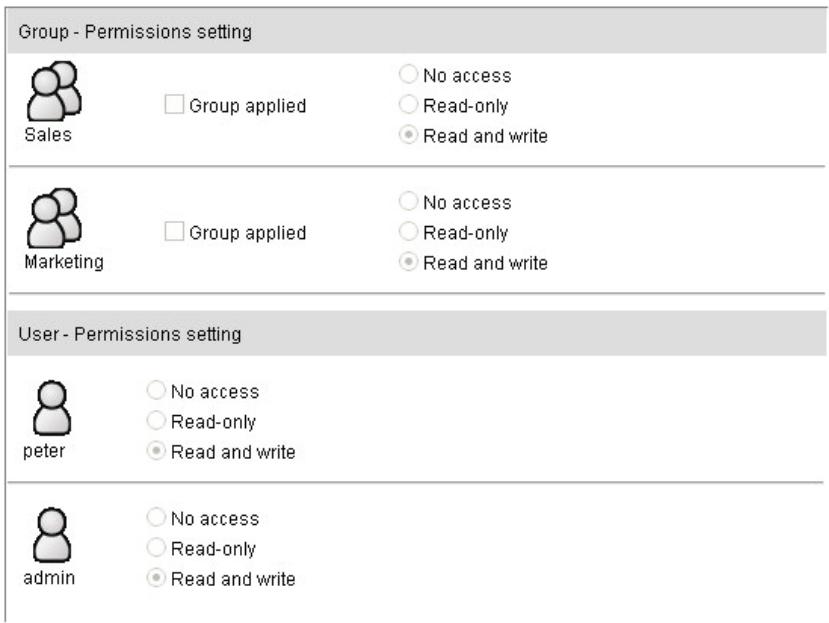
Configure folder access permissions for users and groups.
- Configure the access permission rules for all users by pre-defined levels. Select one level and click "Save" to apply this rule for all users. The predefined levels use the following access permission rules:
| Pre-defined Levels | Access Authority |
| Authentication Free Access: | No authentication. Everyone is allowed to get access to this folder without username and password. |
| No access for all users: | No accessing. No user is allowed to get access to this folder. |
| Only Read access for all users: | All users are allowed to read-only in this folder. Modification in this folder is not allowed. |
| Read/ Write access for all users: | All users are allowed to read and write to this folder. |
| Current Access Permission for all users: | The folder uses user-defined permission settings. The access permissions in “Group permissions Setting” and “User permissions Setting” will be applied to this folder. |
Please set user's limit for this folder
Authentication-free access
No access for all users
Read-only access for all users
ReadWrite access for all users
Current access permission for all users
- Configure the access-permission rules by groups and users:
Note: Before starting, you have to select "Current Access Permission for all users" under "Please set user's limit for this folder"
By Group: Mark the checkbox to select an authorized group. Select an access-permission rule for this group and click "Save" to apply.
By User: Select an access authority for each user. Click "Save" to apply.
Tips: To do an efficient access permission configuration, please refer to the following recommended procedures:
Step1. Select a Pre-defined permission level for all users. (Ex, Click "No Access for all users" to configure all users as "Non-access" for this folder.
Step2. Click "Current Access Permission for all users" to allow configuration by groups or users.
Step3. Specify the users that have different, special permissions.
Step4. Click Save to apply.
3.4.1.2 To Add a New Folder
- Click the "Add" button on folder list.
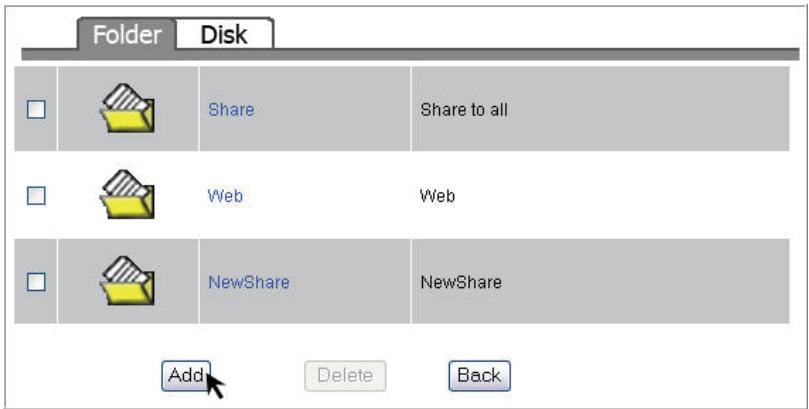
- Specify a folder name and description for the newly added folder. Click "Apply" to enable.
Note: - Folder Name (0~15 characters): The name for the folder.
Description (0~48 characters): A note for the folder.
Both folder name and description are alphanumeric.
- Blank character is not allowed for folder name and description.
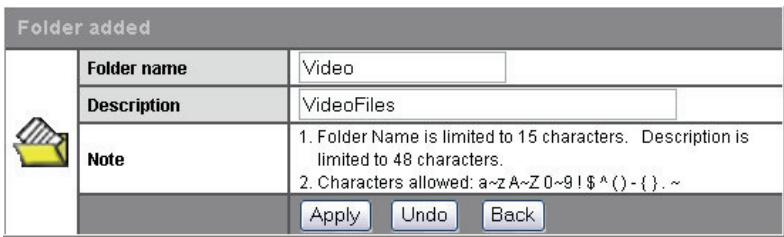
- Setup the folder properties and click "Save" to apply.
Note: For detail folder configuration, see "To configure folder properties"
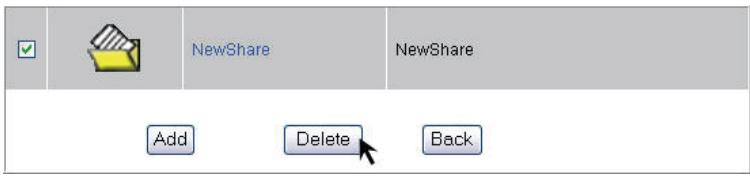
3.4.1.3 To Delete a Folder
- Mark the check box of the folder that you are going to delete.
- Click Delete to delete the folder.
3.4.2 Disk-HD Configuration
Caution: All files within the hard disk will be erased when HD Format is performed!!
Note: The internal Hard Disk will be formatted with the EXT3 file system.
To format your hard disk:
- Click "Yes" to execute HD Format.
Format process will start after your confirmation.
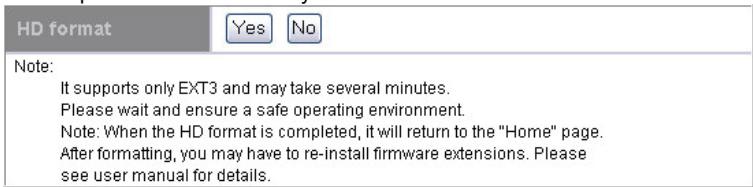
- After confirmation, the system starts formatting the hard disk. It may take several minutes according to the storage size of your hard disk. Please wait and DO NOT execute any other configuration for the ACTIVY Media Server 150 while formatting.
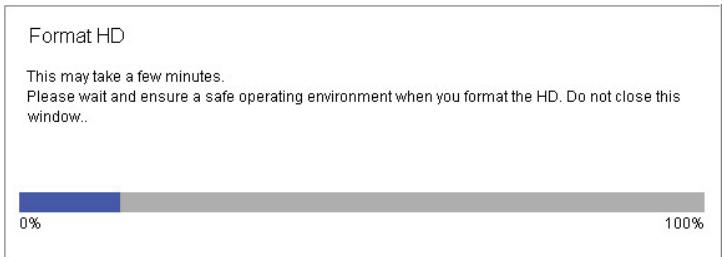
Note: After successfully formatting the HD you need to reinstall the firmware extensions. Please refer to chapter Firmware extensions in the Maintenance section of this manual.
3.5 Network
The Network page allows users to:
- Configure general device information
- Configure the network setting for the ACTIVY Media Server 150.
To open the Network page, click the Network on the configuration categories list.
3.5.1 Host- Host Name Setting
Host Name (1~15 characters):
Define the user-defined device name, default is AMS150
Workgroup (1~15 characters):
Defines the workgroup name for the device which is going to be shown on "Network Neighborhood", default is Workgroup.
Description (1~48 characters):
Define an additional description note for the device.
Network > Host name setting
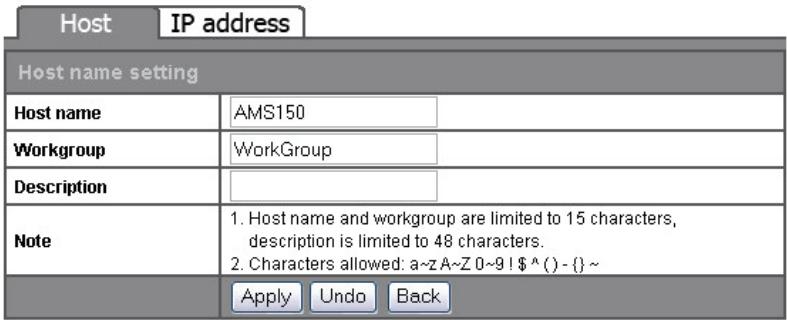
Note: If you have multiple ACTIVY Media Server 150 devices in your network, you need to assign different host names for each device.
3.5.2 IP Address- IP address Setting
3.5.2.1 To Disable DHCP Client
Click "Disable" to turn off the DHCP client function and to allow to set up a fixed network IP address to the ACTIVY Media Server 150.

3.5.2.2 To Configure a fixed IP Address for the Device
The IP Address Setting contains parameters of the device network setting. To modify, fill in each blanks and click "Apply" to execute.
| IP Address: | Specifies the device IP |
| Subnet Mask: | Specifies the Subnet Mask |
| Gateway: | Specifies the default gateway |
| Primary/Secondary DNS Server: | Specifies the DNS server addresses |
Network > IP address setting
| Jumbo frame setting | |||
| Jumbo frame | Disable | Set | |
| IP address setting | |||
| DHCP Client | Disable | Enable | |
| Manual setting | IP address | 169.254.0.1 | |
| Sub-network mask | 255.255.0.0 | ||
| Gateway | 192.168.1.254 | ||
| Primary DNS server | 168.95.1.1 | ||
| Secondary DNS server | 168.95.192.1 | ||
| Note | If you change the DHCP setting, the user interface will be disconnected and a new IP address will be assigned. | ||
3.5.2.3 Jumbo Mode
The device supports Jumbo frame for utilizing the network more efficiently. You may choose 4000 or 7000 as the size of a packet. To select Jumbo frame mode, choose a mode from the drop list and click SET to execute.
| Jumbo frame setting | ||
| Jumbo frame | Disable | Set |
Note: In order to gain benefit from this setting, other devices connected to your network need to support this feature as well.
3.6 System
The System page allows users to:
- Configuring Administrator name and password.
- Synchronize system time
- Add, delete and configure a user
- Add, delete and configure a group
To open the System page, click the System item in the menu.
3.6.1 Administrator-Administrator Setting
This page provides Administrator Name and password configuration, which are used for getting access to the Graphical User Interface (GUI).
To modify the Administrator Name and password:
- Define a Administrator Name (4~16 characters) in the Administrator Name box.
- Fill in the original password (4~16 characters) in the Old Password box.
- Define a new password (4~16 characters) in the New Password box.
- Fill in the newly defined password (4~16 characters) in the Confirm Password box.
- Click "Apply" to execute.
Note: 1. The default user name is "admin" (without quotes) and password is "admin" (without quotes)
- The Administrator Name and password are both case-sensitive and alphanumeric.
- To enforce security, it is recommended to change the Administrator Name and password periodically.
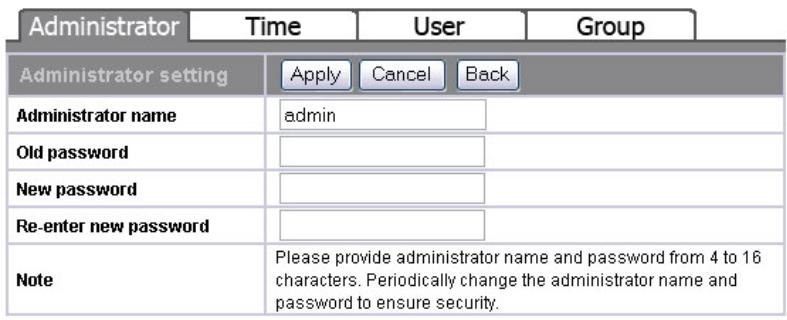
System > Administrator setting
3.6.2 Time- System Time Setting
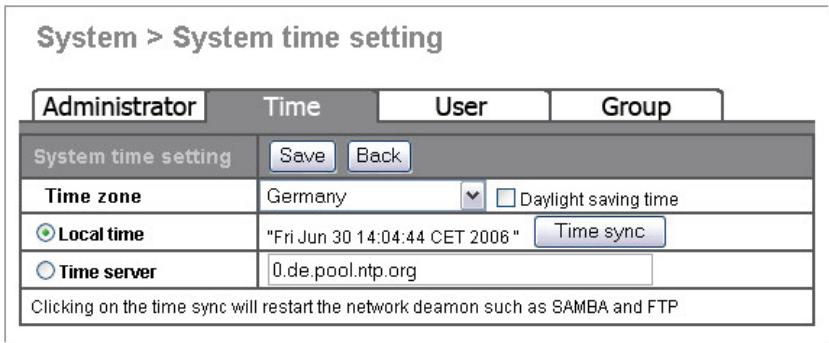
The Time page provides time synchronizing function. You can synchronize the internal clock of the AMS150 to the time of your computer or you can use a time server from the Internet.
To configure the device time:
- Select the time zone that corresponds to your region from the Time Zone drop list.
- Check the "Daylight Saving" checkbox if your region currently is in Daylight Saving time mode.
- To apply the time from your computer to the device, select "Local Time" and click "Time Sync" button
- To synchronize the clock with a time server, select "Time Server", fill in a time server address in the Time Server box and click "Time Sync" to execute.
- Click "Save" to apply your configuration or click "Back" to abort.
Note: Retrieving the current time from a time server on the Internet works only if you have a working Internet connection.
After changing the time settings, it is recommended to reboot the ACTIVY Media Server 150. To reboot the device, please see "Restart the System" in the Maintenance section.
If you power off your ACTIVY Media Server 150 periodically, it is recommended to use the "Time Server" setting since the internal clock will not run if the device is powered off.
3.6.3 User-User Configuration
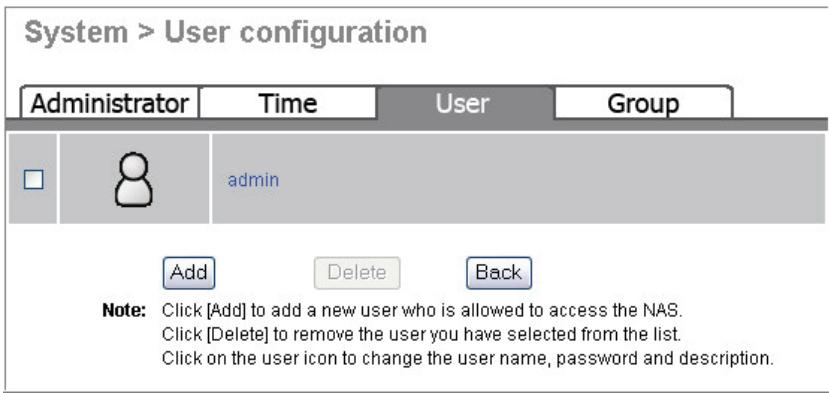
The User page allows users to:
- Add users
- Delete users
Modify user properties
3.6.3.1 To Configure a User
- Move the cursor onto the icon of the user that you are going to configure.

- You can change the user's properties by modifying the settings on each item.
User Name
(4~16 characters):
New password
(4~16 characters):
Confirm
Password (4~16
characters):
User Description
(0~47 characters)
FTP Access
Specify a name for the newly added user.
Enter a password for the new user
Enter the new password again to confirm the password
Fill in a description for the user
Click "Yes" to allow this user to access the device with FTP client. Click "No" to deny FTP access.
Note: The username and password for accessing the FTP server are the same with the one that configured above.
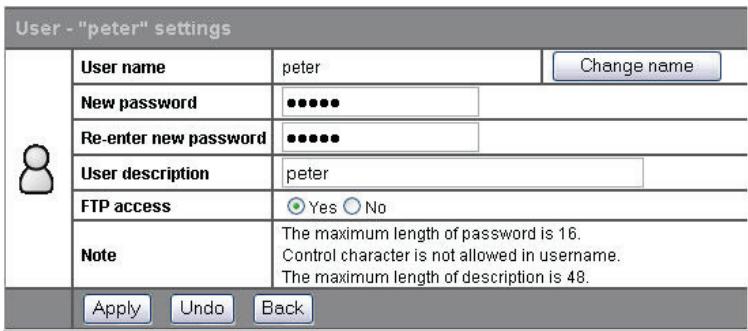
- To change the user name, click the "Change Name button". The change username page shows up. Fill in the new user name in the "NewUserName" box. Click "Apply" to execute.
3.6.3.2 To Add a New User
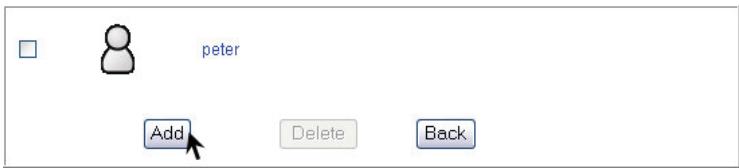
- Click the "Add" button on the user list
- Define the user properties.
Note: For more information about each item, see "To Configure a User"
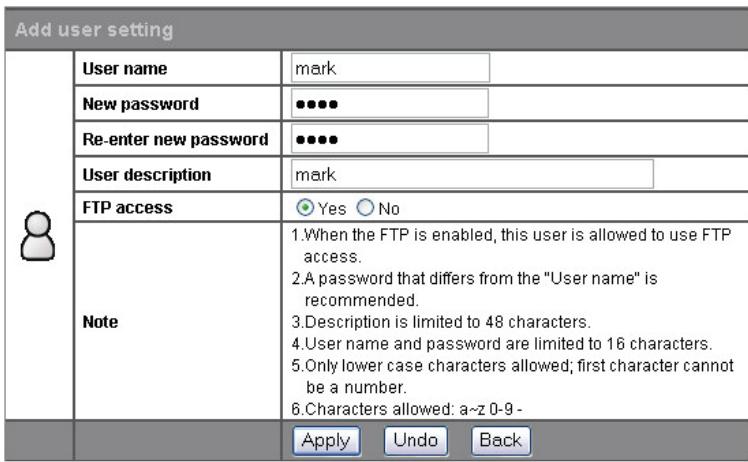
- Click "apply" to add the new user.
3.6.3.3 To delete a user
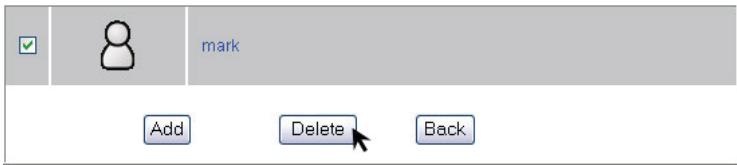
- Mark the check box in front of the user your going to delete.
- Click the "Delete" button to remove the user.
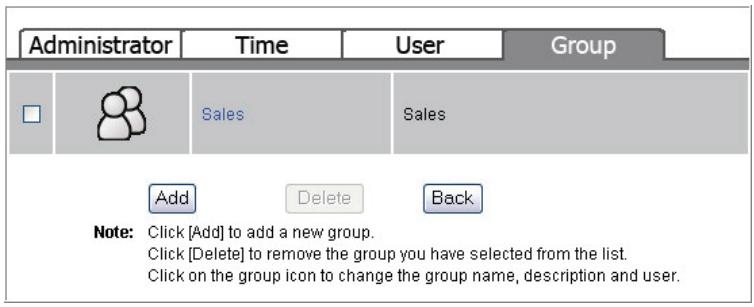
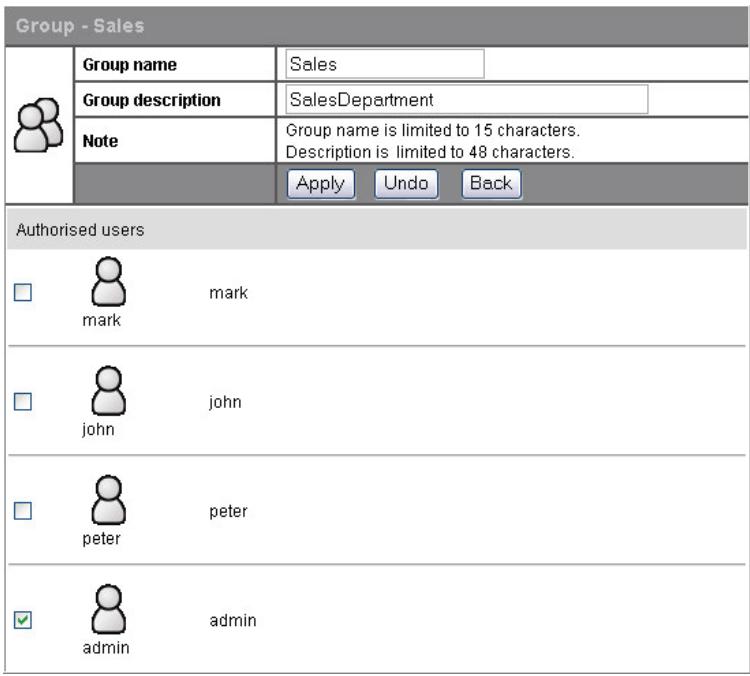
3.6.4 Group-Group Configuration
Groups can be helpful to organize users that own the same set of access permissions to particular folders. If you create new users and would like to assign the same or similar permissions as for existing users, groups can be used to make a concise and easy configuration.
The Group page allows users to:
Add groups
- Delete groups
Modify group properties
3.6.4.1 To add a new group
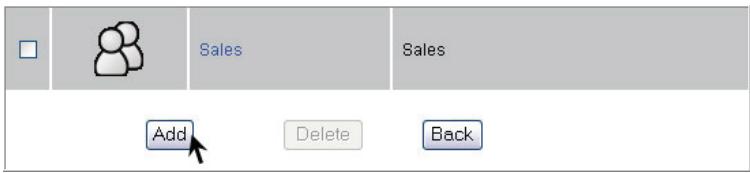
- Click "Add" button.
- Configure the properties for this group.
Group Name (0~15 characters)
Group Description (0~48 characters) Authorized Users
Enter a group name as the group ID.
Note: The group name must be started with an alphabetic character Fill in a description for the group
Select group members by marking the check boxes left of the respective user names.
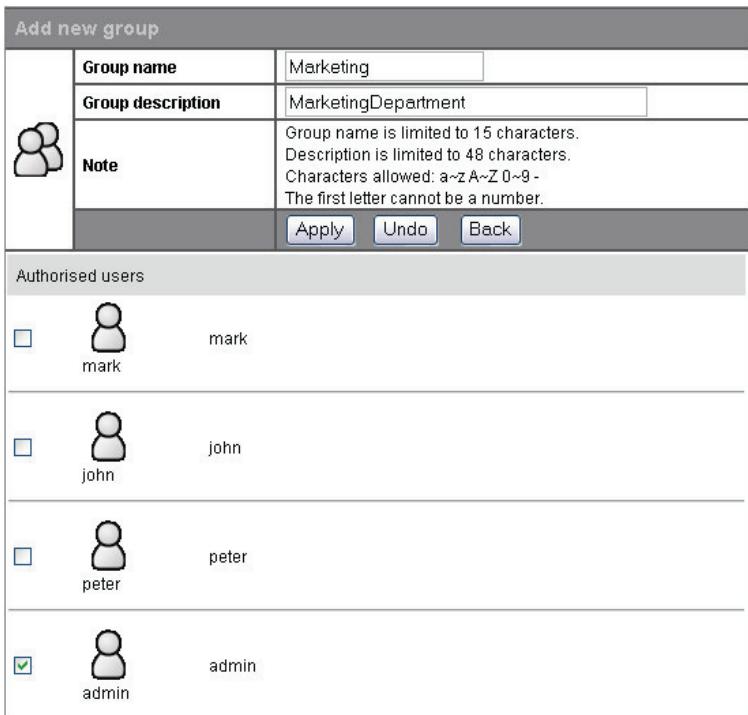
- Click "Apply" to add the new group, click "Undo" to reload previous configuration and click "Back" to return to the group list.
3.6.4.2 To delete a group
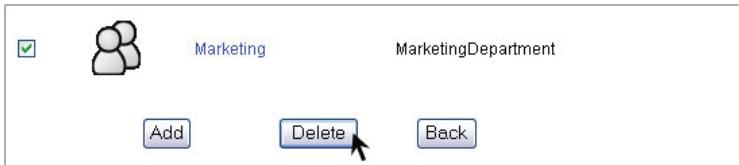
- Mark the check box of the group that you are going to delete.
- Click "Delete" to remove the group or click "Back" to return to group list.
3.6.4.3 To configure a group
- Click the icon of the group to configure.

- Modify the properties for the group. Click "Apply" to execute the modification, click 'Undo' to reload previous configuration or click "Back" to return to group list.
Note: For more information about the items, please see "To Add a New Group".
3.7 Option
The Option page allows users to:
- Configure FTP settings.
- Ensure the device security by IP and MAC filter.
- Download files with this device.
To open the Option page, click on Option in the menu.
3.7.1 FTP-FTP Configuration
The device embeds a FTP server that allows users to access this device by FTP client. To setup the FTP server properties, please refer to the following table and click "Apply" to execute your settings.
| Enable FTP Server: | Click Yes to activate the FTP server function or click NO to disable it. |
| Port Number: | The Port number of the FTP server. Please fill in a number from 1 to 65535 (default is 21 – the default port used for FTP in the Internet) |
| Time out: | The allowed time that keeps the FTP server connected with a FTP client. The FTP server terminates the connection if the client fails to respond during the specified Time Out period. |
| Allow Anonymous: | Allow FTP client to connect with the device without username/ password authentication. |
Note: Please DO NOT use the number 80 as the Port Number. As default, port 80 is the administration port for the ACTIVY Media Server 150. If you have configured a different port number for the administration port or web server port, do not use these numbers for the FTP port. To get more information about the Administration Port, please refer to the chapter "Web server"
| Option > FTP configuration | |||
| FTP | Security IP | Security MAC | File download |
| FTP setting | |||
| Enable FTP server | Yes No | ||
| Port number | 21 | ||
| Timeout | 15 Minutes | ||
| Allow anonymous | Yes No | ||
| Note | 1. The port number is between 1 and 65535. | ||
| Apply Undo Back | |||
3.7.2 Security IP-IP Filter Setting
The Security IP function provides access management by IP address filtering. The filter limits access to the device via SMB and FTP. Access to the GUI is not limited by this filter.
There are three modes for the IP filter.
- Disable: Disable the IP Filter function. All IP addresses are allowed to access the device.
- Allowed: Setup the IP addresses that are allowed to access the device. Only the configured IP addresses have the right to access the device.
- Denied: Setup the IP addresses that are denied to access the device. The IP addresses that are configured are not allowed to access the device.
Tip: For example, to prevent the IP address "192.168.1.3" from connecting with the device:
- Select "Denied" From the "IP Access Check" drop down list.
- Fill the IP address "192.168.1.3" in the IP Address 1 box.
- Click "Apply" to execute your configuration.
| Option > IP filter setting | |||
| FTP | Security IP | Security MAC | File download |
| IP filter setting | |||
| IP access check | Denied | ||
| IP address 1 | 192.168.1.3 | ||
| IP address 2 | |||
| IP address 3 | |||
| IP address 4 | |||
| IP address 5 | |||
| IP address 6 | |||
| IP address 7 | |||
| IP address 8 | |||
| IP address 9 | |||
| IP address 10 | |||
| Apply Back | |||
3.7.3 Security MAC-MAC Filter Setting
The Security MAC function provides access management by MAC address filtering. The filter limits access to the device via SMB and FTP. Access to the GUI is not limited by this filter.
There are three modes for the MAC filter.
- Disable: Disable the MAC filter function. All MAC addresses are allowed to access the device.
- Allowed: Setup the MAC addresses that are allowed to access the device. Only the configured MAC addresses have the right to access the device.
- Denied: Setup the MAC addresses that are denied to access the device. The MAC addresses that are configured are not allowed to access the device.
Tip: For example, to prevent the MAC address "D0:E0:7D:CD:C5:5E" from connecting to the device:
- Select "Denied" From the "MAC Access Check" drop down list.
- Fill the MAC address "D0:E0:7D:CD:C5:5E" in the MAC Address 1 box.
- Click "Apply" to execute your configuration.
3.7.4 File Download- File Download Configuration
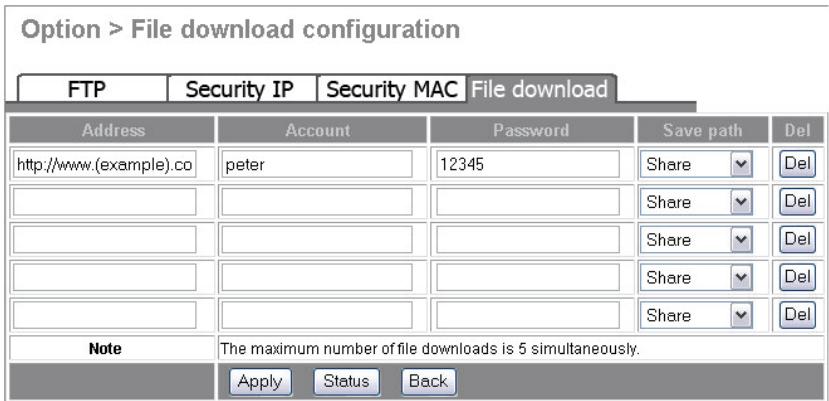
The File Download page allows users to download files with this device and save it directly on the built-in harddrive. You can use this feature to start a large download, shut your PC off and let the download finish without any interaction from your PC.
Note: Before using this function, you must have installed the firmware extensions "FSC_231.tgz" first.
To get information for installing the "FSC_231.tgz" file, please see "Firmware Extension" in the Maintenance section.
To start a download task
- Fill in the address you get for downloading files in the "Address" box. (ex, enter the address http://www.example.com/downloads/sample_file to the "Address" box)
- Enter an account name and password in the "Account" and "Password" box respectively. (Ex, enter "peter" in the "Account" box and "12345" in the "Password" box.
- Select a folder to place the downloaded data in "Save Path" drop down list. (Example: select the folder Share from the drop list.)
- Click "Apply" to perform file download.
- To cancel or terminate a download task, click the "Del" button to erase the download information then click "Apply" to execute.
- You may also click the "Status" button to check the download information.
3.8 Maintenance
The Maintenance page allows users to:
- Backup/ download the configuration status of the device.
- Select Code Page for the device.
-
Upgrade the device firmware.
-
Restart the system
- Reset factory default.
- Load the firmware extensions.
To open the Maintenance page, click on Maintenance in the menu.
3.8.1 Upload/ Download Your Configuration
This allows users to backup and restore the configuration settings of the ACTIVY Media Server 150.
3.8.1.1 Backup the Device Configuration Status:
- Click the Download button.
- The File Download dialogue window pops up, click "Save".
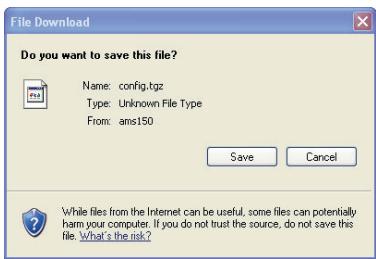
- Specify a folder to save the downloaded data and click "Save". Click "Close" to complete.
- The default name for the configuration file is config.tgz
3.8.1.2 Restore the ACTIVY Media Server 150 configuration:
- Click "Browse" and locate the file that you have saved as configuration backup (default name config.tgz).
- Click "Upload" to execute.
- The system restarts automatically to reload your previous configuration.

3.8.2 Code Page
The Code Page helps this device to recognize correct file name while users access the device via FTP server. To apply another code page, select a proper code page from the drop list and click "Apply" to execute.
Note: As default, the code page is configured to be corresponding to your region. Changing the code page is not recommended unless you got unrecognizable characters on file name or folder names.

3.8.3 Firmware Upgrade
To upgrade the firmware, click the "Browse" button to locate the firmware. Click the "Update" button to perform firmware upgrade.
Note:
- To get new firmware of the device, please connect to www.fujitsu-siemens.com/support and search for updates of the ACTIVITY Media Server 150 firmware.
- In order to maintain a secure working environment during firmware update it is recommended to connect the ACTIVY Media Server 150 directly to a PC instead of using routers, switches and other network devices in between. For details how to set up such a direct connection please refer to the section "Troubleshooting" in this manual.
- Restrictive security settings of your web browser may prevent from displaying the firmware upgrade progress properly. In this case please wait at least 10 minutes and press the Reload button in your web browser after this time. Do not turn the ACTIVY Media Server 150 off, do not pull the network or power cable during the firmware upgrade process.
IMPORTANT WARNING:
Firmware update is a critical procedure. Please be advised that you do it on your own risk. Please do not interrupt network connection and/or power supply to the ACTIVY Media Server 150 during firmware upgrade. Also do not press any buttons on the device. Any unexpected interruption of the update process may lead to an unusable device and create a service case.
Firmware upgrade
Update
Durchsuchen...
3.8.4 Restart the System
This column allows users to restart the system. To perform system restarting, click the "Restart" button.
System restart
Restart
3.8.5 Reset to Factory Default
To restore the factory default configuration for the device, click the "Set to Default" button to execute.
Caution: 1. All the user-defined configurations will be erased and replaced as factory default setting.
2. We recommend users to backup the configuration status before restoring factory default. To get more information for backup your configuration, see "Backup the Device Configuration Status"
Reset to factory default
Set to default
3.7.6 Select GUI Language
This column allows users to select the language of the GUI. To select your language, please click on the drop down list and click "Apply" to execute.
Language
ENGLISH
Apply
3.8.7 Sleep mode
The ACTIVY Media Server 150 supports Sleep Mode, which turns off the harddrive and the cooling fan temporarily, if there had not been any access to the device for a certain amount of time. To set up the timeout after which the Sleep Mode will be entered, click on the drop down list to specify a time and click "Apply" to execute.

Note: When the harddrive is in sleep mode, it may take a few seconds to spin up, after accessing files on the device again.
3.8.8 System Shut Down
To turn off the device, click on the shutdown button. The device will turn off automatically.
You can also shut down the device by pressing the power button for more than 2 seconds.
During the shutdown process, the power LED is blinking
3.8.9 Load Firmware extensions
After formatting the internal harddrive and after upgrading the basic firmware, it is necessary to re-install the Firmware Extensions. This part of the firmware contains some of the ACTIVY Media Server 150 modules like for example File download, AV server. Firmware extensions are included in the file "FSC_231.tgz"
To install the file,
- Insert the included CD or locate the file received with a firmware update and click the "Browse" button.
- Select your CD-Rom drive. Double click on the "Firmware" folder. Select the "FSC_231.tgz" file and click "Open" to browse the file. Or locate the file received with a firmware update.
- Click "Apply" to perform installation.
Note: It takes a few seconds to perform installation, please wait until installation has been completed.
Do not install the firmware extension from an local connected USB or eSATA device.

3.9 Web Server
3.9.1 Administration WEB
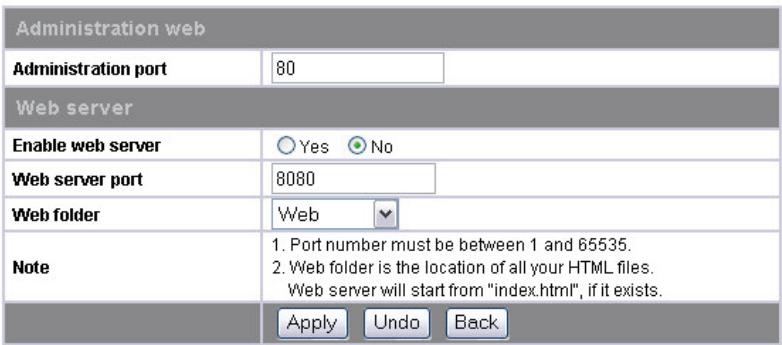
The Administration port is the port for accessing the Web-based management interface (GUI).
To modify the Administration Port, enter a port number from 1 to 65535 then click Apply to save your configuration.
Note: The Port 80 is configured as the default Administration WEB server port. If you have changed this port number, you need to enter this port number in your web browser in order to access the GUI again. For example, if you have changed the port to 88, please enter http://ams150:88.
3.9.2 Web Server Configuration
The device embeds a WEB server that allows users to deliver a Website to their network.
To activate the WEB server,
- Click "Yes" to enable.
- Specify a port number from 1~65535. The default is 8080.
- Specify a "WEB Folder" where you place your HTML files.
Note: 1. The WEB server supports HTML format only.
- As default, the Port 80 can't be setup as the Web Server Port since port "80" has been configured as the administration port.
- The start page of your web content must have the file name index.html
- To access your content, enter http://ams150:8080 (if you have configured a different port number, enter this number after the colon)
- For information how to create and maintain a web site please refer to the vast offerings of literature and tools available in the market
Web server
3.10 AV Server
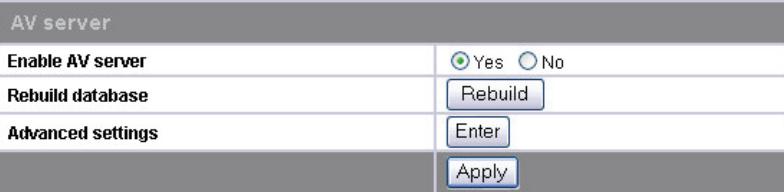
The ACTIVY Media Server 150 incorporates an UPnP AV server to deliver multimedia content (video, audio, picture files) to AV clients attached to the network. To enable the AV server, please click "Yes" and click "Apply" to activate this function. To do more advanced configuration to this AV server, click the "Enter" button in the "Advanced setting" column.
Note: The AV server needs to be enabled to enter the Advanced setting!
The AV server maintains a database of all the multimedia files. This database updates itself after a certain interval of time.
If you have copied new multimedia files to the ACTIVY Media Server 150, it is recommended that you initiate a database rebuilt. Click on the "Rebuild" button to enforce this database update.
AV server
Important warning:
The advanced settings of the AV server are for experienced users only. If you change any of these settings, the proper function of the AV server may be impaired
If you need to reset the AV server settings to factory default, please re-install the firmware extensions - see chapter Maintenance for details how to do this.
If you are interested in more details about the AV server and its configuration, please refer to www.twonkyvision.com
Note: 1. As default, the AV server searches the entire user accessible part of the built-in harddrive with the exclusion of the predefined folder for web content /mnt/Web
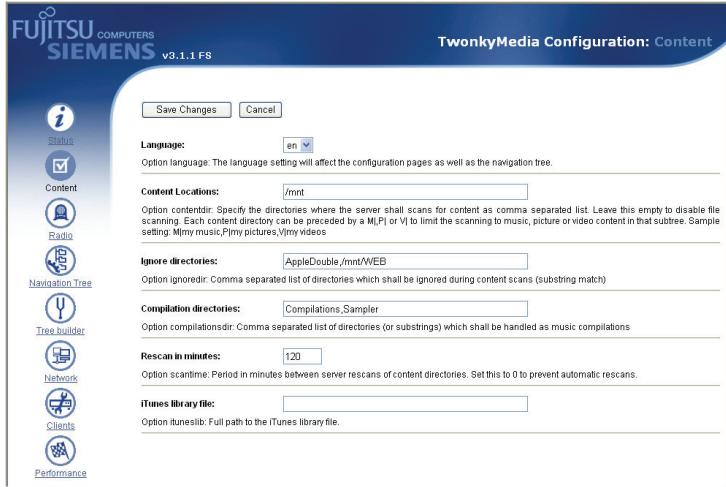
If you want to limit the search to a particular folder or folder tree please use the following procedure:
Using the Disk menu create a new folder (for example Media)
- Go to AV server - Advanced setting to open the AV server configuration page.
- Select "content" on the menu displayed on the left side of the page.
- Change "Content Locations" to /mnt/Media
- Hit the "Save Changes" button on top of the screen.
- Only the Media folder and all sub folders are searched for media now. (Please do not forget to enter the /mnt in front of the folder name and please note that the folder names are case sensitive)
If you want to enter multiple search paths, please separate them with comma " , Example:
/mnt/Media,/mnt/Share/MyPictures,/mnt/Lisa
- IMPORTANT: User access permissions set with the Disk menu are disregarded by the AV server. This is a limitation of the UPnP AV protocol that is used to connect to AV clients.
3.11 USB/eSATA
3.11.1 USB - Detail
The Detail page shows the information of a connected USB device:
| USB Class: | The USB device type. |
| Manufacturer: | The manufacturer of the connected USB device |
| Device Name: | Name of the connected USB device. |
| USB 2.0/ 1.1: | The USB standard supported by the connected USB device. |
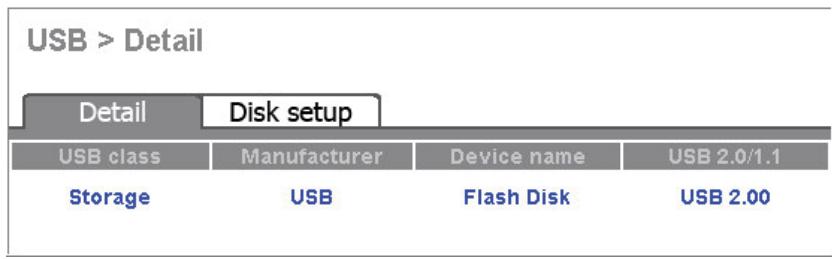
Note: Depending on the model, vendor and type of the connected USB device, the information displayed here can vary and some information might be unavailable. A connected eSATA is not shown here. It's status is displayed in the main Status page
3.11.2 USB - Disk Setup
The Disk Setup page allows users to:
- Get information about the connected USB or eSATA device.
- Format the connected USB or eSATA device.
- To safely remove the USB or eSATA device.
USB Storage information
| Name (1~16 characters): | Define a name for the attached device. Note: The name is also the folder name under which the device is displayed in the Disk menu and during access from a PC or notebook in the network. |
| Remove Button | Click this button to safely remove the connected USB or eSATA device. |
| Description: | The partition order of an attached storage device. |
| Type: | The file system type of the connected storage device. |
| Size: | The size of the connected USB storage device. |
| Format button | Click this button to format this USB storage device in EXT3 (LINUX) file format. |
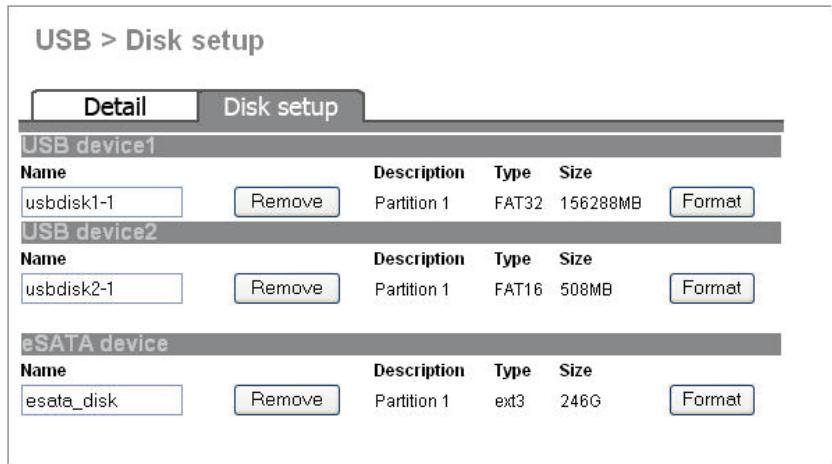
Note: 1. The device recognizes the first four partitions of your attached storage device only.
- Due to system limitations, the NTFS file system format used in some versions of Microsoft Windows® is not supported.
- After clicking the Remove button for a USB or eSATA device, the Format button stays active and format can still be executed as long as the device is still connected to the ACTIVY Media Server 150.
-
- Formatting a connected USB or eSATA drive will delete all data on this device.
Important warning: If you unplug a connected USB or eSATA device without explicitly requesting a removal using the Remove button, data loss may occur.
Appendix
Trouble Shooting
1. Basic trouble shooting tips.
- Check the LINK/ACT LED if it indicates a correct network connection. Check your network cable.
- Turn the ACTIVY Media Server 150 off and on again.
- Reset the ACTIV Media Server 150 to factory default settings (press and hold the reset button for 4 seconds and wait for complete reboot of the device)
- Maybe there are too many connected users at the same time. The system blocks the upcoming users after meeting the maximum allowed number. Please refer to the product specification at the end of this manual.
-
If you have more than one unit of ACTIVY Media Server 150 in your network, please change the device name of the unit so that they have different names (see chapter Network - Host name setting for details)
-
Your ACTIV Media Server 150 has been properly connected to your network but the login screen / GUI setup window does not appear after you type "http://ams150" in the Browser, or the ACTIV Media Server 150 is not found while searching for computers using the Network Neighbourhood.
-
Reconfigure your PC as auto IP by obtaining an IP address automatically.
- Reset the ACTIV Media Server 150 to its factory default settings.
- Connect your PC and ACTIVY Media Server 150 directly using the supplied network cable.
- Make sure that you have configured your Internet browser to NOT use a proxy server. Please see the manual or help file for your internet browser how to disable use of a proxy server. In Internet Explorer select menu Tools - Internet options - open the "connections" tab, click on "LAN settings" and uncheck manual settings.
Reboot both your PC and the ACTIV Media Server 150. - After a few minutes of waiting time, you should be able to access the GUI of the ACTIV Media Server 150 now by entering http://ams150 or http://169.254.0.1 in your web browser.
- Make the correct settings to your ACTIV Media Server 150 that are appropriate for your network. Set up the correct IP address, make sure that the workgroup name matches the workgroup name of your PC.
- Reconnect your PC and ACTIV Media Server 150 to your network.
3. How to configure your PCs IP address.
Repair your PC's IP settings (using Microsoft Windows XP):
Right click on the Network Neighbourhood icon on your desktop, select Properties. In the upcoming window right click on Local Area Connection and select Renew.
- How to configure the TCP/IP network protocol on your PC / Notebook computer?
Click Start -> Control Panel -> Network Connections and the following window will appear:
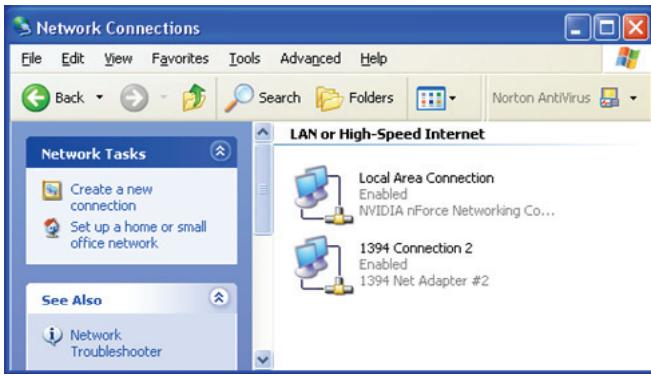
Click on "Local Area Connection" and then click mouse on the right bottom, a sub-window will appear; click "Properties" on the sub-window.
The following window will then appear.
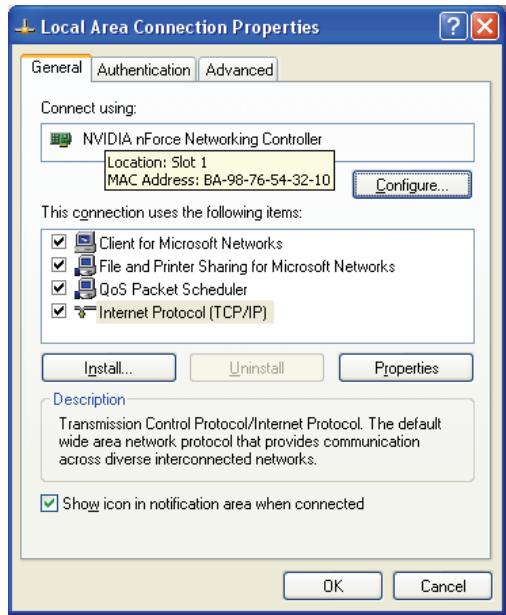
Choose "Internet Protocol (TCP/IP)", and then click Properties button. The following window will appear.
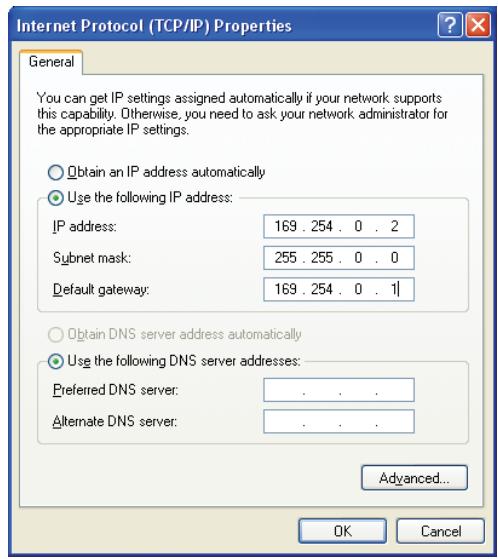
Select "Obtain an IP address automatically" if you use dynamic IP address assignment (this is the standard and applies to most of the home / small office networks).
If you use a static IP address scheme in your network, Select "Use the following IP address" and then key in the IP address, subnet mask, gateway and DNS address values correctly. Please contact your network administrator or your network documentation for the correct values.
4. How to configure your ACTIVITY Media Server 150 while your network uses Static IP?
- Obtain your PC's IP, Subnet Mask, gateway, DNS data from your operating system and make a note of it.
- Reconfigure your PC as auto IP by obtaining an IP address automatically.
- Reset the ACTIV Media Server 150 to its factory default settings.
- Connect your PC and ACTIV Media Server 150 directly using the supplied network cable.
Reboot both your PC and the ACTIV Media Server 150. - You should be able to access the GUI of the ACTIV Media Server 150 now entering http://ams150 or http://169.254.0.1 in your web browser.
- Setup your ACTIV Media Server 150 as Static IP via setup GUI window. Please refer to the chapter "IP Address Setting".
- Change your PC's IP back to previous static setting.
-
Connect your PC and ACTIV Media Server 150 back to your network now.
-
It takes a long time until the ACTIVY Media Server 150 is recognized in the network or recognition is unreliable.
-
Set the ACTIVY Media Server 150 to use the same workgroup name as your PC and your network. See chapter Host Name Setting in the Network section of this manual.
It might be necessary to use the procedure described under item 2 above in order to get first access to the device. -
Use the supplied PNMD tool for troubleshooting.
-
On the supplied CD ROM, folder PNMD, a tool is provided that can be used for trouble shooting.
- Insert the CD ROM and navigate to the PNMD folder. Launch the PNMD.EXE application. If your Windows XP Firewall is active you might need to allow the PNMD tool to access your network (click the appropriate button in the popup window of the Windows Firewall)
- Check your PC's IP address, make sure that it has a static IP or connects with a router with DHCP client. For instruction about the IP setting, Please refer to the "IP Address Setting" Chapter.
-
Reboot the system with Web-based GUI or press the Reset Default Button to restore the factory default setting and reboot.
-
You are intended to use the ACTIVY Media Server 150 as a Web/ FTP server, but the users outside the LAN can't access it.
Warning: Before allowing the device to communicate with the Internet, we strongly recommend users to add a Firewall device to secure your network from being invaded.
- For WAN users to get access to the FTP or WEB server of your ACTIVY Media Server 150, you should connect the device to a router with appropriate configuration.
- Make sure that the NAT (Network address translation) functionality is enabled in your router (this is the standard in most of gateway / router devices).
It is highly recommended to use a static IP address setting for your ACTIVY Media Server 150 for this. - Please refer to the user manual of your Internet gateway / router device and read about how to allow access to a client in your network from the Internet.
-
Enter the ACTIVY Media Server 150 IP address and the port number configured for FTP and / or Web server in the appropriate setup window of your Internet gateway / router
-
You have access to the device, but you can't access to the folders.
-
Verify you have the correct username and password.
- If you have accessed a folder previously and would like to use another set of username/ password now, on your PC or notebook please log off your operation system and log on again.
9. My eSATA device is not detected.
- Verify the correct eSATA cable connection between the ACTIVY Media Server 150 and your eSATA device.
- Power off the ACTIVY Media Server 150 and your eSATA device. Power on your eSATA device first and then power on the ACTIVY Media Server 150. Please note that you should always turn on your eSATA device first.
10. My USB device is not detected.
- Unplug and re-plug the USB device
- Make sure that your external USB harddrive is powered with the power supply unit that belongs to your USB device. Please do not use power cables that use 2 USB connectors in parallel for powering your external USB device. This is not supported by the ACTIVY Media Server 150.
11. I forgot my password! What should I do?
- In case you have forgotten your password or your IP configuration, please use the ACTIV Media Server 150 "reset" button at the rear side of the device.
- press and hold the reset button for 4 seconds and wait for complete reboot of the device
- The password and IP configuration will be set back to default values now. The default administrator user name is "admin" and its default password is "admin".
It might be necessary to use one of the above described procedures for setting up the IP address now to get access to the device again.
It is highly recommended to change the default administrator's user name and password from "admin" to a different value. See chapter Management Guide - System - Administrator Settings for detailed instruction.
Product Features
- External 3.5" network hard disk with Gigabit Ethernet interface
- Share music, pictures, movies and data on the network
- Share files over LAN as file server (SAMBA) and FTP server
- Integrated Web based user interface in multiple languages (English. German, French, Italian, Spanish)
Network connection: Gigabit Ethernet 10/100/1000 base T (full duplex operation, auto-speed select, auto negotiation); Network standards: IEEE 802.3, IEEE 802.3u, IEEE 802.3ab - Easy network configuration with DHCP client (default) or Automatic Private IP Addressing (APIPA), fixed IP can be configured
Supports CIFS/SMB protocol for easy integration into Microsoft® Windows® networks - 2x USB 1.1/2.0 ports.
1xE SATA connector - Buttons: Power on/off button (front panel)
Backup (front panel)
Reset (rear panel)
Diagnostic LEDs : Power (Blue), LAN (Green, Amber),HDD (Amber), eSATA(Amber), USB I, USB II (Green), HDD Full (Red) - Files size of >4GB supported
Built-in FTP server
Integrated HTTP Web Server (personal Web server) - UPnP AV server for streaming music, pictures, movies to UPnP clients on the network
Supported media formats: Audio: MP3, WMA, WAV, LPCM, OGG, FLAC Playlists: m3u, wpl, pls Pictures: JPEG (.JPG) Video: AVI, MPEG, MPEG2, MPG, MP4, WMV, VOB (some of these formats may not be supported by the connected client device)
Supports 32 concurrently connected users, up to 50 user accounts
10 concurrent SMB connections per each user;
32 concurrent FTP connections for all users in sum
1024 simultaneously open files - Password security for access to the harddrive
- Access management for up to 100 folders on harddrive
Supports groups for easy managing groups of user accounts
Support for Unicode multi-language file names - Power management (HD sleep mode, FAN sleep mode, configuration of timeout setting through user interface, auto wakeup on access)
MAC filter & IP filter - Firmware upgrade via GUI
Power supply: external AC adapter: +12VDC/3A
Max power consumption: 36W
Certificates: CE
Dimensions: 209x135x72 mm
Temperature: Operating 0 40°C ; Storage -10 65°C
GNU GENERAL PUBLIC LICENSE
Version 2, June 1991
Copyright (C) 1989, 1991 Free Software Foundation, Inc.
51 Franklin Street, Fifth Floor, Boston, MA 02110-1301, USA
Everyone is permitted to copy and distribute verbatim copies of this license document, but changing it is not allowed.
Preamble
The licenses for most software are designed to take away your freedom to share and change it. By contrast, the GNU General Public License is intended to guarantee your freedom to share and change free software--to make sure the software is free for all its users. This General Public License applies to most of the Free Software Foundation's software and to any other program whose authors commit to using it. (Some other Free Software Foundation software is covered by the GNU Lesser General Public License instead.) You can apply it to your programs, too.
When we speak of free software, we are referring to freedom, not price. Our General Public Licenses are designed to make sure that you have the freedom to distribute copies of free software (and charge for this service if you wish), that you receive source code or can get it if you want it, that you can change the software or use pieces of it in new free programs; and that you know you can do these things.
To protect your rights, we need to make restrictions that forbid anyone to deny you these rights or to ask you to surrender the rights. These restrictions translate to certain responsibilities for you if you distribute copies of the software, or if you modify it.
For example, if you distribute copies of such a program, whether gratis or for a fee, you must give the recipients all the rights that you have. You must make sure that they, too, receive or can get the source code. And you must show them these terms so they know their rights.
We protect your rights with two steps: (1) copyright the software, and (2) offer you this license which gives you legal permission to copy, distribute and/or modify the software.
Also, for each author's protection and ours, we want to make certain that everyone understands that there is no warranty for this free software. If the software is modified by someone else and passed on, we want its recipients to know that what they have is not the original, so that any problems introduced by others will not reflect on the original authors' reputations.
Finally, any free program is threatened constantly by software patents. We wish to avoid the danger that redistributors of a free program will individually obtain patent licenses, in effect making the program proprietary. To prevent this, we have made it clear that any patent must be licensed for everyone's free use or not licensed at all.
The precise terms and conditions for copying, distribution and modification follow. TERMS AND CONDITIONS FOR COPYING, DISTRIBUTION AND MODIFICATION
- This License applies to any program or other work which contains a notice placed by the copyright holder saying it may be distributed under the terms of this General Public License. The "Program", below, refers to any such program or work, and a "work based on the Program" means either the Program or any derivative work under copyright law: that is to say, a work containing the Program or a portion of it, either verbatim or with modifications and/or translated into another language. (Hereinafter, translation is included without limitation in the term "modification".) Each licensee is addressed as "you".
Activities other than copying, distribution and modification are not covered by this License; they are outside its scope. The act of running the Program is not restricted, and the output from the Program is covered only if its contents constitute a work based on the Program (independent of having been made by running the Program). Whether that is true depends on what the Program does.
- You may copy and distribute verbatim copies of the Program's source code as you receive it, in any medium, provided that you conspicuously and appropriately publish on each copy an appropriate copyright notice and disclaimer of warranty; keep intact all the notices that refer to this License and to the absence of any warranty; and give any other recipients of the Program a copy of this License along with the Program.
You may charge a fee for the physical act of transferring a copy, and you may at your option offer warranty protection in exchange for a fee.
- You may modify your copy or copies of the Program or any portion of it, thus forming a work based on the Program, and copy and distribute such modifications or work under the terms of Section 1 above, provided that you also meet all of these conditions:
a) You must cause the modified files to carry prominent notices stating that you changed the files and the date of any change.
b) You must cause any work that you distribute or publish, that in whole or in part contains or is derived from the Program or any part thereof, to be licensed as a whole at no charge to all third parties under the terms of this License.
c) If the modified program normally reads commands interactively when run, you must cause it, when started running for such interactive use in the most ordinary way, to print or display an announcement including an appropriate copyright notice and a notice that there is no warranty (or else, saying that you provide a warranty) and that users may redistribute the program under these conditions, and telling the user how to view a copy of this License. (Exception: if the Program itself is interactive but does not normally print such an announcement, your work based on the Program is not required to print an announcement.)
These requirements apply to the modified work as a whole. If identifiable sections of that work are not derived from the Program, and can be reasonably considered independent and separate works in themselves, then this License, and its terms, do
not apply to those sections when you distribute them as separate works. But when you distribute the same sections as part of a whole which is a work based on the Program, the distribution of the whole must be on the terms of this License, whose permissions for other licensees extend to the entire whole, and thus to each and every part regardless of who wrote it.
Thus, it is not the intent of this section to claim rights or contest your rights to work written entirely by you; rather, the intent is to exercise the right to control the distribution of derivative or collective works based on the Program.
In addition, mere aggregation of another work not based on the Program with the Program (or with a work based on the Program) on a volume of a storage or distribution medium does not bring the other work under the scope of this License.
- You may copy and distribute the Program (or a work based on it, under Section 2) in object code or executable form under the terms of Sections 1 and 2 above provided that you also do one of the following:
a) Accompany it with the complete corresponding machine-readable source code, which must be distributed under the terms of Sections 1 and 2 above on a medium customarily used for software interchange; or,
b) Accompany it with a written offer, valid for at least three years, to give any third party, for a charge no more than your cost of physically performing source distribution, a complete machine-readable copy of the corresponding source code, to be distributed under the terms of Sections 1 and 2 above on a medium customarily used for software interchange; or,
c) Accompany it with the information you received as to the offer to distribute corresponding source code. (This alternative is allowed only for noncommercial distribution and only if you received the program in object code or executable form with such an offer, in accord with Subsection b above.)
The source code for a work means the preferred form of the work for making modifications to it. For an executable work, complete source code means all the source code for all modules it contains, plus any associated interface definition files, plus the scripts used to control compilation and installation of the executable. However, as a special exception, the source code distributed need not include anything that is normally distributed (in either source or binary form) with the major components (compiler, kernel, and so on) of the operating system on which the executable runs, unless that component itself accompanies the executable.
If distribution of executable or object code is made by offering access to copy from a designated place, then offering equivalent access to copy the source code from the same place counts as distribution of the source code, even though third parties are not compelled to copy the source along with the object code.
-
You may not copy, modify, sublicense, or distribute the Program except as expressly provided under this License. Any attempt otherwise to copy, modify, sublicense or distribute the Program is void, and will automatically terminate your rights under this License. However, parties who have received copies, or rights, from you under this License will not have their licenses terminated so long as such parties remain in full compliance.
-
You are not required to accept this License, since you have not signed it. However, nothing else grants you permission to modify or distribute the Program or its derivative works. These actions are prohibited by law if you do not accept this License. Therefore, by modifying or distributing the Program (or any work based on the Program), you indicate your acceptance of this License to do so, and all its terms and conditions for copying, distributing or modifying the Program or works based on it.
-
Each time you redistribute the Program (or any work based on the Program), the recipient automatically receives a license from the original licensor to copy, distribute or modify the Program subject to these terms and conditions. You may not impose any further restrictions on the recipients' exercise of the rights granted herein. You are not responsible for enforcing compliance by third parties to this License.
-
If, as a consequence of a court judgment or allegation of patent infringement or for any other reason (not limited to patent issues), conditions are imposed on you (whether by court order, agreement or otherwise) that contradict the conditions of this License, they do not excuse you from the conditions of this License. If you cannot distribute so as to satisfy simultaneously your obligations under this License and any other pertinent obligations, then as a consequence you may not distribute the Program at all. For example, if a patent license would not permit royalty-free redistribution of the Program by all those who receive copies directly or indirectly through you, then the only way you could satisfy both it and this License would be to refrain entirely from distribution of the Program.
If any portion of this section is held invalid or unenforceable under any particular circumstance, the balance of the section is intended to apply and the section as a whole is intended to apply in other circumstances.
It is not the purpose of this section to induce you to infringe any patents or other property right claims or to contest validity of any such claims; this section has the sole purpose of protecting the integrity of the free software distribution system, which is implemented by public license practices. Many people have made generous contributions to the wide range of software distributed through that system in reliance on consistent application of that system; it is up to the author/donor to decide if he or she is willing to distribute software through any other system and a licensee cannot impose that choice.
This section is intended to make thoroughly clear what is believed to be a consequence of the rest of this License.
-
If the distribution and/or use of the Program is restricted in certain countries either by patents or by copyrighted interfaces, the original copyright holder who places the Program under this License may add an explicit geographical distribution limitation excluding those countries, so that distribution is permitted only in or among countries not thus excluded. In such case, this License incorporates the limitation as if written in the body of this License.
-
The Free Software Foundation may publish revised and/or new versions of the General Public License from time to time. Such new versions will be similar in spirit to the present version, but may differ in detail to address new problems or concerns.
Each version is given a distinguishing version number. If the Program specifies a version number of this License which applies to it and "any later version", you have the option of following the terms and conditions either of that version or of any later version published by the Free Software Foundation. If the Program does not specify a version number of this License, you may choose any version ever published by the Free Software Foundation.
- If you wish to incorporate parts of the Program into other free programs whose distribution conditions are different, write to the author to ask for permission. For software which is copyrighted by the Free Software Foundation, write to the Free Software Foundation; we sometimes make exceptions for this. Our decision will be guided by the two goals of preserving the free status of all derivatives of our free software and of promoting the sharing and reuse of software generally.
NO WARRANTY
- BECAUSE THE PROGRAM IS LICENSED FREE OF CHARGE, THERE IS NO WARRANTY FOR THE PROGRAM, TO THE EXTENT PERMITTED BY APPLICABLE LAW. EXCEPT WHEN OTHERWISE STATED IN WRITING THE COPYRIGHT HOLDERS AND/OR OTHER PARTIES PROVIDE THE PROGRAM "AS IS" WITHOUT WARRANTY OF ANY KIND, EITHER EXPRESSED OR IMPLIED, INCLUDING, BUT NOT LIMITED TO, THE IMPLIED WARRANTYES OF MERCHANTABILITY AND FITNESS FOR A PARTICULAR PURPOSE. THE ENTIRE RISK AS TO THE QUALITY AND PERFORMANCE OF THE PROGRAM IS WITH YOU. SHOULD THE PROGRAM PROVE DEFECTIVE, YOU ASSUME THE COST OF ALL NECESSARY SERVICING, REPAIR OR CORRECTION.
- IN NO EVENT UNLESS REQUIRED BY APPLICABLE LAW OR AGREED TO IN WRITING WILL ANY COPYRIGHT HOLDER, OR ANY OTHER PARTY WHO MAY MODIFY AND/OR REDISTRIBUTE THE PROGRAM AS PERMITTED ABOVE, BE LIABLE TO YOU FOR DAMAGES, INCLUDING ANY GENERAL, SPECIAL, INCIDENTAL OR CONSEQUENTIAL DAMAGES ARISING OUT OF THE USE OR INABILITY TO USE THE PROGRAM (INCLUDING BUT NOT LIMITED TO LOSS OF DATA OR DATA BEING RENDERED INACCURATE OR LOSSES SUSTAINED BY YOU OR THIRD PARTIES OR A FAILURE OF THE PROGRAM TO OPERATE WITH ANY OTHER PROGRAMS), EVEN IF SUCH HOLDER OR OTHER PARTY HAS BEEN ADVISED OF THE POSSIBILITY OF SUCH DAMAGES.
END OF TERMS AND CONDITIONS
Source code has been published on (www.fujitsu-siemens.com/support). Please search for ACTIVY Media Server 150
| Folder settings & permissions | |||
| Folder name | Share | Change folder name | |
| Folder description | Share to all | Change description | |
| Save | |||
| Please set user's limit for this folder | |||
| Authentication-free access | |||
| No access for all users | |||
| Read-only access for all users | |||
| ReadWrite access for all users | |||
| Current access permission for all users | |||
| Group - Permissions setting | |||
| Sales | □ Group applied | ○ No access ○ Read-only ○ Read and write | |
| Marketing | □ Group applied | ○ No access ○ Read-only ○ Read and write | |
| User - Permissions setting | |||
| admin | ○ No access ○ Read-only ○ Read and write | ||
| peter | ○ No access ○ Read-only ○ Read and write | ||
| john | ○ No access ○ Read-only ○ Read and write | ||
| Folder name | ||
| Old folder name | Share | |
| New folder name | NewShare | |
| Folder description | Share to all | |
| Note | Folder name is limited to 15 characters. Description is limited to 48 characters. | |
| Apply Undo Back | ||
| Folder Configuration | ||
| Folder name | NewShare | |
| Description | Share to all | |
| Change Back | ||
Please set user's limit for this folder
Authentication-free access
No access for all users
Read-only access for all users
ReadWrite access for all users
Current access permission for all users
| Group - Permissions setting | |
| Sales | □ Group applied □ No access □ Read-only □ Read and write |
| Marketing | □ Group applied □ No access □ Read-only □ Read and write |
| User - Permissions setting | |
| peter | □ No access □ Read-only □ Read and write |
| admin | □ No access □ Read-only □ Read and write |
Network > Host name setting
Host IP address
Host name setting
Host name
AMS150
Workgroup
WorkGroup
Description
Note
-
Host name and workgroup are limited to 15 characters, description is limited to 48 characters.
-
Characters allowed: a~ZA~Z0~9! A() - {}
Apply
Undo
Back
Network > IP address setting
| Host IP address | |||
| Jumbo frame setting | |||
| Jumbo frame | Disable | Set | |
| IP address setting | |||
| DHCP Client | Disable | Enable | |
| IP address | 169.254.0.1 | ||
| Sub-network mask | 255.255.0.0 | ||
| Gateway | 192.168.1.254 | ||
| Primary DNS server | 168.95.1.1 | ||
| Secondary DNS server | 168.95.192.1 | ||
| Note | If you change the DHCP setting, the user interface will be disconnected and a new IP address will be assigned. | ||
| Apply Undo Back | |||
3.5.2.3 Mode Jumbo
System > Administrator setting
| Administrator | Time | User | Group |
| Administrator setting | Apply Cancel Back | ||
| Administrator name | admin | ||
| Old password | |||
| New password | |||
| Re-enter new password | |||
| Note | Please provide administrator name and password from 4 to 16 characters. Periodically change the administrator name and password to ensure security. | ||
3.6.2 Heure système
| User - "peter" settings | |||
| User name | peter | Change name | |
| New password | |||
| Re-enter new password | |||
| User description | peter | ||
| FTP access | Yes No | ||
| Note | The maximum length of password is 16. Control character is not allowed in username. The maximum length of description is 48. | ||
| Apply Undo Back | |||
| Change user - "peter" name setting | ||
| Old user name | peter | |
| New user name | joey | |
| Note | 1.The maximum length of username is 16. 2.Only lower case characters allowed; first character cannot be a number. 3.Characters allowed: a-z 0-9 - | |
| Apply Undo Back | ||
| Add new group | |||
| Group name | Marketing | ||
| Group description | MarketingDepartment | ||
| Note | Group name is limited to 15 characters. Description is limited to 48 characters. Characters allowed: a~z A~Z 0~9 - The first letter cannot be a number. | ||
| Apply Undo Back | |||
| Authorised users | |||
| mark | |||
| john | |||
| peter | |||
| admin | |||
| Marketing | MarketingDepartment |
| Add | Delete |
| Option > FTP configuration | |||
| FTP | Security IP | Security MAC | File download |
| FTP setting | |||
| Enable FTP server | Yes No | ||
| Port number | 21 | ||
| Timeout | 15 Minutes | ||
| Allow anonymous | Yes No | ||
| Note | 1. The port number is between 1 and 65535. | ||
| Apply Undo Back | |||
- Port number must be between 1 and 65535.
- Web folder is the location of all your HTML files.
Web server will start from "index.html", if it exists.
Apply
Undo
Back
3.10 Serveur AV
3.5 Network (Rete) 26
| Folder settings & permissions | |||
| Folder name | Share | Change folder name | |
| Folder description | Share to all | Change description | |
| Save | |||
| Please set user's limit for this folder | |||
| Authentication-free access | |||
| No access for all users | |||
| Read-only access for all users | |||
| ReadWrite access for all users | |||
| Current access permission for all users | |||
| Group - Permissions setting | |||
| Sales | □ Group applied | ○ No access ○ Read-only ○ Read and write | |
| Marketing | □ Group applied | ○ No access ○ Read-only ○ Read and write | |
| User - Permissions setting | |||
| admin | ○ No access ○ Read-only ○ Read and write | ||
| peter | ○ No access ○ Read-only ○ Read and write | ||
| john | ○ No access ○ Read-only ○ Read and write | ||
| Folder name | ||
| Old folder name | Share | |
| New folder name | NewShare | |
| Folder description | Share to all | |
| Note | Folder name is limited to 15 characters. Description is limited to 48 characters. | |
| Apply Undo Back | ||
| Folder Configuration | ||
| Folder name | NewShare | |
| Description | Share to all | |
| Change Back | ||
Please set user's limit for this folder
Authentication-free access
No access for all users
Read-only access for all users
ReadWrite access for all users
Current access permission for all users
Group - Permissions setting

Sales
Group applied
No access
Read-only
Read and write

Marketing
Group applied
No access
Read-only
Read and write
User - Permissions setting

peter
No access
Read-only
Read and write

admin
No access
Read-only
Read and write
Network > Host name setting
Host IP address
Host name setting
Host name
AMS150
Workgroup
WorkGroup
Description
Note
- Host name and workgroup are limited to 15 characters, description is limited to 48 characters.
- Characters allowed: a~z A~Z 0~9! A() - {} ~
Apply
Undo
Back
System > Administrator setting
| Administrator | Time | User | Group |
| Administrator setting | Apply Cancel Back | ||
| Administrator name | admin | ||
| Old password | |||
| New password | |||
| Re-enter new password | |||
| Note | Please provide administrator name and password from 4 to 16 characters. Periodically change the administrator name and password to ensure security. | ||
| User - "peter" settings | |||
| User name | peter | Change name | |
| New password | |||
| Re-enter new password | |||
| User description | peter | ||
| FTP access | Yes No | ||
| Note | The maximum length of password is 16. Control character is not allowed in username. The maximum length of description is 48. | ||
| Apply Undo Back | |||
| Change user - "peter" name setting | ||
| Old user name | peter | |
| New user name | joey | |
| Note | 1.The maximum length of username is 16. 2.Only lower case characters allowed; first character cannot be a number. 3.Characters allowed: a~z 0-9 - | |
| Apply Undo Back | ||
- Port number must be between 1 and 65535.
- Web folder is the location of all your HTML files. Web server will start from "index.htm", if it exists
Apply
Undo
Back
3.10 AV Server (Server AV)
Copyright (C) 1989, 1991 Free Software Foundation, Inc.
51 Franklin Street, Fifth Floor, Boston, MA 02110-1301, USA
| Folder settings & permissions | |||
| Folder name | Share | Change folder name | |
| Folder description | Share to all | Change description | |
| Save | |||
| Please set user's limit for this folder | |||
| Authentication-free access No access for all users Read-only access for all users ReadWrite access for all users Current access permission for all users | |||
| Group - Permissions setting | |||
| Sales | □ Group applied | ○ No access ○ Read-only ○ Read and write | |
| Marketing | □ Group applied | ○ No access ○ Read-only ○ Read and write | |
| User - Permissions setting | |||
| admin | ○ No access ○ Read-only ○ Read and write | ||
| peter | ○ No access ○ Read-only ○ Read and write | ||
| john | ○ No access ○ Read-only ○ Read and write | ||
| Folder name | ||
| Old folder name | Share | |
| New folder name | NewShare | |
| Folder description | Share to all | |
| Note | Folder name is limited to 15 characters. Description is limited to 48 characters. | |
| Apply Undo Back | ||
| Folder Configuration | ||
| Folder name | NewShare | |
| Description | Share to all | |
| Change Back | ||
Please set user's limit for this folder
Authentication-free access
No access for all users
Read-only access for all users
ReadWrite access for all users
Current access permission for all users
| Group - Permissions setting | |
| Sales | □ Group applied ○ No access ○ Read-only ○ Read and write |
| Marketing | □ Group applied ○ No access ○ Read-only ○ Read and write |
| User - Permissions setting | |
| peter | ○ No access ○ Read-only ○ Read and write |
| admin | ○ No access ○ Read-only ○ Read and write |
Network > Host name setting
Host
IP address
| Host name setting | ||
| Host name | AMS150 | |
| Workgroup | WorkGroup | |
| Description | ||
| Note | 1. Host name and workgroup are limited to 15 characters, description is limited to 48 characters. 2. Characters allowed: a~z A~Z 0~9 ! $ ^() - {} ~ | |
| Apply Undo Back | ||
System > Administrator setting
| Administrator | Time | User | Group |
| Administrator setting | Apply Cancel Back | ||
| Administrator name | admin | ||
| Old password | |||
| New password | |||
| Re-enter new password | |||
| Note | Please provide administrator name and password from 4 to 16 characters. Periodically change the administrator name and password to ensure security. | ||
| User - "peter" settings | |||
| User name | peter | Change name | |
| New password | |||
| Re-enter new password | |||
| User description | peter | ||
| FTP access | Yes No | ||
| Note | The maximum length of password is 16. Control character is not allowed in username. The maximum length of description is 48. | ||
| Apply Undo Back | |||
| Change user - "peter" name setting | ||
| Old user name | peter | |
| New user name | joey | |
| Note | 1.The maximum length of username is 16. 2.Only lower case characters allowed; first character cannot be a number. 3.Characters allowed: a-z 0-9- | |
| Apply | Undo Back | |
- Port number must be between 1 and 65535.
- Web folder is the location of all your HTML files. Web server will start from "index.htm", if it exists
Apply
Undo
Back
3.10 Servidor AV
/mnt/Media,/mnt/Share/MyPictures,/mnt/Lisa
- BENUTZERHANDBUCH
- ACTIVY MEDIA SERVER 150
- SYSTEM > ADMINISTRATOR SETTING
- CONTENTS
- 1 OVERVIEW
- 1.1 GENERAL INFORMATION
- IMPORTANT SECURITY NOTICE
- 1.2 SAFETY INFORMATION
- CE MARK
- 1.3 PACKAGING CONTENTS
- 1.4 INTRODUCTION
- 1.4.1 FRONT PANEL
- POWER BUTTON
- LEDS DEFINITION
- BACKUP BUTTON
- ESATA CONNECTOR
- 1.4.2 REAR PANEL
- RESET TO DEFAULT BUTTON
- LAN PORT
- USB PORT
- POWER ADAPTER SOCKET
- 2 INSTALLATION GUIDE
- 2.1 HARDWARE INSTALLATION
- 2.1.1 CONNECT ACTIVITY MEDIA SERVER 150 TO YOUR LOCAL AREA NETWORK (LAN)
- 2.1.2 POWER ON THE ACTIVY MEDIA SERVER 150
- 2.1.3 POWER OFF THE ACTIVY MEDIA SERVER 150
- 2.1.4 CONNECT EXTERNAL USB DEVICES TO THE ACTIVY MEDIA SERVER 150
- NOTE
- 2.1.5 CONNECT AN EXTERNAL ESATA DRIVE TO THE ACTIVY MEDIA SERVER 150
- 2.2 SOFTWARE INSTALLATION
- 2.2.1 MAKING CONNECTION WITH THE ACTIVY MEDIA SERVER 150
- MAP A DRIVE LETTER TO A FOLDER ON THE ACTIVY MEDIA SERVER 150
- NETWORK DRIVE
- 3 MANAGEMENT GUIDE
- 3.1 STARTING THE GRAPHIC USER INTERFACE (GUI)
- THE LOGIN WINDOWS POPS UP
- ENTER THE ADMINISTRATOR'S USER NAME AND PASSWORD
- CLICK OK. THE GUI OPENS
- 3.2 USING THE GRAPHIC USER INTERFACE (GUI)
- 3.2.1 UNDERSTANDING THE GUI
- 3.2.2 MENU ITEMS LIST
- 3.3 STATUS
- 3.4 DISK
- 3.4.1 FOLDER- FOLDER CONFIGURATION
- 3.4.1.1 TO CONFIGURE FOLDER PROPERTIES
- TO CHANGE THE FOLDER NAME/ FOLDER DESCRIPTION
- CONFIGURE FOLDER ACCESS PERMISSIONS FOR USERS AND GROUPS
- 3.4.1.2 TO ADD A NEW FOLDER
- 3.4.1.3 TO DELETE A FOLDER
- 3.4.2 DISK-HD CONFIGURATION
- 3.5 NETWORK
- 3.5.1 HOST- HOST NAME SETTING
- 3.5.2 IP ADDRESS- IP ADDRESS SETTING
- 3.5.2.1 TO DISABLE DHCP CLIENT
- 3.5.2.2 TO CONFIGURE A FIXED IP ADDRESS FOR THE DEVICE
- NETWORK > IP ADDRESS SETTING
- 3.5.2.3 JUMBO MODE
- 3.6 SYSTEM
- 3.6.1 ADMINISTRATOR-ADMINISTRATOR SETTING
- 3.6.2 TIME- SYSTEM TIME SETTING
- 3.6.3 USER-USER CONFIGURATION
- 3.6.3.1 TO CONFIGURE A USER
- 3.6.3.2 TO ADD A NEW USER
- 3.6.3.3 TO DELETE A USER
- 3.6.4 GROUP-GROUP CONFIGURATION
- 3.6.4.1 TO ADD A NEW GROUP
- 3.6.4.2 TO DELETE A GROUP
- 3.6.4.3 TO CONFIGURE A GROUP
- 3.7 OPTION
- 3.7.1 FTP-FTP CONFIGURATION
- 3.7.2 SECURITY IP-IP FILTER SETTING
- 3.7.3 SECURITY MAC-MAC FILTER SETTING
- 3.7.4 FILE DOWNLOAD- FILE DOWNLOAD CONFIGURATION
- TO START A DOWNLOAD TASK
- 3.8 MAINTENANCE
- 3.8.1 UPLOAD/ DOWNLOAD YOUR CONFIGURATION
- 3.8.1.1 BACKUP THE DEVICE CONFIGURATION STATUS
- 3.8.1.2 RESTORE THE ACTIVY MEDIA SERVER 150 CONFIGURATION
- 3.8.2 CODE PAGE
- 3.8.3 FIRMWARE UPGRADE
- IMPORTANT WARNING
- 3.8.4 RESTART THE SYSTEM
- 3.8.5 RESET TO FACTORY DEFAULT
- 3.7.6 SELECT GUI LANGUAGE
- 3.8.7 SLEEP MODE
- 3.8.8 SYSTEM SHUT DOWN
- 3.8.9 LOAD FIRMWARE EXTENSIONS
- 3.9 WEB SERVER
- 3.9.1 ADMINISTRATION WEB
- 3.9.2 WEB SERVER CONFIGURATION
- WEB SERVER
- 3.10 AV SERVER
- AV SERVER
- 3.11 USB/ESATA
- 3.11.1 USB - DETAIL
- 3.11.2 USB - DISK SETUP
- USB STORAGE INFORMATION
- APPENDIX
- TROUBLE SHOOTING
- BASIC TROUBLE SHOOTING TIPS
- HOW TO CONFIGURE YOUR PCS IP ADDRESS
- HOW TO CONFIGURE YOUR ACTIVITY MEDIA SERVER 150 WHILE YOUR NETWORK USES STATIC IP
- MY ESATA DEVICE IS NOT DETECTED
- MY USB DEVICE IS NOT DETECTED
- I FORGOT MY PASSWORD! WHAT SHOULD I DO
- PRODUCT FEATURES
- GNU GENERAL PUBLIC LICENSE
- NO WARRANTY
- 3.5.2.3 MODE JUMBO
- 3.6.2 HEURE SYSTÈME
- 3.10 SERVEUR AV
- NETWORK > HOST NAME SETTING
- HOST IP ADDRESS
- HOST NAME SETTING
- 3.10 AV SERVER (SERVER AV)
- PLEASE SET USER'S LIMIT FOR THIS FOLDER
- HOST
- IP ADDRESS
- 3.10 SERVIDOR AV
Brand : FUJITSU SIEMENS
Model : ACTIVY MEDIA SERVER 150
Category : Media Server