
ML550 - Portable projector OPTOMA - Free user manual and instructions
Find the device manual for free ML550 OPTOMA in PDF.


| Brand | OPTOMA |
| Model | ML550 |
| Product type | Portable projector |
| Display technology | DLP |
| Native resolution | WXGA (1280 x 800) |
| Projected image size (diagonal) | 30 to 80 inches (76.2 cm to 203.2 cm) |
| Projection distance | 97 cm to 258 cm |
| Focus | Manual via focus ring |
| Keystone correction | Yes, ±40 degrees |
| Input sources | HDMI (MHL), USB, MicroSD, VGA (via universal cable), internal memory |
| Multimedia formats | Photo (JPEG, BMP), Video (MPEG, H.264, MPEG4, etc.), Audio (MP3, WMA, AAC), Office (PDF, Word, Excel, PowerPoint) |
| Built-in speaker | Yes, can be enabled/disabled |
| Remote control | Yes, CR2025 battery included |
| Power supply | External AC adapter (power cord included) |
| Energy saving mode | Yes, adjustable from 30 to 120 minutes |
| Installation | On table, tripod (optional) or ceiling (optional mount) |
| Maintenance and cleaning | Wipe with a soft cloth; do not use liquids |
| Safety | Do not open the casing; avoid moisture; do not block vents |
| Spare parts and repairability | CR2025 battery for remote control; repair by qualified personnel only |
| Operating temperature | 5°C to 35°C (depending on altitude) |
Frequently Asked Questions - ML550 OPTOMA
User questions about ML550 OPTOMA
0 question about this device. Answer the ones you know or ask your own.
Ask a new question about this device
Download the instructions for your Portable projector in PDF format for free! Find your manual ML550 - OPTOMA and take your electronic device back in hand. On this page are published all the documents necessary for the use of your device. ML550 by OPTOMA.
USER MANUAL ML550 OPTOMA
natural_image
Illustration of a projector with control panel and focus button (no text or symbols)Table des matières
Conforme aux standards IDA DA103121
natural_image
Line drawing of a portable air conditioner unit with control panel and rotary dial (no text or symbols)Projecteur
natural_image
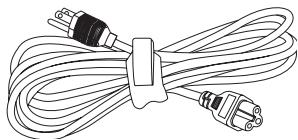
Illustration of two cables tied with a strap, showing different cable colors (no text or symbols)natural_image
Line drawing of a handheld electronic device with cable and connector (no text or symbols)Adaptateur secteur
natural_image
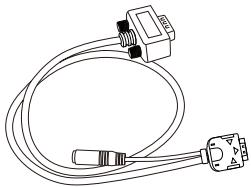
Line drawing of a multi-pin electrical connector with leads and connectors (no text or symbols)natural_image
Line drawing of a simple bag with handle and side panel (no text or symbols)Mallette de transport
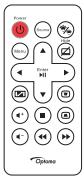
Télécommande
natural_image
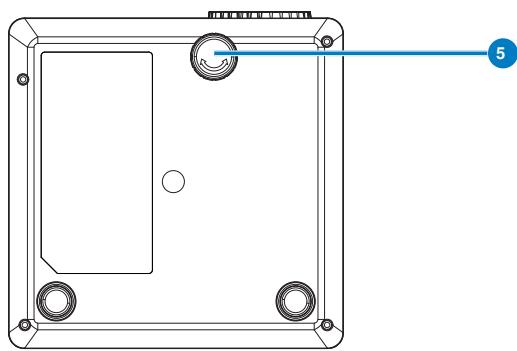
Technical line drawing of a rectangular electronic device with mounting holes and a central panel (no text or symbols)# Description
natural_image
Isometric line drawing of a rectangular electronic device with internal components and blue directional arrows indicating movement (no text or symbols)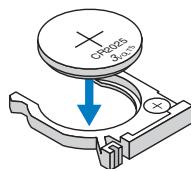
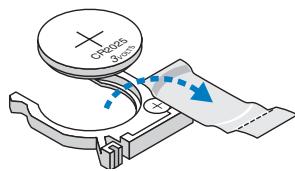
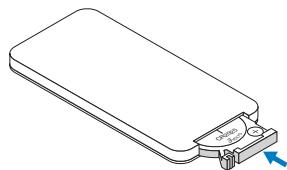
natural_image
Illustration of a USB flash drive with a blue arrow pointing to the internal component (no text or symbols)# Description
# Description
# Description
natural_image
Line drawing of a projector with front panel and screen (no text or symbols)natural_image
Line drawing of a car air conditioner unit with two magnified views showing internal components (no text or symbols)Rég. avancés
Voir "Menu Rég. avancés" pages 27-31.
Version FW
natural_image
Diagram showing connections between a computer interface and an audio amplifier (no text or symbols present)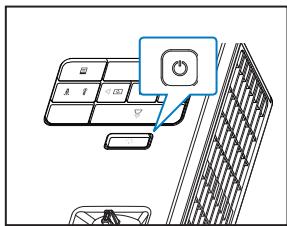
natural_image
Illustration of a portable electronic device with ports and buttons, connected to a connector (no text or symbols visible)natural_image
Diagram showing a device with an attached network cable and power plug, no text or symbols present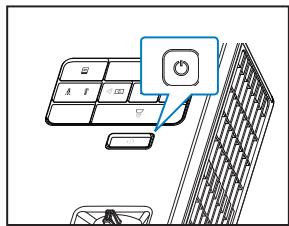
natural_image
Illustration of a portable electronic device with ports and an external indicator (no text or symbols visible)natural_image
Diagram showing a computer setup with an attached network device connected to a power outlet (no text or symbols present)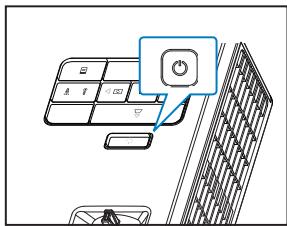
Brand : OPTOMA
Model : ML550
Category : Portable projector