
ML300 - Portable projector OPTOMA - Free user manual and instructions
Find the device manual for free ML300 OPTOMA in PDF.


| Brand | OPTOMA |
| Model | ML300 |
| Product Type | Portable Projector |
| Native Resolution | 1280 x 800 (WXGA) |
| Connectivity | VGA, HDMI, AV Composite, USB Type A, Micro USB, MicroSD, Audio Output, DC Input |
| Supported Video Formats | MPEG1/2/4, H.264, Xvid, MJPEG, Sorenson Spark up to 1280x800 @ 30 fps |
| Supported Audio Formats | MP3, AAC, PCM, ADPCM, WMA (8-48 kHz, 8-320 kbps) |
| Supported Image Formats | JPEG, BMP |
| Supported Document Formats | Word (.doc/.docx), Excel (.xls/.xlsx), PowerPoint (.ppt/.pptx), PDF, TXT |
| Internal Storage | Internal Memory (capacity not specified) |
| External Storage | microSD card up to 32 GB, USB drive (FAT32) |
| Keystone Correction | Manual (manual keystone) |
| Focus | Manual (focus ring) |
| Speaker | Built-in |
| Remote Control | Included (with battery) |
| Tilt Foot | Yes, to adjust height |
| LED Indicator | Red (standby), blue (on) |
| 3D Function | Yes, via DLP Link |
| USB Display | Yes (micro USB to PC) |
| Wi-Fi Display | Yes (with optional AboCom WU5205 dongle, MirrorOp Sender software) |
| Safety | Do not obstruct ventilation; avoid exposure to water; do not look into the beam; ambient temperature 5-35°C |
| Cleaning | Turn off the device, clean with a dry cloth |
| Power Supply | AC adapter (AC cord included) |
Frequently Asked Questions - ML300 OPTOMA
User questions about ML300 OPTOMA
0 question about this device. Answer the ones you know or ask your own.
Ask a new question about this device
Download the instructions for your Portable projector in PDF format for free! Find your manual ML300 - OPTOMA and take your electronic device back in hand. On this page are published all the documents necessary for the use of your device. ML300 by OPTOMA.
USER MANUAL ML300 OPTOMA
natural_image
Illustration of a black projector with visible ports and screen (no text or symbols)PROJECTEUR DEL PORTABLE
MANUEL DE L'UTILISATEUR
AVERTISSEMENT DE SÉCURITÉ POUR LES YEUX
Notice: Canadian users
This Class B digital apparatus complies with Canadian ICES-003.
natural_image
Technical illustration of a device casing with internal components and a highlighted section (no text or symbols)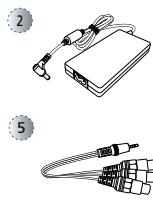
natural_image
Illustration of two electronic devices: a USB device with cable and a multi-pin connector (no text or symbols)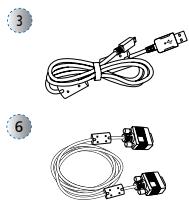
natural_image
Two types of cable connectors with connectors and wires, no text or symbols visible
Accessoire standard
natural_image
Illustration of a projector with a labeled pin (1) and cable, no text or symbols present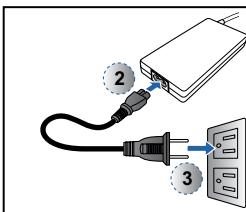
Turn the elevator foot to adjust the projected image position to the desired height.
ou
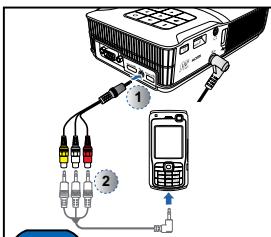
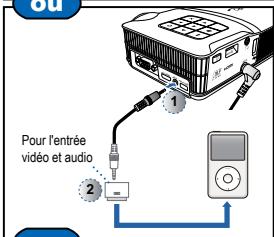
CONNECTER LA SOURCE D'ENTRÉE - ENTRÉE AV COMPOSITE
ou
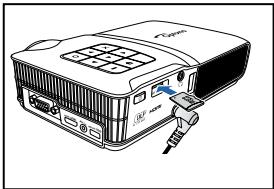
INSÉRER LA SOURCE DES DONNÉES - CARTE MICROSD
natural_image
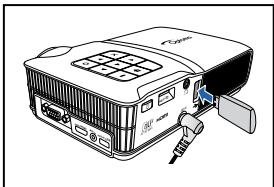
Line drawing of a projector with an attached cable (no text or symbols)INSÉRER LA SOURCE DES DONNÉES - USB (SOURCE EXTERNE)
natural_image
Line drawing of a projector with a slide and control panel (no text or symbols)natural_image
Line drawing of a projector on a tripod stand (no text or symbols)Menu Photo
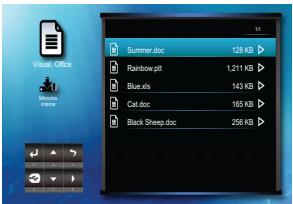
Menu Office Viewer
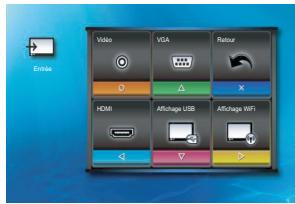
Menu Entrée
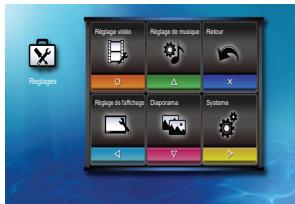
natural_image
Winter landscape photo of a snow-covered castle with a church in the background (no visible text or symbols)

Lecture du début

Jouer du début?
Non

Lecture du dernier point
COMMENT FAIRE POUR JOUER DES VIDÉO - MODE LECTURE VIDÉO
flowchart
graph TD
    A["Grid with selection handles"] --> B["Blue arrow"]
    B --> C["Red arrow"]
    C --> D["Output with selection handles"]

Répéter tout

Répéter un

Répéter éteint

- Jouez le fichier

ou

flowchart
graph TD
    A["Grid with left-pointing cells"] --> B["Blue Arrow"]
    C["Grid with right-pointing cells"] --> D["Red Arrow"]
    E["Output: Red dot in bottom-right cell"] --> F["Output: Blue dot in top-left cell"]
natural_image
Snow-covered campus scene with church architecture and surrounding trees (no visible text or symbols)


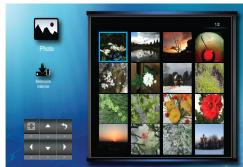

COMMENT FAIRE POUR AFFICHER DES PHOTOS - MODE PLEIN ÉCRAN / MODE DIAPORAMA
natural_image
Snow-covered landscape with historic church architecture and a signboard in the foreground (no readable text or symbols)Mode Diaporama
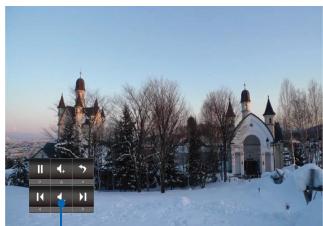
natural_image
Snow-covered church with multiple stoneworks and a clock in the foreground (no visible text or symbols)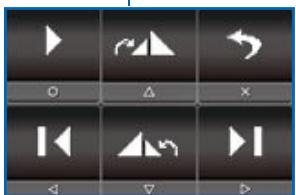
Pause/Lecture diaporama

Photo suivante

Photo précédente

Quitter le diaporama

Volume plus

Volume moins

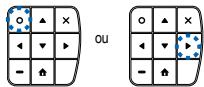
- Affichez le fichier
natural_image
Grid of white navigation and play icons on dark background, no text or symbols present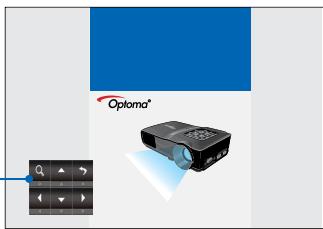
Zoom avant 1x \~ 4x
Page Haut
Page Bas



Anti-distorsion manuelle
natural_image
Snow-covered historic building with multiple spires and a central arched gateway, surrounded by bare trees under a twilight sky (no visible text or signage)natural_image
Snow-covered historic building with twin towers and a central courtyard, no visible text or signage
natural_image
Snow-covered historic building with twin towers and a church in the background, no visible text or symbols.

natural_image
Snow-covered church with multiple spires and bare trees in the foreground (no visible text or signage)
natural_image
Snow-covered historic building with twin towers and bare trees under a twilight sky (no visible text or signage)16:9
natural_image
Snow-covered church with twin towers and bare trees under a twilight sky (no visible text or signage)natural_image
Snow-covered church with twin towers and a dome, surrounded by bare trees under a clear sky (no visible text or symbols)
natural_image
Snow-covered church with twin towers and a stone archway, no visible text or signagenatural_image
Snow-covered historic building with twin towers and a church in the background (no visible text or symbols)

natural_image
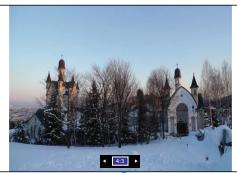
Snow-covered historic building with multiple spires and a clock interface overlay (no readable text or symbols)- Ajustez le réglage


natural_image
Snow-covered historic building with twin towers and a church in the background (no visible text or symbols)natural_image
Snow-covered church with twin towers and bare trees under a twilight sky (no visible text or signage)natural_image
Snow-covered historic building with twin towers and a church in the background, captured at dusk (no visible text or symbols)

natural_image
Snow-covered historic building with twin towers and a church in the background, no visible text or symbols.
- Ajustez le réglage

natural_image
Snow-covered historic building with twin towers and a church in the background (no visible text or signage)
natural_image
Snow-covered historic building with multiple spires and a central arched entrance, surrounded by bare trees under a twilight sky (no visible text or signage)natural_image
Snow-covered campus scene with twin towers and bare trees under a twilight sky (no visible text or symbols)

natural_image
Snow-covered campus scene with white church architecture and bare trees, no visible text or symbols- Ajustez le réglage

natural_image
Snow-covered historic building with twin towers and a church in the background (no visible text or signage)
natural_image
Snow-covered historic building with twin towers and a church in the background (no visible text or signage)natural_image
Snow-covered historic building with twin towers and a church in the background (no visible text or symbols)

natural_image
Snow-covered historic building with twin towers and a church in the background, no visible text or signage- Ajustez le réglage

natural_image
Snow-covered church with twin towers and a stone archway, no visible text or signage


natural_image
Snow-covered church with twin towers and bare trees under a twilight sky (no visible text or signage)natural_image
Snow-covered historic building with twin towers and a church in the background, captured at dusk (no visible text or symbols)

natural_image
Snow-covered historic building with twin towers and a church in the background (no visible text or symbols)- Ajustez le réglage


natural_image
Snow-covered campus scene with twin towers and bare trees under a clear sky (no visible text or signage)

RÉGLAGES DE SOURCE D'ENTRÉE (3D)
natural_image
Snow-covered church with twin towers and a small gathering in the foreground (no visible text or signage)natural_image
Snow-covered historic building with twin towers and a central courtyard, no visible text or signage

natural_image
Snow-covered historic building with twin towers and a church in the background (no visible text or symbols)natural_image
Snow-covered church with twin towers and a church in the background (no visible text or signage)natural_image
Snow-covered historic building with twin towers and a church in the background (no visible text or signage)
natural_image
Snow-covered church with twin towers and bare trees in the foreground (no visible text or signage)natural_image
Snow-covered historic building with twin towers and a church in the background, no visible text or signage

natural_image
Simple blue arrow pointing downward to the right, no text or symbols presentnatural_image
Snow-covered campus scene with twin towers and a church, no visible text or signage

natural_image
Snow-covered historic building with twin towers and a church in the background (no visible text or symbols)OU

natural_image
Completely black image with no visible content or text.natural_image
Windows XP desktop wallpaper showing the blank application window with icons for Start menu, Player Store, and Home Page (no readable text or symbols)natural_image
Line drawing of a computer monitor with an external cable and indicator lights (no text or symbols)Copyright © Optoma Company Limited.
2420 Meadowpine Blvd., Suite #105
Mississauga, ON, L5N 6S2, Canada
www.optoma.ca
888-289-6786
510-897-8601
services@optoma.com
Amérique latine
3178 Laurelview Ct.
Fremont, CA 94538, USA
www.optomausa.com
888-289-6786
510-897-8601
services@optoma.com
Europe
42 Caxton Way, The Watford Business
Park Watford, Hertfordshire,
WD18 8QZ, UK
www.optoma.eu
Tél. service : +44 (0)1923 691865
+44 (0) 1923 691 800
+44 (0) 1923 691 888
service@tsc-europe.com
Benelux BV
Randstad 22-123
1316 BW Almere
Pays-Bas
www.optoma.nl
+31 (0) 36 820 0253
+31 (0) 36 548 9052
France
Bâtiment E
81-83 avenue Edouard Vaillant
92100 Boulogne Billancourt, France
+33 1 41 46 12 20
+33 1 41 46 94 35
savoptoma@optoma.fr
Espagne
C/ José Hierro,36 Of. 1C 28522
Rivas VaciaMadrid,
Espagne
+34 91 499 06 06
+34 91 670 08 32
Allemagne
Wiesenstrasse 21 W
D40549 Düsseldorf,
Allemagne
+49 (0) 211 506 6670
+49 (0) 211 506 66799
info@optoma.de
Scandinavie
Lerpeveien 25
3040 Drammen
Norvège
PO.BOX 9515
3038 Drammen
Norvège
+47 32 98 89 90
+47 32 98 89 99
info@optoma.no
Corée
WOOMI TECH.CO.,LTD.
4F, Minu Bldg. 33-14, Kangnam-Ku,
www.os-worldwide.com
Taiwan
5F., No. 108, Minchiuan Rd.
Shindian City,
Taipei Taiwan 231, R.O.C.
www.optoma.com.tw
+886-2-2218-2360
+886-2-2218-2313
services@optoma.com.tw
asia.optoma.com
Hong-Kong
Unit A, 27/F Dragon Centre
79 Wing Hong Street,
Cheung Sha Wan,
Kowloon, Hong Kong
+852-2396-8968
+852-2370-1222
www.optoma.com.hk
Chine
5F, No. 1205, Kaixuan Rd.,
Changning District
Shanghai, 200052, Chine
+86-21-62947376
+86-21-62947375
www.optoma.com.cn
- AVERTISSEMENT DE SÉCURITÉ POUR LES YEUX
- Notice: Canadian users
- Accessoire standard
- CONNECTER LA SOURCE D'ENTRÉE - ENTRÉE AV COMPOSITE
- INSÉRER LA SOURCE DES DONNÉES - CARTE MICROSD
- INSÉRER LA SOURCE DES DONNÉES - USB (SOURCE EXTERNE)
- COMMENT FAIRE POUR JOUER DES VIDÉO - MODE LECTURE VIDÉO
- COMMENT FAIRE POUR AFFICHER DES PHOTOS - MODE PLEIN ÉCRAN / MODE DIAPORAMA
- RÉGLAGES DE SOURCE D'ENTRÉE (3D)
- Amérique latine
- Europe
- Benelux BV
- France
- Espagne
- Allemagne
- Scandinavie
- Corée
- Taiwan
- Hong-Kong
- Chine
Brand : OPTOMA
Model : ML300
Category : Portable projector