
PK120 - Portable projector OPTOMA - Free user manual and instructions
Find the device manual for free PK120 OPTOMA in PDF.


| Product type | Portable projector |
| Brand | OPTOMA |
| Model | PK120 |
| Weight (approx.) | 320 g |
| Power supply | Rechargeable lithium-ion battery + AC adapter (DC input) |
| Light source | LED |
| Supported resolution | Up to 1280 x 768 |
| Projection distance | 0.5 - 3.215 m |
| Screen size (diagonal) | 5 - 66 inches |
| Supported video formats | 3GP, AVI, FLV, MP4, MOV, WMV/ASF |
| Supported audio formats | AAC, ADIF, ADTS, AMR, APE, G.726, ASF, AWB, FLAC, M4A, MP3, OGG |
| Supported photo formats | BMP, JPG/JPEG (up to 10 MP) |
| Supported document formats | Word, Excel, PowerPoint, HTML, PDF |
| Connectivity | VGA input, composite AV input, micro USB port, audio output, microSD slot |
| Speaker | Built-in |
| Internal memory | Yes (capacity not specified) |
| Included accessories | AC adapter, VGA cable, USB cable, AV cable, battery, carrying case, quick start guide |
| Safety | Do not expose to moisture, do not block ventilation, do not look directly into the beam |
| Maintenance | Clean with a dry cloth, turn off before cleaning |
| Operating environment | Temperature 5-35°C, humidity 5-80% non-condensing |
| Repairability | Do not repair yourself, contact an authorized center |
| General information | Manual available in multiple languages, disposal in compliance with WEEE |
Frequently Asked Questions - PK120 OPTOMA
User questions about PK120 OPTOMA
0 question about this device. Answer the ones you know or ask your own.
Ask a new question about this device
Download the instructions for your Portable projector in PDF format for free! Find your manual PK120 - OPTOMA and take your electronic device back in hand. On this page are published all the documents necessary for the use of your device. PK120 by OPTOMA.
USER MANUAL PK120 OPTOMA
natural_image
Illustration of an Optoma FOCUS portable projector with control panel and display (no text or symbols on body)Pico Pocket Projector
AVERTISSEMENT DE SÉCURITÉ POUR LES YEUX
Notice: Canadian users
This Class B digital apparatus complies with Canadian ICES-003.
natural_image
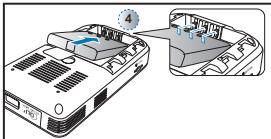
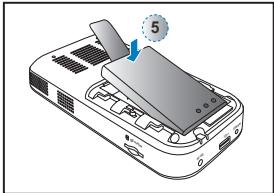
Illustration of a smartphone battery pack with a switch and labeled component (no text or symbols)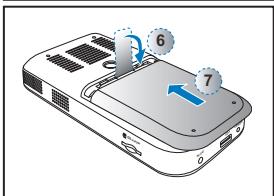
natural_image
Illustration of a mechanical device with a labeled component (no text or symbols present)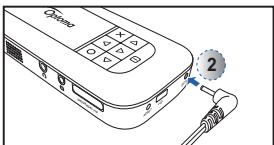
natural_image
Illustration of a remote control device with a cable and a numbered button (no text or symbols)
natural_image
Line drawing of a mobile phone with keypad and ports (no text or symbols)Branchez l'appareil VGA. (①\~②)
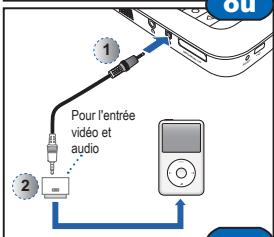
CONNECTEZ LASOURCE D'ENTRÉE - (ENTRÉE VIDÉO)
natural_image
Simple line drawing of a projector on a tripod stand (no text or symbols)natural_image
Illustration of a white Sony 3.0 iPhone with a blue projection cone and label '1' (no text or symbols on the device itself)Menu Musique
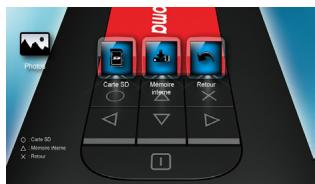
Menu Photo
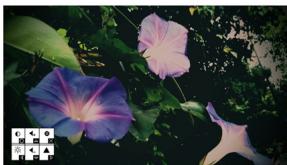
natural_image
Close-up of purple and pink morning glory flowers with green foliage in the background (no text or symbols visible)flowchart
graph TD
    A["Home Control"] --> B["Home Display"]
    B --> C["Video, Multiple, Pinterest"]
    C --> D["Entire, Office Viewer, Replige"]
    D --> E["Replige"]
    E --> F["Video, Multiple, Pinterest"]
    F --> G["Entire, Office Viewer, Replige"]
    G --> H["Replige"]
    H --> I["Video, Multiple, Pinterest"]
    I --> J["Entire, Office Viewer, Replige"]
    J --> K["Replige"]
    K --> L["Video, Multiple, Pinterest"]
    L --> M["Entire, Office Viewer, Replige"]
    M --> N["Replige"]
    N --> O["Video, Multiple, Pinterest"]
    O --> P["Entire, Office Viewer, Replige"]
    P --> Q["Replige"]
    Q --> R["Video, Multiple, Pinterest"]
    R --> S["Entire, Office Viewer, Replige"]
    S --> T["Replige"]
    T --> U["Video, Multiple, Pinterest"]
    U --> V["Entire, Office Viewer, Replige"]
    V --> W["Replige"]
    W --> X["Video, Multiple, Pinterest"]
    X --> Y["Entire, Office Viewer, Replige"]
    Y --> Z["Replige"]
    Z --> AA["Video, Multiple, Pinterest"]
    AA --> AB["Entire, Office Viewer, Replige"]
    AB --> AC["Replige"]
    AC --> AD["Video, Multiple, Pinterest"]
    AD --> AE["Entire, Office Viewer, Replige"]
    AE --> AF["Replige"]
    AF --> AG["Video, Multiple, Pinterest"]
    AG --> AH["Entire, Office Viewer, Replige"]
    AH --> AI["Replige"]
    AI --> AJ["Video, Multiple, Pinterest"]
    AJ --> AK["Entire, Office Viewer, Replige"]
    AK --> AL["Replige"]
    AL --> AM["Video, Multiple, Pinterest"]
    AM --> AN["Entire, Office Viewer, Replige"]
    AN --> AO["Replige"]
    AO --> AP["Video, Multiple, Pinterest"]
    AP --> AQ["Entire, Office Viewer, Replige"]
    AQ --> AR["Replige"]
    AR --> AS["Video, Multiple, Pinterest"]
    AS --> AT["Entire, Office Viewer, Replige"]
    AT --> AU["Replige"]
    AU --> AV["Video, Multiple, Pinterest"]
    AV --> AW["Entire, Office Viewer, Replige"]
    AW --> AX["Replige"]
    AX --> AY["Video, Multiple, Pinterest"]
    AY --> AZ["Entire, Office Viewer, Replige"]
    AZ --> BA["Replige"]
    BA --> BB["Video, Multiple, Pinterest"]
    BB --> BC["Entire, Office Viewer, Replige"]
    BC --> BD["Replige"]
    BD --> BE["Video, Multiple, Pinterest"]
    BE --> BF["Entire, Office Viewer, Replige"]
    BF --> BG["Replige"]
    BG --> BH["Video, Multiple, Pinterest"]
    BH --> BI["Entire, Office Viewer, Replige"]
    BI --> BJ["Replige"]
    BJ --> BK["Video, Multiple, Pinterest"]
    BK --> BL["Entire, Office Viewer, Replige"]
    BL --> BM["Replige"]
    BM --> BN["Video, Multiple, Pinterest"]
    BN --> BO["Entire, Office Viewer, Replige"]
    BO --> BP["Replige"]
    BP --> BQ["Video, Multiple, Pinterest"]
    BQ --> BR["Entire, Office Viewer, Replige"]
    BR --> BS["Replige"]
    BS --> BT["Video, Multiple, Pinterest"]
    BT --> BU["Entire, Office Viewer, Replige"]
    BU --> BV["Replige"]
    BV --> BW["Video, Multiple, Pinterest"]
    BW --> BX["Entire, Office Viewer, Replige"]
    BX --> BY["Replige"]
    BY --> BZ["Video, Multiple, Pinterest"]
    BZ --> CA["Entire, Office Viewer, Replige"]
    CA --> CB["Replige"]
COMPATIBILITÉ : VIDÉOS
Format photo compatible


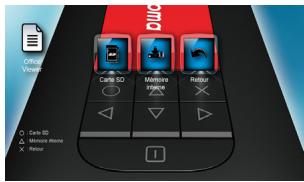


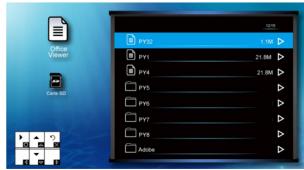
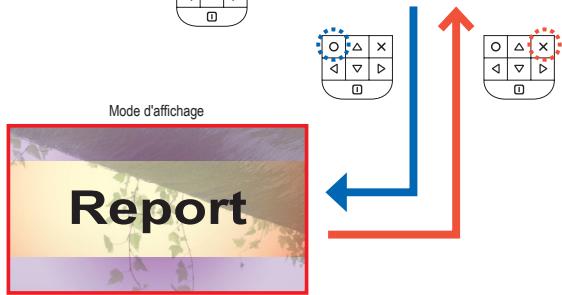
flowchart
graph TD
    A["Mode d'affichage"] --> B["Report"]
    B --> C["Directional Arrow Left"]
    B --> D["Directional Arrow Right"]


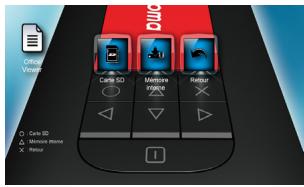


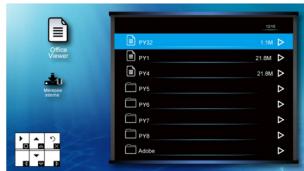
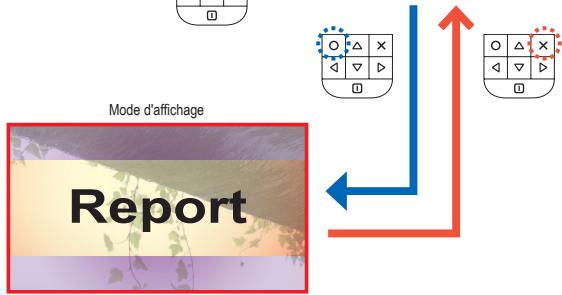
flowchart
graph TD
    A["Mode d'affichage"] --> B["Report"]
    B --> C["Directional Arrow Left"]
    B --> D["Directional Arrow Right"]
COMPATIBILITÉ : DOCUMENT
flowchart
graph TD
    A["Optoma"] --> B["Redémarrez le projecteur"]
    B --> C["Oui"]
    B --> D["Non"]
    C --> E["Regime"]
    D --> F["Souhaitez-vous réinitialiser tout le système?"]
    E --> G["Regime"]
    F --> H["Regime"]
    G --> I["Regime"]
    H --> J["Regime"]
    I --> K["Regime"]
    J --> L["Regime"]
    K --> M["Regime"]
    L --> N["Regime"]
    M --> O["Regime"]
    N --> P["Regime"]
    O --> Q["Regime"]
    P --> R["Regime"]
    Q --> S["Regime"]
    R --> T["Regime"]
    S --> U["Regime"]
    T --> V["Regime"]
    U --> W["Regime"]
    V --> X["Regime"]
    W --> Y["Regime"]
    X --> Z["Regime"]
    Y --> AA["Regime"]
    Z --> AB["Regime"]
natural_image
Line drawing of a hand holding a tool near a device component (no text or symbols visible)VIDÉO COMPATIBLE / MODE VGA
Brand : OPTOMA
Model : PK120
Category : Portable projector