Precisioncare Expert - Computer monitor CECOTEC - Free user manual and instructions
Find the device manual for free Precisioncare Expert CECOTEC in PDF.


Pick your language and provide your email: we'll send you a specifically translated version.
| Product Type | Professional computer monitor |
| Brand | Cecotec |
| Model | Precisioncare Expert |
| Screen Size | 27 inches (68.6 cm) |
| Resolution | 2560 x 1440 pixels (QHD) |
| Refresh Rate | 60 Hz |
| Panel Technology | IPS |
| Brightness | 350 cd/m² |
| Contrast Ratio | 1000:1 |
| Connectivity | 1 x HDMI, 1 x DisplayPort, 1 x USB-C, 2 x USB-A |
| Power Supply | 100-240 V, 50/60 Hz, power adapter included |
| Power Consumption | 35 W (typical), 0.5 W (standby) |
| Dimensions (with stand) | 615 x 460 x 210 mm |
| Weight (with stand) | 6.2 kg |
| Adjustments | Tilt, swivel, rotate, height |
| Viewing Angle | 178° horizontal and vertical |
| Key Features | Low blue light mode, flicker-free, factory calibration |
| Care and Cleaning | Wipe with a soft, dry cloth; avoid chemical products |
| Security | VESA 100x100 mm, Kensington lock, anti-tilt |
| Spare Parts and Repairability | Repairability index 7.5/10; external power supply easily replaceable |
Frequently Asked Questions - Precisioncare Expert CECOTEC
How to clean the Precisioncare Expert screen?
Use a slightly damp microfiber cloth. Never use abrasive products or solvents. Unplug the screen before cleaning.
What is the native resolution of the screen?
The native resolution is 2560 x 1440 pixels (QHD). Make sure to set this resolution in your computer's settings for optimal image quality.
Can I mount the screen on an articulated arm?
Yes, the screen is compatible with the VESA 100x100 mm standard. You can remove the original stand and attach a VESA mount.
How to activate the low blue light mode?
Press the screen's menu button, navigate to the 'Blue light filter' or 'Low Blue Light' option, and enable it. You can adjust the level according to your preference.
What to do if the screen displays no image?
Check that the cable is properly connected to both the screen and your computer. Make sure the screen is turned on (power light). Try a different cable or port if possible.
Is the screen compatible with Mac?
Yes, the screen works with Mac via HDMI, DisplayPort, or USB-C. Make sure your Mac supports QHD resolution.
How to adjust the screen height?
Hold the screen firmly by the edges and apply vertical pressure on the stand to lower or raise it. The range is about 130 mm.
Can I use the screen in portrait orientation?
Yes, the screen can rotate 90 degrees. Enable rotation in your operating system's display settings for portrait mode use.
What is the power consumption in standby?
Standby power consumption is less than 0.5 W. To save energy, you can also use the auto power off function.
How to reset to factory settings?
Access the OSD menu, select 'Reset' or 'Factory Reset', then confirm. All settings will return to their default values.
User questions about Precisioncare Expert CECOTEC
0 question about this device. Answer the ones you know or ask your own.
Ask a new question about this device
No questions yet. Be the first to ask one.
Download the instructions for your Computer monitor in PDF format for free! Find your manual Precisioncare Expert - CECOTEC and take your electronic device back in hand. On this page are published all the documents necessary for the use of your device. Precisioncare Expert by CECOTEC.
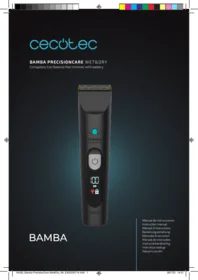
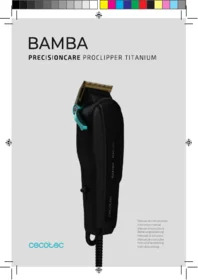
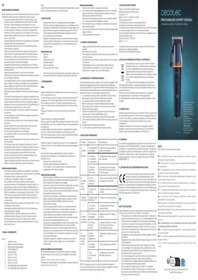
USER MANUAL Precisioncare Expert CECOTEC
Manual assistant
Powered by Anthropic
Waiting for your message
Product information
Brand : CECOTEC
Model : Precisioncare Expert
Category : Computer monitor