
SOUNDBRIDGE HOMEMUSIC - Multiroom audio system PINNACLE - Free user manual and instructions
Find the device manual for free SOUNDBRIDGE HOMEMUSIC PINNACLE in PDF.


| Product Type | Multiroom audio system with network player |
| Brand | PINNACLE |
| Model | SOUNDBRIDGE HOMEMUSIC |
| Network connectivity | Built-in Wi-Fi (802.11 b/g), RJ45 Ethernet port |
| Supported audio formats | MP3, WMA, AAC, FLAC, WAV (streaming and SD/MMC card) |
| Audio sources | Internet radio, SD/MMC card, PC music server (UPnP/DLNA) |
| Audio outputs | Line Out (RCA), 3.5 mm headphone jack |
| Power supply | External power adapter (input 100-240 V AC, output DC) |
| Power consumption | Approximately 10 W (standby 1 W) |
| Dimensions (approx.) | 200 x 150 x 50 mm |
| Weight (approx.) | 0.5 kg |
| Display | Backlit display with adjustable brightness |
| Remote control | Infrared with AAA batteries (included) |
| Main functions | Network music playback, Internet radio, SD/MMC card playback, navigation by album/artist/genre, shuffle and repeat playlists |
| Maintenance and cleaning | Clean with a soft dry cloth. Do not use abrasive products or solvents. |
| Safety | Use only the provided adapter. Do not expose to moisture. No power switch: unplug to disconnect power. |
| Spare parts and repairability | No user-serviceable parts. Contact after-sales support in case of malfunction. |
| General information | Compliant with CE directives. Product registration recommended at www.pinnaclesys.com. |
Frequently Asked Questions - SOUNDBRIDGE HOMEMUSIC PINNACLE
User questions about SOUNDBRIDGE HOMEMUSIC PINNACLE
0 question about this device. Answer the ones you know or ask your own.
Ask a new question about this device
Download the instructions for your Multiroom audio system in PDF format for free! Find your manual SOUNDBRIDGE HOMEMUSIC - PINNACLE and take your electronic device back in hand. On this page are published all the documents necessary for the use of your device. SOUNDBRIDGE HOMEMUSIC by PINNACLE.
USER MANUAL SOUNDBRIDGE HOMEMUSIC PINNACLE
SoundBridge HomeMusic
Powered by Roku
Quick Start Guide
Kurzanleitung
Step I: Connect SoundBridge to an Audio Device. 7
A. ... to a Stereo System 7 B. ... to Powered Speakers 7 C. ... to Headphones 7
Step II: Connect SoundBridge to the Power Socket 8 Step III: Set Up your Preferences 8 Step IV: Connect SoundBridge to your Wireless Home Network 8
Unsecured Network 8 Secured Network 9
Step V: Now You are Ready to Enjoy Digital Music 10
Internet Radio 10 Music from your SD or MMC Card 10 Music from Your Computer 11
Addendum 1: Installing and Enabling Music Server Software
on Your Computer 12
Installing and Enabling the Firefly Media Server 12 Installing and Enabling Windows Media Player 12
Addendum 2: The SoundBridge Remote Control. 13 Remote Control Functions 14 Trouble Shooting 15 Service and Support. 17
Welcome
Thank you for purchasing SoundBridge HomeMusic! Now you can play back digital music saved on your computer, or on an SD or MMC card, as well as access over a thousand free Internet radio stations, any time and in any room you want.
We hope you will enjoy using SoundBridge HomeMusic as much as we enjoyed developing it.
This Quick Start Guide will help you connect your SoundBridge HomeMusic to an audio device and to your home network within minutes. You will learn how to easily access Internet radio and play back digital music from your computer.
Please read this document carefully. In case you need additional information, please refer to the manual (PDF) on the included CD or visit our web site www.pinnaclesys.com/soundbridge.
We also recommend that you register your purchase at www.pinnaclesys.com so that we can let you know when new upgrades are available.
Registering your SoundBridge is quick and easy. Of course, your personal information will be kept confidential and will not be shared with any third party.
Now have fun with your SoundBridge HomeMusic!
Step I: Connect SoundBridge to an Audio Device
Computer with digital music collection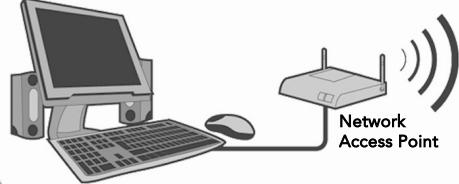
Built-in Wi-Fi support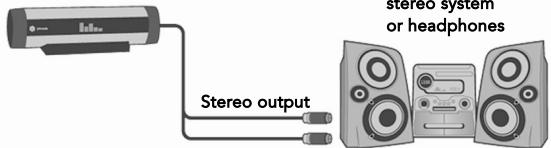
A...toa Stereo System
Connect the "Line Out" jack of your SoundBridge to the AUX jack or another "Line IN" jack on your stereo system using the cinch (white/red) audio cable included in the package.
B. ... to Powered Speakers
Connect the "Line Out" jack of your SoundBridge to your powered speakers using the audio cable included in the package (3.5 mm jack), or via the 3.5 mm audio connection on the powered speakers.
C... to Headphones
Connect the headphones to the "headphone" jack of your SoundBridge
Connectors on the rear of your SoundBridge:
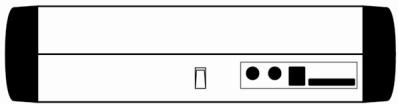

Step II: Connect SoundBridge to the Power Socket
Insert the power plug into the "DC IN" socket of your SoundBridge; insert the other end into a power socket.
Note: SoundBridge does not have an On/Off switch. As soon as you plug in the power, you should see the welcome message "Pinnacle Home Music / Roku SoundBridge Music + Radio".
Step III: Set Up your Preferences
After having seen the welcome message, you are now prompted to set the language, the time zone and the region.
- Use the [ ] buttons on the remote control to chose the respective setting. Confirm your choice with [] .
For further explanations on the buttons of your SoundBridge remote control, please refer to the addendum 2 of this Quick Start Guide, "The SoundBridge Remote Control".
Step IV: Connect SoundBridge to your Wireless Home Network
Unsecured Network
If your home network is a wireless network and neither a WEP nor a WPA security key has been set, the connection to your wireless network is established automatically.
If there are more than one unsecured wireless networks available, SoundBridge will establish a connection to the unsecured network with an installed and enabled music server.
To make sure you are connected to the right network, do the following:
- Navigate to the menu option Configure.
- Use the [down arrow/up arrow] buttons to scroll to the option Wi-Fi Setup.
- Choose the name of your network from the list or enter the SSID.
- For the question Password?, choose the option no.
The SoundBridge reboots.
Secured Network

In order to protect a wireless network from unauthorized access, most wireless routers / access points allow the user to secure the network.
SoundBridge HomeMusic supports the two most common security modes: WEP (Wired Equivalent Privacy) and WPA (Wi-Fi Protected Access).
For further information, refer to the documentation of your wireless router / access point.
If your network is secured, the wireless connection cannot be established automatically. In this case, you have to configure your network, and depending on how your network is secured, you have to enter either the WEP or the WPA security key manually.
On the SoundBridge display, you can see the following message, "No open network found."
- Use the [down arrow/up arrow] buttons on the remote control to scroll down to the option Wi-Fi Setup, and confirm with [check mark].
- Choose the name of your network from the list or enter the SSID.
- For the question Password?, choose the option yes.
- Use the remote control to enter either your WEP or your WPA security key (use the down arrow buttons to browse the different character sets and the [left arrow/right arrow] buttons to browse inside a character set).
- Use the remote control to confirm your entry with OK (use the down arrow/up arrow buttons to navigate to this option).
Note: The WEP or WPA security key is the same key that you entered in your access point and your computer.
The SoundBridge reboots.
Step V: Now You are Ready to Enjoy Digital Music
Internet Radio
You can listen to Internet radio even if your computer is not on, as long as SoundBridge is directly connected to the Internet.
- Use the remote control to navigate to the Internet Radio library and press [√]. On your display you will now see 18 radio stations. On your SoundBridge, these stations are what are called preset radio stations. Use the remote control to scroll to the station you want to play and press the [▶] button.
- Pressing the [√] button will return to the last played Internet radio station.
- To change to a different library, press the [H] button to open the Home Menu and then select the Library/Config option located at the bottom of this menu.
- To personalize the preset radio stations, use the "Roku Radio Snooper" software (included on the CD) or refer to the User's Guide on the included CD, chapter "Customizing Favorites and Presets for Internet Radio".
For a detailed description of SoundBridge advanced features on Internet radio, refer to the user's manual on the included CD, chapter "Internet Radio".
Music from your SD or MMC Card
The built-in card slot allows you to play back audio files saved on an SD or MMC card. Once an SD or MMC card is inserted into the card slot, SoundBridge will automatically find this music library.
- Press [√] and you will then see the Home Menu where you can begin browsing and playing your music.
- To change to a different library or to play Internet radio, press the [H] button to open the Home Menu and then select the Library/Config option located at the bottom of this menu.
Music from Your Computer
Once SoundBridge is successfully connected to your network and the sharing options of your music server are enabled, SoundBridge will automatically find any supported music libraries on the network.
- Use the remote control to navigate to your preferred library and press [√]. You will then see the Home Menu where you can begin browsing and playing your music.
- To change to a different library or to play Internet radio, press the [H] button to open the Home Menu, and then select the Library/Config option located at the bottom of this menu.
- Pressing the [ ] button on the remote control will return you to the last accessed music library.
Note: For a detailed description of the SoundBridge advanced features on playing music on your computer, refer to the user's manual on the included CD, chapter "Select Music Library".
For further information on music server software, see Addendum 1 of this Quick Start Guide "Installing and Enabling a Music Server Software on your Computer".
Addendum 1: Installing and Enabling Music Server Software on Your Computer
Being a network music player, SoundBridge doesn't store files, but plays back the files stored on your computer. In order to do this, "music server" software (software that streams the music to your SoundBridge) needs to be installed on your computer.
In this Quick Start Guide, we refer to two software programs: Firefly Media Server and Windows Media Player (Version 11 and higher already contains a music server).
Installing and Enabling the Firefly Media Server (Recommended for iTunes Users)
- Download the Firefly Media Server from www.fireflymediaserver.com or install the Firefly Media Server from the installation CD included in the package.
Music sharing: It is not necessary to enable the Firefly Media Server for music sharing.
However, the program must be running to be able to play back music from your computer on your SoundBridge.
Note: If you use the Firefly Media Server to access your iTunes libraries, make sure that the Firefly Library Media Folder is identical with the iTunes Music Folder.
Installing and Enabling Windows Media Player
- If it is not yet installed, download and install the free Windows XP Service Pack 2 from Microsoft or use the Windows Updater to perform the update.
- If it is not yet installed, download and install the latest version of the free Windows Media Player from Microsoft or use the Windows Updater to perform the update.
Music sharing: To be able to play back the files on your computer, you first have to share your Windows Media Player Libraries and add SoundBridge to the Windows Media Player list of allowed devices. To do this, open Windows Media Player. In the menu Tool, choose the option Options. In the popup window choose the tab Library. In the Library tab choose Configure Sharing. At this point, check the option Share my media and click OK. In the Share my media to list, select SoundBridge and click Allow. Apply the settings you have made and close the window.
Note: If you are using Windows Media Player 10, you first have to install the free music server software Windows Media Connect.
Addendum 2: The SoundBridge Remote Control
First insert the two batteries into the remote control. Then point the remote control at SoundBridge (make sure the receiver is not covered).
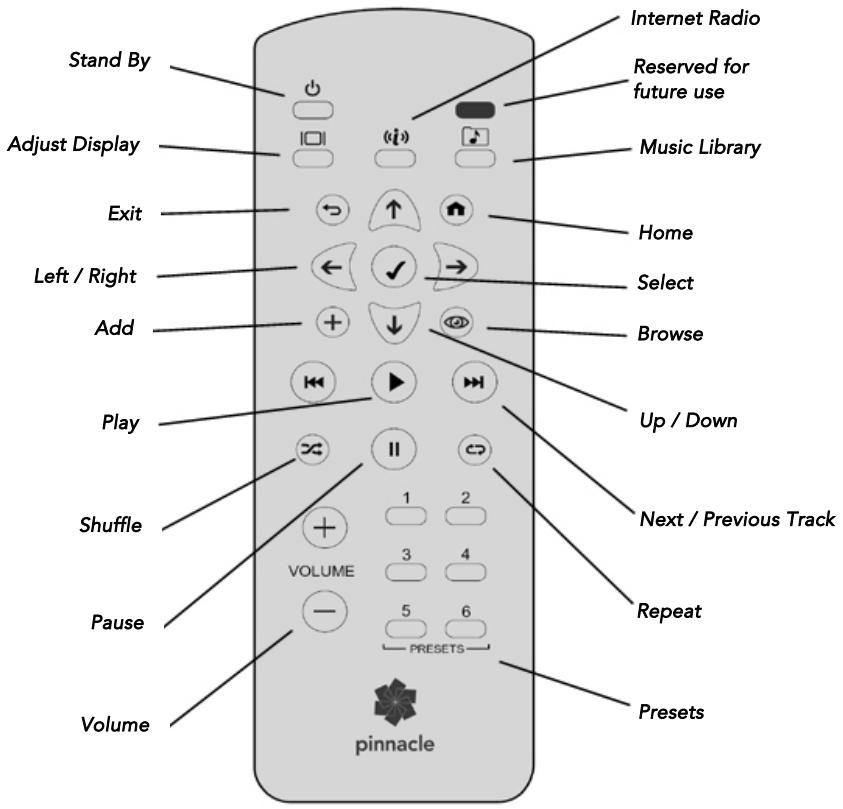
Remote Control Functions
| Button | Function |
| ↓↑ | Navigates through available selections in the list.In writing mode: allows you to browse the different character sets and functions, such as“OK”,“delete”,etc. |
| ←→ | “FastBrowse.” When browsing for an artist alphabetically, you skip from one letter of the alphabet to another.In writing mode: allows you to browse inside a character set. |
| ✓ | Selects any item shown on the SoundBridge display. Pressing Select is like clicking your mouse on a highlighted item. |
| ▶ | Begins playing current selection. |
| || | Pauses currently playing song. |
| + | Adds current selection to your Song Queue. |
| Takes you to the Home Menu. | |
| ◎ | Browse through songs by title, artist, album, composer or genre. |
| ← | Takes you one step backward and works like the Back button on your Internet browser. Pressing Exit repeatedly displays information about the song currently playing. |
| Puts SoundBridge into standby mode. | |
| ||| | Adjusts brightness and contrast of the display when used with the Up/Down and Left/Right buttons. |
| ||| | Moves forward or backward in your Song Queue, one song at a time. |
| × | Plays Song Queue in random order. |
| ◎ | Continuously plays back your Song Queue. |
| (i) | Plays back the last accessed Internet radio station. |
| Opens the last accessed music server. | |
| 1,2,3,4,5,6 | Let you access the preset Internet radio stations on your SoundBridge. |
Trouble Shooting
Problem
No open network found
Tip
Make sure the router or access point is functioning. - Make sure the SSID of your network is active, otherwise enter the SSID into the SoundBridge manually. Try to change the broadcasting channel of your router (refer to the documentation of your router). If your network is WEP or WPA secured, make sure that either the WEP or the WPA security key is correct. - Make sure the Firewall is not blocking the access of SoundBridge to the network. - Deactivate your MAC filter or manually add the MAC address of your SoundBridge to the list of allowed devices in the settings application of your access point or router (refer to the documentation of your access point).

To see the MAC address of you SoundBridge, press the [H] button, scroll down to the Configuration option and then to i-Fi Status. Scroll down until the MAC address is displayed.
- Make sure the network settings are made according to the documentation of your access point or router.
No library (why?)
- Make sure the firewall is not blocking the access of the music server to the network.
- Make sure SoundBridge is connected to the right network.
- Make sure the music files are shared by the music server.
- Make sure SoundBridge is authorized and recognized by the music server.
Problem
File can't be played back
Tip
- Make sure the file format of the audio file you want to play back is supported by SoundBridge. Make sure the music server library is up to date.
- Make sure the Internet connection is available when playing protected files for the first time.
- Make sure the signal strength is sufficient; otherwise move the SoundBridge to a position/room which is closer to your wireless access point.
Play back of an Internet radio station not possible
- Make sure the firewall is not blocking access to Internet radio. Try again later. The service might be unavailable at the moment.
No Sound
- Make sure the sound of the SoundBridge is not muted. Make sure the audio system is on. Make sure the sound of the audio system is not muted.
- Make sure the line-in on the audio system was chosen correctly.
- Make sure the SoundBridge and the audio system are connected correctly.
Service and Support
Don't forget to register your product (either on the Internet or using the printable registration card which is available from the support center, see below) in order to make use of our extensive customer support options:
Online support: Interactive support via E-mail, FAQs, forums. Visit us at http://www.pinnaclesys.com/support and select your product.
Telephone support for UK residents: Please dial 0906270111, please note this is a premium number, additional charges will apply.
Telephone support for UK and non UK residents: You can obtain a Service Access Code online from http://www.pinnaclesys.com/purchasecall which gives you access to phone support. If you have no Internet access, the Service Access Code can be purchased by calling this number (650 267 5196). The Service Access Code is valid for one call without additional fees.
Step 1: Dial 650 267 5196 or the appropriate local phone number. (Local phone numbers can be found at http://www.pinnacleys.com/support)
Step 2: Enter your Service Access Code using your telephone keypad (tone dial).
Pinnacle Systems hereby declares that this device complies with the fundamental requirements and other relevant terms and conditions of EC directive number 89/336/EEC.
The EC and FCC declarations of conformity and identical construction can be downloaded from http://www.pinnaclesys.com/compliance

GERMAN
Welcome 20
No library (why?)
Tip

- SOUNDBRIDGE HOMEMUSIC
- WELCOME
- STEP I: CONNECT SOUNDBRIDGE TO AN AUDIO DEVICE
- A...TOA STEREO SYSTEM
- TO POWERED SPEAKERS
- C... TO HEADPHONES
- STEP II: CONNECT SOUNDBRIDGE TO THE POWER SOCKET
- STEP III: SET UP YOUR PREFERENCES
- STEP IV: CONNECT SOUNDBRIDGE TO YOUR WIRELESS HOME NETWORK
- UNSECURED NETWORK
- SECURED NETWORK
- STEP V: NOW YOU ARE READY TO ENJOY DIGITAL MUSIC
- INTERNET RADIO
- MUSIC FROM YOUR SD OR MMC CARD
- MUSIC FROM YOUR COMPUTER
- ADDENDUM 1: INSTALLING AND ENABLING MUSIC SERVER SOFTWARE ON YOUR COMPUTER
- INSTALLING AND ENABLING THE FIREFLY MEDIA SERVER (RECOMMENDED FOR ITUNES USERS)
- INSTALLING AND ENABLING WINDOWS MEDIA PLAYER
- ADDENDUM 2: THE SOUNDBRIDGE REMOTE CONTROL
- REMOTE CONTROL FUNCTIONS
- TROUBLE SHOOTING
- PROBLEM
- TIP
- SERVICE AND SUPPORT
- GERMAN
- WELCOME 20
Brand : PINNACLE
Model : SOUNDBRIDGE HOMEMUSIC
Category : Multiroom audio system