
PCTV 450E - TV Card PINNACLE - Free user manual and instructions
Find the device manual for free PCTV 450E PINNACLE in PDF.


User questions about PCTV 450E PINNACLE
0 question about this device. Answer the ones you know or ask your own.
Ask a new question about this device
Download the instructions for your TV Card in PDF format for free! Find your manual PCTV 450E - PINNACLE and take your electronic device back in hand. On this page are published all the documents necessary for the use of your device. PCTV 450E by PINNACLE.
USER MANUAL PCTV 450E PINNACLE
All rights reserved.
No part of this manual may be reproduced or transferred to other media without explicit written permission from Pinnacle Systems GmbH, Braunschweig, Germany.
All brand or product names are trademarks or registered trademarks of their respective holders.
Pinnacle Systems hereby declares that this TV reception equipment complies with the fundamental requirements and other relevant terms and conditions of EC directive number 89/336/EEC.
The EC and FCC declarations of conformity and identical construction can be downloaded from http://www.pinnaclesys.com/compliance.
Pinnacle Systems GmbH has written this manual to the best of its knowledge, but does not guarantee that the programs/systems will fulfill the users' intended applications.
No warranty is made as to the specifications of features.
Pinnacle Systems GmbH retains the right to make alterations to the content of the manual without obligation to inform third parties.
All quotes, sales, supply and manufacturing contracts from Pinnacle Systems GmbH, including consulting, installation and other contractual services are subject exclusively to the General Sales and Delivery Terms of Pinnacle Systems GmbH.
Table of Contents
Safety Instructions 1
Introduction 4
System Requirements 5
Computer Hardware 5
Computer Software 5
Connections 6
Connections - Front 6
Connections - Rear 6
Antenna Connection. 7
PC Connection 7
Power unit 7
Sample Configuration 8
Technical Data 9
Bus System 9
Antenna Input 9
Tuner 9
Demodulator 9
TV Format 9
DiSEqC 10
LNB Feed 10

WARNING: This product contains chemicals, including lead, known to the
State of California to cause birth defects or other reproductive harm. Wash
hands after handling.
Please read and follow these instructions for your own safety, and to ensure that your device functions properly.
Power Cable and Plug
Please make sure to obey the following instructions in order to prevent the device from malfunctioning and to prevent electrical shock, fires, and injuries:
- You need to pull out the power plug to completely disconnect the power.
- When disconnecting the power to your device, always unplug it by pulling the plug itself and not the cable.
- Don't ever plug in or unplug the power cable with wet hands.
- Keep the power cable away from heaters and radiators.
- Never put heavy objects on the power cable.
- Don't try to repair the power cable yourself or to modify it in any way, shape, or form.
- Regularly clean off the dust, dirt, etc. from the plug.
If you drop the device or damage it in any fashion, turn it off and disconnect the power plug. - If the device produces smoke, strange smells, or noises, turn it off and disconnect the power plug. Contact your dealer immediately.
- During an electric storm, do not connect or disconnect the antenna or data transmission lines.
Where Not to Install the Device
Do not install the device in any of the following locations:
- In direct sunlight, next to radiators or other heat sources or in vehicles parked in direct sunlight with all the windows rolled up and the doors closed.
- Locations with extremely high temperatures (95^ or greater) or levels of humidity (90% or greater).
- Very dusty or sandy locations.
- Locations where there are vibrations, shaking or slanted surfaces underneath. This could damage the components in the device.
-
On flammable surfaces such as cloth-covered tables.
-
Keep the device away from flower vases, bathtubs, sinks, etc., and from locations where the device is exposed to precipitation. The device may be severely damaged if any liquid enters it.
Problems With Other Devices
- Set up the device in a horizontal position and do not place any heavy objects on it.
- Do not place the device on an amplifier or any other device that gives off heat.
Housing and Internal Components
- Never remove or open any part of the housing and do not try to perform any repairs yourself. Any maintenance or repair work should be done by a qualified repair person.
- Keep fingers and objects away from the inside of the device. It is dangerous to touch any of the components inside the device. Doing so may injure you and damage the device.
- Do not place any foreign objects on the device.
- The device should only be cleaned with a soft, dry, anti-static cloth.
Condensation
Condensation may develop in the device in the following circumstances:
- Right after a nearby heater or radiator has been turned on.
In a very humid or steam-filled room. - If the device has been moved from a cold location to a warm one.
Condensation in the device may cause it to malfunction. In this case, turn off the device and wait around 1 hour until the condensation has evaporated. Then you can use it again.
Non-Use
If you are not planning on using the device for a long period of time, you should unplug it from the power socket.
Accessories
- Use only the accessories included with or recommended for the device in order to minimize the risk of fire, electrical shock or interference.
- The device may only be connected with the USB cable that came with it. Do not use any incompatible extension cables.
Batteries
- Put in the batteries shipped with the device as shown in the remote control battery case.
- NEVER combine old and new batteries or different types of batteries (alkaline and non-alkaline).
- Once the batteries are discharged, make sure to dispose of them in accordance with legal and environmental requirements.
Do not dispose of defective or used batteries in the garbage. State regulations require end consumers to return defective or used batteries to the retailer or to take them to a battery drop-off station.
Copyrights
Make sure not to violate any copyrights when you use music, movie and digital photo files.

Any changes or additions to the printed documentation can be found in the
read-me file on the CD-ROM included with the device.
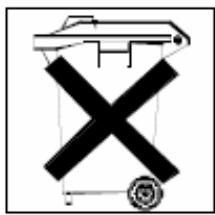
Disposal and Recycling
Do not dispose of electric components in the garbage. Either return defective or unwanted devices to the retailer or take them to an appropriate recycling station!
Congratulations for becoming the proud owner of a PCTV product!
With PCTV 400e and PCTV Sat Pro USB, you can receive TV, radio, and data signals via satellite (DVB-S) on your PC TV:
Since the PCTV 400e and the PCTV Sat Pro USB have a digital satellite tuner, they let you receive any available (decoded) TV and radio station using the DVB-S standard via a digital satellite system (satellite dish and universal LNB).
Using the PCTV HDTV Sat Pro USB, you can receive additional DVB S2 signals.
Furthermore, all hardware models offer you the option of receiving transmissions in HDTV format.
In addition to live TV and live radio, your PCTV hardware, in conjunction with the Pinnacle MediaCenter software, offers you timeshifted television or radio, as well as high quality recordings of shows on your hard drive and writable DVDs.
You also get access to the free information services, teletext and the electronic program guide (EPG). These services let you simply and easily access the information you want at any time, as well as schedule the shows you want to record.
And now have fun with your PCTV product!
Your system must satisfy the following requirements in order for your PCTV hardware to function smoothly:
Computer Hardware
Processor
Minimum: Pentium IV 1.8 GHz, Pentium Mobile 1.3 GHz or equivalent AMD Athlon XP processor (only for SD)
Recommended: Pentium IV 2.8 GHz, Pentium Mobile 1.6 GHz or equivalent AMD Athlon XP processor (only for SD)
Memory
Minimum: 256 MB RAM
Recommended: 512 MB RAM
Hard Disk
Minimum: IDE hard disk with master mode drivers and 5 GB free disk space
Recommended: U-DMA hard disk with 20 GB free disk space
Graphics Card
Minimum: DirectX 8-compatible graphics card
Recommended: DirectX 9-compatible (or higher) graphics card
Sound Card
Minimum: DirectX 9-compatible sound card
USB Port
USB 2.0 port (high speed-compatible)
CD-ROM / DVD-ROM Drive or Recorder
Minimum: CD-ROM or DVD-ROM drive
Recommended: CD or DVD recorder
Computer Software
Windows XP (Home, Professional or Media Center Edition 2005) with the latest Service Pack
Connections – Front
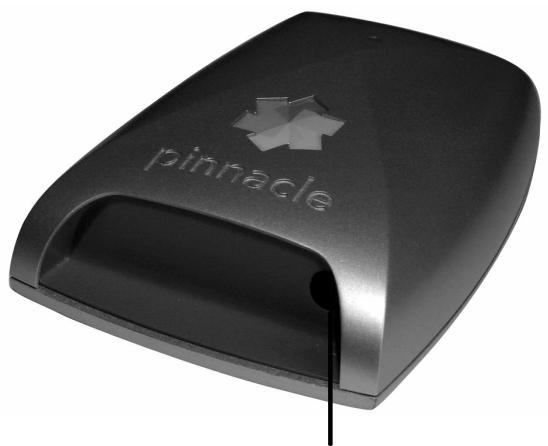
Infrared receiver for the remote
Connections – Rear
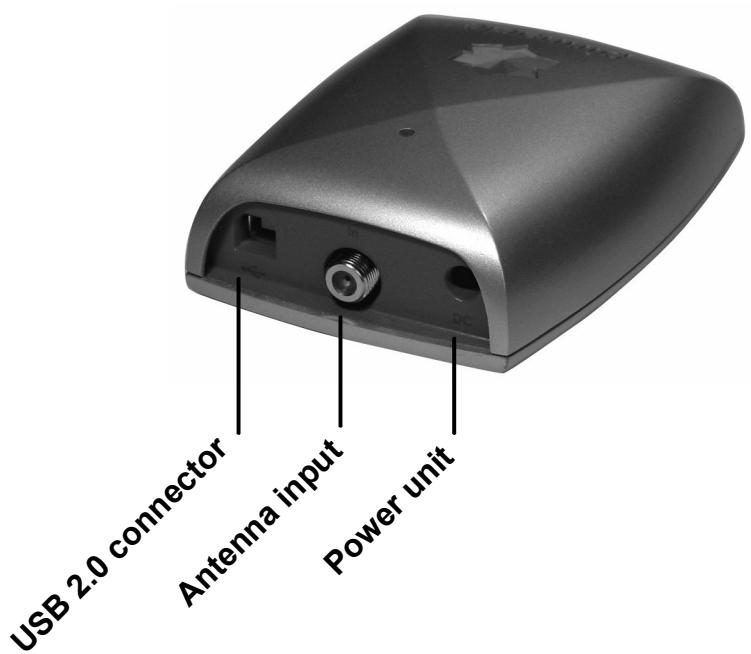
Antenna Connection
- Connect the antenna input of your PCTV hardware to your satellite antenna.

To connect the antenna, you need the corresponding cable. Note that the quality of the cable has a great influence on the quality of the reception.
PC Connection
- Insert the USB 2.0 connector of your PCTV hardware into your PC.

Use only the USB cable that came in the package.
Power unit
- Connect the power unit to the power connection of your PCTV hardware.
Sample Configuration

Bus System
USB 2.0
Antenna Input
75 Ohm, F-connector
Tuner
- PCTV 400e / PCTV Sat Pro USB: Philips TDA 8263HN, Frequency range: 950 to 2175 MHz
PCTV HDTV Sat Pro USB: STB 0899
Demodulator
PCTV 400e / PCTV Sat Pro USB: Philips TDA 10086HT
PCTV HDTV Sat Pro USB: STB 6100
TV Format
- PCTV 400e / PCTV Sat Pro USB: DVB-S
PCTV HDTV Sat Pro USB: DVB-S, DVB-S2
DiSEqC
DiSEqC 1.2
LNB Feed
13V / 18V, maximum 350 mW