
PCTV 300I - TV Card PINNACLE - Free user manual and instructions
Find the device manual for free PCTV 300I PINNACLE in PDF.


| Product Type | Internal PCI TV Card |
| Brand | PINNACLE |
| Model | PCTV 300i |
| System Bus | PCI Rev. 2.3 (busmaster) |
| Video Decoder | Philips SAA7134 |
| TV Tuner | Microtune MT2050, 45.75 – 863.25 MHz |
| Analog Demodulator | TDA 9885, PAL B/G/D/K/I |
| DVB-T Demodulator | Zarlink MT352, 16/64 QAM, QPSK, bandwidth 6/7/8 MHz, UHF/VHF |
| Video Inputs | S-Video (Mini-DIN), Composite (RCA) |
| Antenna Input | 75 Ohm, IEC Connector |
| Audio Output | Internal 4-pin connector (2.8 mm pitch) for sound card |
| Remote Control Connector | Yes (for optional infrared receiver) |
| Dimensions (approx.) | 120 x 70 mm (standard PCI card) |
| Weight (approx.) | 50 g |
| Power Supply | Via PCI slot (3.3V/5V) |
| Minimum Configuration | Pentium III 1 GHz, 128 MB RAM, 5 GB hard drive, DirectX 8 graphics card, Windows XP |
| Recommended Configuration | Pentium IV 2 GHz, 256 MB RAM, DirectX 9 graphics card |
| Supported Operating Systems | Windows XP (Home, Professional, Media Center Edition 2005) |
| Maintenance and Cleaning | Dust with compressed air, avoid moisture. Handle with care against electrostatic discharge. |
| Safety | Disconnect PC power before any manipulation. Discharge static electricity by touching the case. |
| Spare Parts and Repairability | Not specified. Contact Pinnacle customer service. |
| Compliance Standards | CE, EN 55022, EN 55024, EN 60950 |
Frequently Asked Questions - PCTV 300I PINNACLE
User questions about PCTV 300I PINNACLE
0 question about this device. Answer the ones you know or ask your own.
Ask a new question about this device
Download the instructions for your TV Card in PDF format for free! Find your manual PCTV 300I - PINNACLE and take your electronic device back in hand. On this page are published all the documents necessary for the use of your device. PCTV 300I by PINNACLE.
USER MANUAL PCTV 300I PINNACLE
All rights reserved.
No part of this manual may be reproduced or transferred to other media without explicit written permission from Pinnacle Systems GmbH, Braunschweig, Germany.
All brand or product names are trademarks or registered trademarks of their respective holders.
This manual is printed on chlorine-free, bleached paper using solvent-free ink.
Pinnacle Systems GmbH has written this manual to the best of its knowledge, but does not guarantee that the programs/systems will fulfill the users' intended applications.
No warranty is made as to the specifications of features.
Pinnacle Systems GmbH retains the right to make alterations to the content of the manual without obligation to inform third parties.
All quotes, sales, supply and manufacturing contracts from Pinnacle Systems GmbH, including consulting, installation and other contractual services are subject exclusively to the General Sales and Delivery Terms of Pinnacle Systems GmbH.
Table of Contents
System requirements 1
Computer hardware 1
Computer software 1
For your own safety. 2
Hardware Installation 3
Preparing installation 3
Using PCTV MediaCenter 300i hardware. 4
After installation 4
Connecting the Equipment 5
Tips on Positioning the Antenna 6
Technical Data. 7
Bus system 7
Video decoder 7
TVtuner 7
Analog demodulator 7
DVB-T demodulator 7
Video inputs 7
Antenna input 8
Remote control input. 8
Audio output 8
Notes
Your system must satisfy the following requirements in order for your PCTV MediaCenter 300i to function without problems:
Computer hardware
Processor
At least: Pentium III with 1 GHz or a comparable AMD processor
Recommended: Pentium IV with 2 GHz or a comparable AMD processor
Main memory
At least: 128 MB RAM
Recommended: 256 MB RAM
Hard disk
IDE hard disk with master mode drivers and at least 5 GB of free storage space
Graphics card
At least: DirectX8-compatible graphics card
Recommended: DirectX9-compatible graphics card
Sound card
At least: DirectX9-compatible soundcard
CD-ROM drive (at least) or CD-/DVD burner (recommended)
Computer software
Windows XP (Home Edition, Professional Edition or Media Center Edition 2005) with the latest Service Pack

If you purchased your PCTV MediaCenter 300i together with a PC and thus it is already installed, then please skip the following chapters in this manual and continue reading with the chapter "Connecting the Equipment".
In the interest of your own safety and the flawless functioning of your new PCTV MediaCenter 300i and computer system please note the following:
- Computer components are sensitive to static charge. Divert any electrostatic charge from your person before touching the components with your hands or any tools.
- Before opening the computer make sure that the power plug is disconnected from the wall outlet.
Preparing installation

The only tool you need for the installation is a screwdriver.
- Discharge yourself of static charge by touching the power unit casing.
- Turn off your computer and all peripheral devices. Disconnect the computer from the power supply and all necessary components.
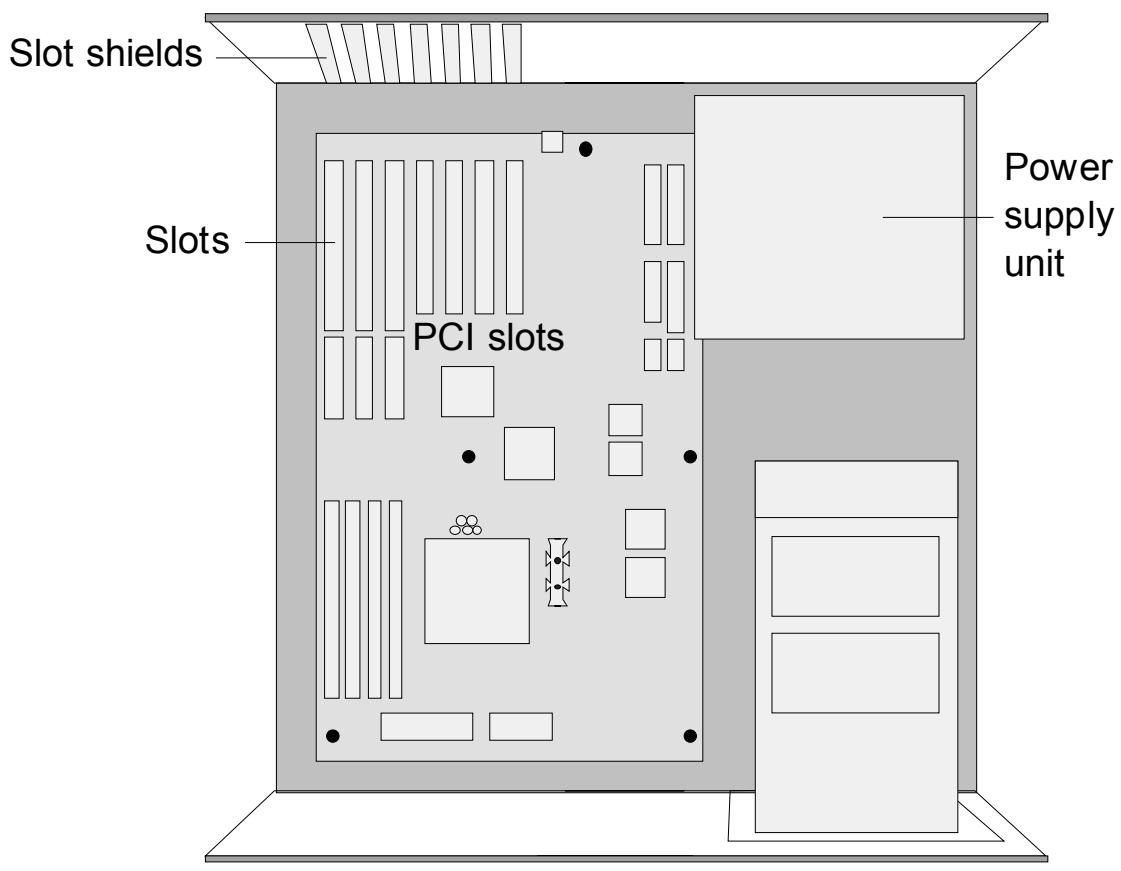
- Loosen the computer's cover screws and remove the cover.
- Select a free PCI (busmaster) slot. Remove the slot's cover at the back of the computer and keep the screws.
Using PCTV MediaCenter 300i hardware
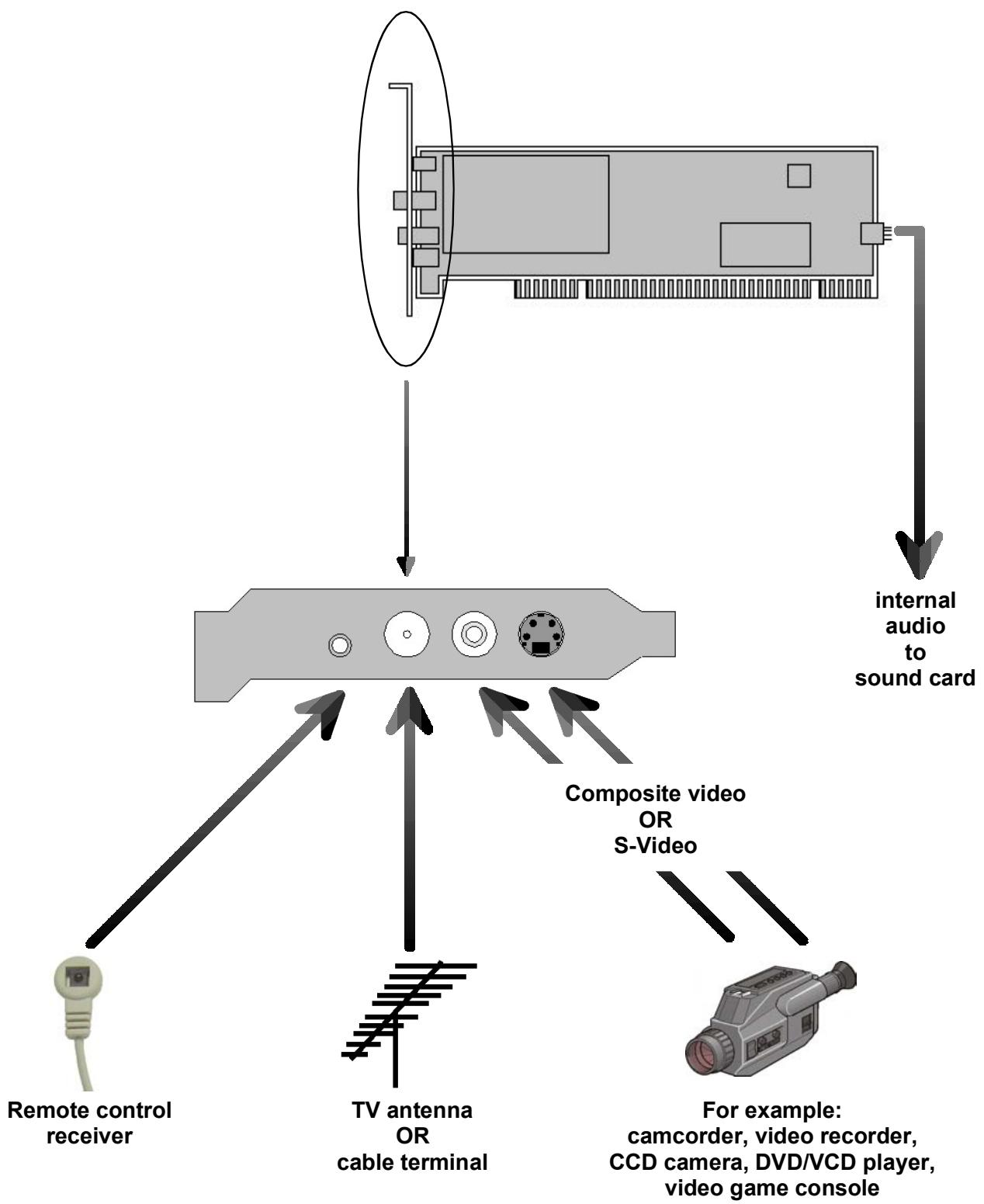
- Please connect an internal audio cable plug to the internal audio output of the board and the other plug to the internal audio input of your soundcard.
Plug the board into the previously selected PCI slot. To do so hold the board at the top and push it down into the slot applying even pressure at both ends. Press down on the upper edge so that the board fits firmly in the slot.
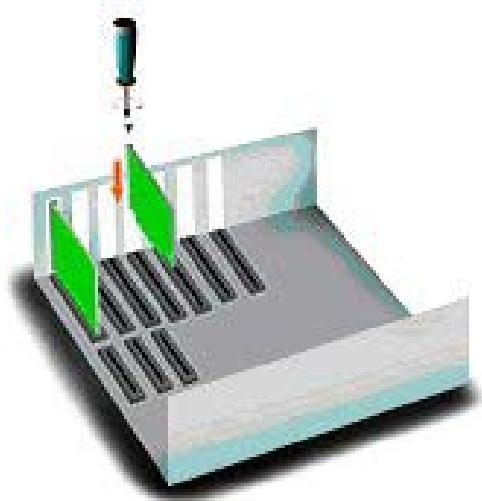
- If the board is not easily inserted into the slot, then please do not use force as this may bend the contact springs on the socket connector. Instead, remove the board and try to insert it once again.
After installation
- After you have inserted the hardware, firmly tighten the retaining bracket of the board on the back of the computer.
- Now place the cover onto your computer and connect the peripheral devices.
Tips on Positioning the Antenna
Please take note of the following in order to achieve the best possible digital television reception:
- Wherever possible place the antenna in the direction of the nearest transmitter.
If you use an indoor antenna, then position it near a window if possible. - Try to position any indoor antenna as high as possible (e.g. on top of a cupboard).
- An indoor antenna should not be located near to a computer monitor, television or the like.
- Make certain to have the proper polarization if you use an active flat antenna (if you are not certain, then you can find out whether the antenna should have a transverse or upright position by trial and error).
- For active antennas activate the antenna power supply in the "Settings" menu of the Pinnacle MediaCenter application.
- Only double-shielded antenna cable should be used.
Bus system
PCI Rev. 2.3
Video decoder
Philips SAA7134
TV tuner
Microtune MT2050
The frequency range is from 45.75 to 863.25MHz .
Analog demodulator
TDA 9885
PAL B/G/D/K/I
DVB-T demodulator
Zarlink MT352
16, 64 QAM, QPSK
6, 7, 8 MHz bandwidth
UHF, VHF
Video inputs
S-Video input (Mini-DIN), Composite video input (chinch)
Antenna input
75 Ohm IEC adapter
Remote control input
Remote control input for connecting optionally supplied receiver cable
Audio output
Audio output (for sound card) via internal four-pin plug-in connector, 2.8 mm grid
Anbieter / Supplier :
Anschrift / Address :
Pinnacle Systems GmbH
Frankfurter Strasse 3c
38122 Braunschweig, Germany
Produkt / Product :
PCTV MediaCenter 300i
This certification is based on: Test report(s) generated by EMI-test laboratory
Braunschweig, 7. Juli 2004 / July 7th, 2004

Bernd Riemann
Director Hardware Engineering
Oliver Hellmold
Finanzdirektor / Director Finance
- Table of Contents
- Notes
- Computer hardware
- Processor
- Main memory
- Hard disk
- Graphics card
- Sound card
- Computer software
- Preparing installation
- Using PCTV MediaCenter 300i hardware
- After installation
- Tips on Positioning the Antenna
- Bus system
- Video decoder
- TV tuner
- Analog demodulator
- DVB-T demodulator
- Video inputs
- Antenna input
- Remote control input
- Audio output
Brand : PINNACLE
Model : PCTV 300I
Category : TV Card