AJP4270R - TV AKAI - Free user manual and instructions
Find the device manual for free AJP4270R AKAI in PDF.


User questions about AJP4270R AKAI
0 question about this device. Answer the ones you know or ask your own.
Ask a new question about this device
Download the instructions for your TV in PDF format for free! Find your manual AJP4270R - AKAI and take your electronic device back in hand. On this page are published all the documents necessary for the use of your device. AJP4270R by AKAI.
USER MANUAL AJP4270R AKAI
The lightning flash with arrowhead symbol within an equilateral triangle is intended to alert the user to the presence of uninsulated dangerous voltage within the product's enclosure that may be of sufficient magnitude to constitute a risk of electric shock to persons.
The exclamation point within an equilateral triangle is intended to alert the user to the presence of important operating and maintenance (servicing) instructions in the literature accompanying the appliance.
- READ INSTRUCTIONS - All the safety and operating instructions should be read before the product is operated.
- RETAIN INSTRUCTIONS - The safety and operating instructions should be retained for future reference.
- HEED WARNINGS - All warnings on the product and in the operating instructions should be adhered to.
- FOLLOW INSTRUCTIONS - All operating and use instructions should be followed.
- CLEANING - Unplug this product from the wall outlet before cleaning. Do not use liquid cleaners or aerosol cleaners. Use a damp cloth for cleaning.
- ATTACHMENTS - Do not use attachments not recommended by the product manufacturer as they may cause hazards.
- WATER AND MOISTURE - Do not use this product near water - for example, near a bath tub, wash bowl, kitchen sink, or laundry tub; in a wet basement; or near a swimming pool; and the like.
- ACCESSORIES - Do not place this product on an unstable cart, stand, tripod, bracket, or table. The product may fall, causing serious injury to a child or adult, and serious damage to the product. Use only with a cart, stand, tripod, bracket, or table recommended by the manufacturer, or sold with the product. Any mounting of the product should follow the manufacturer's instructions, and should use a mounting accessory recommended by the manufacturer.
A Product and Cart Combination Should Be Moved with Care - Quick stops, excessive force and uneven surfaces may cause the product and cart combination to overturn.
- VENTILATION - Slots and openings in the cabinet are provided for ventilation and to ensure reliable operation of the product and to protect it from overheating, and these openings must not be blocked or covered. The openings should never be blocked by placing the product on a bed, sofa, rug or other similar surface. This product should not be placed in a built-in installation, such as a bookcase or rack, unless proper ventilation is provided or the manufacturer's instructions have been adhered to.
- POWER SOURCES - This product should be operated only from the type of power source indicated on the marking label. If you are not sure of the type of power supply to your home, consult your product dealer or local power company. For products intended to operate from battery power, or other sources, refer to the operating instructions.
- GROUNDING OR POLARIZATION - This product may be equipped with a polarized alternating-current line plug (a plug having one blade wider than the other). This plug will fit into the power outlet only one way. This is a safety feature: If you are unable to insert the plug fully into the outlet, try reversing the plug. If the plug should still fail to fit, contact your electrician to replace your obsolete outlet. Do not defeat the safety purpose of the polarized plug.
- POWER-CORD PROTECTION - Power-supply cords should be routed so that they are not likely to be walked on or pinched by items placed upon or against them, paying particular attention to cords at plugs, convenience receptacles, and the point where exit from the product.
- NONUSE PERIODS - The power cord of the product should be unplugged from the outlet when left unused for long periods of time.
- LIGHTENING - For added protection for this product during a lightening storm, or when it is left unattended and unused for long periods of time, unplug it from the wall outlet and disconnect the antenna or cable system. This will present damage to the product due to lightening and power-line surges.
- POWER LINES - An outside antenna system should not be located in the vicinity of overhead power lines or other electric light or power circuits, or where it can fall into such power lines or other electric light or power circuits, or where it can fall into such power lines or circuits. When installing an outside antenna system, extreme care should be taken to keep from touching such power lines or circuits as contact with them might be fatal.
- OVERLOADING - Do not overload wall outlets, extension cords, or integral convenience receptacles as this can result in a risk of fire or electric shock.
- OBJECT AND LIQUID ENTRY - Never push objects of any kind into this product through openings as they may touch dangerous voltage points or short-out parts that could result in a fire or electric shock. Never spill liquid of any kind on the product.
-
SERVICING - Do not attempt to service this product yourself as opening or removing covers may expose you to dangerous voltage or other hazards. Refer all servicing to qualified service personnel.
-
DAMAGES REQUIRING SERVICE - Unplug this product from the wall outlet and refer servicing to qualified service personnel under the following conditions.
a) When the power-supply cord or plug is damaged.
b) If liquid has been spilled, or objects have fallen into the product.
c) If the product has been exposed to rain or water.
d) If the product does not operate normally by following the operating instructions. Adjust only those controls that are covered by the operating instructions as an improving adjustment of other controls may result in damage and will often require extensive work by a qualified technician to restore the product to its normal operation.
e) When the product exhibits a distinct change in performance - this indicates a need for service.
-
REPLACEMENT PARTS - When replacement parts are required, be sure the service technician has used replacement parts specified by the manufacturer or have the same characteristics as the original part, Unauthorized substitutions may result in fire, electric shock or other hazards.
-
SAFETY CHECK - Upon completion of any service or repair to this product, ask the service technician to perform safety checks to determine that the product is in proper operating condition.
- HEAT - The product should be situated away from heat sources such as radiators, heat registers, stoves or other products (including amplifiers) that produce heat.
CAUTION!
HAZARDOUS LASER RADIATION WHEN
OPEN AND INTERLOCK FAILD OR
DEFEATED. AVOID EXPOSURE TO BEAM.
CLASS 1 LASER PRODUCT
PRECAUTIONS FOR UNIT
SECURITY
Before operation, check if the voltage of the unit is in line with the local voltage.
Hold the plug to disconnect it from the mains outlet. Do not pull the power cord.
When the plug of the unit is connected to the mains outlet, the unit will be still connected to AC even of the power is turned off.
Disconnect the plug as soon as liquid or objects enter the unit. The unit cannot be used until being checked by experts.
Do not open the cabinet. Laser rays employed by the unit may damage eyes. Any servicing should be done by qualified service personnel.
PLACEMENT
Put the unit where ventilation is good enough to prevent overheating.
Never put the unit in direct sunlight or near heat sources.
Put the unit horizontally, never put any heavy object on the unit.
To protect the pickup, do not put the unit where there is much dust. If there is dust on the pickup, use a cleaning disc to clean it.
Refer to the operation instructions of the cleaning disc you bought.
PRECAUTIONS FOR DISCS
CONDENSATION
Moisture will appear on the pickup lens in the following cases:
The unit is suddenly moved from a cold place to a warm place.
The unit is put in a room with a heater, or in cold air from an air - conditioner.
Use the unit in a humid place. In these cases, the unit cannot work. Unload the disc and leave the unit on for about one hour evaporates the water.
CLEANING
Use soft cloth with a little neutral detergent to wipe the cabinet, panel and controls. Never use abrasive paper, polishing powder or solvent like alcohol and gasoline.
HANDLING DISC
To keep the disc clean, do not touch the play sides of the disc.
Do not attach paper or ape to the disc.
Keep the disc away from direct sunlight or heat sources.
Store the disc in a disc case after playback.
CLEANING DISC
Before playback, wipe the disc outwards from the center with clean cloth.
Do not use any type of solvent such as thinner, benzine, commercially available cleaners or anti-static spray.
TABLE OF CONTENTS
IMPORTANT SAFETY INSTRUCTIONS. 1-2
PRECAUTIONS FOR UNIT. 2
PRECAUTIONS FOR DISCS. 2
TABLE OF CONTENTS 3
KEY TO ILLUSTRATIONS 3
REMOTE CONTROL 4
OPERATINGINSTRUCTION. 5-8
CD/MP3 REMOTE CONTROL OPERATION. 9
TROUBLESHOOTING 9
TECHNICAL SPECIFICATION. 10
KEY TO ILLUSTRATIONS
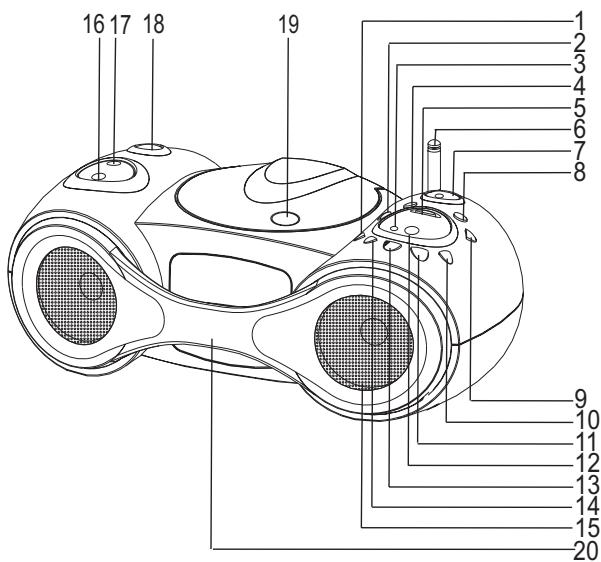
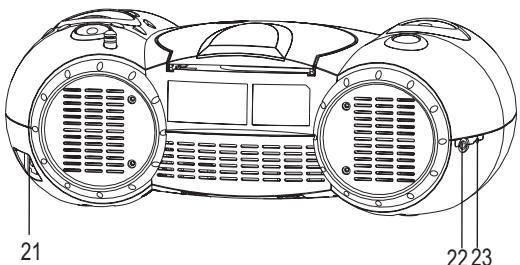
1.Band Tuner Button
2.Preset Down Button
3.Power Indicator
4.Sleep Button
5.GEQ (Pass, Classic, Rock, Pop, Jazz mode, Preset Equalizer in cyclic order)
6.FM Antenna
7. Skip Up/Search Forward Skip Down/Search Backward
8. Timer Button
9.Preset Up Button
10.Program Button
11.CD Stop Button
12.Remote Sensor
13.CD Play/Pause Button
14.CD Repeat Button
15.Speaker
16.Volume Down Button
17.Volume Up Button
18.Power On/Off Button
19.CD Door Open
20.Handle
21.AC Socket
22.Hedgephone Jack
23. Reset
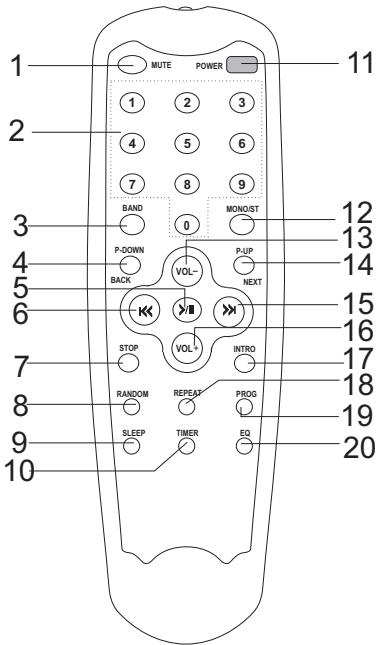
1.Mute
2 Track/Preset Station Direct Access
3.Band Tuner
4.Preset Down
5.CD Play/Pause
6.Skip Down/Search Backward
7.CD Stop
8.Random
9.Sleep
10.Timer
11.Power On/Off
12.Mono/Stereo
13.Volume Down/V-
14.Preset Up
15.Skip Up/Search Forward
16.Volume Up/V+
17.Intro
18.Repeat
19.Program
20.GEQ (Pass, Classic, Rock, Pop, Jazz mode Preset Equalizer in cyclic order)
OPERATING INSTRUCTIONS
STEREO HEADPHONE JACK
For private listening without disturbing others connect a set of stereo headphones (not included) to the Stereo Headphone Jack at the side of cabinet. The built-in speakers automatically shut off when stereo headphones are connected to the headphone jack. When using stereo headphones always start with the volume control set to a low level and gradually increase until you find the desired level.
- Do not play your headset at a high volume. Hearing experts advise against continuous extended play.
- If you experience a ringing in your ears, reduce volume or discontinue use.
- You should use extreme caution or temporarily discontinue use in potentially hazardous situations.
- If your headset is an open-air type designed to let your hear outside sounds, don't turn up the volume so high that you can't hear what's around you.
LISTENING TO RADIO
- Extend the telescoping FM antenna to its full length.
- Press the BAND button to enter radio mode. Press again to select the desired radio band: AM or FM
3 Press Skip Up/Down button to tune in a station.
4 Press ST/MONO once to show current mode on the remote control, press again to toggle between FM STEREO and MONO mode. - Use the Volume button to adjust the volume to the desired level.
To search for a station automatically (Auto Search)
Hold down SKIP UP or SKIP DOWN. The unit searches for a station up or down the band and stops at reception of strong signals. To stop the search manually, press SKIP UP or SKIP DOWN.
Auto Search may not stop at station with weak signals.
Hints For Better Reception
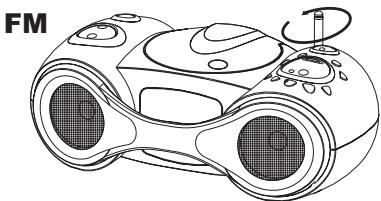
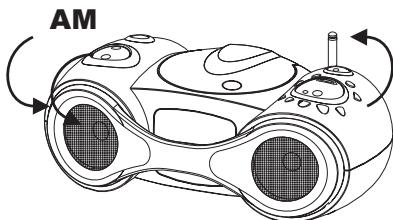
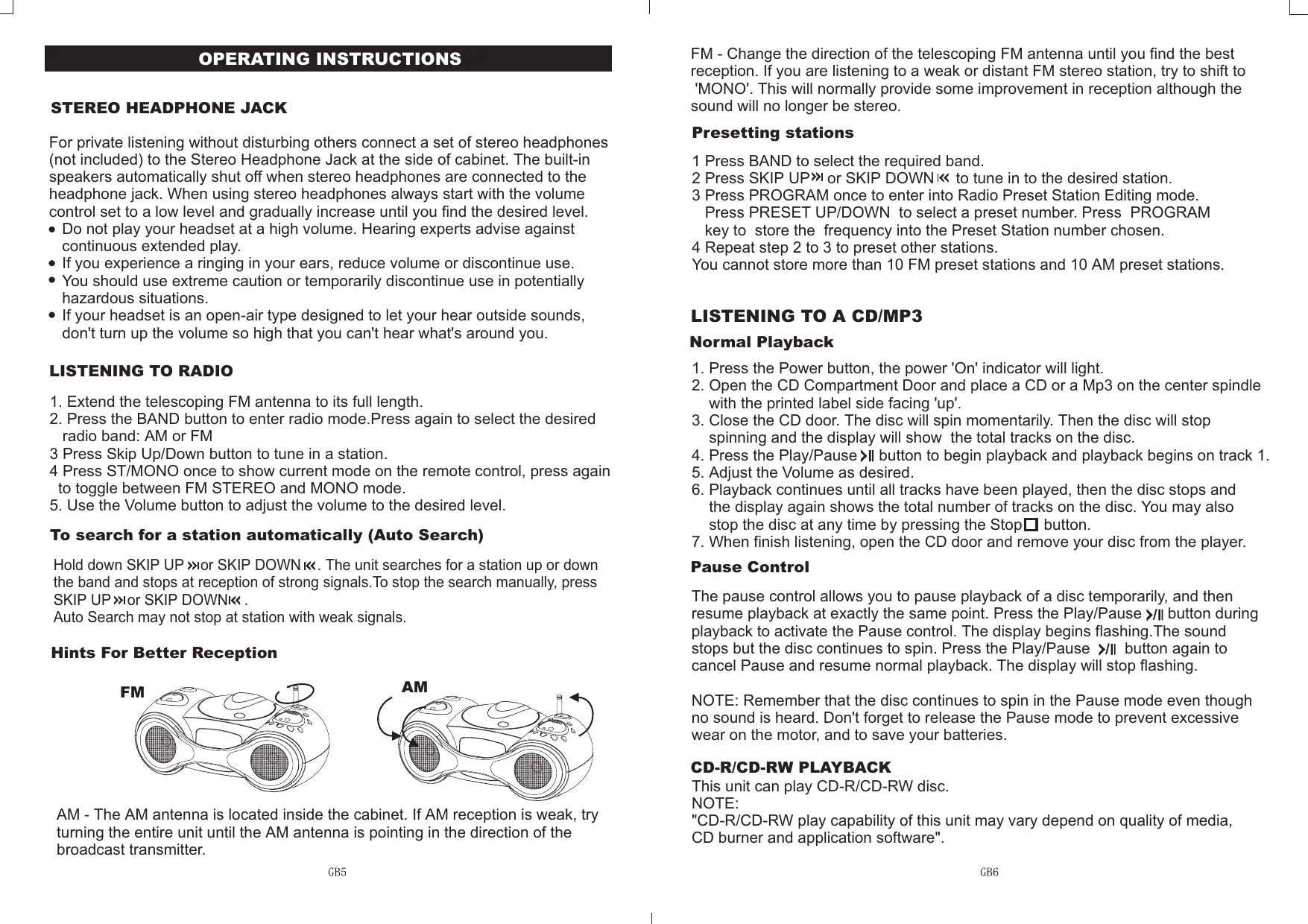
AM - The AM antenna is located inside the cabinet. If AM reception is weak, try turning the entire unit until the AM antenna is pointing in the direction of the broadcast transmitter.
FM - Change the direction of the telescoping FM antenna until you find the best reception. If you are listening to a weak or distant FM stereo station, try to shift to 'MONO'. This will normally provide some improvement in reception although the sound will no longer be stereo.
Presetting stations
1 Press BAND to select the required band.
2 Press SKIP UP>> or SKIP DOWN to tune in to the desired station.
3 Press PROGRAM once to enter into Radio Preset Station Editing mode. Press PRESET UP/DOWN to select a preset number. Press PROGRAM key to store the frequency into the Preset Station number chosen.
4 Repeat step 2 to 3 to preset other stations.
You cannot store more than 10 FM preset stations and 10 AM preset stations.
LISTENING TO A CD/MP3
NormalPlayback
- Press the Power button, the power 'On' indicator will light.
- Open the CD Compartment Door and place a CD or a Mp3 on the center spindle with the printed label side facing 'up'.
- Close the CD door. The disc will spin momentarily. Then the disc will stop spinning and the display will show the total tracks on the disc.
- Press the Play/Pause button to begin playback and playback begins on track 1.
- Adjust the Volume as desired.
- Playback continues until all tracks have been played, then the disc stops and the display again shows the total number of tracks on the disc. You may also stop the disc at any time by pressing the Stop button.
- When finish listening, open the CD door and remove your disc from the player.
Pause Control
The pause control allows you to pause playback of a disc temporarily, and then resume playback at exactly the same point. Press the Play/Pause button during playback to activate the Pause control. The display begins flashing. The sound stops but the disc continues to spin. Press the Play/Pause button again to cancel Pause and resume normal playback. The display will stop flashing.
NOTE: Remember that the disc continues to spin in the Pause mode even though no sound is heard. Don't forget to release the Pause mode to prevent excessive wear on the motor, and to save your batteries.
CD-R/CD-RW PLAYBACK
This unit can play CD-R/CD-RW disc.
NOTE:
"CD-R/CD-RW play capability of this unit may vary depend on quality of media, CD burner and application software".
OPERATING INSTRUCTIONS
Skip/Search Buttons
In CD or MP3 playing, press the Skip Up/Search Forward button once during playback to skip to the beginning of the next track. Continue to press this button to skip forward to higher numbered tracks until you reach the desired track. Press the Skip Down/Search Backward button once during playback to skip to the beginning of the current track. Press twice to skip back to the beginning of the previous track. Continue to press this button to skip backward to lower numbered tracks until you reach the desired track.
In MP3 playing, press the PRE-UP or PRE-DN button to change the album NO. In CD playing, hold the Skip Up/Search Forward or the Skip Down/Search Backward buttons during playback to rapidly search forward or backward through the disc to locate a specific passage within a track that you wish to bypass or to hear again.
High speed search continues as long as the buttons or are pressed. Normal playback resumes when the two buttons are released.
NOTE: During high speed music search the playback volume is automatically reduced.
To begin playback of a disc on a specific track, wait until the player reads the disc and display the total track number, then press the Skip Up/Search Forward or the Skip Down/Search Backward button repeatedly until the desired track number is on the display. Press the Play/Pause button to begin playback on that track.
Repeat Playback
This function allows you to repeat either a single track or the entire disc continuously. To repeat a single track, press the Repeat button once, the "REPEAT 1" indicator will appear in the display, select the track you wish to repeat, then press Play/Pause> button to start playback. The selected track will be repeated continuously until you cancel the repeat function or press the Stop button.
To repeat the entire disc, press the Repeat button until the "REPEAT ALL" indicator will appear in the display, then press the Play/Pause > button to begin playback if necessary. The entire disc will be repeated continuously.
In Mp3 playing, press Repeat button three times, the "REPEAT ALBUM" indicator will appear in the display, then press the Play/Pause >II button to begin playback if necessary. The selected ALBUM will be repeated continuously.
To cancel Repeat Playback press the Repeat button until the REPEAT indicator no longer appears in the display. Repeat can also be canceled by pressing the Stop button.
Intro Play
In play mode press INTRO button on the remote control to start intro play mode, then INTRO is displayed. The unit will play each track for 10 seconds. Press INTRO button twice, then NORMAL play.
Random Play
Press RANDOM button to start random play. Press RANDOM button twice, then NORMAL play.
EQ Control
Press GEQ button to select EQ mode in the order: PASS CLASSIC ROCK POP JAZZ
Programmed Playback
The CD player in this unit has a 64 tracks programmable memory which allows you to program up to 64 tracks on any disc for playback in any desired order. To program tracks for playback the player must be in the Stop mode. If the disc is playing, press the Stop button to stop playback and then proceed as follows: In CD mode:
- Press PROGRAM button, shift to PROGRAM MODE.
- Press Skip Up>or Skip Down button to select Track NO.
- Press PROGRAM button to save the track NO.
- Repeat step 2 to 3 to program more tracks.
In Mp3 mode:
- Press PROGRAM button, shift to PROGRAM MODE. The ALBUM NO. is flashing.
- Press Skip Up >> or Skip Down << button to select album NO.
- Press PROGRAM button again, track NO. is flashing.
- Press Skip Up or Skip Down button to select Track NO.
- Press PROGRAM button to save the track NO.
- Repeat step 2 to 5 to program more tracks.
To check the programmed tracks, press the program button.
To cancel this program, press Program button then press Stop button or open the CD door or power off the unit .
Clock setting
When the unit is at power off mode, press PROGRAM button for one second to enter clocking setting mode. Press Skip Down button to adjust Hour and Skip Up to adjust Minute.
Press PROGRAM button to save the time.
Timer setting
The unit will work or power off automatically at set time. In power off mode press Timer button 1sec, it enters timer setting mode. Press Skip Down K< button to adjust Hour and Skip Up >> to adjust Minute. Press Timer button to save the time.
Sleep mode
To Turn off the unit automatically after a specified time duration. Press Sleep button, the time changes as:90,60,45,30,15,OFF
These buttons have the same function as the relevant keys on the panel of the main unit.
2. BACK/NEXT
These buttons have the same functions as Skip Up/Search Forward button and Skip Down/ Search Backward button on the unit.
3. INTRO button
Press INTRO button in play mode to start intro play mode. The unit will play each track for 10sec. Press INTRO button twice, then NORMAL play.
4.0-9 NUMERIC buttons
Any track to be played can be selected by pressing 0-9 Track Number buttons. To select the track which exceeds 10, just directly press the number. For example, to select 15, just press "1" and "5". To select 10, press "1" and "0". To select 105, press "1" and "0" and "5".
5. MUTE button
Toggle between audio output On/Off.
6. EQ button
Press GEQ button to select EQ mode in the order:PASS,CLASSIC,ROCK,POP,JAZZ
7. MONO/ST button
Changing MONO/STEREO in FM band mode.
8. Random button
Press RANDOM button to start random play. Press again to resume normal play.
TROUBLESHOOTING
| Symptom | Possible Cause | Solution |
| Radio | ||
| Noise or sound distorted on AM or FM broadcasts. | Station not tuned properly for AM or FM. | Retune the AM or FM broadcast station. |
| FM: Rod antenna is not extended. | Extend FM Rod antenna. | |
| AM: The bar antenna is not positioned correctly. | Reposition the unit until best reception is obtained. | |
| FM STEREO indicator does not light. | The BAND switch is set to FM position. | Set the BAND switch to FM ST. Position. |
| AM or FM, no sound. | Function switch is not set to RADIO. | Set Function switch to RADIO. |
| Volume at minimum. | Increase Volume. | |
| Compact Disc Player | ||
| CD Player will not play. | Function switch is not set to CD. | Set Function switch to CD. |
| CD is not installed or installed incorrectly. | Insert CD with label side up. | |
| CD skips while playing. | Disc is dirty or scratched. | Wipe disc with cloth or use another disc. |
If troubleshooting (see above) does not eliminate malfunctioning, press the reset switch on the left side of the unit. Resetting causes the unit to restore its factory default settings and results in all the setting made by the user being deleted.
Model:AJ-P4270R
MAIN UNIT
FM section
Tuning range: 88MHz -108MHz
Usable sens.: 20dbμ
Antenna: Telescopic
MW section
Tuning range: 531 kHz - 1602kHz
Usable sens: 61dB/M
Antenna: Ferrite bar
Amplifier
Power output (at 10% THD): 1.1W
Max. output power: 1.3W
Headphone: 32 ohms
CD section
Laser: Semiconductor laser (760-800nm)
S/N ratio: 50dB(1 kHz,0 dB)
Harmonic distortion: 0.5% (1kHz,0dB)
Wow and flutter: Immeasurable
GENERAL
Power requirement: AC230V, 50 Hz
Max. Power consumption: 20 W
Dimension of main unit: 375 (L) x 198 (W) x 133 (H) mm
Weight of main unit: 2.0Kg
REMOTE CONTROL
Power requirement: DC : 12V (8 X 1.5V 'AAA' size cells)