DLC-E2250 - TV AKAI - Free user manual and instructions
Find the device manual for free DLC-E2250 AKAI in PDF.



| Product Type | HD LED Television |
| Brand | AKAI |
| Model | DLC-E2250 |
| Screen Size | 21.5 inches (54.6 cm) |
| Panel Type | TFT LCD with LED backlight |
| Maximum Resolution | 1920 x 1080 pixels (Full HD) |
| Contrast Ratio | 1000:1 (static), 6000:1 (dynamic) |
| Brightness | 250 cd/m² |
| Aspect Ratio | 16:9 |
| Comb Filter | 3D digital |
| Audio | Stereo, speakers 2 x 3 W |
| Input Connectors | 1 SCART, 1 VGA, 1 HDMI, 1 VHF/UHF antenna |
| Output Connectors | 1 digital coaxial audio output, 1 headphone jack |
| Power Supply | 12V DC, 4A (AC adapter included) |
| Power Consumption | Max. 45W, standby < 1W |
| Dimensions (W x D x H) | 528.8 x 171 x 384.8 mm |
| Net Weight | 3.78 kg |
| Main Functions | Electronic Program Guide (EPG), teletext, parental control, 3D noise reduction, film mode detection, surround sound |
| Maintenance and Cleaning | Clean with a soft dry cloth. Do not use liquid or aerosol cleaners. |
| Safety | Automatic shutdown in case of signal loss; child lock; overvoltage protection. |
| Spare Parts and Repairability | No user-serviceable parts. Refer all repairs to qualified personnel. |
| General Information | Remote control with batteries (not included), AC-DC adapter, power cable, quick start guide. |
Frequently Asked Questions - DLC-E2250 AKAI
User questions about DLC-E2250 AKAI
0 question about this device. Answer the ones you know or ask your own.
Ask a new question about this device
Download the instructions for your TV in PDF format for free! Find your manual DLC-E2250 - AKAI and take your electronic device back in hand. On this page are published all the documents necessary for the use of your device. DLC-E2250 by AKAI.
USER MANUAL DLC-E2250 AKAI
1 MANUEL D'UTILISATION
USERMANUAL
DLC-E2250/DLC-E2450
Lire attentivement la notice avant d'utiliser l'appareil Before operating this product, please read user manual completely
HOMI
Installation LCD TV LED
Installation LCD TV LED
This TV incorporates High-Definition Multimedia Interface (HDMI™) technology. HDMI, the HDMI logo and High-Definition Multimedia Interface are trademarks or registered trademarks of HDMI Licensing LLC.
This sign indicates that this product may not be disposed of with your regular household waste. The recycling and separate collection of such products is your responsibility. Please drop off the above-mentioned waste at a designated place for recycling waste electrical and electronic equipment. If you do not know where to drop off your waste equipment for recycling, please contact your local city office or household waste collection service.
WARNING AND PRECAUTIONS
To prevent any injuries, the following safety precautions should be observed in the installation, use, servicing and maintenance of this equipment.
Before operating this equipment, please read this manual completely, and keep it nearby for future reference.

This symbol is intended to alert the user to avoid the risk of electric shock.
This equipment must not be disassembled by anyone except qualified service personnel.

This symbol is intended to alert the user to the presence of important operating and maintenance instructions in the literature accompanying the appliance.

To reduce the risk of fire or electric shock, do not expose this equipment to rain or moisture.
TO REDUCE THE RISK OF ELECTRIC SHOCK,
- DO NOT REMOVE COVER (OR BACK).
- NO USER-SERVICEABLE PARTS INSIDE.
- REFER SERVICING TO QUALIFIED SERVICE PERSONNEL.

Use of controls, adjustments or performance of procedures other than those specified herein may result in hazardous radiation exposure.
Important Safety Instructions

This symbol indicates caution points.

This symbol indicates actions that should not be done.

This symbol indicates actions that must be performed.

- Do not place the equipment on any uneven or unstable carts, stands, tables, shelves etc. The equipment may fall, causing serious injury to children or adults and serious damage to the equipment itself.

- Use only a cart or stand recommended by the manufacturer. This equipment and recommended cart or stand should be handled with care. Quick stops, excessive force, and uneven surfaces may cause the equipment and cart/stand to overturn.

- Do not disable the 3-wire grounding type plug. The grounding pin on the 3-prong plug is an important feature. Removing the grounding pin will increase the risk of damaging the equipment.
- If you can not fit the plug into the electrical outlet, contact an electrician to install a grounding outlet.
- Always operate this equipment from the type of power source indicated on the rear.
- Never overload wall outlets and extensions.

- Use and handle the power cord with care. Do not place any heavy objects on the AC power cord.
- Do not pull the AC power cord. Do not handle the AC power cord with a wet hand.
- Do not touch the power cord and antenna cable during lightning.
- Remove the plug from the wall outlet, if the equipment will not be used for a long period of time.
- Do not place, use or handle this equipment near water.
- Never expose the equipment to liquid, rain, or moisture. Seek for service if any of the above is spilled into the equipment.
- Do not expose the equipment to extreme temperature or to direct sunlight, as the equipment may heat up and suffer damage.
- Do not install the equipment near any heat sources such as radiators, heat, stoves, or any other apparatus that might produce heat.
- Do not attempt to service the equipment yourself.
- Opening and removing the covers may expose you to dangerous voltage or other hazards and may void your warranty. Refer service to qualified personnel.
- Do not place or drop any other objects on top.
- Do not insert anything into the ventilation holes of your equipment. Inserting any metal or flammable objects may result in fire or electric shock.
- Do not place the equipment on uneven or unstable carts, stands, tables, shelves etc. The equipment may fall, causing serious injury to children or adults and serious damage to the equipment itself. Always place the equipment on the floor or on a surface that is sturdy, level, stable and strong enough to support the weight of the equipment.
- Do not block any ventilating openings. Leave an open space around the equipment. Never place the equipment : on a bed, sofa, rug, or any other similar surfaces; too close to drapes/curtains/walls, in a bookcase, built-in cabinet, or any other similar places that may cause poor ventilation.
- Unplug this apparatus during lightning storms or when unused for long periods of time.
- Refer all servicing to qualified service personnel. Servicing is required when the apparatus has been damaged in any way, such as power-supply cord or plug is damaged, liquid has been spilled or objects have fallen into the apparatus, the apparatus has been exposed to rain or moisture, does not operate normally, or has been dropped.

- Always remove the power cord from the outlet before cleaning the equipment.
- Never use liquid or aerosol cleaners on the equipment. Clean only with a soft dry cloth.

- Only use attachments/accessories specified by the manufacturer.
- Precaution has to be taken that during the use of the product, no mechanical forces shall be applied on the mains cord and mains socket. Partly loosened mains plugs can cause arcing or fire.
- Where the mains plug or an appliance coupler is used as the disconnected device, the disconnect device shall remain readily operable.

LISTENING WITH EARPHONES
- Listen at moderate Volumes to avoid hearing damage.
- If you hear no sound during playback, do not turn the Volume up as the music may suddenly begin at a high Volume. Excessive sound pressure from earphones and headphones can cause hearing loss.
- To avoid damaging your ears, adjust the Volume to the lowest level before playback, and turn up to the desired level when playback has started.
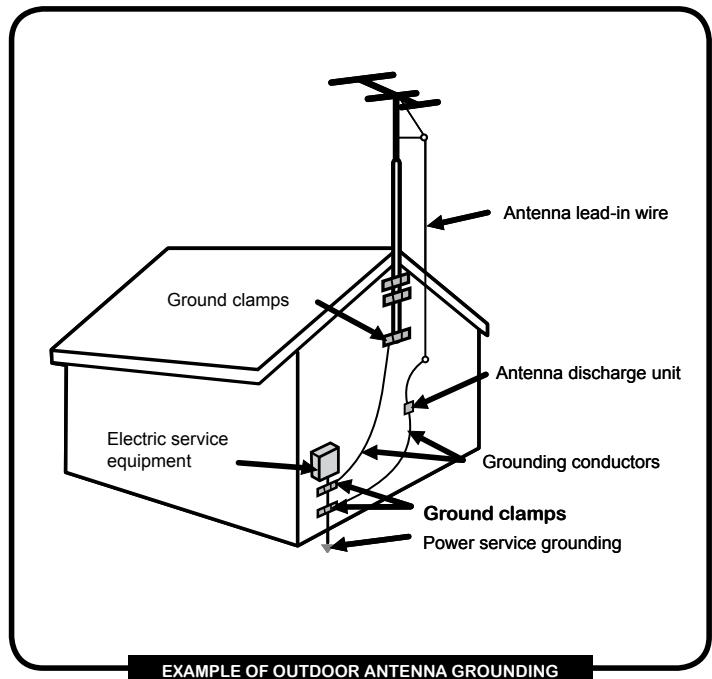
Antenna Safety Instructions
If an outdoor antenna is connected, follow the precautions below:

- An outdoor antenna should not be located in any area where it could come in contact with overhead power lines, or any other electric light or power circuits.
- When installing an outdoor antenna system, extreme caution should be taken to prevent contact with power lines. Direct contact with power lines may be fatal and should be avoided at all costs.
WARNING AND PRECAUTIONS
Important Safety Instructions 42
Antenna Safety Instructions 44
INTRODUCING THE LCD LED TV
Key Features 46
Package Contents 47
Setting Your LCD LED TV 48
Your LCD LED TV. 51
Your Remote Control 54
INSTALLING THE LCD LED TV
Connecting a TV Cable or an Antenna 56
Connecting optional AV Equipment Connecting an AV Equipment with SCART Connector 61
Connecting an AV Equipment with YPbPr Connector 62
Connecting an AV Equipment with HDMI Connector 63
Connecting an AV Equipment with DVI Connector 64
Connecting a PC 65
Connecting an Audio Receiver 66
USING THE FEATURES
Using the Programme Guide 67
Customizing the PICTURE Settings 70
Customizing the SOUND Settings. 73
Customizing the TIME Settings 74
Customizing the OPTION Settings 76
Customizing the CHANNEL Settings 77
Customizing the LOCK Settings. 79
TROUBLESHOOTING
81
SPECIFICATIONS
82
INTRODUCING THE LCD LED TV
Key Features
Various Audio/Video terminals for external equipment connection
- 1 SCART input terminal/The SCART offers YPbPr signal(Option)
1 VGA terminal
1 VGA LINE IN terminal
1 HDMI input terminal
1 coaxial audio output terminal
1 Headphone terminal
High Definition Multimedia Interface (HDMI)
- High Definition Multimedia Interface (HDMI) is a small, user-friendly interconnect that can carry up to 5 Gbps of combined video and audio in a single cable. This system eliminates the cost, complexity and confusion of multiple cables used to connect current A/V systems.
3D Digital Noise Reduction
- This function can digitally reduce image noise to provide better picture quality.
Film-Mode Detection
- This function can automatically detect content derived from film and adjust the interlacer's frame matching to provide a more natural-looking, clearer image of the moving picture.
Make sure all of the following contents are included.
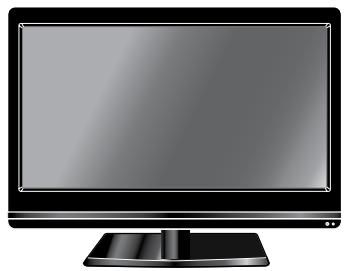
LCDLEDTV
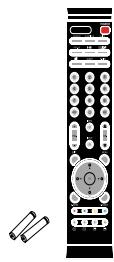
Remote Control/ AAA Batteries x 2 (not supplied)
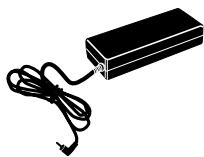
AC-DC Adapter
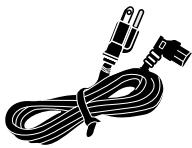
Power Cord

The power cord type may be different depending on your country's power type.

User Guide
Quick Guide
Note: The photos of the accessories are for reference only, the color of the remote control, the type of power cord are variable based on the actual models.
These items are all you need to set up and operate the LCD LED TV in its basic configuration.

Make sure all of the above contents are included.
How to install the TV Stand
Follow the instructions below to install the TV stand:

Open the box, and make sure all necessary parts are in the box. The package contains:
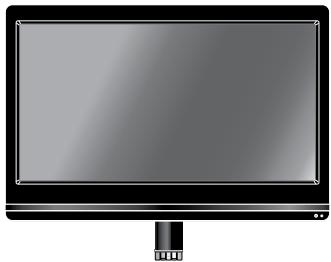
LCD LED TV
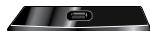
Stand

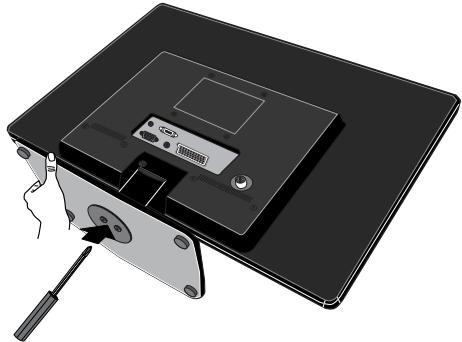
Cover an even stable surface with a soft cloth. Place the LCD LED TV unit face-down on the cloth. Fit the stand onto the bottom of the LCD LED TV unit as shown, then use a screwdriver to tighten the screw on the bottom of the stand until the screw is firmly fixed in place.

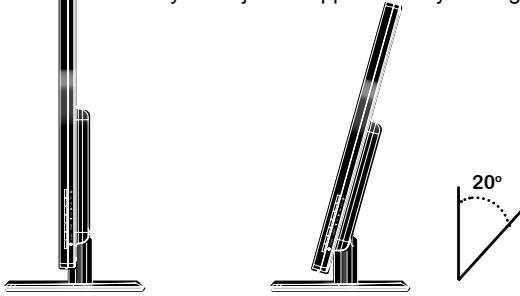
In order to ensure a healthy and relaxed body position when using the TV at visual display workstations, you are able to adjust the TV's angle of the stand. The angle of the LCD LCD TV may be adjusted approximately 20 degrees.
How to remove the TV Stand
If you prefer to mount your new TV on a wall instead of attaching it to the stand, please reference the instructions included in the wall mounting kit (sold separately).

To prevent damaging the surface of the LCD LED TV, place the TV on a soft cloth. Remove the screw of the table stand and detach the table stand from the TV.
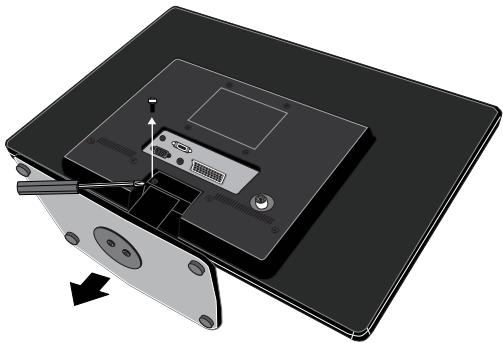

Affix the VESA mount to the back of the TV using the four screws provided in the wallmount kit. When install the TV on the wall, allow to leave some space.
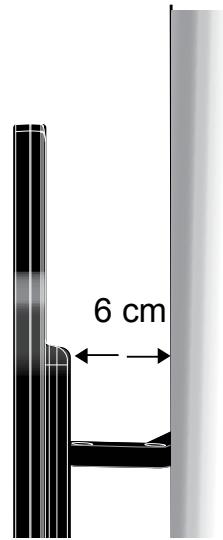

When install TV on the wall, allow to leave some space(6 cm at least). Verify your TV's model and be sure to use the wall mounting kit specified for your TV model only. Contact your technician for assistance when installing the wall mounting kit.
How to setup the TV

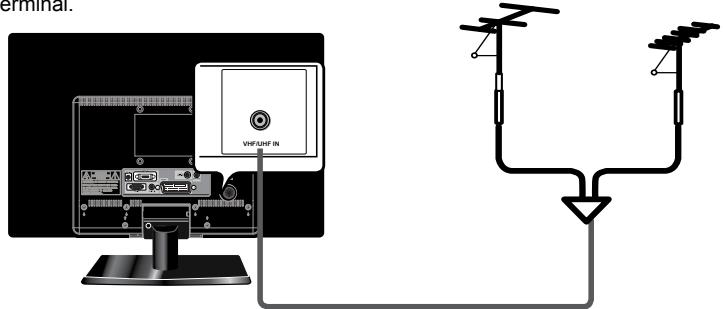
Use a supplied antenna cable to connect the VHF/UHF signal to the LCD LED TV's ANT. terminal (refer to page 56-60).

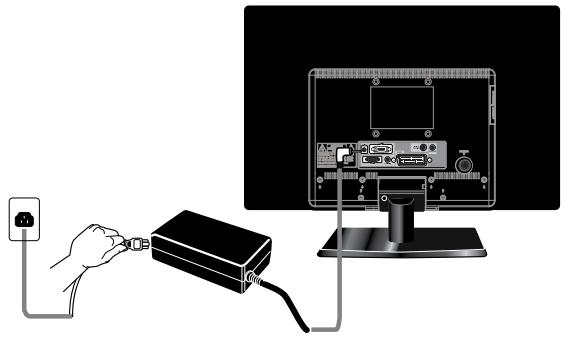
Connect the AC-DC adapter at the back of the TV and connect the power cord to wall outlet.

Insert the batteries not supplied in remote control.
Step1 Slide the back cover up to open the battery compartment of the remote control.
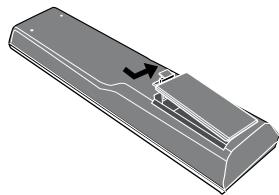
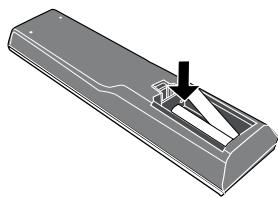
Step2 Insert two AAA size batteries. Make sure to match the (+) and (-) ends of the batteries with the (+) and (-) ends indicated in the battery compartment. Slide the cover back into place.

Do not use caustic cleaners (porcelain, stainless steel, toilet, or oven cleaner etc.) on the remote, as it may suffer damage.

Connect other an external AV device (refer to page 61-66).
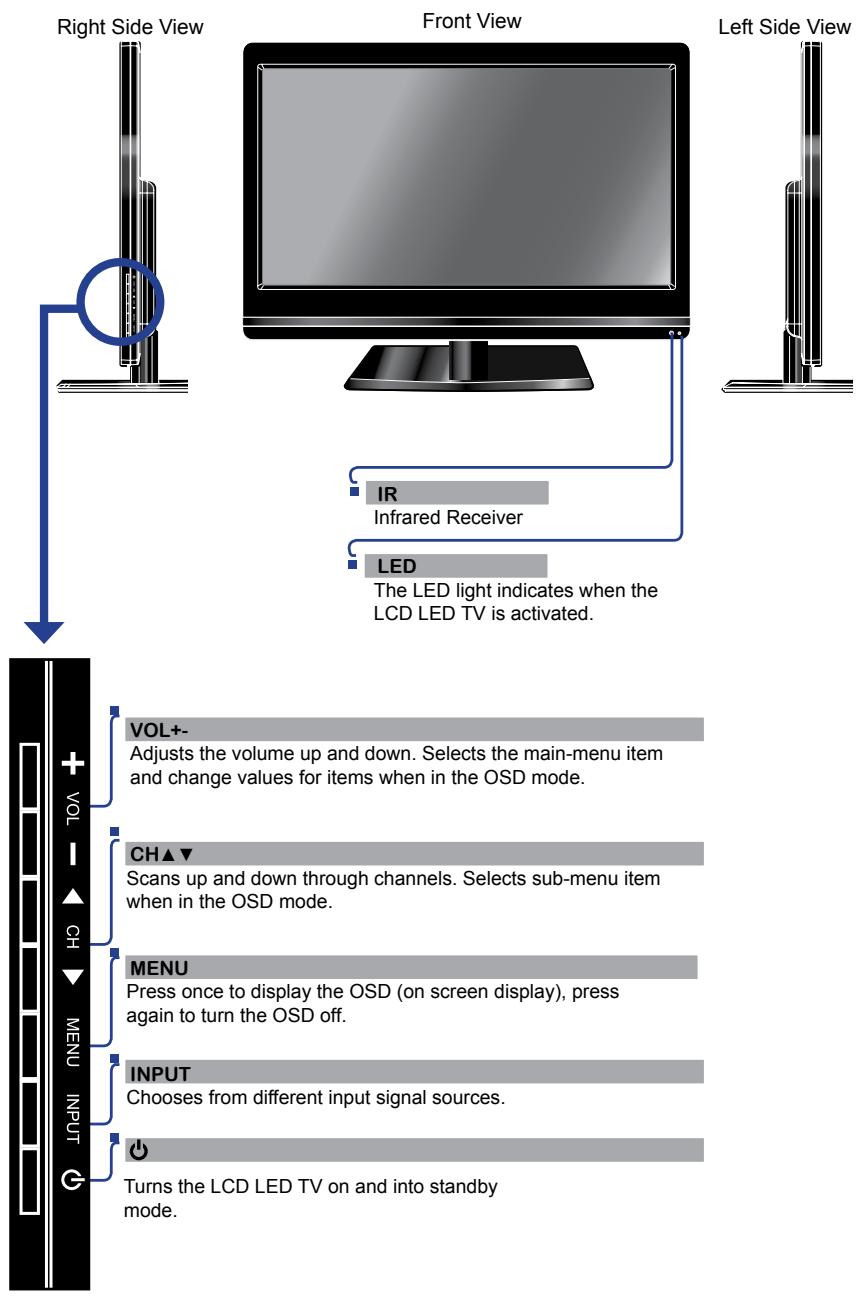
Front/Left /Right Side View and Controls
Rear View and Jacks
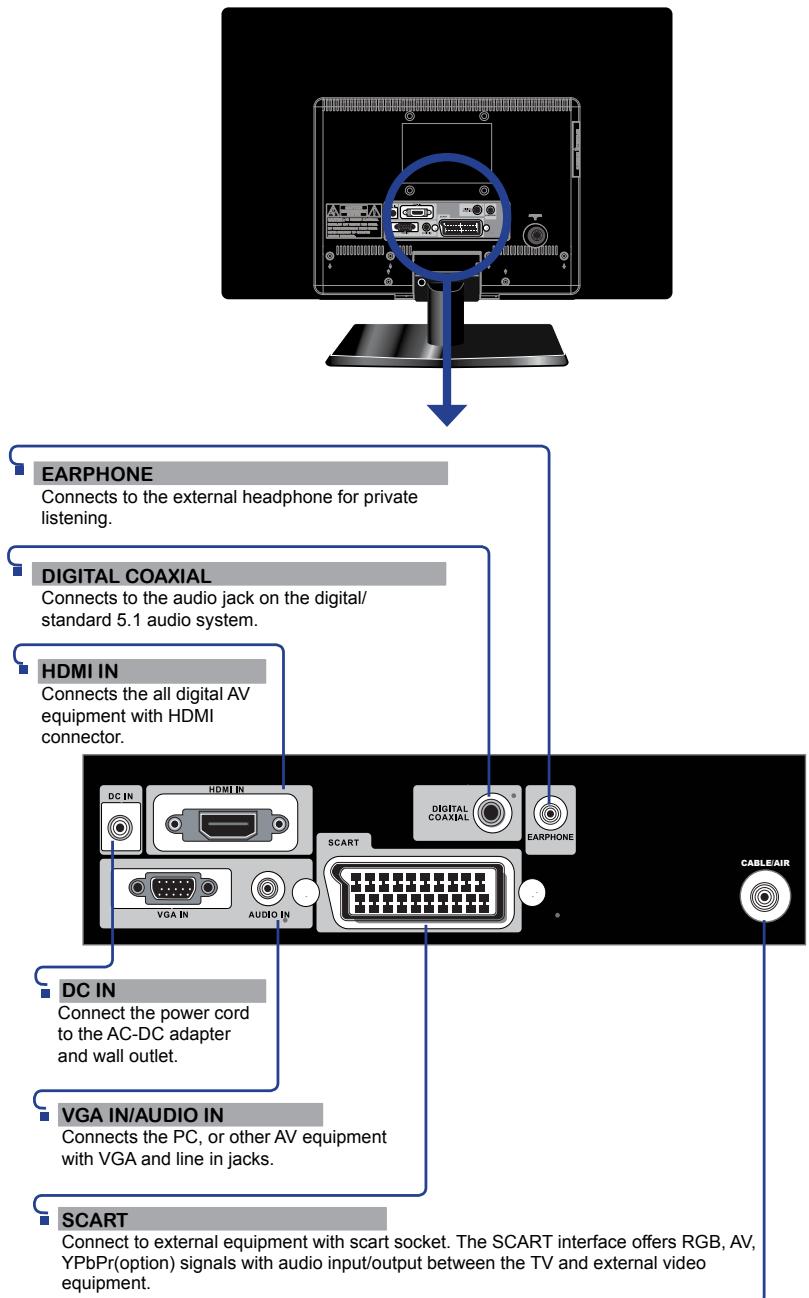
CABLE/AIR
Connects RF input from VHF/UHF antenna or cable to receive high/standard definition television.
How to connect Cl(Common Interface) card
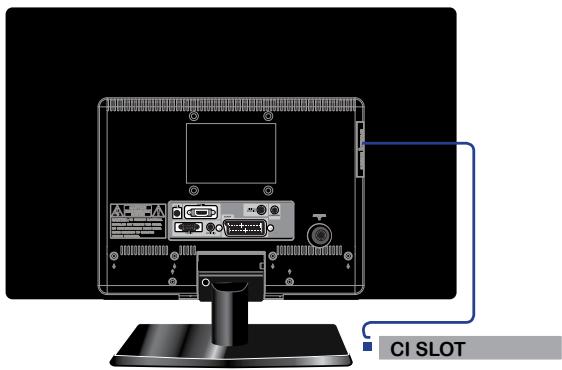
To view the scrambled (pay) services in digital TV mode.
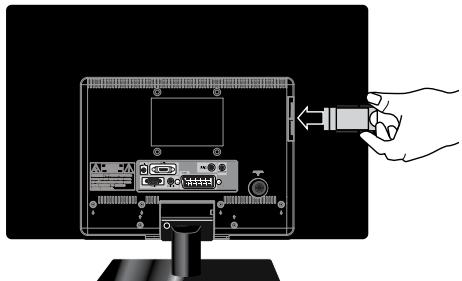
TO INSERT A C I CARD
Insert the CI card into the slot in the direction of the arrow until it fits.
TOREMOVEACICARD
When removing the Cl card, do pull it from its slot.
This function enables you to watch the scrambled services (pay services) in some channels. If you remove the CI Module, you can watch the available digital/analogue programme in some channels.
Press the INPUT button the remote control to display the Input menu, and use the buttons to select the DTV.
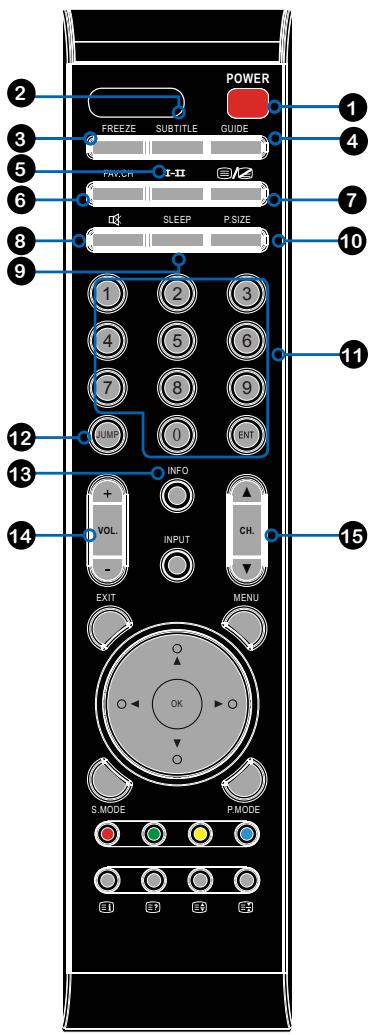
1 POWER Turns the LCD LED TV on and into standby mode.
SUBTITLE Turns on and off the Subtitle mode in DTV mode.
3 FREEZE Pressing FREEZE to freeze the current picture, press again to restore the picture.
GUIDE Displays the Programme Guide on the screen in DTV mode. Pressing again to turn GUIDE off.
5 I-II Cycles through the TV sound options (NICAM) : MONO/DUAL/STEREO
6 FAV.CH Pressing FAV.CH display favorite channels.
7 自 四 Turns on and off the Teletext function.
Mutes and restores your LCD LED TV sound.
9 SLEEP Cycles through the LCD LED TV sleep time.
10 P.SIZE Cycles through Wide mode settings: Panorama/Auto/4:3/16:9/ZOOM1/ ZOOM2
11 0-9/ENT Pressing a number selects a channel. Following selection, pressing ENT activates the channel, or channel activates automatically in 3 seconds.
12 JUMP Switches back and forth between the current and previous channels.
13 INFO Pressing once displays a variety of information such as the current channel and the input source.
14 VOL.+ Increases and decreases volume.
15 CH.+- Scans up and down the channels.
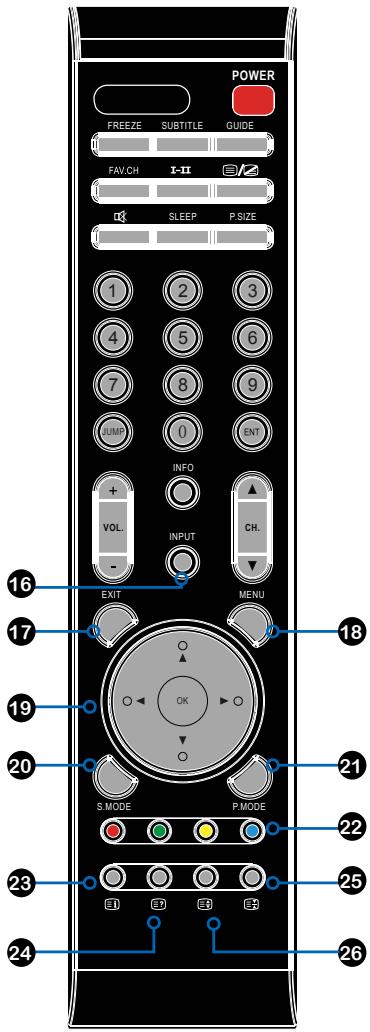

INPUT
Pressing INPUT displays the source list, use to select the video equipment connected to the video inputs of your LCD LED TV, and press OK button to confirm.
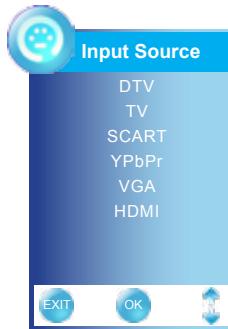

The YPbPr input is dependent on model.

EXIT
Exits the OSD menu.

MENU
Displays the OSD menu on the screen.


Cycles through OSD options and selects individual menu items. OK confirms option settings.

S.MODE
Selects sound effect options: Sports/ Movie/Music/Surround/Standard/User

P.MODE
Selects picture mode: User/Mild/ Standard/Dynamic


Press the appropriate color to direct access functions in TELETEXT or EPG mode.


Displays the main index in TELETEXT mode.


Reveals hidden information such as the answer to a quiz in TELETEXT mode.


Freezes a multi-page passage on screen in TELETEXT mode.


Displays the top, bottom or all of page, to easily read in TELETEXT mode.

Effective range:
The remote can control the LCD LED TV from up to 5m away, if pointed directly at the receiver.
Installing the LCD LED TV
Refer to the owner's manual of any external equipment to be connected.
When connecting any external equipment, do not connect any AC power cords to wall outlets until all other connections are completed.
Connecting a TV Cable or an Antenna
Antenna Connection
The antenna requirements for good color TV reception are more important than those for a black & white TV reception. For this reason, a good quality outdoor antenna is strongly recommended. The following is a brief explanation of the type of connection that is provided with the various antenna systems.
A 75-ohm system is generally a round cable (not included) with IEC-type connector that can easily be attached to a terminal without tools.
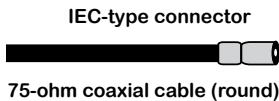
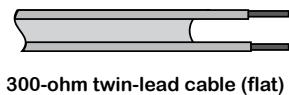
A 300-ohm system is a flat twin-lead cable (not included) that can be attached to a 75-ohm terminal through a 300-75-ohm adapter (not included).
Use one of the following two diagrams when connecting an outdoor antenna.
A: Shows how to use a VHF/UHF combination outdoor antenna.
B: Shows how to use a separate VHF and/or UHF outdoor antenna.
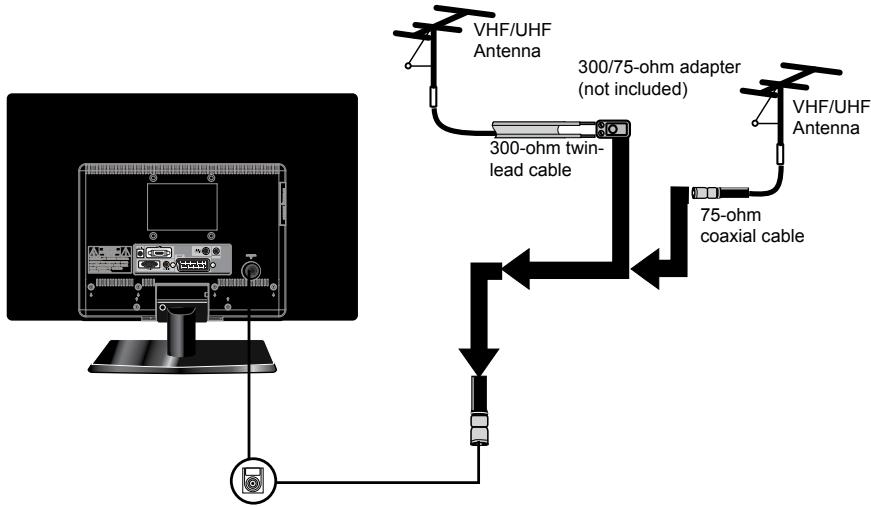
A. Combination VHF/UHF antenna
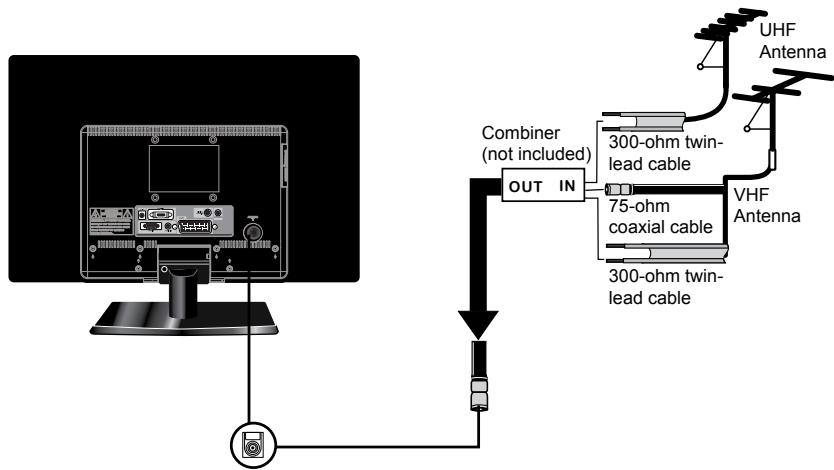
B. Separate VHF and/or UHF antennas
A 75-ohm coaxial cable connector is built into the set for easy hoo kup. When connecting the 75-ohm coaxial cable to the set, connect the 75-ohm cable into the ANT. terminal.
- Some cable TV companies offer premium pay channels. Since the signals of these premium pay channels are scrambled, a cable TV converter/descrabler is generally provided to the subscriber by the cable TV company.
This converter/descrambler is necessary for normal viewing of scrambled channels.
(Set your TV to channel 3 or 4, typically one of these channels is used. If this is unknown, consult your cable TV company.)
For more specific instructions on installing cable TV, consult your cable TV company.
One possible method of connecting the converter/descrambler provided by your cable TV company is shown in the diagram below.
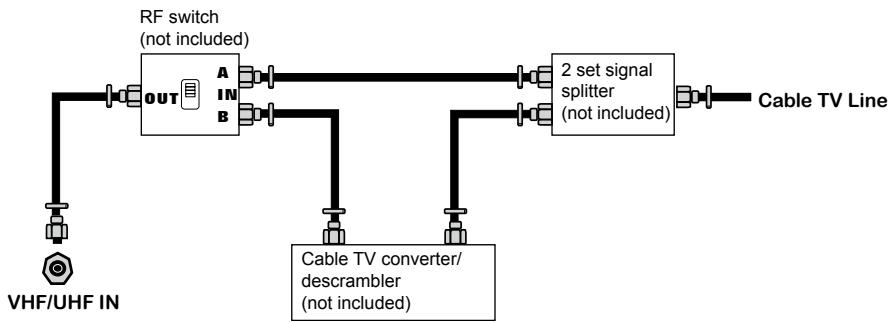

- The RF switch (not included) is required to provide two inputs (A and B). Setting the RF switch to position A allows viewing of all unscrambled channels by using the TV channel keys.
- Setting the RF switch to position B allows viewing of all scrambled channels via the converter/descrambler by using the converter channel keys.

Use a supplied antenna cable to connect the TV signal to the LCD LED TV's TV CABLE terminal.

Connect the DC plug of the AC-DC adapter to the DC 12V port at the rear of the TV. Connect the power cord to the AC-DC adapter and wall outlet.

Press the button on the remote to turn on the LCD LED TV.

Always disconnect the LCD LED TV from the power outlet when the LCD LED TV will not be used for a long period of time.
The POWER button on the front panel is only used for switching the LCD LED TV into standby, it does not disconnect the device from the main voltage. To completely disconnect the main voltage, please remove the power plug from the socket.

Press the INPUT button on the remote to display the Source List. Use the buttons to select DTV/TV, and press the OK button.

When you switch on the TV for first time, the Initial Setup menu appears on the screen.
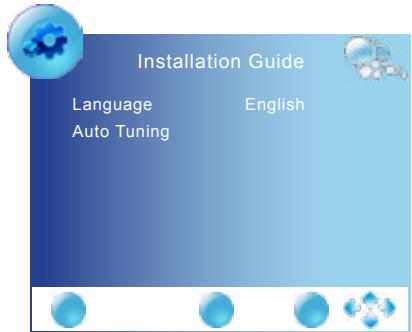

Press the buttons to select the language displayed on the menu.

Press the button to select Auto Tuning and press the OK button, and use the buttons select the country in which you will operate the TV (You need to select your current aerial if you wish to receiving all channels reliably.). The Auto Tuning automatically creates a list of receivable channels. Press the EXIT button at any time to interrupt the memorization process. (The list cannot be created if interrupted)
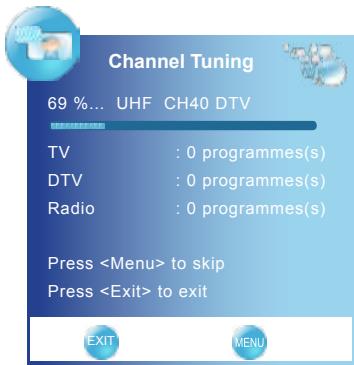

Press OK button to display the received channels and radio list, then press buttons to select a channel or radio.

Channel List
DTV
801SZTVM01
DTV
800SZTVM01
DTV
801SZTVM01
TV
78 BBC 7
TV
30 CBC Channel
Radio
728 Heart


The MPEG system appears according to the broadcasting signal. Only UK and New Zealand support the MPEG5 format.
Rear of TV
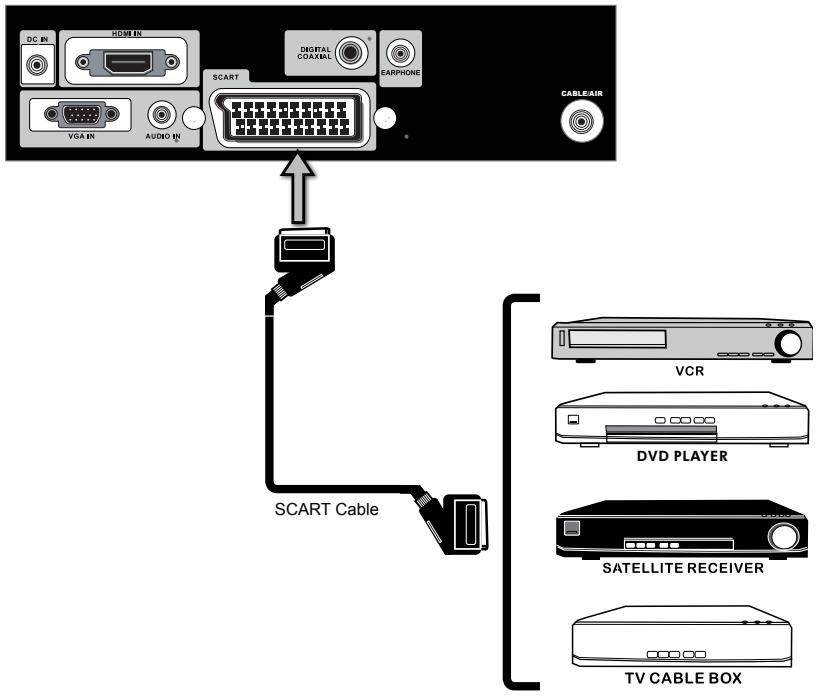

Use a SCART cable to connect the external A/V device's SCART socket to the LCD LED TV's SCART jack.

Connect all AC power sources, before turning on the power switch of the LCD LED TV or other connected equipment.

Press the button on the remote to turn on the LCD LED TV.

Press the INPUT button on the remote to select SCART.
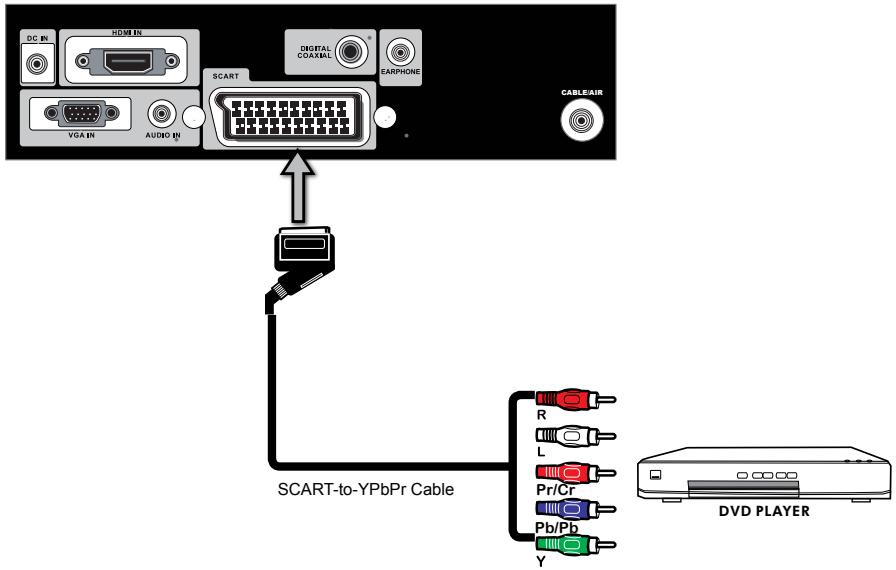
Rear of TV

Use a SCART-to-YPbPr cable to connect the external A/V device's YPbPr output jacks to the LCD LED TV's SCART jack.

If the SCART-to YPbPr cable is not connected to the YPbPr jacks on your A/V device, please add a available component video/audio cable.

Connect all AC power sources, before turning on the power switch of the LCD LED TV or other connected equipment.

Press the button on the remote to turn on the LCD LED TV.

Press the INPUT button on the remote to select YPbPr.

The YPbPr video jacks on your A/V device are sometimes labeled YPbPr, or YCbCr. For an explanation of component video, see your A/V device's user guide.
Rear of TV
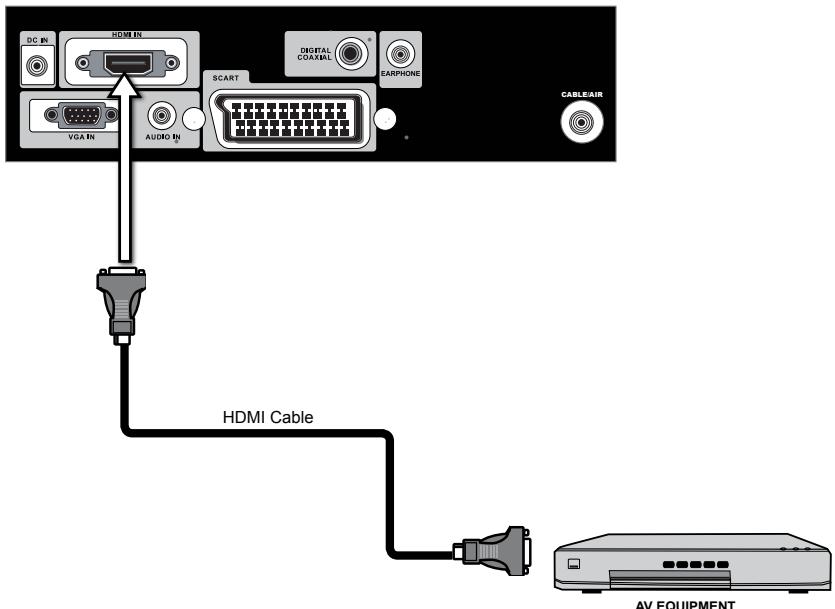

Use a HDMI cable to connect the AV equipment's HDMI output jack to the LCD LED TV's HDMI IN jacks.

Connect all AC power sources, before turning on the power switch of the LCD LED TV or other connected equipment.

Press the button on the remote to turn on the LCD LED TV.

Press the Input button on the remote to select HDMI.

The HDMI connector provides both video and audio signals, it's not necessary to connect the audio cable.
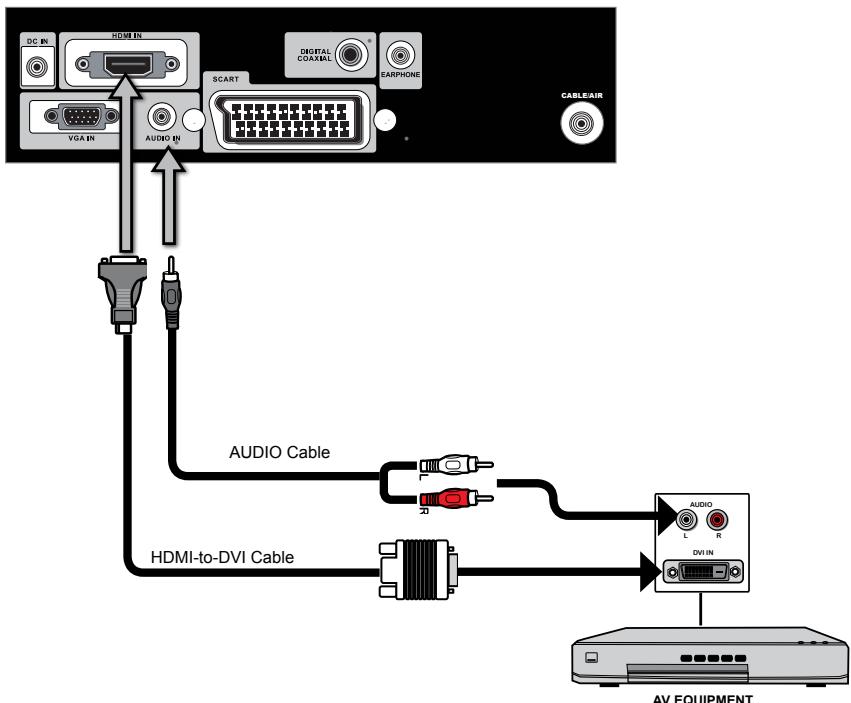
Rear of TV

Use a HDMI-to-DVI cable to connect the AV equipment's DVI output jack to the LCD LED TV's HDMI IN jacks.
Use an audio cable to connect the AV equipment's audio output jacks to LCD LED TV's HDMI AUDIO jacks.

Connect all AC power sources, before turning on the power switch of the LCD LED TV or other connected equipment.

Press the button on the remote to turn on the LCD LED TV.

Press the Input button on the remote to select HDMI.

If the LCD LED TV is connected to AV equipment's DVI connector, you will need an HDMI-to-DVI cable or an HDMI adapter(not supplied) and an audio
Rear of TV
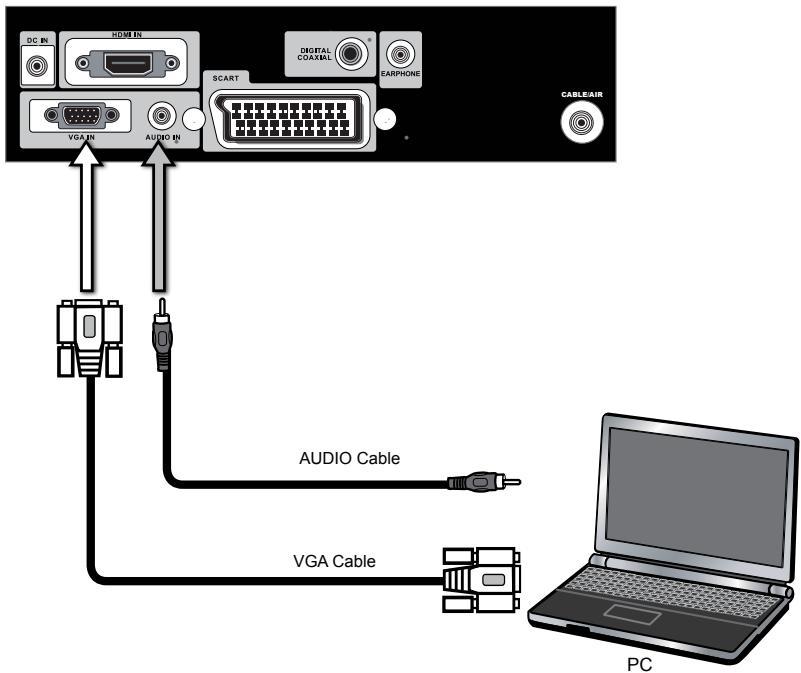

Use a D-SUB cable to connect the PC's D-SUB output jack to the LCD LED TV's VGA input jack. Use an audio cable to connect the PC's audio output jacks to LCD LED TV's.

Connect all AC power sources, before turning on the power switch of the LCD LED TV or other connected equipment.

Press the button on the remote to turn on the LCD LED TV.

Press the INPUT button on the remote to select VGA.
For better sound quality, you may want to play the LCD LED TV audio through your stereo system.
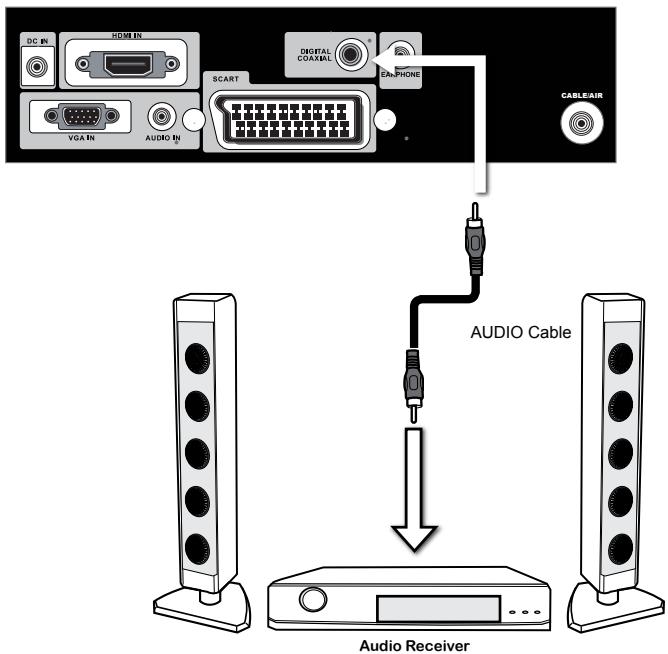
Rear of TV

Use an audio cable to connect the audio receiver's audio LINE IN jacks to LCD LED TV's COAXIAL audio jacks.

Connect all AC power sources, before turning on the power switch of the LCD LED TV or other connected equipment.

Press the button on the remote to turn on the LCD LED TV.
Using the Programme Guide
The Programme Guide is an Electronic Programme guide that provides viewers with a quick and easy way to view a complete list of digital of programmes. The Program Guide feature brings all sorts of information to your screen, such as program title, program duration, time remaining, rating information, availability, etc.
1 With the LCD LED TV connected to a television programming source, press the INPUT button on the remote control then use to select DTV and press OK button.
Press the GUIDE button on the remote control, the Programme Guide will appear on the screen:
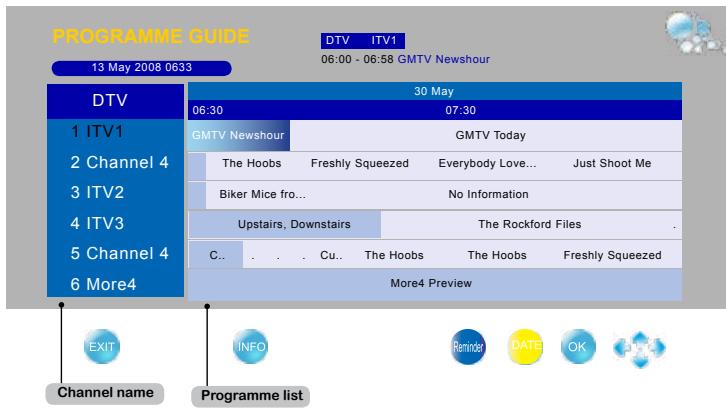
3 Press buttons to select channels and press OK button to confirm.
Press buttons to select the programme from a list, the Programme Guide provides introduction about the current programme being shown on each channel. (The Programme information in the guide is provided by the broadcasters)
Press EXIT button on the remote control to exit the Programme Guide
The Programme Guide features are displayed at the bottom of the screen. Use the color keys
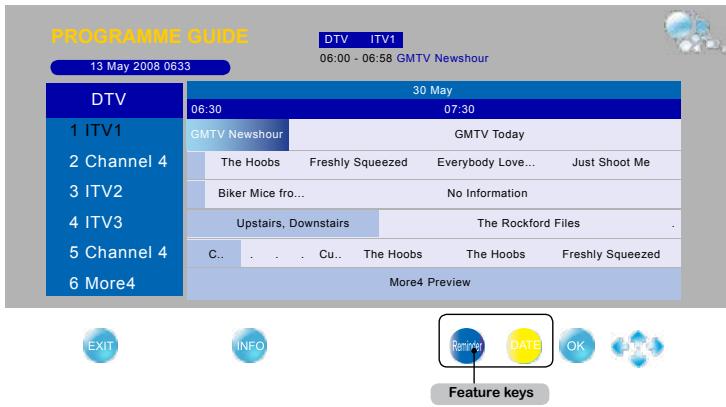
DATE (yellow key)
The feature enables viewer to view the programme list by one day.
Reminder (blue key)
The feature reminds viewer to watch a programme when the programme show timer is due.

Press buttons to select channels and press OK button to display the Reminder menu:
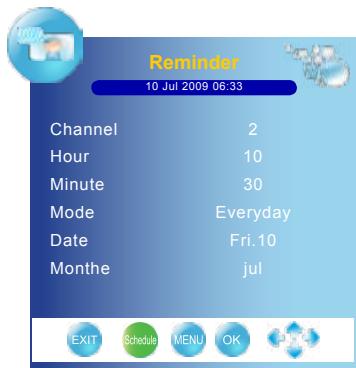

Press buttons to select the Mode, and Press buttons to select a reminder mode.

Press OK button to confirm, you can set 5 reminders for different programmes.

When the selected programme starts, a message will appear on the screen to confirm whether you want to watch the programme. Select OK, the TV will switch to the channel you selected.
Schedule List (green key)
The feature shows the list of reminding programmes.
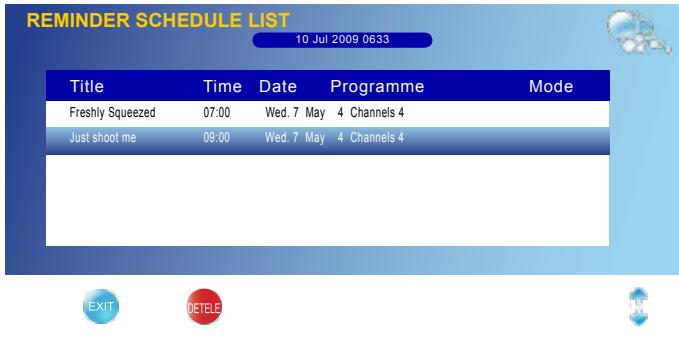

Press buttons to highlight a programme.

Press red buttons to delete.

Press MENU button to back the Programme Guide.
Allows you to make adjustments to your picture settings.

Press the button to turn the LCD LED TV on.

Press the MENU button on the remote control to display the Main menu, and use the buttons to select the PICTURE.

Use the buttons to highlight an individual picture option, use the buttons to change the setting, and press the EXIT to exit the menu.
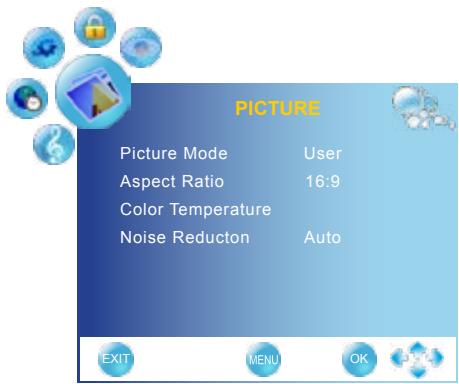
- If the signal source is DTV/TV/SCART/YPbPr(Option)/HDMI, the PICTURE MENU appears as:
- If the signal source is VGA, the PICTURE MENU appears as:
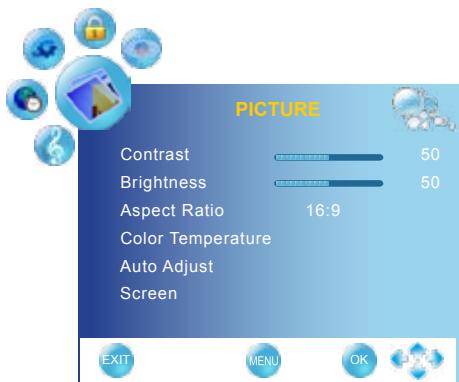

The available menu items are dependent on the input source being selected. All illustration is for reference only.

The PICTURE menu includes the following options:
| Picture Mode | Cycles among display types: Dynamic/Standard/Mild/User User: Allows to store your preferred settings. If you select the User mode, you can individually set the items shown: | |
| PICTURE | ||
| Picture Mode | User | |
| Contrast | 50 | |
| Brightness | 50 | |
| Color | 50 | |
| Sharpness | 50 | |
| Tint | 0 | |
| EXIT | MENU OK | |
| Contrast | Controls the difference between the brightest and darkest regions of the picture. | |
| Brightness | Controls the overall brightness of the picture. | |
| Color | Controls the color intensity. | |
| Sharpness | Increase this setting to see crisp edges in the picture; decrease it for soft edges. | |
| Tint | Controls the difference between the green and red regions of the picture. | |
| Aspect Ratio | Selects through Wide mode settings: • In TV and video mode: Panorama/Auto/4:3/16:9/ZOOM1/ZOOM2 • In VGA/DVI mode:4:3/16:9 | |
Color Temperature
Adjusts color components independently to achieve a warm or cool effect: Cool/Warm/Medium/User
- Warm: Increases red tint
Cool: Increases blue tint
Medium: Increases nature tint - User: Allows the user to adjust red, green and blue color component levels independently.
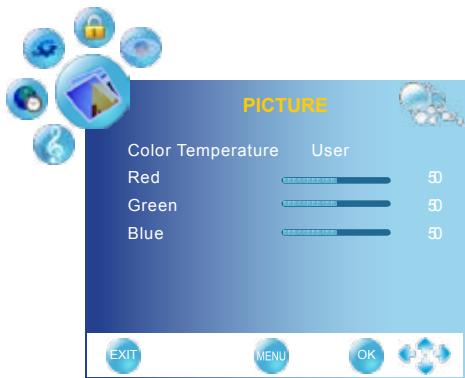
Noise Reduction
Select to reduce the noise level of connected equipment: Auto/off/low/ hight
Auto Adjust
Press the OK button to automatically adjust the display settings to optimize performance based on the VGA mode.
Screen
Press the OK button to enter the VGA Setting:
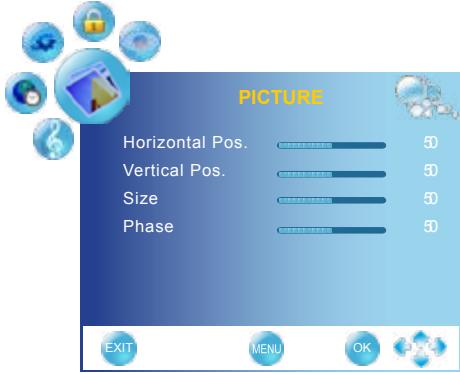
- Horizontal Pos.: Adjusts the position of the picture left and right in the window.
- Vertical Pos.: Adjusts the position of the picture up and down in the window.
- Size: Controls the width of the picture based on the VGA mode
- Phase: Controls the signal phase, which can improve focus clarity and image stability based on the VGA mode.
Allows you to customize the audio options and effects.
Press the button to turn the LCD LED TV on.
Press the MENU button on the remote control to display the Main menu, and use the buttons to select the SOUND.
3 Use the buttons to highlight an individual sound option, use the buttons to change the setting, and press the MENU to exit the menu.
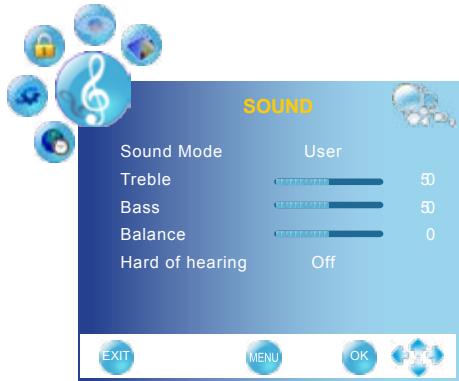
PAGE 1
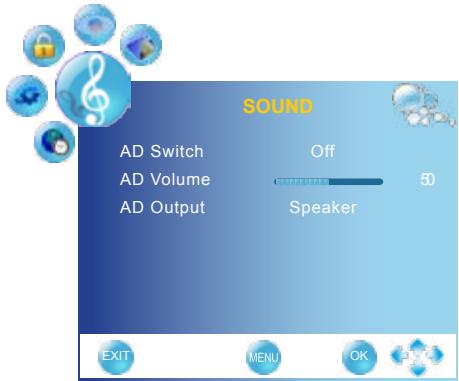
PAGE 2
The SOUND Setup menu includes the following options:
| Sound Mode | Allows selection of an audio-enhancement technique from among the following options: Sports/Movie/Music/Surround/Standard/User. User: Allows to store your preferred settings.If you select the User mode, you can individually set the items shown. |
| Treble | Controls the relative intensity of higher pitched sounds. |
| Bass | Controls the relative intensity of lower-pitched sounds. |
| Balance | Adjusts the relative volume of the speakers in a multiple speaker system. |
| Hard of hearing | While viewing a digital channel, this function can be selected. Select on, the TV will be activated the subtitle for a hearing-impaired person. |
| AD Switch | While viewing a digital channel, this function can be selected. Select on, the TV will be emphasized voice volume. AD Volume: You can adjust the audio description volume. AD Output: You can select to listen the sound from the TV speaker, headphone or both. |
Allows you to set up a variety of timer.
Press the button to turn the LCD LED TV on.
Press the MENU button on the remote control to display the Main menu, and use the buttons to select the TIME.
3 Use the buttons to highlight an individual time option, use the buttons to change the setting, and press the MENU to exit the menu.
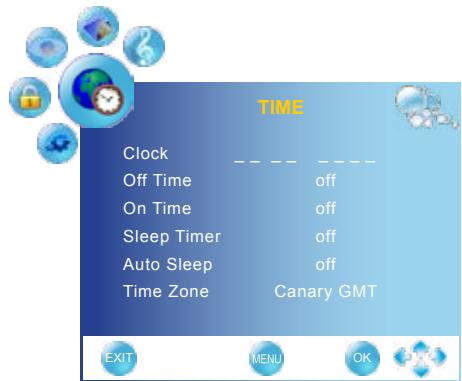
The TIME menu includes the following options:
| Clock | Selects to set the current clock in ATV mode. ① Press OK button to display the Clock menu: ② Press ▲▼ buttons to move to Date, Month, Year, Hour and Minute. ③ Press ←▼ buttons to set. NOTE: In DTV mode, the current time depends on the broadcast station. The clock function can not be set. |
| Off Time | Allows to set the Off timers that the TV will switch off automatically at the time you select. ① Press OK button to display the Clock menu: ② Press ▲▼ buttons to move to Repeat, Hour and Minute. ③ Press ←▼ buttons to set. |
| On Time | Allows to set the On timers that the TV will switch on automatically and tune to the mode of your choice at the time you select. ① Press OK button to display the Clock menu: ② Press ▲▼ buttons to move to Activate, Hour, Minute, Volume, and Mode. ③ Press ←▼ buttons to set. |
| Sleep Timer | Use ▲▷ buttons to select a period of time after which the TV automatically switches to standby mode:O ff , 10 , 20 ,30 , 60 , 90, 120, 180, 240 (minutes) |
| Auto Sleep | Select on, the TV will be automatically turned off, in case of no signal inTV & input source or no remote control input. |
| Time Zone | Use ▲▷ buttons to cycle through the available time zones in the country. |
Allows you to set up a variety of features: Language, factory reset, sleep timer.
Press the button to turn the LCD LED TV on.
Press the MENU button on the remote control to display the Main menu, and use the buttons to select the OPTION.
3 Use the buttons to highlight an individual option option, use the buttons to change the setting, and press the MENU to exit the menu.
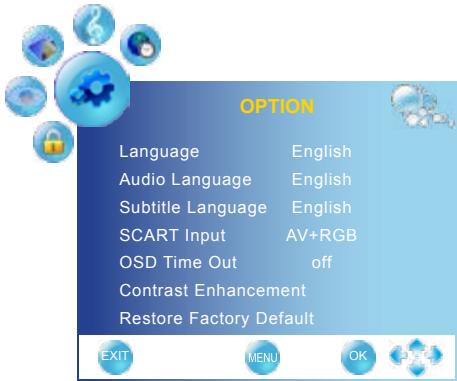
The OPTION menu includes the following options:
| Language | Selects to display all on-screen menus in your language of choice. |
| Audio Language | Allows to select the audio language. |
| Subtitle Language | Allows to select the subtitle language on the screen. |
| SCART Input | Allows selection of the SCART signal input: AV+RGB, SV+RGB |
| OSD Time Out | Allows selection of the display time of the on-screen menu: off, 10, 15, 30, 45, 60(segments) |
| Contrast Enhancement | On: Selects to increase the contrast levels of the image with changing scenes. Off: Selects to turn off the contrast enhancement function. |
| Restore Factory DefaultPress OK, use < or > to select “Yes” to restore factory settings. | |
Allows you to edit and label channels.

Press the button to turn the LCD LED TV on.

Press the MENU button on the remote control to display the Main menu, and use the buttons to select the CHANNEL.

Use the buttons to highlight an individual channel Setup option, use the buttons to change the settings, and press the MENU exits the menu.
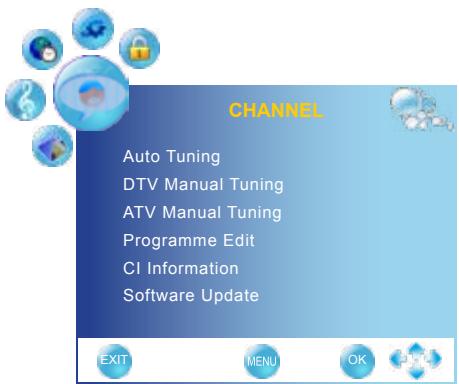

The CHANNEL menu includes the following options:
| Auto Tuning | Press the OK button, the Auto Tuning automatically creates a list of receivable channels. You need to select your current country if you wish to receiving all channels reliably. •Country Allows you select the country: UK, Ireland, Denmark, Finland, Italy, Norway, Spain, Sweden, Luxembourg, France, Czech., Poland, Hungary, Austria, Germany, Switzerland, Belgium, Netherlands, other. |
| DTV Manual Tunig | Allows adjustment manually for the particular channel with optimal reception in DTV mode. ① Press OK button to display the DTV Manual Tuning menu. ② Press ↓← buttons to select channel number. ③ Press OK button button to start scanning. |
| ATV Manual Tunig | Allows adjustment manually for the particular channel with optimal reception in ATV mode. ① Press OK button to display the ATV Manual Tuning menu. ② Press ↓← buttons to select channel number. ③ Press OK button button to start scanning. |
Programme Edit
Allows DELETE/RENAME/MOVE/SKIP of channels on the channel list.

Programme Edit

800SZTVM01

801SZTVM01

800SZTVM01

801SZTVM01

78 BBC 7

30 CBC Channel


- DELETE (red button)
Press the red button on the remote control with the selected channel, then press it again if you wish to delete it.
- MOVE (yellow button)
Press the yellow button on the remote control with the selected channel, move the channel by pressing the buttons then press the yellow button again.
NOTE: Not only all TV channel names can be edited. The channels in UK, France, Denmark, Finland, Italy, Netherlands and Sweden do not support MOVE function.
- SKIP (blue button)
Press the blue button on the remote control with the highlighted channel; press again to un-skip.
- Set up the favourite channels (FAV.CH button)
Press buttons to select your favourite channel.
Press Fav.CH button to set the channel, a icon will appear.
CI Information
Allows to display the CI information: Module Information,
Smart Card Information, Language, Software Download
Software Update (OPTION)
Selects for software upgrades by channel.
Upgrades the software using the broadcasting signal. If the function is selected during the software transmission period, this function searches for available software and downloads the software and the "Software Update" option is changed to highlight.
Press OK button to display the Software Update progress bar. This function will start software upgrading.
The time required to download the software is determined by the signal status. Do not turn the TV off before software update has finished. The TV will turn on again automatically after completing the software.

The optional function is dependent on model.
The Parental Control can be set up to the TV to block Channel, Video Source and to change password.

Press the button to turn the LCD LED TV on.

Press the MENU button on the remote control to display the Main menu, and use the buttons to select the LOCK.

Use the buttons to highlight an individual lock Setup option, use the buttons to change the settings, and press the MENU exits the menu.

Use the function, must enter a four-digit password. The factory password is 0000.
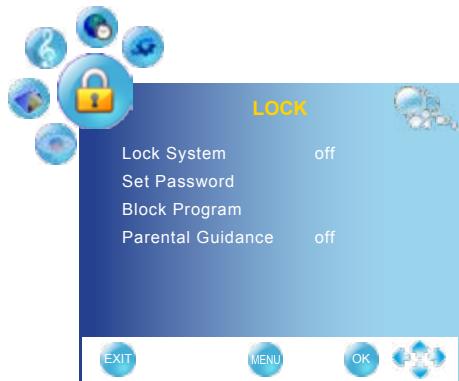

The LOCK menu includes the following options:
| Lock System | Lock System is designed to prevent accidentally retuning the TV and losing channels. When the Lock System is “ON”, a valid password is required if the TV is to be retuned. |
| Set Password | Allows to set the password. Use the function, must enter a four-digit password. The factory password is 0000 |
Block Program
Selects to setup the TV Programme Lock options:
Press OK button to display the Block Programme menu:
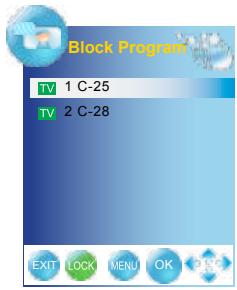
Press buttons to move to the channel you want to block.
Press Green button to block the programme, a padlock icon will appear. Press the Green button again to unblock.
Parental Guidance
Select the parental level for your children, only programmes with this feature will be blocked: 4 to 18 year olds, off
TROUBLESHOOTING

Before consulting service personnel, check the following chart for a possible cause of problem and for a possible solution.
TV will not turn on
Make sure the power cord is plugged in, then press the button on the remote.
The batteries in the remote control may be exhausted.
3 Replace the batteries.
No picture, no sound
Check the interface cable between TV and antenna/cable TV.
Press the button on the remote.
Press the INPUT button on the remote repeatedly to select the connected video sources.
Poor picture, sound OK
Check the interface cable between TV and antenna/cable TV.
Try another channel, the station may have broadcast difficulties.
Adjust the Brightness/Contrast options in the VIDEO Menu.
Picture OK, poor sound
Sound may be muted. Press the button on the remote.
Press the VOL+ button to increase the volume.
Audio noise
Move any infrared equipment away from the TV.
SPECIFICATIONS
| MODEL | DLC-E2250 | DLC-E2450 | |
| LCD Panel | Panel Size | 21.5" TFT LCD | 23.6" TFT LCD |
| Brightness | 250 | 250 | |
| Contrast Ratio | 1000:1 | 1000:1 | |
| Dynamic Contrast Enhancement | 6000:1 | 6000:1 | |
| Max. Resolution | 1920x1080 | 1920x1080 | |
| Backlight | LED | LED | |
| Aspect ratio | 16:9 | 16:9 | |
| Comb filter | 3D | 3D | |
| Surround sound (stereo) | YES | YES | |
| Speakers | 3W x 2 | 3W x 2 | |
| Input Connector | |||
| SCART | 1 | 1 | |
| VGA | 1 | 1 | |
| HDMI | 1 | 1 | |
| COAXIAL OUT | 1 | 1 | |
| HEADPHONE | 1 | 1 | |
| VHF/UHF IN | 1 | 1 | |
| Power Source | 12V DC, 4A | 12V DC, 5A | |
| Power Consumption | Max. 45 W, standby < 1 W | Max. 52 W, standby < 1 W | |
| Dimension(WxDxH) | 528.8*171*384.8 mm | 573.3*171*410.2 mm | |
| WEIGHT(Net) | 3.78 kg | 5 kg | |
Features and Specifications are subject to change without notice.
AKAI
www.akai-france.com