
EDIT SHARE - Guitar effects pedalboard ZOOM - Free user manual and instructions
Find the device manual for free EDIT SHARE ZOOM in PDF.


| Product Type | Guitar Effects Pedalboard |
| Brand | ZOOM |
| Model | EDIT SHARE |
| Dimensions (Approx.) | 300 x 200 x 60 mm |
| Weight (Approx.) | 1.5 kg |
| Power | USB (5V) or 9V DC power adapter (not included) |
| Main Functions | Patch editing and management, PC connection, backup, search by amp/effect/artist, online use |
| Connectivity | USB for PC connection, guitar input (6.35 mm jack), headphone output (3.5 mm jack) |
| Software Compatibility | Windows and macOS (via Edit&Share application) |
| Care and Cleaning | Clean with a soft, dry cloth. Avoid moisture and solvents. |
| Safety | Do not expose to water, extreme temperatures, or shocks. Use only the recommended adapter. |
| Spare Parts and Repairability | Contact ZOOM support for repairs. Spare parts not available in stores. |
| General Information | Indoor use only. Keep the manual for future reference. |
Frequently Asked Questions - EDIT SHARE ZOOM
User questions about EDIT SHARE ZOOM
0 question about this device. Answer the ones you know or ask your own.
Ask a new question about this device
Download the instructions for your Guitar effects pedalboard in PDF format for free! Find your manual EDIT SHARE - ZOOM and take your electronic device back in hand. On this page are published all the documents necessary for the use of your device. EDIT SHARE by ZOOM.
USER MANUAL EDIT SHARE ZOOM
Connecting the device 2
Editing patches 4
Editing patch list 6
Managing your patches on PC 8
Copying patches from PC to device 10
Using the online patch 11
Searching for a patch 12
Troubleshooting 14
Software License Agreement 15
Connecting the device
Starting the application


Connect the device.
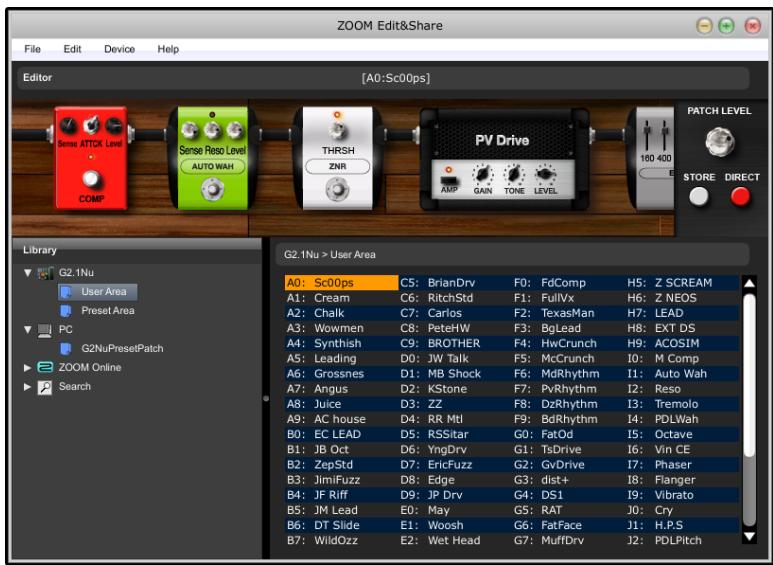

To start the application manually, double-click the Edit&Share icon on your desktop.

To select a device manually, choose the device you want to use from the [Device] menu.
Browsing the patches
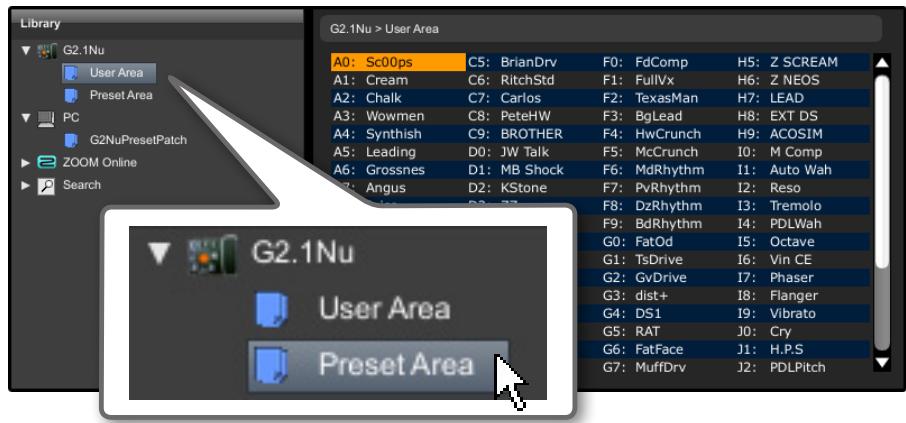
Click the Area to view.

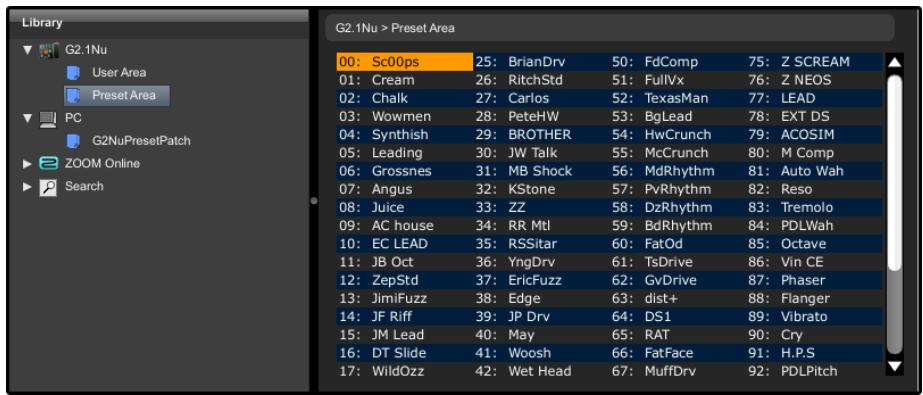
Connecting the device
Ejecting the device
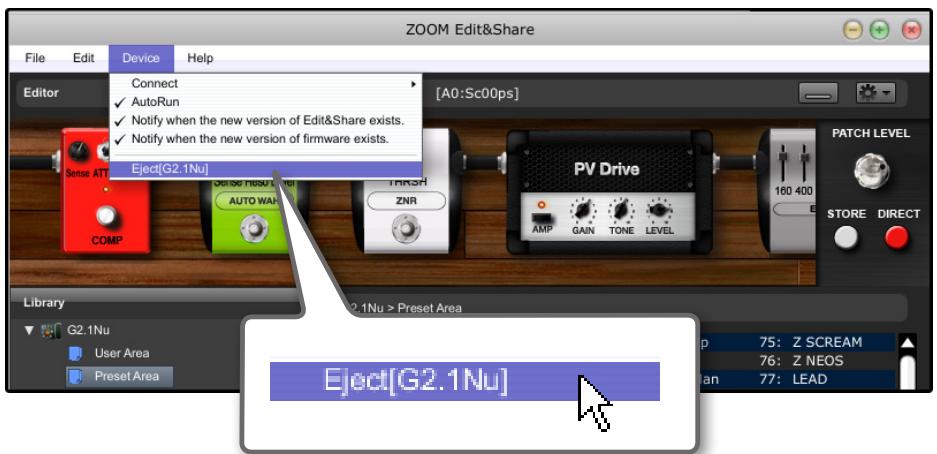
Click [Eject] menu as above.

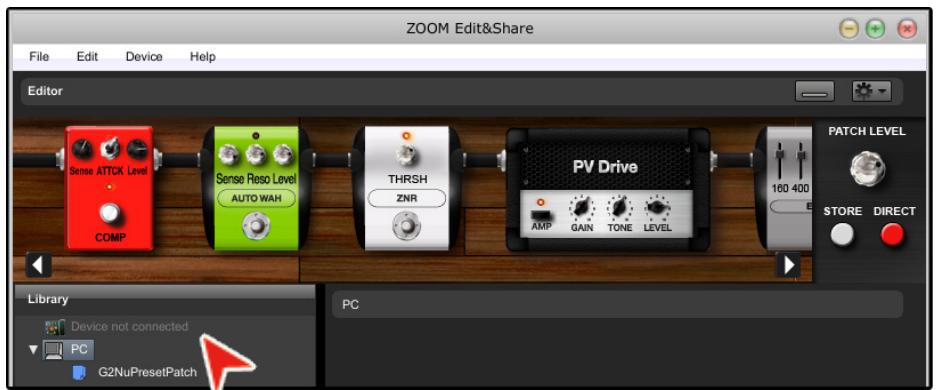
Editing patches


Turning ON/OFF the effect
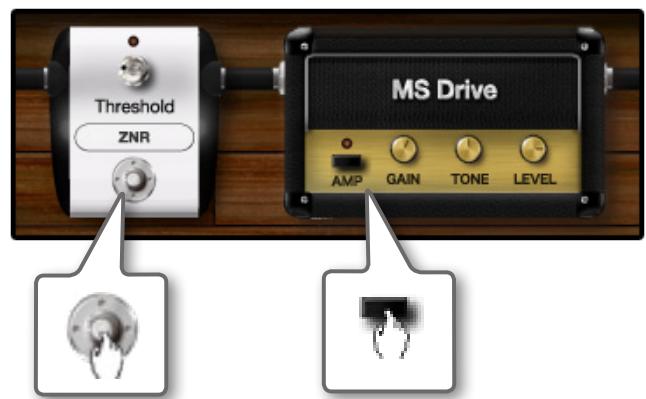

Click the icon above to switch ON/OFF.
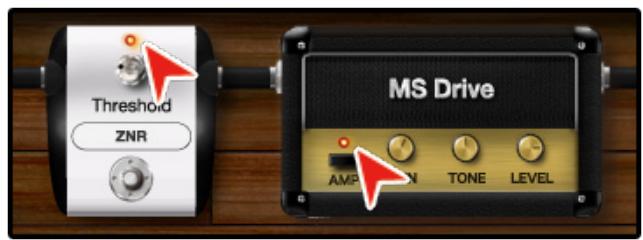

Adjusting the parameters
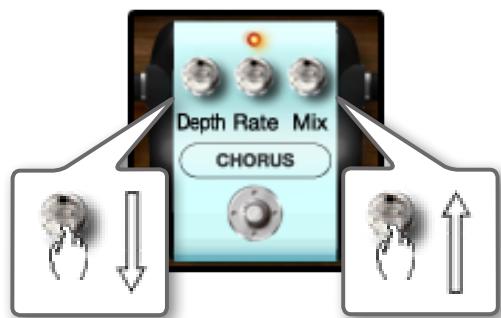

Click and drag down. Click and drag up.
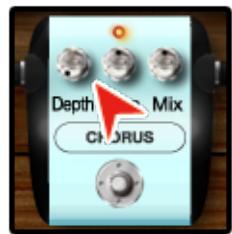

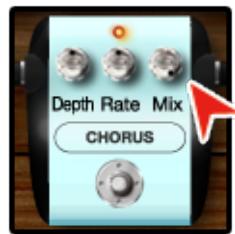

To turn the knob slowly, push and hold the [Shift] key as you drag the knob.

Changing the effect type
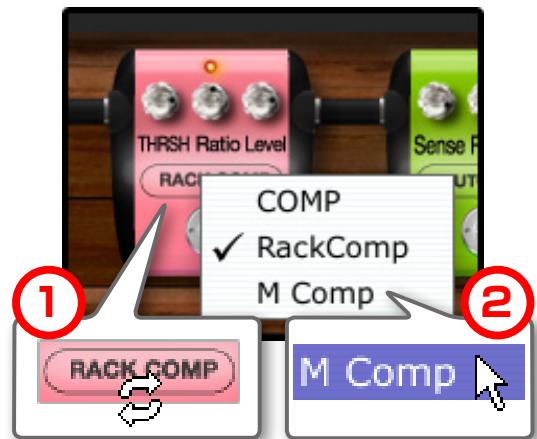
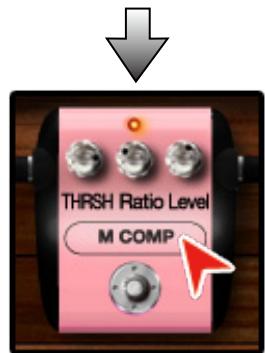
Click the effect type and the effect type you want to use.
Editing patches
Renaming patches
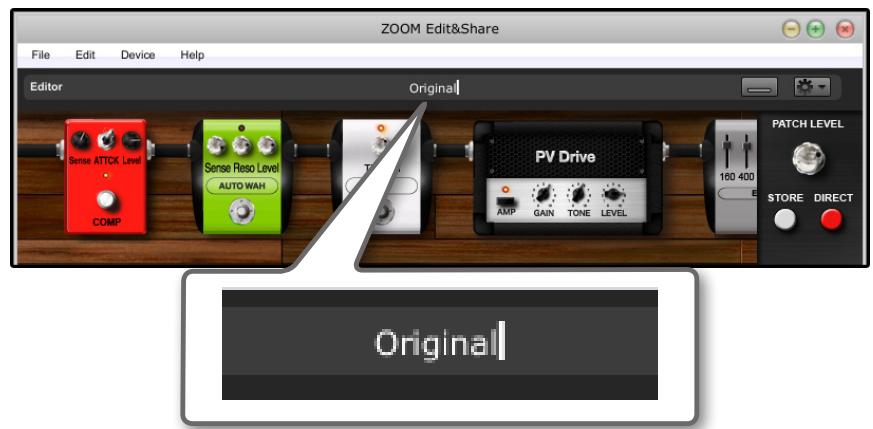
Click the patch name to rename the patch.

You can use tha following Character. (Up to eight) A~Z,a~z,0~9,(space)
$$ ! # \$ \% \& ^ {\prime} () + , - ; = @ [ ] \wedge _ {} \sim $$



Click [STORE] button to save the new name.
Storing patches
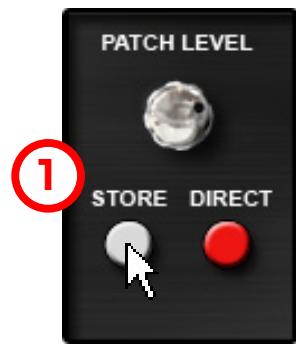
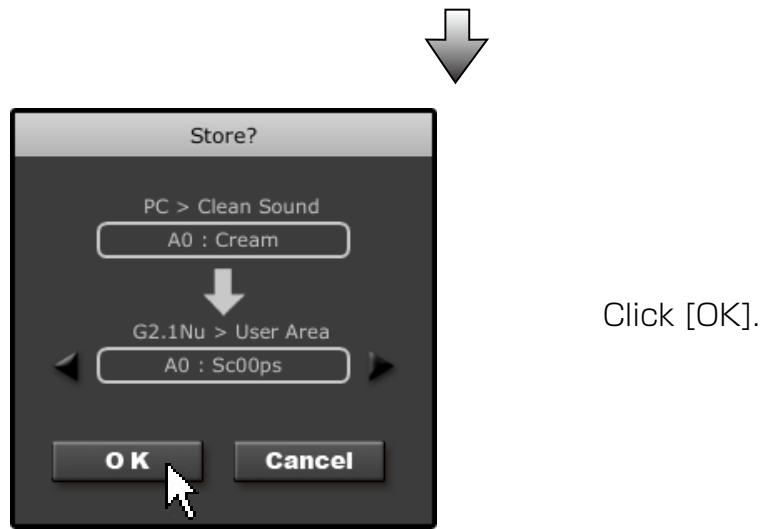
Click the [STORE] button.

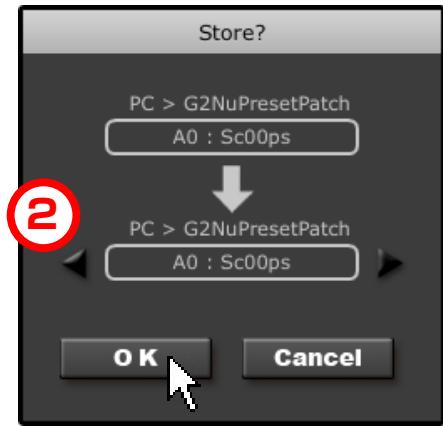
Click [OK].

To change the save destination for the patches, click on one of the triangle keys.
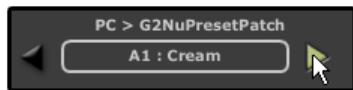

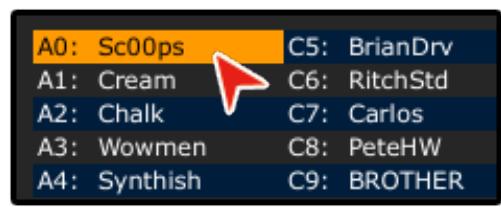
Editing patch list
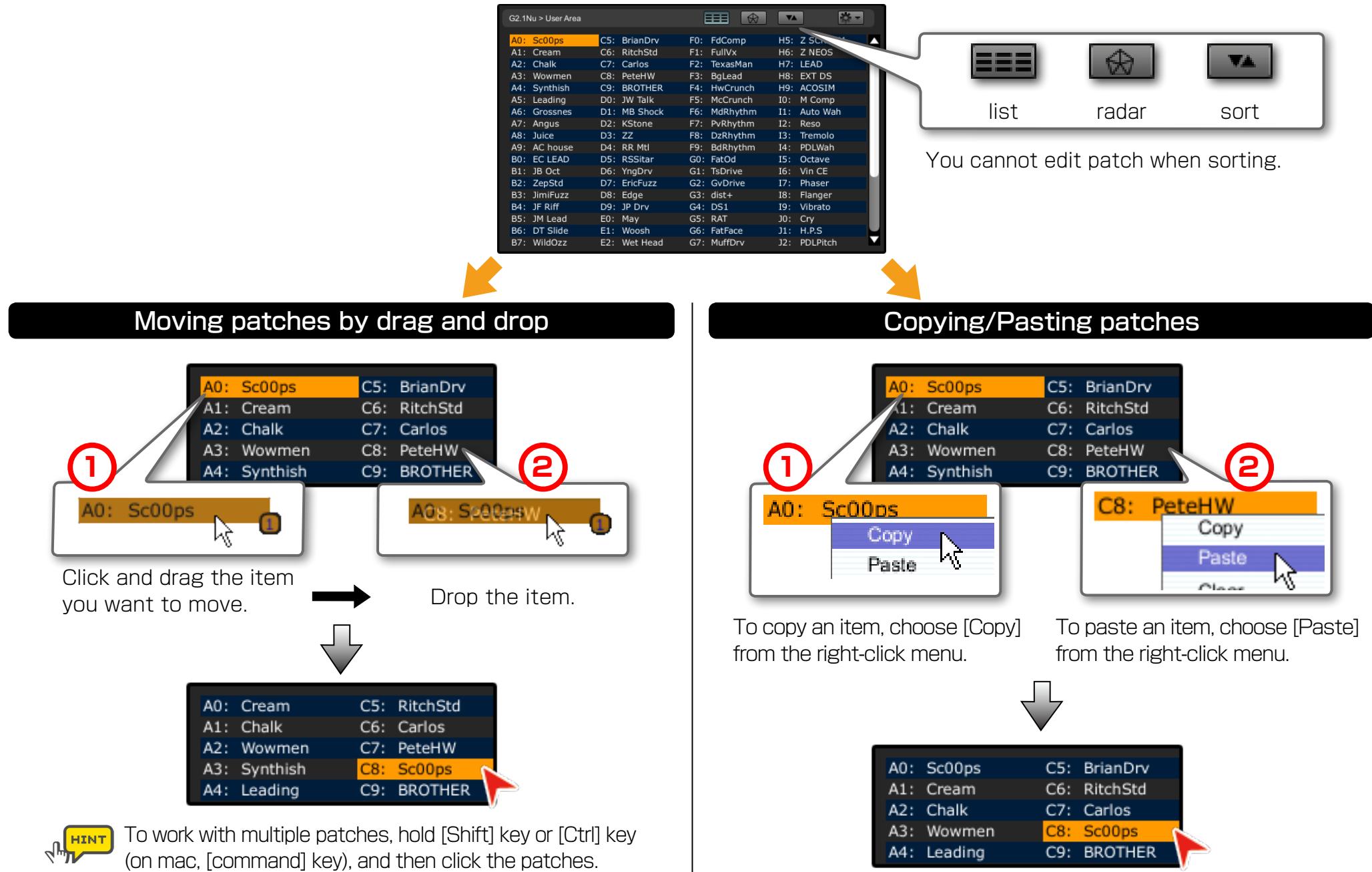
Editing patch list
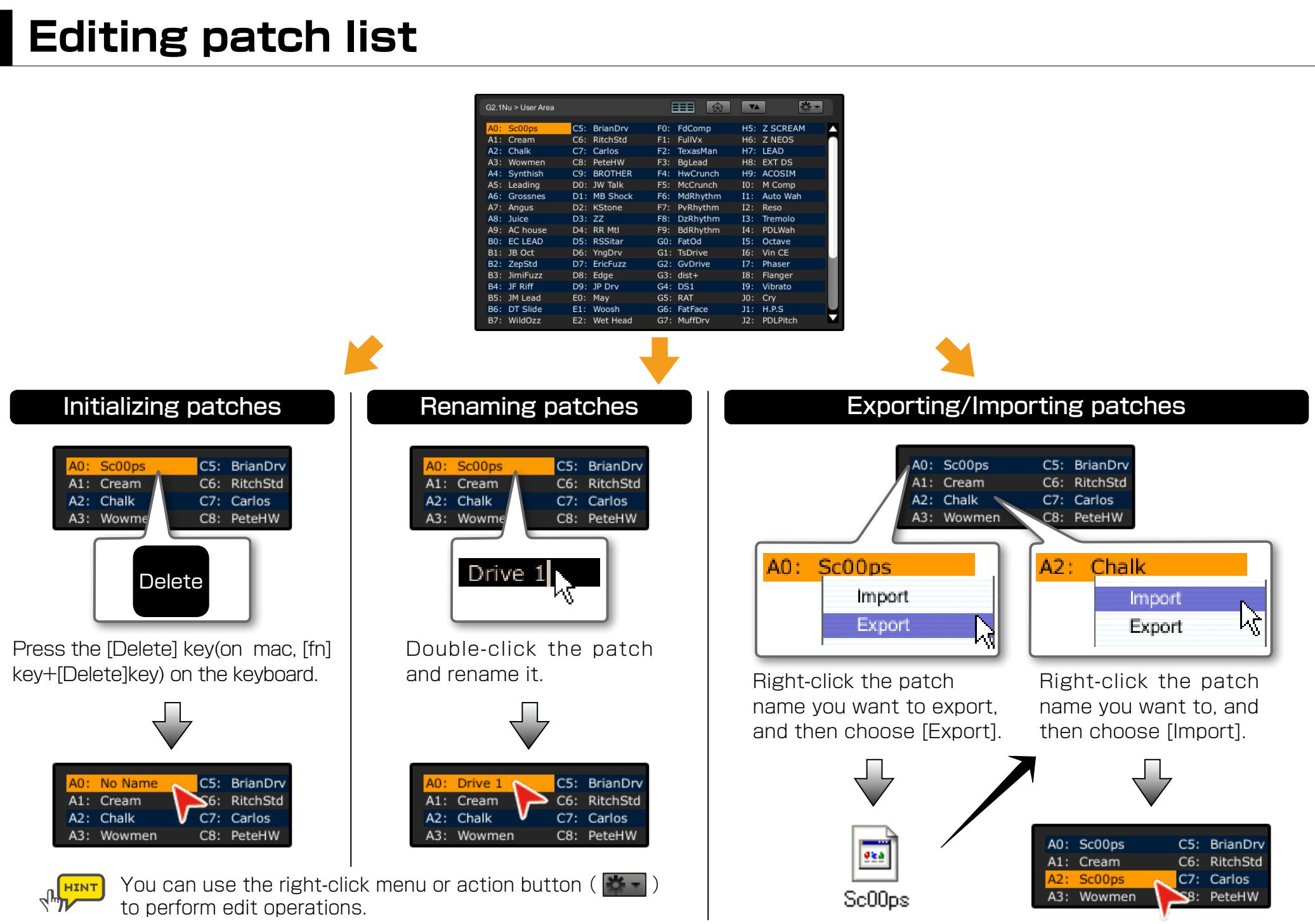
Managing your patches on PC
Creating folders
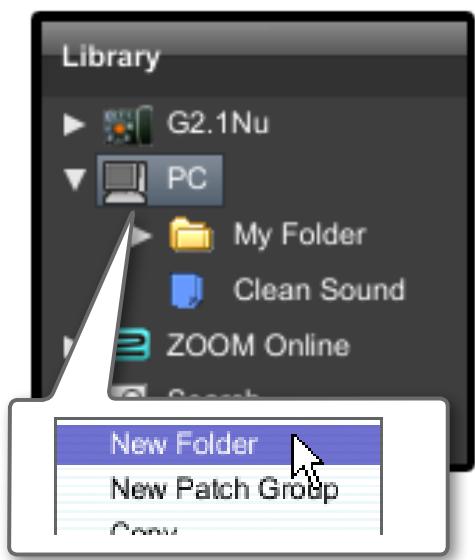
Right-click the icon, and then choose [New Folder].

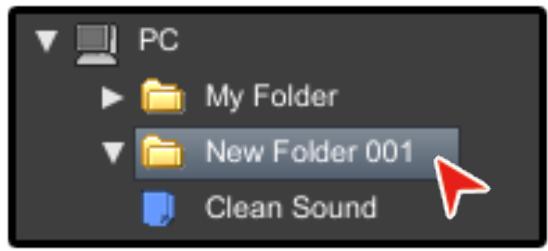

You can use the action button( )to perform edit operations.
Creating patch groups
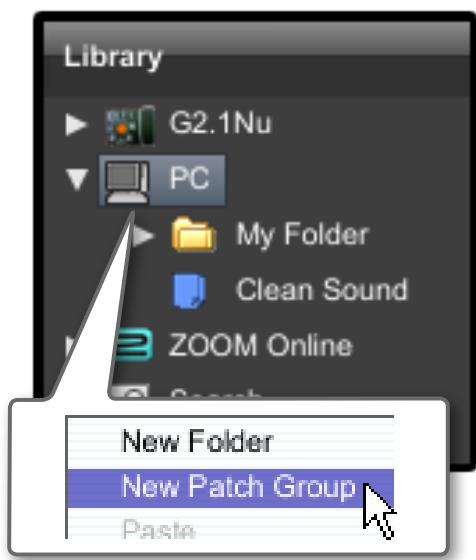
Right-click the icon, and then choose [New Patch Group].

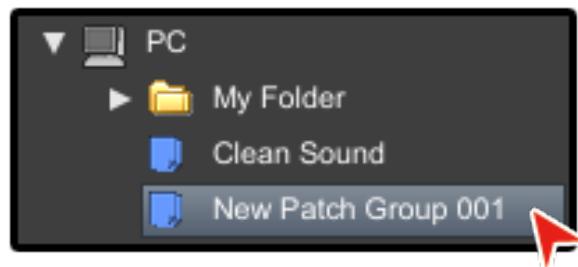
Copying/Pasting patch groups
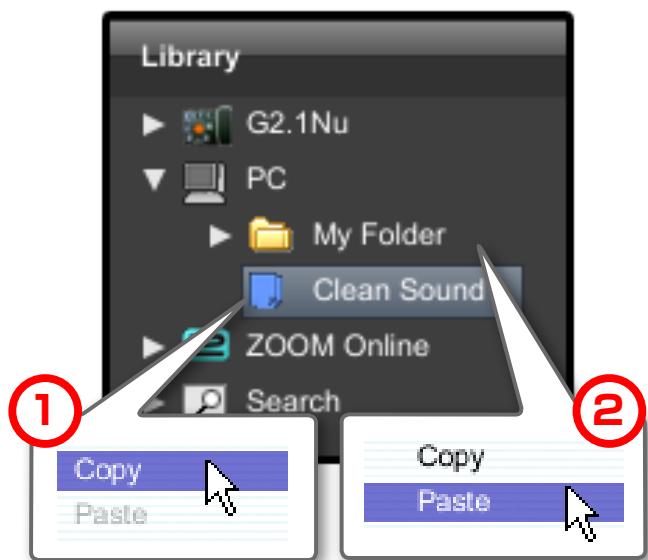
Right-click the icon, and then choose [Copy].
Right-click the icon, and then choose [Paste].

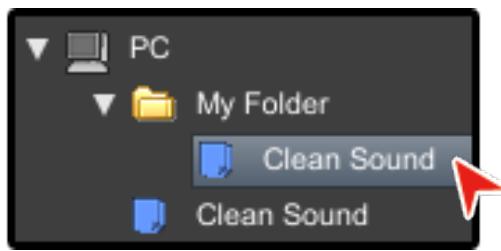

You can move any patch group or folder under "PC" by performing drag and drop operations.
Managing your patches on PC
Renaming patch groups
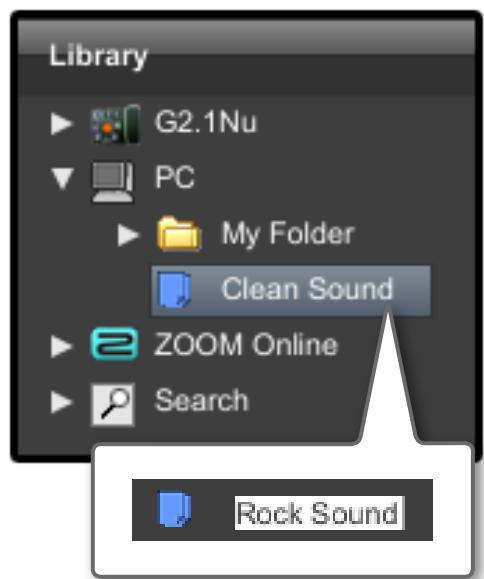
Double-click the patch group and rename it.

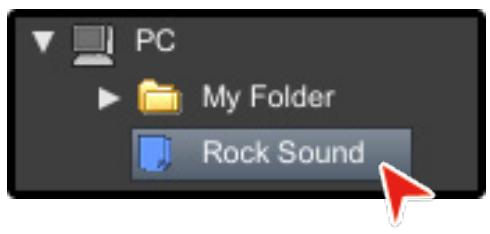
Deleting patch groups
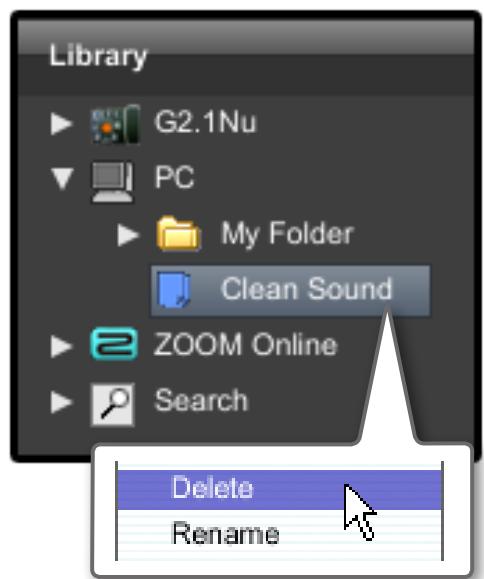
Right-click the icon, and then choose [Delete].

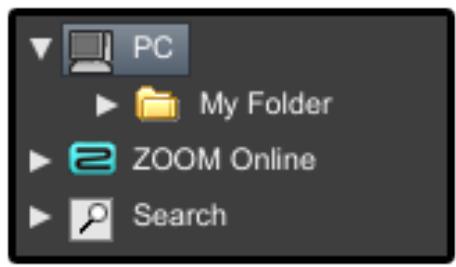
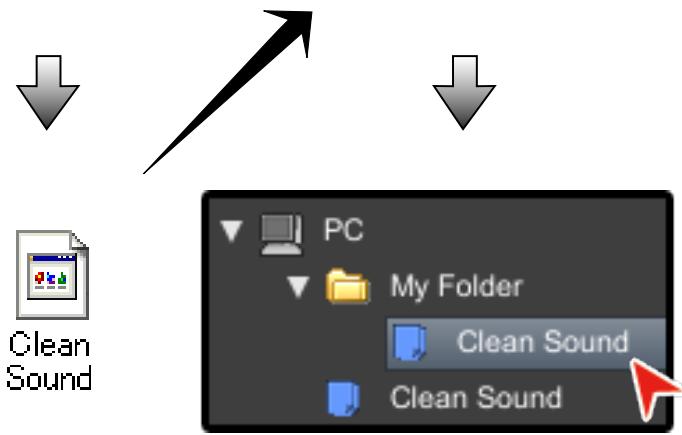
Exporting/Importing patch groups
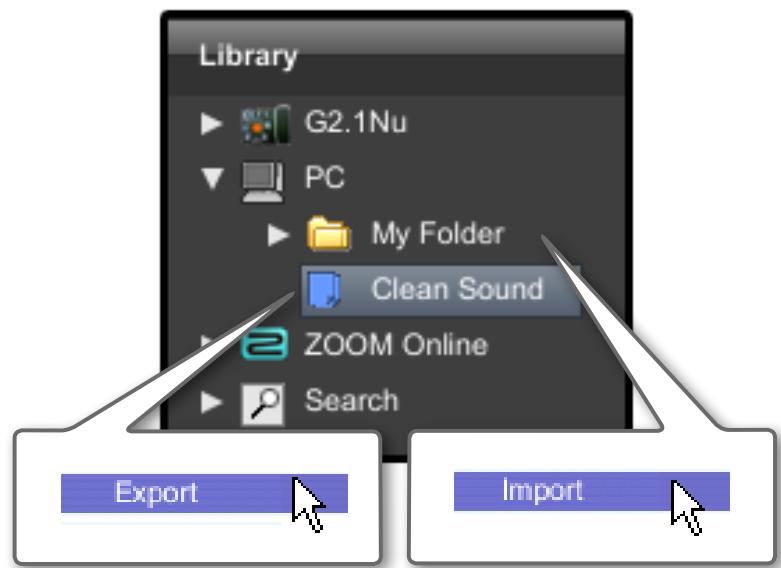
Right-click the icon, and then click [Export].
Right-click the icon, and then click [Import].
Copying patches from PC to device
Copying patches from PC to device
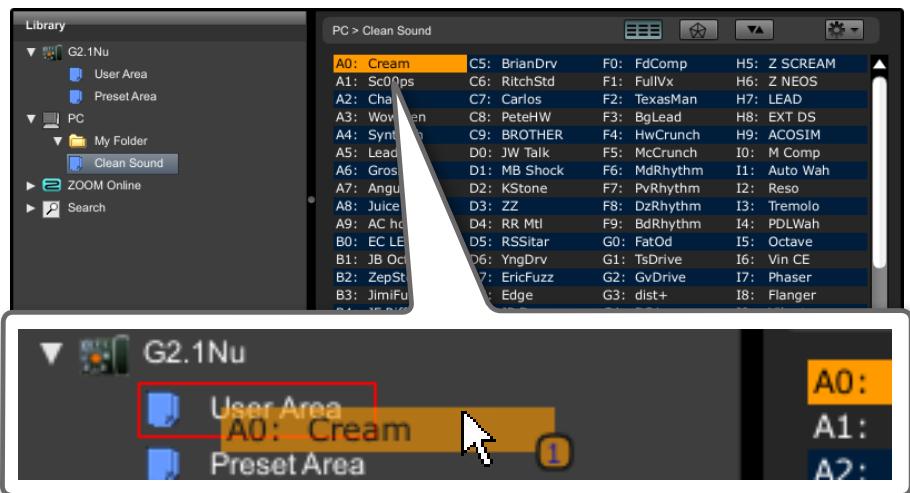
Drag a patch and drop it in the [User Area].

To work with multiple patches, hold [Shift] key or [Ctrl] key (on mac, [command] key), and then click the patches.
Copying patch groups from PC to device
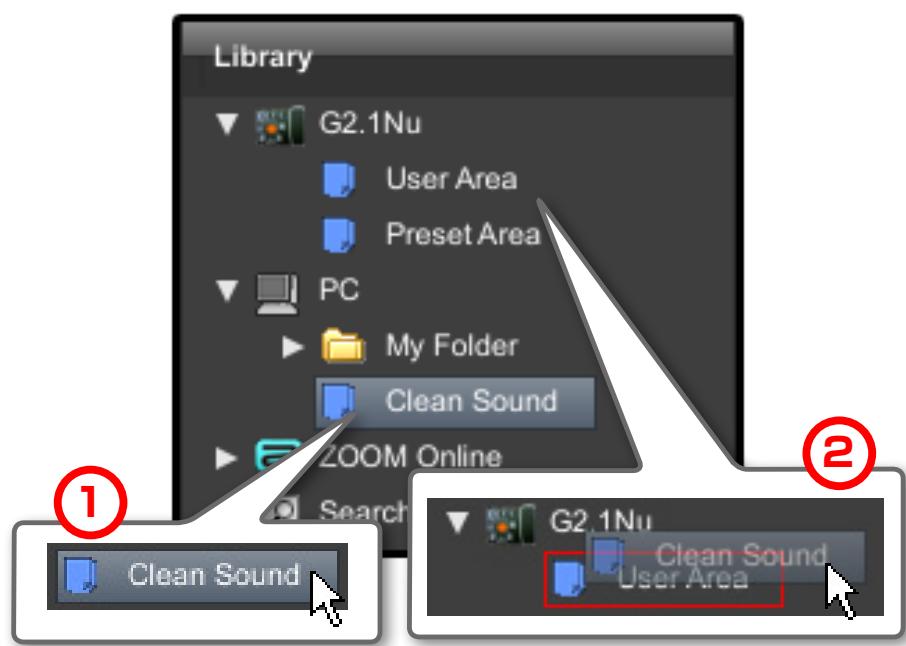

Drag a patch group and drop the patch group in the User Area.
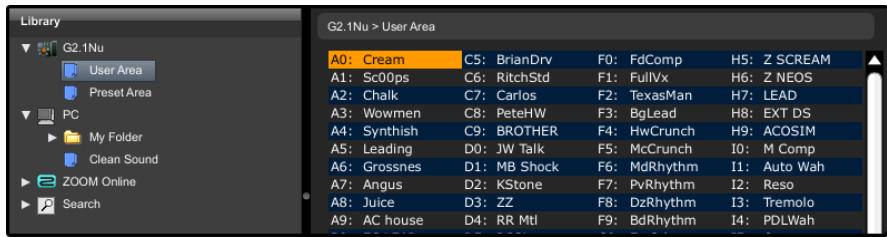

You can also display the right-click menu and then choose [Copy to ...].
Using the online patches
Accessing to the online patches
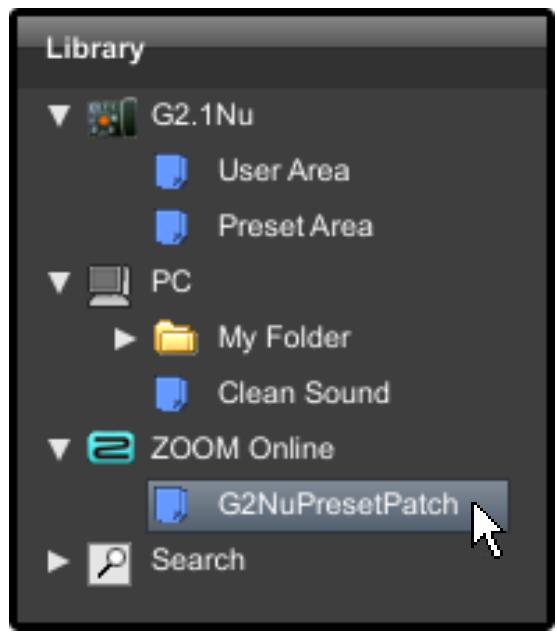
Click the patch group on ZOOM Online.

You can access the folder on ZOOM Online via the Internet, and check the patches distributed by ZOOM.

Patch groups on ZOOM Online cannot be edited or moved. To edit patch groups, you must copy them to your PC or the device.
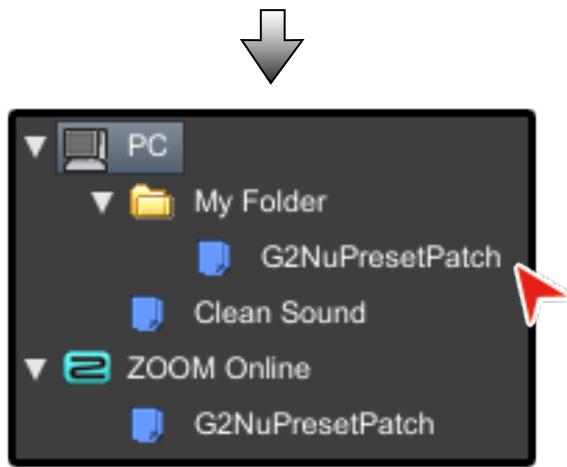
Copying the online patches from ZOOM Online
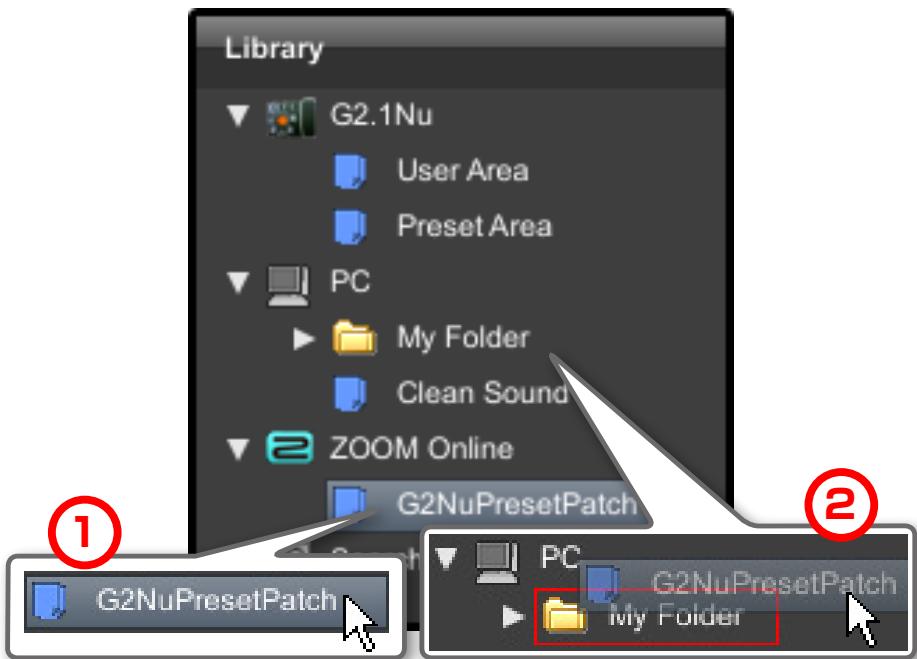
Drag the patch group and drop in the folder.
Searching for a patch
Displaying all patches
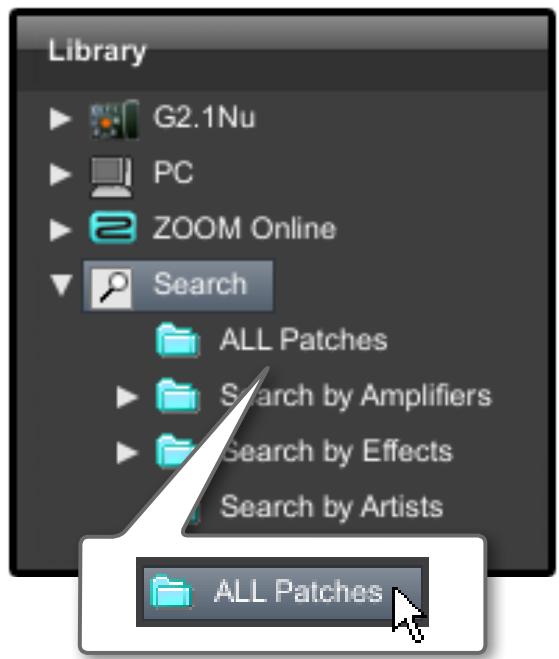
Click [ALL Patches].

| Search | |||
| Name ▲ | COMP | WAH/EFX | ZNR |
| Sc00ps | COMP | ZNR | |
| Sc00ps | COMP | ZNR | |
| Sc00ps | COMP | ZNR | |
| Sc00ps | COMP | ZNR | |
| SL Back | ZNR | ||
Go to original
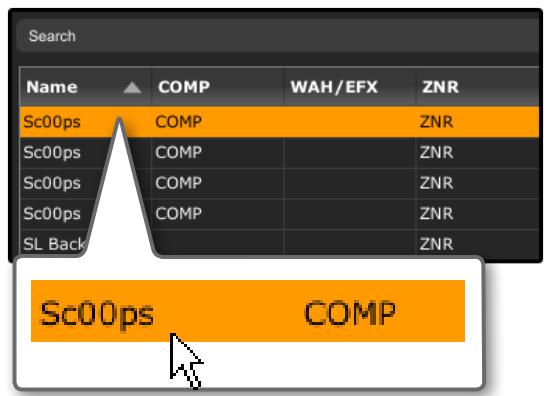

Double-click to refer the original patch.
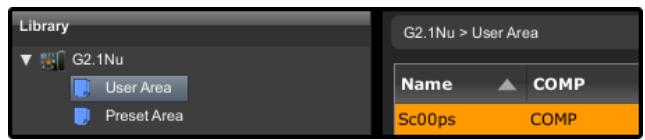

You cannot edit or move a patch by using the "Search for a patch" command.

You can also right click and choose [Go to original].
Searching for a patch
Searching by amplifiers
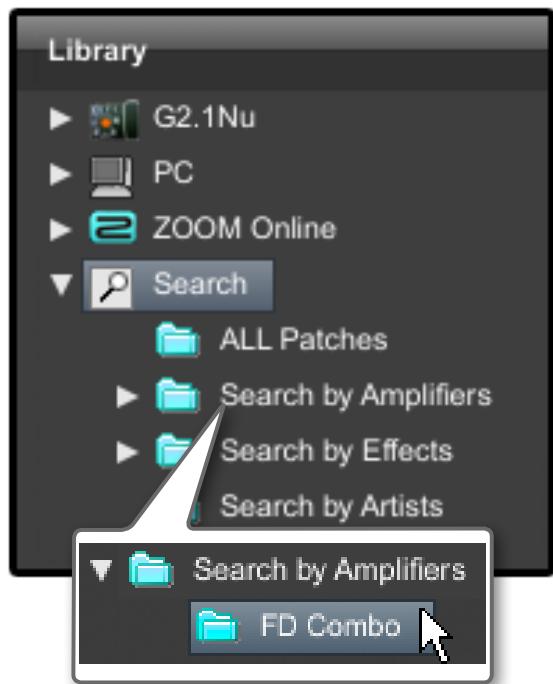

Click the amplifier.
| Search | |||
| Name | DRIVE | Gain | Tone |
| BROTHER | FD Combo | 10 | 15 |
| BROTHER | FD Combo | 10 | 15 |
| BROTHER | FD Combo | 10 | 15 |
| BROTHER | FD Combo | 10 | 15 |
| BROTHER | FD Combo | 10 | 15 |
| BS Riff | FD Combo | 60 | 15 |
Searching by effects
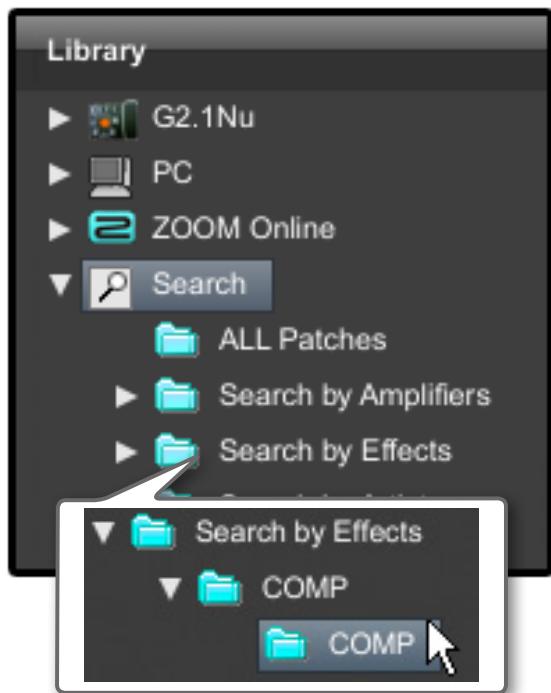
Click the effect.

| Search | |||
| Name | COMP | Sense | ATTCK |
| Sc00ps | COMP | 2 | Slow |
| Sc00ps | COMP | 2 | Slow |
| Sc00ps | COMP | 2 | Slow |
| Sc00ps | COMP | 2 | Slow |
| Synthish | COMP | 3 | Slow |
| Synthish | COMP | 3 | Slow |
Searching by artists
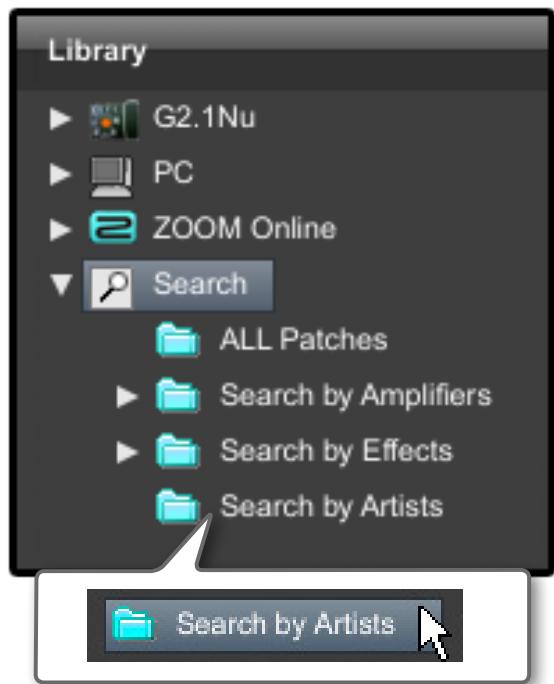

Click [Search by Artists]
| Search | |||
| Name | COMP | WAH/EFX | ZNR |
| BS Riff | COMP | ZNR | |
| Carlos | ZNR | ||
| Carlos | ZNR | ||
| Carlos | ZNR | ||
| Chalk | COMP | ZNR | |
| Chalk | COMP | ZNR | |
Troubleshooting
-
No sound or very little sound is output.
-
Confirm that the device and PC are connected via the USB cable.
- Properly connect the guitar to the INPUT terminal, and the headphone to the PHONE (or OUTPUT) terminal.
- Confirm that the shielded cable you are using works normally.
To adjust the sound volume, turn the [PATCH LEVEL] knob in Edit&Share. - Adjust the [Gain] parameter and [Level] parameter of the amplifiers and effectors used in Edit&Share.
- You can use the expression pedal to adjust the sound volume of certain patches. Adjust the pedal to achieve the appropriate sound volume.
- Adjust the master level of the device.
-
Check the device settings.
-
Noise stands out.
Lower the [Gain] parameter and [Level] parameter of amplifier heads and drive effectors used in Edit&Share.
- Check the expression pedal settings. Depending on parameters assigned for the expression pedal, extreme changes to parameters caused by operating the pedal may result in noise.
- Make sure to check your peripheral equipment. Deteriorated, broken, or dirty connector terminals on the guitar or shielded cable may result in adverse performance.
- The USB terminal is not recognized when it is connected to the PC.
- Confirm that the OS supports the product.
The effector does not work. - Confirm that the effector is turned on (LED is lit.) Edit&Share screen.
- Check whether the device has been bypassed.
Device does not get recognized correctly
- When the device list is improper, click the [Device]-[Connect]-[Refresh] menu to update the list.
The device does not reply to Edit&Share while editing.
- Please restart Edit&Share if you computer have turned into sleep mode. (Edit&Share does not support sleep mode. Please do not use sleep mode.)
Software License Agreement
Zoom Corporation ("Zoom") grants the Customer ("Customer") a nonexclusive and nontransferable license, subject to the conditions stipulated below, to use the software program ("Software") which is to be provided with the following terms of use. To use this Software, you consent to be bound by the terms of this agreement.
The copyrights and all the other rights of this Software, attached manuals and documents belong to Zoom Corporation.
- Distributing, selling, leasing, renting, modifying, or reverse engineering the Software without permission is prohibited.
- Any use or application of this Software that may infringe the copyrights of a third party is prohibited. Zoom will not assume responsibility if the use of this Software infringes the copyrights of a third party.
- Zoom accepts no liability for direct or indirect damage, or any claims made by a third party, that may result from the use of this Software. Zoom will not recover or provide compensation for the loss of data on the Customer's hard disk drive that may result from the use of the Software.
- The specifications of the Software and content of this document are subject to change without notice.
※ Macintosh, Mac OS is registered trademarks or trademarks of Apple Inc., registered in the U.S. and other countries.
※ Adobe and Adobe Acrobat are trademarks of Adobe Systems Incorporated.
※ Any other trademarks and registered trademarks in this document belong to their respective owners.
All the trademarks and registered trademarks in this document are provided solely for the purpose of identification. There is no intent to infringe the copyrights of their respective owners.
- Connecting the device
- Starting the application
- Browsing the patches
- Editing patches
- Renaming patches
- Storing patches
- Editing patch list
- Managing your patches on PC
- Creating folders
- Creating patch groups
- Copying/Pasting patch groups
- Renaming patch groups
- Deleting patch groups
- Exporting/Importing patch groups
- Copying patches from PC to device
- Copying patch groups from PC to device
- Using the online patches
- Accessing to the online patches
- Copying the online patches from ZOOM Online
- Searching for a patch
- Displaying all patches
- Go to original
- Searching by amplifiers
- Searching by effects
- Searching by artists
- Troubleshooting
- Software License Agreement
Brand : ZOOM
Model : EDIT SHARE
Category : Guitar effects pedalboard