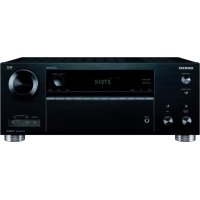
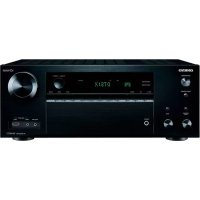
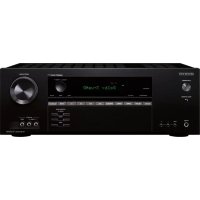
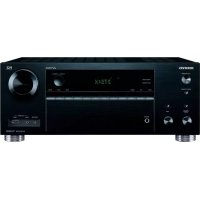
DR-S501 - AV receiver ONKYO - Free user manual and instructions
Find the device manual for free DR-S501 ONKYO in PDF.


User questions about DR-S501 ONKYO
0 question about this device. Answer the ones you know or ask your own.
Ask a new question about this device
Download the instructions for your AV receiver in PDF format for free! Find your manual DR-S501 - ONKYO and take your electronic device back in hand. On this page are published all the documents necessary for the use of your device. DR-S501 by ONKYO.
USER MANUAL DR-S501 ONKYO
Getting Started and Setting up ...29
Basic Operations 31
Playback Techniques 44
Advanced Operations 52
Detailed Settings 55
Miscellaneous information 68
Remote Control Codes List –The end of this manual–
Thank you for purchasing the Onkyo DVD receiver. Read this manual carefully before using your new DVD receiver. A good understanding of its features and operation will allow you to achieve optimum performance and enjoyment.
Keep this manual for future reference.
WARNING:
TO REDUCE THE RISK OF FIRE OR ELECTRIC SHOCK,DO NOT EXPOSE THIS APPARATUS TO RAIN OR MOISTURE.
CAUTION:
TO REDUCE THE RISK OF ELECTRIC SHOCK, DO NOT REMOVE COVER (OR BACK). NO USER-SERVICEABLE PARTS INSIDE. REFER SERVICING TO QUALIFIED SERVICE PERSONNEL.

WARNING
RISK OF ELECTRIC SHOCK DON NOT OPEN
AVIS
RISQUE DE CHOC ELECTRIQUE NE PAS OUVIR


The lightning flash with arrowhead symbol, within an equilateral triangle, is intended to alert the user to the presence of uninsulated "dangerous voltage" within the product's enclosure that may be of sufficient magnitude to constitute a risk of electric shock to persons.

The exclamation point within an equilateral triangle is intended to alert the user to the presence of important operating and maintenance (servicing) instructions in the literature accompanying the appliance.
Important Safety Instructions
-
Read these instructions.
-
Keep these instructions.
-
Heed all warnings.
-
Follow all instructions.
-
Do not use this apparatus near water.
-
Clean only with dry cloth.
-
Do not block any ventilation openings. Install in accordance with the manufacturer's instructions.
-
Do not install near any heat sources such as radiators, heat registers, stoves, or other apparatus (including amplifiers) that produce heat.
-
Do not defeat the safety purpose of the polarized or grounding-type plug. A polarized plug has two blades with one wider than the other. A grounding type plug has two blades and a third grounding prong. The wide blade or the third prong are provided for your safety. If the provided plug does not fit into your outlet, consult an electrician for replacement of the obsolete outlet.
-
Protect the power cord from being walked on or pinched particularly at plugs, convenience receptacles, and the point where they exit from the apparatus.
-
Only use attachments/accessories specified by the manufacturer.
-
Use only with the cart, stand, tripod, bracket, or table specified by the manufacturer, or sold with the apparatus. When a cart is used, use caution when moving the cart/ apparatus combination to avoid injury from tip-over.
PORTABLE CART WARNING
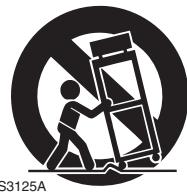
-
Unplug this apparatus during lightning storms or when unused for long periods of time.
-
Refer all servicing to qualified service personnel. Servicing is required when the apparatus has been damaged in any way, such as power-supply cord or plug is damaged, liquid has been spilled or objects have fallen into the apparatus, the apparatus has been exposed to rain or moisture, does not operate normally, or has been dropped.
-
Damage Requiring Service
Unplug the apparatus from the wall outlet and refer servicing to qualified service personnel under the following conditions:
A. When the power-supply cord or plug is damaged,
B. If liquid has been spilled, or objects have fallen into the apparatus,
C. If the apparatus has been exposed to rain or water,
D. If the apparatus does not operate normally by following the operating instructions. Adjust only those controls that are covered by the operating instructions as an improper adjustment of other controls may result in damage and will often require extensive work by a qualified technician to restore the apparatus to its normal operation,
E. If the apparatus has been dropped or damaged in any way, and
F. When the apparatus exhibits a distinct change in performance this indicates a need for service.
- Object and Liquid Entry
Never push objects of any kind into the apparatus through openings as they may touch dangerous voltage points or short-out parts that could result in a fire or electric shock.
The apparatus shall not be exposed to dripping or splashing and no objects filled with liquids, such as vases shall be placed on the apparatus.
Don't put candles or other burning objects on top of this unit.
- Batteries
Always consider the environmental issues and follow local regulations when disposing of batteries.
- If you install the apparatus in a built-in installation, such as a bookcase or rack, ensure that there is adequate ventilation.
Leave 20cm (8") of free space at the top and sides and 10 cm (4") at the rear. The rear edge of the shelf or board above the apparatus shall be set 10cm (4") away from the rear panel or wall, creating a flue-like gap for warm air to escape.
-
Recording Copyright—Unless it's for personal use only, recording copyrighted material is illegal without the permission of the copyright holder.
-
AC Fuse—The AC fuse inside the unit is not user-serviceable. If you cannot turn on the unit, contact your Onkyo dealer.
-
Care—Occasionally you should dust the unit all over with a soft cloth. For stubborn stains, use a soft cloth dampened with a weak solution of mild detergent and water. Dry the unit immediately afterwards with a clean cloth. Don't use abrasive cloths, thinners, alcohol, or other chemical solvents, because they may damage the finish or remove the panel lettering.
4. Power
WARNING
BEFORE PLugging IN THE UNIT FOR THE FIRST TIME, READ THE FOLLOWING SECTION CAREFULLY.
AC outlet voltages vary from country to country. Make sure that the voltage in your area meets the voltage requirements printed on the unit's rear panel (e.g., AC 230 V, 50Hz or AC 120V,60Hz ).
The power cord plug is used to disconnect this unit from the AC power source. Make sure that the plug is readily operable (easily accessible) at all times.
Pressing the [STANDBY/ON] button to select Standby mode does not fully shutdown the unit. If you do not intend to use the unit for an extended period, remove the power cord from the AC outlet.
- Never Touch this Unit with Wet Hands—Never handle this unit or its power cord while your hands are wet or damp. If water or any other liquid gets inside this unit, have it checked by your Onkyo dealer.
6. Handling Notes
- If you need to transport this unit, use the original packaging to pack it how it was when you originally bought it.
- Do not leave rubber or plastic items on this unit for a long time, because they may leave marks on the case.
- This unit's top and rear panels may get warm after prolonged use. This is normal.
- If you do not use this unit for a long time, it may not work properly the next time you turn it on, so be sure to use it occasionally.
- When you've finished using this unit, remove all discs and turn off the power.
7. Installing this Unit
- Install this unit in a well-ventilated location.
-
Ensure that there's adequate ventilation all around this unit, especially if it's installed in an audio rack. If the ventilation is inadequate, the unit may overheat, leading to malfunction.
-
Do not expose this unit to direct sunlight or heat sources, because its internal temperature may rise, shortening the life of the optical pickup.
- Avoid damp and dusty places, and places subject to vibrations from loudspeakers. Never put the unit on top of, or directly above a loudspeaker.
- Install this unit horizontally. Never use it on its side or on a sloping surface, because it may cause a malfunction.
-
If you install this unit near a TV, radio, or VCR, the picture and sound quality may be affected. If this occurs, move this unit away from the TV, radio, or VCR.
-
To Obtain a Clear Picture—This unit is a high-tech, precision device. If the lens on the optical pickup, or the disc drive mechanism becomes dirty or worn, the picture quality may be affected. To maintain the best picture quality, we recommend regular inspection and maintenance (cleaning or worn part replacement) every 1,000 hours of use depending on the operating environment. Contact your Onkyo dealer for details.
9. Moisture Condensation
Moisture condensation may damage this unit. Read the following carefully:
Moisture may condense on the lens of the optical pickup, one of the most important parts inside this unit.
- Moisture condensation can occur in the following situations:
- The unit is moved from a cold place to a warm place.
- A heater is turned on, or cold air from an air conditioner is hitting the unit.
- In the summer, when this unit is moved from an air conditioned room to a hot and humid place.
- The unit is used in a humid place.
- Do not use this unit when there's the possibility of moisture condensation occurring. Doing so may damage your discs and certain parts inside this unit.
If condensation does occur, remove all discs and leave this unit turned on for two to three hours. By this time, the unit will have warmed up and any condensation will have evaporated.
- Region Numbers—The DVD standard uses region numbers to control how discs can be played around the world, the world being divided into six regions. This unit will only play DVD discs that match its region number, which can be found on its rear panel (e.g., l , l ).
- About this Manual—This manual explains how to use all of this unit's functions. Although the DVD standard offers many special features, not all discs use them all, so depending on the disc being played, this unit may not respond to certain functions. See the disc's sleeve notes for supported features.
This unit contains a semiconductor laser system and is classified as a "CLASS 1 LASER PRODUCT". So, to use this model properly, read this Instruction Manual carefully. In case of any trouble, please contact the store where you purchased the unit.
To prevent being exposed to the laser beam, do not try to open the enclosure.
CAUTION:
CLASS 1M VISIBLE AND INVISIBLE LASER RADIATION WHEN OPEN. DO NOT VIEW DIRECTLY WITH OPTICAL INSTRUMENTS.
THIS PRODUCT UTILIZES A LASER. USE OF CONTROLS OR ADJUSTMENTS OR PERFORMANCE OF PROCEDURES OTHER THAN THOSE SPECIFIED HEREIN MAY RESULT IN HAZARDOUS RADIATION EXPOSURE.
The label on the right is applied on the rear panel.
- This unit is a CLASS 1 LASER PRODUCT and employs a laser inside th
- To prevent the laser from being exposed, do not remove the cover. Refer servicing to qualified personnel.
For European Models
Declaration of Conformity

We, ONKYO EUROPE ELECTRONICS GmbH LIEGNITZERSTRASSE 6, 82194 GROEBENZELL, GERMANY
declare in own responsibility, that the ONKYO product described in this instruction manual is in compliance with the corresponding technical standards such as EN60065, EN55013, EN55020 and EN61000-3-2, -3-3.
GROEBENZELL, GERMANY
ONKYO EUROPE ELECTRONICS GmbH
Make sure you have the following accessories:
RC-704S
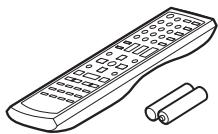
Remote controller & 2 batteries (AA/R6)
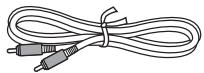
Video cable (RCA) (1.5m)
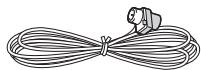
Indoor FM antenna
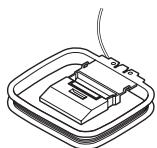
AM loop antenna
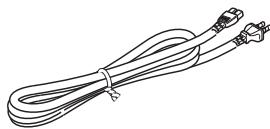
Power cord
- In catalogs and on packaging, the letter at the end of the product name indicates the color. Specifications and operations are the same regardless of color.
Features
Highlights
- Dolby* Digital, DTS*2
DVD-Video, Video CD, audio CD - MP3, WMA,*3 JPEG, DivX*4
DVD-Audio and Super Audio CD - CD-R/RW, DVD-R/RW, and DVD+R/RW compatible
- HDMI ^5 digital interface
Video
HDMI Pass-Thru
(1080p Compatible; 1 Input/1 Output)
HDTV-Capable (50 MHz)
JPEG in High Definition
- Advanced 108 MHz/14-bit video D/A converter
2 Composite Video Inputs
- Component and composite video outputs
- 1 SCART Connector (European model only)
- Repeat/A-B Repeat/Random/Memory playback
Supports 4:3 and 16:9 aspect ratio TVs
- Three view modes providing a best-fit picture regardless of TV aspects
- Picture Zoom Function
- Parental Lock function
- Screen Saver function
Audio
192 kHz/24-bit D/A converter
2 Digital Inputs (1 Optical/1 Coaxial)
- Theater-Dimensional ^ * Virtual Surround
- Direct Mode and Pure Audio Mode
- Dynamic Range Control setting
Others
- Compatible with RI Dock for iPod
A/V Sync Control Function (up to 100ms
40 AM/FM Presets
1/4-inch phone jack - Aluminum Front Panel, Volume and Input Selector Knob
- Adjustable display brightness
*1 DOLBY DIGITAL
Manufactured under license from Dolby Laboratories.
Dolby, Pro Logic, and the double-D symbol are trademarks of Dolby Laboratories.
\*2 dts Dinital Surro
"DTS" is a registered trademark of DTS, Inc. and "96/24" is a trademark of DTS, Inc.
Plays Windows MediaTM
Windows Media, and the Windows logo are trademarks, or registered trademarks of Microsoft Corporation in the United States and/or other countries.
DivX, DivX Certified, and associated logos are trademarks of DivX, Inc. and are used under license.
*5 HOMI
HDMI, the HDMI logo and High-Definition Multimedia Interface are trademarks or registered trademarks of HDMI licensing LLC.
^6 "Theater-Dimensional" is a trademark of Onkyo Corporation.
Apple and iPod are trademarks of Apple, Inc., registered in the U.S. and other countries.
This product incorporates copyright protection technology that is protected by U.S. patents and other intellectual property rights. Use of this copyright protection technology must be authorized by Macrovision Corporation, and is intended for home and other limited consumer uses only unless otherwise authorized by Macrovision. Reverse engineering or disassembly is prohibited.
Overview
Important Safety Instructions 2
Precautions 3
Supplied Accessories. 5
Introduction 6
Features 6
Disc Notes 8
Before Using the DVD receiver 11
Installing the Batteries 11
Using the Remote Controller. 11
Front & Rear Panels 12
Front Panel. 12
Display. 13
Rear Panel 14
Remote Controller 15
Connections
Connecting the DVD receiver. 17
Placing the Speakers 17
Connecting Your Speakers 17
Connecting Antenna 19
AV Cables & Connectors. 21
Video Output/Video Setting Matrix 22
Video Signal Flow Chart. 22
Before Making Any Connections 23
Basic Setup 23
Connecting Your TV (video connection) 24
Connecting Other AV Component 25
Connecting an RI Dock 26
Digital Audio Connection 26
Connecting your HDTV or AV component with an HDMI connection 27
Connecting the Power/Turning
on the DVD receiver 28
Getting Started and Setting up
Initial Setup 29
First Time Setup 29
HDMI and Progressive Settings 30
Setting the HDMI 30
Selecting Progressive or Interlaced. 30
Basic Operations
Understanding Common Operations 31
Adjusting the Volume 31
Selecting the Input Source 31
Using Headphones 31
Muting the DVD receiver 32
Using the Sleep Timer. 32
Adjusting Subwoofer Level 32
Playing Discs 33
Starting, Pausing & Stopping Playback 33
Select Next & Previous track/chapter. 34
Fast Forward & Reverse 35
Forward Frame-by-Frame Playback. 35
Navigating DVD & VCD Disc Menus 36
Navigating CDs & Super Audio CDs 36
Navigating MP3, WMA & DivX Discs 37
Viewing a Slideshow of JPEG Images 38
Listening to the Radio 39
Using the Tuner 39
Presetting AM/FM Stations. 40
Using RDS (European models only) 41
Using the Listening Modes 42
Selecting Listening Modes 42
About the Listening Modes 42
Playback Techniques
AdvancedPlayback 44
Selecting Chapters/Titles/Tracks/Folders by Number 44
Searching by Time. 45
RepeatPlayback 46
A-B Repeat Playback 46
Random Playback 47
Memory Playback 48
Last Memory 49
Zooming. 50
Selecting Camera Angles 50
Selecting Soundtracks. 51
Selecting Subtitles 51
Advanced Operations
Disc and Input Information 52
Displaying Information 52
Controlling Other Components 53
Controlling a TV connected to the DVD receiver 53
Controlling an Apple iPod in RI Dock connected
to the DVD receiver. 54
Detailed Settings
Configuring the DVD receiver. 55
Setup Menu 55
DVD Onscreen Setup Menus 58
Using the Onscreen Setup Menus. 59
Picture Menu 60
Audio Menu 62
Language Menu 63
Display Menu 65
Operation Setting Menu. 66
Miscellaneous information
Additional information 68
Resetting the receiver. 68
DVD-Video regions 68
Disc Content Organization. 68
Glossary 69
Troubleshooting 71
Power 71
Audio 71
Video 72
Tuner 73
Remote Controller 73
DiscPlayback. 73
Connection with External Devices 74
Others. 74
HDMI Status Mode 75
Specifications 76
Remote Control Codes List
The end of this manual
Disc Notes
Supported Discs
The DVD receiver supports the following discs.
| Disc | Logo | Format or file type |
| DVD-Video | VIDEO VIDEO | *1 |
| DVD-Audio | AUDIO | DVD-Audio |
| Super Audio CD | SUPER AUDIO CD | Super Audio CD (single layer, dual layer, hybrid) |
| DVD-R*2 | DVD R | DVD-Video, MP3, WMA, JPEG |
| DVD-RW*2 | DVD RW | DVD-Video, MP3, WMA, JPEG |
| Video CD | COMPACT DISC DIGITAL VIDEO | Including PBC |
| Audio CD*3 | COMPACT DISC DIGITAL AUDIO | PCM |
| CD-R*2 | COMPACT DISC DIGITAL AUDIO Recordable | Audio CD, MP3, WMA, JPEG, DivX |
| CD-RW*2 | COMPACT DISC DIGITAL AUDIO ReWritttable | Audio CD, MP3, WMA, JPEG |
| JPEG CD | JPEG |
DVD+R/RW
The DVD receiver supports DVD+R/RW discs recorded in the following formats:
- Discs recorded in DVD-Video mode.
- Discs recorded in ISO 9660 Level 2 or Joliet format containing MP3, WMA, or JPEG files.
1 The DVD receiver's region number is printed on the rear panel. If you attempt to play a disc intended for another region, the message appears onscreen.
2 MP3, WMA, and JPEG files are supported on discs recorded in ISO 9660 Level 2 or Joliet format. (See “MP3/WMA/JPEG Compatibility” on page 9 for more details.) However, some CD-R, CD-RW, DVD-R, and DVD-RW discs may not work properly for any of the following reasons: incomplete disc finalization, disc burner characteristics, disc characteristics, the disc is damaged or dirty, the disc contains only a small amount of data. Discs that contain different types of files, JPEG, MP3, WMA, DivX, and so on, are not supported. See the manual supplied with your disc burner for more information. Condensation or dirt on the optical pickup lens can also affect playback.
*3 Some audio CDs feature copy protection that doesn't conform to the official CD standard. Since these are nonstandard discs, they may not play properly in the DVD receiver.
- The DVD receiver does not support disc types not listed.
- The DVD receiver supports 8cm and 12cm discs.
- Don't use discs with an unusual shape, such as those shown below, because you may damage the DVD receiver.
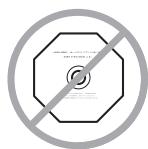

- Don't use discs that have residue from adhesive tape, rental discs with peeling labels, or discs with custom-made labels or stickers. Doing so may damage the DVD receiver and you may not be able to remove the disc properly.
About playing copy-controlled CDs
Some copy-controlled CDs may not conform to official CD standards. They are special discs and may not play on the DVD receiver.
Function Support
The following icons are used throughout this manual to indicate which functions can be used with the various disc formats and file types.
| Icon | Disc format or file type |
| DVD-V | DVD-Video |
| DVD-A | DVD-Audio |
| SACD | Super Audio CD |
| VCD | Video CD |
| CD | Audio CD |
| MP3 | MP3 file |
| WMA | WMA file |
| JPEG | JPEG file |
| DivX | DivX® |
About this Manual
This manual explains how to use all of the DVD receiver's functions. Although the DVD standard offers many special features, not all discs use them all, so depending on the disc being played, the DVD receiver may not respond to certain functions. See your disc's sleeve notes for supported features.
When you attempt to use a DVD feature that is not available, this logo may appear onscreen, indicating that the feature is not supported by the current disc or by the DVD receiver.

MP3/WMA/JPEG Compatibility
- The DVD receiver can play/display MP3, WMA, and JPEG files recorded on CD-R, CD-RW, DVD-R, DVD-RW, DVD+R and DVD+RW discs.
- Discs must be in ISO 9660 Level 2 or Joliet format (bundles can be up to eight levels deep). Music files recorded on discs that use the HFS (hierarchical file system) cannot be played.
Discs must be finalized. - The DVD receiver can only recognize the first session on multisession discs.
- You can determine the order in which the DVD receiver plays/displays your MP3/WMA songs and JPEG pictures by prefixing file and folder names with a three-digit number. For example 001_ROOT, 002.Folder, and so on, and 001.Track.mp3, 002.Track.mp3, and so on.
- Only the first eight characters of folder and track names (excluding the filename extension) are displayed.
- The folder numbered "001" appears as "ROOT" in the Disc Navigator.
- The DVD receiver supports up to 255 folders and up to 255 files per folder.
- If you try to play an incompatible file, the message "This format cannot be played." appears on the display.
MP3
- MP3 files must be MPEG1 Audio Layer 3 format, 44.1 or 48kHz , fixed bit-rate.
- MP3 files must have a“.mp3” or“.MP3” filename extension.
- Variable bit-rates (VBR) from 32 kbps to 320 kbps are supported. (Playing times may display incorrectly with VBR.)
WMA
- WMA files must have the copyright option turned off.
- Sampling rates 44.1 / 48kHz are supported.
- Variable bit-rates (VBR) from 48 kbps to 192 kbps (44.1 kHz) and 128 kbps to 192 kbps (48 kHz) are supported. (Playing times may display incorrectly with VBR.)
- WMA files must have a“.wma” or“.WMA” filename extension.
JPEG
- JPEG files must have a“.jpg” or“.JPG” filename extension.
- JPEG files must be less than 5 megabytes in size.
- JPEG files up to 5,700 × 3,800 pixels are supported.
About WMA
WMA is an acronym for Windows Media Audio and refers to an audio compression technology developed by
Microsoft Corporation. WMA content can be encoded by using Windows Media® Player version 7/7.1 or 8.
About DivX
DivX is a compressed digital video format created by the DivX® video codec from DivXNetworks, Inc. This receiver can play DivX video files burned on CD-R discs. When naming files on a disc prior to burning, keep in mind that by default they will be played in alphabetical order.
DivX video compatibility
- Official DivX^® Certified product.
- Plays all versions of DivX® video (including DivX® 6) with standard playback of DivX® media files). DivX® disc compatibility with this receiver is limited as follows:
| Playable discs | CD-R CD-RW not recommended |
| File system | ISO9660 Level 1, 2, or Joliet |
| File name | A file name should be in alphabet and numerals only, and must incorporate “AVI” extension. e.g. “*****.AVI” |
| Total number of folders | Less than 255 |
| Total number of files | Less than 255 |
Handling Discs
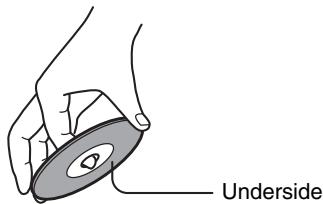
- Never touch the underside of a disc. Always hold discs by the edge, as shown.
- Never attach adhesive tape or sticky labels to discs.

Cleaning Discs
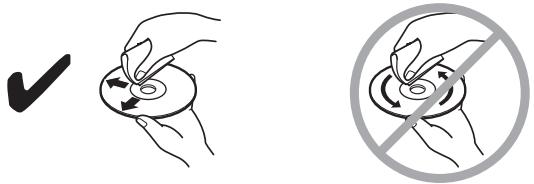
- For best results, keep your discs clean. Fingerprints and dust can affect the sound and picture quality and should be removed as follows. Using a clean soft cloth, wipe from the center outwards, as shown. Never wipe in a circular direction.
- To remove stubborn dust or dirt, wipe the disc with a damp soft cloth, and then dry it with a dry cloth.
- Never use solvent-based cleaning fluids, such as thinner or benzine, commercially available cleaners, or antistatic sprays intended for vinyl records, because they may damage the disc.
Storing Discs
- Don't store discs in places subject to direct sunlight, or near heat sources.
- Don't store discs in places subject to moisture or dust, such as in a bathroom or near a humidifier.
- Always store discs in their cases and vertically. Stacking, or putting objects on unprotected discs may cause warping, scratches, or other damage.
Copyright
It is forbidden by law to copy, broadcast, show, broadcast on cable, play in public, or rent copyrighted material without permission.
DVD-Video discs are copy-protected, and any recordings made from these discs will be distorted.
This product incorporates copyright protection technology that is protected by method claims of certain U.S. patents and other intellectual property rights owned by Macrovision Corporation and other rights owners. Use of this copyright-protection technology must be authorized by Macrovision Corporation, and is intended for home and other limited viewing uses only, unless otherwise authorized by Macrovision Corporation. Reverse engineering or disassembly is prohibited.
Installing the Batteries
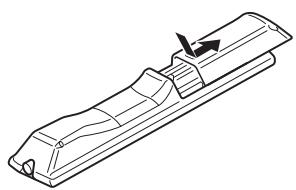
1 To open the battery compartment, press the small hollow and slide off the cover.
2 Insert the two supplied batteries (AA/R6) in accordance with the polarity diagram inside the battery compartment.
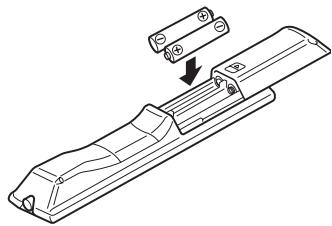
3 Put the cover onto the remote controller and slide it shut.
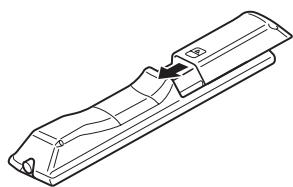
Notes:
- If the remote controller doesn't work reliably, try replacing both batteries.
- Don't mix new and old batteries, or different types of batteries.
- If you intend not to use the remote controller for a long time, remove the batteries to prevent possible leakage and corrosion.
- Flat batteries should be removed as soon as possible to prevent possible leakage and corrosion.
Using the Remote Controller
To use the remote controller, point it at the DVD receiver's remote control sensor, as shown below.
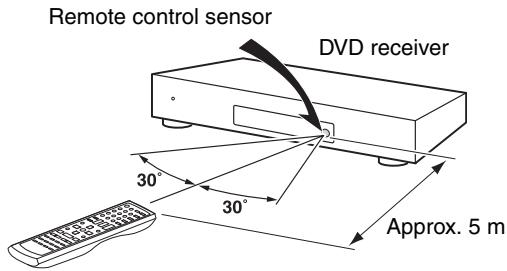
Notes:
- The remote controller may not work reliably if the DVD receiver is subjected to bright light, such as direct sunlight or inverter-type fluorescent lights. Keep this in mind when installing the DVD receiver.
- If another remote controller of the same type is used in the same room, or the DVD receiver is installed close to equipment that uses infrared rays, the remote controller may not work reliably.
- Don't put anything, such as a book, on the remote controller, because the buttons may be pressed inadvertently, thereby draining the batteries.
- The remote controller may not work reliably if the DVD receiver is installed in a rack behind colored glass doors. Keep this in mind when installing the DVD receiver.
- The remote controller will not work if there's an obstacle between it and the DVD receiver's remote control sensor.
For detailed information, refer to the pages in brackets.
Front Panel
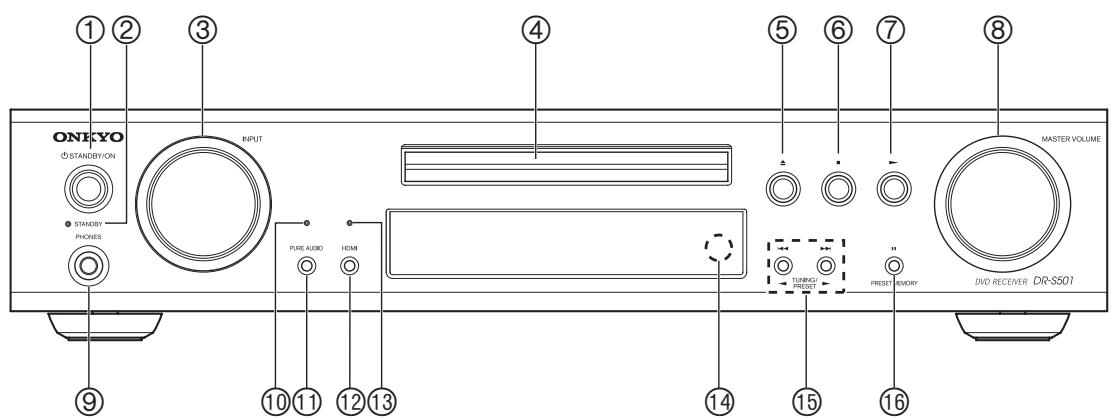
This button is used to set the DVD receiver to On or Standby.
② STANDBY indicator [28]
This indicator lights up when the DVD receiver is in Standby.
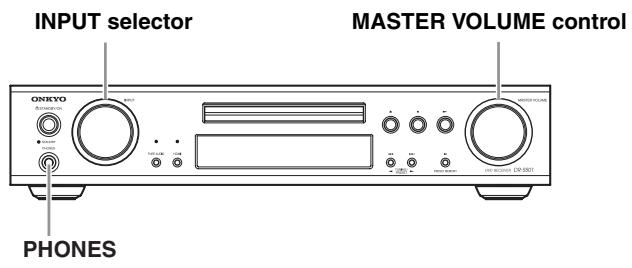
③ INPUT selector [31] and indicator
This selector is used to select from the following input sources: DVD,VIDEO 1,VIDEO 2/DOCK, FM,AM.
④ Disc tray [33]
Discs are loaded here.
(5) (open/close) button [33]
This button is used to open and close the disc tray. The input source is automatically set to DVD.
(6) (stop) button [34]
This button is used to stop playback.
(play) button [33]
This button is used to start playback. The input source is automatically set to DVD.
(8) MASTER VOLUME control [31] and indicator
This control is used to adjust the volume of the DVD receiver to Min, 1 through 79, Max.
⑨ PHONES jack [31]
This 1/4-inch phone jack is for connecting a standard pair of stereo headphones for private listening.
10 PURE AUDIO indicator [42]
This indicator lights up when the Pure Audio listening mode is selected.
PURE AUDIO button [42]
Selects the Pure Audio listening mode.
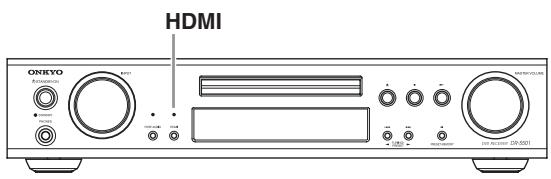
HDMI button [30]
This button is used to turn HDMI on or off.
③ HDMI indicator [30]
This indicator lights up when a HDMI signal is being output.
Remote control sensor [11]
This sensor receives control signals from the remote controller.
Previous/Next />>buttons or TUNING/ PRESET /> buttons [34, 39]
The Previous [ ] button is used to select the previous chapter or track. During playback it selects the beginning of the current track.
The Next [▶] button is used to select the next chapter or track.
When the AM or FM input source is selected, these buttons are used to tune the tuner, or select radio presets.
(pause) button or PRESET/MEMORY button [33, 35, 40]
This button is used to pause playback. While playback is paused, pressing this button moves the video forward one frame at a time.
When the AM or FM input source is selected, this button is used to store the radio presets.
Display
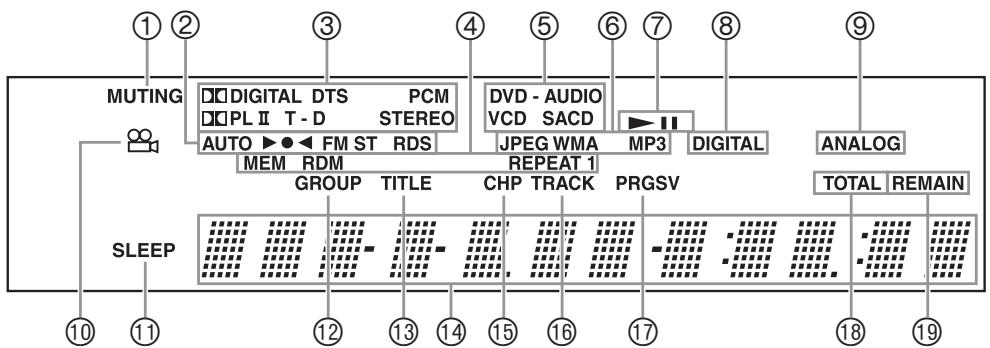
① MUTING indicator
This indicator flashes while the DVD receiver is muted.
② Tuning indicators
AUTO: This indicator lights up when the Auto Tuning mode is selected, and disappears when the Manual Tuning mode is selected.
: This indicator lights up when the DVD receiver is tuned into a radio station.
FM ST: This indicator lights up when the DVD receiver is tuned to a stereo FM station.
RDS (European model only): This indicator lights up when the DVD receiver is tuned to a radio station that supports RDS (Radio Data System).
③ Listening mode & format indicators
These indicators show the currently selected listening mode and the format of the playing disc.
④Playback mode indicators
MEM: Lights up when memory playback is selected.
RDM: Lights up when random playback is selected.
REPEAT: Lights up when repeat playback is selected for all the tracks.
REPEAT 1: Lights up when repeat playback is selected for a track.
⑤ Disc type indicators
These indicators show the type of disc loaded.
Data type indicators
These indicators show the type of data loaded.
⑦ Disc operation indicators
These indicators show the status of disc playback.
⑧ DIGITAL indicator
This indicator lights up when the digital audio signal input is used.
⑨ ANALOG indicator
This indicator lights up when the analog audio signal input is used.
10 Camera angle indicator
This indicator appears if the DVD-Video disc being played features multiple camera angles.
⑪ SLEEP indicator
This indicator lights up when the Sleep function has been set.
GROUP indicator
While stopped, the total number of groups on the current DVD-Audio disc is displayed here. During playback, the number of the current group is displayed.
③ TITLE indicator
During playback, the number of the current title is displayed.
Message & time area
Time information, such as total time, remaining time, and so on, is displayed here in hours, minutes, and seconds. Other messages are also displayed.
15 CHP indicator
This indicator appears while the number of the current chapter is being displayed.
16 TRACK indicator
This indicator appears while track numbers are being displayed. While stopped, the total number of tracks on the current SACD or audio CD are displayed. During playback, the number of the current track is displayed.
⑦ PRGSV indicator
This indicator appears when progressive video is being output by the component video output.
TOTAL indicator
This indicator appears while the total number or total time is being displayed.
19 REMAIN indicator
This indicator appears while the remaining time is being displayed.
Rear Panel

① SPEAKERS [18]
These terminal posts are for connecting your front speakers.
② HDMI IN/OUT [27]
HDMI (High Definition Multimedia Interface) connections carry digital audio and digital video.
The HDMI input is for connecting components with HDMI outputs. The HDMI output is for connecting a TV or projector with an HDMI input.
③ COMPONENTVIDEOOUTPUT[24]
These jacks output component video and can be connected to an component video input on a TV or projector.
④VIDEO OUTPUT [23]
This RCA connector can be used to connect a TV or projector with a composite video input.
⑤ FM ANTENNA [19]
This jack is for connecting an FM antenna.
⑥ AM ANTENNA [19]
These push terminals are for connecting an AM antenna.
⑦ AV CONNECTOR (European model only) [24]
This SCART output can be connected to a TV or projector with a SCART input. This SCART connector outputs 2-channel stereo audio, composite video, and RGB video.
SPEAKER IMPEDANCE SELECTOR [18]
This selector is used to select impedances of your speakers.
If the impedance of any of front speakers is 4 ohms or more but less than 6, set the speaker impedance to 4 16
⑨ OPTICAL DIGITAL AUDIO IN [26]
This optical digital audio input can be connected to an optical digital audio output on a DVD recorder, or game console.
This input is assigned for VIDEO 1 INPUT in default.
If you output audio from this input during Video 2/DOCK INPUT is selected, you must change the "Video2 Input" setting to "OPT" from "Coax" (page 55).
COAXIAL DIGITAL AUDIO IN [26]
This coaxial digital audio input can be connected to a coaxial digital audio output on a DVD recorder or game console.
This input is assigned for VIDEO 2/DOCK INPUT in default.
If you output audio from this input during Video1 INPUT is selected, you must change the "Video1 Input" setting to "Coax" from "OPT" (page 55).
⑪ R1 REMOTE CONTROL [26]
This RI (Remote Interactive) jack can be connected to an RI jack on Onkyo RI Dock. The DVD receiver remote controller can then be used to control the RI Dock. To use RI, you must make an analog audio connection (RCA) between the DVD receiver and the RI Dock, even if they are connected digitally.
⑫VIDEO 1 INPUT [25]
Here you can connect other video equipment. Input jacks include composite video and analog audio input.
⑬VIDEO 2/DOCK INPUT [26]
Here you can connect Onkyo RI DOCK or other video equipment. Input jacks include composite video and analog audio input.
SUBWOOFER PRE OUT [18]
A powered subwoofer can be connected here.
15 AC INLET [28]
The supplied power cord is connected here. The other of the power cord should be connected to a suitable wall outlet.
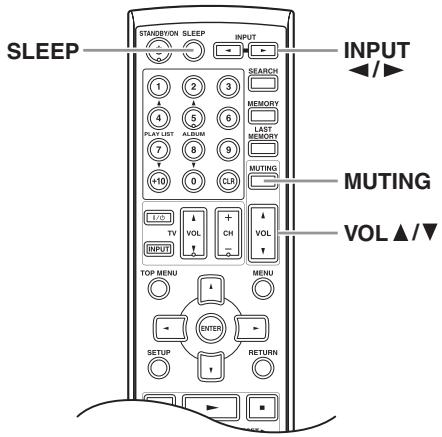
Remote Controller
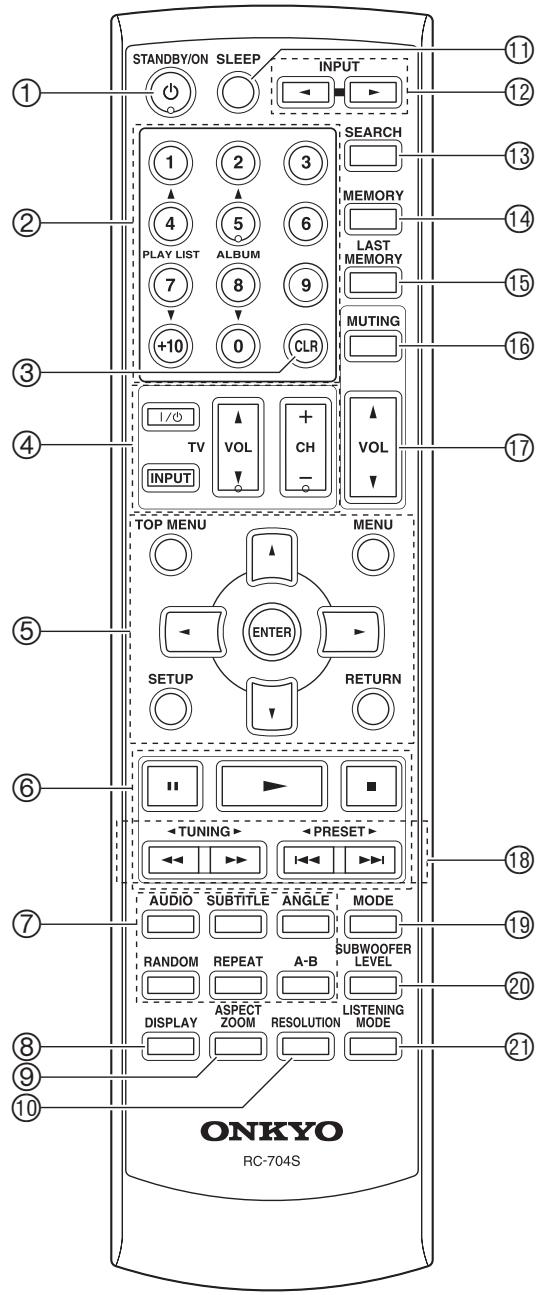
This button is used to set the DVD receiver to Standby or turn on.
Don't turn on the DVD receiver until you've completed, and double checked all connections (pages 23-27).
② Number buttons* [44, 45, 66]
These buttons are used to enter title, chapter, and track numbers and to enter times for locating specific points in time.
③ CLR button [40, 44, 45, 49]
This button is used to cancel various functions.
④ TV Control buttons [53]
These buttons are used to control a TV. You must enter the appropriate remote control code first.
⑤ Disc and DVD receiver menu buttons
TOP MENU button* [36, 38]
With DVD discs, this button displays the main menu. With a JPEG disc, it displays thumbnails of the images. With a Video CD, it turns PBC on or off.
MENUButton* [36, 38]
This button is used to display a menu on a DVD or to open the Disc Navigator when using a JPEG disc.
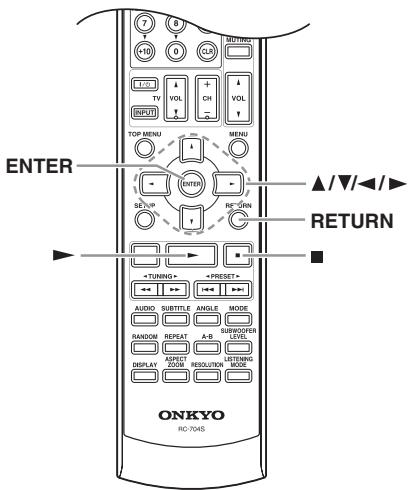
Cursor / / buttons* [36, 55, 59]
These buttons are used to navigate menus.
ENTER button* [36, 55, 59]
This button is used to start playback of the selected title, chapter, or track, and to confirm settings.
SETUP button [55, 59]
This button is used to open and close the setup menus.
RETURN button [55]
This button is used to return to the previous display when changing settings.
⑥ BasicPlaybackbuttons*
Pause button [33, 35]
This button is used to pause playback. While playback is paused, pressing this button moves the video forward one frame at a time.
Play button [33]
This button is used to start playback.
Stop button [34]
This button is used to stop playback.
Fast Reverse/Fast Forward /▶ buttons [35]
These buttons are used for fast reverse and fast forward.
Previous/Next I▶I buttons [34]
The Previous [ ] button is used to select the previous chapter or track. During playback it selects the beginning of the current track.
The Next [▶] button is used to select the next chapter or track.
⑦ AdvancedPlaybackbuttons
AUDIO button [51]
This button is used to select foreign language soundtracks and audio formats (e.g., Dolby Digital or DTS) on DVD-Video discs.
SUBTITLE button [51]
This button is used to select subtitles on DVD-Video discs.
ANGLE button [50]
This button is used to select camera angles on DVD-Video discs.
RANDOM button* [47]
This button is used with the Random function.
REPEAT button* [46]
This button is used to set the Repeat function.
A-B button [46]
This button is used to set the A-B Repeat function.
⑧ DISPLAY button [52]
This button is used to display information about the disc or the current input source. Press it repeatedly to display more information.
⑨ ASPECT/ZOOM button [50, 60]
This button is used to change the view mode. Pressing and holding it for a few seconds selects Zoom mode.
10 RESOLUTION button [30]
This button is used to select a video resolution for the HDMI OUT.
⑪ SLEEP button [32]
This button is used with the Sleep function.
⑫ INPUT button [31]
This button is used to select the input sources.
SEARCH button [40, 44, 45]
This button is used to search for titles, chapters, groups, folders, tracks, and specific points in time. When the AM or FM input source is selected, you can tune into AM and FM stations directly by entering the appropriate frequency.
⑭ MEMORY button [48]
This button is used with the Memory function. When the AM or FM input source is selected, this button is used to store the radio presets.
LAST MEMORY button [49]
This button is used with the Last Memory function for DVD playback.
16 MUTING button [32]
This button is used to mute or unmute the DVD receiver.
⑰ VOL ▲/▼ button [31]
This button is used to adjust the volume of the DVD receiver.
Tuner buttons
TUNING button [39]
When the AM or FM input source is selected, the TUNING [] / [] buttons are used to tune the tuner.
PRESET buttons [40]
When the AM or FM input source is selected, the PRESET [] / [] buttons are used to select radio presets.
19 MODE button* [39]
This button is used to select the Auto or Manual tuning mode.
20 SUBWOOFER LEVEL button [32]
This button is used to access the Subwoofer Level menu.
Use the Left and Right [] / [] buttons to adjust the volume.
② LISTENING MODE button [42]
This button is used to select the listening modes.
- For buttons to control an Apple iPod in RI Dock with an RI connection, see page 54.
Placing the Speakers
Front Left and Right Speakers
- Place the front left and right speakers symmetrically and so that the distance from the listening position is the same.
- When placing speakers, direct the speakers toward the position of the listener's ears where the listener sits to enjoy music or movies.
- Place the two speakers so that the heights of the two speakers are aligned. The ideal height for the speakers is the height of the listener's ears.
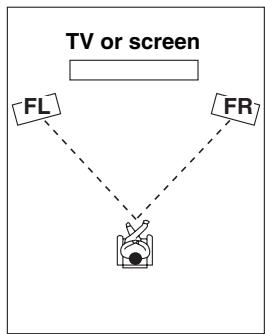
FL: Front left speaker
FR: Front right speaker
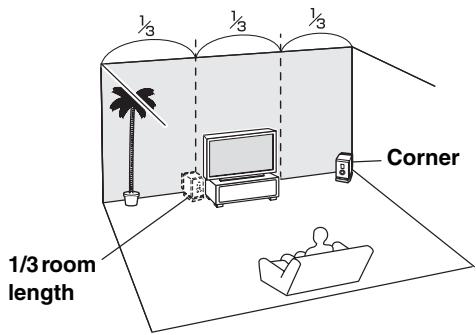
Subwoofer
Using a subwoofer greatly improves the volume level and sound quality of bass sounds. The subwoofer effect depends not only on the listening position but also on the shape of the listening room.
- In general, place the subwoofer in a corner of the room or at a point 1/3 the width of the room.
- Play a movie or music that contains high quality bass sounds to determine the subwoofer placement.
Change the subwoofer's position and check the effect, then select the position where the bass sounds are best heard.
Connecting Your Speakers
Speaker Connection Precautions
Read the following before connecting your speakers:
- You can connect speakers with an impedance of between 4 and 16 ohms. If the impedance of any of the connected speakers is 4 ohms or more, but less than 6 ohms, be sure to set the speaker impedance to "4Ω~16Ω" (see page 18). If you use speakers with a lower impedance, and use the DVD receiver at high volume levels for a long period of time, the built-in protection circuit may be activated.
- Disconnect the power cord from the wall outlet before making any connections.
- Read the instructions supplied with your speakers.
- Pay close attention to speaker wiring polarity. In other words, connect positive (+) terminals only to positive (+) terminals, and negative (-) terminals only to negative (-) terminals. If you get them the wrong way around, the sound will be out of phase and will sound unnatural.
- Unnecessarily long, or very thin speaker cables may affect the sound quality and should be avoided.
- Be careful not to short the positive and negative wires. Doing so may damage the DVD receiver.
- Make sure the metal core of the wire does not have contact with the DVD receiver's rear panel. Doing so may damage
- Don't connect more than one cable to each speaker terminal. Doing so may damage the DVD receiver.
- Don't connect one speaker to several terminals.
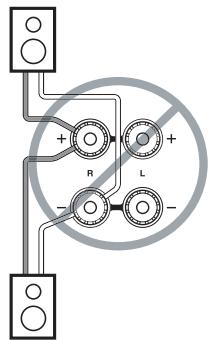
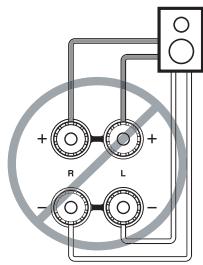
Connecting the Speaker Cables
| 1 | Strip about 15 mm of insulation from the ends of the speaker cables, and twist the bare wires tightly, as shown. | 15 mm ↓ |
| 2 | Unscrew the terminal. | |
| 3 | Fully insert the bare wires. | |
| 4 | Screw the terminal tight. |
The following illustration shows which speaker should be connected to each pair of terminals.
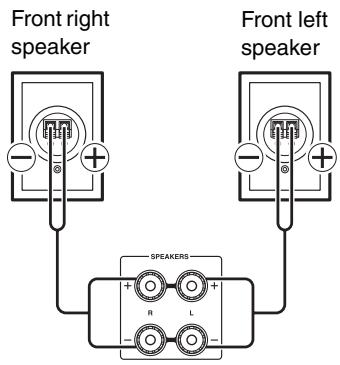
Connecting a Powered Subwoofer
Using a suitable cable, connect the DVD receiver's SUB-WOOFER PRE OUT to an input on your powered subwoofer, as shown.
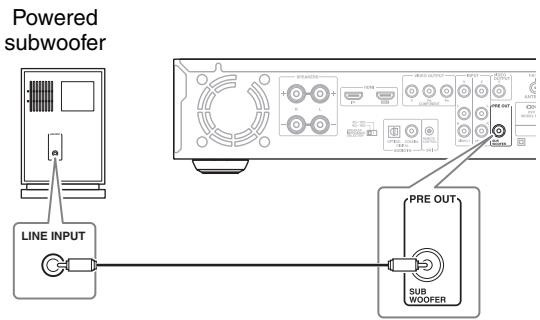
Speaker Impedance
If the impedance of any of front speakers is 4 ohms or more but less than 6, set the speaker impedance to "4Ω~16Ω".
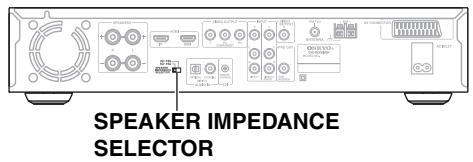
Use the SPEAKER IMPEDANCE SELEC-TOR to select speaker impedance.
4Ω~16Ω:
Select if the impedance of any of speakers is 4 ohms or more but less than 6.
6Ω~16Ω:
Select if the impedances of all speakers are between 6 and 16 ohms.
Note:
Change of the settings may be required for some speakers (see page 55).
Connecting Antenna
This section explains how to connect the supplied indoor FM antenna and AM loop antenna, and how to connect commercially available outdoor FM and AM antennas. The DVD receiver won't pick up any radio signals without any antenna connected, so you must connect the antenna to use the tuner.
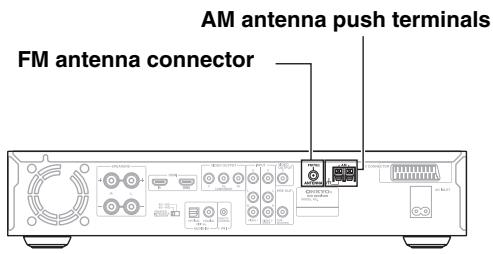
Connecting the Indoor FM Antenna
The supplied indoor FM antenna is for indoor use only.
1 Attach the FM antenna, as shown.
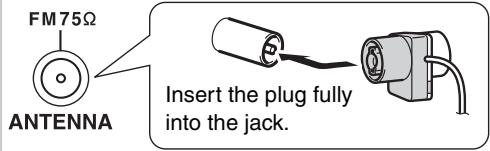
Once your DVD receiver is ready for use, you'll need to tune into an FM radio station and adjust the position of the FM antenna to achieve the best possible reception.
2 Use thumbtacks or something similar to fix the FM antenna into position.
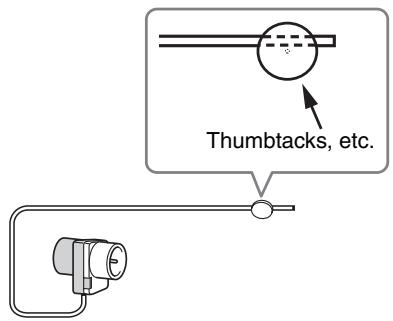
Caution: Be careful that you don't injure yourself when using thumbtacks.
If you cannot achieve good reception with the supplied indoor FM antenna, try a commercially available outdoor FM antenna instead (see page 20).
Connecting the AM Loop Antenna
The supplied indoor AM loop antenna is for indoor use only.
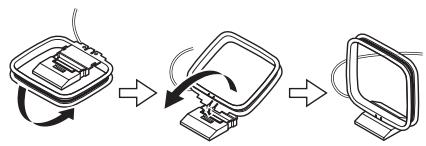
1 Assemble the AM loop antenna, inserting the tabs into the base, as shown.
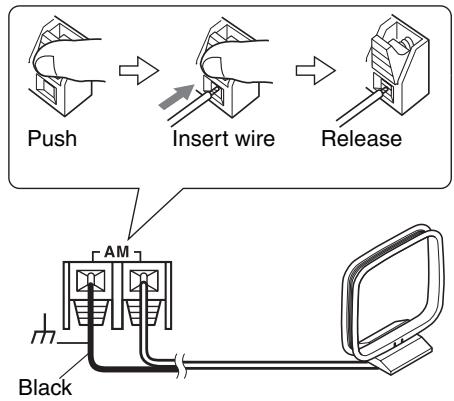
2 Connect both wires of the AM loop antenna to the AM antenna push terminals, as shown.
The antenna connection is polarity sensitive. Connect the black wire to the ground terminal () .
Connect the other wire to the other terminal.
Make sure that the wires are attached securely and that the push terminals are gripping the bare wires, not the insulation.
Once your DVD receiver is ready for use, you'll need to tune into an AM radio station and adjust the position of the AM antenna to achieve the best possible reception.
Keep the antenna as far away as possible from your DVD receiver, TV, speaker cables, and power cords.
If you cannot achieve good reception with the supplied indoor AM loop antenna, try using it with a commercially available outdoor AM antenna (see page 20).
Connecting an Outdoor FM Antenna
If you cannot achieve good reception with the supplied indoor FM antenna, try a commercially available outdoor FM antenna instead.
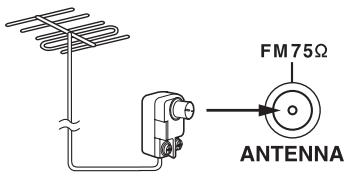
Notes:
- Outdoor FM antennas work best outside, but usable results can sometimes be obtained when installed in an attic or loft.
- For best results, install the outdoor FM antenna well away from tall buildings, preferably with a clear line of sight to your local FM transmitter.
- Outdoor antenna should be located away from possible noise sources, such as neon signs, busy roads, etc.
- For safety reasons, outdoor antenna should be situated well away from power lines and other high-voltage equipment.
- Outdoor antenna must be grounded in accordance with local regulations to prevent electrical shock hazards.
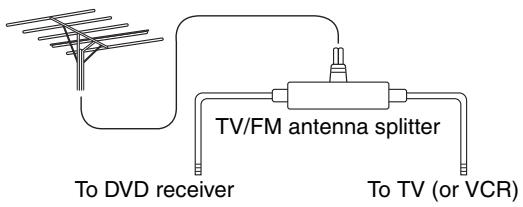
Using a TV/FM Antenna Splitter
It's best not to use the same antenna for both FM and TV reception, as this can cause interference problems. If circumstances demand it, use a TV/FM antenna splitter, as shown.
Connecting an Outdoor AM Antenna
If good reception cannot be achieved using the supplied AM loop antenna, an outdoor AM antenna can be used in addition to the loop antenna, as shown.
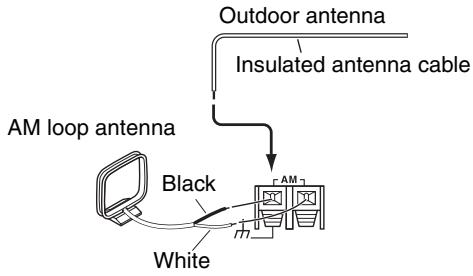
Outdoor AM antennas work best when installed outside horizontally, but good results can sometimes be obtained indoors by mounting horizontally above a window. Note that the AM loop antenna should be left connected.
Outdoor antenna must be grounded in accordance with local regulations to prevent electrical shock hazards.
AV Cables & Connectors
Video
| Cable | Jack | Description | |
| HDMI | HDMI IN OUT | HDMI connections can carry uncompressed, standard or high definition digital video and digital audio, for the best picture and sound quality. | |
| Component video | Y PB/CS PR/CR Y PB/CS PR/CR | VIDEO OUTPUT Y PB COMPONENT | Component video separates the luminance (Y) and color difference signals (PR, PB), providing the best picture quality. Some TV manufacturers label their component video inputs differently. |
| Composite video (supplied) | VIDEO OUTPUT | Composite video can be found on virtually all TVs, VCRs, and video equipment. | |
| Scart (European model only) | SCART connections carry analog audio and video (composite, RGB) all in one cable. | ||
Audio
| Cable | Jack | Description | |
| Optical digital | OPTICAL | Optical digital audio connections provide better audio quality than analog connections. | |
| Coaxial digital | COAXIAL | Coaxial digital audio connections provide better audio quality than analog connections. | |
| Analog | L R | RCA analog audio connectors can be found on virtually all AV components. | |
Video Output/Video Setting Matrix
The following matrix shows how the video outputs work in relation to the various video settings.
: Output
| Setting Video output | HDMI Output Setting (page 29, 30) | ||||
| On (default) | Off | ||||
| HD Resolution (page 30) | Progressive Setting (page 30) | ||||
| Auto | 480p / 576p (default) | 720p, 1080i | Progressive | Interlace | |
| HDMI | ✓ | ✓ | ✓*3 | No output | No output |
| Component | ✓*1 | ✓*2 | No output | ✓*2 | ✓ |
| Composite | ✓*1 | ✓ | No output | ✓ | ✓ |
| SCART*4 (European model only) | ✓*1 | ✓ | No output | ✓ | ✓ |
1 No picture will be output from other than HDMI when you connect the TV that the native resolution is “720p” or “1080i”.
2 If your TV doesn't support progressive scanning, you'll get no picture.
3 If your TV doesn't support the "HD Resolution" settings of "720p" and "1080i", you'll get no picture.
4 With the "SCART Output Setting", you can choose "RGB" or composite video for the SCART output. However, when HDMI is on, you cannot select "RGB". Also, when "RGB" is selected, nothing will be output by the component video output (see page 62).
Video Signal Flow Chart
Video input signals flow through the DVD receiver as shown.
HDMI input pass through HDMI output signals as it is.
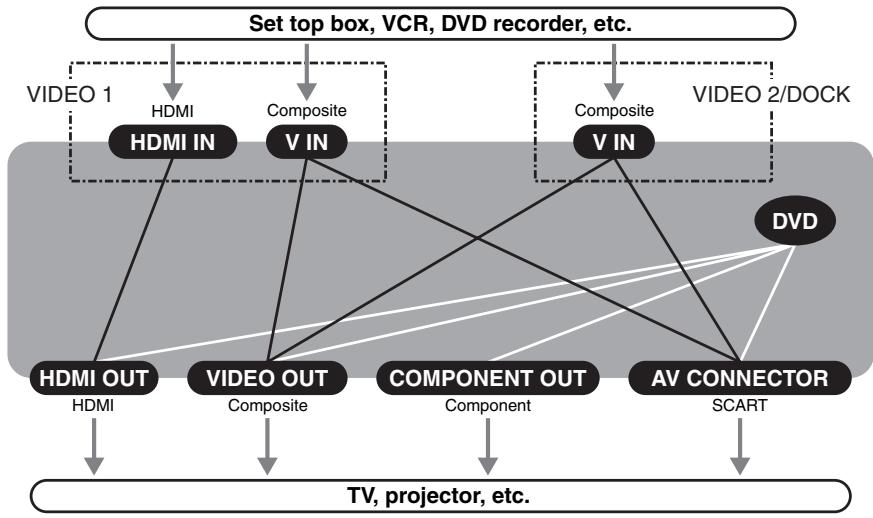
Before Making Any Connections
- Read the manuals supplied with your AV components.
- Don't connect the power cord until you've completed all audio and video connections.
RCA AV Connection Color Coding
RCA AV connections are usually color coded: red, white, and yellow. Use red plugs to connect right-channel audio inputs and outputs (typically labeled “R”). Use white plugs to connect left-channel audio inputs and outputs (typically labeled “L”). And use yellow plugs to connect composite video inputs and outputs.


- Push each plug in all the way to make a good connection (loose connections can cause noise or malfunctions).
- To prevent interference, keep audio and video cables away from power cords and speaker cables.
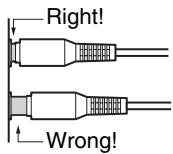
Optical Digital Jacks
The DVD receiver's optical digital connectors have a shutter-type cover that opens when an optical plug is inserted, and closes when it's removed. Push the plug in all the way.
Caution: To prevent shutter damage, hold the optical plug straight when inserting and removing.
Basic Setup
The setup described here is a basic setup that allows you to play discs using just the cables supplied with the receiver.
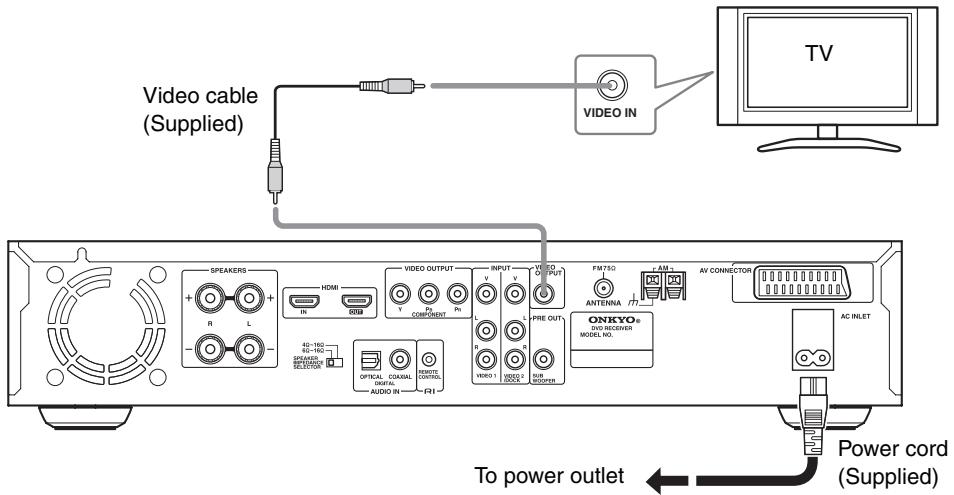
This receiver is equipped with copy protection technology. Do not connect this receiver to your TV via a VCR using Video cable, as the picture from this receiver will not appear properly on your TV. (This receiver may also not be compatible with some combination TV/VCRs for the same reason; refer to the manufacturer for more information.)
- Connect the VIDEO OUTPUT jack to the composite video input on your TV.
Use the supplied Video cable (RCA), connecting the yellow plug to the video output.
See the following page if you want to use other cable for the video connection.
- Connect the supplied AC power cord to the AC INLET, then plug into a power outlet.
Connecting Your TV (video connection)
- Connect the DVD receiver directly to your TV. If you connect the DVD receiver through a VCR, TV/VCR combination, or video selector, the picture may be distorted because DVD-Video discs are usually copy protected.
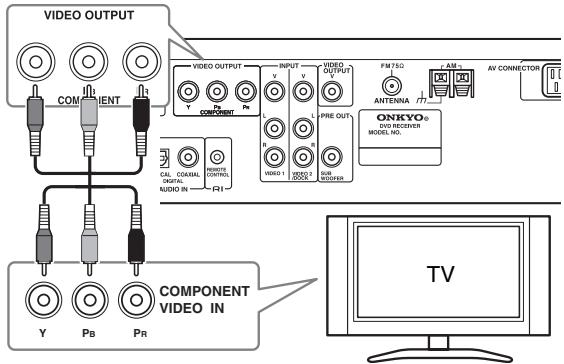
Using Component Video
You can use the component video output instead of the standard video out jack to connect this receiver to your TV (or other equipment).
This will provide better quality picture than composite video.
This jack cannot output the signal from composite video input.
- Use a component video cable (not supplied) to connect the COMPONENT VIDEO OUTPUT jacks to a component video input on your TV (or monitor).
If you connect the component video output to a TV or another component that doesn't support progressive scanning, be sure to turn off HDMI (see page 30).
You can set the component video output to Progressive or Interlaced (see page 30).
Compatibility of this unit with progressive-scan TVs.
This receiver is compatible with progressive video Macro Vision System Copy Guard.
CONSUMERS SHOULD NOTE THAT NOT ALL HIGH DEFINITION TELEVISION SETS ARE FULLY COMPATIBLE WITH THIS PRODUCT AND MAY CAUSE ARTIFACTS TO BE DISPLAYED IN THE PICTURE. IN CASE OF 525 OR 625 PROGRESSIVE SCAN PICTURE PROBLEMS, IT IS RECOMMENDED THAT THE USER SWITCH THE CONNECTION TO THE "STANDARD DEFINITION" OUTPUT. IF THERE ARE QUESTIONS REGARDING OUR TV SET COMPATIBILITY WITH THIS MODEL 525p AND 625p DVD RECEIVER, PLEASE CONTACT OUR CUSTOMER SERVICE CENTER.
Using SCART (European model only)
If your TV has a SCART-type AV input, you can use a SCART cable to connect this receiver to your TV. This type of connection carries both the sound and the picture.
- Use a SCART cable (not supplied) to connect the AV CONNECTOR to an AV input on your TV.
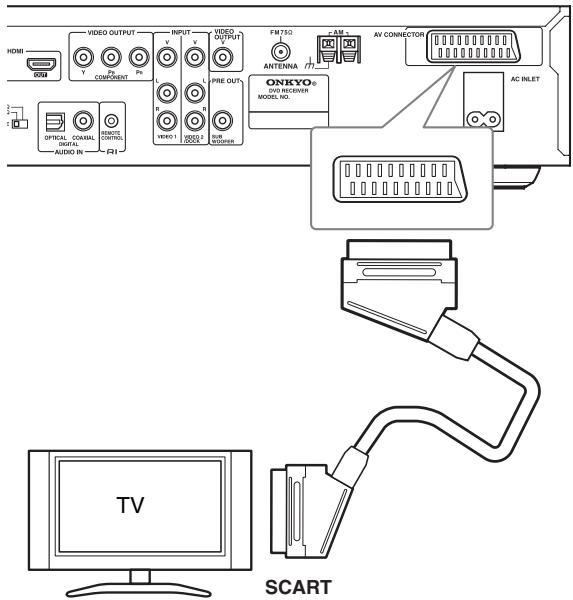
This connector can output composite video, or RGB video. The default setting is composite, which should work with all TVs. Consult the manual that came with your TV to see if you can use one of the higher quality settings. See page 62 for how to change the video output.
Connecting Other AV Component
You can use an AV cable to connect VIDEO 1 INPUT L/R or V jack to your AV component such as a set top box, VCR, and DVD recorder.
Connect your AV component's analog audio and Video output jack to the DVD receiver's VIDEO 1 INPUT L/R or V jack.
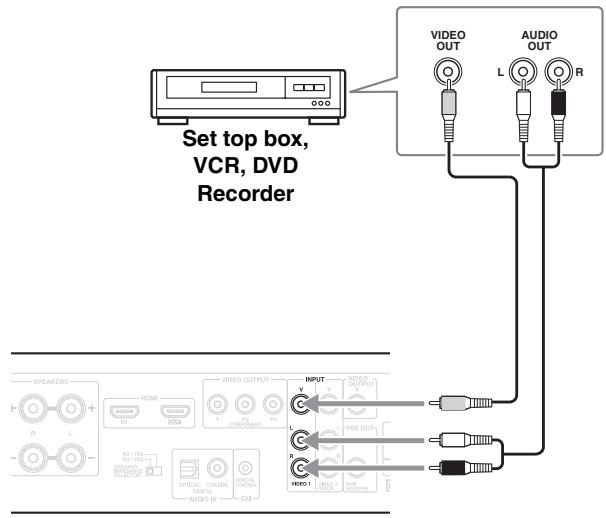
Note:
You can also use optical/coaxial digital cable instead of the audio cable (see page 26).
Connecting an RI Dock
iPod with video or Ri Dock with the OSD mode
Connect your RI Dock's analog audio output jacks and Video output jack to the DVD receiver's VIDEO 2/DOCK INPUT L/R jacks and V jack. Connect the RI Dock with an RI cable. (Onkyo DS-A1X/A2/A2X hookup shown below.)
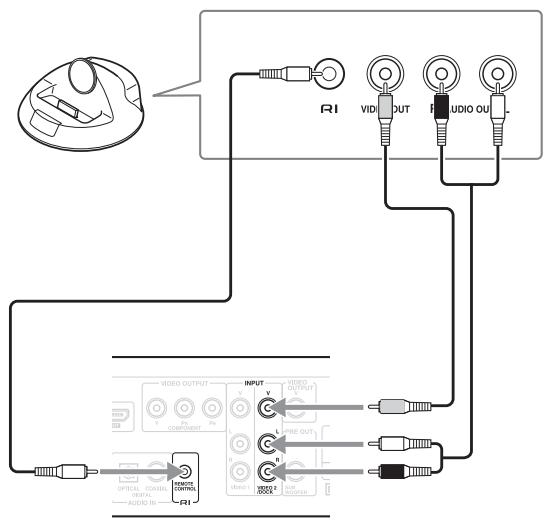
iPod without video
Connect your RI Dock's analog audio output jacks to the DVD receiver'sVIDEO 2/DOCK INPUT jacks. Connect the RI Dock with an RI cable. (Onkyo DS-A1 hookup shown below.)
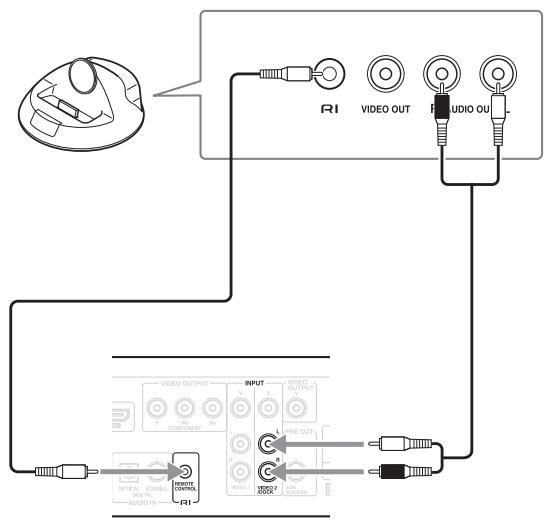
Notes:
- Set the RI Dock's RI MODE switch to HDD or HDD/DOCK.
- Press the INPUT [] / [] buttons to select "VIDEO2/DOCK".
Refer to the RI Dock's instruction manual.
Digital Audio Connection
You can use optical/coaxial digital cable instead of the audio cable when connecting with other AV components.
Connect your AV component's digital audio output jack to corresponding COAXIAL or OPTICAL DIGITAL AUDIO IN jack of the DVD receiver.
You must assign that jack to an input (see page 57).
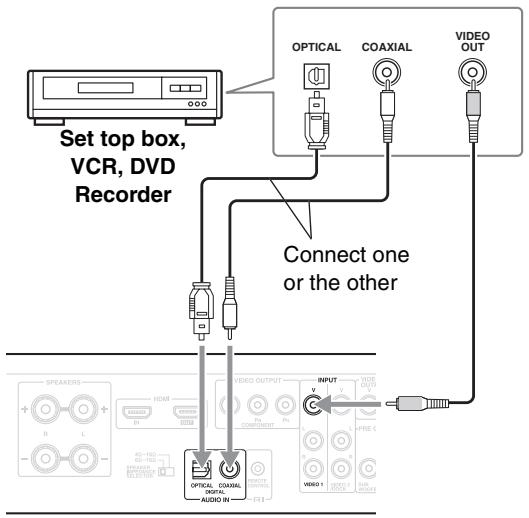
Notes:
- Optical digital audio input is assigned for VIDEO 1 INPUT in default. If you output audio from this input during VIDEO 2/DOCK INPUT is selected, you must change the "Video2 Input" setting to "OPT" from "Coax".
- Coaxial digital audio input is assigned for Video 2/DOCK INPUT in default. If you output audio from this input during Video 1 INPUT is selected, you must change the "Video1 Input" setting to "Coax" from "OPT".
Connecting your HDTV or AV component with an HDMI connection
This section shows how to connect the DVD receiver to an HDTV, projector, or game console that has an HDMI input/output socket.
What is HDMI?
HDMI (High Definition Multimedia Interface) is a new connection format that can carry uncompressed, standard or high definition digital video and digital audio. Until now, several separate video and audio cables have been required to connect AV components together. With HDMI, a single cable is all that's necessary to achieve the best picture quality.
HDMI video is compatible with DVI (Digital Visual Interface). To send HDMI video to a DVI input requires an HDMI-to-DVI cable. The DVD receiver supports HDCP (High-bandwidth Digital Content Protection), and for an HDMI-to-DVI connection to work, the other component must also support it. Note that this may not work with some DVI components.
Using HDMI
Use the HDMI cable (not supplied) to connect the DVD receiver's HDMI OUT to an HDMI input on your TV. In the same manner, connect the DVD receiver's HDMI IN to an HDMI OUT on the game console, etc.
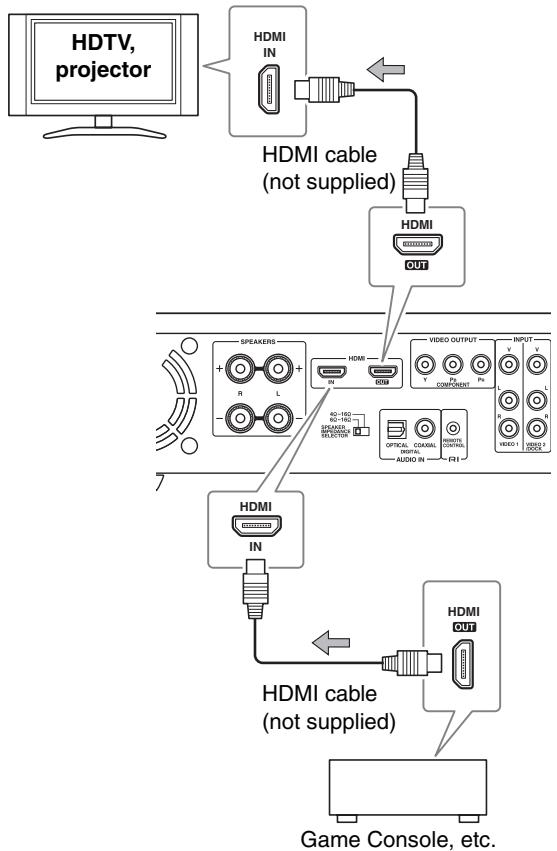
Notes:
- The DVD receiver supports HDCP (High-bandwidth Digital Content Protection), a protection system for digital video. HDMI components that you connect to the DVD receiver must also support HDCP.
- The DVD receiver supports High-Definition Multimedia Interface Specification Information Version 1.0.
HDMI & the DVD receiver
Video
The DVD receiver's HDMI OUT supports the following video resolutions:
- 720x480p (progressive), 60 Hz
- 720 × 576p (progressive), 50 Hz
1280 x 720p (progressive), 50 / 60Hz
1920 x 1080i (interlaced), 50 / 60Hz
If the connected HDTV or projector doesn't support a resolution, you may get no picture.
On the DVD receiver, you can select a resolution suitable for use with the connected HDTV or projector (see page 30).
Audio Formats
The DVD receiver's HDMI OUT supports the following audio formats:
PCM (96 kHz, 48 kHz, 44.1 kHz)
- Dolby Digital
DTS
Notes:
- If your HDMI-compatible TV or projector doesn't support Dolby Digital and DTS, the HDMI OUT will not output digital audio in that format. In this case, set the "Digital/HDMI Audio Out" setting to "PCM" (see page 62).
- If your TV doesn't support digital audio at high sampling rates, set the "Linear PCM Out" setting to "Down Sample On", so that it's down sampled to below 48kHz (see page 62).
- Note that audio from SACD discs or audio from the multi channel area of a DVD-Audio discs is not output by the HDMI OUT.
- The audio signal input from HDMI IN is not output from the speakers connected to the DVD receiver but only from the TV. With some TVs and input signals, no sound may be output. In these cases, set the connected device's output to PCM.
Audio and video inputs from VIDEO 1 INPUT orVIDEO 2/DOCK INPUT are not be output fromHDMI OUT.
Before connecting
- Make sure that all the connections on pages 17-27 are complete (the connection to a TV is required).
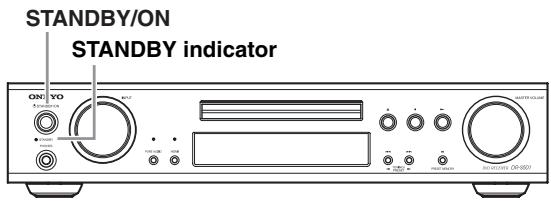
1
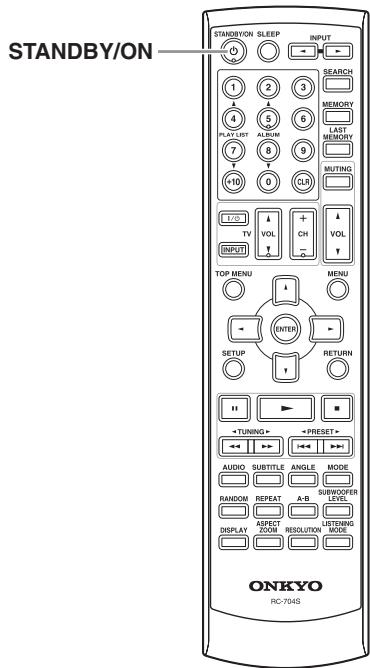
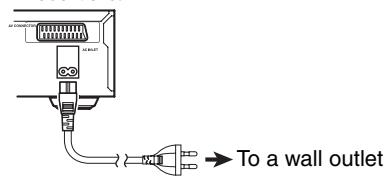
Plug the supplied power cord into the AC INLET and then into the power outlet on the wall.
- Do not use a power cord other than the one supplied with the DVD receiver. The power cord supplied is designed for use with the DVD receiver and should not be used with any other device.
-
Never have the power cord disconnected from the DVD receiver while the other end is plugged into the wall outlet. Doing so may cause an electric shock. Always connect by plugging into the wall outlet last and disconnect by unplugging from the wall outlet first.
-
Before unplugging the receiver from the power outlet, make sure you first switch it into standby.
- For the above reasons, do not plug this receiver into a switched power supply found on some amplifiers and AV receivers.
2
DVD receiver
STANDBY/ON

Remote controller
STANDBY/ON
Press [STANDBY/ON] button on the DVD receiver or the remote controller.
Turn on your TV and select the input through which the DVD receiver is connected.
The DVD receiver turns on and the STANDBY indicator turns off.
- To put the DVD receiver in the standby mode, press [STANDBY/ON] on the DVD receiver, or [STANDBY/ON] on the remote controller.
- While the STANDBY indicator lights up, the DVD receiver can receive signals from the remote controller.
- Setting the [STANDBY/ON] button to standby does not shut off the power completely.
Note:
DVD receiver features a screen saver and an auto power off function. If the receiver is stopped and no button is pressed for 15 minutes, the screen saver starts (see page 65).
This chapter explains the settings you need to make the very first time the DVD receiver is turned on.
Basically this manual contains procedures using the remote controller.
First Time Setup
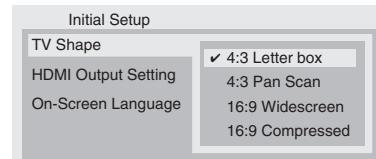
The very first time you turn on the DVD receiver, the "Initial Setup" menu appears onscreen.
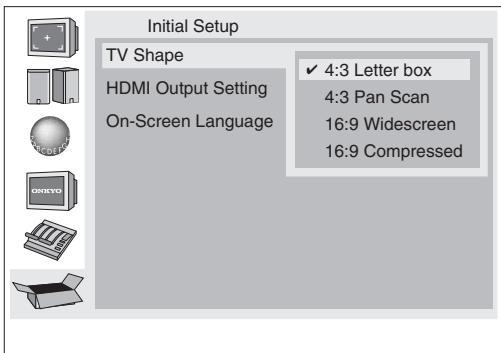
Here you need to make a few settings to get the DVD receiver up and running. You can change these settings later (see page 59).
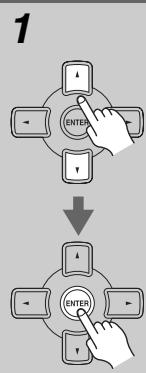
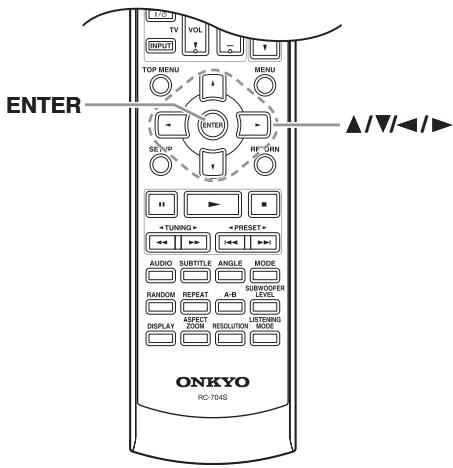
Use the Up and Down [ ] / [ ] buttons to select "TV Shape", and then press [ENTER].
Select "4:3 Letter box" or "4:3 Pan Scan" if you have a 4:3 TV. Select "16:9 Widescreen" or "16:9 Compressed" if you have a widescreen TV. See page 60 for more information.
The "HDMI Output Setting" menu appears next.
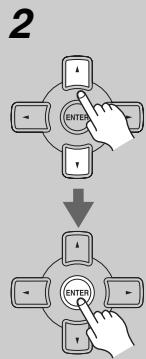
Use the Up and Down [▲]/[▼] buttons to select "On" or "Off" for "HDMI Output Setting", and then press [ENTER].
Select "On" to use the HDMI output.

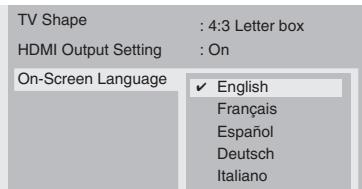
The "On-Screen Language" menu appears next.
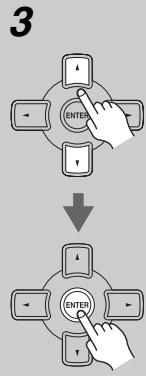
Use the Up and Down [▲]/[▼] buttons to select a language, and then press [ENTER].
See page 63 for more information on the language options.
The "Initial Setup" menu closes and the setup is complete.
The DVD receiver is now ready to use.
Note:
You can cancel the "Initial Setup" by pressing the [SETUP] button and complete the settings later by using the onscreen setup menus (see page 59).
Note:
Stop playback before perform these settings.
Setting the HDMI
This section explains how to turn on the HDMI OUT and change the video resolution when your TV or projector is connected to the HDMI OUT.
| 1 DVD receiver HDMI | Press the DVD receiver's [HDMI] button to turn on HDMI. |
| 2 Remote controller RESOLUTION | Press the [RESOLUTION] button repeatedly to change the HDMI resolution. The first button press displays the current resolution onscreen. Press the button again while the resolution is displayed to change the setting. |
The DVD receiver supports the following resolutions:
AUTO:
The resolution is automatically set to the native resolution of the TV connected to the HDMI OUT.
If the DVD receiver does not support the TV's native resolution setting, the resolution 480p/576p will be used.
480p (480p / 576p) (default):
The setting displayed depends on the country in which you purchased the DVD receiver.
$$ 7 2 0 \times 4 8 0 p 6 0 H z o r 7 2 0 \times 5 7 6 p 5 0 H z $$
Also output by the DVD receiver's analog video outputs.
With this setting, component video output will be progressive.
720p:
$$ 1 2 8 0 \times 7 2 0 \mathrm {p} 5 0 / 6 0 \mathrm {H z} $$
Not output by the DVD receiver's analog video outputs.
1080i:
$$ 1 9 2 0 \times 1 0 8 0 \mathrm {i} 5 0 / 6 0 \mathrm {H z} $$
Not output by the DVD receiver's analog video outputs.
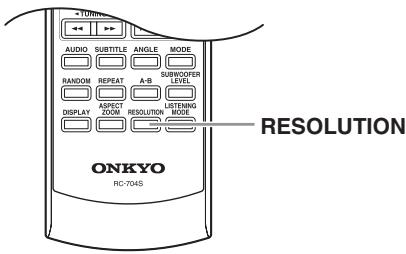
Tip:
These settings can also be changed by using the onscreen setup menus (see pages 60, 61).
Note:
Be sure to choose a resolution that's supported by your TV. If you select a resolution that your TV doesn't support, there will be no picture.
Selecting Progressive or Interlaced
If your TV supports progressive video, you can set the DVD receiver to progressive and enjoy progressive video on your TV. If your TV doesn't support progressive video, set the DVD receiver to interlaced.
When HDMI output is at 480p / 576p , the component video output is fixed at progressive and depending on the selected resolution there may be no output, so turn off the HDMI OUT before changing this setting.
| 1 DVD receiver HDMI | Press the DVD receiver's [HDMI] button to turn off HDMI. |
| 2 Remote controller RESOLUTION | Use the [RESOLUTION] button to select “Progressive” or “Inter-lace”. The first button press displays the current setting onscreen. Press the button again while the setting is displayed to change the setting. The PRGSV indicator appears on the display when progressive is selected. |
Adjusting the Volume
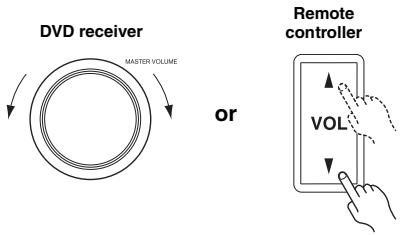
Use the MASTER VOLUME control, or the remote controller's VOL [ ] / [ ] button.
The volume can be set to "Min", "1" through "79", "Max".
Depending on subwoofer level or listening mode, the maximum volume varies.
Selecting the Input Source
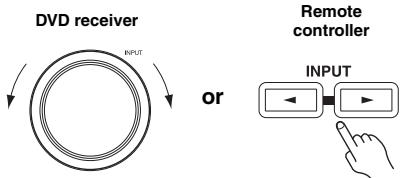
You can select DVD, FM, AM, or connected other AV component (set top box, Onkyo RI Dock) as the input source.
Use the DVD receiver's INPUT selector to select the input source.
To select the input source with the remote controller, press the INPUT [<] or [>] button repeatedly.
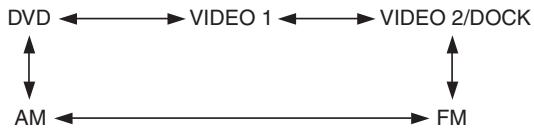
When reproducing the audio and video signals from HDMI IN, select "VIDEO 1".
Using Headphones
You can connect a pair of stereo headphones (1/4-inch phone plug) to the DVD receiver's PHONES jack for private listening, as shown.
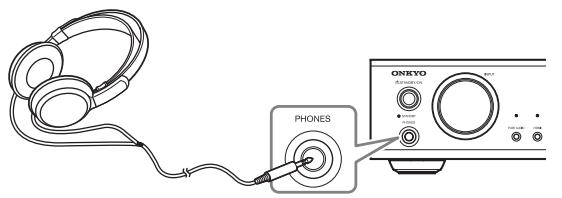
Notes:
- Always turn down the volume before connecting your headphones.
- The speakers are turned off while the headphones plug is inserted in the PHONES jack.
- When you connect a pair of headphones, the listening mode is set to "Stereo", unless it's already set to "Stereo", "Direct", or "Pure Audio".
- Only the Stereo, Direct and Pure Audio listening modes can be used with headphones (the listening modes available also depend on the currently selected input source).
Muting the DVD receiver
You can temporarily mute the output of the DVD receiver.

Remote controller
MUTING
Press the [MUTING] button.
The output is muted and the MUTING indicator flashes on the display, as shown.
![ONKYO DR-S501 - Press the [MUTING] button. - 1](/content/2025/01/151726/images/99b47a4a5e568072b92e2ed4fbcbdeb063de473a95350d0b88f9dd28381edb4d.jpg)
To unmute the DVD receiver, press the [MUTING] button again, or adjust the volume.
The Mute function is cancelled when the DVD receiver is set to Standby.
Adjusting Subwoofer Level
You can adjust the level of Subwoofer during playback.

Remote controller
SUBWOOFER
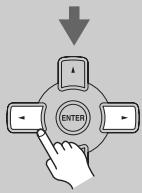
Press the [SUBWOOFER LEVEL] button, and then use the Left and Right []/[] buttons to adjust the volume.
You can adjust the volume of Subwoofer from -15dB to +12dB in 1 dB steps.
When you've finished, press the [SUB-WOOFER LEVEL] button again.
Using the Sleep Timer
With the sleep timer, you can set the DVD receiver to turn off automatically after a specified period.

Remote controller
SLEEP
Press the [SLEEP] button repeatedly to select the required sleep time.
The sleep time can be set from 90 to 10 minutes in 10 minute steps.
The SLEEP indicator appears on the display when the sleep timer has been set. The specified sleep time appears on the display for about five seconds, then the previous display reappears.
If you need to cancel the sleep timer, press the [SLEEP] button repeatedly until the SLEEP indicator disappears.
To check the time remaining until the DVD receiver sleeps, press the [SLEEP] button. Note that if you press the [SLEEP] button while the sleep time is being displayed, you'll shorten the sleep time by 10 minutes.
This chapter covers basic playback. Advanced playback functions are covered in the "Advanced Playback" on page 44.
![ONKYO DR-S501 - Press the [SLEEP] button repeatedly to select the required sleep time. - 1](/content/2025/01/151726/images/eb5110508e36718009867294498277df86166c83e713187d219bb658c35e139b.jpg)
![ONKYO DR-S501 - Press the [SLEEP] button repeatedly to select the required sleep time. - 2](/content/2025/01/151726/images/aad7797a5bb8e07c780b7dc0759b68f528aead9d15f176672e101f3593f5288b.jpg)
| 1 DVD receiver △ | Press Open/Close [▲] to open the disc tray. The input source is automatically set to DVD. |
| 2 | Load a disc. Load a disc with the label side facing up, using the disc tray guide to align the disc (if you're loading a double-sided DVD disc, load it with the side you want to play face down). |
| 3 △ | Press Open/Close [▲]. The disc tray closes and the relevant disc type indicator appears on the display. Tip: If you press the Play [▶] button, the disc tray will close and, depending on the type of disc, playback will start automat-ically. |
Note:
Only load discs that are supported by the DVD receiver.
See pages 8 to 10.
Starting, Pausing & Stopping Playback
This section explains how to start, pause, and stop playback.
| Start DVD receiver Remote controller | To start playback, press the Play [▶] button. Playback starts and the Play▶indicator appears on the display. If you're playing a DVD-Video disc, or a VCD with PBC (Playback Control), you may need to start playback from a menu (see page 36). • For details on playing MP3, WMA, DivX, or JPEG picture discs, see pages 37 and 38. |
| Pause DVD receiver "Remote controller | To pause playback, press the Pause [■■] button. Playback pauses and the Pause■ indicator appears on the display. To restart playback, press the Play [▶] button. Playback restarts and the Pause■ indicator disappears. For DVD-Audio discs, pause cannot be used while a menu is displayed. |
| ■ Stop DVD receiver Remote controller | To stop playback, press the Stop [■] button. Playback stops and the Play ➔ indicator disappears. · When you stop playback of a DVD-Video disc, the DVD receiver remembers the point at which play-back was stopped and “Resume” appears onscreen. To resume play-back from that point, press the Play [▶] button. To cancel the “Resume” function, press the Stop [■] button again. The Resume function is reset when the disc is removed from the DVD receiver. · With the Last Memory function you can resume playback from any point even if the disc has been removed (see page 49). | Select Next & Previous track/chapter DVD-V DVD-A5 SACD VCD CD MP3 WMA DivX JPEG This section explains how to skip to the next and previous track and chapter. | |
| ■ Select Next track/chapter DVD receiver Remote controller | DuringPlayback, press the Next [▶▶] button to select next track/chapter. The Next track/chapter starts playback. | ||
| ■ Select | DuringPlayback, press the Previ- | ||
Notes:
- Prolonged display of the same picture or menu may cause irreparable damage to your TV screen known as screen burn-in. To prevent this, don't keep playback paused for too long and always press the Stop [■] button when you've finished playing a DVD disc or VCD. The DVD receiver features a screen saver to protect your TV from the effects of burn-in (see page 65).
- With some DVD-Video discs, you may experience picture noise that is not normally visible with standard TV broadcasts. This is usually because DVD-Video uses a lot of high-resolution video data. The amount of noise, if any, will depend on your particular TV and the problem can sometimes be alleviated by turning down the TV's sharpness control.
| Previous track/ chapter DVD receiver | outs [■□] button to select previ- ous track/chapter. |
| Remote controller | The first press selects the beginning of the current track. |
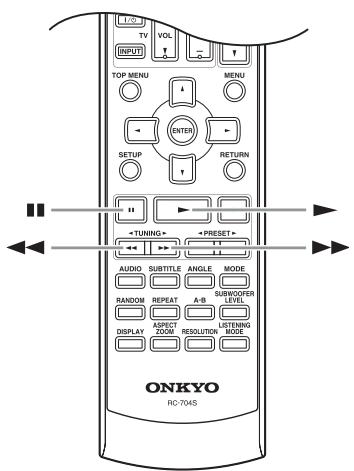
Forward Frame-by-Frame Playback
With frame-by-frame playback you can view individual picture frames one at a time forward.
Forward frame-by-frame

Press the Pause [I] button. Press it repeatedly to view subsequent frames.
To resume normal playback, press the Play [▶] button.
Fast Forward & Reverse

This section explains how to fast forward and reverse.
| ■ Fast forward | During playback, press the [▶] button to start fast forward. Playback fast forwards and “▶x2” appears onscreen. To change the fast-forward speed, press the [▶] button repeatedly to select: x2, x4, x8, x16. To resume normal playback, press the Play [▶] button. |
| ■ Fast reverse | During playback, press the [▶] button to start fast reverse. Playback reverses and “▶x2” appears onscreen. To change the fast-reverse speed, press the [▶] button repeatedly to select: x2, x4, x8, x16. To resume normal playback, press the Play [▶] button. |
Notes:
- Fast forward and fast reverse may not always work at the speed shown onscreen.
- For discs other than audio CDs, no sound is output during fast forward or fast reverse.
- For DVD-Audio discs, fast forward and fast reverse cannot be used while a menu is displayed.
Navigating DVD & VCD Disc Meals


DVD-Video discs usually have a menu from which you can select titles, chapters, and other options, including soundtracks, subtitles, and audio formats (e.g., Dolby Digital or DTS). VCDs that support PBC (Playback Control) may also have an onscreen menu.
1
Load a DVD or VCD.
With DVDs, a menu usually appears when the Play [▶] button is pressed. If it doesn't, try pressing the [TOP MENU] button.
With VCDs that support PBC, you may have to press the Play [▶] button to display the menu.
2
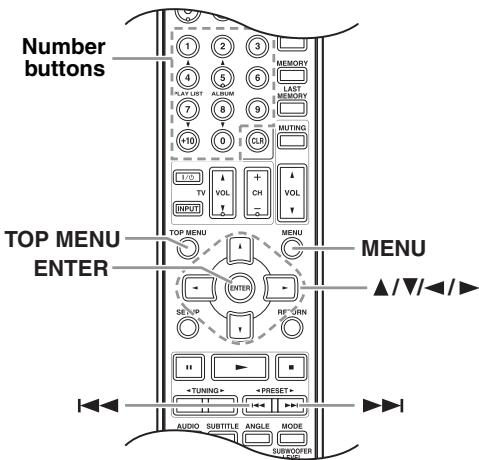
On a DVD menu, use the arrow [▲], [▼], [▲], [▶] buttons to select an item, and then press [ENTER].


a VCD menu, use the number buttons to select the tracks.
If the VCD's menu consists of several pages, use the Next [▶] and Previous [▶] buttons to view them. During playback, you can return to the menu by pressing the [RETURN] button.
Notes:
- Not all DVDs and VCDs have menus.
-
Menu operation varies from disc-to-disc. See the disc's sleeve notes for details.
-
On some DVDs, to display the disc menu, press the [MENU] button.
- Since the multichannel input source of DVD-Audio is down mixed, the output will be a processed audio. To output an original audio, select the 2-channel source. Some DVD-Audio discs may not be down mixed; in this case select the 2-channel source.
To set VCD's PBC on and off
PBC menus can turned on or off by pressing the [TOP MENU] button.
Navigating CDs & Super Audio CDs

This section explains how to play audio CDs and Super Audio CDs with the "Disc Navigator".
1
Load an audio CD or Super Audio CD.
The "Disc Navigator" appears.
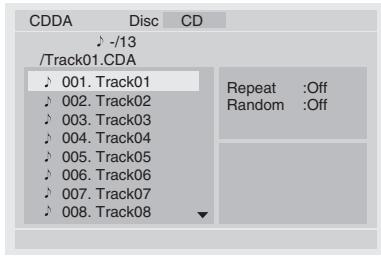
The tracks are displayed.
2
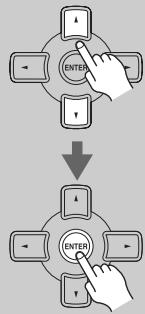
Use the Up and Down [▲]/[▼] buttons to select a track, and press [ENTER] to start playback.
With SACDs, you can select the multichannel area, 2-channel area, or CD layer by pressing the [AUDIO] button. Since the multichannel area is down mixed, the output will be a processed audio.
To output an original audio, select the 2-channel area.
Note:
During random playback or memory playback, the arrow buttons cannot be used.
Navigating MP3, WMA & DivX Discs


This section explains how to play MP3, WMA, and DivX files with the "Disc Navigator".
1
Load an MP3, WMA, or DivX disc.
The "Disc Navigator" appears.
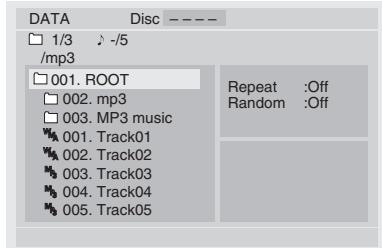
Initially, the folders in the root directory are displayed.
The DVD receiver numbers folders and tracks in hierarchical order. You can use these numbers to select folders and tracks directly with the Search function (see page 44).
2
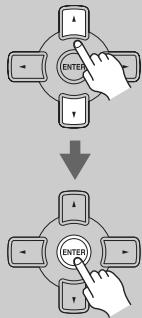
To open a folder, use the Up and Down [▲]/[▼] buttons to select it, and then press [ENTER].
The contents of the folder are displayed.
3
Use the Up and Down [] / [] buttons to select tracks and subfolders in the open folder.
To open a folder in the list, press the [ENTER] button. To close a folder (i.e., move back up the directory tree), press the [RETURN] button. Alternatively, select the item at the top of the list and press the [ENTER] button.
Use the Left and Right [] / [] buttons to display the other folders that contain playable tracks.
4
To play the selected track, press the Play [▶] or [ENTER] button.
If available, the ID3 tag information, (Title name, Artist name, Album name, and so on) will scroll across the bottom of the screen.
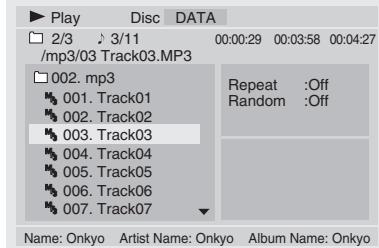
For MP3 playback
Subsequent tracks in the same folder are played in order.
5

Press the Stop [■] button to stop playback.
Note:
During random playback or memory playback, the arrow buttons cannot be used.
Viewing a Slideshow of JPEG Images

This section explains how to display a slideshow of JPEG images on your TV.
1
Load a JPEG disc.
The "Disc Navigator" appears.
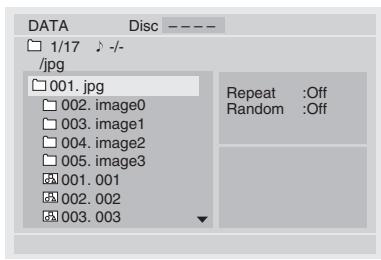
Initially, the folders in the root directory are displayed.
The DVD receiver numbers folders and files in hierarchical order. You can use these numbers to select folders and files directly with the Search function (see page 44).
2
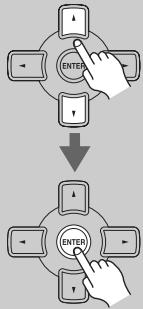
Remote controller
To open a folder, use the Up and Down [▲]/[▼] buttons to select it, and then press [ENTER].
The contents of the folder are displayed.
3
![ONKYO DR-S501 - To open a folder, use the Up and Down [▲]/[▼] buttons to select it, and then press [ENTER]. - 1](/content/2025/01/151726/images/31c6a31a622f8ddd920323fc3619a89d60c781d5e2ac4c264082fdb58f578626.jpg)
Use the Up and Down [▲]/[▼] buttons to select images and sub folders in the open folder.
A thumbnail-size preview for the currently selected image is displayed.
![ONKYO DR-S501 - Use the Up and Down [▲]/[▼] buttons to select images and sub folders in the open folder. - 1](/content/2025/01/151726/images/637e48a833b33c159ea84f4fc69c0119252f6d2eb5c6c49657cee5605c138d87.jpg)
To open a folder in the list, press the [ENTER] button. To close a folder (i.e., move back up the directory tree), press the [RETURN] button. Alternatively, select the item at the top of the list and press the [ENTER] button.
Use the Left and Right [] / [] buttons to display other folders that contain JPEG images.
4
![ONKYO DR-S501 - Use the Up and Down [▲]/[▼] buttons to select images and sub folders in the open folder. - 2](/content/2025/01/151726/images/3abf798a385835cc96b121a189a17bfbd4b7148b29cd83a6f893a2162602f471.jpg)
or
![ONKYO DR-S501 - Use the Up and Down [▲]/[▼] buttons to select images and sub folders in the open folder. - 3](/content/2025/01/151726/images/065d39017b2e0f02b05404cac7516dcf4ae2c19e52e86f01e2b44d9f7e081ca7.jpg)
To play a slideshow, press the Play [▶] or [ENTER] button.
Subsequent images are displayed in order, with each image being displayed for five seconds.
To display an image for longer, press the Pause [■] button. Press the Play [▶] button to resume.
Use the Previous and Next [ ] / [ ] buttons to view the previous or next image.
To flip a picture 180 degrees, use the Up and Down [] / [] buttons (not while zoomed in).
To rotate a picture counterclockwise or clockwise, use the Left and Right [▲] / [▶] buttons (not while zoomed in).
To zoom in or out, use the [ ] and [ ] buttons. While zoomed in, use the [] / [] / [] / [] buttons to move around the picture.
5
![ONKYO DR-S501 - To play a slideshow, press the Play [▶] or [ENTER] button. - 1](/content/2025/01/151726/images/419273724053f45bd9d17a1230e155162b00addd1ca8344de04ed62fc5d0b736.jpg)
or
![ONKYO DR-S501 - To play a slideshow, press the Play [▶] or [ENTER] button. - 2](/content/2025/01/151726/images/1d7ef10ad5e930a8bfd899c26a04da025691282ab446b4374b06eed7dbd18cc9.jpg)
MENU
To stop the slideshow, press the Stop [■] or [MENU] button.
The slideshow stops automatically when all pictures have been displayed.
To display thumbnails
To display thumbnails, in step 3, after opening the folder you want to display, press the [TOP MENU] button. Use the arrow [], [], [], [] buttons to select the thumbnails, and press [ENTER] to start a slideshow. Press the [MENU] button to return to the "Disc Naviga-tor".
Use the Previous and Next [ ] / [ ] buttons to display other pages.
About HD JPEG
If your TV is connected via HDMI and the HDMI resolution is set to 720p or 1080i, you can view your JPEG images in high definition (see page 61).
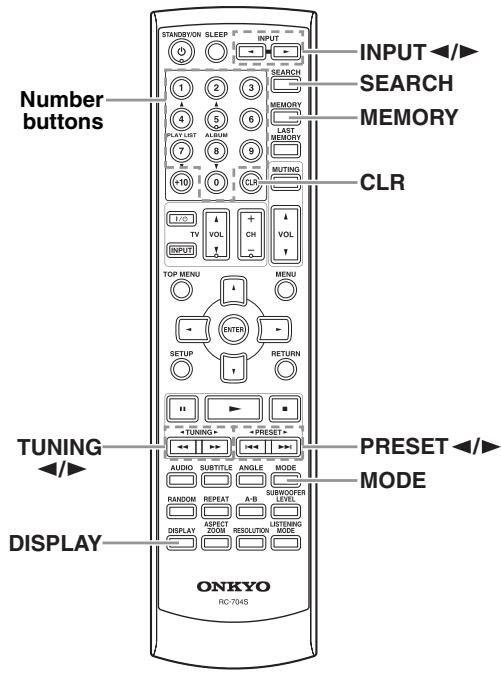
Using the Tuner
With the built-in tuner you can enjoy AM and FM radio stations. You can store your favorite stations as presets for quick selection.
Listening to the Radio
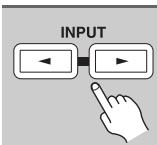
Use the INPUT [] / [] button to select either AM or FM.
In this example, FM has been selected.
![ONKYO DR-S501 - Use the INPUT [] / [] button to select either AM or FM. - 1](/content/2025/01/151726/images/101dc5abdab82bfa8af7df3410c1ab57c78a7433f04d796521cdb12a5c76756c.jpg)
Band Frequency
(Actual display depends on country)
Tuning into Radio Stations
Auto Tuning Mode
1
Press the [MODE] button so that the AUTO indicator appears on the display.
2
Press the TUNING [] / [] button.
Searching stops when a station is found.
To stop searching, press Stop [■] button.
When tuned into a station, the indicator appears. When tuned into a stereo FM station, the FM ST indicator appears on the display, as shown.
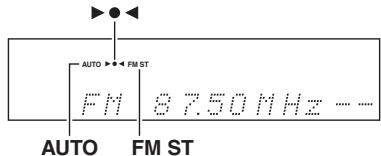
Note:
This procedure can also be performed on the DVD receiver by using its TUNING/PRESET [] / [] button.
Press the TUNING/PRESET [] / [] button to start
searching for a few seconds. Pressing the TUNING/
PRESET [] / [] button again stops the searching.
After this, press the button repeatedly to change the frequency one step at a time.
Manual Tuning Mode
1
Press the [MODE] button so that the AUTO indicator disappears from the display.
2
TUNING
HOLD
Press and hold the TUNING [<]/[▶] button.
The frequency stops changing when you release the button.
Press the buttons repeatedly to change the frequency one step at a time.
Radio Frequency can be changed in 0.05MHz steps for FM and 9kHz steps for AM. You can change the interval of the steps for AM frequency (not European models) (see page 55).
In Manual Tuning mode, FM stations will be in mono.
Tuning into weak FM stereo stations
If the signal from a stereo FM station is weak, it may be impossible to get good reception. In this case, switch to Manual Tuning mode and listen to the station in mono.
Tuning into Stations by Frequency
You can tune into AM and FM stations directly by entering the appropriate frequency.
| 1 SEARCH | Press the [SEARCH] button. |
| 2 | Within 8 seconds, use the num- ber buttons to enter the fre- quency of the radio station. For example, to tune to 87.50 (FM), press 8, 7, 5, 0. |
| Presetting AM/FM Stations | |
| You can store a combination of up to 40 of your favorite AM/FM radio stations as presets. | |
| 1 | Tune into the AM/FM station that you want to store as a preset. |
| 2 MEMORY | Press the [MEMORY] button. The preset number flashes. FM 8810MHz |
| 3 < PRESET | While the preset number is flashing (about 8 seconds), use the PRESET [←]/[►] buttons to select a preset from 1 through 40. |
| 4 MEMORY | Press the [MEMORY] button again to store the station or channel. The station or channel is stored and the preset number stops flashing. Repeat this procedure for all of your favorite AM/FM radio stations. |
Note:
This procedure can also be performed on the DVD receiver by using its [PRESET/MEMORY] button and TUNING/PRESET []/[] button. First press the [PRESET/MEMORY] button, use TUNING/PRESET []/[] button to select a preset and then press the [PRESET/MEMORY] button again.
Selecting Presets
| PRESET 1 | To select a preset, use the PRE-SET [▲]/[▶] buttons. |
Notes:
- This procedure can also be performed by using the number buttons. To enter, for example, "12", press the [1] button followed by the [2] button.
- This procedure can also be performed on the DVD receiver by using its TUNING/PRESET [] / [] button.
Deleting Presets
| 1 | Select the preset that you want to delete. See the previous section. |
| 2 | Press the [CLR] button twice. The preset is deleted and its number disappears from the display. |
Using RDS (European models only)
RDS only works with European models and only in areas where RDS broadcasts are available.
When tuned into an RDS station, the RDS indicator appears.
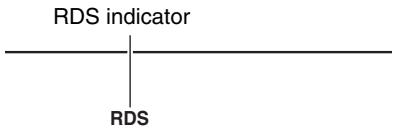
What is RDS?
RDS stands for Radio Data System and is a method of transmitting data in FM radio signals. It was developed by the European Broadcasting Union (EBU) and is available in most European countries. Many FM stations use it these days. In addition to displaying text information, RDS can also help you find radio stations by type (e.g., news, sport, rock, etc.).
The DVD receiver supports two types of RDS information:
PS (Program Service)
When tuned to an RDS station that's broadcasting PS information, the station's name will be displayed.
RT (Radio Text)
When tuned to an RDS station that's broadcasting text information, the text will be shown on the display.
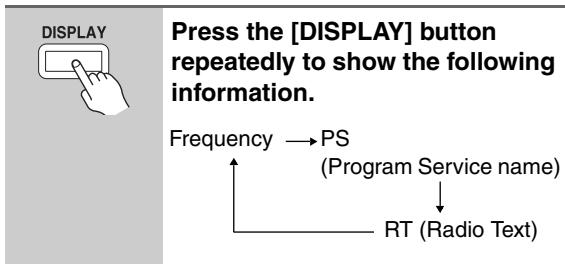
Notes:
- In some cases, the text characters displayed on the DVD receiver may not be identical to those broadcast by the radio station. Also, unexpected characters may be displayed when unsupported characters are received. This is not a malfunction.
- If the signal from an RDS station is weak, RDS data may be displayed intermittently or not at all.
Selecting Listening Modes
See "About the Listening Modes" in the right column for detailed information about the listening modes.
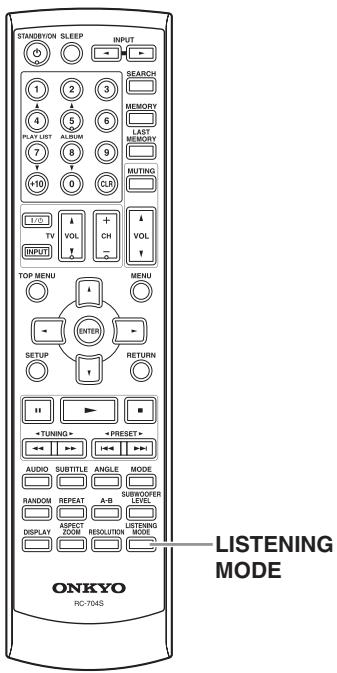

LISTENING
MODE
Press the [LISTENING MODE] button to select a listening mode.
Pressing this button repeatedly cycles through all of the listening modes that can be used with the current input source.
Selecting Pure Audio Listening Mode on the DVD receiver
Pure Audio listening mode can also be selected on the DVD receiver's [PURE AUDIO] button.

DVD receiver
PURE AUDIO
Press the [PURE AUDIO] button.
Video output and display are turned off and PURE AUDIO indicator lights up.
Pressing this button again will select the previous listening mode.
About the Listening Modes
Pure Audio
In this mode, the display and video circuitry are turned off, minimizing possible noise sources for the ultimate in high-fidelity reproduction.
Direct
In this mode, audio from the input source is output directly with minimal processing, providing high-fidelity reproduction.
Stereo
The selected input source is processed as a stereo signal and output by the front left and right speakers and the subwoofer if connected.
T-D (Theater-Dimensional)
With this mode you can enjoy a virtual 5.1 surround sound even with only two speakers. This works by controlling how sounds reach the listener's left and right ears. Good results may not be possible if there's too much reverb, so we recommend that you use this mode in an environment with little or no natural reverb.
Notes:
- T-D listening mode cannot be selected while headphones are connected to the DVD receiver.
- During playback a DVD-Audio or SACD, T-D listening mode cannot be selected.
- In the case of SCART connection, the output volume from the TV will be lower than other listening modes.
T-D (Theater-Dimensional) Listening Angle Setting
With this setting, you can specify the angle of the front left and right speakers relative to the listening position. Processing for the Theater-Dimensional listening mode is based on this setting. Ideally, the front left and right speakers should be equidistant from the listening position and at an angle close to one of the three available settings.
Front left speaker
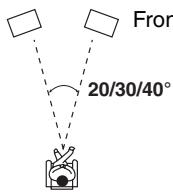
Front right speaker
Press and hold the [SETUP] button for 3 seconds.
When selecting the input other than DVD, just press the [SETUP] button. "Balance" appears on the display.
![ONKYO DR-S501 - Press and hold the [SETUP] button for 3 seconds. - 1](/content/2025/01/151726/images/fb8d353a0e2317fd20f1c1608f45933c1c8293e67b5f37a6cbb94fd5ea8ad9b7.jpg)
Use the Up and Down [] / [] buttons to select "Angle", and use the Left and Right [] / [] buttons to select: "Narrow", "Middle", or "Wide".
Narrow: Select if the listening angle is 20 degrees.
Middle: Select if the listening angle is 30 degrees (default).
Wide: Select if the listening angle is 40 degrees.
![ONKYO DR-S501 - Press and hold the [SETUP] button for 3 seconds. - 2](/content/2025/01/151726/images/ef7995ee345c642cc9f47d74094ca9f6ec228f5337c4a0f956ba486f4f7d280f.jpg)
When you've finished, press the [SETUP] button again.
The setup menu closes.
Note:
Only when the T-D listening mode is selected, this setting is available.
Listening Mode and Receiver Settings
Depending on the listening mode, the setup menu settings may be enabled/disabled as shown below.
: available
| Listening Mode | |||||
| Settings | Page # | Pure Audio | Direct | Stereo | T-D |
| Speaker Output Balance | 56 | - | - | ✓ | ✓ |
| Subwoofer Level | 32 | - | - | ✓ | ✓ |
| Correcting Sound and Picture Sync | 56 | - | - | ✓ | ✓ |
| Crossover Frequency | 57 | - | - | ✓*1 | ✓ |
| Enabling/Disabling the Subwoofer | 56 | - | - | ✓ | ✓ |
| Front Speakers Size | 56 | - | - | ✓*2 | ✓ |
1 During playback a DVD-Audio or SACD, this setting is fixed at 100 Hz .
2 During playback a DVD-Audio or SACD, this setting is fixed at Small.
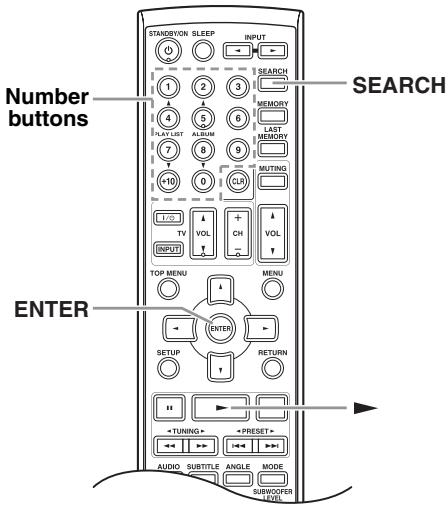
Selecting Chapters/Titles/Tracks/Folders by Number
DVD-A DVD- SACD VCD CD MP3 WMA DivX
With the "Search" function you can select chapters, titles, and tracks by number. To use the function with DVD, DVD playback is required.

1
Press the [SEARCH] button.
The "Search" window appears onscreen.
This is what appears for DVDs.
![ONKYO DR-S501 - Press the [SEARCH] button. - 1](/content/2025/01/151726/images/9093e317d8415548cb2b7d7cda3dbd0496e5bcfaf97356415ab8a3c781594d25.jpg)
This is what appears for CDs.
![ONKYO DR-S501 - Press the [SEARCH] button. - 2](/content/2025/01/151726/images/06b86f706e314c5d86a9cd0a65cd51db7679a7c13c307bc4c7a56ef4aaed0a08.jpg)
![ONKYO DR-S501 - Press the [SEARCH] button. - 3](/content/2025/01/151726/images/f4b0e90acc417cbfdf0022d21ecc2938b774bba78454b45e84b830659861da50.jpg)
2
Use the number buttons to specify a title, chapter, or track number.
To enter, for example, "12", press the [1] button followed by the [2] button.
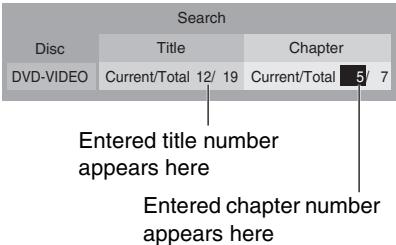
If you're playing a DVD, MP3, WMA, or DivX disc, use the Left and Right [▲]/[▶] buttons to select the Title/Group/Folder and Chapter/Track fields. To clear a number, press the [CLR] button.
3
or
Press the Play [▶] or [ENTER] button to start playback of the specified title, chapter, or track.
Notes:
- During playback, you can select other chapters or tracks directly by using the number buttons (i.e., without pressing the [SEARCH] button). For example, to select chapter #2, simply press [2]. To select chapter #10, press [+10] and [0].
DVD-Video discs usually have menus for selecting titles and chapters. - When Video CD PBC is on, you can't search for tracks. Turn PBC off first.
- The [SEARCH] button cannot be used during random playback or memory playback.
- Search may not work with some discs.
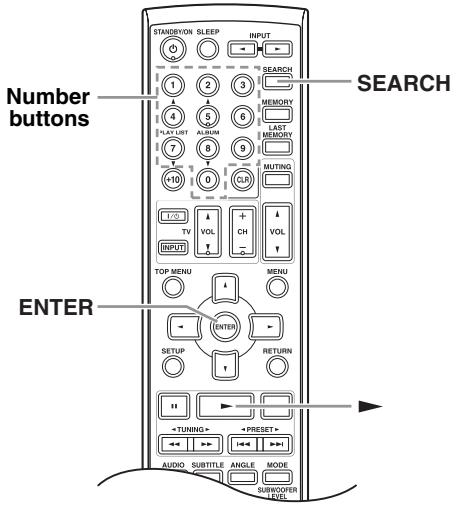
Searching by Time

With the "Search" function you can search by time.

1
SEARCH
During playback, press the [SEARCH] button twice.
The "Search" window appears onscreen.
![ONKYO DR-S501 - During playback, press the [SEARCH] button twice. - 1](/content/2025/01/151726/images/7bf2b547315393e90723701823288187912b42568a02690ba2bda30a9f74a4f3.jpg)
![ONKYO DR-S501 - During playback, press the [SEARCH] button twice. - 2](/content/2025/01/151726/images/935f64e0d74a0616180d883f64582d68f2e7f03d3c4a082cd6d1285b040a78f2.jpg)
2
Use the number buttons to enter a time.
Time search only works within the current title or track.
To enter, for example, 5 minutes, 30 seconds, press [5] [3] [0] buttons.
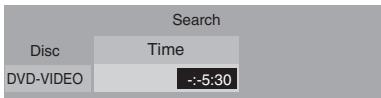
To clear a number, press the [CLR] button.
3
Press the Play [▶] or [ENTER] button to start playback of the specified time.
![ONKYO DR-S501 - Press the Play [▶] or [ENTER] button to start playback of the specified time. - 1](/content/2025/01/151726/images/4645a4aefb49fcb609aa830c907ba68b5cd05dfb93452769158e2b2429a6c417.jpg)
![ONKYO DR-S501 - Press the Play [▶] or [ENTER] button to start playback of the specified time. - 2](/content/2025/01/151726/images/dc7afe1b23610377078cb2ac6b9b396aacea91338362845db48da16343afa381.jpg)
Repeat Playback

DVD-V
SACD
VCD
CD
MP3
WMA
JPEG
With the "Repeat" function you can play a disc, title, chapter, group, track, or folder over-and-over again.
1
During playback, press the [REPEAT] button repeatedly to select a repeat option.
The selected repeat option appears onscreen.
The available options depend on the type of disc, as follows:
DVD-Video: Chapter Repeat, Title Repeat, Disc Repeat, Repeat Off.
DVD-Audio: Track Repeat, Group Repeat, Repeat Off.
SACD, VCD, CD: Track Repeat, Disc Repeat, Repeat Off.
MP3, JPEG, WMA: Track Repeat, Folder Repeat, Disc Repeat, Repeat Off.
![ONKYO DR-S501 - During playback, press the [REPEAT] button repeatedly to select a repeat option. - 1](/content/2025/01/151726/images/98c00c804476c16a27baba3d901b746403925552de8679be9c3fd54a7ddb52b3.jpg)
2
To cancel repeat playback, use the [REPEAT] button to select "Repeat Off".
Notes:
- Repeat playback may not work with some discs.
- If the "Memory Playback" function is on (see page 48), the selectable options are "Memory Repeat", which plays the playlist repeatedly, and "Repeat Off".
- To use the Repeat function with a VCD that supports PBC, you must first turn off PBC (see page 36).
A-B Repeat Playback

SACD


With the "Repeat A-B" function you can play a specified section over-and-over again.
1
During playback, press the [A-B] button to set the A point (i.e., the start of the section you want to repeat).
"Repeat A-" appears onscreen and "R_A" appears on the display.

2
Press the [A-B] button again to set the B point (i.e., the end of the section you want to repeat).
Playback repeats between the A and B points, and "Repeat A-B" appears onscreen and "-R_AB" appears on the display.

3
To cancel A-B repeat playback, press the [A-B] button.
Notes:
- The "Repeat A-B" function may not work with some DVD-Video discs and VCDs that support PBC.
- In some cases, the A and B points may be at slightly different points to the ones that you specify.
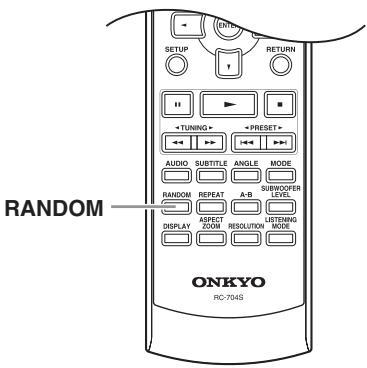
Random Playback


With the "Random" function you can enjoy a random selection of titles, chapters, groups, tracks, or folders.
1

RANDOM
During playback, press the [RANDOM] button repeatedly to select a random option.
The selected random option appears onscreen.
The options available depends on the type of disc, as follows:
DVD-Video: Title Random, Disc Random, Random Off.
DVD-Audio: Group Random, Random Off.
SACD, VCD, CD: Disc Random, Random Off.
MP3, WMA: Folder Random, Disc Random, Random Off.
With the "Title Random" option, chapters within the current title are played at random. With the "Disc Random" option, titles, chapters, groups, tracks, or folders on the disc are played at random.
Random playback begins after the current chapter or track has finished.
Random playback stops automatically when all of the items have been played once.
2

To cancel random playback, use the [RANDOM] button to select "Random Off".
Notes:
-
Random playback may not work with some discs.
-
To use the "Random" function with a VCD that supports PBC, you must first turn off PBC (see page 36).
- If the "Memory Playback" function is on (page 48), random playback is unavailable.
- You can't use the [SEARCH] button during random playback.
- During random playback, the remote controller's arrow [▲], [▼], [▲], [▶] buttons and number buttons don't work with the "Disc Navigator".
- The "Random" function cannot be used with JPEG files.
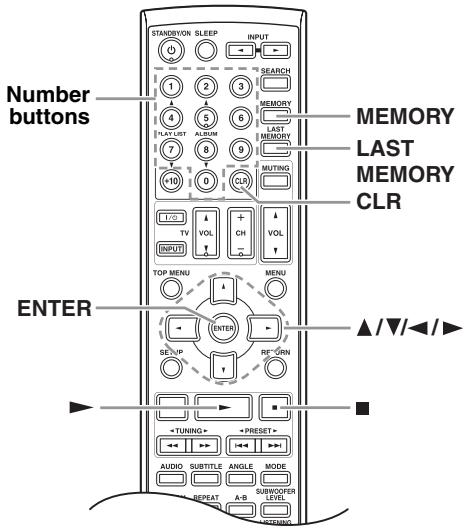
Memory Playback


With the "Memory Playback" function you can create your own memory list of titles, chapters, and tracks.
1
Press the [MEMORY] button.
The "Memory List" window appears onscreen, as shown.
| Memory List | ||
| No. | Title/Folder | Chapter/Track |
| Current/Total 001 / 019 | Current/Total --- / 078 | |
| 01 | --- / 019 | --- / 078 |
| 02 | --- / 019 | --- / 078 |
| 03 | --- / 019 | --- / 078 |
| 04 | --- / 019 | --- / 078 |
| 05 | --- / 019 | --- / 078 |
| 06 | --- / 019 | --- / 078 |
| 07 | --- / 019 | --- / 078 |
| 08 | --- / 019 | --- / 078 |
The top row () is used to enter title/ folder and chapter/track numbers. The steps in the memory list are numbered.
![ONKYO DR-S501 - Press the [MEMORY] button. - 1](/content/2025/01/151726/images/b10a99ff724b877a0ec29004cd3e468ed4db43224249898b15a601b2a6d459c1.jpg)
2
Enter the title/folder (group), and chapter/track numbers of the item you want to add to the memory list, and then press [ENTER].
Use the remote controller's Left/Right [] / [] buttons to select the parameters, and use the number buttons to enter the number.
The new item is added to the memory list as step 01.
| 3 | Repeat step 2 to add more items to the memory list. You can add up to 32 items to the memory list. |
| 4 | To play the memory list, press the Play [▶] button. The “Memory List” window must be open when you press the Play [▶] button. |
| 5 | To stop playback, press the Stop [■] button. While playback is stopped, you can delete the memory list by pressing the [CLR] button. While playback is stopped, you can cancel the Memory Playback function by pressing the Stop [■] button again. |
Adding New Items to the List
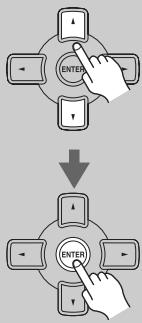
1
Use the Up/Down [▲]/[▼] buttons to select the step which you want to insert the new item, and then press the [ENTER] button.
| Memory List | ||
| No. | Title/Folder | Chapter/Track |
| Current/Total 001 / 019 | Current/Total --- / 078 | |
| 01 | 005 / 019 | 001 / 078 |
| 02 | 002 / 019 | 012 / 078 |
| 03 | --- / 019 | --- / 078 |
| 04 | 003 / 019 | 004 / 078 |
| 05 | 010 / 019 | 003 / 078 |
| 06 | --- / 019 | --- / 078 |
| 07 | --- / 019 | --- / 078 |
| 08 | --- / 019 | --- / 078 |
![ONKYO DR-S501 - Use the Up/Down [▲]/[▼] buttons to select the step which you want to insert the new item, and then press the [ENTER] button. - 1](/content/2025/01/151726/images/bf521ca085b7e6a74410fcd6b97ca917d0cf745fea2d317a0363eae1277199c7.jpg)
2
Enter the title/folder (group), and chapter/track numbers of the item to be inserted.
Use the remote controller's Left/Right [] / [] buttons to select the parameters, and use the number buttons to enter the number.
3
Press the [ENTER] button.
The new item is inserted into the memory list and subsequent items move down the list.
Deleting Items from the List
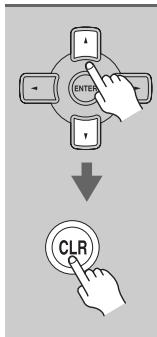
Use the Up/Down [] / [] buttons to select it, and then press the [CLR] button.
The item is deleted and subsequent items move up the list.
Editing Steps
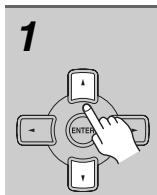
Use the Up/Down [] / [] buttons to select the step.
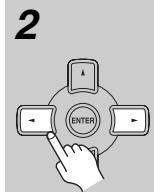
Use the Left/Right [] / [] buttons and number buttons to edit the title/folder (group) or chapter/ track numbers, and then press [ENTER].
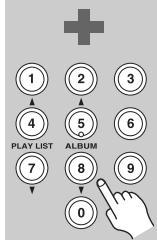
Notes:
- To close the "Memory List" window, press the [RETURN] button.
- The memory list will be deleted when the DVD receiver is set to Standby or the disc tray is opened.
- To use this function with a VCD that supports PBC, you must first turn off PBC.
- The Memory Playback function cannot be used with some discs.
- JPEG images can be added to the memory list, however, they will not be displayed.
Last Memory

With the "Last Memory" function you can resume playback from where you left off even if the disc has been removed and the DVD receiver has been set to Standby. "Last Memory" also remembers the soundtrack and subtitle settings you were using.
1

During DVD playback, press the [LAST MEMORY] button.
The last memory point for the disc is stored, "Last Mem" appears on the display.
If the [LAST MEMORY] button is pressed again, the last memory point is updated.
2

To stop playback, press the Stop [■] button.
Now you may remove the disc and turn off the DVD receiver.
3
To resume playback, load the disc, and then press the Play [▶] button.
The "Last Memory" dialog box appears.
Last Memory is set.
Start playback from memory location?
Yes
No
Memory Clear
4
To resume playback from the last memory point, select "Yes", and then press [ENTER].
To start playback from the present point, select "No", and then press [ENTER].
To delete the last memory point, select "Memory Clear", and then press [ENTER].
Notes:
- The "Last Memory" function can store the last point for up to six DVDs. When you set the "Last Memory" function for a seventh disc, the first disc's settings are deleted.
- The "Last Memory" function will not work while a menu is being displayed onscreen.
- The "Last Memory" function may not work with some DVDs.
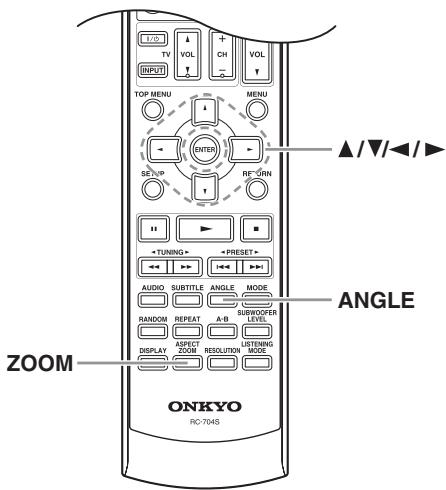
Zooming


With the Zoom function you can enlarge any part of the picture.
| 1 ASPECT ZOOM HOLD | During playback or while play-back is paused, press and hold the [ZOOM] button for 3 seconds. “Zoom x1.0” appears onscreen. |
| 2 ASPECT ZOOM | Press the [ZOOM] again repeatedly to Zoom in. The number of zoom steps available depends on the resolution of the disc or file. After the maximum zoom, the picture returns to its normal size. |
| 3 ENTER | To see other areas of the picture while zoomed, use the remote controller's arrow [▲], [▼], [▲], [▲] buttons. |
Notes:
- The Zoom function may not work with some discs.
- The Zoom function cannot be used with HD JPEG.
- The Zoom function cannot be used with disc menus.
Selecting Camera Angles

Some DVDs feature multiple camera angles that allow you to view scenes from different angles. When a DVD features multiple camera angles, the camera indicator appears on the display. Such discs usually have the camera angle logo () printed on the sleeve.
Press the [ANGLE] button repeatedly to cycle through the available camera angles.
The number of the currently selected camera angle appears onscreen. For example, on a disc with three camera angles, you'd see 1/3, 2/3, and 3/3.
Notes:
- With some DVDs you may not be able to select different camera angles even though the camera indicates is displayed.
- With some DVDs you can select camera angles from a menu.
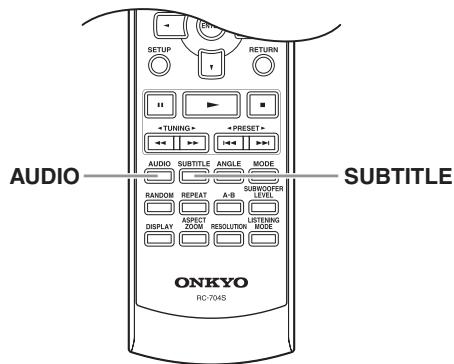
Selecting Soundtracks


Some DVD-Video discs feature soundtracks in several languages or audio formats (e.g., Dolby Digital or DTS). Music DVD-Video discs and DVD-Audio discs sometimes feature audio in several formats, such as PCM, Dolby Digital, or DTS. See the disc's sleeve notes for details.

During playback, press the [AUDIO] button repeatedly to cycle through the available soundtracks.
The name of the selected soundtrack appears onscreen for several seconds. For SACDs, you can select the multi-channel area, 2-channel area, or CD layer. If you make a selection during playback, playback will stop.
Notes:
- With DVD-Video discs, when you stop playback and cancel the "Resume" function (see page 34), the soundtrack language will revert to your default language (see page 63), or the disc's default language.
- With some discs, selecting another soundtrack may cause the picture to skip momentarily.
- With some DVDs you need to select soundtracks from a menu, and you may not be able to select other soundtracks during playback.
- Since the multichannel input source of SACD and DVD-Audio is down mixed, the output will be a processed audio. To output an original audio, select the 2-channel source. Some DVD-Audio discs may not be down mixed; in this case select the 2-channel source.
Selecting Subtitles

Some DVD-Video discs feature subtitles in several languages. See the disc's sleeve notes for details.

SUBTITLE
During playback, press the [SUB-TITLE] button repeatedly to cycle through the available subtitles.
The name of the selected subtitle appears onscreen for several seconds. To turn off subtitles, use the [SUBTITLE] button to select "Off".
Notes:
- When you stop playback and cancel the "Resume" function (see page 34), the subtitle language will revert to your default subtitle language (see page 63), or the disc's default subtitle language.
- With some DVDs you can select subtitles from a menu, and you may not be able to select subtitles during playback.
Displaying Information
You can display various information about the current disc, or input source as follows.
Press the [DISPLAY] button repeatedly to cycle though the available information.
During playback of a disc, various information appears onscreen. The operating status (e.g., Stop, Play, Resume) and disc type information is displayed along the top of the screen.
Disc Information
The information displayed depends on the type of disc, as follows:
DVD-Video
Onscreen:
- Current/total title number, elapsed title time, remaining title time, total title time, selected soundtrack, selected subtitle, and the number of available camera angles.
- Current/total chapter number, elapsed chapter time, remaining chapter time, and total chapter time.
Display:
- Elapsed chapter time
- Remaining title time
DVD-Audio
Onscreen:
- Current/total track number, elapsed track time, remaining track time, total track time, and selected soundtrack.
- Current/total group number, elapsed group time, remaining group time, and total group time.
Display:
- Elapsed track time
- Remaining track time
- Elapsed disc time
Video CD
Onscreen:
- Current/total track number, elapsed track time, remaining track time, and total track time.
- Current/total track number, elapsed track time, remaining disc time, and total disc time.
Display:
- Elapsed track time
- Remaining track time
- Elapsed disc time
- Remaining disc time
Note:
If PBC is on, no information is displayed when the [DISPLAY] button is pressed.
Audio CD, Super Audio CD
Onscreen:
- Current/total track number, elapsed track time, remaining track time, and total track time.
- Current/total track number, elapsed disc time, remaining disc time, and total disc time.
Display:
- Elapsed track time
- Remaining track time
- Elapsed disc time
- Remaining disc time
MP3, WMA
Onscreen:
- Current/total folder number, current/total track number in the folder, elapsed track time, remaining track time (MP3 only), and total track time (MP3 only).
Display:
- Elapsed track time
- File name
- Folder name
- Total number of folders
JPEG
Display:
- Folder number, track number
- File name
- Folder name
- Total number of folders
DivX
Onscreen:
- Current/total track number, elapsed track time, remaining track time, total track time, selected soundtrack, and selected subtitle.
Display:
- Elapsed track time
- File name
- Folder name
- Total number of folders
Input Information
The information displayed depends on the type of input source, as follows:
Display:
- Input source
- Signal format*
-
Listening mode
-
If the input signal is analog, no format information is displayed.
Controlling a TV connected to the DVD receiver
You can control a TV. You must enter the appropriate remote control code first.
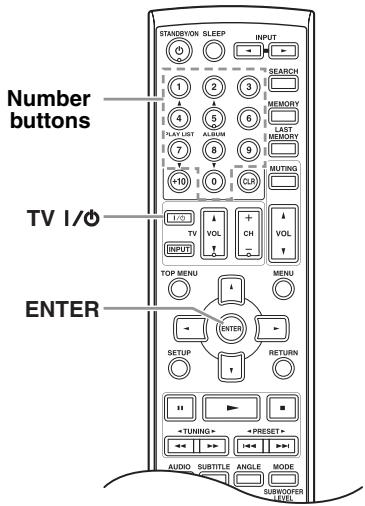
Entering Remote Control Codes
| 1 | Look up the appropriate remote control code in the “Remote Control Codes list” at the end of this manual. |
| 2 | Hold down the TV [1/2] and [ENTER] buttons for about 3 seconds. |
| 3 | Within 30 seconds, use the number buttons to enter the 4-digit remote control code. |
4
Point the remote controller at the TV, and check the operation.
If the remote controller doesn't work as expected, and several remote codes are listed, try each one in turn and use the one that works best.
Note:
The remote control codes provided are correct at the time of printing, but are subject to change.
Controlling a TV
To control a TV, point the remote controller at it and use the buttons explained below. With some TVs, certain buttons may not work as expected, and some may not work at all.
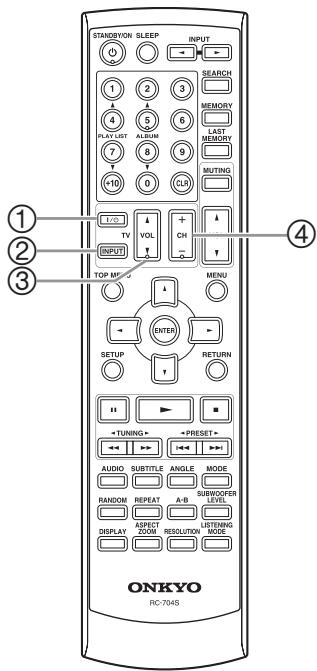
① TV [1/0]
Sets the TV to Standby or On.
② TV [INPUT]
Selects the TV's AV input.
③ TV VOL [▲]/[▼]
Adjusts the TV's volume.
④ TV [CH +/-]
Selects channels on the TV.
Controlling an Apple iPod in RI Dock connected to the DVD receiver
When operating an Apple iPod in RI Dock with an RI connection, you can control it by DVD receiver's remote controller.
When Using an RI Dock:
- Connect the RI Dock to the VIDEO 2/DOCK INPUT jacks (see page 26).
- Set the RI Dock's RI MODE switch to HDD or HDD/ DOCK.
See to the RI Dock's instruction manual for more information.
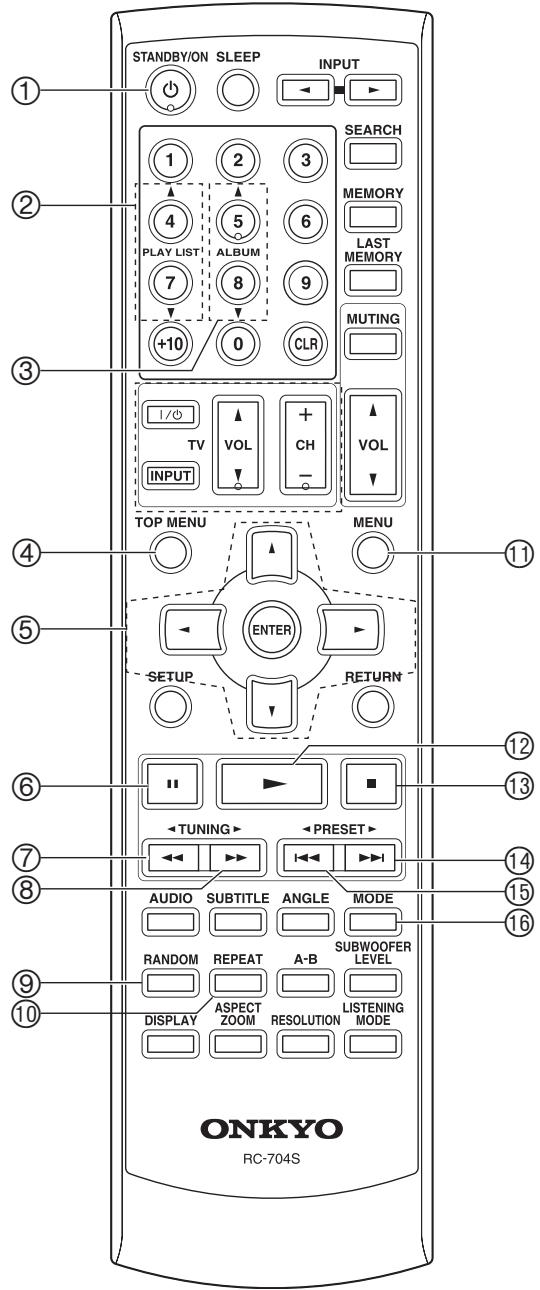
Press the INPUT [] / [] buttons to select "VIDEO 2/DOCK".
① STANDBY/ON button
Sets the iPod to Standby or On.
② PLAYLIST [▲]/[▼] buttons*
Used to select the previous or next playlist on the iPod.
③ ALBUM [▲]/[▼] button*
Selects the next or previous album.
④ TOP MENU button*
Used to access menus.
⑤ Arrow [▲]/[▼] and ENTER buttons*
Used to navigate menus and select items.
⑥ Pause [I] button
Pauses playback. (With 3rd generation iPods, it works as a Play/Pause button.)
⑦ Rewind [▲] button
Press and hold to rewind.
⑧ Fast Forward [▶▶] button
Press and hold to fast forward.
RANDOM button*
Used with the shuffle function.
10 REPEAT button*
Used with the repeat function.
① MENU button
Works as a Mode button when used with a DS-A2/ A2X RI Dock.
⑫ PLAY [▶] button
Starts playback. If the component is off, it will turn on automatically. (With 3rd generation iPods, this button works as a Play/Pause button.)
13 Stop [ ] button
Stops playback and displays a menu.
Next [▶] button
Selects the next song.
Previous [ ] button
Restarts the current song. Press it twice to select the previous song.
16 MODE button*
Turns on the backlight for 30 seconds.
- Buttons marked with an asterisk (*) are not supported by 3rd generation iPods.
Notes:
- Auto Power On Function
If you start iPod playback while the DVD receiver is on Standby, the DVD receiver will automatically turn on and selectVIDEO2/DOCK input. Then, your iPod will start playback.
- Direct Change Function
If you start iPod playback while listening to another input source, the DVD receiver will automatically select VIDEO2/DOCK input.
- When you don't listen to the iPod, stop playback. The direct change function activates at the change of tracks to automatically change the input to VIDEO2/DOCK.
Setup Menu
Here you can configure the DVD receiver in this menu on display.
The configurations are common for the all input settings excluding "AVSync", "Video1 Input", "Video2 Input", and "AMFreq".
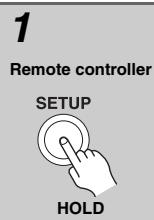
Press and hold the [SETUP] button for 3 seconds.
When selecting the input other than DVD, just press the [SETUP] button. "Balance" appears on the display.
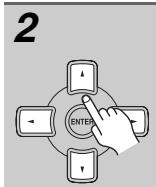
Use the Up and Down [▲]/[▼] buttons to select the menus and use the Left and Right [▲]/[▶] buttons to select settings.
When you've finished, press the [SETUP] button again.
The setup menu closes.
Press the [RETURN] button to return previous display.
For detailed information, refer to the pages in brackets.
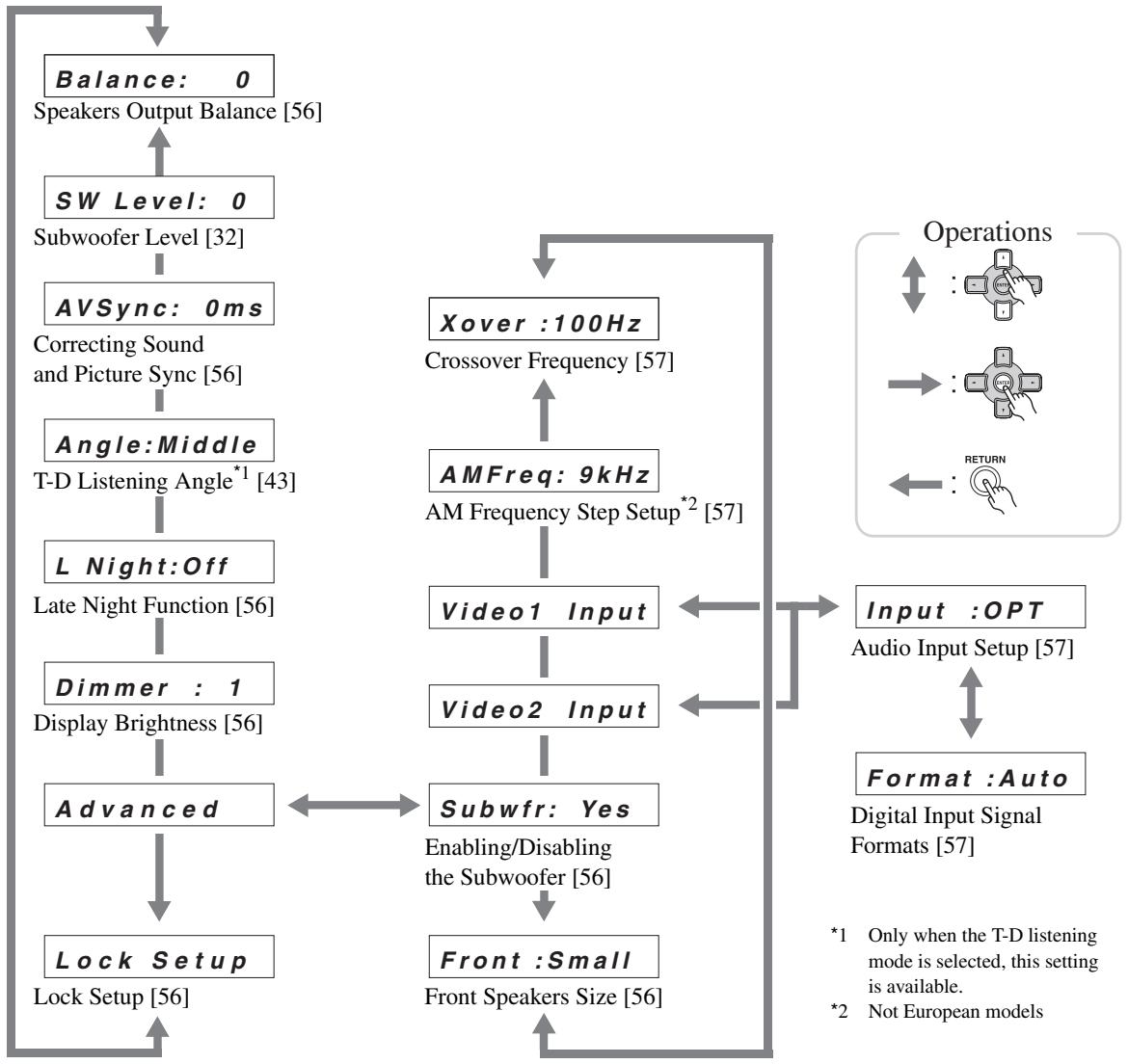
Speakers Output Balance
Here you can adjust the output balance of speakers. The balance can be adjusted from "L + 12" to "R + 12" in 1 steps.
Note:
When the listening mode is set to "Direct" or "Pure Audio", no effect will be produced.
Correcting Sound and Picture Sync
When using progressive scanning on your DVD receiver, you may find that the picture and sound are out of sync. With this setting, you can correct this by delaying the audio signals.
- You can set it from 0 to 100 milliseconds (msec) in 20 millisecond steps.
- The setting is available for each input source other than FM and AM.
Note:
When the listening mode is set to "Direct" or "Pure Audio", no effect will be produced.
Late Night Function (Dolby Digital only)
With the Late Night function, you can reduce the dynamic range of Dolby Digital material so that you can still hear quiet parts even when listening at low volume levels—ideal for watching movies late at night when you don't want to disturb anyone.
Off: Late Night function off (default).
Low: Small reduction in dynamic range.
High: Big reduction in dynamic range.
Notes:
- Depending on the design of the contents, there are some materials that will show no effect even when the Late Night mode is operating.
- The Late Night function resets to the default when the DVD receiver is set to Standby.
Display Brightness
You can adjust the brightness of the display.
1: Normal + INPUT selector and MASTER VOLUME light on.
2: Normal + INPUT selector and MASTER VOLUME light off.
3: Dim + INPUT selector and MASTER VOL- UME light off.
4: Dimmer + INPUT selector and MASTER VOLUME light off.
Lock Setup
With this preference, you can protect your settings by locking the setup menus.
When the setup menus are locked, you cannot change any setting.
Locked: Setup menus locked.
Unlocked: Setup menus not locked.
Enabling/Disabling the Subwoofer
This section explains how to specify enabling/disabling the subwoofer.
Yes: Select if a subwoofer is connected.
No: Select if no subwoofer is connected.
Front Speakers Size
This section explains how to specify front speakers sizes.
For speakers with a cone diameter larger than 16cm ,specify "Large". For those with a smaller diameter, specify "Small'. The crossover frequency can be changed on page 57.
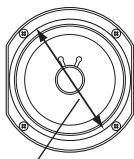
Cone diameter
Small: Select if the front speakers are small.
Large: Select if the front speakers are large.
Notes:
- If the "Enabling/Disabling the Subwoofer" the above is set to "No", this setting is fixed at "Large".
- When the listening mode is set to "Direct" or "Pure Audio", no effect will be produced.
Crossover Frequency
This setting only applies to the speakers that you specified as "Small" in the "Front Speakers Size" on page 56. To get the best bass performance from your speaker system, you need to set the crossover frequency according to the size and frequency response of your speakers. Use the diameter of the smallest speaker in your system when choosing the crossover frequency.
| Speaker cone diameter | Crossover frequency |
| Over 20 cm | 40/50/60 Hz* |
| 16–20 cm | 80 Hz |
| 13–16 cm | 100 Hz(default) |
| 9–13 cm | 120 Hz |
| 9 cm | 150/200 Hz* |
*Choose the setting suitable for the speaker.
Notes:
- For a more accurate setting, look up the frequency response in the manuals supplied with your speakers and set accordingly.
- Choose a higher crossover frequency if you want more sound from your subwoofer.
- When a DVD-Audio or an SACD is played in the Stereo listening mode, no effect will be produced.
- When the listening mode is set to Direct, or Pure Audio, no effect will be produced.
AM Frequency Step Setup (not European models)
You must specify the AM frequency step used in your area. Note that when this setting is changed, all radio presets are deleted.
10 kHz: Select if 10 kHz steps are used in your area.
9 kHz: Select if 9 kHz steps are used in your area.
Audio Input Setup
If you connect a component to a digital input jack, you must assign that jack to an input. For example, if you connect your DVD recorder to the COAXIAL DIGITAL AUDIO IN jack, you should assign that jack to the "Video 1 input". By default, the COAXIAL DIGITAL AUDIO IN jack is assigned to the "Video 2 input", although this can be changed.
Here are the default assignments.
| Input | Default assignment |
| VIDEO 1 INPUT | OPT |
| VIDEO 2/DOCK INPUT | Coax |
OPT: optical digital audio input
Coax: coaxial digital audio input
ANA: analog audio input
Note:
The same audio input cannot be simultaneously assigned to both VIDEO 1 INPUT and VIDEO 2/DOCK INPUT.
Digital Input Signal Formats
The digital input signal formats are available only for the input sources that you have assigned a digital input jack (see above).
Normally, the DVD receiver detects the signal format automatically. However, if you experience either of the following issues when playing PCM or DTS material, you can manually set the signal format to PCM or DTS:
- If the beginnings of tracks from a PCM source are cut off, try setting the format to PCM.
- If noise is produced when fast forwarding or reversing a DTS CD, try setting the format to DTS.
DTS or PCM: The DTS or PCM indicator, depending on which format you have set, flashes, and only signals in that format are output. Digital signals in other formats are ignored.
Auto (default): The format is detected automatically. If no digital input signal is present, the corresponding analog input is used instead.
This chapter explains the various functions and settings of the onscreen setup menus.
Functions and settings are arranged into six menus: Picture, Audio, Language, Display, Operation Setting, and Initial Setup.
The following table lists all the functions and settings, with a brief description and page number where you can find full details.
| Menu | Setting | Description | Page # |
| Picture | TV Shape | Select the aspect ratio that matches your TV. | 60 |
| View Mode | Stretch the picture to fit your TV screen. | 60 | |
| HDMI Output Setting | Turn HDMI video output on or off. | 60 | |
| Progressive Setting | Set the component video output to progressive or interlaced. | 61 | |
| HD Resolution | Select the video resolution for the HDMI OUT. | 61 | |
| HD JPEG Mode | For displaying JPEG images at a high resolution on a HDTV. | 61 | |
| Video Black Level | Choose a video black level. | 61 | |
| Brightness | Adjust the picture brightness. | 61 | |
| Sharpness | Adjust the picture sharpness. | 61 | |
| PAL Output Setting | Convert the disc's video format to NTSC or PAL. | 62 | |
| SCART Output Setting (European model only) | Selects the video format for the SCART output: RGB or composite. | 62 | |
| Audio | Digital/HDMI Audio Out | Settings for the digital signal output by the HDMI digi-tal audio outputs. | 62 |
| Linear PCM Out | Select whether or not the DVD receiver down samples digital audio. | 62 | |
| Language | On-Screen Language | Select a language for the onscreen setup menus and messages. | 63 |
| Disc Menu Language | Select your preferred language for disc menus. | 63 | |
| Audio Language | Select your preferred language for soundtracks. | 63 | |
| Subtitle Language | Select your preferred language for subtitles. | 63 | |
| DivX Subtitle | Select your preferred language for DivX subtitle. | 65 | |
| DisplayON/XYO | On-Screen Display | Turn on or off onscreen messages and indicators. | 65 |
| On-Screen Display Color | Select a color for onscreen setup menus and mes-sages. | 65 | |
| Background | Select a background color for when playback is stopped. | 65 | |
| Screen Saver | Set the Screen Saver function. | 65 | |
| Operation Setting | Parental Lock | Set the Parental Lock function. | 66 |
| Security Code | Change the security code for use with parental lock. | 66 | |
| DVD Priority Contents | Determines what's played on DVD-Audio discs with DVD-Video contents. | 67 | |
| SACD Priority Contents | Determines how the SACD multichannel and 2-channel area and the CD area are played. | 67 | |
| DivX Registration | Displays your DivX VOD registration code | 67 | |
| Initial Setup | TV Shape | This menu appears automatically the very first time you turn on your DVD receiver. (These settings are available in other menus.) | 29 |
| HDMI Output Setting | |||
| On-Screen Language |
Using the Onscreen Setup Menus
This section explains how to navigate the onscreen setup menus.
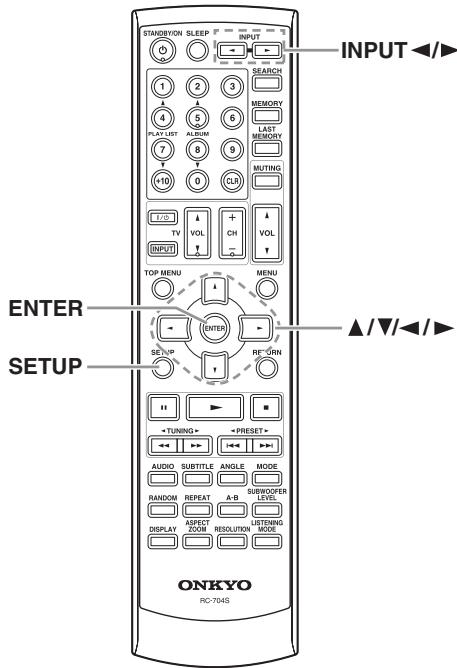
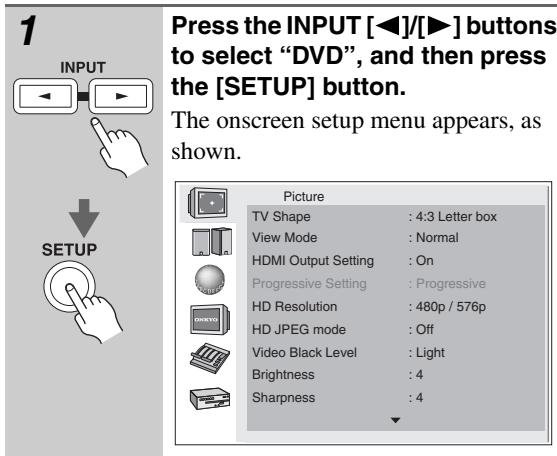
| 2 | Use the arrow [▲]/[▼]/[▲]/[▲] buttons to navigate the menus, and press the [ENTER] button to see the available options. |
| 3 | Use the Up/Down [▲]/[▼] but- tons to select the options, and press the [ENTER] button to con- firm your selection. |
| 4 | When you've finished, press the [SETUP] button again. The onscreen setup menu closes. |
Picture Menu
TV Shape
With this setting you can select a picture format to match the aspect ratio of your TV.
4:3 Letter box (default):
Choose this option if you have a standard TV (4:3 aspect ratio). When you watch widescreen DVD-Video movies, the entire picture will be visible and there will be black bars at the top and bottom of the screen, as shown.
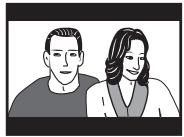
4:3 Pan Scan:
Choose this option if you have a standard TV (4:3 aspect ratio) and want to use the full height of the screen when watching widescreen DVD-Video movies. In order to use the full height of the screen, the pic
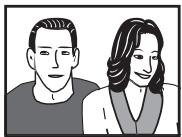
ture will be cropped on both sides, as shown. This option won't work with discs that don't support pan and scan.
16:9 Widescreen:
Choose this option if you have a widescreen TV (16:9 aspect ratio). Depends on TV, the picture appears stretched when watching programs in 4:3 format.
16:9 Compressed:
Choose this option if you have a widescreen TV (16:9 aspect ratio) and the picture appears stretched when watching programs in 4:3 format. This option will correct the issue.
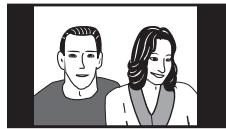
Notes:
- This setting does not apply to DVD menus.
- When the HDMI OUT signal is at a resolution of 720p or 1080i, programs in 4:3 format will appear stretched, so we recommend that you select the "16:9 Compressed" option.
- With some DVD-Video discs this setting may have no effect. See the disc's sleeve notes to see which picture format is used.
View Mode
With this setting you can adjust the aspect of the picture so that it fits your TV screen. Due to your TV's aspect ratio setting and the DVD's aspect ratio, black bars may appear above and below the picture or at the sides and the aspect of the picture may be unsuitable. In this case, use this setting to adjust the aspect of the picture as you like.
Normal (default):
The picture is displayed in its original aspect ratio.
View Model:
The picture is stretched horizontally to make it fit the height of the screen.
View Mode2:
The picture is stretched vertically to make it fit the width of the screen.
View Mode3:
The picture is stretched horizontally and vertically.
Tip:
The view mode can also be changed by using the remote controller's [ASPECT] button.
Note:
This setting does not apply to DVD menus.
HDMI Output Setting
With this setting you can turn the HDMI video output on or off. See page 30 for more information.
On (default):
Video is output by the HDMI OUT.
Off:
Video is not output by the HDMI OUT.
Tip:
This setting can also be changed by using the [HDMI] button on the front panel (see page 30).
Note:
When this setting is set to "On", video is output by the analog video outputs only when the "HD Resolution" is set to "480p (480p / 576p)".
Progressive Setting
With this setting you can set the component video output to progressive or interlaced. While the "HDMI Output Setting" is set to "On", this setting is fixed at "Progressive" and cannot be changed. See page 30 for more information.
Interlace:
Component video output is interlaced.
Progressive (default):
Component video output is progressive.
Tip:
When the "HDMI Output Setting" is set to "Off", you can also change this setting by using the remote controller's [RESOLUTION] button (see page 30).
HD Resolution
With this setting you can set the video resolution for the HDMI OUT. See page 30 for more information.
Auto:
The resolution is automatically set to the native resolution of the TV connected to the HDMI OUT.
480p (480p / 576p) (default):
The setting displayed depends on the country in which you purchased the DVD receiver.
720x480p60Hz or 720x576p50Hz
720p:
1280 × 720p50 / 60Hz
1080i:
1920 x 1080i 50/60 Hz
Tip:
When the "HDMI Output Setting" is set to "On", you can also change this setting by using the remote controller's [RESOLUTION] button (see page 30).
Note:
Initially, the DVD receiver is configured to output both HDMI and analog video. However, if after changing the resolution settings there's no picture, with the analog video connection or HDMI connection in place, press the [RESOLUTION] button repeatedly to restore the picture.
HD JPEG Mode
If your TV is connected to the HDMI OUT and the HDMI resolution is set to 720p or 1080i, this setting allows you to display your JPEG pictures in high definition.
On:
JPEG pictures displayed in high definition.
Off (default):
JPEG pictures displayed as normal.
Notes:
- If your TV is connected to a video output other than the HDMI OUT, or the HDMI output resolution is set to something other than 720p or 1080i, even if this setting is set to "On", your JPEG pictures will not be displayed in high definition.
- When using HD JPEG, it may take a while to display each picture. And the Zoom function cannot be used. Also, onscreen status messages such as "Play" and "Stop" are not displayed.
Video Black Level
With this setting you can adjust the picture blackness for the analog video outputs. It does not affect the component video output when its set to progressive.
Light:
Blacks are lighter, and the entire picture becomes lighter.
Dark:
Blacks are darker, and the entire picture becomes darker.
Brightness
With this setting you can adjust the picture brightness.
Level 1-7:
"1" is the darkest. "7" is the brightest. The default brightness is "4 (standard)".
Sharpness
With this setting you can adjust the picture sharpness.
Level 1-7:
"1" is the softest. "7" is the sharpest. The default sharpness is "4 (standard)".
PAL Output Setting
With this setting you can specify how the DVD receiver outputs video signals when playing NTSC format DVD-Video discs or Video CDs.
Auto (default):
Use this option if your TV supports both PAL and NTSC. The DVD receiver does not convert the video format. When you play a PAL disc, the video output will be PAL format. And when you play an NTSC disc, it'll be NTSC format.
NTSC:
Use this option if your TV doesn't support PAL playback, or the picture is distorted when watching PAL discs. The DVD receiver will convert PAL format video signals to NTSC-compatible format.
PAL:
Use this option if your TV doesn't support NTSC playback, or the picture is distorted when watching NTSC discs. The DVD receiver will convert NTSC format video signals to PAL-compatible format.
Note:
If you select the wrong setting by mistake and loose the picture, while pressing and holding the Next [▶] button on the front panel, press the [STANDBY/ON] button on the front panel repeatedly to get picture.
SCART Output Setting (European model only)
With this setting you can select the video format to be used for the SCART AV CONNECTOR: RGB or composite video. Before changing this setting, refer to your TV's manual to see if its SCART input can accept video signals in these formats.
Composite (default):
Composite video offers standard quality.
RGB:
This format offers the best picture quality.
Notes:
- If you select a format that is not supported by your TV, the setup menu may disappear from the screen. If this happens, switch off your equipment, connect the DVD receiver to your TV with a composite video cable, and then change this setting.
- When "RGB" is selected, nothing is output by the component video output and HDMI output.
Audio Menu
Digital/HDMI Audio Out
With this setting you can configure the HDMI digital output.
All (default):
Dolby Digital and DTS signals are output as they are. If your TV or amp doesn't support higher sampling rates, set the "Linear PCM Out" setting to "Down Sample On" (below).
PCM:
Dolby Digital and DTS signals are down mixed to 2 channels and output as PCM. If your TV doesn't support Dolby Digital and DTS, choose this option. Audio from speakers connected to DVD receiver is also changed to PCM.
Note:
MPEG is output as PCM regardless of this setting.
Linear PCM Out
With this setting you can configure the DVD receiver to output digital audio with higher sampling rates (e.g., 88.2kHz , 96kHz ) as it is or to down sample it to 48kHz or below.
If the TV you connect to the DVD receiver's HDMI output supports 96kHz digital audio, select "Down Sample Off". Otherwise, select "Down Sample On".
Down Sample On:
Source of 48kHz or more is down sampled to 48 or 44.1kHz .
Down Sample Off (default):
Sources are output as they are.
Notes:
- Some copy-protected DVD-Video discs may use 96kHz digital audio only for D/A conversion to the analog audio outputs.
- With some discs, even if you select "Down Sample Off", the digital audio will be down sampled, and in some cases may not be output by the DVD receiver's HDMI output.
Language Menu
On-Screen Language
With this setting you can select a language for the onscreen setup menus and messages.
Select one of the displayed languages.
Disc Menu Language
With this setting you can select your preferred language for disc menus. When you play a DVD-Video disc with multiple language disc menus, your preferred language will be selected automatically.
Select "Others" if the language you want is not displayed. See "Selecting Other Languages" on page 64.
Notes:
- Not all DVD-Video discs have menus in multiple languages.
- Even if a DVD-Video disc has menus in multiple languages, this setting may not always work.
- If a DVD has only one menu language, that will be used.
- With some DVD-Video discs you can select languages from a menu.
Audio Language
With this setting you can select your preferred language for soundtracks. When you play a DVD-Video disc with multiple language soundtracks, your preferred language will be selected automatically.
Select "Others" if the language you want is not displayed. See "Selecting Other Languages" on page 64.
Notes:
- Not all DVD-Video discs have soundtracks in multiple languages.
- Even if a DVD-Video disc has soundtracks in multiple languages, this setting may not always work.
- If a DVD has only one soundtrack, that will be used.
- With some DVD-Video discs you can select languages from a menu.
Subtitle Language
With this setting you can select your preferred language for subtitles. When you play a DVD-Video disc with multiple language subtitles, your preferred language will be selected automatically.
Select "No Subtitle" if you don't want subtitles displayed. Select "Others" if the language you want is not displayed. See "Selecting Other Languages" on page 64.
Notes:
- Not all DVD-Video discs have subtitles.
- Even if a DVD-Video disc has subtitles in multiple languages, this setting may not always work.
- If a DVD has only one subtitle language, that will be used.
- With some DVD-Video discs you can select subtitles from a menu.
Selecting Other Languages
This section explains how to select other languages for disc menus, audio, and subtitles.
| 1 Remote controller | Select “Others” from the “Disc Menu Language”,“Audio Lang- guage”, or “Subtitle Language” menu, and then press [ENTER]. |
| 2 | Use the Left/Right [/+] buttons to select the code. Use the Up/Down [/] buttons to enter a language code. See adjacent table for language codes. |
| 3 | When you’ve finished, press the [ENTER] button. |
Use this list when specifying other languages.
| Language | Code |
| Japanese | JA |
| English | EN |
| French | FR |
| German | DE |
| Italian | IT |
| Spanish | ES |
| Chinese | ZH |
| Dutch | NL |
| Portuguese | PT |
| Swedish | SV |
| Russian | RU |
| Korean | KO |
| Greek | EL |
| Afar | AA |
| Abkhazian | AB |
| Afrikaans | AF |
| Amharic | AM |
| Arabic | AR |
| Assamese | AS |
| Aymara | AY |
| Azerbaijani | AZ |
| Bashkir | BA |
| Byelorussian | BE |
| Bulgarian | BG |
| Bihari | BH |
| Bislama | BI |
| Bengali | BN |
| Language | Code |
| Kirghiz | KY |
| Latin | LA |
| Lingala | LN |
| Laothian | LO |
| Lithuanian | LT |
| Latvian | LV |
| Malagasy | MG |
| Maori | MI |
| Macedonian | MK |
| Malayalam | ML |
| Mongolian | MN |
| Moldavian | MO |
| Marathi | MR |
| Malay | MS |
| Maltese | MT |
| Burmese | MY |
| Nauru | NA |
| Nepali | NE |
| Norwegian | NO |
| Occitan | OC |
| Oromo | OM |
| Oriya | OR |
| Panjabi | PA |
| Polish | PL |
| Pashto, Pushto | PS |
| Quechua | QU |
| Rhaeto-Romance | RM |
| Language | Code |
| Tibetan | BO |
| Breton | BR |
| Catalan | CA |
| Corsican | CO |
| Czech | CS |
| Welsh | CY |
| Danish | DA |
| Bhutani | DZ |
| Esperanto | EO |
| Estonian | ET |
| Basque | EU |
| Persian | FA |
| Finnish | FI |
| Fiji | FJ |
| Faroese | FO |
| Frisian | FY |
| Irish | GA |
| Scots-Gaelic | GD |
| Galician | GL |
| Guarani | GN |
| Gujarati | GU |
| Hausa | HA |
| Hindi | HI |
| Croatian | HR |
| Hungarian | HU |
| Armenian | HY |
| Interlingua | IA |
| Interlingue | IE |
| Inupiak | IK |
| Indonesian | IN |
| Icelandic | IS |
| Hebrew | IW |
| Yiddish | JI |
| Javanese | JW |
| Georgian | KA |
| Kazakh | KK |
| Greenlandic | KL |
| Cambodian | KM |
| Kannada | KN |
| Kashmiri | KS |
| Kurdish | KU |
| Language | Code |
| Kirundi | RN |
| Romanian | RO |
| Kinyarwanda | RW |
| Sanskrit | SA |
| Sindhi | SD |
| Sangho | SG |
| Serbo-Croatian | SH |
| Sinhalese | SI |
| Slovak | SK |
| Slovenian | SL |
| Samoan | SM |
| Shona | SN |
| Somali | SO |
| Albanian | SQ |
| Serbian | SR |
| Siswati | SS |
| Sesotho | ST |
| Sundanese | SU |
| Swahili | SW |
| Tamil | TA |
| Telugu | TE |
| Tajik | TG |
| Thai | TH |
| Tigrinya | TI |
| Turkmen | TK |
| Tagalog | TL |
| Setswana | TN |
| Tonga | TO |
| Turkish | TR |
| Tsonga | TS |
| Tatar | TT |
| Twi | TW |
| Ukrainian | UK |
| Urdu | UR |
| Uzbek | UZ |
| Vietnamese | VI |
| Volapük | VO |
| Wolof | WO |
| Xhosa | XH |
| Yoruba | YO |
| Zulu | ZU |
DivX Subtitle
Some DivX video discs include subtitles in one or more languages. The disc packaging will usually inform you about which subtitle languages are available.
With this setting you can select your preferred language for DivX subtitles. When you play a DivX disc with multiple language subtitles, your preferred language will be selected automatically.
You can select DivX subtitle languages by region:
Unicode (UTF-8):
Unicode encoding scheme. Two bytes are used to encode each character.
Western European
Turkish
Central European
Cyrillic
Greek
Hebrew
Arabic
Baltic
Vietnam
Note:
Some external subtitle files may display incorrectly or not at all.
Display Menu
On-Screen Display
With this setting you can turn on or off onscreen messages, such as "Play", "Stop", and "Resume".
Off:
Onscreen messages are not displayed.
On (default):
Onscreen messages are displayed.
On-Screen Display Color
With this setting you can set the color and theme of the Disc navigation window.
Sapphire
Pearl
Amethyst
Garnet
Background
With this setting you can select the color of the background that's displayed when the DVD receiver is stopped.
Blue
Gray
Graphic:
The theme picture specified for the "On-Screen Display Color" setting is used.
Screen Saver
With the Screen Saver function you can protect your TV against screen burn-in, which can occur when the same image or menu is displayed for a long time.
Off:
Screen saver off.
On (default):
Screen saver on.
When the "Screen Saver" function is set to "On", and playback is stopped for 15 minutes, the Screen Saver function automatically displays a moving image.
Once the screen saver has been activated, you can cancel it by pressing either the Play [▶] button.
Operation Setting Menu
Setting the Parental Lock
With the Parental Lock function you can block access to certain scenes that the authors have flagged as being unsuitable for children.
| 1 | Select “Operation Setting” menu in the setup. |
| 2 Remote controller | Use the Up/Down [▲]/[▼] but-tons to select “Parental Lock”, and then press the [ENTER] but-ton. The password (security code) input screen appears. |
| 3 | Enter the security code using the remote controller's number but-tons, and then press the [ENTER] button. The default security code is “8888”. You can change the security code in the next section. |
| 4 | Use the Up/Down [▲]/[▼] but-tons to change the level of parental lock, and then press the [ENTER] button. At level 8 parental lock is off, with level 1 being the strictest level. |
Notes:
- When entering a security code, you can use the [CLR] button to delete the numbers entered so far, if necessary.
-
Not all discs use parental lock. See the disc's sleeve notes for details.
-
Discs with parental lock may cut certain scenes, replace certain scenes with children-friendly scenes, or prevent playback of the entire disc.
Change the Security Code
To change the Security Code, confirm your existing code then enter a new one.
| 1 | Select “Operation Setting” menu in the setup. |
| 2 Remote controller | Use the Up/Down [▲]/[▼] but-tons to select “Security Code”, and then press the [ENTER] but-ton. The password (security code) input screen appears. |
| 3 | Enter the existing security code using the remote controller's number buttons, and then press the [ENTER] button. The default security code is “8888”. Even if a new security code has been entered, the code “8888” can still be used. Once the security code has been entered, the new security code input screen appears. |
| 4 | Enter the new security code using the remote controller's number buttons, and then press the [ENTER] button. The new security code has been set. |
Note:
If you forget your security code, enter "8888" instead. "8888" is a security code that can always be used.
DVD Priority Contents
This setting determines what is played when a DVD-Audio disc also contains DVD-Video material.
DVD-AUDIO (default):
The DVD-Audio material is played.
DVD-VIDEO:
The DVD-Video material is played.
SACD Priority Contents
SACDs have two separate areas for storing audio tracks—one for multichannel audio, the other for 2-channel stereo audio. In addition, hybrid SACDs have an extra layer for playback in standard CD players. With this setting you can determine how SACDs are played by the DVD receiver.
2 ch Area (default):
The 2-channel stereo audio tracks are played.
Multi ch Area:
The multichannel audio tracks are played.
CD Area:
The CD layer of hybrid SACDs is played.
Note:
This setting determines which area of the disc is played initially. If "Multi ch Area" is selected, and an SACD that contains no multichannel area is loaded, the 2-channel area will be played.
DivX® Registration
To play DivX VOD (video on demand) content on this DVD receiver, you first need to register it with your DivX VOD content provider. You do this by generating a DivX VOD registration code, which you then submit to your provider.
Your 8-digit registration code is displayed.
Burn DivX VOD content that you download to a blank CD-R.
DivX® Video On Demand
Your registration code is:
01234567
(http://www.divx.com/vod)
OK
Make a note of the code as you will need it when you register with a DivX VOD provider.
Important:
DivX VOD content is protected by DRM (digital rights management). This restricts playback of content to specific, registered devices.
Resetting the receiver
Use this procedure to reset all the receiver's settings to the factory default.
Note that resetting the DVD receiver will delete your radio presets and custom settings.
| 1 | Turn on the DVD receiver. |
| 2 DVD receiver | Using the front panel buttons, hold down the Stop [■] button and press [STANDBY/ON] button. “DVD Clear” appears on the display. When the reset is complete, and the DVD receiver enters Standby mode. |
| 3 HOLD | |
| 4 STANDBY/ON |
DVD-Video regions
All DVD-Video discs carry a region mark on the case somewhere that indicates which region(s) of the world the disc is compatible with. Your DVD receiver also has a region mark, which you can find on the rear panel. Discs from incompatible regions will not play in this receiver. Discs marked "ALL" will play in any player. The diagram below shows the various DVD regions of the world.
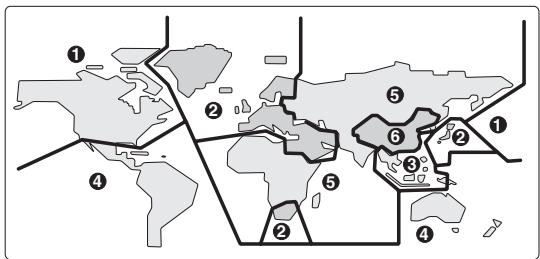
Disc Content Organization
DVD-Video Format
DVD-Video discs contain titles, which are usually subdivided into chapters.
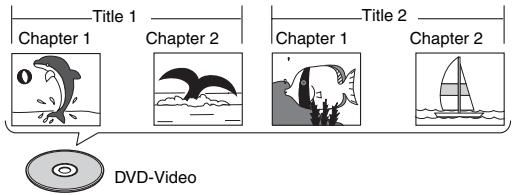
DVD-Audio
DVD-Audio discs contain groups and tracks.
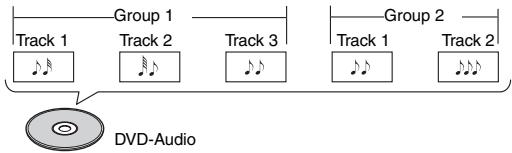
SACD
SACDs have two separate areas for storing audio tracks—one for multichannel audio, the other for 2-channel stereo audio. In addition, hybrid SACDs have an extra layer for playback in standard CD players.
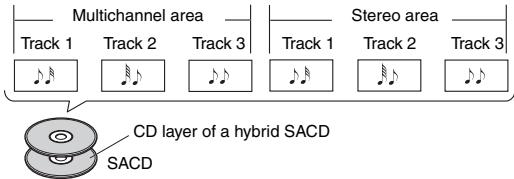
VCD
VCDs contain video tracks.
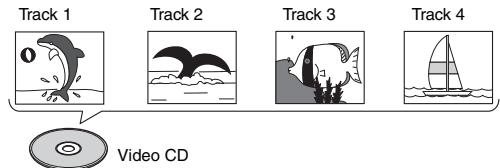
Audio CD Format
Audio CDs contain tracks.

MP3, WMA, JPEG & DivX Files
MP3, WMA, JPEG, and DivX files are typically organized into folders. The DVD receiver handles MP3, WMA, JPEG, and DivX files as tracks.
ROOT 001
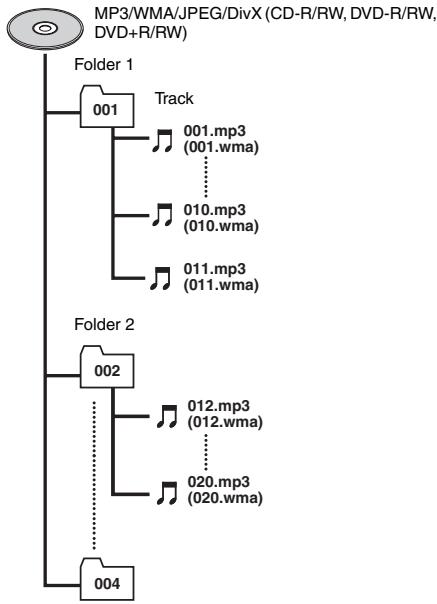
Glossary
Analog audio
An electrical signal that directly represents sound. Compare this to digital audio which can be an electrical signal, but is an indirect representation of sound. See also "Digital audio."
Aspect ratio
The width of a TV screen relative to its height. Conventional TVs are 4:3 (in other words, the screen is almost square); widenscreen models are 16:9 (the screen is almost twice as wide as it is high).
Digital audio
An indirect representation of sound by numbers. During recording, the sound is measured at discrete intervals (44,100 times a second for CD audio) by an analog-to-digital converter, generating a stream of numbers.
On playback, a digital-to-analog converter generates an analog signal based on these numbers. See also "Sampling frequency" and "Analog audio."
DivX
DivX is a media technology created by DivX, Inc. DivX media files contain compressed video. DivX files can also include advanced media features like menus, subtitles, and alternate audio tracks.
Dolby Digital
Using a maximum of 5.1 channels of audio, this high quality surround system is used in many of the finer movie theaters around the world.
The display shows which channels are active, for example showing 3/2.1. The 3 being the two front channels and the center channel; the 2 being the surround channels, and the .1 being the LFE channel.
Down Mix
Down mixing reduces the number of surround-sound channels and mixes the multi-channel audio that is used in Dolby Digital and DTS so that the audio matches the number of speakers and other elements of the output environment.
DRM
DRM (digital rights management) is a type of server software developed to enable secure distribution of paid content over the web, recently incorporated by WMA (Windows Media Audio).
DTS
DTS stands for Digital Theater Systems. DTS is a surround system different from Dolby Digital that has become a popular surround sound format for movies.
Dynamic range
The difference between the quietest and loudest sounds possible in an audio signal (without distorting or getting lost in noise).
Dolby Digital and DTS soundtracks are capable of a very wide dynamic range, delivering dramatic cinema-like effects.
File extension
A tag added to the end of a filename to indicate the type of file. For example, ".mp3" indicates an MP3 file.
HD
Abbreviation for high definition, as in HDTV (high-definition TV).
HDCP (High-bandwidth Digital Content Protection)
The video encryption technology developed by Intel for HDMI/DVI. It's designed to protect video content and requires a HDCP-compatible device to display the encrypted video.
HDMI
HDMI (High-Definition Multimedia Interface) is a high-speed digital interface which has the capability to support standard, enhanced, or high-definition video plus standard to multichannel surround-sound audio on a single digital connection. HDMI features include uncompressed digital video, a bandwidth of up to 5 gigabytes per second and communication between the AV source and AV devices such as DTVs.
ISO 9660 format
International standard for the volume and file structure of CD-ROM discs.
JPEG
A file format used for still images, such as photographs and illustrations. JPEG files are identified by the file extension“.jpg” or“.JPG”. Most digital cameras use this format.
LFE
LFE refers to the low-frequency effect sounds that are used in Dolby Digital and DTS. Generally, the subwoo-ers function more effectively when these sounds are contained in the signal from the disc or other media.
MP3
MP3 (MPEG1 audio layer 3) is a compressed audio file format. Files are recognized by their file extension ".mp3" or ".MP3".
MPEG video
The video format used for Video CDs and DVDs. Video CD uses the older MPEG-1 standard, while DVD uses the newer and much better quality MPEG-2 standard.
NTSC (National Television Standards Committee)
This is one broadcasting system for color televisions, and is used in the U.S., Korea, Central and South America, Japan, and other countries. The system consists of 525 horizontal scan lines, and is divided into 30 frames per second. It uses an interlacing method which skips every other scan line to produce an image (field) with one-half of the full resolution, and displays 60 such fields per second.
PAL (Phase alternation by line)
This is one broadcasting system for color televisions, and is used primarily in Europe. This system consists of 625 horizontal scan lines. It uses an interlacing method with 25 frames (50 fields) per second. The vertical resolution is higher than NTSC, however the frame rate is lower.
PBC (PlayBack Control) (Video CD only)
A system of navigating a Video CD through on-screen menus recorded onto the disc. Especially good for discs that you would normally not watch from beginning to end all at once—karaoke discs, for example.
PCM (Pulse Code Modulation)
The most common system of encoding digital audio, found on CDs and DAT. Excellent quality, but requires a lot of data compared to formats such as Dolby Digital.
Progressive scan video
All the lines that make up a video picture are updated in one pass (compared to interlace which takes two passes to update the whole picture).
Regions (DVD-Video only)
These associate discs and players with particular areas of the world. This unit will only play discs that have compatible region codes. You can find the region code of your unit by looking on the rear panel. Some discs are compatible with more than one region (or all regions).
Sampling frequency
The rate at which sound is measured to be turned into digital audio data. The higher the rate, the better the sound quality, but the more digital information is generated. Standard CD audio has a sampling frequency of 44.1kHz , which means 44,100 samples (measurements) per second. See also "Digital audio."
T-D (Theater-Dimensional)
This is a virtual surround-sound technology that was developed by Onkyo Corporation. For details, see page 42.
WMA
WMA is short for Windows Media Audio and refers to an audio compression technology developed by Microsoft Corporation. WMA data can be encoded by using Windows Media Player version 8.
If you have any trouble using the DVD receiver, look for a solution in this section. If you can't resolve the issue yourself, contact your Onkyo dealer.
The DVD receiver does not work or shows no reaction.
DVD receiver


HOLD
Press and hold Stop [■] button for 10 seconds to forcibly shut down the DVD receiver.
Power
The power to the system is not turned on
- Make sure that the power cord is plugged into the AC outlet. Make sure that the other end of the power cord is properly connected to the DVD receiver's AC INLET (page 23).
- Unplug the power cord from the AC outlet, wait for 10 seconds or more, then plug the cable in again.
The power is turned off during the operation
- If the SLEEP indicator is lit on the display, the Sleep timer is functioning. Cancel the Sleep timer (page 32).
- If the STANDBY indicator is blinking on and off, the built-in protection circuit is activated. Be careful not to short the positive and negative wires.
The DVD receiver turns off as soon as it's turned on
- The amp protection circuit has been activated. Remove the power cord from the wall outlet immediately. Disconnect all speaker cables and input sources, and leave the DVD receiver with its power cord disconnected for 1 hour. After that, reconnect the power cord and set the volume to maximum. If the DVD receiver stays on, set the volume to minimum, disconnect the power cord, and reconnect your speakers and input sources. If the DVD receiver turns off when you set the volume to maximum, disconnect the power cord, and contact your Onkyo dealer.
Audio
The sound is not heard or very quiet.
- Make sure the power cord is plugged into an AC outlet.
- Make sure that all audio connecting plugs are pushed in all the way (page 23).
- Make sure that none of the connecting cables are bent, twisted, or damaged.
- Make sure that the speakers are connected correctly and the speaker cables'core wires touch only the speaker connectors (page 17).
- Check to make sure that the volume level is not set to minimum (page 31).
- Make sure that the input source is properly selected (page 31).
- Check to make sure the mating function is not engaged. If the MUTING indicator is flashing, the sound is muted. Cancel the mating function (page 32).
- When the headphones are connected, the speakers do not output any sound. Disconnect the headphones (page 31).
- Make sure that the digital input source is assigned properly (page 57).
- Check the digital audio output setting on the connected device. On some game consoles, such as those that support DVD, the default setting is off.
- The audio signal input from HDMI IN is not output from the speakers connected to the DVD receiver. Make the analog or digital connection (pages 25, 26).
There's no sound with a certain signal format
- Check the digital audio output setting on the connected device. On some game consoles, such as those that support DVD, the default setting is off.
Sound is not good
- Make sure that the speaker cords are connected correctly. Check their polarity (+ / -) (page 17).
- Connect the analog audio cables (RCA) firmly (page 23).
- Sound quality could be affected by a strong magnetic field, such as a TV set. Locate such a device far from the DVD receiver.
- If you have any devices that emit high intensity radio waves near the DVD receiver, such as a cellular phone in operation (calling), noise may be generated.
- The DVD receiver uses a rotating unit whose precision instrument generates faint hissing sound while reading a disc during playing back or searching a track; you may hear it in a silent environment.
- Using cable ties to bundle audio cables with power cord, speaker cables, and so on may degrade the audio performance, so don't do it.
The subwoofer produces no sound
- When you play source material that contains no information in the LFE channel, the subwoofer produces no sound.
- Make sure the subwoofer is configured correctly (page 55).
Headphones makes noise or no sound
- There may be a bad contact. Clean up the headphones terminal. For information on how to clean up, see the instruction manual attached to the headphones. Otherwise, verify the cord of the headphones which may be broken.
Sound Quality
- The sound quality becomes stable when 10 to 30 minutes have passed after the power was turned on.
- Using cable ties to bundle audio cables with speaker cables may degrade the audio performance, so don't do it.
The Late Night function doesn't work
- Make sure the source material is Dolby Digital.
The beginning of audio received by an HDMI IN can't be heard
- Since it takes longer to identify the format of an HDMI signal than it does for other digital audio signals, audio output may not start immediately.
There's no sound to your TV connected to an HDMI OUT
- You won't hear any sound from the HDMI OUT if your TV only supports DVI.
- Change the HDMI setting on your TV to HDMI.
- Your TV doesn't support Dolby or DTS. Change the "Digital/HDMI Audio Out" setting to "PCM" (page 62).
- Your TV doesn't support 88.2 kHz, 96 kHz, 176.4 kHz or 196 kHz PCM. Change the "Linear PCM Out" setting to "Down Sample On" (page 62).
The TV audio with SCART connection is strange. The volume is too low. There's no bass sound.
- When listening to the TV audio with SCART connection, set the listening mode to "Stereo" or "Direct".
- When outputting the subwoofer's audio from the TV, set the "Subwfr" setting to "No" (page 55).
Video
There's no picture
- Make sure that all video connecting plugs are pushed in all the way (page 23).
- Make sure that each video component is properly connected. (pages 23-27)
- If the video source is connected to an HDMI input, your TV must be connected to the HDMI OUT (page 27). Your TV input must be changed to HDMI.
- While the Pure Audio listening mode is selected, the video circuitry is turned off.
- On your TV, make sure that the video input to which the DVD receiver is connected is selected.
- The "PAL Output Setting" is set wrong for your TV. Change the "PAL Output Setting" to suit your TV (page 62).
- The "SCART Output Setting" is set wrong for your TV. Make sure your TV supports the selected video output format (page 62).
There's no picture from a source connected to an HDMI IN
- The TV or display does not support the current video resolution and you need to select another resolution on your AV component.
There's no picture to your TV connected to an HDMI OUT
- The HDMI Output Setting is set to Off or your TV doesn't support HDMI Resolution settings of 720p and 1080i (page 30).
- Try pressing the [HDMI] button on the front panel repeatedly to switch the HDMI Output Setting to on, and then pressing the [RESOLUTION] button on the remote controller repeatedly to get picture (page 30).
- If the DVD receiver is connected to your AV component, try connecting it directly to your TV. It will not work if you connect to a component that doesn't support HDCP (page 27).
There's no picture to your TV connected to an Component Video Output
- Your TV does not support progressive scanning, and the HDMI Output Setting is on. While the HDMI Output Setting is on, the component video output outputs progressive video.
Try pressing the [HDMI] button on the front panel repeatedly to switch the HDMI Output Setting to off, and then pressing the [RESOLUTION] button repeatedly to switch to Interlaced (page 30). - Press the [RESOLUTION] button repeatedly to select 480p (480p/576p) (page 30).
There's no picture to your TV connected to an Composite Video Output
- Try pressing the [RESOLUTION] button on the remote controller repeatedly to get picture (page 22).
Tuner
Reception is noisy, FM stereo reception is noisy, or the FM ST indicator doesn't appear
- Relocate your antenna.
- Move the DVD receiver away from your TV or computer.
- When listening to an AM station, operating the remote controller may cause noise.
Passing cars and airplanes can cause interference.
Concrete walls weaken radio signals. - If nothing improves the reception, install an outdoor antenna.
Remote Controller
The remote controller doesn't work
- Make sure that the batteries are installed with the correct polarity (page 11).
- Install new batteries. Don't mix different types of batteries, or old and new batteries (page 11).
- Make sure that the remote controller is not too far away from the DVD receiver, and that there's no obstruction between the remote controller and the DVD receiver's remote control sensor (page 11).
- Make sure that the DVD receiver is not subjected to direct sunshine or inverter-type fluorescent lights. Relocate if necessary.
- If the DVD receiver is installed in a rack or cabinet with colored-glass doors, the remote controller may not work reliably when the doors are closed.
- When using the remote controller to control other manufacturers' AV components, some buttons may not work as expected.
Can't control a TV
- Make sure you've entered the correct remote control code.
- To control another manufacturer's TV, point the remote controller at the component. Be sure to enter the appropriate remote control code first (page 53).
Can't control an RI Dock
- Make sure that the RI cable and analog audio cable are connected properly. Connecting only an RI cable won't work (page 26).
- To control an RI Dock that's connected via RI, point the remote controller at the DVD receiver.
The RI functions don't work
- To use RI , you must make an RI connection and an analog audio connection (RCA) between the component and DVD receiver, even if they are connected digitally (page 26).
DiscPlayback
The disc won't play or is automatically ejected after loading
- Make sure the disc is free from dirt and dust and is not damaged (page 10).
- Make sure the disc is loaded with the label side face up and aligned properly in the disc tray guide.
- If the region number on a DVD-Video disc does not match the number on the receiver, the disc cannot be used (page 68).
- Condensation inside the receiver: Allow time for condensation to evaporate. Avoid using the player near an air-conditioning unit.
- Reload the disc with the label side face up.
- If the Parental Lock function is active, defeat it or change the level (page 66).
The disc doesn't play in the correct order
- Defeat special playback modes such as Repeat Play, Memory Playback, and Random Playback (pages 46-48.)
Track numbers cannot be stored when setting MEMORY playback
- Make sure that the disc has been loaded, and the track(s) you try to program are included on the disc.
It takes a long time until playback starts
- It may take time for the DVD receiver to load and read a CD or DVD that contains many tracks.
New settings made in the onscreen setup menus while a disc is playing are ineffective
- Some settings can be changed while a disc is playing, but are not effective until the disc is stopped then restarted: Press the Stop [■] button, then start playback again.
Screen is stretched or aspect does not change
- The "TV Shape" setting in the onscreen setup menu is incorrect. See page 60 for how to set it correctly for your TV/monitor.
Picture disturbance during playback or the picture is dark
- This receiver is compatible with Macro-Vision System copy guard. Some discs include a copy prevention signal, and when this type of disc is played back, stripes etc., may appear on some sections of the picture depending on the TV. This is not a malfunction.
- Due to the receiver's copy protection circuits, connection of this device through a VCR or an AV selector may prevent recording or cause picture problems. This is not a malfunction.
No sound, or sound is distorted
- No sound is output when scanning discs other than audio CDs and SACDs.
- Check that the disc is free from dust and dirt, and that it is not damaged (page 10).
- Check that the plugs and terminals are free of dirt, oxide, etc. and clean if necessary. Also check the cable for damage.
Noticeable difference in DVD and CD volume
- This is due to differences in the audio format and is not a malfunction.
DVD-Audio playback stops
- The disc may have been illegally copied.
Can't watch the DVD-Video
- With some DVD-Video Discs, you need to select an audio output format from a menu.
Can't watch the DVD-Video material on a DVD-Audio disc
- Set the "DVD Priority Contents" setting to "DVD-VIDEO" (page 67).
Can't play the multichannel area of a hybrid SACD
- Set the "SACD Priority Contents" setting to "Multi ch Area" (page 67).
Can't play MP3 and JPEG discs
- Use only ISO 9660 Level 2 format discs (page 9).
- The disc has not been finalized. Finalize the disc (page 9).
Can't select MP3 files
- MP3 files without a“.mp3” or“.MP3” filename extension are not recognized.
- The MP3 disc is a multisession disc. Only files in the first session of a multisession disc can be played (page 9).
Can't play WMA files
- WMA files without a“.wma” or“.WMA” filename extension are not recognized.
- The WMA file's copyright option is on. Don't use the copyright option (page 9).
Can't view JPEG files
- JPEG files without a ".jpg" or ".JPG" or "JPEG" filename extension are not recognized.
- The JPEG file is too big. Use JPEG files that are less than 5 megabytes (page 9).
Can't play a DivX file
- Make sure the DivX file was encoded with the predetermined format (page 9).
DivX plays but there's no sound
- Try re-encoding the file with a supported audio format.
Connection with External Devices
No sound is heard from the connected device
- Make sure that the optical digital cable is not bent over or damaged.
- Set the "Digital/HDMI Audio Out" to "PCM", because the TV supports only PCM signals.
The turntable sounds still
- Make sure if the turntable has built in phono equalizer.
- If the turntable has no phono equalizer built in, you must provide one separately.
The turntable makes no sound
- If your turntable uses an MC cartridge, you must connect an MC transformer or an MC head amp.
The Colors of the TV Picture Bleed
- Locate the speakers far from the TV.
Others
The display doesn't work
- The display is turned off when the Pure Audio listening mode is selected (page 42).
The DVD receiver contains a microcomputer for signal processing and control functions. In very rare situations, severe interference, noise from an external source, or static electricity may cause it to lockup. In the unlikely event that this happens, unplug the power cord from the wall outlet, wait at least five seconds, and then plug it back in again.
Before disconnecting the power cord from the wall outlet, set the DVD receiver to Standby.
HDMI Status Mode
If you're using an HDMI connection and there's no picture or sound, you can check the status of the HDMI connection by pressing and holding down the DVD receiver's [DISPLAY] button for 10 seconds until a message ID appears on the display. Look up the message ID in the following tables and check the HDMI connections and settings on both the DVD receiver and the connected component.
HDMI connection and HDMI-related settings status
| Displayed ID | Message |
| MSG ID 001 MSG ID 015 | Turn the DVD receiver and the connected component off, then turn them on again. Make sure that the connected component is working properly and that the DVD receiver's HDMI settings are configured suitably for that component. |
| MSG ID 021 | Input is selected other than DVD orVIDEO1. No output from HDMI OUT. |
| MSG ID 022 | When the DVD orVIDEO1 input is selected, the HDMI Output Setting is set to Off. Change it to On (page 30). |
| MSG ID 023 | Check the settings and connections of the TV and component connected to DVD receiver. |
| MSG ID 024 | Pure Audio listening mode is selected. Set other listening modes. |
No picture from the HDMI connection
| Displayed ID | Message |
| MSG ID 002 | The “HDMI Output Setting” is set to “Off”. Change it to “On” (page 30). |
| MSG ID 003 | The HDMI cable may not be connected properly. Check the connection. Also, make sure the HDMI input on the TV is correctly configured to received HDMI. |
| MSG ID 004 | |
| MSG ID 005 | Make sure the HDMI input on the TV is correctly configured to received HDMI. |
| MSG ID 006 | The connected component may not support HDCP. Make sure the connected component supports HDCP. |
| MSG ID 007 | Turn the DVD receiver and the connected component off, then turn them on again. The DVD receiver may be connected to the other component's DVI jack. Some TVs may not properly receive the video output by the DVD receiver. Also, with a DVI connection, there will be no sound. |
| MSG ID 008 | The DVD receiver's “HD Resolution” setting is set to “720p” or “1080i”. If your TV doesn’t support these resolutions, select another resolution (page 30). |
| MSG ID 009 | The connected component may not be receiving the HDMI signal properly. Try selecting another resolution on the DVD receiver (page 30). |
No sound from the HDMI connection
| Displayed ID | Message |
| MSG ID 011 | The connected component may not support 96 kHz PCM. Set the DVD receiver's “Linear PCM Out” setting to “Down Sample On” (page 62). |
| MSG ID 014 | |
| MSG ID 012 | The connected component may not support Dolby Digital. Set the DVD receiver’s “Digital/HDMI Audio Out” setting to “PCM” (page 62). |
| MSG ID 013 | |
| MSG ID 016 | The connected component may not support DTS. Set the DVD receiver’s “Digital/HDMI Audio Out” setting to “PCM” (page 62). |
| MSG ID 017 | |
| MSG ID 020 | Audio from SACDs is not output by the HDMI OUT. |
Amplifier Section
Rated Output Power (IEC)
2ch× 50 W at 6 ohms, 1kHz , 2 ch driven
THD (Total Harmonic Distortion)
0.9% (Power Rated)
0.08% (1kHz, 1W)
Input Sensitivity and Impedance
200mV / 47k (LINE)
Frequency Response 5Hz - 100kHz / + 1 dB-3dB(Direct mode)
Signal to Noise Ratio 106 dB (LINE, IHF-A)
Speaker Impedance 4 Ω - or 6 Ω - 16 Ω
Video Section
Signal System PAL/NTSC
Composite Video Output/Impedance
1.0 V (p-p)/75 Ω negative sync, RCA
Component Video Output/Impedance
Y: 1.0V (p-p)/75Ω
PB/PR: 0.7 V (p-p)/75 Ω RCA/ phono
AV Connector (European model only)
1.0 V (p-p)/75 Ω, Scart
Component Video Frequency Response
5Hz - 50MHz - 3dB
Tuner Section
FM Tuning Frequency Range
87.5 MHz - 108.0 MHz
AM Tuning Frequency Range
European: 522kHz - 1611kHz
Others: 522 / 530kHz -1611/1710 kHz
Preset Channel 40
General
Power Supply European: AC 230 V, 50 Hz
Others: AC 220 V, 50/60 Hz
Power Consumption 115 W
Stand-by Power Consumption
0.4 W
Dimensions (W× H× D)
435× 90× 415mm
Weight
8.6kg
Operation Condition Temperature and Humidity
5^ - 35^ (41^ - 95^) 5% -85%
Disc Compatibility
SACD, DVD-Audio, DVD-Video, DVD
R/RW (VIDEO), DVD+R/RW, CD, CD-
R/RW, Video CD, MP3, WMA, JPEG,
DivX
Disc that have not been property finalized
may only be partially playable or not
playable at all
Video Inputs
HDMI
IN
Composite
VIDEO1,VIDEO2/DOCK
Video Outputs
HDMI
OUT
Component
OUT
Composite
VIDEO OUTPUT
Audio Inputs
Digital Inputs
Optical: 1
Coaxial: 1
Analog Inputs
VIDEO1,VIDEO2/DOCK
Audio Outputs
Subwoofer Pre Output
1
Speaker Outputs
FL, FR
Phones
1
Specifications and features are subject to change without notice.
TV
| 888 | 0264 |
| Acura | 0009 |
| Addison | 0092, 0108, 0653, 1150 |
| Admiral | 0093, 0463 |
| Advent | 0761, 0783, 0815, 0817, 0842 |
| Aiko | 0092 |
| Aiwa | 1916 |
| Akai | 0009, 0030, 0208, 0264, 0361, 0602, 0672, 0702, 0753, 0812, 1935 |
| Akura | 0264 |
| Alba | 0009, 0037, 0371 |
| Albatron | 0700, 0843 |
| Alfide | 0672 |
| America Action | 0180 |
| Amstrad | 0009, 0037, 0171, 0371, 0433 |
| Anam | 0009, 0161, 0180, 0250, 0700 |
| Anam National | 0161, 0250, 0650 |
| Anhua | 0051 |
| Anitech | 0009 |
| AOC | 0009, 0030, 0060, 0092, 0093, 0108, 0178, 0180, 0451, 0474, 1150 |
| Aolinpike | 0264 |
| Apex Digital | 0748, 0765, 0767, 0879, 1217 |
| Audinac | 0180 |
| Audiosonic | 0037, 0109 |
| Audiovox | 0092, 0180, 0451, 0623, 0802, 0875 |
| Aventura | 0171 |
| Awa | 0009 |
| Baihe | 0009, 0264 |
| Baile | 0001, 0009, 0661 |
| Baird | 0343 |
| Baohuashi | 0264 |
| Baosheng | 0009, 0817 |
| Barco | 0556 |
| Basic Line | 0009 |
| Baur | 0037, 0361, 0512 |
| Baysonic | 0180 |
| Beaumark | 0178 |
| Beijing | 0001, 0009, 0208, 0226, 0264, 0661, 0812, 0817 |
TV
| Beko | 0714 |
| Bell & Howell | 0154 |
| BenQ | 1032 |
| Beon | 0037 |
| Blaupunkt | 0195 |
| Blue Sky | 0556, 1037, 1254, 1314 |
| BPL | 0208, 0896 |
| Bradford | 0180 |
| Brandt | 0109, 0335 |
| Broksonic | 0236, 0463, 1935 |
| Bush | 0009, 0037, 0371, 0698, 1037 |
| C-Tech | 0896 |
| Caihong | 0009, 0817 |
| Cailing | 0748 |
| Candle | 0030, 0056, 0186 |
| Carnivale | 0030 |
| Carver | 0054, 0170 |
| Cascade | 0009 |
| Cathay | 0037 |
| CCE | 0037 |
| Celebrity | 0000 |
| Celera | 0765 |
| Celestial | 0767 |
| Centrex | 0780 |
| Centurion | 0037 |
| CGE | 0074 |
| Changcheng | 0001, 0009, 0051, 0264, 0661, 0817 |
| Changfei | 0009, 0817 |
| Changfeng | 0264, 0753, 0817 |
| Changhai | 0009, 0817 |
| Changhong | 0009, 0156, 0264, 0508, 0765, 0767, 0783, 0817, 1156 |
| Chengdu | 0009, 0817 |
| Ching Tai | 0009, 0092, 0474 |
| Chun Yun | 0000, 0009, 0092, 0161, 0180, 0474, 0700, 0843, 1150 |
| Chunfeng | 0009, 0264 |
| Chung Hsin | 0053, 0108, 0180, 0474, 1150 |
| Chunsun | 0009, 0817 |
| Cimline | 0009 |
| Cinema | 0672 |
| Cineral | 0092, 0451 |
| Citizen | 0030, 0056, 0060, 0092, 0186, 1935 |
TV
| Clarion | 0180 |
| Clarivox | 0037 |
| Commercial Solutions | 0047, 1447 |
| Concerto | 0056 |
| Conrac | 0808 |
| Conrowa | 0009, 0145, 0156, 0264, 0698, 0753, 1156 |
| Contec | 0009, 0180 |
| Craig | 0161, 0180 |
| Crosley | 0054, 0074 |
| Crown | 0009, 0037, 0180, 0418, 0672 |
| Crown Mus-tang | 0672 |
| Curtis Mathes | 0030, 0047, 0054, 0056, 0060, 0093, 0145, 0154, 0166, 0451, 0702, 1147, 1347 |
| CXC | 0180 |
| Daewoo | 0009, 0030, 0037, 0056, 0092, 0108, 0154, 0170, 0178, 0180, 0451, 0474, 0623, 0634, 0661, 0672, 0700, 0880, 1150, 1661 |
| Dansai | 0037 |
| Dayton | 0009 |
| Dayu | 0661 |
| De Graaf | 0208 |
| Decca | 0037 |
| Dell | 1080, 1178 |
| Denon | 0145, 0511 |
| Denver | 0587 |
| Dick Smith Electronics | 0698 |
| Digatron | 0037 |
| Digital Life | 0780 |
| Digitor | 0037, 0698 |
| Digix | 0880 |
| Dixi | 0009, 0037 |
| Dongda | 0009 |
| Donghai | 0009 |
| DSE | 0698 |
| Dumont | 0017 |
| Durabrand | 0171, 0178, 0180, 0463, 1034 |
| TV | |
| ECE | 0037 |
| Electroband | 0000 |
| Electrograph | 1755 |
| Electrohome | 0463 |
| Elektra | 0017, 1661 |
| Elin | 0037 |
| Elta | 0009 |
| Emerson | 0154, 0171, 0178, 0180, 0236, 0361, 0463, 0623 |
| Envision | 0030, 0813 |
| Erres | 0037 |
| ESA | 0171, 0812 |
| Ether | 0009, 0030, 0161 |
| Etron | 0009 |
| Feilang | 0009 |
| Feilu | 0009, 0817 |
| Feiyan | 0264 |
| Feiyue | 0009, 0817 |
| Ferguson | 0037, 0109, 0335, 0343, 0560 |
| Fidelity | 0361 |
| Finlandia | 0208, 0346 |
| Finlux | 0037, 0346 |
| Firstar | 0009, 0236 |
| Firstline | 0009 |
| Fisher | 0154, 0208 |
| Flint | 0455 |
| Formenti | 0037 |
| Fortress | 0093 |
| Frontech | 0264 |
| Fujitsu | 0186, 0683, 0809, 0853, 1181 |
| Fujitsu General | 0186 |
| Fujitsu Siemens | 1163 |
| Funai | 0171, 0180, 0264, 0342 |
| Furi | 0145, 0264, 0817 |
| Futuretech | 0180 |
| Ganxin | 0817 |
| Gateway | 1755, 1756 |
| GE | 0030, 0047, 0051, 0092, 0178, 0180, 0451, 0560, 1347, 1447, 1454 |
| GEC | 0037 |
| Geloso | 0009 |
| General | 0186 |
| Gibraltar | 0017, 0030 |
| TV | |
| Gintai | 0474, 1150 |
| Go Video | 0886 |
| GoldStar | 0001, 0030, 0037, 0056, 0109, 0154, 0178, 1150, 1378 |
| Goodmans | 0037, 0343, 0360, 0371, 0634 |
| Gradiente | 0053, 0056, 0170 |
| Graetz | 0361, 0714 |
| Granada | 0037, 0208 |
| Grandin | 0610, 0865, 0880 |
| Grundig | 0037, 0195, 0556, 0587, 0672, 0706, 1935 |
| Grunpy | 0180 |
| Haier | 0037, 0508, 0587, 0698, 0896, 1034 |
| Haihong | 0009 |
| Haiyan | 0264, 0817 |
| Hallmark | 0178 |
| Hankook | 0030, 0056, 0178, 0180 |
| Hanseatic | 0037, 0361, 0556, 0661, 0808 |
| Harman/Kar-don | 0054 |
| Harvard | 0180 |
| Harwa | 0773 |
| Havermy | 0093 |
| HCM | 0009 |
| Helios | 0865 |
| Hello Kitty | 0451 |
| Himitsu | 0180 |
| Hinari | 0009, 0037 |
| Hisawa | 0455 |
| Hisense | 0009, 0145, 0156, 0508, 0556, 0748, 0753, 0780, 1156 |
| Hitachi | 0009, 0030, 0056, 0092, 0109, 0145, 0156, 0178, 0186, 0225, 0474, 0508, 1037, 1145, 1150, 1156, 1245, 1256, 1378 |
| Hitec | 0698 |
| Hoeher | 0865 |
| Hongmei | 0009, 0093, 0264, 0817 |
| Hongyan | 0264, 0817 |
| Hua Tun | 0009, 1150 |
| Huafa | 0009, 0145 |
| TV | |
| Huanghaimei | 0009 |
| Huanghe | 0009, 0817 |
| Huanglong | 0009 |
| Huangshan | 0009, 0264, 0817 |
| Huanyu | 0264, 0817 |
| Huaqiang | 0264 |
| Huari | 0145, 0264 |
| Huodateji | 0051 |
| Hypson | 0037, 0264 |
| Hyundai | 0849, 0865 |
| ICE | 0264, 0371 |
| Imperial | 0074, 0418 |
| Imperial Crown | 0001, 0009, 0264, 0661 |
| Indiana | 0037 |
| Infinity | 0054 |
| Innova | 0037 |
| Insignia | 0171 |
| Inteq | 0017 |
| Interfunk | 0037, 0361, 0512 |
| Intervision | 0037, 0264 |
| IRT | 0451, 0698, 1661 |
| ITS | 0371 |
| ITT | 0361 |
| JBL | 0054 |
| JCB | 0000 |
| Jean | 0009, 0051, 0092, 0156, 0236, 0474 |
| Jensen | 0761, 0815, 0817 |
| Jiahua | 0051 |
| JiaLiCai | 0009, 0264 |
| Jinfeng | 0051, 0208, 0226, 0817 |
| Jinque | 0009, 0264, 0817 |
| Jinta | 0009, 0264 |
| Jinxing | 0009, 0037, 0054, 0145, 0156, 0264, 0556, 0698, 0817 |
| Juhua | 0264, 0817 |
| JVC | 0053, 0160, 0371, 0463, 0508, 0606, 0653, 0683, 0731, 1172, 1253 |
TV
| Kaige | 0009, 0264, 0817 |
| Kaisui | 0009 |
| Kanghua | 0896 |
| Kangli | 0001, 0009, 0264, 0661, 0817 |
| Kangyi | 0009, 0264 |
| Karcher | 0610 |
| Kathrein | 0556 |
| KEC | 0180 |
| Kendo | 0037 |
| Kenwood | 0030 |
| Khind | 0706, 0896 |
| Kioto | 0054, 0556, 0706 |
| KLH | 0765, 0767 |
| KLL | 0037 |
| Kolin | 0053, 0108, 0150, 0180, 0474, 1150, 1331 |
| Kongque | 0009, 0264, 0817 |
| Konka | 0037, 0587, 0817 |
| Korpel | 0037 |
| Kost | 1262, 1483 |
| Koyoda | 0009 |
| KTV | 0030, 0180 |
| Kuaile | 0009, 0264 |
| Kulun | 0009 |
| Kunlun | 0051, 0208, 0226, 0264, 0661, 0817 |
| L&S Electronic | 0808 |
| Leyco | 0037, 0264 |
| LG | 0001, 0030, 0037, 0056, 0060, 0108, 0178, 0442, 0474, 0644, 0700, 0714, 0856, 1178, 1265, 1378 |
| Liesenk & Tter | 0037 |
| Lihua | 0817 |
| Local India TV | 0009, 0208, 0264, 0371, 0602 |
| Local Malaysia TV | 0698 |
| Loewe | 0136, 0512, 0633, 0790 |
| Logik | 0001, 1217 |
| Longjiang | 0264, 0817 |
| Luxman | 0056 |
| Luxor | 0361 |
| LXI | 0047, 0054, 0154, 0156, 0178 |
TV
| M & S | 0054 |
| M Electronic | 0009, 0037, 0109, 0346, 0480 |
| Magnavox | 0030, 0054, 0186, 0706, 0780, 0802, 1254, 1454 |
| Manesth | 0264 |
| Marantz | 0030, 0037, 0054, 0556, 0704, 0855 |
| Mark | 0037 |
| Mastro | 0053, 0698, 0706, 0780 |
| Matsui | 0009, 0035, 0037, 0208, 0371, 0443 |
| Matsushita | 0161, 0250, 0650 |
| Maxent | 1755 |
| Meck | 0698 |
| Mediator | 0037 |
| Medion | 0808, 0880, 1037, 1248 |
| Megapower | 0700 |
| Megatron | 0145, 0178 |
| Meile | 0264, 0817 |
| Memorex | 0009, 0150, 0154, 0178, 0463, 1037 |
| Mercury | 0001 |
| Mermaid | 0037 |
| Metronic | 0625 |
| Metz | 0388, 0447, 0746 |
| MGA | 0030, 0150, 0178 |
| Micromaxx | 0808 |
| Microstar | 0808 |
| Midland | 0017, 0047, 0051 |
| Mitsubishi | 0030, 0056, 0093, 0108, 0150, 0154, 0178, 0180, 0236, 0250, 0474, 0512, 0817, 0836, 1150, 1171, 1182, 1250 |
| Monivision | 0700, 0843 |
| Motorola | 0093 |
| MTC | 0030, 0056, 0060, 0512 |
| Mudan | 0009, 0051, 0208, 0226, 0264, 0817 |
| Multitech | 0009, 0180 |
| Murphy | 0474 |
| Myryad | 0556 |
| NAD | 0156, 0178, 0361, 0866 |
| Nanbao | 0009, 0264 |
TV
| Nansheng | 0264, 0817 |
| National | 0051, 0208, 0226, 0508 |
| NEC | 0009, 0030, 0051, 0053, 0056, 0154, 0156, 0170, 0178, 0186, 0264, 0455, 0474, 0508, 0704, 0817, 1150, 1378, 1456, 1704 |
| Neckermann | 0037, 0556 |
| NEI | 0037 |
| Neovia | 0865 |
| Netsat | 0037 |
| NetTV | 1755 |
| Newave | 0009, 0092, 0093, 0161, 0178, 1150 |
| Nikkai | 0035, 0037, 0264 |
| Nikko | 0030, 0092, 0178 |
| Noblex | 0154 |
| Nokia | 0361, 0480, 0606 |
| Norcent | 0748, 0824 |
| Nordmende | 0109, 0343, 0560 |
| NTC | 0092 |
| Oceanic | 0361 |
| Olevia | 1144, 1240, 1331 |
| Onida | 0053, 1253 |
| Onwa | 0180, 0433 |
| Optimus | 0154, 0166, 0250, 0650 |
| Optonica | 0093 |
| Orion | 0037, 0236, 0443, 0463, 0474, 0880, 1463 |
| Osaki | 0264, 0474 |
| Otto Versand | 0037, 0343, 0512, 0556 |
| TV | |
| Palladium | 0418 |
| Palsonic | 0773 |
| Panama | 0264 |
| Panasonic | 0037, 0051, 0054, 0161, 0208, 0226, 0250, 0508, 0650, 0896, 1168, 1175, 1177 |
| Panda | 0009, 0051, 0208, 0226, 0264, 0508, 0698, 0706, 0780, 0817 |
| Pausa | 0009 |
| Penney | 0030, 0047, 0051, 0060, 0156, 0178, 1347, 1378 |
| Philco | 0030, 0037, 0054, 0056, 0074, 0145, 0178, 0180, 0186, 0463, 0474, 1661 |
| Philips | 0000, 0030, 0037, 0051, 0054, 0056, 0092, 0108, 0178, 0186, 0474, 0556, 0690, 1454, 1483 |
| Phonola | 0037 |
| Pilot | 0030, 0706 |
| Pioneer | 0109, 0166, 0679, 0760, 0866 |
| Polaroid | 0765, 0865, 1262, 1276, 1314, 1341, 1498 |
| Portland | 0092 |
| Prima | 0761, 0783, 0815, 0817 |
| Princeton | 0700 |
| Prism | 0051 |
| Profex | 0009, 0361 |
| Proscan | 0047, 1347, 1447 |
| Protech | 0009, 0037, 0264, 0418 |
| Proton | 0001, 0009, 0030, 0056, 0178, 0474, 0644 |
| Proview | 1498 |
| Pulsar | 0017 |
| Pye | 0037 |
| Qingdao | 0051, 0208, 0226, 0264, 0817 |
| Quasar | 0051, 0250, 0650 |
| Quelle | 0037, 0074, 0361, 0512 |
| R-Line | 0037 |
| TV | |
| Radiola | 0037 |
| RadioShack | 0030, 0047, 0056, 0154, 0178, 0180 |
| RCA | 0000, 0030, 0047, 0060, 0090, 0092, 0178, 0618, 0679, 1047, 1147, 1247, 1347, 1447, 1454, 1547 |
| Realistic | 0030, 0056, 0154, 0178, 0180 |
| Rediffusion | 0361 |
| Relisys | 0865 |
| Reoc | 0714 |
| Revox | 0037 |
| Rex | 0264 |
| Roadstar | 0009, 0264, 0418 |
| Rowa | 0009, 0037, 0698, 0712, 0748, 0817 |
| Runco | 0017, 0030 |
| Ruyi | 0817 |
| Saba | 0109, 0335, 0343 |
| Sagem | 0610 |
| Saige | 0009, 0817 |
| Saisho | 0009, 0264 |
| Salora | 0361 |
| Sampo | 0009, 0030, 0092, 0093, 0154, 0171, 0178, 0474, 0650, 0700, 1755 |
| Samsung | 0009, 0030, 0037, 0056, 0060, 0090, 0092, 0154, 0156, 0178, 0208, 0226, 0264, 0474, 0556, 0587, 0618, 0644, 0702, 0766, 0812, 0814, 0817, 1060, 1150 |
| Sanjian | 0264 |
| Sansei | 0451 |
| Sansui | 0463, 0706, 1935 |
| Sanyo | 0088, 0145, 0154, 0156, 0180, 0208, 0264, 0376, 0424, 0474, 0508, 1150, 1179 |
| Sanyuan | 0009, 0093, 0817 |
| SBR | 0037 |
| Sceptre | 1217 |
| Schaub Lorenz | 0361 |
| Schneider | 0037, 0371, 0394 |
| Scotch | 0178 |
| TV | |
| Scott | 0178, 0180, 0236 |
| Sears | 0047, 0054, 0056, 0154, 0156, 0171, 0178 |
| SEG | 0264, 1037, 1163 |
| Semivox | 0180 |
| Semp | 0156, 1356 |
| Sentra | 0035 |
| Shancha | 0264, 0817 |
| Shanghai | 0009, 0208, 0226, 0264, 0817 |
| Shaofeng | 0145, 0817 |
| Sharp | 0009, 0030, 0093, 0256, 0474, 0650, 0787, 0818, 1165, 1193 |
| Shen Ying | 0009, 0092, 0474 |
| Shencai | 0009, 0145, 0264 |
| Sheng Chia | 0009, 0093, 0236, 0474, 1150 |
| Shenyang | 0009, 0264, 0753, 0817 |
| Sherwood | 0009 |
| Siemens | 0037, 0195 |
| Signet | 1262 |
| Simpson | 0186 |
| SKY | 0037 |
| Sky Brazil | 0880 |
| Skygiant | 0180 |
| Skyworth | 0009, 0037, 0264, 0698, 0748, 0753, 0817 |
| Sliding | 0865, 0880 |
| Songba | 0009 |
| Sonitron | 0208 |
| Sonoko | 0009, 0037 |
| Sonolor | 0208 |
| Sontec | 0037 |
| Sony | 0000, 0650, 1100, 1167, 1300, 1505, 1651 |
| Sounddesign | 0178, 0180, 0186 |
| Soundwave | 0037, 0418 |
| Sowa | 0051, 0060, 0092, 0156, 0178, 0226, 0474, 1150 |
TV
| Squareview | 0171 |
| SSS | 0180 |
| Standard | 0009 |
| Starlite | 0180 |
| Studio Experi- ence | 0843 |
| Sunkai | 0865 |
| Superscan | 0093, 0864 |
| Supra | 0056 |
| Supreme | 0000 |
| Susumu | 0474 |
| SVA | 0587, 0748, 0865, 0870, 0871 |
| Swisstec | 0880 |
| Sylvania | 0030, 0054, 0171, 1314 |
| Symphonic | 0171, 0180 |
| Synco | 0000, 0060, 0092, 0093, 0178, 0451, 0474 |
| Syntax | 1144, 1240, 1331 |
| Sysline | 0037 |
| T+A | 0447 |
| Tacico | 0009, 0092, 0178, 0474, 1150 |
| Tai Yi | 0009, 1150 |
| Taishan | 0009, 0817 |
| Tandy | 0093 |
| Tashiko | 0092, 0650, 1150 |
| Tatung | 0009, 0037, 0051, 0054, 0060, 0154, 0156, 0474, 1150, 1156, 1254, 1756 |
| TCL | 0698, 0706 |
| TCM | 0808 |
| Teac | 0009, 0037, 0264, 0418, 0455, 0698, 0706, 0712, 1037, 1755 |
| Technics | 0051, 0250, 0650 |
| Technisson | 0714 |
| Techview | 0847 |
| Techwood | 0051, 0056, 1163 |
| Teco | 0009, 0051, 0092, 0093, 0178, 0264, 0474, 0653 |
| Teknika | 0054, 0056, 0060, 0092, 0150, 0180, 0186 |
| Teleavia | 0343 |
TV
| Telefunken | 0056, 0074, 0109, 0335, 0343, 0625, 0702, 0896 |
| Teletech | 0009 |
| Teleton | 0186 |
| Tera | 0030, 0092, 0474 |
| Tevion | 0767 |
| Texla | 0780 |
| Thomson | 0109, 0343, 0560, 0625, 1447 |
| Thorn | 0035, 0037, 0074, 0343, 0361, 0512 |
| Thorn-Fergu-son | 0343 |
| Tiane | 0093, 0817 |
| TMK | 0056, 0178 |
| TNCi | 0017 |
| Tobo | 0009, 0264, 0748 |
| Tongguang | 0264 |
| Tongtel | 0780 |
| Tophouse | 0180 |
| Toshiba | 0009, 0035, 0060, 0093, 0145, 0154, 0156, 0161, 0264, 0508, 0509, 0618, 0644, 0650, 0845, 1150, 1156, 1169, 1173, 1256, 1265, 1356, 1456, 1508, 1656, 1704, 1935 |
| TRANS-conti-nents | 0865 |
| Transonic | 0587, 0698, 0712 |
| TunTEX | 0009, 0030, 0092, 0474 |
| TVS | 0463 |
| Universum | 0037, 0074, 0264, 0346, 0474 |
| V7 Videoseven | 1755 |
| Vector Research | 0030 |
| Vestel | 0037 |
| Victor | 0053, 0160, 0250, 0376, 0650, 0653 |
| Videocon | 0037, 0508 |
| Vidikron | 0054 |
| Vidtech | 0178 |
| Viewsonic | 0857, 0864, 0885, 1755 |
| Vizio | 0864, 0885, 1756 |
| Voxson | 0178 |
TV
| Wards | 0030, 0054, 0056, 0178, 0866, 1156 |
| Warumaia | 0661 |
| Watson | 0037 |
| Waycon | 0156 |
| Weipai | 0009 |
| Westinghouse | 0885, 0889, 1282 |
| White Westing-house | 0037, 0186, 0463, 0623 |
| Xenius | 0661 |
| Xiahua | 0009, 0264, 0698, 0773, 0817 |
| Xianghai | 0009 |
| Xiangyang | 0264 |
| Xiangyu | 0009 |
| Xihu | 0264, 0817 |
| Xingfu | 0009 |
| Xinghai | 0264 |
| Xoro | 1217 |
| Yamaha | 0030 |
| Yapshe | 0250 |
| Yingge | 0009 |
| Yoko | 0037, 0264 |
| Yonggu | 0009 |
| Youlanasi | 0817 |
| Yousida | 0009 |
| Yuhang | 0009 |
| Zenith | 0017, 0092, 0178, 0463, 1265 |
| ZhuHai | 0009 |
| Zonda | 0698 |
TV/DVD Combination
| Akai | 1935 |
| Broksonic | 1935 |
| Bush | 0698, 1037 |
| Citizen | 1935 |
| Denver | 0587 |
| Grundig | 1935 |
| Sansui | 1935 |
| Toshiba | 1935 |
| Transonic | 0587 |
ONKYO CORPORATION
Sales & Product Planning Div.: 2-1, Nisshin-cho, Neyagawa-shi, OSAKA 572-8540, JAPAN
Tel: 072-831-8023 Fax: 072-831-8124
18 Park Way, Upper Saddle River, N.J. 07458, U.S.A.
Tel: 201-785-2600 Fax: 201-785-2650 http://www.us.onkyo.com/
ONKYO EUROPE ELECTRONICS GmbH
Liegnitzerstrasse 6, 82194 Groebenzell, GERMANY
Tel: +49-8142-4401-0 Fax: +49-8142-4401-555 http://www.euu.onkyo.com/
ONKYO EUROPE UK Office
Suite 1, Gregories Court, Gregories Road, Beaconsfield, Buckinghamshire, HP9 1HQ
UNITED KINGDOM Tel: +44-(0)1494-681515 Fax: +44(0)-1494-680452
ONKYO CHINA LIMITED
Unit 1&12, 9/F, Ever Gain PlazaTower 1, 88, Container Port Road, Kwai Chung,
N.T., HONG KONG Tel: 852-2429-3118 Fax: 852-2428-9039
http://www.ch.onkyo.com/

Y0708-1