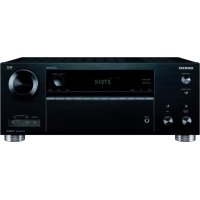
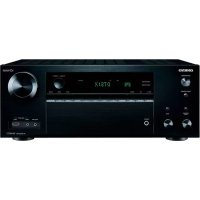
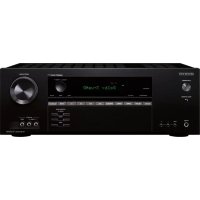
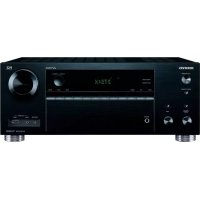
HT-R640 - AV receiver ONKYO - Free user manual and instructions
Find the device manual for free HT-R640 ONKYO in PDF.


| Product type | Audio-video receiver |
| Brand | ONKYO |
| Model | HT-R640 |
| Channels | 7.1 (7 channels + subwoofer) |
| Output power | 100 W per channel (6 ohms, 1 kHz, 0.1% THD, 1 channel) |
| Supported audio formats | Dolby Digital, DTS, Dolby Pro Logic II, etc. |
| Tuner | AM/FM with 30 presets |
| HDMI inputs | 2 inputs, 1 output (1080p compatible) |
| Audio inputs | 3 digital audio inputs (optical/coaxial), 4 analog audio inputs |
| Outputs | Subwoofer pre-out, recording outputs |
| Dimensions (W x H x D) | 435 x 150 x 376 mm |
| Weight | 10.2 kg |
| Power supply | 220-240 V, 50/60 Hz |
| Power consumption | 480 W (max) |
| Standby power consumption | Less than 1 W |
| Operating temperature | From 5°C to 35°C |
| Maintenance and cleaning | Unplug the device before cleaning. Use a soft, dry cloth. Do not use solvents. |
| Safety | Do not expose to water or humidity. Do not obstruct ventilation slots. |
| Spare parts and repairability | Contact ONKYO authorized after-sales service for spare parts. |
| General information | User manual available for PDF download. Compliant with Canadian NMB-003 standard. |
Frequently Asked Questions - HT-R640 ONKYO
User questions about HT-R640 ONKYO
0 question about this device. Answer the ones you know or ask your own.
Ask a new question about this device
Download the instructions for your AV receiver in PDF format for free! Find your manual HT-R640 - ONKYO and take your electronic device back in hand. On this page are published all the documents necessary for the use of your device. HT-R640 by ONKYO.
USER MANUAL HT-R640 ONKYO
Thank you for purchasing an Onkyo AV Receiver. Please read this manual thoroughly before making connections and plugging in the unit. Following the instructions in this manual will enable you to obtain optimum performance and listening enjoyment from your new AV Receiver. Please retain this manual for future reference.
Contents
Introduction. 2
Connections. 18
First Time Setup. 38
Basic Operations 45
Advanced Operations. 62
Advanced Setup. 63
Controlling Other Components....72
Specifications 75
Troubleshooting. 76
WARNING:
TO REDUCE THE RISK OF FIRE OR ELECTRIC SHOCK, DO NOT EXPOSE THIS APPARATUS TO RAIN OR MOISTURE.
CAUTION:
TO REDUCE THE RISK OF ELECTRIC SHOCK, DO NOT REMOVE COVER (OR BACK). NO USER-SERVICEABLE PARTS INSIDE. REFER SERVICING TO QUALIFIED SERVICE PERSONNEL.

WARNING
RISK OF ELECTRIC SHOCK
DO NOT OPEN
AVIS
RISQUE DE CHOC ELECTRIQUE
NE PAS OUVIR


The lightning flash with arrowhead symbol, within an equilateral triangle, is intended to alert the user to the presence of uninsulated "dangerous voltage" within the product's enclosure that may be of sufficient magnitude to constitute a risk of electric shock to persons.

The exclamation point within an equilateral triangle is intended to alert the user to the presence of important operating and maintenance (servicing) instructions in the literature accompanying the appliance.
Important Safety Instructions
-
Read these instructions.
-
Keep these instructions.
-
Heed all warnings.
-
Follow all instructions.
-
Do not use this apparatus near water.
-
Clean only with dry cloth.
-
Do not block any ventilation openings. Install in accordance with the manufacturer's instructions.
-
Do not install near any heat sources such as radiators, heat registers, stoves, or other apparatus (including amplifiers) that produce heat.
-
Do not defeat the safety purpose of the polarized or grounding-type plug. A polarized plug has two blades with one wider than the other. A grounding type plug has two blades and a third grounding prong. The wide blade or the third prong are provided for your safety. If the provided plug does not fit into your outlet, consult an electrician for replacement of the obsolete outlet.
-
Protect the power cord from being walked on or pinched particularly at plugs, convenience receptacles, and the point where they exit from the apparatus.
-
Only use attachments/accessories specified by the manufacturer.
-
Use only with the cart, stand, tripod, bracket, or table specified by the manufacturer, or sold with the apparatus. When a cart is used, use caution when moving the cart/ apparatus combination to avoid injury from tip-over.
PORTABLE CART WARNING

S3125A
- Unplug this apparatus during lightning storms or when unused for long periods of time.
-
Refer all servicing to qualified service personnel. Servicing is required when the apparatus has been damaged in any way, such as power-supply cord or plug is damaged, liquid has been spilled or objects have fallen into the apparatus, the apparatus has been exposed to rain or moisture, does not operate normally, or has been dropped.
-
Damage Requiring Service
Unplug the apparatus from the wall outlet and refer servicing to qualified service personnel under the following conditions:
A. When the power-supply cord or plug is damaged,
B. If liquid has been spilled, or objects have fallen into the apparatus,
C. If the apparatus has been exposed to rain or water,
D. If the apparatus does not operate normally by following the operating instructions. Adjust only those controls that are covered by the operating instructions as an improper adjustment of other controls may result in damage and will often require extensive work by a qualified technician to restore the apparatus to its normal operation,
E. If the apparatus has been dropped or damaged in any way, and
F. When the apparatus exhibits a distinct change in performance this indicates a need for service.
- Object and Liquid Entry
Never push objects of any kind into the apparatus through openings as they may touch dangerous voltage points or short-out parts that could result in a fire or electric shock.
The apparatus shall not be exposed to dripping or splashing and no objects filled with liquids, such as vases shall be placed on the apparatus.
Don't put candles or other burning objects on top of this unit.
- Batteries
Always consider the environmental issues and follow local regulations when disposing of batteries.
- If you install the apparatus in a built-in installation, such as a bookcase or rack, ensure that there is adequate ventilation.
Leave 20cm (8") of free space at the top and sides and 10cm (4") at the rear. The rear edge of the shelf or board above the apparatus shall be set 10cm (4") away from the rear panel or wall, creating a flue-like gap for warm air to escape.
-
Recording Copyright—Unless it's for personal use only, recording copyrighted material is illegal without the permission of the copyright holder.
-
AC Fuse—The AC fuse inside the unit is not user-serviceable. If you cannot turn on the unit, contact your Onkyo dealer.
-
Care—Occasionally you should dust the unit all over with a soft cloth. For stubborn stains, use a soft cloth dampened with a weak solution of mild detergent and water. Dry the unit immediately afterwards with a clean cloth. Don't use abrasive cloths, thinners, alcohol, or other chemical solvents, because they may damage the finish or remove the panel lettering.
4. Power Warning
BEFORE PLUGGING IN THE UNIT FOR THE FIRST TIME, READ THE FOLLOWING SECTION CAREFULLY.
AC outlet voltages vary from country to country. Make sure that the voltage in your area meets the voltage requirements printed on the unit's rear panel (e.g., AC 230 V, 50 Hz or AC 120 V, 60 Hz).
The power cord plug is used to disconnect this unit from the AC power source. Make sure that the plug is readily operable (easily accessible) at all times.
Pressing the [STANDBY/ON] button to select Standby mode does not fully shutdown the unit. If you do not intend to use the unit for an extended period, remove the power cord from the AC outlet.
- Never Touch this Unit with Wet Hands—Never handle this unit or its power cord while your hands are wet or damp. If water or any other liquid gets inside this unit, have it checked by your Onkyo dealer.
6. Handling Notes
- If you need to transport this unit, use the original packaging to pack it how it was when you originally bought it.
- Do not leave rubber or plastic items on this unit for a long time, because they may leave marks on the case.
- This unit's top and rear panels may get warm after prolonged use. This is normal.
- If you do not use this unit for a long time, it may not work properly the next time you turn it on, so be sure to use it occasionally.
For U.S. models
FCC Information for User
CAUTION:
The user changes or modifications not expressly approved by the party responsible for compliance could void the user's authority to operate the equipment.
NOTE:
This equipment has been tested and found to comply with the limits for a Class B digital device, pursuant to Part 15 of the FCC Rules. These limits are designed to provide reasonable protection against harmful interference in a residential installation.
This equipment generates, uses and can radiate radio frequency energy and, if not installed and used in accordance with the instructions, may cause harmful interference to radio communications. However, there is no guarantee that interference will not occur in a particular installation. If this equipment does cause harmful interference to radio or television reception, which can be determined by turning the equipment off and on, the user is encouraged to try to correct the interference by one or more of the following measures:
Reorient or relocate the receiving antenna.
- Increase the separation between the equipment and receiver.
- Connect the equipment into an outlet on a circuit different from that to which the receiver is connected.
- Consult the dealer or an experienced radio/TV technician for help.
For Canadian Models
NOTE: THIS CLASS B DIGITAL APPARATUS COMPLIES WITH CANADIAN ICES-003.
For models having a power cord with a polarized plug: CAUTION: TO PREVENT ELECTRIC SHOCK, MATCH WIDE BLADE OF PLUG TO WIDE SLOT, FULLY INSERT.
Replacement and mounting of an AC plug on the power supply cord of this unit should be performed only by qualified service personnel.
IMPORTANT
The wires in the mains lead are coloured in accordance with the following code:
Blue: Neutral
Brown: Live
As the colours of the wires in the mains lead of this apparatus may not correspond with the coloured markings identifying the terminals in your plug, proceed as follows:
The wire which is coloured blue must be connected to the terminal which is marked with the letter N or coloured black.
The wire which is coloured brown must be connected to the terminal which is marked with the letter L or coloured red.
IMPORTANT
The plug is fitted with an appropriate fuse. If the fuse needs to be replaced, the replacement fuse must approved by ASTA or BSI to BS1362 and have the same ampere rating as that indicated on the plug. Check for the ASTA mark or the BSI mark on the body of the fuse.
If the power cord's plug is not suitable for your socket outlets, cut it off and fit a suitable plug. Fit a suitable fuse in the plug.
For European Models
Declaration of Conformity
We, ONKYO EUROPE ELECTRONICS GmbH LIEGNITZERSTRASSE 6, 82194 GROEBENZELL, GERMANY

declare in own responsibility, that the ONKYO product described in this instruction manual is in compliance with the corresponding technical standards such as EN60065, EN55013, EN55020 and EN61000-3-2, -3-3.
GROEBENZELL, GERMANY
ONKYO EUROPE ELECTRONICS GmbH
Supplied Accessories
Make sure you have the following accessories:
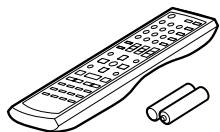
Remote controller & two batteries (AA/R6)
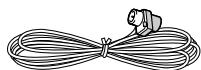
Indoor FM antenna
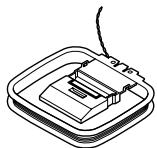
AM loop antenna
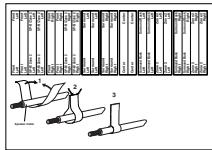
Speaker cable labels (Not North American models)
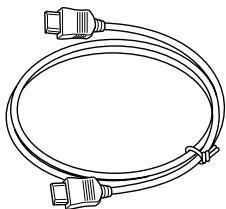
HDMI cable
- In catalogs and on packaging, the letter at the end of the product name indicates the color. Specifications and operations are the same regardless of color.
Amplifier
- 90 watts per channel into 8 ohms, 20Hz to 20kHz , less than 0.08% total harmonic distortion (FTC rating)
5-channel amplifier - Optimum Gain Volume Circuitry
24-bit/192 kHz D/A converters - WRAT (Wide Range Amplifier Technology)
Color-coded speaker terminal posts
Audio/Video
- Dolby* Digital, Dolby Pro Logic II
- DTS ^2 , DTS Neo:6 5.1, and DTS 96/24
- Pure Audio listening mode (not North American models)
- Neural Surround ^*3 (North American models only)
- 6 digital inputs (4 optical, 2 coaxial), 1 digital optical output
- 2 HDMI^*4 inputs, 1 output (Version 1.1)
- Composite and S-Video to component video conversion
- Composite video to S-Video and S-Video to composite video conversion
- 3 component video inputs, 1 output
- 5 S-Video inputs, 3 outputs
CinemaFILTER*5
Audyssey EQ (North American models only) - Subwoofer pre out
FM/AM/XM Tuner
40 AM/FM preset
AM/FM auto tuning
- XM Satellite Radio ^*6 (XM Passport System required; sold separately) (North American models only)
- RDS (Radio Data System) (European models only)
Others
- Easy-to-use onscreen setup menus
- Preprogrammed remote controller for use with other AV components
*1. DOLBY DIGITAL PROLOGICAL
Manufactured under license from Dolby Laboratories. "Dolby", "Pro Logic" and the double-D symbol are registered trademarks of Dolby Laboratories.
96 n306
"DTS," "DTS 96/24," and "Neo:6" are trademarks of DTS, Inc.
*3. neural SURROUND.
Neural Surround name and related logos are trademarks owned by Neural Audio Corporation.
4. HDMI, the HDMI logo and High Definition Multimedia Interface are trademarks or registered trademarks of HDMI Licensing, LLC.
5. "CinemaFILTER" is a trademark of Onkyo Corporation.
\*6. ((XmR A D Y)
XM Ready®, XM Public Radio™ are trademarks of XM Satellite Radio Inc. ©2006 XM Satellite Radio Inc. All rights reserved. All other trademarks are the property of their respective owners.
*7. Manufactured under license from Audyssey Laboratories. U.S. and foreign patents pending.
Audyssey EQ is a trademark of Audyssey Laboratories.
Apple and iPod are trademarks of Apple Computer, Inc., registered in the U.S. and other countries.
This product incorporates copyright protection technology that is protected by U.S. patents and other intellectual property rights. Use of this copyright protection technology must be authorized by Macrovision Corporation, and is intended for home and other limited consumer uses only unless otherwise authorized by Macrovision. Reverse engineering or disassembly is prohibited.
Introduction
Important Safety Instructions. 2
Precautions 3
Supplied Accessories 4
Features 5
Front & Rear Panels 7
Remote Controller 12
About Home Theater 17
Connecting the AV Receiver
About AV Connections 18
Connecting Your Speakers 19
Connecting Antenna 21
Connecting Your TV or Projector 24
Connecting AV Components 25
Connecting Audio Components 33
Connecting Onkyo RI Components 36
Connecting the Power Cord of Another Component 36
Turning On the AV Receiver 37
First Time Setup
About the Onscreen Setup Menus. 38
Digital Input 39
Video Input. 40
Speaker Configuration. 42
Changing the Input Display 44
TV Format Setup (not North American models) ...44
Basic Operations
Selecting the Input Source. 45
Using the Multichannel DVD Input 46
Adjusting the Bass & Treble 46
Displaying Source Information 46
Setting the Display Brightness 47
Muting the AV Receiver 47
Using the Sleep Timer 47
Using Headphones 47
Using the Tuner 48
Presetting AM/FM Stations & XM Channels....49
Using RDS (European models only) 50
Listening to XM Satellite Radio® (North American models only) 52
Selecting Listening Modes 57
Listening Mode Table 58
About the Listening Modes 59
Recording 61
Advanced Operations
Using the Late Night Function (Dolby Digital only) 62
Using the Audyssey EQ (North American models only). 62
Using the CinemaFILTER 62
Adjusting Individual Speaker Levels 62
Advanced Setup
Advanced Speaker Settings 63
Multichannel DVD Input Settings 65
Audio Adjust Functions 65
Assigning Listening Modes to Input Sources 67
IntelliVolume. 68
Volume Setup/OSD Setup 68
Changing the AV Receiver's ID 69
HDMI Audio Out 69
Lock Setup 70
Digital Input Signal Formats 70
Correcting Sound and Picture Sync. 71
Changing the Remote Controller's ID 71
Controlling Other Components
Entering Remote Control Codes 72
Remote Control Codes for Onkyo Components Connected via RI 73
Resetting REMOTE MODE Buttons. 73
Resetting the Remote Controller. 73
Others
Specifications 75
Troubleshooting 76
If you can't resolve an issue, try resetting the AV receiver by holding down the [VIDEO 1] button and pressing the [STANDBY/ON] button.
Front Panel

North American models
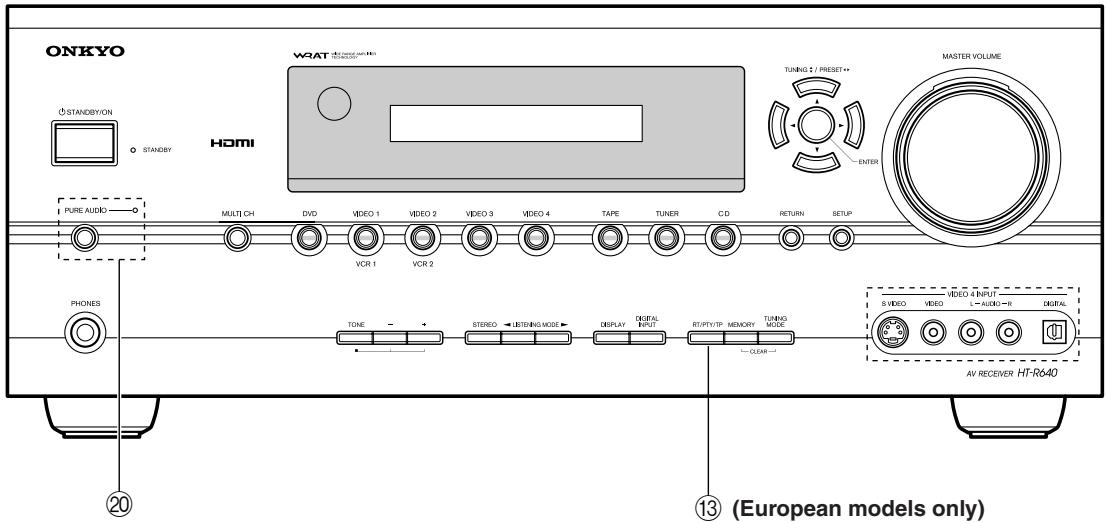
Other models
The page numbers in parentheses show where you can find the main explanation for each item.
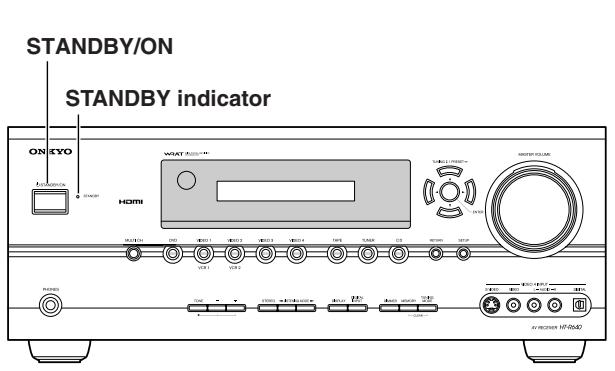
① STANDBY/ON button (37)
This button is used to set the AV receiver to On or Standby.
② STANDBY indicator (37)
This indicator lights up when the AV receiver is in Standby mode, and it flashes while a signal is being received from the remote controller.
③ Remote control sensor (12)
This sensor receives control signals from the remote controller.
④ Display
See "Display" on page 9.
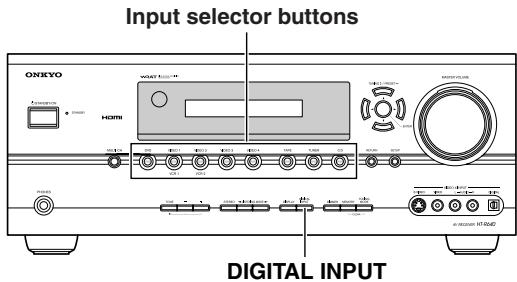
⑤ Input selector buttons (45)
These buttons are used to select from the following input sources: MULTI CH, DVD, VIDEO 1,VIDEO 2,VIDEO 3,VIDEO 4, TAPE,TUNER or CD.
The [MULTI CH] button selects the DVD analog multichannel input.
⑥ RETURN button
This button is used to return to the previously displayed onscreen setup menu.
⑦ Arrow/TUNING/PRESET & ENTER buttons
When the AM or FM input source is selected, the TUNING [▲] [▼] buttons are used to tune the tuner, and the PRESET [▲] [▼] buttons are used to select radio presets (see page 49). When the onscreen setup menus are used, they work as arrow buttons and are used to select and set items. The [ENTER] button is also used with the onscreen setup menus.
⑧ SETUP button
This button is used to access the onscreen setup menus that appear on the connected TV.
9 MASTER VOLUME control (45)
This control is used to adjust the volume of the AV receiver to MIN, 1 through 99, or MAX.
⑩VIDEO 4 INPUT
This input can be used to connect a camcorder, game console, and so on. There are jacks for optical digital audio, S-Video, composite video, and analog audio.
⑪ TUNING MODE button (48)
This button is used to select the Auto or Manual tuning mode.
⑫ MEMORY button (49)
This button is used when storing or deleting radio presets.
DIMMER or RT/PTY/TP button (47, 51)
DIMMER is used to adjust the display brightness.
On the European model, this is the RT/PTY/TP button, and it's for RDS (Radio Data System). See "Using RDS (European models only)" on page 50.
⑭ DIGITAL INPUT button (39, 70)
This button is used to assign the digital inputs and to specify the format of digital input signals.
15 DISPLAY button (46)
This button is used to display various information about the currently selected input source.
16 LISTENING MODE [←] [▶] buttons (57)
These buttons are used to select the listening modes.
⑰ STEREO button (57)
This button is used to select the Stereo listening mode.
18 TONE, [-] & [+] buttons (46)
These buttons are used to adjust the bass and treble.
19 PHONES jack (47)
This 1/4-inch phone jack is for connecting a standard pair of stereo headphones for private listening.
20 PURE AUDIO button and indicator (57)
The North American models do not have this button and indicator.
Selects the Pure Audio listening mode. The indicator lights up when this mode is selected.
Display
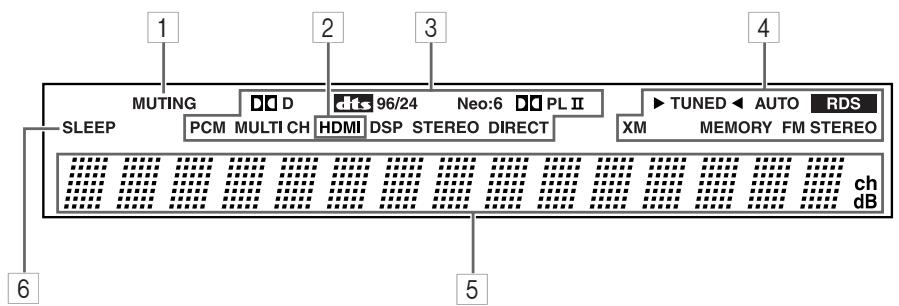
The page numbers in parentheses show where you can find the main explanation for each item.
1 MUTING indicator (47)
This indicator flashes while the AV receiver is muted.
2 HDMI indicator
This indicator lights up when the HDMI input is used.
3 Listening mode & format indicators
These indicators show the currently selected listening mode and the format of digital input signals.
4 Tuning indicators
TUNED (48): This indicator lights up when the AV receiver is tuned into a radio station.
AUTO (48): This indicator lights up when the Auto Tuning mode is selected, and disappears when the Manual Tuning mode is selected.
RDS (European models only) (50): This indicator lights up when tuned to a radio station that supports RDS (Radio Data System).
XM (North American models only) (52): This indicator lights up when XM radio is selected.
MEMORY (49): This indicator lights up when pre-setting radio stations.
FM STEREO (48): This indicator lights up when the AV receiver is tuned to a stereo FM station.
5 Message area
This area of the display shows various information about the currently selected source.
6 SLEEP indicator (47)
This indicator lights up when the Sleep function has been set.
Rear Panel
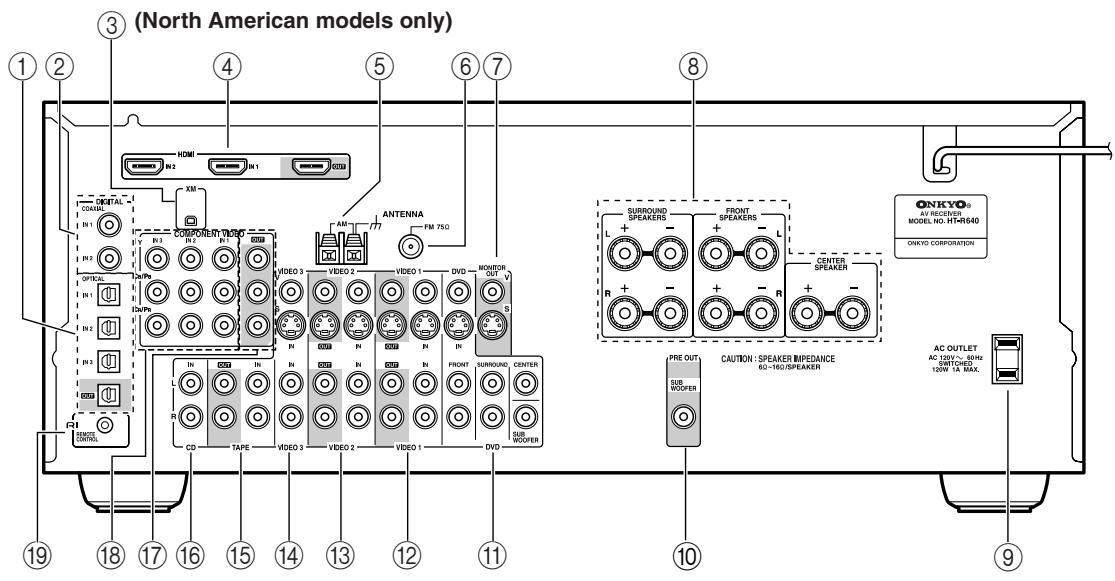
The page numbers in parentheses show where you can find the main explanation for each item.
① DIGITAL OPTICAL IN 1, 2, 3 and OUT
The optical digital audio inputs can be used to connect CD and DVD players, and other components with an optical digital audio output.
The optical output can be used connect a CD recorder or other digital recorder with an optical digital input.
② DIGITAL COAXIAL IN 1,2
The coaxial digital audio inputs can be used to connect CD and DVD players, and other components with a coaxial digital audio output.
③ XM antenna (on North American models)
This jack is for connecting an XM antenna, sold separately (see page 52).
④ HDMI IN 1, 2, and OUT
HDMI (High Definition Multimedia Interface) connections carry digital audio and digital video.
The HDMI inputs are for connecting components with HDMI outputs, such as DVD players.
The HDMI output is for connecting a TV or projector with an HDMI input.
⑤ AM ANTENNA (21)
These push terminals are for connecting an AM antenna.
⑥ FM ANTENNA (21)
This jack is for connecting an FM antenna.
⑦ MONITOR OUT
The S-Video or composite video jack should be connected to a video input on your TV or projector.
(8) FRONT, CENTER & SURROUND SPEAKERS (20)
These terminal posts are for connecting your front, center, surround speakers.
⑨ AC OUTLET
This switched AC outlet can be used to supply power to other AV components. The type of outlet depends on the country in which you purchased your AV receiver.
PRE OUT SUBWOOFER (19)
The SUBWOOFER jack is for connecting a powered subwoofer.
1 DVD IN
Here you can connect a DVD player. Input jacks include S-Video, composite video, and analog audio. You can connect a DVD player's 2-channel analog audio output or 5.1-channel analog audio output.
⑫VIDEO 1 IN/OUT
Here you can connect a VCR. Input and output jacks include S-Video, composite video, and analog audio.
⑬VIDEO 2 IN/OUT
Here you can connect a VCR. Input and output jacks include S-Video, composite video, and analog audio.
14VIDEO3IN
Here you can connect a video source (VCR, set-top box, etc.). Input jacks include S-Video, composite video, and analog audio.
15 TAPE IN/OUT
This analog audio input and output are for connecting a recorder with an analog audio input and output (cassette, Mini Disc, etc.).
(16) CD IN
This analog audio input is for connecting a CD player's analog audio output.
(17) COMPONENTVIDEO OUT
This component video output can be used to connect a TV or projector with a component video input.
18 COMPONENTVIDEOIN1,2,3
These component video inputs can be used to connect AV components with component video outputs, such as DVD players.
19 RI REMOTE CONTROL
This RI (Remote Interactive) jack can be connected to an RI jack on another Onkyo AV component. The AV receiver's remote controller can then be used to control that component. To use RI, you must make an analog audio connection (RCA) between the AV receiver and the other AV component, even if they are connected digitally.
See pages 18-36 for connection information.
Installing the Batteries
1 To open the battery compartment, press the small hollow and slide off the cover.
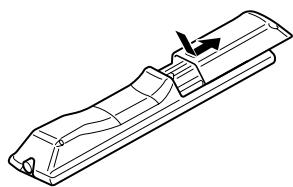
2 Insert the two supplied batteries (AA/R6) in accordance with the polarity diagram inside the battery compartment.
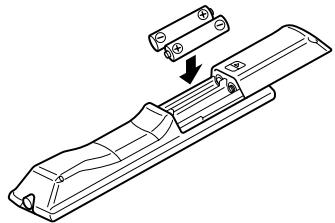
3 Put the cover onto the remote controller and slide it shut.
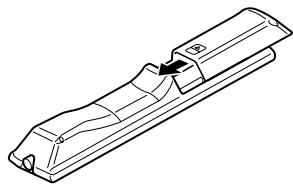
Notes:
- If the remote controller doesn't work reliably, try replacing the batteries.
- Don't mix new and old batteries or different types of batteries.
- If you intend not to use the remote controller for a long time, remove the batteries to prevent damage from leakage or corrosion.
- Expired batteries should be removed as soon as possible to prevent damage from leakage or corrosion.
Aiming the Remote Controller
To use the remote controller, point it at the AV receiver's remote control sensor, as shown below.
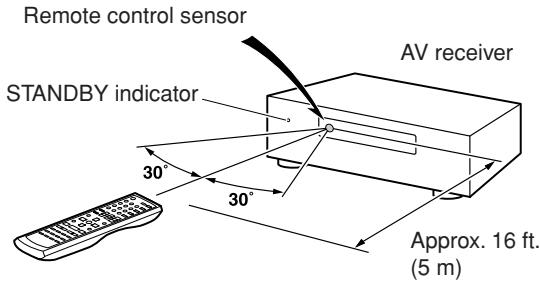
Notes:
- The remote controller may not work reliably if the AV receiver is subjected to bright light, such as direct sunlight or inverter-type fluorescent lights. Keep this in mind when installing.
- If another remote controller of the same type is used in the same room, or the AV receiver is installed close to equipment that uses infrared rays, the remote controller may not work reliably.
- Don't put anything, such as a book, on the remote controller, because the buttons may be pressed inadvertently, thereby draining the batteries.
- The remote controller may not work reliably if the AV receiver is installed in a rack behind colored glass doors. Keep this in mind when installing.
- The remote controller will not work if there's an obstacle between it and the AV receiver's remote control sensor.
Using the Remote Controller
The remote controller can be used to control different components including the AV receiver. The remote controller has a specific operating mode for use with each type of component. Modes are selected by using the six REMOTE MODE buttons.
RECEIVER/AMP/TAPE Mode or AMP/TAPE Mode
With this mode, you can control the AV receiver and an Onkyo cassette recorder connected via RI.

DVD and CD/MD/CDR/HDD Modes
With these modes, you can control a DVD player and CD, MD, CDR, or HDD player or recorder. By entering the appropriate remote control code, you can control Onkyo components or components made by other manufacturers (see page 72).

TV, VCR and SAT/CABLE Modes
With these modes, you can control a TV, VCR, and satellite or cable receiver. You must enter the appropriate remote control code first (see page 72).


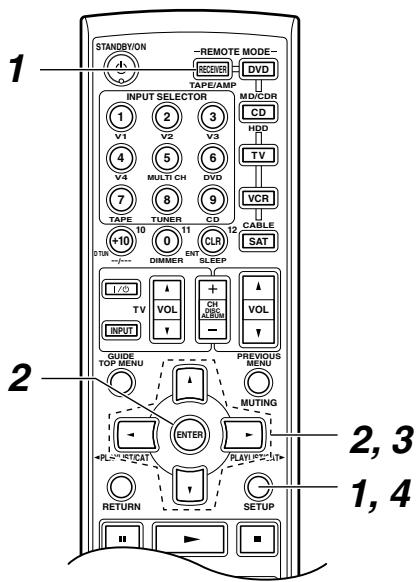
| 1 -REMOTE MODE- RECEIVER TAPE/AMP MD/CDR CD HDD TV VCR CABLE SAT | Press one of the REMOTE MODE buttons to select a mode. |
| 2 | Use the buttons supported by that mode to control the component. RECEIVER/AMP/TAPE mode: see right column DVD mode: see page 15 CD/MD/CDR/HDD mode: see page 16 TV, VCR, SAT/CABLE modes: see page 74 |
Note:
Some of the remote controller operations described in this manual may not work as expected with other components.
RECEIVER/AMP/TAPE Mode or AMP/TAPE Mode
This mode is used to control the AV receiver. It can also be used to control an Onkyo cassette recorder connected via RI.
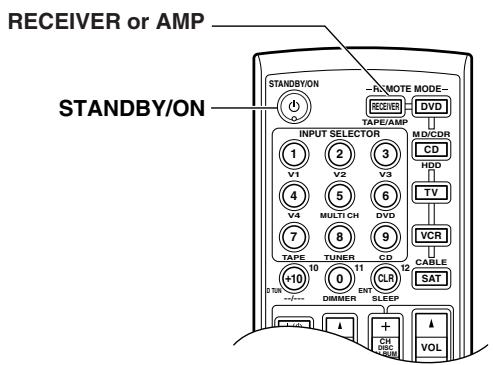
The name of button may be "RECEIVER" or "AMP," depending the model you purchased.
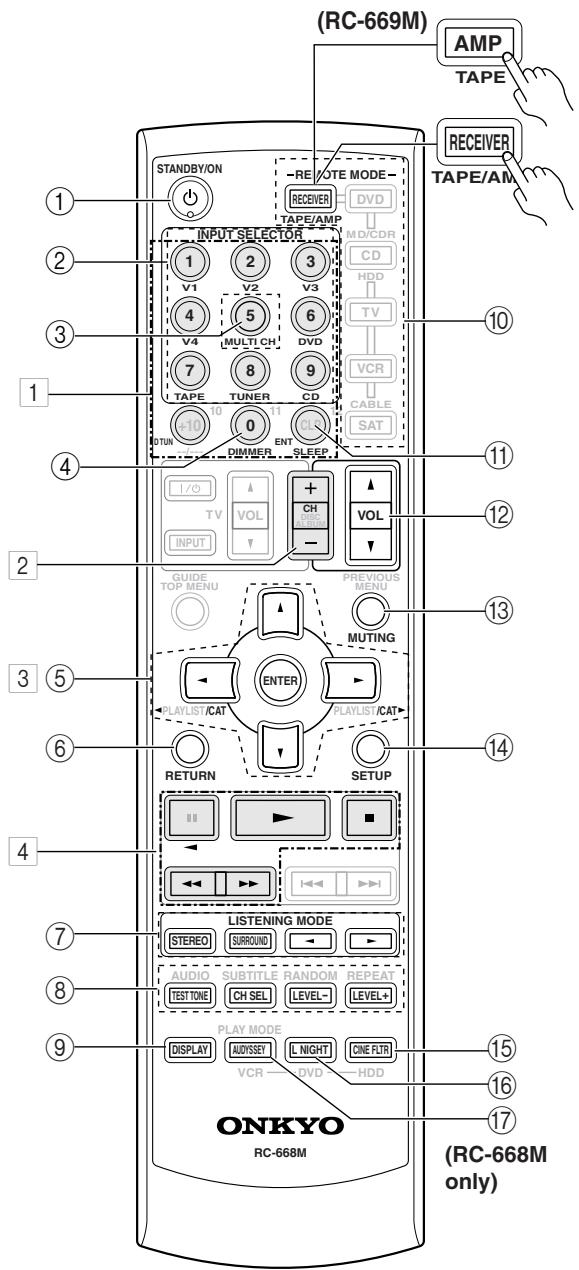
Buttons 1, 2, 3, and 4 are used when the TUNER or TAPE input is selected.
For detailed information, see the pages in parentheses.
① STANDBY/ON button (37)
Sets the AV receiver to On or Standby.
② INPUT SELECTOR buttons (45)
Used to select the input sources.
③ MULTI CH button (46)
Selects the multichannel DVD input.
④ DIMMER button (47)
Adjusts the display brightness.
⑤ Arrow [▲]/[▼]/[▲]/[▶] and ENTER buttons
Used to select and adjust settings.
⑥ RETURN button
Selects the previously displayed setup menu.
⑦ LISTENING MODE buttons (57)
Used to select the listening modes. These buttons work in all remote controller modes.
STEREO button
Selects the Stereo listening mode.
SURROUND button
Selects the Dolby and DTS listening modes and the Neural Surround listening mode (North American models only).
[←]/[→] buttons
Used to select the available listening modes.
TEST TONE, CH SEL, LEVEL-, and LEVEL+ buttons (43, 62)
Used to adjust the level of each speaker.
⑨ DISPLAY button (46)
Displays various information about the selected input source.
10 REMOTE MODE buttons (13)
Used to select the remote controller modes. When a remote controller button is pressed, the REMOTE MODE button for the currently selected mode lights up.
⑪ SLEEP button (47)
Used with the Sleep function.
⑫ VOL [▲]/[▼] button (45)
Adjusts the volume of the AV receiver regardless of the currently selected remote controller mode.
13 MUTING button (47)
Mutes or unmutes the AV receiver.
14 SETUP button
Used to access the setup menus.
15 CINE FLTR button (62)
Used with the CinemaFILTER function.
16 L NIGHT button (62)
Used with the Late Night function.
⑰ AUDYSSEY button (RC-668M only) (62)
Used to turn the Audyssey equalizer on or off.
- Buttons used when the TUNER input is selected
To select the Tuner (AM/FM/XM) as the input source, press:
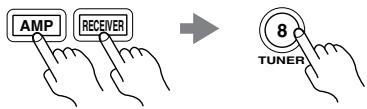
1 Number,DTUN,andENTbuttons(48,54)
Used to select AM and FM radio stations and XM radio channels directly.
CH + / - button (49)
Used to select radio presets.
3 Arrow [▲]/[▼]/[▲]/[▶] and ENTER buttons
For AM and FM, the Up and Down [] / [] buttons are used for tuning.
North American models only
For XM, the Up and Down [] / [] buttons are used to select channels, and the [ENTER] button is used to change the search mode. The Left and Right [] / [] buttons are used to select categories.
- Buttons used when the TAPE input is selected
To select your Cassette deck as the input source, press:
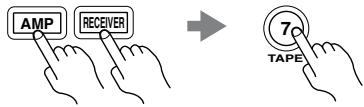
4Playback buttons
On twin cassette decks, only deck B can be controlled.
Play [▶] button
Starts playback.
Stop [■] button
Stops playback.
Reverse Play [ ] button
Starts reverse playback.
Rewind and FF [ /][ ] buttons
The Rewind [] button starts rewind. The FF [ ] button starts fast forward.
DVD Mode
By default, the remote controller is set to control an Onkyo DVD player.
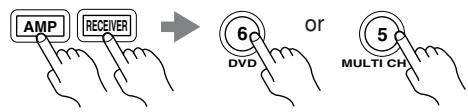
To select your DVD player as the input source, press:
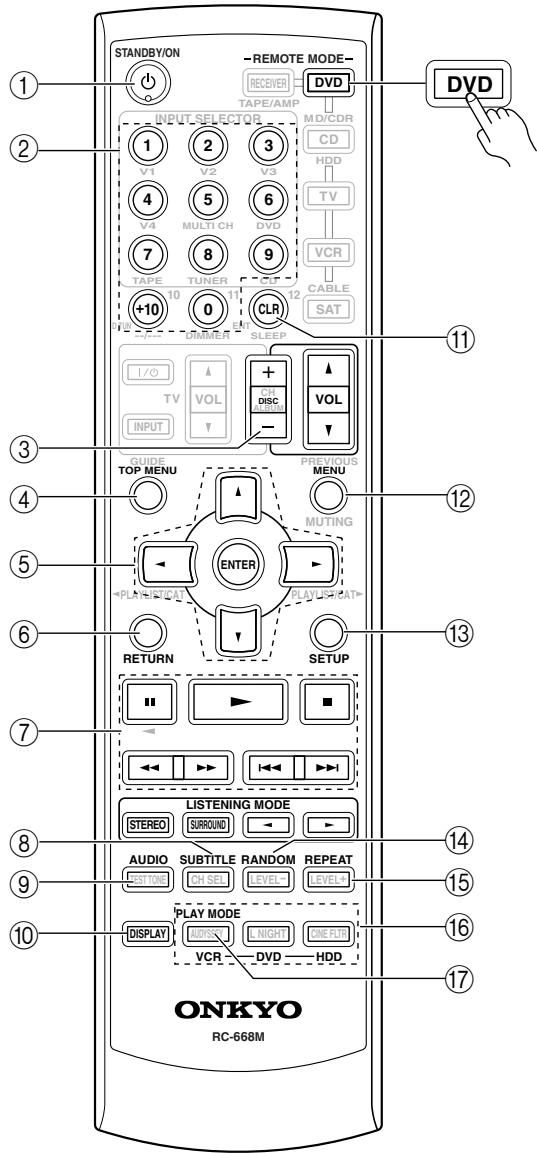
① ON/STANDBY button
Sets the DVD player to On or Standby.
② Number buttons
Used to enter title, chapter, and track numbers and times for locating specific points.
③ DISC + / - button
Selects discs on a DVD changer.
④ TOP MENU button
Selects a DVD's top menu.
⑤ Arrow [▲]/[▼]/[▲]/[▶] and ENTER buttons
Used to navigate DVD menus and the DVD player's onscreen setup menus.
⑥ RETURN button
Exits the DVD player's onscreen setup menus.
⑦ Playback buttons
From left to right: Pause, Play, Stop, Fast Reverse, Fast Forward, Previous, and Next.
SUBTITLE button
Selects subtitles.
⑨ AUDIO button
Selects foreign language soundtracks and audio formats (e.g., Dolby Digital or DTS).
10 DISPLAY button
Displays information about the current disc, title, chapter, or track, including elapsed time, remaining time, total time, and so on.
⑪ CLR button
Cancels functions and clears entered numbers.
12 MENU button
Displays a DVD's menu.
13 SETUP button
Used to access the DVD player's onscreen setup menus.
14 RANDOM button
Used with the random playback function.
15 REPEAT button
Used with the repeat playback functions.
16 VCR, DVD, and HDD buttons
Used to select VCR, HDD (hard disk drive), or DVD playback on a VCR/DVD recorder with a built-in hard disk drive.
⑰ PLAY MODE button
Selects play modes on components with selectable play modes.
CD/MD/CDR/HDD Mode
By default, the remote controller is set to control an Onkyo CD player.
To select the input source, press:
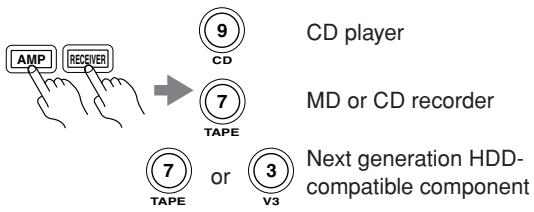
* If you're using an MD, CDR, or HDD component, you must change the input display (see page 44).
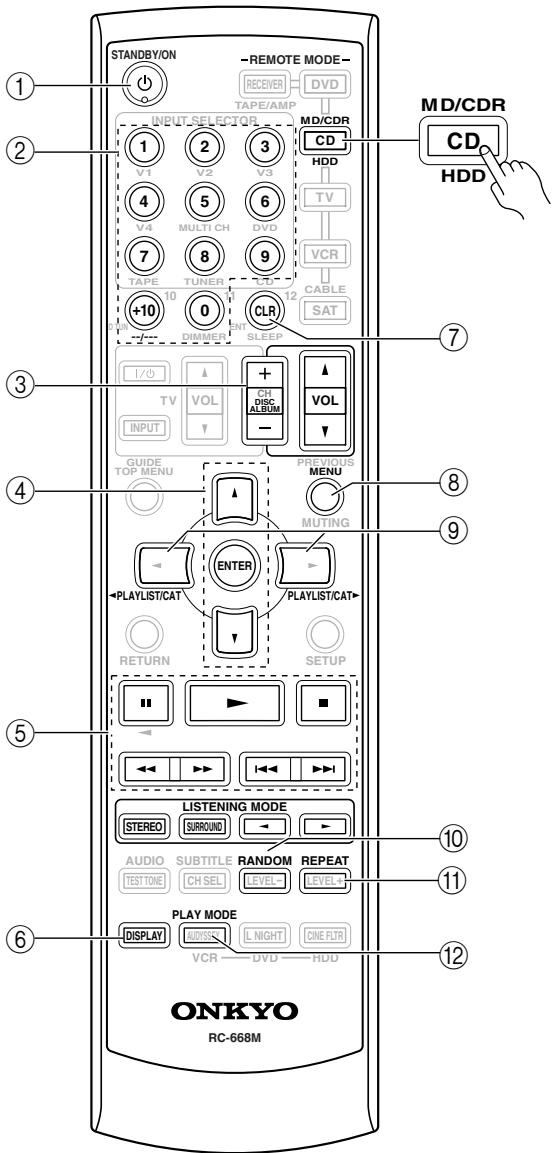
① ON/STANDBY button
Sets the component to On or Standby.
② Number buttons
Used to enter track numbers and times for locating specific points on CD/MD players.
③ DISC/ALBUM +/- button
Selects discs on a CD changer, or the next or previous album on an HDD-compatible component.
④ Arrow [] / [] and ENTER buttons
Used to navigate menus on an HDD-compatible component.
⑤ Playback buttons
From left to right: Pause, Play, Stop, Fast Reverse, Fast Forward, Previous and Next.
⑥ DISPLAY button
Displays information about the current disc or track on a CD player or MD/CD recorder, including elapsed time, remaining time, total time, and so on. On an HDD-compatible component, it turns on the back light for 30 seconds.
⑦ CLR button
Cancels functions and clears entered numbers on a CD player or MD/CD recorder.
⑧ MENU button
Used to navigate menus on an HDD-compatible component.
⑨ PLAYLIST[<]/[▶]buttons
Selects the previous or next playlist on an HDD-compatible component.
10 RANDOM button
Used with the random/shuffle playback function.
11 REPEAT button
Used with the repeat playback functions.
⑫ PLAY MODE button
Used to select play modes on components with selectable play modes.
Enjoying Home Theater
Thanks to the AV receiver's superb capabilities, you can enjoy surround sound with a real sense of movement in your own home—just like being in a movie theater or concert hall. With DVDs you can enjoy DTS and Dolby Digital. With analog and digital TV you can enjoy Dolby Pro Logic II or Onkyo's own DSP surround listening modes.
Front left and right speakers
These output the overall sound. Their role in a home theater is to provide a solid anchor for the sound image. They should be positioned facing the listener at about ear level, and equidistant from the TV. Angle them inward so as to create a triangle,
with the listener at the apex.
Center speaker
This speaker enhances the front left and right speakers, making sound movements distinct and providing a full sound image. In movies it's used mainly for dialog.
Position it close to your TV facing forward at about ear level, or at the same height as the front left and right speakers.
Subwoofer
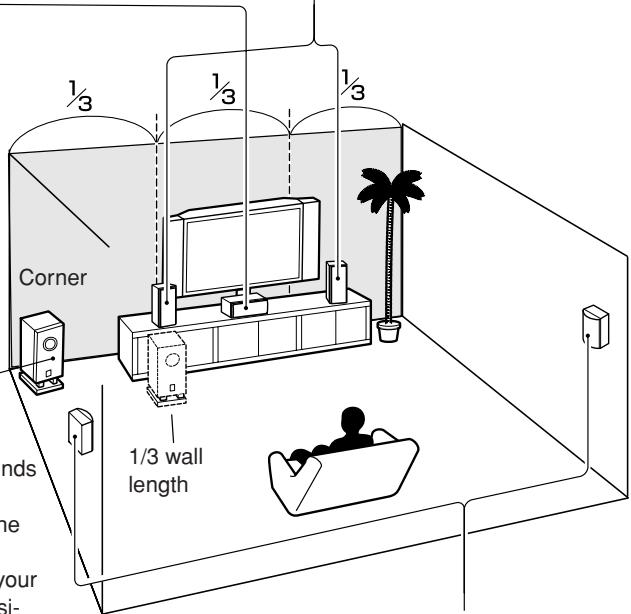
The subwoofer handles the bass sounds of the LFE (Low-Frequency Effects) channel. The volume and quality of the bass output from your subwoofer will depend on its position, the shape of your listening room, and your listening position. In general, a good bass sound can be obtained by installing the subwoofer in a front corner, or at one-third the width of the wall, as shown.
Tip: To find the best position for your subwoofer, while playing a movie or some music with good bass, experiment by placing your subwoofer at various positions within the room, and choose the one that provides the most satisfying results.
Surround left and right speakers
These speakers are used for precise sound positioning and to add realistic ambience.
Position them at the sides of the listener, or slightly behind, about 2-3 feet (60-100 cm) above ear level. Ideally they should be equidistant from the listener.
About AV Connections
- Before making any AV connections, read the manuals supplied with your other AV components.
- Don't connect the power cord until you've completed and double-checked all AV connections.
Optical Digital Jacks
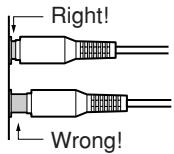
The AV receiver's optical digital jacks have shutter-type covers that open when an optical plug is inserted and close when it's removed. Push plugs in all the way.
Caution: To prevent shutter damage, hold the optical plug straight when inserting and removing.
AV Connection Color Coding
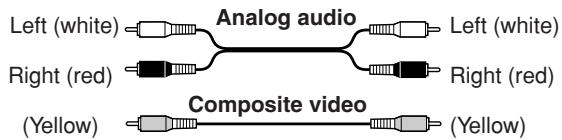
RCA-type AV connections are usually color-coded: red, white, and yellow. Use red plugs to connect right-channel audio inputs and outputs (typically labeled "R"). Use white plugs to connect left-channel audio inputs and outputs (typically labeled "L"). And use yellow plugs to connect composite video inputs and outputs.
- Push plugs in all the way to make good connections (loose connections can cause noise or malfunctions).
- To prevent interference, keep audio and video cables away from power cords and speaker cables.
AV Cables & Jacks
Video
| Cable | Jack | Description | |
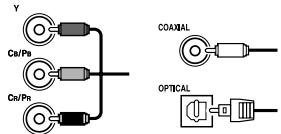
| Component video cable | Y Pr Pr | Component video separates the luminance (Y) and color difference signals (PR, PB), providing the best picture quality (some TV manufacturers label their component video sockets slightly differently). | |
| S-Video cable | S | S-Video separates the luminance and color signals and provides better picture quality than composite video. | |
| Composite video cable | V | Composite video is commonly used on TVs, VCRs, and other video equipment. Use only dedicated composite video cables. | |
Audio
| Cable | Jack | Description | |
| Optical digital audio cable | OPTICAL | Offers the best sound quality and allows you to enjoy surround sound (e.g., Dolby Digital, DTS). The audio quality is the same as for coaxial. | |
| Coaxial digital audio cable | COAXIAL | Offers the best sound quality and allows you to enjoy surround sound (e.g., Dolby Digital, DTS). The audio quality is the same as for optical. | |
| Analog audio cable (RCA) | L R | This cable carries analog audio. It's the most common connection format for analog audio, and can be found on virtually all AV components. | |
| Multichannel analog audio cable (RCA) | FRONT SURFACE CENTER DVD | This cable carries multichannel analog audio and it's typically used to connect DVD players with a 5.1-channel analog audio output. Several standard analog audio cables can be used instead of a multi-channel cable. | |
Note: The AV receiver does not support SCART plugs.
Connecting Your Speakers
Speaker Configuration
For the best surround sound experience, you should connect five speakers and a powered subwoofer.
The following table indicates the channels you should use depending on the number of speakers that you have.
| Number of speakers: | 2 | 3 | 4 | 5 |
| Front left | ✓ | ✓ | ✓ | ✓ |
| Front right | ✓ | ✓ | ✓ | ✓ |
| Center | ✓ | ✓ | ||
| Surround left | ✓ | ✓ | ||
| Surround right | ✓ | ✓ |
No matter how many speakers you use, a powered subwoofer is recommended for a really powerful and solid bass.
Using Dipole Speakers
You can use dipole speakers for the surround left and right speakers. Dipole speakers output the same sound in two directions.
Dipole speakers typically have an arrow printed on them to indicate how they should be positioned. The surround left and right dipole speakers should be positioned so that their arrows point toward the TV/screen, as shown.
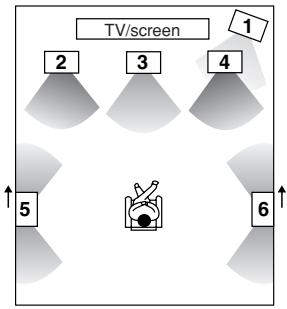
Dipole speakers
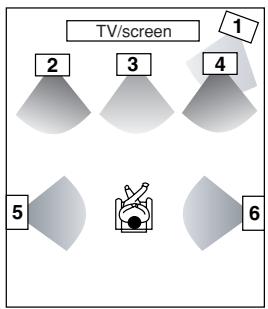
Normal speakers
- Subwoofer
- Front left speaker
-
Center speaker
-
Front right speaker
- Surround left speaker
- Surround right speaker
Connecting a Powered Subwoofer
Using a suitable cable, connect the AV receiver's PRE OUT SUBWOOFER to an input on your powered subwoofer, as shown. If your subwoofer is unpowered and you're using an external amplifier, connect the PRE OUT SUBWOOFER to an input on the amp.
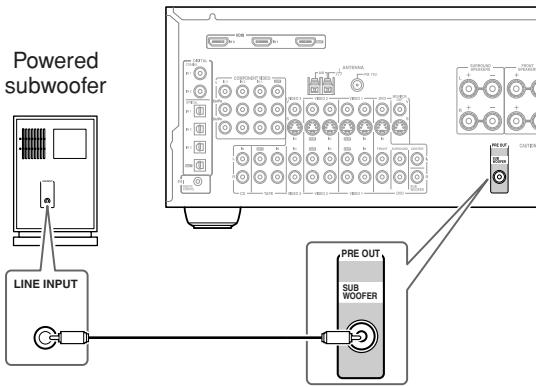
Attaching the Speaker Labels (Not North American models)
The AV receiver's positive (+) speaker terminals are color-coded for ease of identification (the negative (-) speaker terminals are all black).
| Speaker terminal | Color |
| Front left | White |
| Front right | Red |
| Center | Green |
| Surround left | Blue |
| Surround right | Gray |
The supplied speaker labels are also color-coded and you should attach them to the positive (+) side of each speaker cable in accordance with the above table. Then all you need to do is to match the color of each label to the corresponding speaker terminal.

Speaker Connection Precautions
Read the following before connecting your speakers:
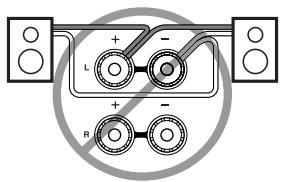
- Only connect speakers with an impedance of 6 ohms or higher. If you use speakers with a lower impedance, and use the amplifier at high volume levels for a long period of time, the built-in protection circuit may be activated.
- Disconnect the power cord from the wall outlet before making any connections.
- Read the instructions supplied with your speakers.
- Pay close attention to speaker wiring polarity. In other words, connect positive (+) terminals only to positive (+) terminals, and negative (-) terminals only to negative (-) terminals. If you get them the wrong way around, the sound will be out of phase and will sound unnatural.
- Unnecessarily long, or very thin speaker cables may affect the sound quality and should be avoided.
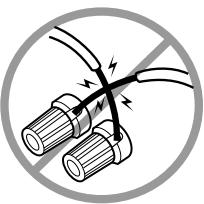
- Be careful not to short the positive and negative wires. Doing so may damage the AV receiver.
- Make sure the metal core of the wire does not have contact with the AV receiver's rear panel. Doing so may damage the AV receiver.
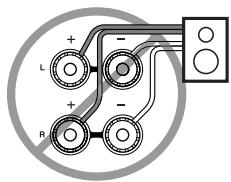
- Don't connect more than one cable to each speaker terminal. Doing so may damage the AV receiver.
- Don't connect one speaker to several terminals.
Connecting the Speaker Cables
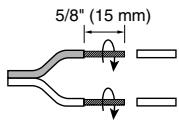
1 Strip about 5 / 8'' (15 mm) of insulation from the ends of the speaker cables, and twist the bare wires tightly, as shown.
2 Unscrew the terminal.

3 Fully insert the bare wires.
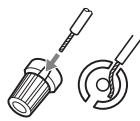
4 Screw the terminal tight.

The following illustration shows which speaker should be connected to each pair of terminals.
Surround left speaker
Surround right speaker
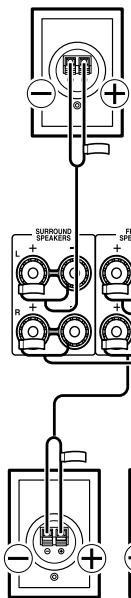
Front right speaker
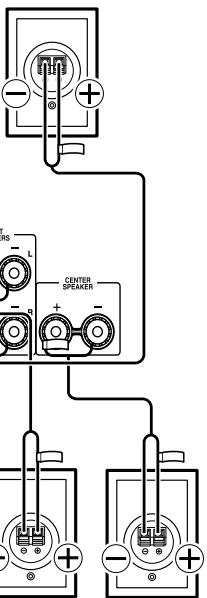
Front left speaker
Center speaker
Connecting Antenna
This section explains how to connect the supplied indoor FM antenna and AM loop antenna, and how to connect commercially available outdoor FM and AM antennas. The AV receiver won't pick up any radio signals without any antenna connected, so you must connect the antenna to use the tuner.
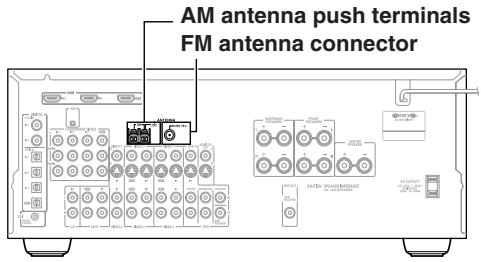
Connecting the Indoor FM Antenna
The supplied indoor FM antenna is for indoor use only.
1 Attach the FM antenna, as shown.
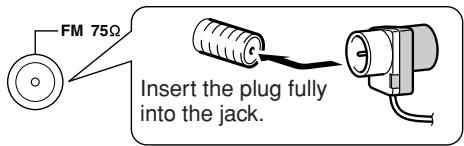
North American models
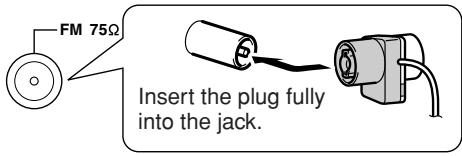
Other models
Once your AV receiver is ready for use, you'll need to tune into an FM radio station and adjust the position of the FM antenna to achieve the best possible reception.
2 Use thumbtacks or something similar to fix the FM antenna into position.
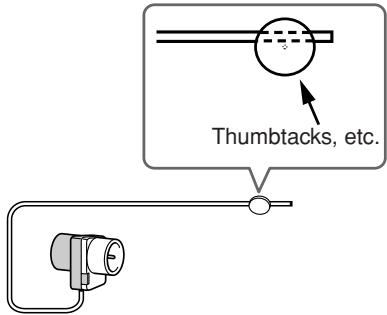
Caution: Be careful that you don't injure yourself when using thumbtacks.
If you cannot achieve good reception with the supplied indoor FM antenna, try a commercially available outdoor FM antenna instead (see page 22).
Connecting the AM Loop Antenna
The supplied indoor AM loop antenna is for indoor use only.
1 Assemble the AM loop antenna, inserting the tabs into the base, as shown.
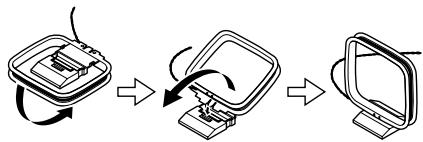
2 Connect both wires of the AM loop antenna to the AM push terminals, as shown.
(The antenna's wires are not polarity sensitive, so they can be connected either way around.)
Make sure that the wires are attached securely and that the push terminals are gripping the bare wires, not the insulation.
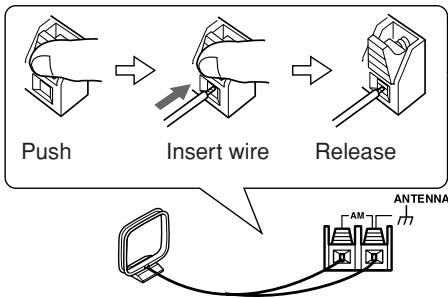
Once your AV receiver is ready for use, you'll need to tune into an AM radio station and adjust the position of the AM antenna to achieve the best possible reception.
Keep the antenna as far away as possible from your AV receiver, TV, speaker cables, and power cords.
If you cannot achieve good reception with the supplied indoor AM loop antenna, try using it with a commercially available outdoor AM antenna (see page 22).
Connecting an Outdoor FM Antenna
If you cannot achieve good reception with the supplied indoor FM antenna, try a commercially available outdoor FM antenna instead.
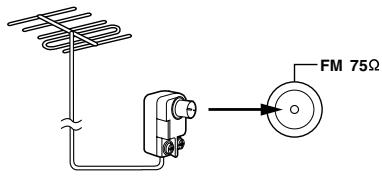
Notes:
- Outdoor FM antennas work best outside, but usable results can sometimes be obtained when installed in an attic or loft.
- For best results, install the outdoor FM antenna well away from tall buildings, preferably with a clear line of sight to your local FM transmitter.
- Outdoor antenna should be located away from possible noise sources, such as neon signs, busy roads, etc.
- For safety reasons, outdoor antenna should be situated well away from power lines and other high-voltage equipment.
- Outdoor antenna must be grounded in accordance with local regulations to prevent electrical shock hazards.
Using a TV/FM Antenna Splitter
It's best not to use the same antenna for both FM and TV reception, as this can cause interference problems. If circumstances demand it, use a TV/FM antenna splitter, as shown.
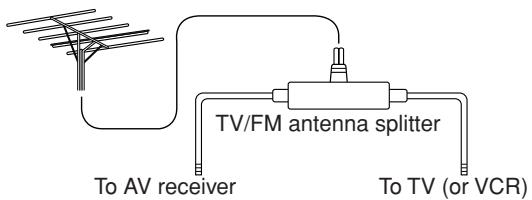
Connecting an Outdoor AM Antenna
If good reception cannot be achieved using the supplied AM loop antenna, an outdoor AM antenna can be used in addition to the loop antenna, as shown.
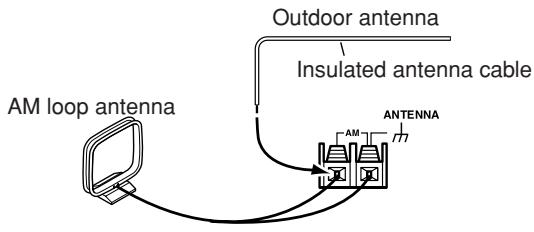
Outdoor AM antennas work best when installed outside horizontally, but good results can sometimes be obtained indoors by mounting horizontally above a window. Note that the AM loop antenna should be left connected.
Outdoor antenna must be grounded in accordance with local regulations to prevent electrical shock hazards.
Connecting Both Audio & Video
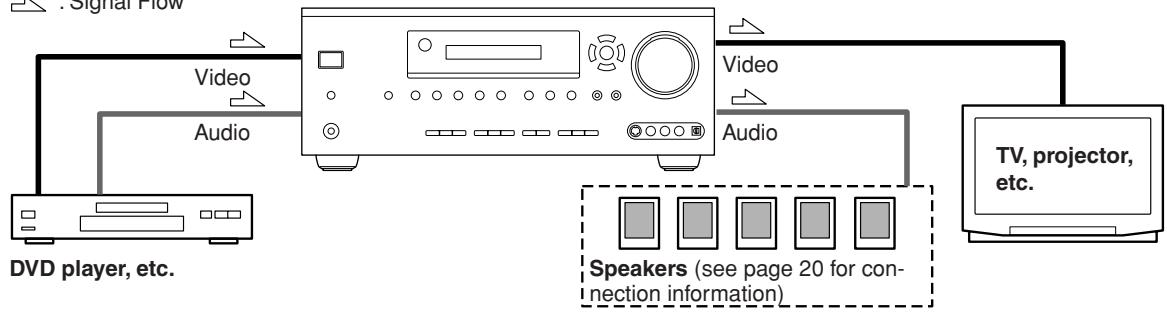
By connecting both the audio and video outputs of your DVD player and other AV components to the AV receiver, you can select both the audio and video simultaneously simply by selecting the appropriate input source on the AV receiver.
Signal Flow
Which Connections Should I Use?
The AV receiver supports several connection formats for compatibility with a wide range of AV equipment. The format you choose will depend on the formats supported by your other components. Use the following sections as a guide. For video components, you must make two connections—one for audio, one for video.
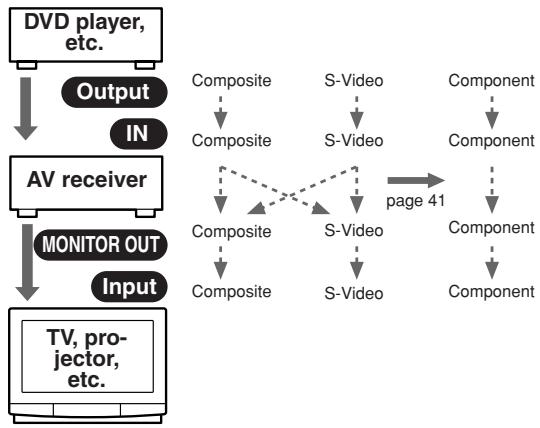
Video Connection Formats
Video equipment can be connected to the AV receiver by using any one of the following video connection formats: composite video, S-Video, or component video, the latter offering the best picture quality.
A video signal connected to a V or S IN jack will be converted—composite video to S-Video or S-Video to composite video—but only for the MONITOR OUT jacks, not the VIDEO 1 and VIDEO 2 OUT V and S jacks.
Notes:
- The AV receiver can be set to upconvert composite video and S-Video input signals and output them from the COMPONENT VIDEO OUT (see page 41).
- For details on the HDMI jacks, see page 32.
Audio Connection Formats
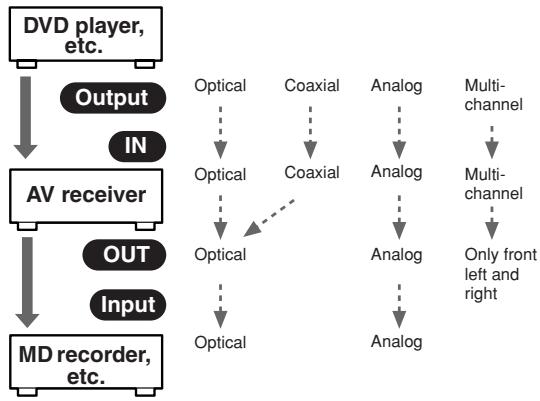
Audio equipment can be connected to the AV receiver by using any of the following audio connection formats: analog, optical, coaxial, or multichannel.
When choosing a connection format, bear in mind that the AV receiver doesn't convert between them. For example, audio signals connected to an OPTICAL or COAXIAL input are not output by the analog TAPE OUT.
Connecting Your TV or Projection
Step 1: Video Connection
Choose a video connection that matches your TV (A, B, or C), and then make the connection.
Step 2: Audio Connection
Choose an audio connection that matches your TV (a, b, or c), and then make the connection.
- With connection a, you can listen to and record audio from your TV.
- To enjoy Dolby Digital and DTS, use connection b or c. (For recording, use a and b, or a and c.)
| Connection | AV receiver | Signal flow | TV | Picture quality |
| A | COMPONENT VIDEO OUT | → | Component video input | Best |
| B | MONITOR OUT S | → | S-Video input | Better |
| C | MONITOR OUT V | → | Composite video input | Standard |
| a | VIDEO 3 IN L/R | ← | Analog audio L/R output | |
| b | DIGITAL COAXIAL IN 2 | ← | Digital coaxial output | |
| c | DIGITAL OPTICAL IN 2 | ← | Digital optical output |
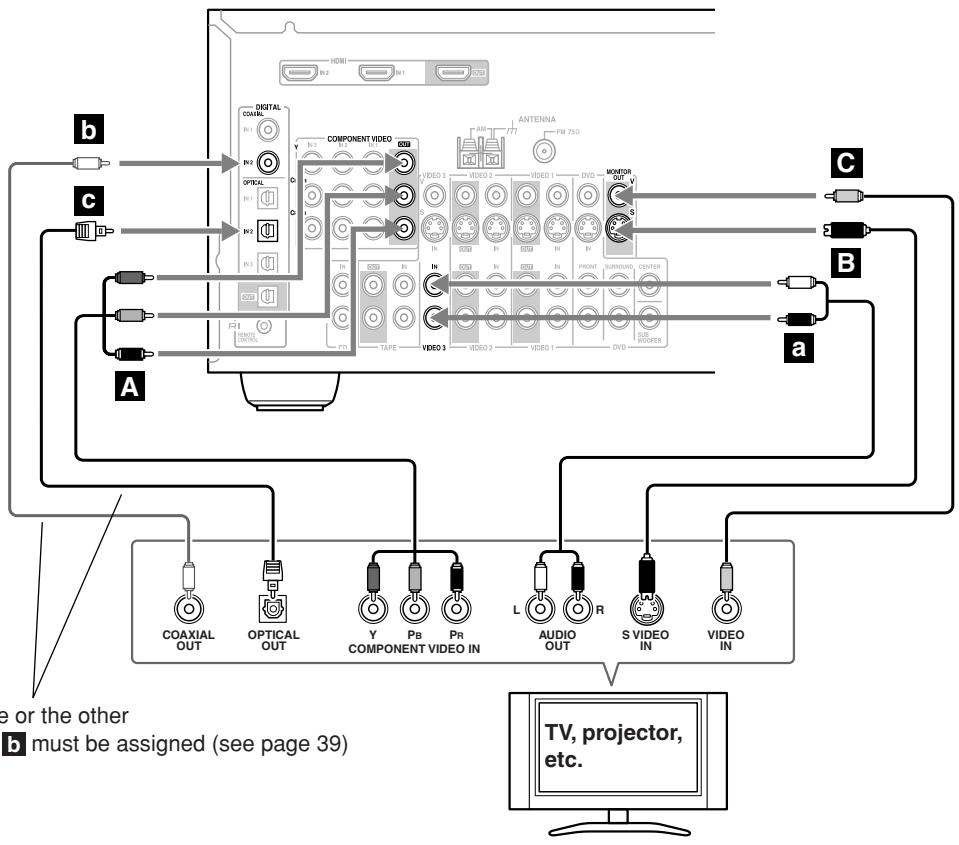
Connect one or the other
Connection b must be assigned (see page 39)
If your TV has no audio outputs, connect an audio output from your VCR or cable or satellite receiver to the AV receiver and use its tuner to listen to TV programs through the AV receiver (see pages 27 and 29).
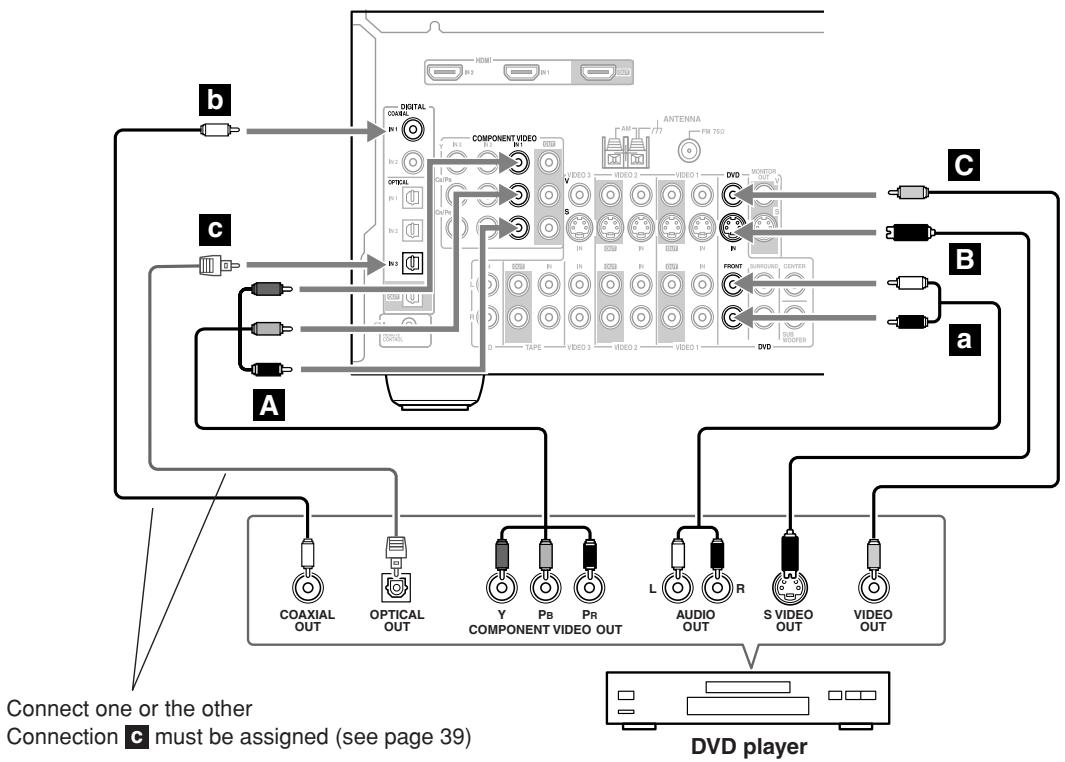
Connecting a DVD Player
Step 1: Video Connection
Choose a video connection that matches your DVD player (A, B, or C), and then make the connection. You must connect the AV receiver to your TV via the same type of connection.
Step 2: Audio Connection
Choose an audio connection that matches your DVD player (a, b, or c), and then make the connection.
- With connection a, you can listen to and record audio from a DVD.
- To enjoy Dolby Digital and DTS, use connection b or c. (For recording, use a and b, or a and c.)
- If your DVD player has main left and right outputs and multichannel left and right outputs, be sure to use the main left and right outputs for connection a.
| Connection | AV receiver | Signal flow | DVD player | Picture quality |
| A | COMPONENT Video IN 1 | ← | Component video output | Best |
| B | DVD IN S | ← | S-Video output | Better |
| C | DVD IN V | ← | Composite video output | Standard |
| a | DVD IN FRONT | ← | Analog audio L/R output | |
| b | DIGITAL COAXIAL IN 1 | ← | Digital coaxial output | |
| c | DIGITAL OPTICAL IN 3 | ← | Digital optical output |
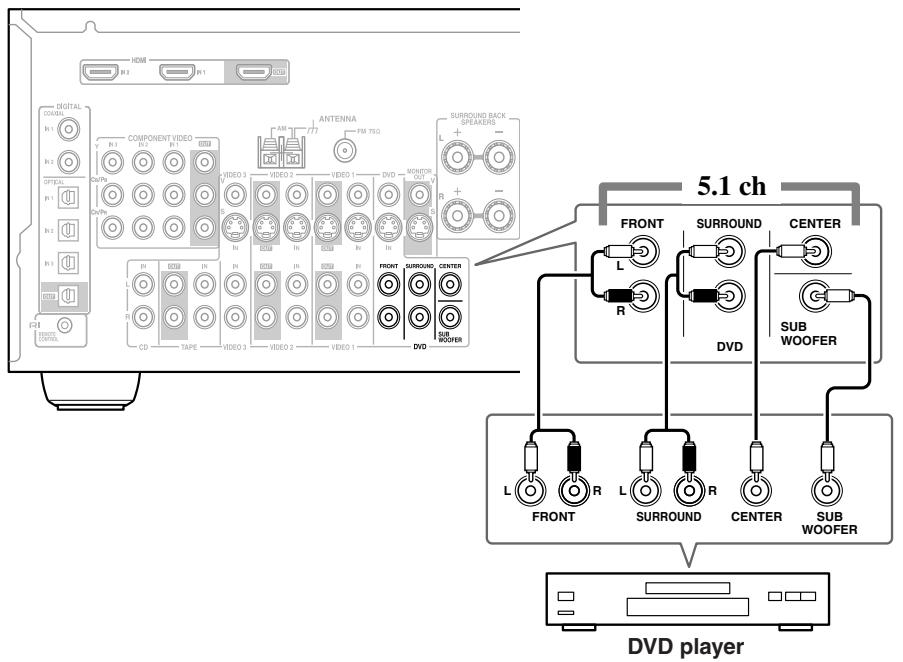
To connect a DVD player or DVD-Audio/SACD-capable player with a multichannel analog audio output, see page 26.
Hooking Up the Multichannel DVD Input
If your DVD player supports multichannel audio formats such as DVD-Audio or SACD, and it has a multichannel analog audio output, you can connect it to the AV receiver's multichannel DVD input.
Use a multichannel analog audio cable, or several normal audio cables, to connect the AV receiver's DVD IN FRONT L/R, CENTER, SURROUND L/R, and SUBWOOFER jacks to the 5.1-channel analog audio output on your DVD player.
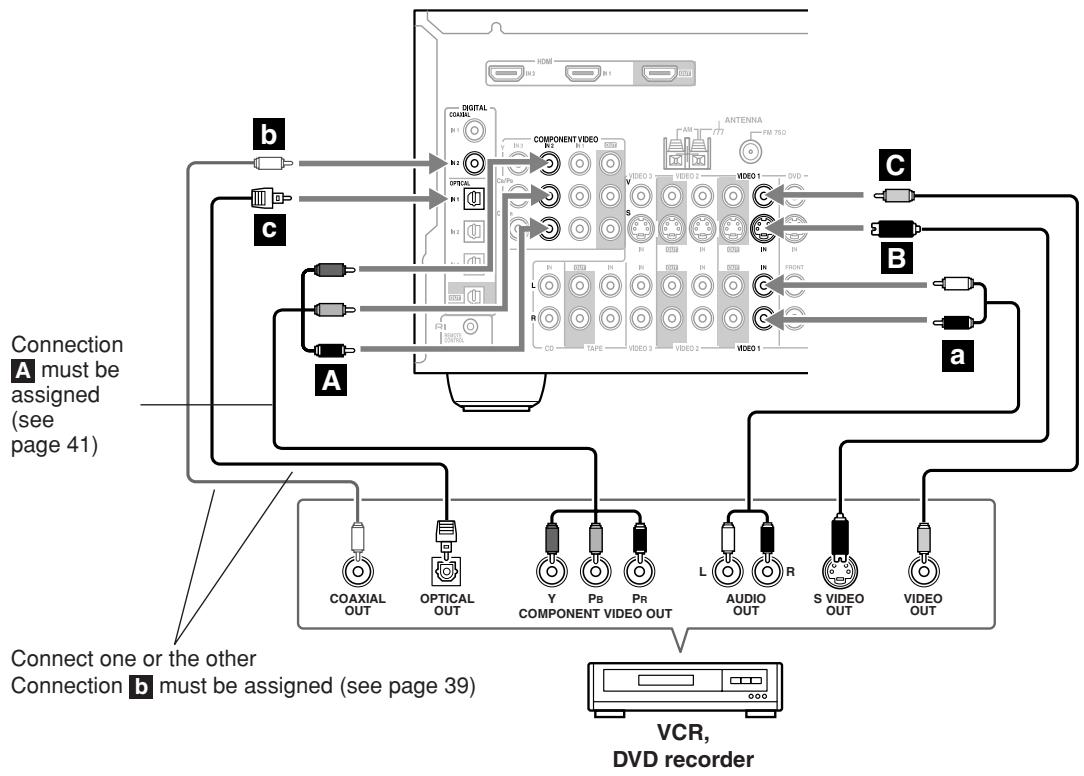
Connecting a VCR or DVD Recorder for Playback
With this hookup, you can use your VCR's tuner to listen to your favorite TV programs via the AV receiver, useful if your TV has no audio outputs.
Step 1: Video Connection
Choose a video connection that matches your VCR or DVD recorder (A, B, or C), and then make the connection.
You must connect the AV receiver to your TV via the same type of connection.
Step 2: Audio Connection
Choose an audio connection that matches your VCR or DVD recorder (a, b, or c), and then make the connection.
- To enjoy Dolby Digital and DTS, use connection b or c.
| Connection | AV receiver | Signal flow | VCR or DVD recorder | Picture quality |
| A | COMPONENT Video IN 2 | ← | Component video output | Best |
| B | VIDEO 1 IN S | ← | S-Video output | Better |
| C | VIDEO 1 IN V | ← | Composite video output | Standard |
| a | VIDEO 1 IN L/R | ← | Analog audio L/R output | |
| b | DIGITAL COAXIAL IN 2 | ← | Digital coaxial output | |
| c | DIGITAL OPTICAL IN 1 | ← | Digital optical output |
Connecting a VCR or DVD Recorder for Recording
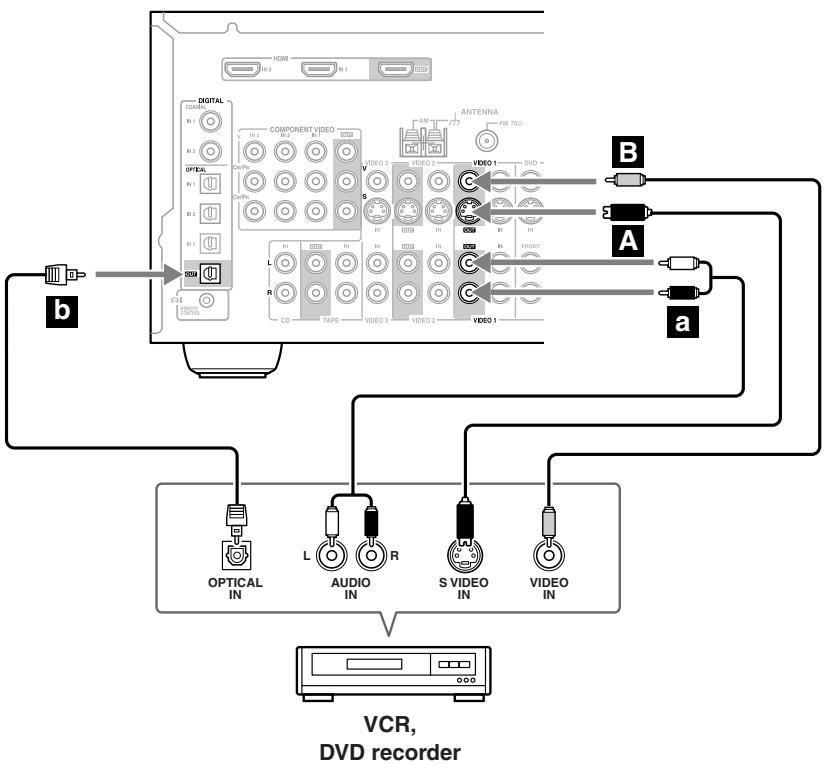
If you have two video recorders (e.g., a VCR and a DVD recorder), connect one recorder to the VIDEO 1 OUT jacks, as shown here, and connect the other recorder to the VIDEO 2 OUT jacks in the same way.
Step 1: Video Connection
Choose a video connection that matches your VCR or DVD recorder (A or B), and then make the connection. The video source to be recorded must be connected to the AV receiver via the same type of connection.
Step 2: Audio Connection
Choose an audio connection that matches your VCR or DVD recorder (a or b), and then make the connection.
| Connection | AV receiver | Signal flow | VCR or DVD recorder | Picture quality |
| A | VIDEO 1 OUT S | → | S-Video input | Better |
| B | VIDEO 1 OUT V | → | Composite video input | Standard |
| a | VIDEO 1 OUT L/R | → | Audio L/R input | |
| b | DIGITAL OPTICAL OUT | → | Digital optical input |
Notes:
- The AV receiver must be turned on for recording. Recording is not possible while it's in Standby mode.
- If you want to record directly from your TV or playback VCR to the recording VCR without going through the AV receiver, connect the TV/VCR's audio and video outputs directly to the recording VCR's audio and video inputs. See the manuals supplied with your TV and VCR for details.
- Video signals connected to composite video inputs can only be recorded via composite video outputs. If your TV/VCR is connected to a composite video input, the recording VCR must be connected to a composite video output. Similarly, video signals connected to S-Video inputs can only be recorded via S-Video outputs. If your TV/VCR is connected to an S-Video input, the recording VCR must be connected to an S-Video output.
Connecting a Satellite, Cable, Set-top box, or Other Video Source
With this hookup, you can use your satellite or cable receiver to listen to your favorite TV programs via the AV receiver, useful if your TV has no audio outputs.
Step 1: Video Connection
Choose a video connection that matches the video source (A, B, or C), and then make the connection.
You must connect the AV receiver to your TV via the same type of connection.
Step 2: Audio Connection
Choose an audio connection that matches the video source (a, b, or c), and then make the connection.
- With connection a, you can listen to and record audio from the video source.
To enjoy Dolby Digital and DTS, use connection b or c. (For recording, use a and b, or a and c.)
| Connection | AV receiver | Signal flow | Video source | Picture quality |
| A | COMPONENT Video IN 3 | ← | Component video output | Best |
| B | VIDEO 3 IN S | ← | S-Video output | Better |
| C | VIDEO 3 IN V | ← | Composite video output | Standard |
| a | VIDEO 3 IN L/R | ← | Analog audio L/R output | |
| b | DIGITAL COAXIAL IN 2 | ← | Digital coaxial output | |
| c | DIGITAL OPTICAL IN 2 | ← | Digital optical output |
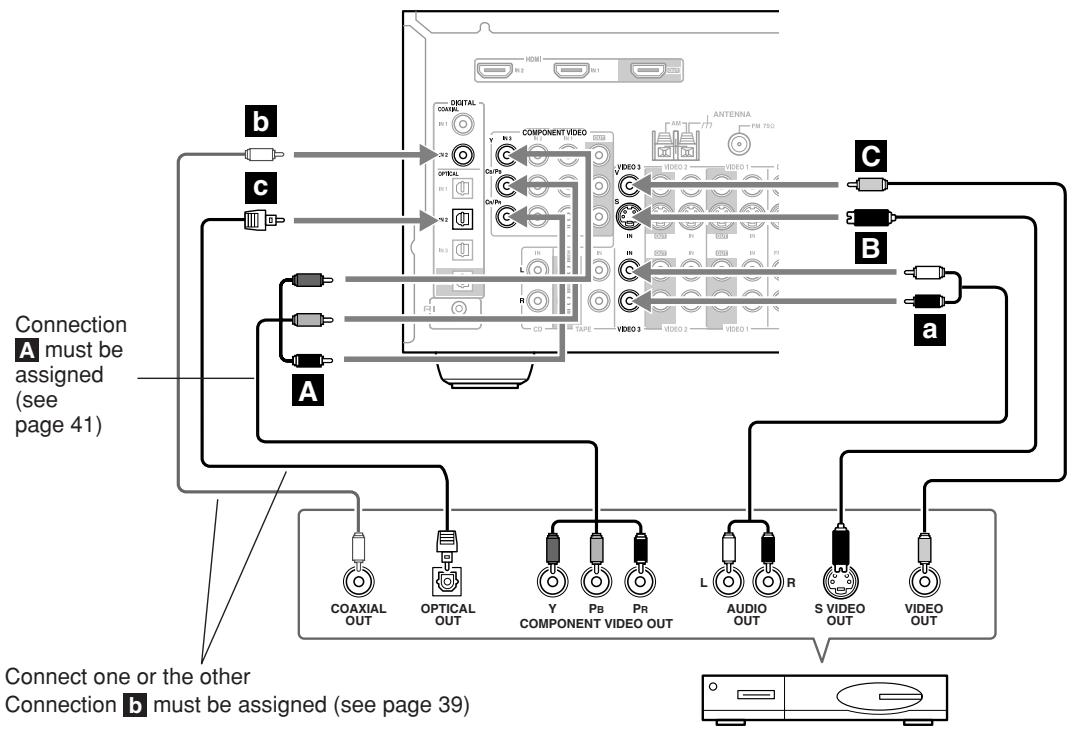
Satellite, cable, set-top box, etc.
Connecting a Camcorder, Games Console, or Other Device
Step 1: Video Connection
Choose a video connection that matches the camcorder or console (A or B), and then make the connection.
Step 2: Audio Connection
Choose an audio connection that matches the camcorder or console (a or b), and then make the connection.
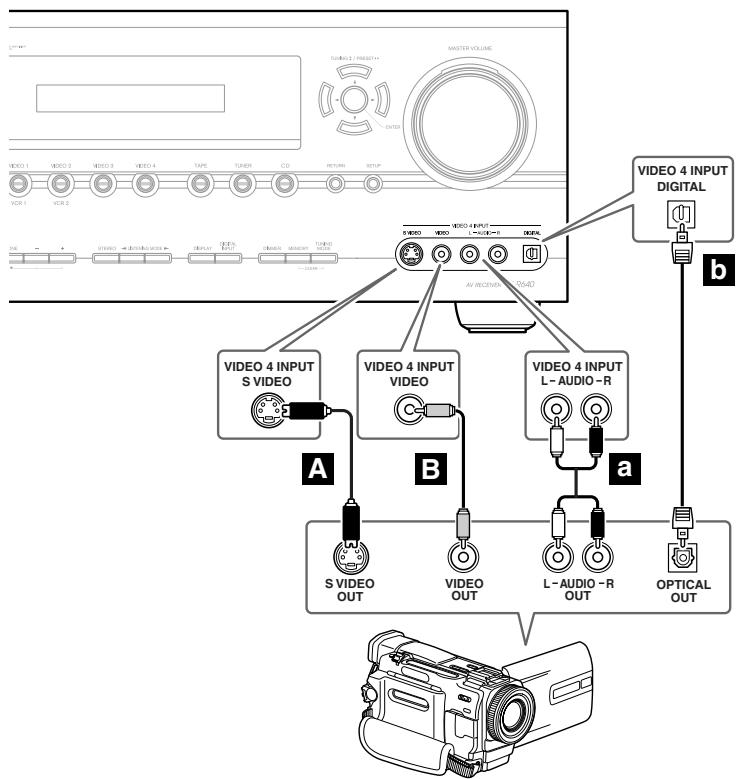
Camcorder, games console, etc.
| Connection | AV receiver | Signal flow | Camcorder or console |
| A | VIDEO 4 INPUT S VIDEO | ← | S-Video output |
| B | VIDEO 4 INPUT VIDEO | ← | Composite video output |
| a | VIDEO 4 INPUT L/R | ← | Analog audio L/R output |
| b | VIDEO 4 INPUT DIGITAL | ← | Digital optical output |
Connecting Components with HDMI
About HDMI
Designed to meet the demands of digital TV, HDMI (High Definition Multimedia Interface) is a new digital interface standard for connecting TVs, projectors, DVD players, set-top boxes, and other video components. Until now, several separate video and audio cables have been required to connect AV components. With HDMI, a single cable can carry control signals, digital video, and up to eight channels of digital audio (2-channel PCM, multichannel digital audio, and multichannel PCM).
The HDMI video stream (i.e., video signal) is compatible with DVI (Digital Visual Interface) ^1 , so TVs and displays with a DVI input can be connected by using an HDMI-to-DVI adapter cable. (This may not work with some TVs and displays, resulting in no picture.)
The AV receiver uses HDCP (High-bandwidth Digital Content Protection), so only HDCP-compatible components can display the picture.
The AV receiver's HDMI interface is based on the following standard:
High-Definition Multimedia Interface Specification Informational Version 1.1
Supported Audio Formats
2-channel linear PCM (32-192 kHz, 16/20/24 bit)
- Multichannel linear PCM (5.1 ch, 32–96 kHz, 16/20/24 bit)
- Bitstream (Dolby Digital, DTS)
Your DVD player must also support HDMI output of the above audio formats.
About Copyright Protection
The AV receiver supports HDCP (High-bandwidth Digital Content Protection) ^2 , a copy-protection system for digital video signals. Other devices connected to the AV receiver via HDMI must also support HDCP.
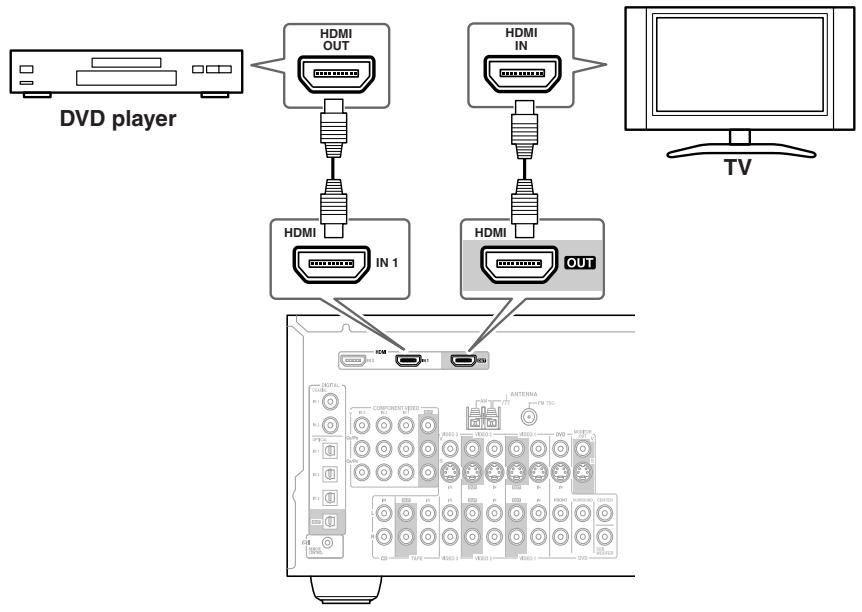
Commercially available HDMI cables (supplied with some components) should be used to connect the AV receiver's HDMI OUT to the HDMI input on your TV or projector.
1 DVI (Digital Visual Interface): The digital display interface standard set by the DDWG ^3 in 1999.
2 HDCP (High-bandwidth Digital Content Protection): The video encryption technology developed by Intel for HDMI/DVI. It's designed to protect video content and requires a HDCP-compatible device to display the encrypted video.
*3 DDWG (Digital Display Working Group): Lead by Intel, Compaq, Fujitsu, Hewlett Packard, IBM, NEC, and Silicon Image, this open industry group's objective is to address the industry's requirements for a digital connectivity specification for high-performance PCs and digital displays.
Making HDMI Connections
Step 1: Use HDMI cables to connect the AV receiver's HDMI jacks to your HDMI-compatible DVD player, TV, projector, and so on.
Step 2: Assign each HDMI IN to an input selector in the HDMI Video setup (see page 40).
Video Signal Flow Chart
Digital video signals received at HDMI IN 1 and 2 are only output by the HDMI OUT and sent to your TV. Composite video, S-Video, and component video input signals are not output by the HDMI OUT.
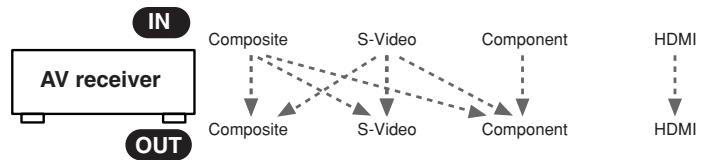
Note:
The onscreen setup menus are not output by the HDMI OUT, so you'll also need to make a composite video, S-Video, or component video connection to your TV (see page 24).
Audio Signal Flow Chart
Digital audio signals received at HDMI IN 1 or 2 are output by the speakers and headphones connected to the AV receiver. They're also output by the OPTICAL OUT and can be output by the HDMI OUT by setting the HDMI Audio Out setting to On (see page 69).
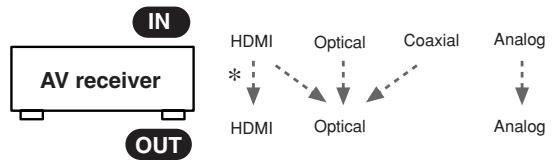
- To listen to audio received at HDMI IN 1 and 2 through your TV speakers, set the HDMI Audio Out setting to On (see page 69) and your DVD player's output setting to PCM.
Connecting a CD Player or Turntable
CD Player or Turntable (MM) with Built-in Phono Preamp
Step 1:
Choose a connection that matches your CD player (a, b, or c). Use connection a for a turntable with a built-in phono preamp.
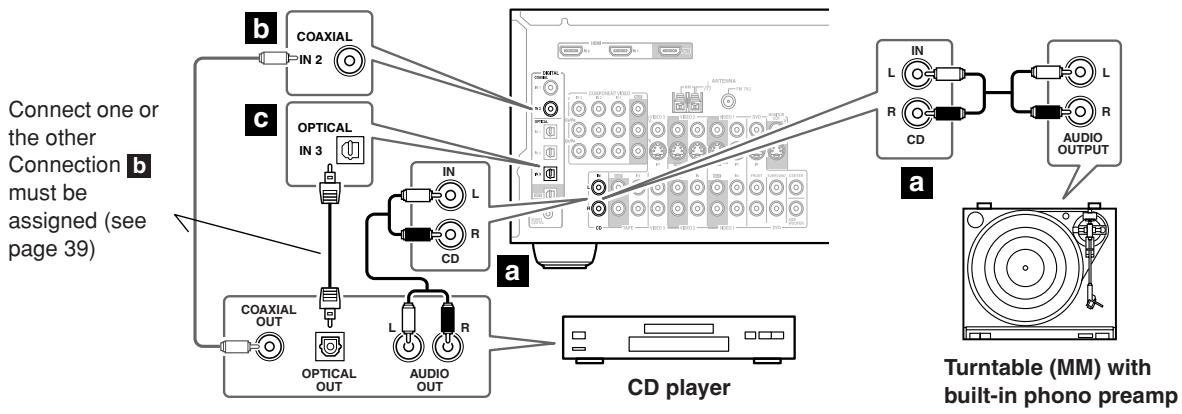
- With connection a, you can listen to and record audio from the CD player.
- To connect the CD player digitally, use connection b or c. (For recording, use a and b, or a and c.)
| Connection | AV receiver | Signal flow | CD or turntable |
| a | CD IN L/R | ← | Analog audio L/R output |
| b | DIGITAL COAXIAL IN 2 | ← | Digital coaxial output |
| c | DIGITAL OPTICAL IN 3 | ← | Digital optical output |
Turntable (MM) with no Phono Preamp Built-in
A phono preamp is necessary to connect a turntable that doesn't have a phono preamp built-in.
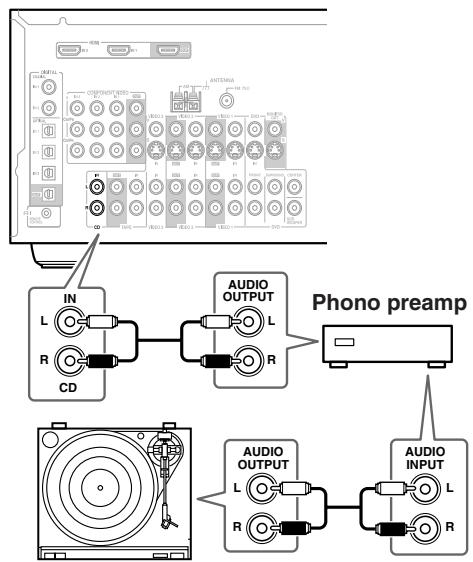
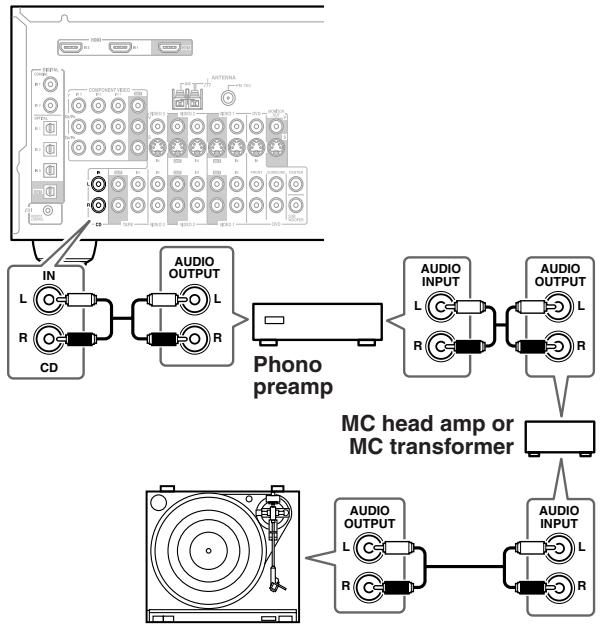
Turntable with an MC (Moving Coil) Cartridge
An MC head amp and phono preamp are necessary to connect a turntable with an MC (Moving Coil) cartridge.
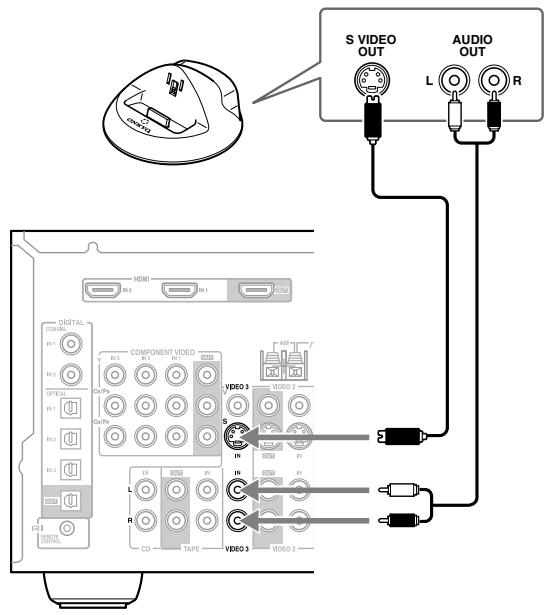
Connecting a HDD-compatible Component
As of this printing, the Onkyo Remote Interactive Dock is the only HDD-compatible component available.
For HDD-compatible components that support video
Connect your HDD-compatible component's analog audio output jacks and video output jack to the AV receiver's VIDEO 3 IN L/R jacks and VIDEO 3 IN (V or S) jack. (The example shown below is for connection with the DS-A1.)
For HDD-compatible components that don't support video
Connect your HDD-compatible component's analog audio output jacks to the AV receiver's TAPE IN L/R jacks.
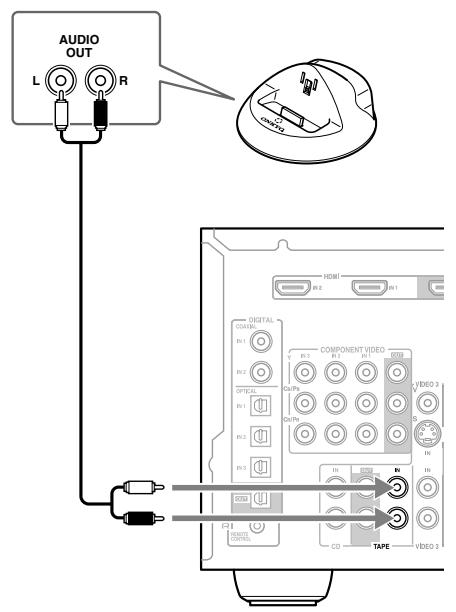
Notes:
- Connect the Remote Interactive Dock with an R1 cable (see page 36).
- Set the Remote Interactive Dock's RI MODE switch to HDD.
- Set the AV receiver's input display to HDD (see page 44).
Refer to the Remote Interactive Dock's instruction manual.
Connecting a Cassette, CDR, MiniDisc, or DAT Recorder
Step 1:
Choose a connection that matches the recorder (a, b, c, or d), and then make the connection.
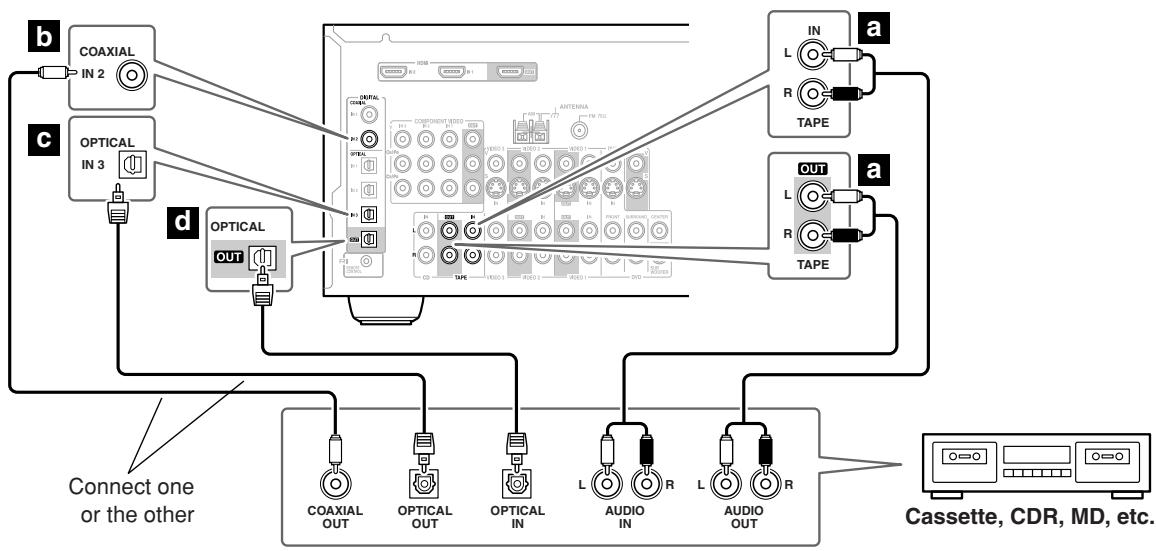
- With connection a, you can play and record.
- To connect the recorder digitally for playback, use connections a and b, or a and c.
- To connect the recorder digitally for recording, use connection d.
| Connection | AV receiver | Signal flow | Cassette, CDR, MD, or DAT recorder |
| a | TAPE IN L/R | ← | Analog audio L/R output |
| TAPE OUT L/R | → | Analog audio L/R input | |
| b | DIGITAL COAXIAL IN 2 | ← | Digital coaxial output |
| c | DIGITAL OPTICAL IN 3 | ← | Digital optical output |
| d | DIGITAL OPTICAL OUT | → | Digital optical input |
Connecting Onkyo RI Components
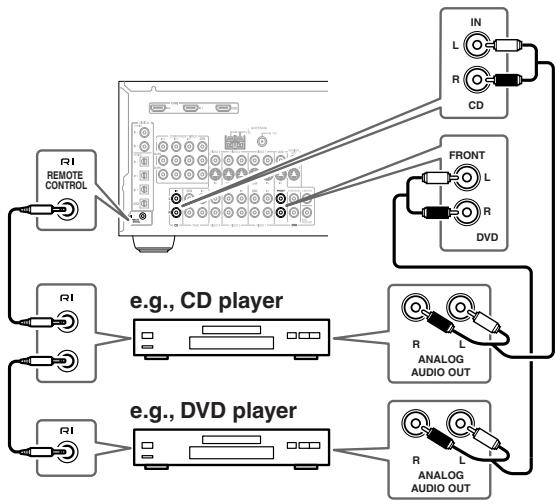
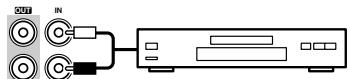
Step 1: Make sure that each Onkyo component is connected to the AV receiver with an analog audio cable (connection a in the hookup examples) (see pages 24 to 35).
Step 2: Make the RI connection.
Step 3: If you're using an MD, CDR, or HDD component, change the input display (see page 44).
With RI (Remote Interactive), you can use the following special functions:
Auto Power On/Standby
When you start playback on a component connected via RI, if the AV receiver is on Standby, it will automatically turn on and select that component as the input source. Similarly, when the AV receiver is set to Standby, all components connected via RI will also go on Standby. This function will not work on components connected to an AC OUTLET on the AV receiver.
Direct Change
When playback is started on a component connected via RI, the AV receiver automatically selects that component as the input source. If your DVD player is connected to the AV receiver's multichannel DVD input, you'll need to press the [MULTI CH] button to hear all channels (see page 46), as the Direct Change RI function only selects the FRONT DVD IN jacks.
Remote Control
You can use the AV receiver's remote controller to control your other RI-capable Onkyo components, pointing the remote controller at the AV receiver's remote control sensor instead of the component. You must enter the appropriate remote control code first (see page 73).
Notes:
- Use only RL cables for RL connections. RL cables are supplied with Onkyo players (DVD, CD, etc.).
- Some components have two RI jacks. You can connect either one to the AV receiver. The other jack is for connecting additional RI-capable components.
- Connect only Onkyo components to RI jacks. Connecting other manufacturer's components may cause a malfunction.
- Some components may not support all RI functions. Refer to the manuals supplied with your other Onkyo components.
Connecting the Power Cord of Another Component
The AV receiver has an AC outlet on its rear panel for connecting the power cord of another AV component. The other component's power switch can then be left in the ON position so that it turns on or off when the AV receiver is set to On or Standby.
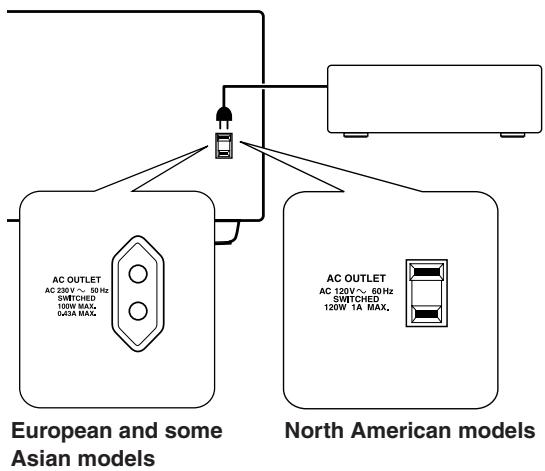
Caution:
Make sure that the capacity of the component that you connect to the AC OUTLET does not exceed the stated capacity (e.g., 100W).
Notes:
- Onkyo components with R1 jacks should be connected directly to wall outlets, not the AV receiver's AC OUTLET.
- The socket type and capacity will depend on the country in which you purchased the AV receiver.
Connecting the Power Cord
- Connect the AV receiver's power cord to a suitable wall outlet.
Notes:
- Before connecting the power cord, connect all of your speakers and AV components.
- Turning on the AV receiver may cause a momentary power surge that might interfere with other electrical equipment on the same circuit. If this is a problem, plug the AV receiver into a different branch circuit.
Turning On and Standby
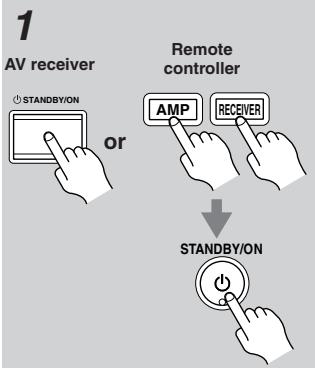
Press the [STANDBY/ON] button.
Alternatively, press the remote controller's [RECEIVER] or [AMP] button, followed by the [ON/STANDBY] button.
The AV receiver comes on, the display lights up, and the STANDBY indicator goes off.
To turn the AV receiver off, press the [STANDBY/ON] button, or press the remote controller's [ON/STANDBY] button. The AV receiver will enter Standby mode. To prevent any loud surprises when you turn on the AV receiver, always turn down the volume before you turn it off.
Smooth Operation in a Few Easy Steps
To ensure smooth operation, here's a few easy steps to help you configure the AV receiver before you use it for the very first time. These settings only need to be made once.
Have you connected a component to an HDMI input, component video input, or digital audio input?
If you have, see "HDMI Video Setup" on page 40, "Component Video Setup" on page 41, or "Digital Input" on page 39 respectively.
Have you connected an Onkyo MD recorder, CD recorder, or next generation HDD-compatible component?
If you have, see "Changing the Input Display" on page 44.
■ Do the speaker configuration—this is essential!
See "Speaker Configuration" on page 42.
CD recorder, MD recorder, RI Dock, etc.

About the Onscreen Setup Menus
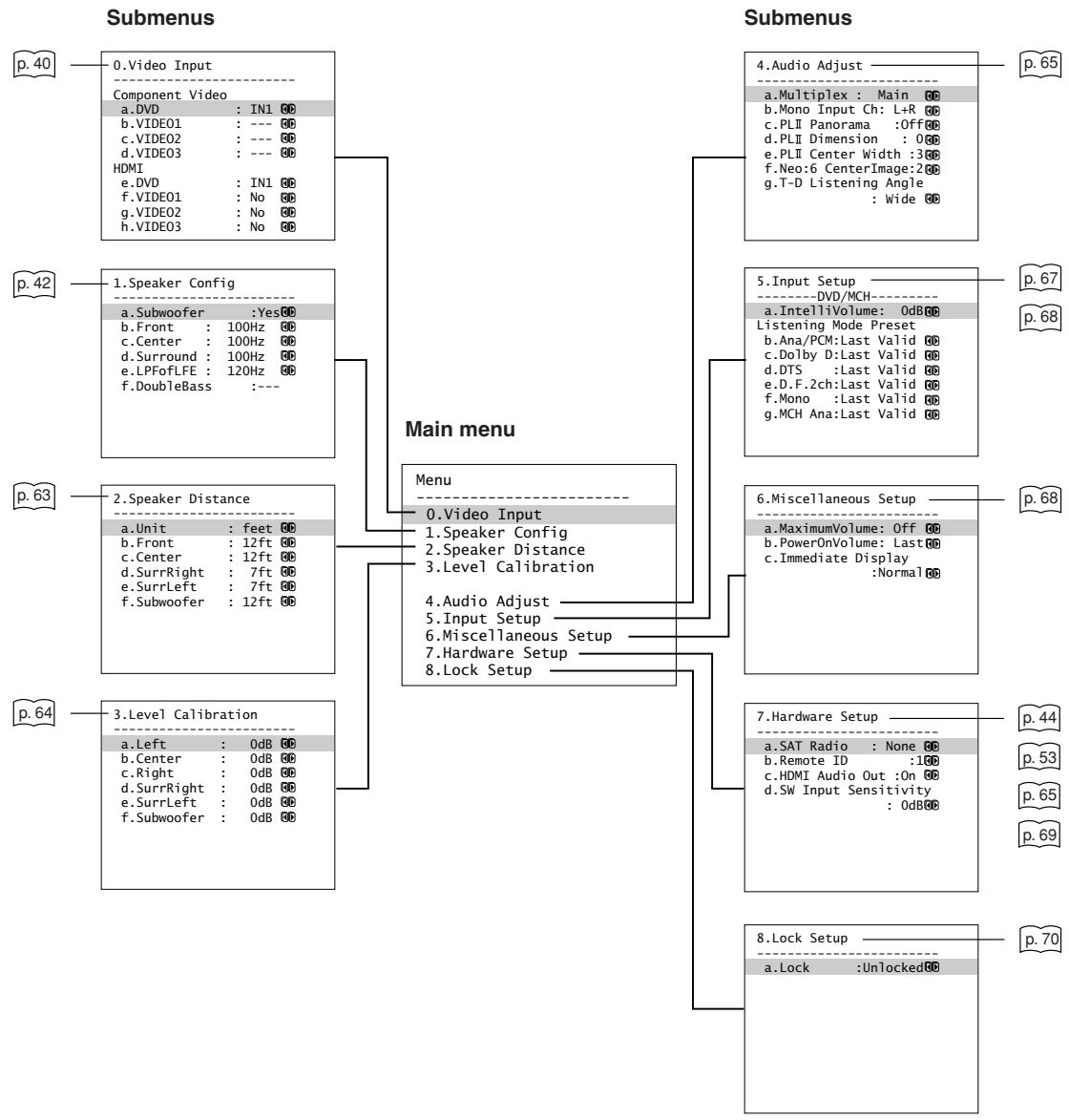
The onscreen setup menus are displayed on the connected TV and provide a convenient way to change the AV receiver's settings (The onscreen menus do not appear on a TV that's connected to the HDMI OUT).
Digital Input
If you connect a component to a digital input jack, you must assign that jack to an input selector. For example, if you connect your CD player to the OPTICAL IN2 jack, you should assign that jack to the CD input selector. By default, the COAXIAL IN1 jack is assigned to the DVD input selector, although this can be changed.
Here are the default assignments.
| Input selector | Default assignment |
| DVD | HDMI1 |
| VIDEO 1 | OPT1 |
| VIDEO 2 | ---- |
| VIDEO 3 | OPT2 |
| TAPE | ---- |
| CD | OPT3 |
VIDEO 4 is fixed to FRONT.
- When HDMI IN 1 or 2 is assigned to an input selector in the "HDMI Video Setup" on page 40, the input selector assignment on this page is automatically set to HDMI 1 or HDMI 2.
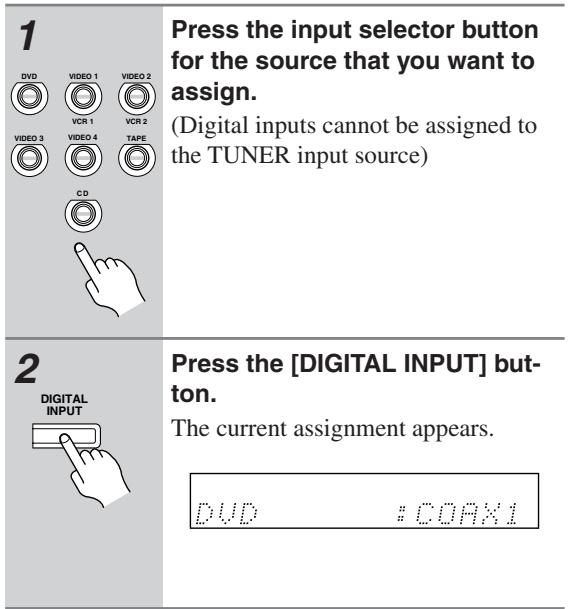
3
Press the [DIGITAL INPUT] button repeatedly to select COAX1, COAX2, OPT1, OPT2, OPT3, or -- -- (analog).
- An input selector that has been assigned to IN1 or IN2 in the "HDMI Video Setup" (page 40) can be set to HDMI here.
- There are no assignments for TUNER.
VIDEO 4 is used only for digital input from the front panel terminals.
Examples:
If you connect your DVD player to the OPTICAL IN 2 jack, set "DVD" to "OPT2."
If you want to listen to audio from the component connected to the OPTICAL IN 3 jack when the VIDEO 1 input selector is selected, set "VIDEO1" to "OPT3."
If you want to listen to audio from the component connected to the COAX-IAL IN 1 jack when the VIDEO 2 input selector is selected, set "VIDEO2" to "COAX1."
For input selectors that you don't want to assign a digital input jack, set to "---- (analog)."
Video Input
HDMI Video Setup
If you connect a video component to HDMI IN 1 or 2, you must assign that input to an input selector. For example, if you connect your DVD player to HDMI IN 1, you must assign HDMI IN 1 to the DVD input selector.
Note:
When HDMI IN 1 or 2 is assigned to an input selector here, the digital audio input for that selector is automatically set to HDMI IN 1 or 2. If you specify this setting as "No," be sure to confirm that Digital Input is properly set to select an input you desire. See "Digital Input" on page 39.
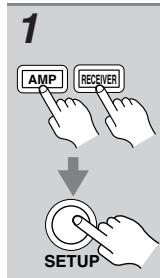
Press the [RECEIVER] or [AMP] button followed by the [SETUP] button.
The main menu appears onscreen.
Use the Up and Down [▲]/[▼] buttons to select “0. Video Input,” and then press [ENTER]. The Video Input menu appears.
| 0.Video Input | |
| Component Video | |
| a.DVD : IN1 #0 | |
| b.VIDE01 : --- #0 | |
| c.VIDE02 : --- #0 | |
| d.VIDE03 : --- #0 | |
| HDMI | |
| e.DVD : IN1 #0 | |
| f.VIDE01 : No #0 | |
| g.VIDE02 : No #0 | |
| h.VIDE03 : No #0 |
3
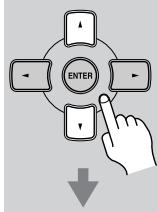
Use the Up and Down [▲]/[▼] buttons to select an input selector, and use the Left and Right [▲]/[▶] buttons to select:
| 0 Video Input | |
| Component Video | |
| a.DVD : IN1 #6 | |
| b.VIDE01 : --- #6 | |
| c.VIDE02 : --- #6 | |
| d.VIDE03 : --- #6 | |
| HDMI | |
| e.DVD : IN1 #6 | |
| f.VIDE01 : No #6 | |
| g.VIDE02 : No #6 | |
| h.VIDE03 : No #6 |
IN1: Select if the video component is connected to HDMI IN 1.
IN2: Select if the video component is connected to HDMI IN 2.
No: Select when not using the HDMI output.
Press the [SETUP] button.
The setup menu closes.
Component Video Setup
If you connect to a COMPONENT Video IN, you must assign it to an input selector. For example, if you connect your DVD player to COMPONENT IN 3, you should assign it to the DVD input selector.
If you want to output composite and S-Video sources from the COMPONENT VIDEO OUT, select "---," as explained below.
| Input selector | VIDEO IN jack |
| DVD | IN 1 |
| VIDEO 1 | --- |
| VIDEO 2 | --- |
| VIDEO 3 | --- |
VIDEO 4 is fixed to "---."
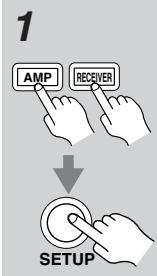
Press the [RECEIVER] or [AMP] button followed by the [SETUP] button.
The main menu appears onscreen.
![ONKYO HT-R640 - Press the [RECEIVER] or [AMP] button followed by the [SETUP] button. - 1](/content/2025/01/151647/images/9c293626d8fcf19804f486ffe6ec9a952f2027a7fb0786a4e0cf519a7770045a.jpg)
2
Use the Up and Down [▲]/[▼] buttons to select "0. Video Input," and then press [ENTER].
The Video Input menu appears.
| 0 Video Input | |
| Component Video | |
| a.DVD : IN1 #0 | |
| b.VIDE01 : --- #0 | |
| c.VIDE02 : --- #0 | |
| d.VIDE03 : --- #0 | |
| HDMI | |
| e.DVD : IN1 #0 | |
| f.VIDE01 : No #0 | |
| g.VIDE02 : No #0 | |
| h.VIDE03 : No #0 |
![ONKYO HT-R640 - Press the [RECEIVER] or [AMP] button followed by the [SETUP] button. - 2](/content/2025/01/151647/images/c4c5b5201d188fd37d353cba414f56bd5f05d45de8a50cd4565d744e25174872.jpg)
3
Use the Up and Down [ ] / [ ] buttons to select an input selector, and then use the Left and Right [ ] / [ ] buttons to select:
IN1: Use the video component connected to COMPO- NENTVIDEO IN 1.
IN2: Use the video component connected to COMPO- NENTVIDEO IN 2.
IN3: Use the video component connected to COMPO- NENTVIDEO IN 3.
---: Output composite video and S-Video sources from the COMPONENT VIDEO OUT.
![ONKYO HT-R640 - Press the [RECEIVER] or [AMP] button followed by the [SETUP] button. - 3](/content/2025/01/151647/images/630bc9f7b2fee8a7c42644454172c16a444773e2d3ee241622997e8b1102e42b.jpg)
4
Press the [SETUP] button.
The setup menu closes.
Note:
This procedure can also be performed on the AV receiver by using its [SETUP] button, arrow buttons, and [ENTER] button.
Speaker Configuration
With these settings, you can specify which speakers are connected and a crossover frequency for each speaker.
The following crossover frequencies can be specified:
Full Band, 40Hz 50Hz 60Hz 80Hz 100Hz 120Hz 150Hz 200Hz
Specify Full Band for speakers that can output low-frequency bass sounds adequately, for example, speakers with a good sized woofer. For smaller speakers, specify a crossover frequency. Sounds below the crossover frequency will be output by the subwoofer instead of the speaker. Refer to your speakers' manuals to determine the optimum crossover frequencies.
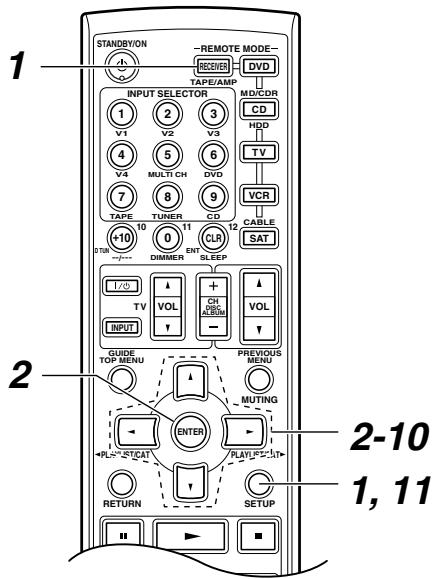
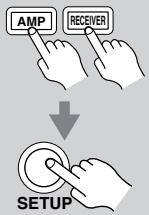
1
Press the [RECEIVER] or [AMP] button followed by the [SETUP] button.
The main menu appears onscreen.
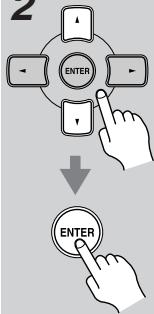
2
Use the Up and Down [▲]/[▼] buttons to select "1. Speaker Config," and then press [ENTER].
The Speaker Config menu appears.
1.Speaker Config
a.Subwoofer :Yes
b.Front : 100Hz @
c.Center : 100Hz @
d.Surround : 100Hz @ @
e.LPFofLFE : 120Hz @
f.DoubleBass ----
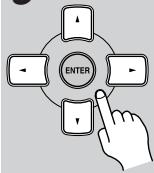
3
Use the Up and Down [] / [] buttons to select "a. Subwoofer," and then use the Left and Right [] / [] buttons to select:
Yes: Select if a subwoofer is connected.
No: Select if no subwoofer is connected.
4
Use the Up and Down [] / [] buttons to select "b. Front," and then use the Left and Right [] / [] buttons to select a crossover frequency.
Note:
If the Subwoofer setting in step 3 is set to No, this setting is fixed at Full Band.
5
Use the Up and Down [] / [] buttons to select "c. Center," and then use the Left and Right [] / [] buttons to select a crossover frequency.
If no center speaker is connected, select None.
Note:
If the Front setting in step 4 is set to anything other than Full Band, Full Band cannot be selected here.
6
Use the Up and Down [ ] / [ ] buttons to select "d. Surround," and then use the Left and Right [ ] / [ ] buttons to select a crossover frequency.
If no surround left and right speakers are connected, select None.
Note:
If the Front setting in step 4 is set to anything other than Full Band, Full Band cannot be selected here.
Continue with step 7 in the right column.
Low-Pass Filter for the LFE Channel
With this setting, you can specify the cutoff frequency of the LFE channel's low-pass filter (LPF), which can be used to filter out unwanted hum. The LPF only applies to sources that use the LFE channel.
Use the Up and Down [ ] / [ ] buttons to select "e. LPFofLFE," and then use the Left and Right [ ] / [ ] buttons to select a lowpass filter frequency.
The following low-pass filter frequencies can be selected: 80Hz 100Hz 120Hz (default), 150Hz or 200Hz . Continue with step 10 below.
Double Bass
With the Double Bass function, you can boost bass output by feeding bass sounds from the front left and right channels to the subwoofer. This function can be set only if the Subwoofer setting in step 3 is set to Yes, and the Front setting in step 4 is set to Full Band.
In the speaker setup screen, you can choose how bass information is distributed to your speakers only if you have large front left and right speakers AND a subwoofer.
8
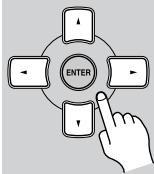
Use the Up and Down [] / [] buttons to select "f. Double Bass," and then use the Left and Right [] / [] buttons to select:
On: Double Bass function on (default). Front left and right bass also goes to the subwoofer simultaneously.
Off: Double Bass function off.

9
Press the [SETUP] button.
The setup menu closes.
Note:
This procedure can also be performed on the AV receiver by using its [SETUP] button, arrow buttons, and [ENTER] button.
Testing the Speakers
To test that all of the speakers are working properly, press the remote controller's [TEST TONE] button.
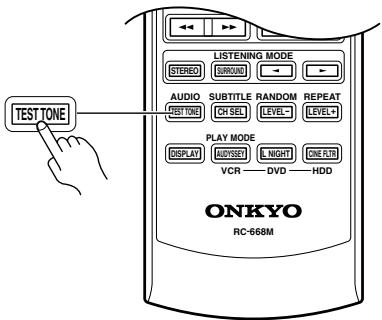
The test tone will be output by each speaker in turn and the name of each speaker will appear on the display. To turn off the test tone, press the [TEST TONE] button again.
- If the test tone is not produced by a speaker, or it's produced by a speaker other than that shown on the display, you may have wired the speakers incorrectly and you should check your connections (see page 20).
- If the test tone is not produced by a speaker and its name does not appear on the display, you may have set the speaker configuration incorrectly (see page 42).
Changing the Input Display
If you connect an RI-capable Onkyo MiniDisc recorder, CD recorder, or next generation HDD-compatible component to the TAPE IN/OUT or VIDEO 3 IN jacks, for RI to work properly, you must change this setting.
This setting can only be changed on the AV receiver.
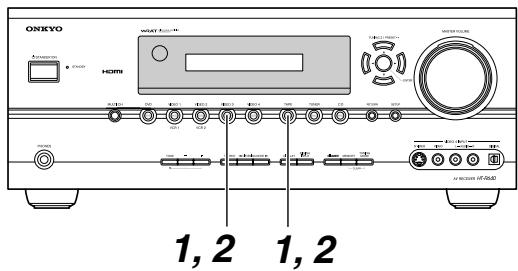
iPod photo: If you're using an iPod photo with the DS-A1 Remote Interactive Dock, connect the DS-A1 to the VIDEO 3 IN jacks.
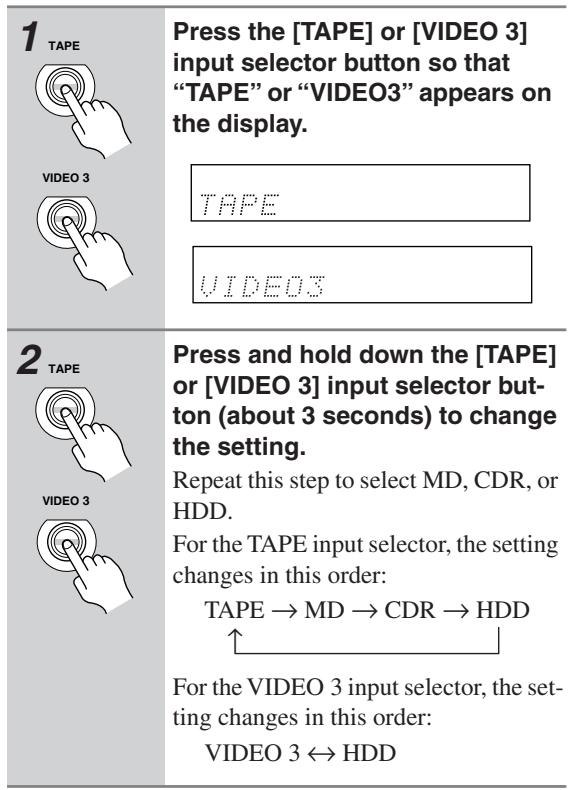
Note:
HDD can be selected for the TAPE input selector or VIDEO 3 input selector, but not both at the same time.
TV Format Setup (not North American models)
You must specify the TV system used in your area.
| 1 AMP RECEIVER SETUP | Press the [RECEIVER] or [AMP] button, followed by the [SETUP] button. The main menu appears onscreen. |
| 2 ENTER - - - - - - - - - - - - - - - - - - - - - - - - - - - - - - - - - - - - - - - - - - - - - - - - - - - - - - - - - - - - - - - - - - - - - - - - - - - - - - - - - - - - - - - - - - - - - - - - - - - - - Use the Up and Down [▲]/[▼] buttons to select “7. Hardware Setup,” and then press [ENTER]. The Hardware Setup menu appears. | |
| 7.Hardware Setup | |
| a.TV Format :Auto@ | |
| b.Remote ID :1@ | |
| c.HDMI Audio Out :Off@ | |
| d.SW Input Sensitivity :0dB@ | |
| 3 ENTER - - - - - - - - - - - - - - - - - - - - - - - - - - - - - - - - - - - - - - - - - - - - - - - - - - - - - - - - - - - - - - - - - - - - - - - - - - - - - - - - - - - - - - - - - - - - - - - - Use the Up andDown [▲]/[▼] buttons to select “TV Format,” and then use the Left and Right [▲]/[▼] buttons to select: Auto: Select this to automatically detect the TV system from the video input signals. NTSC: Select if the TV system in your area is NTSC. PAL: Select if the TV system in your area is PAL. | |
| 4 SETUP | Press the [SETUP] button. The setup menu closes. |
Note:
- This procedure can also be performed on the AV receiver by using its [SETUP] button, arrow buttons, and [ENTER] button.
Selecting the Input Source
This section explains how to select the input source (i.e., the AV component that you want to listen to or watch).
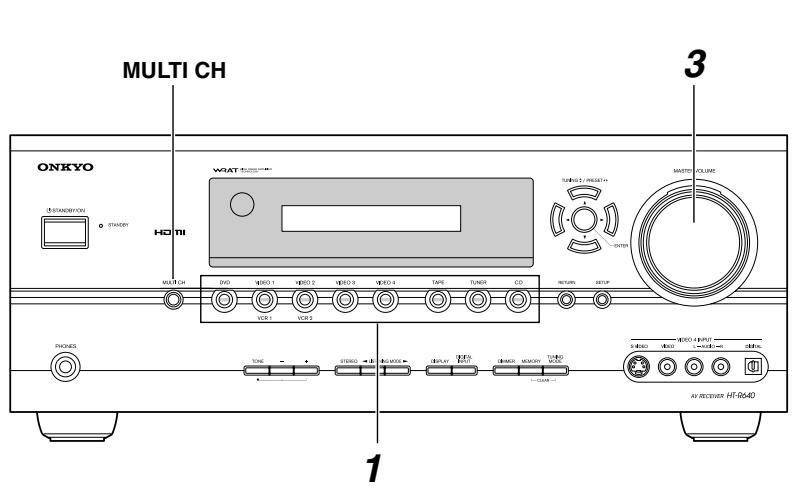
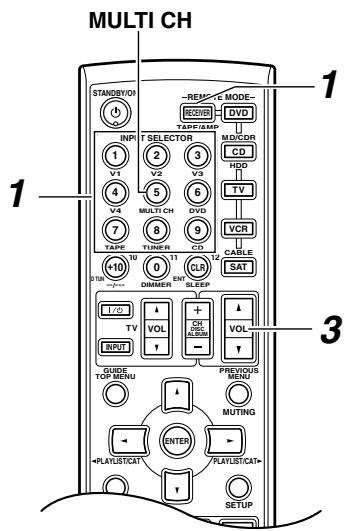
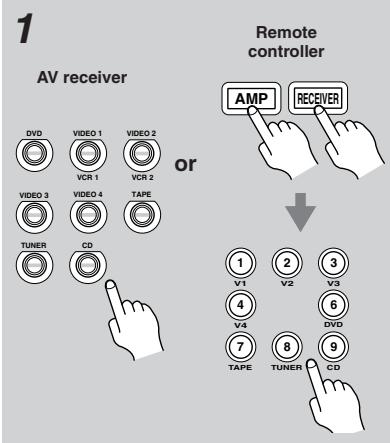
Use the AV receiver's input selector buttons to select the input source.
To select the input source with the remote controller, press the [RECEIVER] or [AMP] button, and then use the INPUT SELECTOR buttons.
On the remote controller, the [V1], [V2], [V3], and [V4] buttons select the VIDEO 1,VIDEO 2,VIDEO 3,andVIDEO 4 input sources,respectively.
2
Start playback on the source component.
When you select DVD or another video component, on your TV, you'll need to select the video input that's connected to the AV receiver's COMPONENT Video OUT, HDMI OUT or MONITOR OUT.
On some DVD players, you may need to turn on the digital audio output.
3
AV receiver
MASTER VOLUME
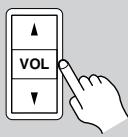
Remote
controller
To adjust the volume, use the MASTER VOLUME control, or the remote controller's [VOL] button.
The volume can be set to MIN, 1 through 99, or MAX.
The AV receiver is designed for home theater enjoyment. It has a wide volume range, allowing precise adjustment.
Using the Multichannel DVD Input
The multichannel DVD input is for connecting a component with a 5.1-channel analog audio output, such as a DVD-Audio or SACD-capable DVD player, or an MPEG decoder. See page 26 for hookup information.
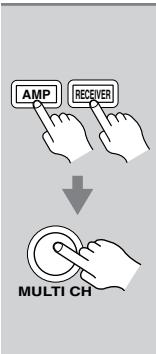
Press the [RECEIVER] or [AMP] button, followed by the [MULTI CH] button.
The MULTI CH indicator appears on the display.
MULTI CH indicator
![ONKYO HT-R640 - Press the [RECEIVER] or [AMP] button, followed by the [MULTI CH] button. - 1](/content/2025/01/151647/images/3b899250c9c62635ec748bd3674a08d059f3c60daadc2a05cca7469aac8d0254.jpg)
Audio from the multichannel DVD input will now be used for the DVD input source.
Note:
While the multichannel DVD input is selected, the Speaker Configuration settings on page 42 are ignored, and signals from the multichannel input are fed to the speakers as they are.
Adjusting the Bass & Treble
You can adjust the bass and treble for the front speakers, except when the Direct or Pure Audio (not North American models) listening mode is selected.
Press the [TONE] button repeatedly to select either Bass or Treble.
![ONKYO HT-R640 - Press the [TONE] button repeatedly to select either Bass or Treble. - 1](/content/2025/01/151647/images/a6223de0fcd4a7d7e2012f2008db3f0505d048e64f6f32f5d0dfadb483ecfd70.jpg)
Use the TONE [-]/[+] buttons to adjust.
Bass
You can boost or cut low-frequency sounds output by the front speakers from -10dB to +10dB in 2 dB steps.
Treble
You can boost or cut high-frequency sounds output by the front speakers from -10dB to +10dB in 2 dB steps.
Displaying Source Information
You can display various information about the current input source as follows.
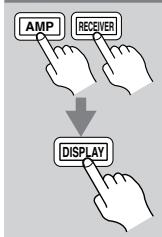
Press the [RECEIVER] or [AMP] button, and then press the [DISPLAY] button repeatedly to cycle through the available information.
Note:
This procedure can also be performed on the AV receiver by using its [DISPLAY] button.
The following information can typically be displayed for input sources.
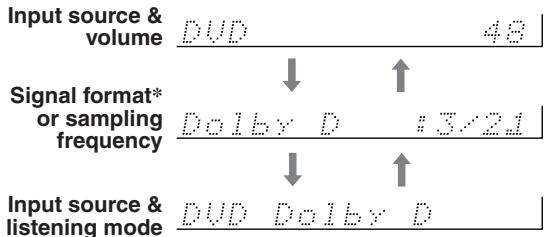
- If the input signal is analog, no format information is displayed. If the input signal is PCM, the sampling frequency is displayed. If the input signal is digital but not PCM, the signal format is displayed. Information is displayed for about three seconds, then the previously displayed information reappears.
Interpreting Surround Channel Values
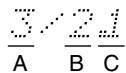
A: The number of front channels (3 means front left, front right, and center).
B: The number of surround channels (2 means surround left and surround right).
C: LFE channel for subwoofer (1 means yes).
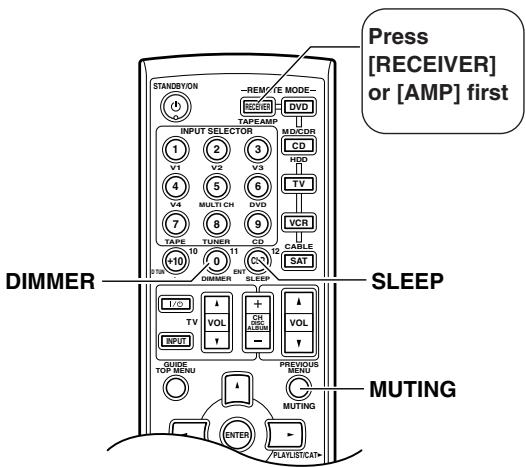
Setting the Display Brightness
You can adjust the brightness of the display.
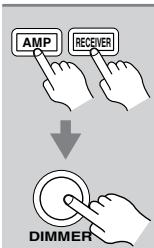
Press the [RECEIVER] or [AMP] button, and then press the [DIMMER] button repeatedly to select:
Normal+VOLUME light on.
Normal+VOLUME light off.
- Dim+VOLUME light off.
- Dimmer+VOLUME light off.
Muting the AV Receiver
You can temporarily mute the output of the AV receiver.
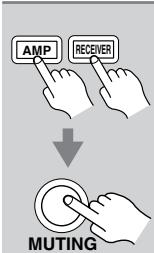
Press the [RECEIVER] or [AMP] button, and then press the [MUTING] button.
The output is muted and the MUTING indicator flashes on the display, as shown.
![ONKYO HT-R640 - Press the [RECEIVER] or [AMP] button, and then press the [MUTING] button. - 1](/content/2025/01/151647/images/64c7d9ac6437a3b55a5c67d5f84296231bddabcef9082b6a958bd07e67480d6f.jpg)
To unmute the AV receiver, press the [MUTING] button again, or adjust the volume.
The Mute function is cancelled when the AV receiver is set to Standby.
Using the Sleep Timer
With the sleep timer, you can set the AV receiver to turn off automatically after a specified period.
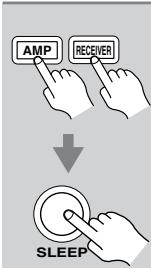
Press the [RECEIVER] or [AMP] button, and then press the [SLEEP] button repeatedly to select the required sleep time.
The sleep time can be set from 90 to 10 minutes in 10 minute steps.
The SLEEP indicator appears on the display when the sleep timer has been set. The specified sleep time appears on the display for about five seconds, then the previous display reappears.
If you need to cancel the sleep timer, press the [SLEEP] button repeatedly until the SLEEP indicator disappears.
To check the time remaining until the AV receiver sleeps, press the [SLEEP] button. Note that if you press the [SLEEP] button while the sleep time is being displayed, you'll shorten the sleep time by 10 minutes.
Using Headphones
You can connect a pair of stereo headphones (1/4-inch phone plug) to the AV receiver's PHONES jack for private listening, as shown.
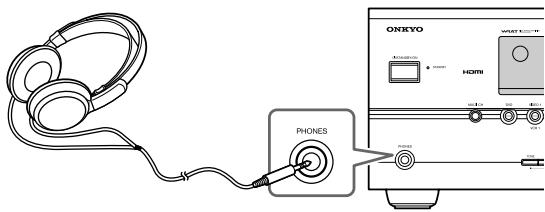
Notes:
- Always turn down the volume before connecting your headphones.
- The speakers are turned off while the headphones plug is inserted in the PHONES jack.
- When you connect a pair of headphones, the listening mode is set to Stereo, unless it's already set to Stereo, Mono, Direct, or Pure Audio (not North American models).
- Only the Stereo, Direct, Pure Audio (not North American models), and Mono listening modes can be used with headphones (the listening modes available also depend on the currently selected input source).
- When the multichannel input is used, only the front left and right audio can be heard in the headphones.
- To adjust the headphone level, press the [CH SEL] button on the remote controller, and then press the [LEVEL +]/[LEVEL -] buttons. You can adjust the level between -12 dB and +12 dB.
Using the Tuner
With the built-in tuner you can enjoy AM and FM radio stations. You can store your favorite stations as presets for quick selection.
Listening to the Radio
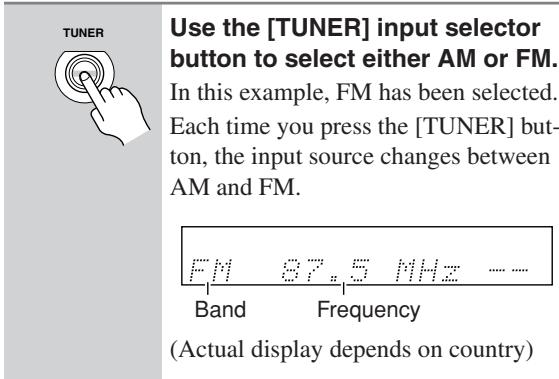
Tuning into Radio Stations
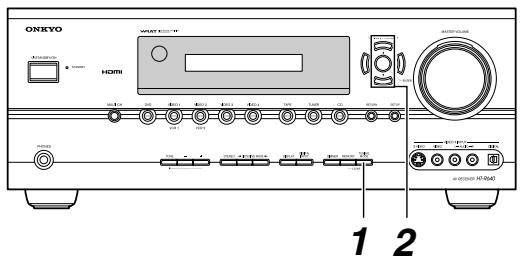
Auto Tuning Mode
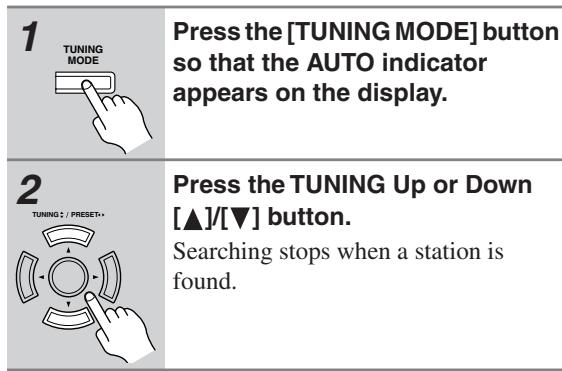
When tuned into a station, the TUNED indicator appears. When tuned into a stereo FM station, the FM STEREO indicator appears on the display, as shown.
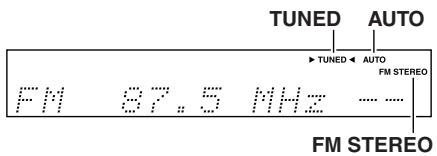
Manual Tuning Mode
| 1 TUNING MODE | Press the [TUNING MODE] button so that the AUTO indicator disappears from the display. |
| 2 TUNING / PRESET+ | Press and hold the TUNING Up or Down [▲]/[▼] button. The frequency stops changing when you release the button. Press the buttons repeatedly to change the frequency one step at a time. |
The North American models change FM frequency in 0.2 MHz steps, 10 kHz steps for AM. For other models it's 0.05 MHz steps for FM and 9 kHz steps for AM. In Manual Tuning mode, FM stations will be in mono.
Tuning into weak FM stereo stations
If the signal from a stereo FM station is weak, it may be impossible to get good reception. In this case, switch to Manual Tuning mode and listen to the station in mono.
Tuning into Stations by Frequency
You can tune into AM and FM stations directly by entering the appropriate frequency.
| 1 AMP RECEIVER D TUN | Press the [RECEIVER] or [AMP] button, followed by the [D TUN] button. FM Mhz (Actual display depends on country.) The [RECEIVER] or [AMP] button flashes. |
| 2 | Within 8 seconds, use the number buttons to enter the frequency of the radio station. For example, to tune to 87.5 (FM), press 8, 7, 5. Note: While the [RECEIVER] or [AMP] button is flashing, the input source cannot be changed by using the remote controller. |
Presetting AM/FM Stations & XM Channels
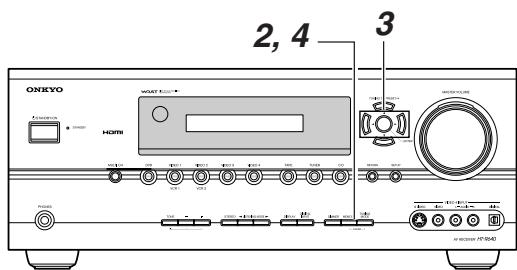
You can store a combination of up to 40 of your favorite AM/FM radio stations and XM channels as presets.
| 1 | Tune into the AM/FM station or XM channel that you want to store as a preset. See page 54 to select XM channel |
| 2 | Press the [MEMORY] button. The MEMORY indicator appears and the preset number flashes. |
| 3 | While the MEMORY indicator is displayed (about 8 seconds), use the PRESET [▲]/[▶] buttons to select a preset from 1 through 40. |
| 4 | Press the [MEMORY] button again to store the station or channel. The station or channel is stored and the preset number stops flashing. Repeat this procedure for all of your favorite AM/FM radio stations and XM channels. |
Selecting Presets
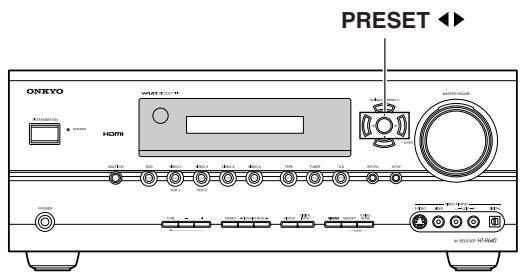
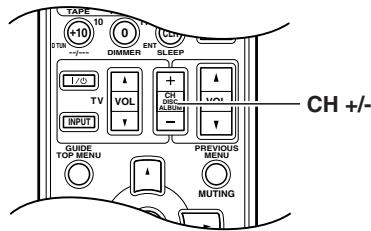
| TUNING : / PRESET+ ENTER + CH DISC ALBUM - | To select a preset, use the PRE-SET [▲]/[▶] buttons, or the remote controller's CH [+/−] button. |
Deleting Presets
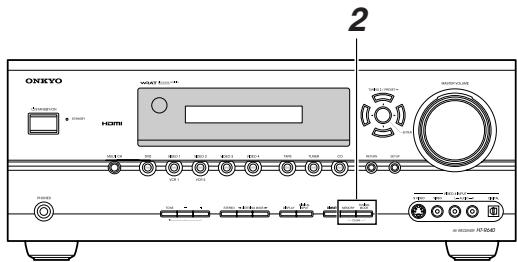
| 1 | Select the preset that you want to delete. See the previous section. |
| 2 MEMORY TUNING MODE | While holding down the [MEM-ORY] button, press the [TUNING MODE] button. The preset is deleted and its number disappears from the display. |
Using RDS (European models only)
RDS only works with European models and only in areas where RDS broadcasts are available.
When tuned into an RDS station, the RDS indicator appears.
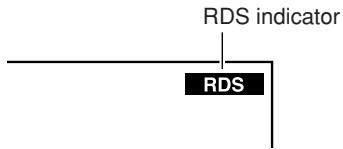
What is RDS?
RDS stands for Radio Data System and is a method of transmitting data in FM radio signals. It was developed by the European Broadcasting Union (EBU) and is available in most European countries. Many FM stations use it these days. In addition to displaying text information, RDS can also help you find radio stations by type (e.g., news, sport, rock, etc.).
The AV receiver supports four types of RDS information:
PS (Program Service)
When tuned to an RDS station that's broadcasting PS information, the station's name will be displayed. Pressing the [DISPLAY] button will display the frequency for 3 seconds.
RT (Radio Text)
When tuned to an RDS station that's broadcasting text information, the text will be shown on the display (see page 51).
PTY (Program Type)
This allows you to search for RDS radio stations by type (see page 51).
TP (Traffic Program)
This allows you to search for RDS radio stations that broadcast traffic information (see page 51).
Notes:
- In some cases, the text characters displayed on the AV receiver may not be identical to those broadcast by the radio station. Also, unexpected characters may be displayed when unsupported characters are received. This is not a malfunction.
- If the signal from an RDS station is weak, RDS data may be displayed intermittently or not at all.
RDS Program Types (PTY)
| Type | Display |
| None | NONE |
| News reports | NEWS |
| Current affairs | AFFAIRS |
| Information | INFO |
| Sport | SPORT |
| Education | EDUCATE |
| Drama | DRAMA |
| Culture | CULTURE |
| Science and technology | SCIENCE |
| Varied | VARIED |
| Pop music | POP M |
| Rock music | ROCK M |
| Middle of the road music | EASY M |
| Light classics | LIGHT M |
| Serious classics | CLASSICS |
| Other music | OTHER M |
| Weather | WEATHER |
| Finance | FINANCE |
| Children's programmes | CHILDREN |
| Social affairs | SOCIAL |
| Religion | RELIGION |
| Phone in | PHONE IN |
| Travel | TRAVEL |
| Leisure | LEISURE |
| Jazz music | JAZZ |
| Country music | COUNTRY |
| National music | NATION M |
| Oldies music | OLDIES |
| Folk music | FOLK M |
| Documentary | DOCUMENT |
| Alarm test | TEST |
| Alarm | ALARM |
Displaying Radio Text (RT)
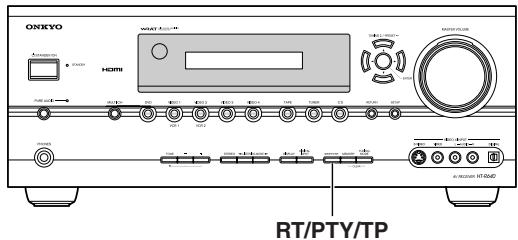
When tuned to an RDS station that's broadcasting text information, the text can be displayed.
Press the [RT/PTY/TP] button once.
The RT information scrolls across the display.
Notes:
- The message "Waiting" may appear while the AV receiver waits for the RT information.
- If the message "No Text Data" appears on the display, no RT information is available.
Finding Stations by Type (PTY)
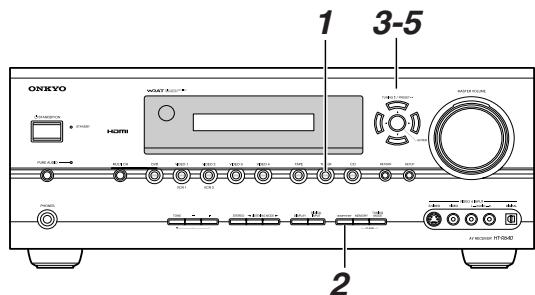
You can search for radio stations by type.
Use the [TUNER] input selector button to select FM.
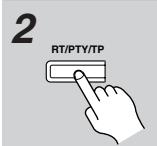
Press the [RT/PTY/TP] button twice.
The current program type appears on the display.
Use the PRESET [] / [] buttons to select the type of program you want.
See the table on page 50.
To start the search, press [ENTER].
The AV receiver searches until it finds a station of the type you specified, at which point it stops briefly before continuing with the search.
![ONKYO HT-R640 - To start the search, press [ENTER]. - 1](/content/2025/01/151647/images/80bbe5f2b12acd467720295f648da93401b01b0686513163136687329e21f263.jpg)
When a station you want to listen to is found, press [ENTER].
If no stations are found, the message "Not Found" appears.
Listening to Traffic News (TP)
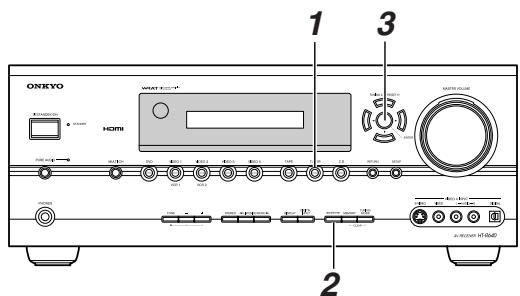
You can search for stations that broadcast traffic news.
Use the [TUNER] input selector button to select FM.
Press the [RT/PTY/TP] button three times.
If the current radio station is broadcasting TP (Traffic Program), "[TP]" will appear on the display, and traffic news will be heard as and when it's broadcast. If "TP" without square brackets appears, this means that the station is not broadcasting TP.
![ONKYO HT-R640 - Press the [RT/PTY/TP] button three times. - 1](/content/2025/01/151647/images/60567b2401a3a2c9d9095401f8a593c5e0f9b8375647555d051bc5fd0f958367.jpg)
To locate a station that is broadcasting TP, press [ENTER].
The AV receiver searches until it finds a station that's broadcasting TP.
If no stations are found, the message "Not Found" appears.
Listening to XM Satellite Radio® (North American models only)
Important XM Radio Information
To receive XM Radio on this receiver you need to purchase an optional XM Passport System and subscribe to XM's paid programming. Please note that XM is currently only licensed to provide service to the contiguous 48 United States (not available in Alaska and Hawaii) and portions of Canada. XM Radio service is not currently available in Mexico or any other region outside the continental U.S. and portions of Canada. For updates on service availability please visit XM's website at http://www.xmradio.com or http://www.xmradio.ca
Note:
Hardware and required basic monthly subscription sold separately. Premium Channels available at additional monthly cost. Installation costs and other fees and taxes, including a one-time activation fee may apply. Subscription fee is consumer only. All fees and programming subject to change.
About XM Radio:
There is a world beyond AM and FM. It is XM Satellite Radio. XM offers more than 160 digital channels of audio entertainment, including 100% commercial-free music channels, in the top markets in the U.S.
Channels with frequent explicit language are indicated with an XL. Channel blocking is available for XM radio receivers by calling 1-800-XMRADIO.
About XM Canada:
XM Canada offers the most commercial-free music – and engaging talk show programs. XM Canada creates original content that reflects our unique Canadian culture and broadcasts it throughout North America.
Canadian Satellite Radio Inc. offers its satellite radio service and operates under the XM Canada™ brand. XM Canada has an exclusive Canadian licence from XM Satellite Radio Inc.
For more information about XM Canada, visit www.xmradio.ca or call 1-877-GET-XMSR
A warning against reverse engineering:
It is prohibited to copy, decompile, disassemble, reverse engineer, or manipulate any technology incorporated in receivers compatible with the XM Satellite Radio system. Furthermore, the AMBE® voice compression software included in this product is protected by intellectual property rights including patent rights, copyrights, and trade secrets of Digital Voice Systems, Inc. The user of this or any other software contained in an XM Radio is explicitly prohibited from attempting to copy, decompile, reverse engineer, or disassemble the object code, or in any other way convert the object code into human-readable form. The software is licensed solely for use within this product.
Connecting the XM Passport System
The XM Passport System is sold separately. You can purchase the XM Passport System from the XM Web site at: http://www.xmradio.com (U.S.A.) http://www.xmradio.ca (Canada)
Connect the Passport System to the XM antenna jack on the rear panel.
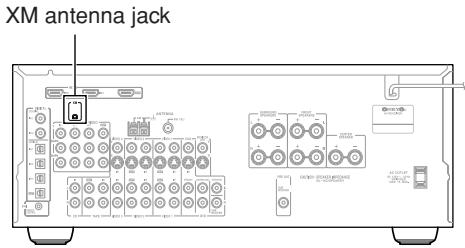
Put the XM Passport System by a southerly facing window, with nothing obstructing its path to the sky.
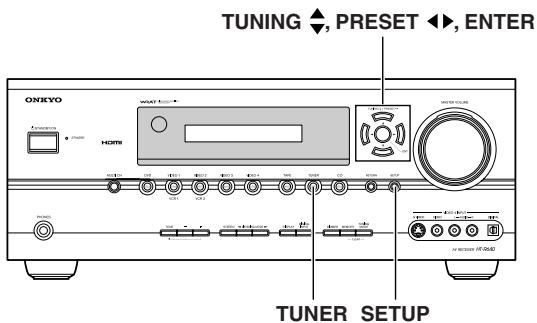
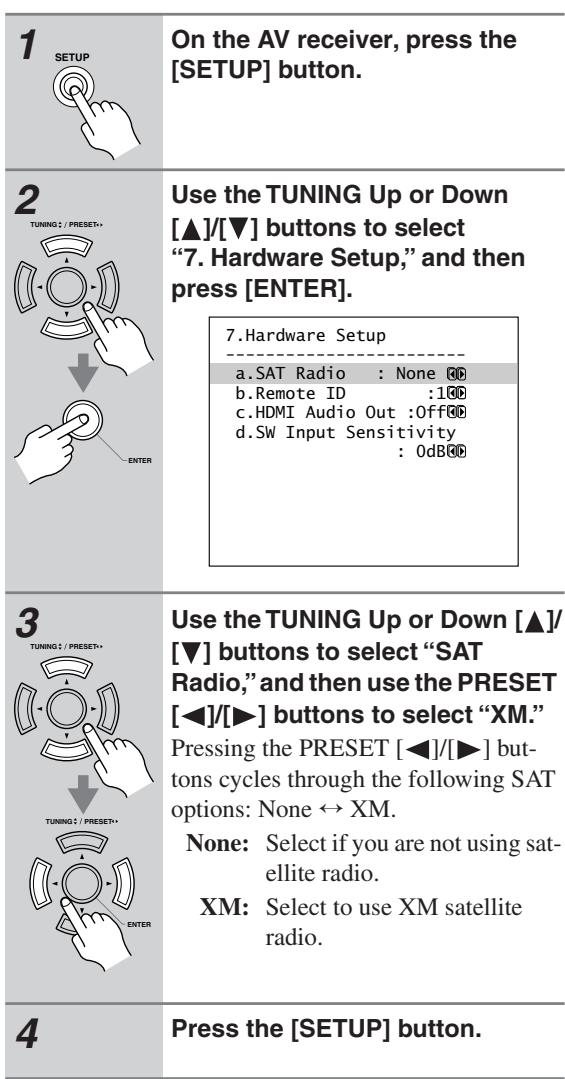
Setting the Satellite Radio Mode
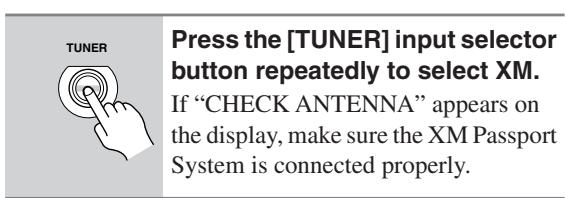
Selecting XM Satellite Radio
Signing Up for XM Satellite Radio
Before you can use XM Satellite Radio, you must first sign up for an account. You'll need a major credit card and your XM Satellite Radio ID, which you can get from the AV receiver, as explained below, or from the Passport System package and itself.
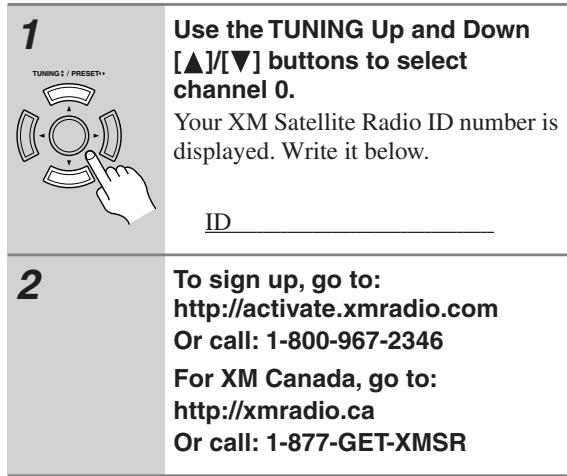
Notes:
- Channel 0 cannot be selected in Category Search mode. You must select Channel Search mode (see page 54).
The following letters are not used in XM Satellite Radio IDs: I, O, S, F.
Selecting XM Radio Channels
There are three ways to select XM radio channels:
- Channel Search mode: select any channel.
- Category Search mode: select channels by category.
- Direct tuning: enter channel number.
Note:
You can't select Channel Search or Category Search mode, while the Tuning Arrow indicators are flashing, as tuning is in progress.
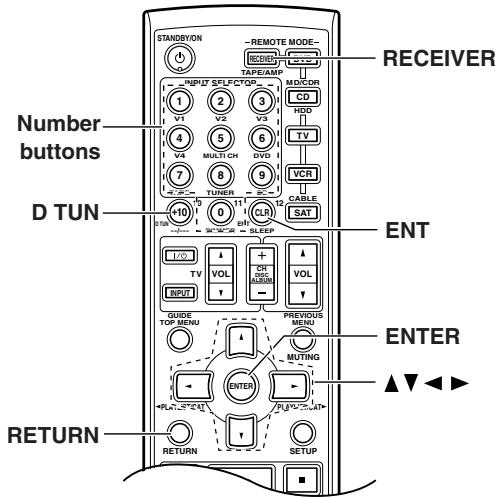
■ Channel Search Mode
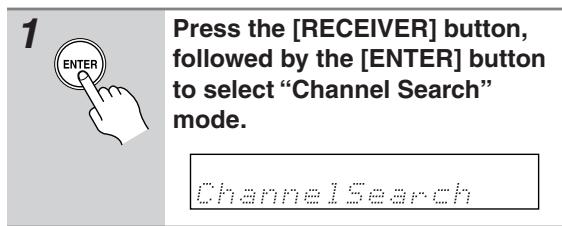
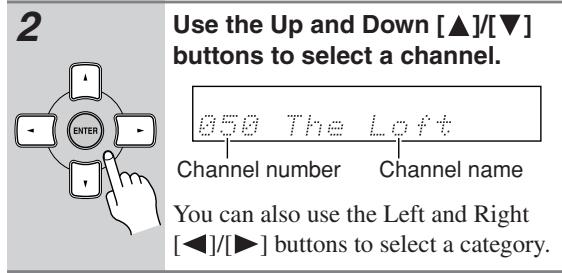
Category Search Mode
| 1 | Press the [RECEIVER] button, followed by the [ENTER] button to select “Category Search” mode. |
| Category Search |
| 2 | Use the Left and Right [▲]/[►] buttons to select a category, and use the Up and Down [▲]/[▼] buttons to select a channel in that category. |
Direct Tuning
You can select an XM radio channel directly by entering its number.
| 1 DTUN | Press the [RECEIVER] button, followed by the [DTUN] button. The [RECEIVER] button flashes. |
| 2 | Within 8 seconds, use the number buttons to enter the channel number. |
| 1 V1 2 V2 3 V3 | The channel is selected. |
| 4 5 6 7 8 9 10 11 12 | For example, to select channel #20, press 0, 2, 0, or 2, 0, [ENT]. |
| TAPE TUNER CD | Note: While the [RECEIVER] button is flashing, the input source cannot be changed by using the remote controller. |
| DIMMER ENT SLEEP |
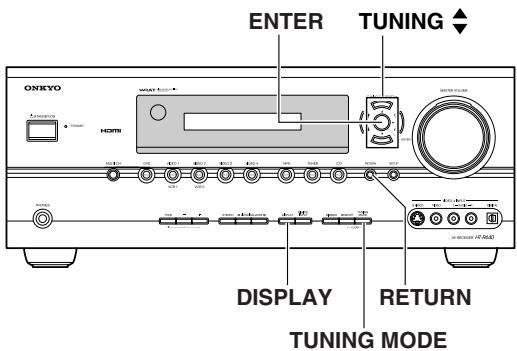
Selecting the Previous Channel:
Selecting XM Channels from the Front Panel:
| 1 TUNING MODE | Press the [TUNING MODE] button to select “Channel Search” or “Category Search” mode. |
| 2 ENTER | Press the [ENTER] button repeatedly to select a category. |
| 3 TUNING; / PRESET; | Use the TUNING Up and Down [▲]/[▼] buttons to select a channel. In Channel Search mode, you can select any channel. In Category Search mode, you can only select channels from the currently selected category. |
| AV receiver RETURN | To listen to the previously selected XM channel, press the [RETURN] button. |
| Remote controller RETURN |
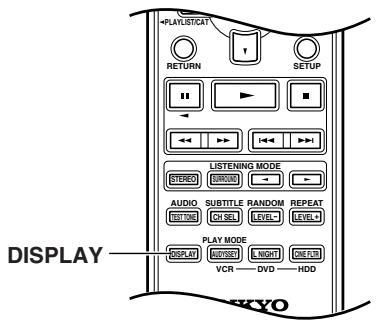
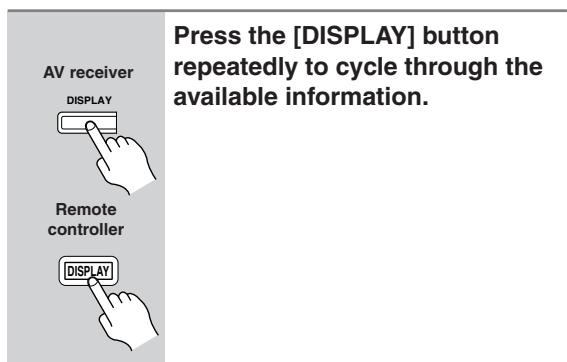
Displaying XM Radio Information
The following information can be displayed:
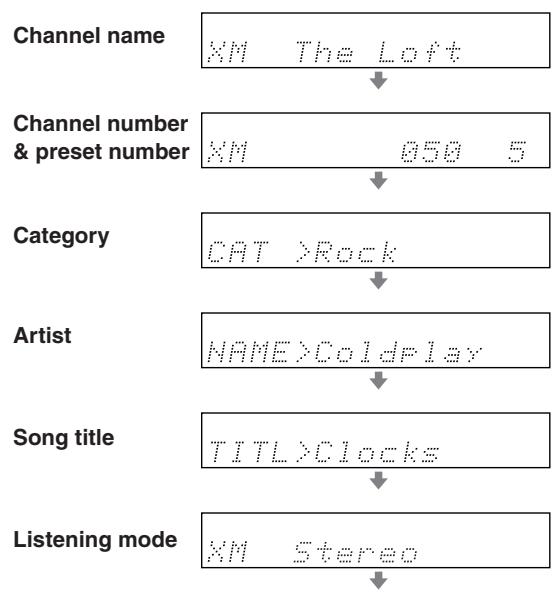
Note: If the category, artist, or song title is not available, "---" will be displayed instead.
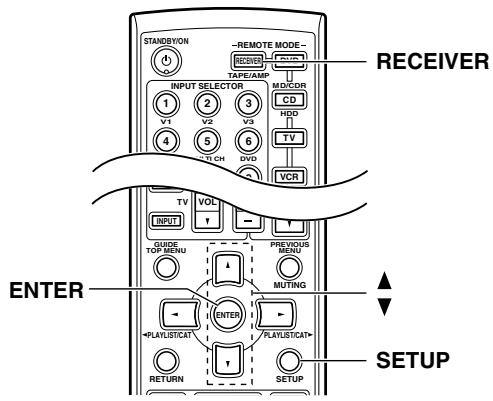
Positioning the XM Passport System
You can check the signal strength of the XM radio signal and adjust the position of the XM Passport System accordingly.
| 1 SETUP | Press the [RECEIVER] button followed by the [SETUP] button. The main menu appears onscreen. |
| 2 ENTER | Use the Up and Down [▲]/[▼] buttons to select “5. Input Setup,” and then press [ENTER]. The Input Setup menu appears. |
| 3 | Adjust the position of the XM Passport System so that the SAT/ TER signal strength bar is as long as possible. |
| 5. Input Setup --------TUNER a. IntelliVolume: +12dB® Listening Mode Preset b. Analog :Last Valid® Antenna Aiming (XM) SAT[###---] TER[###---] |
Terrestrial (TER) signals are only available in certain areas.
So long as the signal strength is good, you can enjoy XM Radio by using either satellite or terrestrial reception.
XM Radio Messages
The following messages may appear while using XM radio.
CHECK ANTENNA
The XM Passport System is not connected properly. Check the connection.
UPDATING
The XM user encryption code is being updated. Please wait.
NO SIGNAL
The signal is too weak. Check the XM Passport System connection and reposition it for the best reception.
LOADING
The AV receiver is tuning or decoding audio or text data. Please wait.
OFF AIR
The XM channel you selected is not currently broadcasting. Select another channel.
Selecting Listening Modes
See "About the Listening Modes" on page 59 for detailed information about the listening modes.
- The Dolby Digital and DTS listening modes can only be selected if your DVD player is connected to the AV receiver with a digital audio connection (coaxial or optical).
- Listening mode availability depends on the format of the current input signal.
Selecting on the AV Receiver
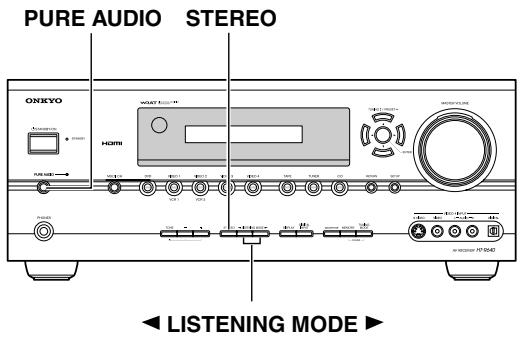
[PURE AUDIO] button (not North American models)
This button selects the Pure Audio listening mode. When this mode is selected, the AV receiver's display is turned off and only video signals input through HDMI IN can be output. Pressing this button again will select the previous listening mode.
[STEREO] button
This button selects the Stereo listening mode.
LISTENING MODE [←] [▶] buttons
Pressing these buttons repeatedly cycles through all of the listening modes that can be used with the current input source.
Selecting with the Remote Controller
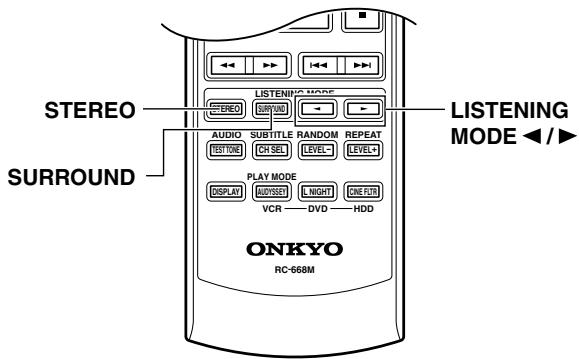
[SURROUND] button
This button selects the Dolby Digital and DTS listening modes and the Neural Surround listening mode (North American models only).
[STEREO] button
This button selects the Stereo listening mode.
LISTENING MODE [<]按钮
Pressing these buttons repeatedly cycles through all of the listening modes that can be used with the current input source.
The following table shows which listening modes can be used with each input signal format.
| Source format Listening mode | Analog, PCM*1 | Dolby Digital | DTS/DTS 96/24*2 | Multich analog, Multich PCM | ||||||
| 3/2.1 2/2.1 | 2/0 | 1/0, 1+1 | Other | 3/2.1 2/2.1 | 2/0 | Other | ||||
| CD, TV, radio, cassette, etc. | DVD, DTV, etc. | DVD, CD, etc. | DVD | |||||||
| Pure Audio (not North American models) Direct | ✓ | ✓ | ✓ | ✓ | ✓ | ✓ | ✓ | ✓ | ✓ | |
| Stereo | ✓ | ✓ | ✓ | ✓ | ✓ | ✓ | ✓ | ✓ | ||
| Mono | ✓ | ✓ | ✓ | ✓ | ✓ | ✓ | ✓ | ✓ | ||
| Multich | ✓ | |||||||||
| PLII Movie/Music/Game Neo:6 Cinema/Music | ✓ | ✓ | ✓ | |||||||
| Neural Surround (North American models only) | ✓*3 | |||||||||
| Dolby D | ✓ | ✓ | ||||||||
| DTS, DTS 96/24 | ✓ | ✓ | ||||||||
| T-D | ✓ | ✓ | ✓ | ✓ | ✓ | ✓ | ✓ | ✓ | ||
| Onkyo Original DSP | Mono Movie Orchestra Unplugged Studio-Mix TV Logic All Ch Stereo Full Mono | ✓ | ✓ | ✓ | ✓ | ✓ | ✓ | ✓ | ✓ | |
- In the Pure Audio and Direct listening modes, 32kHz , 44.1kHz , and 48kHz PCM is processed at 64kHz , 88.2kHz , and 96kHz respectively. In listening modes other than Pure Audio, Direct, and Stereo, 64kHz , 88.2kHz , and 96kHz PCM is processed at 32kHz , 44.1kHz , and 48kHz respectively. For PCM 176.4/192 kHz signals input through HDMI IN, only Pure Audio, Direct, and Stereo listening modes can be selected.
- In listening modes other than Pure Audio, Direct, Stereo, and DTS 96/24, DTS 96/24 sources are processed as normal DTS.
- Not available for 88.2kHz and 96kHz PCM input signals.
- Available only when surround speakers are connected.
Tip: To check the format of the digital input signal, see "Displaying Source Information" on page 46.
About the Listening Modes
The AV receiver's listening modes can transform your listening room into a movie theater or concert hall, with high fidelity and stunning surround sound.
The illustration shows which speakers are active in each listening mode with 5.1 channel speaker system.
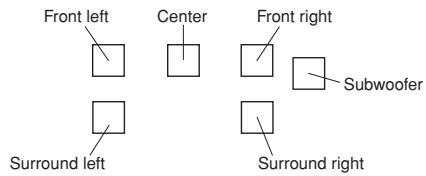
Pure Audio (not North American models)
In this mode, the display and video circuitry are turned off, minimizing possible noise sources for the ultimate in high-fidelity reproduction. (As the video circuitry is turned off, only video signals input through HDMI IN can be output.)
Direct
In this mode, audio from the input source is output directly with minimal processing, providing high-fidelity reproduction. All of the source's audio channels are output as they are.
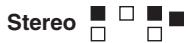
Sound is output by the front left and right speakers and subwoofer.
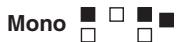
Use this mode when watching an old movie with a mono soundtrack, or use it with the foreign language soundtracks recorded in the left and right channels of some movies. It can also be used with DVDs or other sources containing multiplexed audio, such as karaoke DVDs.

Dolby Pro Logic II expands any 2-channel source for 5.1-channel playback. It provides a very natural and seamless surround-sound experience that fully envelops the listener. As well as music and movies, video games can also benefit from the dramatic spatial effects and vivid imaging.
- PLII Movie
Use this mode with any stereo or Dolby Surround (Pro Logic) movie (e.g., TV, DVD, VHS).
PLII Music
Use this mode with any stereo or Dolby Surround (Pro Logic) music source (e.g., CD, radio, cassette, TV, VHS, DVD).
- PLII Game
Use this mode with video games, especially those that bear the Dolby Pro Logic II logo.
Dolby Digital

Use this mode with DVDs that bear the Dolby Digital logo, and Dolby Digital TV broadcasts. This is the most common dig

ital surround-sound format, and it'll put you right in the middle of the action, just like being in a movie theater or concert hall.
The DTS digital surround-sound format supports up to 5.1 discrete channels and uses less compression for high-fidelity reproduction. Use it with DVDs and CDs that bear the DTS logo.


This mode is for use with DTS 96/24 sources. This is high-resolution DTS with a 96kHz sampling rate and 24-bit resolution, providing superior fidelity. Use it with DVDs that bear the DTS 96/24 logo.

This mode expands any 2-channel source for 5.1-channel playback. It uses five full-bandwidth channels of matrix decoding for matrix-encoded material, providing a very natural and seamless surround sound experience that fully envelops the listener.
Neo:6 Cinema
Use this mode with any stereo movie (e.g., TV, DVD, VHS).
Neo:6 Music
Use this mode with any stereo music source (e.g., CD, radio, cassette, TV, VHS, DVD).


(North American models only)
Neural Surround represents the latest advancement in surround technology developed for music and is adopted by XM Satellite Radio for digital radio broadcast of surround recordings and live events in surround sound. Neural Surround employs psychoacoustic frequency-domain processing, which allows delivery of a more detailed sound stage, with superior channel separation and localization of audio elements. System playback is scalable 5.1-channel surround playback.
Onkyo Original DSP Modes
Mono Movie
This mode is suitable for old movies and other mono sources. The center speaker outputs the sound as it is, while reverb is applied to the sound output by the other speakers, giving presence to even mono material.
Orchestra
Suitable for classical or operatic music, this mode emphasizes the surround channels in order to widen the stereo image, and simulates the natural reverberation of a large hall.
Unplugged
Suitable for acoustic instruments, vocals, and jazz, this mode emphasizes the front stereo image, giving the impression of being right in front of the stage.
Studio-Mix
Suitable for rock or pop music, listening to music in this mode creates a lively sound field with a powerful acoustic image, like being at a club or rock concert.
TV Logic
This mode adds realistic acoustics to TV shows produced in a TV studio, surround effects to the entire sound, and clarity to voices.
All Ch Stereo
Ideal for background music, this mode fills the entire listening area with stereo sound from the front and surround speakers.
Full Mono
In this mode, all speakers output the same sound in mono, so the sound you hear is the same regardless of where you are within the listening room.
T-D (Theater-Dimensional) or
With this mode you can enjoy a virtual 5.1 surround sound even with only two or three speakers. This works by controlling how sounds reach the listener's left and right ears. Good results may not be possible if there's too much reverb, so we recommend that you use this mode in an environment with little or no natural reverb.
This section explains how to record the current input source and how to dub audio onto your video recordings.
Notes:
- The surround sound and DSP listening modes cannot be recorded.
- Copy-protected DVDs cannot be recorded.
- You cannot record from the DVD analog multichannel input.
- Various restrictions apply to digital recording. Refer to the manuals supplied with your digital recording equipment for more details.
- Digital signals received at COAXIAL IN/OPTICAL IN or HDMI IN 1/2 are only output by OPTICAL OUT. However, certain types of digital signal such as DVD-Audio signal input from HDMI IN will not be output. Analog input signals are output by only the analog outputs. There is no internal conversion from digital to analog or vice versa.
- DTS signals will be recorded as noise, so don't attempt analog recording of DTS CDs or LDs.
- While the listening mode is set to Pure Audio, no image is provided because the power is turned off for the video circuit. If you want to make recordings, select other listening mode.
AV Recording
Audio sources can be recorded to a recorder (e.g., cassette deck, CDR, MD) connected to the TAPE OUT or DIGITAL OPTICAL OUT jacks. Video sources can be recorded to a video recorder (e.g., VCR, DVD recorder) connected to the to VIDEO 1 OUT or VIDEO 2 OUT jacks. See pages 23 to 36 for hookup information.
| 1 DVD VIDEO 3 TUNER VIDEO 4 CD | Use the input selector buttons to select the source that you want to record. You can watch the source while recording. The AV receiver's VOLUME control has no effect on recording. |
| 2 | On your recorder, start recording. |
| 3 | On the source component, start playback. If you select another input source during recording, that input source will be recorded. |
Recording Separate AV Sources
Here you can record audio and video from completely separate sources, allowing you to overdub audio onto your video recordings. This function takes advantage of the fact that when an audio-only input source (i.e., TAPE, TUNER, or CD) is selected, the video input source remains unchanged.
In the following example, audio from the CD player connected to the CD IN, and video from the camcorder connected to the VIDEO 4 INPUT VIDEO jack are recorded by the VCR connected to the VIDEO 1 OUT jacks.
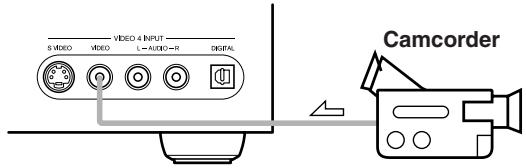
: video signal
:audio signal
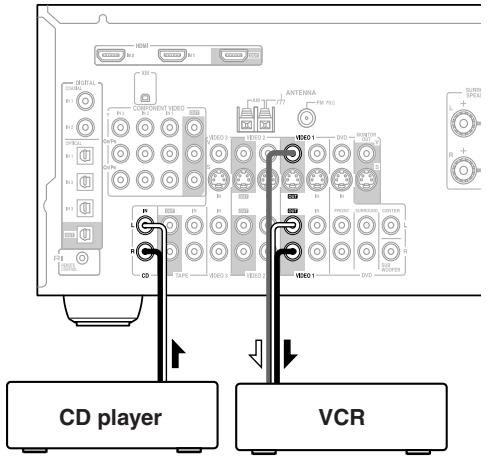
| 1 | Prepare the camcorder and CD player for playback. |
| 2 | Prepare the VCR for recording. |
| 3 | Press the [VIDEO 4] input selector button. |
| 4 | Press the [CD] input selector button. This selects the CD player as the audio source, but leaves the camcorder as the video source. |
| 5 | Start recording on the VCR and start play-back on the camcorder and CD player. The video from the camcorder and the audio from the CD player are recorded by the VCR. |
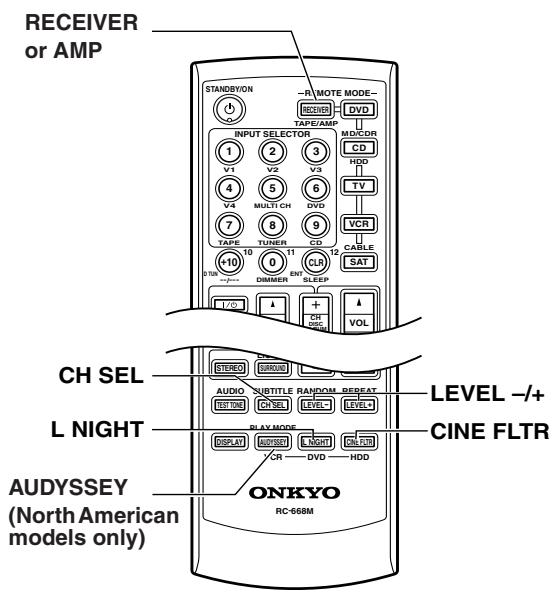
Using the Late Night Function (Dolby Digital only)
With the Late Night function, you can reduce the dynamic range of Dolby Digital material so that you can still hear quiet parts even when listening at low volume levels—ideal for watching movies late at night when you don't want to disturb anyone.
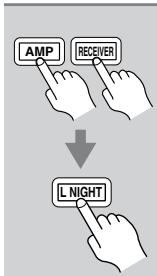
Press the [RECEIVER] or [AMP] button, and then press the [L NIGHT] button repeatedly to select:
Off: Late Night function off.
Low: Small reduction in dynamic range.
High: Big reduction in dynamic range.
Notes:
- The effect of the Late Night function depends on the Dolby Digital material that you are playing, and with some material there will be little or no effect.
- The Late Night function is set to Off when the AV receiver is set to Standby.
Using the Audyssey EQ (North American models only)
Turning on the Audyssey EQ will equalize your sound system to remove distortion caused by acoustic problem, letting you enjoy clear and natural sound.
Press the remote controller's [AUDYSSEY] button to turn the Audyssey equalizer on or off.
Using the CinemaFILTER
With the CinemaFILTER, you can soften overly bright movie soundtracks, which are typically mixed for reproduction in a movie theater.
CinemaFILTER can be used with the following listening modes: Dolby Digital, Dolby Pro Logic II Movie, DTS, DTS Neo:6 Cinema and DTS 96/24.
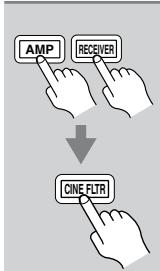
Press the [RECEIVER] or [AMP] button, and then press the [CINE FLTR] button repeatedly to select:
On: CinemaFILTER on.
Off: CinemaFILTER off.
Adjusting Individual Speaker Levels
You can adjust the level of individual speakers during playback. These adjustments are temporary and will be cancelled when the AV receiver is set to Standby.
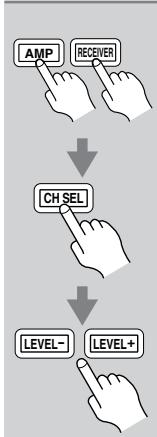
Press the [RECEIVER] or [AMP] button, use the [CH SEL] button to select each speaker, and use the [LEVEL-] and [LEVEL+] buttons to adjust the volume.
Speakers are selected in the following order: Front Left Center Front Right Surr Right Surr Left Subwoofer.
You can adjust the volume of each speaker from -12dB to +12dB (-15dB to +12dB for the subwoofer). The name of the currently selected speaker and its volume appear on the display, as shown.
![ONKYO HT-R640 - Press the [RECEIVER] or [AMP] button, use the [CH SEL] button to select each speaker, and use the [LEVEL-] and [LEVEL+] buttons to adjust the volume. - 1](/content/2025/01/151647/images/c47a1fbcd51cb7d7e367158d73009ee39b5da22472a3e73b380f2bfba8ea07b9.jpg)
Notes:
- You cannot use this function while the AV receiver is muted.
- Speakers that are set to No or None in the Speaker Configuration cannot be adjusted.
Advanced Speaker Settings
Speaker Distance
Here you can specify the distance from each speaker to the listening position so that the sound from each speaker arrives at the listener's ears as the sound designer intended.
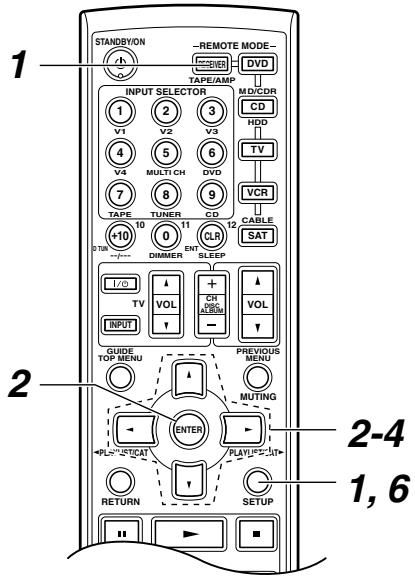

Press the [RECEIVER] or [AMP] button followed by the [SETUP] button.
The main menu appears onscreen.
![ONKYO HT-R640 - Press the [RECEIVER] or [AMP] button followed by the [SETUP] button. - 1](/content/2025/01/151647/images/59aed01acf21a67838501b227d68294b17f9ecefa3a9fc39f8e89b003f58b1a4.jpg)
Use the Up and Down [ ] / [ ] buttons to select "2. Speaker Distance," and then press [ENTER].
The Speaker Distance menu appears.
| 2.Speaker Distance | |
| a.Unit :meters⑥ | |
| b.Front : 3.6m⑩ | |
| c.Center : 3.6m⑩ | |
| d.SurrRight : 2.1m⑩ | |
| e.SurrLeft : 2.1m⑩ | |
| f.Subwoofer : 3.6m⑩ |
Note:
Speakers that you set to No or None on the Speaker Configuration page (page 42) cannot be selected.
Use the Up and Down [▲]/[▼] buttons to select “a. Unit,” and then use the Left and Right [▲]/[▶] buttons to select:
feet: Select if you want to enter distances in feet. Can be set from 1 to 30 feet in 1-foot steps.
meters: Select if you want to enter distances in meters. Can be set from 0.3 to 9 meters in 0.3-meter steps.
![ONKYO HT-R640 - Use the Up and Down [▲]/[▼] buttons to select “a. Unit,” and then use the Left and Right [▲]/[▶] buttons to select: - 1](/content/2025/01/151647/images/9f6dfae009b5960d0f0bd304a7ed3899a88e227737bbd7897ef64db353a4109f.jpg)
Use the Up and Down [▲]/[▼] buttons to select “b. Front,” and then use the Left and Right [▲]/[▶] buttons to specify the distance.
Specify the distance from the front left speaker to your listening position.
5
Repeat step 4 for all speakers.
Press the [SETUP] button. The setup menu closes.
Notes:
-
The Center and Subwoofer distances can be set up to 5 ft. (1.5 m) more or less than the Front distance. For example, if the Front distance is set to 20 ft. (6 m), the Center and Subwoofer distances can be set between 15 and 25 ft. (4.5 and 7.5 m). The Surr Right and Surr Left distances can be set up to 5 ft. (1.5 m) more or 15 ft. (4.5 m) less than the Front distance. For example, if the Front distance is set to 20 ft. (6 m), the Surr Right and Surr Left distances can be set between 5 and 25 ft. (1.5 and 7.5 m).
-
This procedure can also be performed on the AV receiver by using its [SETUP] button, arrow buttons, and [ENTER] button.
Speaker Level Calibration
Here you can adjust the level of each speaker with the built-in test tone so that the volume of each speaker is the same at the listening position.
Note:
The speakers cannot be calibrated while the output of the AV receiver is muted or while a pair of headphones is connected.
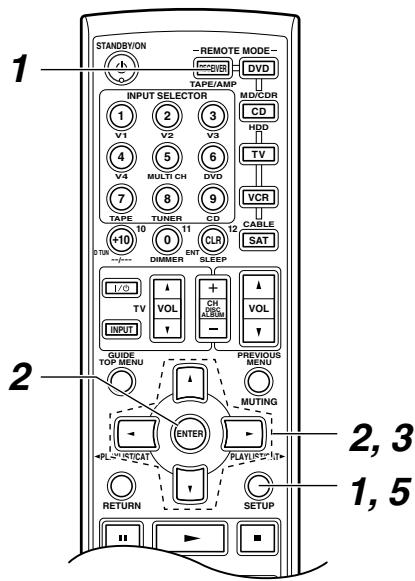
Press the [RECEIVER] or [AMP] button followed by the [SETUP] button.
The main menu appears onscreen.
Use the Up and Down [▲]/[▼] buttons to select "3. Level Calibration," and then press [ENTER].
The Level Calibration menu appears and the pink noise test tone is output by the front left speaker.
| 3.Level Calibration | |
| a.Left : 0dB #0 | |
| bCenter : 0dB #0 | |
| cRight : 0dB #0 | |
| d.SurrRight : 0dB #0 | |
| e.SurrLeft : 0dB #0 | |
| f.Subwoofer : 0dB #0 |
Note: Speakers that you set to No or None on the Speaker Configuration page (page 42) cannot be selected.
Use the Up and Down [▲]/[▼] buttons to select each speaker, and use the Left and Right [▲]/[▶] buttons to set the volume. The volume can be adjusted from -12 to +12 dB in 1 dB steps (-15 to +12 dB for the subwoofer).

Repeat step 3 until the volume of the test tone from each speaker is the same.
Press the [SETUP] button. The setup menu closes.
Note:
This procedure can also be performed by using the remote controller. First press the [TEST TONE] button to output the test tone. Use the [LEVEL-] and [LEVEL+] buttons to set the volume, and use the [CH SEL] button to select the speakers.
Multichannel DVD Input Settings
1


Press the [RECEIVER] or [AMP] button followed by the [SETUP] button.
The main menu appears onscreen.
2
Use the Up and Down [▲]/[▼] buttons to select "7. Hardware Setup," and then press [ENTER].
Use the Up and Down [ ] / [ ] buttons to select "SW Input Sensitivity," and use the Left and Right [ ] / [ ] buttons to select a value.

3
Press the [SETUP] button.
The setup menu closes.
SW Input Sensitivity
Some DVD players output the LFE channel from their subwoofer output at 15 dB higher than normal. You can change the subwoofer sensitivity to match your DVD player. Note that this setting only affects signals connected to the SUBWOOFER input jack of the multi-channel DVD input.
You can select 0 dB, 5 dB, 10 dB, or 15 dB.
If you find that your subwoofer is too loud, try the 10 dB or 15 dB setting.
Audio Adjust Functions
Here you can set listening mode-related settings and functions.
1
Press the [RECEIVER] or [AMP] button followed by the [SETUP] button.
The main menu appears onscreen.
2
Use the Up and Down [▲]/[▼] buttons to select "4. Audio Adjust," and then press [ENTER].
The Audio Adjust menu appears.
- Audio Adjust
a.Multiplex:Main
b.Mono Input Ch: L+R
c.PLII Panorama :Off@
d.PLII Dimension : 0
e.PLII Center Width :3@
f.Neo:6 CenterImage:2
g.T-D Listening Angle
:Wide
3
Use the Up and Down [▲]/[▼] buttons to select the settings, and use the Left and Right [▲]/[▶] buttons to set them.
The settings are explained on page 66.

4
When you've finished, press the [SETUP] button.
The setup menu closes.
Note:
This procedure can also be performed on the AV receiver by using its [SETUP] button, arrow buttons, and [ENTER] button.
The Audio Adjust functions are explained below.
Input Channel Settings
Multiplex
This setting determines which channel is output from a stereo multiplex source. Use it to select audio channels or languages with multiplex sources, multilingual TV broadcasts, and so on.
Main: The main channel is output (default).
Sub: The sub channel is output.
Main/Sub: Both the main and sub channels are output.
Mono Input Ch
This setting specifies the channel to be used for playing any 2-channel digital source such as Dolby Digital, or 2-channel analog/PCM source in the Mono listening mode.
L + R : Both the left and right channels are output (default).
Left: Only the left channel is output.
Right: Only the right channel is output.
PL II Music Mode Settings
These settings provide for playing any 2-channel digital source such as Dolby Digital, or 2-channel analog/PCM source in the PLII Music listening mode.
Panorama
With this function, you can broaden the width of the front stereo image when using the Pro Logic II Music listening mode.
On: Panorama function on.
Off: Panorama function off (default).
Dimension
With this setting, you can move the sound field forward or backward when using the Pro Logic II Music listening mode. It can be adjusted from -3 to +3 (default is 0). Lower settings move the sound field forward. Higher settings move it backward.
If the stereo image feels too wide, or there is too much surround sound, move the sound field forward to improve the balance. Conversely, if the stereo image feels like it is in mono, or there is not enough surround sound, move it backward.
Center Width
With this function, you can adjust the width of the sound from the center speaker when using the Pro Logic II Music listening mode. Normally if you are using a center speaker, the center channel sound is output by only the center speaker. (If you are not using a center speaker, the center channel sound will be distributed to the front left and right speakers to create a phantom center.) This setting controls the front left, right, and center mix, allowing you to adjust the weight of the center channel sound. It can be adjusted from 0 to 7 (default is 3).
Neo:6 Music Mode Setting
Center Image
The DTS Neo:6 Music listening mode creates 5.1-channel surround sound from 2-channel (stereo) sources.
With this setting, you can specify by how much the front left and right channel output is attenuated in order to create the center channel. It can be adjusted from 0 to 5 (default is 2). This setting is unavailable if no surround speakers are connected.
When set to 0, the front left and right channel output is attenuated by half (-6dB) , giving the impression that the sound is located centrally. This setting works well when the listening position is considerably off center. When set to 5, the front left and right channels are not attenuated, maintaining the original stereo balance.
T-D Listening Setting
■ Listening Angle
With this setting, you can specify the angle of the front left and right speakers relative to the listening position. Processing for the Theater-Dimensional listening mode is based on this setting. Ideally, the front left and right speakers should be equidistant from the listening position and at an angle close to one of the two available settings.
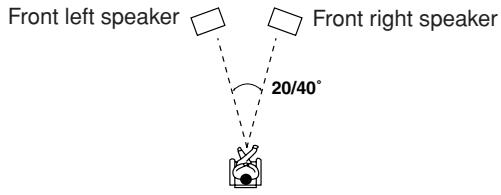
Narrow: Select if the listening angle is 20 degrees.
Wide: Select if the listening angle is 40 degrees (default).
Assigning Listening Modes to Input Sources
You can assign a default listening mode to each input source that will be selected automatically when you select each input source. For example, you can set the default listening mode to be used with Dolby Digital input signals. You can select other listening modes during playback, but the mode specified here will be resumed once the AV receiver has been set to Standby.
Press the [RECEIVER] or [AMP] button followed by the [SETUP] button.
The main menu appears onscreen.
![ONKYO HT-R640 - Press the [RECEIVER] or [AMP] button followed by the [SETUP] button. - 1](/content/2025/01/151647/images/c14e92038e45f2a14fef595cde7eec946fa934f232799c901360888dd1e2e4dd.jpg)
Use the Up and Down [] / [] buttons to select "5. Input Setup," and then press [ENTER].
The Input Setup menu appears.
5.Input Setup
-----DVD/MCH------
a.IntelliVolume: OdB
Listening Mode Preset
b.Ana/PCM:Last Valid
c.Dolby D:Last Valid
d.DTS :Last Valid
e.D.F.2ch:Last Valid
f.Mono :Last Valid
g.MCH Ana:Last Valid
![ONKYO HT-R640 - Use the Up and Down [] / [] buttons to select "5. Input Setup," and then press [ENTER]. - 1](/content/2025/01/151647/images/fe12a49b5039dbc7353deb7bdc5fe83aad4a6918dc32b37a48cdf52af752ec76.jpg)
Use the INPUT SELECTOR buttons on the remote controller to select the input source that you want to set.
For input selectors that have no digital input jacks, only "b. Analog" will be available.
Use the Up and Down [▲]/[▼] buttons to select the signal format that you want to set, and then use the Left and Right [▲]/[▶] buttons to select a listening mode.
Only listening modes that can be used with each input signal format can be selected.
The Last Valid option means that the listening mode selected last will be used.
b. Ana/PCM: With this setting, you can specify the listening mode to be used when an analog (CD, TV, LD, VHS, MD, turntable, radio, cassette, cable, satellite, etc.) or PCM digital (CD, DVD, etc.) audio signal is played.
c. Dolby D: With this setting, you can specify the listening mode to be used when a Dolby Digital format digital audio signal is played (DVD, etc.).
d. DTS: With this setting, you can specify the listening mode to be used when a DTS format digital audio signal is played (DVD, LD, CD, etc.).
e. D.F. 2ch: With this setting, you can specify the listening mode to be used when a 2-channel (2/0) digital audio signal (Dolby Digital, DTS) is played (DVD, etc.).
f. Mono: With this setting, you can specify the listening mode to be used when a mono digital audio signal is played (DVD, etc.).
g. MCH Ana: This setting is available only when DVD or MULTI CH is selected with INPUT SELECTOR. With this setting, you can specify the listening mode to be used when the DVD analog multichannel input is used.
h. MCH PCM*: Specifies the default listening mode for multichannel PCM sources input via a HDMI IN, such as DVD-Audio.
i. PCM192k*: Specifies the default listening mode for high resolution 176.4kHz and 192kHz digital audio sources such as DVD-Audio. *Only for inputs the HDMI IN jack is assigned to
![ONKYO HT-R640 - Use the Up and Down [▲]/[▼] buttons to select the signal format that you want to set, and then use the Left and Right [▲]/[▶] buttons to select a listening mode. - 1](/content/2025/01/151647/images/198bc7c58264987514b7fab1ca910015a291bb8d12304b36cf019fcfd5f023c3.jpg)
When you've finished, press the [SETUP] button.
The setup menu closes.
Note:
This procedure can also be performed on the AV receiver by using its [SETUP] button, arrow buttons, and [ENTER] button.
IntelliVolume
You can set the input level for each input source. This is useful if some of your AV components are louder or quieter than others.
While this menu is shown onscreen, you can select each input source and set the levels while listening to and comparing them.
| 1 AMP RECEIVER SETUP | Press the [RECEIVER] or [AMP] button followed by the [SETUP] button. The main menu appears onscreen. |
| 2 ENTER ENTER | Use the Up and Down [▲]/[▼] buttons to select “5. Input Setup,” and then press [ENTER]. The Input Setup menu appears. |
| 5. Input Setup ___________________________DVD/MCH___________________________a. IntelliVolume: 0dB### Listening Mode Preset b.Ana/PCM:Last Valid ###c.Dolby D:Last Valid ###d.DTS :Last Valid ###e.D.F.2ch:Last Valid ###f.Mono :Last Valid ###g.MCH Ana:Last Valid ### | |
| 3 1 V1 2 V2 3 V3 4 V4 5 V5 6 V6 7 TAPER | Use the INPUT SELECTOR but-tons on the remote controller to select the input source that you want to set. |
| 4 ENTER | Use the Up and Down [▲]/[▼] buttons to select “a. IntelliVolume.” If a component is too loud compared to your other components, use the Left [▲] button to adjust the level. If it's too quiet, use the Right [▲] button. • The level can be set from -12 dB to +12 dB. |
Volume Setup/OSD Setup
This section explains the items on the Miscellaneous Setup menu.
| 1 AMP RECEIVED SETUP | Press the [RECEIVER] or [AMP] button followed by the [SETUP] button. The main menu appears onscreen. |
| 2 ENTER - | Use the Up and Down [▲]/[▼] buttons to select "6. Miscellaneous Setup," and then press [ENTER]. The Miscellaneous Setup menu appears. |
| 6.Miscellaneous Setup | |
| a.MaximumVolume: Off ⑥b.PowerOnVolume: Last ⑧c.Immediate Display :Normal ⑩ | |
| 3 ENTER - | Use the Up and Down [▲]/[▼] buttons to select the settings, and use the Left and Right [▲]/ [▼] buttons to set them. The settings are explained on page 69. |
| When you've finished, press the [SETUP] button. The setup menu closes. | |
| 4 SETUP |
Note:
This procedure can also be performed on the AV receiver by using its [SETUP] button, arrow buttons, and [ENTER] button.
Maximum Volume
With this preference, you can prevent the volume being set too high by specifying a maximum volume level.
The range is from 50 to 99. To specify no maximum volume, select Off.
Power On Volume
With this preference, you can specify the volume setting to be used each time the AV receiver is turned on.
The range is MIN, 1 - 99, MAX. To use the same volume level that was used when the AV receiver was turned off, select Last.
The "Power On Volume" cannot be set higher than the "Maximum Volume" setting.
Immediate Display
This preference determines whether or not actions, such as selecting an input source, are displayed onscreen.
Normal: Select if your TV is 4:3.
Wide: Select if your TV is 16:9.
Off: Actions not displayed.
Even if this preference is set to Normal or Wide, actions are not displayed on the TV or projector while outputting the signals received at COMPONENT VIDEO IN or HDMI IN.
Changing the AV Receiver's ID
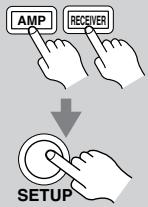
1
Press the [RECEIVER] or [AMP] button followed by the [SETUP] button.
The main menu appears onscreen.
![ONKYO HT-R640 - Press the [RECEIVER] or [AMP] button followed by the [SETUP] button. - 1](/content/2025/01/151647/images/8046a15ca347be06efd780c36f8cffb0965678a50219a81509a168dd93a61938.jpg)
2
Use the Up and Down [▲]/[▼] buttons to select "7. Hardware Setup," and then press [ENTER].
Use the Up and Down [▲]/[▼] buttons to select “Remote ID,” and use the Left and Right [▲]/[▶] buttons to select a value.
Remote ID
With this setting, you can change the AV Receiver's remote control ID. You may need to change this if the remote controller's control codes overlap with those of another Onkyo component located in the same room.
- If you change the AV receiver's remote control ID, be sure to set the same ID on both the AV receiver and remote controller (see page 71). The default ID for both is 1.
HDMI Audio Out
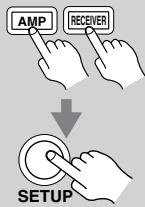
1
Press the [RECEIVER] or [AMP] button followed by the [SETUP] button.
The main menu appears onscreen.
![ONKYO HT-R640 - Press the [RECEIVER] or [AMP] button followed by the [SETUP] button. - 1](/content/2025/01/151647/images/59af97bb5e12c83f231ead48d195ad9940ae1aa6ba6ba7d3533b5e8708f6243d.jpg)
2
Use the Up and Down [▲]/[▼] buttons to select "7. Hardware Setup," and then press [ENTER].
Use the Up and Down [▲]/[▼] buttons to select "HDMI Audio Out," and use the Left and Right [▲]/[▶] buttons to select On or Off.
This preference determines whether audio received at the HDMI IN is output by the HDMI OUT. You may want to turn this preference on if your TV is connected to the HDMI OUT and you want to listen to the audio from a component that's connected to an HDMI IN, through your TV's speakers. Normally, this should be set to Off.
Off: HDMI audio is not output (default).
On: HDMI audio is output.
With some TVs and input signals, no sound may be output even when this setting is set to On.
In these cases, set the connected device's output to PCM.
Lock Setup
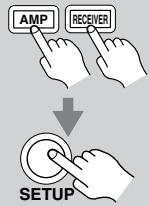
1
Press the [RECEIVER] or [AMP] button followed by the [SETUP] button.
The main menu appears onscreen.
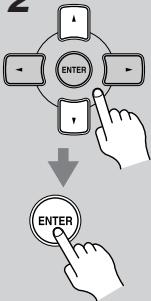
2
Use the Up and Down [] / [] buttons to select "8. Lock Setup," and then press [ENTER].
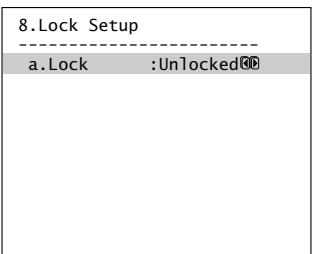
With this preference, you can protect your settings by locking the setup menus.
When the setup menus are locked, you cannot change any setting.
Locked: Setup menus locked.
Unlocked: Setup menus not locked.
Digital Input Signal Formats
The digital input signal formats are available only for the input sources that you have assigned a digital input jack; otherwise you will see "Analog" indicated on the screen (see page 39).
Normally, the AV receiver detects the signal format automatically. However, if you experience either of the following issues when playing PCM or DTS material, you can manually set the signal format to PCM or DTS:
- If the beginnings of tracks from a PCM source are cut off, try setting the format to PCM.
- If noise is produced when fast forwarding or reversing a DTS CD, try setting the format to DTS.
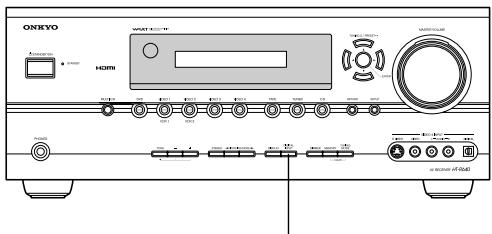
DIGITAL INPUT
1
Press and hold the AV receiver's [DIGITAL INPUT] button for about 3 seconds.
2
While "Auto" is displayed (about 3 seconds), press the [DIGITAL INPUT] button again to select: PCM, DTS, or Auto.
DTS or PCM: The DTS or PCM indicator, depending on which format you have set, flashes, and only signals in that format are output. Digital signals in other formats are ignored.
Auto (default): The format is detected automatically. If no digital input signal is present, the corresponding analog input is used instead.
Correcting Sound and Picture Sync
When using progressive scanning on your DVD player, you may find that the picture and sound are out of sync. With this setting, you can correct this by delaying the audio signals. You can set it from 0 to 100 milliseconds (ms) in 10 millisecond steps.
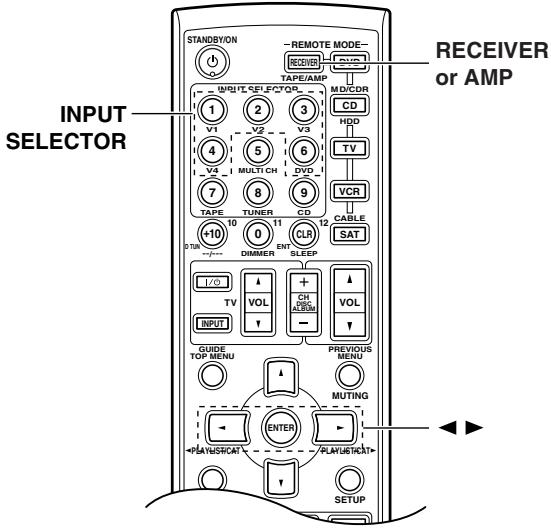
| 1 AMP RECEIVER | Press the [RECEIVER] or [AMP] button. |
| 2 1 V1 2 V2 3 V3 4 V4 | Press and hold, for more than 4 seconds, the input selector button for the input source that you want to correct. This can be the [DVD], [VIDEO 1], [VIDEO 2], [VIDEO 3] or [VIDEO 4] input source. |
| 3 + ENTER | Use the Left and Right [←]/[▶] buttons to adjust the delay from 0 to 100 milliseconds in 10 millisecond steps. |
Note:
This setting is not available when the Pure Audio listening mode is used, or the Direct listening mode is used with an analog input signal.
Changing the Remote Controller's ID
If several Onkyo components are used in the same room, the remote controller's control codes may overlap with those of another component. To differentiate the remote controller's control codes, you can change its ID to another number.
Note:
If you change the remote controller's ID, be sure to set the same ID on both the remote controller and AV receiver (see "Changing the AV Receiver's ID" on page 69). The default ID for both is 1.
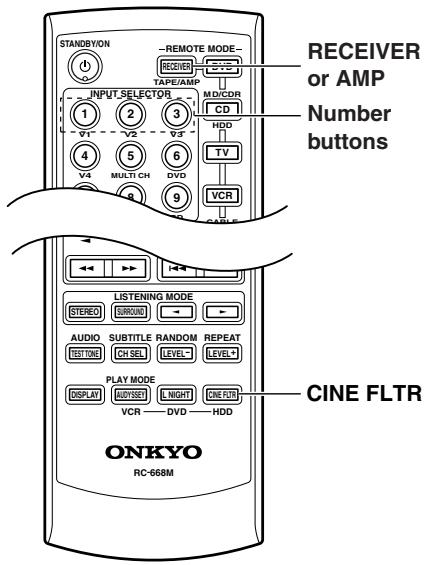
| 1 | Press and hold the [RECEIVER] (or [AMP]) and the [CINE FLTR] at the same time. The [RECEIVER] or [AMP] button lights up. |
| 2 | Use the number buttons to enter a remote control ID. You can enter 1, 2, or 3. |
You can use the AV receiver's remote controller (RC-651M) to control your other AV components, including those made by other manufacturers. This section explains how to enter the necessary remote control code for the component that you want to control (e.g., DVD player, TV, or VCR).
Entering Remote Control Codes
To control another component, you must first enter the appropriate remote control code to a REMOTE MODE button. You'll need to enter a code for each component that you want to control.
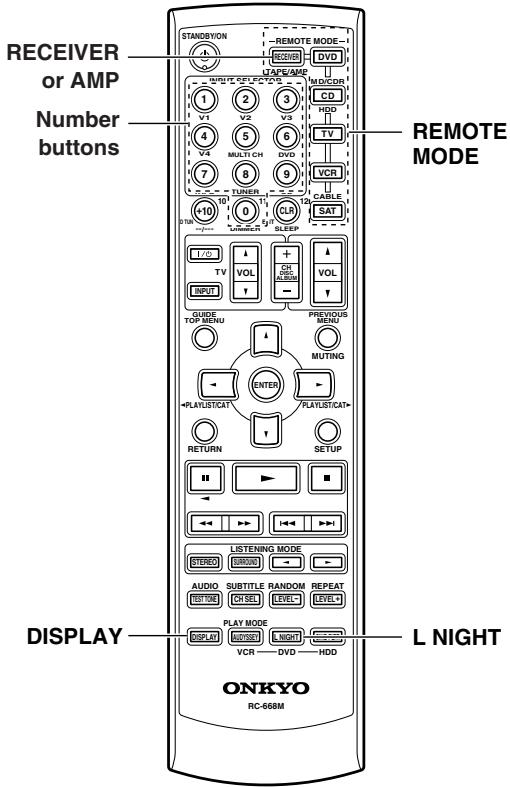
| 1 | Look up the appropriate remote control code in the separate Remote Control Codes list. The codes are organized by category (e.g., DVD player, TV, etc.). |
| 2 -REMOTE MODE DVD MD/CDR CD HDD TV VCR CABLE SAT DISPLAY | While holding down the REMOTE MODE button that you want to set, press the [DISPLAY] button for 3 seconds. The REMOTE MODE button lights up. |
| 3 1 V1 2 V2 3 V3 4 5 V4 MULTI CH DVD 7 8 9 TAPE TUNER 0 11 DIMMER | Within 30 seconds, use the number buttons to enter the 4-digit remote control code. The REMOTE MODE button flashes twice. |
| 4 | Press the REMOTE MODE button again to select the remote controller mode, point the remote controller at the component, and check the operation. If the remote controller doesn’t work as expected, and several remote codes are listed, try each one in turn and use the one that works best. |
Notes:
- A remote control code cannot be entered for the [RECEIVER] or [AMP] REMOTE MODE button.
- The remote control codes provided are correct at the time of printing, but are subject to change.
Remote Control Codes for Onkyo Components Connected via RI
Onkyo components that are connected via are controlled by pointing the remote controller at the AV receiver, not the component. This allows you to control components that are out of view, in a rack, for example.
1 Make sure the Onkyo component is connected with an RI cable and an analog audio cable (RCA).
See page 36 for details.
2 Enter the appropriate remote control code for the [DVD] or [CD] REMOTE MODE button.
[DVD] REMOTE MODE button
1612: Onkyo DVD player with R
[CD/MD/CDR/HDD] REMOTE MODE button
1327: Onkyo CD player with RI
1808: Onkyo MD recorder with R
1322: Onkyo CD recorder with R
1993: HDD-compatible component with R1
See the previous page for how to enter remote control codes.
Press the [DVD] or [CD] REMOTE MODE button, point the remote controller at the AV receiver, and operate the component.
If you want to control an Onkyo component by pointing the remote controller directly at it, or you want to control an Onkyo component that's not connected via RI, use the following remote control codes:
[DVD]REMOTE MODE button
0627: Onkyo DVD player without RI (default)
[CD/MD/CDR/HDD] REMOTE MODE button
1817: Onkyo CD player without RI (default)
0868: Onkyo MD recorder without RI
1323: Onkyo CD recorder without RI
1990: HDD-compatible component without RI
Note:
If you connect an RI-capable Onkyo MD recorder, CD recorder, or HDD-compatible component to the TAPE IN/OUT or VIDEO 3 jacks, for remote operation to work properly, you must set the input display to MD, CDR, or HDD (see page 44).
Resetting REMOTE MODE Buttons
You can reset a REMOTE MODE button to its default remote control code.
1 While holding down the REMOTE MODE button that you want to reset, press the [L NIGHT] button for 3 seconds. CD The REMOTE MODE button lights up.
Press the REMOTE MODE button again.
The REMOTE MODE button flashes twice, indicating that it's been reset.
TV The [DVD] and [CD] REMOTE MODE buttons are preprogrammed with remote control codes for controlling Onkyo DVD players and CD players respectively. When these buttons are reset, the preprogrammed code is restored.
Resetting the Remote Controller
You can reset the remote controller to its default settings.
1 While holding down the [RECEIVER] or [AMP] REMOTE MODE button, press the [L NIGHT] button for 3 seconds.
The [RECEIVER] or [AMP] button lights up.
Press the [RECEIVER] or [AMP] REMOTE MODE button again.
The [RECEIVER] or [AMP] button flashes twice, indicating that it's been reset.
To control another component, point the remote controller at it and use the buttons explained below. (You must select the appropriate remote control mode first.) With some AV components, certain buttons may not work as expected, and some may not work at all.
Controlling a TV
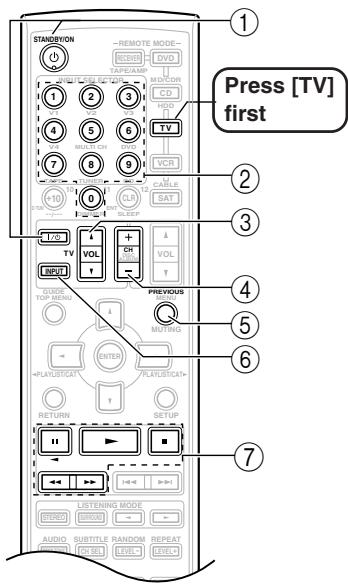
Controlling a VCR
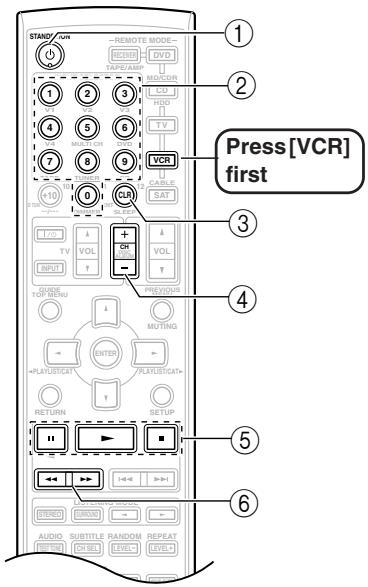
Controlling a Satellite or Cable Receiver
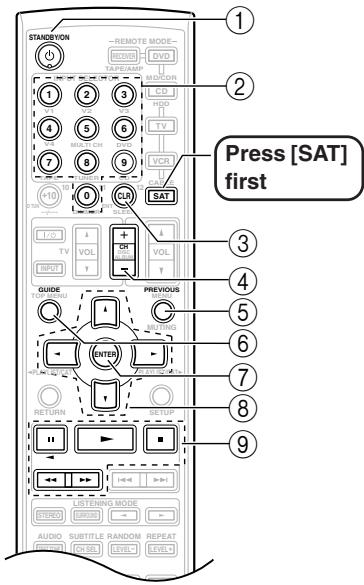
① [ON/STANDBY], TV [◎/I] Sets the TV to On or Standby.
② Number buttons Enter numbers.
③ TV VOL [▲]/[▼] Adjusts the TV's volume.
(4) [CH +/-] Selects channels on the TV.
(5) [PREVIOUS] Selects the previous channel.
[TV INPUT]* Selects the TV's VCR input.
⑦ [1], [2], [3], [4], [5] Operates the VCR.
- Buttons marked with an asterisk (*) are exclusively for controlling a TV and can be used at any time regardless of the current remote controller mode.
① [ON/STANDBY] Sets the VCR to On or Standby.
② Number buttons Select channels.
③ [CLR] Cancels functions.
(4) [CH +/-] Selects channels on the VCR.
⑤ [■], [▶], [■] Pause, Play, Stop.
⑥ [←], [→] Rewind and Fast forward.
① [ON/STANDBY] Sets the satellite/cable receiver to On or Standby.
② Number buttons Enter numbers.
③ [CLR] Cancels functions.
④ [CH + / - ] Selects satellite/cable channels.
(5) [PREVIOUS] Selects the previous channel.
⑥ [GUIDE] Displays the program guide.
⑦ [ENTER] Confirms the selection.
⑧ [▲]/[▼]/[▲]/[▶] Selects menu items.
⑨ [11], [2], [3], [4], [5] Operates the VCR.
Amplifier Section
| Rated Output Power (FTC) | |
| All channels: | 110 watts minimum continuous power per channel, 8 ohm loads, 2 channels driven at 1 kHz, with a maximum total harmonic distortion of 0.9% |
| Rated Output Power (IEC) | |
| 5 ch × 140 W at 6 ohms, 1 kHz, 1 ch driven | |
| Dynamic Power | 225 W + 225 W (3 Ω, Front) |
| 170 W + 170 W (4 Ω, Front) | |
| 105 W + 105 W (8 Ω, Front) | |
| THD (Total Harmonic Distortion) | 0.08% (Power Rated) |
| Damping Factor | 60 (Front, 1 kHz, 8 Ω) |
| Input Sensitivity and Impedance | 200 mV/47 kΩ (LINE) |
| Output Level and Impedance | 200 mV/470 Ω (REC OUT) |
| Frequency Response | 10 Hz - 100 kHz/+1 dB - 3 dB (Direct mode) |
| Tone Control | ±10 dB, 50 Hz (BASS) |
| ±10 dB, 20 kHz (TREBLE) | |
| Signal to Noise Ratio | 106 dB (LINE, IHF-A) |
| Speaker Impedance | 6 Ω - 16 Ω |
Video Section
| Input Sensitivity/Output | |
| Level and Impedance | 1 Vp-p/75 Ω (Component and S-Video Y) |
| 0.7 Vp-p/75 Ω (Component PB/CB, PR/CR) | |
| 0.28 Vp-p/75 Ω (S-Video C) | |
| 1 Vp-p/75 Ω (Composite) | |
| Component Video | |
| Frequency Response | 5 Hz - 50 MHz |
Tuner Section
| ■ FM | |
| Tuning Frequency Range | North American: 87.5 MHz - 107.9 MHz European: 87.5 MHz - 108.0 MHz |
| Useable Sensitivity | Stereo: 22.2 dBf (75 Ω IHF) Mono: 15.2 dBf (75 Ω IHF) |
| Signal to Noise Ratio | Stereo: 67 dB (IHF-A) Mono: 73 dB (IHF-A) |
| THD | Stereo: 0.5% (1 kHz) Mono: 0.3% (1 kHz) |
| Frequency Response | 30 Hz - 15 kHz/±1 dB |
| Stereo Separation | 40 dB (1 kHz) |
AM
Tuning Frequency
Range
North American: 530kHz - 1710kHz
Usable Sensitivity
European: 522kHz - 1611 kHz
Signal to Noise Ratio
300 V / m
THD
0.7%
General
| Power Supply | North American: AC 120 V, 60 Hz European: AC 230 V, 50 Hz |
| Power Consumption | North American: 6 A European: 530 W |
| Standby Power Consumption | North American: 0.1 W European: 0.3 W |
| Dimensions (W × H × D) | 435 × 174 × 377 mm 17-1/8" × 6-7/8" × 14-13/16" |
| Weight | 11.1 kg 24.5 lbs. |

Video Inputs
HDMI
IN1, IN2
Component
IN1, IN2, IN3
S-Video
Optical: 4 (1 on Front Panel)
Analog Inputs
Coaxial: 2
Multichannel Inputs
DVD (MULTICHANNEL),VIDEO1,VIDEO2,VIDEO3,VIDEO4,TAPE,CD
5.1

Audio Outputs
HDMI
OUT
Digital Output
Optical: 1
Analog Outputs
TAPE,VIDEO1,VIDEO2
Subwoofer Pre Output
1
Speaker Outputs
L, R, C, SL, SR
Phones
1
Specifications and features are subject to change without notice.
If you have any trouble using the AV receiver, look for a solution in this section. If you can't resolve the issue yourself, contact your Onkyo dealer.
If you can't resolve the issue yourself, try resetting the AV receiver before contacting your Onkyo dealer.
To reset the AV receiver to its factory defaults, turn it on and, while holding down the [VIDEO 1] button, press the [STANDBY/ON] button. "Clear" will appear on the display and the AV receiver will enter Standby mode.
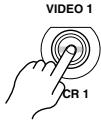
+
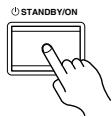
Note that resetting the AV receiver will delete your radio presets and custom settings.
Power
Can't turn on the AV receiver
- Make sure that the power cord is properly plugged into the wall outlet.
- Unplug the power cord from the wall outlet, wait five seconds or more, then plug it in again.
The AV receiver turns off as soon as it's turned on
- The amp protection circuit has been activated. Remove the power cord from the wall outlet immediately and contact your Onkyo dealer.
Audio
There's no sound, or it's very quiet.
- Make sure that the digital input source is selected properly (page 39). Press the [DIGITAL INPUT] button repeatedly
- Make sure that all audio connecting plugs are pushed in all the way (page 18).
- Make sure that the inputs and outputs of all components are connected properly (page 18).
- Make sure that the polarity of the speaker cables is correct, and that the bare wires are in contact with the metal part of each speaker terminal (page 20).
- Make sure that the input source is properly selected (page 45).
- Make sure that the speaker cables are not shorting.
- Check the volume. It can be set to MIN, 1 through 99, or MAX (page 45). The AV receiver is designed for home theater enjoyment. It has a wide volume range, allowing precise adjustment.
- If the MUTING indicator is shown on the display, press the remote controller's [MUTING] button to unmute the AV receiver (page 47).
While a pair of headphones is connected to the PHONES jack, no sound is output by the speakers (page 47).
- If there's no sound from a DVD player connected to an HDMI IN, check the DVD player's output settings, and be sure to select a supported audio format.
- Check the digital audio output setting on the connected device. On some game consoles, such as those that support DVD, the default setting is off.
- With some DVD-Video discs, you need to select an audio output format from a menu.
- If your turntable doesn't have a built-in phono preamp, you must connect one between it and the AV receiver. If your turntable uses an MC cartridge, you must connect an MC head amp, or an MC transformer and phono equalizer.
- Make sure that none of the connecting cables are bent, twisted, or damaged.
- Not all listening modes use all speakers (page 59).
- Specify the speaker distances (page 63) and adjust the individual speaker levels (page 64).
- Make sure that the speaker setup microphone is not still connected.
- The input signal format is set to PCM or DTS. Set it to Auto (page 70).
Only the center speaker produces sound
- If you use the Pro Logic II Movie, Pro Logic II Music, or Pro Logic II Game listening mode with a mono source, such as an AM radio station or mono TV program, the sound is concentrated in the center speaker.
- Make sure the speakers are configured correctly (page 42).
The surround speakers produce no sound
- When the Stereo or Mono listening mode is selected, the surround speakers produce no sound (page 59).
- Depending on the source and current listening mode, not much sound may be produced by the surround speakers. Try selecting another listening mode.
- Make sure the speakers are configured correctly (page 42).
The center speaker produces no sound
- When the Mono or Stereo listening mode is selected, the center speaker produces no sound (page 59).
- Make sure the speakers are configured correctly (page 42).
The subwoofer produces no sound
- When you play source material that contains no information in the LFE channel, the subwoofer produces no sound.
- Make sure the speakers are configured correctly (page 42).
There's no sound with a certain signal format
- Check the digital audio output setting on the connected device. On some game consoles, such as those that support DVD, the default setting is off.
- With some DVD-Video discs, you need to select an audio output format from a menu.
Depending on the input signal, some listening modes cannot be selected (page 58).
The volume cannot be set to 99
- When the levels of all speakers have been calibrated (page 64), the maximum volume setting may change.
Noise can be heard
- Using cable ties to bundle audio cables with power cords, speaker cables, and so on may degrade the audio performance, so don't do it.
- An audio cable may be picking up interference. Try repositioning your cables.
The Late Night function doesn't work
- Make sure the source material is Dolby Digital (page 62).
The DVD analog multichannel input doesn't work
- Check the DVD analog multichannel input connections (page 26).
- To select the DVD analog multichannel input, press the [MULTI CH] input selector button.
- Check the audio output settings on your DVD player.
About DTS signals
- When DTS program material ends and the DTS bitstream stops, the AV receiver remains in DTS listening mode and the DTS indicator remains on. This is to prevent noise when you use the pause, fast forward, or fast reverse function on your player. If you switch your player from DTS to PCM, because the AV receiver does not switch formats immediately, you may not hear any sound, in which case you should stop your player for about three seconds, and then resume playback.
- With some CD and LD players, you won't be able to playback DTS material properly even though your player is connected to a digital input on the AV receiver. This is usually because the DTS bitstream has been processed (e.g., output level, sampling rate, or frequency response changed) and the AV receiver
doesn't recognize it as a genuine DTS signal. In such cases, you may hear noise.
- When playing DTS program material, using the pause, fast forward, or fast reverse function on your player may produce a short audible noise. This is not a malfunction.
The beginning of audio received by an HDMI IN can't be heard
- Since it takes longer to identify the format of an HDMI signal than it does for other digital audio signals, audio output may not start immediately.
Video
There's no picture
- Make sure that all video connecting plugs are pushed in all the way (page 18).
- Make sure that each video component is properly connected.
- If your video component is connected to a component video input, your TV must be connected to the component video output (page 23).
- If a video component is connected to an HDMI input, your TV must be connected to the HDMI OUT.
- While the Pure Audio listening mode (not North American models) is selected, the video circuitry is turned off and only video signals input through HDMI IN can be output.
- On your TV, make sure that the video input to which the AV receiver is connected is selected.
There's no picture from a source connected to an HDMI IN
- If the message "Resolution Error" appears on the AV receiver's display, this indicates that the TV or display does not support the current video resolution and you need to select another resolution on your DVD player.
The onscreen menus don't appear
- The onscreen menus do not appear on a TV that's connected to the HDMI OUT.
- Make sure that the video settings are correct (page 40).
- On your TV, make sure that the video input to which the AV receiver is connected is selected.
The immediate display does not appear
- The immediate display appears on a device connected to the COMPONENT Video OUT, when the Component Video Setup (page 41) is set to "---".
- The immediate display does not appear on a device connected to the HDMI OUT.
Tuner
Reception is noisy, FM stereo reception is noisy, or the FM STEREO indicator doesn't appear
- Relocate your antenna.
- Move the AV receiver away from your TV or computer.
- Listen to the station in mono (page 48).
- When listening to an AM station, operating the remote controller may cause noise.
Passing cars and airplanes can cause interference.
Concrete walls weaken radio signals. - If nothing improves the reception, install an outdoor antenna.
Remote Controller
The remote controller doesn't work
- Make sure that the batteries are installed with the correct polarity (page 12).
- Install new batteries. Don't mix different types of batteries, or old and new batteries (page 12).
- Make sure that the remote controller is not too far away from the AV receiver, and that there's no obstruction between the remote controller and the AV receiver's remote control sensor (page 12).
- Make sure that the AV receiver is not subjected to direct sunshine or inverter-type fluorescent lights. Relocate if necessary.
- If the AV receiver is installed in a rack or cabinet with colored-glass doors, the remote controller may not work reliably when the doors are closed.
- Make sure you've selected the correct remote controller mode (pages 13-16).
- When using the remote controller to control other manufacturers' AV components, some buttons may not work as expected.
- Make sure you've entered the correct remote control code.
- Make sure to set the same ID on both the AV receiver and remote controller (pages 69 and 71).
Can't control other components
- If it's an Onkyo component, make sure that the RI cable and analog audio cable are connected properly. Connecting only an RI cable won't work (page 36).
- Make sure you've selected the correct remote controller mode (pages 13-16).
- If you've connected an R1-capable Onkyo MD recorder, CD recorder, or next generation HDD-compatible component to the TAPE IN/OUT jacks, or a DS-A1 Remote Interactive Dock to the VIDEO 3 IN jacks, for the remote controller to work properly, you
must set the display to MD, CDR, or HDD (pages 44 and 73).
- To control another manufacturer's component, point the remote controller at that component.
- To control an Onkyo component that's connected via RI, point the remote controller at the AV receiver. Be sure to enter the appropriate remote control code first (page 73).
- To control an Onkyo component that's not connected via RI, or another manufacturer's component, point the remote controller at the component. Be sure to enter the appropriate remote control code first (page 72).
Recording
Can't record
- On your recorder, make sure the correct input is selected (e.g., digital or analog).
- When the Pure Audio listening mode (not North American models) is selected, recording is not possible because no video signals are output. Select another listening mode.
Others
The sound changes when I connect my headphones
- When a pair of headphones is connected, the listening mode is set to Stereo, unless it's already set to Stereo, Mono, Direct, or Pure Audio (not North American models).
The speaker distance cannot be set as required
- In some cases, corrected values suitable for home theater use may be set automatically.
The display doesn't work
- The display is turned off when the Pure Audio (not North American models) listening mode is selected.
How do I change the language of a multiplex source
- Use the "a. Multiplex" setting on the "Audio Adjust" menu to select Main or Sub (page 66).
The RI functions don't work
- To use RI, you must make an RI connection and an analog audio connection (RCA) between the component and AV receiver, even if they are connected digitally (page 36).
The following settings can be made for the component video, S-Video, and composite video inputs
You must use the buttons on the unit to make these settings.
- While holding down the input selector button for the input source that you want to set, press the [SETUP] button.
- Use the Left and Right [] / [] buttons to change the setting.
- Press the [SETUP] button when you've finished.
Video Attenuation
This setting can be made for the DVD,VIDEO 1,VIDEO2,VIDEO3,orVIDEO4 input.
If you have a games console connected to a component video, S-Video or composite video input, and the picture isn't very clear, you can attenuate the gain.
Video ATT:0: (default).
Video ATT:2: Gain is reduced by 2 dB.
The AV receiver contains a microcomputer for signal processing and control functions. In very rare situations, severe interference, noise from an external source, or static electricity may cause it to lockup. In the unlikely event that this happens, unplug the power cord from the wall outlet, wait at least five seconds, and then plug it back in again.
Onkyo is not responsible for damages (such as CD rental fees) due to unsuccessful recordings caused by the unit's malfunction. Before you record important data, make sure that the material will be recorded correctly.
The AV receiver uses a battery-less memory backup system in order to retain radio presets and other settings when it's unplugged or in the case of a power failure. Although no batteries are required, the AV receiver must be plugged into an AC outlet in order to charge the backup system.
Before disconnecting the power cord from the wall outlet, set the AV receiver to Standby.
ONKYO CORPORATION
Sales & Product Planning Div.: 2-1, Nisshin-cho, Neyagawa-shi, OSAKA 572-8540, JAPAN
Tel: 072-831-8023 Fax: 072-831-8124
18 Park Way, Upper Saddle River, N.J. 07458, U.S.A.
Tel: 201-785-2600 Fax: 201-785-2650 http://www.us.onkyo.com/
ONKYO EUROPE ELECTRONICS GmbH
Liegnitzerstrasse 6, 82194 Groebenzell, GERMANY
Tel: +49-8142-4401-0 Fax: +49-8142-4401-555 http://www.eu.onkyo.com/
ONKYO EUROPE UK Office
Suite 1, Gregories Court, Gregories Road, Beaconsfield, Buckinghamshire, HP9 1HQ
UNITED KINGDOM Tel: +44-(0)1494-681515 Fax: +44(0)-1494-680452
ONKYO CHINA LIMITED
Unit 1 & 12, 9/F, Ever Gain PlazaTower 1, 88, Container Port Road, Kwai Chung,
N.T., Hong Kong Tel: 852-2429-3118 Fax: 852-2428-9039
http://www.ch.onkyo.com/

D0606-1