
SR-260N - Watch CITIZEN - Free user manual and instructions
Find the device manual for free SR-260N CITIZEN in PDF.



| Product type | Scientific calculator |
| Brand | CITIZEN |
| Model | SR-260N |
| Power supply | 2 alkaline batteries G13 (LR44) |
| Automatic power off | After approximately 9 minutes of inactivity |
| Display | LCD with symbols: DEG/RAD/GRAD, M, CPLX, STAT, BIN/OCT/HEX, HYP, etc. |
| Display formats | Floating point, fixed, scientific, engineering |
| Capacity | 10-digit mantissa, 2-digit exponent up to 10^±99 |
| Accuracy | ±1 for 10-digit numbers |
| Mathematical functions | Trigonometry, hyperbolic, logarithm, exponential, power, root, factorial, permutations, combinations, fractions, unit conversions, complex numbers, statistics (n, Σx, Σx², x̄, S, σ, CP, CPK) |
| Calculation modes | DEG/RAD/GRAD, base-n (BIN/OCT/HEX/DEC), statistics (STAT), complex number (CPLX) |
| Memory | Independent memory (M), register exchange (X↔Y) |
| Keyboard | Dual-function keys (1st and 2nd via [2ndF]) |
| Correction | [CE] key to clear last entry, [ON/C] to reset, backspace key [00→0] |
| Safety | Error indicator (E) for overflow or invalid operation |
| Maintenance | Wipe new batteries with a dry cloth; replace batteries when display loses clarity |
| Dimensions (approx.) | Approx. 15 x 8 x 1.5 cm |
| Weight (approx.) | Approx. 100 g |
Frequently Asked Questions - SR-260N CITIZEN
User questions about SR-260N CITIZEN
0 question about this device. Answer the ones you know or ask your own.
Ask a new question about this device
Download the instructions for your Watch in PDF format for free! Find your manual SR-260N - CITIZEN and take your electronic device back in hand. On this page are published all the documents necessary for the use of your device. SR-260N by CITIZEN.
USER MANUAL SR-260N CITIZEN
Design and specifications are subject to change without notice.
Order of operations 4
Correction 5
Accuracy and Capacity 5
Overflow / Error conditions 7
Basic calculation 8
Mixed arithmetic calculation 8
Parentheses calculations 8
Constant calculation. 8
Percentage calculation. 9
Memory calculation 9
Scientific calculation 10
Reciprocal, Factorial 10
Square, Square / Cubic Root, Power, Root 10
Logarithms and Antilogarithms 10
Fraction calculation 10
Angular units conversion 11
Trigonometric / Inverse trigonometric functions 11
Hyperbolic / Inverse hyperbolic functions 12
Rectangular / Polar coordinates 12
Permutations, Combinations 13
Sexagesimal Decimal form conversion 13
Base-n mode calculation 14
Complex numbers calculation 14
Random numbers and Exchange key 15
Unit conversion 15
Statistics calculation 15
Computing single variable statistics 15
Viewing statistics data 17
Adding a data entry 17
Editing statistics data 18
Delete error 18
Weighted data entry method 19
General guide
Power supply
On or Off :
To turn the calculator on, press [ON/C]; to turn the calculator off, press [2ndF] [OFF].
Auto power-off function :
This calculator automatically turns off it when not operated for approximately 9 minutes. Power can be restored by pressing the [ON/C] key again. Memory contents and the previous mode setting (STAT, DEG, CPLX, Base-n,) are retained even when power is turned off or auto power-off.
Battery replacement :
The calculator is powered by two alkaline batteries (G13 or LR44).
When the display dims, replace the batteries. Be careful not to be injured when you replace the battery.
- Unscrew the screws on the back of the calculator.
- Insert a flat bladed screwdriver into the slot between the upper and lower case then carefully twist it to separate the case.
- Remove both batteries and dispose of them properly. Never allow children to play with batteries.
- Wipe off the new batteries with a dry cloth to maintain good contact.
- Insert the two new batteries with their flat sides (plus terminals) up.
- Align the upper and lower cases then snap them to close together.
- Tighten the screws.
The keyboard
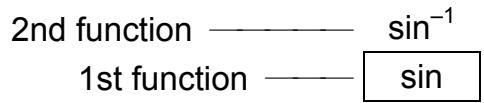
Many of the calculator's keys are used to perform more than one function. The functions marked on the keyboard are printed differently to help you find the one you need quickly and easily.
1st functions
Those are the functions that are normally executed when you press the key.
2nd functions
The second function is printed above or to the right of the key. To execute 2nd functions key, please press [2ndF] then the corresponding key. When you press [2ndF], the "2ndF" indicator shown in the display is to tell you that you will be selecting the second function of the next key you press. If you press [2ndF] by mistake, simply press [2ndF] again to remove the "2ndF" indicator.
(Note): [A], [B], [C], [D], [E], [F] are 1^st functions in HEX mode.
Display symbols
Indicators shown on the display is to indicate you the current status of the calculator.
DEG or RAD or GRAD : angular unit
| M: Independent memory | CPLX: Complex number mode |
| E: Overflow / Error | STAT: Statistical mode |
| -: minus | 2ndF: [2ndF] key pressed |
| (): Parenthesis calculation | CP: Precision capability |
| BIN: Binary mode | CPK: Process capability |
| OCT:Octal mode | σ: Deviation |
| HEX:Hexadecimal mode | USL: Setting upper limit |
| ED: Edit mode | LSL: Setting lower limit |
| HYP: Hyperbolic mode |
Display formats
The calculator can display numbers in four formats: floating point, fixed point, scientific, and engineering.
Floating point display format
The floating point format displays numbers in decimal form, using up to 10 digits. Any trailing zeros are truncated.
If the result of a calculation is too large to be represented in 10 digits, the display automatically switches to scientific format. If the result of later calculations is small enough to be displayed in 10 digits, the calculator returns to floating point format.
(Ex.): Set the display in floating display format.
Step: Press [2ndF] [TAB] [●]

Fixed point display format
The fixed point, scientific, and engineering formats use a fixed number of decimal places to display numbers. If more than the selected number of decimal places is keyed, it will be rounded to the correct number of decimal places.
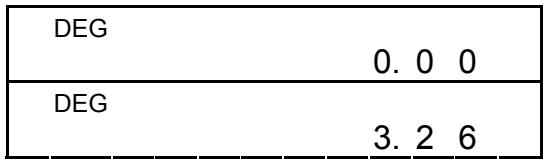
(Ex.): Fix the display at 2 decimal places, then key in 3.256
Step 1: Press [2ndF] [TAB] 2
Step 2: key in 3.256 [ = ]
On the contrary, if fewer than the selected number of decimal places is keyed, it will be padded with trailing zero.
(Ex.): Fix the display at 4 decimal places, then key in 4.23
Step 1: Press [2ndF] [TAB] 4

Step 2: key in 4.23 [ = ]
| DEG | 4.2300 |
Scientific display format
In Scientific display format, the number 891500 can be shown in scientific format as 8.915 × 10^05 , where 8.915 is called the mantissa and 5 is as the exponent of 10.
(Ex.): 7132 x 125 is displayed in scientific display format.
Step 1: key in 7132 [x] 125 [=]
| DEG | 8 | 9 | 1 | 5 | 0 | 0. |
| DEG | 8. | 9 | 1 | 5 |
Step 2: press [F E]
(in floating point format)
Besides, entry can be made in scientific notation by using the [EXP] key after entering the mantissa.
(Ex.): Key the number 4.82296 × 10^5
Step :key in 4.82296 [ EXP ] 5
| DEG | 4. | 8 | 2 | 2 | 9 | 6 | 05 |
(in floating point format)
Engineering display format
The format is similar to the scientific format, expect the mantissa can have up to three digits left of the decimal, instead of only one, and the exponent is always a multiple of three. It is useful for engineers to convert units based on multiples of 10^3 .
(Ex.): Convert 15 ~V into 15000 mV
Step 1: key in 15
Step 2: press [ENG] twice
(Ex.): Convert 15V into 0.015KV
Step 1: key in 15
Step 2: press [2ndF] [] twice
(V: Volt)
| DEG | 1 | 5. | |
| DEG | -03 | ||
| 1 | 5 | 0 0 0. | |
(V: Volt)
| DEG | 1 | 5. | |
| DEG | 0. | 0 | 1 5 03 |
Order of operations
Each calculation is performed in the following order of precedence :
1) Operation in parenthesis.
2) Functions required pressing the function key before entering, for example, [ DATA ] in STAT mode and [ EXP ] key.
3) Functions required inputing values before pressing the function key, for example, cos, sin, tan, cos ^-1 , sin ^-1 , tan ^-1 , log, In, x ^2 , 1/x, , , [3] , x!, %, RND, ENG, →0, →0, →0, and 6 units conversion.
4) Fractions
5) + / -
6) x^y, [y]x
7) nPr, nCr
8) x, ÷
9) +, -
Correction
If you have made a mistake when entering a number (but you have not yet pressed an arithmetic operator key), just press [CE] to clear the last entry then input it again, or delete individual digits by using the backspace key [00 0] .
(Ex.): Correct 12385 as 789
Step: Press [CE] 789
(Ex.): Correct 12385 as 123
Step: Press [00 0] twice
| DEG | 7 | 8 | 9. |
| DEG | 1 | 2 | 3. |
In a series of calculations, you can correct errors in immediate results by pressing [ON/C] to clear the calculation completely (expect clearing memory, see page 9).
If you press the wrong arithmetic operation key, just press [ CE ] key before entering anything else.
Accuracy and Capacity
Accuracy: ± 1 in 10th digit.
Capacity :
In general, every reasonable calculation is displayed up to 10 digit mantissa, or 10-digit mantissa plus 2-digit exponent up to 10^± 99 or integers between -999999999 and 9999999999.
Numbers used as input must be within the range of the given function. The range for each of the calculator's functions is given in the following pages.
| Functions | Input range |
| sin x, cos x, tan x | Deg : | x | < 4.5 x 10¹⁰deg Rad : | x | < 2.5 x 10⁸π rad Grad : | x | < 5 x 10¹⁰grad however, for tan x Deg : | x | ≠ 90 (2n+1) Rad : | x | ≠ π/2(2n+1) Grad : | x | ≠ 100 (2n+1) (n is an integer) |
| sin -1 x, cos -1 x | | x | ≤ 1 |
| tan-1x | | x | < 1 x 10100 |
| sinh x, cosh x | | x | ≤ 230.2585092 |
| tanh x | | x | < 1 x 10100 |
| sinh-1x | | x | < 5 x 1099 |
| cosh-1x | 1 ≤ x < 5 x 1099 |
| tanh-1x | | x | < 1 |
| log x, In x | 1 x 10-99 ≤ x < 1 x 10100 |
| 10^x | -1 x 10100 < x < 100 |
| e^x | -1 x 10100 < x ≤ 230.2585092 |
| √x | 0 ≤ x < 1 x 10100 |
| x^2 | | x | < 1 x 1050 |
| 1 / x | | x | < 1 x 10100, x ≠ 0 |
| 3√x | | x | < 1 x 10100 |
| x! | 0 ≤ x ≤ 69, x is an integer. |
| R→P | √x^2 + y^2 < 1 x 10100 |
| P→R | 0 ≤ r < 1 x 10100Deg : |θ| < 4.5 x 10¹⁰degRad : |θ| < 2.5 x 10⁸π radGrad : |θ| < 5 x 10¹⁰gradhowever, for tan xDeg : |θ| ≠ 90 (2n-1)Rad : |θ| ≠ π/2 (2n-1)Grad : |θ| ≠ 100 (2n-1) (n is an integer) |
| →o, „ | | DD |, MM, SS.SS < 1 x 10100,0 ≤ MM, SS.SS |
| o, „ → | | x | < 1 x 10100 |
| x^y | x > 0 : -1 x 10100 < y log x < 100x = 0 : y > 0x < 0 : y = n, 1/(2n+1), n is an integer.but -1 x 10100 < y log | x | <100 |
| √x | x > 0 : y ≠ 0, -1 x 10100 < 1/y log x < 100x = 0 : y > 0 |
| x < 0 : y = 2n+1, l/n, n is an integer. (n ≠ 0) but -1 x 10100 < 1/y log | x | <100 | |
| a % | Input: Total of integer, numerator and denominator must be within 10 digits (includes division marks) Result: Result displayed as fraction for integer when integer, numerator and denominator are less than 1 x 10¹⁰ |
| nPr, nCr | 0≤r≤n, n≤9999999999, n, r are integers. |
| STAT | | x | < 1x1050, | Σx | < 1 x 10100 0 ≤ | Σx2 | < 1 x 10100, n, r are integers x̄: n≠0, S: n>1, σ: n>0 Range = 1 ~ r, 1 ≤ n ≤ r, 80 ≤ r ≤ 20400 |
| →DEC | 0 ≤ x ≤ 9999999999 (for zero or positive) - 9999999999 ≤ x ≤ -1 (for negative) |
| →BIN | 0 ≤ x ≤ 0111111111 (for zero, positive) 1000000000 ≤ x ≤ 1111111111 (for negative) |
| →OCT | 0 ≤ x ≤ 3777777777 (for zero or positive) 4000000000 ≤ x ≤ 7777777777 (for negative) |
| →HEX | 0 ≤ x ≤ 2540BE3FF (for zero or positive) FDABF41C01 ≤ x ≤ FFFFFFF (for negative) |
Overflow / Error conditions
A symbol “E” are indicated on the display when any of the following conditions occur and further calculation becomes impossible. Just press [ON/C] to release those overflow or error indicator and the subsequent calculation can then be performed.
1) When function calculations are performed with a number exceeding the input range.
2) When a number is divided by 0.
3) When the [ ( ] key is used more than 15 times in a single expression.
4) When a result (whether intermediate or final) or accumulated total in memory exceeds the limit. ( ± 9.999999999 × 10^-99 )
5) When more than six pending operations.
Basic calculation
Before performing the following calculation, check to see that your calculator is in decimal base and floating point display.
Mixed arithmetic calculation
| 1 + 2 × 3 = ? | 1 [+] 2 [x] 3 [=] | DEG 7. |
| -3.5 + 8 ÷ 2 = ? | 3.5 [+/-] [+] 8 [÷] 2 [=] | DEG 0.5 |
Parentheses calculations
Operation inside parentheses are always executed first. You can use up to 15 levels of parentheses in a single calculation. When the first parenthesis is opened, the “( )” indicator appears and remains in the display until the last parenthesis is closed.
| (5-2×1.5)×3 + 0.8×(-4)=? | [()5[-]2[x]1.5[]) 3[+]0.8[x]4[+/-][=] | DEG 2.8 |
| 2×{7+6×(5+4)}=? | 2[x][(?]7[+]6[x][] 5[+]4[=] | DEG 1 2 2. |
(Note): It is unnecessary to press the [ ] key before the [ = ] key.
Constant calculation
The calculator enables you to repeat the last number entered or the last operation executed by pressing [ = ] key.
Repeating the last number
| 3 x 3 = ? | 3 [x] [=] | DEG | 9. |
| 3 x 3 x 3 = ? | |||
| 3 x 3 x 3 x 3 = ? | 2 7. | ||
| [ = ] | DEG | 8 1. |
Repeating the arithmetic operation
| 321 + 357 = ?654 + 357 = ? | 321 [+] 357 [= ] | DEG6 7 8. |
| 654 [= ] | DEG1 0 1 1. | |
| 579 - 159 = ?456 - 159 = ? | 579 [-] 159 [= ] | DEG4 2 0. |
| 456 [= ] | DEG2 9 7. | |
| 18 x 45 = ?18 x 23 = ?18 x (0.5 x 102) = ? | 3 [x] 6 [x] 45 [= ] | DEG8 1 0. |
| 23 [= ] | DEG4 1 4. | |
| 0.5 [EXP] 2 [= ] | DEG9 0 0. | |
| 96 ÷ 8 = ? | 96 [÷] 8 [=] | DEG 1 2. |
| 75 ÷ 8 = ? | 75 [=] | DEG 9.3 7 5 |
| (1.2 × 10²) ÷ 8 = ? | 1.2 [EXP] 2 [=] | DEG 1 5. |
Percentage calculation
| 30% of 120 = ? | 120 [x] 30 [2ndF] [%] [=] | DEG |
| 70% of 120 = ? | 70 [2ndF] [%] [=] | DEG |
| 8 4. | ||
| 88 is 55% of what number=? | 88 [÷] 55 [2ndF] [%] [=] | DEG |
| 1 6 0. | ||
| 30% add-on of 120=? | 120 [+] 30 [2ndF] [%] [=] | DEG |
| 1 5 6. | ||
| 30% discount of 120 = ? | 120 [−] 30 [2ndF] [%] [=] | DEG |
| 8 4. |
Memory calculation
You should keep the following rules in mind when performing memory calculations.
1) The “M” indicator appears when a number is stored in the memory.
2) Recalling from a memory by pressing [ MR ] key does not affect its contents.
3) All memories are unavailable under STAT mode.
4) In order to exchange the content of the memory for the displayed number, please press [X M] key.
5) The contents of the memories can be cleared by pressing [0] [X M] or [ON/C] [X M] in sequence.
| 3 x 5 +) 56 ÷ 7 +) 74 - 8 x 7 Total = ? | [ ON/C ] [X→M] | DEG 0. | |
| 3 [x] 5 [M+] | DEG M | 1 5. | |
| 56 [÷] 7 [M+] | DEG M | 8. | |
| 74 [-] 8 [x] 7 [M+] | DEG M | 1 8. | |
| [ MR ] | DEG M | 4 1. | |
| 0 [X→M] | DEG 0. | ||
Scientific calculation
Before performing the following calculation, check to see that your calculator is fixed at 2 decimal places display format.
Reciprocal, Factorial
| 1/1.25 = ? | 1.25 [ 2ndF ] [1/x] [ = ] | DEG 0.80 |
| 5! = ? | 5 [ 2ndF ] [x!] [ = ] | DEG 1 2 0.00 |
Square, Square / Cubic Root, Power, Root
| 22+34=? | 2[x2][+]3[xy]4[=] | DEG 8 5.0 0 |
| 5x3/27+√34 =? | 5[x]27[2ndF][3√] [+]34[√][=] | DEG 2 0.8 3 |
| 9/72=? | 72[2ndF][y/x]9[=] | DEG 1.6 1 |
Logarithms and Antilogarithms
| ln7 + log100 = ? | 7 [ ln ] [ + ] 100 [ log ] [ = ] | DEG 3.95 |
| 10^2 = ? | 2 [2ndF] [10^X] [= ] | DEG 1 0 0.0 0 |
| e^5 - e^-2 = ? | 5 [2ndF] [e^X] [-] 2 [+/-] [2ndF] [e^X] [= ] | DEG 1 4 8.2 8 |
Fraction calculation
Fraction value display is as follow :
(Note): Total of integer, numerator and denominator must be within 10 digits, or the fractional value couldn't be shown completely.
By pressing [2ndF] [ %] , the displayed value will be converted to the improper fraction.
| 2/3 + 7 3/5 =8 4/15 | 2 [a %] 3 [+] 7 [a %] 3 [a %] 5 [=] | DEG 8 ∟ 4 ↓ 1 5 |
| =124/15 | [2ndF] [→%] | DEG 1 2 4 ↓ 1 5 |
When a press of [a] key after the [=] key or a fraction performed with a decimal, the answer is displayed as a decimal.
| 5 4/9 + 3 3/4 =9 7/36 =9.19 8 4/9 + 3.75 =12.19 | 5 [a b/c] 4 [a b/c] 9 [+] 3 [a b/c] 3 [a b/c] 4 [=] | DEG 9 ⊥ 7 ↓ 3 6 |
| [a b/c] | DEG 9.1 9 | |
| 8 [a b/c] 4 [a b/c] 9 [+] 3.75 [=] | DEG 1 2.1 9 |
During a fraction calculation, if the figure is reducible, a figure is reduced to the lowest terms after pressing a function command key ([ + ], [ - ], [ × ] or [÷ ] ) or the [ = ] key.
| 3 119/21 = 8 2/3 | 3 [a %] 119 [a %] 21 [=] | DEG 8 ⊟ 2 ↓ 3 |
If total of integer, numerator and denominator exceeds 10 digits (including division marks), the result answer will be displayed as a decimal.
| 12345 5/16 + 5 6/13 = 12350.77 | 12345 [a %] 5 [a %] 16 [+] 5 [a %] 6 [a %] 13 [=] | DEG 1 2 3 5 0.7 7 |
Angular units conversion
The calculator enables you to convert a angular unit among degrees(DEG), radians(RAD), and grad(GRAD).
The relation among the three angle units is :
$$ 1 8 0 ^ {\circ} = \pi \mathrm {r a d} = 2 0 0 \mathrm {g r a d} $$
1) To change the default setting to another setting, press [DRG] key repeatedly until the angular unit you want is indicated in the display.
2) After entering an angle, press [ 2ndF ] [ DRG→] repeatedly until the converted value is displayed.
| 90 °(deg) = ? (rad) = ? (grad) | 90 | DEG 9 0. |
| [2ndF] [DRG→] | RAD 1.5 7 | |
| [2ndF] [DRG→] | GRAD 1 0 0.0 0 |
Trigonometric / Inverse trigonometric functions
When using those key, make sure the calculator is set for the angular unit you want.
| 3 sin 85° = ? | 3 [x] 85 [sin] [=] | DEG 2.9 9 |
| cos (π/4 rad) = ? | [DRG] [2ndF] [π] [÷] 4 [=] [cos] | RAD 0.7 1 |
| tan 150grad = ? | [DRG] 150 [tan] | GRAD -1.0 0 |
| sin-10.5 = ? deg | [DRG] 0.5 [2ndF] [sin-1] | DEG 3 0.0 0 |
| cos-1(1/√2) = ? rad | [DRG] 2 [√] [2ndF] [1/x] [2ndF] [cos-1] | RAD 0.7 9 |
| tan-11 = ? grad | [DRG] 1 [2ndF] [tan-1] | GRAD 5 0.0 0 |
Hyperbolic / Inverse hyperbolic functions
| \( \cosh 1.5+\sinh 1.5 \) = | 1.5 [ HYP ] [ cos ] [ + ] 1.5 [ HYP ] [ sin ] [ = ] | DEG 4. 4 8 |
| \( \sinh^{-1}7= \) | 7 [ HYP ] [ 2ndF ] [ sin-1] | DEG 2. 6 4 |
| \( \tanh 1= \) | 1 [ HYP ] [ tan ] | DEG 0. 7 6 |
Rectangular / Polar coordinates
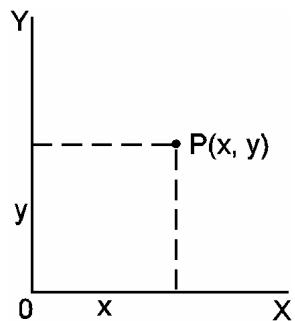
Rectangular Coordinates
$$ a + b i = r (\cos \theta + i \sin \theta) $$
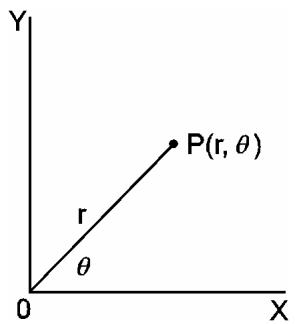
Polar Coordinates
(Note): When using those key, make sure the calculator is set for the angular unit you want.
Converting from Rectangular to Polar
| If a = 5 and b = 6, what are r and θ? | 5 [a] 6 [b] [2ndF] [R→P] | DEG 7. 8 1 |
| [b] | DEG 5 0. 1 9 |
Converting from Polar to Rectangular
| If r = 25 and θ = 56°, what are a and b? | 25 [a] 56 [b] [2ndF] [P→R] | DEG 1 3.9 8 |
| [b] | DEG 2 0.7 3 |
Permutations, Combinations
| nPr = n ! / (n - r)! | nCr = n ! / r ! (n - r)! | |
| How many permutations of 4 items can you select out of a set of numbers of 7 items? | 7 [2ndF] [nPr] 4 [=] | DEG 8 4 0. 0 0 |
| How many combinations of 4 items can you select out of a set of numbers of 7 items? | 7 [2ndF] [nCr] 4 [=] | DEG 3 5. 0 0 |
Sexagesimal Decimal form conversion
The calculator enables you to convert the sexagesimal figure (degree, minute and second) to decimal notation by pressing [0, 1] and converts the decimal notation to the sexagesimal notation by [2ndF][ 0, 1 ].
Sexagesimal figure value display is as follow :
12□ 45'30'15 Represent 12 degrees, 45 minutes, 30.5 seconds (Note): The total digits of D, M and S and separator marks must be within 10 digits, or the sexagesimal couldn't be shown completely.
Converting from Sexagesimal to Decimal
| 12 deg., 45 min., 30.5 sec=? | 12 [ o','] 45 [ o','] 30.5 [ o','] | DEG 1 2.7 6 |
Converting from Decimal to Sexagesimal
| 2.12345 = ? | 2.12345 [ 2ndF ] [ →0,0] | 2 7 1 2 4 11 4 2 |
Base-n mode calculation
Converting between bases
The unit enables you to calculate in number base other than decimal. The calculator can add, subtract, multiply, and divide binary, octal, and hexadecimal numbers. Select the number base you want by the [] , [] , [] , [] keys. The BIN, OCT, and HEX indicators show you which base you are using. (if none of the indicators appears in the appear in the display, you are in decimal base.)
The keys active in each base is described as follows :
Binary base : [ 0 ] [ 1 ]
Octal base : [ 0 ]~[ 7 ]
Decimal base: [0] [9]
Hexadecimal base : [ 0 ] ~ [ 9 ], [ A ] ~ [ F ]
| 31 (base 10) = ? (base 2) = ?(base 8) = ? (base 16) | [2ndF] [→DEC] 31 | DEG 3 1. |
| [2ndF] [→BIN] | DEG BIN 1 1 1 1 1 1. | |
| [2ndF] [→OCT] | DEG OCT 3 7. | |
| [2ndF] [→HEX] | DEG HEX 1 F. | |
| 4 X 1B (base 16) = ? (base 2) = ? (base 10) = ? (base 8) | [2ndF] [→HEX] 4 [x] 1B [=] | DEG HEX 6 C. |
| [2ndF] [→BIN] | DEG BIN 1 1 0 1 1 0 0. | |
| [2ndF] [→DEC] | DEG 1 0 8.0 0 | |
| [2ndF] [→OCT] | DEG OCT 1 5 4. |
Negative and Complements
In binary, octal, and hexadecimal bases, the calculator represents negative numbers using complement notation. The complement's is the result of subtracting that number from 1000000000 in that number's base by pressing [+/-] key in non-decimal bases.
| Calculate the complement of binary number 11011 | [2ndF] [→BIN] 11011 [+/-] | DEG BIN 1 1 1 1 1 0 0 1 01. |
Complex numbers calculation
Select the complex numbers mode by pressing [ CPLX ] key and make sure “ CPLX “ indicator appears on the display. The calculator enables you to add, subtract, multiply, and divide complex numbers.
Complex numbers are generally represented as a + b i, where a is a real and b is imaginary.
| (7-9i)+(15+10i)=? | [2ndF][CPLX]7 [a]9[+/−][b][+]15[a]10[b][]= | DEG CPLX 2 2.0 0 |
| [b] | DEG CPLX 1.0 0 |
(Note): Memory calculation is available in complex number mode.
Random numbers and Exchange key
Random key
Pressing [ RND ] key enables the display to generate random numbers between 0.000 and 0.999.
Press [2ndF] [RND]
| DEG | 0.231 |
Exchange key
Pressing [2ndF] [X Y] enables the displayed value to exchange as the previous value.
| 123 + 456 = ? | 123 [+] 456 [=] | DEG 5 7 9.0 0 |
| [2ndF] [X↔Y] | DEG 4 5 6.0 0 | |
| [2ndF] [X↔Y] | DEG 5 7 9.0 0 |
Unit conversion
in cm
| 12 in = ? cm | 12 [A→B] [2ndF] [in←cm] | DEG 3 0.4 8 |
| 98 cm = ? in | 98 [2ndF] [A←B] [2ndF] [in←cm] | DEG 3 8.5 8 |
(Note): The operating procedure for unit conversion key, [^ F ^ C] , [mmHg kpa], [gal I], [lb kg], [oz g], is similar to the above example.
Statistics calculation
Computing single variable statistics
Select the mode by pressing [ STAT ] key and make sure "STAT" indictor appears on the display.
The STAT mode enables you to calculate the following single variable statistics :
number of all data
∑x sum of all data
x^2 sum of the squares
X mean value
S Sample Standard deviation x^2 - ( x)^2 / nn - 1
Population standard deviation x^2 - ( x)^2 / nn
CP Precision capability - LSL6
CPK Process capability Min(CPU, CPL)
$$ \text {w h e r e} \mathrm {C P U} = \frac {U S L - \bar {x}}{3 \sigma} \quad \mathrm {C P L} = \frac {\bar {x} - L S L}{3 \sigma} $$
(Note): In STAT mode, all function key are available, except base-n calculation.
| (Ex. 1): Enter the following data to calculate Σx, Σx2, n, x̄, S, CP, and CPK, where data 1 = 2, data 2~5 = 5, data 6~8 = 9, USL value: 12, LSL value: 2 | ||
| In STAT mode | [2ndF] [STAT] | DEG STAT 0.0 0 |
| Enter all data | [DATA] 2 | DEG STAT 2. |
| [DATA] 5 | DEG STAT 5. | |
| [DATA] 5 | DEG STAT 5. | |
| [DATA] 5 | DEG STAT 5. | |
| [DATA] 5 | DEG STAT 5. | |
| [DATA] 9 | DEG STAT 9. | |
| [DATA] 9 | DEG STAT 9. | |
| [DATA] 9 | DEG STAT 9. | |
| [=] | DEG STAT 0.0 0 | |
| x̄ = ? | [x̄] | DEG STAT 6.1 3 |
| n = ? | [n] | DEG STAT 8.0 0 |
| S = ? | [S] | DEG STAT 2.5 9 |
| Σx = ? | [2ndF] [Σx] | DEG STAT 4 9.0 0 |
| Σx2=? | [2ndF][Σx2] | DEG STAT 347.00 |
| σ=? | [2ndF][σ] | DEG STAT σ 2.42 |
| CP=? | [2ndF][CP]12 | DEG STAT 12.2. CP USL |
| [=]2 | DEG STAT 2. CP LSL | |
| [=] | DEG STAT 0.69 CP | |
| CPK=? | [2ndF][CPK] | DEG STAT 12.00 CP USL |
| [=] | DEG STAT 2.00 CP LSL | |
| [=] | DEG STAT 0.57 CPK | |
(Note): The calculator keeps a record of all the entries you make and these entries are retained even if auto power-off or turning off, unless exiting STAT mode.
Viewing statistics data
Pressing [ DATA ] or [ = ] key under ED mode can view the statistics data you have entered. The difference between [ DATA ] and [ = ] is the item of the data entry appears 1.5 sec. before the value by [ DATA ], the value appears immediately without the item by [ = ] .
(Ex.2) : View the statistics data based on Ex. 1.
Step 0: Press [2ndF] [EDIT] to enter ED mode.
(Method 1):
Step 1: Press [DATA] once to view the first data.
| DEG ED STAT d A t A 1 | 1.5 sec. → | DEG ED STAT 2.0 0 |
Step 2: Continue pressing [ DATA ] once for each data, it will display data 2, 5.00, data 3, 5.00, data 4, 5.00, data 5, 5.00, data 6, 9.00, data 7, 9.00, data 8, 9.00 in sequence.
(Method 2):
Step 1: Press [ = ] once to view the first data
| DEG | ED | STAT |
| 2.0 0 |
Step 2: Continue pressing [=] once for each data, it will display 5.00, 5.00, 5.00, 5.00, 9.00, 9.00, 9.00 in sequence.
Adding a data entry
(Ex.3) : Add data 9 = 10 to Ex.1
Step 1: Press [DATA] 10
| DEG | STAT |
| 1 0. |
Step 2: The calculator updates the statistics as you enter data. You can recall all variable statistics to get the following result: = 6.56 , n = 9.00 , S = 2.74 , x = 59.00 , x^2 = 447.00 , = 2.59 , where data 1 = 2.00 , data 2 5 = 5.00 , data 6 8 = 9.00 , data 9 = 10.00
Editing statistics data
(Ex.4): Based on Ex.1, correct data 1 = 2 as data 1 = 3
Method 1 :
Press 2 [2ndF] [DEL] 3 [=] to overwrite.
Method 2 :
Step 1: Press [2ndF] [EDIT]
Step 2: Find out 2 by [ DATA] or [ = ]
Step 3: Enter 3 to overwrite 2
| DEG | ED | STAT 0.0 0 |
| DEG | ED | STAT 2.0 0 |
| DEG | ED | STAT 3. |
Step 4: Press [ = ] and [2ndF] [EDIT] to exit ED mode, where those data are changed as data 1 = 3.00 , data 2 5 = 5.00 , data 6 8 = 9.00 .
(Ex.5): Based on Ex.1, delete data 1 = 2 .
Method 1 :
Press 2 [2ndF] [DEL] to delete 2.
Method 2 :
Step 1: Press [2ndF] [EDIT]
Step 2: Find out 2 by [ DATA] or [ = ]
Step 3: Press [2ndF] [DEL]
| DEG | ED | STAT 0.0 0 |
| DEG | ED | STAT 2.0 0 |
| DEG | ED | STAT 5.0 0 |
Step 4: Press [2ndF] [EDIT] to exit ED mode, where those data are changed as data 1 4 = 5.00 , data 5 7 = 9.00 .
Delete error
(Ex.6): If you enter and delete a value that isn't included in the stored data by mistake, "dEL Error" appears, but the previous data are still retained, for example, delete 7 based on Ex.1.
Step 1: Press 7 [2ndF] [DEL]
Step 2: Press any key to clear it
| DEG | STAT |
| dEL Error | |
| DEG | STAT |
| 0.0 0 |
Step 3: Enter ED mode, then view data by [ DATA ] or [ = ] , where those data are still data 1 = 2.00 , data 2 5 = 5.00 , data 6 8 = 9.00 .
(Ex.7): Based on Ex.1, enter 5 × 5 and delete it.
Step 1: Press 5 [x] 5 [2ndF] [DEL]
Step 2 : Press any key to clear it
| DEG | STAT |
| dEL Error | |
| DEG | STAT |
| 0.0 0 |
Step 3: Enter ED mode, then view data by [ DATA ] or [ = ] , where those data are changed as data 1 = 2.00 , data 2 4 = 9.00 .
Weighted data entry method
Instead of entering directly each data, when often several item of data have the same value, you can enter the value and the number of occurrences up to 255. The data based on Ex.1 can be rewritten and entered as follow :
| Value | Number of occurrences | Alternative method |
| 2 | 1 | [ DATA ] 2 |
| 5 | 4 | [ DATA ] 5 [ x ] 4 |
| 9 | 3 | [ DATA ] 9 [ x ] 3 |
, where data 1 = 2 , data 2 5 = 5 , data 6 8 = 9 .
Under ED mode, when you continue choosing a value from data 2~5 and correcting it as 33, the permutation among those data will be changed as data 1 = 2 , data 2 4 = 5 , data 5 = 33 , data 6 8 = 9 , where the new value 33 is inserted after data 4 = 5 .
(Note): A “FULL” is indicated when any of the following conditions occur and further data entry becomes impossible. Just pressing any key can clear the indicator. The previous data entries are still retained unless exiting STAT mode.
1) If the times of data entry by [ DATA ] is more than 80
2) The number of occurrences is more than 255
3) n > 20400 ( n = 20400 appears when the times of data entry by [DATA] are up to 80 and the number of occurrences for each value are all 255, i.e. 20400 = 80 × 255 .)
CONTENIDOS
GUIA GENERAL 2
CALCULO ARITMÉTICO MIXTO 8
CALCULO ENTRE PARENTESIS 8
CALCULO CONSTANTE 8
CALCULO PERCENTUAL 9
CALCULO MEMORIZADO 9
CALCULO CIENTIFICO 10
RECIPROCO, FACTORIAL 10
Paso 1: Presiona [2ndF] [TAB] 4
Paso 2: Tecla 4.23 [ = ]
| DEG | 0.0000 |
| DEG | 4.2300 |
FORMATO CIENTFICO
CALCULO ARITMÉTICO MIXTO
| 1 + 2 x 3 = ? | 1 [+] 2 [x] 3 [=] | DEG 7. |
| -3.5 + 8 ÷ 2 = ? | 3.5 [+/-] [+] 8 [÷] 2 [=] | DEG 0.5 |
CALCULO ENTRE PARENTESIS
Base Octal: [0] [7]
Base Decimal: [0] [9]
BaseHexadecimal:[0] [9],[A]\~[F]
| 31 (base 10) = ? (base 2) = ?(base 8) = ? (base 16) | [2ndF] [→DEC] 31 | DEG 3 1. |
| [2ndF] [→BIN] | DEG BIN 1 1 1 1 1. | |
| [2ndF] [→OCT] | DEG OCT 3 7. | |
| [2ndF] [→HEX] | DEG HEX 1 F. | |
| 4 X 1B (base 16) = ? (base 2) = ? (base 10) = ? (base 8) | [2ndF] [→HEX] 4 [x] 1B [=] | DEG HEX 6 C. |
| [2ndF] [→BIN] | DEG BIN 1 1 0 1 1 0 0. | |
| [2ndF] [→DEC] | DEG 1 0 8.0 0 | |
| [2ndF] [→OCT] | DEG OCT 1 5 4. |
| 12 in = ? cm | 12 [A→B] [2ndF] [in←cm] | DEG 3 0.4 8 |
| 98 cm = ? in | 98 [2ndF] [A←B] [2ndF] [in←cm] | DEG 3 8.5 8 |
Paso 1: Presionar [2ndF] [EDIT]
Paso 2: Encunar 2 por [ DATA ] o [ = ]
Paso 1: Presionar [2ndF] [EDIT]
Paso 3: Presionar [2ndF] [DEL]
| DEG | ED | STAT 0.0 0 |
| DEG | ED | STAT 2.0 0 |
| DEG | ED | STAT 5.0 0 |
Paso 4: Presionar [2ndF] [EDIT] para pagar modo ED, donde ellos son Cambiados como dato 1 4 = 5.00 , dato 5 7 = 9.00 .
BORRAR ERROR
Paso 1: Presionar 7 [2ndF] [DEL]
| DEG | STAT |
| dEL Error | |
2ndF : [2ndF] tecla pressionada
| 31 (base 10) = ? (base 2) = ?(base 8) = ? (base 16) | [2ndF] [→DEC] 31 | DEG 3 1. |
| [2ndF] [→BIN] | DEG BIN 1 1 1 1 1 1. | |
| [2ndF] [→OCT] | DEG OCT 3 7. | |
| [2ndF] [→HEX] | DEG HEX 1 F. | |
| 4 X 1B (base 16) = ? (base 2) = ? (base 10) = ? (base 8) | [2ndF] [→HEX] 4 [x] 1B [=] | DEG HEX 6 C. |
| [2ndF] [→BIN] | DEG BIN 1 1 0 1 1 0 0. | |
| [2ndF] [→DEC] | DEG 1 0 8.0 0 | |
| [2ndF] [→OCT] | DEG OCT 1 5 4. |
| 12 in = ? cm | 12 [A→B] [2ndF] [in←cm] | DEG 3 0.4 8 |
| 98 cm = ? in | 98 [2ndF] [A←B] [2ndF] [in←cm] | DEG 3 8.5 8 |
| 5 4/9 + 3 3/4 =9 7/36 =9.19 8 4/9 + 3.75 =12.19 | 5 [a b/c] 4 [a b/c] 9 [+] 3 [a b/c] 3 [a b/c] 4 [=] | DEG 9 ▪ 7 ↓ 3 6 |
| [a b/c] | DEG 9.1 9 | |
| 8 [a b/c] 4 [a b/c] 9 [+] 3.75 [=] | DEG 1 2.1 9 |
| 31 (Base 10) = ? (Base 2) = ?(Base 8) = ? (Base 16) | [2ndF] [→DEC] 31 | DEG 3 1. |
| [2ndF] [→BIN] | DEG BIN 1 1 1 1 1 1. | |
| [2ndF] [→OCT] | DEG OCT 3 7. | |
| [2ndF] [→HEX] | DEG HEX 1 F. | |
| 4 X 1B (Base 16) = ? (Base 2) = ? (Base 10) = ? (Base 8) | [2ndF] [→HEX] 4 [x] 1B [=] | DEG HEX 6 C. |
| [2ndF] [→BIN] | DEG BIN 1 1 0 1 1 0 0. | |
| [2ndF] [→DEC] | DEG 1 0 8.0 0 | |
| [2ndF] [→OCT] | DEG OCT 1 5 4. |
| 12 in = ? cm | 12 [A→B] [2ndF] [in←cm] | DEG 3 0.4 8 |
| 98 cm = ? in | 98 [2ndF] [A←B] [2ndF] [in←cm] | DEG 3 8.5 8 |
- : moins 2ndF: touche [2ndF] enclenchée
Opération 1: appuyer [2ndF] [TAB]2
Opération 1: appuyer [2ndF] [TAB]4
| 31 (base 10) = ? (base 2) = ?(base 8) = ? (base 16) | [2ndF] [→DEC] 31 | DEG 3 1. |
| [2ndF] [→BIN] | DEG BIN 1 1 1 1 1 1. | |
| [2ndF] [→OCT] | DEG OCT 3 7. | |
| [2ndF] [→HEX] | DEG HEX 1 F. | |
| 4 X 1B (base 16) = ? (base 2) = ? (base 10) = ? (base 8) | [2ndF] [→HEX] 4 [x] 1B [=] | DEG HEX 6 C. |
| [2ndF] [→BIN] | DEG BIN 1 1 0 1 1 0 0. | |
| [2ndF] [→DEC] | DEG 1 0 8.0 0 | |
| [2ndF] [→OCT] | DEG OCT 1 5 4. |
Opération 3 : Taper [ 2ndF ] [ DEL ]
| DEG | ED | STAT |
| 0.0 0 | ||
| DEG | ED | STAT |
| 2.0 0 | ||
| DEG | ED | STAT |
| 5.0 0 |
Opération 1: taper 5 [x] 5 [2ndF] [DEL]
Logarithms and Antilogarithms 10
Calcolo frazionario 10
Conversionedelleunitaangolari 11
Meno 2ndF: Tasto (2ndF) pigiato
Logarithms and Antilogarithms
| ln7 + log100 = ? | 7 [ ln ] [ + ] 100 [ log ] [ = ] | DEG 3.95 |
| 10^2 = ? | 2 [2ndF] [10^X] [ = ] | DEG 1 0 0.0 0 |
| e^5 - e^-2 = ? | 5 [2ndF] [e^X] [-] 2 [+/-] [2ndF] [e^X] [ = ] | DEG 1 4 8.2 8 |
Calcolo frazionario
| 5 4/9 + 3 3/4 =9 7/36 =9.19 8 4/9 + 3.75 =12.19 | 5 [a b/c] 4 [a b/c] 9 [+] 3 [a b/c] 3 [a b/c] 4 [=] | DEG 9 ▪ 7 ↓ 3 6 |
| [a b/c] | DEG 9.1 9 | |
| 8 [a b/c] 4 [a b/c] 9 [+] 3.75 [=] | DEG 1 2.1 9 |
| 31 (base 10) = ? (base 2) = ?(base 8) = ? (base 16) | [2ndF] [→DEC] 31 | DEG 3 1. |
| [2ndF] [→BIN] | DEG BIN 1 1 1 1 1 1. | |
| [2ndF] [→OCT] | DEG OCT 3 7. | |
| [2ndF] [→HEX] | DEG HEX 1 F. | |
| 4 X 1B (base 16) = ? (base 2) = ? (base 10) = ? (base 8) | [2ndF] [→HEX] 4 [x] 1B [=] | DEG HEX 6 C. |
| [2ndF] [→BIN] | DEG BIN 1 1 0 1 1 0 0. | |
| [2ndF] [→DEC] | DEG 1 0 8.0 0 | |
| [2ndF] [→OCT] | DEG OCT 1 5 4. |
Negativo e Complementi
| 12 in = ? cm | 12 [A→B] [2ndF] [in←cm] | DEG 3 0.4 8 |
| 98 cm = ? in | 98 [2ndF] [A←B] [2ndF] [in←cm] | DEG 3 8.5 8 |
(Note): La procedura operativa per tasto di conversione dell'unità. [ ^ F ^ C] , [mmHg kpa] , [gal l] , [lb kg] , [oz g] , è simile all'esempio di sopra.
(Opmerking):[A], [B], [C], [D], [E], [F]� 1st functies in de HEX modus.
Statusindicatoren
Druk op [2ndF] [TAB] [●]
DEG
0.
Vaste komma weergaveformaat
- Druk op [2ndF] [TAB] 2
- Voer 3.256 [ = ] in
| DEG | 0.00 |
| DEG | 3.26 |
- Druk op [2ndF] [TAB] 4
- Voer 4.23 [ = ] in
| DEG | 0.0000 |
| DEG | 4.2300 |
| 31 (basis 10) = ? (basis 2) = ?(basis 8) = ? (basis 16) | [ 2ndF ] [→DEC ] 31 | DEG3 1. |
| [ 2ndF ] [→BIN ] | DEG BIN1 1 1 1 1 1 1. | |
| [ 2ndF ] [→OCT ] | DEG OCT3 7. | |
| [ 2ndF ] [→HEX ] | DEG HEX1 F. | |
| 4 X 1B (basis 16) = ? (basis 2) = ? (basis 10) = ? (basis 8) | [ 2ndF ] [→HEX ] 4 [ x ] 1B [ = ] | DEG HEX6 C. |
| [ 2ndF ] [→BIN ] | DEG BIN1 1 1 0 1 1 0 0. | |
| [ 2ndF ] [→DEC ] | DEG1 0 8.0 0 | |
| [ 2ndF ] [→OCT ] | DEG OCT1 5 4. |
Druk op [2ndF] [RND]
| DEG | 0.231 |
Verwisseltoets
| 12 in = ? cm | 12 [A→B] [2ndF] [in←cm] | DEG 3 0.4 8 |
| 98 cm = ? in | 98 [2ndF] [A←B] [2ndF] [in←cm] | DEG 3 8.5 8 |
Stap 1: Druk op [2ndF] [EDIT]
Stap 2: Toon 2 door op [ DATA ] of [ = ] te drukken
Stap 1: Druk op [2ndF] [EDIT]
Stap 2: Toon 2 door op [ DATA ] of [ = ] te drukken
Stap 3: Druk op [2ndF] [DEL]
| DEG ED STAT 0.0 0 | |
| DEG ED STAT 2.0 0 | |
| DEG ED STAT 5.0 0 |
Stap 1: Druk op 7 [2ndF] [DEL]
| If a = 5 and b = 6, what are r and θ? | 5 [a] 6 [b] [2ndF] [R→P] | DEG 7.81 |
| [b] | DEG 5 0.19 |
SR-260N_Dannish_v090325.doc SIZE: 135× 75mm /SCALE 2:1/2009/3/25
Konverting fra polare til rektangulare
| If r = 25 and θ = 56°, what are a and b? | 25 [a] 56 [b] [2ndF] [R→P] | DEG 1 3. 9 8 |
| [b] | DEG 2 0. 7 3 |
Permutation, combination
| 31 (base 10) = ? (base 2) = ?(base 8) = ? (base 16) | [2ndF] [→DEC] 31 | DEG 3 1. |
| [2ndF] [→BIN] | DEG BIN 1 1 1 1 1 1. | |
| [2ndF] [→OCT] | DEG OCT 3 7. | |
| [2ndF] [→HEX] | DEG HEX 1 F. | |
| 4 X 1B (base 16) = ? (base 2) = ? (base 10) = ? (base 8) | [2ndF] [→HEX] 4 [x] 1B [=] | DEG HEX 6 C. |
| [2ndF] [→BIN] | DEG BIN 1 1 0 1 1 0 0. | |
| [2ndF] [→DEC] | DEG 1 0 8.0 0 | |
| [2ndF] [→OCT] | DEG OCT 1 5 4. |
Negative tal og komplementer
| 12 in = ? cm | 12 [A→B] [2ndF] [in←cm] | DEG | 3 0.4 8 |
| 98 cm = ? in | 98 [2ndF] [A←B] [2ndF] [in←cm] | DEG | 3 8.5 8 |
(Bemärk): Konverteringstasterne [^ F ^ C] , [mmHg kpa], [gal I], [lb kg], [oz g] anvendes på samme**)](eksemplet ovenfor.
Statistiske beregninger
Ppmaoyrolhbe / nojraHbIe KoOpDnHaTbI 13
IpeceTaHOBKn,coUeTaHnna 13
Ipeoobpa3OBaHne n3 7eCTnDEcTepuHOJΦopMbIB DeCtNUHyO n o6paTHO 13
BbUncJIeHne B pexime n3MeHЯJOUeIcYcNCTeMbI CUnCJIeHnA ...... 14
BbIcJIeHHe c KOMnJIeKCHbIMN YIcJIaMn 15
KhoPkn "CJyuaHbIe YnCJa" n "3aMeHa" 15
Ipeo6pa3ObaHne eDHHu. 16
CTaTnCTnueckoe BbIuNcJIeHne 16
CTaTnCTnueckn paCuet c OndHoi nepemehHOI 16
Ipocmotp ctaTnCTnuecknx daHHbIX 18
IobabOchbI BBOd DaHHbIX 18
PeJaKTIpOBaHne cTaTnCTnueCKnx DaHHbIX 18
YdaJIeHne oIi6Kn 19
MeToD BBOda cpeHneB3BeWeHHbIX DaHHbIX 20
O6uee pykoBOdCTBO
3JneKtpoNTaHne
BkIIOUHTb INN BbIKJIIOUHTb :
—: MнHyC 2ndF:HaKaTa KHOnka [2ndF]
():BbIuNCJIeHne co cKo6kamn CP:OBeCneUeHne ToUHOCTn
CPK:ObecneueHne o6pa60TKn :OTKJIOHeHne
ED: Pekim pejaktorobahnia HYP: Tnep6oJnueckn pekim
BIN:ДВОИЧАССТЕмСЧИСЛЕнЯ
OCT:BocbMepnHa cncTeMa cuncJeHna
HEX: ⅢeCThaIaTepeHnaCnCTema CnCJIeHna
USL:YctaHOBkaBepxHero npedeJa
LSL: YctaHOBka HnXhero npedeJa
ΦopMaT əKpaHa
((Ppimep):NcnpaBbTe 12385 Ha
Uar: HaxmTe [00 0] Dbaxdbl
| DEG | 1 | 2 | 3. |
B cepn BblcIeHn Bbl MoXeT nCnpaBJIaTb OuN6Kn B HeNOCpeICTBeHHbIX pe3yJbTaTax, OTMeHЯ DeiCTBHe NOJHOCTbIO C NOMOuH NaXaTna [ON/C] (OTHOCHTeJIbHO OUHCTKN PAmrTu, CMOTpnte cTpaHnCu 9).
Ecnn Bbl HaxMeTe He npaBnIbHyIO KHOKNy apuΦMeTNUeCKOTo DeiCTBn, TO, IpeoTm, KaK BBecTN eIe UTO-HN6yDb, PPOCTO HaxMNTe KHOKNy [CE].
Tochocb npa3peuHne
Tochocb: ±1 B 10-M pa3pJe.
Pa3peSeHne :
B obuem, kaxdoe mHeoUee CmblcI BbIHCJIeHne OTo6paJkaetc MaHTncco Do 10 pa3pIIOB, nIIM MaHTncco n3 10 pa3pIIOB c 2-3NaUHbIM NOKa3aTeJIem CTeJIeH N BnIOTb Do 10^± 99 IIN UeJIbIMn YncIaMn MeKdy -999999999 and 9999999999.
Yncla, nCNoJb3yeMbI e IJI BBOJa, DOJXHbI HaxOHTbcr B IpeJeIax Dnana30Ha DaHHoN fynKcII. Dnana30H IJI KAKdoI N3 fynKcII KaIbKyIaTopa npBedeH Na CNeDyUOx CTpaHIuaX.
| Фунникши | Диапазон Ввда |
| sin x, cos x, tan x | Deg: |x| < 4.5 x 10¹⁰平方千米 Rad: |x| < 2.5 x 10⁸π radian Grad: |x| < 5 x 10¹⁰平方码 (roh) ordentlich,對於 tan x Deg: |x| ≠ 90 (2n+1) Rad: |x| ≠ π/2 (2n+1) Grad: |x| ≠ 100 (2n+1) (n-centoe число) |
| sin-1x, cos-1x | |x| ≤ 1 |
| tan-1x | |x| < 1 x 10100 |
| sinh x, cosh x | |x| ≤ 230.2585092 |
| tanh x | |x| < 1 x 10100 |
| sinh-1x | |x| < 5 x 1099 |
| cosh-1x | 1 ≤ x < 5 x 1099 |
| tanh-1x | |x| < 1 |
| log x, ln x | 1 x 10-99 ≤ x < 1 x 10100 |
| 10x | -1 x 10100 < x < 100 |
| ex | -1 x 10100 < x ≤ 230.2585092 |
| √x | 0 ≤ x < 1 x 10100 |
| x2 | |x| < 1 x 1050 |
| 1/x | |x| < 1 x 10100, x ≠ 0 |
| 3√x | |x| < 1 x 10100 |
| x! | 0≤ x ≤ 69, x-centoe число. |
| R→P | √x2+y2<1 x 10100 |
| P→R | 0 ≤ r<1 x 10100 Deg: |θ| < 4.5 x 10¹⁰平方千米 Rad: |θ| < 2.5 x 10⁸π radian Grad: |θ| < 5 x 10¹⁰平方码 (roh) Однako,对于我们 tan x |
| Deg : |θ| ≠ 90 (2n-1) Rad : |θ| ≠ π/2 (2n-1) Grad : |θ| ≠ 100 (2n-1) (n -疃е число) | ||
| →о”,” | | DD |, MM, SS.SS < 1 x 10100, 0 ≤ MM, SS.SS | |
| о”,”→ | |x|< 1 x 10100 | |
| x^y | x > 0 : -1 x 10100 < y log x < 100 x = 0 : y > 0 x < 0 : y = n, 1/(2n+1), n -疃е число. Ho -1 x 10100 < y log | x | <100 | |
| √x | x > 0 : y ≠ 0, -1 x 10100 < 1/y log x <100 x = 0 : y > 0 x < 0 : y = 2n+1, l/n, n -疃е число.(n ≠ 0) Ho -1 x 10100 < 1/y log | x | <100 | |
| a/b/c | Ввор:Обочец колиесто виздам,在 зел�� чесу,在 саллесу,在 Залмения,在 Залмения,在 Залмения,在 Залмения,在 Залмения,在 Залmения,在 Залmения,在 Залmения,在 Залmения,在 Залmения,在 Zалмения,在 Zалmения,在 Zалmения,在 Zалmения,在 Zалmения,在 Zалmения,在 Zалmения,在 Zалmения,在 Zалmения,在 Zалmения,在 Zалmения,在 Zалmения,在 Zалmения,在 Zалmения,在 Zалmения,在 Zалmения,在 Zалmения,在 Zалmения,在Zалmения,在Zалmения,在Zалmения,在Zалmения,在Zалmения,在Zалmения,在Zалmения,在Zалmения,在Zалmения,在Zалmения,在Zалmения,在Zалmения,在Zалmения,在Zалmения,在Zалmения,在Zалmения,在Zалmени�. Ф�ын: Ф�ын: Ф�ын: Ф�ын: Ф�ын: Ф�ын: Ф�ын: Ф�ын: Ф�ын: Ф�ын: Ф�ын: Ф�ын: Ф�ын: Ф�ын: Ф�ын: Ф�ын: Ф�ын: Ф�ын: Ф�ын: Ф�ын: Ф�ын: | |
| nPr, nCr | 0≤r≤n, n≤999999999, n, r- Zeльные число. | |
| STAT | |x| < 1x1050, |Σx| < 1 x 10100 0 ≤ |Σx2| < 1 x 10100, n, r- Zeльные число x : n≠0, S : n>1, σ : n>0 Диапазон = 1 ~ r, 1 ≤ n ≤ r, 80 ≤ r ≤ 20400 | |
| →DEC | 0≤x≤999999999(для Нучая поочи тьного) -999999999≤x≤-1(для о trifсятейно) -999999999≤x≤-1(для о trifсятейно) →BIN | 0≤x≤011111111(для Нучая поочи тьного) 100000000≤x≤111111111 (для о trifсятейно) →OCT |
| →HEX | 0≤x≤2540BE3FF(для Нучая поочи тьного) FDABF41C01≤x≤FFFFFFF (для о trifсятейно) |
CocToHHnI pReBbIeHnI / oOn6Kn
Korda nmeet MeCTO KaKoe-Jn60 N3 nepeynJeHnX MxJKe, yCNoBn, n DaJIbHeiWee BbIuNCJIeHne CTaHOBNTcR HeBO3MOxHbIM, Ha 3KpaHe IOnBIIeTcR fJaXoK "E". YTo6bl c6pocntb 3Tu fJaXkN IpePONHeHnI nn OSh6Kn, pOcTO hAkmTe [ON/C], n MoXHo BbIIOJIHrTb OuepeDHOe BbIuNCJIeHne.
1) Korda Φункциональные BBИСЛЕпь вынCSЛЕпь вынOLHЯOTССЧСЛOM,празвшюшим ДиапзOH BBOДa.
2)Korda yinCloJeInTc8Ha0.
3) KOrda KHOpKa [ ( ] nCnoJb3yeTc8 6OJIe 15 pa3 B OndHom BvipaxKeHne.
4) Korda pe3ynbTaT (npomexkytohbln nHn nTOOBbln HAKONJIeHHaB B naMaTn CymMa npebblaaet npedeJL. (± 9.999999999× 10^99)
5) Korda 60jee 7eCTn He3aKOHueHHbIX DeiCTBNI.
ПостоЕ Вь中医药范围内
Ipeed BbINOJIHeHnEM IpoCTOnO BbIuNCJIeHnI, npOBepbTe n y6eIITecb, YTO BaI KALbKJyTOp yCTaHOBJIeH Na DeCraTNUHyo CnCTeMy cUncJIeHnI n peXIM 3kpaHa "PnaBaIoUca ToUka".
CmeuHoe apnФmetnueckoe BbIuNCJIeHne
| 1 + 2 x 3 = ? | 1 [+] 2 [x] 3 [=] | DEG 7. |
| -3.5 + 8 ÷ 2 = ? | 3.5 [+/-] [+] 8 [÷] 2 [=] | DEG 0.5 |
BbIuNCJIeHnco cKo6kamN
Дeиствя BHytpn CkObOK BCerga BblNoHЯOTcB NepByIO OчepeDb. Bbl Moxet nCpOJIb3OBaTb Do 15 yPoBHeN CkObOK B ODNOM OTdIbHOM BblUncIeHn. Korda OTKpbIBAeTcN nepBbI yPoBeHb CkObOK, Na 3KpaH e NOyBJIeTcNФJaXoK "( )" N OCTaETcN Do Tex NOp, Noka He 3aKpoEtcN pOcIeHn yPoBeH b CkObOK.
| (5-2×1.5)×3 + 0.8×(-4)=? | [()5[-]2[x]1.5[]) 3[+]0.8[x]4[+/-][=] | DEG 2.8 |
| 2×{7+6×(5+4)}=? | 2[x][(?]7[+]6[x][] 5[+]4[=] | DEG 1 2 2. |
(ОьразиTe BнIMанe): Heo6aTeIbHo NaJIMaTb KHONKy [ ])перд КнОнКо[=].
BbIuNCJIeHne c NOBTOPOM
KaNbKyJyTop no3B0JaT Bam nobTOpTaB BBOd nocJeHero YnCJa nnIIOcJIeDHeE BbINOJIHHeHHoe DeiCTBne C NOMOuHaxKaTna KHOPIK [=].
BbIyIcJIeHHe C NcNoJIb3OBAHHem NaMRTN
BbIdoJXHbI NOMHnTb O cNeDyUOx npaBnax, KOrda BbINOJIHReTe BbIuNCJIeHn, IcNoJIb34I NaMDTb.
1) Korda Ynclo 3aHocntcB namrTb, noBJIeTcR qJnaKOK " M".
2) Вьзов ИЗ памяту нажатием Кногки [MR] He влгет на се coideржимoe.
3)Вразиме STAT HeioctypeHи ODNH n3 BnIOB pamrTn.
4) Дя того, чобьл замень соржимое пamгн ha otobpaхаemoe усло, посяиста, нахмпт ekhONky [X→M].
5) CoidepKIMoe Bcex BnIOB nAMrT MoKeT BbITb OUnIeHO nOcJIeIOBaTeJIbHbIM HaKaTneM [0] [X M] nIIN [ON/C] [X M] .
| 3 x 5 +) 56 ÷ 7 +) 74 - 8 x 7 ОBSTEE КOLINCECTBO = ? | [ ON/C ] [X→M] | DEG 0. |
| 3 [x] 5 [M+] | DEG M 1 5. | |
| 56 [÷] 7 [M+] | DEG M 8. | |
| 74 [-] 8 [x] 7 [M+] | DEG M 1 8. | |
| [ MR ] | DEG M 4 1. | |
| 0 [X→M] | DEG 0. |
HayuHoe BbIyNCJIeHne
Ipeed BbINOJIHeHem CJeDyUoJero BByIcJIeHn IpoBepbTe n y6eIITecb, YTO BaW KaIbKyIaTOp yCTaHOBJIeH Ha DeCraTNUHbI fOpMaT 3kpaHa c 23NaKaAMn PocNe 3aJaToi.
06paTHaBcHnHa,ФakTopnaJ
| 1/1.25 = ? | 1.25 [ 2ndF ] [1/x] [ = ] | DEG 0.80 |
| 5! = ? | 5 [ 2ndF ] [x!] [ = ] | DEG 1 2 0.00 |
Kbapat, Kopeh Kbapatb/ Kyuchekn,BO3BeDeHne B CTepeHb, Kopeh
| 22+34=? | 2[x2][+]3[xy]4[=] | DEG 8 5.0 0 |
| 5x3/27+√34 =? | 5[x]27[2ndF][3√] [+]34[√][=] | DEG 2 0.8 3 |
| 9/72=? | 72[2ndF][√x]9[=] | DEG 1.6 1 |
JlorapnΦMbI n aHTNlOrapnΦMbI
| ln7 + log100 = ? | 7 [ ln ] [ + ] 100 [ log ] [ = ] | DEG 3.95 |
| 10^2 = ? | 2 [2ndF] [10^X] [= ] | DEG 1 0 0.0 0 |
| e^5 - e^-2 = ? | 5 [2ndF] [e^X] [-] 2 [+/-] [2ndF] [e^X] [= ] | DEG 1 4 8.2 8 |
BbIuNCJIeHne c dpo6aMn
(ObpaTnTe BnHaHne): Obseee KOJIyEcTBo 3NaKOB, COCTOJaee n3 ZeIOn Yactn YncJa, YncJInteJr N 3HaMeHaTeJr, DOJXHO 6bITb B npedeJax 10, INaYe 3NaYeHne dpo6n He MOxKet 6bITb POKa3aHo NOJIHOCTbIO.
HajkaTneM [2ndF] [ % ] , oTo6paJKeHHe 3NaYeHne 6yJeT npeo6pa3ObaHO B HenpaBnIbHyIO dpo6b.
| 2/3 + 7 3/5 =8 4/15 | 2 [a %] 3 [+] 7 [a %] 3 [a %] 5 [=] | DEG 8 ∟ 4 ∟ 1 5 |
| =124/15 | [2ndF] [→%] | DEG 1 2 4 ∟ 1 5 |
Korda BbINOJIHЯETcH naKaTne KHOJKN [a ] nocNe KHOJKN [=] nII IN BBOI DEcAryHOrO YnCJa C dpo6HoJ YaCTbI, OTBET OTo6paJxAeTcR B DEcAryHOM φOpMaTe.
| 5 4/9 + 3 3/4 =9 7/36 =9.19 8 4/9 + 3.75 =12.19 | 5 [a %] 4 [a %] 9 [+] 3 [a %] 3 [a %] 4 [ = ] | DEG 9 ∟ 7 ∟ 3 6 |
| [a %] | DEG 9.1 9 | |
| 8 [a %] 4 [a %] 9 [+] 3.75 [ = ] | DEG 1 2.1 9 |
Bo BpemBbIuNCJIeHnC dpo6aMn,ecnnuΦpy MOxHO COKpaTNTb,TO OHa ynpoaaetcdo camoro npedeJa nocne haxaTna ΦyHKUHOHaNbHOJ KOMaHdHOK HONKn [ + ] ,[-],[x] or [ ÷ ] )IIIN KHOKN [ = ]
| 3 119/21 = 8 2/3 | 3 [a %] 119[a %] 21 [=] | DEG 8 ∟ 2 ∟ 3 |
Ecnn o6uee KOJnueCTBO 3NaKOB, COCTOaee n3 ueon Yactn uncna, uNCInTeJIy n 3HaMeHaTeJI npBbIaet 10 (BkInoua MeTKn- pa3deJIteJI), ITOROBbI OTBeT 6yDet OTo6paKeH B DeCrtNCHOM opMaTe.
| 12345 5/16 + 5 6/13 = 12350.77 | 12345 [a %] 5 [a %] 16 [+] 5 [a %] 6 [a %] 13 [=] | DEG 1 2 3 5 0.7 7 |
Ppeo6pa3ObaHne yrIIOBbIX eINHnC
KanbkyIaTOp n03B0JAEr Bam npeO6pa3OBbIBaTb yrIOByIO eINHnCy
n3MepeHn B rpaDycbl (DEG), paDaHaHbI (RAD), n rpaDbI (roH)
(GRAD).
CoOTHOWeHHe Mekdy 3TtIMN TpeM yrIIOBbIMn eDINHcbl TaKOBO :
180^ = paɪnən=200 rpaɪn
1) UTo6bI n3MeHnTb yCTaHOBky no yMOJUaHnIO Ha dpyrYIO, HaxmaiTe KHOJIky [DRG] HeCKoJIbKO pa3 Do Tex nop, Noka Tpe6yEma Bam YrIOBaЯ edHHuca He 6yDeT yka3aHa Na 3KpaHe.
2) Посné ввoda угла нажмITE несякову pa3 [2ndF] [DRG→] доTeX по, пoka пpeobpa3OBaHHoe 3нauчени He bудет OTObpaжени.
| 90°(граздунов) = ? (разиан) = ? (гразд) | 90 | DEG 9 0. |
| [2ndF] [DRG→] | RAD 1.5 7 | |
| [2ndF] [DRG→] | GRAD 1 0 0.0 0 |
TpuroHometpnupecka / o6paTHa TpuroHometpnupecka Функции
Ecnn nCnoNb3yeTe 3TN KHONKn, y6eIntecb, YTO KaIbkyJrTOp yCTaHOBnen Ha Ty yTIOByU OeINHcU, KOtOpA Bam Heo6xOdIma.
| 3 sin 85° = ? | 3 [x] 85 [sin] [=] | DEG 2.99 |
| cos (π/4 pадиан) = ? | [DRG] [2ndF] [π] [÷] 4 [=] [cos] | RAD 0.71 |
| tan 150град = ? | [DRG] 150 [tan] | GRAD -1.00 |
| sin -1 0.5 = ? градус | [DRG] 0.5 [2ndF] [sin -1] | DEG 3 0.00 |
| cos -1(1/√2) = ? радиан | [DRG] 2 [√] [2ndF] [1/x] [2ndF] [cos -1] | RAD 0.79 |
| tan -1 1 = ? радиан | [DRG] 1 [2ndF] [tan -1] | GRAD 5 0.00 |
Uar 0: YTo6bI Bbl6paTb peXIM ED, haxMnte [2ndF] [EDIT].
(Metod 1):
Uar 1: Haxmnte [2ndF] [EDIT]
Uar 2: HainTe 2 c nOoBIO [DATA]nIi [= ]
Uar 3: BVeInte 3, YTo6bI 3aIncatb 3aHOBO 2
| DEG | ED | STAT 0.0 0 |
| DEG | ED | STAT 2.0 0 |
| DEG | ED | STAT 3. |
Uar 4: Haxmte [=] n [2ndF] [EDIT], yTo6bI BbIyTN n3 peXmAm ED, rDe 3Tu DaHHbIe N3MeHeHbI Ha daHHbIe 1 = 3,00, daHHbIe 2-5= 5,00, daHHbIe 6-8 = 9,00.
Hajmte 2 [2ndF] [DEL], yTo6bI ydaIITb 2.
MToD2:
Uar 1: Haxmnte [2ndF] [EDIT]
Uar 2: HauTe 2 c nOou [DATA] nn [ = ]
Uar 3: HaxmTe [2ndF] [DEL]
| DEG | ED | STAT 0.0 0 |
| DEG | ED | STAT 2.0 0 |
| DEG | ED | STAT 5.0 0 |
Uar 4: HaxmTe [2ndF] [EDIT], yTo6bI BbIyTu n3 peXnMa ED, rJe 3TN daHHbIe n3MeHeHbI Ha daHHbIe 1-4 = 5,00, daHHbIe5-7 = 9,00.
YdaJIeHne Oun6Kn
Uar 1: HaxmTe 7 [2ndF] [DEL]
Uar 2: Haxmnte IIO6yIO KHOJky, yTO6bI y6paTb erO
| DEG | STAT |
| dEL Error | |
| DEG | STAT |
| 0.0 0 |
Uar 3: BbIbepepeKIM ED, 3aTeM npocmoTpe daHHbIe c nOMoou [DATA] nnn [=] , rde 3TN daHHbIe BCE eue octaOTcraHHbIMn 1= 2,00, daHHbIMn 2-5 = 5,00, daHHbIMn 6-8 = 9,00.
Uar 1: HaxmTe 5 [x] 5 [2ndF] [DEL]
| DEG | STAT |
| dEL Error | |
| DEG | STAT |
| 0.0 0 |
Uar 2:Haxmnte JIO6yIO KHONky, YTO6bI y6paTb erO
3: BbIbepepeKIM ED, 3aTeM npocmOTpe daHHbIe c nOmoBIO[DATA] nIi [=], rIe 3Tn daHHbIe nOmeHЯINc b Ha daHHbIe 1 = 2,00, daHHbIe 2-4 = 9,00.
MeToD BbOda cpeiHeB3BeWeeHHbIX daHHbIX
Korda HeCKoJIbKO DaHHbIX IMeOT OdINHaKOBoe 3NaueHne, BMeCTO HeNocpeIcTBeHHoro BBOda KaXDoRo DaHHoro, Bbl MoXeTe BBecTn 3To 3NaueHne I NcNoJIb30BaTb erO B NOBTOPIUxxCra BByNCJIeHNyx Do 255 pa3. DaHHbIe, OCHOBaHHbIe Ha PpIMepe 1, MOrTy 6bITb 3a\PuCAhBi 3aHOBO IV BVeDeHbI CJIeDyUOzIM 6bpa3OM:
3NaueHne KoJIyuCeTBO npImeHEn AJbTePHaTnBHy MeToD
| 2 | 1 | [ DATA ] 2 |
| 5 | 4 | [ DATA ] 5 [ x ] 4 |
| 9 | 3 | [ DATA ] 9 [ x ] 3 |
, rIe daHHbIe 1 = 2, daHHbIe 2~5 = 5, daHHbIe 6~8 = 9.
B pexime ED, korga Bbl npoJolkaeTe, Bbl6paB 3NaueHne n3 daHHbIX 2~5 nncpabNV erO ha 33, nepeCTaHOBka cpeiN 3TuX daHHbIX bUdET npOn3BeDeHa cIeDyUoIm o6pa3OM: daHHbIe 1 = 2 , daHHbIe 2 4 = 5 , daHHbIe 5 = 33 , daHHbIe 6 8 = 9 , rJe HOBoe 3NaueHne 33 BcTabJIeTcI noCle daHHbIX 4 = 5
(Оьрати Te BнIMанe): KOrda nMeet MeCTO lioboe n3 nepeuNCJIeHHXHIXe ycIOBn, n ДальHeIshN BBOd DAHHbIX CTaHOBNTcR HeBO3MOxHbIM, NOBJIeTcR φJaXoK "FULL". UTo6bl c6pocntb 3TOT φJaXoK, npocTo haxMITE JIO6yU KHOIpKy. BVeDeEHbIe nepei 3TmДaHHbIe BCE eIe coXpaHЯIOTcR, ecIn Bbl He BbIXODHTe n3 peJIMa STAT.
1) Ecni KoIInueCTBO BBOIOB DaHHbIX C NOMOu [DATA] npEByIaet 80.
2) YncIIO NOBTOpeHn IpeBbIaeT 255.
3) n>20400 (korda koJnueCTBO BBOIOB daHHbIX C NOMOuIbO [DATA]doCTnraet 80, n KOJnueCTBO NOBTOpeHniДЯ kajdOro 3NaueHnA coCTaBJIeT BCE 255, t.e. 20400 = 80r'255, noRbJIeTcA coo6UeHne n = 20400.)
Zawartosci
Press [2ndF][TAB][ ]
| DEG | 0. |
| 30% of 120 = ? | 120 [x] 30 [2ndF] [%][=] | DEG |
| 70% of 120 = ? | 70 [2ndF] [%][=] | DEG |
| 8 4. | ||
| 88 is 55% of what number=? | 88 [÷] 55 [2ndF] [%][=] | DEG |
| 1 6 0. | ||
| 30% add-on of 120=? | 120 [+] 30 [2ndF] [%][=] | DEG |
| 1 5 6. | ||
| 30% discount of 120 = ? | 120 [−] 30 [2ndF] [%][=] | DEG |
| 8 4. |
| 31 (base 10) = ? (base 2) = ?(base 8) = ? (base 16) | [2ndF] [→DEC] 31 | DEG 3 1. |
| [2ndF] [→BIN] | DEG BIN 1 1 1 1 1. | |
| [2ndF] [→OCT] | DEG OCT 3 7. | |
| [2ndF] [→HEX] | DEG HEX 1 F. | |
| 4 X 1B (base 16) = ? (base 2) = ? (base 10) = ? (base 8) | [2ndF] [→HEX] 4 [x] 1B [=] | DEG HEX 6 C. |
| [2ndF] [→BIN] | DEG BIN 1 1 0 1 1 0 0. | |
| [2ndF] [→DEC] | DEG 1 0 8.0 0 | |
| [2ndF] [→OCT] | DEG OCT 1 5 4. |
| 12 in = ? cm | 12 [A→B] [2ndF] [in←cm] | DEG 3 0.4 8 |
| 98 cm = ? in | 98 [2ndF] [A←B] [2ndF] [in←cm] | DEG 3 8.5 8 |
Information for Users on Collection and Disposal of used Batteries.
The symbol in this information sheet means that used batteries should not be mixed with general household waste.
For proper treatment, recovery and recycling of used batteries, please take them to applicable collection points.
For more information about collection and recycling of batteries, please contact your local municipality, your waste disposal service or the point of sale where you purchased the items.
Information on Disposal in other Countries outside the European Union.
This symbol is only valid in the European Union. If you wish to discard used batteries, please contact your local authorities or dealer and ask for the correct method of disposal.
- Basic calculation 8
- Scientific calculation 10
- Statistics calculation 15
- General guide
- Power supply
- On or Off :
- Auto power-off function :
- Battery replacement :
- The keyboard
- 1st functions
- 2nd functions
- Display symbols
- Display formats
- Floating point display format
- Fixed point display format
- Scientific display format
- Engineering display format
- Order of operations
- Correction
- Accuracy and Capacity
- Capacity :
- Overflow / Error conditions
- Basic calculation
- Parentheses calculations
- Constant calculation
- Memory calculation
- Scientific calculation
- Fraction calculation
- Angular units conversion
- Trigonometric / Inverse trigonometric functions
- Rectangular / Polar coordinates
- Sexagesimal ↔ Decimal form conversion
- Base-n mode calculation
- Converting between bases
- Negative and Complements
- Complex numbers calculation
- Random numbers and Exchange key
- Random key
- Exchange key
- Unit conversion
- Statistics calculation
- Computing single variable statistics
- Viewing statistics data
- Adding a data entry
- Editing statistics data
- Delete error
- Weighted data entry method
- CONTENIDOS
- GUIA GENERAL 2
- CALCULO CIENTIFICO 10
- FORMATO CIENTFICO
- CALCULO ENTRE PARENTESIS
- BORRAR ERROR
- Calcolo frazionario
- Negativo e Complementi
- Statusindicatoren
- Vaste komma weergaveformaat
- Verwisseltoets
- Negative tal og komplementer
- Statistiske beregninger
- CTaTnCTnueckoe BbIuNcJIeHne 16
- O6uee pykoBOdCTBO
- 3JneKtpoNTaHne
- BkIIOUHTb INN BbIKJIIOUHTb :
- ΦopMaT əKpaHa
- Tochocb npa3peuHne
- Pa3peSeHne :
- CocToHHnI pReBbIeHnI / oOn6Kn
- ПостоЕ Вь中医药范围内
- BbIuNCJIeHnco cKo6kamN
- BbIuNCJIeHne c NOBTOPOM
- BbIyIcJIeHHe C NcNoJIb3OBAHHem NaMRTN
- HayuHoe BbIyNCJIeHne
- BbIuNCJIeHne c dpo6aMn
- Ppeo6pa3ObaHne yrIIOBbIX eINHnC
- TpuroHometpnupecka / o6paTHa TpuroHometpnupecka Функции
- YdaJIeHne Oun6Kn
- MeToD BbOda cpeiHeB3BeWeeHHbIX daHHbIX
- Zawartosci
- Information for Users on Collection and Disposal of used Batteries.
- Information on Disposal in other Countries outside the European Union.
Brand : CITIZEN
Model : SR-260N
Category : Watch