DIGITAL CAMERA MD 41084 - Digital Camera MEDION - Free user manual and instructions
Find the device manual for free DIGITAL CAMERA MD 41084 MEDION in PDF.


| Product type | 4-in-1 compact digital camera (photo, video, audio, webcam) |
| Brand | MEDION |
| Model | MD 41084 |
| Hardware resolution | 2304 x 1728 (4.1 Megapixels) |
| Effective sensor resolution | 2048 x 1536 (3.1 Megapixels) |
| Internal memory | 16 MB flash memory (storage) + 16 MB SDRAM (buffer) |
| External memory | SD/MMC card slot (max. 512 MB) |
| LCD screen | 1.5 inches, TFT color |
| Digital zoom | 4x (photos), 2x (playback) |
| Lens | F=2.8 |
| Built-in flash | Yes, Auto and Off modes |
| Self-timer | 10 seconds |
| Built-in microphone | Yes |
| Power supply | 2 AAA batteries (alkaline or rechargeable Ni-MH recommended) |
| Dimensions (L x D x H) | 88 x 34 x 43 mm |
| Interface | USB 1.1 (USB 2.0 compatible) |
| Photo formats | JPEG (2304x1728, 2048x1536, 1600x1200) |
| Video formats | Motion JPEG AVI (QVGA 320x240 up to 20 fps) |
| Webcam function | Yes (VGA 640x480 up to 10 fps) |
| Power saving | Sleep after 1 min, auto power off after 3 min |
| Care and cleaning | Clean the lens with a soft, dry cloth. Avoid any contact with water and moisture. |
| Safety | Do not disassemble, puncture, or expose to heat. Use only batteries of the same type. Remove batteries if not used for extended periods or if leaking. |
| Included accessories | CD-ROM with software, wrist strap, USB cable, user manual |
Frequently Asked Questions - DIGITAL CAMERA MD 41084 MEDION
User questions about DIGITAL CAMERA MD 41084 MEDION
0 question about this device. Answer the ones you know or ask your own.
Ask a new question about this device
Download the instructions for your Digital Camera in PDF format for free! Find your manual DIGITAL CAMERA MD 41084 - MEDION and take your electronic device back in hand. On this page are published all the documents necessary for the use of your device. DIGITAL CAMERA MD 41084 by MEDION.
USER MANUAL DIGITAL CAMERA MD 41084 MEDION
Dear user, thanks for purchasing this product. Much investment in time and effort has gone into its development, and it is our hope that it will give you many years of trouble-free service.
CAUTION
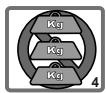
- Do not drop, puncture or disassemble the camera; otherwise the warranty will be voided.
- Avoid all contact with water and dry hands before using.
- Do not expose the camera to high temperature or leave it in direct sunlight. Doing so may damage the camera.
- Use the camera with care. Avoid pressing hard on the camera body.
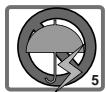
- For your own safety, avoid using the camera when there is a storm or lightning.
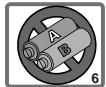
- Avoid using batteries of different brands or types at the same time. There is potential of explosion from using incorrect batteries.
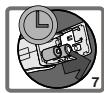
- Remove batteries during long periods between usage, as deteriorated batteries may affect the functionality of the camera.
- Remove batteries if they show signs of leaking or distortion.
- We suggest using only the accessories supplied by the manufacturer.
Contents
WELCOME CAUTION

Getting Started
4
- Your camera parts 4
- Loading the battery 5
- Inserting and removing the SD/MMC card 6
Inserting the card 6
Removing the card 6
- Attaching the strap 7
5.Using the tripod 8

Basic Operation
9
- Switching on and off 9
2.Setting the Mode switch 10 - Taking still pictures 11
The LCD display information 11
Snapshot 12
- Recording movies 13
The LCD display information 13
Making a movie 14
- Playing your pictures and movies 15
The LCD display information 15
Viewing pictures 16
Viewing movies 17
Deleting pictures and movies 18
- Recording an audio clip 19

Advanced Settings 20
- Menu access 20
Setting the language 21
Setting the date and time 22
Using the flash strobe 23
Setting the resolution 24
Setting the date stamp 25
Setting the flicker 26
Delete all and format 27
2.Using the self-timer 28
3. Using the Smart key 29

Enjoying your Images and Audio Clips 30 on the Computer
1.Installing MD 41084 Manager 30
2. Connecting your camera to your computer 33
3. Copying images and audio clips to your computer 34
4. Playing on your computer 36

Using MD 41084 Manager 37
1.Installing MD 41084 Manager 37
2. Connecting your camera to your computer 38
3.Starting MD 41084 Manager 40
4. Managing images via MD 41084 Manager 41
Album mode panel 41
Picture enhancement 42
Viewing your images 43
Copying your images to "My Album" 44
Designating the album path 45
Creating an AVI file 46
- Using PC Camera via MD 41084 Manager 47
Live mode panel 47
Capturing immediate images to your computer 48
Advanced settings 49

Troubleshooting 51

Other Information 53
- Battery life 53
- LED indicator events 53
- Storage capacity 54
- More on flicker 54
- Specifications 55
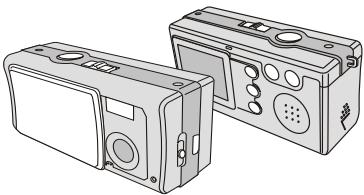
1. Your camera parts
Knowing your camera parts well before using it will help you operate it more easily.
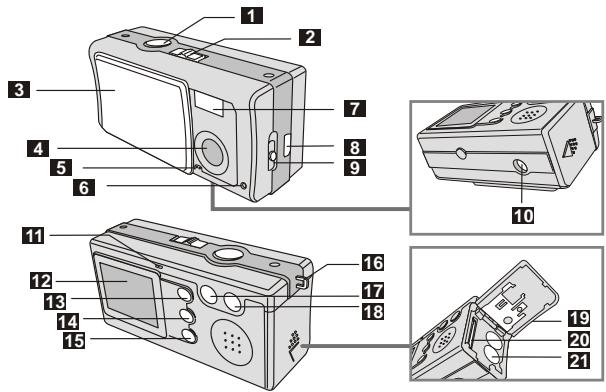
1 Shutter/OK button
2 Mode switch
3 Lens cover
4 Lens
5 Microphone
6 Self-timer lamp
7 Flash strobe
USB port
9 Focus switch
10 Tripod port
11 LED indicator
LCD display
13 PLAYBACK button (Control □ button)
14 Smart key (Control button)
13 MENU/ button
16 Strap hook
17 Control - button (Zoom out)
18 Control + button (Zoom in)
19 Battery/card cover
20 Card slot
21 Battery section
2. Loading the battery
Please use two AAA batteries.
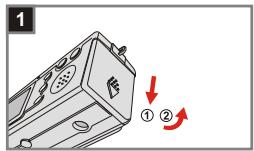
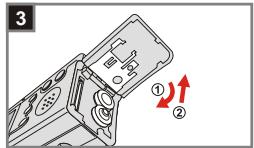
1 Slide the battery/card cover in the direction of the indication to open it.
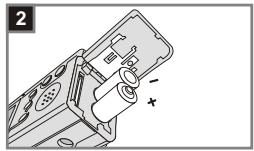
2 Follow the indication to load batteries into the battery section with the correct + and - ends.
3 Close inward and slide upward the battery/card cover to lock it.

- We recommend you to use rechargeable 1.2 V Ni-MH batteries as this will increase time of usage.
- You can also use 1.5V alkaline batteries.
For details of the battery life, please see the "Battery life" section on page 53.
3. Inserting and removing the SD/MMC card
Inserting the card
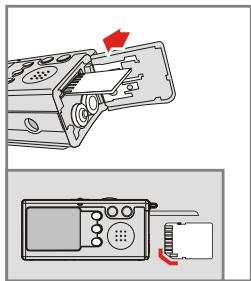
1 Open the battery/card cover.
2 Insert the card in the direction of the indication and push it in till the end of the card plot.
3 Close the battery/card cover.
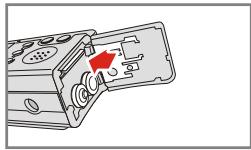
2 Removing the card
Push in and release the card to remove it.

- The camera comes with 16MB flash memory built inside for storage. If you do not insert a SD/MMC card, the data will be saved in the built-in flash memory automatically.
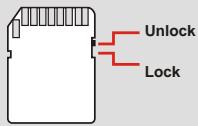
- The SD card comes with a write-protect switch. When the write-protect switch is set to the lock position, the card will become non-writable. To ensure that the camera can operate normally, please set the write-protect unlock position before inserting the card.
4. Attaching the strap
For convenience and safety, you may wish to attach the carrying strap.
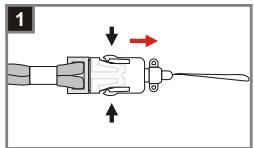
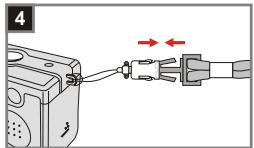
1 Press the buttons as indicated to separate the strap into two parts.
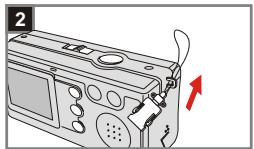
2 Thread the strap loop through the hook in the direction indicated.
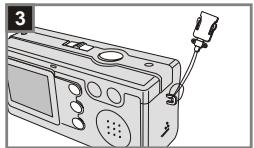
3 Fasten the strap loop as indicated.
4 Combine the strap as indicated.
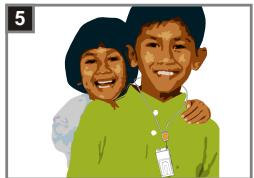
5 Wear the strap around your neck.
5. Using the tripod
Use the tripod to minimize camera movement and ensure optimal image quality, particularly while taking self-portraits, longer movies, video conferencing or in the macro mode.
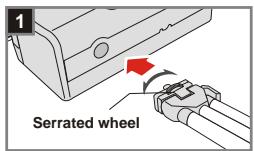
1 Attach the tripod to the port on the bottom of the camera and rotate the serrated wheel to lock it.
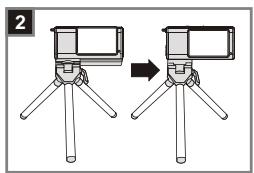
2 Unfold the legs to set up. Then adjust the alignment to the desired position.
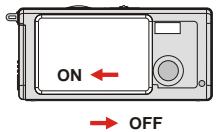
1. Switching on and off
Slide the Lens cover in the direction of the arrow to switch the camera on or off.
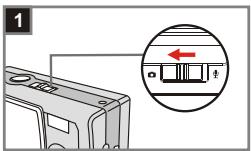
2. Setting the Mode switch
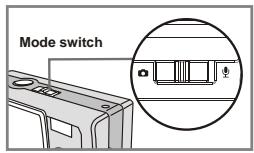
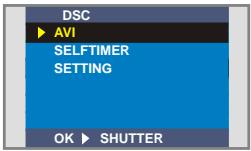
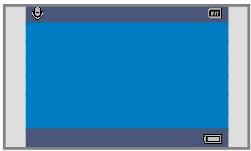
This camera provides two modes of use - DSC (Digital Still Camera) and Audio modes. Push the Mode switch to select the mode that you wish to use.
1 DSC mode: Taking still pictures, recording movies and setting the camera.
AVI: recording a movie.
SELFTIMER: taking a self-portrait picture.
SETTING: fine tuning the camera settings.
2 Audio mode: Recording audio clips.
DSC mode
Audio mode
3. Taking still pictures
The LCD display information
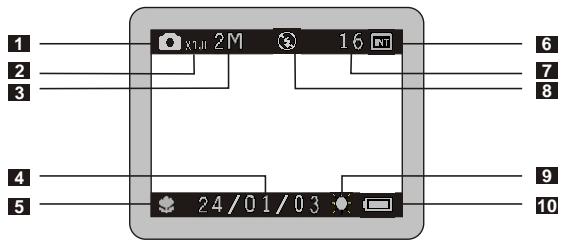
1 Still picture mode
2 Zoom ratio
3 Resolution
4 Date stamp
5 Focus mode
Storage media
Internal memory:
SD card: SD
MMC card:
7 Remaining number of pictures
8 Flash status
9 White balance or effect status
10 Battery life
2 Snapshot
1 mode
Slide the Lens cover to switch the camera on. Then set the Mode switch to 0 .
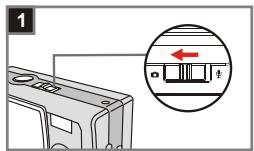
Focus
- Push the Focus switch to set the mode best for your picture.
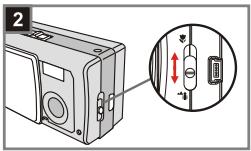
| Macro | 12"~16" (30cm~40cm) | |
| Micro | 16"~∞ (40cm~∞) |
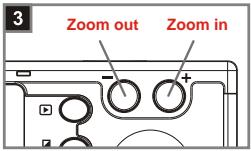
Zoom in or zoom out
Press the Control + button to zoom in or the Control - button to zoom out.
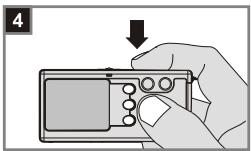
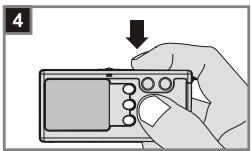
A Take a still
Press the Shutter button to take a shot.
4. Recording movies
The LCD display information
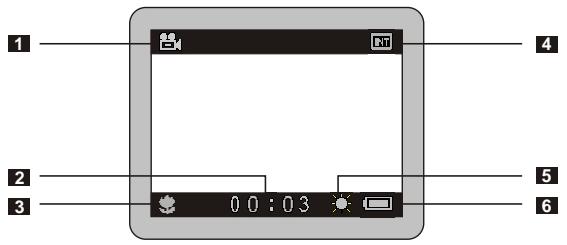
1 Movie mode
2 Recording time
3 Focus mode
4 Storage media
Internal memory:
SD card:
MMC card:
5 White balance or effect status
6 Battery life
2 Making a movie
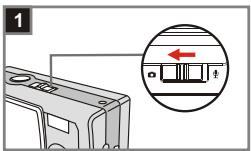
1 mode
Slide the Lens cover to switch the camera on. Then set the Mode switch to 0 .
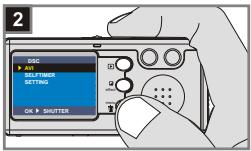
Select the AVI item
Press the MENU/ button. Use the Control buttons to highlight the AVI item, then press the Shutter button to confirm.
Focus
Push the Focus switch to set the focus as appropriate.
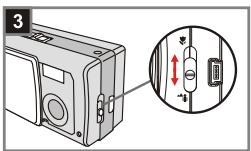
| Macro | 12"~16" (30cm~40cm) | |
| Micro | 16"~∞ (40cm~∞) |
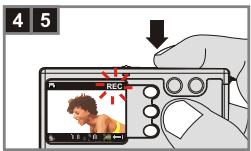
4 Start recording
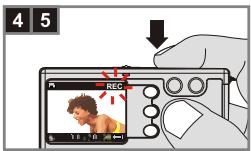
Press the Shutter button to start recording.
5 Stop recording
Press the Shutter button again to stop recording.
5. Playing your pictures and movies
The LCD display information
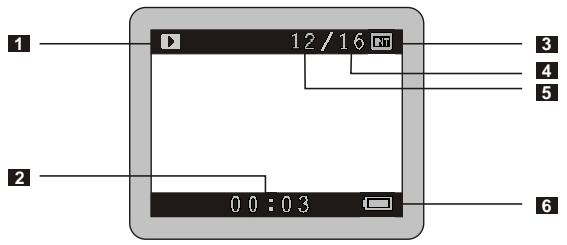
1Playback mode
2 Playing time of a recording
3 Storage media
Internal memory:
SD card:
MMC card:
4 Number of pictures and movies taken
Picture or movie number
6 Battery life
2 Viewing pictures
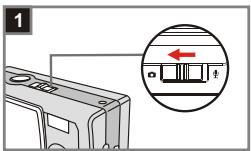
1 mode
Slide the Lens cover to switch the camera on. Then set the Mode switch to 0 .
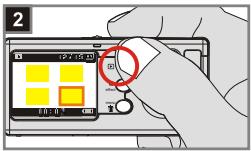
Playback mode
Press the PLAYBACK button to enter a thumbnail view. The last image taken will be highlighted.
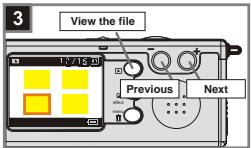
Select images
Press the Control - button to select the previous image or the Control + button to select the next one. Once you select the target file, press the PLAYBACK button to view the file.
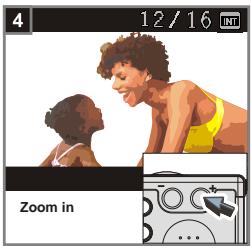
4 Zoom in for a close-up look
If you want to take a closer look, press the Control + button to zoom in.
Viewing movies
1 mode
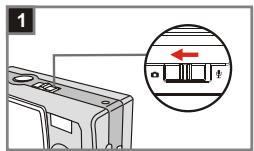
Slide the Lens cover to switch the camera on. Then set the Mode switch to 0 .
Playback mode
Press the PLAYBACK button to enter a thumbnail view. The last image taken will be highlighted.
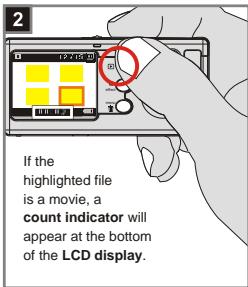
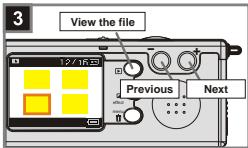
2 Select images
Press the Control - button to select the previous image or the Control + button to select the next one. Once you select the target file, press the PLAYBACK button to view the file.
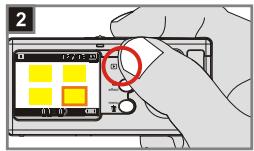
4 Stop playing the movie
While playing a recording, press the Shutter button to stop playing the movie.

- Press the MENU/ button to exit.
- While playing a movie on the camera, sound playback is not available. Please copy the movie to your computer (for details, see page 30) to view it with sound playback.
4 删除 pictures and movies
1 mode
Slide the Lens cover to switch the camera on. Then set the Mode switch to 0 .
Playback mode
Press the PLAYBACK button to enter a thumbnail view. The last image taken will be highlighted.
2 Select images
Press the Control - button to select the previous image or the Control + button to select the next one.
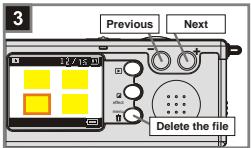
Delete the image
Once you select the target file, press the MENU/ button to bring up a confirmation screen of deletion. Then press the Control buttons to select the Yes item. Press the Shutter button to complete the action of deletion.
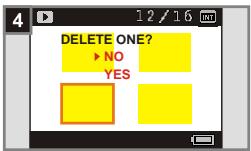

As the step. 4 above, select the No item and then press the Shutter button to exit if you do not wish to delete the image.
6. Recording an audio clip
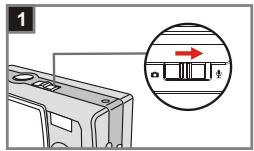
mode
Slide the Lens cover to switch the camera on. Then set the Mode switch to
2 Start recording Press the Shutt
Press the Shutter button to start recording an audio clip. While starting to record, the count indicator at the bottom of the LCD display will run.
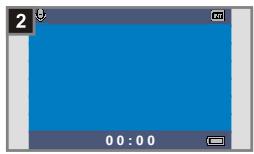
2 Stop recording
Press the Shutter button again to stop recording.

To play your audio clip, please copy the file to your computer first. For details on playing an audio clip, please see page 30.
1. Menu access
The SETTING Menu provides more advanced features for you to fine-tune the camera. The following describes how to access the Menu.
mode
Slide the Lens cover to switch the camera on. Then set the Mode switch to 0 .
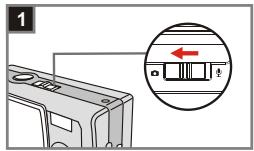
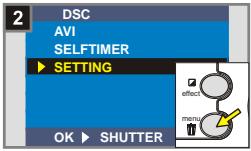
2 Select the SETTING item
Press the MENU/ button. Use the Control buttons to highlight the SETTING item, then press the Shutter button to confirm.
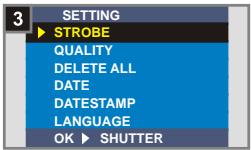
2 Adjust the settings
Use the Control buttons to highlight the desired item, then fine tune the setting of your camera.
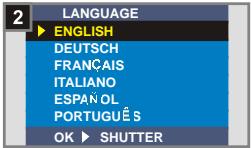
Setting the language
When you switch the camera on for the first time, the LCD display may not be shown in your local language. You can set the LCD display language by using the method below.
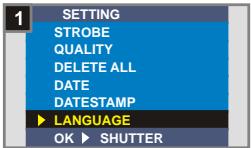
1 Select the LANGUAGE item
Under the SETTING Menu, use the Control buttons to highlight the LANGUAGE item, then press the Shutter button to confirm.
Select a language
Use the Control buttons to highlight the desired language, then press the Shutter button to confirm. Press the MENU/ button to exit.
Setting the date and time
When you switch the camera on for the first time, please set up the date and time.
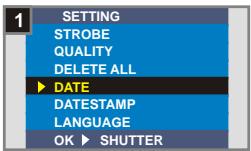
1 Select the DATE item Under the SETTING M
Control buttons to highlight the DATE item, then press the Shutter button to confirm.
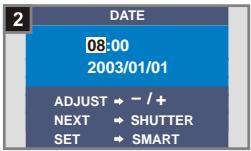
Set date and time
Use the Control +/- buttons to adjust the value, then press the Shutter button to shift between items. Press the Smart key to confirm or the MENU/ button to exit.
3 Using the flash strobe
When the lighting is not sufficient for your shooting environment, the flash can provide the extra light you need.
1 Select the STROBE item Under the SETTING Menu, use the Control buttons to highlight the STROBE item, then press the Shutter button to confirm.
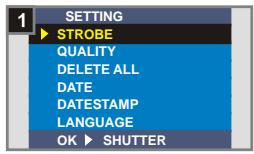
2 Select the AUTO item Use the Control buttons to highlight the AUTO item and press the Shutter button to confirm. Then press the MENU/ button to exit.
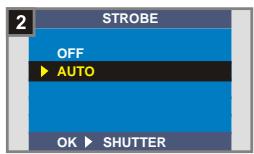
| OFF | The strobe does not fire. | |
| AUTO | The strobe will automatically fire as more light is needed. |

Charging the flash strobe requires more battery power. When the battery power is low, the flash strobe Auto cannot be set. Please change the batteries.
Setting the resolution
Changing the resolution affects the number of pictures that can be taken. The higher the resolution is, the more memory-demanding the images will be.
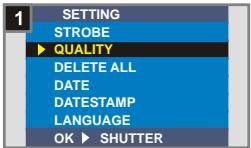
1 Select the QUALITY item
Under the SETTING Menu, use the Control buttons to highlight the QUALITY item, then press the Shutter button to confirm.
Select a desired item
Use the Control 值 buttons to highlight the resolution you want to choose, and press the Shutter button to confirm. Then press the MENU/ 值 button to exit.
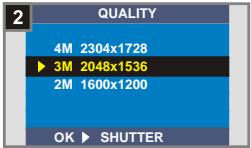
| 2304X1728 | 4M | The most memory-demanding option. Select the 2304x1728 type when you want to develop 6*8 photos or smaller. |
| 2048X1536 | 3M | The default setting. Select the 2048x1536 type when you want to develop 5*7 photos or smaller. |
| 1600X1200 | 2M | The most memory-saving option. Select the 1600x1200 type when you want to develop 3*5 photos or smaller. |

We recommend you to use 2048X1536 to optimize image quality and memory use.

For details, please see the "Storage capacity" section on page 54.
Setting the date stamp
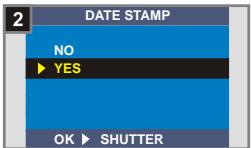
Enabling the date stamp will print the date of shooting on the picture.
1 Select the DATESTAMP item Under the SETTING Menu, us
Under the SETTING Menu, use the Control buttons to highlight the DATESTAMP item, then press the Shutter button to confirm.
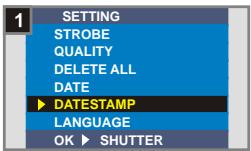
Select the YES item
Use the Control buttons to highlight the YES item and press the Shutter button to confirm.
Then press the MENU/ button to exit.
Setting the flicker
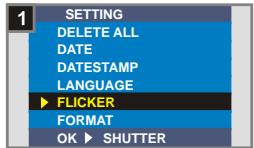
If you travel to another country, the flicker setting may not suit the country you are staying. To prevent nosie on the LCD display, please set the flicker matching the place you are staying.
1 Select the FLICKER item
Under the SETTING Menu, use the Control buttons to highlight the FLICKER item, then press the Shutter button to confirm.
Select a desired item
Use the Control buttons to highlight the flicker you want to choose, and press the Shutter button to confirm. Then press the MENU button to exit.
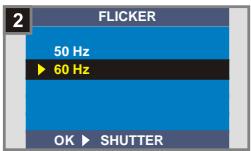
For more details on flicker settings, please refer to "More on flicker" on page 54.
7 Delete all and format
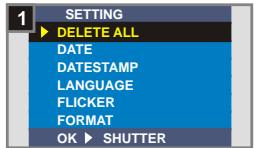
You can use "delete all" or "format" function to quick erase obsolete files. "Delete all" will only delete files, while "format" will format the storage and thus erase all files.
1 Select the DELETE ALL or FORMAT item
Under the SETTING Menu, use the Control buttons to highlight the DELETE ALL or FORMAT item, then press the Shutter button to confirm.
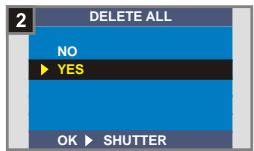
Select the YES item
Use the Control buttons to select the YES item, and press the Shutter button to confirm. Then press the MENU/ button to exit. Note that the deleted files can not be restored.
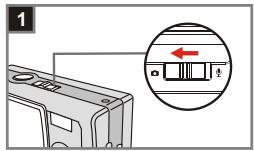
2. Using the self-timer
The self-timer allows a delay of ten seconds before the shutter fires when taking a self-portrait picture.
mode
Slide the Lens cover to switch the camera on. Then set the Mode switch to 0 .
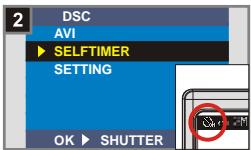
2 Select the SELFTIMER item
Press the MENU/ button. Use the Control 空 buttons to highlight the SELFTIMER item, then press the Shutter button to confirm. You will see a icon on the top left section of the LCD display.
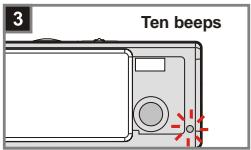
Use the self-timer
When the Shutter button is pressed, the camera will have ten seconds delay with the Self-timer lamp flashing and ten beeps emitting before taking a picture. After the shutter fires, the self-timer will be automatically disabled.
3. Using the Smart key
The Smart key allows you to immediately apply the functions in common use - Auto, Sunny, Cloudy, Tungsten, Fluorescent (white balance [WB]) and B & W (photo effect) - of this camera, as well as view the real-time change on the LCD display.
mode
Slide the Lens cover to switch the camera on. Then set the Mode switch to 0 .
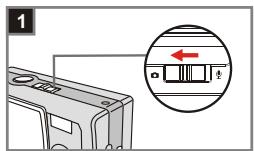
Press the Smart key
Press the Smart key to switch the mode to cycle through six choices - Auto, Sunny, Cloudy, Tungsten, Fluorescent and B & W on the LCD display.
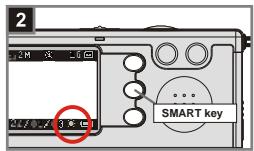
| Auto | A | This item determines the best white balance setting automatically for your shooting environment. |
| Sunny | Suitable for normal outdoor shooting under sunny (bright) weather. | |
| Cloudy | Suitable for cloudy weather or shady (dim) environments. | |
| Tungsten | Suitable for indoor shooting with incandescent lamp lighting (low color condition). | |
| Fluorescent | Suitable for indoor shooting with fluorescent lamp lighting (high color condition). | |
| B & W | Changes the shot to black and white. |

Enjoying your Images and Audio Clips on the Computer
1. Installing MD 41084 Manager
Install MD 41084 Manager before connecting your camera to your computer for the first time. Please follow the steps to complete the installation.
1 Turn on your computer.
1 Do not connect the USB cable to your computer at this stage.
1 Turn off other applications running on your computer.
2 Place the supplied CD into the CD-ROM drive.
3 Move the mouse to the icon (MD 41084 Manager) and click it.
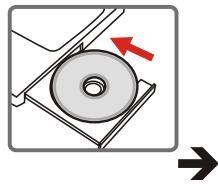
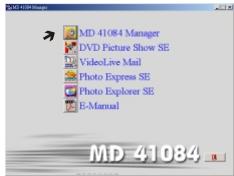
If no title appears on the screen, please follow the steps.
- Double click the "My computer" icon.
- Double-click the CD-ROM drive icon (MD 41084 Manager (E:) ). The name of CD-ROM drive changes depending on how your computer is set up.
1 For Windows XP users: Skip step 1. "Installing MD 41084 Manager" and go to step 2. "Connecting your camera to your computer" if you do not use the functions provided in MD 41084 Manager.
4 The "Install Shield Wizard" dialogue box is occurring and the automatic installation begins. When a window as Fig 1 appears, click "Next". Then follow the on-screen instructions to continue.
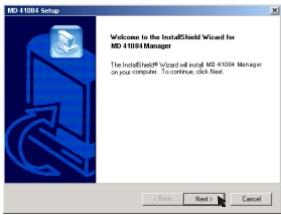
Fig 1
Notice for Windows 2000 users
- The "Digital Signature Not Found" dialogue box might show twice. Please simply click "Yes". The camera works well for Windows 2000.
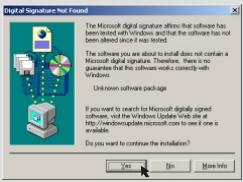
- Follow the on-screen instructions and click "Finish".
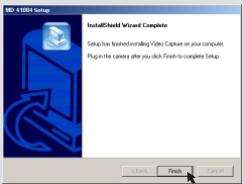
! Do not restart your computer at this step.
5 When a window as Fig 2 appears, please click "Yes" or "No" according to your circumstance.
If you are not a Windows XP user, or never install DirectX 8.0 or above, click "Yes".
If you are a Windows XP user, or you have already installed DirectX 8.0 or above, click "No".
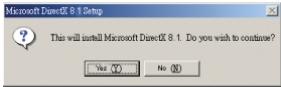
Fig 2
6 When a window as Fig 3 or Fig 4 appears, please click "OK" or "Finish" to complete the installation.
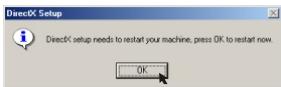
Fig 3
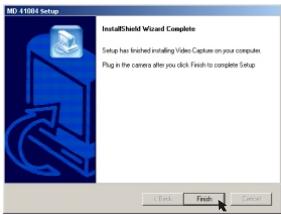
Fig 4
The driver will be available after restarting your computer.
2. Connecting your camera to your computer
1 Turn on your computer.
2 Set the Mode switch on your camera to or
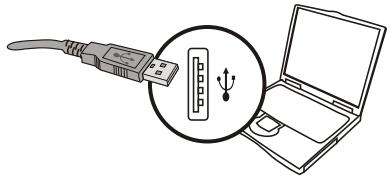
3 Insert the USB cable to the USB port on your computer.
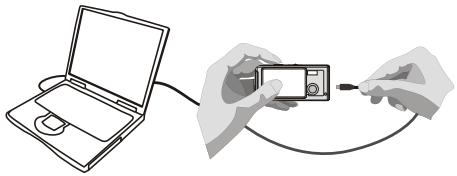
4 Insert the other end of the USB cable to the USB port on your camera.
3. Copying images and audio clips to your computer
For Windows XP users
After connecting your camera with the computer, a window will automatically appear (as Fig 5). Select the "Open folder to view files using Windows Explorer" item and then click "OK".
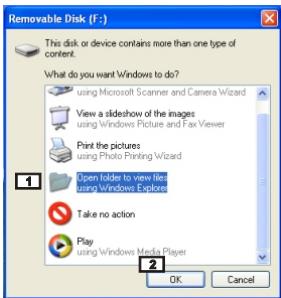
Fig 5
For Windows 2000/ME/98SE users
Double-click "My computer", then double-click the new "Removable Disk" icon.
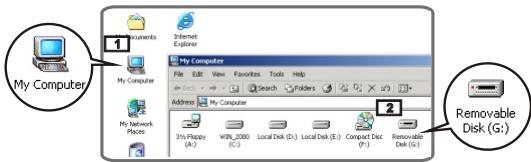
Double-click the "DCIM" file folder.
3 Double-click the "100MEDIA" file folder.
4 Drag the file to the "My Documents" file folder to copy your image or audio clip to the computer.
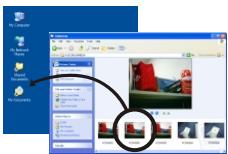
For Windows XP users
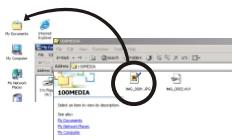
For Windows 2000/ME/98SE users
The storage position of the files
You can find the files of your pictures, movies and audio clips as Fig 6.
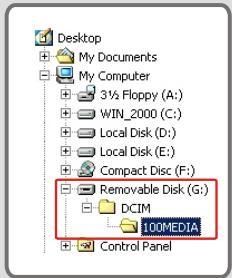
Fig 6
4. Playing on your computer
1 Double-click "My Documents".
For Windows XP users
For Windows 2000/ME/98SE users
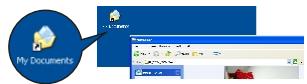
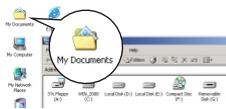
2 Select the desired file and double-click it to view.

Notice on disconnecting the camera from the computer for Windows 2000/ME users
To disconnect your camera from the computer, please follow these steps.
- Double-click on the task bar.
- Click (USB Disk), then click "Stop".
- Select the camera (MD 41084) on the confirmation screen and click "OK".
- Follow the on-screen instruction to disconnect your camera from your computer correctly and safely.
1. Installing MD 41084 Manager
You need to install MD 41084 Manager to take advantage of the provided functions - images enhancement, images management and PC Camera.

If you never install MD 41084 Manager, please finish the installation first. For details, please see step 1. "Installing MD 41084 Manager" on page 30.
If you have already installed MD 41084 Manager, please go to step 2. "Connecting your camera to your computer" on the next page.
2. Connecting your camera to your computer
1 Turn on your computer.
2 Set the Mode switch on your camera to or
3 Insert the USB cable to the USB port on your computer.
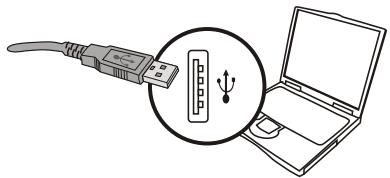
Press and hold the Shutter button as you insert the other end of the USB cable to the USB port on your camera.
Please slide the Lens cover on if you want to use PC Camera function.
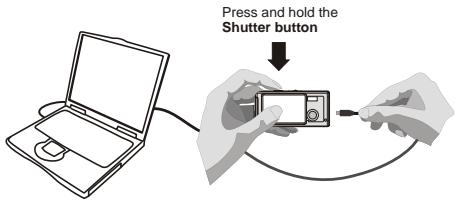
As the step. 4 above, if you do not press and hold the Shutter button when inserting the USB cable to your camera, PC camera function will not be available.

Notice for Windows 2000/ME/98SE users
During the installation process for the first time, please follow the steps below.
For Windows 2000 users
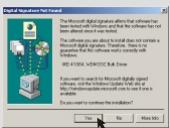
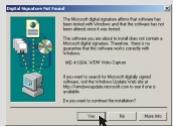
The "Digital Signature Not Found" dialogue box might appear twice, please simply click "Yes". This camera works well for Windows 2000.
For Windows ME users
Please select "Automatic search for a better driver" when a window as Fig 7 appears.
For Windows 98SE users
Click "Next" when a window as Fig 8 appears.
Select "Search for a best driver for your device" and click "Next" when a window as Fig 9 appears.
Select the position where your Windows 98SE CD-ROM in your CD-ROM drive. Then follow the on-screen instructions to complete the installation.
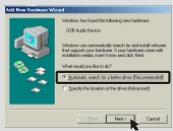
Fig 7
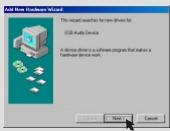
Fig 8
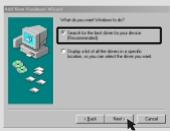
Fig 9
3. Starting MD 41084 Manager
After the installation of software and hardware, you can access MD 41084 Manager.
Launch the software
Double-click the MD 41084 Manager icon on the desktop to execute the program; or click the "Start" menu and go up to "Programs", then go to the folder named "MD 41084 Manager" and click it to launch the program.
2"Album" and "Live" mode
The windows below are interface of MD 41084 Manager - Album mode (Fig 10) and Live mode (Fig 11). Click the switch at the top left section of the mode panel to set the mode.
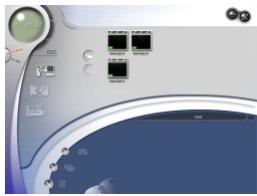
Fig 10
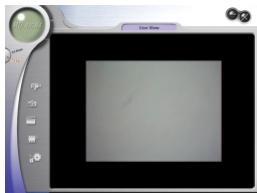
Fig 11
4. Managing images via MD 41084 Manager
1 Album mode panel
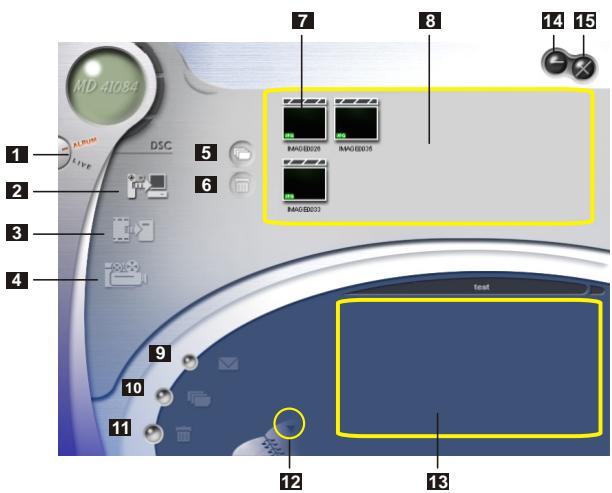
1 Album/ Live mode switch
2 Upload images to the work area
3 Transfer images to the album
4 Create an AVI file
5 Select all images in work area
6 Delete images in work area
7 Thumbnail
8 Work area
9 Send mail
10 Select all images in My Album
11 Delete all images in My Album
12 Album manager
13 My Album
14 Minimize
15 Exit
2 Picture enhancement
The enhancement function enhances your images form 4 Mega to 5 Mega, 3 Mega to 4 Mega and 2 Mega to 3 Mega. The enhanced format offers higher quality, but also requires more disk space.
1 When launching MD 41084 Manager, a dialogue box as Fig 12 will automatically pop up to ask if you want to download photos from your camera.
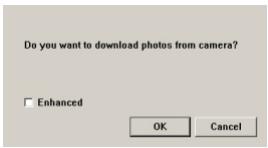
Fig 12
2 Select the "Enhanced" check box if you want to enhance your images; or skip this step if you do not need to enhance images.
3 Click "OK" to copy your pictures and movies from the camera; or click "Cancel" not to copy them.

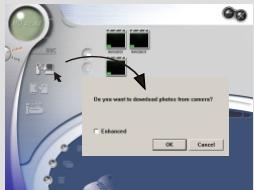
Under the Album mode, click the icon to launch the dialog box of enhancement function when you want to enhance your images.
Viewing your images
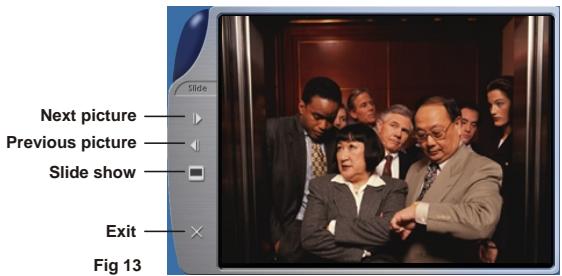
Double-click the desired picture or movie thumbnail in the Work area to view it. Then a viewer window as Fig 13 (when viewing a picture) or a default media player window as Fig 14 (when viewing a movie) will appear.
Exit
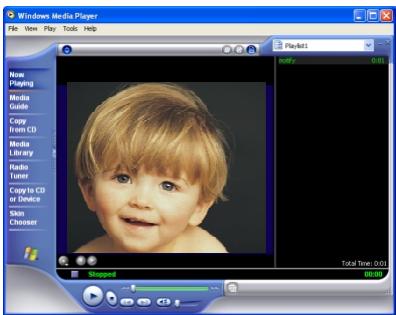
Fig 14
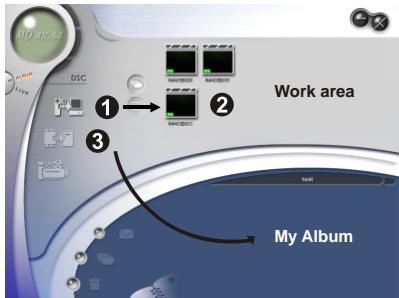
4 Copying your images to "My Album"
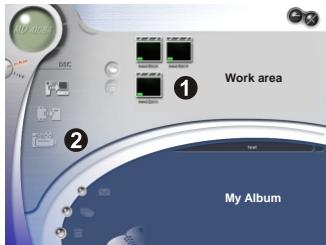
1 Click the icon to transfer your pictures and movies to the Work area.
2 Click the desired image in the Work area.
3 Click the icon to copy the image from the Work area to My Album.
5 Designating the album path
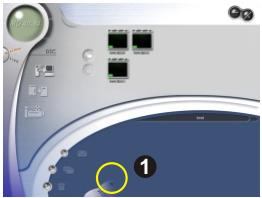
1 Click Album manager to create a new photo album.
2 Key in a new album name, then click to designate a path where the album will be stored. Click "Update" to confirm. (Fig 15)
3 Double-click the new album item to open the newly created album. (Fig 16)
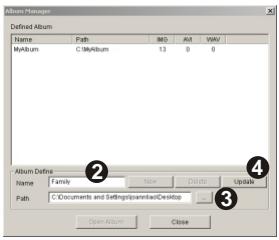
Fig 15
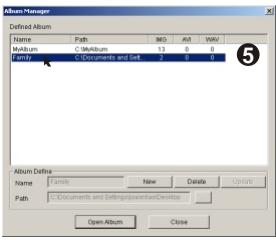
Fig 16
6 Creating an AVI file
1 Select one or more images from the Work area.
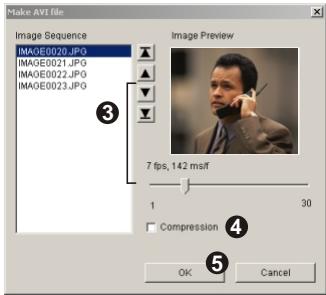
2 Click the icon, then a "Make AVI file" window will appear.
3 Arrange the sequence of the images and adjust the frame rate. Select the "Compression" check box if you want to reduce the file size. Then press "OK" to complete the AVI file creation.
5. Using PC Camera via MD 41084 Manager
Live mode panel
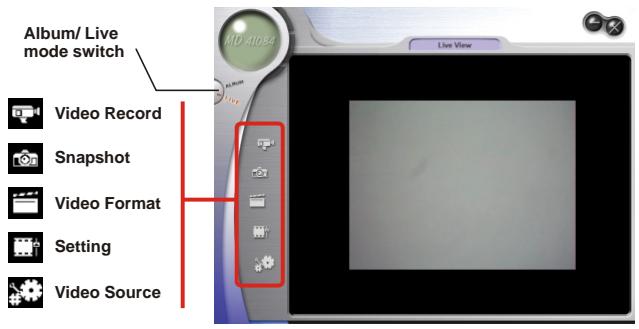
2 Capturing immediate images to your computer
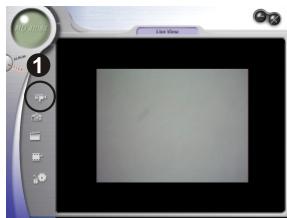
Under the Live mode, you can use PC Camera function or run other video conferencing applications. (This manual provides information related to PC Camera function only).
1 Click the icon.
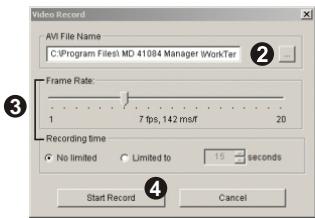
2 Click to designate a path where the file will be stored. Set the speed and time of the recording. Then press the "Start Record" button to begin recording.
3 Click the icon to stop recording.
1 Continued from the step. 2 above, as you designate the storing path, please make sure that the destination folder should have at least 500 MB of free space. Otherwise, the "Fail to make AVI file!" message will appear once you press the "Start Record" button.
3 Advanced settings
Click the (Video Format) and (Setting) icons on the Live mode panel to bring up advanced settings.
Format settings
1 Color Space/Compression Set one of the following functions according to your needs.
RGB 24: Better image quality.
1420: The file will be compressed to add advantage for faster-speed transformation.
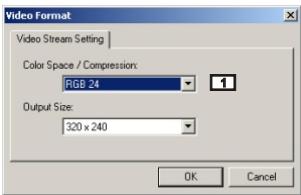
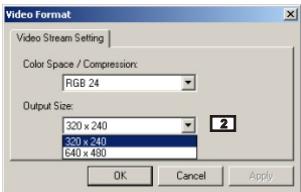
2 Output Size Set output size to change the size of the preview window. The default size is 320x240. Select larger pixels when you need a larger preview window.
Properties settings
1 Video Setting
1 Banding Filter
If the screen of your computer flickers when using PC Camera function, change the "Banding Filter" item on the "Video Setting" tab to avoid noise. Select "50Hz" or "60Hz" until the screen stops flickering. If you want to restore the default setting, select "Normal AE".
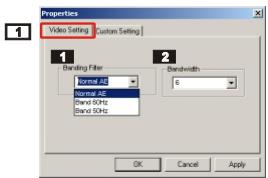
Bandwidth
If the controller has no enough bandwidth available for the camera, set the "Bandwidth" item on the "Video Setting" tab. The smaller the bandwidth value is, the less the bandwidth is occupied. Then it will take more time to transmit images.
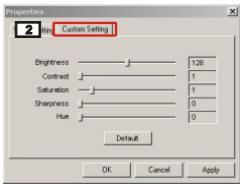
2 Custom Setting You can use the
You can use the default settings or change the settings of brightness, contrast, saturation, sharpness, and hue on your own.
| Question | Answer |
| When using the camera | |
| The camera has no power. | The batteries may be out of power, please change the batteries. |
| Cannot power on my camera even though batteries are installed. | Make sure that the batteries are installed correctly. If it is idle over 3 minutes, the camera will shut down automatically, please slide the Lens cover to switch the camera on. |
| Cannot take pictures and movies when pressing the Shutter button. | Make sure that the Lens cover is open. The storage is full. Please free some space of the SD/MMC card or flash memory. Check if the camera is under the status of charging batteries. Check if the SD/MMC card is set to "protected". If the "MEMORY ERROR" or "CARD ERROR" message shows on the LCD display, please set the camera to the Setting mode and format the storage media. |
| I did not delete the picture and movie, but cannot find the data in the SD/MMC card. | Check if your files are stored in the camera's built-in memory. If there is a or icon at the top right section on the LCD display, it means you are using the camera with a SD/MMC card. Please remove the card to find the data in the flash memory. (For details, see the "Removing the card" section on page 6) |
| Cannot set the strobe to the "Auto" mode. | Charging the flash strobe requires more power of batteries. When the battery is under the status of low power, the strobe Auto cannot be set. Please change the batteries. |
| The image is too blurred. | Adjust the focus. Keep the camera steady with pressing the Shutter button while taking pictures. |
| The image is too dark. | You may need to take pictures or movies in the place with adequate light or use the flash strobe. |
| Sound playback is not available when viewing the movie on the LCD display. | This situation is normal. If you want the movie with sound playback, please copy the movie to your computer and view it on the computer. |
| Noise occurs on my camera when viewing the image on the LCD display or on the computer. | Set the filter matching the place you are staying. Please refer to the "More on flicker" section on page 54. |
| When connecting the camera to your computer | |
| The driver installation failed. | Please remove the driver and other related programs. Follow the installation steps in this manual to reinstall. Install the driver before inserting the USB cable. |
| A conflict with other installed camera or capture device. | If you have any other camera or capture device, completely remove the camera and its driver from the computer to avoid a driver conflict. |
| The movie cannot be played on my computer. | Please install DirectX 8.0 or above. (See the "Installing MD 41084 Manager" section on page 30 or download DirectX 8.0 and get more information on Microsoft website.) |
| Noise occurs on my computer when using video conferencing. | Set the filter matching the place you are staying. Please refer to the "Banding Filter" section on page 50. |
1. Battery life
| Number Condition | Number of images | Battery life (minutes) |
| Taking Still Pictures 2048x1536 (without flash strobe) | 360 | 30 |
*Data above is for using rechargeable 750 mAH batteries and in 25^ , with pictures taken every five seconds.
Notes: 1. The table above is for reference only.
2. Life of battery will be shorten in the following conditions.
(1) Taking snapshot at low temperature.
(2) Switching on/off power repeatedly.
(3) Using the flash strobe frequently.
2. LED indicator events
| Condition | Meanings | |
| LED indicator | Steady | Ready (waiting for command) |
| Flashing | Busy (mode change, storage, capture, flash charge and data transformation) | |
| Self-Timer lamp | Regularly | Counting |
| Rapidly | Capturing the picture | |
1 Never eject the card or remove the batteries while the LED indicator is lit up red.
3. Storage capacity
| Memory | Still picture | Movie | ||
| 2304x1728 | 2048x1536 | 1600x1200 | Maximum recording time | |
| Flash memory (16MB) | 15 | 20 | 30 | 2 mins |
| SD/MMC card (32MB) | 30 | 40 | 60 | 4 mins |
| SD/MMC card (64MB) | 60 | 80 | 120 | 8 mins |
| SD/MMC card (128MB) | 120 | 160 | 240 | 16 mins |
| SD/MMC card (256MB) | 240 | 320 | 480 | 32 mins |
| SD/MMC card (512MB) | 480 | 640 | 960 | 64 mins |
Notes: 1. Actual number of pictures stored may vary (up to ± 30% ) depending on the resolution and color saturation.
2. The table above is for reference only.
4. More on flicker
The default flicker setting of your camera depends on your country. When using the camera abroad, please refer to the table below to match the flicker setting with the place you go.
| Country | England | Germany | France | Italy | Spain | Netherlands |
| Setting | 50Hz | 50Hz | 60Hz | 50Hz | 50Hz | 50Hz |
| Country | Portugal | America | Taiwan | China | Japan | Korea |
| Setting | 50Hz | 60Hz | 60Hz | 50Hz | 50/60Hz | 60Hz |
5. Specifications
| Hardware resolution | 2304x1728 (4.1 Mega pixels) |
| Sensor effective resolution | 2048x1536 (3.1 Mega pixels) |
| Internal memory | Built-in 16 MB SDRAM (buffer) 16 MB flash memory (storage) |
| External memory | Built-in SD/MMC slot (maximum: 512 MB) |
| Digital still camera | JPEG Format 2304x1728 (4.1 Mega pixels); 2048x1536 (3.1 Mega pixels);1600x1200 (2 Mega pixels) |
| Digital video camcorder | Motion JPEG (AVI) Format QVGA (320x240 pixels) / up to 20 fps |
| Video conferencing | VGA (640x480 pixels) / up to 10 fps QVGA (320x240 pixels) / up to 20 fps |
| LCD display | 1.5" Color TFT LCD |
| Digital zoom | 4x (for still pictures); 2x (for playback view) |
| Exposure | Auto |
| Smart key | Auto/ Sunny/ Cloudy/ Fluorescent/ Tungsten (five modes for white balance); black and white (for effect) |
| Lens | F=2.8 |
| Self Timer | 10 seconds |
| Interface | USB 1.1 (USB 2.0 compatible) |
| Power saving | Auto power-off if idle for over 3 minutes Auto suspense if idle for over 1 minute |
| Built-in flash strobe | Yes |
| Built-in microphone | Yes |
| Battery | AAAx2 (Rechargeable Ni-MH batteries recommended) |
| Dimension | 88x34x43 mm |
BENUTZERHANDBUCH
Slimline 4 in1 MD 41084
DIGITAL CAMERA
WILLKOMMEN
1 Lancer le programme
6. Registrare file audio
1 Modalita Anirje il Cop
| Makro | (30cm~40cm) | |
| Mikro | (40cm~∞) |
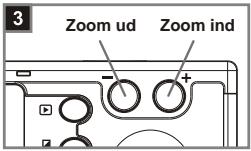
3 Zoom ind aller ud Tryk na beti-jings
Tryk pà betjeningsknappen + for at zoome ind uller betjeningsknappen - for at zoome ud.
| Makro | (30cm~40cm) | |
| Mikro | (40cm~∞) |