
COPIA 9910 - Multifunction printer OLIVETTI - Free user manual and instructions
Find the device manual for free COPIA 9910 OLIVETTI in PDF.


User questions about COPIA 9910 OLIVETTI
0 question about this device. Answer the ones you know or ask your own.
Ask a new question about this device
Download the instructions for your Multifunction printer in PDF format for free! Find your manual COPIA 9910 - OLIVETTI and take your electronic device back in hand. On this page are published all the documents necessary for the use of your device. COPIA 9910 by OLIVETTI.
USER MANUAL COPIA 9910 OLIVETTI
In some areas, the "POWER" switch positions are marked "I" and "0" on the copier instead of "ON" and "OFF".
CAUTION: For a complete electrical disconnection, pull out the main plug.
The socket-outlet shall be installed near the equipment and shall be easily accessible.
1 Operation manual (Printer driver CD-Rom and printer operation manual if printer option is provided)
2 Power cord
3 TD cartridge
4 Drum cartridge (installed in copier)
5 Bypass tray
6 SPF Exit Tray/R-SPF exit tray
7 Middle tray
8 Interface cable (IBM PC/AT compatible computer if printer option is provided)

- If anything is not included or is damaged, contact your dealer.
- Save the carton and packing materials. These can be re-used for transporting the machine, should it be necessary.
DK
WARNING: Provided with some models only
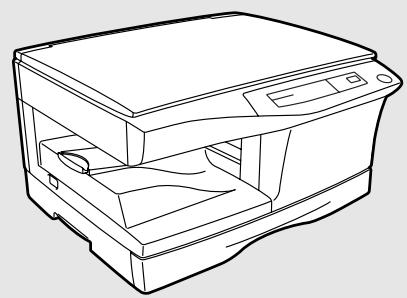
1 Original cover
2 Side cover
3 Manual bypass
4 Paper guides
5 Side cover open button
6 Front cover
7 Paper tray (two paper trays may be available depending on the model)
8 Operation panel
9 Original table
10 Cover for optional printer interface
11 Paper output tray
12 Paper output tray extension
13 Handle
14. Power switch
15 Power cord socket
16 TD cartridge lock release button
17 TD cartridge
18 Drum cartridge
19 Drum cartridge handle
20 Transfer charger
21 Charger cleaner
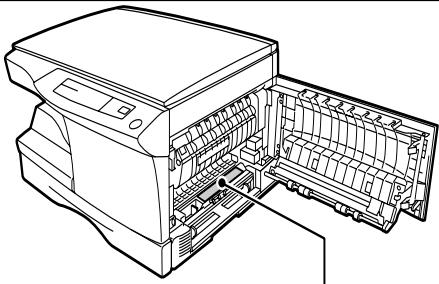
22 Fusing unit release tab
23 Paper feed roller
24 SPF and R-SPF exit area
25 Middle tray
26 Original guides
27 Document feeder tray
28 Feeding roller cover
29 Bypass tray
30 Bypass tray guides
(D)
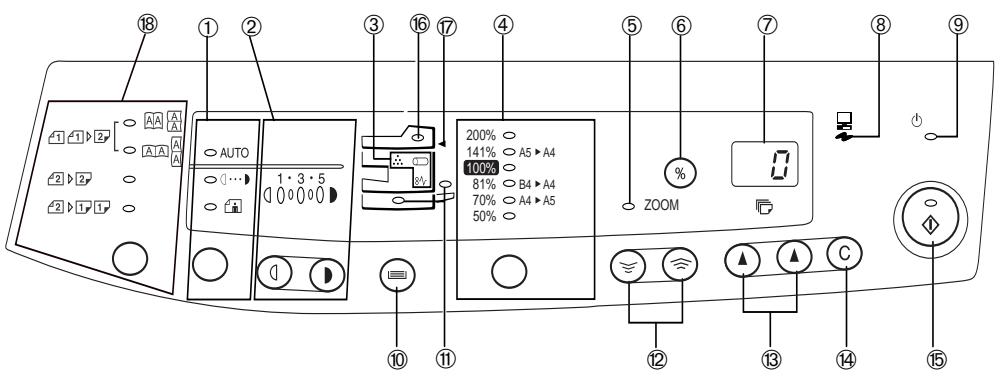
① Exposure mode selector key and indicators Use to sequentially select the exposure modes AUTO, MANUAL ( ) or PHOTO (F).Selec ed mode is shown by a lit indicator. (p.1-12)
② Light ( ① ) and dark ( ① ) keys and exposure indicators
Use to adjust the MANUAL (1 1) or PHOTO (_面) exposure level. Selected exposure level is shown by a lit indicator. (p. 1-12)
Use to start and terminate user program setting. (p. 1-20)
③ Alarm indicators
日 : Drum replacement required indicator (p.1-23) _V : Misfeed indicator (p. 1-26)
TD cartridge replacement required indicator (p. 1-21)
④ Copy ratio selector key and copy ratio indicators
Use to sequentially select preset reduction/ enlargement copy ratios. Selected copy ratio is shown by a lit indicator. (p. 1-14)
⑤ Zoom indicator (p. 1-14)
⑥ Copy ratio display (%) key (p. 1-14)
⑦ Display
Displays the specified copy quantity, zoom copy ratio, user program code, and error code.
⑧ ON LINE indicator
Lights up when the machine is used as a printer (optional). To use this machine as a printer, an optional printer upgrade kit is needed.
⑨ Power save indicator
Lights up when the copier is in a power save mode. (p. 1-18)
⑩ Tray select (==) key and indicators
Use to manually select a paper tray.
① Paper feed location indicator
Light up to show the selected paper feed station. Two paper trays may be available depending on the model.
念 Zoom keys ( ,)
Use to select any reduction or enlargement copy ratio from 50 to 200% in 1% increments. (p. 1-14)
Copy quantity keys (A,A)
- Use to select the desired copy quantity (1 to 99). (p. 1-11)
- Use to make user program entries. (p. 1-20)
Clear key (C)
- Press to clear the display, or press during a copy run to terminate copying. (p. 1-11)
- Press and hold down during standby to display the total number of copies made to date. (p.1-32)
Print key and ready indicator (
- Copying is possible when the indicator is on.
- Use to set a user program.
SPF indicator ()
密 SPF misfeed indicator () (p.1-32)
R-SPF misfeed indicator (4) (Duplex model only)
One sided / Two sided mode (Duplex model only)
-
Use the two-sided copy feature to make one or two-sided copies from one or two-sided originals (p. 1-38).
-
N.B.: Different copy ratios are defined for the 120 V model (see the specifications)
VII
The mains lead of this equipment is already fitted with a mains plug which is either a nonrewireable (moulded) or a rewireable type. Should the fuse need to be replaced, a BSI or ASTA approved fuse to BS1362 marked 或 and of the same rating as the one removed from the plus must be used.
Always refit the fuse cover after replacing the fuse on the moulded plug. Never use the plug without the fuse cover fitted.
In the unlikely event of the socket outlet in your home not being compatible with the plug supplied either cut-off the moulded plug (If this type is fitted) or remove by undoing the screws if a rewireable plug is fitted and fit an appropriate type observing the wiring code below.
DANGER: The fuse should be removed from the cut-off plug and the plug destroyed immediately and disposed of in a safe manner. Under no circumstances should the cut-off plug be inserted elsewhere into a 13A socket outlet as a serious electric shock may occur.
To fit an appropriate plug to the mains lead, follow the instructions below:
IMPORTANT: The wires in this mains lead are coloured in accordance with the following code:
GREEN-AND-YELLOW: Earth
BLUE: Neutral
BROWN:Live
As the colours of the wires in this mains lead may not correspond with coloured markings identifying the terminals in your plug, proceed as follows:
The wire which is coloured GREEN-AND-YELLOW must be connected to the terminal in the plug which is marked with the letter E, or by the safety earth symbol 1一 , or coloured green or green-and-yellow.
The wire which is coloured BLUE must be connected to the terminal which is marked with the letter N or coloured black.
The wire which is coloured BROWN must be connected to the terminal which is marked with the letter L or coloured red.
DIGITAL COPIER
OPERATION MANUAL
DIGITALER KOPIERER
PUBLICATION ISSUED BY:
Olivetti Lexikon, S.p.A.
77, Via Jervis - 10015 Ivrea (Italy)
Copyright © 1999, Olivetti
All rights reserved
Publishing Department:
Olivetti Lexikon, S.p.A.
P.B.U. Ink Jet
This copier has been designed to provide intuitive operating ease while requiring a minimum amount of space. To get full use of all copier features, be sure to familiarize yourself with this manual and the copier. For quick reference during copier use, keep this manual in a handy location.
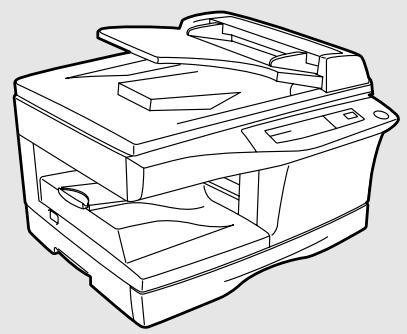
Depending on the model purchased, your copier can be equipped with a Single Pass Original Feeder (SPF), a Reverse Single Pass Feeder (R-SPF), two paper trays. The copier can also be used as a laser printer if an optional printer is installed. This manual describes only the copier features. For description of the printer features, see the printer manual.
Conventions used in this manual
In this manual, the following icons are used to provide the user with information pertinent to the use of the copier.

Warning
Warns the user that injury to the user or damage to the copier may result if the contents of the warning are not properly followed.

Caution
Cautions the user that damage to the copier or one of its components may result if the contents of the caution are not properly followed.

Note
Notes provide information relevant to the copier regarding specifications, functions, performance, operation and such, that may be useful to the user.

A letter shown in the display indicates a problem with the copier. (Please refer to section 1-26 for a detailed explanation).
CONTENTS INHALT
Unpacking.
Part names. III Operation panel VIII
Operation panel .VII Introduction 1-1
A word on copier installation 1-2
Cautions 1-4
Set-up 1-6
Installing the TD cartridge 1-7
Loading copy paper. 1-8
Normal copying 1-10 Exposure adjustment/Photo copying 1-12
Automatic exposure adjustment 1-13
Reduction/Enlargement/Zoom 1-14
Bypass feed (special paper) 1-15
Two-sided equations 4-17
Two-sided copying 1-17 Descriptions of special functions 1-18
Descriptions of special functions 1-18 Toner save mode 1-19
User programs 1-20
TD cartridge replacement 1-21
Drum cartridge replacement 1-23
User maintenance 1-25
User maintenance. 1-25 Misfeed removal. 1-26
Misfeed in the lower paper feed area 1-28
Misfeed removal from SPF 1-29
Copier trouble 1-30
Status indicators 1-32
Specifications 1-34 Specifications for 120 V version 1-35
Specifications for 120 v version . 1-35 Supply part numbers and storage 1-37
Supply part numbers and storage 1-37
Moving instructions 1-38
Making Instructions .. . . . . . . . . . . . . . . . . . . . . . . . . . . . . . . . . . . . . . . . . . . . . . . . . . . . . . . . . . . . . . . . . . . . . . . . . . . . . . . ..
Feeder (R'-SPF) (Duplex model only) 1-39
Manual two-sided copying (Duplex model only) .. 1-41
Improper installation may damage the copier. Please note the following during initial installation and whenever the copier is moved.
If the copier is moved from a cool place to a warm place, condensation may form inside the copier. Operation in this condition will cause poor copy quality and malfunctions. Leave the copier at room temperature for at least 2 hours before use.
-
Do not install your copier in areas that are:
-
damp, humid, or very dusty
exposed to direct sunlight
poorly ventilated -
subject to extreme temperature or humidity changes, e.g., near an air conditioner or heater.
-
Be sure to allow the required space around the machine for servicing and proper ventilation.
-
Do not expose the drum cartridge to direct sunlight.
Doing so will damage the surface (green portion) of the drum cartridge, causing smudges on copies.
- Store spare supplies such as drum cartridges and TD cartridges in a dark place without removing from the package before use.
If they are exposed to direct sunlight, smudges on copies may result.
- Do not touch directly the surface (green portion) of the drum cartridge with a hand.
Doing so will damage the surface of the cartridge, causing smudges on copies.
- Ensure that the power switch of the copier is in the OFF position. Insert the attached power cord into the power cord socket at the rear of the copier.
If you use the copier in a country other than the country where the copier was purchased, you will need to make sure that your local power supply is compatible with your model. If you plug the copier into an incompatible power supply, severe damage to the copier may result.
- Plug the other end of the power cord into the nearest outlet.
Only insert the power cord into a properly grounded wall socket.
Turn the power switch on the left side of the copier to the "ON" position. The ready () indicator will light up and other indicators which show the initial settings of the operation panel will also light up to indicate the ready condition. For the initial settings, see the "Initial settings of operation panel" described below.

The copier will enter a power save mode once the set time has elapsed without any copier operation after the last copy of a run is made or power is turned on. The settings of the power save modes can be modified. See page 1-20, USER PROGRAMS.
The copier will return to the initial settings a preset amount of time after the last copy is made. The preset amount of time (auto clear time) can be changed. See page 1-20, USER PROGRAMS.
The copier assumes the initial settings when the copier is turned on or a preset time (auto clear time) elapses after the last copy is made.
Follow the cautions below when using this copier.
- The fusing area is hot. Exercise care in this area when removing misfed paper.
- Do not look directly at the light source. Doing so may damage your eyes.
- Do not switch the copier rapidly on and off. After turning the copier off, wait 10 to 15 seconds before turning it back on.
- Copier power must be turned off before installing any supplies.
- Place the copier on a firm, level surface.
- Do not install the copier in a humid or dusty location.
- When the copier is not used for long time, for example during prolonged holidays, turn the power switch off and remove the power cord from the outlet.
- When moving the copier, be sure to turn the power switch off and remove the power cord from the outlet.
- Do not cover the copier with a dust cover, cloth or plastic film while the power is on. Doing so may prevent heat radiation, damaging the copier.
Use of controls or adjustments or performance of procedures other than those specified herein may result in hazardous radiation exposure.

Caution
This product contains a low power laser device. To ensure continued safety do not remove any cover or attempt to gain access to the inside of the product. Refer all servicing to qualified personnel.
VAROITUS!
LAITTEEN KAYTIATIMEN MUULLA KUIN TASSA
KAYTTOOHJEESSA MAINITULLA TAVALLA SAATTAA
ALTISTAA KAYTJAN TURVALLISUSLUOKAN 1
YILITAVALLE NAKYMATTOMALLELASERASEYILLE
WARNING
OM APPARATEN ANVANDS P ANNAT SATT AN I DENNA BRUKSANVISNING SPECICERATS, KAN ANVÄDAREN UTSATTAS FOR OYSNLIG LASER-STRALNING, SOM OVERSKRIDER GRANSEN FOR LASERKCLASS 1.
CLASS 1 LASER PRODUCT
LASER KLASSE 1
LUOKAN 1 LASERLAITE
KCLASS 1 LASERAPPARAT
Class 1
Laser Product
Laser Klasse 1
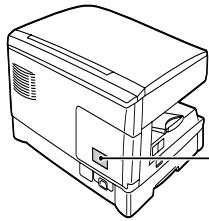
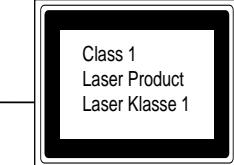

LaserStrahl
CAUTION INVASIBLE LASER RADIAION WHEN OPEN AND INTERLOCKSEDEFAETED, AVOID EXPOSURE TO BEAM.
Class 1 Laser product
Invisible laser radiation when open and interlocks defeated. Avoid exposure to beam. At the production line, the output power of the scanner unit is adjusted to 0.6 MILLIWATT PLUS 13.4 PCTS and is maintained constant by the operation of the Automatic Power Control (APC).
This product contains a low power laser device. To ensure continued safety do not remove any cover or attempt to gain access to the inside of the product. Refer all servicing to qualified personnel.
Cautions on laser
| Wave length | 785 nm ±15 nm |
| Pulse times | (10.7 ms ±4 ns)/7 mm |
| Output power | 0.2 mW – 0.03 mW |
MAIN FEATURES HAUPTFUNKTIONEN
① High-speed laser copying
- Since warm-up time is zero, copying can be started immediately after the power switch is turned on.
- First-copy time is only 9.6 seconds (normal mode).
Depending on the model, copying speed is 10 copies/min.,12 copies/min.,or 15 copies/min., which adapts to business use, allowing improvement of working efficiency.
② Digital high-quality image
-
High-quality image copying with 600 dpi can be performed.
-
In addition to the automatic exposure mode, the manual exposure can be adjusted in five steps.
- The photo mode copying function which allows clear copying of delicate halftone original images such as monochrome photos and color photos can be used.
③ Substantial copying functions
- Zoom copying from 50% to 200% in 1% increments can be performed.
- A maximum of 99 copies can be selected.
Automatic document feeding through the single pass feeder (SPF) can be performed (depending on the model). - Toner save mode for reducing toner consumption by approximately 10% can be set.
- User programs which allow setting/modification of functions for customer's needs are provided.
④ Scan once/Print many
- This copier is equipped with a 1-page memory buffer. This memory allows the copier to scan an original one time only and make up to 99 copies. This feature allows for improved workflow, reduced operating noise from the copier and reduced wear and tear on the scanning mechanism. This feature provides for a higher reliability.
⑤ Environmentally friendly design
- Exit tray is housed in the copier to allow space saving.
- Preheat mode and auto power shut-off mode are provided to reduce power consumption in standby mode.
⑥ Printer feature
Depending on the model, this copier can be used as a laser printer.

Lasergerät Klasse 1
Store the screw in the paper tray because it will be required if the copier has to be moved. (p. 1-38)
When closing the covers, be sure to close the front cover securely and then close the side cover. If the covers are closed in the wrong order, the covers may be damaged.
If your model is equipped with two paper trays, load copy paper into the two paper trays.
Move paper guide ⑥ to the appropriate slot as marked on the tray.
Do not load paper above the maximum height line (v.v). Exceeding the line will cause a paper misfeed.

- Gently push the paper tray back into the copier.

After loading copy paper, to cancel the blinking "P" without restarting copying, press the clear (◎) key. The "P" in the display will go out and the ready (◎) indicator will light up.

PAPER
| Type of paper feeding | Type of media | Size | Weight | |
| Paper tray | Standard paper | A4B5A5LetterLegalInvoice | 56 to 80 g/m2 | |
| Manual bypass | Standard paper and thick paper | A4B5A5LetterLegalInvoice | 52 to 128 g/m2** | |
| Special media | Transparency film | A4Letter | ||
| Envelope* | International DLInternational C5Commercial 10Monarch | |||
- Do not use envelopes that have metal clasps, plastic snappers, string closures, windows, linings, self-adhesive, patches or synthetic materials. These will cause physical damage to the copier.
**For paper weighing from 110 to 128g / m^2 , A4 is the maximum size that can be fed through the manual bypass. - Special papers such as transparency film and labels must be fed one sheet at a time through the manual bypass.
- Bypass tray can not be used for duplex copying (Duplex model only).

PAPIER
Depending on your model: this copier has two document input stations - a single pass feeder (SPF) for automatic document feeding (available on some models) and an original table for manual handling of documents. The SPF is designed to hold up to 30 originals measuring from A5 to B4 and weighing from 52 to 90g / m^2 .
- Ensure that paper of the desired size is set in the paper tray. See page 1-8, LOADING COPY PAPER. When copying onto paper larger than A4 size, pull the paper output tray extension out.
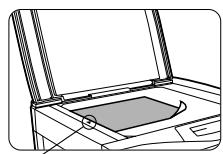
Mark/Markierung
- Turn the power switch on.
A. When using the original table
- Open the original cover.
- Place the original face down on the original table. Align it with the original scale and the centering () mark.
Place the original(s) in the document feeder tray or on the original table.
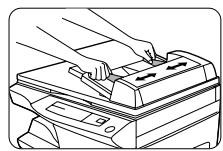
B. When using the SPF
(1) Make sure that no original is left on the original table.
(2) Adjust the original guides to the size of original.
(3) Set the originals face up in the document feeder tray. Go to step 7.
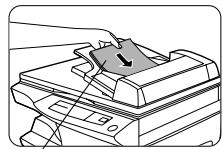
Before feeding originals in the document feeder tray, be sure to remove any staples or paper clips from them.
-
Press the clear (◎) key to clear an entry if a mistake is made.
-
A single copy can be made with the initial setting, i.e., when "0" is displayed.
-
Press the right copy quantity key to set the unit digit from 0 to 9. This key will not change the tens digit.
-
Press the left copy quantity key to set the tens digit from 1 to 9.
-
Press the print () key.
To display the number of copies made in a continuous run, press the left copy quantity key.
To stop copying in the middle of a run, press the clear (©) key. Copying will stop and the number in the display will be reset to "0".
Stream feeding mode
If the stream feeding mode has been enabled using user program No.4, the SPF () indicator will blink approximately 5 seconds after printing of all copies from the SPF is complete. While this indicator is blinking, any new originals placed in the document feeder tray will be fed and copied automatically. See page 1-20, USER PROGRAMS.
Setting a large original
The original cover can be removed to allow copying of bulky objects.
- Simply lift the original cover straight up.
- To reattach the original cover, reverse the above procedure.
Copy density adjustment is not required for most originals in the automatic exposure mode.
To adjust the copy density manually or to copy photographs, the exposure level can be adjusted in five steps manually.
The automatic exposure level can be adjusted to suit your copying needs.
-
Press the exposure mode selector key to select the photo (f) mode.
-
Press and hold down the exposure mode selector key for approximately 5 seconds.
The photo (m) indicator will go out and the AUTO indicator will begin to blink. One or two exposure indicators corresponding to the automatic exposure level which has been selected will light up.
- Press the exposure selector key. The AUTO indicator will stop blinking and light up steadily.

Three preset reduction ratios and two enlargement ratios can be selected. The zoom function enables copy ratio selection from 50% to 200% in 1% increments.
- Set the original and check the copy paper size.
- Use the copy ratio selector key and/or zoom (, ) keys to select the desired copy ratio.

- To verify a zoom setting without changing the zoom ratio, press and hold down the copy ratio display (%) key. When the key is released, the display will return to the copy quantity display.
To reset the ratio to 100% press the copy ratio selector key repeatedly until the 100% indicator lights up.
When a zoom ( or 念 ) key is pressed, the ZOOM indicator will light up and the zoom ratio will be displayed in the display.
In order to quickly change the zoom ratio, press and hold down the ( or @) key. The displayed setting will stop on any preset reduction or enlargement setting. To further reduce or raise the zoom ratio, firstly release the key and then press and hold down.
3. Set the number of copies using the copy quantity (,) keys and press the print () key.
The bypass tray automatically feeds up to 50 sheets of standard copy paper (available with some models only). The single-sheet manual bypass and the bypass tray can be used to feed standard paper, transparency film, labels and other special purpose papers measuring from A6 to A4 and in the weight range of 52 to 128g / m^2 .For paper weighing from 110 to 128 g / m^2 A4 is the maximum size).
- Place the original face down on the original table. Align it with the original scale and close the original cover.

The original image must be smaller than the paper or media for copying. If the original image is bigger than the paper or media, this may cause smudging on the edges of the copies.
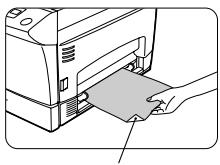
Print face Drucksite
- Set the paper guides to the copy paper width. Insert a single sheet of copy paper (print face down) into the feed slot of the manual bypass. Copying will begin automatically.

- Open the bypass tray and extend the tray.

To close the bypass tray, perform step1 and then step2 in the illustration and push the round projections at the right of the tray until they click.
- Set the paper guides to the copy paper width. Insert the copy paper (print face down) all the way into the bypass tray.

-
Paper must be fed narrow side into the feed slot.
-
Transparency film, labels, and other special purpose papers must be fed individually.
-
When copying onto transparency film, remove each copy promptly. Do not let copies stack up.
-
Press the tray select () key to select the bypass tray. Set the number of copies if using standard copy paper. Press the print () key.

After loading copy paper, to cancel the blinking "P" without restarting copying, press the clear (C) key. The "P" in the display will go out and the ready () indicator will light up.
Two-sided copying can be made on this copier using the manual bypass.
Example: The following two originals will be copied onto two sides of copy paper.
- Place the first original face down on the original table with the TOP toward the LEFT. Make a copy.
The first copy can be made using either the paper tray or the manual bypass.
N.B: 60g / m^2 copy paper is not recommended for two-sided copying. - Replace the first original with the second original face down on the original table with the TOP toward the RIGHT and close the original cover. Make sure that the first and second originals are oriented in the same way on the original table.

Both the first and second originals can be set in the SPF but they must be set separately. If the stream feeding mode for the SPF has been enabled, set the second original after the SPF () indicator goes out. See page VII.
- For tablet binding, turn the first copy over left to right as shown below.
For booklet binding, turn the first copy over top to bottom (not shown). Feed the first copy into the manual bypass or into the bypass tray.
Copying will begin automatically.
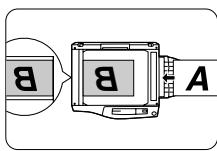
- Press the tray select () key to select the bypass tray and press the print (念) key.

Be sure to feed the copy paper one sheet at a time.

Reduces toner consumption by approximately 10% .
Power save modes (page 1-20)
The copier has two power save modes of operation: preheat mode and auto power shut-off mode.
Preheat mode
When the copier enters the preheat mode, the power save () indicator will light up and other indicators will remain on or off as before. In this condition, the fuser in the copier is maintained at a lower heat level, thereby saving power. To copy from the preheat mode, make desired copier selections and press the print (⑧) key using the normal copying procedure.
Auto power shut-off mode
When the copier enters the auto power shut-off mode, the power save (1) indicator will light up and other indicators will go out. The auto power shut-off mode saves more power than the preheat mode but requires a longer time before starting copying. To copy from the auto power shut-off mode, press the print (3) key. Then make desired copier selections and press the print (5) key using the normal copying procedure.
Auto clear (page 1-20)
The copier returns to the initial settings a preset amount of time after the last copy is made. This preset amount of time (auto clear time) can be changed.
Stream feeding mode (page 1-20)
For description of the stream feeding mode, see page 1-11.
- Press the exposure mode selector key to select the manual (1…mode.
- Press and hold down the exposure mode selector key for approximately 5 seconds.
The manual () indicator will go out and the photo (日) indicator will begin to blink. The exposure indicator marked "5" will light up, indicating the standard toner mode is active.
To return to the standard mode, repeat the procedure but use the dark (①) key to select exposure level "5" in step 3.

The user programs allow the parameters of certain functions to be set, changed, or cancelled as desired.
Setting the power save modes and auto clear time, and stream feeding mode.
- Press and hold down the light (①) and dark (②) keys simultaneously for more than 5 seconds until all the alarm indicators (③), (8V, ) blink and "--" appears in the display.
- Use the left copy quantity (A) key to select a user program number. The selected number will blink in the left side of the display.
- Press the print () key. The entered program number will be steadily lit and the currently selected parameter number for the program will blink on the right side of the display.
Factory default settings are indicated with an asterisk (^*)
To change the setting or to set another mode, press the clear (C) key. The copier will return to step 2.
6. Press the light (①) or dark (①) key to return to the normal copy mode.
Be sure to use only genuine parts and supplies.
The TD cartridge replacement required () indicator will light up when toner is needed. For more information on purchasing the TD cartridge, see SUPPLY PART NUMBERS AND STORAGE on page 1-37. If copying is continued while the indicator is lit, copies will gradually become lighter until the copier stops and the indicator begins blinking.
Replace the old TD cartridge by following the procedure given below.
-
After the copier stops, it may be possible to make a few more copies by taking the TD cartridge out of the copier, shaking it horizontally, then reinstalling it. If copying is not possible after this operation, replace the TD cartridge.
-
During a long copy run of a dark original, the ready ( ) indicator may blink, the indicator light up, and the copier stop, even though toner is left. The copier automatically replenish the toner level for up to 2 minutes and then the ready ( ) indicator will light up. Press the print ( ) key to restart copying.

Then, push gently on both sides of the front cover to open the cover.
When closing the covers, be sure to close the front cover securely and then close the side cover. If the covers are closed in the wrong order, the covers may be damaged.
The useful life of the drum cartridge is approximately 18,000 copies. When the internal counter reaches approximately 17,000 copies, the drum replacement required (口) indicator will light up indicating that replacement of the drum cartridge will be needed soon. For more information on purchasing the drum cartridge, see SUPPLY PART NUMBERS AND STORAGE on page 1-37. When the indicator begins to blink, the copier will stop operating until the cartridge is replaced. Replace the drum cartridge at this time.
Do not remove the protective cover on the drum portion (black paper) of a new drum cartridge before use. The cover protects the drum against external light.
Then, push gently on both sides of the front cover to open the cover.
Do not touch the surface of the drum (green portion) of the cartridge. Doing so may cause smudges on the copies.
When closing the covers, be sure to close the front cover securely and then close the side cover. If the covers are closed in the wrong order, the covers may be damaged.
To find out how many more copies can be made before the 18,000 maximum is reached, follow the procedure described below.
- Press and hold down the light (①) and dark (②) keys simultaneously for more than 5 seconds until all the alarm indicators (③), 8V_v , blink and “-” appears in the display.
- Press and hold down the clear (C) key for more than 5 seconds to find out how many more copies can be made.
Example: 500 copies can be made before the next drum cartridge replacement.
- Press the light (①) or dark (⑨) key. The ready (⑧) indicator will light up.


Proper care is essential in order to get clean, sharp copies. Be sure to take a few minutes to regularly clean the copyer.
- Do not use thinner, benzene or other volatile cleaning agents.
- Before cleaning, be sure to turn the power switch off and remove the power cord from the outlet.
Wipe the cabinet with a soft, clean cloth.
Gehäuse
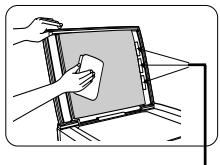
For the model with SPF ForMudmit SPF
Original table and original cover Stains on the glass cover or SPF ro will also be copied. Wipe the g cover and SPF rollers with a soft, c cloth. If necessary, dampen the o with or a glass cleaner.
-
Turn the power switch off.
-
Open the side cover whilst pressing the side cover open button.
Übertragungscorona
Slide the charger cleaner from the right end to the left end along the groove of the transfer charger. If the cleaner is stopped on the way, smudges on copies may occur.
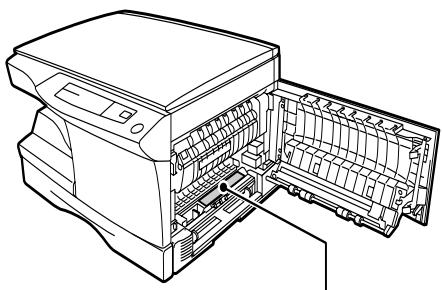
When the misfeed (8) indicator blinks or R blinks in the display, the copier will stop because of a misfeed. If a misfeed occurs when using the SPF, a number may appear in the display after a minus sign. This indicates the number of the originals that must be returned to the document feeder tray after a misfeed. Return the required number of originals. Then this number will disappear when copying is resumed or the clear () key is pressed. When the SPF misfeeds an original sheet, the copier will stop and the SPF misfeed (一) indicator will blink, while the misfeed (8) indicator will remain off. For a misfeed of originals in the SPF, see "D Misfeed in the SPF" on page 1-29.
If the copier is turned on with the lower side cover open, the misfeed (8_V) indicator will blink. In this case, close the lower side cover. The misfeed (8_V) indicator will go out.

- Ensure that the bypass tray is open and then open the side cover whilst pressing the side cover open button.
- Check the misfeed location. Remove the misfed paper following the instructions for each location in the illustration below.
If blinks in the display, proceed to "A Misfeed in the paper feed area".
① If the misfed paper is seen from this side, proceed to "C Misfeed in the transport area". (p.1-28)
(2) If paper is misfed here, proceed to “B Misfeed in the fusing area”. (p.1-27)
③ If paper is misfed here, proceed to “A Misfeed in the paper feed area”.
If paper is misfed here, proceed to "D Misfeed in the lower paper area" (p. 1-28).
A Misfeed in the paper feed area
- Gently remove the misfed paper from the paper feed area as shown in the illustration.
When g blinks in the display and the misfed paper is not seen from the paper feed area, pull out the paper tray and remove the misfed paper.
The fusing unit is hot. Do not touch the fusing unit when removing misfed paper.
B Misfeed in the fusing area
- Lower the fusing unit release lever.
- Gently remove the misfed paper from under the fusing unit as shown in the illustration.
The fusing unit is hot. Do not touch the fusing unit when removing misfed paper.
Do not touch the surface of the drum (green portion) of the drum cartridge when removing the misfed paper.
Do not remove the misfed paper from above the fusing unit. Unfixed toner on the paper may stain the paper transport area, resulting in smudges on copies.
C Misfeed in the transport area
- Lower the fusing unit release lever.
When closing the covers, be sure to close the front cover securely and then close the side cover. If the covers are closed in the wrong order, the covers may be damaged.
D Misfeed in the lower paper feed area
- Open the lower side cover (under the bypass tray) and remove the misfed paper. If blinks and the misfed paper is not seen from the area of the lower side cover, pull out the lower paper tray and remove the misfed paper. Then close the lower paper tray.
- Close the lower side cover.
- Close the side cover by pressing the round projections near the side cover open button. The misfeed (8) indicator will go out and the ready () indicator will light up.
E Misfeed in the SPF
An original misfeed may occur at one of three locations: if the misfed original is seen from the document feeder tray, (A) in the document feeder tray; if the misfed original is not seen from the document feeder tray, (B) in the exit area or (C) under the feeding roller. Remove the misfed original following the instructions for each location.
(A) Open the feeding roller cover and pull the original gently to the left and out from the document feeder tray. Close the feeding roller cover. Open and close the original cover to clear the SPF misfeed () indicator. If the misfed original cannot be easily removed, proceed to (C) under the feeding roller without pulling the original forcibly from the document feeder tray.
(B) Open the original cover and rotate the roller rotating knob to remove the misfed original from the exit area. If the misfed original cannot be easily removed, proceed to (C) under the feeding roller without pulling the original forcibly.
(C) Open the original cover and rotate the roller rotating knob to remove the misfed original from the document feeder tray or exit area. If it is difficult, remove the misfed original from under the feeding roller.

A number may appear in the display after a minus sign, indicating the number of the originals that must be returned to the document feeder tray. Clear the misfeed and return the required number of originals. Then press the print ( () ) key to resume copying.
If any problem occurs, check the list below before contacting the Service Center. In the cases described below, the copier does not malfunction.

| Problem | Possible cause | Solution |
| Copier does not operate. | Copier plugged in? | Plug the copier into a grounded outlet. p. 1-3 |
| Power switch on? | Turn the power switch on. p. 1-3 | |
| Side cover closed securely? | Gently close the side cover. p. 1-7 | |
| Front cover closed? | Gently close the front cover and then close the side cover. p. 1-7 | |
| Blank copies | Is the original placed face down on the original table or face up in the SPF? | Place the original face down on the original table or face up in the SPF. p. 1-10 |
| Power save (◇)indicator on. | Is the copier in the preheat mode? | Press any key to cancel the preheat mode. p. 1-18 |
| Is the copier in the auto power shut-off mode? | Press the print (◇) key to cancel the auto power shut-off mode. p. 1-18 | |
| Copies are too dark or too light. | Is original image too dark or too light? | Adjust the exposure manually. p. 1-12 |
| Is the copier in the automatic exposure mode? | Adjust the automatic exposure level. p. 1-13 | |
| Is the copier in the photo exposure mode? | Cancel the photo exposure mode. p. 1-12 | |
| Dust, dirt, smudges appear on copies. | Original table or original cover dirty? | Clean regularly. p. 1-25 |
| Original smudged or blotchy? | Use a clean original. p. 1-25 | |
| Striped copies | Is transfer charger clean? | Clean the transfer charger. p. 1-25 |
| Excessive paper curl after copying | Quality of paper | Try turning the paper over in the cassette. p. 1-8 |
| Paper misfeeds frequently. | Non-standard paper used? | Use standard paper. If using special papers, feed the paper through the manual bypass. p. 1-15 |
| Paper curled or damp? | Store copy paper flat in the wrapper in a dry location. p. 1-38 | |
| Pieces of paper inside copier? | Remove all pieces of misfed paper. p. 1-26 | |
| Paper guides in the paper tray not set properly? | Set the guides properly depending on the paper size. p. 1-8 | |
| Too much paper in the paper tray or badly placed in the cassette? | Remove excessive paper from the paper tray or follow advice. p. 1-8 | |
| Images rub off the copy easily. | Is the copy paper too heavy? | Use copy paper within the specified range. p. 1-9 |
| Paper damp? | Replace with dry copy paper. If the copier is not used for a long time, remove the paper from the paper tray and store it in its wrapper in a dry location. p. 1-38 |
1-30
FEHLERSUCHE
Be sure to use only genuine parts and supplies.
When the following indicators light up or blink on the operation panel or the following symbols appear in the display, solve the problem immediately referring to both the table below and the relevant page.

| Indication | Cause and remedy | ||
| Drum replacement required indicator | Steadily lit | Replacement of drum cartridge will be needed soon. Prepare a new cartridge. p. 1-23 | |
| Blinking | Drum cartridge must be replaced. Replace it with a new one. p. 1-23 | ||
| TD cartridge replace-ment required indicator | Steadily lit | Replacement of TD cartridge will be needed soon. Prepare a new cartridge. p. 1-21 | |
| Blinking | TD cartridge must be replaced. Replace it with a new one. p. 1-21 | ||
| 8A | Misfeed indicator | Blinking | A misfeed has occurred. Remove the misfed paper referring to the description of „Misfeed removal." p. 1-26. Lever of fusing area is not raised. p. 1-27. Depending on your model, the lower side cover may be open. If so, close it. p. 1-28. |
| SPF misfeed indicator | Blinking | An original misfeed has occurred in the SPF. Remove the misfed originals referring to the description of "Misfeed in the SPF". p. 1-29. | |
| The paper tray indicator is blinking. | The paper tray is not installed properly. Push the tray into the copier securely. p.1-8. | ||
| "CH" is blinking in the display. | The TD cartridge is not installed. Check if the cartridge is instal-led. p. 1-7 | ||
| "CH" is steadily lit in the display. | Side cover is open. Close the side cover securely by pressing the round projections near the side cover open button. p. 1-7 | ||
| "P" is blinking in the display. | Paper tray or bypass tray is empty. Load copy paper. p. 1-8 | ||
| A misfeed has occurred in the paper tray or bypass tray. Remove the misfed paper. p. 1-26 | |||
| Paper tray is not securely installed. Push the tray in securely. p. 1-8, 1-16 | |||
| A letter and a number appear alternately. | The copier will not function. Turn the power switch off and then switch it on, and if there is again an error, remove the power cord from the outlet, and contact your authorized Service representative p. 1-4. | ||
DISPLAYING TOTAL NUMBER OF COPIES
Use the following procedure to display the total number of copies.
- Press the clear (C) key to reset the display to zero.
- Press and hold down the clear (C) key for approximately 5 seconds. The total number of copies will appear in two steps, each with three digits.
Example:
Total number of copies is 1,234.

1-32
STATUSANZEIGEN

| Type | Digital copying machine, desk-top type |
| Copy system | Dry, electrostatic transfer |
| Originals | Sheets, bound documents |
| Original size | Max. B4 (Max. A4 for SPF) |
| Copy sizes | A6 to A4(Feed copy paper lengthwise only.)Image loss: Max. 4 mm (leading and trailing edges)Max. 3 mm (either of the other edges) |
| Copy speed | COPIA 9910/DC 100: 10 copies/min.COPIA 9912/DC 120, Dual paper tray models: 12 copies/min.COPIA 9915/DC 150, COPIA 9915C/DC 150C: 15 copies/min. |
| Continuous copying | Max. 99 copies; subtractive counter |
| First-copy time | 9.6 sec. (normal copying mode) |
| Copy ratio | Variable: 50% to 200% in 1% increments (total 151 steps)Fixed: 50%, 70%, 81%, 100%, 141%, 200% |
| Exposure system | Moving optical source, slit exposure (stationary platen) with automatic exposure/SPF: Moving original |
| Copy paper feed | One or two paper trays with automatic feed (250 sheets); one single-sheet manual bypass or one bypass tray with 50-sheet automatic feed capability (depending on the model). |
| Fusing system | Heat rollers |
| Development system | Magnetic brush development |
| Light source | Xenon lamp |
| Resolution Scan: | 400 dpi Output: 600 dpi |
| Gradation Scan: | 256 levels Output: 2 levels |
| Power supply | For this copiers power supply requirements, see the name plate located on the back of the unit. |
| Power consumption | Max. 1000 W |
| Overall dimensions | 607 mm (W) x 445 mm (D)809 mm (W) x 445 mm (D) with multi bypass |
| Weight | Approx. 18 kgModels with SPF: 21.5 kg / Dual paper tray models: 24.5 KgDuplex model: 22 KgTD and drum cartridges included |
| Copier dimensions | 518 mm (W) x 445 mm (D) x 293 mm (H)518 mm (W) x 477 mm (D) x 379 mm (H) Models with SPF / Duplex models518 mm (W) x 477 mm (D) x 464 mm (H) Dual paper tray models |
| Operating conditions | Temperature: 10°C to 30°C |
| Humidity: | 20% to 85% |
| Noise level | Sound Power Level LWA (1B=10dB)Copying: 6.6 [B (A)], Standby: Background noise levelCopying: 7.1 [B (A)] models with SPFSound Pressure Level L-PA (bystander positions)Copying: 40 [dB (A)], Standby: Background noise levelNoise emission measurement in accordance with ISO 7779. |
First-copy time may differ depending on operating conditions, such as power-supply voltage and room temperature. The values for copy speed are rounded to the nearest whole number.

As a part of our policy of continuous improvement, the manufacturer reserves the right to make design and specification changes for product improvement without prior notice. The performance specification figures indicated are nominal values of production units. There may be some deviation from these values in individual units.
1-34
SPECIFICATIONS FOR 120 V VERSION
| Type | Digital copying machine, desk-top type |
| Copy system | Dry, electrostatic transfer |
| Originals | Sheets, bound documents |
| Original size | Max. 10" x 14" |
| Copy sizes | 8-1/2" x 14" to 3-1/2" x 5-1/2"(Feed copy paper lengthwise only)Image loss: Max. 5/32" (4 mm) (leading and trailing edges)Max. 1/8" (3 mm) (either of the other edges) |
| Copy speed | COPIA 9910: 10 copies/min.COPIA 9912, Dual paper tray models: 12 copies/min.COPIA 9915, COPIA 9915C: 15 copies/min. |
| Continuous copying | Max. 99 copies; subtractive counter |
| First-copy time | 9.6 sec. (normal copying mode) |
| Copy ratio | Variable: 50% to 200% in 1% increments (total 151 steps)Fixed: 50%, 64%, 78%, 100%, 129%, 200% |
| Exposure system | Moving optical source, slit exposure (stationary platen) with automatic exposure/SPF: Moving original |
| Copy paper feed | One or two paper trays with automatic feed (250 sheets); one single-sheet manual bypass or one bypass tray with 50-sheet automatic feed capability (depending on the model). |
| Fusing system | Heat rollers |
| Development system | Magnetic brush development |
| Light source | Xenon lamp |
| Resolution Scan: | 400 dpi Output: 600 dpi |
| Gradation Scan: | 256 levels Output: 2 levels |
| Power supply | For this copiers power supply requirements, see the name plate located on the back of the unit. |
| Power consumption | Max. 1000 W |
| Overall dimensions | 607 mm (W) x 445 mm (D) (23.9" (W) x 17.5" (D))809 mm (W) x 445 mm (D) (31.9" (W) x 17.5" (D)) with multi bypass |
| Weight | Approx. 18 kg (39.7 lbs)Models with SPF: 21.5 kg (47.3 lbs)Dual paper tray models: 24.5 Kg (54.4 lbs)/Duplex model: 22 Kg (48.9 lbs)TD and drum cartridges included |
| Copier dimensions | 518 mm (W) x 445 mm (D) x 293 mm (H) (20.4" (W) x 17.5" (D) x 11.5" (H))Models with SPF/Duplex models: 518 mm (W) x 477 mm (D) x 379 mm (H)(20.4" (W) x 17.6" (D) x 14.9" (H))Dual paper tray models: 518 mm (W) x 477 mm (D) x 464 mm (H)(20.4" (W) x 17.6" (D) x 18.3" (H)) |
| Operating conditions | Temperature: 10°C to 30°C (50°F to 86°F) |
| Humidity: | 20% to 85% |
| Noise level | Sound Power Level LWA (1B=10dB)Copying: 6.6 [B (A)], Standby: Background noise levelCopying: 7.1 [B (A)] models with SPFSound Pressure Level LPA (bystander positions)Copying: 40 [dB (A)], Standby: Background noise levelNoise emission measurement in accordance with ISO 7779. |
First-copy time may differ depending on operating conditions, such as power-supply voltage and room temperature. The values for copy speed are rounded to the nearest whole number.

As a part of our policy of continuous improvement, the manufacturer reserves the right to make design and specification changes for product improvement without prior notice. The performance specification figures indicated are nominal values of production units. There may be some deviation from these values in individual units.
TECHNISCHE DATEN
When ordering supplies and option, please use the correct part numbers as listed below.

Be sure to use only genuine parts and supplies.
| Supply | Part no. | Usable life |
| TD cartridge | Olivetti B0265Q T.A. M1920S | Approx. 6,000 sheets* |
| Drum cartridge | Olivetti B0266R T.A. M1921P | Approx. 18,000 sheets |
- Based on copying onto A4 or letter size paper at 5% toned area.
Proper storage
- Store the supplies in a location that is:
clean and dry,
- at a stable temperature,
not exposed to direct sunlight.
-
Store copy paper in the wrapper and lying flat.
-
Paper stored out of the wrapper or in packages standing on end may curl or get damp, resulting in paper misfeeds.
When moving this copier, follow the procedure below.
When moving this copier, be sure to remove the TD cartridge in advance.

When closing the covers, be sure to close the front cover securely and then close the side cover. If the covers are closed in the wrong order, the covers may be damaged.
When shipping the copier, the screw must be reinstalled to prevent shipping damage.
The Reverse Single Pass Feeder (R-SPF) allows you to automatically make single sided or two-sided copies. The R-SPF is designed to hold up to 30 originals measuring from A5 to A4 and weighing from 52 to 90g / m^2
The available options are:
| Icon | Original | Copy | Max. quantity |
| 1 1 2 | Single sided | Two-sided | 1 set |
| 2 2 | Two-sided | Two-sided | 1 set |
| 2 1 1 | Two-sided | Single sided | 99 copies |
- Before feeding originals in the document feeder tray, be sure to remove any staples or paper clips from them.
- Badly damaged originals may misfeed in the R-SPF. It is recommended that such originals becopied from the original table.
- When feeding originals which have closely spaced binding holes punched along an edge, place the originals so that the punched edge is positioned to the left or along the side guides.
Special originals such as transparency film should not be fed via the R-SPF, but should be placed on the original table
1-sided original to 2-sided copies (1)
The maximum copy quantity is 1. Reinsert the originals into the R-SPF for each set required.
2-sided originals to 2-sided copies (2 [2y])
- Adjust the original guides to the size of the originals and set the originals face up in the document feeder tray.
2-sided originals to 1-sided copies (2) [1] [1]
- Adjust the original guides to the size of the originals and set the originals face up in the document feeder tray.
Manual two-sided copying can be made on this copier.
N.B.: 60g / m^2 copy paper is not recommended for two-sided copying.
After scanning side 1, the light next to the selected mode will flash to let you know that the copier is ready to scan side two.
for papirindforing 2-28
CLASS 1 LASER PRODUCT
LASER KLASSE 1
LUOKAN 1 LASERLAITE
KCLASS 1 LASERAPPARAT
Class 1
Laser Product
Laser Klasse 1
![OLIVETTI COPIA 9910 - 2-sided originals to 1-sided copies (2) [1] [1] - 1](/content/2019/11/144262/images/96602c8fecad79e3a440b1f89711549f8729ed3e7a221f9db0d9a8ce344e2bbf.jpg)
Laserstrahl
CAUTION INVISIBLE LASER RADIATION WHEN OPEN AND INTERLOCKS DEFeated. AVOID EXPOSURE TO BRAIN.
Energisparemodier (side 2-20)
INTRODUCTION INLEIDING
Precautions 3-4 Mise on service 3.6
(R-SPF) (uniquement modeleDuplex) 3-38
Copies recto-verso en mode manuel
(uniquement modeleDuplex) 3-40
Statusindications 3-33
PRECAUTIONS WAARSCHUWINGEN

VARNING OSYNLIG LASERSTRALNING NAR DENNA DEL A R OPPNAD OCH SPARRR AR
VANTINO ORKOMPLADE. STRALEN AL KORDOG. BERTAKTA EJ STRALEN.
VANDA AVATTASSA, A SUGIA LUKITUS OHFETTASSA OLT AL TINNA NIXOMATON
VARO! AVATRAESA SAUGALGUTOS CHITYETARE LASERSATEYEILLE. ALA KATSO SATESEEN
3-4


Second original weede originally
CLASS 1 LASER PRODUCT
LASER KLASSE 1
LUOKAN 1 LASERLAITE
KCLASS 1 LASERAPPARAT
C
Laser Product
Laser Klasse 1

Laserstrahl
CAUTION INVISIBLE LASER RADIATION WHEN OPEN AND INTERLOCKS DEFEATED. AVOID EXPOSURE TO BEAM.
VORSICH TARE LASER STRALHUNG WEN BEACKDUNG GEFFNET UND SICHERHTSVERBEGFISUNG UBERBUCKT, NODM DEM SBTN, AUSSECTE
ADVARSL USYNLIG LASERSTRAING VED ABNONG, NAR SKIJKHEPDSAFBBRYDERE ER ADE F UNEFIXATION, UNDGA U5AETTF SE FOR STRAING.
ADVERSE USYNLIG LARSTRALING NAR DEKSEL APNES O SIKKERHEDSLAS BRYTES. UNNGA EKFSPONIERING FOR STRALEN.
VARNING OSYNLIG LASPERSTRALING NAR DENNA DEL A R OPPNDN OCH SPARRR AR IUKORPADI ASEAL EN AB SABIOPLBETAKTA ESENLIN
VAROJ AVATTAESSA JA SUOJALUKIUSQOMITETAASSA OLE ALTTHINA NAKYMATONTAJL ASFRSATEYEIL YAI KATO SA TSESEFEN
4-4
