
PX5D - Guitar Effects KORG - Free user manual and instructions
Find the device manual for free PX5D KORG in PDF.



| Product type | Multi-effects processor for guitar/bass |
| Brand | KORG |
| Model | PX5D |
| Dimensions (L x D x H) | 118 mm x 75 mm x 20 mm |
| Weight (without batteries) | 154 g |
| Power supply | 2 AA alkaline batteries (approx. 5-7 h) or DC 4.5 V AC adapter (sold separately) or USB bus power |
| Number of effects | 180 types, up to 7 simultaneous effects |
| Programs | 100 user + 100 preset |
| Amp modeling | 18 guitar models, 10 bass models, 6 synthesizers |
| Cabinet modeling | 23 models (11 guitar, 12 bass) |
| Built-in tuner | Yes, range 27.5 Hz - 2.093 Hz, calibration A=438-445 Hz |
| Rhythm patterns | 128 patterns + metronome, chainable up to 16 patterns |
| Phrase Trainer | Record up to 80 s, slowed playback without pitch change |
| USB interface | USB audio (stereo input/output) and MIDI, with editing software |
| Inputs | INPUT (jack) for guitar/bass, AUX (stereo mini-jack), USB |
| Outputs | OUTPUT (stereo headphone/line jack) |
| Additional connectors | FOOT SW jack (for 2 pedals), USB type B |
| Display | Backlit LCD with bar graph |
| Maintenance | Clean with a dry cloth, avoid liquid products |
| Safety | Avoid exposure to sun, heat, humidity, dust; do not place liquids nearby |
| Included accessories | 2 AA alkaline batteries, CD-ROM, cable for FOOT SW jack |
| Optional accessories | DC 4.5 V AC adapter, KORG PS-1 pedal |
Frequently Asked Questions - PX5D KORG
User questions about PX5D KORG
0 question about this device. Answer the ones you know or ask your own.
Ask a new question about this device
Download the instructions for your Guitar Effects in PDF format for free! Find your manual PX5D - KORG and take your electronic device back in hand. On this page are published all the documents necessary for the use of your device. PX5D by KORG.
USER MANUAL PX5D KORG
Using the unit in the following locations can result in a malfunction.
- In direct sunlight
- Locations of extreme temperature or humidity
- Excessively dusty or dirty locations
- Locations of excessive vibration
- Close to magnetic fields
Power supply
Please connect the designated AC adapter to an AC outlet of the correct voltage. Do not connect it to an AC outlet of voltage other than that for which your unit is intended.
Interference with other electrical devices
Radios and televisions placed nearby may experience reception interference. Operate this unit at a suitable distance from radios and televisions.
Handling
To avoid breakage, do not apply excessive force to the switches or controls.
Care
If the exterior becomes dirty, wipe it with a clean, dry cloth. Do not use liquid cleaners such as benzene or thinner, or cleaning compounds or flammable polishes.
Keep this manual
After reading this manual, please keep it for later reference.
Keeping foreign matter out of your equipment
Never set any container with liquid in it near this equipment. If liquid gets into the equipment, it could cause a breakdown, fire, or electrical shock.
Be careful not to let metal objects get into the equipment. If something does slip into the equipment, unplug the AC adapter from the wall outlet. Then contact your nearest Korg dealer or the store where the equipment was purchased.
THE FCC REGULATION WARNING (for USA)
This equipment has been tested and found to comply with the limits for a Class B digital device, pursuant to Part 15 of the FCC Rules. These limits are designed to provide reasonable protection against harmful interference in a residential installation. This equipment generates, uses, and can radiate radio frequency energy and, if not installed and used in accordance with the instructions, may cause harmful interference to radio communications. However, there is no guarantee that interference will not occur in a particular installation. If this equipment does cause harmful interference to radio or television reception, which can be determined by turning the equipment off and on, the user is encouraged to try to correct the interference by one or more of the following measures:
- Reorient or relocate the receiving antenna.
- Increase the separation between the equipment and receiver.
- Connect the equipment into an outlet on a circuit different from that to which the receiver is connected.
- Consult the dealer or an experienced radio/TV technician for help.
Unauthorized changes or modification to this system can void the user's authority to operate this equipment.
Notice regarding disposal (for EU)

If this "crossed-out trash can" symbol is shown on the product or in the operating manual, you must dispose of the product in an appropriate way. Do not dispose of this product along with your household trash. By disposing of this product correctly, you can avoid environmental harm or health risk. The correct method of disposal will depend on your locality, so please contact the appropriate local authorities for details.
- Company names, product names, and names of formats etc. are the trademarks or registered trademarks of their respective owners.
Table of Contents
Precautions 2
Introduction 6
Main features 6
Turning on the power 7
Controls and connectors 8
LCD screen 10
Making connections 11
Connecting to your Computer 13
Using the editor software 13
Transferring audio data 13
Initial Settings 15
Quick Edit 15
Play mode 16
Selecting a program 16
PROGRAM MEMORY [A], [B], [C], [D] buttons 16
Using foot switches to select programs 16
Master level 16
Bypass/Mute 17
Tuner 17
Specifying the function of the Value encoder .. 18
Key Lock function 18
Rhythm & Bass mode 19
PTN (Pattern play) 19
CHAIN (Chain play) 21
SONG (Song play) 23
PhraseTrainermode 25
Select the recording mode 25
Recording 26
Playback 27
Pause 27
Saving 27
Edit mode 28
Select the effect that you wish to edit. 28
Editing each effect 28
DYNA: Dynamics & Pickup Modeling 28
AMP: Amp Modeling 29
CAB: Cabinet Modeling 29
MOD: Modulation & Filter Effect Modeling 30
DLY:Delay Modeling 30
DLY:Delay Time 30
REV:Reverb Modeling. 30
NR: Noise reduction 31
RENAME 31
WRITE 31
Utility mode 32
Select a utility function 32
Change settings for each utility function 32
BACKLIGHT: LCD backlight on/off 32
KEY-TRN: Key transpose 32
KTR+BC: Key transpose + bass cancel 33
AMP/LIN: Amp/line select 33
FOOTSW: Foot switch pedal settings 34
USBSEND: USB Send 35
USB RCV: USB Receive 35
AUX>USB: USB audio interface 35
MIDDRUM: MIDI Drum/Bass 36
Loading the factory-set data 36
Effect Parameter List 37
DYNA: Dynamics & Pickup modeling 37
AMP: Amp Modeling 39
CAB: Cabinet modeling 43
MOD: Modulation & Filter Effect Modeling ....45
DLY:Delay Modeling 49
REV:Reverb Modeling. 50
Preset Program Names 51
Rhythm Pattern List 52
Troubleshooting 53
Specifications 55
Introduction
Thank you for purchasing the KORG PANDORA PX5D personal multi-effect processor. In order to enjoy your PANDORA PX5D, please read this owner's manual carefully and retain it for future reference.
Main features
The PX5D is a versatile multi-effect unit that packs an incredible range of guitar amps, bass amps and effects into a compact unit which utilizes Korg's proprietary "MEMS" modeling technology to create detailed and powerful modeling sounds.
180 types of effect variations with a maximum of seven effects that can be used simultaneously.
IPE (Integrated Parameter Edit) allows effects to be quickly edited.
100 user and 100 preset programs
Control dials
The PX5D includes 18 types of guitar amp models, 10 types of bass amp models, and 6 type of synths, each of which can be edited quickly and easily.
Backlit LCD
The large LCD screen can be easily viewed even in dark locations.
Auto Tuner function
This feature makes tuning fast and easy. You can also tune without being heard (i.e., while muted).
Rhythm and Bass function
128 types of rhythm and bass patterns or a metronome can be used. 16 multiple patterns can also be connected for successive playback.
Phrase Trainer function
You can use Rhythm & Bass mode to specify a rhythm pattern, play along with this rhythm pattern from an audio source connected to the AUX jack or USB connector or on your guitar (or bass) connected to the INPUT jack while you record the result, and then play back the recording as a loop (maximum of approximately 80 seconds). The playback speed can also be slowed down without affecting the pitch of the audio. The rhythm selected in Rhythm & Bass mode and the effect output can also be recorded simultaneously.
AUX pitch function
This lets you modify the pitch of audio from the AUX jack or USB connector (Key Transpose function) or cancel the low-frequency region (Bass Cancel function).
TAP/BYPASS button
You can easily set the Delay Time or the tempo of the Rhythm & Bass function to match the tempo of the song.
Value encoder
This lets you rapidly select programs or edit the effects.
USB-MIDI, USB audio interface function
If you use the included USB cable to connect the PX5D to your computer, you'll be able to use the editor software* to edit the PX5D or transfer audio data between the PX5D and your computer.
*: You can download the editor software from the Korg website (http://www.korg.com/). Expected to become available in October, 2007.
What is REIMS?
HEms (Resonant structure and Electronic circuit Modeling System) is KORG's proprietary sound modeling technology which precisely reproduces the complex character and nature of both acoustic and electric instruments as well as electronic circuits in real world environments. HEms emulates a wide variety of sound generation characteristics including instrument bodies, speakers & cabinets, acoustic fields, microphones, vacuum tubes, transistors, etc.
Turning on the power
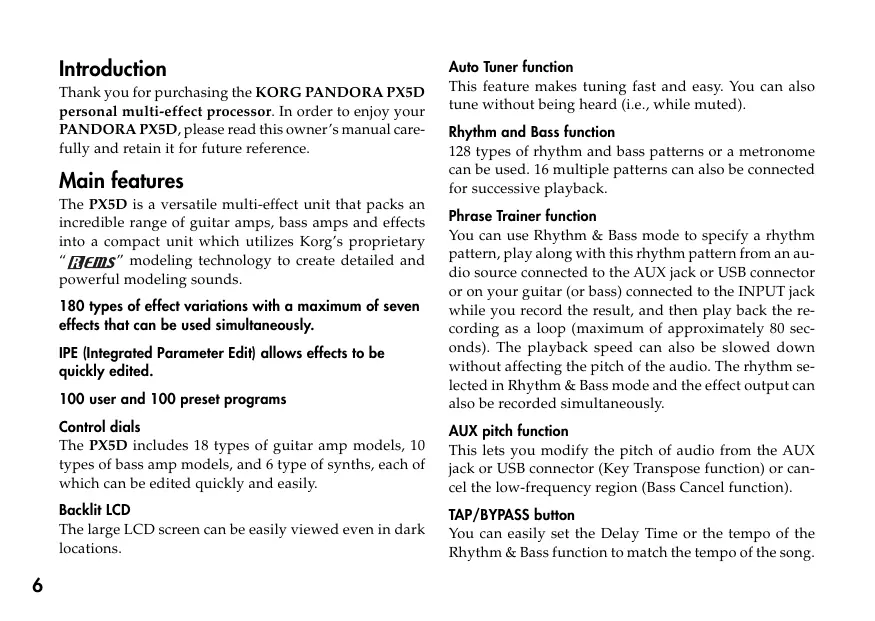
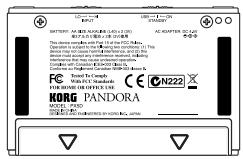
Remove the battery cover located on the bottom of the PX5D by sliding it in the direction of the arrow. Insert two AA alkaline batteries as shown in the illustration. Be sure to insert the batteries observing the correct polarity.
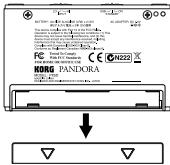
Battery Low display
When the battery begins to run low, the Low Battery icon will light. When this icon lights, replace the batteries as soon as possible. Programs and other data (except for the data being edited) will not be lost even if the battery is removed and changed.
Batteries that have run down must be removed from the PX5D. If you leave dead batteries in the unit, malfunctions (battery leakage, etc.) may occur. You should also remove the batteries when you do not expect to use the PX5D for an extended period of time.
An AC adapter is not included with this product. It must be purchased separately.
Controls and connectors
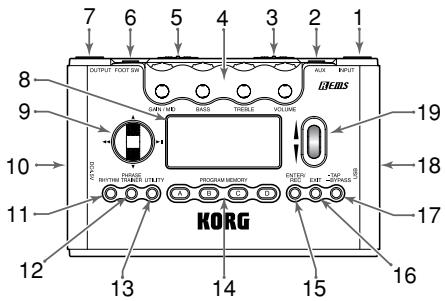
1. INPUT jack
Connect your guitar or bass to this jack.
2. AUX jack (stereo)
Connect this jack to a CD player or other audio source.
3. INPUT switch
Use this to adjust the input level depending on the output level of your guitar or bass (p.15).
4. Control dials
These dials control the gain, tone, and volume of the amp models and synth parameters.
5. Power switch
This switch turns the power on/off.
STANDBY: The power is off.
ON: The power is on.
USB: The power is on. When the PX5D is connected to your computer via the USB cable, your computer will supply power via the USB bus.

Some computers may not be able to supply power via USB bus power. In this case, use a self-powered USB hub (that obtains power from an external supply), use two batteries, or use the AC adaptor.
6. FOOT SW jack
You can use the included cable for FOOT SW jack to connect two foot switches.
7. OUTPUT jack
Connect this jack to your guitar amp, bass amp, or headphones etc.
8. LCD (Liquid Crystal Display)
(串 p 1 . 0 串" ~ L ~ C ~ D ~ 串 ^ )
9. CURSOR
Use these buttons to select programs or the parameter that you wish to edit. These will also operate the Phrase Trainer function.
10. DC4.5V
The separately sold AC adapter (DC4.5V ) is connected here.
11. RHYTHM button
Use this button to enter Rhythm & Bass mode (p.19).
12. PHRASE TRAINER button
Use this button to enter Phrase Trainer mode (p.25).
13. UTILITY button
Use this button to enter Utility mode (e p.32).
14.PROGRAM MEMORY [A][B][C][D] buttons
You can assign your favorite programs to these four buttons (A-D) (p.16).
15. ENTER/REC button
This button is used to switch an effect on/off, to edit patterns in Rhythm & Bass mode, or to start recording in Phrase Trainer mode.
16. EXIT button
Returns to Play mode or to the preceding screen.
17. TAP/BYPASS button
In Edit mode this button lets you specify the delay time for delay effects (p.15), or the rhythm tempo for rhythm & bass mode (p.19). In Play mode, this button will Bypass or Mute the PX5D, and activate the Tuner (p.17).
18. USB connector
Use the included USB cable to connect this to your computer. You'll be able to use the editor software to edit the PX5D or transfer audio data between the PX5D and your computer.
19. Value encoder
Use this to adjust the master level, edit effects, and select programs.
LCD screen
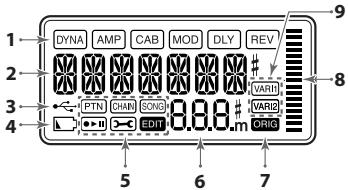
1. Effect chain
This area indicates the on/off status of the DYNA, AMP, CAB, MOD, DLY, and REV effects.
2. Program name/Effect type display
This area shows the program name or effect type. When the PX5D is bypassed or muted, this will function as the tuner.
3. USB icon
This is shown if the PX5D is connected to your computer via the USB port.
4. Low Battery icon
This icon will light when the batteries run low.
5. Mode icons
These are shown when you enter the corresponding mode.
6. Program number/value display
This displays the program number. When you change the Master Level, its value will be displayed here for several seconds. During editing, this displays the parameter values.
7. ORIG (Original) icon
If the parameter or value being edited matches the value that is written in the program, the ORIG icon will light.
8. Bar graph
In Play mode or Edit mode, this graph indicates the master level or the value of a parameter. In Rhythm mode, this indication will change according to the rhythm pattern that's playing.
9. Variation icons (VARI1, VARI2)
This shows the variation of the rhythm pattern or rhythm & bass pattern you're using in Rhythm mode (p.20).
Making connections
When connecting an external device (ie-guitar amp, bass amp, CD player, AC adapter, etc.) be sure to turn the unit off.
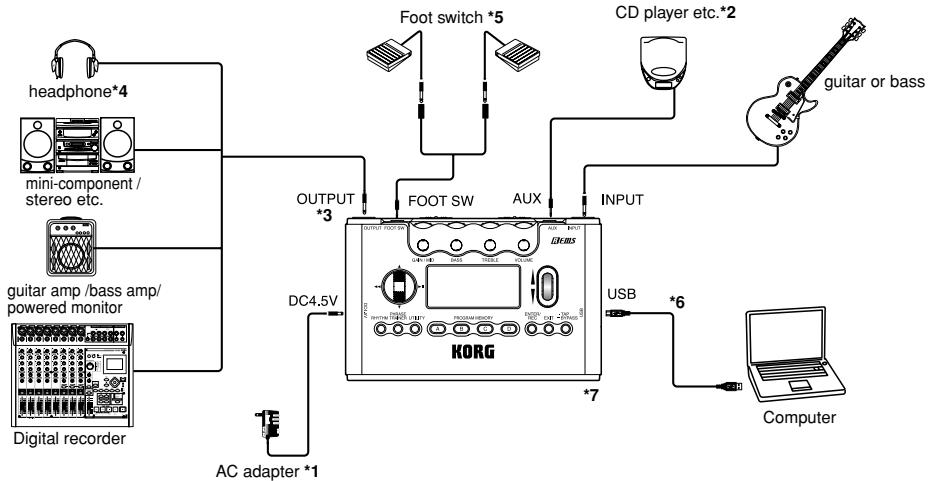
1 Be sure to use only the specified AC adapter (DC4.5V ⋆-⓷ ⋆).
2 If a CD player or other audio source is connected to the AUX jack, you can play along with your guitar or bass. However the volume must be adjusted from the connected device.
Connecting cables are sold separately.
3 The PX5D's output jack is stereo. If you use a mono cable to connect it to a guitar or bass amp etc., only the L (left) output will be heard.
4 The PX5D's output level and sound quality will vary depending on which headphones are used. We recommend using good quality low impedance headphones, 32 Ohms or less with a sensitivity rating near 100dB / mW or above. Many headphones sold for use with portable CD or cassette players will work fine.
*5 Use the included cable for FOOT SW jack to connect two foot switches to the PX5D. You can connect two foot switches such as the Korg PS-1 (sold separately). In Utility mode you can specify the function of the pedal switches; for example you can use them to switch programs, or to start/stop recording and playback in Phrase Trainer mode (p.16 "Using foot switches to select programs," p.34 "FOOTSW").
6 Use the included USB cable if you want to connect the PX5D to your computer. For details on connections to your computer, refer to "Connecting to your computer."
7 If needed, you can attach the included rubber feet to the bottom of the PX5D.
Connecting to your Computer
If you use the included USB cable to connect the PX5D to your computer, you'll be able to use the editor software to edit the PX5D, and transfer audio data between the PX5D and your DAW software.
Using the editor software
The editor software lets you edit programs, manage data libraries, and create chains for Rhythm & Bass mode.
2 You can download the editor software from the Korg website (http://www.korg.com/). For details on installing and using the editor software, refer to the owner's manual.
In order to use the editor software, you'll need to install the KORG USB-MIDI driver into your computer. ("Installing the software" in the included CD-ROM).
Transferring audio data
If you use a USB cable to connect the PX5D to your computer, the PX5D's effect output, the rhythm sounds of Rhythm & Bass mode, and phrases you recorded in Phrase Trainer mode can be recorded directly into audio tracks of your DAW software. The playback of your DAW software can also be monitored through the PX5D.
If you're computer is running Windows XP, we recommend that you install the KORG USB-ASIO driver (in the included CD-ROM) into your computer if you want to transfer audio using the USB connector. For details on installing the KORG USB-ASIO driver, refer to "Installing the software" on the included CD-ROM.
The following illustration shows the signal flow when the PX5D is connected to your computer.
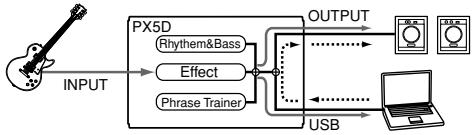
The PX5D's effect will not apply to the audio input via the USB connector.
Adjust the master level setting to change the volume of the audio signal that's sent from the PX5D's OUTPUT jack (p.16 "Master level").
Adjust the Utility mode "USBSEND" setting to change the volume of the audio signal that's sent from the PX5D's USB connector to the computer (p.35 "USBSEND").
Adjust the Utility mode "USB RCV" setting to change the volume of the audio signal that's input from the computer to the PX5D (p.35 "USB RCV").

Normally, the signal that's being input from the AUX jack is not sent to the USB connector. If you want the input signal from the AUX jack to be sent to your computer, access the Utility mode "AUX > USB" screen (p.35 "AUX>USB").

If you're recording the PX5D's effect output onto an audio track of your DAW software, turn off the "audio in thru" function of your software to prevent echo-back.

For details on using your DAW software, refer to the operation manual included with your software.
Initial Settings
1 When you finish making connections, set the power switch to the "ON" position. (This setting is referred to as Play mode.)
Use the / CURSOR to select a program.
2 Set the input level switch depending on the output level of your guitar or bass.
HI: High-output pickups (e.g., humbucking or pickups with a preamp)
LO: Low-output pickups (e.g., single-coil type pickups)
3 Set the volume control of your guitar or bass to its usual position. Use the Value encoder to adjust the master level.
Quick Edit
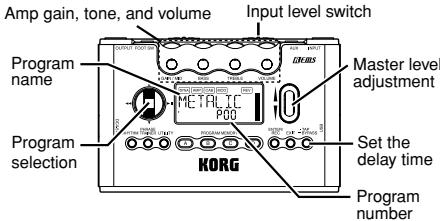
In each mode (except when Mute/Bypass or Key Lock are active), you can use the Control dials to adjust the gain, tone, or volume of amp modeling. When you move a control dial, the parameter name and value will appear for several seconds in the value display. If the setting matches the original setting, the ORIG icon will light.
The Delay Time can also be set by pressing the TAP/BYPASS button twice at the desired interval (except when in Rhythm & Bass mode).
When you set the delay time, the value display will indicate the delay time for several seconds.
Settings that you make using Quick Edit will return to the original saved settings if you change programs or turn off the power before Writing (p.31 "WRITE").
Play mode
Play mode is the mode in which you will normally use the PX5D.
Selecting a program
Use the / CURSOR to select a program. The program/effect type display will show the program name, and the value display will show the program number. You can select from one hundred user programs (U00-U99) and one hundred preset programs (P00-P99). You can select programs even if you're in Rhythm & Bass mode, Phrase Trainer mode (except while recording), or Utility mode (except while in certain screens).
PROGRAM MEMORY [A], [B], [C], [D] buttons
You can assign four of your favorite programs to the PROGRAM MEMORY [A]-[D] buttons. While you perform, simply press the corresponding PROGRAM MEMORY [A]-[D] button and the selected program will be recalled instantly. Here's how to assign a program to a button. In this example, we'll assign the selected program to button [A].
1 Use the / CURSOR to select the program you want to assign to button [A].
2 Press and hold the PROGRAM MEMORY [A] button for approximately one second. The LCD will indicate "PGM>A," and the selected program will be assigned to button [A].
Note You can use a foot switch connected to the FOOT SW jack to switch between the four programs assigned to PROGRAM MEMORY [A]-[D] (e.g. p.34 "FOOTSW").
Using foot switches to select programs
If you connect foot switches to the PX5D's FOOT SW jack and use Utility mode to assign the Pedal Switch function, you'll be able to use the foot switches to select programs.
Use the included cable for FOOT SW jack to connect your foot switches. The red jack on one end of the cable will be Program Up, and the other white jack will be Program Down (p.11 "Making connections," p.34 "FOOTSW").
Master level
When you turn the Value encoder to adjust the master level, the master level value will be shown in the program number/value display for several seconds. The bar graph will also change to indicate the level. The master level is remembered even when the power is turned off.
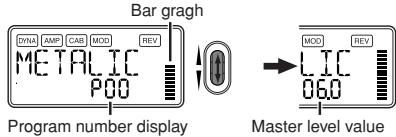
Note You can also adjust the settings so that the / CURSOR will adjust the master level (p.18 "Specifying the function of the Value encoder").
Bypass/Mute
When you press the TAP/BYPASS button for approximately one second, the PX5D will be bypassed, and the original sound will be dry (no effects). The effect chain will blink, and the display will indicate "BYPASS" for approximately one second.
If you press and hold the TAP/BYPASS button for approximately two seconds, the output signal will be muted. The effect chain will blink rapidly, and the display will indicate "MUTE" for approximately one second. Bypass/mute will be turned off when you press the TAP/ BYPASS button once again. You can also return to Play mode by pressing the EXIT button. Bypass or Mute can also be entered from modes other than Play mode.
Note You can also activate Bypass or Mute using two foot switches connected to the PX5D (p.34 " FOOTSW").
Tuner
The tuner will operate when you bypass or mute.
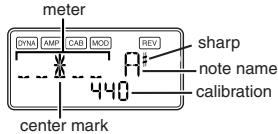
1 Play a single string on your guitar or bass. The LCD will show the note name and the calibration. If the pitch is more than a semitone higher than the note name, a sharp symbol will appear at the upper right of the note name.
2 The display area will act as a meter to show the pitch. Tune each string of your guitar or bass so that the indicator above the center mark is lit.
3 When you press either the TAP/BYPASS button, the tuner (bypass/mute) will be turned off. You can also return to Play mode by pressing the EXIT button.
Calibration (Standard pitch A = 440
You can use the Value encoder to adjust the calibration in the range of A = 438Hz - 445Hz . The calibration setting you make will remain until the power is turned off. Once the power is turned off, calibration will be reset to A = 440Hz .
Specifying the function of the Value encoder
You can specify the function that the Value encoder will perform in Play mode. While in Play mode, hold down the EXIT button and press either the CURSOR or the CURSOR to assign the following functions.
Hold down the EXIT button and press the CURSOR. The LCD will indicate "MASTER" for approximately one second. The Value encoder will adjust the master level, and the / CURSOR will select programs. You can use the Value encoder to quickly adjust the master level. Each time the power is turned on, this setting will be in recalled.

Hold down the EXIT button and press the CURSOR. The LCD will indicate "PROGRAM" for approximately one second. The Value encoder will select programs, and the / CURSOR will adjust the master level. You can use the Value encoder to quickly select programs.

Key Lock function
By activating the Key Lock function, you can disable all operations except for selecting programs. This is a convenient way to prevent accidental operation during a live performance.
Hold down the EXIT button and press the TAP/BYPASS button. The LCD will indicate "KEYLOCK" for approximately one second. The value encoder, buttons, and knobs other than / CURSOR, PROGRAM MEMORY [A]-[D] buttons, and the foot switches will not function.
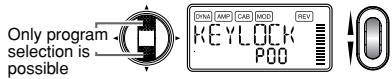
The Key Lock function will be cancelled when the power is turned off. You can also cancel the Key Lock function by performing "Specifying the function of the Value encoder."
Rhythm & Bass mode
The PX5D provides 128 different rhythm & bass patterns. You can also connect up to 16 patterns for consecutive playback.
From Play mode (except when Mute, Bypass, or Key Lock are active), AUX Pitch mode, or Phrase Trainer mode, press the RHYTHM button to enter Rhythm & Bass mode. The pattern will start according to the play type you've selected. The bar graph will change according to the rhythm pattern that's playing. Press the EXIT button to return to Play mode.
Rhythm & Bass mode provides three types of play.
PTN: Pattern play
You can select one rhythm pattern and play it. The LCD shows the PTN icon.
CHAIN: Chain play
You can connect up to 16 patterns for consecutive playback. Playback will start after a pre-count.
SONG: Song play
This lets you play the demo songs. Playback will start after a pre-count.
Each time you press the RHYTHM button, you'll cycle through the choices of PTN CHAIN SONG PTN CHAIN SONG ..., and the LCD will show the icon for the currently selected type of play.
When you enter Rhythm & Bass mode, the selected type of play will be the type that had been selected when you last exited Rhythm & Bass mode.
Note If you set the Phrase Trainer recording mode to "JAM," you'll be able to record your guitar or bass phrase along with the rhythm & bass pattern that's selected in Rhythm & Bass mode.
PTN (Pattern play)
This play type lets you select and play one rhythm & bass pattern. Use the / CURSOR to select each parameter, and use the value encoder and the ENTER/REC button to specify its value. The / CURSOR will switch programs.
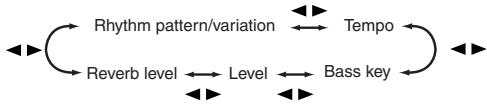
The settings you select here are remembered even when the power is turned off.
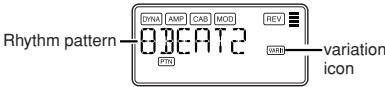
Rhythm Pattern/Variation
Use the Value encoder to select the rhythm pattern (p.52 "Rhythm pattern list"). Use the ENTER/REC button to select the rhythm pattern variation.
BASIC: Basic rhythm pattern.
VARI1: Variation 1. The variation 1 icon will light.
VARI2: Variation 2. The variation 2 icon will light.
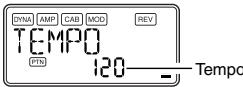
Tempo
Use the Value encoder to set the tempo in the range of 40-240 bpm. You can also set the tempo by pressing the TAP/BYPASS button twice at the desired rhythm.
Bass Key
Use the ENTER/REC button to select a bass pattern variation. Depending on the rhythm pattern that you have selected, some bass lines will include a chord progression.
OFF: Bass pattern off.
BASIC: Basic bass pattern.
VARI1: Variation 1. This is a major chord bass pattern. The LCD shows the variation 1 icon.
VARI2: Variation 2. This is a minor chord bass pattern. The LCD shows the variation 2 icon.
Use the Value encoder to set the key in a range of C, C#...A#, B allowing you to practice your guitar or bass in a scale that matches that key.
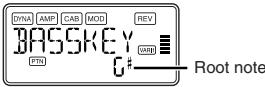
If the bass pattern is variation 2 (VARI2), an "m" is shown beside the root note.

If "MTRONM0"-"MTRONM9"(metronome) is selected as the rhythm pattern, there will be no bass notes, and this screen will not appear.
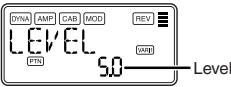
Level
Use the Value encoder to set the level of Rhythm & Bass sound.
Reverb
Use the Value encoder to set the amount of Reverb for the Rhythm & Bass.
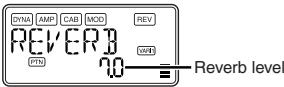
This uses the same reverb as the program effect. This parameter has no effect if you have selected a program that does not use reverb modeling, or if the reverb effect level is "0."
CHAIN (Chain play)
Two or more rhythm & bass patterns connected in a sequence are collectively called a "chain." CHAIN (Chain Play) lets you edit a chain and play it. One chain can connect up to sixteen patterns. The PX5D contains twenty chains. When you select CHAIN (Chain play), there will be a pre-count and then playback will begin automatically.
CHAIN (Chain Play) lets you select a chain, and specify its tempo, volume level, and reverb level. Use the / CURSOR to select each parameter, and use the Value encoder and the ENTER/REC button to specify the value of that parameter.
In the Chain Select screen, you can press the ENTER/REC button to enter the Chain Edit screen. Here you can specify the rhythm & bass pattern used by each step of the chain (p.22 "Chain edit"). Press the EXIT button to return to the chain select screen.
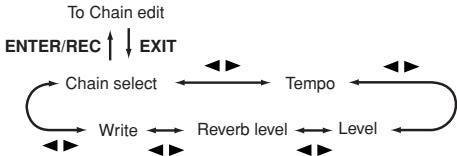
Chain select (CHAIN 01-20)
Here you can select one of the twenty chains.
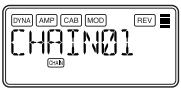
In this screen, you can press the ENTER/REC button to enter the Chain Edit screen (p.22 "Chain edit").
The edited settings will return to the settings of the original program if you switch chains or turn off the power without Writing.
Tempo
Use the Value encoder or TAP/BYPASS button to set the tempo (p.20 "Tempo").
Level
Use the Value encoder to set the level of Rhythm & Bass sound (p.21 "Level").
Reverb
Use the Value encoder to set the amount of Reverb for the Rhythm & Bass (p.21 "Reverb").
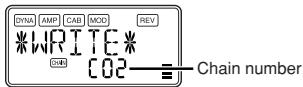
Write
This saves the chain. Use the Value encoder to select the save-destination (chain number) and press the ENTER/REC button. The PX5D can store twenty chains.
Chain edit
Here you can specify the pattern that will be used for each step. In the chain select (CHAIN01-20) screen, press the ENTER/REC button to enter the Chain Edit screen. Use the / CURSOR to select each step, use the / CURSOR to select a parameter, and use the value encoder and ENTER/REC button to specify the value. After you've specified the pattern for each step of the chain, press the EXIT button to return to the Chain Select screen.
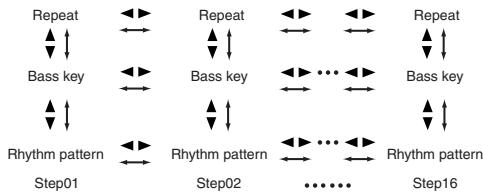
The edited settings will return to the settings of the original program if you switch chains or turn off the power without Writing.
Rhythm Pattern
Use the Value encoder to select a rhythm pat
Use the ENTER/REC button to select the rhythm pattern variation (p.20 "Rhythm Pattern/Variation").
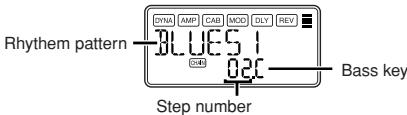
Note When you turn the value encoder with the / CURSOR held down to move the step, the pattern before the movement is copied to the pattern following the movement. This is a convenient way to place multiple copies of the same pattern.
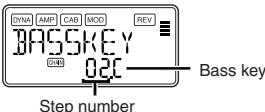
Bass Key
Use the ENTER/REC button to select a bass pattern variation. Use the Value encoder to set the key (p.20 "Bass Key").
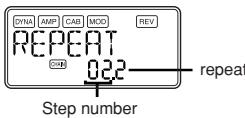
Repeat
Use the Value encoder to specify the number of times that the pattern selected for each step will be repeated. The pattern will be played repeatedly for the number of times you specify, and then the pattern specified by the next step will be played.
SONG (Song play)
Here's how to play the demo songs that are built into the PX5D. When you select SONG (Song play), there will be a pre-count and then playback will begin automatically. To pause during playback, you can press the ENTER/REC button. Press the button once again to resume playback.
If you press and hold the ENTER/REC button for one second or longer, you'll return to the beginning of the demo song and begin playback.
While playing or stopped, you can use the / CURSOR to change programs.
Use the / CURSOR to select a parameter, and use the Value encoder to specify the value.
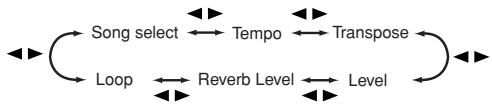
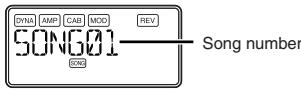
Song Select
Use the Value encoder to select the demo song you want to hear. The PX5D contains three demo songs.
Tempo
Use the Value encoder to specify the playback tempo. If you select the "FIL" setting, the demo song will play at the tempo specified by the song itself (p.20 "Tempo").
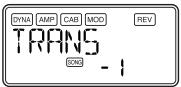
Transpose
Use the Value encoder to specify the transposition. You can transpose the playback pitch in semitone steps.
Level
Use the Value encoder to set the level of Rhythm & Bass sound (p.21 "Level").
Reverb
Use the Value encoder to set the amount of Reverb for the Rhythm & Bass (p.21 "Reverb").
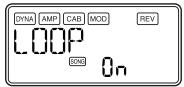
Loop
Use the Value encoder to change the loop setting. This specifies how playback will be repeated.
On (ON): The demo song will play repeatedly.
OF (OFF): The demo song will play only once.
Phrase Trainer mode
An audio source from the AUX jack and USB Connector, a phrase you play on your guitar or bass, or the rhythm you specified in Rhythm & Bass mode can be recorded, and played back repeatedly as a loop. This provides a convenient way to practice by playing along with the repeating phrase. You can slow down the playback speed without affecting the pitch, which can help you to learn difficult phrases. You can save the recorded phrase in the PX5D's memory.
If your computer is running Windows XP, and you want to transfer audio data via the USB connector, we recommend that you install the KORG USB-ASIO driver (provided on the included CD-ROM). For details on how to install the KORG USB-ASIO driver, refer to "Installing the software" on the included CD-ROM.
Select the recording mode
In Play mode (except during bypass/mute or key lock), Rhythm & Bass mode, or Utility mode, press the PHRASE TRAINER button to enter Phrase Trainer mode. When you enter this mode, the recording mode and time select screen will appear, and the Phrase Trainer icon will blink. In this screen, the PX5D will be ready to record. Press the EXIT button to return to Play mode.
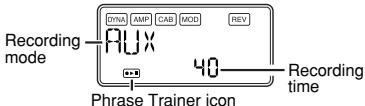
Use the PHRASE TRAINER button to specify the recording mode. The recording mode will change each time you press the PHRASE TRAINER button.
AUX: Record the audio input from the AUX jack or USB connector.
GTR/BAS: Record your connected guitar or bass.
AUX + G / B : Record both the audio input from the AUX jack or USB connector and your guitar or bass.
JAM: Record both the rhythm pattern you last selected for playback in Rhythm & Bass mode and the sound of your guitar (bass).
Note If you're using both the USB connector and AUX jack, the audio input from both jacks will be recorded. Use the volume control of your connected device to adjust the volume balance.
If Song Play was last selected in Rhythm & Bass mode, you won't be able to select "JAM" as the recording mode.
Use the value dial to select the recording time (for "JAM," the number of measures).
20: Approximately 20 seconds.
40: Approximately 40 seconds.
80: Approximately 80 seconds.
1, 2, 3.... Number of measures.
If the recording mode is "JAM," the recording quality will be set automatically, based on the tempo and the specified number of measures.
If you select a long recording time (40 or 80), the audio quality of the recording will be lower.
If the recording mode is "JAM" and the tempo of the rhythm is extremely slow, it will not be possible to record a large number of measures. Please adjust the tempo in Rhythm & Bass mode (maximum length is approximately 80 seconds)
If you want to use Chain in Rhythm & Bass mode to record a one-measure rhythm pattern etc. in "JAM" mode using multiple patterns, specify the number of recording measures to be the number of patterns you're using. For example if you want to use two patterns of a 2/4 time signature to record a one-measure pattern of a 4/4 time signature, specify 2 measures as the number of recording measures.
Start playback on your CD or other audio source, and at the point where you wish to begin recording, press the ENTER/REC button. Recording will begin.

You can use a foot switch connected to the FOOTSW jack to start/stop recording (p.34 "FOOTSW").
If the recording mode is "JAM," recording will begin after precount.
Note If, after recording, you want to change the recording mode or recording time, press the PHRASE TRAINER button while playback is paused.
Recording
When you begin recording, the recording time will be indicated as a numerical value.
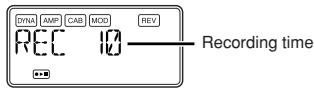
When you want to stop recording, press the ENTER/REC button, the CURSOR, or PHRASE TRAINER button. Recording will stop, and loop playback will begin automatically. If you do not stop recording, recording will continue until the selected recording time or number of measures has elapsed, and loop playback will begin automatically.
The phrase will be recorded and played back in mono.
Playback
The recorded phrase will playback as a loop. During playback or while paused, you can use the / CURSOR to select programs.
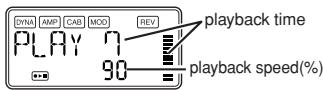
Rotating the Value encoder toward the left will slow down the playback speed without affecting the pitch. You can choose from six levels of playback speed: 100% , 90% , 80% , 75% , 66% , and 50% .
During playback, you can hold down the CURSOR to rewind, or hold down the CURSOR to fast-forward. By pressing the PHRASE TRAINER button, you can hold the sound that was being played at the moment you pressed the button (the Hold function). This is convenient when you need to hear individual notes in a phrase.
Pause
When you press the CURSOR, the playback will pause. Press the CURSOR once again, and playback will resume. Pressing the CURSOR while playback is paused will return you to the beginning of the recorded phrase.
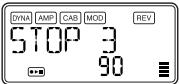
If you wish to re-record the phrase, press the CURSOR to pause playback.
Start the CD or other audio source, and press the ENTER/REC button at the beginning of the desired phrase. If you want to change the recording mode or time, press the PHRASE TRAINER button while paused.
Saving
If you want to save the phrase you recorded, press the PHRASE TRAINER button several times while paused until the LCD indicates "SAVE?". Then press the ENTER/REC button once again to save the phrase.
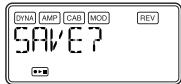
The "SAVE?" screen will be available from the recording mode screen if you've just recorded a phrase.
If you turn off the power without saving, the recorded phrase will be erased.
Only one phrase can be saved. When you save, the previously-saved phrase will be over-written and erased.
Edit mode
In this mode you can turn each effect on/off, and edit the effect type, parameter values, and program name. In Play mode, press the CURSOR to access the DYNA effect edit screen. Renaming the program and writing the program are also performed here.
Select the effect that you wish to edit
Each time you press the CURSOR, you will cycle through the effects in the order shown below. When an effect is selected, its icon will blink.

Editing each effect
For each effect, you can select the effect type and change its parameter values.
Effects that are turned "OFF" will automatically be turned on if you press the ENTER/REC button or use the / CURSOR to select the effect type. If a program was not written after it was edited, the decimal point of the program number will light.
In any screen of Edit mode, you can use the Control dials to edit the Amp models, or use the TAP/BYPASS button to set the delay time.
For details on the effect types and parameters, refer to the Effect Parameters list (1p.37).
Press the EXIT button to return to Play mode.
The edited settings will return to the settings of the original program if you switch programs or turn off the power without Writing (p.31 "WRITE").
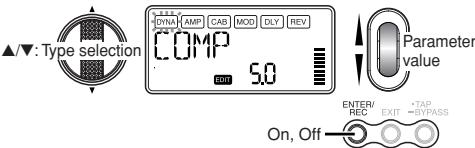
DYNA: Dynamics & Pickup Modeling
These are dynamics-type effects such as compressor, auto-wah, and pickup modeling effects.
AMP: Amp Modeling
BTQ CLN-OCTFUZZ (15 types) are guitar amps, and VALVE1-UKMAJOR (10 types) are bass amps. GSYNTH1-GSYNTH3 are guitar synths, and BSYNTH1-BSYNTH3 are bass synths. The value display will indicate "Gt" for approximately one second if you've selected a guitar model, or "bA" if you've selected a bass model.
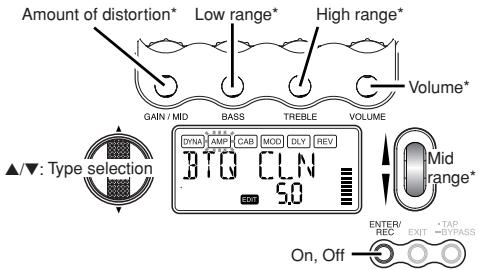
* Operation will be different if VALVE1-JAZZ (bass amps), GSYNTH1-3, or BSYNTH1-3 is selected as the type.
The VOLUME dial can be used to adjust the volume even when the amp modeling effect is "OFF."
CAB: Cabinet Modeling
This simulates the acoustical characteristics of the amp's cabinet. This is especially effective when you are not using an amp (e.g., when using headphones, or when connecting to a mixer, hard-disk recorder, or other audio device). 1X8TWD-4X12VIN (11 types) are guitar amp cabinets, and LA 4X10-COMBI (12 types) are bass amp cabinets. The value display will indicate "Gt" for approximately one second if you've selected a guitar amp cabinet, or "bA" if you've selected a bass amp cabinet.
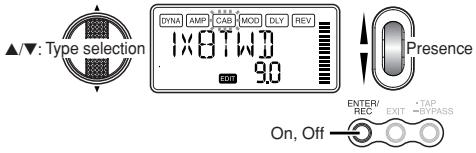
You can also use a guitar amp with a bass cabinet, or a bass amp with a guitar cabinet.
MOD: Modulation & Filter Effect Modeling
These are modulation and filter-type effects such as chorus, flanger, phaser, and pitch shifter.
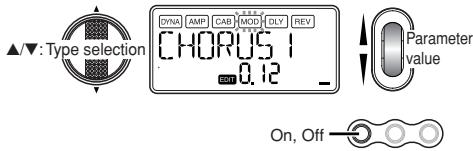
DLY: Delay Modeling
These are delay-type effects for which you can set the delay time by pressing the TAP/BYPASS button at a desired interval.
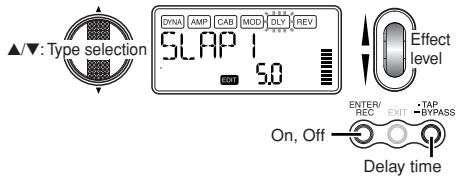
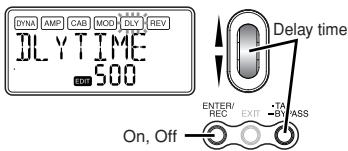
DLY: Delay Time
The screen shows the delay time of the delay modeling effect. In this screen, you can use the Value encoder to specify the delay time. You can also use the TAP/BYPASS button to specify the delay time in this screen.
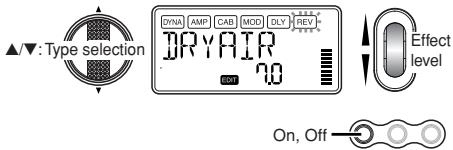
REV:Reverb Modeling
These are reverb-type effects that add spaciousness to the sound.
NR: Noise reduction
Increasing this value will produce more noise reduction. Normally you will adjust this so that you do not hear obtrusive noise when the strings are lightly muted.
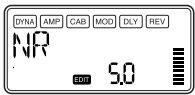
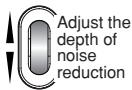
If the NR value is raised excessively, the notes may be cut off unnaturally. If this occurs, reduce the NR value.
RENAME
Here you can assign a name for each program.
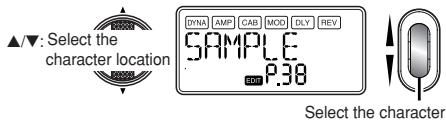
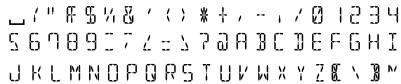
The following characters can be used:
WRITE
Here you can write (store) a program that you created. Use the Value encoder to select the writing destination (User programs only). To cancel writing a program, press the (or ) CURSOR to select a different screen. To write the program, press the ENTER/REC button. When the program has been written, the LCD will indicate "COMPLT" for approximately one second.
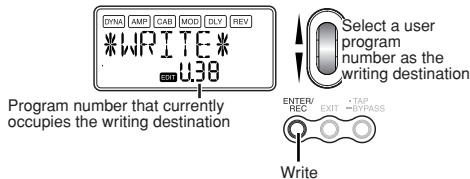
Before writing an edited program into a different program number, be sure that you do not mind overwriting the data that is currently in that program number. The program data that is overwritten will be lost.
It is not possible to write to a preset program (P00-P99).
Utility mode
Here you can make settings such as LCD Backlight, Key Transpose, and Bass Cancel. From Play mode, press the UTILITY button; the Utility icon will appear, and you'll be in Utility mode.
Select a utility function
Each time you press the UTILITY button, you'll step through the utility function screens in the order shown below.
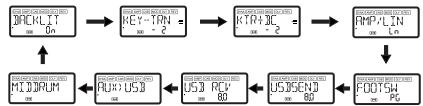
Change settings for each utility function
Change the desired settings for each utility function. Press the EXIT button to return to Play mode.

These settings are preserved even if you turn off the power.
BACKLIGHT: LCD backlight on/off
Use the Value encoder to turn the backlight on/off.
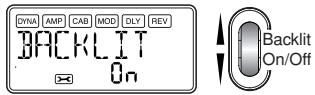

If you are using batteries, the operating time will be shorter if the backlight is on.
KEY-TRN: Key transpose
Displaying this screen transposes the key of the audio input from the USB connector or AUX jack. Use the Value encoder to specify the amount of key transposition. The key can be transposed in a range of + / - 1 octave. The value can be adjusted up and down for 3 semitones in 10 cent steps, and in semitone steps (100 cents) for the remainder of the range.
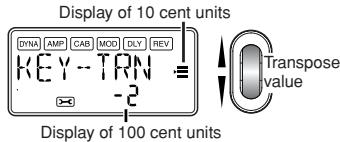

The output signal for key transpose will be mono.
KTR+BC: Key transpose + bass cancel
Displaying this screen transposes the key and cancels the bass of the audio input from the USB connector or AUX jack. The bass cancel function removes the low-frequency region from the sound, which provides a convenient way for you to practice playing the bass yourself. The adjustable range of the key transpose function is the same as for KEY-TRN (p.32). By setting the Key Transpose setting to "0" and selecting Key Transpose + Bass Cancel, you can turn on the Bass Cancel function only.
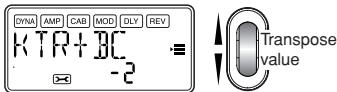
The output signal for key transpose and bass cancel will be mono.
If your computer is running Windows XP, and you want to transfer audio data via the USB connector, we recommend that you install the KORG USB-ASIO driver (provided on the included CD-ROM). For details on how to install the KORG USB-ASIO driver, refer to "Installing the software" on the included CD-ROM.
AMP/LIN: Amp/line select
When you're using Guitar Amp Modeling, this setting specifies whether the PX5D will be optimized for headphone/line output or for the specified type of guitar amp. This setting has no effect if Amp Modeling is off or if you've selected Bass Amp Modeling or Guitar/Bass Synth.
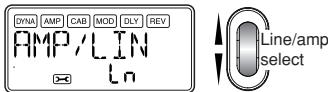
Ln: Choose this setting if you're connected to a headphone, mixer, or recorder.
AP1: Choose this setting if you're connected to a cleansounding amp such as an open-backed US-manufactured combo.
AP2: Choose this setting if you're connected to an amp with a distinctive-sounding mid-range such as a UK-manufactured open-back combo.
AP3: Choose this setting if you're connected to an amp with a closed-back 4 × 12 cabinet(s).
The amps mentioned above are general examples. The best setting may differ depending on the type of amp you're using, and how it is set.
FOOTSW: Foot switch pedal settings
Use the Value encoder to specify the function of the foot switches connected to the PX5D.
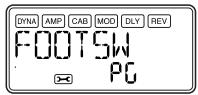
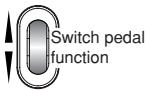
PG: The pedals will switch between the programs assigned to the PROGRAM MEMORY [A]–[D] buttons. The pedal connected to the UP connector (red) of the included cable for FOOT SW jack will step upward through the programs in the order of [A] [B] [C] [D] [A] . The pedal connected to the DOWN connector (white) will step downward through the programs in the order of [D] [C] [B] [A] [D]
Ud: The pedals will switch between programs U00-P99. The pedal connected to the UP connector (red) of the included cable for FOOT SW jack will step upward through the programs in the order of U00 U99 P00 P99 U00 The pedal connected to the DOWN connector (white) will step downward through the programs in the order of U00 P99 P00 U99 ... U00 P99
Note If you've assigned the foot switch to "PG" or "Ud," you can activate the Bypass function by simultaneously pressing both foot switches connected to the two jacks, or activate the Mute function by holding down both switches for one second or longer.
SS: The foot switches will start/stop recording and playback for Phrase Trainer mode. The foot switch connected to the UP connector (red) of the included cable for FOOT SW jack will start/stop recording. The foot switch connected to the DOWN connector (white) of the cable will start/stop playback.
With this setting, the foot switches will operate only when you're in Phrase Trainer mode.
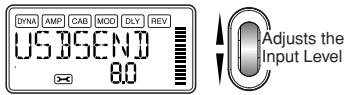
USBSEND: USB Send
This setting adjusts the input level to the computer when the PX5D is connected via USB. Watch the level meter of the DAW software on which you're recording, and use the Value encoder to adjust "USBSEND" so that the recording level is appropriate (i.e., so that it does not exceed 0 dB).
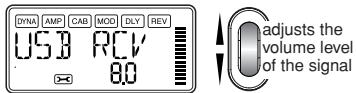
USB RCV: USB Receive
This setting adjusts the volume level of the signal received from the computer when the PX5D is connected via USB. Using the Value encoder, adjust this to balance the input with the PX5D's output.
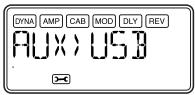
AUX>USB: USB audio interface
While this screen is displayed, the PX5D will operate as a standard stereo-in/stereo-out USB audio interface.
The following illustration shows the signal flow when connected to your computer.
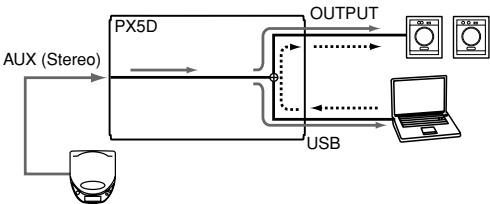
CD player etc.
The AUX jack will be the input jack, and the OUTPUT jack will be the output jack. To adjust the input level to your computer, watch the level meter of the DAW software on which you're recording, and adjust the volume of the external device that's connected to the AUX jack (to ensure that the level does not exceed 0 dB). The volume level of the signal being received from the computer is affected by the "USB RCV" setting.
The PX5D's effects, Rhythm & Bass function, and Phrase Trainer function are not available while you're using the PX5D as a USB audio interface.
MIDDDRUM: MIDI Drum/Bass
While this screen is displayed, MIDI note-on/off messages received via the USB connector will play the internal bass and drum sound generator.
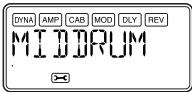
Note messages received on the following MIDI channels will play the bass and drum sounds.
MIDI channel 9: plays bass sounds.
MIDI channel 10: plays drum sounds.

The MIDI channels that play the bass and drum sounds are fixed.

For the correspondence between the received MIDI note data and the drum sounds that are played, refer to "PX5D Drum Kit map" on the included CD-ROM.
Loading the factory-set data
Here's how to load the preloaded data. This will load the factory-set effect programs, master level, Rhythm & Bass mode tuning, and Utility mode settings.

Be aware that if you reload the factory programs, the user programs and any settings that are remembered when the power is turned off (master level etc.) will all be overwritten.
1 While holding down the RHYTHM button and the CURSOR, turn on the power.
The LCD will ask "RELOAD?"
2 Press the ENTER/REC button
The display will indicate "RELOAD", "VERIFY", "COMPLT" for a short time, and the factory-set programs will be re-loaded into the user program area. Then the power-on screen will appear.
If you decide not to reload, press the EXIT button while the "RELOAD?" indication is still shown. The factory programs will not be reloaded; the normal power-on screen will appear, and the PX5D will be in Play mode.

Never turn off the power during the reload operation.
Effect Parameter List
DYNA: Dynamics & Pickup modeling
| TYPE (▲/▼ CURSOR) | VALUE (Value encoder) | |
| COMP | This compressor produces consistent levels and sustain. | Adjusts sensitivity (1.0...10.0). |
| DYNAEXC | This effect dynamically applies an exciter according to your picking strength. This is especially effective when you want to give more sparkle to clean sounds. | Adjusts sensitivity (0.0...10.0). |
| VOX WAH | Models a VOX V847 wah pedal. | Adjusts location of the pedal (1.0...10.0). |
| WAHUP1 | Positive-polarity auto-wah that responds sensitively to attacks. | Adjusts sensitivity (0.0...10.0). |
| WAHUP2 | Positive-polarity auto-wah that responds smoothly to attacks. | |
| WAHDWN1 | Negative-polarity auto-wah that responds sensitively to attacks. | |
| WAHDWN2 | Negative-polarity auto-wah that responds smoothly to attacks. | |
| SLOWATK | Smooths the attack to create a violin-like effect. | Specify the attack speed (1.0...10.0). |
| AC SIM | An effect that simulates the tonal characters of an acoustic guitar. | Adjusts tone (0.0...10.0). |
| RESO | An effect that simulates the metallic body of a resonator guitar. This is suitable for slide playing. | Specify the body resonance (0.0...10.0). |
| OCTAVE* | This generates a pitch one octave lower than the original sound, and mixes it with the original sound to add a sense of depth and low end. This effect may not operate correctly if two or more strings are played simultaneously, or when low-pitched strings are played. | Adjusts effect level (0.0...10.0). |
| RING | An effect that produces bell-like sounds. For the cleanest effect, use the neck pickup, turn down the tone control of your instrument, and play near the 12th fret. | Specify the frequency (1.0...10.0). |
| RINGUP | A ring modulator in which the effect changes dynamically depending on your picking strength. | Adjusts sensitivity (0.0...10.0). |
| RINGDWN | ||
| CRusher | A new-generation fuzz that produces an extremely destructive distortion. | Specify the degree of destructive-ness (0.0...10.0). |
| HUMDSL | Pickup modeling that transforms a humbucking pickup into a single-coil pickup. | Adjusts tone (0.0...10.0). |
| SGLHUM | Pickup modeling that transforms a single-coil pickup into a humbucking pickup. | |
| HF TONE | Pickup modeling that simulates the "half-tone" position between two pickups. | |
| PHASOUT | Pickup modeling that simulates the "out of phase" sound when two pickups are connected out of phase. | |
| B COMP | Compressor for bass with an emphasized attack. | Adjusts sensitivity (1.0...10.0). |
| LIMITER | A limiter that makes levels more consistent. | Specify the compression ratio (0.0...10.0). |
| B OD** | Overdrive for bass. | Amount of distortion (1.0...10.0). |
| B DIST** | Distortion for bass. | |
| B FUZZ** | Fuzz for bass. | |
| PREAMP1 | Preamp set to a clear tone for bass. | Adjusts tone (0.0...10.0). |
| PREAMP2 | Preamp set to a muted tone for bass. | |
| BALANCE | Creates the sound of blending the output of two bass pickups. | |
| LOWCUT | Filter that cuts the unwanted low-frequency range. Effective for recording. | Adjusts frequency (0.0...10.0). |
| FRETLES* | Settings that simulate the sound of a fretless bass. | Adjusts tone (0.0...10.0). |
: The sound will be muddy if you play chords. You should normally play only single notes when using this.
*: This is usually an effect for bass, but you can use it with the Synth amp model to produce a thick sound when using a guitar.
AMP: Amp Modeling
When using Amp Modeling, the control dials (GAIN/MID, BASS, TREBLE, VOLUME) and Value encoder will be active. The VOLUME dial can still be used even when Amp Modeling is "OFF." In order to take full advantage of the characteristics of Amp Modeling, we recommend that you use it in conjunction with Cabinet Modeling when listening through headphones or when recording from the line output.
If GSYNTH1-3 or BSYNTH1-3 is selected as the type, the control dials will control filter depth, filter decay, Oscillator selection (setting), and synth level respectively (p.42).
| TYPE (▲/▼ CURSOR) | VALUE (Value encoder & Control dial) | |
| BTQ CLN | Clean channel of a high-end 100 W hand made guitar amp. Recommended CAB: 4x12CLS, 4x12VIN, 4x12MDN | GAIN/MID ...... amount of distortion (0.0...10.0). BASS ....... low frequency (0.0...10.0). TREBLE ...... high frequency (0.0...10.0). VOLUME ...... output volume (0.0...10.0). Value encoder ...... mid frequency (0.0...10.0). |
| BTQ OD | Overdrive channel of a high-end 100 W hand-made guitar amp. Recommended CAB: 4x12CLS, 4x12VIN, 4x12MDN | |
| TWD1X12 | 1x12" guitar combo covered in tweed cloth. Recommended CAB: 1x12TWD | |
| TWD4X10 | 4x10 guitar combo but designed for bass guitar. Recommended CAB: 4x10TWD | |
| BLK2X12 | 2x12 guitar combo indispensable for country or blues players. Recommended CAB: 2x12BLK | |
| AC15 | VOX AC15 manufactured in 1962. Recommended CAB: 1x12VOX | |
| AC15TB | Brilliant channel of a VOX AC15TB. Recommended CAB: 1x12VOX | |
| AC30 | VOX AC30 model. Recommended CAB: 2x12VOX | GAIN/MID .... amount of distortion (0.0...10.0). BASS ....... low frequency (0.0...10.0) TREBLE .... high frequency (0.0...10.0). VOLUME .... output volume (0.0...10.0). Value encoder .... mid frequency (0.0...10.0). |
| AC30TB | Brilliant channel of a VOX AC30TB. Recommended CAB: 2x12VOX | |
| UKBLUES | UK-manufactured vintage stack guitar amp head. Recommended CAB: 4x12CLS | |
| UK '70S | High treble channel of a UK-manufactured 100 W guitar head from 1969. Recommended CAB: 4x12CLS | |
| UK '80S | UK-manufactured 100W guitar head with master volume from 1983. Recommended CAB: 4x12CLS, 4x12VIN, 4x12MDN | |
| UK '90S | The lead channel of a 100W dual-channel head from the 90's. Recommended CAB: 4x12CLS, 4x12VIN, or 4x12MDN | |
| UK MDN | UK-manufactured 100 W modern guitar amp. Recommended CAB: 4x12VIN, 4x12MDN | |
| US HI-G | 100 W guitar amp head covered in snake skin from 1991. Recommended CAB: 4x12VIN, 4x12MDN | |
| US MDN | High-gain guitar amp with an eye-catching metal plate. Recommended CAB: 4x12VIN, 4x12MDN | |
| FUZZ | A vintage fuzz from the 60's that produces powerful distortion. | |
| OCTFUZZ | A fuzz that emphasizes the components one octave above. This is particularly effective when you use the neck pickup, turn down the tone of your instrument, and play above the 12th fret. | |
| VALVE1 | A tube bass amp with the ULTRA LO switch turned ON. Recommended CAB: CLS8x10 | GAIN/MID ...... mid frequency (0.0...10.0). BASS ....... low frequency (0.0...10.0) TREBLE ...... high frequency (0.0...10.0). VOLUME ...... output volume (0.0...10.0). Value encoder ...... mid-range frequency (1...5). |
| VALVE2 | A tube bass amp ideal for rock. Recommended CAB: CLS8x10 | |
| CLASSIC | A tube bass amp whose basic character changes according to the setting of the value encoder. Recommended CAB: COMBI | |
| SCOOPED | A bass amp that is typical of the 80's. Recommended CAB: MTL4x10) | |
| LA STUD | A bass amp that is typical of the LA sound. Recommended CAB: LA 4x10, LA 1x18 | |
| GOLDPNL | A bass amp distinctive for its eye-catching gold panel and clean sound. Recommended CAB: MDN4x10 | |
| JAZZ | A combo bass amp favored by jazz bassists. Recommended CAB: JAZ1x15 | |
| STUDIO | A tube combo bass amp ideal for the Motown sound. Recommended CAB: STU1x15 | GAIN/MID amount of distortion (0.0...10.0). BASS ....... low frequency (0.0...10.0). TREBLE ....... high frequency (0.0...10.0). VOLUME ....... output volume (0.0...10.0). Value encoder ...... mid frequency (0.0...10.0). |
| AC 100 | A 100W tube bass amp made by Vox. Recommended CAB: AC 2x15 | |
| UKMAJOR | A 200W tube bass amp made in the UK. Recommended CAB: UK 4x15, UK 4x12 | |
| G SYNTH1...3 | A chromatic synth for guitar. Variations 1, 2, and 3 have different amounts of resonance. (We recommend that you turn the CAB setting OFF.) | Refer to separate Synth parameters. p.42 |
| B SYNTH1...3 | A bass synth unique to Korg that modifies the original sound and provides excellent tracking. Variations 1, 2, and 3 have different amounts of resonance. (We recommend that you turn the CAB setting OFF.) | |
Synth parameters
| DEPTH (GAIN/MID) | Adjusts the amount of change in the filter cutoff frequency (-15...0...15). |
| DECAY (BASS) | Adjusts the decay time of the filter envelope (0.0...10.0). |
| WAVE (TREBLE) | When GSYNTH1-3 is selected Selects the waveform (0...15). 0: Sawtooth wave, two octaves down 1: Sawtooth wave, one octave down 2: Sine wave, one octave down 3: Sawtooth wave 4: Sine wave 5: Sawtooth wave, one octave up 6: Sine wave, one octave up 7: Sine wave, two octaves up Oscillators 8-15 are oscillators 0-7 but with portamento turned on. When BSYNTH1-3 is selected Adjusts the waveform (0.0...10.0). A setting of 0 is the same octave as the original sound. A setting of 10.0 is a waveform one octave below, and intermediate values adjust the mix between the two waveforms. |
| SYN LEV (VOLUME) | Adjusts the synth volume (0.0...10.0). |
| DIR LEV (Value encoder) | Adjusts the guitar or bass volume (0.0...10.0). |
The guitar synth (GSYNTH1-3) is effective with single-note playing. It will not produce the correct result if you play chords. The bass synth (BSYNTH1-3) will produce muddy sound if you play chords.
The guitar synth (GSYNTH1-3) will not produce the expected result if your instrument is tuned incorrectly. If this occurs, please tune your instrument correctly.
If the sound is unpleasantly distorted, lower the "SYN LEV" and "DIR LEV" until the sound is no longer distorted.
CAB: Cabinet modeling
| TYPE (▲/▼ CURSOR) | VALUE (Value encoder) | |
| 1X8TWD | This model simulates an open back cabinet with one 8-inch speaker for guitar. | PRESENCE: Adjusts the tone of the high-frequency range (0.0...10.0). |
| 2X10BLK | This model simulates a US-made open back cabinet with two 10-inch speakers for guitar. | |
| 4X10TWD | This model simulates an open back cabinet with four 10-inch speakers for guitar. | |
| 1X12TWD | This model simulates an open back cabinet with one 12-inch speaker for guitar typically used for blues. | |
| 1X12VOX | This model simulates a Vox open back cabinet with one 12-inch "Blue" speaker for guitar. | |
| 2X12BLK | This model simulates a US-made open back cabinet with two 12-inch speakers for guitar. | |
| 2X12VOX | This model simulates a Vox open back cabinet with two 12-inch "Blue" speakers for guitar. | |
| 4X12VOX | This model simulates a closed-back VOX guitar cabinet, containing four neodymium speakers | |
| 4X12CLS | This simulates a closed back cabinet with four 25W 12-inch speakers for guitar. | |
| 4X12MDN | This simulates a closed back cabinet with four 75W 12-inch speakers for guitar. | |
| 4X12VIN | This simulates a closed back cabinet with four 30W 12-inch speakers for guitar. | |
| LA 4X10 | This model simulates four 10-inch bass speakers for the LA sound. | PRESENCE: Adjusts the tone of the high-frequency range (0.0...10.0). |
| MDN4X10 | This model simulates four 10-inch bass speakers for a modern sound. | |
| MTL4X10 | This model simulates four by 10-inch aluminum-cone bass speakers. | |
| CLS8X10 | This model simulates eight 10-inch classic bass speakers. | |
| UK 4X12 | This model simulates four 12-inch UK-manufactured bass speakers. | |
| STU1X15 | This model simulates one 15-inch speaker studio bass cabinet. | |
| JAZ1X15 | This model simulates one 15-inch speaker bass jazz combo. | |
| AC 2X15 | This model simulates a two 15-inch speaker AC100 cabinet. | |
| US 2X15 | This model simulates two 15-inch US-manufactured bass speakers. | |
| UK 4X15 | This model simulates four 15-inch UK-manufactured bass speakers. | |
| LA 1X18 | This model simulates one 18-inch speaker for the LA sound. | |
| COMBI | This model simulates a one 12-inch and one 18-inch bass speaker cabinet. | |
MOD: Modulation & Filter Effect Modeling
| TYPE (▲/▼ CURSOR) | VALUE (Value encoder) | |
| CHORUS1 | Vintage chorus in which the effect sound is output to the left and the direct sound to the right. | Adjusts modulation speed (0.10...10.0 [Hz]). |
| CHORUS2 | Vintage stereo chorus that inverts the phase of the effect sound between left and right, creating more spaciousness. | |
| FLANG1...3 | Vintage flanger with a distinctive sound. 1, 2, 3 have feedback amounts of 0%, 22%, and 60% respectively. | |
| FLANG4 | Vintage flanger that inverts the phase of the feedback. | |
| PHASER1 | A popular four-stage vintage phaser. | |
| PHASER2 | A four-stage vintage phaser with a thick mid-range. | |
| PHASER3 | A ten-stage vintage phaser with a mild effect. | |
| 12STR | Produces a sound reminiscent of a twelve-string guitar. | Adjusts the depth of the effect (0.0...10.0). |
| U-VIBE1 | Simulation of a pedal vibe set to chorus mode. | Adjusts the modulation speed (1.0...10.0 [Hz]). |
| U-VIBE2 | Simulation of a pedal vibe set to vibrato mode. | |
| TREM1 | Smooth tremolo. | |
| TREM2 | Tremolo found in a guitar amp. | |
| TREM3 | Strong and pulsating tremolo. | |
| AT PAN1 | Auto Pan. (LFO: square wave□□) | Adjusts the modulation speed (0.10...10.0 [Hz]). |
| AT PAN2 | Auto Pan. (LFO: sine wave□□) | |
| ROTARY1 | Rotary speaker simulation. | Adjusts the modulation speed (1.0...10.0 [Hz]). |
| ROTARY2, 3 | Rotary speaker simulation in which your playing dynamics control the speed. 2 switches from slow to fast when you play strongly. 3 switches from slow to fast when you play softly. | Specify the level at which the rotor speeds (1.0...10.0). |
| PITCH1...4 | Pitch shifter. The level of the effect differs between variations 1, 2, and 3. Variation 4 produces only the effect. | Amount of pitch shift (-24, -17, -12...-1, -d, d, 1...12, 19, 24). [d = detune] |
| MAJ3UP | Intelligent pitch shifter; a 3rd up in a major key. | Specify the key (C, C#...A#, B). |
| MAJ3DWN | Intelligent pitch shifter; a 3rd down in a major key. | |
| MIN3UP | Intelligent pitch shifter; a 3rd up in a minor key. | |
| MIN3DWN | Intelligent pitch shifter; a 3rd down in a minor key. | |
| PER4TH | Intelligent pitch shifter; a 4th up in a major key. | |
| PER5TH | Intelligent pitch shifter; a 5th up in a major key. | |
| MAJ6TH | Intelligent pitch shifter; a 6th up in a major key. | |
| FEEDBK1, 2 | An effect that artificially generates feedback, and operates when a note is held for an extended time. 2 generates feedback one octave higher. | 0.0...4.7 adjusts the effect level. 5.0...10.0 adjusts the vibrato depth. |
| FEEDBK3, 4 | An effect that artificially generates feedback, and operates constantly when sustained. 4 generates feedback one octave higher. | |
| FILTER | Fixed filter effect. | Adjusts the frequency (1.0...10.0 [Hz]). |
| FILTUP1 | Positive-polarity low-pass filter auto-wah. | Adjusts sensitivity (0.0...10.0). |
| FILTUP2 | Low-pass filter auto-wah with positive-polarity and a strong peak. | |
| FILTDN1 | Negative-polarity low-pass filter auto-wah. | |
| FILTDN2 | Low-pass filter auto-wah with negative-polarity and fast response. | |
| TALK 1...4 | An effect that simulates a “talking guitar.”1:YAH-YAH, 2:U-WAH, 3:YOI-YOI, 4:YESH | Adjusts sensitivity (0.0...10.0). |
| RANDOM 1...4 | Random step filter that moves a filter randomly.1, 2, 3, and 4 by changing the frequency band affected by the filter. | Adjusts the modulation speed (1.0...10.0). |
| DRONE*1 | A drone effect that adds a continuous pitch similar to that of a tambura, an instrument of India (soft effect level). | Specify the drone pitch (C, C#...A#, B). |
| DRONE2* | A drone effect that adds a continuous pitch similar to that of a tambura, an instrument of India (strong effect level) | |
| ENVPIT | An envelope pitch shifter that varies the pitch according to your picking. | Specifies the depth of the effect (-15...0...15). The pitch change can be positive or negative. |
| ENVCHO | An envelope chorus that applies a chorus effect according to your picking. | |
| INFFLN1 | A flanger that continues rising forever. | Specifies the depth of the effect (0.0...10.0). |
| INFFLN2 | A flanger that continues falling forever. | |
| INFPIT1, 2 | A pitch shifter that rises or falls forever. This will produce the impression of a never-ending pitch change for any input. Variation 1 has the direct sound and the effect sound. Variation 2 has only the effect sound. | Specifies the depth of the effect (-15...0...15). Positive values produce upward motion, negative values produce downward motion. |
*: It's effective to set the drone pitch to the tonic note of the song or solo you're playing.
About the Intelligent Pitch Shifter
The Intelligent Pitch Shifter creates musically useful harmonies by varying the amount of pitch shift according to the note you play and the key in which you are playing. For example if you select a pitch shift of a 3rd up in a major key (MAJ3UP), the amount of pitch shift will vary automatically between three semitones (a minor third) and four semitones (a major third).
- When MAJ3UP is used with a key setting of C

The pitch created by the intelligent pitch shifter is shown in parenthesis ( ).
The PX5D provides seven types of intelligent pitch shifting, with intervals of a 3rd, 4th, 5th, and 6th. (For the 3rd, you can select either the upper or lower part, and a major or minor key.)
If your instrument is not tuned correctly, the results may not be as you expect. In this case, re-tune your instrument.
The intelligent pitch shifter will function when you play individual notes. It cannot produce the effect for chords.
DLY: Delay Modeling
Each delay type, (1, 2, 3, 4, 5) have different amounts of feedback. The delay time is set by the interval at which you press the TAP/BYPASS button twice. The specified delay time can be checked by holding down the TAP/BYPASS button.
| TYPE (▲/▼ CURSOR) | VALUE (Value encoder) | |
| SLAP1...5 | A slap delay effect that produces a distinctive short delay. The maximum delay time is 500 msec. The delay time will be specified as one-fourth of the interval at which you press TAP-BYPASS. | Adjusts effect level (0.0...10.0). |
| ECHO1...5 | Tape echo simulation with a warm tone. Delay time: up to 2 sec. | |
| CLRDLY1...5 | A clear-sounding delay typical of digital delay units. Maximum delay time: 1 second. | |
| PPDLY1...5 | Dual-tapped ping-pong delay that pans left and right. Maximum delay time: 2 second. | |
| MULTI1...5 | Dual-head tape echo simulation with special stereo design. Creates a spacious reverberation. Maximum delay time: 2 second. | |
| RVSDLY | A reverse-delay (backward playback) effect. Maximum delay time: 1 second. | Specifies the balance between the effect and dry sounds (0.0...10.0). |
REV:Reverb Modeling
| TYPE (▲/▼ CURSOR) | VALUE (Value encoder) | |
| DRYAIR | Reverb that produces a sensation of dry air. | Adjusts effect level (0.0...10.0). |
| WETAIR | Reverb that produces a sensation of wet air. | |
| ROOM1 | Bright-sounding room reverb. | |
| ROOM2 | Mellow-sounding room reverb. | |
| PLATE1 | Tight-sounding plate reverb. | |
| PLATE2 | Bright-sounding plate reverb. | |
| HALL1 | Reverberation of a mid-sized hall. | |
| HALL2 | Reverberation of a large hall. | |
| SPRING1 | Spring reverb of a guitar amp. | |
| SPRING2 | Dense spring reverb. | |
| BRIGHT | A reverb effect that produces brightly sparkling reverberation. | |
Preset Program Names
| No. | Name | No. | Name | No. | Name | No. | Name | No. | Name |
| P00 | METALIC | P20 | GMBLUES | P40 | RESO | P60 | STUTTER | P80 | B FILTR |
| P01 | BLUEYES | P21 | SRV | P41 | FEEDBKR | P61 | LASHRED | P81 | B CHORD |
| P02 | PARALIZ | P22 | SUPACLN | P42 | SITAR | P62 | VOXSLAP | P82 | B SOLO |
| P03 | VOXTREM | P23 | COUNTRY | P43 | SPACED | P63 | ROTODRV | P83 | B PICKR |
| P04 | COHEED | P24 | BLUES | P44 | MEOW | P64 | ARENA | P84 | B SYNTH |
| P05 | BOWATTK | P25 | JAZZY | P45 | DIALUP | P65 | WELL | P85 | B TAP |
| P06 | WHITERM | P26 | SURF | P46 | FILTER | P66 | DOC OCT | P86 | B HARM |
| P07 | FAB4 | P27 | POP | P47 | ROTARY | P67 | NOTRITE | P87 | B OCT |
| P08 | WHOKIDS | P28 | ROCK | P48 | DELAYED | P68 | ILL | P88 | B FING |
| P09 | MUDD | P29 | METAL | P49 | REVERSE | P69 | YAPPY | P89 | B THUMB |
| P10 | FLOYD | P30 | VOX WAH | P50 | BATTERY | P70 | B BLUES | P90 | B FRET- |
| P11 | AUDIO | P31 | OVERDRV | P51 | CRUSHD | P71 | B MOTWN | P91 | B BEND |
| P12 | MR SG | P32 | STONED | P52 | RAGE'D | P72 | B JAZZ | P92 | B FROG |
| P13 | STRATO | P33 | ACOUSTC | P53 | DRENCHD | P73 | B RNB | P93 | B JUICE |
| P14 | SCORPS | P34 | CRY WAH | P54 | CMPLEAD | P74 | B CNTRY | P94 | B REV |
| P15 | WINTER | P35 | ASCEND | P55 | BIGLEAD | P75 | B ROCK | P95 | B PEEPS |
| P16 | SUBSYNT | P36 | CHORUS | P56 | RAVECHO | P76 | B METAL | P96 | B THICK |
| P17 | LINKIN | P37 | FIRE | P57 | MDNJAZZ | P77 | B FUNK | P97 | B TAPIT |
| P18 | CHARLOT | P38 | 12STRING | P58 | ROKABLY | P78 | B DRIVE | P98 | B SCOOP |
| P19 | SHADOWS | P39 | PIEZO | P59 | MEGAMID | P79 | B TREM | P99 | B FUZZY |
Rhythm Pattern List
| No. | Name | No. | Name | No. | Name | No. | Name | No. | Name |
| 1 | MTRONM0 | 23 | 2/4 2 | 45 | POP1 | 67 | CNTRYS2 | 89 | DISCO3 |
| 2 | MTRONM2 | 24 | 2/4 3 | 46 | POP2 | 68 | JAZZ1 | 90 | GOGO1 |
| 3 | MTRONM3 | 25 | 2/4 4 | 47 | ROCK1 | 69 | JAZZ2 | 91 | GOGO2 |
| 4 | MTRONM4 | 26 | 2/4 5 | 48 | ROCK2 | 70 | JAZZ3 | 92 | GOGO3 |
| 5 | MTRONM5 | 27 | 2/4 6 | 49 | ROCK3 | 71 | JAZZ4 | 93 | HOUSE1 |
| 6 | MTRONM6 | 28 | 2/4 7 | 50 | ROCK4 | 72 | FNKRCK1 | 94 | HOUSE2 |
| 7 | MTRONM7 | 29 | 3/4 1 | 51 | ROCK5 | 73 | FNKRCK2 | 95 | HOUSE3 |
| 8 | MTRONM9 | 30 | 3/4 2 | 52 | R'N'R | 74 | HVYFUNK | 96 | D'NB 1 |
| 9 | 8BEAT1 | 31 | 3/4 3 | 53 | METAL1 | 75 | JB 1 | 97 | D'NB 2 |
| 10 | 8BEAT2 | 32 | 3/4SWG1 | 54 | METAL2 | 76 | JB 2 | 98 | SKA1 |
| 11 | 8BEAT3 | 33 | 3/4SWG2 | 55 | METAL3 | 77 | NJCKSWG | 99 | SKA2 |
| 12 | 16BEAT1 | 34 | 5/4 | 56 | METAL4 | 78 | MOTOWN1 | 100 | SKA3 |
| 13 | 16BEAT2 | 35 | 3/8 1 | 57 | R'N'B1 | 79 | MOTOWN2 | 101 | 2NDLINE |
| 14 | 16BEAT3 | 36 | 3/8 2 | 58 | R'N'B2 | 80 | MOTOWN3 | 102 | FILLS01 |
| 15 | 16BEAT4 | 37 | 5/8 | 59 | R'N'B3 | 81 | MOTOWN4 | 103 | FILLS02 |
| 16 | 16BEAT5 | 38 | 6/8 1 | 60 | R'N'B4 | 82 | SURF | 104 | FILLS03 |
| 17 | 16BTSW1 | 39 | 6/8 2 | 61 | BLUES1 | 83 | REGGAE1 | 105 | FILLS04 |
| 18 | 16BTSW2 | 40 | 6/8 3 | 62 | BLUES2 | 84 | REGGAE2 | 106 | FILLS05 |
| 19 | 16BTSW3 | 41 | 6/8 4 | 63 | 8BLUES | 85 | REGGAE3 | 107 | FILLS06 |
| 20 | 16BTSW4 | 42 | 7/8 1 | 64 | BLUESFL | 86 | BOLEERO | 108 | FILLS07 |
| 21 | 16BTSW5 | 43 | 7/8 2 | 65 | COUNTRY | 87 | DISCO1 | 109 | FILLS08 |
| 22 | 2/4 1 | 44 | 9/8 | 66 | CNTRYS1 | 88 | DISCO2 | 110 | FILLS09 |
Troubleshooting
If the PX5D does not operate as you expect, please check the following points first. If this does not resolve the problem, contact your dealer.
1. Power does not turn on.
- Are batteries installed? Alternatively, is the correct AC adapter connected to an AC outlet?
2. No sound
- Are your guitar or bass, amp and/or headphones connected to the correct jacks?
- Is your amp turned on and set correctly?
- Are any cables broken?
- Is the master level of the PX5D set to "0" or to a low level?
- The VOLUME dial may have been turned down.
- Is the PX5D muted?
Be aware that if all effects are off, the chain display will disappear, and it will not be possible to distinguish Bypass or Mute from the LCD display.
- Dose the LCD display "AUX>USB" in Utility mode? When "AUX>USB" is displayed, the output of your guitar sound will be muted.
-
Is the volume of your guitar turned down?
-
The volume from the device connected to the AUX jack is too loud or too soft, or cannot be heard.
-
Adjust the output level of the connected device.
Make connections to the headphone jack of the device, instead of to its line output. - Are you in Phrase Trainer mode?
Exit Phrase Trainer mode. -
Are you using a connection cable with a built-in resistor?
-
Effects do not apply
-
Is the PX5D bypassed? (the effect chain will be blinking)
-
Are the effects used in the program turned on?
-
Tuner does not work.
-
Is the PX5D bypassed or muted?
-
Can't install the software
-
Is the CD-ROM inserted in your CD drive?
Make sure that the CD-ROM is inserted correctly.
- Could the lens of your CD drive be dirty?
Use a commercially-available lens cleaner to clean the lens.
- Are you attempting to install from a network CD drive?
This software cannot be installed from a network-connected CD drive.
- Are you able to use USB?
-
If you are using Windows XP, go to [Control Panel] → [System], and select the [Hardware] tab. In [Device Manager], check the settings for Universal Serial Bus Controller and USB Root Hub.
-
Can't record using the USB audio function. Or, the recording level is too low (too high).
-
Use the Utility mode "USBSEND" setting to adjust the input level to your computer. p.35
-
Can't play back using the USB audio function. Or, the playback level is too low (too high).
-
Use the Utility mode "USB RCV" setting to adjust the input level to the PX5D. p.35
-
Your software does not respond to the PX5D
-
Is the USB cable connected correctly?
- Did you install the driver you need?
- Has your computer detected the connected PX5D? If you are using Windows XP, go to Control Panel "Sounds and Audio Devices Properties" and click the Hardware tab.
If you are using Mac OS X, go to Macintosh HD Application folder Utility folder "Audio MIDI Settings," select the "MIDI Devices" tab, and check that the PX5D has been detected.
- The connected device or software may not support the messages you are transmitting. Refer to the owner's manual of the connected device or software to verify that it responds to the messages you are transmitting.
Specifications
Effects: 180 types (Maximum number of effects available simultaneously: 7)
Number of programs:
- User: 100
-
Preset: 100
-
Inputs:
-
INPUT (1 / 4^ jack)
-
AUX (mini stereo jack)
-
Output: line/headphone dual-purpose output (stereo jack)
Control: -
FOOTSW jack
- USB connector
Tuner section:
- detection range: 27.5 Hz - 2,093 Hz( A0 - C7)
- calibration: A = 438 Hz - 445 Hz
Rhythm section:
number of pattern: 774 including pattern variations
- Tempo: 40-240 bpm
Power supply:
- Two AA alkaline batteries: Allows 7 hours of continuous use (backlight Off) Allows 5 hours of continuous use (backlight On)
- USB bus-powered (when using the USB connector)
-
Separately sold AC adapter (DC4.5V:
-
Dimensions (W x D x H): 118mm x 75mm x 20mm (4.65" x 2.95" x 0.79")
Weight (not including batteries): 154g (0.34lbs.) -
Included items:
-
Owner's manual
- Two AA alkaline batteries for checking operation
CD-ROM - Cable for FOOTSW jack
Option:
- AC adapter
KORG PS-1 pedal switch
Appearance and specifications are subject to change without notice for product improvement.
Precautions
Emplacement
REV:Reverb Modeling. 104
Fonction Rhythm and Bass
20: Environ 20 seconds.
40: Environ 40 seconds.
80: Environ 80 seconds.
1, 2, 3...: Nombre de mesures.
AUX>USB: Interface audio USB
disques compacts, etc
Quick Edit (Schnellzugriff) 123
Play-Modus 124
DYNA: Dynamics & Pickup Modeling 136
AMP: Amp Modeling. 137
CAB: Cabinet Modeling 137
MOD: Modulation & Filter Effect Modeling 138
DLY:Delay Modeling 138
DLY:Delay Time (Delay-Zeit) 138
REV:Reverb Modeling 138
NR: Noise Reduction/Rauschunterrückung .... 139
(Key transpose ^+ bass cancel) 141
USB RCV: USB Receive 143
DYNA: Dynamics & Pickup modeling 145
AMP: AMP Modeling 147
CAB: Cabinet modeling. 151
MOD: Modulation&Filter Effect Modeling ..153
DLY: Delay Modeling. 157
REV:Reverb Modeling. 158
Parameterliste der Preset-Programme ... 159
Quick Edit (Schnellzugriff)
Rhythm Pattern/Variation
Bass Key (Bass-Tonart)
Chain Select (CHAIN 01-20)
Hinweis: You can use a foot switch connected to the FOOTSW jack to start/stop recording (S. 142, FOOTSW'').
DYNA: Dynamics & Pickup Modeling
DLY: Delay Time (Delay-Zeit)
USB RCV: USB Receive
MIDDDRUM: MIDI Drum/Bass
DYNA: Dynamics & Pickup modeling
This product has been manufactured according to strict specifications and voltage requirements that are applicable in the country in which it is intended that this product should be used. If you have purchased this product via the internet, through mail order, and/or via a telephone sale, you must verify that this product is intended to be used in the country in which you reside.
WARNING: Use of this product in any country other than that for which it is intended could be dangerous and could invalidate the manufacturer's or distributor's warranty. Please also retain your receipt as proof of purchase otherwise your product may be disqualified from the manufacturer's or distributor's warranty.
REMARQUE IMPORTANTE POUR LES CLIENTS
- Power supply
- Interference with other electrical devices
- Handling
- Care
- Keep this manual
- Keeping foreign matter out of your equipment
- THE FCC REGULATION WARNING (for USA)
- Notice regarding disposal (for EU)
- Table of Contents
- Edit mode 28
- Utility mode 32
- Loading the factory-set data 36
- Effect Parameter List 37
- Preset Program Names 51
- Rhythm Pattern List 52
- Troubleshooting 53
- Specifications 55
- Introduction
- Main features
- Control dials
- Backlit LCD
- Auto Tuner function
- Rhythm and Bass function
- Phrase Trainer function
- AUX pitch function
- TAP/BYPASS button
- Value encoder
- USB-MIDI, USB audio interface function
- What is REIMS?
- Turning on the power
- Battery Low display
- Controls and connectors
- INPUT jack
- AUX jack (stereo)
- INPUT switch
- Control dials
- Power switch
- FOOT SW jack
- OUTPUT jack
- LCD (Liquid Crystal Display)
- CURSOR
- DC4.5V
- RHYTHM button
- PHRASE TRAINER button
- UTILITY button
- 14.PROGRAM MEMORY [A][B][C][D] buttons
- ENTER/REC button
- EXIT button
- TAP/BYPASS button
- USB connector
- Value encoder
- LCD screen
- Effect chain
- Program name/Effect type display
- USB icon
- Low Battery icon
- Mode icons
- Program number/value display
- ORIG (Original) icon
- Bar graph
- Variation icons (VARI1, VARI2)
- Making connections
- Connecting to your Computer
- Using the editor software
- Transferring audio data
- Initial Settings
- Quick Edit
- Play mode
- Selecting a program
- PROGRAM MEMORY [A], [B], [C], [D] buttons
- Using foot switches to select programs
- Master level
- Bypass/Mute
- Tuner
- Calibration (Standard pitch A = 440
- Specifying the function of the Value encoder
- Key Lock function
- Rhythm & Bass mode
- PTN: Pattern play
- CHAIN: Chain play
- SONG: Song play
- PTN (Pattern play)
- Rhythm Pattern/Variation
- Tempo
- Bass Key
- Level
- Reverb
- CHAIN (Chain play)
- Chain select (CHAIN 01-20)
- Write
- Chain edit
- Rhythm Pattern
- Repeat
- SONG (Song play)
- Song Select
- Transpose
- Loop
- Phrase Trainer mode
- Select the recording mode
- Recording
- Playback
- Pause
- Saving
- Edit mode
- Select the effect that you wish to edit
- Editing each effect
- DYNA: Dynamics & Pickup Modeling
- AMP: Amp Modeling
- CAB: Cabinet Modeling
- MOD: Modulation & Filter Effect Modeling
- DLY: Delay Modeling
- DLY: Delay Time
- REV:Reverb Modeling
- NR: Noise reduction
- RENAME
- Utility mode
- Select a utility function
- Change settings for each utility function
- BACKLIGHT: LCD backlight on/off
- KEY-TRN: Key transpose
- KTR+BC: Key transpose + bass cancel
- AMP/LIN: Amp/line select
- FOOTSW: Foot switch pedal settings
- USBSEND: USB Send
- USB RCV: USB Receive
- AUX>USB: USB audio interface
- MIDDDRUM: MIDI Drum/Bass
- Loading the factory-set data
- Effect Parameter List
- Synth parameters
- About the Intelligent Pitch Shifter
- - When MAJ3UP is used with a key setting of C
- Troubleshooting
- Power does not turn on.
- No sound
- Specifications
- Precautions
- Emplacement
- Fonction Rhythm and Bass
- AUX>USB: Interface audio USB
- Play-Modus 124
- Parameterliste der Preset-Programme ... 159
- Quick Edit (Schnellzugriff)
- Bass Key (Bass-Tonart)
- DLY: Delay Time (Delay-Zeit)
- REMARQUE IMPORTANTE POUR LES CLIENTS
Brand : KORG
Model : PX5D
Category : Guitar Effects