JC262I1 - Educational Toys LEXIBOOK - Free user manual and instructions
Find the device manual for free JC262I1 LEXIBOOK in PDF.


| Product type | Educational computer |
| Brand | LEXIBOOK |
| Model | JC262I1 |
| Power supply | 3 LR6 (AA) alkaline batteries, 1.5 V each |
| Recommended age | From 3 years |
| Languages | French and English (bilingual) |
| Number of activities | 50 activities in 6 categories |
| Activity categories | French, English, mathematics, music, logic, eyes |
| Game modes | 1 player, 2 players, mission mode |
| Difficulty levels | 2 levels per activity |
| Musical keyboard | Retractable keyboard with piano keys |
| Screen | LCD screen with animations and light effects |
| Auto shutdown | After 3 minutes of inactivity |
| Care and cleaning | Clean with a slightly damp cloth without detergent; avoid moisture and heat |
| Safety | Not suitable for children under 36 months (contains small parts) |
| Warranty | 2 years |
| Standards | WEEE, CE marking; environmentally friendly |
Frequently Asked Questions - JC262I1 LEXIBOOK
User questions about JC262I1 LEXIBOOK
0 question about this device. Answer the ones you know or ask your own.
Ask a new question about this device
Download the instructions for your Educational Toys in PDF format for free! Find your manual JC262I1 - LEXIBOOK and take your electronic device back in hand. On this page are published all the documents necessary for the use of your device. JC262I1 by LEXIBOOK.
USER MANUAL JC262I1 LEXIBOOK
GUIDE DE PRESE EN MAIN
Enter the magical world of Tinker Bell and her friends! Discover 100 activities to become bilingual in a sprinkle of fairy dust! Please read the following instructions to make the best use of this enchanting learning laptop and ask the help of an adult to read the safety markings.
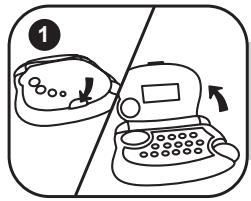
- Press the latch to lift the laptop's cover open.
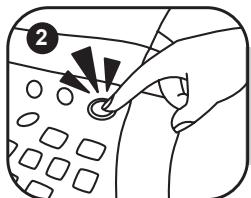
- Press the on/off key to turn on the laptop. Your magic laptop is bilingual. All the activities can be played in French or English. Press the language key at anytime to toggle between the two languages.
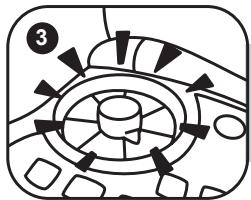
- Fairies magic includes 6 activity groups: English, Math, Logic, French, Games and Music. On the wheel shaped activity selector, point the tip of the knob towards the activity group of your choice.
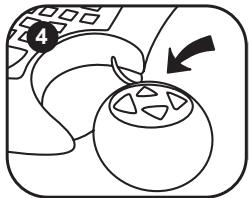
- Once the activity group of your choice is displayed, use the 4 arrow keys on your mouse to browse its activity list. Press to launch an activity.
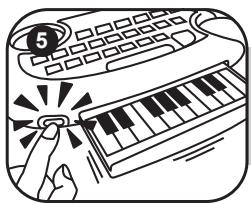
- Press the key to the left of the laptop to unlock the secret musical keyboard. Your musical keyboard is always active!
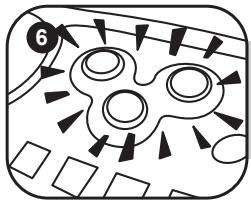
- Activities are played on a question and answer basis. There are 6 questions per round with 2 chances to find the correct answer. A number of activities can be played in 2-player mode and offer 2 difficulty levels. Also watch out for the mission mode!
For more details on how to play the various activities, please refer to the activity section on page 21.
INSIDE THE PACKAGE
One Fairies Magic laptop
One instruction manual
WARNING: All packaging materials, such as tape, plastic sheets, wire ties and tags are not part of this toy and should be discarded for your child's safety.
BATTERY INFORMATION
Your Fairies Magic laptop works with 3 × 1,5 ~V - - - alkaline batteries type AA/LR6.
- Using a screwdriver, open the battery compartment cover located underneath the laptop.
- Install the 3 × 4 alkaline type batteries observing the polarity indicated at the bottom of the battery compartment, and as per the diagram shown opposite.
- Close the battery compartment and tighten the screw.
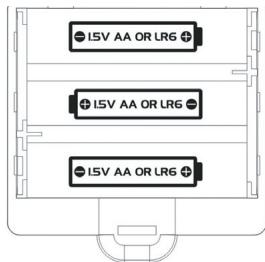
Do not use rechargeable batteries. Non-rechargeable batteries are not to be recharged. Rechargeable batteries are to be removed from the toy before being charged. Rechargeable batteries are only to be charged under adult supervision. Different types of batteries or new and used batteries are not to be mixed. Only batteries of the same or equivalent type as recommended are to be used. Batteries are to be inserted with the correct polarity. Exhausted batteries are to be removed from the toy. The supply terminals are not to be short circuited. Do not throw batteries into a fire. Remove the batteries if you are not going to use the game for a long period of time.
WARNING: If the unit malfunctions or receives an electrostatic shock, turn the unit off and on again. If this proves to be ineffective, remove the batteries and insert them again.
PRODUCT FEATURES
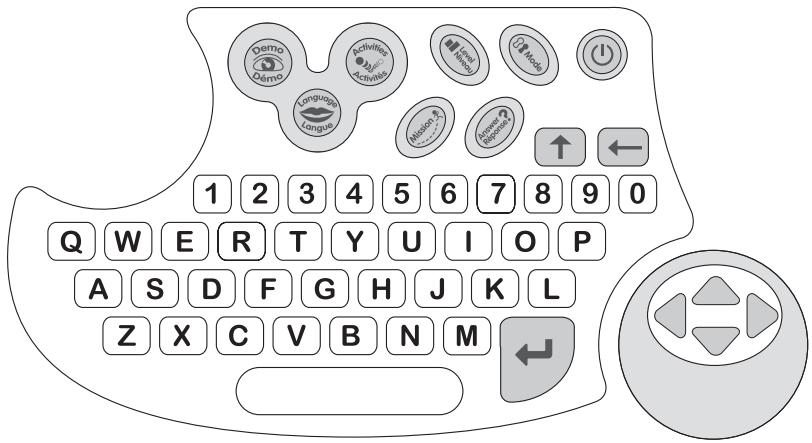

To turn the laptop on/off. Note: the laptop will automatically turn off after 3 minutes of inactivity.
Mode
Several activities offer the possibility to play in 2 player mode. Press the Mode key to toggle between 1-player and 2-player mode,
Level
Several activities offer the possibility to play in level 2. To toggle between level-1 and level-2, press the Level key.
Activities
Press this key to return to the menu of the activity group currently selected.
Demo
Press the Demo key to launch a short demonstration of the laptop's features. The Demo key is always active.
Mission
Press the Mission key to access the mission mode.
Language
Press the language key at anytime to toggle between a game play in French or English.
Answer
To display the answer to a question.

To type a capital letter, hold this key while pressing the correct letter.

Enter key. To confirm your selections and answers.

Backspace key. If you have not confirmed an answer yet, you can press this key to edit your answer.
a,a,e, e, e, e,c,i,u,i
To type accented letters, press and hold a letter until the right accent is displayed.

Space key. To insert a space between 2 characters.

Contrast key: located at the left bottom side of the screen. Set the switch to the right to make the contrast of the LCD screen darker.

Volume key: located at the right bottom side of the screen. Set the switch to the right to increase the volume of speaker.

Located on the mouse, these 4 arrow keys help you browse menus and move the cursor. They are also very useful to play the activities.
PLAYING THE ACTIVITIES
Animated graphics and light effects
Light effects and animated graphics indicate your performance throughout a game round. At the end of a game round, the number of lights indicates your overall performance.
5 lights = Fantastic! You are a maiden fairy!
4 lights = Excellent. Well done!
3 lights = Good! Continue the good work!
2 lights = You can do better.
1 light = Poor performance. Concentrate!
0 lights = Practice more often so that you can improve your performance.
2-player mode
In 2-player mode, you can play against another fairy. Each fairy is given one try to answer a question. If she cannot find the correct answer, the same question is asked to the other fairy. At the end of a game round, the winner is indicated. In the activity list, activities which offer the 2-player mode are marked with the icon:
Mission Mode
Test your grasp of the activities! Press the Mission key and answer questions randomly chosen from the following activity groups: English, French and Maths. However, a mission contains questions from a single activity group only. To undertake a mission of different category, you need to start a new mission.
Note: the mission mode works as a standard game round.
ACTIVITY LIST
ENGLISH
1 - Guess the letter 8
A letter is drawn onscreen. Type it on your keyboard.
Press to confirm your answer.
Level 1: lower case letters.
Level 2: capital letters.
Note: keep in mind that to key in capital letters, you must use the key.
2 - Words fun
3 words are displayed onscreen. Sort them in alphabetical order (according to the position in the alphabet of the word's first letter). Use the keys to highlight the first word in black and press . Once a word is selected, it moves to the upper row. Proceed the same way to select the second word; the third one is saved automatically.


Level 1: 3 words are displayed, each beginning with different letters.
Level 2: 3 words are displayed of which 2 start with the same letter.
3-One or Many?
A word is displayed at the bottom of the screen. Select whether its form is singular 'one' or plural 'many'. Toggle between 'one' and 'many' using the keys, and press to confirm.
There are 2 difficulty levels, level 2 being the most difficult.

4 - Opposites Fun
Find the opposite of the word displayed on top of the screen. Use the 一 keys to select the correct answer, and press
There are 2 difficulty levels, level 2 being the most difficult.
5 - Synonyms Fun
Find the synonym of the word displayed on top of the screen. A synonym is a word which carries the same (or very similar) meaning as another word. Use the to select the correct answer, and press .
Level 1: 6-letter words and less.
Level 2: 10-letter words or less.
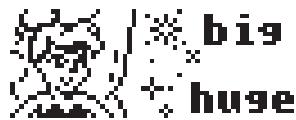
6- Plurals Fun 28
A word is displayed onscreen. Type its singular or plural fun according to the instructions. Press to confirm your answer.
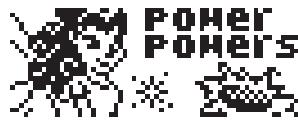
Level 1: regular plural forms.
Level 2: irregular plural forms.
7 - Word Puzzle
A word with a missing syllable is displayed at the bottom of the screen. Find the missing syllable using the keys.
Press to confirm. Beware! The syllables share similar pronunciations but different spellings.
There are 2 difficulty levels, level 2 being the most difficult.
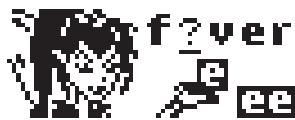
8-Syllables Fun 2
The word's syllables have been jumbled up. Place them in the right order. Use the keys to select the first syllable and press . Proceed the same way to select the next syllables. To select the last syllable, you only need to press .
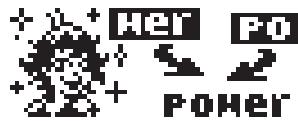
Level 1: 2-syllable words.
Level 2: Words of 3 syllables or more.
9 - Enigma Word
A word is displayed onscreen for a few seconds. Memorize it and type it on your keyboard. Press to confirm your answer.

Level 1: 6-letter words and less.
Level 2: 10-letter words or less.
10-Hangman
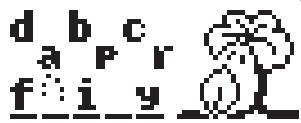
Guess the secret word. Each dash replaces a letter in the word. Type in the letters which you think might be in the word. If a letter belongs to the hidden word, it will replace the corresponding dash. You lose when you type 10 letters which do not belong to the word.
11 - Sentence Jumble
A sentence has been divided into 3 parts, and then jumbled up. Sort the sentence in the correct order: beginning, middle and end. Select the first part of the sentence using the arrows and press . Proceed the same way to select the second part. To select the last part, you only need to press .

Level 1: short sentences.
Level 2: long sentences.
12 - Word Jumble
The letters of a word have been jumbled up. Reorder the letters to make a word. Select the first letter of the word using the arrow keys and press . Proceed the same way to select the next letters. Simply press to select the final letter.

Level 1: Words of up to 6 letters.
Level 2: Words of at least 6 letters.
13 - Sentence Builder
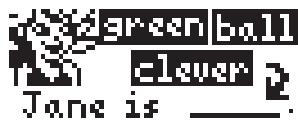
There are 2 sentences, each divided into 3 parts: subject, verb and complement. Make a complete sentence. There are 2 possible answers. First, choose a subject using the arrow keys and press to confirm. Proceed the same way to select a verb and a complement. You need to build sentences which make sense grammatically and logically.
Level 1: short sentences.
Level 2: long sentences.
MATH
14 - Simple Addition
Find the correct answer to the addition displayed onscreen. Type the answer using the 0-9 number keys. For example, to enter the number '15', key in '1' then '5' like on a calculator. Press to confirm your answer.
Level 1: answers are between 0 and 20.
Level 2: answers are between 0 and 200.
5 + 18 = 23

15 - Long Addition 8
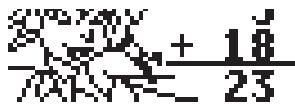
An addition is displayed from top to bottom like at school. Type the correct answer using the 0-9 number keys. For example, to enter the number '15', key in '1' then '5' like on a calculator. Press to confirm your answer.
Level 1: answers are between 0 and 20.
Level 2: answers are between 0 and 200.
16 - Simple Subtraction 28
Find the correct answer to the subtraction displayed onscreen. Type the answer using the number keys. For example, to enter the number '15', key in '1' then '5' like on a calculator. Press to confirm your answer.

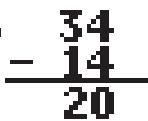
34-14=20

Level 1: answers are between 0 and 10.
Level 2: answers are between 0 and 100.
17 - Long Subtraction 8
A subtraction is displayed from top to bottom like at school. Type the correct answer using the number keys. For example, to enter the number '15', key in '1' then '5' like on a calculator. Press to confirm your answer.
Level 1: answers are between 0 and 10.
Level 2: answers are between 0 and 100.
18-Simple Multiplication 2
Find the correct answer to the multiplication displayed onscreen Type the answer using the number keys. For example, to enter the number '15', key in '1' then '5' like on a calculator. Press to confirm your answer.

10 × 5 = 50

Level 1: answers are between 1 and 100 (multiplication tables 1 to 10).
Level 2: answers are between 11 and 200 (multiplication tables 11 to 20).
19 - Simple Equation 28
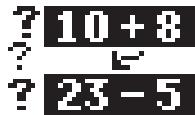
An equation is displayed at the bottom of the screen. Find an equivalent equation among the 3 choices displayed on the top part of the screen. Select your answer using the arrows and press .
Level 1: 1-digit numbers only.
Level 2: 1 to 2-digit numbers.
20 - Comparisons 8
Compare the 2 numbers onscreen. Determine whether the number of the left is greater « >», smaller « < » or equal « = » to the number on the right. Use the arrow keys to choose the correct sign (comparator), and press ←.
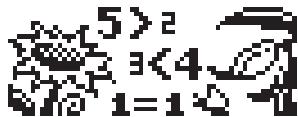
Level 1: numbers are between 0 and 20.
Level 2: numbers are between 0 and 100.
21 - Number Series
Find the number which completes the series displayed onscreen. There is a dash for each digit of the number. Type the correct answer and press
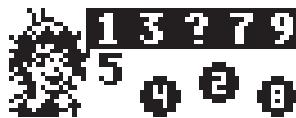
Level 1: numbers are between 0 and 20.
Level 2: numbers are between 0 and 100.
22 - Number Puzzle
Find the number which verifies the equation onscreen. There is a dash for each digit of the number. Type the correct answer and press
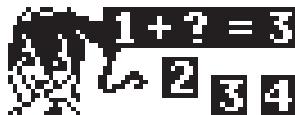
Level 1: additions and subtractions only.
Level 2: additions, subtractions, multiplications, and divisions.
23 - Simple Division
Find the correct answer to the division displayed onscreen. Type the answer using the number keys. For example, to enter the number '15', key in '1' then '5' like on a calculator. Press to confirm your answer.
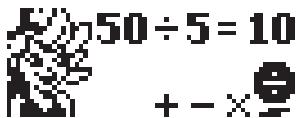
Level 1: answers are between 1 and 100 (tables 1 to 10).
Level 2: answers are between 11 and 200 (tables 11 to 20).
LOGIC
24-Memory
Find 5 pairs of cards. The 10 cards are displayed face down. Use the arrow keys to select a card and press to flip it over. Find the matching card to complete the pair.
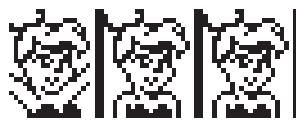
25- Odd one out
3 cards are displayed. Find the odd one out; in other words, the card that is different from the others. Use the keys to select the odd one out, and press to confirm.
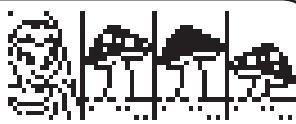
26-Puzzle
A large picture is displayed on screen. 3 puzzle pieces are located on the left part of the screen. Find the puzzle piece that is part of the picture. Use the arrow keys to browse the puzzle pieces, and press to confirm.
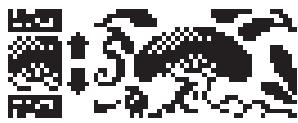
27-Missing Piece
A puzzle is displayed on screen but one piece is missing. 3 puzzle pieces are located on the left part of the screen. Find the missing puzzle piece. Use the arrow keys to browse the puzzle pieces, and press to confirm.
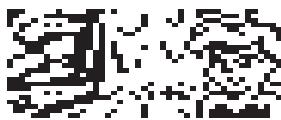
28- Sequence
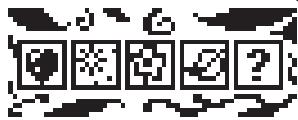
A randomly generated pattern of 5 shapes is displayed. The pattern repeats every 3 or 4 shapes. There are at least 3 different shapes per pattern. The last object is replaced by a question mark. Complete a shape pattern. Use the arrow keys to scroll the different shapes, and press ← to confirm.
29- Secret Code
Guess a randomly chosen 4-digit number. 4 stars are displayed onscreen, each corresponding to a digit. Type a 4-digit number and press to confirm.
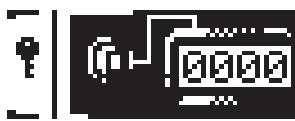
Then, the computer simultaneously compares the four numbers with the secret code and displays in order:
- A dash: if the digit is not part of the secret code.
- An empty square: if a digit is part of the secret code but not at the right position.
- A black square: if a digit is part of the secret code and at the right position.
You have 10 attempts to find the secret code. The digit 0 can be part of the secret code.
A same digit can be repeated in the secret code.
30 - Time 8
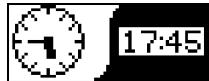
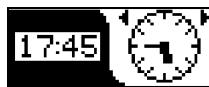
Level 1: read the time displayed on the clock, and type it on your keyboard. Time can be entered in 12 or 24 hour format. To enter the time, type in the hours first; then the minutes followed by . In the example attached, it's five forty-five. Type 1745 or 545 and press .
Level 2: read the time on the digital clock and display it on the analogue clock. Use the arrow key to move the hand clockwise by 15 minutes or use the to move it anticlockwise by 15 minutes. In the example attached, you need to move the hands until the clock displays five forty-five.
FRENCH
31 - Greetings
This activity lists common greetings in English and their equivalent in French. Use the to browse the English greetings. Use the to view the equivalent in French and vice-versa.
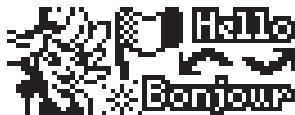
32 - Numbers
This activity lists the spelling of English numbers and their equivalent in French. Use the keys to browse the English numbers. Use the arrow keys to view the equivalent in French and vice-versa.

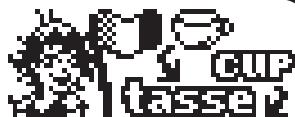
33 - Objects
This activity lists common objects in English and their equivalent in French. The list is divided into 7 groups: school, office, tool box, bedroom, bathroom, wardrobe, and kitchen. Use the keys to browse the list of objects in English. Use the arrow keys to view the equivalent in French and vice-versa.
34 - Animals
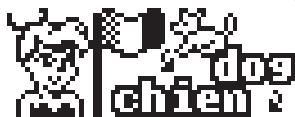
This activity lists animals in English and their equivalent in French. The list is divided into 6 groups: farm, forest, safari, insects, sea, and pets. Use the keys to browse the list of animals in English. Use the arrow keys to view the equivalent in French and vice-versa.
35-Food 28
This activity lists food items in English and their equivalent in French. The list is divided into 6 groups: meat, fruits, dairy, vegetables, breakfast and others. Use the keys to browse the list of food items in English. Use the arrow keys to view the equivalent in French and vice-versa.

36 - Enigma Word II
This activity is the same as activity 9 «Enigma Word» except that the words are in French.

37 - Translation 8
Level 1: a word is displayed in French. Translate it into English, and type your answer on the keyboard. Press to confirm.
Level 2: translate the word displayed onscreen from English to French.
38 - Opposites Fun II 28
This activity is the same as activity 4 «Opposites Fun» except that the words are in French.


39 - Words Fun II
This activity is the same as activity 2 «Words Fun» except that the words are in French.


40 - Plurals Fun II
This activity is the same as activity 6 «Plurals Fun» except that the words are in French.


41 - Synonyms Fun II
This activity is the same as activity 5 «Synonyms Fun » except that the words are in French.
GAMES
42 - Rock-Paper-Scissors
Use the following 3 images: Rock

Paper

Scissors

The game rules are:
Rock wins over scissors

Scissors wins over paper

Paper wins over rock

Your hand is on the left side, and your opponent on the right is the computer (player 2). A draw occurs when you have the same image as the computer. On your keyboard, press 1 to select paper; 2 to select scissors; and 3 to select rock.
43 - Grand Prix
Your car is located on the left side of the screen. It can only move upwards or downwards. Overtake the other cars using the arrow keys. You lose one of your 3 lives every time you crash into another car. When you lose a life, press any key to continue. Overtake 30 cars to win.
44 - Invasion
Defend your planet! Space invaders move from the right side of the screen towards your spaceship located on the left side. Use the key to shoot the invaders, and press
to move your spaceship upwards or downwards.
You begin the game with 4 lives. You lose a life if a space invader lands on Earth (left side of the screen); if you crash into an enemy spaceship; or if an enemy shot hits you.
When you lose a life, press any key to continue.
In level 2, the speed and the number of enemy spaceships are increased.

45-Snake
Use the 4 directional arrows on the mouse to move the snake in different directions. You have to "eat" all the dots that appear on the screen. The snake will grow with every bite it takes. Be careful! You must avoid hitting the walls or the tail of the snake; otherwise, the game is over. In level 2, the snake moves faster!
MUSIC
Note: keep in mind that you need to use the retractable piano underneath the keyboard to play the musical activities.
46 - Discover the note
The computer plays a music note. The note is also displayed onscreen. Recognize the note and press it your piano.
47 -Composer
Use the piano keys to compose your own melody. You can record your melody by pressing the key. The recording icon is displayed onscreen. To stop the recording, press the key again. To listen to your melody, press . To delete a recording, press the key as you are not recording or listening to a melody.
48 - Music
Listen to your favourite tune. Press the keys to browse the tunes, and press to listen to it. Press any key to stop a tune and select another one.
49 - Follow me
The laptop plays a melody note by note. Play each note after the laptop. Once you have played all the notes, you will be able to hear the complete tune.
50 - Piano gone wild
This activity follows the same procedure as activity 47 «Composer» except that music notes are now different animal sounds! You can select the sounds of 6 different animals using the arrow keys.

MAINTENANCE
Only use a soft, slightly damp cloth to clean the unit. Do not use detergent. Do not to expose the unit to direct sunlight or any other heat source. Do not immerse the unit in water. Do not dismantle or drop the unit. Do not try to twist or bend the unit. If the unit malfunctions, try to change the batteries first. If this proves to be ineffective, read the instruction manual again.
WARRANTY
NOTE: please keep this instruction manual, it contains important information.
This product is covered by our 2-year warranty. For any claim under the warranty or after sale service, please contact your distributor and present a valid proof of purchase. Our warranty covers any manufacturing material and workmanship defect, with the exception of any deterioration arising from the non-observance of the instruction manual or from any careless action implemented on this item (such as dismantling, exposition to heat and humidity, etc.). It is recommended to keep the packaging for any further reference. Not suitable for children under 36 months old, as it contains small detachable elements which could be swallowed. In a bid to keep improving our services, we could implement modification on the colours and the details of the product shown on the packaging.
Reference: JC262i1
LEXIBOOK UK Ltd
Unit 10 Petersfield Industrial Estate
Bedford Road, Petersfield
Hampshire, GU32 3QA,
United Kingdom
Freephone helpline: 0808 100 3015
www.lexibookjunior.com
© 2007 LEXIBOOK®
© Disney.

Environmental Protection:
Unwanted electrical appliances can be recycled and should not be discarded along with regular household waste! Please actively support the conservation of resources and help protect the environment by returning this appliance to a collection centre (if available).