USER MANUAL CHESSMAN LIGHT LEXIBOOK
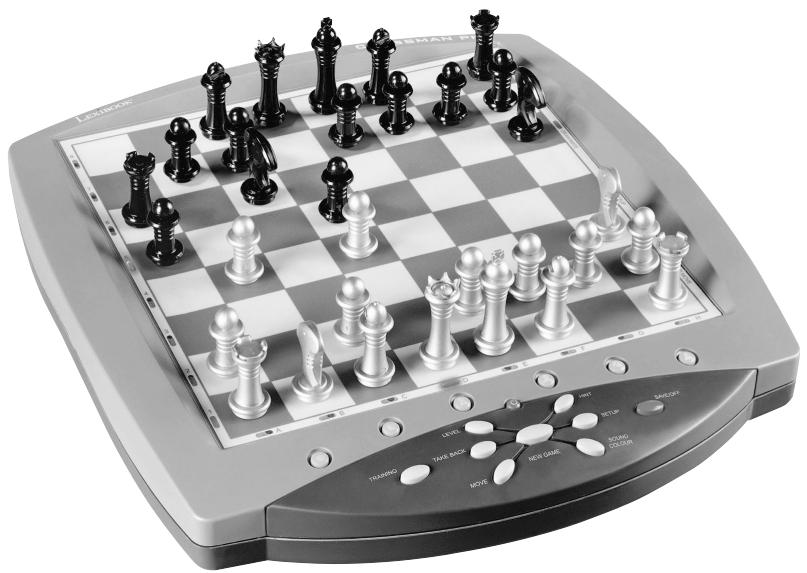
Congratulations on your purchase of the LEXIBOOK Chessman Light chess computer.
The game includes:
- a "TRAINING" mode which indicates when you make a good move.
- 64 difficulty levels spread over 4 different playing styles (normal, aggressive, defensive and high-risk), including:
5 beginners levels for children and beginning players whereby the computer sacrifices chess-men deliberately.
8 normal playing levels for beginning and experienced players with response times ranging from 5 seconds to several hours.
1 analysis level which analyses the position during up to 24 hours.
1 "MATE" level which is designed to resolve checkmate problems for checkmating in up to 5 moves.
1 "MULTI MOVE" level which allows two players to play each other while the computer plays the role of referee.
- an electronic chessboard which automatically keeps track of your moves when you press the start square and the destination square of your move.
- an indicator for each square which represents your moves and those of the computer.
- a "HINT" function which enables you to ask the computer to suggest your next move.
- a "TAKE BACK" function which allows you to go back maximum two full moves (or four half moves).
- a "MOVE" function which allows you to learn by watching the computer play against itself.
- a "SET UP" function for programming the positions in view of resolving a problem or exercise from the manual.
a library containing 20 different openings.
In addition, it:
- detects stalemate, a draw according to the rule of 50 moves and a draw by repetition.
- recognises checkmating the King with the Queen and the King, checkmating the King with the King and the Rook, and
checkmating the King with the King and the Bishop.
- thinks while it's the other player's move.
I. POWER SUPPLY
This computer chess game works with four (4) alkaline LR6 1.5 V -- batteries with a capacity of 2.25 Ah or with a 9V, 300 mA adapter for toys with positive centre and compliant with publication 15 of the EEC (norm EN 60-742).
The game may only be used with the specified batteries or power supply adapter. Do not use rechargeable batteries. Do not recharge the batteries. Remove the game's accumulators before recharging them. Only charge the accumulators under adult supervision. Do not mix different types of batteries or accumulators, or new and used batteries and accumulators. The batteries and accumulators are to be positioned according to their polarity. Used batteries and accumulators should be removed from the toy. The battery or accumulator terminal points should not be short-circuited. Do not throw batteries into a fire. Remove the batteries in the event of long periods of non-use.
Installing the batteries
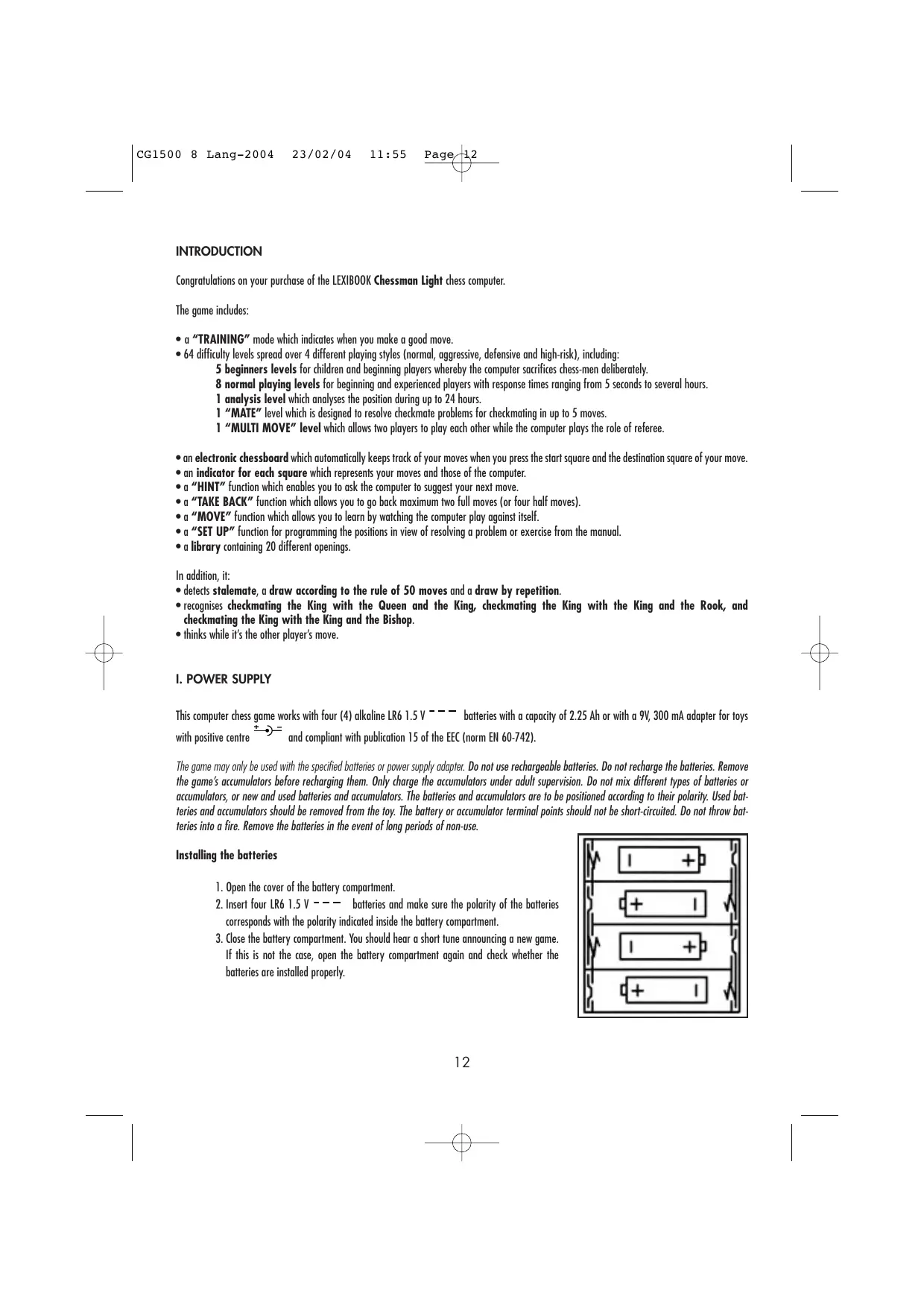
- Open the cover of the battery compartment.
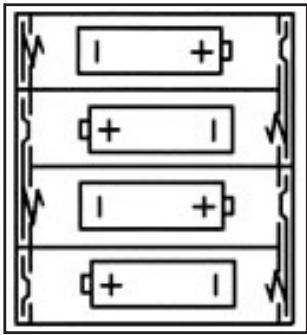
- Insert four LR6 1.5 V -- batteries and make sure the polarity of the batteries corresponds with the polarity indicated inside the battery compartment.
- Close the battery compartment. You should hear a short tune announcing a new game. If this is not the case, open the battery compartment again and check whether the batteries are installed properly.
Adapter
The game also works with a 9V, 300 mA adapter for toys with positive centre
To connect it, follow these instructions:
- Make sure the game is switched off.
- Connect the adapter plug to the socket on the left side of the game.
- Connect the adapter to the mains outlet.
- Start the game.
Disconnect the adapter if the game is not used for a long period of time to prevent overheating. If you are using the power supply adapter, do not play outdoors.
Check the state of the adapter and the connection cords regularly. If their condition is deteriorating, do not use the adapter until it has been repaired. The game may only be operated with the recommended adapter. The adapter is not a toy. This game is not intended for children under 3 years of age.
II. STARTING A NEW GAME
Place the chess-men on the board and switch the computer on by pressing the ON button. The board lights up with an animation. Then, press the NEW GAME button. You will hear a tune and the indicators of line 1 will flash which means that White may commence playing.
You may start a new game at any time by pressing the NEW GAME button. When you do this, only the playing level and style are saved.
Note: The computer saves in its memory the position of the chess-men when the computer is switched off. If you want to start a new game when you switch on the game, you must press NEW GAME.
III. RECORDING A MOVE
To record a move:
- Lightly press the square of the chess-man you want to move. The easiest way is to slightly tilt the chess-man and lightly press the edge of the chess-man in the centre of the square. You can also press the square with a finger. You will hear a little tone and the square will light up.
- Place the chess-man on the destination square and lightly press the centre of the square. You will hear another "beep" indicating that the computer has recorded your move. The indicators of the squares you have crossed light up shortly one after each other. The computer thinks about its next move.
Note: Slight pressure is sufficient providing you press in the middle of the square. Do not press too hard on the squares or the electronic chessboard may suffer damage over time.
IV. MOVES BY THE COMPUTER
At the beginning of the game, the computer immediately indicates its move by means of the library of opening moves which contains 20 different positions. Later during the game, the squares of line 8 will flash during the computer's thinking time, indicating that it is Black move and that the computer is thinking.
When the computer indicates its move, you will hear a certain tone.
- The indicator of the start square of the chess-man that the computer wants to move lights up. Press lightly on this square and take the chess-man.
- Then the board indicators will begin to flash indicating the path that the chess-man will follow to the destination square (which remains lit). Place the chess-man on this square and press lightly. The indicators of line 1 begin to flash again, indicating that it is now your turn to play.
V. SPECIAL MOVES
CAPTURES
Captures are made in the same manner as other moves.
- Press the start square and hold the chess-man.
- Press the destination square and place the chess-man on this square. Remove the captured chess-man from the chessboard without pressing any other squares.
CAPTURES EN PASSANT
The explanation above is also true for captures "en passant", however, the computer will remind you to remove the captured pawn.
- Press the start square and hold the pawn.
- Press the destination square and place the pawn on this square.
- The computer will remind you to remove the captured pawn by lighting up the corresponding square of the pawn captured en passant. Press this square and remove the pawn from the chessboard.
CASTLING
To castle, move the King as usual. Once you have pressed the start square and the destination square of the King, the computer will remind you to move the Rook.
To play a small castle (castling with Rook and King) on the White side:
- Press square E1 and take the King.
- Place the King on G1 and press the square.
- The computer will light up the squares between E1 and G1 consecutively and then remind you to move the Rook by lighting up the indicators of squares H1 to F1 consecutively. Press square H1 and capture the Rook.
- The computer lights up square F1. Place the Rook on F1 and press this square.
To play a large castle (castling with Rook and Queen) on the White side:
- Press square E1 and take the King.
- Place the King on C1 and press the square.
- The computer will light up the squares between E1 and F1 consecutively and then remind your to move the Rook by lighting up the indicators of squares A1 to D1. Press A1 and capture the Rook.
- The computer lights up square D1. Place the Rook on D1 and press this square.
Pawns are promoted automatically by the computer.
- Press the start square and take the pawn.
- Look for the Queen with the corresponding colour among the captured chess-men (if there is no Queen available with the corresponding colour, you may use a Rook that is placed on the board upside-down. Press the destination square and place the Queen on it.
The computer assumes that you will always choose to promote your pawns to Queen. If you prefer to choose a Rook, a Bishop or a Knight for the promotion of your pawn, you can do this by modifying the positions (see paragraph XIX). Remember that the computer will always choose a Queen for the promotion of pawns.
VI. ILLEGAL MOVES
If you try to make an illegal or an impossible move, you will hear an error tone indicating that your move is not legal and that the computer will not accept the move.
If you try to make an illegal move or if you try to move a chess-man that belongs to your opponent, you will also hear the error sound and see the question mark on the chessboard. You can continue to play the game by making another move instead.
If you hear the error tone and the computer highlights a square by lighting it, you must press the square in question before continuing the game.
VII. CHECK, CHECKMATE AND STALEMATE
When the computer announces check, it transmits a triumphant beep and lights up the "CHECK" indicator. The indicators of all the squares between the King and the attacking chess-man start to flash.
In the case of check and checkmate the computer plays a short tune and light ups the CHECK and DRAW/MATE indicators. If the computer is checkmate, the indicators light up permanently; if you are checkmate, the indicators flash on and off.
If you are stalemate, the DRAW/MATE indicator lights up and all the squares around the King are lit up, indicating a draw.
If the same position is repeated three times in a row, or if moves have been made without a capture or movement of pawns, this will also cause the DRAW/MATE indicator to light up; you may continue the game if you want to.
VIII. OFF/SAVE
When a game is finished, you can press the NEW GAME to start a new game or switch off the computer by pressing the OFF/SAVE button. In fact, the computer is not switched off completely. It saves the current position in its memory and only requires minimum power to do so. In other words, you can stop playing in the middle of a game, switch off the computer and then switch it back on later in order to continue your game. This also means that you must press the NEW GAME button after switching on the computer if you want to start a new game.
IX. SOUND AND LIGHT EFFECTS
If you prefer to play in silence, briefly press the SOUND/COLOR button. This will switch off the sound effects of the computer. To re-activate the sound, press the SOUND/COLOR button once again. The sound is also switched on again when you press the NEW GAME button.
If you prefer to play without the chessboard's light effects, press the SOUND/COLOR button for 3 seconds. You can re-activate the light effects by pressing the SOUND/COLOR button for 3 seconds once again.
X. THE LEVELS
The computer has 64 levels which are organised in the following manner:
| STYLE |
| LEVEL | RESPONSE TIME PER MOVE | NORMAL | AGGRESSIVE | DEFENSIVE | HIGH-RISK |
| 1 | BEGINNERS 1 | A1 | C1 | E1 | G1 |
| 2 | BEGINNERS 2 | A2 | C2 | E2 | G2 |
| 3 | BEGINNERS 3 | A3 | C3 | E3 | G3 |
| 4 | BEGINNERS 4 | A4 | C4 | E4 | G4 |
| 5 | BEGINNERS 5 | A5 | C5 | E5 | G5 |
| 6 | 5 seconds | A6 | C6 | E6 | G6 |
| 7 | 10 seconds | A7 | C7 | E7 | G7 |
| 8 | 30 seconds | A8 | C8 | E8 | G8 |
| 9 | 1 minute | B1 | D1 | F1 | H1 |
| 10 | 3 minutes | B2 | D2 | F2 | H2 |
| 11 | 10 minutes | B3 | D3 | F3 | H3 |
| 12 | 30 minutes | B4 | D4 | F4 | H4 |
| 13 | 2 hours | B5 | D5 | F5 | H5 |
| 14 | 24 hours | B6 | D6 | F6 | H6 |
| 15 | MAT | B7 | D7 | F7 | H7 |
| 0 | MULTI MOVE | B8 | D8 | F8 | H8 |
This computer chess game includes 13 different levels and 3 levels of special games:
- Levels 1 to 5 are game levels which are meant for children and beginners. For example, the computer makes deliberate mistakes by moving chessmen to squares where they will be captured immediately:
At level 1, the computer makes many mistakes, such as moving a chess-man onto a square where it will be captured on the next move by a pawn. This level familiarises the players with the various movements of the chess-men. You can also select level 1 if you lose and you want to see the computer make some mistakes.
At level 2, the computer still makes many mistakes but will never move a chess-man to a square where it can be captured on the next move by a pawn. At level 3, the computer only makes a few mistakes throughout the entire game.
At level 4, the computer will generally only make a single mistake throughout the entire game and it will move its Queen to a square where it can be captured on the next move.
At level 5, the computer will not take advantage of certain attacking and checkmate opportunities but it will never sacrifice a chess-man. At each of these 5 levels, the computer will usually react immediately.
- Levels 6 to 13 introduce a delay time ranging from 5 seconds to 2 hours for each move. These levels are meant for players at beginner or experienced level. Level 6 is a blitz level (5 seconds per move); level 8 is a quick game level (30 seconds per move); and level 10 is tournament level (3 minutes per move). The indicated times are the average and approximate delay times. The computer will take more time for thinking in the event of difficult positions and less time for simple positions and towards the end of a game. The computer is capable of thinking while you play your move so it can react immediately to your move if it has been anticipated. The computer will also react immediately if it plays a move from the library of opening positions.
-
Level 14 is an analysis level that analyses the position for approximately 24 hours or until you stop the research by pressing the MOVE button (see paragraph XVII).
-
Level 15 is a MATE level that is intended to resolve checkmate problems (see paragraph XI).
- Level 0 is a MULTI MOVE level that allows two players to play each other while the computer is the referee and checks the legality of the moves.
The computer also has four different playing styles:
- In NORMAL mode, the computer has no specific preference for either the defensive or the attacking mode.
- In AGGRESSIVE mode, the computer plays an offensive game and tries to prevent the exchange of chess-men as much as possible.
- In DEFENSIVE mode, the computer makes a point of constructing a solid defence. It moves its pawns extensively and tries to exchange chess-men as often as possible.
- In HIGH-RISK mode, the computer moves its pawns extensively and sometimes chooses to play an unexpected move rather than always try to make the best possible move.
When you switch on the computer for the first time, the game starts automatically at level 6 and in the NORMAL playing style. Afterwards it maintains the level and playing mode you were in when you switched off the computer or when you pressed the NEW GAME button.
To change the game level and style, follow these instructions:
- Press the LEVEL button to enter the level selection mode. The computer lights up the indicator which corresponds to the current level (for example, square A6 corresponds to level 6, normal game mode).
- Refer to the table above to find the corresponding square for the desired game level and style. Press the square you need.
- Press the LEVEL button again to leave the level selection mode. Then you can start playing and make your first move, or press on MOVE to let the computer make the first move.
If you want to check which level and style are selected without changing anything, follow this procedure:
- Press the LEVEL button. The computer indicates the current level and lights up the indicator of the square which corresponds to the level.
- Press the LEVEL button once again to return to the game.
You can modify or check the game level at any time during the game when it is your move.
XI. RESOLVING CHECKMATE PROBLEMS
Level 15 is the CHECKMATE level and this allows you to solve checkmate problems up to checkmate in 5 moves. To resolve checkmate problems:
- Install the chess-men on the chessboard and record their positions (see paragraph XIX).
- Select level 15 and press the LEVEL button, then squares B7, D7, F7 or H7, then press the LEVEL button once again.
- Press the MOVE button. The computer commences its analysis.
The computer will think until it finds a checkmate situation and then play its first move towards checkmate. You may then respond and the computer will in turn find the next move towards checkmate. If the position does not allow checkmate, the computer will analyse the situation indefinitely. The approximate delay times for resolving checkmate problems are:
Mate in 1 move 1 second
Mate in 2 moves 1 minute
Mate in 3 moves 1 hour
Mate in 4 moves 1 day
Mate in 5 moves 1 month
XII. MULTI MOVE MODE
Level 0 is a MULTI MOVE level. In this mode, the computer does not play. You can play with two players. You can use this function to play a specific opening or to re-play a game. You can also use the computer chessboard as a normal chessboard and play against another person. In this case the computer plays the role of referee and verifies that the moves are allowed.
To select MULTI MOVE mode:
- Select level 0 by pressing the LEVEL button, then squares B8, D8, F8 or H8, and then press the LEVEL button once again.
- Play as many moves as you want for the two players.
- When you've finished, leave the MULTIMOVE mode by pressing the LEVEL button once again and selecting another level.
XIII. CHANGING COLOURS
If you press the MOVE button, the computer will play your move. On the other hand, if you want to change colours with the computer, press MOVE. The computer will play its move and then it waits until your have made your move.
If you press the MOVE button once again, the computer will play another move; this lets you have the computer play on its own against itself.
If you want to play the entire game with White at the top of the board:
- Press the NEW GAME button and place the white chess-men at the top of the chessboard and the black chess-men at the bottom of the board. Make sure the white Queen is on a white square and the black Queen is on a black square.
- Next, press MOVE at the beginning of the game. The computer will play with White at the top of the chessboard and waits until you have played with Black at the bottom of the board.
XIV. CANCELLING MOVES
If you press the start square with a chess-man with the intention of moving but then decide you want to move another chess-man, press the same square once again. The square's indicator no longer lights up and you can make another move.
If you have already made your move and the computer is busy thinking, or has already lit up the co-ordinates of the start square for its move:
- Press the TAKE BACK button.
- The computer interrupts its thinking process and lights up the indicator of the destination square of your last move and then lights up the squares to indicate the previous move of the chess-man in question. Press the square and take the chess-man.
- The computer then indicates the start square. Press this square and place the chess-man here.
- If you want to cancel a capture or a capture en passant, the computer reminds you to put the captured chess-man back on the chessboard, indicating the square where the chess-man in question was positioned. Press this square and put the chess-man back on the board.
- If you cancel a castling move, you first have to move your King, then your Rook and press the squares of each of these.
- If you cancel the promotion of a pawn, do not forget to exchange your Queen for a pawn.
If you want to cancel your move but you have already performed the computer's reply, press the TAKE BACK button and cancel the computer's move by following the procedure described above. Then press the TAKE BACK button once again to cancel your own move.
If you have already pressed the start square for the computer's move and the computer already indicates the destination square, you must first carry out the computer's move; then, press the TAKE BACK button once to cancel the computer's move and then press the button once again to cancel your own move.
If you want to cancel two moves, press the TAKE BACK button a third time to cancel the preceding move by the computer. Next, press the TAKE BACK button a fourth time to cancel your preceding move. If you try to cancel more moves, the computer will make an error sound. If you want to cancel more than two moves, you must use the SET UP option to change the position (see paragraph XIX).
XV. HINT OPTION
To ask the computer to tell you which move it suggests you make:
- Press the HINT button.
- The computer lights up the start square and indicates the move of chess-man that it suggest you move. Press this square (or alternatively, press the HINT button once again).
- The computer lights up the co-ordinates of the destination square of this move. Press this square (or alternatively, press the HINT button once again).
- Now you have two choices: make the move as suggested by the computer by pressing the start and the destination squares once again, or make a different move.
The move that the computer shows you is the move that it expects you to make. Every time it is your move and you are thinking about the move you are about to make, the computer is already preparing its response. If your move is one the computer expects, it will be able to respond immediately most of the time.
To follow the thoughts of the computer while it analyses a position:
- Press the HINT button while the computer is thinking.
- The computer will light up the start square of the move it is contemplating to make at that moment and then the squares of the move it plans to make.
- The computer lights up the destination square of the move. Press this square (or alternatively, press the HINT button once again). The computer will then continue to think.
Now you know the move that the computer will probably make and this enables you to make the most of your alertness and to begin thinking about your retaliation.
XVI. TRAINING MODE
The computer has a TRAINING mode which enables you to improve your playing by indicating that specific moves you have made were good. A good move is a move which, according to the computer, improves your position; it can also be the "best possible" move in a given situation where it is impossible to improve your position.
To enter the TRAINING mode, press the TRAINING button once. The GOOD MOVE indicator lights up to show that the TRAINING mode is activated. To leave the TRAINING mode, press the TRAINING button once again. The TRAINING mode is deactivated when you press the NEW GAME button; so do not forget to press the TRAINING button once again if you want the computer to evaluate your moves during your new game.
When you are in TRAINING mode and the computer thinks your move was good, it will light up the GOOD MOVE indicator after lighting up the start square of its move.
If you think that your move was good but the indicator does not light up, this means that there was at least one move which was better than the one you made. If you want to know what this move was, press the TAKE BACK button to cancel your move, then press HINT. Now it's up to you to decide whether you make the move recommended by the computer, make your original move, or alternatively, make a completely different move! However, you must press the TAKE BACK button before performing the computer's move, otherwise the HINT mode is no longer available for you to cancel your move.
The TRAINING mode in conjunction with the HINT option enables you to learn as you play: the TRAINING mode indicates whether your move was awkward while the HINT option suggests a better solution. And don't forget: you must always try to make the best possible move!
XVII. INTERRUPTING THE COMPUTER'S ANALYSIS
If you press the MOVE button while the computer is thinking, you immediately interrupt its analysis and the computer will make its best possible move at that point in its analysis (in other words, the move that would be indicated if you were to press the HINT button).
XVIII. VERIFYING THE POSITION
In case of doubt, for example if you accidentally knock the chessboard, you can ask the computer to indicate the position of each chess-man on the board.
- Press the button corresponding to the type of chess-man you are looking for. The computer indicates the position of each chess-man in this particular category by lighting up the corresponding indicators. A permanently lit indicator is a white chess-man, a flashing indicator is a black chess-man. Pressing once indicates the white chess-men.
- Press once again and the computer will indicate the position of the black chess-men in this particular category.
- Press a third time and the computer leaves the position verification mode and indicates which colour has to play. Now you can press the button of a different chess-man or press one of the squares firmly in order to carry out your move.
XIX. PROGRAMMING POSITIONS
To modify the position of chess-men or to program a completely new position:
- Press the SET UP button to enter the position programming mode. The SET UP indicator lights up.
- If you want to program a completely new position, press the TAKE BACK button to erase the chessboard. The computer will play a tune to announce a new game.
- Press one of the six chess-men buttons. If there are one or more chess-men of this type on the chessboard, the computer will show you them: see POSITION VERIFICATION mode as explained above.
- To remove a chess-man of this type from the chessboard, just press the square with this chess-men. The corresponding indicator will light up.
- To move a chess-man of this type from one square to another, cancel the start position by pressing the square. Then press the destination square where you would like to position the chess-man. The corresponding indicator will light up.
- To add a chess-man of this type to the chessboard, press an empty square. The corresponding indicator lights up. If it is lit permanently, it indicates a white chess-man; if it flashes, it indicates a black chess-man. If the indicated colour is not correct, remove the chess-man from the board by pressing the square once again, then change the colour by pressing the SOUND/COLOR button and finally press the empty square once again to record the chess-man. To add another chess-man of the same type and colour, just press the empty square where you want to place the chess-man in question.
- When you have finished programming the game, check that the two Kings are present on the chessboard and that the first player cannot take the King of his opponent.
- The colour of the last chess-man that was removed, moved or added determines the colour of the line. To change the colour, remove and add a chess-man of the desired colour, or alternatively, press the SOUND/COLOR button.
- Finally, to leave the position programming mode, press the SET UP button once again. The SET UP indicator lights up. Now you can either make a move or let the computer make the first move by pressing the MOVE button.
XX. MAINTENANCE
Your computer chess game requires hardly any maintenance. The following brief recommendations will enable you to keep the game in good working condition for many years.
Protect the computer from humidity. If it gets wet, dry it immediately.
Do not leave it exposed to direct sunlight or sources of heat.
Take care of the computer. Do not drop it. Do not try to dismantle it.
For cleaning, use a light cloth moistened with water but with no detergent or similar products.
In case of malfunctions, try changing the batteries. If this does not resolve the problem, read the instructions again to make sure you understand the operation of the game.
XXI. GUARANTIE
NB: Please keep these operating instructions as they contain important information.
This product is covered by our two-years guarantee.
For any application of the guarantee or request for after-sales service, please consult your dealer with your proof of purchase to hand. Our guarantee covers material or assembly defects attributable to the manufacturer, except for any deterioration caused by non-respect of the instructions for use or any improper intervention with the unit (such as disassembly, exposure to heat or moisture, etc)
This game is not suitable for children younger than 36 months because it contains small parts that might be swallowed.
Made in China.
Reference: CG1500
Warranty: 2 years
Lexibook UK Limited
Unit 10 Petersfield Industrial Estate
Bedford Road, Petersfield
Hampshire, GU32 3QA
United Kingdom
Freephone Helpline: 0808 100 3015
www.lexibook.com

User guide reference: ZCG1500IM0201
ChessMan Light
Bedienungsanleitung
LEXIBOOK
INHALTSVERZEICHNIS
Seite
EINFUHRUNG 24
Matto in 2 mosse 1 minute
- Abra la cubierta del compartmento de las pilos.
- Instale quatre pilas LR6 de 1,5 V --- --- --- --- --- --- --- --- --- --- --- --- --- --- --- --- --- --- --- --- --- --- --- --- --- --- --- --- --- --- --- --- --- --- --- --- --- --- --- --- --- --- --- --- --- --- --- --- --- --- --- --- --- --- --- --- --- --- --- --- --- --- --- --- --- --- --- --- --- --- --- --- --- --- --- --- --- --- --- --- --- --- --- --- --- --- --- --- --- --- --- --- --- --- --- --- --- --- --- --- ---
indico a fondo del compartmento.
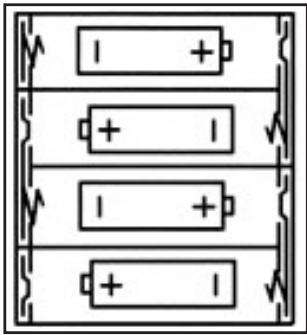
- Vuelva a cerrar el compartmento de las pilas. Usted debe oir對於 la musiquilla anunciando una nuevo partida. En caso contrario, abra de nuevo el compartmento de las pilas y verifique que las pilas estén correctamente instaladas.
Adaptador
Este棋牌游戏 are a good way to make your children's lives more enjoyable.
Fabricado en China
Referencia:CG1500
Garantía: 2 años.
Lexibook Iberica SA
Mat in 2 zetten 1 minutut