USER MANUAL CHESSMAN FX ELITE LEXIBOOK
ChessMan Elite ChessMan Platinium
Instruction Manuals
LEXIBOOK
Français
TABLE DES MATIÈRES
Page
INTRODUCTION 3
I. ALIMENTATION 4
Installation des piles 4
Adaptateur 5
II. POUR COMMENCER UNE NOUvelle PARTIE 5
III. POUR ENREGISTERER UN COUP 5
IV. LES COUPS DE L'ORDINATEUR 7
V. COUPS SPECIAUX 6
Prises 7
Prises en passant 7
Roque. 7
Promotion des pions 7
VI. COUPS ILLEGAUX 8
VII. ECHEC, MAT ET NUL 8
VIII. OFF/SAVE 8
IX. LE SON 9
X. LES NIVEAUX 9
XI. RESOLUTION DE PROBLEMES DE MAT 12
XII. MODE 'MULTI MOVE' 12
XIII. CHANGEMENT DE COULEUR 13
XIV. ANNULATION DE COUPS 13
XV. FONCTION 'HINT' 14
XVI. MODE 'TRAINING' 15
XVII. POUR INTERROMPRE L'ANALYSE DE L'ORDINATEUR 16
XVIII. VERIFICATION DE POSITION 16
XIX. PROGRAMMATION DE POSITION 17
TIMER
I. ALIMENTATION 19
II. MISE EN MARCHE 19
III. L'ECRAN 20
IV. LES TOUCHES 20
V. COMMENCER UNE PARTIE 21
VI. MODES ET OPTIONS DE JEU. 21
VII. SELECTION D'UN MODE ET D'UNE OPTION DE JEU 24
VIII. MODIFIER LES TEMPS AFFICHÉS ET LE NOMBRE DE COUPS 25
IX. CONNEXION AVEC L'ORDINATEUR D'ÉCHECS 25
X. ENTRETIEN 27
XI. GARANTIE 28
INTRODUCTION
Battery Installation 31
Adapter 31
II. STARTING A NEW GAME 32
III. MAKING A MOVE 32
IV. THE COMPUTER'S MOVES 33
V. SPECIAL MOVES 33
Capturing an opponent's piece 33
Capturing en passant 33
Castling 34
Promoting pawns 34
VI. ILLEGAL MOVES 35
VII. CHECK, CHECKMATE AND DRAW 35
VIII. OFF/SAVE 35
IX. SOUND 36
X. LEVELS 36
XI. RESOLVING CHECKMATE PROBLEMS 38
XII. 'MULTI MOVE' MODE 39
XIII. CHANGING COLOUR 39
XIV. CANCELLING MOVES 40
XV. 'HINT' FUNCTION 41
XVI. 'TRAINING' MODE 42
XVII. INTERRUPTING THE COMPUTER'S ANALYSIS 43
XVIII. CHECKING POSITION 43
XIX. PROGRAMMING POSITION 43
TIMER
I. POWER SUPPLY 45
II. SETTING UP 45
III. THE SCREEN 46
IV. THE KEYS 46
V. STARTING A GAME 47
VI. MODES AND GAME OPTIONS 47
VII. SELECTING MODES AND GAME OPTIONS 50
VIII. CHANGING THE DISPLAY TIME AND THE NUMBER OF 50
IX. CONNECTING TO THE CHESS COMPUTER 50
X. MAINTENANCE 53
XI. GUARANTEE 54
INTRODUCTION
Congratulations on choosing the LEXIBOOK CG1300 or CG1350 chess computer especially designed to teach children and beginners the rules of chess and to help them improve their game.
In addition, the game offers:
- A 'TRAINING' mode, which tells you if a move is correct.
- 64 difficulty levels on 4 different game settings (normal, aggressive, defensive and random) and includes:
5 'beginner' levels aimed at children and beginners wherein the computer deliberately sacrifices chessmen.
8 normal game levels for more experienced beginners where the response time ranges from 5 seconds to several hours.
1 analysis level, which analyses the position of the pieces for 24 hours.
1 'CHECKMATE' level designed to resolve checkmate problems in 5 moves.
1 'MULTI MOVE' level allowing two players to play against each other while the computer acts as referee.
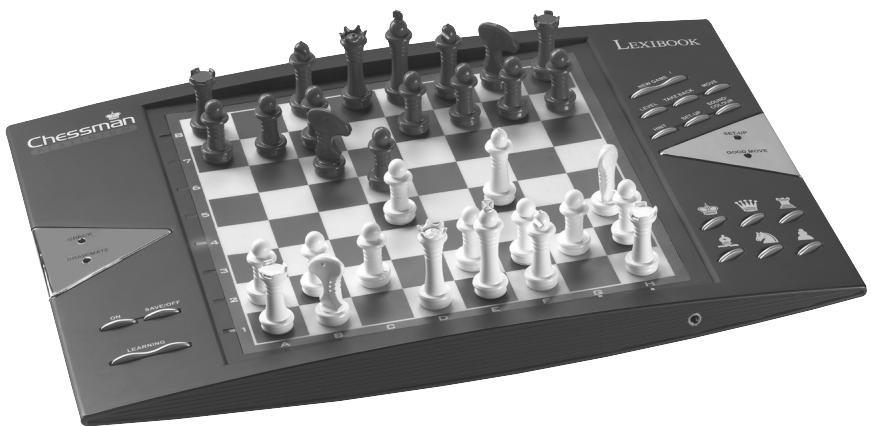
- A touch sensitive game board which automatically registers your move when you press the square that you're moving a piece from and the square you're moving it to.
- Lights which indicate the coordinates of your moves and those of the computer.
- 'HINT' function in which you ask the computer to suggest your next move.
- 'TAKE BACK' function which allows you to cancel up to two whole moves (or four half moves)
- 'MOVE' function, which helps you learn by watching the computer play against itself.
- 'SET UP' function to programme the positions of chessmen ready to resolve a problem or exercise in the book.
A library containing 20 different openings.
In addition the computer:
- Detects stalemate, draw by the 50 moves rule and draw by repetition.
- Recognises checkmate King and Queen against King, checkmate King and Castle against King and checkmate King and Bishop against
King.
- Thinks while its opponent is playing.
I. POWER SUPPLY
This chess computer requires 3 × 1.5V = -AA batteries or a 9V300mA games adapter with positive centre in accordance with publication 15 of the EEC (EN standard 60-742).
Fit with specified batteries or adapter only.
Battery installation
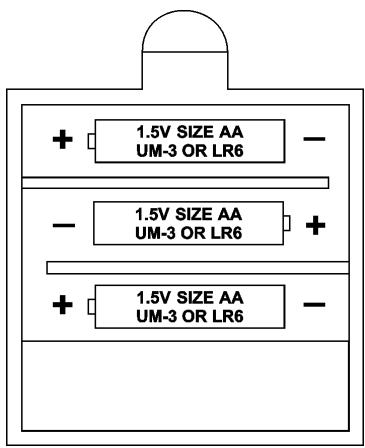
- Open the battery compartment by using screwdriver.
- Fit 3 × 1.5 ~V, = -AA batteries according to the polarity indicated in the bottom of the compartment.
- Close the battery compartment. You will then hear a tune announcing the start of a new game. If this does not happen, open the compartment again and check that the batteries are fitted correctly.
Do not use rechargeable batteries. Do not recharge the batteries. Remove the storage batteries before recharging. Recharge storage batteries under adult
supervision. Do not mix different types of battery and storage battery, or new and old batteries or storage batteries. Only batteries of the same or equivalent type as recommended are to be used. Insert batteries and storage batteries according to the polarity. Remove used storage batteries from game. Do not short-circuit the battery or storage battery terminals. Keep batteries away from fire. If game remains unused for an extended period, remove batteries.
During electro static discharge, the product may lose of function. It requires pressing the reset key or removing batteries and then putting back for returning normal operation.
Adapter
This game also works with a 9V = -300mA game adapter , with positive centre + .
To connect to the mains, follow these instructions:
- Check the equipment is switched off.
- Connect the adaptor to the point on the left side of the game.
- Plug the other end of the adaptor in at the mains.
- Switch the game on.
An adapter is not a toy. If adapter remains unused for an extended period, unplug it to avoid overheating. When the game is powered by an adapter, do not play outside. Regularly check that the adapter and its lead are in good working order. In case of deterioration, do not use the adapter until it has been repaired. This game is not suitable for children under 3 years.
II. STARTING A NEW GAME
Place the chessmen on the board and turn the computer on by pressing ON. Then press NEW GAME. You will hear a tune and a green light (corresponding to row 1) will light up at the bottom left indicating that White is to move.
At any moment you can start a new game by pressing NEW GAME. If you do this, only the level and game setting are saved.
N.B.: The computer saves the position of the chessmen when it is switched off. If you want to start a new game when you turn the computer on again, press NEW GAME.
III. MAKING A MOVE
To make a move:
- Press lightly on the square of the piece you want to move. The easiest way is to tilt the piece slightly and press its edge lightly on the centre of the square. You can also press on the square with your finger. You will hear a specific jingle and two lights will be illuminated. These two lights indicate the row and column (rank and file) of the square you are moving from.
- Place the piece on the square you want to move it to and press lightly on the centre of the square. You will hear another beep indicating that the computer has recognised your move and that it is thinking about its response.
N. B.: A light pressure is enough as long as you press in the centre of the square. If you press too hard on the squares, you risk long-term damage to the chessboard.
IV. THE COMPUTER'S MOVES
At the beginning of the game, the computer will immediately indicate its move using the opening library of 20 different moves. Later on in the game, the green light at the top left (row 8's light) will flash indicating that it's Black's move and that the computer is thinking.
When the computer makes its move, it will play a specific tune.
- Two green lights will illuminate indicating the row and column of the square whose piece the computer wants to move. Press lightly on this square and take the piece.
- Next, the lights show the coordinates of the square the piece is moving to. Place the piece on this square by pressing lightly. The light will illuminate again showing that it's now your turn.
V. SPECIAL MOVES
CAPTURING AN OPPONENT'S PIECE
Capturing a piece works in the same way as any other move.
- Press the square of the piece you want to move and pick up the piece.
- Press the square you want to move to and place the piece on it. Remove the piece from the chessboard without pressing any other square.
CAPTURING PIECES EN PASSANT
The instructions above also apply to taking pieces en passant, except that the computer will tell you to remove the captured pawn.
- Press the square you want to move from and pick up the pawn.
- Press the square you're moving to and put the pawn on it.
- The computer will tell you to remove the captured pawn by illuminating
the lights corresponding to the pawn captured en passant. Press this square and remove the pawn from the chessboard.
CASTLING
In order to castle you need first of all to move the King as usual. Once you have pressed the squares you want to move the King from and to, the computer will remind you to move the Castle.
To castle short (castling with the King's Castle) on the White side:
- Press square E1 and pick up the King.
- Place the King on G1 and press the square.
- The computer will remind you to move the Castle by illuminating the lights corresponding to H1. Press the H1 Square and pick up the Castle.
- The computer will illuminate the coordinates of F1. Place the Castle on F1 and press this square.
To castle long (castling with the Queen's Castle) on the White side:
- Press square E1 and pick up the King.
- Place the King on C1 and press the square.
- The computer will remind you to move the Castle by illuminating the corresponding square. Press A1 and pick up the Castle.
- The computer will illuminate the coordinates of D1. Place the Castle on D1 and press the square.
The computer automatically promotes pawns.
- Press the square of the pawn you want to promote and pick up the piece.
- Look for a Queen of the right colour among the captured chessmen (if there is no Queen of the right colour available, you can use a Castle and place it on the board upside down). Press the square you want the Queen on and place the piece on this square.
The computer assumes that you will always choose a Queen when you promote your pawns. If you want to promote your pawn to a Castle, a Bishop or a Knight, you can do so by changing their positions (see paragraph XIX). The computer itself will always promote its pawn to a Queen.
VI. ILLEGAL MOVES
If you try to make an illegal or impossible move, you will hear an error signal indicating that your move is not allowed and that the computer hasn't counted it.
If you try to make an illegal move or try to move one of your opponent's pieces, you will simply hear the error signal. You can then continue to play and make another move instead.
If you hear the error signal, and the computer shows you a square by illuminating it's coordinates, you must press the square indicated before continuing the game.
VII. CHECK, CHECKMATE AND DRAW
When the computer announces check, you will hear a victorious 'beep' and the 'CHECK' light will illuminate.
In case of checkmate, the computer will play a little tune and illuminate the CHECK and DRAW/MATE lights. If the computer is in checkmate, the lights are constantly illuminated, if you are in checkmate, the lights flash on and off.
If stalemate occurs, the DRAW/MATE light will illuminate which indicates a draw.
If the same position is repeated 3 times, or if 50 moves are made without taking any pieces or promoting any pawns, the DRAW/MATE light will illuminate but you can continue playing if you so wish.
VIII. OFF / SAVE
When you finish a game, you can press NEW GAME to start another one or turn the computer off by pressing OFF / SAVE. In this case the computer is not really switched off. It will save the positions of the chessmen in the current game while using a minimum of power. In other words, you can interrupt the game in the middle, turn off the computer and then switch it back on again later to continue the game. You can also press NEW GAME when you switch the computer back on again if you want to start a new game.
IX. SOUND
If you prefer to play in silence, press SOUND/COLOUR. The computer's sound effects will be silenced. To reactivate the sound, press SOUND/COLOUR again. The sound will be reactivated the next time you press NEW GAME.
X. LEVELS
The computer offers 64 levels organised in the following way:
| SETTING |
| LEVEL | RESPONSE TIME PER MOVE | NORMAL | AGRESSIVE | DEFENSIVE | RANDOM |
| 1 | BEGINNER 1 | A 1 | C 1 | E 1 | G 1 |
| 2 | BEGINNER 2 | A 2 | C 2 | E 2 | G 2 |
| 3 | BEGINNER 3 | A 3 | C 3 | E 3 | G 3 |
| 4 | BEGINNER 4 | A 4 | C 4 | E 4 | G 4 |
| 5 | BEGINNER 5 | A 5 | C 5 | E 5 | G 5 |
| 6 | 5 secondes | A 6 | C 6 | E 6 | G 6 |
| 7 | 10 secondes | A 7 | C 7 | E 7 | G 7 |
| 8 | 30 secondes | A 8 | C 8 | E 8 | G 8 |
| 9 | 1 minute | B 1 | D 1 | F 1 | H 1 |
| 10 | 3 minutes | B 2 | D 2 | F 2 | H 2 |
| 11 | 10 minutes | B 3 | D 3 | F 3 | H 3 |
| 12 | 30 minutes | B 4 | D 4 | F 4 | H 4 |
| 13 | 2 hours | B 5 | D 5 | F 5 | H 5 |
| 14 | 24 hours | B 6 | D 6 | F 6 | H 6 |
| 15 | CHECKMATE | B 7 | D 7 | F 7 | H 7 |
| 0 | MULTI MOVE | B 8 | D 8 | F 8 | H 8 |
The computer offers 13 different levels and 3 special game levels:
- Levels 1 to 5 are aimed at children and beginners. The computer deliberately makes mistakes, for example moving chessmen to squares where they will be captured immediately.
On level 1, the computer makes a lot of mistakes, such as moving a piece to a square where it will be captured by a pawn in the next move. This level helps the player to get used to how the pieces move. You can also use level 1 when you lose and you want to see the computer make a few mistakes!
On level 2, the computer makes a lot of mistakes as well, but it never moves a piece to a square where it could be captured by a pawn on the next move.
On level 3 the computer only makes a few mistakes per game.
On level 4, the computer generally only makes one mistake per game when it moves its Queen to a square where she could be captured in the next move.
On level 5, the computer allows a few forks and check threats, but will not sacrifice any chessmen.
On these 5 levels, the computer reacts almost instantly.
- Levels 6 to 13 offer a delayed response time of between 5 seconds and 2 hours per move. These levels are aimed at more experienced beginners. Level 6 is a blitz level (5 seconds per move), level 8 is a fast game level (30 seconds per move) and level 10 is a championship level (3 minutes per move). The delays indicated are average and approximate times. The computer will think longer over difficult cases and shorter over simple moves and at the end of the game. As the computer is able to think while you are making your move, if it has anticipated the move you make, it can react almost immediately. It also reacts immediately when it uses a move from the opening library.
- Level 14 is an analysis level, which analyses the position of the pieces for about 24 hours or until stop its analysis by pressing the MOVE button (see paragraph XVII).
- Level 15 is a CHECKMATE level designed to resolve checkmate problems (see paragraph XI).
- Level 0 is a MULTI MOVE level, which allows two people to play against each other while the computer acts as referee by verifying that the moves are legal.
The computer also has 4 different game settings:
-
In NORMAL mode, the computer does not favour either the defensive or offensive mode.
-
In AGGRESSIVE mode, the computer plays the game on the offensive and avoids surrendering pieces as much as possible.
- In DEFENSIVE mode, the computer's priority is to construct a solid defence. It moves its pawns a lot and will surrender pieces as often as possible.
- In RANDOM mode, the computer moves its pawns a lot and sometimes prefers to make an unexpected move rather than always to make the best move.
When you switch the computer on for the first time, the game will automatically start on level 6 and in NORMAL mode. After that, it saves the level and game mode when you switch it off and when you press NEW GAME.
To change the level or game setting, follow these instructions:
- Press LEVEL to enter level selection mode. The computer will illuminate the lights corresponding to the current level (for example, square A6 corresponds to level 6, normal game mode).
- Consult the table above to find the square corresponding to the level and game mode you want. Press this square.
- Press LEVEL again to exit level selection mode. Then start the game by making your first move, or press MOVE to allow the computer to move first.
If you want to check the level and setting selected, without changing them, follow this procedure:
- Press LEVEL. The computer will indicate the current level by illuminating the lights on the square corresponding to the level.
- Press LEVEL a second time to return to the game.
You can change or check the game level at any time during the game when it's your turn.
XI. RESOLVING CHECKMATE PROBLEMS
Level 15 is a CHECKMATE level on which you can resolve checkmate problems in up to five moves. To resolve checkmate problems:
- Place the chessmen on the board and register their positions (see paragraph XIX).
-
Choose level 15 by pressing LEVEL, then square B7, D7, F7 or H7, then press LEVEL again.
-
Press MOVE. The computer will then begin its analysis.
The computer will think until it finds a way to achieve checkmate, then it will make the first move towards the checkmate. You can then act as opponent and the computer will find the next move towards checkmate. If checkmate is not possible, the computer will analyse indefinitely. The approximate delays for resolving a checkmate problem are as follows:
| Checkmate in 1 move | 1 second |
| Checkmate in 2 moves | 1 minute |
| Checkmate in 3 moves | 1 hour |
| Checkmate in 4 moves | 1 day |
| Checkmate in 5 moves | 1 month |
XII. 'MULTI MOVE' MODE
Level 0 is a MULTI MOVE level. In this mode, the computer does not play. You can therefore act as two players. You can play using this function to play a predetermined opening, or to replay a game. You can also use the computer like a normal chessboard by playing against someone else with computer acting as referee verifying that the moves are legal.
To choose MULTI MOVE mode:
- Choose level 0 by pressing LEVEL, then pressing square B8, D8, F8 or H8, then press LEVEL again.
- Make as many moves as you like for the two players.
- When you have finished, exit MULTI MOVE by pressing LEVEL again and choosing another level.
XIII. CHANGING COLOUR
If you press MOVE, the computer will play your turn. So if you want to swap colours with the computer, press MOVE. The computer will make its move and then wait until you take your turn.
If you press MOVE again, the computer will move again, so you can make the computer play alone, against itself.
If you want to play the whole game as Black:
-
Press NEW GAME and place the white pieces at the top of the chessboard and the black ones at the bottom. Remember that the White Queen always starts on a white square and the Black Queen on a black square.
-
Then press MOVE to start the game. The computer will move a white piece at the top of the chessboard and will wait for you to move with the black pieces at the bottom.
XIV. CANCELLING MOVES
If you press the square from which you want to move a piece, but you decide in the end that you want to make a different move, press the square again. The lights indicating the coordinates of the square will come on and you can make another move.
If you have made your move and the computer is thinking, or has already illuminated the coordinates of the square it's going to move from:
- Press TAKE BACK.
- The computer will then interrupt it's thinking and illuminate the lights of the square you last moved to. Press the square and pick up the piece.
- The computer will then indicate the coordinates of the square you moved from. Press this square and put the piece back on it.
- If you want to cancel a capture or a capture en passant, the computer will remind you to reinstate the captured piece on the chessboard by indicating the coordinates of the square where the piece was. Press this square and replace the piece on the chessboard.
- If you cancel after you have castled, you must first replace your King, then your Castle by pressing the squares of each.
- If you cancel the promotion of a pawn, don't forget to change your Queen back to a pawn.
If you want to cancel your move, but you have already carried out the computer's next move, press TAKE BACK and cancel the computer's move following the
procedure above. Then press TAKE BACK again to cancel your own move. If you have already pressed the square the computer wants to move from and it is showing what square it wants to move to, then press TAKE BACK once to cancel the computer's move, and then a second time to cancel your own.
If you want to cancel two moves, press TAKE BACK a third time to cancel the computer's move before last. Then press TAKE BACK a fourth time to cancel your move before last. If you want to cancel any more moves, the computer will sound the error signal. If you want to cancel more than two moves, you must use the SET UP function to change the position of chessmen on the board (see paragraph XIX).
XV. 'HINT' FUNCTION
To ask the computer to tell you what move it would make in your place:
- Press HINT.
- The computer will illuminate the coordinates of the square it suggests you move from. Press this square (or press HINT again).
- The computer will then illuminate the coordinates of the square it suggests you move to. Press this square (or, again, press HINT).
- You can then make the move the computer has suggested by pressing the squares you are moving from and to again. Or, if you don't want to take its advice, you can make a different move.
The move the computer shows you is that which it would make in your place. Each time it's your turn and you think about the move you are going to make, the computer has already thought about what its response will be. If you make the move it is expecting, it will usually make its next move immediately.
In order to follow the thoughts of the computer as it analyses a position:
- Press HINT while the computer is thinking and light 8 is flashing.
-
The computer will illuminate the coordinates of the square it is thinking of moving from at that moment. Press that square (or press HINT again).
-
The computer will then illuminate the coordinates of the square it is thinking of moving to. Press this square (or, again, press HINT). The computer will then continue thinking.
You now know what move the computer is probably going to make which allows you to make the most of the wait by starting to think about your response.
XVI. 'TRAINING' MODE
The computer has a TRAINING mode, which allows you to improve your game by indicating whether the move you are going to make is good. A good move is one that, in the computer's opinion, will improve your position, or is the best 'playable' move if it is impossible for you to improve your position.
To enter TRAINING mode, press the TRAINING button once. The GOOD MOVE light will illuminate to tell you that TRAINING mode is on. To exit TRAINING mode, press the TRAINING button again. TRAINING mode is deactivated when you press NEW GAME; therefore, don't forget to press TRAINING again if you want your moves to be evaluated during the next game.
When TRAINING mode is on and the computer considers your move to be good, it will illuminate the GOOD MOVE light after having indicated the square it is about to move from.
If you think your move was good, but the light does not illuminate, then there was at least one other move you could have made which would have been better. If you want to know what it was, press TAKE BACK to cancel your move, then press HINT. Then you can decide if you want to make the move recommended by the computer, or the one you had thought of originally, or even a completely different one! But you must press TAKE BACK before making the computer's move, otherwise the HINT mode will not work when you cancel your move.
TRAINING mode used in conjunction with the HINT function allows you to improve your game: TRAINING mode tells you if your move is not very good, and the HINT function offers you a better solution. But don't forget: you should always try and find the best move possible!
XVII. INTERRUPTING THE COMPUTER'S ANALYSIS
If you press MOVE while the computer is thinking, it will immediately interrupt its analysis and make the move it considers to be best at this stage of its thinking (in other words, the move that would be indicated were you to press HINT).
XVIII. CHECKING THE POSITION
In case of doubt, if, for example, you have accidentally knocked the chessboard, you can ask the computer to tell you the position of each piece.
-
Press the key corresponding to the chessman you are looking for. The computer will indicate the position of each chessman of this kind by illuminating one of the lights of the rank (row) and one or a number of files (columns). A constantly illuminated light indicates a white piece; a flashing light indicates a black piece.
-
Press the key again and the computer will tell you the position of each chessman of this kind on the next rank.
-
When the computer has told you the position of all the chessmen of this kind (or if there are no pieces of this kind on the chessboard), it will exit from position checking mode and will illuminate the light corresponding to the colour that should move. You can then either press the key of another piece or press one of the squares to make your move.
XIX. PROGRAMMING POSITIONS
To change the position of chessmen on the board, or programme completely new positions:
- Press SET UP to enter position programming mode. The SET UP light will illuminate.
-
If you want to programme whole new positions, press TAKE BACK to empty the chessboard. The computer will play a tune announcing a new game.
-
Press one of the six chessmen keys. If there is one or more pieces of this kind on the chessboard, the computer will show you as it would in CHECKING mode explained above.
- To remove a piece of this kind from the chessboard, simply press on the square containing that piece. The light of that rank will go off.
- To move a piece of this type from one square to another, cancel the original position by pressing the square. Then press the square you want to move it to. The corresponding rank light will illuminate.
- To add a piece of this kind to the chessboard, press an empty square. The corresponding rank light will illuminate. A white piece is indicated by a constant light; a black piece by a flashing light. If the colour indicated is wrong, remove the piece from the board by pressing the square again, then change the colour by pressing the SOUND/COLOUR button, then press the empty square once more to register the piece. To add another piece of the same colour and of the same kind, simply press the empty square where you want to place the piece.
- When you have finished programming, check that the two Kings are on the board and that the player whose turn it is cannot take his opponent's King.
- The colour of the last piece moved, removed or added determines the player whose move it is. To change the colour, remove and add a piece of the colour you want, or press SOUND/COLOUR.
- Finally, exit programming mode by pressing SET UP again. The SET UP light will go off. You can then either make a move or let the computer move first by pressing MOVE.
Timer
I. POWER SUPPLY
The clock requires 2 non-rechargeable 1.5V AAA batteries. Fit with specified batteries only.
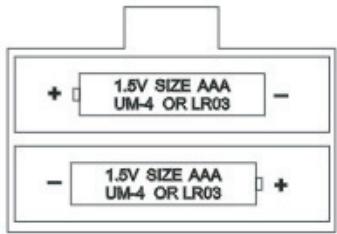
Battery Installation:
- Open the battery compartment underneath the timer.
- Insert 2 × 1.5 ~V AAA batteries according to the diagram in the battery compartment.
- Close the battery compartment.
- Turn the timer on.
Do not use rechargeable batteries. Do not recharge the batteries. Remove storage batteries before recharging. Recharge storage batteries under adult supervision. Do not mix different types of battery and storage battery, or new and old batteries or storage batteries. Insert batteries and storage batteries according to the polarity. Remove used storage batteries from game. Do not short-circuit the battery or storage battery terminals. Fit with specified batteries or similar only. Keep batteries away from fire. If game remains unused for an extended period, remove batteries.
Soon after the batteries have been inserted, or if the timer emits an electric shock, it may need to be RESET. To do this, push a small fine point such as a paper clip into the RESET hole at the back of the timer.
II. SETTING UP
To turn the timer on or off, press the ON/OFF button briefly. The timer saves the last selected options as well as the time elapsed before it was switched off and will show these when switched on again.
To reset the timer to zero, press and hold the ON/OFF button for about 3 seconds.
III. THE SCREEN
The screen displays the following information:
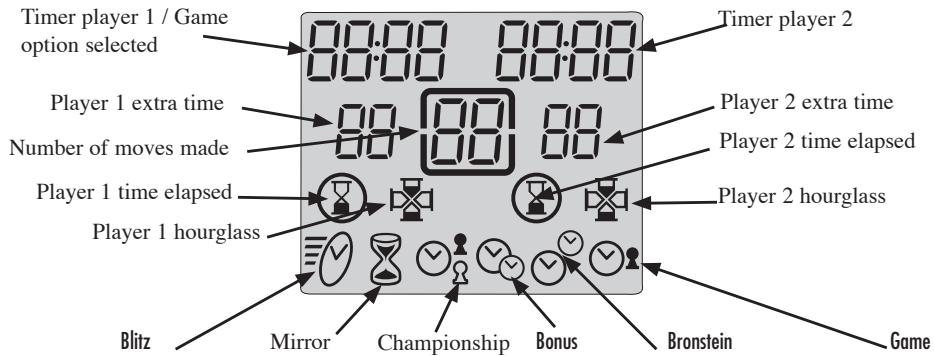
At the top of the screen you will find the game time elapsed or remaining for players 1 and 2. These times are displayed in hours and minutes if they are more than one hour, or in minutes and seconds if they are less than one hour.
At the bottom you will find each player's extra time awarded in some game options.
In the middle is displayed the number of moves made by each player.
The penultimate line displays the hourlasses showing which player's turn it is. On the same line you will see the end of game icons. The end of game icon is displayed when the corresponding player's time has run out.
The bottom line displays the selected game mode.
IV. THE KEYS
[SET]
To enter game selection or game programming option.
[PAUSE / SAVE]
To pause the timer or restart it.
To enter a game option or game programme.
[<>]
To select a game option.
[UP/DOWN]
Timer stop buttons. Each player presses this button after having made their move on the chessboard to stop their timer and start their opponent's timer.
To select a game mode.
To increase or decrease the programming possibilities in a game option.
V. STARTING A GAME
You can use the timer either connected to or disconnected from the chess computer. To start a game while disconnected, place the timer on the right hand side of the chessboard.
VI. MODES AND GAME OPTIONS
The timer allows you to select 6 different game modes. Each mode includes a number of pre-programmed and programmable options, which give a total of 30 game options.
6.1) Blitz
Option 01, displayed by default the first time the timer is used, shows each player's game time. The other blitz options offer each player a limited time to win the game. The game time used by the player between each move is deducted from the total time allowed for the game. 3 times are pre-programmed. Two others are programmable.
Option 02: 5 minutes per game. Each player has 5 minutes for the whole of the game.
Option 03: 15 minutes per game.
Option 04: 30 minutes per game.
Option U1: Programmable game time. To play a blitz to a different time limit from Options 02, 03 or 04.
Option U2: Programmable game time, other than U1. The times programmed in U1 and U2 are saved as long as the game is powered.
6.2) Mirror
When this mode is selected, your opponent's thinking time increases the time you are allowed for the game while decreasing his own time. Two options are pre-programmed; the player can program two others.
Option 01: 1 minute per game
Option 02: 10 minutes per game
Option U1: Game time programmable
Option U2: Game time programmable
Example: with option 1, if you use 15 seconds to make your first move, your clock will show 45 seconds left for the game and your opponent's clock will show 1 minute 15 seconds remaining.
6.3) Championship
In this mode, the players must make a certain number of moves in a given time to gain extra time for the remaining moves.
Option 01: 40 moves in 120 minutes and then the rest of the game in 60 minutes.
Option 02: 40 moves in 120 minutes, then 20 moves in 60 minutes and then the rest of the game in 30 minutes.
Option 03: 30 moves in 90 minutes and the rest of the game in 60 minutes.
the end of the game.
Option 05: 30 minutes for every 30 moves.
Option U1: The player can programme the time and the number of moves to be made in this time. 3 stages are possible.
Option U2: Second programmable option in championship mode.
When a player has made all their moves, the unused time in one stage is added to the time of the next.
6.4) Bonus
In this mode, each player has a certain amount of time for the whole game and bonus time for each move. If the player uses less than the bonus to make his move, the unused time is added to the time allowed for the whole game. If the player uses more than the bonus time to make his move, the time allowed for the game is reduced accordingly. In this mode, the bonus can be added before or after the move. When the bonus is added after the move, the time allowed for the game is first reduced, and then the bonus is added.
Option 01: 3 minutes for the whole of the game plus 2 bonus seconds per
move. The bonus is added before the move.
Option 02: 50 minutes for the whole of the game plus 2 bonus seconds per move.
The bonus is added before the move.
Option 03: 1 minute for the whole of the game plus 1 bonus minute per move.
The bonus is added before the move.
Option 04: The same as option 03 except that the bonus is added after the move.
Option U1: The player can programme the number of minutes for the whole of the game as well as the bonus time in seconds. The bonus time is added after the move.
6.5) Bronstein
This mode works in the same way as the bonus mode, but the unused bonus time is not added to the time allowed for the whole game.
Option 01: 5 minutes for the whole of the game plus 3 extra seconds. The extra time is added before the move.
Option 02: 10 minutes for the whole of the game plus 10 extra seconds. The extra time is added before the move.
Option U1: The player can programme the time for the game as well as the extra time. The extra time is added before the move.
6.6) Game
In this mode, each player has a certain amount of time allowed for each move. The unused time is lost and the clock displays the time allowed for each move again.
Option 01: 5 seconds per move.
Option 02: 10 seconds per move.
Option 03: 1 minute per move.
Option U1: The player can programme the time allowed for each move.
VII. SELECTING MODES AND GAME OPTIONS
Press and hold the ON / OFF button for about 3 seconds to restart the timer.
Press [SET] to enter selection mode. The current game mode will flash.
Use the timer stop buttons to select the game mode you want.
Use [< > ] to select the option you want (option 01, 02, U1..).
Player 1's timer will show the option number. Player 2's timer will show the corresponding time.
If you select a pre-programmed option, (option 01 or 04) press the [PAUSE / SAVE] key to enter the option.
If you select a programmable option that you want to change, press [SET] to select the first programmable field. This field will flash. Use the timer stop button [UP / DOWN] to choose the time you want programmed and the [< >] to move to the next field to programme. In championship mode, use [SET] again to display the fields of the next stages to programme. Save the programme by pressing [PAUSE / SAVE] once, then again if you have exited the programming mode before the last field.
The mode selected as well as the time each player is allowed is displayed. The game can now begin.
VIII. CHANGING THE DISPLAY TIME AND THE NUMBER OF
During the game, it is possible to change the data shown by the timer. Press [PAUSE / SAVE] to stop the timer. You can then modify the different times as well as the number of moves displayed. Press [SET]. The first timer field for Player 1 will flash. Use the timer stop buttons [UP / DOWN] to change the figure displayed then the [< >] keys to go to the next field. Press [SET] again to enter then [PAUSE / SAVE] to restart the timer.
IX. CONNECTING TO THE CHESS COMPUTER
If you want to play with the timer connected to the chess computer, turn both the chess computer and the timer off. Connect the cable to the Link point on the timer and to the Timer point on the chess computer. Turn the timer on first [ON / OFF],
then the chess computer. A specific jingle will announce that the chess computer has detected the timer. In connected mode you can select one of the 30 game options for the timer, 9 game levels for the chess computer as well as 6 game settings with the timer.
9.1) Starting a new game with the chess computer and timer connected.
- Select the mode and game option on the timer by following the instructions under 'Selecting modes and game options'.
Select the level and game setting on the chess computer. See 'Selecting level and game setting'.
Press [NEW GAME] to start a new game. This initialises the timer.
Press the timer stop button [UP] to start the game. Now you can make your move on the chessboard. Until the timer is running, the chess computer will not recognise the moves and an error message will appear. The rest of the game depends on the game setting selected.
9.2) Different game settings with the clock.
Settings L1 and L2.
These game settings allow two people to play against each other while the chess computer acts as referee by verifying that the moves are legal and that the timer counts each player's elapsed time. Press the timer stop button to start the game.
Setting L1. On this setting, the player makes his move on the chessboard then presses the timer stop button to stop his timer and start that of his opponent. The timer stop button is only recognised if the move made is verified by the computer.
Setting L2. On this setting, one player presses the timer stop button to start the game. Then each player's time is counted from the moment the move is validated by the chess computer, without you needing to press the timer stop button.
Setting L3.
On this setting you can play against the computer with the timer connected. Levels 1 to 8 determine the level of the computer and its response time. Therefore you need to choose a mode and game option with the timer, which is compatible with the level, selected. To start a game on setting L3, press the opponent's timer stop button to start the time then make your move on the chessboard by pressing the square of the piece you want to move and then the square you want to move it to. Then wait for the chess computer's response. The timer will recognise moves as
soon as the square you're moving to is pressed, without you having to press the timer stop button.
Setting L4.
This setting works on the same principle as setting L3 but the player must stop the timer after each of his moves by pressing their timer stop button to hand over to the computer. The computer's moves are recognised in the same way as on setting L3.
Setting L5.
This setting works in the same way as setting L4 but the timer recognises the computer's moves from the moment the square vacated by it's move is pressed by the player.
Setting L6.
This setting works in the same way as setting L3 but the display of the computer's move stops the timer to allow the player the time to move the piece without being penalised.
9.3) Selecting levels and settings.
| SETTING |
| LEVEL | RESPONSE TIME/MOVE | L3 | L4 | L5 | L6 |
| 1 | 5 seconds | A6 | C6 | E6 | G6 |
| 2 | 10 seconds | A7 | C7 | E7 | G7 |
| 3 | 30 seconds | A8 | C8 | E8 | G8 |
| 4 | 1 minute | B1 | D1 | F1 | H1 |
| 5 | 3 minutes | B2 | D2 | F2 | H2 |
| 6 | 10 minutes | B3 | D3 | F3 | H3 |
| 7 | 30 minutes | B4 | D4 | F4 | H4 |
| 8 | 2 hours | B5 | D5 | F5 | H5 |
| SETTING |
| LEVEL | RESPONSE TIME/MOVE | L1 | L2 |
| 0 | MULTI MOVE | B8 | D8 |
When you turn the chess computer on for the first time with the timer connected, the game automatically starts on level 1 and in game setting L3. After that, it will save the level and setting when you turn it off and when you press NEW GAME.
To change the level or setting, follow these instructions:
- Press the LEVEL key on the computer to go to level selection. The computer will illuminate the light corresponding to the current level (for example, square A6 corresponds to level 1, setting L3, square G6 corresponds to level 1, setting L6).
- Consult the table above to find out the square corresponding to the level and setting you want. Press this square.
- Press the LEVEL key again to exit level selection. Then begin playing with your first move, or press MOVE to let the computer go first.
If you want to check which level and setting is selected without changing them, follow this procedure:
- Press the LEVEL key. The computer will show the current level by illuminating the lights of the square corresponding to the level and the timer shows the game setting.
- Press LEVEL a second time to return to the game.
You can change or verify the level at any moment of the game when it's your turn to move.
X. MAINTENANCE
Your chess computer needs very little maintenance. These instructions will help you keep it in good condition for many years:
Keep away from damp. If the computer gets wet, wipe dry immediately. Do not leave in direct sunlight, do not expose to heat. Handle with care. Do not drop. Do not try to dismantle. To clean, unplug the adapter, use a damp cloth. Do not use detergent. In case of malfunction, first replace the batteries. If the problem persists, re-read instructions carefully to ensure you have not overlooked anything.
XI. GUARANTEE
Please keep these instructions safe, they contain important information.
This product is covered by our two-years guarantee.
To make use of the guarantee, or for after-sales service, return the product to place of purchase together with proof of purchase. Our guarantee covers material defects and assembly and manufacturing faults excluding all damage caused by disregard of the instructions or irresponsible use (such as dismantling, exposure to heat or damp, etc.)
It is recommended that all packaging is kept for future reference.
In our constant concern for improvement, the colours and detail of the product shown on the packaging may be modified.
Portugues :
INDICE
Pagina 56
I. FORNECIMENTO DE ENERGIA (POTENCIAR) 57
Baterias 57
Adaptador 58
II. COMEÇAR UM JOGO NOVO 58
III. INTRODUZIR/GRAVAR JOGADAS 59
IV. JOGADAS DO COMPUTADOR 59
V. JOGADAS ESPECIALIS 60
Assistant technique : 0821.23.3000
LEXIBOOK UK Limited
Unit 10 Petersfield Industrial Estate
Bedford Road, Petersfield
Hampshire, GU32 3QA
United Kingdom
Freephone helpline: 0808 100 3015
LEXIBOOK Electronica Lda
Quinta dos Loios
Praceta José Domingos dos Santos, 6B-8A
2835-343 Lavradio-Barreiro
Portugal
Lexibook Polska SP Z.O.O.
UI.Pytiasingskiego 16
00-777 Warzawa
Polska
Tel.: +48 22 816 92 97
www.lexibookjunior.com