
MEDIADISK SX SERIES - External hard drive MEMUP - Free user manual and instructions
Find the device manual for free MEDIADISK SX SERIES MEMUP in PDF.


User questions about MEDIADISK SX SERIES MEMUP
0 question about this device. Answer the ones you know or ask your own.
Ask a new question about this device
Download the instructions for your External hard drive in PDF format for free! Find your manual MEDIADISK SX SERIES - MEMUP and take your electronic device back in hand. On this page are published all the documents necessary for the use of your device. MEDIADISK SX SERIES by MEMUP.
USER MANUAL MEDIADISK SX SERIES MEMUP
SAFETY AND OTHER INSTRUCTIONS
Please use Mediadisk SX carefully and read following instructions.
>>> Copyright
Software, audio, video or any intellectual properties are protected by copyright and international laws.
It is user's responsibility when reproducing or distributing content(s).
>>> Codec Check
This product may not support some media formats. Please check available codec types.
>>> Data Backup
Please backup datas stored in this product in a safe place. We are not responsible for any data loss or damage.
>>> Drop / Shock
Do not give shock or drop the Mediadisk SX.
This may damage it.
>>> Foreign Substance
Do not insert any metal or inflammable foreign substances into player. This may damage it.
>>> Disassembly / Modification
Do not attempt to disassemble or modify any part of Mediadisk SX. This may damage it.
Any product modification may void the warranty.
>>> Load
Do not place any heavy object on the top of the Mediadisk SX. This may damage it.
>>> Chemicals
Do not clean product using chemicals cleaners.
This may damage the Mediadisk SX.
>>> Water / Moisture
Do not contact the Mediadisk SX with water or liquid.
This may cause fire or electric shock. If any conductive liquid enters, turn off the Mediadisk SX and disconnect power adapter immediately.
>>> Magnet or Magnetic Properties
Do not place the Mediadisk SX near a magnetic field. This may cause a malfunction or damage stored data.
>>>Heat
Do not place the Mediadisk SX under direct sunlight or near a heat source. Do not keep it for long time in high temperature. This may damage it.
>>> Vision / Hearing
Do not watch TV or hear loud sound for long time. This may cause vision or hearing problem.
>>>Fire
During Mediadisk SX use, if you detect smoke or unusual smell, turn off product, disconnect adapter immediately, and call the aftersales department if required.
>>> Children
Do not let children touch the Mediadisk SX.
They may damage it.
>>>Power
Do not use many electronic products with single outlet.
Firmly insert power plug. When working, do not unplug.
REMARKS
- To facilitate file searches, the user is recommended to create 3 folders, respectively named "music", "photo" and "movie" in the external device and then place the corresponding file into each folder. You could either select by media with icons or by explorer with "Explorer" icon.
- As it is not possible to play all the media files, please choose the correct media file.
PRODUCT VIEW
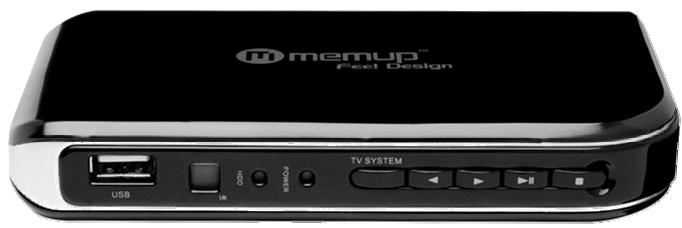
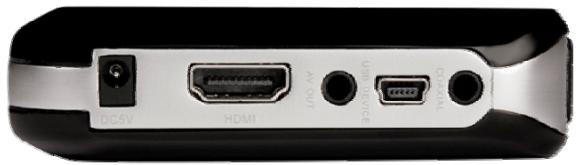
| KEY | FUNCTION |
| Power supply | Connect to power |
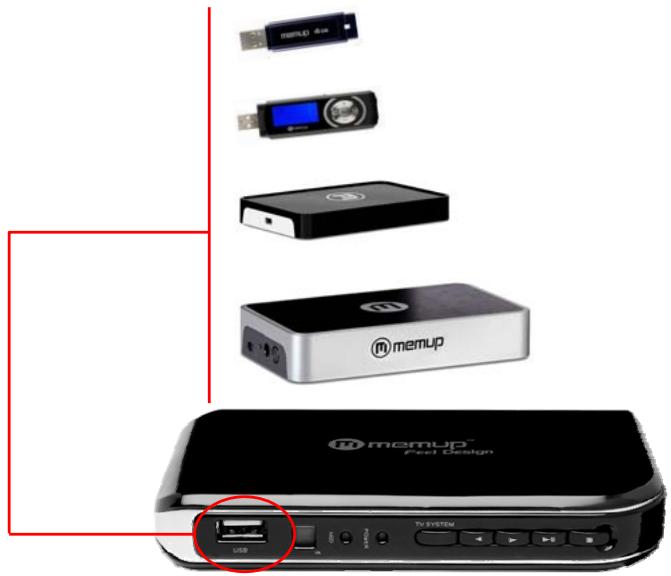
| USB Host | Connect any USB device: external HDD, USB key, MP3 players, ... |
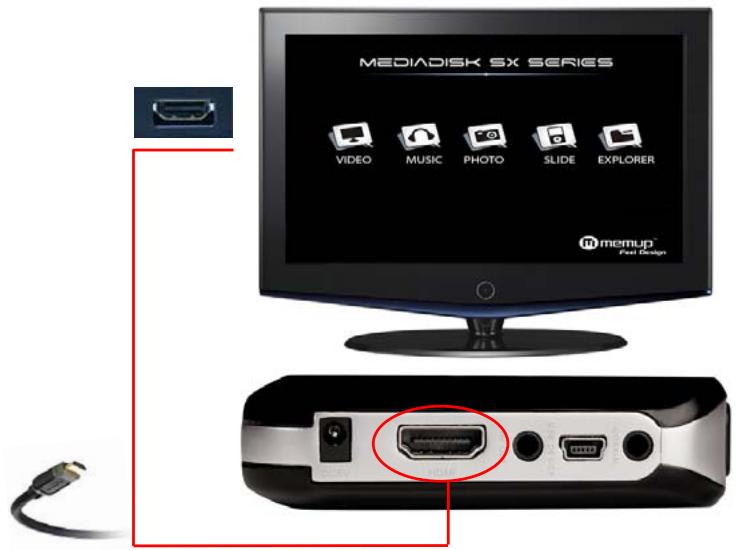
| HDMI output | Connect to your TV with HDMI cable (not supplied) |
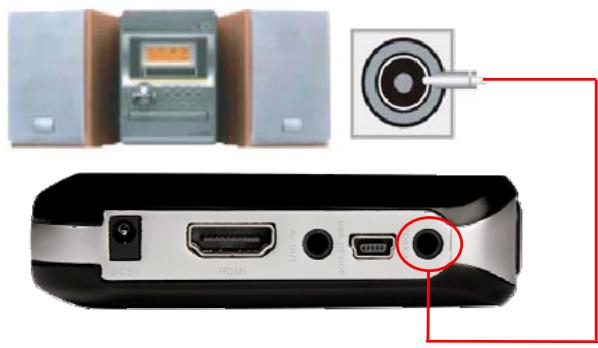
| Coaxial output | Connect to your Hifi System with coaxial cable (not supplied) |
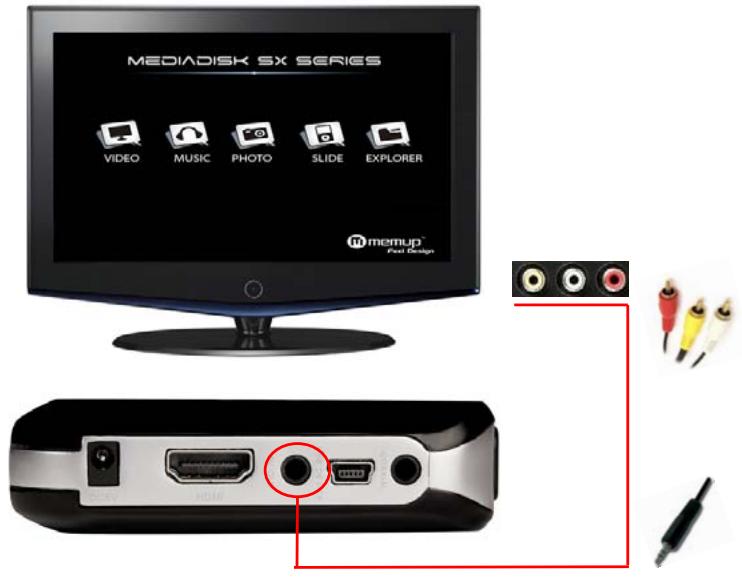
| AV output | Connect to your TV or audio system with composite AV cable (supplied) with scart adapter if necessary |
ACCESSORIES
| N° | Item | Quantity |
| 1 | Mediadisk SX | 1 |
| 2 | Remote Control | 1 |
| 3 | AV Cable | 1 |
| 4 | Scart adapter | 1 |
| 5 | USB Cable | 1 |
| 6 | Power Adapter | 1 |
| 7 | CD | 1 |
| 8 | Quick Starter Guide | 1 |
REMOTE CONTROL
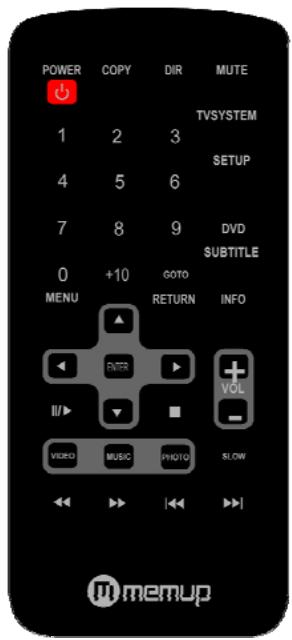
| KEY | FUNCTION |
| POWER | Power ON/OFF |
| COPY | Copy. |
| DIR | Set path where you want to copy files. |
| MUTE | Audio mute key |
| GOTO | Select Playback Time |
| SLOW | During playing, Press Slow key, the device will enter slow playback status, there are 3 selectable speeds 2x/4x/8x. Press ENTER key to return to normal playback |
| TV SYSTEM | Video output mode |
| SUBTITLE | Subtitle:SRT.SSA.ASS.SUB.PSB.TXT |
| DVD | DVD Navigation |
| SETUP | Enter menu setup, press again to return |
| Play/Pause | Play or Pause Button |
| MENU | Return to main menu |
| RETURN | Return to main menu or to Home |
| ▲ | Up picture rotation |
| ▼ | Down picture rotation |
| Enter | Enter to select to playback |
| ← | Left Key |
| → | Right Key, Back to the last directory |
| VOL- | Left (Decrease volume) |
| VOL+ | Right (Increase volume) |
| Stop | Stop |
| REV | Skip backward |
| FWD | Skip forward |
| PREV | Previous |
| NEXT | Next |
| INFO | File properties: display playback time when playing video |
| VIDEO | Shortcut key for Video menu |
| MUSIC | Shortcut key for Music menu |
| PHOTO | Shortcut key for Photo menu |
PRODUCT USE
Coaxial mode
Make sure your Mediadisk SX and Hifi System are correctly plugged with a coaxial cable (not included).
Connect composite AV cable
Make sure your Mediadisk SX and TV are correctly plugged with a jack/RCA cable (included), using scart adapter if necessary.
Then, press [TV SYSTEM] button on Mediadisk SX remote control to choose the AV output mode. The menu appears on TV if correct AV input is selected.
HDMI mode
Make sure your Mediadisk SX and TV are correctly plugged with an HDMI cable (not included).
Then, press [TV SYSTEM] button on Mediadisk SX remote control to choose the HDMI output mode.
The menu appears on TV if correct HDMI input is selected.
USB Host
Once an USB device is connected, select folders in menu "Explorer" to display the content.
Warning:
Some video playback can slow down if the bitrate is too high (over 7MB / s), indeed, data transfer is too high and is limited by the USB output.
MEDIA PLAYBACK
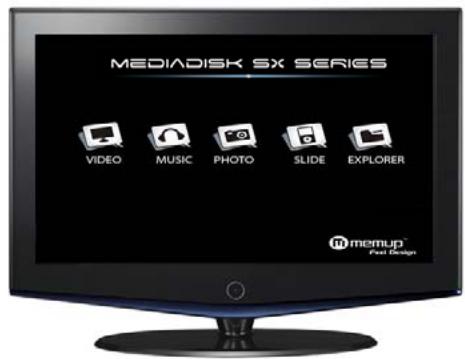
When you switch on Mediadisk SX for the first time, you will find the main menu after a few seconds.
Please use [< ] or [> ] to select the menu you want to enter between "VIDEO", "MUSIC", "PHOTO", "SLIDE" and "EXPLORER".
Video Menu
Use [▲] or [▼] to select the file you want to play. Confirm your selection by pressing [Enter] button to play the file you want.
Only Video files will be displayed under "Video" Menu. Other media files such as Audio or Photo files won't be displayed in this menu.
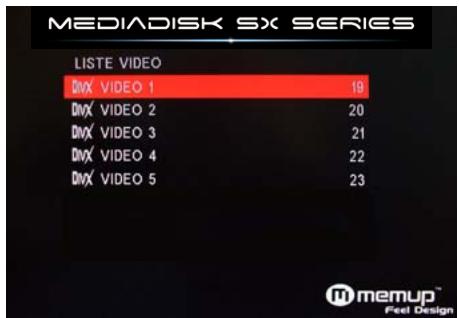
Warning: Mediadisk SX needs a few seconds to load some video file with high bitrate for example. For large files, it may need more time, depending on file length and file settings.
Some media files such as WMV, ASF or MOV can't be played with this device. Some AVI files may not be played also. Please use a Video Converter to convert those files into the specific media formats.
Music Menu
Use [ ] or [ ] to select the menu you want to enter. Confirm your selection by pressing [Enter] button to play the file you want.
Only Audio files will be displayed under "Music" Menu. Other media files such as Video or Photo files won't be displayed in this menu.
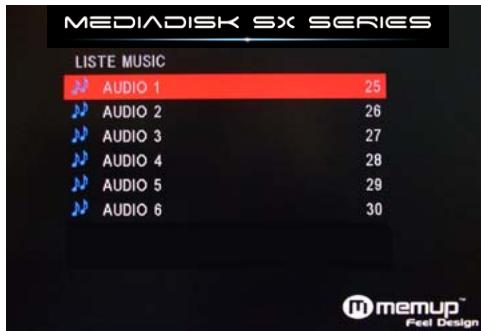
Photo Menu
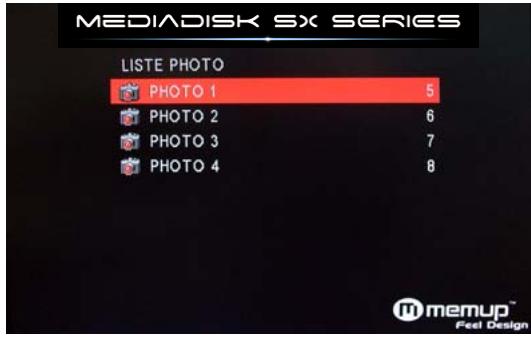
Use [ ] or [ ] to select the menu you want to enter. Confirm your selection by pressing [Enter] button to play the file you want.
Only Photo files will be displayed under "Photo" Menu. Other media files such as Video or Audio files won't be displayed in this menu.
Slide Menu
Please use [< ] or [> ] to select the menu you want to enter. After you enter one menu, please use [▲] or [▼] to select the file you want to play. When you confirm your selection, please press [Enter] to play the movie you want.
Explorer
Use [▲] or [▼] to select the file you want to play. Confirm your selection by pressing [Enter] button to play the file you want. All kind of medias are displayed here with the different USB device folders.
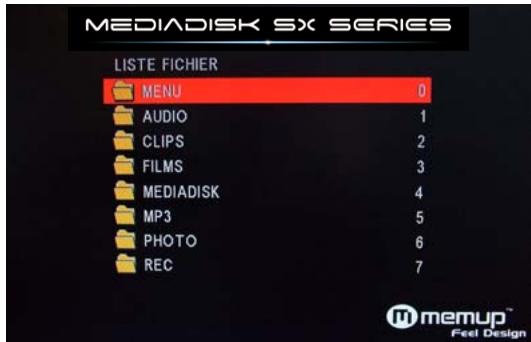
SETUP MENU
Press [SETUP] button of the Mediadisk SX remote control, the following interface will appear :
General settings
OSD Lang: Select the language to display the SETUP MENU, information and Movie subtitle.
Screen Saver Control the screen saver.
Rom Version: Check the software version.
Audio setup
Downmix: Select Right/Left stereo
Audio Out: Select the Audio quality between Analog / SPDIF RAW and SPDIF PCM (default)
LPCM Output: High Audio Quality selected
Video setup
TV Display: Screen display control
TV Type: TV Norm display control
Video Output: Video output mode control. Select between: CVBS (for AV output) / 720p and
1080i (for HDMI output)
Preferences setup
Defaults: When this function is activated, all settings will be reset to factory defaults.
Slide Time: Playback interval time
Slide Mode: SelectPlayback effect mode
Note: No transition effect with 720p & 1080i in Slideshow Menu
Photo Digest: Switch between preview and playback list
Power Resume: Standby
Once you set your preferences, press [Setup] button to go back to main menu.
SPECIFICATIONS
CONTENT FORMAT SUPPORTED:
| Video: | MPEG1/2/4, XVID, VCD, DVD files |
| Format: | AVI / MPG / MPEG / DAT / VOB |
| Photos: | JPEG |
| Audio: | MP3 / WMA / AAC / AC3 / OGG |
| Subtitles: | SRT, SSA, ASS, SUB, PSB, TXT |
| Image Resolution | Up to 1920 x 1080i |
CONNECTIONS
| USB host port | USB full speed port x 1 |
| Supported HDD | 2.5"HDD (NTFS/FAT32) |
| Video Output | HDMI, Jack/RCA Connector (yellow end) x 1 |
| Audio L/R | HDMI, Jack/RCA Connector (white/red ends) x 1 |
GENERAL
| Power Supply | AC 100~240V - 50~60Hz |
| Power | Approx. 10 W |
| Operating | +5°C to +40°C (+36°F to +104°F) |
| Operating Humidity | 5% to 80% RH |
| Dimensions (W/H/D) | L14,5 cm X H2 cm X P8,7 cm |
| Net Weight | Approx. 270 grs |
Note: The specifications and design of this product are subject to change without any notice
FAQ (FREQUENTLY ASKED QUESTIONS)
Q: When power is on, nothing appears or screen is shaking?
A: Video output mode is not properly set, press [TV SYSTEM] on remote control to change output mode until it is properly set.
Q : It works well, but the data transfer speed is very slow, why?
A : Please check the USB port version of your computer.
Q: My file slow down when I read it with the USB Host?
A: Some files require a lot of resources, reading files with a too high bitrate are limited by the USB connection and data transfer.
However, once copied into the hard drive, playback is smoother.