
MEDIA DISK SX - Media hard drive MEMUP - Free user manual and instructions
Find the device manual for free MEDIA DISK SX MEMUP in PDF.


| Product type | Multimedia hard drive with internal 2.5" hard drive |
| Brand | MEMUP |
| Model | MEDIA DISK SX |
| Dimensions (W x H x D) | 75 mm x 22 mm x 139 mm |
| Net weight | Approximately 250 g |
| Power supply | AC 100~240 V, 50~60 Hz, approximately 10 W |
| Supported video formats | MPEG1/2/4, XVID, DIVX, VCD, DVD; AVI, MPG, MPEG, DAT, VOB files |
| Supported photo formats | JPEG |
| Supported audio formats | MP3, WMA, AAC, AC3 |
| Subtitle formats | SRT, SSA, SMI |
| Supported memory cards | SD, MMC, MS, XD (FAT16 or FAT32) |
| Video outputs | Composite (yellow RCA) and component YPbPr |
| Audio output | Optical (SPDIF) and stereo RCA (white/red) |
| USB port | 1 x USB (for PC connection) |
| Main features | Multimedia playback, One Touch Backup (OTB) copy, card reader, infrared remote control |
| Operating temperature | +5°C to +40°C |
| Operating humidity | 5% to 80% RH |
| Cleaning | Use a dry cloth; do not use chemical cleaners |
| Safety | Do not expose to water, do not disassemble, do not insert foreign objects, avoid shock |
| Spare parts and repairability | Repair by an authorized professional; warranty is void if sticker is damaged |
| General information | User manual available free in PDF format at notice-facile.com |
Frequently Asked Questions - MEDIA DISK SX MEMUP
User questions about MEDIA DISK SX MEMUP
0 question about this device. Answer the ones you know or ask your own.
Ask a new question about this device
Download the instructions for your Media hard drive in PDF format for free! Find your manual MEDIA DISK SX - MEMUP and take your electronic device back in hand. On this page are published all the documents necessary for the use of your device. MEDIA DISK SX by MEMUP.
USER MANUAL MEDIA DISK SX MEMUP
Mediadisk SX Series is a Home Media Center, with a built-in 2.5" HDD, can play media files (movies, audios and photos) through TV.
SAFETY AND OTHER INSTRUCTIONS
Please use SX carefully and read following instructions.
>>> Copyright
Software, audio, video or any intellectual properties are protected by copyright and international laws.
It is user's responsibility when reproducing or distributing content(s).
>>> Codec Check
This product may not support some media formats.
Please check available codec types.
>> Data Backup
Please backup datas stored in this product in a safe place. We are not responsible for any data loss or damage.
>>>Drop/Shock
Do not give shock or drop the SX.
This may damage it.
>> Foreign Substance
Do not insert any metal or inflammable foreign substances into player. This may damage it.
>>Disassembly/Modification
Do not attempt to disassemble or modify any part of SX. This may damage it.
Any product modification may void the warranty.
>>> Load
Do not place any heavy object on the top of the SX. This may damage it.
>>>Chemicals
Do not clean product using chemicals cleaners.
This may damage the SX.
>>> Water / Moisture
Do not contact the SX with water or liquid.
This may cause fire or electric shock. If any conductive liquid enters, turn off the SX and disconnect power adapter immediately.
>>> Magnet or Magnetic Properties
Do not place the SX near a magnetic field. This may cause a malfunction or damage stored data.
>>Heat
Do not place the SX under direct sunlight or near a heat source. Do not keep it for long time in high temperature. This may damage it.
>>> Vision / Hearing
Do not watch TV or hear loud sound for long time.
This may cause vision or hearing problem.
>>>Fire
During SX use, if you detect smoke or unusual smell, turn off product, disconnect adapter immediately, and call the aftersales department if required.
>>> Children
Do not let children touch the SX. They may damage it.
>>>Power
Do not use many electronic products with single outlet.
Firmly insert power plug. When working, do not unplug.
>>> VOID warranty Sticker
The company will not grant rights of repair if the sticker is damaged or illegible.
PRODUCT CONTENTS & VIEW
Giftbox contents:
- 1pc x Mediaplayer
- 1 pc x AC adapter
- 1 pc x Remote control
- 1 pc x Composite RCA cable
- 1 pc x Scart adapter
- 1 pc x Component composite YPbPr cable
- 1 pc x USB cable
- 1 pc x Paper user manual
- 1 pc x CD Utilities
Product view:
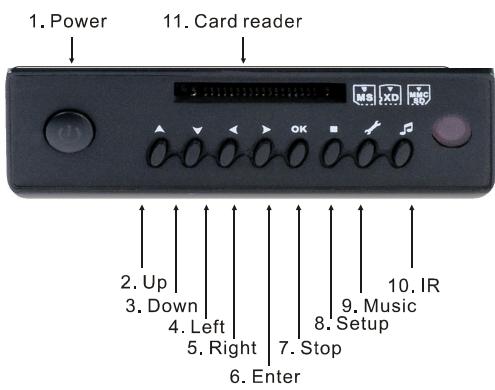
| KEY | FUNCTION |
| 1. Power | Switch On/Off |
| 2. Up | Navigation arrow |
| 3. Down | Navigation arrow |
| 4. Left | Navigation arrow |
| 5. Right | Navigation arrow |
| 6. Enter | Confirmation |
| 7. Stop | Stop |
| 8. Setup | Enter Setup menu for settings |
| 9. Music | Go directly to Music menu |
| 10. IR | Infra Red receiver |
| 11. Card Reader | Card reader for SD / MMC / MS / XD |
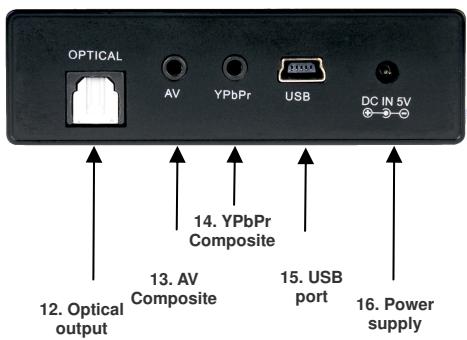
| KEY | FUNCTION |
| 12. Optical output | Connect to Optical |
| 13. AV Composite | Connect to AV |
| 14. YPbPr composite | Connect to YPbPr |
| 15. USB port | Connect to PC |
| 16. Power supply | Connect to power |
REMOTE CONTROL
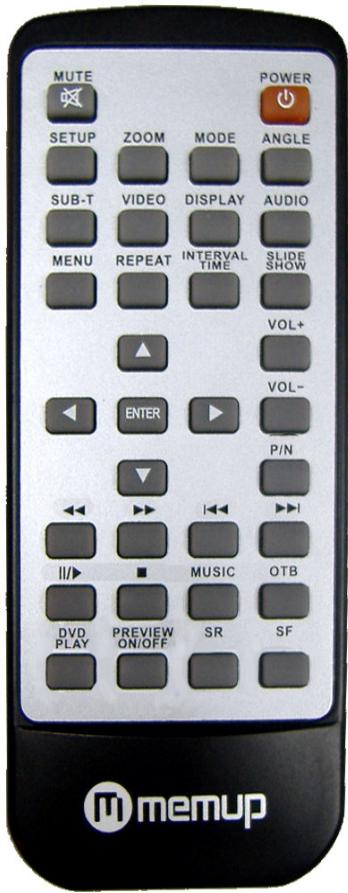
| KEY | FUNCTION |
| POWER | Turn unit on/off |
| MUTE | Turn sound on/off |
| SETUP | Enter setup menu |
| ZOOM | Zoom in images |
| MODE | Change transition in SlideShow mode. Change pre-equalized modes in music mode. |
| ANGLE | Rotates images. View same scene from different angle, if Virtual DVD backup is with multiple angles. |
| SUB-T | Activate or not subtitles while video playing. Use up or down button to select subtitle language. |
| VIDEO | Switching Video output mode |
| DISPLAY | Display information of media file. In DVD mode, view time, title or chapter on play. |
| AUDIO | Switching Audio channel |
| MENU | Press to return to main menu from any section. Press twice to return to storage unit. |
| ▲ | Up |
| ▼ | Down |
| × | Left |
| ← | Right |
| ENTER | Confirmation. |
| □ | Stop. |
| ▲ | Pause/play. |
| × | Previous. |
| → | Next. |
| × | Skip backward. |
| × | Skip forward. |
| VOL+ | Increase volume. |
| VOL- | Decrease volume. |
| REPEAT | Change Repeat play mode. |
| INTERVAL TIME | Change transition time when SlideShow. |
| SLIDE SHOW | Play pictures in continuous mode. |
| OTB | Press to backup memory card datas in SX directly. |
| Music | Play music |
| DVD play | Enter into Virtual DVD navigation function. |
| P/N | Choice PAL/ NTSC SYSTEM TV type. |
| SR | Slow forward mode in Virtual DVD mode. |
| SF | Slow reverse mode in Virtual DVD mode. |
| Preview On/Off | Be able to select preview on or off in file mode |
ACCESSIONS & CONNECTIONS
Connection:
Press [VIDEO] button on remote control, Change the SX video output mode until complete initialization.
Connect ordinary (Composite) AV output to TV
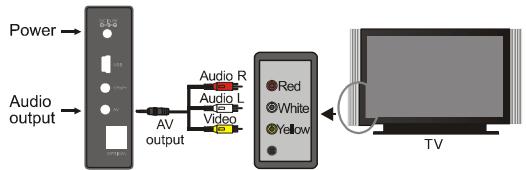
VIDEO (Yellow)
AUDIO LEFT(White)
AUDIO RIGHT(Red)
Connect Component output to TV
Component cable (YPbPr) is only for picture, make sure to have also connected left (white) and right (red) sound output to the appropriate terminal of your TV or Hi-Fi.
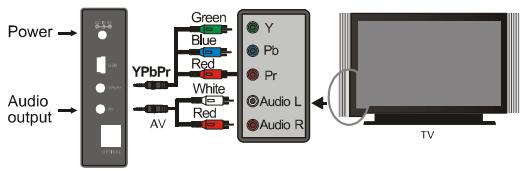
VIDEO Y(Green)
VIDEO Pb(Blue)
VIDEO Pr(Red)
AUDIO LEFT(White)
AUDIO RIGHT(Red)
Optical output
It is available to enjoy 5.1 high quality sounds through a multi channel decoder/amplifier with optical input.
Card reader access:
After plug-in memory card, a menu displays all storage equipment.


KEY, to choose storage equipment.
MENUI NTERFACE
On menu, four options are available: PHOTO, MUSIC,VIDEO,and FILE.
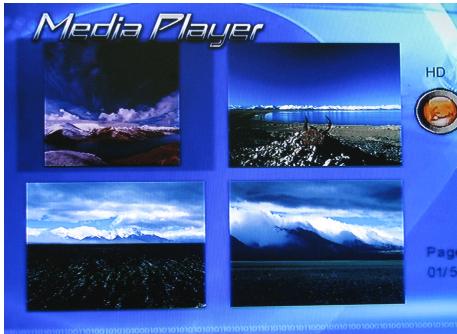
Picture Play
Press [ENTER] to browse mode (thumbnails only), press [ENTER] again for normal play.
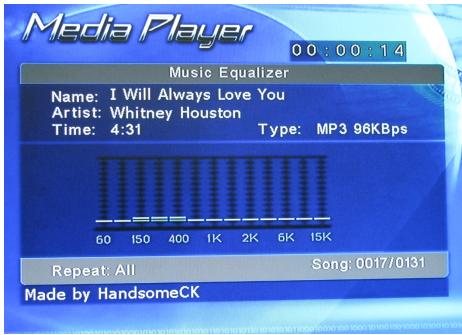
Music Play
Press [ENTER] to access music library, press again to enter music EQ and Begin play.
Movies Play
Press [ENTER] to access movie browse mode. Press again to play.
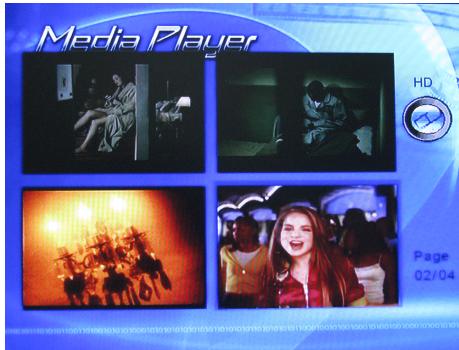
Subtitle Operation:
Subtitle and video files must be in same folder with same name.
In file library, press [SUB-T] to choose subtitle file, then choose video files, press [ENTER] to play.
File management
Press [ENTER] to access File Library and press again to play selected file.
- File copy:
In this menu, press , a command dialog box will appear.
Choose copy command, select [ENTER], and then a memorizer symbol will appear on right screen.
Press and choice line will switch to the right screen, select a folder for backup and press [ENTER].
Press to left screen and choice line will switch to target file on left screen, press [ENTER] to copy.
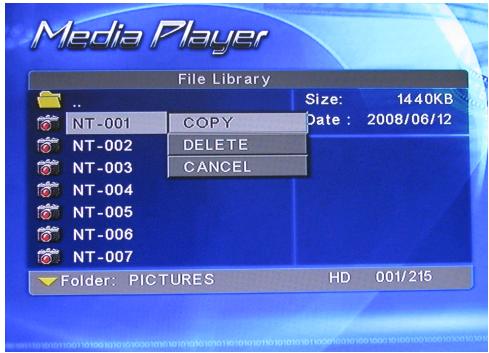
- OTB (One Touch Backup) function:
Copy card data plugged in the card reader slot to the SX, press [OTB] on remote control and press [ENTER] for several seconds.
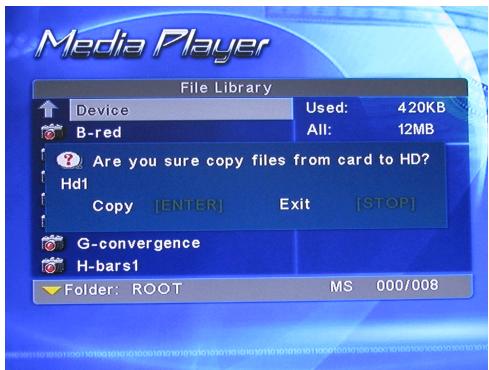
-Delete Files:
Select file, press then [ENTER] to get the command dialog box. Then choose [DELETE] to erase file.
SETUP MENU
Press SETUP key to access system setup menu.
System setup options:
Music setup: Set some functions and playing music settings (Repeat, shuffle, ...).
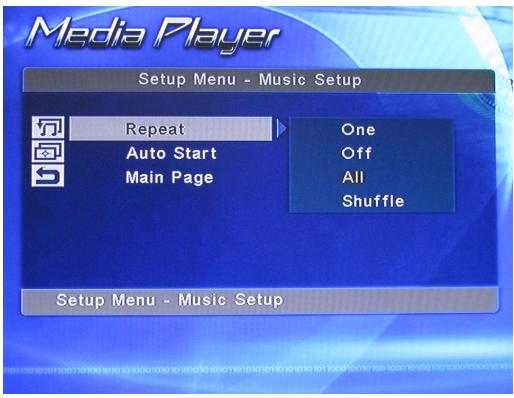
Auto play: When choose ON, the SX will turn on and auto-play music.
Movie setup Set up some functions and settings for playing movies (Repeat, shuffle, subtitles,...)

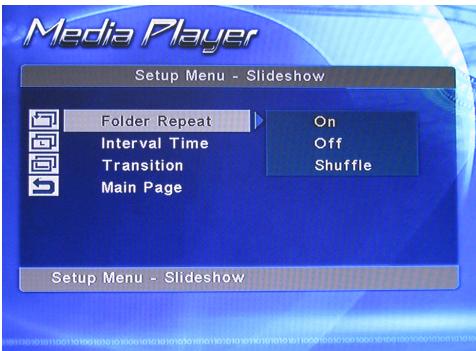
Slideshow setup Set up some functions and settings for playing slideshow (Repeat, shuffle, ...).
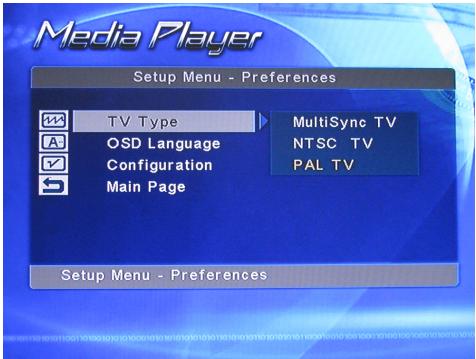
Preferences setup Set up some SX functions and settings (TV configuration, ...).
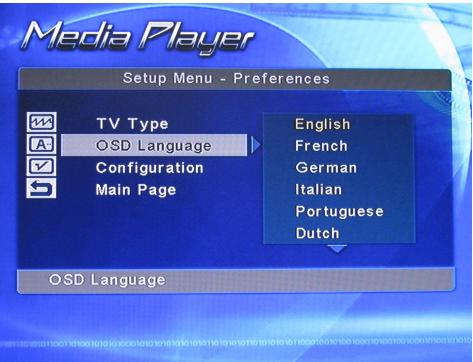
OSD language: Switch the language of Screen display
SPECIFICATIONS
CONTENT FORMAT SUPPORTED:
| Video: | MPEG1/2/MPEG4, XVID, DIVX, VCD, DVD files |
| Format: | AVI / MPG / MPEG / DAT / VOB |
| Photos: | JPEG |
| Audio: | MP3 / WMA / AAC / AC3 |
| Memory card supported: | SD / MMC / MS / XD (FAT16 or FAT32) |
| Subtitles: | SRT, SSA, SMI |
| DA Converter | 24-bit/192kHz |
| AD Converter | 24-bit/96kHz |
| Signal-Noise (1kHz) | ≥ 90dB |
| Dynamic Range | ≥ 90dB (1kHz) |
| Separation Channel | ≥ 95dB |
| Total Harmonic | |
| Distortion (1kHz) | ≤ 1% |
CONNECTIONS
| USB | USB Port x 1 |
| HDD | S-ATA port x 1 |
| Video Output | Composite RCA Connector (yellow end) x 1 |
| Audio L/R | Composite RCA Connector (white/red ends) x 1 |
| Component / Progressive | Composite YPbPr |
GENERAL
| Power Supply | AC 100~240V - 50~60Hz |
| Power | Approx. 10 W |
| Operating | +5°C to +40°C (+36°F to +104°F) |
| Operating Humidity | 5% to 80% RH |
| Dimensions (W/H/D) | L75 mm x H22 mm x P139 mm |
| Net Weigh | Approx. 250 grs |
Note: The specifications and design of this product are subject to change without any notice
TROUBLESHOOTING
For detailed troubleshooting information, please visit www.memup.com and consult FAQ
-
When power is on, nothing appears or screen is shaking:
-
Video output mode is not properly set, press [TV SYSTEM] on remote control to change output mode until it is properly set.
-
While playing movie file, subtitle is not shown.
-
Make sure movie file name matches to subtitle file name.
-
While playing movie, there is no audio output.
-
In SETUP menu, check if audio output mode is properly set.
- Check volume level.
- Check if [MUTE] is activated.
-
Display different TV output to check if none are available
-
The SX can't read my files (h.264, mkv, rmvb, png, bmp ...).
-
SX chipset can't read some files, even some firmware couldn't correct, reading files are mentioned on giftbox and in "specifications" part. Some will be added and available in www.memup.com
-
I copied files but I can't see them in the Mediadisk SX?
-
Make sure your HDD is formatted in FAT32 and not NTFS.

- SAFETY AND OTHER INSTRUCTIONS
- >>> Copyright
- >>> Codec Check
- >> Data Backup
- >>>Drop/Shock
- >> Foreign Substance
- >>Disassembly/Modification
- >>> Load
- >>>Chemicals
- >>> Water / Moisture
- >>> Magnet or Magnetic Properties
- >>Heat
- >>> Vision / Hearing
- >>>Fire
- >>> Children
- >>>Power
- >>> VOID warranty Sticker
- PRODUCT CONTENTS & VIEW
- Giftbox contents:
- Product view:
- REMOTE CONTROL
- ACCESSIONS & CONNECTIONS
- Connection:
- Connect Component output to TV
- Optical output
- Card reader access:
- MENUI NTERFACE
- Picture Play
- Music Play
- Movies Play
- Subtitle Operation:
- File management
- - File copy:
- - OTB (One Touch Backup) function:
- -Delete Files:
- SETUP MENU
- SPECIFICATIONS
- TROUBLESHOOTING
Brand : MEMUP
Model : MEDIA DISK SX
Category : Media hard drive