K-Star II - Mp3 player MEMUP - Free user manual and instructions
Find the device manual for free K-Star II MEMUP in PDF.


User questions about K-Star II MEMUP
0 question about this device. Answer the ones you know or ask your own.
Ask a new question about this device
Download the instructions for your Mp3 player in PDF format for free! Find your manual K-Star II - MEMUP and take your electronic device back in hand. On this page are published all the documents necessary for the use of your device. K-Star II by MEMUP.
USER MANUAL K-Star II MEMUP
natural_image
Two pink musical notes on a solid background (no text or symbols)KStar
1.8"
User manual




www.memup.com
Notice
• Download latest user manual from www.memup.com if there is a difference in the instructions given in this manual.
- Do not disconnect the player when it is being formatted or uploading / downloading data.
- Do not subject the device to severe impact or drop it from high position.
- Do not use the player in extreme hot or cold, dusty or damp field. Do not expose it to direct sunshine.
- Back up the data frequently in case of accident data loss.
- Avoid using the player in strong magnetic field.
- Keep the device away from water or other liquids. In the event that water or other liquids enter the device, power off the product immediately, and clean the device.
- Do not use chemical solution to clean the device in order to avoid corrosion. Clean it with a dry cloth.
- Do not attempt to disassemble, repair or modify the product. This will invalidate guarantee.
Introduction
The high integration reduces the device weight and the dimensions and the use is comfortable. The big display with TFT technology offers clear and sharp information and the USB 2.0 High Speed interface make easier the data transfer operation from/to the computer. The KSTAR MP3/MP4 Player has built-in a Lithium battery rechargeable by computer USB port. By the microphone inside it is possible to record voice messages and play them directly with the device or by computer. Before using this product, please read this manual and retain the instruction for future reference.
Description
Here below you will find a product description
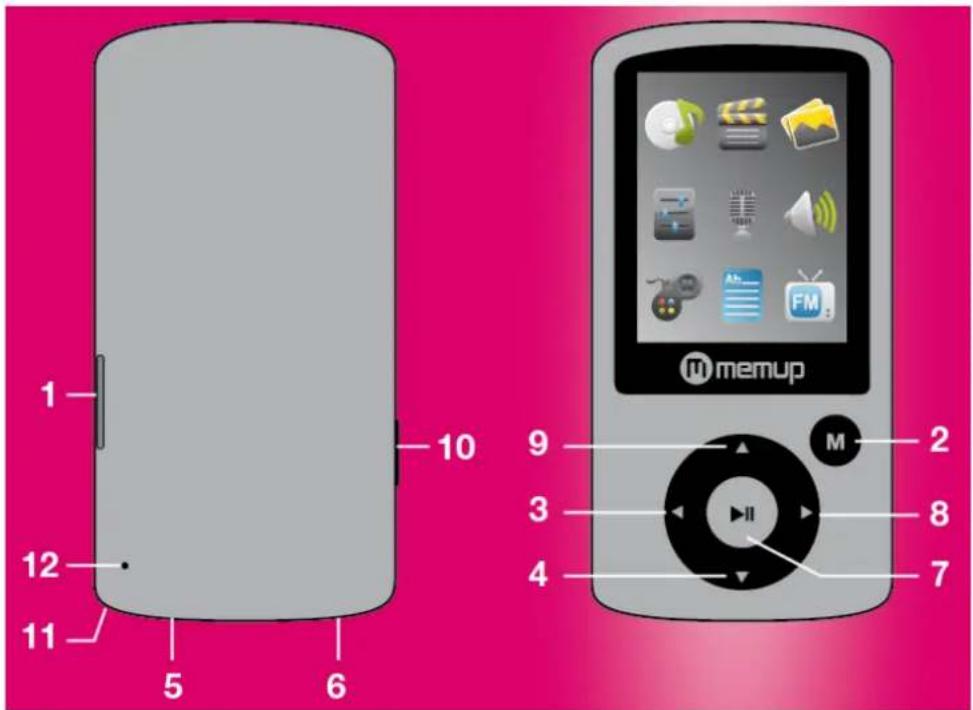
- MICRO SD Card slot
- Menu
- Previous [◀] / Backward[◀]
- VOL-(Decrease the Volume)
- USB Connector
- Earphone Connector
- [▶] / Pause [II]
- Next [▶] / Forward [▶]
- VOL +(Increase the Volume)
- Power ON/OFF
- Strap eyelet
- Microphone
1. Display
Here below you will find a display description
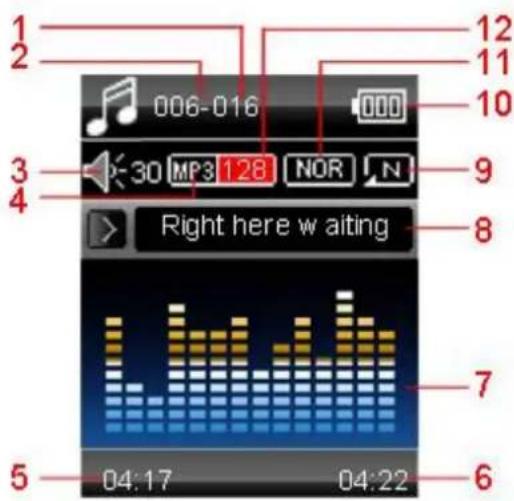
- Total Number of Songs
- Current Song Location
- Volume
- File Format
- Elapsed Time
- Total Time
- EQ Animation
- Song Name
- Repeat Mode
- Battery Life
- EQ Mode
- Play Rate
2. Use
Power ON/OFF
The MP4 player has built-in a rechargeable battery. At the first use we suggest to recharge the battery for a long period (around 8 hours). To recharge the battery please connect the MP4 player to USB computer port.
Powering On: Turn on On/Off button to On position
Powering Off: Hold the [▶] / Pause [II] key until the power-off animation begins. Then, turn the On/Off button to Off position.
Recharge the Player
natural_image
Illustration of a desktop computer with a magnifying glass on the screen (no text or symbols)The player can be recharged by the provided USB cable by connecting to the PC. During charging, an icon on the right will show. You should first turn on you PC, and then connect the player to the PC through the USB cable. The player should be fully charged in 3 to 4 hours.
3. Main Menu
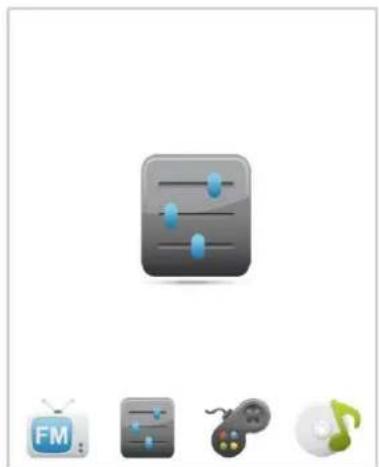
After powering on the MP4 Player, you can see the main menu with 9 submenus (Radio FM for FM version only*), which allow you to select different functions and options.
By using the [◀] or [▶] buttons, you can select the desire option, and then press Play button to confirm the selection.
To access at the main menu while you are inside any of these submenus, press and hold MENU [M] switch for a few seconds. (Short pressing the MENU [M] switch usually opens the submenu option of each submenu)
natural_image
Icon set with a play button and three app icons (TV, gaming console, music note) — no text or symbols present.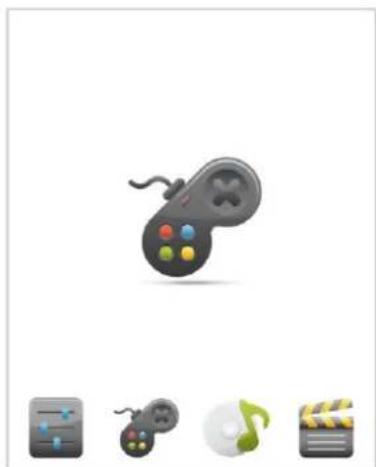
natural_image
Icon set showing a game controller, video player, CD, and film clapperboard (no text or symbols)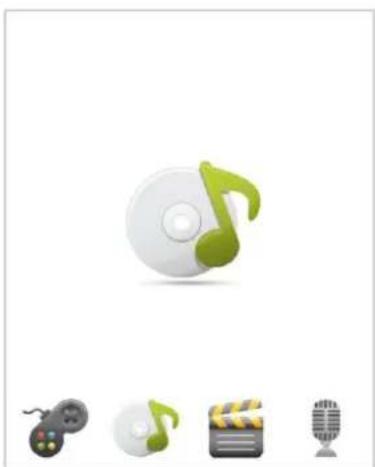
natural_image
Illustration of CD/DVD icons including a green musical note, a game controller, a film clapperboard, and a microphone (no text or symbols)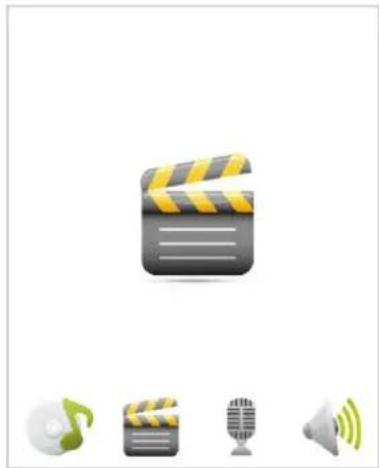
natural_image
Icon set showing a clapperboard film, music player, microphone, and speaker (no text or symbols)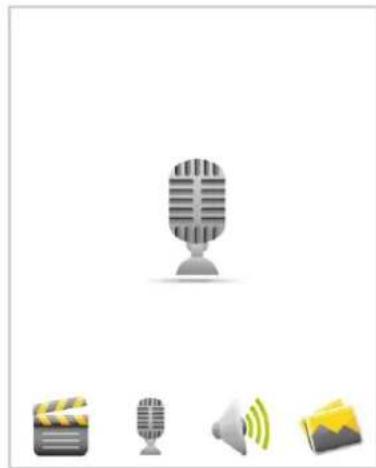
natural_image
Illustration of a vintage microphone and three icons representing media, film clapperboard, speaker, and music app (no text or symbols)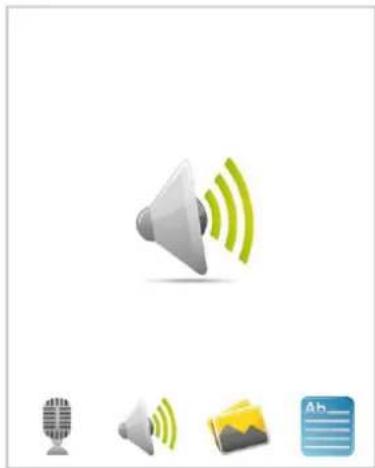
natural_image
Illustration of a speaker icon with sound waves, next to a microphone and a document icon (no text or symbols)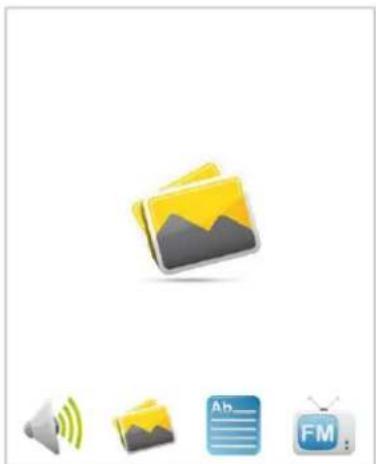
natural_image
Icon set showing a folder with mountain, speaker, and text icons (no text or symbols)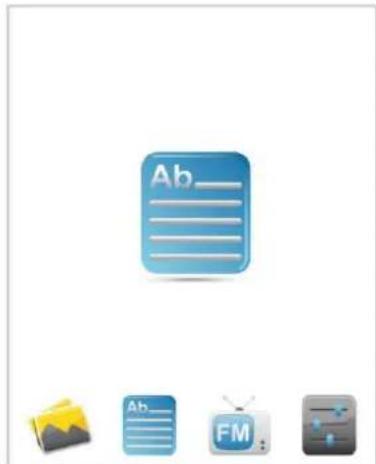
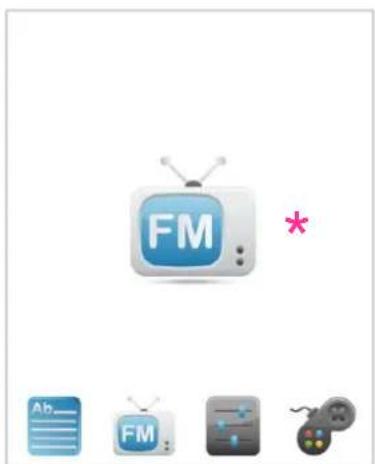
The available options are:

natural_image
Vertical sequence of app icons including CD, film clapperboard, TV screen, microphone, speaker, text blocks, game controller, folder, and video player (no text or symbols)Music: Select this option to play song.
Video: Select this option to play AMV video.
FM Radio*: Select this option to listen radio programs *Only available on KSTAR FM version
Record: Select this option to record voice messages by the microphone inside.
Voice: Select this option to play recorded voice message.
E-Book: Select this option to read text.
Games: Select this option to play game.
Album: Select this option to browse and see photos.
System: Select this option to access at system setup.
4. Music Mode
The music player option allows playing songs. To activate this option please follow here below instruction:
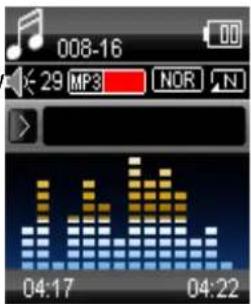
- Power ON the MP4 Player, the screen will display the main menu
- By using [◀] or [▶] buttons, select MUSIC option then press [▶ II] button.
- Press [▶ II] button to start to play the first song available.
Key Function at Music Mode
During the song play it is possible to activate the following controls.
Press the [▶ II] to start to play a song. Press the play button again to pause the song. [▶ II]: To restart to play the song press play button again. Hold the play button for longer time will eventually turn off the player
Press [◀◀] or [▶◀] to select the previous or the next song. REW & FFWD [◀◀▶]: Press and Hold the [◀◀] or [▶◀] buttons to rewind or fast forward the song.
Volume (VOL+ and VOL-): Press [VOL+] button to increase the volume and press [VOL-] button to decrease the volume.
Music Submenu
By short pressing the MENU [M] button, you can find the following music submenus. Press [◀] or [▶] to choose, and then press [▶ II] key to confirm each submenus. Use the same technique to navigate inside each of the submenus.
| Status | Submenu Options |
| In Pause mode | Local Folder: List of the folders in internal memory. Under this directory, you can choose to go up a folder level by pressing [◀] or [▶], then press [▶ II ] to confirm. |
| Card Folder: List of the folders in micro SD card. Under this directory, you can choose to go up a folder level by pressing [◀] or [▶], then press [▶ II ] to confirm. | |
| Delete File: Delete specific file you want | |
| Delete All: Delete all files using this option |
| Status | Submenu Options |
| In Play mode | Repeat: Normal, Repeat One, Folder, Repeat Folder, Repeat All, Random and Intro. |
| Equalizer : Natural, Rock, Pop, Classic, Soft, Jazz and DBB | |
| Tempo Rate: You can alter the playing speed of the Song (not WMA format) | |
| Replay A-B : A-B Repeat Function | |
| Replay Times | |
| Replay Gap |
A-B Repeat Function
The player can loop-playing a specified music interval of a song. While Playing Music, Press M button to set repeat start point A, and then press M again to set repeat end point B. The player will then loop-play the content between point A and B.
Lyric Display
The Player supports Lyrics Display, in which the lyrics would be shown synchronizing with the actually lyrics of the song. The file format should be “.Irc”, and the file name should be exactly the same with the song’s file name and place within the same folder with the song. To activate this option, please follow here below instruction:
- While playing song, press and hold MENU [M] to activate lyrics display
- Short press MENU [M] button again to de-activate the lyrics display and return to music play menu.
5. Video Mode
Caution: The Movie Player only plays AMV files, you need conversion from other file format in order to watch the movie you like.
Supported formats to be converted in AMV format with AMV video converter:
- AVI format (.avi)
- Windows Media format (.asf, .wmv & .wma)
- MPEG 1 format (.mpg, mpeg &.dat)
• Real player format (.rm)
- Quicktime format (.mov)
- MPEG 2 format (.vob)
NOTE: to convert some formats it is necessary to have installed the related codec (for example Quicktime for “.mov” files or DivX Codec for some “.avi” files)
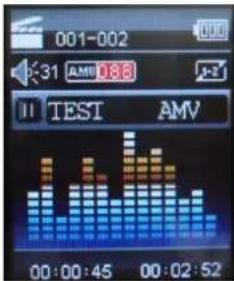
The Video allows playing movies in AMV Format. To activate this option please follow here below instruction:
- Power ON the MP4 Player, the screen will display the main menu.
- By using [◀] or [▶] buttons, select Video option then press [▶ II] button.
- Press [▶ II] button to start to play the first movie available.
Key Function at Video Mode
During the song play it is possible to activate the following controls.
Press the [▶ II] to start to play a movie. Press the play button again to make a pause. To restart to play the movie press play button again. Hold the play button for longer time will eventually turn off the player
REW & FFWD [◀▶] Press [◀◀] or [▶◀] to select the previous or the next movie. Press and Hold the [◀◀] or [▶◀] buttons to rewind or fast forward the movie.
Volume (VOL+ and VOL-): Press [VOL+] button to increase the volume and press [VOL-] button to decrease the volume.
Video Submenu
By short pressing the MENU [M] button, you can find the following Video submenus. Press [◀◀] or [▶◀] to choose, and then press [▶ II ] key to confirm each submenus. Use the same technique to navigate inside each of the submenus.
| Status | Submenu Options |
| In Pause mode | Local Folder: List of the folders in internal memory. Under this directory, you can choose to go up a folder level by pressing [◀] or [▶], then press [▶ II ] to confirm. |
| Card Folder: List of the folders in micro SD card. Under this directory, you can choose to go up a folder level by pressing [◀] or [▶], then press [▶ II ] to confirm. | |
| Delete File: Delete specific file you want | |
| Delete All: Delete all files using this option |
6. Record: Voice messages recorder
This option allows to record voice messages by using the microphone inside. To record voice message, please follow here below instruction:
- Power ON the MP4 Player, the screen will display the main menu.
- By using [◀] or [▶] buttons, select Record option then press [▶ II] button.
- Press [▶ II] button to start and stop recording.
- You can listen to your way file under the Voice submenu.
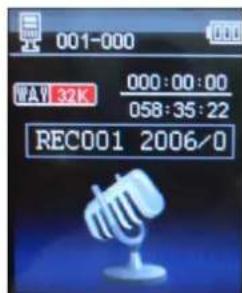
During recording, press the [▶ II] to make a pause. Hold the [▶ II] button for longer time will eventually stop recording.
By short pressing the MENU [M] button, you can find the Local folder, Card folder and Rec Type (Record format settings). Press [◀] or [▶] to choose, and then press [▶ II ] key to confirm each submenus. Use the same technique to navigate inside each of the submenus.
- Under the Local folder or Card folder submenu, you can choose to go up a folder level by pressing [▶ II] to confirm. And then you can choose the folder you want to play
- Under the Rec Type submenu, you can choose the recording quality.
7. Voice : Voice Messages Player
The voice option allows playing the voice messages recorded by the MP4 Player. To activate this option, please follow here below instruction:
- Power ON the MP4 Player, the screen will display the main menu.
- By using [◀] or [▶] buttons, select Voice option then press [▶ II] button.
- Press [▶ II] button to start to play the first recording available.
Key Function at Voice Mode
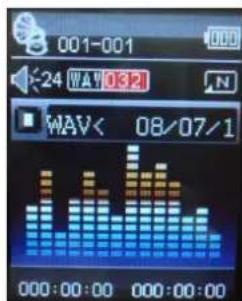
During the recording play it is possible to activate the following controls.
Press the [▶ II] to start to play a recording. Press the play button again to pause the recording. To restart to play the recording press play button again. Hold the play button for longer time will eventually turn off the player.
REW & FFWD [◀▶]: Press [◀] or [▶] to select the previous or the next recording. Press and Hold the [◀] or [▶] buttons to rewind or fast forward the recording.
Volume (VOL+ and VOL-): Press [VOL+] button to increase the volume and press [VOL-] button to decrease the volume.
Voice Submenu
By short pressing the MENU [M] button, you can find the following music submenus. Press [◀] and [▶] to choose, and then press [▶ II] key to confirm each submenus. Use the same technique to navigate inside each of the submenus.
| Status | Submenu Options |
| While Music is paused | Local Folder: Under this directory, you can choose to go up a folder level by pressing [▶ II ] to confirm. And then you can choose the folder you want to play |
| Delete File: Delete specific voice file you want | |
| Delete All: Delete all voice files using this option |
| Status | Submenu Options |
| While music is on | Repeat: Seven repeat modes are listed including Normal, Repeat One, Folder, Repeat Folder, Repeat All, Random and Intro. |
| Tempo Rate: You can alter the Tempo Rate of the Song. | |
| Replay: Replay song |
8. E-Book
The Ebook option allows reading text file. To activate this option please follow here below instruction:
1: Power ON the MP4 Player, the screen will display the main menu.
2: By using the [◀] or [▶] buttons select E-book, and then press [▶ II] button to confirm
3: Use [◀] or [▶] buttons to choose the file
4: Press [▶ II] button to start reading the file

E-Book Submenu
By short pressing the MENU [M] button, you can find the following music submenus. Press [◀] or [▶] to choose, and then press [▶ II] key to confirm each submenus. Use the same technique to navigate inside each of the submenus.
| Status | Submenu Options |
| In Pause mode | Local Folder: List of the folders in internal memory. Under this directory, you can choose to go up a folder level by pressing [◀] or [▶], then press [▶ II ] to confirm. |
| Card Folder: List of the folders in micro SD card. Under this directory, you can choose to go up a folder level by pressing [◀] or [▶], then press [▶ II ] to confirm. | |
| Play Set: You can choose between manual play and auto play. For auto play, you can set the playing time from 1 to 10 seconds for each file. | |
| Delete File: Delete specific file you want | |
| Delete All: Delete all files using this option |
9. Photo
The Photo option allows browsing JPG file. To activate this option please follow here below instruction:
- Power ON the MP4 Player, the screen will display the main menu.
- By using the [◀] or [▶] buttons select Photo, and then press [▶ II] button to confirm
- Use [◀◀] or [▶▶] buttons to choose the file
- Press [▶ II] button to start browsing the file
![ROOT 3.JPG 2.BMP 23949[1].gif SHE.GIF 1.GIF](/content/2026/06/1203201/images/6436407536967f82a2c618465280308c586c7f84d44b9157fab1886d4b6f630d.jpg)
Photo Submenu
By short pressing the MENU [M] button, you can find the following music submenus. Press [◀◀] or [▶◀] to choose, and then press [▶ II ] key to confirm each submenus. Use the same technique to navigate inside each of the submenus.
| Status | Submenu Options |
| In Pause mode | Local Folder: List of the folders in internal memory. Under this directory, you can choose to go up a folder level by pressing [◀] or [▶], then press [▶ II ] to confirm. |
| Card Folder: List of the folders in micro SD card. Under this directory, you can choose to go up a folder level by pressing [◀] or [▶], then press [▶ II ] to confirm. | |
| Play Set: You can choose between manual play and auto play. For auto play, you can set the playing time from 1 to 10 seconds for each file. | |
| Delete File: Delete specific file you want | |
| Delete All: Delete all files using this option |
10. Games
The Games option allows playing games. To activate this option please follow here below instruction:
- Power ON the MP4 Player, the screen will display the main menu.
- By using the [◀] or [▶] buttons to select Games, and then press [▶ II] button to enter the Game menu.
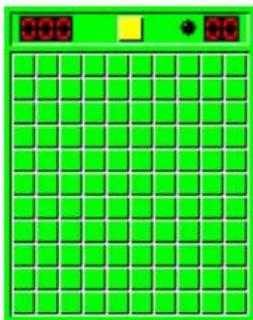
Inside the game menu, there are three games for you to choose including Mine, Voracity Snake and Russia Block. By using the [◀] or [▶] buttons to select the game you want to play, and then press [▶ II] button to confirm
11. Setting: System Setup
The Setting option allows to access to MP4 player setup system. To access at system setup please follow here below instruction:
- Power ON the MP4 Player, button, the screen will display the main menu.
- By using the [◀] or [▶] select Setting option then press [▶ II] button to enter the Setting menu.
- By using the [◀] or [▶] select the system setup parameter and press [▶ II] button.
The parameters available in the setup system are:
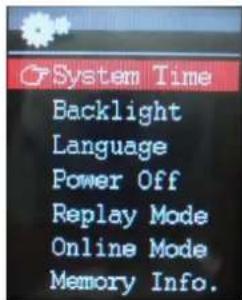
System Time: This option allows setting of the system date and time.
LCD set: This option allows setting the brightness, darkly and black screen of the LCD panel.
Language: This option allows setting the Language of the User Interface.
Power Off: This option allows setting the off time and sleep time.
Memory Info: This option allows checking the memory usage.
Firmware Ver: This option allows checking the firmware version.
Firmware Upg: This option allows to upgrade the firmware.
System Time Set
This option allows setting of the system date and time. The upper case displays the date in Year : Month : Day Format, and the lower case displays the Time in Hour : Minute : Second format. To change the Date and time, please follow here below instruction:
- Under the Setting Menu, choose System time by pressing [◀◀] or [▶◀] and press [▶ II ] to confirm
- Press [VOL+] and [VOL-] to choose the parameter you want to adjust
- Press [◀] or [▶] to change the value. Press MENU [M] to confirm.
Power Off Set
This option allows setting the off time and sleep time. By setting Off Time, it is possible to enable (30s, 60s, 90s and 120s) or disable the power management features to automatically shut down your player if it is not used. By setting Sleep Time, it is possible to set power off the unit after a specified time (30s, 60s, 90s, 120s) from the moment you confirm about this selection.
To modify this parameter please follow here below instruction:
- Under the Setting menu, choose Power off by pressing [◀◀] or [▶▶] and press [▶ II].
- By using the [◀◀] or [▶▶] buttons, select Off time or Sleep Time and press [▶ II ] button.
- Choose the desired 30s, 60s, 90s or 120s and press [▶ II] to confirm.
Memory info
The figure presents the total volume of the disc, the percentage present the percentage between used space and total space.
Specifications
| Size | 80X40X8.5MM | |
| Screen | Full color display, 1.8 inch screen, 262K color | |
| Computer connection | High-speed USB 2.0 (FS) Flash disk | |
| Build-in memory | 4GB or 8GB | |
| Supply power | The longest playing time is 12hours | |
| REC | Sample ratio | 8KHz |
| Recording format | WAV (32K bps), ACT (8K bps) | |
| Recording time | 35hours (ACT, 128M Flash) | |
| MP3, WMA, WAV | The biggest outputting ratio | (L) 10mW+ (R) 10mW (32Ohm) |
| MP3 bit rate | 8K bps - 320K bps | |
| WMA, WMV bit rate | 5K bps - 384K bps | |
| Frequency corresponding | 20Hz-20KHz | |
| SNR | 85dB | |
| Lack fidelity | <+_0.05 | |
| FM radio | Frequency scope | 76 MHz-90MHz/87MHz-108MHz |
| Radio stations | 20+20 | |
| The biggest output rate of earphone | (L) 10mW +(R) 10mW (320) | |
| SNR | 45dB | |
| Music format | MP3, WMA, WAV | |
| Temperature | -5 to 40 degree centigrade | |
| Multi languages | English, German, French, Italian and Spanish etc | |
| Operation system | Windows98/SE/ME/2K/XP, Mac OS 10, Linux 2.4.2 | |
LIMITATION OF LIABILITY AND DAMAGES.
IN NO EVENT WILL MANUFACTURER AND MANUFACTURER'S RESELLERS (COLLECTIVELY REFERRED TO AS "THE SELLERS") BE LIABLE FOR DAMAGES OR LOSS, INCLUDING BUT NOT LIMITED TO DIRECT, INDIRECT, SPECIAL WILLFUL, PUNITIVE, INCIDENTAL, EXEMPLARY, OR CONSEQUENTIAL, DAMAGES, DAMAGES FOR LOSS OF BUSINESS PROFITS, OR DAMAGES FOR LOSS OF BUSINESS OF ANY CUSTOMER OR ANY THIRD PARTY ARISING OUT OF THE USE OR THE INABILITY TO USE THE PRODUCT OR THE SOFTWARES, INCLUDING BUT NOT LIMITED TO THOSE RESULTING FROM DEFECTS IN THE PRODUCT OR SOFTWARE OR DOCUMENTATION, OR LOSS OR INACCURACY OF DATA OF ANY KIND, WHETHER BASED ON CONTRACT, TORT OR ANY OTHER LEGAL THEORY, EVEN IF THE PARTIES HAVE BEEN ADVISED OF THE POSSIBILITY OF SUCH DAMAGES. BECAUSE SOME STATES DO NOT ALLOW THE EXCLUSION OR LIMITATION OF LIABILITY FOR DAMAGES, THE ABOVE LIMITATION MAY NOT APPLY TO THE PARTIES. IN NO EVENT WILL THE SELLERS' TOTAL CUMULATIVE LIABILITY OF EACH AND EVERY KIND IN RELATION TO THE PRODUCT OR ITS SOFTWRE EXCEED THE AMOUNT PAID BY CUSTOMER FOR THE PRODUCT.