
Wizzle - Mp3 player MEMUP - Free user manual and instructions
Find the device manual for free Wizzle MEMUP in PDF.


| Product Type | MP3 Player |
| Brand | Memup |
| Model | Wizzle |
| Storage Capacity | 4 GB (internal) |
| Display | 1.8-inch LCD |
| Audio Formats Supported | MP3, WMA, WAV |
| FM Radio | Yes, with presets |
| Voice Recording | Yes (built-in microphone) |
| Dimensions | 80 x 40 x 10 mm |
| Weight | 50 g |
| Battery Type | Lithium-ion rechargeable |
| Battery Capacity | 300 mAh |
| Playback Time | Up to 20 hours |
| Charging | Via USB 2.0 |
| Headphone Jack | 3.5 mm |
| USB Port | Mini USB |
| Maintenance | Clean with soft dry cloth; avoid liquids |
| Safety | Keep away from water and heat; do not disassemble |
| Spare Parts / Repairability | Not available; device is not serviceable by user |
| General Information | Compact design, suitable for music and audiobooks; supports ID3 tags |
Frequently Asked Questions - Wizzle MEMUP
User questions about Wizzle MEMUP
0 question about this device. Answer the ones you know or ask your own.
Ask a new question about this device
Download the instructions for your Mp3 player in PDF format for free! Find your manual Wizzle - MEMUP and take your electronic device back in hand. On this page are published all the documents necessary for the use of your device. Wizzle by MEMUP.
USER MANUAL Wizzle MEMUP
TABLE OF CONTENTS
SYSTEM REQUIREMENT 1
CONNECTION AND DOWNLOAD 1
Connect to the PC .... 1 Download files .... 1
Copying audio tracks to the player from PC 2
Disconnect from the PC 2
PLAYER OVERVIEW 3
LISTEN TO MUSIC 4
Keys Discription 4
WATCH VIDEO 4
Keys Discription 5
RADIO FUNCTION 5
Keys Discription 5
PHOTO 6
Keys Discription 6
E-BOOK 6
Keys Discription 6
RECORD 7
Keys Discription 7
EXPLORE 7
DESCRIPTION OF BUTTONS 8
PRECAUTIONS AND MAINTENANCE 9
TAKING PRECAUTIONS 9
CLEANING THE DEVICE 9
FIRMWARE OF THE DEVICE 9
SYSTEM REQUIREMENT
Microsoft ® Windows 2000 and XP
Pentium II 350MHz or above CPU level
USB port
120MB hard disk free space or more
CD-ROM driver
CONNECTION AND DOWNLOAD
Make sure the player is connected properly to the PC in the process of formatting or uploading and downloading to avoid program mistakes.
Connect to the PC
Connect the player to the PC with attached USB cable. Note that, do not using USB hub or USB extended line. The PC system detects "New hardware" and starts to install the driver automatically, if needed, wait for the system to finish the installation.
Two new "Removable Disks" will appear. One for internal memory card and one for SD card. The removable disk for SD card is only available when SD card is inserted.
Download files
Note that, this player will build the play list by scanning all files which are sorted by letter order. On Windows 2000 and Windows XP, music with DRM9 should be transferred by Windows Media Player version 9.0 or 10.0 later version (version 10.0 later version is for Windows XP only) to MP3 player. Other download operation probably will cause the MP3 player can not read and play the music files with DRM protection.
Copying audio tracks to the player from PC
- Find out your favorite MP3 or WMA music files in "My Computer".
- Use the mouse to select those music files and click those files with the right button of the mouse to select "Copy".
- Find Removable Drive in "My Computer" and enter it, then right click on the mouse to paste those files to the Removable Drive.
Caution: Do not disconnect the player from the PC during data transfer! It will damage the player.
Disconnect from the PC
- After complete the transmission, disconnect the player from the PC as following steps.
- Double click the icon on the system tray on the bottom right corner of the Windows screen.
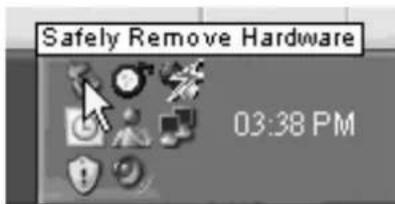
- After selecting the USB device, click the [Stop] button. When you see the [Safely Remove Hardware] window, click [OK] and then unplug the USB cable.


PLAYER OVERVIEW

1 Previous
2 Power
3 Record
4 USB port
5 Charging indicator
6 Earphone
7 Reset
8 Power supply
9 Next
10 Micro SD™
(TF) card slot
11 Return
12 TET display
13 Volume Up
14 Play/pause
15 Volume Down
16 Loud Speaker
LISTEN TO MUSIC
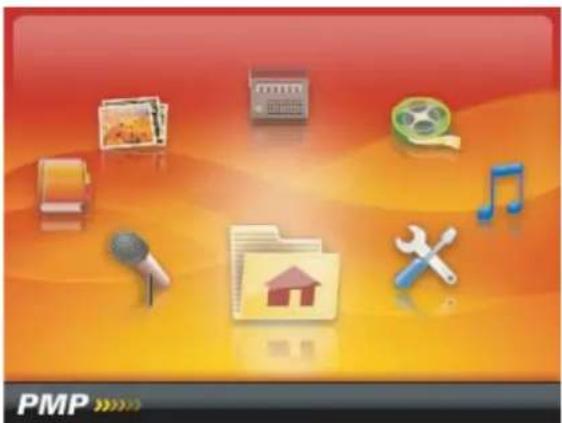
Press and hold RETURN to enter main menu. Press ← or ▶ to select 'Music'. Press ▶/II to confirm selection. You can have lyric synchronize during song playing.

Keys Description
- Press to pause/resume the playback.
- While a music file is in play, press v+ / v- to adjust volume.
- While a music file is in play, press << / >> for a short time if you want to play previous/next music file.
- While a music file is in play, press ←/→ for a long time to move fast forward/rewind within the track.
- Press to set 'A-B' repeat section.
- Take out the earphone to have High-Fi music output.

WATCH VIDEO
Press and hold RETURN to enter main menu. Press ← or ▶ to select 'Video', then press ▶/II to enter the folder navigation.
You can only choose video files to play in video mode. Press << / ▶ select the listed folders or files, press ▶/□ to confirm.
Note: This player only support AVI video format (320×240).
Other formats such as RM/ VOB/ DAT/ RMVB/ MPG/ MPEG/ MP4/ ASF/ WMV/ MKV can be played after being converted to AVI video format.

Keys Description
- Press to pause/resume the playback.
- While a video file is in play, press v+ / v- to adjust volume.
- While a video file is in play, press << / >> for a short time if you want to play previous/next video file.
- While a video file is in play, press □◀ / □▶ for a long time to move fast forward/rewind within the current track.
- Take out the earphone to have High-Fi sound output.
RADIO FUNCTION
Press and hold RETURN to enter main menu. Press or to select 'Radio'. Press ▶/□ to confirm selection.
Note: Earphone serve as an extended antenna, so please keep them plugged in when searching for a channel. The system can save up to maximum 30 stations.

Keys Description
- Press ▶/II to enter submenu. There are five settings in the submenu: manual, preset, save, delete, auto. Press V+ / V- to select, ▶/II to confirm selection.
- In FM mode, press and hold REC enter FM record interface. Press REC start/pause record. Press RETURN to save file and go back to FM listening mode.
- Press v+ / v- to adjust volume.

PHOTO
Press and hold RETURN to enter main menu. Press ← or → to select 'Photo', then press ▶/11 to enter the folder navigation. You can only choose photo files to play in photo mode.
Press □v+ / □v- to select the listed folders or files, press ▶/II to confirm.

Keys Description
- During picture seeing, press /◀ to see the previous/next picture.
- Press to start/pause picture slide show.
E-BOOK
Press and hold RETURN to enter main menu. Press ← or ▶ to select 'E-book', then press ▶/II to enter the folder navigation. You can only choose text files to play in E-book mode.
Press □v+ / □v- to select the listed folders or files, press ▶/□ to confirm. You can read E-book while listening to music.

Keys Description
- While reading E-book, press v+ / v- or << / >> to read the previous/next page.
- Press to start/pause text slide show.
- While reading text, long press REC to save bookmark. A window pops out at the left corner. Press ▶/II to mark current page.
- While reading text, press REC for a short time to load book mark. In the popped out window press v+ / v- to select the saved page. Press ▶/II to confirm. Then the screen will change to the wanted page at once.
RECORD
Press and hold RETURN to enter main menu. Press ← or → to select 'Record', then press ▶/11 to enter the folder navigation. If you want to listen to the recorded files, enter "Music" mode, choose files saved in
"Voice" folder.

Keys Description
- Press REC to start/pause recording within the same file.
- Press and hold REC to save file and make the player ready to record another file.
- Press RETO SAVE file and return to main menu.
EXPLORE
Press and hold RETURN to enter main menu. Press << or >> to select 'Explore', then press ▶/II to confirm selection. In explore mode, you can choose files to play or delete a certain file. To delete a file, select the file first and then press REC
DESCRIPTION OF BUTTONS
| Button | Fuction | Function |
| POWERPress to turn the player on/off. | ||
| ▶/II | Press playback. | to Press to enter a selected st menu item or to confirm a chosen setting. |
| RECIn music mode, press to creat or release repeat section.In FM mode, press and hold to start FM record.In E-book mode, press to save/load bookmark.In record mode, press to start/pause voice record.In folders/files navigation mode, press to pop out file delete window. | ||
| RETURNPress to exit menu | Press and hold to return to main menu. | |
| ◀/Press to skip to previous/next track.Press and hold to rewind/fast forward within current track.In radio mode, press to search radio channels. | Press to select a setting or menu item when the items are listed horizontally. | |
| V+V-Press to increase/decrease volume level. | Press to select a setting or menu item when the items are listed vertically. | |
in
PRECAUTIONS AND MAINTENANCE
TAKING PRECAUTIONS
- Before powering of the player, please plug in the earphone to avoid damaging the earphone as well as maintenance of the player. Turn off the player when stop using it.
- Do not place it near heat resource or subject to direct sunlight, dust, humid or rain.
- Do not use it in extra-dry environment to avoid electrostatics.
CLEANING THE DEVICE
- Before cleaning the device make sure it is turned off.
- To clean the LCD screen or plastic casing, wipe it with a soft, slightly dampened cloth. Never use any alcohol or diluted detergent to clean the device.
- Never spray or pour liquid directly onto the screen or plastic casing.
FIRMWARE OF THE DEVICE
- Please make sure that the player will not be disconnected in the process of formatting or uploading and downloading to avoid program mistakes.
- When it is used as mobile disc, make sure read and write files with correct method. Any mal-operation may lead to the loss of data.
- Due to different memory calculating method and the firmware is stored in the device flash memory and, it will cause the difference between flash memory marked capacity and real capacity. The real flash memory capacity is lesser than the marked memory capacity of this device is normal. With different firmware size, it has different flash memory capacity. Please refer the table as below for more details.
| Market capacity Real capacity Free capacity after stored firmware | |
| 512 MB 488 MB – 512 MB 417 MB – 511 MB | |
| 1 BG 953 MB – 1000 MB 858 MB – 999 MB | |
| 2 GB 1907 MB – 2000 MB 1765 MB – 1999 MB | |
| 4 GB 3815 MB – 4000 MB 3577 MB – 3999 MB |
Please Backup Your Files!
We will not be liable for the loss of data caused by damaged products or damaged respectively unreadable memories or drives.
Please note: This device contains a built-in battery. Please ensure that it is disposed in accordance with local environmental legislation.
- TABLE OF CONTENTS
- SYSTEM REQUIREMENT
- CONNECTION AND DOWNLOAD
- CONNECT TO THE PC
- DOWNLOAD FILES
- COPYING AUDIO TRACKS TO THE PLAYER FROM PC
- DISCONNECT FROM THE PC
- LISTEN TO MUSIC
- KEYS DESCRIPTION
- WATCH VIDEO
- RADIO FUNCTION
- PHOTO
- E-BOOK
- RECORD
- EXPLORE
- DESCRIPTION OF BUTTONS
- PRECAUTIONS AND MAINTENANCE
- TAKING PRECAUTIONS
- CLEANING THE DEVICE
- FIRMWARE OF THE DEVICE
- PLEASE BACKUP YOUR FILES
Brand : MEMUP
Model : Wizzle
Category : Mp3 player