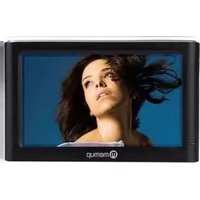
M430TR - Mp3 player MEMUP - Free user manual and instructions
Find the device manual for free M430TR MEMUP in PDF.


| Product Type | MP3 Player |
| Brand | Memup |
| Model | M430TR |
| Dimensions | 40 x 70 x 10 mm |
| Weight | 30 g |
| Battery Type | Built-in rechargeable Li-ion |
| Battery Capacity | 200 mAh |
| Playback Time | Up to 10 hours |
| Screen | 1.8-inch color LCD |
| Memory Capacity | 4 GB (internal) |
| Supported Audio Formats | MP3, WMA, WAV |
| FM Radio | Yes, with headphone antenna |
| Voice Recording | Yes, built-in microphone |
| Equalizer Presets | Rock, Pop, Classic, Jazz, Normal |
| USB Interface | USB 2.0 |
| Earphone Output | 3.5 mm stereo jack |
| Care Instructions | Clean with a dry cloth; avoid moisture and extreme temperatures. |
| Safety Warnings | Do not disassemble or expose to water; use only specified charger. |
| Spare Parts Availability | Earphones, USB cable, battery (internal, service center replacement) |
Frequently Asked Questions - M430TR MEMUP
User questions about M430TR MEMUP
0 question about this device. Answer the ones you know or ask your own.
Ask a new question about this device
Download the instructions for your Mp3 player in PDF format for free! Find your manual M430TR - MEMUP and take your electronic device back in hand. On this page are published all the documents necessary for the use of your device. M430TR by MEMUP.
USER MANUAL M430TR MEMUP
USER GUIDE
- PRECAUTIONS 1
- PRODUCT INFORMATIONS 3
- POWER ON / OFF 5
- PLAYER FUNCTION 6
- TRANSCODING TOOL 11
- TECHNICAL SPECIFICATIONS 14


Do not touch power supply adapter with wet hands. Otherwise, it may cause an electric shock
Use standard power supply adapter. Otherwise, it may cause damage to this player by using a non-Standard power supply adapter
Make sure power supply faucet connected to correct underground cable. Otherwise, it may cause an electric shock
Make sure power supply adapter plugged in socket tightly. Otherwise, it may cause fire.
Do not play too long with max volume. Otherwise, it may cause harm to your hearing.
Do not strike the player. Otherwise, it may damage the player
Do not wear earphones when driving. Otherwise, it may cause accident.
If this player gives off smoke or heat, please stop using it immediately and contact customer service centre. Keep on using this player will be dangerous.


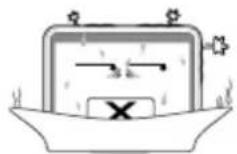
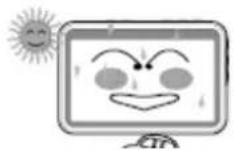




Keep this player between 0° c and 40° c.
Do not put player in dust or damp condition. Otherwise, it may damage the player.
Do not expose player in sun shine directly. Otherwise, it may damage the player
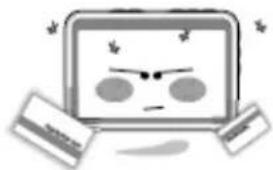
Do not put the player close to a credit card, etc... Otherwise, it may damage magnetic parts of credit card, etc ...
Please clean player by cleaning and soft cloth, do not use any detergent. Otherwise, it may damage the player.
Do not let dust or liquid matter into the player. Otherwise, it may damage the player. If it happens, please contact customer service centre.
Do not take apart or fix player by yourself. Otherwise, it may damage the player.
Do not make player fall. Otherwise, it may damage to the player.
PRODUCT INFORMATIONS
Product functions
Compatible with audio format MP3/WMA/WAV format.
Compatible with video format AVI/ASF format.
Support function of picture browsing JPEG/BMP/GIF/PNG format.
Support function of E-book E-book files in TXT format (in ANSI)
Support function of FM radio Frequency ranging from 87.5 to 108 MHz
Support FLASH playing With Macromedia Flash Lite 2.1.
Embedded with 4.3 inch TFT Touch screen High definition pictures and videos with 16M colors.
Built-in rechargeable battery Extra batteries are not necessary.
Conversion Software Convert video file which is unable to be played into playable format with conversion software.
Package Content
- PMP
- Manual
- AC adapter
- AV in cable
- USB line
- Earphone
- Carry case
Function display

1 POWER
② × ESC
3 MIC MIC
- RESET
⑤ SD SD Card Slot
6 → USB Port
⑦ Earphone Jack
8 AVIN AV IN
9 - CHG Indicator
10 - POWER Indicator
Connection
External audio connection: with double jack line connection
Stereo earphone connection: plugged needed for radio reception
Connect with TV: with supplied audio/video cable, for TV input
Computer connection thanks to USB cable

Caution: Unexpected interruption may cause damage to this product!
Charge

Tips: During recharge, please don't pull out plug, the product will be damaged.
Recharge mode
Connect AC adapter to charge. In recharging mode, indicator is red and go out when battery is full
Charge indication

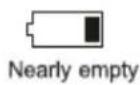

Long press "POWER" 3-5 seconds, indicator will turn green.
Power off
Long press "POWER" 3-5 seconds, indicator will go out.
9 icons on main menu interface.
On the bottom bar : volume, power, time (as picture)


Tips: This product is compatible with Windows 98Se, Me, Windows 2000, Windows XP, Windows Vista, MAC OS 10 etc.
Video
Select "Video" to enter into video browser to display video files.
Press "Video" to display operation:
- Loop Mode: "Current", "All" or "Random".
- File Protect: "Lock" or "Unlock".
- Del File: "Current" or "All".
- Resume: Play last file played (previously saved as bookmark)
- Exit: Select "Exit" to return to main interface
a. Press "ESC" button to stop playing, then choose "OK" or "Cancel" to save or cancel the video bookmark, then get back to the video browser.
b. Click "or" "con to adjust the volume.
c. Click “” to pause, and click “” to resume.
d. Click “◀” or “◀” to play previous or next file.
e. During video play, click the center of the screen to display the tool bar. Click "on" to play backward or forward. Click "to" play again.

Tips: Forward or Backward function is under condition of video playing.
Audio
Select "Audio" to enter into audio browser to display audio files.

Click "audio" to display operation:
- Loop Mode: "Current", "All" or "Random".
- File Protect: "Lock" or "Unlock".
- Del File: "Current" or "All".
- EQ Mode: "Normal", "Classic", "Popular", "Bass" or "Rock".
- Exit: Select "Exit" to return to main interface
Press "ESC" button or click "on taskbar to stop playing, then get back to the file list. Press "ESC" button or click "again to return to the main interface."
Click "+" or "-" icon to adjust volume
Click “” to pause, and click “” to resume.
Click "or " to play previous or next file.
During audio playing, click “ ” to play Backward or Forward. Click “ ” to select the EQ mode.
Click "to switch to the cycle mode.
Lyrics synchronous display
To make lyrics and music display synchronously, make sure music and lyrics files are both copied in same MP3 folder with same file name, lyrics file name should be: *.LRC, otherwise lyrics can not be displayed synchronously when playing music files.
Picture
Select "Picture" in main interface to enter.
Click "Picture" to show operation:
- Display Mode: "List" or "Slide".
- File Protect: "Lock" or "Unlock".
- Del File: "Current" or "All".
- Wall Paper: Make current photo as desktop background
- On Menu: Make current photo as start-up image
- Off Menu: Make current photo as power-off image
- Exit: Select "Exit" to return to the main interface.
Click the photo and Click again to play.
Click "Esc" to stop pictures browsing and return to "file list"
Under photo viewing click the center of the screen to display next photo; you can click the "picture" in the list of photo file, and then select "Display Mode/ Slide" to play in slide mode
Wall Paper:
Click "picture "under the list of picture file, and click " Wall Paper " on
the pop-up menu, then the current picture can be set as desktop background; All the pictures stored in the player can be set as desktop background and startup/ power-off image etc.
Radio
For FM radio, earphones must be plugged as they are radio antenna.
In main interface, select "Radio" to enter into FM interface.
Default state is preset with 20 stations for your selection (click "or " to select)
Click "to adjust volume
During FM play, click “to select “Manusch”, “Select” and “Auto Seek”:
Manual Search
Select "Manusch", click "or "to switch frequency; click ", it will ask to save, select "ok" to save, and press "Esc" to exit.
Select
Select “,” click “” and “” to change saved frequency; click “” and “” to switch previous or next saved channel; press “Esc” to exit station.
Auto Search
Select “Auto Seek” and click “ok”, FM will search automatically (87.5 MHz-108 MHz) and save each station searched to preset spot (former preset station will be covered), if 20 preset stations are saved, auto search function will stop, and automatically switch to effective radio; press “Esc” to exit.
Record
Recording modes: one is built-in MIC, the other is audio recording through external Line In. In record function, you can switch MIC recording or audio recording through “
MIC recording
Click “” to start recording, click “” to pause recording and click “” to stop recording. After record paused or stopped, player can save recorded file and exit recording by pressing “Esc”. MIC recording file: Bit ratio 32kbps; Sampling ratio 8 KHz; File extension name WAV
Line in
Please connect one end of Line-in to output port of audio device (such as earphone jack etc), the other end will be connected with AV-In jack of the player. Switch to "AV-In", Click "to start recording, click " " to pause recording and click " " to stop recording.
When paused or stopped record, player can save recorded file and exit recording by pressing "Esc". Line In recording file: Bit ratio 64kbps; Sampling ratio 32 KHz; File extension: MP3
Flash
Select "Flash" in main interface to enter into Flash player.
Click "Flash" to pop up operation:
- Play Flash: Click this item to play the current Flash file
- File protect: "Lock" and "Unlock"
- Del File: "Current" and "All".
- Exit: Select "Exit" to return the main interface.
After selecting Flash files, click again to play. Click "Esc" to exit Flash Player.

Caution: It is unavailable to play "forward" and "backward" during Flash files playing.
E books
Select "E-book" to enter into E-book interface.
The format of e-book is TXT file format (ANSI);
- Select article and read.
- Click " ", " " to move up and down. Click " ", " " to move to previous page and next page
- Under E-book menu, click "E-Book", pop-up menu will appear:
Browse Mode: "Manual", "0.5 seconds", "1 second" or "two seconds"
File protect: "Lock" and "Unlock"
Del File: "Current" and "All"
Exit: Select "Exit" to return to main interface
- When setup finished, press "Esc" or click "→to exit
Tool
Select "Tool" to enter the tool menu.
Calculator
Click the number and operator to make calculate.
Notepad
To read text.
Memory
Display SD card or memory situation, set up working zones, format memory, press to exit

Caution: Please backup data before formatting memory or SD Card.
Upgrade
Select "USB" or "SD" to enter upgrade mode.
VideoRecord
- In "Tool" menu, please connect one end of video recording cable with player AV-IN Port, another end connect with other equipment output port (such as TV and other devices)
- Select "VideoRecord"; press "MENU" to display Setup: "Video Size" and "Video Format".
Size: "320*240" or "640*480"
Format: "ASF" or "AVI"
- Click "t" to start recording, press " " or " Esc" to stop and return to main interface.
TP-Calibration
Click TP-Calibration to adjust the touch screen. Repeat clicking the middle of yellow cross cursor. After the calibration is successful, it will automatically back to "Tool"
Setup
Select "Setup" in main interface to enter system settings.
Language
6 available languages.
Default
You can select "Yes" or "No" to recover, setup includes starting image. Data will not be changed.
Sound
Control speaker on or off in this way.
Auto off
The player can turn off as your setting. You can select time what you want.
Time
There are time and date to set, after amend click “→” to save and exit.
SPCA5050 TRANSCODING TOOL
Installation of SPCA5050 Transcoding Tool
- Running installation program (setup.exe), select installation language.
- Key in your name and company.
- Choose to install Direct X 9.0c or you can directly go to next step;
- Choose to install Windows Media Player 9.0 or you can directly go to next step;
- Choose to install K-Lite Mega Codec or you can directly go to next step;
- Click "install" to begin installation, if you want to change installation then click "skip step"
7.. Restart your computer; you can now use conversion tools freely.
Start:
Supported formats of common conversion :
Video : MPG, DAT, VOB, AVI, ASF, MOV, MP4, 3GP, WMV, RM, RMVB
Audio : MP3, AC3, APE, OGG, WAV, WMA, AAC, AIFF, AU, FLAC
Picture : JPG, TIFF, GIF, PNG, PCX, TGA, PBM, PPM, PGM, XPM
Steps:
- Running SPCA5050 Transcoding application Tool.

Functions of above picture:
Add file : Select input file
Clear list : Clear file list
Browse : Select destination
Option : Setup parameters
Start: Start conversion
Stop : Stop conversion
Exit : Exit current mode of conversion
Help : Click to look help information
Progress bar: Display conversion progress
- Click "Add File", then select input files (This software supports multi-selection).
- If you want to set parameters for output file, please click "Setting".
Functions of picture:
Movie Encoder: XVID, MPEG4;
Frame Rate : 15-30 (Frame rate : Number of displayed frame per second)
Quality : 50-100 ( better the quality is, larger output file size will be )
Frame size: Frame size settings available are: 320x240, 352x288, 640x480, and 720x480
Encoder: MP3
Format : 48kbps, 16000Hz, stereo


Caution : Output file will cover existing file which has same name in folder.
- Click "Start" for file conversion.
General Malfunctions and solutions
- Cannot Start up.
Player may be out of battery. Connect it to AC adapter, recharge for around 10 mn and try again. - Shut down automatically after start up.
a. Not enough power leads to auto-off.
b. "Auto-Off" function has been activated. - Cannot recharge.
Make sure AC adaptor is connected or plugged with jack. Be sure right adaptor is used. - Buttons do not work.
Press "RESET" to restart. If it still does not work, please take it to after sales department. - Data only read from SD card.
Set "Memory" in "Tool" as working area after SD card inserted. - If the touching not work or touch not exactly, please do TP-Calibration.
TECHNICAL SPECIFICATIONS
| Dimension | 121.2mm*76mm*17.5mm | |||
| Weight | 160g | |||
| Screen | 4.3" TFT touch panel/480*272 RGB | |||
| Battery | Built-In 1800mAh Lithium Battery | |||
| Adaptor | 100~240V 50/60Hz AC input; 5V/2A DC output | |||
| Memory | 512MB~8GB | |||
| SD Card | 32MB~4GB | |||
| Audio | Format MP3, WMA,WAV | |||
| Bit Rate 32KB/S | ||||
| Sampling Rate 16 / 24 / 32 / 44.1 / 48KHZ | ||||
| Video | Format ASF(MPEG-4), AVI(XVID) | |||
| Bit Rate 4 M bps | Frame Rate | 30 frames/s | ||
| Flash | Support Macromedia Flash Lite 2.1 | |||
| Radio | S/N:30dB; 20 preset channels | |||
| 87.5-108MHZ | ||||
| Picture | JPEG/BMP/GIF/PNG, with functions of slide, background music and image preview. | |||
| Pixel 8 Million Max File 3MB | ||||
| E-book | TXT (ANSI) File Size<4.0M, Support Bookmark | |||
| Video Recording | Format ASF, AVI | |||
| Audio Recording | Format WAV(PCM, ADPCM) MP3 | |||
| Sampling Rate 8KHz. 32Kbps/32KHz. 64K bps | ||||
| Output 3.5mm stereo/video joint | ||||
| Input 3.5mm stereo/video joint | ||||
| USB | USB 2.0 | |||
| Languages | English, German, French, Italian, Spanish, Portuguese | |||
| Systems | Windows 98/98SE/ME/2000/XP/VISTA - MAC OS | |||
| Other Features | Calculator, Calendar | |||

- USER GUIDE
- PRODUCT INFORMATIONS
- PRODUCT FUNCTIONS
- PACKAGE CONTENT
- FUNCTION DISPLAY
- CONNECTION
- CHARGE
- RECHARGE MODE
- CHARGE INDICATION
- POWER OFF
- VIDEO
- AUDIO
- LYRICS SYNCHRONOUS DISPLAY
- PICTURE
- WALL PAPER
- RADIO
- MANUAL SEARCH
- SELECT
- AUTO SEARCH
- RECORD
- MIC RECORDING
- LINE IN
- FLASH
- E BOOKS
- TOOL
- CALCULATOR
- NOTEPAD
- MEMORY
- UPGRADE
- VIDEORECORD
- TP-CALIBRATION
- SETUP
- LANGUAGE
- DEFAULT
- SOUND
- AUTO OFF
- TIME
- SPCA5050 TRANSCODING TOOL
- INSTALLATION OF SPCA5050 TRANSCODING TOOL
- START
- STEPS
- FUNCTIONS OF PICTURE
- GENERAL MALFUNCTIONS AND SOLUTIONS
Brand : MEMUP
Model : M430TR
Category : Mp3 player