
M40 - Portable media player MEMUP - Free user manual and instructions
Find the device manual for free M40 MEMUP in PDF.


User questions about M40 MEMUP
0 question about this device. Answer the ones you know or ask your own.
Ask a new question about this device
Download the instructions for your Portable media player in PDF format for free! Find your manual M40 - MEMUP and take your electronic device back in hand. On this page are published all the documents necessary for the use of your device. M40 by MEMUP.
USER MANUAL M40 MEMUP
Do not touch power supply adapter with wet hands. It may cause an electric shock
Use standard power supply adapter. It may cause damage to this player by using a non-Standard power supply adapter
Make sure power supply faucet connected to correct underground cable.
It may cause an electric shock
Make sure power supply adapter plugged in socket tightly. It may cause fire.
Do not play too long with max volume.
It may cause harm to your hearing.
Do not strike the player. It may damage the player
Do not wear earphones when driving. It may cause accident.
If this player gives off smoke or heat, please stop using it immediately and contact customer service centre.
Keep on using this player will be dangerous.

Caution


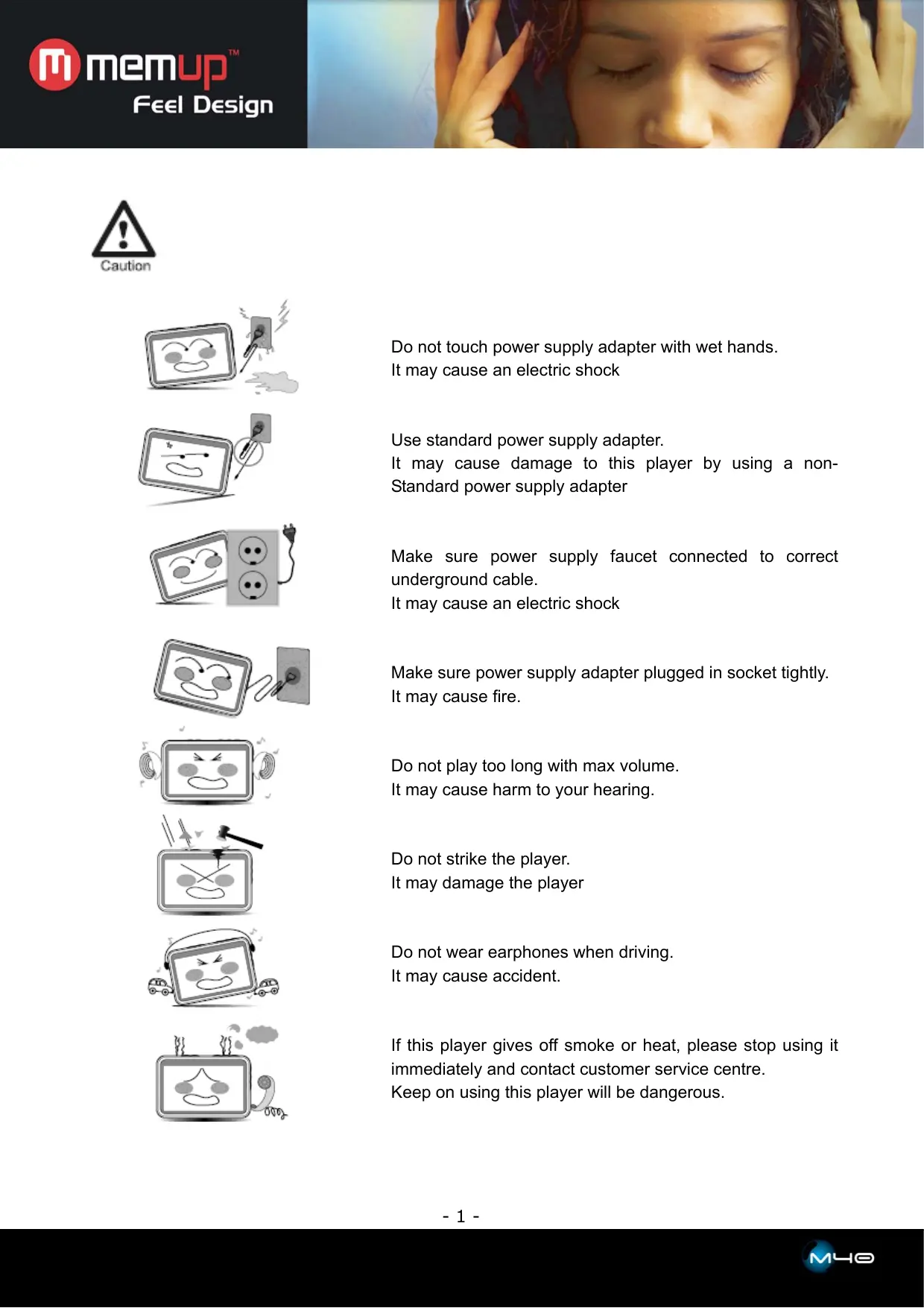
Keep this player between 0^ and 40^ .
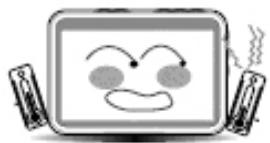
Do not put player in dust or damp condition. It may damage the player.
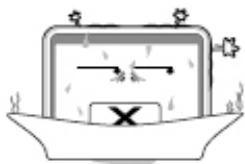
Do not expose player in sun shine directly. It may damage the player
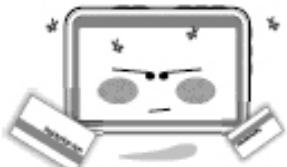
Do not put the player close to a credit card, etc... It may damage magnetic parts of credit card, etc ...
Please clean player by cleaning and soft cloth, do not use any detergent.
It may damage the player.
Do not let dust or liquid matter into the player.
It may damage the player.
If it happens, please contact customer service centre.
Do not take apart or fix player by yourself. It may damage the player.
Do not make player fall.
It may damage to the player.
PRODUCT INFORMATION
Product functions
Compatible with audio format
MP3/WMA/WAV format.
Compatible with video format
AVI/ASF format.
Support function of picture browsing
JPEG/BMP/GIF/PNG format.
Support function of E-book
E-book files in TXT format (in ANSI Unicode)
Support function of FM radio
Frequency ranging from 87.5 to 108 MHZ
Support FLASH playing
With Macromedia Flash Lite 2.1.
Embedded with 4 inch TFT LCD screen
High definition pictures and videos with 16M colors.
Built-in rechargeable battery
Extra batteries are not necessary.
Video Format Conversion Software
Convert video file which is unable to be played into playable format with conversion software.
Package Content
- PMP
- Manual
- AC adapter
- AV in/out cable
- USB line
- Earphone
- Carry case
Function display
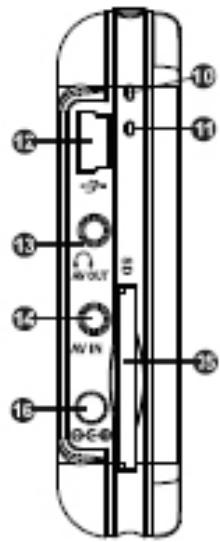
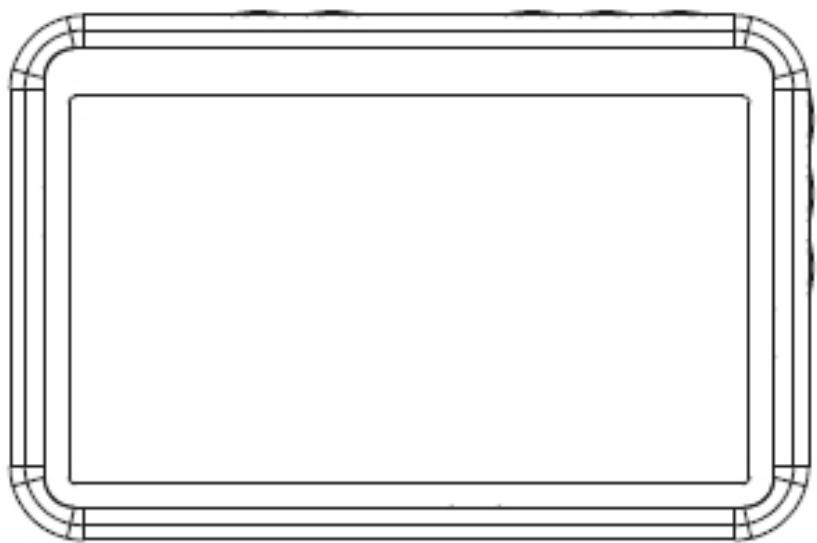
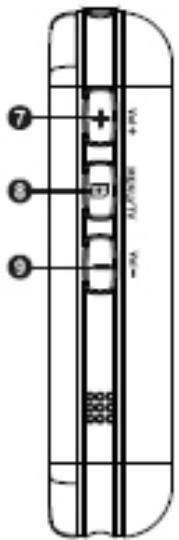
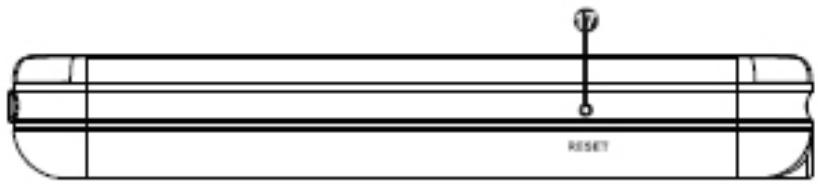
-
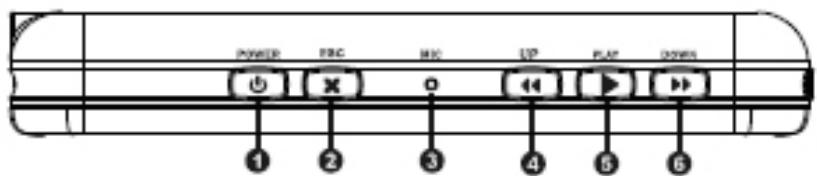
Power
-
Power Indicator
-
Esc: Escape
-
CHG Indicator
-
Mic: Microphone
-
USB Port
-
Up: Previous
-
AV Out / Earphones Jack
-
Play: Play / Pause / Confirm
-
AV In
-
Down: Next
-
SD Card reader
-
Vol+: Volume Up
-
DC In
-
Menu
-
Reset
-
Vol-: Volume Down
Connection
External audio connection: with double jack line connection
Stereo earphone connection: plugged needed for radio reception
Connect with TV: with supplied audio/video cable, for input and output
Computer connection thanks to USB cable

Caution: Unexpected interruption may cause damage to this product!
Charge

Tips: During recharge, please don't pull out plug, the product will be damaged.
Recharge mode
Connect AC adapter to charge. In recharging mode, indicator is red and go out when battery is full
Charge indication

Full

Nearly empty

Empty
Long press "POWER" 3-5 seconds, indicator will turn green.
Power off
Long press "POWER" 3-5 seconds, indicator will go out.
9 icons on main menu interface.
On the bottom bar : volume, power, time (as picture)


Tips
Tips: This product is compatible with Windows 98Se, Me, Windows 2000, Windows XP, Windows Vista, MAC OS 10 etc.
Video Player
Select "Video Player" and press "Play" to confirm, it enters into video browser to display video files. Press "Menu" to display operation:
- Display Mode: "List" or "Thumbnail".
- Loop Mode: "Current", "All" or "Random".
- File Protect: "Lock" or "Unlock".
- Del File: "Current" or "All".
- Resume: Play last file played (previously saved as bookmark)
- Exit: Select "Exit" and press "Play" to return to main interface
a. Press "Vol+" or "Vol-" to select video file or to adjust volume
b. Press "Play" to play, pause, resume or confirm
c. Press "ESC" to stop playing, then choose "OK" or "Cancel" to bookmark. Through "Vol+" or "Vol-" to choose whether to save
d. Press "Up" or "Down" to play previous or next file
e. During video play, press "Menu", then icons of video function will display: "Mode" Icon of video function will change from grey to light green.
Press "Up" or "Down" to switch forward or backward. you can press "Up" or "Down" to change speed (x2x4x8x16), and press "Play" to resume normal play.

Tips: Forward or Backward function is under condition of "menu" button activated.
Audio Player
Select "Audio Player" and press "Play" to confirm, it enters into audio browser to display audio files.
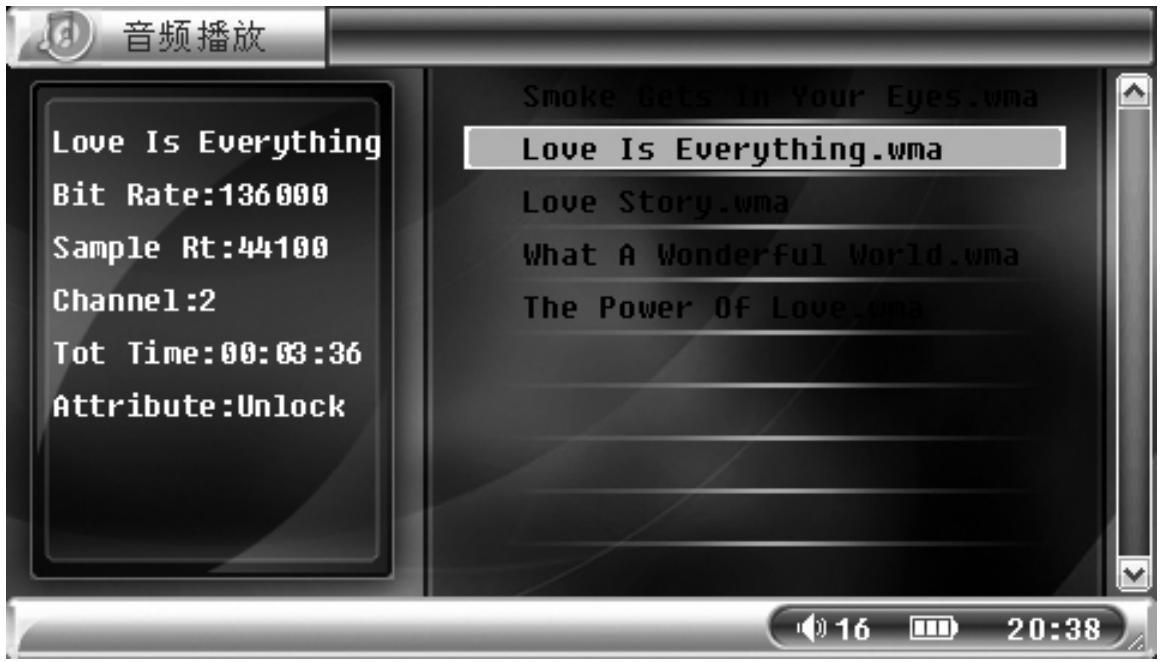
Press "menu" to display operation:
- Loop Mode: "Current", "All" or "Random".
- File Protect: "Lock" or "Unlock".
- Del File: "Current" or "All".
- EQ Mode: "Normal", "Classic", "Popular", "Bass" or "Rock".
- Exit: Select "Exit" and press "Play" to return to main interface
Press "Vol+" or "Vol-" to select audio file or to adjust volume
Press "Play" to play, pause or resume
Press "ESC" to stop playing or return to file list, press it again to go to main menu
Press "Up" or "Down" to play previous or next file
During audio play, press "Menu", icon "Mode" will change from grey to green.
Press "Up" or "Down" to switch forward or backward.
Press "Vol+" or "Vol-" to switch to EQ mode.
During forward or backward, you can press "Up" or "Down" to change speed (x2x4x8x16), and press "Play" to resume normal play.
Lyrics synchronous display
To make lyrics and music display synchronously, make sure music and lyrics files are both copied in same MP3 folder with same file name, lyrics file name should be: *.LRC, otherwise lyrics can not be displayed synchronously when playing music files.
Picture View
Select "Picture View" in main interface, press "play" to enter.
Press "Menu" to show operation:
- Display Mode: "Thumbnail", "List" or "Slide".
- File Protect: "Lock" or "Unlock".
- Del File: "Current" or "All".
- Wall Paper: Make current photo as desktop background
- On Menu: Make current photo as start-up image
- Off Menu: Make current photo as power-off image
- Exit: Select "Exit", and press "play" to confirm
Press "play", photos are displayed on screen
Press "Esc", stop pictures browsing and return to "file list"
Press "up" or "down" to display previous or next file; you can press "menu" in photo file list, and then select "Display Mode / Slide", "Slide" function starts by pressing "Play".
Desktop Background:
Select pictures through "Vol+ and "Vol-" in picture list, and then press "menu" to select "Wall
Paper", and current picture can be set as desktop background by pressing "play" to confirm.
All pictures stored in player can be set as desktop background and startup / power-off image.
Radio
For FM radio, earphones must be plugged as they are radio antenna.
In main interface, select "Radio" and press "Play" to start.
Default state is preset with 20 stations for your selection (press "Up" or "Down" to select)
Press "Vol+" and "Vol-" to adjust volume
During FM play, Press "Menu" to select "Manual Search", "Select Channel" and "Auto Search":
Manual Search
Select "Manual Search", press "Up" or "Down" to switch frequency; press "Play", it will ask to save, press "Play" to save, and press "Esc" to exit.
Select Channel
Choose "Select Channel", press "Up" and "Down" to change saved frequency; press "Up" and "Down" to switch previous or next saved channel; press "Esc" to exit station.
Auto Search
Select "Auto Search", FM will search automatically (87.5 MHz-108 MHz) and save each station searched to preset spot (former preset station will be covered), if 20 preset stations are saved, auto search function will stop, and automatically switch to effective radio; press "Esc" to exit.
AudioRecord
Recording modes: one is built-in MIC, the other is audio recording through external Line In. In record function, you can switch MIC recording or audio recording through "Up" and "Down".
MIC recording
Press "Play" to start or to pause recording; press "Esc" to stop recording.
After record paused or stopped, player can save recorded file and exit recording by pressing "Esc". MIC recording file: Bit ratio 32kbps; Sampling ratio 8 KHz; File extension name WAV
Line in
Please connect one end of Line-in to output port of audio device (such as earphone jack etc), the other end will be connected with AV-In jack of the player.
Switch to "AV-In", press "Play" to start recording, press again "play" to pause; press "Esc" to stop.
When paused or stopped record, player can save recorded file and exit recording by pressing "Esc". Line In recording file: Bit ratio 64kbps; Sampling ratio 32 KHz; File extension: MP3
Flash Player
Select "Flash Player" in main interface, press "Play" to confirm enter into Flash player.
Press "menu" to pop up operation:
- Play Flash: press "Play" to play Flash file
- File protect: "Lock" and "Unlock"
- Del File: "Current" and "All".
- Exit: Select "Exit", press "Play" to confirm
Select video by pressing “Vol+” and “Vol-”, press “Play”; during playing, press “Vol+” or “Vol-” to adjust volume; press “Esc” to exit.
E_books
Select "E-book", press "Play" to enter
The format of e-book is TXT file format (ANSI Unicode);
- Select "E-book", press "Play" to enter.
- Press "Vol +", "Vol -" to select files and press "Play" to read, and press "Up", "Down" to move to previous page and next page
- Under E-book menu, press "menu", pop-up menu will appear:
Browse Mode: "Manual", "0.5 seconds", "1 second" or "two seconds"
File protect: "Lock" and "Unlock"
Del File: "Current" and "All"
Exit: Select "Exit", press "Play" to confirm, and "Esc" to return to main interface
4. When setup finished, press "Esc" to exit
5. Setting bookmarks: system will automatically mark e-books and open last page.
Tools
Select "Tool" on main interface, press "Play" to enter.
Calculator
Press "Vol +", "Vol -" and "Up", "Down" to select and press "Play" to confirm.
Notepad
To read text.
Memory
Display SD card or memory situation, to format, press "Play" to confirm.

Caution
Caution: Please backup data before formatting memory or SD Card.
Files must be copied under corresponding folder; otherwise you can't read your file.
Upgrade
Press "Vol +" or "Vol -" to select media to upgrade, press "Play" to confirm.
VideoRecord
- In "Tool" menu, please connect one end of video recording cable with player AV-IN Port, another end connect with other equipment input port (such as TV and other devices)
- Select "VideoRecord" by pressing "Up", "Down", press "Play" to confirm; press "MENU" to display Setup: "Video Size" and "Video Format".
Size: "320240" or "640480"
Format: "ASF" or "AVI"
- Press "Play" to start recording, press "Esc" to stop, press longer "Esc" to return to main interface.
Setup
Select "Setup" in main interface and press "Play" to enter system settings.
Language
6 available languages.
TV Out
"LCD Output", "NTSC Output", and "PAL Output".
Default
You can select "Yes" or "No" to recover, setup includes starting image. Data will not be changed.
Sound
Control speaker and sound. Press "Vol +" and "Vol -" to move up and down.
Auto off
The player can turn off as your setting. You can select time what you want.
Time
Press "Up" and "Down" to move left to right, press "Vol +" and "Vol -" to change numbers.
Volume
Press "Up" and "Down" to adjust volume.
SPCA5050 TRANSCODING TOOL
Installation of SPCA5050 Transcoding Tool
- Running installation program (setup.exe), select installation language.
- Key in your name and company.
- Choose to install Direct X 9.0c or you can directly go to next step;
- Choose to install Windows Media Player 9.0 or you can directly go to next step;
- Choose to install K-Lite Mega Codec or you can directly go to next step;
- Click "install" to begin installation, if you want to change installation then click "skip step"
7.. Restart your computer; you can now use conversion tools freely.
Start:
Supported formats of common conversion :
Video: MPG, DAT, VOB, AVI, ASF, MOV, MP4, 3GP, WMV, RM, RMVB
Audio: MP3, AC3, APE, OGG, WAV, WMA, AAC, AIFF, AU, FLAC
Picture : JPG, TIFF, GIF, PNG, PCX, TGA, PBM, PPM, PGM, XPM
Steps:
- Running SPCA5050 Transcoding application Tool.

SPCA5050 Transcoding Tool 2.1.0.4


Add File
Clear list
Option
Start
Stop
Help
File
State
Test.avi

Browse
Functions of above picture:
Add file : Select input file
Clear list : Clear file list
Browse : Select destination
Option : Setup parameters
Start : Start conversion
Stop : Stop conversion
Exit : Exit current mode of conversion
Help : Click to look help information
Progress bar: Display conversion progress
- Click "Add File", then select input files (This software supports multi-selection).
- If you want to set parameters for output file, please click "Setting".
Functions of picture:
Movie Encoder: XVID, MPEG4;
Frame Rate : 15-30 (Frame rate : Number of displayed frame per second )
Quality : 50- 100 ( better the quality is, larger output file size will be )
Frame size: Frame size settings available are: 320x240, 352x288, 640x480, and 720x480
Encoder: MP3
Format : 48kbps, 16000Hz, stereo


Caution
Caution : Output file will cover existing file which has same name in folder.
- Click "Start" for file conversion.
General Malfunctions and solutions
- Cannot Start up.
Player may be out of battery. Connect it to AC adapter, recharge for around 10 mn and try again.
- Shut down automatically after start up.
a. Not enough power leads to auto-off.
b. "Auto-Off" function has been activated.
- Cannot recharge.
Make sure AC adaptor is connected or plugged with jack. Be sure right adaptor is used.
- Buttons do not work.
Press "RESET" to restart. If it still does not work, please take it to after sales department.
- Data only read from SD card.
Set "Memory" in "Tool" as working area after SD card inserted.
- Green light is on, but screen is off.
If light indicates green as working and screen doesn't work, please use pinhole to reset.
TECHNICAL SPECIFICATIONS
| Dimension | 108mm*72mm*16.6mm | |||
| Weight | 160g | |||
| Screen | 4" TFT -LCD/480*272 RGB | |||
| Battery | Built-In 1800mAh Lithium Battery | |||
| Adaptor | 100~240V 50/60Hz AC input; 5V/2A DC output | |||
| Memory | 512MB~8GB | |||
| SD Card | 32MB~4GB | |||
| Audio | Format | MP3,WMA,WAV | ||
| Bit Rate | 32KB/S | |||
| Sampling Rate | 16 / 24 / 32 / 44.1 / 48KHZ | |||
| Video | Format | ASF(MPEG-4), AVI(XVID) | ||
| Bit Rate | 4 M bps | Frame Rate | 30 frames/s | |
| Output | NTSC/PAL dual format | Resolution | 720*480 | |
| Flash | Support Macromedia Flash Lite 2.1 | |||
| Radio | S/N:30dB; 20 preset channels | |||
| 87.5-108MHZ | ||||
| Picture | JPEG/BMP/GIF/PNG, with functions of slide, background music and image preview. | |||
| Pixel | 8 Million | Max File | 3MB | |
| E-book | TXT ( ANSI Unicode ) File Size<4.0M, SupportBookmark | |||
| Video Recording | Format | ASF,AVI | ||
| Audio Recording | Format | WAV(PCM, ADPCM) MP3 | ||
| Sampling Rate | 8KHz. 32Kbps/32KHz. 64K bps | |||
| Output | 2.5mm stereo/video joint | |||
| Input | 2.5mm stereo/video joint | |||
| USB | USB 2.0 | |||
| Languages | English, German, French, Italian, Spanish, Portuguese | |||
| Systems | Windows 98/98SE/ME/2000/XP/VISTA – MAC OS | |||
| Other Features | Calculator, Calendar | |||