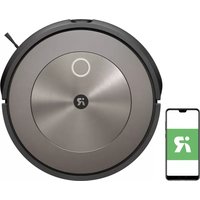
ROOMBA 580 - Robot vacuum IROBOT - Free user manual and instructions
Find the device manual for free ROOMBA 580 IROBOT in PDF.


User questions about ROOMBA 580 IROBOT
0 question about this device. Answer the ones you know or ask your own.
Ask a new question about this device
Download the instructions for your Robot vacuum in PDF format for free! Find your manual ROOMBA 580 - IROBOT and take your electronic device back in hand. On this page are published all the documents necessary for the use of your device. ROOMBA 580 by IROBOT.
USER MANUAL ROOMBA 580 IROBOT
Vacuum Cleaning Robot
5TH GENERATION
500 Series
Owner's Manual
iRobot
Dear iRobot Roomba owner,
Welcome to the world of iRobot! As an owner of an iRobot Roomba Vacuum Cleaning Robot, you join a world-wide community of people who enjoy more free time. Roomba cleans routinely, so you don't have to. Now you can spend your time on more enjoyable and important tasks.
The Roomba 500 series is the 5th generation of our award-winning iRobot Roomba Vacuum Cleaning Robot. In developing this newest version, we incorporated feedback and suggestions from Roomba owners across the globe to make this robot more efficient and easier to use than its predecessors.
- Many advancements are made to our products based on suggestions and feedback from home robot owners like you. To share your feedback, stories or ask questions about your new home robot, please visit our Service and Support site at www.irobot.com.
- We encourage you to register your robot, either online or by mail. As a registered home robot owner, you'll receive information and updates personalized to your robot and you can save helpful tips and product information in your account. To register online, go to www.irobot.com.
Thank you for joining the iRobot community. We look forward to your valued input as we continue to deliver groundbreaking products to change and improve your world.
On behalf of the entire iRobot team,

Colin Angle
Co-Founder and CEO
iRobot Corporation
Important Tips

Before you use Roomba the first time, you need to activate Roomba by removing the battery pull tab.
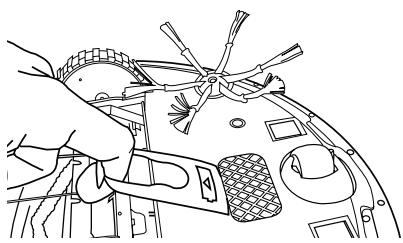
Remove battery tab
Turning Roomba on and off
- Roomba does not have a power button.
To turn Roomba ON, press CLEAN once. - To start a cleaning cycle, press CLEAN again. Roomba will start a cleaning cycle.
To pause Roomba, press CLEAN while Roomba is cleaning. - To turn Roomba OFF, press and hold the CLEAN button until Roomba's lights turn OFF.
For Best Performance
- Roomba® is very effective at picking up hair. Remove and clean Roomba's brushes after every 3 uses.
- Empty Roomba's bin and clean its filter after every 3 uses.
- Use the Virtual Walls® or Virtual Wall® Lighthouses™ to keep Roomba cleaning where you want it.
Battery Life
- To extend the battery life, iRobot recommends always storing Roomba plugged in.
Voice Demonstration
- Roomba® features a voice demonstration to walk you through using Roomba.
- To start the voice demonstration, push and hold the DOCK/ DEMO button.
- To abort the voice demonstration, press and hold the CLEAN button until the robot shuts down.

Roomba contains electronic parts. Do NOT submerge Roomba or spray it with water. Clean with a dry cloth only.
Table of Contents
Anatomy 6
Cleaning Pattern 7
Cleaning System 8
Cleaning Modes 9
Battery Storage and Charging 10 - 11
Virtual Walls 12
Virtual Wall® Lighthouses™ 13 - 15
Scheduling Roomba 16-17
Home Base 18
Wireless Command Center 19
Maintenance 20
Replaceable Modules 21
Troubleshooting 22 - 23
iRobot Customer Care 24
Important Safety Instructions 25
iRobot Roomba Anatomy
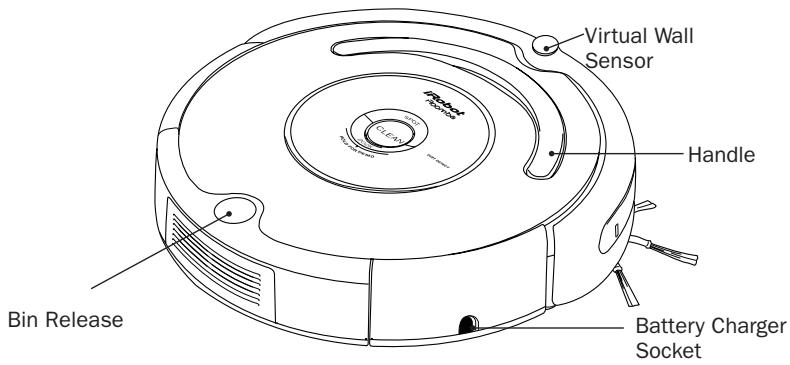
Buttons and Lights
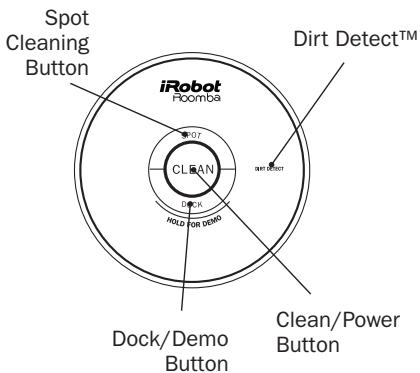
(Models 510 - 545)
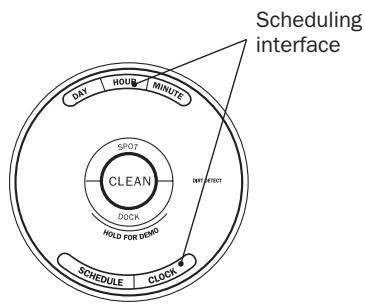
Buttons and Lights
(Models 550 and above)
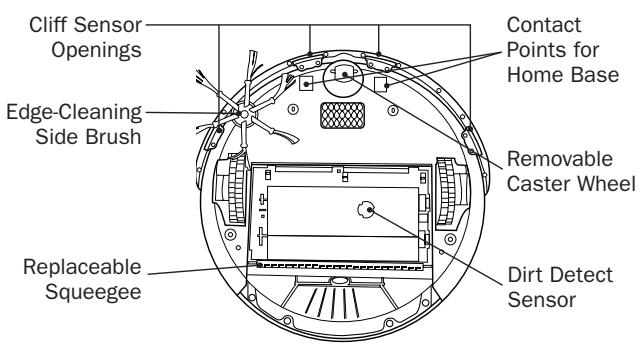
Bottom View
Cleaning Pattern
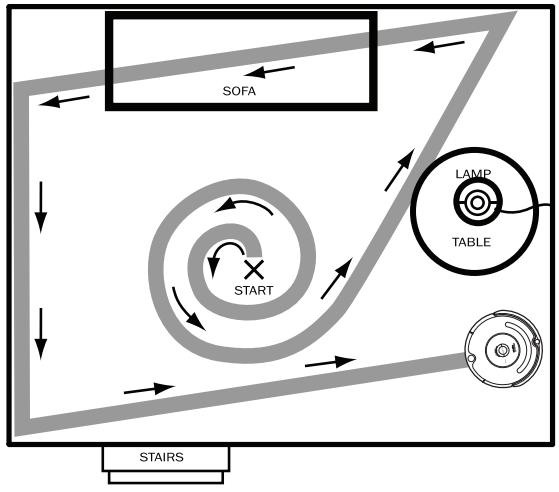
Roomba is a robot that cleans differently than the way most people clean their floors. Roomba uses its robot intelligence to efficiently clean the whole floor, under and around furniture and along walls.
Roomba calculates the optimal cleaning path as it cleans and determines when to use its various cleaning behaviors:
Spiraling: Roomba uses a spiral motion to clean a concentrated area.
Wall Following: Roomba uses this technique to clean the full perimeter of the room and navigate around furniture and obstacles.
Room Crossing: Roomba criss-crosses the room to ensure full cleaning coverage.
Dirt Detection: When Roomba senses dirt, the blue Dirt Detect™ light is lit and Roomba cleans more intensely in that area.
Cleaning Modes: While cleaning, Roomba automatically calculates the room size and adjusts its cleaning time appropriately.
Spot Mode: Roomba will spiral approximately 3 feet in diameter and then spiral back to where it started, intensely cleaning a localized area.
TIP: Roomba takes approximately 45 minutes to clean an average room and will pass over the same area of the floor multiple times to ensure total floor coverage.
TIP: For fastest cleaning and best performance, clear your floor of clutter and use a Virtual Wall to confine Roomba to one room.
Cleaning System
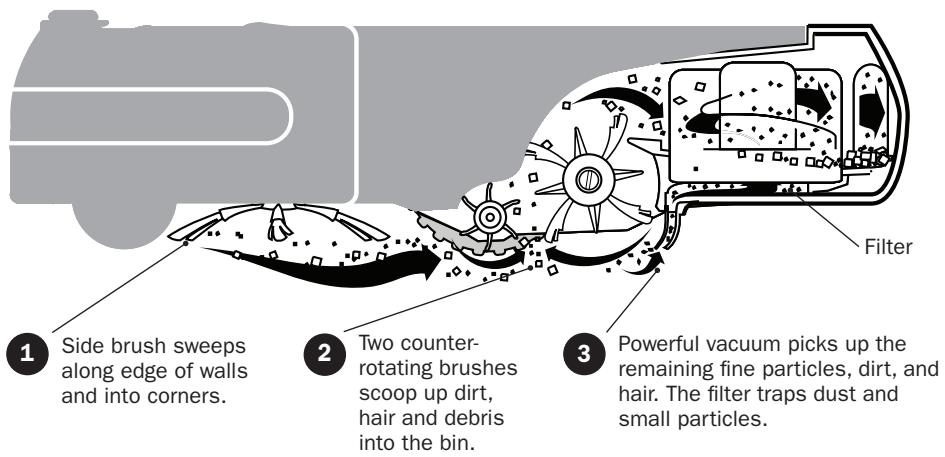
Roomba features a patented 3-stage cleaning system.
Floor Surfaces
Roomba works on wood, carpet, tile, vinyl and linoleum, and will automatically adjust to different floor types.
Cleaning Modes
Roomba will clean based on the cleaning mode you select. Roomba has three cleaning modes.
Clean Mode (all models)
Roomba automatically calculates the room size and adjusts its cleaning time appropriately.
Spot Mode (all models)
Roomba will spiral approximately 3 feet in diameter and then spiral back to where it started, intensely cleaning a localized area.
Scheduled Cleaning Mode (Models 550 and above)
When a cleaning time is programmed, Roomba enters scheduled cleaning mode. When Roomba is scheduled to clean, it will occasionally flash its next scheduled cleaning time to indicate it is scheduled. At the specified time, Roobma leaves its Home Base, cleans, and then returns to the Home Base to recharge when its done.
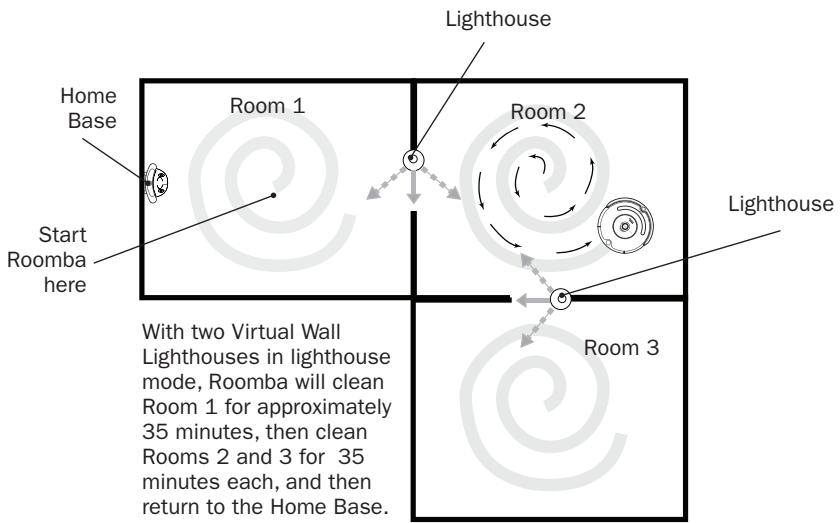
TIP: When using Roomba With Virtual Wall Lighthouses, Roomba will clean for approximately 35 minutes per room.
Battery Storage and Charging
Roomba is powered by a Nickel Metal Hydride (NiMH) rechargeable battery. If maintained in good condition and in accordance with the instruction manual, Roomba's battery lasts for hundreds of cleaning cycles.
Battery Life
To extend the battery life, iRobot recommends always storing Roomba plugged in. For more details on how to maintain Roomba's battery life, visit www.irobot.com.
Tip: If Roomba's battery is warm, Roomba will wait for the battery to cool down before beginning a charge cycle.
Tip: For long term storage, iRobot recommends that the battery be fully charged and then removed from the robot and stored in a cool, dry place.
Cleaning Time
You should fully charge Roomba's battery before each cleaning cycle. When fully charged, Roomba's battery will last for at least one full clean cycle.
16 Hour Refresh Charge
When charging for the first time, or if Roomba has been left off the charger for a long time, Roomba will initiate a special 16-hour charge cycle. This extended charge refreshes Roomba's battery and extends the life of the battery. Roomba's clean light will pulse quickly during the 16 hour refresh charge.
TIP: For best performance, always store Roomba's battery in Roomba with Roomba plugged in or on the Home Base. Charge Roomba's battery overnight for the first charge.
Charging Roomba
Charge Roomba in one of two ways:
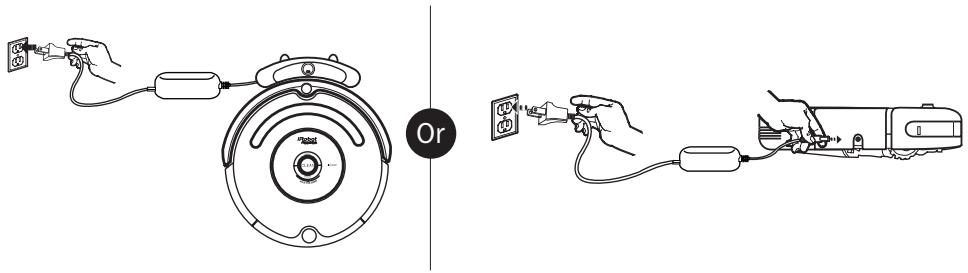
TIP: When Roomba is on the Home Base, always make sure that the Home Base Power and Docked lights are on.
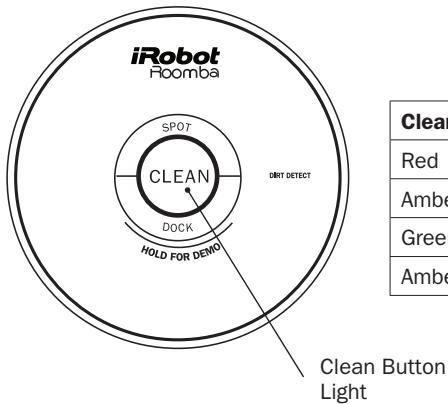
Roomba uses the "Clean" button light to indicate that it is charging. Use this chart to determine the status of the battery:
| Clean button light | What it means |
| Red | Battery empty |
| Amber pulsing | Charging |
| Green solid | Fully charged |
| Amber flashing | 16 hour refresh charge |
Virtual Walls®
(included with models 510 - 530)
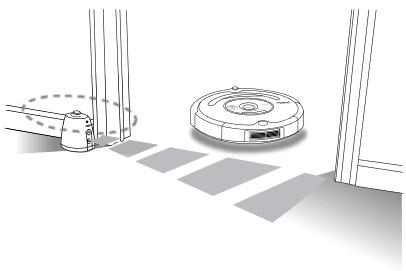
The iRobot Roomba Virtual Walls create an invisible barrier that Roomba will not cross. The Virtual Walls can be set to block an area ranging from zero to eight feet long.
The Virtual Wall beam is keyhole shaped. A small halo prevents Roomba from bumping into the Virtual Wall and a larger cone-shaped section blocks off areas of your home where you don't want Roomba to go.
Battery Installation
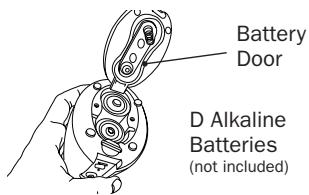
The Virtual Wall requires 2 "D" batteries and automatically shuts off after 135 minutes. If the power light blinks green, the batteries will soon need replacement.
Range Adjustment
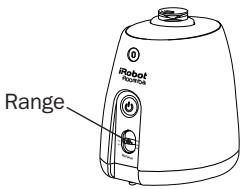
Use the slider bar to adjust the length of the barrier. A higher range will drain the battery faster.
TIP: Use the Virtual Walls to block doorways or to keep Roomba away from cords. Confining Roomba to a single room will accelerate cleaning.
TIP: For best performance, place the Virtual Wall on the outside of the doorway you wish to block. Set the Virtual Wall to the shortest setting possible to extend battery life.
Additional Virtual Walls may be purchased by mail order from Domotec Customer Service or domotec.uk.com
Virtual Walls are compatible with all 500 Series Roomba vacuuming robots.
Virtual Wall Lighthouses™ (models 535 and above)
Virtual Wall Lighthouses help Roomba navigate around your home, help Roomba find the Home Base, and allow Roomba to clean one room before starting the next. In Virtual Wall mode, they simply keep Roomba cleaning where you want it and out of off-limit areas.
TIP: Virtual Wall Lighthouses turn on and off automatically with Roomba. When they are on, a light will illuminate on the top of theVirtual Wall Lighthouse.
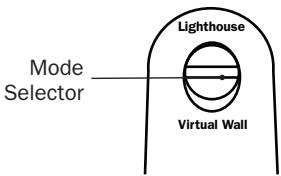
Use the mode selector to set the Virtual Wall Lighthouse in Virtual Wall or Lighthouse mode.
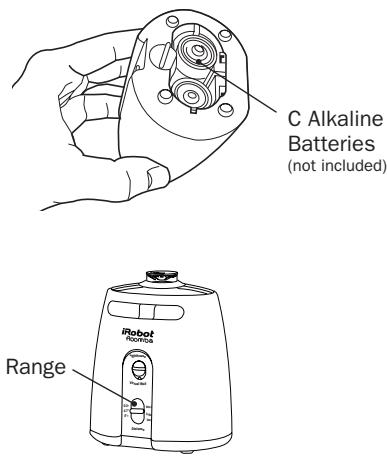
Virtual Wall Lighthouses indicate that their battery is low by flashing the power light repeatedly.
Virtual Wall Lighthouses™ (models 535 and above)
Lighthouse Mode
In Lighthouse mode, the Virtual Wall Lighthouse helps Roomba navigate around your home and allows Roomba to clean room-to-room.
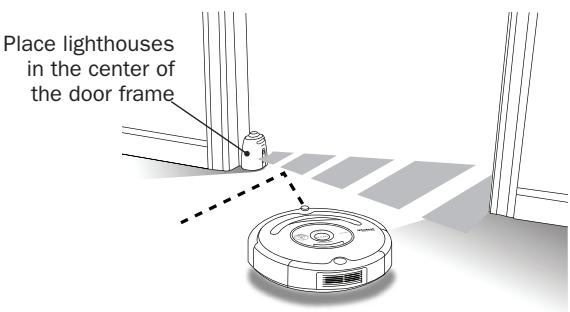
Place lighthouses in the doorway between two rooms. Roomba will clean the room it starts in, navigate to the next room, and then clean the second room. When Roomba has completed cleaning, it will use the lighthouses to navigate back to the home base.
Virtual Wall Lighthouses™ (models 535 and above)
Virtual Wall Mode
In Virtual Wall mode, the Lighthouse creates an invisible barrier that Roomba will not cross.
Use the slider bar to adjust the length of the barrier. A higher range will drain the battery faster.
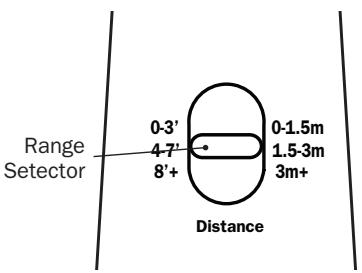
In Virtual Wall mode, the Lighthouse blocks an area ranging from zero to eight feet long. A small halo prevents Roomba from bumping into the Lighthouse and a larger cone-shaped area blocks off areas of your home where you don't want Roomba to go.
TIP: Use Virtual Wall Lighthouses in Virtual Wall mode to block doorways or to keep Roomba out of off-limit areas.
TIP: In Virtual Wall mode, iRobot recommends setting up the Virtual Wall Lighthouse behind the door jam as shown on pg. 12.
Additional Virtual Wall Lighthouses may be purchased by mail order from Domotec Customer Service or domotec.uk.com
Virtual Wall Lighthouses are compatible with models 535 and above.
Scheduling Roomba (models 550 and above)
Setting the Time
You must set the time before scheduling Roomba to clean.
Press and hold CLOCK
While holding CLOCK, use the DAY, HOUR, and MINUTE buttons to set the correct time.
3 Release CLOCK. Roomba will beep to indicate that the time has been set.
Setting a Schedule
You can schedule Roomba to clean once per day, up to seven times per week. You must set the time before setting a schedule.
To set a schedule:
Press and hold SCHEDULE
2 While holding SCHEDULE, use the DAY, HOUR, and MINUTE buttons to set the schedule.
3 Release SCHEDULE. Roomba will beep to indicate that the schedule has been set.
Viewing and deleting schedules
To view Roomba's scheduled cleaning times:
Press and hold SCHEDULE
While holding SCHEDULE, press the DAY button to cycle through Roomba's scheduled cleaning times.
3 Release SCHEDULE
To delete a schedule
Press and hold SCHEDULE
While holding SCHEDULE, press the DAY button to cycle through Roomba's scheduled cleaning times.
3 When Roomba is displaying the scheduled cleaning time you'd like to delete, press and hold DAY to delete the scheduled cleaning time. Roomba will beep to indicate the schedule has been deleted.
4 Release SCHEDULE
To change a schedule
Press and hold SCHEDULE
While holding SCHEDULE, press the DAY button to cycle through Roomba's scheduled cleaning times.
3 When Roomba is displaying the scheduled cleaning time you'd like to change, press the HOUR and MINUTE buttons to change the scheduled cleaning time.
4 Release SCHEDULE. Roomba will beep to confirm that the schedule has been changed.
Models 535 through 560 may also be scheduled with the Wireless Command Center (sold separately).
Home Base®
Roomba returns to the Home Base at the end of a cleaning cycle or when its battery is running low. Roomba needs to find the infrared signal of the Home Base in order to return.
Always keep the Home Base plugged in. When Roomba is on the Home Base, the Power and Docked lights will be green to indicate Roomba is charging.
Home Base Location
You should position the Home Base on a hard level surface and in an area where Roomba has a clear path to return to the dock at the end of a cleaning cycle. If Roomba is unable to dock on its first attempt, it will try again until it successfully docks.
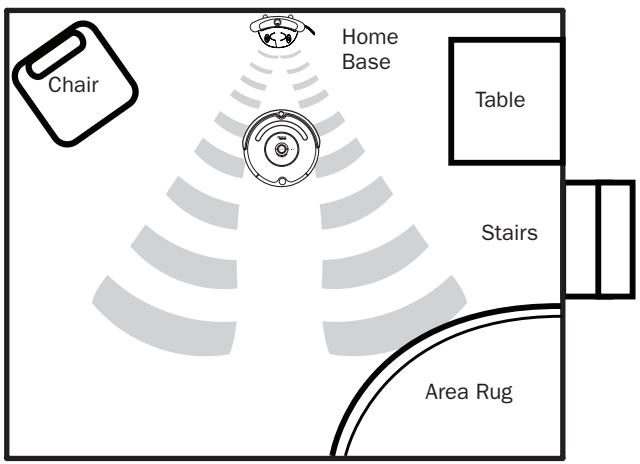
To manually dock Roomba, place it within five feet of the Home Base and press DOCK.
Wireless Command Center
The Wireless Command Center is compatible with models 535 and above only.
The Wireless Command Center lets you conveniently control Roomba's functions. You can use it to turn Roomba on and off, schedule Roomba to clean and steer Roomba around your room without bending down.
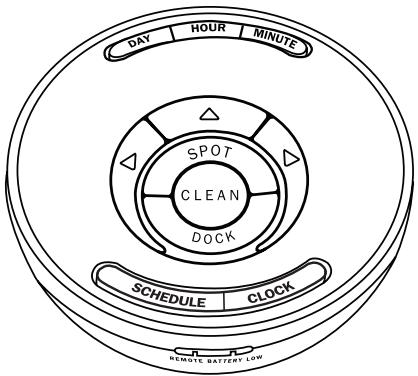
To schedule Roomba to clean, use the buttons on the Wireless Command Center as if they were on the robot itself. See page 15 for details on setting Roomba's clock and setting, changing and deleting schedules.
Before using your Wireless Command Center for the first time, install 4 AA batteries.
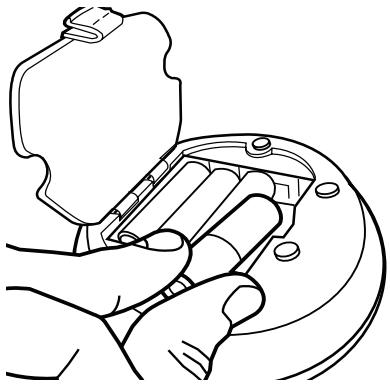
All Wireless Command Centers are setup to work exclusively with the Roomba they are packaged with. If you own a second Wireless Command Center or Roomba, visit www.irobot.com for details on setting up the Wireless Command Center with other Roombas.
Maintenance
To keep Roomba running at peak performance, it is recommended that you perform the following maintenance regularly:
1 Remove and empty Roomba's bin
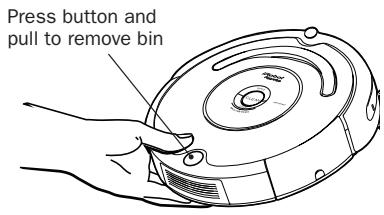
2 Clean Roomba's filter compartment
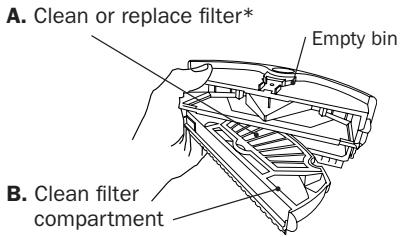
*Replace filter every 2 months
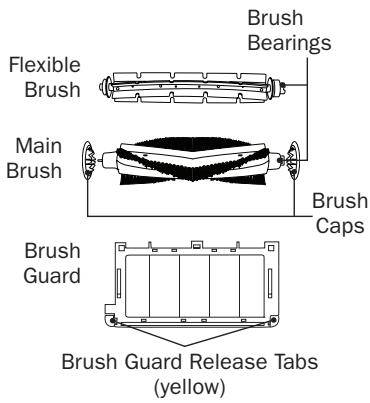
3 Clean Roomba's brushes
A. Remove brush guard by pulling both yellow tabs
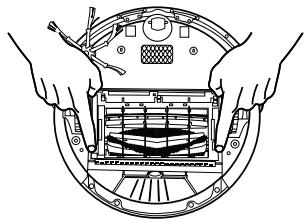
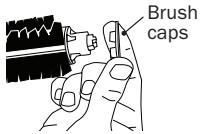
B. Remove brush caps and use scissors to cut any hair wrapped around the brush. Use the Roomba cleaning tool to comb hair from brush.
C. Remove and clean hair and dirt from Roomba's brush bearings.

Visit www.irobot.com for information on keeping Roomba running at peak performance.
TIP: Bin emptying and brush cleaning should be done after every 3-5 cleaning cycles depending on the amount of hair, dirt, and debris in your environment.
TIP: If you notice Roomba picking up less debris from your floor, empty the bin and clean the brushes.
A Excessive build up of hair in Roomba's brushes and bearings can permanently damage Roomba. Inspect brush bearings regularly.
A Do not attempt to run Roomba without the bearings. If you misplace Roomba's brush bearings, contact iRobot Customer Care for replacement bearings.
Replaceable Modules
Roomba has a number of modules that can be replaced, including its drive wheels, side brush, main cleaning head, vacuum bin, caster wheel and battery.
To access Roomba's replaceable modules, remove the bottom cover of Roomba by removing the 4 screws on the bottom of Roomba and the side brush.
Refer to the table below to determine the part number of each replaceable module.
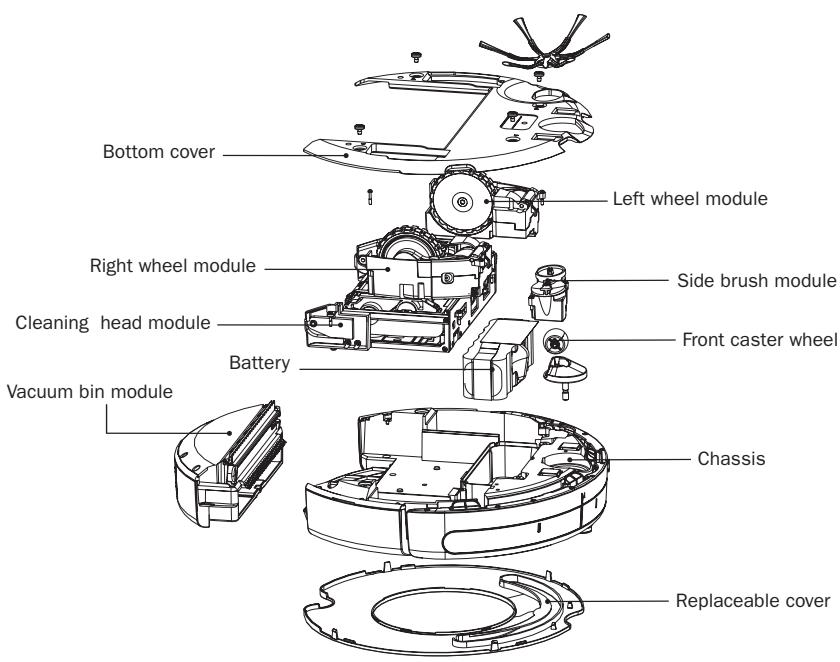
| Part Name | Part Number |
| Side brush module | 17729 |
| Right wheel module | 17732 |
| Left wheel module | 17731 |
| Cleaning head module | 17728 |
| Vacuum bin module | 17733 |
| Battery | 80501 |
| Front caster wheel | 18103 |
Troubleshooting
Roomba will tell you something is wrong with a two-tone "uh-oh" sound. A narrated voice will tell you there is an issue when you try to start a cleaning cycle.
Refer to the chart below to resolve Roomba's problem.
If the problem is not resolved, visit www.irobot.com/support.
| Roomba says | Likely cause | What to do |
| Remove and clean Roomba's front wheel | The front wheel is stuck | Roomba is stuck or something is wrapped around the front wheel. Remove and clean hair and debris from Roomba's front wheel. |
| Inspect and clean Roomba's cliff sensors | Roomba's cliff sensors are dirty | Wipe off Roomba's cliff sensors with a dry cloth. |
| Inspect and clean Roomba's drive wheel(s) | A drive wheel is stuck | Roomba is stuck or something is wrapped around a drive wheel. Clean Roomba's wheels, push them in and out and confirm that they turn freely. |
| Please remove and clean Roomba's brushes | The main brushes cannot turn | Turn over Roomba. Remove and clean Roomba's brushes. (see pg. 20) |
| Please clean Roomba's side brush | The side brush cannot turn | Turn Roomba over and clean the side brush. Remove the sidebrush with a screwdriver to thoroughly clean it. |
| Charging Errors 1-10 | Roomba has a charging error | Contact iRobot Customer Support. |
| Error 1-10 | Roomba has an unspecified error | Contact iRobot Customer Support. |
Troubleshooting
If you are having a problem that you cannot solve by referring to Roomba's troubleshooting interface, refer to the table below.
| Problem | Likely cause | What to do |
| Roomba's power light will not illuminate | Roomba's battery has extremely low power | Charge Roomba for at least 16 hours. |
| Roomba is not picking up debris | Roomba's dust bin and filter are full | Empty Roomba's bin and clean Roomba's filter. Clean Roomba's brushes. (see pg. 20) |
| Roomba does not charge on the home base | Power supply is not plugged in correctly | Ensure that the power supply is correctly connected to the wall and to the Home Base. |
| Roomba is not seated correctly on the Home Base | Pick-up and place Roomba on the Home Base. Confirm that both the Power and docked lights illuminate. |
iRobot Customer Care
If you have questions or comments about Roomba, please contact iRobot before contacting a retailer.
Please visit our web site at www.irobot.com for support tips, frequently asked questions, or information about accessories and other iRobot products. We would like to hear from you.
Should you still need assistance:
- Visit the iRobot support web site at www.irobot.com/support
Call our customer care representatives at 877.855.8593
iRobot Customer Care Hours:
· Monday – Friday 9AM – 7PM Eastern Time
• Saturday 9AM – 6PM Eastern Time
Important Safety Instructions

CAUTION: DO NOT EXPOSE THE ELECTRONICS OF ROOMBA, ITS BATTERY OR THE CHARGER. THERE ARE NO USER-SERVICEABLE PARTS INSIDE. REFER SERVICING TO QUALIFIED SERVICE PERSONNEL. CHARGE USING STANDARD U.S. (120V AC) OUTLET ONLY.
Always exercise caution when operating your Roomba. To reduce the risk of injury or damage, keep these safety precautions in mind when setting up, using and maintaining your Roomba:
GENERAL SAFETY INSTRUCTIONS
- Read all safety and operating instructions before operating Roomba.
- Retain the safety and operating instructions for future reference.
- Heed all warnings on Roomba, battery, charger and in owner's manual.
- Follow all operating and use instructions.
Refer all non-routine servicing to iRobot.
ROOMBA USE RESTRICTIONS
- Roomba is for indoor use only.
- Roomba is not a toy. Do not sit or stand on this device. Small children and pets should be supervised when Roomba is cleaning.
- Clean with a dry cloth only. Do not pour or spray water onto Roomba.
- Do not use this device to pick up anything that is burning or smoking.
- Do not use this device to pick up spills of bleach, paint, or other chemicals, or anything wet.
- Before using this device, pick up objects like clothing, loose papers, pull cords for blinds or curtains, power cords, and any fragile objects. If the device passes over a power cord and drags it, there is a chance an object could tumble off a table or shelf.
- If the room to be cleaned contains a balcony, a physical barrier should be used to prevent access to the balcony and ensure safe operation.
- Always remove the battery before long-term storage or transportation.
ROIMBA BATTERY AND CHARGING
- Charge using a standard U.S. (120V AC) outlet only. Product may not be used with any type of power converter. Use of other power converters will immediately void the warranty.
- Use only the charger supplied by the manufacturer to charge this device.
- Do not use a charger with a damaged cord or plug.
- Charge indoors only.
- Roomba's power supply may be protected with a surge protector in the event of severe electrical storms.
- Never handle chargers with wet hands.
- Always disconnect Roomba from the charger before cleaning.
Warranty
This product is warranted to the original user for use in the UK for 12 months from date of purchase to be free from manufacturing defect at time of purchase.
The warranty does not cover defects arising from neglect, misuse or accident, or blockage of air/steam passageways, hoses or filters, nor does it cover normal wear and tear, nor consumables such as cleaning cloths, bags, filters and brushes. The product is intended for domestic use.
In the event of a valid claim under warranty, whether to repair or replace will be at the Repair Centre's option. Your statutory rights are not affected.
Please keep your receipt or other evidence of original purchase showing date and place of purchase, as this must be produced in the event of a claim.
To claim under this warranty, or for other repair or assistance with this product, please contact Customer Service Department by phoning 01249-813835, or by fax on 01249-813323, or e-mail service@domotec.uk.com
Domotec Home Appliances Ltd, ISPO HOUSE, REDMAN ROAD,
BEVERSBROOK IND. EST., CALNE, WILTSHIRE, SN11 9PL.
This electrical appliance complies with directive 2002/96/EC (Waste Electrical and Electronic Equipment—WEEE).

The meaning of the crossed-through waste bin symbol on the appliance is that the product must be disposed of separately to other household waste at the end of the useful life of the appliance. The
user is responsible for delivering the appliance to an appropriate collection centre at that time.
Appropriate separate collection for environment-friendly treatment and recycling prevents or reduces harmful effect on the environment and human health. You can obtain information on available collection services in your area by contacting your local Council waste collection department, or the retailer from which you bought the appliance.

CUSTOMER SERVICE
Domotec Home Appliances Ltd
ISPO House Beversbrook Industrial Estate
Redman Road Calne Wiltshire SN11 9PL
tel: 01249 813835 (Mon to Fri)
For the latest information on our exciting range of products for a healthy today and tomorrow, visit our web site at www.domotec.uk.com