
KINECT - Video game accessory MICROSOFT - Free user manual and instructions
Find the device manual for free KINECT MICROSOFT in PDF.


| Product Type | Video game accessory for Xbox 360 |
| Brand / Model | Microsoft Kinect (Xbox 360) |
| Dimensions (approx.) | 27.9 x 6.4 x 6.4 cm |
| Weight (approx.) | 1.36 kg |
| Power supply | 12 V DC, 1.1 A (via Xbox 360 S console or original Xbox 360 power adapter) |
| Recommended playing distance | About 2 m (1 player) / 2.5 m (2 players) |
| Viewing angle | Motorized vertical adjustment |
| Sensors | RGB camera, depth sensor, microphone array |
| Main functions | Motion recognition, voice recognition, video chat, gesture control |
| Connectivity | Proprietary USB port (rear for original Xbox 360, AUX port for Xbox 360 S) |
| Operating temperature | 5 °C to 35 °C |
| Maintenance and cleaning | Dry cloth only; do not use solvents or liquids |
| Safety precautions | Clear play space, avoid falls, do not block vents, do not expose to rain |
| Spare parts and repairability | Contact Xbox customer service; do not open or modify the sensor |
| Manufacturer warranty | 1 year from date of purchase (subject to conditions) |
| General information | Manufactured by Microsoft Ireland Operations Limited; compatible only with Xbox 360 |
Frequently Asked Questions - KINECT MICROSOFT
User questions about KINECT MICROSOFT
0 question about this device. Answer the ones you know or ask your own.
Ask a new question about this device
Download the instructions for your Video game accessory in PDF format for free! Find your manual KINECT - MICROSOFT and take your electronic device back in hand. On this page are published all the documents necessary for the use of your device. KINECT by MICROSOFT.
USER MANUAL KINECT MICROSOFT
KINECT SENSOR CAPTEUR KINECT KINECT-SENSOR SENSORE KINECT SENSOR KINECT
MANUAL & WARRANTY
MANUEL ET GARANTIE
HANDBUCH UND GARANTIE
MANUALE E GARANZIA
MANUAL Y GARANTÍA
1 English
18 Frangois
35 Deutsch
52 Italiano
69 Espanol
English

WARNING
Before using this product, read this manual, the Xbox 360 console instructions, and the manuals of any other accessories or games for important safety and health information. Keep all manuals for future reference. For replacement manuals, visit www.xbox.com/support (see "If You Need More Help").
The limited warranty covering this product appears in this manual, which is also available online at www.xbox.com/support.

WARNING
Before allowing children to use the Kinect sensor:
- Determine how each child is able to use the sensor (playing games, chatting or video messaging with other players online) and whether they should be supervised during these activities.
If you allow children to use the sensor without supervision, be sure to explain all relevant safety and health information and instructions.
Make sure children using the Kinect sensor play safely.
Make sure children using the Kinect sensor play safely and within their limits, and make sure they understand proper use of the system.

This symbol identifies safety and health messages in this manual and Xbox 360 accessories manuals.
2
Xbox 360 Kinect Sensor
3
Adequate Space for Playing
4
Choose a Location for Your Sensor
5
Set Up Your Sensor
9
Clean Your Sensor
10
Troubleshooting
11
If You Need More Help
12
Manufacturer's Warranty
14
Software License
16
Regulations
17
Copyright
17
Customer Support
Xbox 360 Kinect Sensor
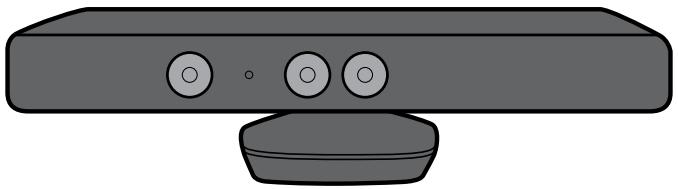
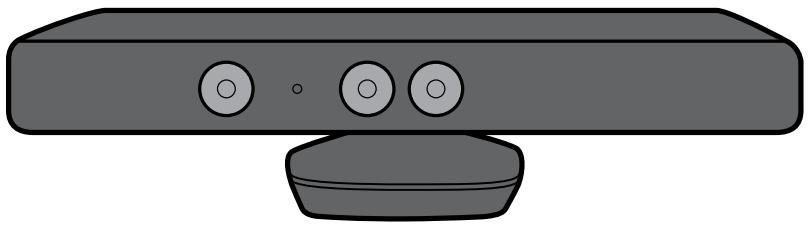
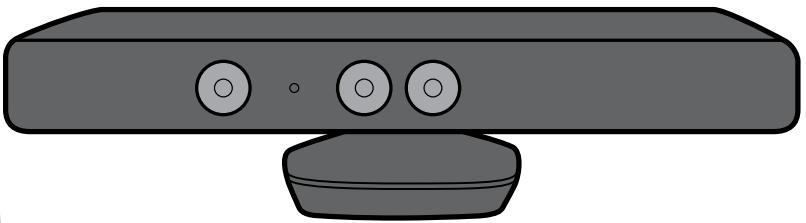
Thanks for choosing the Xbox 360® Kinect™ Sensor. The Kinect sensor offers a revolutionary new way to play: you're the controller. Just move around and see what happens. Control your Xbox 360 with a wave of your hand. The only experience you need is life experience.
The Kinect sensor is for use with the Xbox 360 video game and entertainment system. To learn more about using the Kinect sensor with a specific game, see the documentation that came with your game.

The Kinect sensor needs to be able to see you, and you need room to move. The sensor can see you when you play approximately 6 feet (2 meters) from the sensor. For two people, you should play approximately 8 feet (2.5 meters) from the sensor.
Play space will vary based on your sensor placement and other factors. See your game's instructions for more information about whether it requires only part of the sensor play space.
A WARNING
Make sure you have enough space to move freely while playing
Gameplay with your Kinect sensor may require varying amounts of movement. Make sure you won't hit, run into, or trip over other players, bystanders, pets, furniture, or other objects when playing. If you will be standing and/or moving during gameplay, you will also need good footing.
Before playing:
- Look in all directions (right, left, forward, backward, down, and up) for things you might hit or trip over.
- Make sure your play space is far enough away from windows, walls, stairs, etc.
-
Make sure there is nothing you might trip on—toys, furniture, or loose rugs, for example. Also, be aware of children and pets in the area. If necessary, move objects or people out of the play space.
-
Don't forget to look up. Be aware of light fixtures, fans, and other objects overhead when assessing the play space.
While playing:
- Stay far enough away from the television to avoid contact.
- Keep enough distance from other players, bystanders, and pets. This distance may vary between games, so take account of how you are playing when determining how far away you need to be.
- Stay alert for objects or people you might hit or trip on. People and objects can move into the area during gameplay, so always be alert to your surroundings.
Make sure you always have good footing while playing:
- Play on a level floor with enough traction for game activities.
- Make sure you have appropriate footwear for gaming (no high heels, flip flops, etc.) or are barefoot, if appropriate.
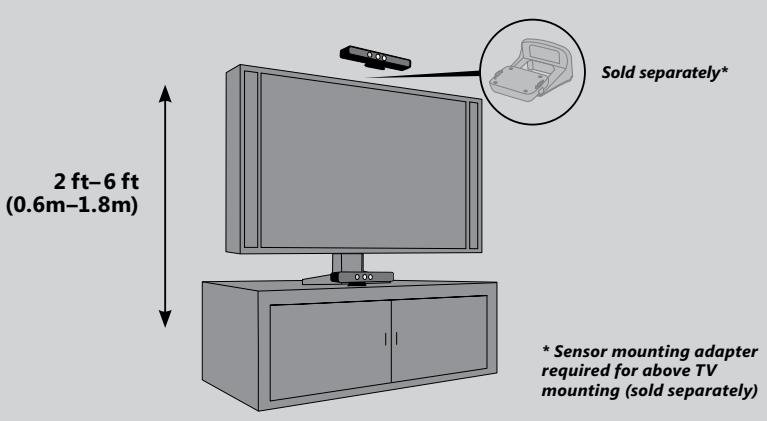
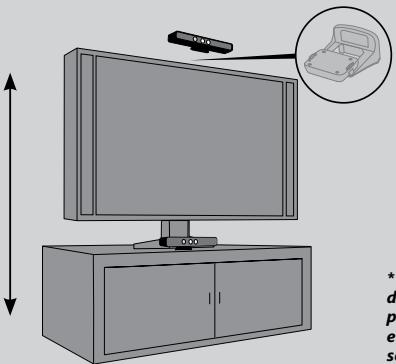
For the best play space and sensor performance, place your sensor between 2 and 6 feet (0.6 and 2 meters) high, the closer to the low or high limit, the better. Also:
- Place the sensor on a stable surface.
- Make sure the sensor is aligned with the centre of your TV, and as close as possible to the front edge of the table or shelf.
- Make sure to place the sensor in a location where it will not fall or be struck during gameplay.
- Do not put the sensor on your console.
- Do not place the sensor on or in front of a speaker or a surface that vibrates or makes noise.
- Keep the sensor out of direct sunlight.
- Do not use near any heat sources. Use the sensor within its specified operating temperature range of 41^ - 95^ ( 5^ - 35^ ). If the sensor is exposed to an environment outside its prescribed range, turn it off and allow the temperature to stabilise within the specified range before using the sensor again.
IMPORTANT
Only adjust the sensor location by moving the base. Do not adjust the sensor viewing angle by hand, by tilting the sensor on its base. After setup is complete, let the sensor
motors adjust the viewing angle, or you risk damaging your sensor.

WARNING
Arrange all cables and cords so that people and pets are not likely to trip over or accidentally pull on them as they move around or walk through the area. When the sensor and console are not in use, you may need to disconnect all cables and cords from the sensor and console to keep them out of the reach of children and pets. Do not allow children to play with cables and cords.

WARNING
Avoid Glare
To minimise eyestrain from glare, try the following:
- Position yourself at a comfortable distance from your television or monitor and the Kinect sensor.
- Place your television or monitor and Kinect sensor away from light sources that produce glare, or use window blinds to control light levels.
- Choose soothing natural light that minimises glare and eyestrain and increases contrast and clarity.
- Adjust your television or monitor brightness and contrast.
SET UP YOUR SENSOR
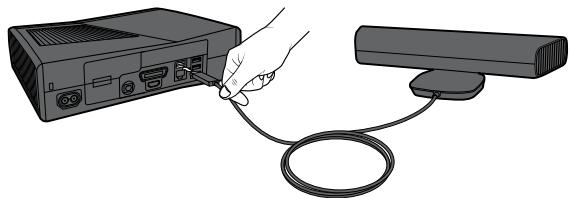
Before you can use your Kinect sensor, you need to connect it to your Xbox 360 console. For Xbox 360 S consoles, power is supplied by the console. For original Xbox 360 consoles, you'll also need to connect the sensor to a standard wall outlet.
Connect the Sensor to Your Xbox 360 S Console
To connect to your Xbox 360 S console, simply plug the sensor into the console AUX port.
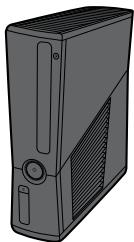
Xbox 360 S
Connect the Sensor to Your Original Xbox 360 Console
The sensor only works with the back USB port on an original Xbox 360 console.
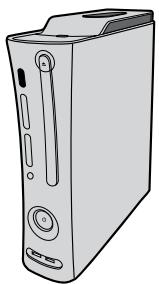
Original Xbox 360
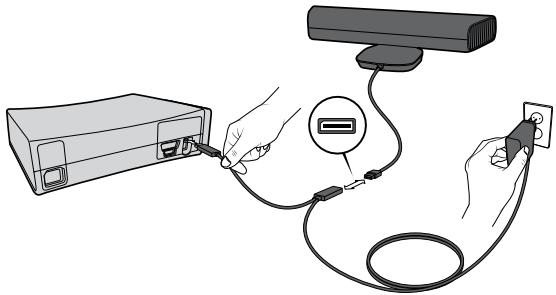
To connect to your original Xbox 360 console:
1 Unplug any accessories from the back USB port on your console.
2 Plug the sensor into the USB/power cable.
3 Plug the USB/power cable into your console's back USB port.
4 Plug the AC adapter end of the USB/ power cable into a wall outlet.
Use only the USB/power cable that is shipped with the product or is given to you by an authorised repair centre.
If you have an original Xbox 360 console with no hard drive, you should also attach a storage device with at least 256 MB free space. You can use an Xbox 360 Hard Drive, Xbox 360 Memory Unit, or a USB flash drive.
If you're using an Xbox 360 Wireless Networking Adapter that's already connected to the back USB port, you'll need to disconnect its USB cable and reconnect it to a front USB port using the WiFi extension cable, provided.
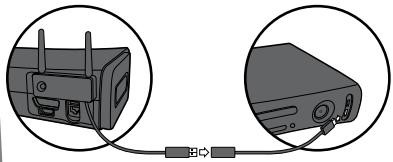
To reconnect a wireless networking adapter to a front USB port, if necessary:
1 Unplug the wireless networking adapter cable from the USB port on the back of the console, leaving the adapter itself attached to the console.
2 Attach the WiFi extension cable to the wireless networking adapter's USB cable.
3 Plug the other end of the extension cable into a USB port on the front of your console.

Electrical Safety
As with many other electrical devices, failure to take the following precautions can result in serious injury or death from electric shock or fire or damage to the sensor.
If you use AC power, select an appropriate power source:
- The sensor's power input is 12V DC @ 1.1A. Use only the AC adapter on the USB/power cable that came with your sensor or that you received from an authorised repair centre.
- Confirm that your electrical outlet provides the type of power indicated on the USB/power cable, in terms of voltage (V) and frequency (Hz). If you aren't sure of the type of power supplied to your home, consult a qualified electrician.
- Do not use non-standard power sources, such as generators or inverters, even if the voltage and frequency appear acceptable. Use only AC power provided by a standard wall outlet.
- Do not overload your wall outlet, extension cord, power strip, or other electrical receptacle. Confirm that they are rated to handle the total
current (in amps [A]) drawn by the sensor (indicated on the USB/power cable) and any other devices that are on the same circuit.
To avoid damaging the USB/power cable:
- Protect the cable from being pinched or sharply bent, particularly where it connects to the power outlet and the sensor.
- Protect the cable from being walked on.
- Do not jerk, knot, sharply bend, or otherwise abuse the cable.
- Do not expose the cable to sources of heat.
- Keep children and pets away from the cable. Do not allow them to bite or chew on the cable.
- When disconnecting the cable, pull on the plug—do not pull on the cable.
If the USB/power cable becomes damaged in any way, stop using it immediately and contact Xbox Customer Support for a replacement.
Unplug your sensor's USB/power cable during lightning storms or when unused for long periods of time.
Install the Sensor Software on Your Console
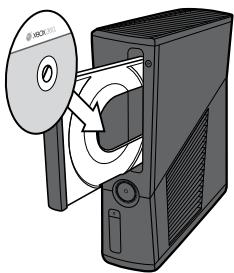
Your console needs a system update before you can use it with your Kinect sensor.
To update your console:
1 Turn on your console and insert the supplied disc. The update will install automatically. If it doesn't start automatically, select the disc tray from the dashboard (as if you were playing a game from a disc).
2 When the installation confirmation message appears, remove the disc and begin setting up your sensor.

WARNING
Don't overexert yourself
Gameplay with the Kinect sensor may require varying amounts of physical activity.
Consult a doctor before using the sensor if you have any medical condition or issue that affects your ability to safely perform physical activities, or if:
- you are or may be pregnant,
- you have heart, respiratory, back, joint, or other orthopaedic conditions,
you have high blood pressure, - you have difficulty with physical exercise, or
- you have been instructed to restrict physical activity.
Consult your doctor before beginning any exercise routine or fitness regimen that includes using your sensor.
Do not play under the influence of drugs or alcohol, and make sure your balance and physical abilities are sufficient for any movements while gaming.
Take breaks periodically
- Stop and rest if your muscles, joints, or eyes become tired or sore.
- If you experience excessive fatigue, nausea, shortness of breath, chest tightness, dizziness, discomfort, or pain, STOP USING IMMEDIATELY and consult a doctor.
Adults—attend to children
Make sure children using your sensor play within their limits.
Do not use unlicensed accessories or unauthorised props or other objects with the Kinect sensor
Use of these accessories or objects may result in injury to yourself or others and/or in damage to the sensor or other property.
CLEAN YOUR SENSOR
If you clean the sensor:
- Clean the outside of the sensor only.
- Use a dry cloth—do not use abrasive pads, detergents, scouring powders, solvents (for example, alcohol, gasoline, paint thinner, or benzene), or other liquid or aerosol cleaners.
-
Do not use compressed air.
-
Do not attempt to clean connectors.
- Clean the surface on which the sensor rests with a dry cloth.
- Do not allow the sensor to become wet. To reduce the risk of fire or shock, do not expose the sensor to rain or other types of moisture.
TROUBLESHOOTING
If you encounter problems, try the possible solutions provided below.
Sensor Doesn't Work
- Make sure cables are connected. When used with an original Xbox 360 console, make sure the sensor is connected to the back USB port, and the USB/power cable is plugged in. The light on the front of the sensor will light up when the sensor is on.
- Make sure the sensor is in a well-ventilated area.
- If the sensor software hasn't been set up, insert the sensor software disc for a system update.
Sensor Doesn't See Player
- Play in the sensor's play space.
- Turn on lights to brighten the play space.
- Prevent lights, including sunlight, from shining directly on the sensor.
Try wearing different clothing that contrasts with the background of your play space.
Clean the sensor lens with a dry cloth. - Make sure nothing is blocking the sensor's viewing angle.
Sensor Loses Player
Try leaving and reentering the play space if the sensor has stopped tracking you.
Sensor Doesn't Hear Player
- Don't place the sensor near sources of vibration, TV speakers, or other audio sources.
- Make sure nothing is blocking the sensor's microphone array.
Sensor Motors Don't Adjust Sensor Viewing Angle
- Make sure cables are connected and the sensor light is on. When used with an original Xbox 360 console, the sensor must be connected to the back USB port, not a front USB port, and the USB/power cable must be connected to a power outlet.
- Make sure the sensor's motion isn't blocked by anything.
- Don't tilt your sensor on its base or adjust the sensor viewing angle by hand. Let the sensor motors adjust the viewing angle automatically, or you risk damaging your sensor.
IF YOU NEED MORE HELP
For answers to common questions, troubleshooting steps, and Xbox Customer Support contact information, visit www.xbox.com/support.
Do not take your Xbox 360 console or its accessories to your retailer for repair. Please visit www.xbox.com/support for troubleshooting and service information.

WARNING
Do Not Attempt Repairs
Do not attempt to take apart, open, service, or modify the hardware device or power supply. Doing so could present the risk of electric shock or other hazard. Any evidence of any attempt to open and/or modify the device, including any peeling, puncturing, or removal of any of the labels, will void the Limited Warranty.
MANUFACTURER'S WARRANTY
This Manufacturer's Warranty ("Warranty") is granted to You by Microsoft Ireland Operations Limited, Blackthorn Road, Sandyford Industrial Estate; Dublin 18, Ireland ("Microsoft").
BY USING YOUR KINECT SENSOR YOU AGREE TO THIS WARRANTY. BEFORE SETTING IT UP, PLEASE READ THIS WARRANTY CAREFULLY. IF YOU DO NOT ACCEPT THIS WARRANTY, DO NOT USE YOUR KINCT SENSOR. RETURN IT UNUSED TO YOUR RETAILER OR MICROSOFT FOR A REFUND. Contact
Microsoft at http://www.xbox.com/.
This Warranty is distinct from any statutory product guarantees owed by retailers and/or manufacturers under any national law applicable to You. It is intended to grant You specific, and as the case may be, additional rights, within the limits of what is permissible under such law, and not to restrict your rights under applicable statutory product guarantee provisions. It can not be transferred to any third party.
1. Definitions
When used in this Warranty, the following terms will be deemed to mean:
(a) "Kinect Sensor" means a new Kinect Sensor purchased from an authorised retailer.
(b) "Normal Use Conditions" means ordinary consumer use under normal home conditions according to the instruction manual for the Kinect Sensor.
(c) "Warranty Period" means 1 year from the date You purchased Your Kinect Sensor, subject to article 2 below.
(d) "You" means the original end-user.
2. Duration
Without prejudice to any statutory warranty to which You may be entitled under any local law applicable to You, and unless any such law provides for a longer term, Microsoft offers this Warranty, for a term of one (1) year from the purchase date of such Kinect Sensor from an authorised retailer.
3. Territory
This Warranty will be valid in the following countries only (including their overseas territories): United Kingdom, Ireland, Switzerland, Italy, Austria, Belgium, France,
Germany, Spain, Portugal, Norway, Sweden, Denmark, Finland, Netherlands, Luxemburg, Greece, Czech Republic, Slovakia, Poland, Hungary, Cyprus, South Africa and Russia.
You acknowledge that specific export laws and regulations may apply to You depending on your country of residence and You agree to comply with all such laws and regulations if You export Your Kinect Sensor.
4. Warranty
(a) During the Warranty Period, Microsoft warrants, only to You, that the Kinect Sensor will not malfunction under Normal Use Conditions.
(b) Except for any statutory warranty which Microsoft may owe You under any local law applicable to You, this Warranty is the only guarantee, warranty or condition granted to You by Microsoft with respect to Your Kinect Sensor and any product manual(s) that may come with it. No one else may give any guarantee, warranty or condition on Microsoft's behalf.
(c) IF YOUR LOCAL AND APPLICABLE LAW GIVES YOU ANY IMPLIED WARRANTY, INCLUDING AN IMPLIED WARRANTY OF MERCHANTABILITY OR FITNESS FOR A PARTICULAR PURPOSE, ITS DURATION IS LIMITED TO THE WARRANTY PERIOD, UNLESS OTHERWISE PROVIDED BY SUCH LOCAL LAW.
5. Process to obtain the Warranty Service
(a) Before starting the warranty process, please use the troubleshooting tips at http://www.xbox.com/.
(b) If the troubleshooting tips don't resolve Your problem, then follow the online process at http://www.xbox.com/. If You don't have access to the Internet, You can call 0800 587 1102 for United Kingdom, 1 800 509 186 for Ireland, 800991550 for South Africa.
6. Microsoft's responsibility
(a) After You return Your Kinect Sensor Microsoft will inspect it.
(b) If Microsoft determines that the Kinect Sensor malfunctioned during the Warranty Period under Normal Use Conditions, Microsoft will (at its option) repair or replace it, or refund the
purchase price to You, unless a mandatory provision of any local law applicable to You provides otherwise. Repair may use new or refurbished parts. Replacement may be with a new or refurbished unit.
(c) After repair or replacement, Your Kinect Sensor will be covered by this Warranty for the longer of either the remainder of Your original Warranty Period, or 95 days after Microsoft ships it to You.
(d) UNLESS OTHERWISE PROVIDED UNDER ANY LOCAL LAW APPLICABLE TO YOU, MICROSOFT'S RESPONSIBILITY TO REPAIR OR REPLACE YOUR Kinect SENSOR, OR TO REFUND THE PURCHASE PRICE, IS YOUR EXCLUSIVE REMEDY.
(e) If Your Kinect Sensor malfunctions after the Warranty Period expires, there is no warranty of any kind. After the Warranty Period expires, Microsoft may charge You a fee for its efforts to diagnose and service any problems with Your Kinect Sensor, whether such efforts are successful or not.
7. Conditions and Warranty Exclusions
Microsoft is not responsible and this Warranty does not apply, even for a fee, if Your Kinect Sensor is:
(a) damaged by use with any product other than an Xbox 360 console (including, for example, personal computers, other video game consoles, etc.);
(b) used for commercial purposes (including, for example, rental, pay-per-play, etc.);
(c) opened, modified, or tampered with (including, for example, any attempt to
defeat any technical limitation, security, or anti-piracy mechanism, etc.), or its serial number is altered or removed;
(d) damaged by any external cause (including, for example, by being dropped, used with inadequate ventilation, etc., or failure to follow instructions in the instruction manual for the Kinect Sensor); or
(e) repaired by anyone other than Microsoft.
8. EXCLUSION OF CERTAIN DAMAGES
UNLESS OTHERWISE PROVIDED UNDER ANY LOCAL LAW APPLICABLE TO YOU, MICROSOFT IS NOT RESPONSIBLE FOR ANY INDIRECT,INCIDENTAL,SPECIAL,OR CONSEQUENTIAL DAMAGES;ANY LOSS OF DATA,PRIVACY,CONFIDENTIALITY,OR PROFITS;OR ANY INABILITY TO USE YOUR KINECT SENSOR. THESE EXCLUSIONS APPLY EVEN IF MICROSOFT HAS BEEN ADVISED OF THEPOSSIBILITY OF THESE DAMAGES,AND EVEN IF ANY REMEDY FAILS OF ITS ESSENTIAL PURPOSE.
9. Additional terms
If You attempt to defeat or circumvent any Kinect Sensor technical limitation, security, or anti-piracy system, Your Kinect Sensor may stop working permanently. You will also void Your Warranty, and make Your Kinect Sensor ineligible for authorised repair, even for a fee.
10. Choice of Law
This Warranty will be subject to and construed in accordance with the law of Your country of residence, regardless of conflict of laws principles.
BY USING YOUR KINECT SENSOR YOU AGREE TO THIS SOFTWARE LICENSE. BEFORE SETTING IT UP, PLEASE READ THIS SOFTWARE LICENSE CAREFULLY. IF YOU DO NOT ACCEPT THIS SOFTWARE LICENSE,DO NOT USE YOUR KINCT SENSOR. RETURN IT UNUSED TO YOUR RETAILER OR MICROSOFT FOR A REFUND.Contact Microsoft at http://www.xbox.com/.
1. Definitions
When used in this License, the following terms will be deemed to mean:
(a) "Xbox 360" means an Xbox 360 console.
(b) "Xbox 360 S" means an Xbox 360 S console.
(c) "Authorised Accessory" means a Microsoft branded Xbox 360 or Xbox 360 S hardware accessory, and a Microsoft licensed, third party branded, Xbox 360 or Xbox 360 S hardware accessory whose packaging bears the official "Licensed for Xbox" logo. The Kinect Sensor is an Authorised Accessory solely for purpose of this software license.
(d) "Authorised Games" means Xbox 360 or Xbox 360 S games on game discs published or licensed by Microsoft, and game content downloaded from Microsoft's Xbox LIVE service or Xbox.com Web site (for example, avatars, downloadable games, game add-ons, etc.).
(e) "Software" means the software preinstalled in the Kinect Sensor, including any updates Microsoft may make available from time to time.
(f) "Unauthorized Accessories" means all hardware accessories other than an Authorised Accessory, except that USB memory sticks, digital cameras used to make photographs or movies, and music players used to play music or display photographs or videos are not Unauthorized Accessories.
(g) "Unauthorised Games" means all game discs, game downloads, and game
content or media other than Authorised Games.
(h) "Unauthorised Software" means any software not distributed by Microsoft through Xbox 360 or Xbox 360 S game discs published or licensed by Microsoft, Microsoft's Xbox LIVE service, or Xbox.com Web site.
(i) "You" means the user of a Kinect Sensor.
2. License
This License gives You specific contractual rights unless otherwise stated under any national law applicable to You.
(a) The Software is licensed to You, not sold, for the Territory only. You are licensed to use the Software only as pre-installed in Your Kinect Sensor, and updated by Microsoft from time to time. You may not copy or reverse engineer the Software.
(b) As conditions to this Software license, You agree that:
(i) You will use Your Kinect Sensor with Xbox 360 or Xbox 360 S only and not with any other device (including, for example, personal computers, other video game consoles, etc.). You will use only Authorised Games with Your Kinect Sensor. You will not use Unauthorized Accessories or Unauthorized Games. They may not work or may stop working permanently after a Software update.
(ii) You will not use or install any Unauthorized Software. If You do, Your Kinect Sensor may stop working permanently at that time or after a later Software update.
(iii) You will not attempt to defeat or circumvent any Kinect Sensor technical limitation, security, or anti-piracy system. If You do, Your Kinect Sensor may stop working permanently then or after a later Software update.
(iv) Microsoft may use technical measures, including Software updates, to limit use of the Kinect Sensor to Xbox 360, to prevent use of Unauthorized Accessories or Unauthorized Games, and to protect the technical limitations, security and anti-piracy systems in the Kinect Sensor.
(v) Microsoft may update the Software from time to time without further notice to You, for example, to update any technical limitation, security, or anti-piracy system.
Any unauthorised use under the provisions may result in the ineligibility to benefit from the Manufacturer's Warranty of Your Kinect Sensor.
3. Territory
This License will be valid in the following countries only (including their overseas territories): United Kingdom, Ireland, Switzerland, Italy, Austria, Belgium, France, Germany, Spain, Portugal, Norway, Sweden, Denmark, Finland, Netherlands, Luxembourg, Greece, Czech Republic, Slovakia, Poland, Hungary, Cyprus, South Africa and Russia.
4. Warranty
The Software is covered by the Manufacturer's Warranty for Your Kinect Sensor, and Microsoft gives no other guarantee, warranty or condition for the Software, except for any statutory warranty which Microsoft may owe You under any local law applicable to you. No one else may give any guarantee, warranty or condition on Microsoft's behalf.
5. EXCLUSION OF CERTAIN DAMAGES
UNLESS OTHERWISE PROVIDED UNDER ANY LOCAL LAW APPLICABLE TO YOU, MICROSOFT IS NOT RESPONSIBLE FOR ANY INDIRECT,INCIDENTAL,SPECIAL,OR CONSEQUENTIAL DAMAGES;ANY LOSS OF DATA,PRIVACY,CONFIDENTIALITY,OR PROFITS;OR ANY INABILITY TO USE THE SOFTWARE. THESE EXCLUSIONS APPLY EVEN IF MICROSOFT HAS BEEN ADVISED OF THEPOSSIBILITY OF THESE DAMAGESAND EVEN IF ANY REMEDY FAILS OF ITS ESSENTIAL PURPOSE.
6. Choice of Law
This License will be subject to and construed in accordance with the law of Your country of residence, regardless of conflict of laws principles.
REGULATIONS
Disposal of Electrical & Electronic Equipment

This symbol on the product or its packaging means that this product must not be disposed of with your household waste. Instead, it is your responsibility to hand this over to an
applicable collection point for the recycling of electrical and electronic equipment. This separate collection and recycling will help to conserve natural resources and prevent potential negative consequences for human health and the environment due to the possible presence of hazardous substances in electrical and electronic equipment, which could be caused by inappropriate disposal. For more information about where to drop off your electrical and electronic waste, please contact your local city/municipality office, your household waste disposal service, or the shop where you purchased this product. Contact weee@microsoft.com for additional information about WEEE.
This product is for use with NRTL-listed (UL, CSA, ETL, etc.) and/or IEC/EN 60950 compliant (CE marked) Information Technology equipment.
Statement of Compliance with EU Directives
Hereby, Microsoft Corporation declares that this product is in compliance with the essential requirements and other relevant provisions of Directives, 2006/95/EC and 2004/108/EC.
The technical documentation as required by the Conformity Assessment procedure is kept at the following address:
Company
Microsoft Ireland Operations Ltd.
Address
The Atrium Building 3
Carmanhall Road, Sandyford Industrial Estate, Dublin 18
Country
Ireland
C
Laser Specifications

Caution
Use of controls or adjustments, or performance of procedures other than those specified herein may result in hazardous radiation exposure.
This device complies with International Standard IEC 60825-1:2007:03 for a Class 1 laser product. This device also complies with 21 CFR 1040.10 and 1040.11 except for deviations pursuant to Laser Notice No. 50, dated June 24, 2007.
The following Class 1 laser label is located on the foot of the sensor.
CLASS 1 LASER PRODUCT

Caution
Any changes or modifications made on the system not expressly approved by the manufacturer could void the user's authority to operate the equipment.
COPYRIGHT
Information in this document, including URL and other Internet Web site references, is subject to change without notice. Unless otherwise noted, the example companies, organisations, products, domain names, e-mail addresses, logos, people, places and events depicted herein are fictitious, and no association with any real company, organisation, product, domain name, e-mail address, logo, person, place or event is intended or should be inferred. Complying with all applicable copyright laws is the responsibility of the user. Without limiting the rights under copyright, no part of this document may be reproduced, stored in or introduced into a retrieval system, or transmitted in any form or by any means (electronic, mechanical, photocopying, recording, or otherwise), or for any purpose, without the express written permission of Microsoft Corporation.
Microsoft may have patents, patent applications, trademarks, copyrights, or other intellectual property rights covering subject matter in this document. Except as expressly provided in any written license agreement from Microsoft, the furnishing of this document does not give you any license to these patents, trademarks, copyrights, or other intellectual property.
© 2010 Microsoft Corporation. All rights reserved.
Microsoft, Xbox, Xbox 360, Xbox LIVE, the Xbox logos, the Xbox LIVE logo, and Kinect are trademarks of the Microsoft group of companies.
CUSTOMER SUPPORT
For answers to common questions, troubleshooting steps, and Xbox Customer Support contact information, visit www.xbox.com/support.
François

AVERTISSEMENT
Microsoft Ireland Operations Ltd.
Adresse
The Atrium Building 3
Carmanhall Road,
Sandyford Industrial
Estate,Dublin 18
Pays
Irlande
C
Specifications relatives au laser

Attention
CLASS 1 LASER PRODUCT

Attention
Microsoft Ireland Operations Ltd.
Adresse
The Atrium Building 3
Carmanhall Road
Sandyford Industrial
Estate Dublin 18
Land
Irland
C
CLASS 1 LASER PRODUCT
Achtung
10. Legge applicable
Microsoft Ireland Operations Ltd.
Indirizzo
The Atrium Building 3
Carmanhall Road,
Sandyford Industrial
Estate,Dublin 18
Paese
Irlanda
C
Specifiche laser

Attenzione
2 ft-6 ft (0.6m-1.8m)
Microsoft Ireland Operations Ltd.
Dicho
The Atrium Building 3
Carmanhall Road, Sandyford Industrial Estate, Dublin 18
Pais
Irlanda
CLASS 1 LASER PRODUCT

Atencion
It only takes a few minutes to join the Xbox® community and gain access to exclusive information, rewards, and offers.
Go to www.xbox.com/registermyxbox.
ENREGISTREZ VOTRE XBOX 360® EN LIGNE DÉS AUJOURD'HUI
- KINECT SENSOR CAPTEUR KINECT KINECT-SENSOR SENSORE KINECT SENSOR KINECT
- English
- WARNING
- Make sure children using the Kinect sensor play safely.
- A WARNING
- Make sure you have enough space to move freely while playing
- Before playing:
- While playing:
- IMPORTANT
- Avoid Glare
- SET UP YOUR SENSOR
- Connect the Sensor to Your Xbox 360 S Console
- Connect the Sensor to Your Original Xbox 360 Console
- To connect to your original Xbox 360 console:
- Electrical Safety
- Install the Sensor Software on Your Console
- Don't overexert yourself
- Take breaks periodically
- Adults—attend to children
- Do not use unlicensed accessories or unauthorised props or other objects with the Kinect sensor
- CLEAN YOUR SENSOR
- TROUBLESHOOTING
- Sensor Doesn't Work
- Sensor Doesn't See Player
- Sensor Loses Player
- Sensor Doesn't Hear Player
- Sensor Motors Don't Adjust Sensor Viewing Angle
- IF YOU NEED MORE HELP
- Do Not Attempt Repairs
- MANUFACTURER'S WARRANTY
- BY USING YOUR KINECT SENSOR YOU AGREE TO THIS WARRANTY. BEFORE SETTING IT UP, PLEASE READ THIS WARRANTY CAREFULLY. IF YOU DO NOT ACCEPT THIS WARRANTY, DO NOT USE YOUR KINCT SENSOR. RETURN IT UNUSED TO YOUR RETAILER OR MICROSOFT FOR A REFUND. Contact
- Definitions
- Duration
- Territory
- Warranty
- Process to obtain the Warranty Service
- Microsoft's responsibility
- Conditions and Warranty Exclusions
- EXCLUSION OF CERTAIN DAMAGES
- Additional terms
- Choice of Law
- License
- EXCLUSION OF CERTAIN DAMAGES
- Choice of Law
- REGULATIONS
- Disposal of Electrical & Electronic Equipment
- Statement of Compliance with EU Directives
- Laser Specifications
- Caution
- COPYRIGHT
- CUSTOMER SUPPORT
- François
- AVERTISSEMENT
- Adresse
- Pays
- C
- Specifications relatives au laser
- Attention
- Land
- Achtung
- Legge applicable
- Indirizzo
- Paese
- Specifiche laser
- Attenzione
- Dicho
- Pais
- Atencion
- ENREGISTREZ VOTRE XBOX 360® EN LIGNE DÉS AUJOURD'HUI
Brand : MICROSOFT
Model : KINECT
Category : Video game accessory