
ZSCRIPT - Printing Software KONICA MINOLTA - Free user manual and instructions
Find the device manual for free ZSCRIPT KONICA MINOLTA in PDF.



| Product Type | PostScript Printing Software |
| Brand | KONICA MINOLTA |
| Model | ZSCRIPT |
| Category | Printing Software |
| Main Functions | PostScript interpretation, dithering, automatic job rerouting |
| Compatible Operating Systems | Windows 95, Windows NT 4.0 |
| Technology | Encapsulated PostScript (EPS) |
| Included Utilities | Masquerade (PostScript driver creation), ZScript Filter |
| Font Management | Supports Type 1 and TrueType fonts, downloadable fonts can be disabled |
| Resolution | Depends on target printer |
| Paper Formats | Depends on target printer |
| Manual Languages | French, Danish, German, English, Spanish, Italian, Dutch |
| Manual Size | 49 pages |
| Online Support | Website www.zeno.com, CompuServe (Go ZENO) |
| License Type | Commercial |
| Software Manufacturer | Zenographics, Inc. |
Frequently Asked Questions - ZSCRIPT KONICA MINOLTA
User questions about ZSCRIPT KONICA MINOLTA
0 question about this device. Answer the ones you know or ask your own.
Ask a new question about this device
Download the instructions for your Printing Software in PDF format for free! Find your manual ZSCRIPT - KONICA MINOLTA and take your electronic device back in hand. On this page are published all the documents necessary for the use of your device. ZSCRIPT by KONICA MINOLTA.
USER MANUAL ZSCRIPT KONICA MINOLTA
Zenographic's ZScript
User's Guide
© Copyright Zenographics, Inc., 1996, 1997, 1998. All rights reserved.
Zenographics, Inc.
111 Innovation Drive, Suite 200
Irvine, California 92612 U.S.A.
Information in this manual is subject to change without notice and does not represent a commitment on the part of Zenographics. The software described in this manual is furnished under a license agreement and may be used or copied only in accordance with the terms of the agreement.
PageWorks is a trademark of Minolta in the U.S. and Canada.
PagePro is a trademark of Minolta in Europe, Japan and Asia.
Minolta is a registered trademark of MINOLTA CO., LTD.
ZScript are registered trademarks of Zenographics, Inc. PostScript and Adobe Type Manager are registered trademarks of Adobe Systems, Inc. All other trademarks used herein are used in an editorial fashion and are the properties of their respective owners.
Introduction
Since this manual covers two versions of Windows 95 and NT 4.0 - these icons are used wherever a series of instructions is version-specific. This allows you to go directly to the applicable instructions.
On-line services
The very latest information on SuperPrint can be found in these cyber-space locations:
• The World Wide Web: http://www.zeno.com
- CompuServe: Go ZENO
PostScript printing
Common questions about PostScript
What is PostScript?
PostScript is a programming language, created by Adobe Systems, that is devoted to describing a page layout. A page layout description can include text and font information, graphics, bitmaps, and special instructions for placing and manipulating these elements. To print using PostScript, you must have a printer driver that creates the PostScript code, an interpreter that translates the code, and a rasterizer that images the page elements from the interpreted data.
Encapsulated PostScript (EPS) is a subset of PostScript typically used for clip art that can be placed within another document.
When do you need PostScript?
- If you are using an EPS file in a document, or if you are using some other PostScript element in your page (such as CorelDRAW's PostScript fill patterns), you must use a PostScript interpreter when you print.
- You can also use PostScript to transmit page descriptions to other sites for imaging (for example, a service bureau with a Linotronic imagesetter). PostScript is the standard for this kind of device-independent exchange of page description files.
- If you are using a Windows application that does not recognize the efficient capabilities of PageWorks/Pro 18L driver, your job may go faster and use less disk space if you print it using PostScript. An example of this is an application that insists on scaling a bitmap to printer resolution before sending it to a non-PostScript printer.
If you don't fit into any of the above scenarios, chances are you don't need PostScript!
When do you need Masquerade?
If you are printing from a Windows application, and either #1 or #3 from the above list is true, then you should run Masquerade. It will create a new PostScript printer driver with all the attributes of your target, non-PostScript device. It also implements automatic redirection of the PostScript data so Zenographic's ZScript filter can process the job and sent it to your target printer. Using Masquerade is explained under “How to use Masquerade” later in this manual.
If #1 and #3 are not true, you probably don't need Masquerade.
How does PageWorks/Pro 18L let you use PostScript?
The most common implementation of PostScript is to have both the interpreter and rasterizer built into the printer. Unfortunately, that requires considerable memory and processing power to be resident in the printer where they're used only during printing.
With PostScript-equipped printer
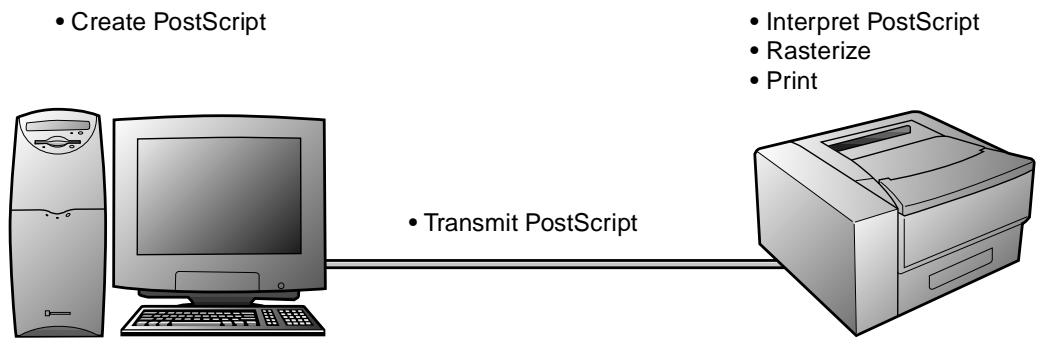
flowchart
graph LR
    A["Create PostScript"] --> B["Computer"]
    B --> C["Transmit PostScript"]
    C --> D["Printer"]
    style A fill:#f9f,stroke:#333
    style D fill:#bbf,stroke:#333
With ZScript
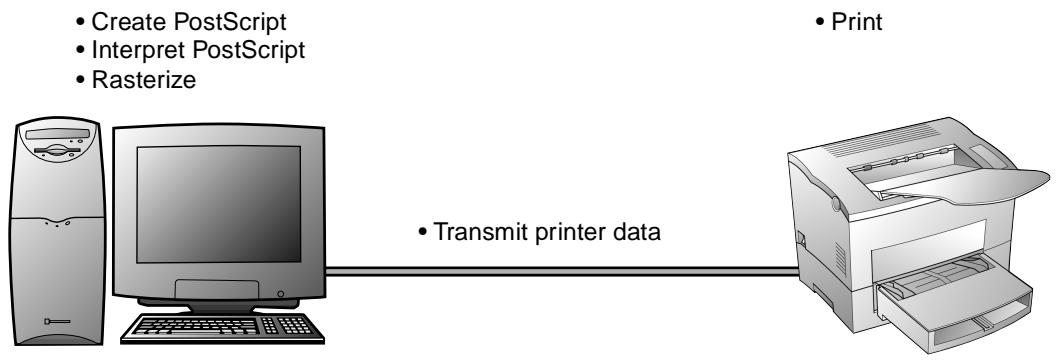
flowchart
graph LR
    A["Create PostScript\nInterpret PostScript\nRasterize"] --> B["Computer"]
    C["Print"] --> D["Printer"]
    B -->|Transmit printer data| D
The Minolta PageWorks/Pro 18L ZScript PostScript filter works with the memory and processor you already have - the power that's already in your computer.
Printing with PostScript
Printing PostScript from a Windows application
If you fall into categories 1 or 3 described earlier under “When do you need PostScript?”, you should use the Masquerade utility to create a special PostScript driver for your particular printer.
Masquerade adds a new printer to your Windows configuration. This printer uses the PostScript language, but reports to the printing application all the attributes of your physical printer (resolution, paper sizes, etc.). Furthermore, when you print to this new PostScript printer, Masquerade sets your system to automatically route the PostScript output to your non-PostScript printer's queue so the ZScript filter can process the job.
How to use Masquerade
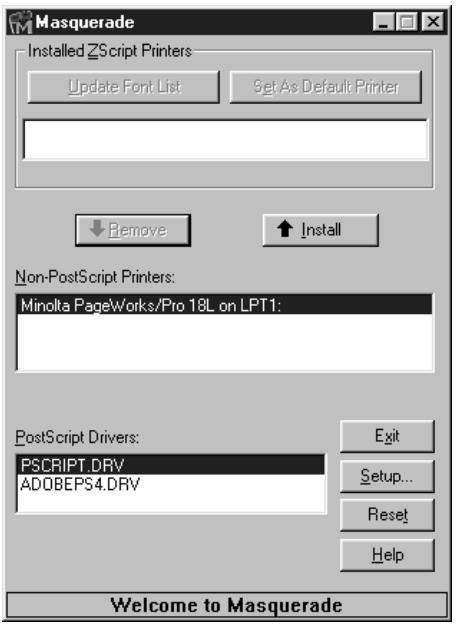
- Open Masquerade by double clicking its icon in the Minolta Printer Utilities group.
- Choose a PostScript driver (PSCRIPT.DRV).
- Choose Minolta PageWorks/Pro 18L. This is the "target printer" - the printer on which you want to print the PostScript jobs.
- Click Install.
The new printer that's added to your system shows up under Installed ZScript Printers. It will also appear in the list of available printers in your Printers folder (Windows 95 or NT 4.0), and most applications' Printer Setup. Any time you need to print PostScript content from a Windows application, just choose this driver.
Driver settings
The Masquerade-generated PostScript drivers should have the following settings to optimize performance.
Note
- Many settings of the ZScript Printer Driver (Minolta PageWorks/Pro [PSCRIPT]) such as Paper Size, Resolution, etc., also appear in the GDI Printer Driver (Minolta PageWorks/Pro 18L). However, please note that settings which have been entered through the ZScript Printer Driver (Minolta PageWorks/Pro [PSCRIPT]) will be overridden by settings that you have entered in the GDI Printer Driver (Minolta PageWorks/Pro 18L). Be sure to enter settings through the GDI Printer Driver (Minolta PageWorks/Pro 18L) only. For more details on the GDI Printer Driver settings, see “Chapter 4 Printer Driver and Status Display” in the User’s Manual.
95
When printing to a Masquerade-generated printer in Windows 95, you'll get optimum speed and quality if you disable font downloading within the PostScript data stream. This means that the font is requested by name only, reducing file sizes and processing time. To suppress downloading:
- Access the printer setup for the Masquerade-generated printer. (Right click the printer's icon in the Printers folder and choose Properties.)
- On the Fonts tab, click Send Fonts As...
- Change Send TrueType fonts as: to Don't Send.
- Change Send PostScript fonts as: to Don't Send.
- Click OK.
- Back on the Fonts tab, click Edit the Table....
- Change all fonts to “Don’t Send”.
Both versions of Windows NT handle PostScript fonts differently than other versions of Windows. There is no need for a Type 1 font handler such as Adobe Type Manager in Windows NT - the Fonts utility in the Windows NT Control Panel can install Type 1 fonts directly. This utility also creates equivalent TrueType outlines for use on the screen and with non-PostScript printers. These TrueType equivalents are high-quality translations of the original outlines. In fact, if you have no other need for the Type 1 outlines (for example, if you do not plan to create PostScript files for processing on another computer or RIP), you might consider installing only the TrueType translations without the corresponding Type 1 outlines. This can save disk space and speed up font handling with very good quality results.
When adding a Masquerade-generated driver to Windows NT, you do not need to make any changes in the printer setup; it should work optimally with the default settings.
The Windows NT PostScript driver handles the basic PostScript plus fonts differently than other typefaces.
111 Innovation Drive, Suite 200
Irvine, California 92612 U.S.A.
111 Innovation Drive, Suite 200
Irvine, California 92612 U.S.A.
111 Innovation Drive, Suite 200
Irvine, California 92612 U.S.A.
111 Innovation Drive, Suite 200
Irvine, California 92612 U.S.A.
111 Innovation Drive, Suite 200
Irvine, California 92612 U.S.A.
111 Innovation Drive, Suite 200
Irvine, California 92612 U.S.A.
- Zenographic's ZScript
- User's Guide
- Introduction
- On-line services
- PostScript printing
- Common questions about PostScript
- What is PostScript?
- When do you need PostScript?
- When do you need Masquerade?
- How does PageWorks/Pro 18L let you use PostScript?
- Printing with PostScript
- Printing PostScript from a Windows application
- How to use Masquerade
- Driver settings
- Note
- 95
Brand : KONICA MINOLTA
Model : ZSCRIPT
Category : Printing Software