
GA-F2A55M-HD2 - Motherboard GIGABYTE - Free user manual and instructions
Find the device manual for free GA-F2A55M-HD2 GIGABYTE in PDF.



| Product type | Desktop PC motherboard |
| Form factor | Micro ATX |
| Processor socket | Socket FM2 (AMD) |
| Chipset | AMD A55 |
| Memory | 2 x DDR3 DIMM, max 64 GB, supports DDR3 1866/1600/1333/1066 MHz |
| Expansion slots | 1 x PCI Express x16 (v3.0), 1 x PCI Express x1, 1 x PCI |
| Storage | 4 x SATA 3 Gb/s (SATA2), 1 x IDE (ATA-133/100/66/33) |
| Audio | Realtek ALC887 codec, HD Audio 7.1 channels |
| Network | Realtek GbE LAN (10/100/1000 Mbit/s) |
| Rear USB | 4 x USB 2.0 |
| Internal USB | 2 x USB 2.0 via headers |
| Rear connectors | 1x PS/2 keyboard/mouse, 1x D-Sub, 1x DVI-D, 1x HDMI, 1x RJ45, 3x audio jacks (line-in, line-out, mic) |
| Dimensions | 24.4 cm x 20.0 cm |
| Weight | Approximately 600 g |
| Power supply | Main ATX 24-pin connector, CPU 4-pin connector |
| Supported operating systems | Windows 7, Windows 8, Windows 10 (32/64-bit) |
| Main features | Dual BIOS, AMD Hybrid Graphics support, power management, overvoltage protection |
| Maintenance and cleaning | Unplug the device before cleaning; use a dry, soft cloth; avoid moisture and chemicals |
| Safety | Follow grounding instructions; install on a stable surface; handle components carefully to avoid electrostatic discharge |
| Spare parts and repairability | Available from authorized dealers; complex repairs should be done by a professional; warranty may be affected |
Frequently Asked Questions - GA-F2A55M-HD2 GIGABYTE
User questions about GA-F2A55M-HD2 GIGABYTE
0 question about this device. Answer the ones you know or ask your own.
Ask a new question about this device
Download the instructions for your Motherboard in PDF format for free! Find your manual GA-F2A55M-HD2 - GIGABYTE and take your electronic device back in hand. On this page are published all the documents necessary for the use of your device. GA-F2A55M-HD2 by GIGABYTE.
USER MANUAL GA-F2A55M-HD2 GIGABYTE
The sequence of installation may differ depending on the type of case and devices used. The installation instructions below apply to GIGABYTE's desktop systems and are for reference only.
Refer to the user's manual included for detailed motherboard specifications.
- Before installing the devices, make sure they are compliant with the connectors on your computer.
- Before installing the devices, be sure to turn off the devices and your computer. Unplug the power cord from the power outlet to prevent damage to the devices and the system components.
- Place the computer system on a stable surface to prevent improper installation resulted from shaking.

Installing a CPU and CPU Cooler
A. Installing an Intel CPU (skip this step if the motherboard has a built-in CPU)
A-1 Refer to the following instructions based on your CPU specifications:
- Type A:
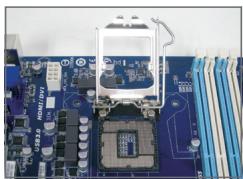
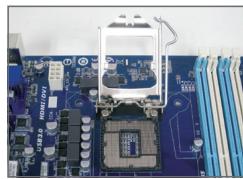
Lift the CPU socket lever and the metal load plate will be lifted as well.
a. If the protective socket cover is fastened on the CPU socket, remove it first.
b. If the protective socket cover is fastened on the metal load plate, do not remove it at this stage. The socket cover may pop off from the load plate automatically during the process of re-engaging the lever after you insert the CPU.
- Type B:
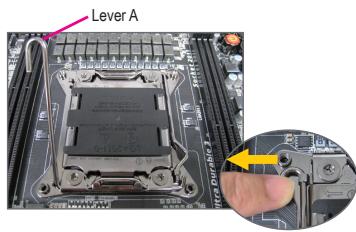
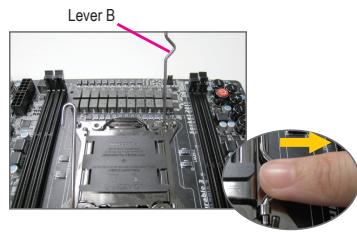
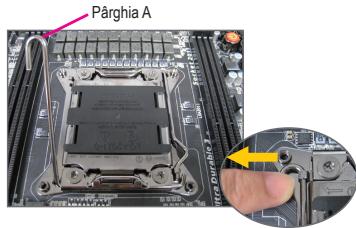
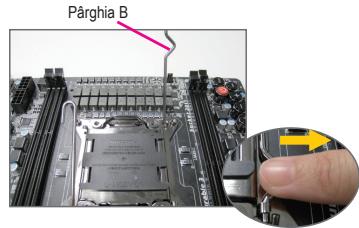
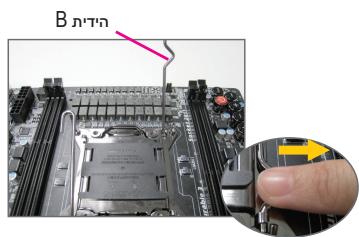
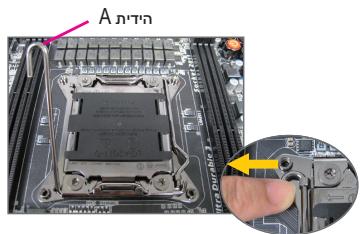
Push lever A (closest to the "□" marking) down and away from the socket to release it. Then push lever B (closest to the "□" marking) down and away from the socket and lift it. Gently press lever A to allow the load plate to rise. Open the load plate.
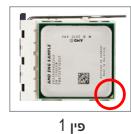
A-2 Hold the CPU with your thumb and index fingers. Align the CPU pin one marking (triangle) with the pin one corner of the CPU socket (or you may align the CPU notches with the socket alignment keys) and gently insert the CPU into position.
A-3 Once the CPU is properly inserted, replace the load plate and push the CPU socket lever back into its locked position. Once the type B is properly inserted, carefully replace the load plate. Then secure lever B under its retention tab. The socket cover may pop off from the load plate during the process of engaging the lever. Finally, secure lever A under its retention tab to complete the installation of the CPU.

For detailed instructions on installing the CPU, please refer to the user's manual.
B. Installing an AMD CPU (skip this step if the motherboard has a built-in CPU)
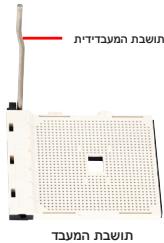
B-1 Completely raise the CPU socket lever. Align the CPU pin one (small triangle marking) with the triangle marking on the CPU socket and gently insert the CPU into the socket. Make sure that the CPU pins fit perfectly into their holes.
B-2 Once the CPU is positioned into its socket, place one finger down on the middle of the CPU, lowering the socket lever and latching it into the fully locked position.


- Do not force the CPU into the CPU socket. The CPU cannot fit in if oriented incorrectly. Adjust the CPU orientation if this occurs.
- DO NOT touch socket contacts. To protect the CPU socket, always replace the protective socket cover when the CPU is not installed.
C. Installing the CPU cooler
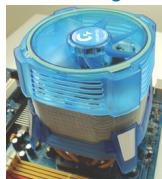
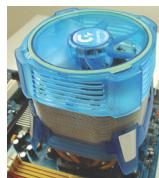
C-1 Before installing the CPU cooler, please first add a thin layer of heat sink paste on the surface of the CPU. Then install the cooler (refer to the installation manual for your CPU cooler).
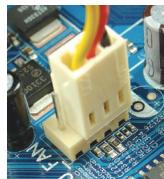
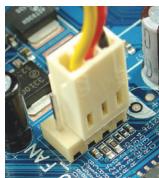
C-2 Connect the CPU cooler cable to the CPU_FAN connector located on the motherboard so that the cooler can properly function to prevent the CPU from overheating.

Installing Memory
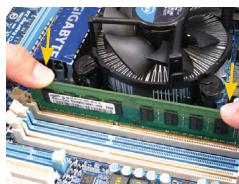
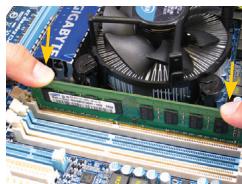
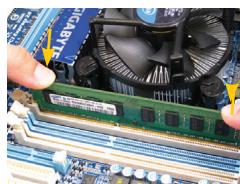
Note the orientation of the memory module. Spread the retaining clips at both ends of the memory socket. Place the memory module on the socket. As indicated in the picture on the left, place your fingers on the top edge of the memory, push down on the memory and insert it vertically into the memory socket. The clips at both ends of the socket will snap into place when the memory module is securely inserted.

Preparing the Case and Installing a Power Supply
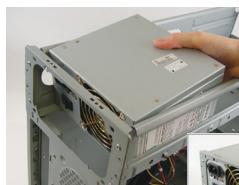
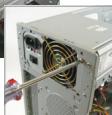
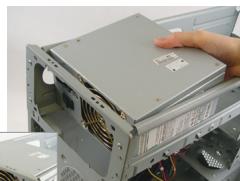
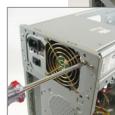
Using the GIGABYTE desktop system as the demonstration example, please first remove both sides and the lid of the case in order to install the power supply. Place the power supply in the correct place in the case and secure it with screws. Installation and placement of the power supply may differ depending on the type of case used.

To ensure sufficient power can be supplied to your system, it is recommended that a power supply of good quality be used. If a power supply is used that does not provide the required power, the result can lead to an unstable or unbootable system.
Step
4
Installing the Motherboard
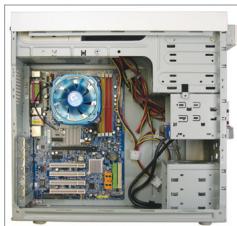
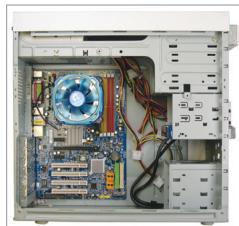
Remove the original I/O shield from the back of the case and replace it with the motherboard I/O shield. Place the motherboard within the case by positioning it into its I/O shield. Align the mounting screw holes on the motherboard with their corresponding mounting holes on the case. Secure the motherboard in place with screws.
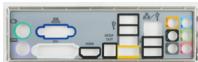
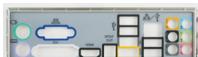
I/O Shield
Step
5
Installing an Expansion Card
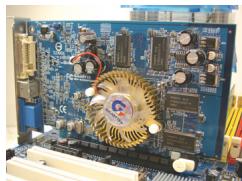
PCI Express Graphics Card
Locate an expansion slot that supports your card and remove the slot cover from the case back panel. Then insert the expansion card into the slot. Secure the expansion card's bracket to the case back panel with a screw.

- Before purchasing an expansion card, check the length of the card, making sure it can fit into your case.
- Make sure that the expansion card is fully seated in its slot.
Step
6
Installing IDE and SATA Devices
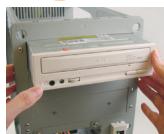
Installing an Optical Drive
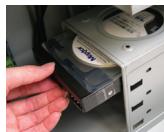
6-1 Install your optical drives, such as DVD-ROM and CD-ROM drives.
Remove the 5.25" drive bay cover from the front of the case. Mount the optical drive in the 5.25" drive bay and secure it with screws.
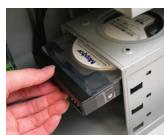
Installing a Hard Drive
6-2 Install your IDE and SATA hard drives.
Install the hard drive into a drive bay within the case and secure it with screws.

- One motherboard IDE connector can connect up to two IDE devices. Prior to installation, check the jumper settings (master and slave) on your IDE devices.
- If more than one hard drive is installed, enter system BIOS Setup to set the hard drive boot sequence.

Connecting Cables to Internal Connectors
7-1 Connect cables to internal connectors and headers on the motherboard, including IDE/SATA connectors, and front panel audio, USB, IEEE 1394 headers, etc.
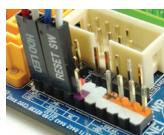
7-2 Attach the front panel module (differs depending on the case design, consisting of power indicator, hard drive activity indicator, speakers, reset switch, power switch, etc.) from the case to the front panel header (F PANEL) on the motherboard.
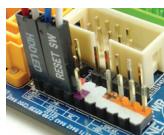
Front Panel Header
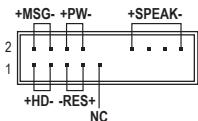
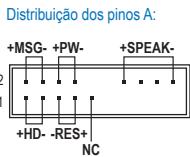
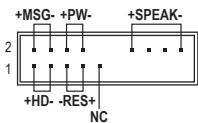
Pin Assignments A:
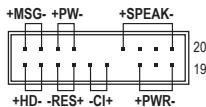
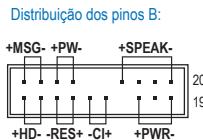
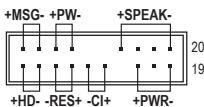
Pin Assignments B:
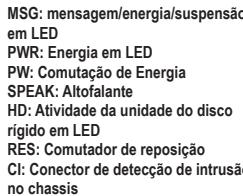
MSG: Message/Power/Sleep LED
PWR: Power LED
PW: Power Switch
SPEAK:Speaker
HD: Hard Drive Activity LED
RES: Reset Switch
Cl: Chassis Intrusion Header
(Note) The pin assignments for the front panel header may differ by model. Refer to the motherboard user's manual for the actual pin assignments.

Connecting Peripherals
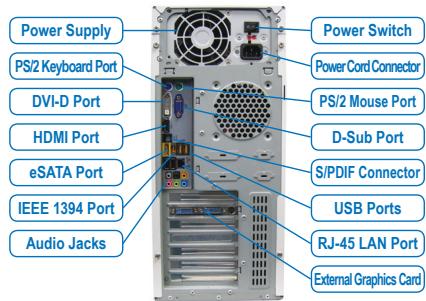
Back Panel of the Case
Once the steps above have been completed, connect the peripheral devices to the computer, such as the keyboard, mouse, monitor, etc. Then connect the power, turn on the system, and install all required software.

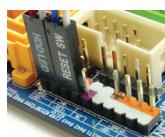
Conector do paine frontal
YctaHOBka CNCTeMHoN pIaTbI
CnHmnte 3aIyUkPy pa3bEmOB BBOda/BbIBOda Ha 3aIHei PaHEni KOpnyCa n yCTAHOBITE Ha ee MeTc OHaHEnb pa3bEmOB BBOda/BbIBOda I3 KOMIIeKTA NOCTABKN CNTeMHOn IPiAtb. YCTAHOBITE CNTeMHHy IPiAty B KOpnyCe, COBMeCTNB pa3bEmbHa 3aIHei PaHEni CNCTeMHOn IPiAte C OTBepCTNMy H aHaHEni BBOda/BbIBOda. COBMeCTNe KpeJexHbIe OTBepCTNc NCTeMHOn IPiAtb C COOTBeTCTByIOUIMN OTBepCTNMy KOpnyCa. 3akpenite CNTeMHHy IPiAty B KOpnyCe IIK c NOMouBv BNHTOB.
3aŋnyuka pa3bEmOB BBOda/BbBOda

YctaHOBka pnaTbI paCwnpeHnA
YCTAHOBKa JKeCTKOrO DnCKa
6-2 YctaHObKa JxcetKOrO IDE-n SATA-dncka
YctaHOBtE JcK Tm DnCK BOTcEK DnIg JcKToKO rCaKCAu 3aKpeNTe ETO BHTAMN.

- Odnpaa3bEm IDE ha cnctemHno nIaTe noIdepxNBAeT dBa IDE-ycTroPCTBa. Npeed yctahOBKOI IDE-ycTroPCTB ONpeDeJIInTe c NOMOJIIO nepeMbIeK COOTBeTCTByUoi n peXIM pa60tbl (master nlin slave).
- EcnBbIyctaHOBINB KOMNbIOTep HeckOJIbKO JcEeTKINДИCKOB, BbI3OBITE MeHIO HAcTpoekBIOS Setup n onpeJeHnTE JcEeTKINДИCK, c KOTOPORo 6ydtarpyxatbcraCtema.

IopKnloueHne ka6eNei K BHyTpeHHM pa3bEmaM
7-1 Подкл�чite Иntерфсьные кабели КВУтpeним pa3ьемам Ha систмов пiate: IDE/SATA, Audio
ha nepedneи paheи, USB, IEEE 1394 n.T.n.
7-2Плдкнчite 3e mentsbHa nepeDnei naHelen Koprnyca PIK (KoJIuYeCTBO n pacnIoNoXeHne 3eMeENTOB 3aBncIT OT MOeHNI Koprnyca; obIyHO, Ha nepeDnei naHelen npCysTcByOT INdNKaTOP nITAHN, INdNKaTOP aKTHBHOCTN JKeCTKOrO DnCKA, DnHaMnK Koprnyca, KhoNkA nepe3aRpy3KN i KhoNkA pNTaHn) K pa3bemy nepeDnei naHelen (F PANEL) ha cIcTeMHoi Pnate.
Pazbem nepeDnei naheIi
Pa3MeueHne KOHTAKTOB:BapnAHT A
PazmeücheNe KOHTAKTOB:Bapnait B
MSG: INHIMKATOP COo6bEmnHa/ PINTAHNOJXOHNDAH
PWR: INDnkaTop nntaHn
PW: Khonka BkHoueHn nTuHn
Adum Bellegin Kurulumu
Push lever A (closest to the "□" marking) down and away from the socket to release it. Then push lever B (closest to the "□" marking) down and away from the socket and lift it. Gently press lever A to allow the load plate to rise. Open the load plate.
A-2 Hold the CPU with your thumb and index fingers. Align the CPU pin one marking (triangle) with the pin one corner of the CPU socket (or you may align the CPU notches with the socket alignment keys) and gently insert the CPU into position.
A-3 O data ce CPU-ul este introdus corect, asezati din nou placuţa de metal Şi impingeti braţul sociului de CPU inapo in positia blocă.
PWR: LED pornography
PW: Intrerupātār de alimentare
SPEAK: Difuzor
HD:LED activate hard disk
RES: Intrerupator de reinitializare
IDE-n npnn (Jumper) (slave-master)
wnn BIOs-nnnn nn nnnn nn nnnn nn

.
(wnnn nn nnnn nn nnnn nn nnnn nn nnnn nn nnnn nn
ywnn nnnn nn nnnn nn nnnn nn nnnn nn nnnn nn nnnn nn nnnn nn nnnn nn nnnn nn nnnn nn nnnn nn nnnn nn nnnn nn nnnn nn nnnn nn nnnn nn nnnn nn nnnn nn nnnn nn nnnn nn nnnn nn nnnn nn nnnn nn nnnn nn nnnn nn nnnn
.
n, Tyn n nnynnnnnnnnnnnnnnnnnnnnnnnnnnnnnnnnnnnnnnnnnnnnnnnnnnnnnnnnnnnnnnnnnnnnnnnnnnnnnnnnnnnnnnnnnnnnnnnnnnnnnnnnnnnnnnn
n nnnn nn nnnn nn nnnn nn nnnn nn nnnn nn nnnn nn nnnn nn nnnn nn nnnn nn nnnn nn nnnn nn nnnn nn nnnn nn nnnn nn nnnn nn nnnn nn nnnn nn nnnn nn nnnn nn nnnn nn nnnn nn nnnn nn nnnn nn
.

n nn nnnnnnnnnnnnnnnnnnnnnnnnnnnnnnnnnnnnnnnnnnnnnnnnnnnnnnnnnnnnnnnnnnnnnnnnnnnnnnnnnnnnnnnnnnnnnnnnnnn
Taynn npn .
y nnnn nn nnnn nn nnnn nnnn nnnn nnnn nnnn nnnn nnnn nnnn nnnn nnnn nnnn nnnn nnnn nnnn nnnn nnnn nnnn nnnn nnnn nnnn nnnn nnnn nnnn nnnn nnnn nnnn nnnn nnnn nnnn nnnn nnnn nnnn nnnn nnnn nn
Pn Pn nnnn nnnn nnnn nn nnnn nnnn nnnn nnnn nnnn nnnn nnnn nnnn nnnn nnnn nnnn nnnn nnnn nnnn nnnn nnnn nnnn nnnn nnnn nnnn nnnn nnnn nnnn nnnn nnnn nnnn nnnn nnnn nnnn nnnn nnnn nnnn nnnn nnnn
1-

y
nD 90 nnnn nn
3
n nn nnnnnnnnnnnnnnnnnnnnnnnnnnnnnnnnnnnnnnnnnnnnnnnnnnnnnnnnnnnnnnnnnnnnnnnnnnnnnnnnnnnnnnnnnnnnnnnnnnnnnnnnnnnnnnnnnnnnnnnnnnnnnnnnn
n nnnnnnnnnnnnnnnnnnnnnnnnnnnnnnnnnnnnnnnnnnnnnnnnnnnnnnnnnnnnnnnnnnnnnnnnnnnnnnnnnnnnnnnnnnnnnnnnnnnnnnnnnnnnnnnnnnnnnnnnnnnnnnnnnnnnnnnnnnnnnnn

nni nnnn nn nnnn nnnn nnnn nnnn nnnn nnnn nnnn
.
.9nnn nn nnnn nn nnnn nn nnnn nn nnnn
wannnnn nn nnnn nn nnnnnnnnnnnnnnn
n nn nnnnnnnnnnnnnnnnnnnnnnnnnnnnnnnnnnnnnnnnnnnnnnn
nynnnnnnn
n nn nnnnnnnnnnnnnnnnnnnnnnnnnnnnn

NOTE

Taynn TAYNN

(nnnn nn nnnnnnnnnnnnnnnnnnnnnnnnnnnnnnnnnnnnnnnnnnnnnnnnnnnnnnnnnnnnnnnnnnnnnnnnnnnnnnnnnnnnnnnnnnnnnnnnnnnnn
1
:A
n nn nnnnnnnnnnnnnnnnnnnnnnn
nnn nixon,ynnn nevin pinn nn nwn yann o0 a.
aon nnonn onnn nn npnn npnn npnn b.
ywn nn nnnn nn nnnn nn nnnn nn nn nn nn nn
TNNNOONN
:Bao
Bn nnnn nn nnnnnnnnnnnnnnnnnnnnnnnnnnnnnnnnnnnnnnnnnnnnnnnnnnnnnnnnnnnnnnnnnnnnnnnnnnnnnnnnnnnnnnnnnnnnnnnnnnnnnnnnnnnnnnnnnnnnnnnnn
yipn nnh nx nn9.naiipnn nyipn
n nn nnnnnnnnnnnnnnnnnnnnnnnnnnnnnnnnnnnnnnnnnnnnnnnnnnnnnnnnnnnnnnnnnnnnnnnnnnnnnnnnnnnnnnnnnnnnnnnnnnnnnnnnnnnnnnnnnnnnnnnnnnnnnnnnnnnnnnnnnnn
B 100000000000000000000000000000000000000000000000000000
.ynnnn
wnnnn nn nnnnnnnnnnnnnnnnnnnnnnnnnnnnnnnnnnnnnnnnnnnnnnnnnnnnnnnnnnnnnnnnnnnnnnnnnnnnnnnnnnnnnnnnnnnnnnnnnnnnnnnnn

- Installing a CPU and CPU Cooler
- Installing an Intel CPU (skip this step if the motherboard has a built-in CPU)
- Installing an AMD CPU (skip this step if the motherboard has a built-in CPU)
- Installing the CPU cooler
- Installing Memory
- Preparing the Case and Installing a Power Supply
- Step
- 4
- Installing the Motherboard
- 5
- Installing an Expansion Card
- 6
- Installing IDE and SATA Devices
- Connecting Cables to Internal Connectors
- Connecting Peripherals
- YctaHOBka CNCTeMHoN pIaTbI
- YctaHOBka pnaTbI paCwnpeHnA
- IopKnloueHne ka6eNei K BHyTpeHHM pa3bEmaM
- Adum Bellegin Kurulumu
- (wnnn nn nnnn nn nnnn nn nnnn nn nnnn nn nnnn nn
- Taynn npn .
- nD 90 nnnn nn
- Taynn TAYNN
- (nnnn nn nnnnnnnnnnnnnnnnnnnnnnnnnnnnnnnnnnnnnnnnnnnnnnnnnnnnnnnnnnnnnnnnnnnnnnnnnnnnnnnnnnnnnnnnnnnnnnnnnnnnn
Brand : GIGABYTE
Model : GA-F2A55M-HD2
Category : Motherboard