GV-N57128DE - Graphic card GIGABYTE - Free user manual and instructions
Find the device manual for free GV-N57128DE GIGABYTE in PDF.


User questions about GV-N57128DE GIGABYTE
0 question about this device. Answer the ones you know or ask your own.
Ask a new question about this device
Download the instructions for your Graphic card in PDF format for free! Find your manual GV-N57128DE - GIGABYTE and take your electronic device back in hand. On this page are published all the documents necessary for the use of your device. GV-N57128DE by GIGABYTE.
USER MANUAL GV-N57128DE GIGABYTE
Copyright by GIGA-BYTE TECHNOLOGY CO., LTD. ("GBT"). No part of this manual may be reproduced or transmitted in any form without the expressed, written permission ofGBT.
Trademarks
Third-party brands and names are the property of their respective owners.
Notice
Please do not remove any labels on VGA card, this may void the warranty of this motherboard.
Due to rapid change in technology, some of the specifications might be out of date before publication of this booklet.
The author assumes no responsibility for any errors or omissions that may appear in this document nor does the author make a commitment to update the information contained herein.
Table of Contents
1. Introduction 3
1.1 FEATURES 3
1.2. Minimum system requirement 3
2.Hardware Installation 4
2.1.Unpacking 4
2.2. Board layout 5
2.3.Hardware installation 7
3. Software Installation 9
3.1. WinXP driver and utilities installation 9
3.1.1. Operating system requirement 9
3.1.2.DirectXinstallation 10
3.1.3.Driver installation 12
3.1.4. Utilities on driver CD 16
3.1.5. Taskbaricon 18
3.1.6.Display properties pages 21
3.1.7.nView properties pages 26
3.2. Win® 98/98SE / Win® 2000 / Win® ME driver installation 31
3.3.BIOS flash utility 31
4. Troubleshooting Tips 32
5. Appendix 33
5.1.How toreflash theBIOS 33
5.2. Resolutions and color depth table (In Windows XP) 34
1. Introduction
1.1. Features
- Powered by nVIDIA GeForce FX 5700 Graphics Processing Unit (GPU)
Supports the new AGP 8X standard - Integrated with 128MB DDR memory(For GV-N57128DE only)
- Integrated with 256MB DDR memory(For GV-N57256DE/GV-N57256V only)
Supports D-Sub and DVI-I connectors
Supports TV-Out connectors(For GV-N57128DE/GV-N57256DE only)
Supports video capture for video editing (VIVO)(For GV-N57256V only)
Supports Direct X 9.0 Spec
1.2. Minimum system requirement
- IBM® or 100% PC compatible with Pentium® III 650MHz or AMDAthlon 650MHz class processor or higher
One available AGP3.0 compliant slot or better - Operating Systems Win® 98/98SE / Win® 2000 / Win® ME / Win® XP
64MB system memory
50MB of available disk space for full installation
CD-ROM or DVD-ROM drive
2. Hardware Installation
2.1.Unpacking
The GV-N57 Series package contains the following:
The GV-N57128DE or GV-N57256DE or GV-N57256V graphics accelerator
GV-N57 Series user's manual
NVIDIA Series driver and utility CD
Power DVD CD
Game CD
DVI-I to D-Sub connector
TV-Out cable x 1(For GV-N57128DE/GV-N57256DE only)
S-video and AV in/output cable x1 (For GV-N57256V only)
Power Director CD (For GV-N57256V only)

Expansion cards contain very delicate Integrated Circuit (IC) chips. To protect them against damage from static electricity, you should follow some precautions whenever you work on your computer.
- Turn off your computer and unplug power supply.
- Use a grounded wrist strap before handling computer components. If you do not have one, touch both of your hands to a safely grounded object or to a metal object, such as the power supply case.
- Place components on a grounded antistatic pad or on the bag that came with the components whenever the components are separated from the system.
The card contains sensitive electric components, which can be easily damaged by static electricity, so the card should be left in its original packing until it is installed.
Unpacking and installation should be done on a grounded anti-static mat. The operator should be wearing an anti-static wristband, grounded at the same point as the anti-static mat.
Inspect the card carton for obvious damage. Shipping and handling may cause damage to your card. Be sure there are no shipping and handling damages on the card before proceeding.
DO NOT APPLY POWER TO YOUR SYSTEM IF IT HAS BEEN DAMAGED ON THE CARD.
In order to ensure your graphics card working correctly, please use official Gigabyte BIOS only. Use none official gigabyte BIOS might cause problem on the graphics card.
2.2. Board layout
1) GV-N57128DE
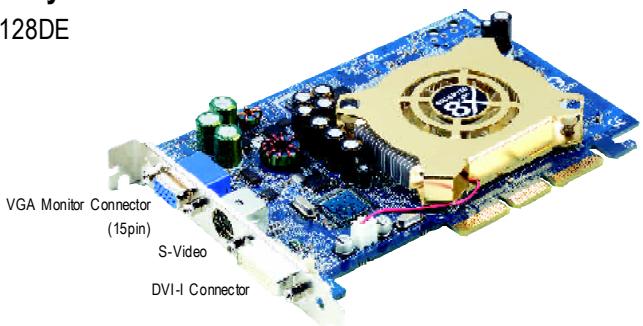
2) GV-N57256DE
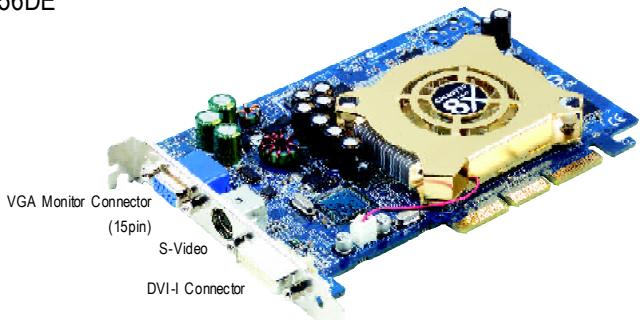
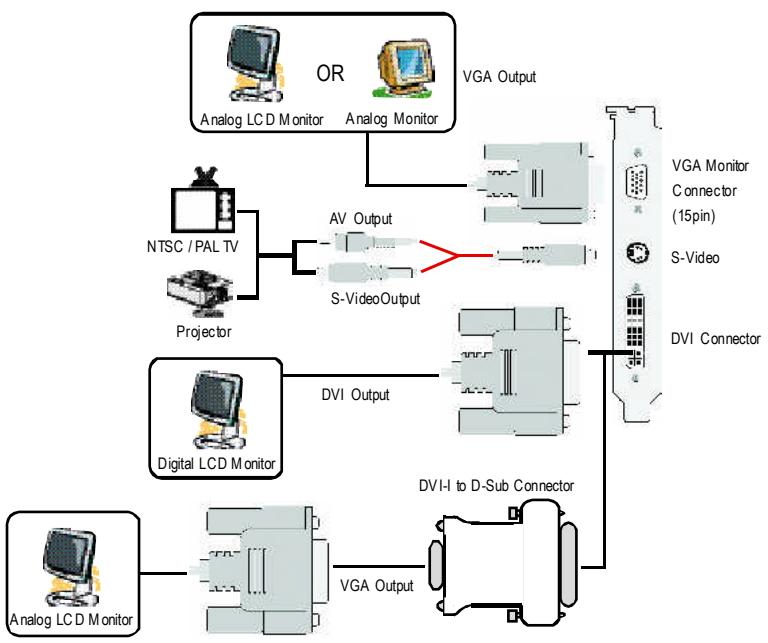
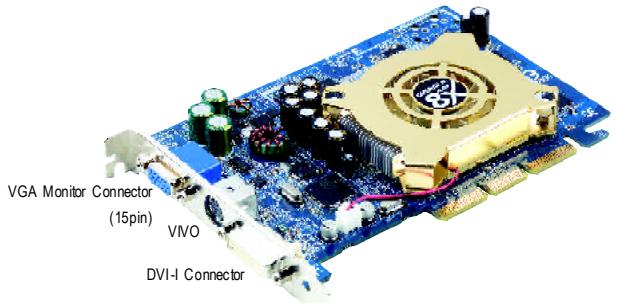
3) GV-N57256V
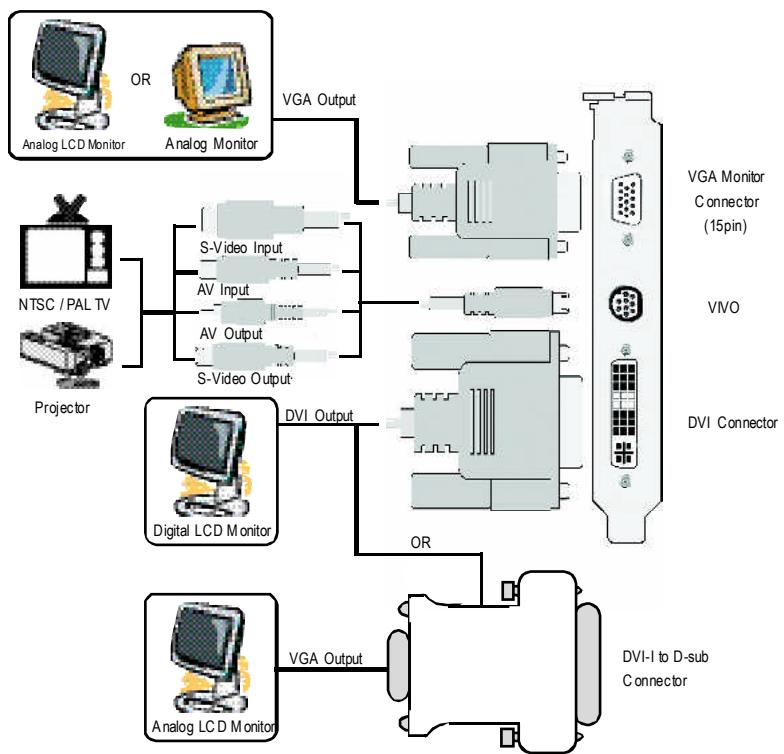
2.3. Hardware installation
Installing Your graphics card.
Now that you have prepared your computer, you are ready to install your graphics accelerator card.
To install your graphics accelerator card:
- Power off the computer and monitor, then disconnect the display cable from the back of your computer.
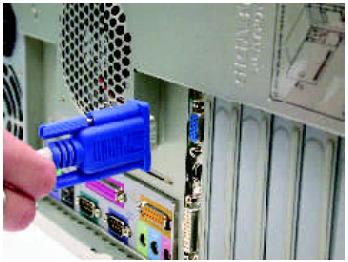
- Remove the computer cover. If necessary, consult your computer's manual for help in removing the cover.
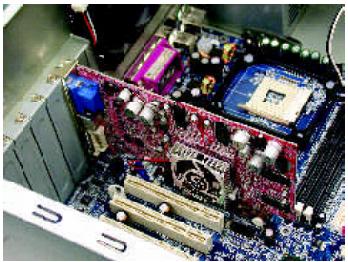
- Remove any existing graphics card from your computer.
Or, if your computer has any on-board graphics capability, you may need to disable it on the motherboard. For more information, see your computer's documentation.
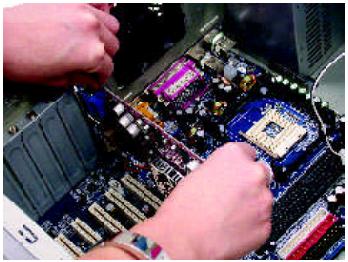
- Locate the AGP slot. If necessary, remove the metal cover from this slot; then align your graphics card with the AGP slot, and press it in firmly until the card is fully eated.
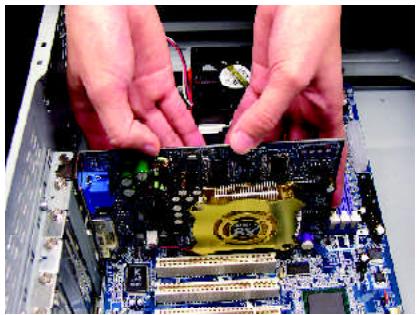
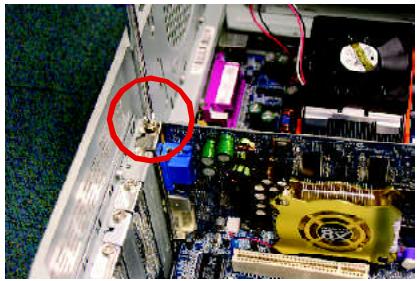
- Replace the screw to fasten the card in place, and replace the computer cover.
- Plug the display cable into your card; then turn on the computer and monitor. If your graphics card came with a DVI connector, you can connect a flat panel display to the appropriate connector, as shown below...
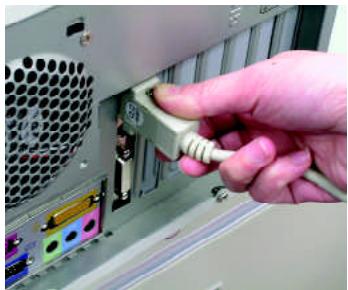

To VGA Monitor

To TV or VCR (For GV-N57128DE/GV-N57256DE only)

9 Pin(VIVO) (For GV-N57256V only)

To Flat Panel Display
You are now ready to proceed with the installation of the graphics card driver. For detailed instructions, select your operating system from the list below.
3. Software Installation
In this manual, we assume that your CD-ROM Drive letter to be Drive D:
The installation of Win® 98/98SE / Win® 2000 / Win® ME / Win® XP drivers is very simple. When you insert the driver CD into your CD-ROM drive, you can see the AUTORUN window (if it does not show up, run "D:\setup.exe"). Then you can follow the guides to setup your graphics card driver. (Please follow the subsection 3.1.3 "Driver installation" to install the driver for your graphics accelerator.)
3.1. Win® XP driver and utilities installation
3.1.1. Operating system requirement
- When loading the graphics card drivers for the system, please make sure your system has installed DirectX8 or later version.
- If you install the graphics card drivers for the motherboard, which consist of SIS, ALI or VIA chipsets, please install the appropriate driver program for that motherboard. Or please contact your motherboard nearest dealer for motherboard driver.
3.1.2. DirectX installation
Install Microsoft DirectX to enable 3D hardware acceleration support for Windows® 98/ 98SE/Windows® 2000/Windows®ME or Windows®XP to achieve better 3D performance.

Note: For software MPEG support in Windows® 98/98SE/Windows® 2000/Windows® ME or Windows® XP, you must install DirectX first.
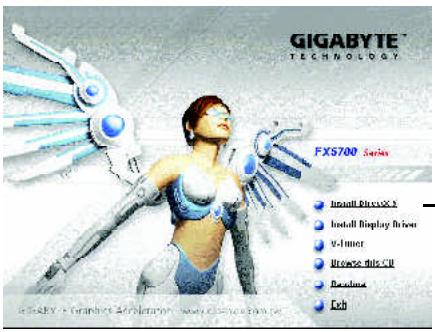
Click "Install DirectX 9" item.
Step 1. When autorun window show up, click Install DirectX 9 item.

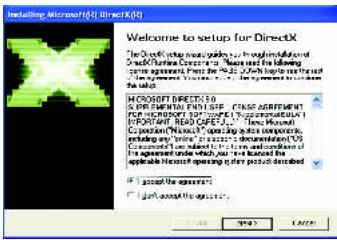
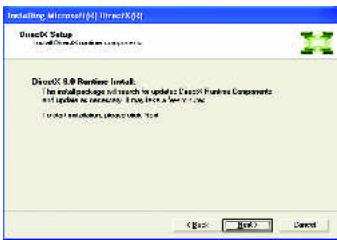
Step 2. Choose I accept the agreement and Click "Next" button.

Step 3. Click "Next" button.

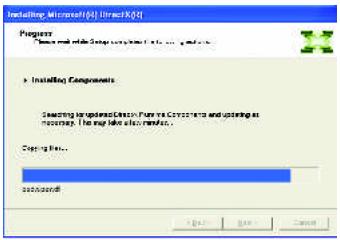
Installing the components.

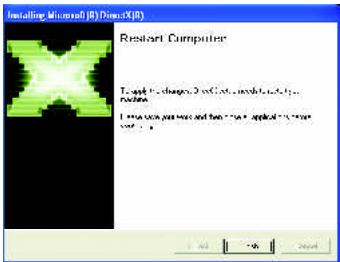
Step 4. Click "Finish" to restart computer. Then the DirectX 9 installation is completed.
3.1.3. Driver installation
A. New hardware found
After the graphics card is inserted into your computer at the first time, the windows will automatically detect a new hardware in the system and pop out a "New Hardware Found" message. The following is the step-by-step installation guide.
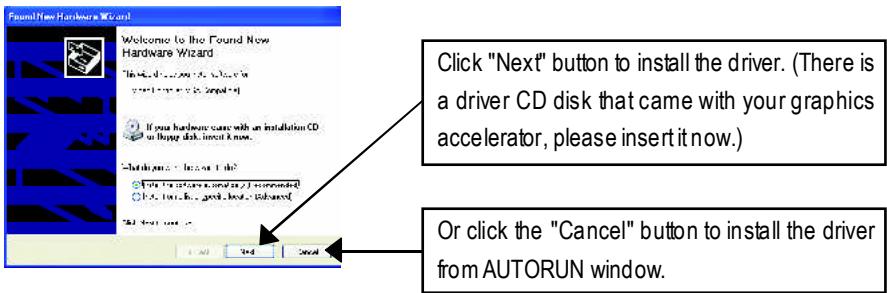
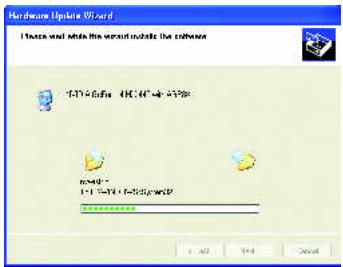
Step 1: Found new hardware wizard: Video controller (VGACompatible)
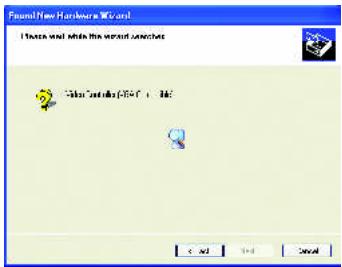
Step 2: Found new hardware wizard: Searching and installing
The wizard will search for the driver and install it automatically.
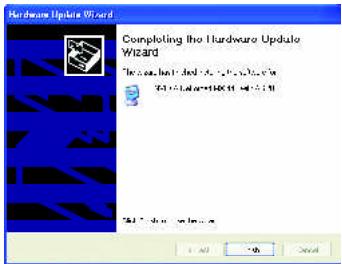
Step 3: Found new hardware wizard: Finish
Click the "Finish" button to finish the installation.
B. Driver installation (Autorun Window)
Insert the driver CD disk into your CD-ROM, and then you can see theAUTORUN window. If it does not show up, please run "D:\setup.exe".

Step 1. When autorun window show up, click Install Display Driver item.
- Click "Install Display Driver" item.
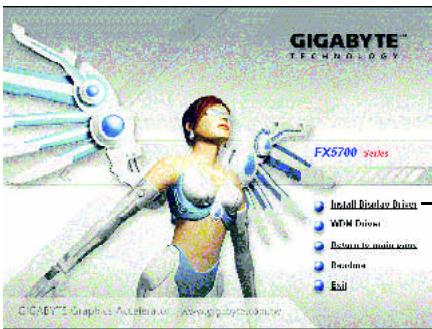

Click "Install Display Driver" item.
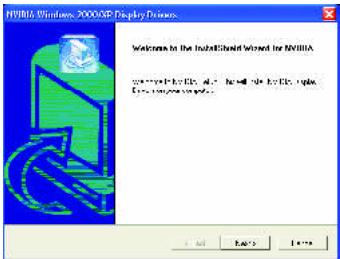

Step 2. Click "Next" button.
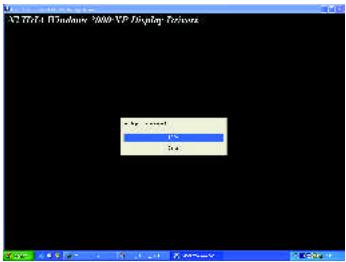
Windows installings the components.


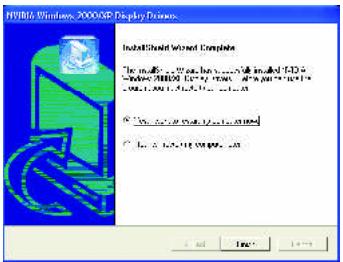
Step 3. Click "Finish" button to restart computer. Then the driver installation is completed.
C. Driver installation (WDM Driver)(For GV-N57256V only)
Insert the driver CD disk into your CD-ROM, and then you can see theAUTORUN window. If it does not show up, please run "D:\setup.exe".
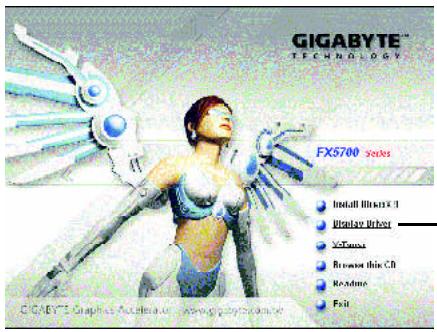
Step 1. When autorun window show up, click Install Display Driver item.
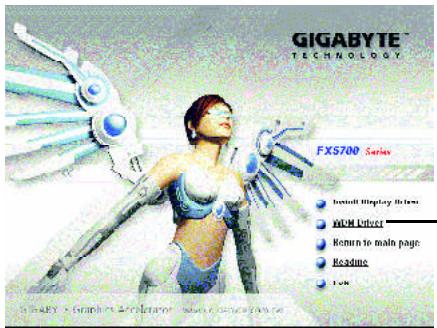

Click "WDM Driver" item.
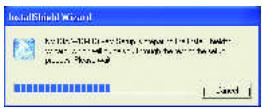


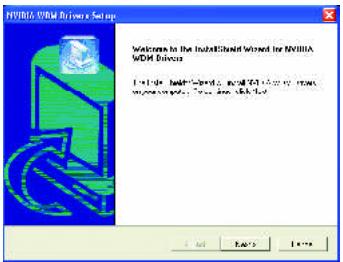
Step 2. Click "Next" button.

Windows installings the components.

Step 3. Click "Finish" button to restart computer. Then the driver installation is completed.
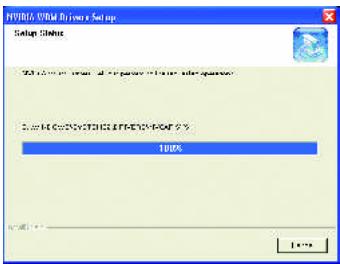
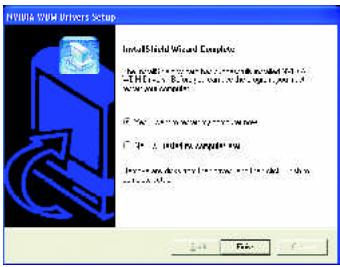
- Please notice that the WDM driver is only for Windows XP.
3.1.4. Utilities on driver CD
Insert the driver CD disk into your CD-ROM, and then you can see theAUTORUN window. If it does not show up, please run "D:\setup.exe".
Install V-Tuner:
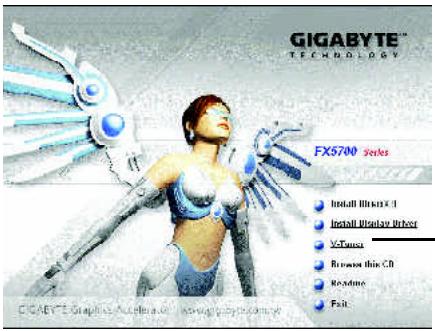
Click "V-Tuner" item.
Step 1. When autorun window show up, click V-Tuner item.
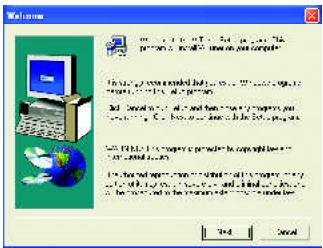
Step 2. Click "Next" button.
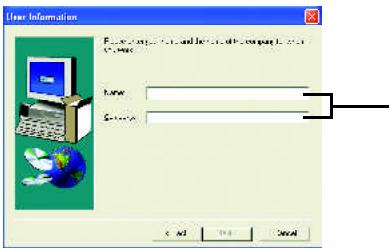
Step 3. Enter your name and company.
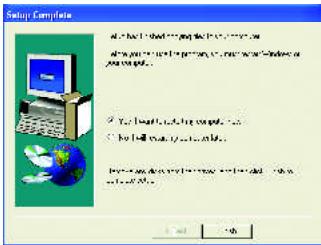

Step 4. Click "Finish" button to restart computer. Then the V-Tuner installation is completed.
V-Tuner lets you adjust the working frequency of the graphic engine and video memory (Core Clock and Memory Clock).
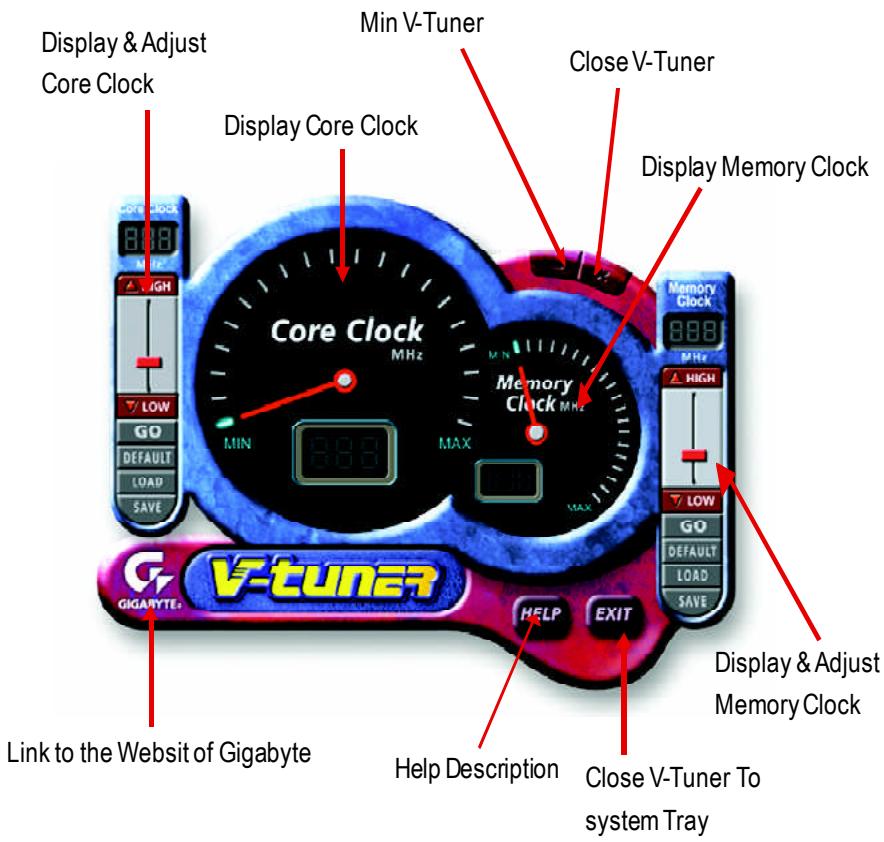
3.1.5. Taskbar icon
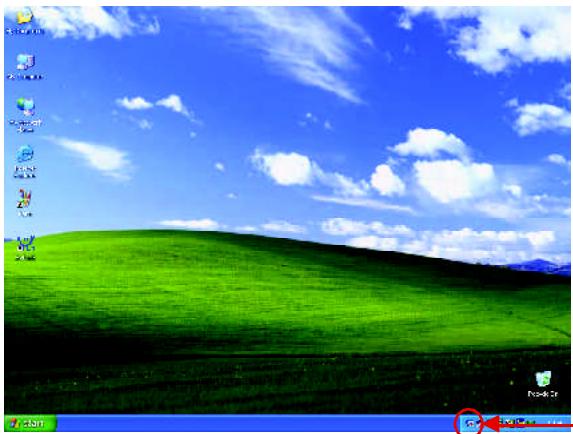
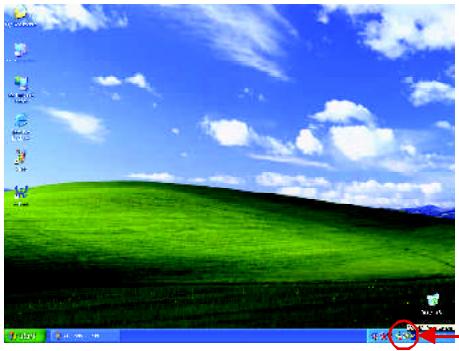
After installation of the display drivers, you will find a GBT icon on the taskbar's status area. Right-clicking this icon opens the GBT control panel, showing a menu composed of shortcut of the graphics card's enhanced and other functions.
You may click the "Display Properties" item, and then click Settings. Click "Advanced" after clickng Settings. Click the appropriate tab to change your display settings.

m = 311
Right click the icon.
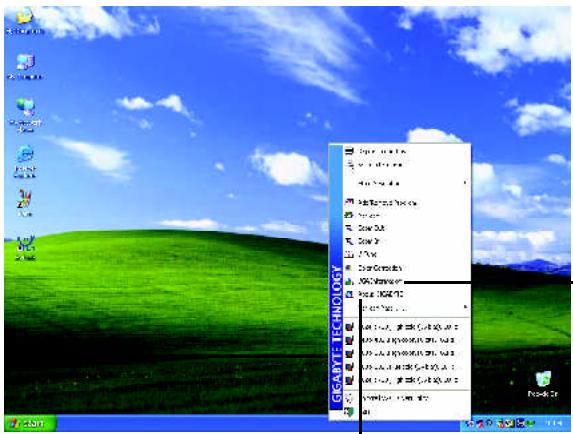
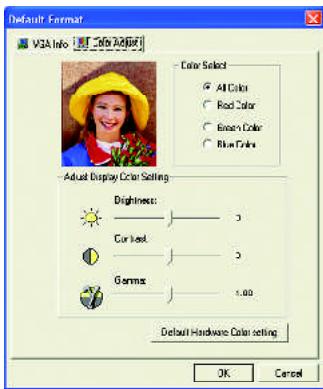
Click "VGA Information" item into the "VGA Info" and "Color Adjust" tabs.
You can link to GBT website for updated information about the graphics accelerator, latest drivers, and other information.
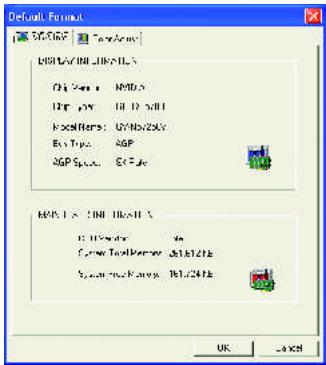
VGA Information
VGA Info lists the relevant information about your card.
ColorAdjust
Color Adjust allows you to make color adjustments, such as brightness, contrast and gamma values for each or all of RGB colors.
After installation of the display drivers, you will find a NVIDIA icon on the taskbar's status area. Clicking this icon open the control panel.
Right click the icon.
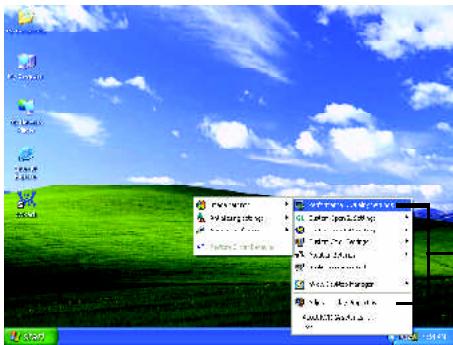
You can adjust the properties of the graphics accelerator from here.
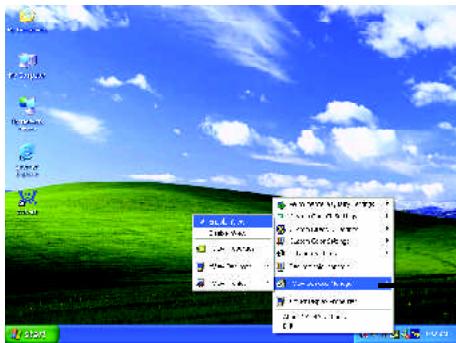
You can enable the nView function.
3.1.6. Display properties pages
The screen shows the information of display adapter, color, the range of display area and the refresh rate.
Settings (Resolutions and Color depth for windows)
The Setting properties page allows you to adjust the screen resolution and color quality settings.
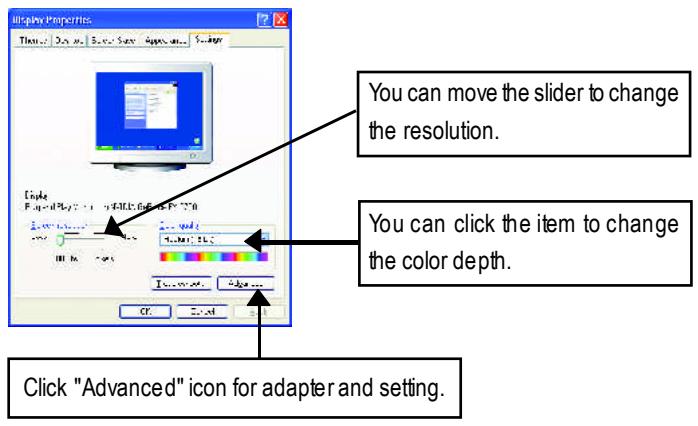
Click "Advanced", into details settings:
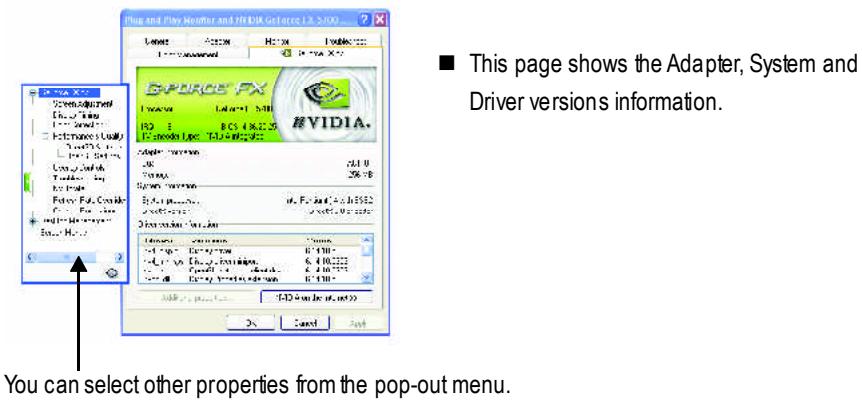
Screen Adjustment properties
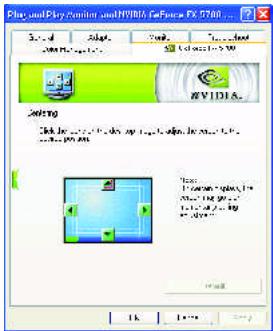
- Click the icons on the desktop image to adjust the screen to the desired position.
Note: On certain monitors, the screen may go blank momentarily during adjustment.
Display Timing properties
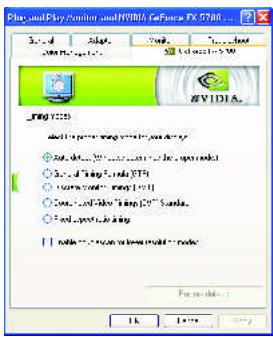
-
Select the proper timing mode for your display.
-
Auto-Detect (Windows determines the proper mode.)
- General Timing Formula (GTF)
- Discrete Monitor Timings (DMT)
- Coordinated Video Timings (CVT) Standard
Fixed aspect ratio timings - Enable/Disable doublescan for lower resolution modes
Color Correction properties
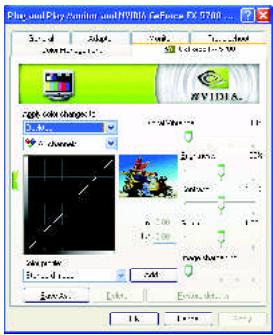
The Color Correction Properties is used to adjust the color settings. It also allows gamma control for video playing of the Video Overlay. The color settings affect all display devices mapped to the view. You can change red, green, and blue display colors. Set Desktop and Video Overlay brightness (gamma) levels can also be changed.
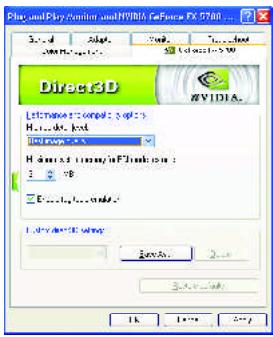
Direct3D Settings properties
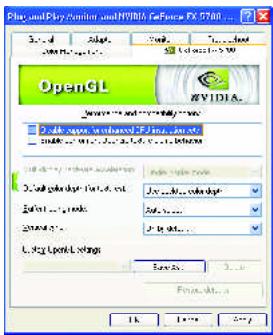
OpenGL Settings properties
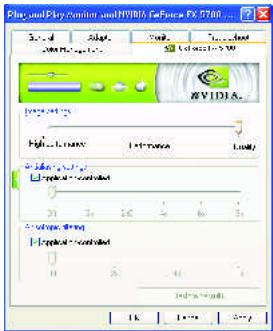
The sliders lets to decide whether your application should use quality or high performance texture.
- Image Settings: Moving the slider to the left will maximize application performance, while moving the slider to the right will provide excellent 3D image quality.
- AntialIASing settings: Improves image quality by removing jagged edges from 3D images.
- Anisotropic Filtering: Use a texture filtering technique that blends multiple texture samples together. It will result in high quality textures, with a negligible reduction in the application's performance.
Performance and Compatibility options.
- Mipmap detail level
Maximum system memory for PCI mode textures - Enable fog table emulation
- Custom Direct3D settings
Performance and Compatibility options.
- Disable support for enhanced CPU instruction sets.
- Enable conformant OpenGL texture clamp behavior.
Multi-Display Hardware Acceleration - Default Color Depth (for textures)
- Buffer-Flipping Mode
Vertical Sync - Custom OpenGL settings
Overlay Controls properties
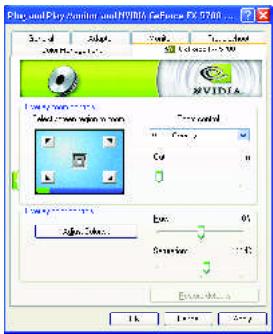
Trobeshooting properties
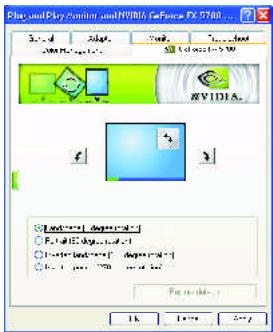
NVRotate properties
The Overlay Controls Properties is used to adjust the Brightness / Contrast / Hue / Saturation settings. Overlay properties allows for the viewing of full-motion video on your PC. However, there is only one video overlay, which is only available on the Primary display. The video overlay controls are automatically activated during playback of any video file type that supports overlay adjustments.
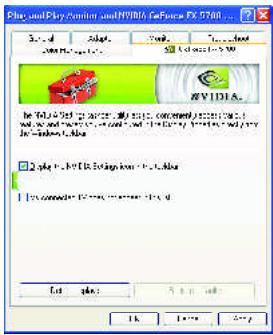
The NVIDIA settings taskbar utility lets you conveniently access various features and preset you've configured in the Display Properties directly from the Windows taskbar.
- Display the NVIDIA Settings icon in the taskbar
The Desktop Manager provides enhanced nView multi-display functionality and helps you organize your applications for use with multiple displays and desktops.
- My connected TV does not appear in this list.
The NV Rotate Properties is used to rotate the screen. If your monitor is capable of operating in either Landscape or Portraitmode, you can adjust the screen by this properties.
- Landscape (0 degree rotation)
- Portrait (90 degree rotation)
- Inverted Landscape (180 degree rotation)
- Inverted Portrait (270 degree rotation)
Refresh Rate Override properties
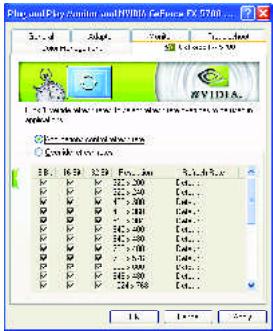
- Click "Override refresh rates" to select refresh rate overrides to be used in Direct3D applications.
Change Resolutions properties
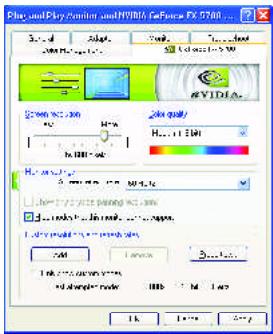
The Change Resolutions Properties allows you to adjust the screen resolution, color quality and monitor settings (screen rdfresh rates). Or you can customize resolutions and refresh rates.
Screen Menus properties
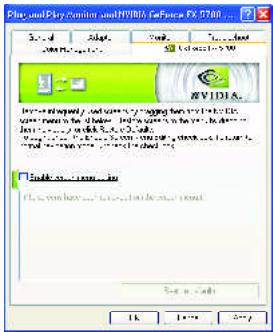
The Screen Menu Properties can remove infrequently used screens by dragging them from the screen menu to the list below. Restore screens to the menu by dragging them individually, or click Restore Defaults.
To begin, check the Enable screen menu editing check box. To return to normal navigation mode, uncheck the check box.
3.1.7. nView properties pages
nView is a set of desktop tools designed to help you be more productive when using your graphics card. Using nView you can set up multiple desktops to work with your applications. Multiple desktops give you extra desktop areas on which to run your applications so you won't have to crowd several open application windows on one desktop. You can click on the NVIDIA icon on the taskbar's to enable the nView or choose the Display Properties\Advanced\Desktop Management.
Access nView properties page:
A: right click icon\nView Desktop Manager\nView Properties
B: Choose Display Properties\Advanced\ GeForce tab\Desktop Management

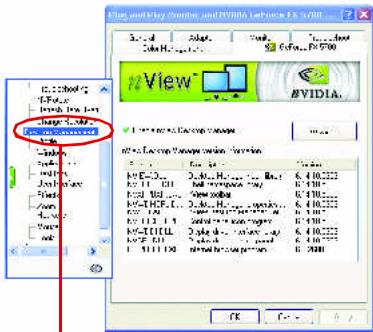
Click the item to start nView Properties.
nView Desktop Management properties

This tab contains information about the nView Desktop Manager. The setup wizard can also be accessed from this tab.
nView Profile properties
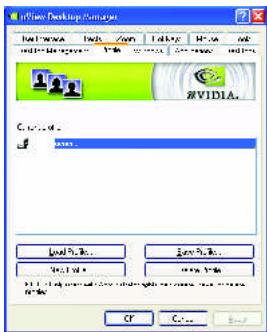
This tab contains a record all nView display settings for easy software setup.
nView Windows properties
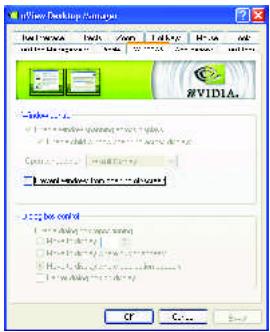
This tab allows you to control of window and dialog box placement when using multiple monitors.
nViewApplications properties
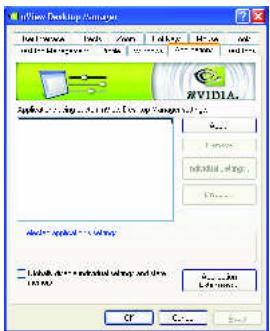
This tab allows you to control nView settings on a per application basis.
nViewDesktops properties
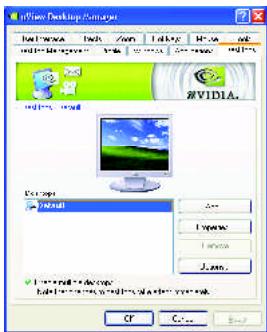
This tab allows you to create up to 32 unique desktops.
nViewUserInterfaceproperties

This tab allows customization of the nView user interface.
nViewEffectsproperties
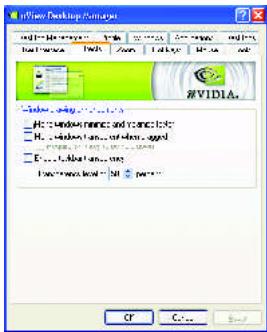
This tab provides special windows effects that you can apply to your applications.
nViewZoom properties
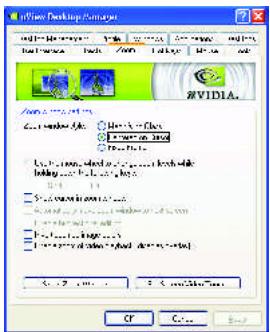
This tab provides dynamic zoom functionality on the desktop. Also enables full screen video playback via the video mirroring control button.
nView Hot Keys properties
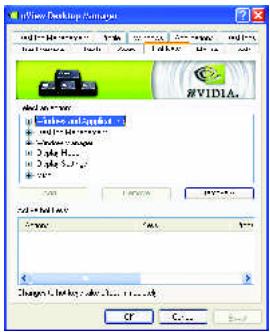
This tab lets you perform various actions with shortcut keys or key combinations.
nView Mouse properties
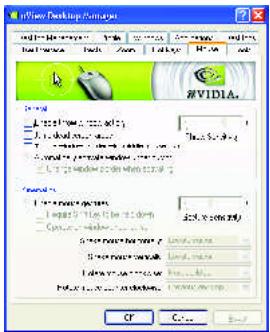
This tab can modify and extend mouse behavior with kinematic actions.
nView Tools properties
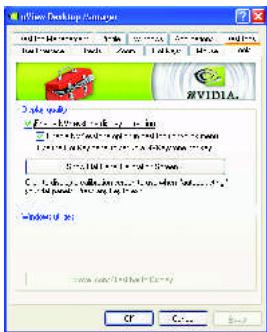
This tab can improve nView functionality for mobile and desktop users.
3.2. Win® 98/98SE / Win® 2000 / Win® ME driver installation
Please make sure the Windows have installed Windows Service Pack version 2 (or later) before installing the graphics accelerator driver.
With Windows running on your computer, you need to install the graphics card driver to take advantage of the higher performance, resolutions, and special graphics features of the graphics card. To ensure you install the latest driver, insert the Installation CD that shipped with your graphics card.
To install the graphics card driver for Win® 98/98SE / Win® 2000 / Win® ME, please insert the Installation CD. Then the AUTORUN window will show up. Click Install Display Driver item, and follow the wizard to install the driver.
If Windows® does not show the CD automatically, please run following steps:
- Click the Start button on the control bar.
- Select Run.
- Type the following: D:\SETUP.exe (If D is not your CD-ROM drive, substitute D with the correct drive letter.)
- Click "OK".
- Click on "Install Display Drivers" to begin the Installation Wizard.
- Click "Next".
- Click "Yes" to the license agreement.
- Follow the Wizard's on-screen instructions to complete the installation.
3.3. BIOS flash utility
BIOS update procedure:
Note: Please download the newest BIOS from our website (www.gigabyte.com.tw) or contact your local dealer for the file.
- If you want to realize the BIOS flash information, please refer to detail on subsection 5.1. "How to reflash the BIOS".
4. Troubleshooting Tips
The following troubleshooting tips may help if you experience problems. Contact your dealer or GBT for more advanced troubleshooting information.
Check that the card is seated properly in the AGP slot.
■ Ensure that the display cable is securely fastened to the card's display connector.
Make sure that the monitor and computer are plugged in and receiving power.
If necessary, disable any built-in graphics capabilities on your motherboard. For more information, consult your computer's manual or manufacturer.
(NOTE: Some manufacturers do not allow the built-in graphics to be disabled or to become the secondary display.)
Make sure you selected the appropriate display device and graphics card when you installed the graphics driver.
If you have problems during bootup, start your computer in Safe Mode. In Windows® 98 SE and Windows® Me, press and hold the CTRL key until the Microsoft® Windows® Startup Menu appears on the screen. Then select the number for Safe Mode, and press Enter. (You can also use F8 to bring up the Microsoft Windows® Startup Menu.) In Safe Mode, bring up the Device Manager and check for duplicate display adapter and monitor entries if you are only using one graphics card.
For more assistance, use the Troubleshooting Guide located in the Windows® Help or contact your computer manufacturer.

If necessary, adjust your monitor's setting by monitor's adjust panel to make the screen looks focused, crisp, and sharp. (Please refer to the monitor's manual.)
5. Appendix
5.1. How to reflash the BIOS

We use GV-N4464D VGA card and NVFLASH BIOS flash utility as example.
How to reflash the BIOS for your graphics card?
- Extract the Zip file to the drive C: or A:
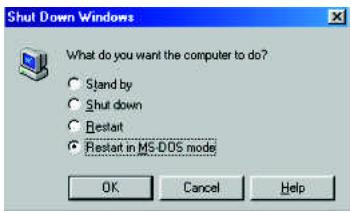
- Restart your PC in MS-DOS mode.
(This function only for Windows 98/98SE, If your OS is Windows 2000/ Windows ME/ Windows XP. Please use the bootable disk to MS-DOS mode.)
- Change the command path to the file location C:> or A:>
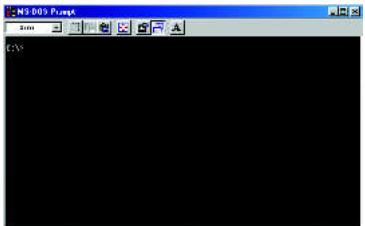
- Backup BIOS command : C:>nvflash -b
- Reflash BIOS command as below : C:> nvflash -f
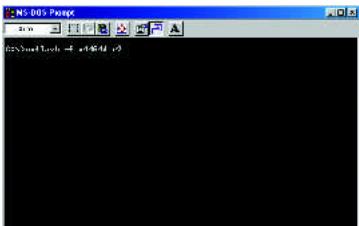
- Reboot your PC when it's done.
5.2. Resolutions and color depth table (In Windows® XP)
GV-N57128DE/GV-N57256DE/GV-N57256V Single Display Standard Modes
| Display | Refresh | Color Depth (bpp) | ||
| Screen | Rate | 8bpp(256 color) | 16bpp(65K color) | 32bpp(16.7M) |
| Resolution | (Hz) | Standard mode | High mode | True mode |
| 320 x 200 | 60 | ✓ | ✓ | ✓ |
| 70 | ✓ | ✓ | ✓ | |
| 72 | ✓ | ✓ | ✓ | |
| 75 | ✓ | ✓ | ✓ | |
| 320 x 240 | 60 | ✓ | ✓ | ✓ |
| 70 | ✓ | ✓ | ✓ | |
| 72 | ✓ | ✓ | ✓ | |
| 75 | ✓ | ✓ | ✓ | |
| 400 x 300 | 60 | ✓ | ✓ | ✓ |
| 70 | ✓ | ✓ | ✓ | |
| 72 | ✓ | ✓ | ✓ | |
| 75 | ✓ | ✓ | ✓ | |
| 480 x 360 | 60 | ✓ | ✓ | ✓ |
| 70 | ✓ | ✓ | ✓ | |
| 72 | ✓ | ✓ | ✓ | |
| 75 | ✓ | ✓ | ✓ | |
| 512 x 384 | 60 | ✓ | ✓ | ✓ |
| 70 | ✓ | ✓ | ✓ | |
| 72 | ✓ | ✓ | ✓ | |
| 75 | ✓ | ✓ | ✓ | |
| 640 x 400 | 60 | ✓ | ✓ | ✓ |
| 70 | ✓ | ✓ | ✓ | |
| 72 | ✓ | ✓ | ✓ | |
| 75 | ✓ | ✓ | ✓ | |
| 640 x 480 | 60 | ✓ | ✓ | ✓ |
| 70 | ✓ | ✓ | ✓ | |
| 72 | ✓ | ✓ | ✓ | |
| 75 | ✓ | ✓ | ✓ | |
| 85 | ✓ | ✓ | ✓ | |
| 100 | ✓ | ✓ | ✓ | |
| 120 | ✓ | ✓ | ✓ | |
| 140 | ✓ | ✓ | ✓ | |
| 144 | ✓ | ✓ | ✓ | |
| 150 | ✓ | ✓ | ✓ | |
| 170 | ✓ | ✓ | ✓ | |
| 200 | ✓ | ✓ | ✓ | |
| 240 | ✓ | ✓ | ✓ | |
| 720 x 480 | 60 | ✓ | ✓ | ✓ |
| 720 x 576 | 60 | ✓ | ✓ | ✓ |
To be continued...
| Display Screen Resolution | Refresh Rate (Hz) | Color Depth (bpp) 8bpp(256 color) Standard mode | 16bpp(65K color) High mode | 32bpp(16.7M) True mode |
| 800 x 600 | 60 | ✓ | ✓ | ✓ |
| 70 | ✓ | ✓ | ✓ | |
| 72 | ✓ | ✓ | ✓ | |
| 75 | ✓ | ✓ | ✓ | |
| 85 | ✓ | ✓ | ✓ | |
| 100 | ✓ | ✓ | ✓ | |
| 120 | ✓ | ✓ | ✓ | |
| 140 | ✓ | ✓ | ✓ | |
| 144 | ✓ | ✓ | ✓ | |
| 170 | ✓ | ✓ | ✓ | |
| 200 | ✓ | ✓ | ✓ | |
| 240 | ✓ | ✓ | ✓ | |
| 848 x 480 | 60 | ✓ | ✓ | ✓ |
| 70 | ✓ | ✓ | ✓ | |
| 72 | ✓ | ✓ | ✓ | |
| 75 | ✓ | ✓ | ✓ | |
| 85 | ✓ | ✓ | ✓ | |
| 100 | ✓ | ✓ | ✓ | |
| 120 | ✓ | ✓ | ✓ | |
| 140 | ✓ | ✓ | ✓ | |
| 144 | ✓ | ✓ | ✓ | |
| 170 | ✓ | ✓ | ✓ | |
| 200 | ✓ | ✓ | ✓ | |
| 240 | ✓ | ✓ | ✓ | |
| 1024 x 768 | 60 | ✓ | ✓ | ✓ |
| 70 | ✓ | ✓ | ✓ | |
| 72 | ✓ | ✓ | ✓ | |
| 75 | ✓ | ✓ | ✓ | |
| 85 | ✓ | ✓ | ✓ | |
| 100 | ✓ | ✓ | ✓ | |
| 120 | ✓ | ✓ | ✓ | |
| 140 | ✓ | ✓ | ✓ | |
| ✓ | ✓ | ✓ | ||
| 144 | ✓ | ✓ | ✓ | |
| 150 | ✓ | ✓ | ✓ | |
| 170 | ✓ | ✓ | ✓ | |
| 200 | ✓ | ✓ | ✓ | |
| 240 | ✓ | ✓ | X | |
| 1088 x 612 | 60 | ✓ | ✓ | ✓ |
| 70 | ✓ | ✓ | ✓ | |
| 72 | ✓ | ✓ | ✓ | |
| 75 | ✓ | ✓ | ✓ | |
| 85 | ✓ | ✓ | ✓ | |
| 100 | ✓ | ✓ | ✓ | |
| 120 | ✓ | ✓ | ✓ | |
| 140 | ✓ | ✓ | ✓ | |
| ✓ | ✓ | ✓ | ||
| 144 | ✓ | ✓ | ✓ | |
| 150 | ✓ | ✓ | ✓ | |
| 170 | ✓ | ✓ | ✓ | |
| 200 | ✓ | ✓ | ✓ | |
| 240 | ✓ | ✓ | X |
To be continued...
| Display Screen Resolution | Refresh Rate (Hz) | Color Depth (bpp) 8bpp(256 color) Standard mode | 16bpp(65K color) High mode | 32bpp(16.7M) True mode |
| 1152 x 864 | 60 | ✓ | ✓ | ✓ |
| 70 | ✓ | ✓ | ✓ | |
| 72 | ✓ | ✓ | ✓ | |
| 75 | ✓ | ✓ | ✓ | |
| 85 | ✓ | ✓ | ✓ | |
| 100 | ✓ | ✓ | ✓ | |
| 120 | ✓ | ✓ | ✓ | |
| 140 | ✓ | ✓ | ✓ | |
| 144 | ✓ | ✓ | ✓ | |
| 150 | ✓ | ✓ | ✓ | |
| 170 | ✓ | ✓ | ✓ | |
| 200 | ✓ | ✓ | X | |
| 1280 x 720 | 60 | ✓ | ✓ | ✓ |
| 70 | ✓ | ✓ | ✓ | |
| 72 | ✓ | ✓ | ✓ | |
| 75 | ✓ | ✓ | ✓ | |
| 85 | ✓ | ✓ | ✓ | |
| 100 | ✓ | ✓ | ✓ | |
| 120 | ✓ | ✓ | ✓ | |
| 140 | ✓ | ✓ | ✓ | |
| 144 | ✓ | ✓ | ✓ | |
| 150 | ✓ | ✓ | ✓ | |
| 170 | ✓ | ✓ | X | |
| 1280 x 768 | 60 | ✓ | ✓ | ✓ |
| 70 | ✓ | ✓ | ✓ | |
| 72 | ✓ | ✓ | ✓ | |
| 75 | ✓ | ✓ | ✓ | |
| 85 | ✓ | ✓ | ✓ | |
| 100 | ✓ | ✓ | ✓ | |
| 120 | ✓ | ✓ | ✓ | |
| 140 | ✓ | ✓ | ✓ | |
| 144 | ✓ | ✓ | ✓ | |
| 150 | ✓ | ✓ | ✓ | |
| 170 | ✓ | ✓ | X | |
| 1280 x 960 | 60 | ✓ | ✓ | ✓ |
| 70 | ✓ | ✓ | ✓ | |
| 72 | ✓ | ✓ | ✓ | |
| 75 | ✓ | ✓ | ✓ | |
| 85 | ✓ | ✓ | ✓ | |
| 100 | ✓ | ✓ | ✓ | |
| 120 | ✓ | ✓ | ✓ | |
| 140 | ✓ | ✓ | ✓ | |
| 144 | ✓ | ✓ | ✓ | |
| 150 | ✓ | ✓ | ✓ | |
| 170 | ✓ | ✓ | X |
To be continued...
| Display Screen Resolution | Refresh Rate (Hz) | Color Depth (bpp) 8bpp(256 color) Standard mode | 16bpp(65K color) High mode | 32bpp(16.7M) True mode |
| 1280 x 1024 | 60 | ✓ | ✓ | ✓ |
| 70 | ✓ | ✓ | ✓ | |
| 72 | ✓ | ✓ | ✓ | |
| 75 | ✓ | ✓ | ✓ | |
| 85 | ✓ | ✓ | ✓ | |
| 100 | ✓ | ✓ | ✓ | |
| 120 | ✓ | ✓ | ✓ | |
| 140 | ✓ | ✓ | ✓ | |
| 144 | ✓ | ✓ | ✓ | |
| 150 | ✓ | ✓ | ✓ | |
| 170 | ✓ | ✓ | X | |
| 1360 x 768 | 60 | ✓ | ✓ | ✓ |
| 70 | ✓ | ✓ | ✓ | |
| 72 | ✓ | ✓ | ✓ | |
| 75 | ✓ | ✓ | ✓ | |
| 85 | ✓ | ✓ | ✓ | |
| 100 | ✓ | ✓ | ✓ | |
| 120 | ✓ | ✓ | ✓ | |
| 140 | ✓ | ✓ | ✓ | |
| ✓ | ✓ | ✓ | ||
| 150 | ✓ | ✓ | ✓ | |
| 170 | ✓ | ✓ | X | |
| 1600 x 900 | 60 | ✓ | ✓ | ✓ |
| 70 | ✓ | ✓ | ✓ | |
| 72 | ✓ | ✓ | ✓ | |
| 75 | ✓ | ✓ | ✓ | |
| 85 | ✓ | ✓ | ✓ | |
| 100 | ✓ | ✓ | ✓ | |
| 120 | ✓ | ✓ | ✓ | |
| 140 | ✓ | ✓ | X | |
| 144 | ✓ | ✓ | X | |
| 150 | ✓ | ✓ | X | |
| 1600 x 1024 | 60 | ✓ | ✓ | ✓ |
| 70 | ✓ | ✓ | ✓ | |
| 72 | ✓ | ✓ | ✓ | |
| 75 | ✓ | ✓ | ✓ | |
| 85 | ✓ | ✓ | ✓ | |
| 100 | ✓ | ✓ | ✓ | |
| 120 | ✓ | ✓ | X |
To be continued...
| Display Screen Resolution | Refresh Rate (Hz) | Color Depth (bpp) 8bpp(256 color) Standard mode | 16bpp(65K color) High mode | 32bpp(16.7M) True mode |
| 1600 x 1200 | 60 | ✓ | ✓ | ✓ |
| 70 | ✓ | ✓ | ✓ | |
| 72 | ✓ | ✓ | ✓ | |
| 75 | ✓ | ✓ | ✓ | |
| 85 | ✓ | ✓ | ✓ | |
| 100 | ✓ | ✓ | ✓ | |
| 120 | ✓ | ✓ | X | |
| 1920 x 1080 | 30 | ✓ | ✓ | ✓ |
| 60 | ✓ | ✓ | ✓ | |
| 70 | ✓ | ✓ | ✓ | |
| 72 | ✓ | ✓ | ✓ | |
| 75 | ✓ | ✓ | ✓ | |
| 85 | ✓ | ✓ | ✓ | |
| 100 | ✓ | ✓ | X | |
| 1920 x 1200 | 60 | ✓ | ✓ | ✓ |
| 70 | ✓ | ✓ | ✓ | |
| 72 | ✓ | ✓ | ✓ | |
| 75 | ✓ | ✓ | ✓ | |
| 85 | ✓ | ✓ | ✓ | |
| 100 | ✓ | ✓ | X | |
| 1920 x 1440 | 60 | ✓ | ✓ | ✓ |
| 70 | ✓ | ✓ | ✓ | |
| 72 | ✓ | ✓ | ✓ | |
| 75 | ✓ | ✓ | ✓ | |
| 85 | ✓ | ✓ | ✓ | |
| 2048 x 1536 | 60 | ✓ | ✓ | ✓ |
| 70 | ✓ | ✓ | ✓ | |
| 72 | ✓ | ✓ | ✓ | |
| 75 | ✓ | ✓ | ✓ | |
| 85 | ✓ | ✓ | ✓ |
- Lower maximum refresh rates at some resolutions when using lower bandwidth memory configuration.