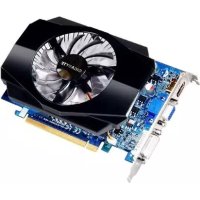
GeForce GT220 - Graphic card GIGABYTE - Free user manual and instructions
Find the device manual for free GeForce GT220 GIGABYTE in PDF.


| Product Type | Graphics Card |
| Brand | GIGABYTE |
| Model | GeForce GT220 |
| Graphics Processor | NVIDIA GeForce GT220 |
| Video Memory | 1 GB GDDR3 |
| Interface | PCI Express 2.0 x16 |
| Maximum Resolution | 2560 x 1600 |
| Display Connectors | 1x VGA, 1x DVI, 1x HDMI |
| Recommended Power Supply | 300 W |
| Dimensions (approx.) | 175 x 100 x 20 mm |
| Weight | 150 g |
| Main Features | 3D acceleration, DirectX 10.1 and OpenGL 3.3 support, HD video decoding |
| Maintenance | Clean with a dry anti-static cloth |
| Safety | Disconnect power before installation, handle with care |
| Repairability | Not user serviceable |
| Supported Operating Systems | Windows 7, Windows Vista, Windows XP |
| Installation | Insert into PCI Express slot, connect auxiliary power if needed, install drivers |
| Included Drivers | Installation CD |
| Compatibility | PCI Express slot on motherboard, sufficient power supply |
| Warranty | 2 years |
Frequently Asked Questions - GeForce GT220 GIGABYTE
User questions about GeForce GT220 GIGABYTE
0 question about this device. Answer the ones you know or ask your own.
Ask a new question about this device
Download the instructions for your Graphic card in PDF format for free! Find your manual GeForce GT220 - GIGABYTE and take your electronic device back in hand. On this page are published all the documents necessary for the use of your device. GeForce GT220 by GIGABYTE.
USER MANUAL GeForce GT220 GIGABYTE
Graphics Card Installation
Guide
Languages included in this guide are:
- English
- German
- Spanish
- Portuguese
- French
- Italian
- Russian
- Swedish
- Polish
- Turkish
- Romanian
- Bulgarian
- Hungarian
- Greek
- Czech
-
Serbian
-
Traditional Chinese
- Simplified Chinese
- Japanese
- Korean
- Vietnamese
- Indonesian
- Thai
- Arabic
- Persian

CAUTION
Before installing the graphics card, make sure your graphics card is compliant with the slot on your motherboard.
- Before installing the graphics card, be sure to turn off your computer. Unplug the power cord from the power outlet to prevent damage to the graphics card.graphics card..

The appearance of the graphics card may differ by model.
- Based on the instruction from Microsoft, some new drivers may not fully support Windows 2000/98/ME.
Refer to the user's manual included for detailed graphics card specifications.

Installation of a Graphics Card
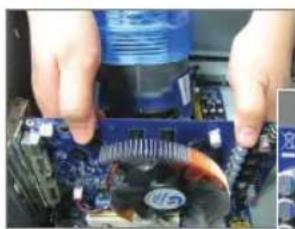
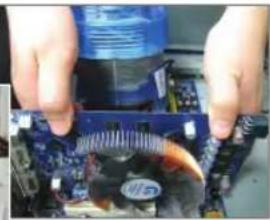
1-1 Remove the metal slot cover and then insert the graphics card into the slot.
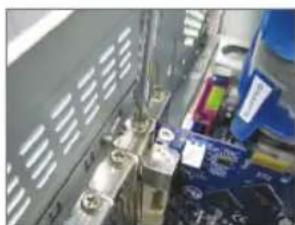
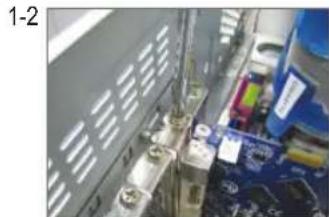
1-2 Once the graphics card is securely seated in the slot, replace the screw to fasten the card.

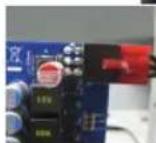
If there is a power connector on the graphics card, connect the corresponding power supply power cable to your graphics card, or the system will not boot.
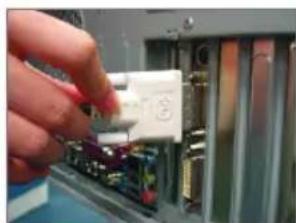
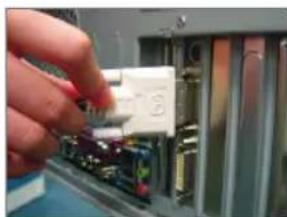
1-3 Plug the display cable into the graphics card; then turn on the computer and monitor.

Installation of Drivers

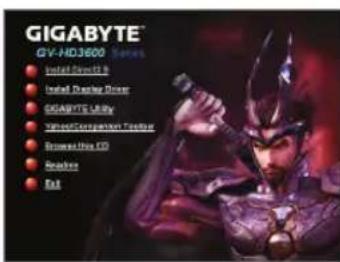
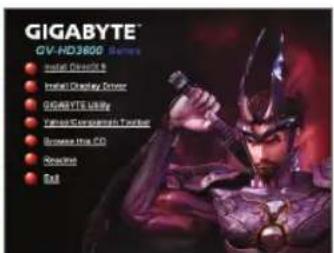
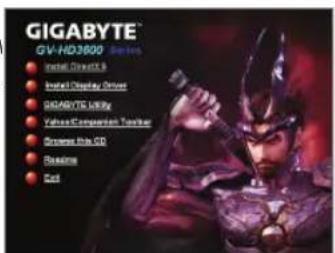
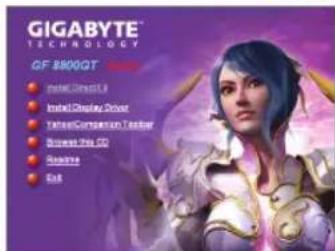
Insert the driver disk into your optical drive. The Autorun window automatically appears. (If it does not appear automatically, go to My computer, double-click the optical drive and execute the setup.exe program.) Complete the installation procedure following the on-screen instructions.
Installation of Microsoft® DirectX®
Install Microsoft® DirectX® to enable 3D hardware acceleration support for Windows® XP to achieve better 3D performance.

Introduction of the Display Properties Page
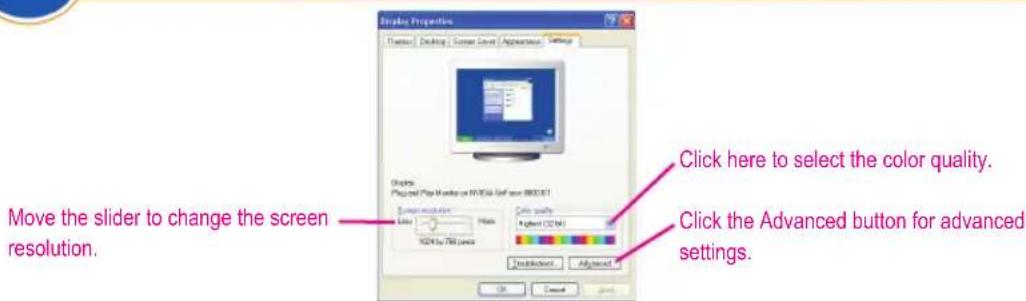

YcTaHOBka rpaΦnuecko nIaTbI
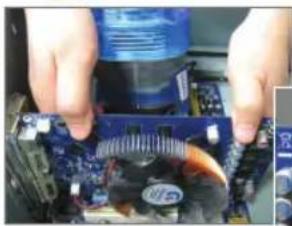
1-1 CHIMTE MeTALINueckyU KpbIuKy, 3aKpbBaIOuSyU pa3bEm paunpeHn, uYCTAHOBtE B 3OT pa3bEm rpaunueckyo nnaty.
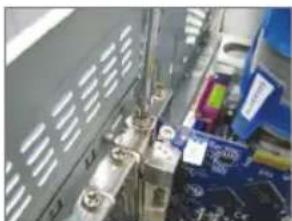
1-2 y6eINBwncb, cyrpaΦnuecka nnata HaDexHo ycTaHOBJIeHa B pa3beMe, 3aBePHNTe KpeNEXHbI BNHT.

EcHnHa rpa#chuecko nnate HmeTc pa3bem nHTAHN, noKnHOTe K hemy COOTBETCTByOuI npOBn nHTAHN. B npOTNBOM cnyae kOMNbIOTe He 3arpy3NTcA.
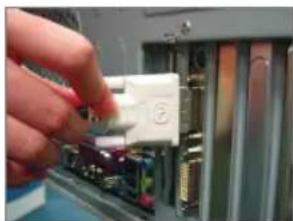
1-3 IopKnIOHHTe K rpaqueckoI nIate Ka6ebMoHITopa. BkIIOUHTe KOMNbIOTep m MOHITOP.

YcTaHOBKa IpaIbepOB

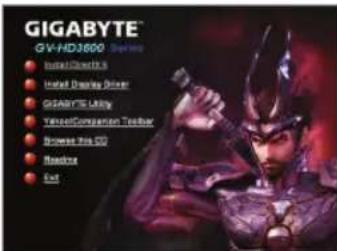
Bctabbte B CD-DnCKOBOD KOMNaKT- DnCK C dpaBepamn. NOBNTcR OKHO aBTO3anycka. Ecnn OkHo He nOraBnIOcB, Bbl6epnte NyHKT "MOn KOMNbIOTep", DBaxkbI ZeENKHTe MblsbIO no NIKTORpAMMe CD-DnCKOBODa 3anyCTne paan setup.exe. BblONHnTe npoceDpy yCTaHOBKn, CJIeDyra BBIODMbIM Ha 3kpan HnCTpyKUmaR.
YcTaHOBka IIO Microsoft 假 DirectX
Дя подерхкн annapaTHORO yckopeneria tpexmephoI rpaФИК B Windows® XP ndoCTnKHeHЯ lyuWei npOn3BOUInTeBHOCTn tpexmepHoI rpaФИNK cneJyET yctAHOBuTb PO Microsoft® DirecX®.

Kpatkne cBeDeHn o6 okHe 3KpaH - NapaMeTpbl


Installera drivrutiner

a a a a a a a a a a a a a a a a a a a a a a a a a a a a a a

jglal 1

1900/98/ME Drivers
Microsoft
a
auii j
m = 311
1
a 1-1

JiL 1100000000000000000000000000000000000000000000
1-3
J 1
J 1
J 1
J 1
1 1
1
1
1
1
Drivers
2
J 1 J 1 J 1 J 1 J 1 J 1 J 1 J 1 J 1 J 1 J 1 J 1 J 1 J 1 J 1 J 1 J 1 J 1 J 1 J 1 J 1 J 1 J 1 J 1 J 1 J 1 J 1 J 1 J 1 J 1 J 1 J 1 J 1 J 1 J
Microsoft DirectX
Microsoft DirectX 1
aillaiia aiealao
a ball
3
J 15 J
J 15 J
J 15 J
J 15 J
J 15 J
J 15 J
J 15 J
J 15 J
J 15 J
J 15 J
J 15 J
J 15 J
J 15 J
J 15 J
J 15 J
J 15 J
J 15 J
J 1
S
1
1-1

- Graphics Card Installation
- Installation of a Graphics Card
- Installation of Drivers
- Installation of Microsoft® DirectX®
- Introduction of the Display Properties Page
- YcTaHOBka rpaΦnuecko nIaTbI
- YcTaHOBKa IpaIbepOB
- YcTaHOBka IIO Microsoft 假 DirectX
- Kpatkne cBeDeHn o6 okHe 3KpaH - NapaMeTpbl
- Installera drivrutiner
- auii j
- Drivers
- aillaiia aiealao
- S
- 1
Brand : GIGABYTE
Model : GeForce GT220
Category : Graphic card