
NOTEBOOK RECOVERY HOTKEY - Laptop MSI - Free user manual and instructions
Find the device manual for free NOTEBOOK RECOVERY HOTKEY MSI in PDF.



| Product type | Laptop |
| Brand | MSI |
| Model | NOTEBOOK RECOVERY HOTKEY |
| Preinstalled operating system | Windows Vista |
| System recovery key | F3 (alternative F8) |
| Recovery software | MSI Recovery Manager |
| Recovery methods | Quick recovery from hard drive; DVD recovery in safe mode |
| Data protection | Backup of important data required before recovery |
| Dimensions (estimated) | 37 × 25 × 3 cm |
| Weight (estimated) | 2.5 kg |
| Power supply | 19 V power adapter; 6-cell Li-ion battery |
| Screen type (estimated) | LCD 15.6 inches |
| Processor (estimated) | Intel Core 2 Duo |
| RAM (estimated) | 2 GB |
| Hard drive (estimated) | 250 GB |
| Connectivity | Wi-Fi, Ethernet, USB ports |
| Care and cleaning | Clean with a soft, dry cloth; avoid liquids |
| Safety | Use in a dry environment; do not expose to power surges |
| Spare parts and repairability | Battery, adapter, hard drive, memory (limited repairability) |
| General information | User manual available as PDF download |
Frequently Asked Questions - NOTEBOOK RECOVERY HOTKEY MSI
User questions about NOTEBOOK RECOVERY HOTKEY MSI
0 question about this device. Answer the ones you know or ask your own.
Ask a new question about this device
Download the instructions for your Laptop in PDF format for free! Find your manual NOTEBOOK RECOVERY HOTKEY - MSI and take your electronic device back in hand. On this page are published all the documents necessary for the use of your device. NOTEBOOK RECOVERY HOTKEY by MSI.
USER MANUAL NOTEBOOK RECOVERY HOTKEY MSI
Chinese Traditional version
German version
French version
Euro Portuguese version
Italian version
Spanish version
Content
Recovery User Manual
Introduce to Recovery.... 3
Hotkey Recovery from Hard Drive 4
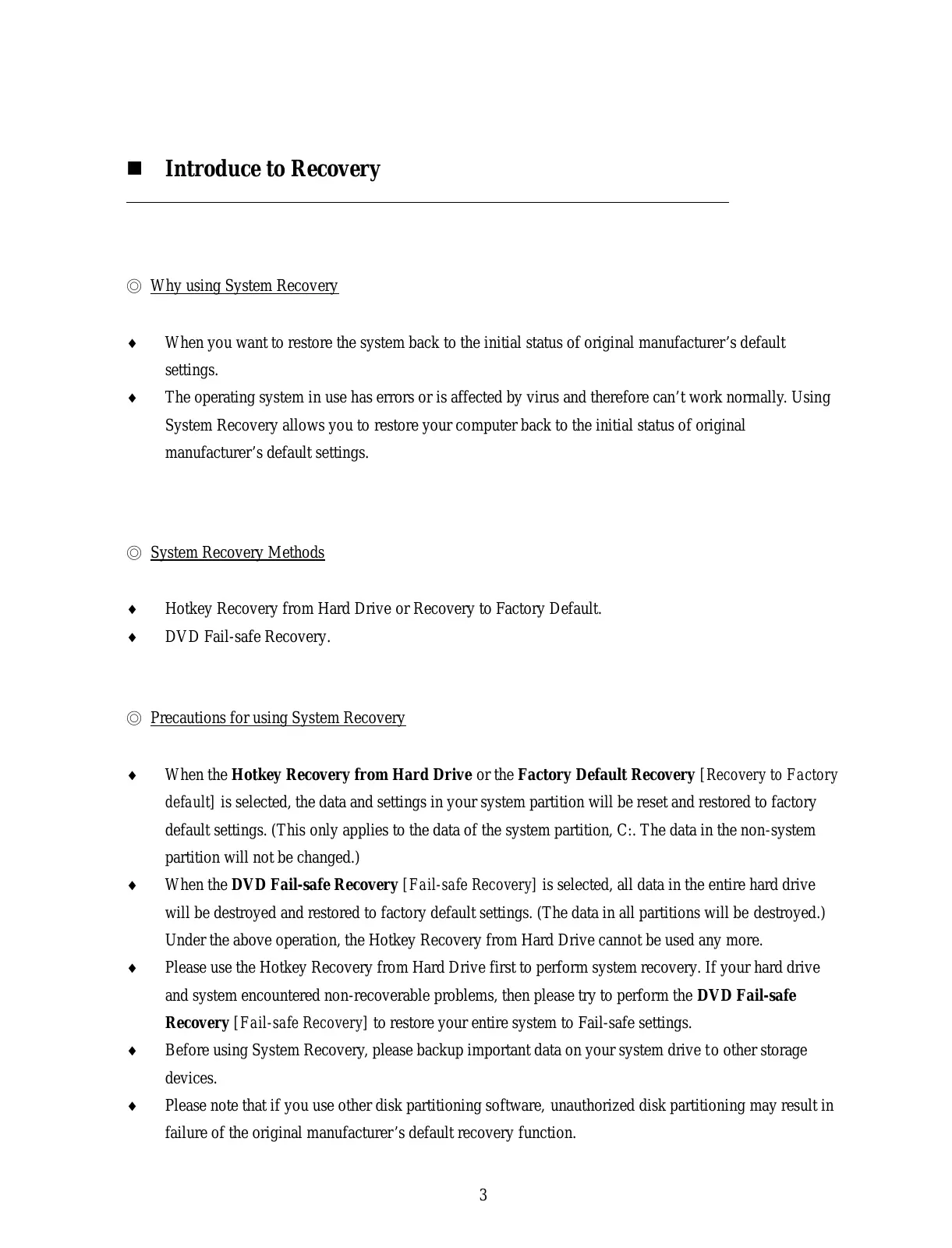
Why using System Recovery
When you want to restore the system back to the initial status of original manufacturer's default settings. The operating system in use has errors or is affected by virus and therefore can't work normally. Using System Recovery allows you to restore your computer back to the initial status of original manufacturer's default settings.
◎ System Recovery Methods
◆ Hotkey Recovery from Hard Drive or Recovery to Factory Default. ♦ DVD Fail-safe Recovery.
◎ Precautions for using System Recovery
When the Hotkey Recovery from Hard Drive or the Factory Default Recovery [Recovery to Factory default] is selected, the data and settings in your system partition will be reset and restored to factory default settings. (This only applies to the data of the system partition, C:. The data in the non-system partition will not be changed.) When the DVD Fail-safe Recovery [Fail-safe Recovery] is selected, all data in the entire hard drive will be destroyed and restored to factory default settings. (The data in all partitions will be destroyed.) Under the above operation, the Hotkey Recovery from Hard Drive cannot be used any more. Please use the Hotkey Recovery from Hard Drive first to perform system recovery. If your hard drive and system encountered non-recoverable problems, then please try to perform the DVD Fail-safe Recovery [Fail-safe Recovery] to restore your entire system to Fail-safe settings. Before using System Recovery, please backup important data on your system drive to other storage devices. Please note that if you use other disk partitioning software, unauthorized disk partitioning may result in failure of the original manufacturer's default recovery function.
- When you boot the system, press and hold the hot key F3 to enter the System Recovery screen. [Note 1]
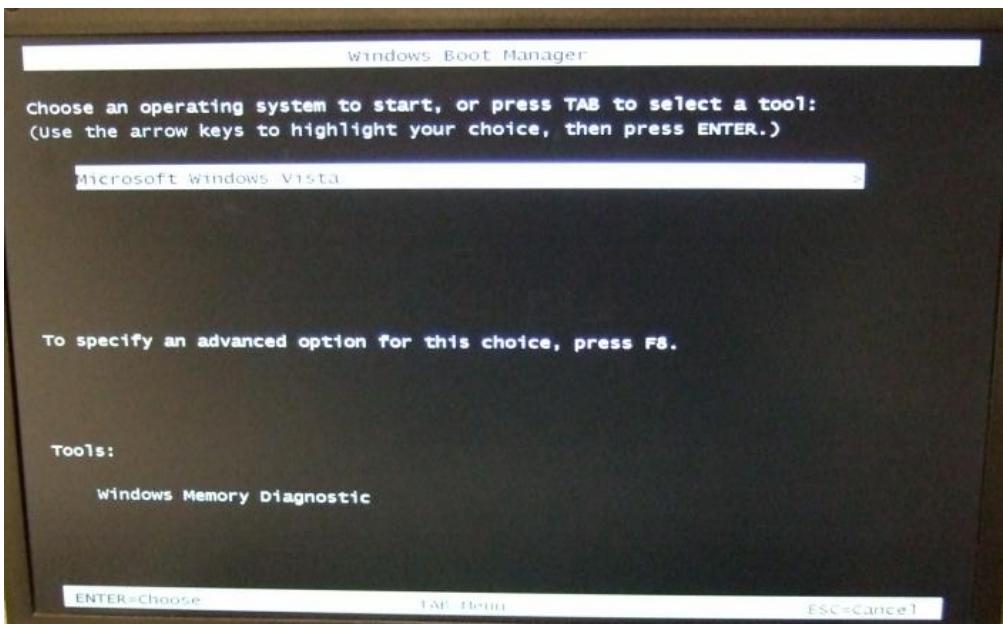
When the screen displays the inquiry window of Windows startup, please press [Enter] to access System Recovery.
- Please select [MSI Recovery Manager] to start System Recovery.

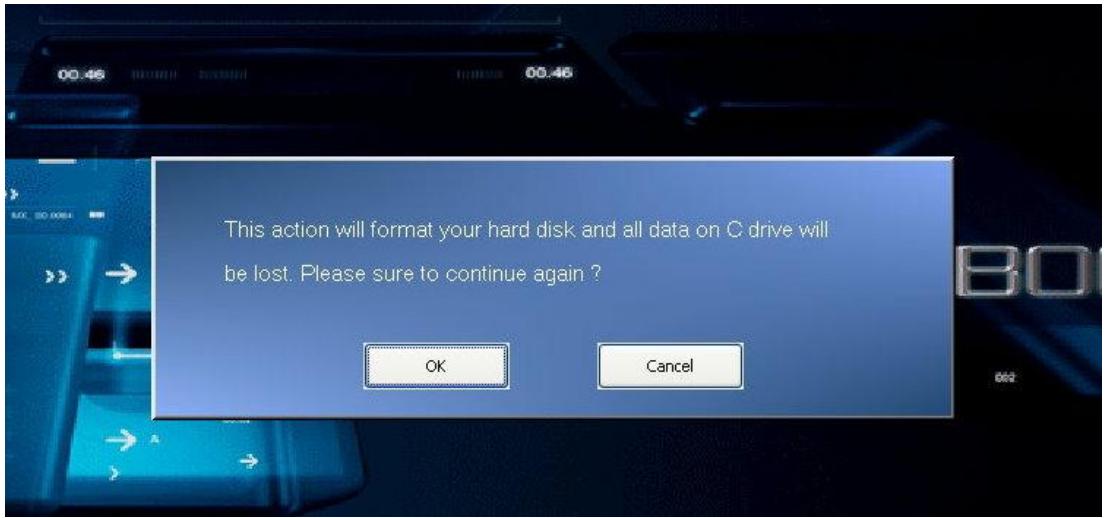
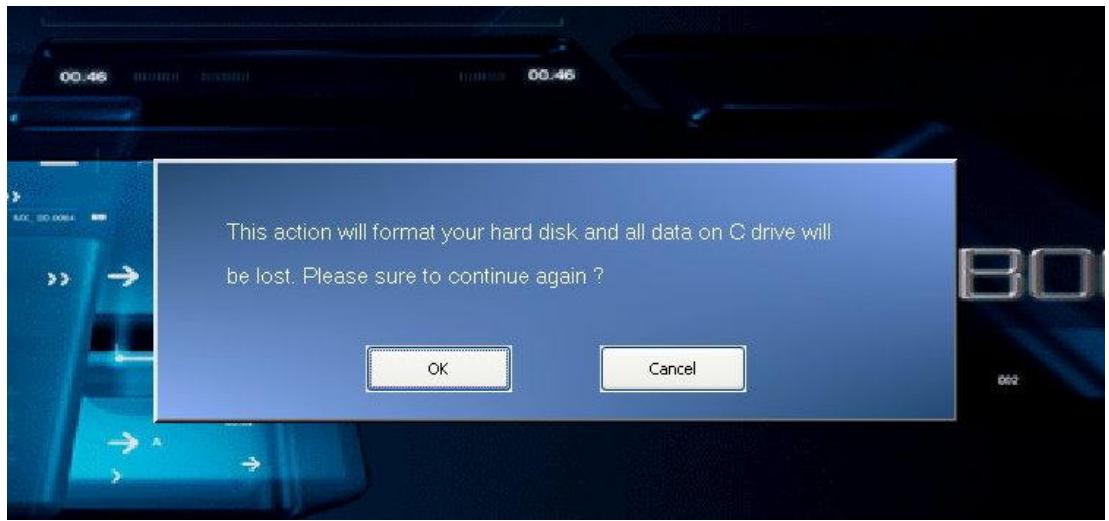
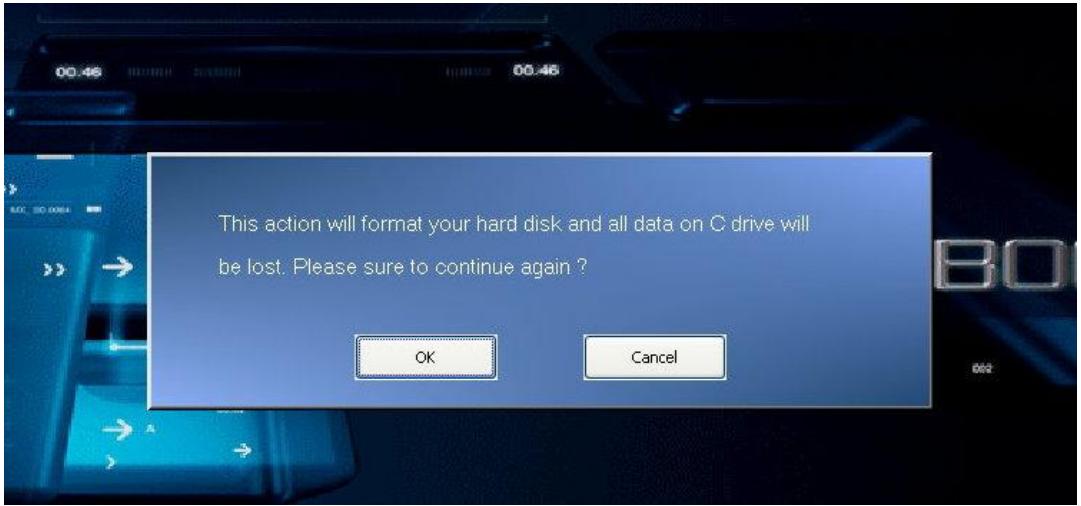
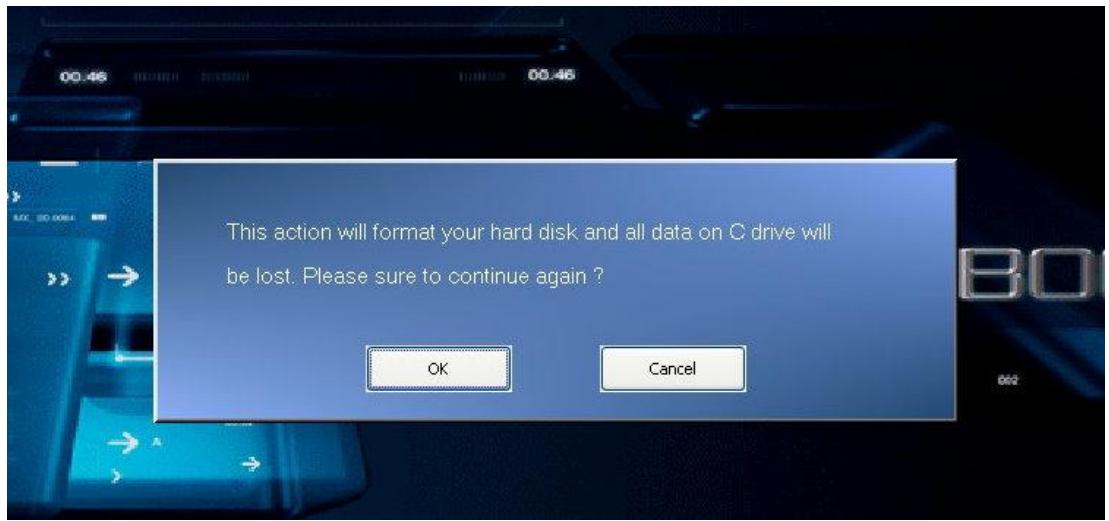
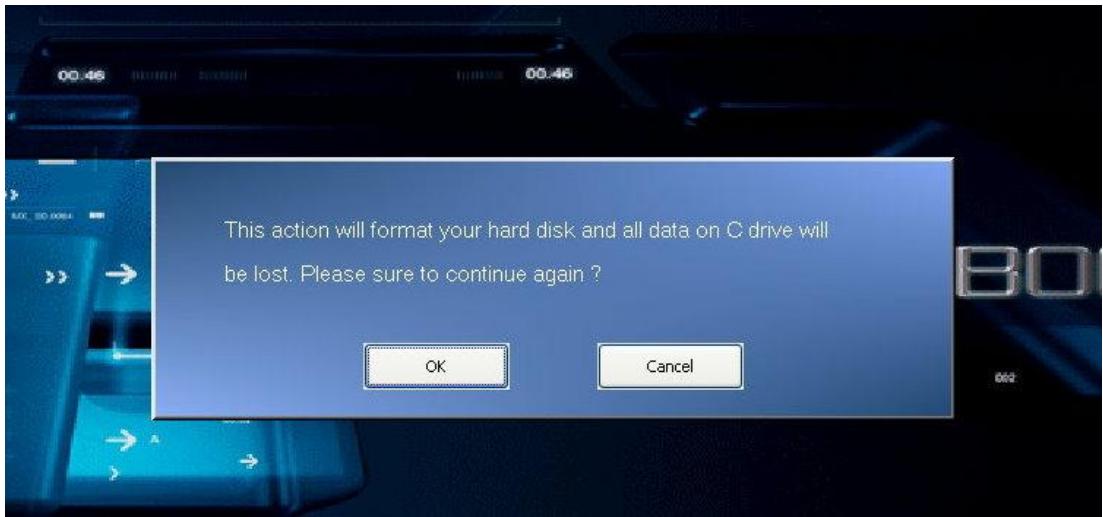
Then the inquiry window will show up. Press [OK] if you are sure to continue System Recovery, or press [Cancel] to stop System Recovery at any time.
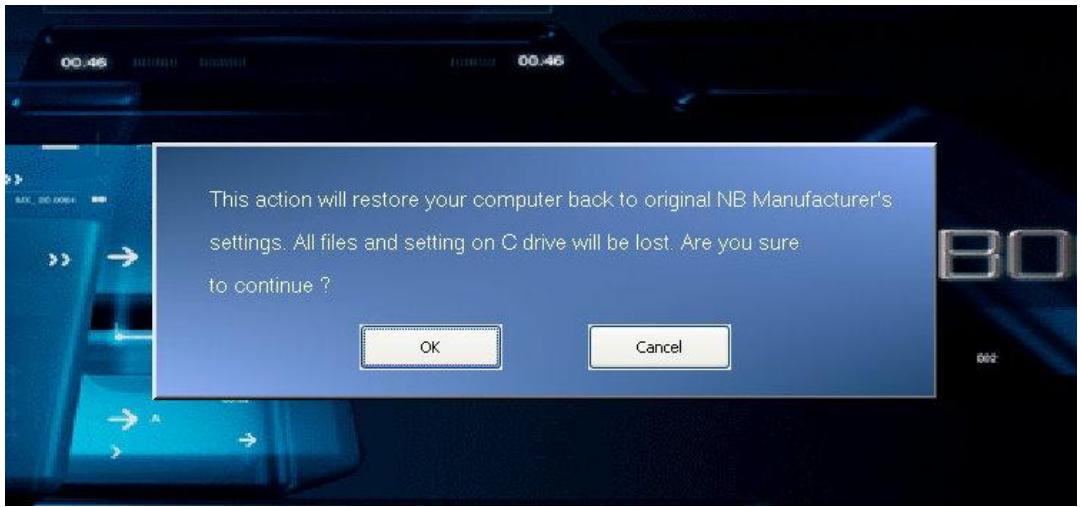
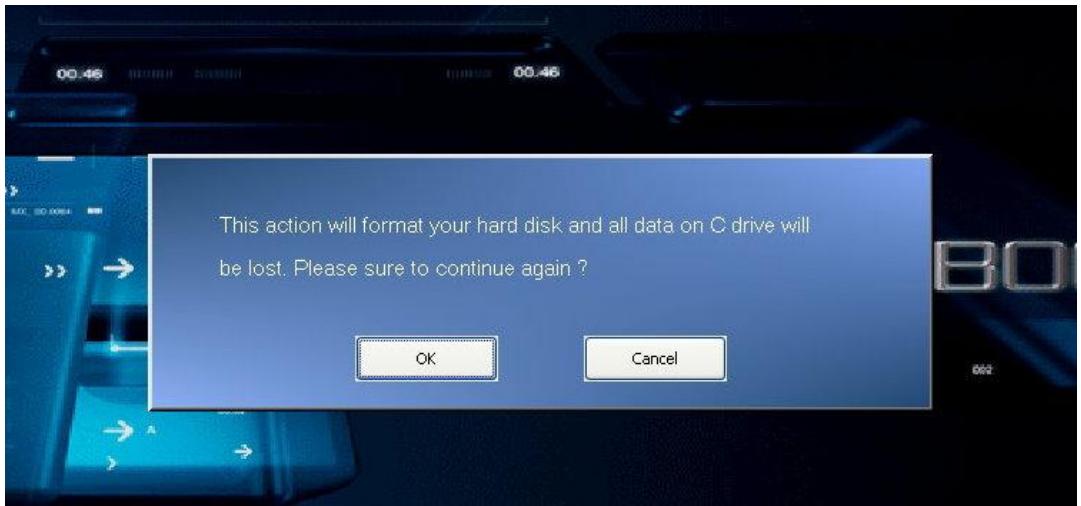
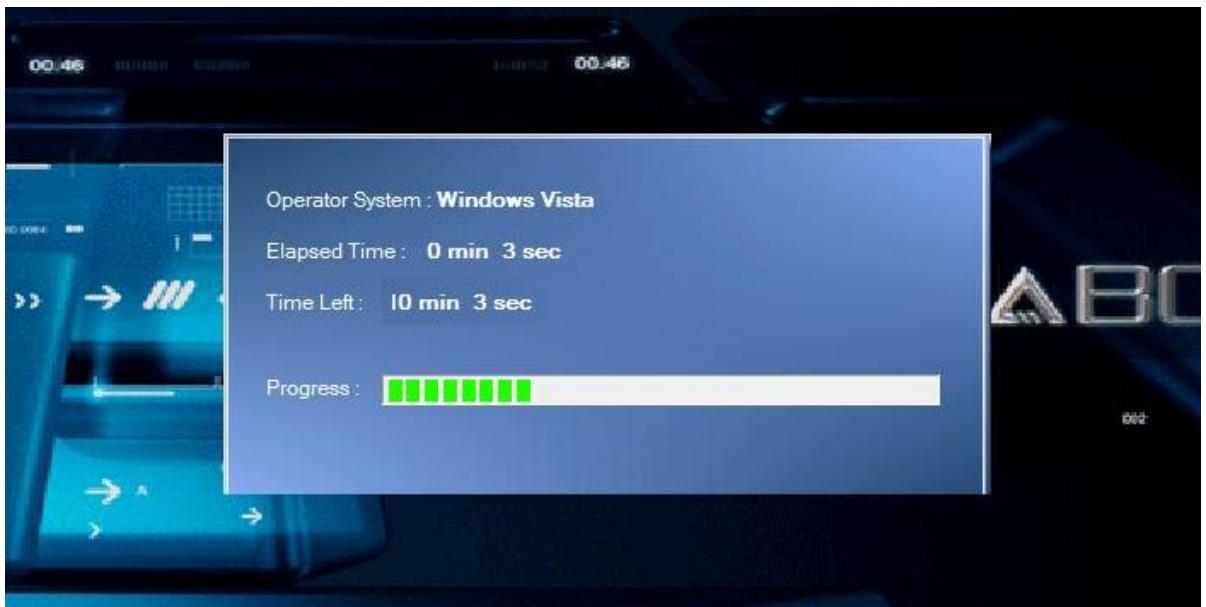
3. System Recovery in process.
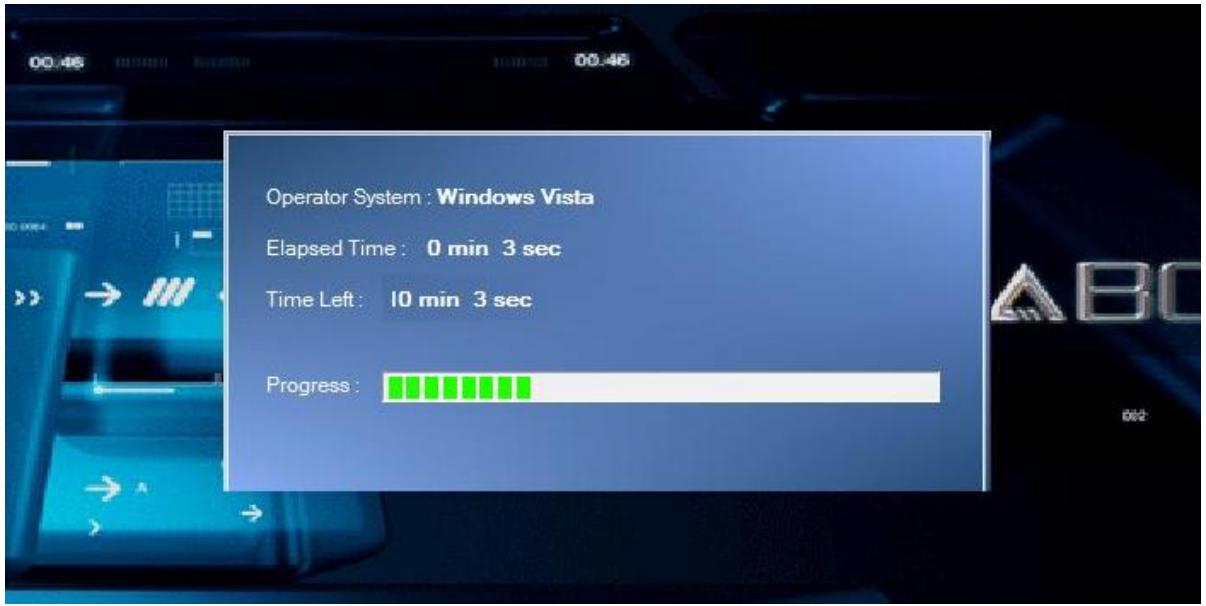
When the Finish window appears, the system is recovered. Please press [OK] to reboot the system and access Vista operating system as usual.
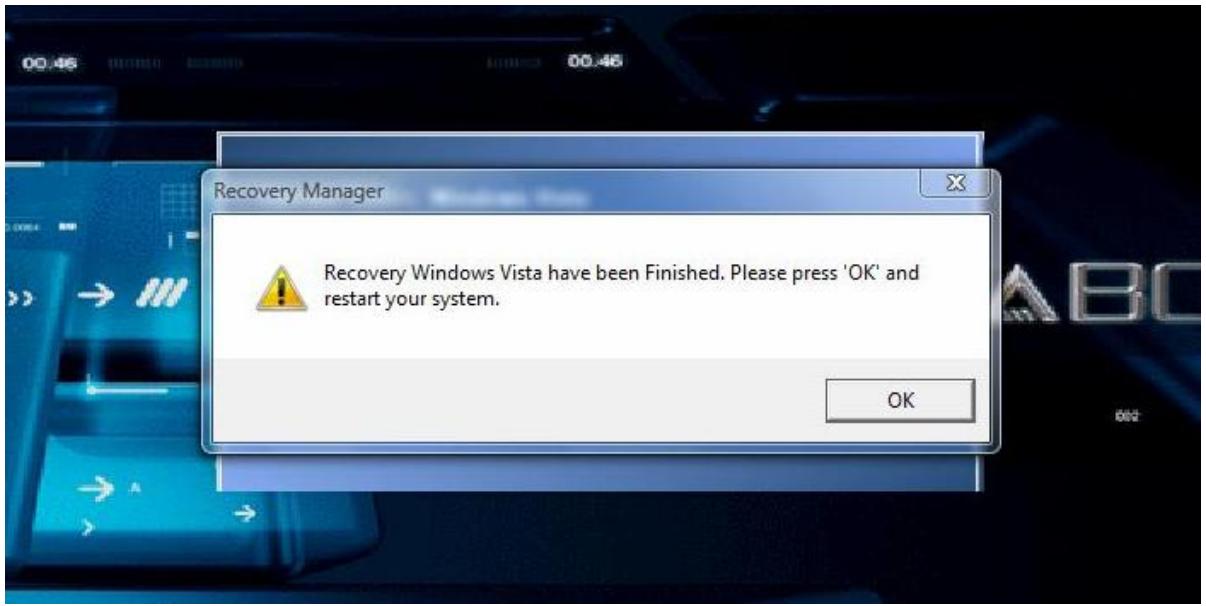
[Note 1] You can also use the hot key F8. After entering the [Advanced Boot Options] menu, please select [Repair Your Computer] to access System Recovery screen.

MSI NOTEBOOK
System Recovery Function User Manual
■ Table of Contents
System Recovery Function User Manual
System Recovery Function Description....3
Hard Disk Hotkey Recovery Instructions....4
◎ Why Use System Recovery
◆ Hard Disk Hotkey Recovery or Factory Default Recovery [Recovery to Factory default]
3. Recovery process in progress
Brand : MSI
Model : NOTEBOOK RECOVERY HOTKEY
Category : Laptop