
AFICIO MP 2500 - Multifunction Printer RICOH - Free user manual and instructions
Find the device manual for free AFICIO MP 2500 RICOH in PDF.


| Product type | Laser A3 multifunction printer |
| Brand | RICOH |
| Model | AFICIO MP 2500 |
| Main functions | Print, copy, scan (fax option) |
| Print speed | 25 pages per minute (A4) |
| Print resolution | 600 x 600 dpi |
| Paper sizes | A3, A4, A5, B4, B5, envelopes |
| Main tray capacity | 500 sheets (standard tray) + 100 sheets multi-purpose |
| Paper feed | Tray 1: 500 sheets, MP tray: 100 sheets, optional tray: 500 sheets |
| Automatic duplex | Yes, built-in |
| Scanner | Color scanner, 600 x 600 dpi resolution |
| Connectivity | USB 2.0, Ethernet 10/100 Base-TX |
| Dimensions (W x D x H) | 650 x 645 x 600 mm |
| Weight | Approximately 60 kg |
| Power supply | 220-240 V, 50/60 Hz, 1.5 kW max |
| Energy consumption | Standby mode: < 10 W, deep sleep mode: < 1 W |
| Noise level | Printing: 55 dB(A), standby: 25 dB(A) |
| Maintenance and cleaning | Clean the exterior with a soft, dry cloth. Use the transfer roller cleaning kit. |
| Safety | Emergency stop, overload protection |
| Spare parts and repairability | Toner cartridge, drum, maintenance kit available. Repairability index: 7.5/10 |
| General information | Manual available in PDF. Manufacturer's warranty 1 year. |
Frequently Asked Questions - AFICIO MP 2500 RICOH
User questions about AFICIO MP 2500 RICOH
0 question about this device. Answer the ones you know or ask your own.
Ask a new question about this device
Download the instructions for your Multifunction Printer in PDF format for free! Find your manual AFICIO MP 2500 - RICOH and take your electronic device back in hand. On this page are published all the documents necessary for the use of your device. AFICIO MP 2500 by RICOH.
USER MANUAL AFICIO MP 2500 RICOH
natural_image
Abstract geometric pattern composed of hexagons and dots on a gray background (no text or symbols)7025
DSm625
LD125
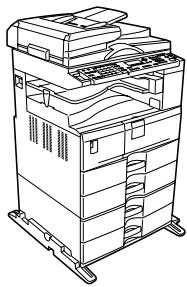
Afício MP 2500
Operating Instructions Copy Reference
natural_image
Line drawing of a multi-tiered office or storage unit with shelves and racks (no text or symbols)1 Placing Originals
2 Copying
3 Appendix
Introduction
This manual contains detailed instructions and notes on the operation and use of this machine. For your safety and benefit, read this manual carefully before using the machine. Keep this manual in a handy place for quick reference.
Important
Contents of this manual are subject to change without prior notice. In no event will the company be liable for direct, indirect, special, incidental, or consequential damages as a result of handling or operating the machine.
Do not copy or print any item for which reproduction is prohibited by law.
Copying or printing the following items is generally prohibited by local law:
bank notes, revenue stamps, bonds, stock certificates, bank drafts, checks, passports, driver's licenses.
The preceding list is meant as a guide only and is not inclusive. We assume no responsibility for its completeness or accuracy. If you have any questions concerning the legality of copying or printing certain items, consult with your legal advisor.
Notes:
Some illustrations in this manual might be slightly different from the machine.
Certain options might not be available in some countries. For details, please contact your local dealer.
Depending on which country you are in, certain units may be optional. For details, please contact your local dealer.
Caution:
Use of controls or adjustments or performance of procedures other than those specified in this manual might result in hazardous radiation exposure.
Two kinds of size notation are employed in this manual. With this machine refer to the inch version.
Manuals for This Machine
Refer to the manuals that are relevant to what you want to do with the machine.
Important
☐ Media differ according to manual.
☐ The printed and electronic versions of a manual have the same contents.
☐ Adobe Acrobat Reader/Adobe Reader must be installed in order to view the manuals as PDF files.
☐ Depending on which country you are in, there may also be html manuals. To view these manuals, a Web browser must be installed.
About This Machine
Be sure to read the Safety Information in this manual before using the machine. This manual provides an introduction to the functions of the machine. It also explains the control panel, preparation procedures for using the machine, how to enter text, and how to install the CD-ROMs provided.
◆ General Settings Guide
Explains User Tools settings, and Address Book procedures such as registering fax numbers, e-mail addresses, and user codes. Also refer to this manual for explanations on how to connect the machine.
Troubleshooting
Provides a guide to solving common problems, and explains how to replace paper, toner, staples, and other consumables.
◆ Security Reference
This manual is for administrators of the machine. It explains security functions that you can use to prevent unauthorized use of the machine, data tampering, or information leakage.
For enhanced security, we recommend the following settings.
• Install the Server Certificate.
- Enable SSL(Secure Sockets Layer) Encryption.
- Change the user name and password of the administrator using Web Image Monitor.
For details, see "Setting Up the Machine", Security Reference.
Be sure to read this manual when setting the enhanced security functions, or user and administrator authentication.
◆ Copy Reference
Explains Copier functions and operations. Also refer to this manual for explanations on how to place originals.
◆ Facsimile Reference
Explains Facsimile functions and operations.
◆ Printer Reference
Explains Printer functions and operations.
Scanner Reference
Explains Scanner functions and operations.
Network Guide
Explains how to configure and operate the machine in a network environment, and use the software provided.
This manual covers all models, and includes descriptions of functions and settings that might not be available on this machine.
Images, illustrations, and information about operating systems that are supported might also differ slightly from those of this machine.
Other manuals
• PostScript 3 Supplement
- UNIX Supplement
- Manuals for DeskTopBinder Lite
- DeskTopBinder Lite Setup Guide
- DeskTopBinder Introduction Guide
• Auto Document Link Guide

Note
☐ Manuals provided are specific to machine types.
☐ For “UNIX Supplement”, please visit our Web site or consult an authorized dealer.
☐ "PostScript 3 Supplement" and "UNIX Supplement" include descriptions of functions and settings that might not be available on this machine.
What You Can Do with This Machine
Available functions differ depending on the options.

Reference
p.2 "Functions Requiring Optional Configurations"
Types of Duplex Copies
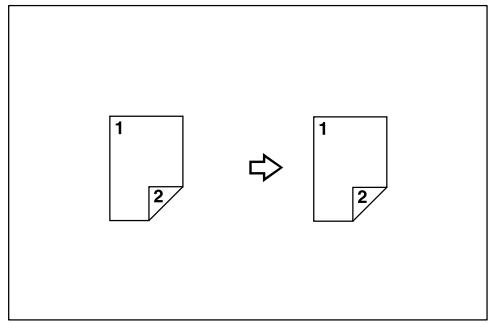
◆ 1 Sided 2 Pages → 2 Sided 1 Page
See p.52 "Duplex".

◆ 2 Sided 1 Page → 2 Sided 1 Page
See p.52 "Duplex".
flowchart
graph LR
    A["1"] --> B["1"]
    A --> C["2"]
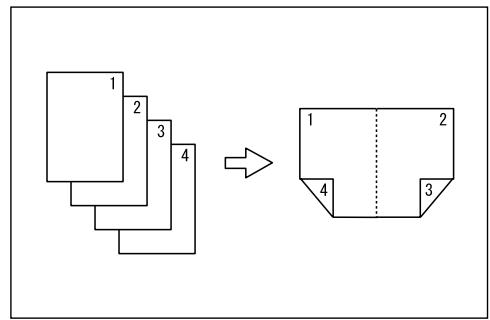
❖ 1 Sided 4 Pages → Combine 2 Sided 1 Page
See p.58 "Two-Sided Combine".
flowchart
graph TD
    A["1"] --> B["2"]
    B --> C["3"]
    C --> D["4"]
    D --> E["→"]
    E --> F["1"]
    F --> G["2"]
    G --> H["3"]
GCSHVY9J
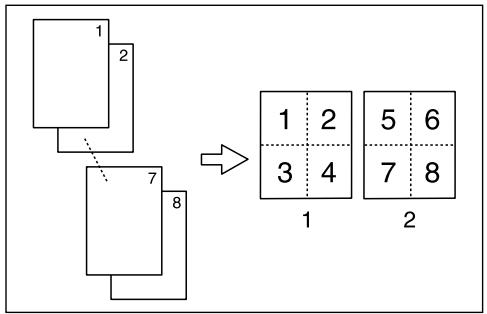
❖ 1 Sided 8 Pages → Combine 2 Sided 1 Page See p.58 “Two-Sided Combine”.
flowchart
graph TD
    A["1\n2"] --> B["7\n8"]
    B --> C["1\n2\n3\n4"]
    C --> D["5\n6\n7\n8"]
    D --> E["2"]
GCSHVYAE
1 Front
2 Back
❖ 2 Sided 2 Pages → Combine 2 Sided 1 Page See p.58 "Two-Sided Combine".
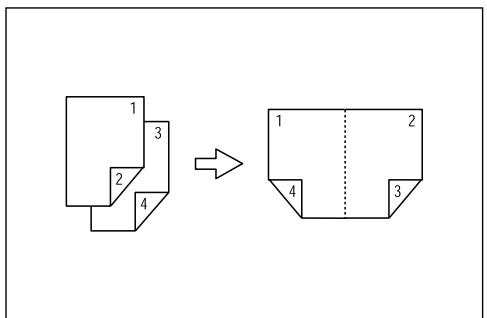
flowchart
graph TD
    A["3D Shape with faces 1,2,3,4"] --> B["2D Shape with faces 1,2,3,4"]
    style A fill:#f9f,stroke:#333
    style B fill:#bbf,stroke:#333
GCSHVY1E
❖ 2 Sided 4 Pages → Combine 2 Sided 1 Page See p.58 “Two-Sided Combine”.
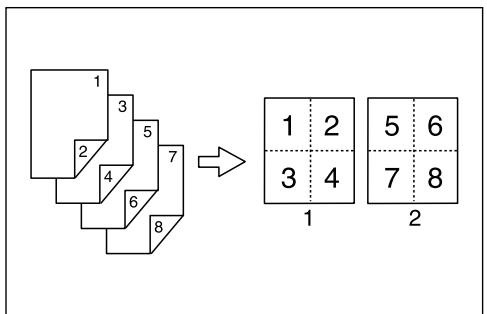
flowchart
graph TD
    A["3D Step Structure"] --> B["2x2 Grid"]
    style A fill:#f9f,stroke:#333
    style B fill:#bbf,stroke:#333
GCSHVY2E
1 Front
2 Back
Combining Multiple Pages onto a Single Page
See p.55 "One-Sided Combine".
❖ 1 Sided 2 Pages → Combine 1 Sided 1 Page
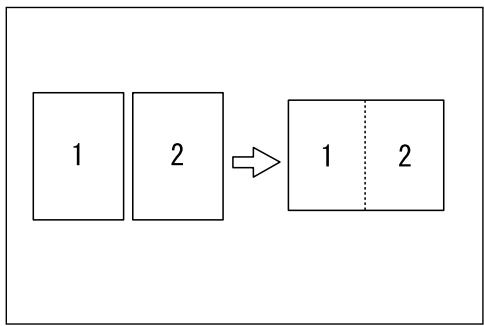
flowchart
graph LR
    A["1"] --> B["2"]
    B --> C["1"]
    B --> D["2"]
GCSHVY7J
❖ 1 Sided 4 Pages → Combine 1 Sided 1 Page
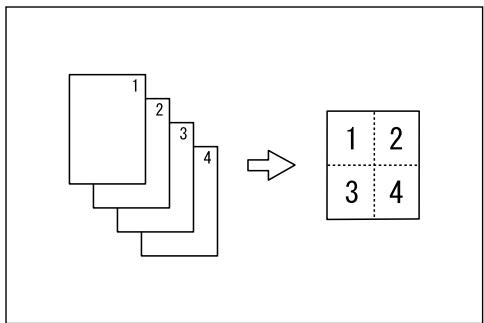
flowchart
graph TD
    A["1"] --> B["2"]
    B --> C["3"]
    C --> D["4"]
    D --> E["→"]
    E --> F["1 2\n3 4"]
GCSHVY8J
◆ 2 Sided 1 Page → Combine 1 Sided 1 Page
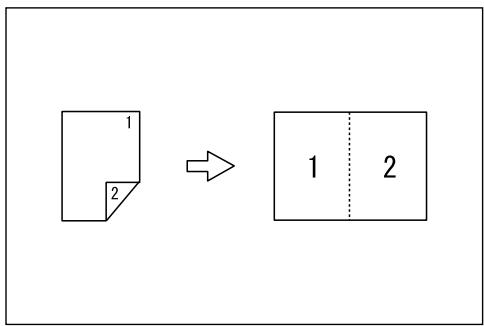
flowchart
graph LR
    A["2D Object"] --> B["2D Object"]
GCSHVYOJ
◆ 2 Sided 2 Pages → Combine 1 Sided 1 Page
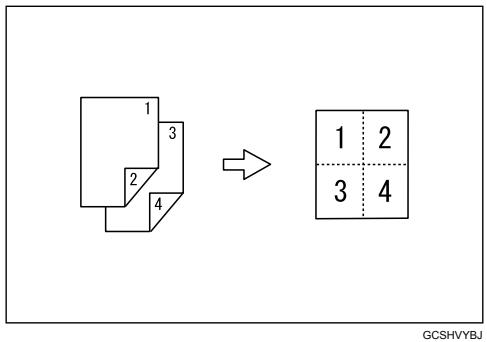
flowchart
graph TD
    A["3D Block"] --> B["4x4 Grid"]
    style A fill:#f9f,stroke:#333
    style B fill:#ccf,stroke:#333
Copying Originals Such as Books
See p.61 "Series Copies".
◆ Bound Originals → 1 Sided 2 Pages
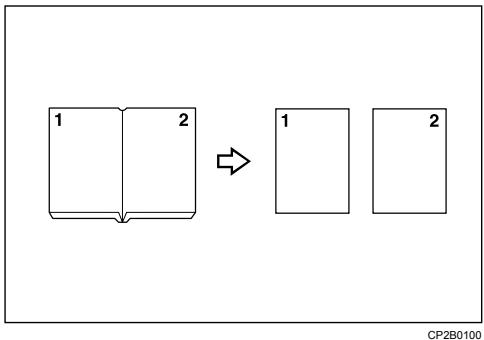
flowchart
graph LR
    A["1"] --> B["2"]
    B --> C["1"]
    C --> D["2"]
◆ 2 Sided 1 Page → 1 Sided 2 Pages
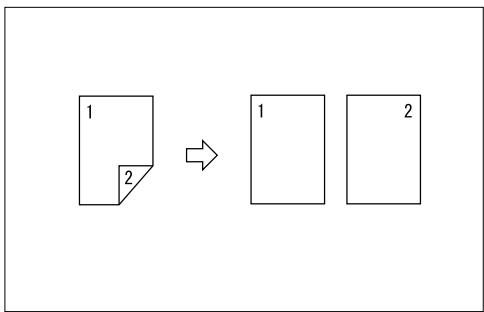
flowchart
graph LR
    A["1"] --> B["1"]
    A --> C["2"]
Copying onto Envelopes
Envelope
See p.30 "When Copying onto Envelopes".
TABLE OF CONTENTS
Manuals for This Machine....i
What You Can Do with This Machine......iii
Types of Duplex Copies .... iii
Combining Multiple Pages onto a Single Page....v
Copying Originals Such as Books...... vi
Copying onto Envelopes ...... vi
How to Read This Manual ....1
Symbols 1
Functions Requiring Optional Configurations....2
Display .... 3
Reading the Display....3
Using the Keys on the Control Panel 4
User Tools Menu (Copier Features) 5
1. Placing Originals
Originals ....7
Sizes and Weights of Recommended Originals....7
Sizes Detectable by Auto Paper Select 8
Missing Image Area 10
Placing Originals....11
Original Orientation 11
Placing Originals on the Exposure Glass....12
Placing Originals in the ARDF....13
Specifying the Original Size When a Paper Tray is Selected 14
Specifying the Original Size When the Bypass Tray is Selected 17
2. Copying
Basic Procedure....21
Copying from the Bypass Tray....23
Loading Paper on the Bypass Tray....23
When Copying onto Regular Size Paper 25
When Copying onto Custom Size Paper....26
When Copying onto OHP Transparencies....27
When Copying onto Thick Paper 28
When Copying onto Envelopes....30
Copy Functions....34
Adjusting Image Density 34
Original Type Setting....35
Selecting Copy Paper 36
Preset Reduce/Enlarge 39
Zoom 40
Auto Reduce/Enlarge 42
Sort....43
Rotate Sort 47
Stack 48
Staple 50
Duplex 52
One-Sided Combine....55
Two-Sided Combine....58
Series Copies....61
3. Appendix
Combination Chart....65
Supplementary Information 67
INDEX....72
How to Read This Manual

Note
☐ For proper use of this product, be sure to read About This Machine first.
☐ Supplementary information about the copier mode is described in “Supplementary Information”.

Reference
p.67 "Supplementary Information"
Symbols
This manual uses the following symbols:

WARNING:
Indicates important safety notes.
Ignoring these notes could result in serious injury or death. Be sure to read these notes. They can be found in the “Safety Information” section of About This Machine.

CAUTION:
Indicates important safety notes.
Ignoring these notes could result in moderate or minor injury, or damage to the machine or to property. Be sure to read these notes. They can be found in the "Safety Information" section of About This Machine.

Important
Indicates points to pay attention to when using the machine, and explanations of likely causes of paper misfeeds, damage to originals, or loss of data. Be sure to read these explanations.

Note
Indicates supplementary explanations of the machine's functions, and instructions on resolving user errors.

Reference
This symbol is located at the end of sections. It indicates where you can find further relevant information.
[ ]
Indicates the names of keys that appear on the machine's display panel.
【】
Indicates the names of keys on the machine's control panel.
Functions Requiring Optional Configurations
Certain functions require special machine configuration and extra options. See the table below.
| Function | Option | ARDF | 500-sheet finisher |
| 2 Sided→Duplex | Required | - | |
| 2 Sided→1 Sided Combine/Series | Required | - | |
| 2 Sided→2 Sided Combine/Series | Required | - | |
| Staple | - | Required | |
| Stack | - | Required | |

Note
☐ The bridge unit are required when you install the finisher.
Display
This section explains how to read the display and how to use the selection keys on the initial copy display.

Note
☐ The copy display is set as the default screen when the machine is turned on.
Reading the Display
◆ Initial copy display
![1 2 3 Ready Auto Paper Select [100%] 100% R/E Auto R/E 4 AAI024S](/content/2025/01/136347/images/aa749e3a5fb4a5581cbb76d4de0a830e849db7bae1f7c302de2f721c39f46894.jpg)
- Displays operational status and messages.
-
Displays the current paper tray and selected items that appear in brackets.
-
Displays the number of copies set.
- Displays frequently used functions.
![Ready Auto Paper Select [100%] 100% R/E Auto R/E Escape OK 1 2 3 4 AZB026S](/content/2025/01/136347/images/7cbdfb8af1eee6376d8aa5cc0166b0483faa693fa8aa2b9b49b1fbac31024785.jpg)
1. Selection keys
Correspond to items at the bottom line on the display.
Example: initial copy display
- When the instruction "press [100%]" appears in this manual, press the left selection key.
- When the instruction "press [R/E]" appears in this manual, press the center selection key.
- When the instruction "press [Auto R/E]" appears in this manual, press the right selection key.
2.【Escape】key
Press to cancel an operation or return to the previous display.
3. [OK] key
Press to set a selected item or entered numeric value.
4. Scroll keys
Press to move the cursor to each direction one by one.
When [▲], [▼], [▶], or [◀] appears in this manual, press the scroll key of the same direction.
User Tools Menu (Copier Features)
This section describes items you can set in the copier feature. The copier features screen can be displayed by pressing the 【User Tools/Counter】 key. For details about how to set up these items, see General Settings Guide.
| Item | Description |
| APS/ Auto R/E Priority | You can select [Auto Paper Select Priority] (APS Priority) or [Auto R/E Priority] (Auto Reduce/Enlarge Priority). |
| Auto Tray Switching | If you load paper of the same size and in the same orientation in two or more trays, the machine automatically shifts to the other tray when the first tray runs out of paper (if [On] is selected.) This function is called “Auto Tray Switching”. This setting specifies whether to use Auto Tray Switching or not. |
| Original Type Setting | You can adjust copy finish quality level according to original type. You can choose these functions after selecting [Original Type 1 (Text)] or [Original Type 2 (Photo)]. |
| Duplex Mode Priority | You can select the type of Duplex function effective when the machine is turned on, reset, or modes are cleared. |
| Orientation | You can select the original orientation when using the Combine/Series/Duplex, or Staple function. The default setting is [Do not Specify]. When you select [Always Specify], you must select the orientation of originals. |
| Max. Number of Sets | The maximum copy quantity can be set between 1 and 999 using the number keys. |
| Original Count Display | You can set to display the count of originals and copying pages on the display when [On] is selected. |
| Reproduction Ratio | You can select which reduce, enlarge, or input ratio is shown on the display with priority when [Reduce] or [Enlarge] is selected. |
| Preset R/E Priority | You can set the ratio with priority when [R/E] is selected. |
| Duplex Margin | Specify left margin on the back side of copies, and top margin on the back side. |
| Rotate Sort | Specify whether or not to select rotate sort when the [Sort] key (finisher not installed), or [Sort/Staple] key (finisher installed) is pressed.When you select [On], you can select [Rotate Sort].You cannot use the bypass tray with this function.If you select [Off] when the finisher is not installed, only the Sort function is available when you press the [Sort] key. |
| Rotate Sort:Auto Continue | If you select [Off] when the paper tray in use runs out of paper, the machine stops, allowing you to add paper so all copies can be rotate-sorted. |
| Auto Sort | You can set whether Auto Sort is “On” or “Off” when the machine is turned on, reset, or modes are cleared. |
| Letterhead Setting | If you select [On] for this function, the machine rotates the image correctly. |
1. Placing Originals
This chapter describes the types of originals you can set and how to place originals.
Originals
This section describes the types of originals that can be placed, paper sizes that are automatically detected, and missing image area.
Sizes and Weights of Recommended Originals
The following describes recommended paper sizes and weights, and non-recommended originals for the ARDF.
◆ Metric version
| Where original is placed | Original size | Original weight |
| Exposure glass | Up to A3 | -- |
| ARDF | One-sided originals:A3□ - A5 □ □ | 40-128 g/m2 |
| Two-sided originals:A3□ - A5 □ □ | 52-105 g/m2 |
◆ Inch version
| Where original is placed | Original size | Original weight |
| Exposure glass | Up to 11" × 17" | -- |
| ARDF | One-sided originals:11" × 17" - 5 ^1/_2 " × 8 ^1/_2 " | 10-34 lb. |
| Two-sided originals:11" × 17" - 5 ^1/_2 " × 8 ^1/_2 " | 14-28 lb. |

Note
☐ About 50 originals can be placed in the ARDF.
☐ Paper of 433 mm (17.1") in length, or larger, is likely to jam, crease, or not feed in properly.
Non-compatible originals for the ARDF
Placing the following types of originals in the ARDF can cause paper misfeeds or light and black lines, or result in damage to the originals. Place these originals on the exposure glass instead.
- Originals other than those specified in “Sizes and Weights of Recommended Originals”
- Stapled or clipped originals
• Perforated or torn originals - Curled, folded, or creased originals
- Pasted originals
- Originals with any kind of coating, such as thermal fax paper, art paper, aluminum foil, carbon paper, or conductive paper
• Originals with perforated lines
• Originals with indexes, tags, or other projecting parts - Sticky originals such as translucent paper
- Thin or highly flexible originals
- Thick originals such as postcards
- Bound originals such as books
- Transparent originals such as OHP transparencies or translucent paper
• Originals that are still wet with ink or correction fluid

Note
☐ The original might become dirty if it is written with a pencil or a similar tool.
Sizes Detectable by Auto Paper Select
Sizes detectable from the exposure glass, and ARDF are:
Metric version
| Size Location of the original | A3 | B4 JIS *1 | A4 | B5 JIS *1 | B5 JIS *1 | A5 | 8 ^1/_2 " × 13" *2 |
| Exposure glass | ○ | ○ | ○ | × | ○ | ×*3 | ○ |
| ARDF | ○ | ○ | ○ | ○ | ○ | ○ | ○ |
*1 JIS: Japanese Industrial Standard
*2 Default is 8^1/2'' × 13'' . You can select from 8'' × 13'' or 8^1/4'' × 13'' . To make 8'' × 13'' or 8^1/_4'' × 13'' detectable, contact your service representative.
*3 If you want to make A5 □ paper detectable, contact your service representative.
◆ Inch version
| SizeLocation of the original | 11"×17"□ | 8 ^1/_2 "×14"□ | 8 ^1/_2 "×13"*2 | 8 ^1/_2 "×11"□□ | 5 ^1/_2 "×8 ^1/_2 "□□ |
| Exposure glass | ○ | ○ | ○ | ○ | ×^*1 |
| ARDF | ○ | ○ | × | ○ | ○ |
*1 If you want to make 5^1/2'' × 8^1/2'' □ paper detectable, contact your service representative.
*2 Default is 8^1/2'' × 13'' . You can select from 8'' × 13'' or 8^1/4'' × 13'' . To make 8'' × 13'' or 8^1/_4'' × 13'' detectable, contact your service representative.
Maximum scanning area
◆ Exposure glass
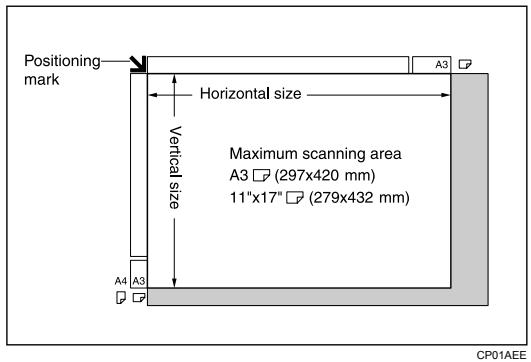
ARDF
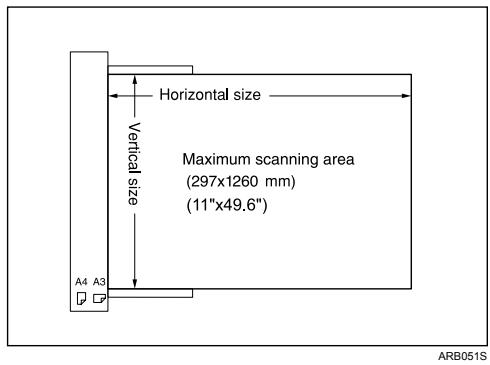
Note
☐ When you copy custom size originals, make sure you specify the size of the originals. If not, the image may not be copied properly.
Reference
p.14 "Specifying the Original Size When a Paper Tray is Selected"
p.17 "Specifying the Original Size When the Bypass Tray is Selected"
Sizes difficult to detect
It is difficult for the machine to detect the sizes of the following originals. Even if Auto Paper Select is set, the correct paper size may not be selected, so select the paper size manually.
• Originals with indexes, tags, or other projecting parts
- Transparent originals such as OHP transparencies or translucent paper
• Dark originals with a lot of text and drawings
• Originals which partially contain a solid image
• Originals which have solid images at their edges
Missing Image Area
Even if you correctly place originals in the ARDF, or on the exposure glass, margins of a few millimeters on all four sides of the original might not be copied.
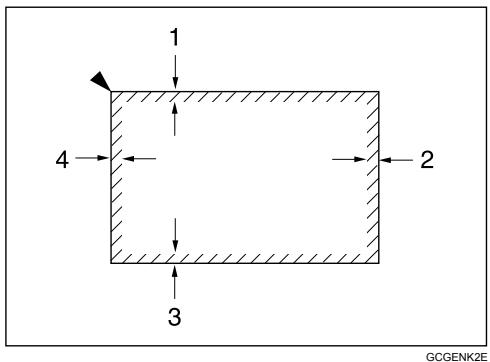
10.5 mm (0.02") or more
2 0.5 mm (0.02") or more
32 ± 1.5 mm (0.08" ± 0.06")
42 ± 1.5 mm (0.08" ± 0.06")
Placing Originals
This section describes the procedure for placing originals on the exposure glass and in the ARDF.
Take care to place originals after any correction fluid and ink has completely dried. Not taking this precaution could cause marks on the exposure glass that will be copied onto paper.

Reference
p.7 "Originals"
Original Orientation
You can set the original orientation in the following ways.
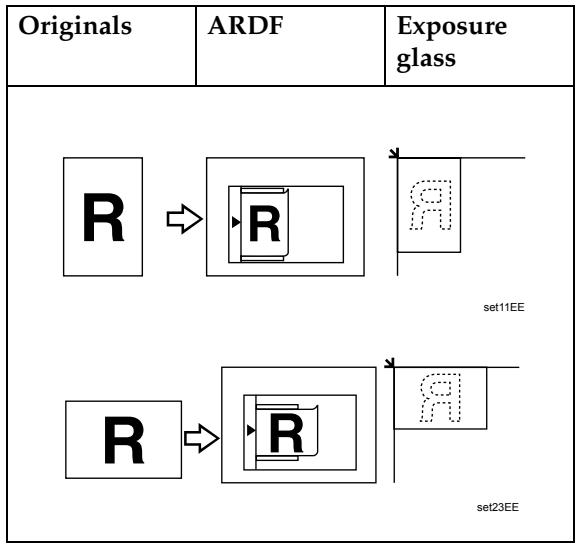
flowchart
graph TD
    A["Originals"] --> B["ARDF"]
    B --> C["Exposure glass"]
    D["R"] --> E["Set 11EE"]
    F["R"] --> G["Set 23EE"]

Note
☐ Originals should be aligned to the rear left corner when placing them on the exposure glass. However, some copy functions may produce different results depending on the orientation of the originals. For details, see the explanations of each function.

Reference
p.50 "Staple"
p.52 "Duplex"
p.55 "One-Sided Combine"
p.58 "Two-Sided Combine"
p.61 "Series Copies"
Placing Originals on the Exposure Glass
Place originals on the exposure glass.
Important
☐ Do not lift the exposure glass cover or ARDF forcefully. Otherwise, it will be damaged, or the cover of the ARDF might open.
1 Lift the exposure glass cover or ARDF.
Be sure to lift the exposure glass cover or ARDF by more than 30 degrees. Otherwise, the size of the original might not be detected correctly.
2 Place the original face down on the exposure glass. The original should be aligned with the rear left corner.
Start with the first page to be copied.
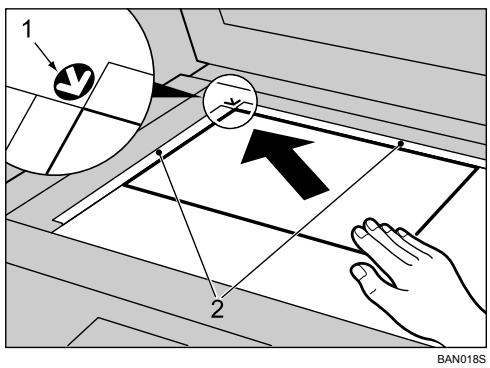
1 Positioning mark
2 Scales
3 Lower the exposure glass cover or ARDF.
Placing Originals in the ARDF
Place originals in the ARDF.
Settings should be made when placing custom size originals.
When placing custom size originals:
See “Specifying the Original Size When a Paper Tray is Selected” and “Specifying the Original Size When the Bypass Tray is Selected”.
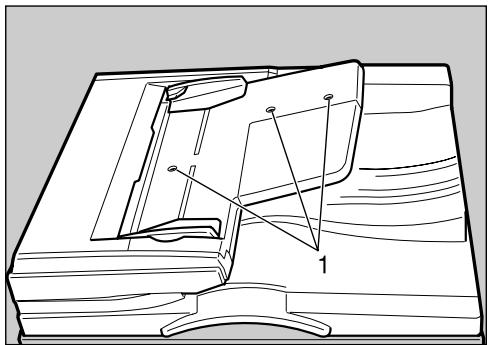
natural_image
Technical line drawing of a mechanical component with labeled parts (no text or symbols present)ZAAH280E
1 Sensors
1 Adjust the document guides to the original size.
2 Set the aligned originals face up into the ARDF.
Do not stack originals beyond the limit mark.
The first page should be on the top.
Be sure not to block the sensor or load the original untidily. Doing so may cause the machine to detect the size of the scanned image incorrectly or display a paper misfeed message. Also, be sure not to place originals or other objects on the top cover. Doing so may cause a malfunction.
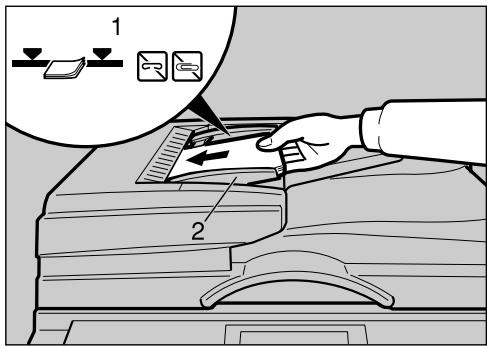
ARB023S
1 Limit mark
2 Document guide

Note
☐ Straighten curls in the originals before placing them in the ARDF.
☐ To prevent multiple sheets from being fed at once, fan the originals before placing them in the ARDF.
☐ Set the originals squarely.
Specifying the Original Size When a Paper Tray is Selected
You can select either regular or custom for the size of the original when a paper tray is selected.
Regular sizes
When placing regular size originals on the exposure glass or in the ARDF, select the size of the originals from the regular sizes shown on the display.

Select a desired paper tray using [▲] or [▼].
![Ready 18%×14 [100%] 100% R/E Auto R/E](/content/2025/01/136347/images/923753598c0f3f2d1f16d6c87006ea944cad70a2c2932312f249df3147fa9ad9.jpg)

Press the [#] key.

Select [Regular Size] using [▲] or [▼], and then press the [OK] key.
When [Auto Detect] is selected, the size of the placed original will be detected automatically.
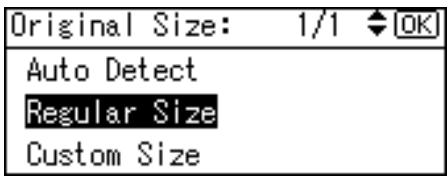
4 Select the original size using the scroll keys, and then press the [OK] key.
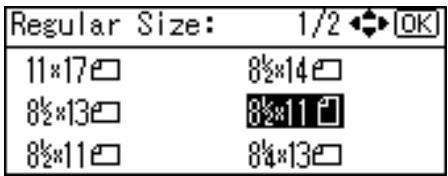
The "Programmed" message appears.
When the regular size originals settings are registered, <凹※Ready> appears on the top of the copy display.
![<□>Ready 18%×14 [100%] 100% R/E Auto R/E](/content/2025/01/136347/images/22a868c7ee576a8e283444e2610f45a3831702cbb76c96f3a59cf8d7ee854370.jpg)
Note
☐ This function is not available in Auto Paper Select mode.
☐ To cancel the size you have set, press the 【Clear Modes】key.
Custom sizes
When placing custom size originals on the exposure glass or in the ARDF, specify the size of the originals using the number keys.
Important
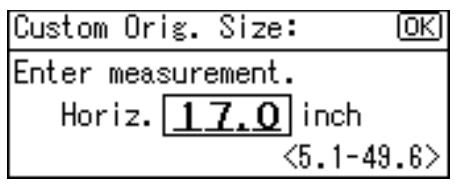
☐ Originals that have a vertical length of 105-297 mm (4.2"-11.6") and a horizontal length of 128-1,260 mm (5.1"-49.6") can be specified.
1 Select a desired paper tray using [▲] or [▼].
![Ready 18%×14 [100%] 100% R/E Auto R/E](/content/2025/01/136347/images/512f0929ad869b5a24c03f9821abcd3f58eda6ffa9db71cc70495f7e56982d5d.jpg)
2 Press the [#] key.
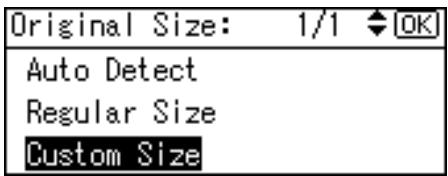
3 Select [Custom Size] using [▲] or [▼], and then press the [OK] key.
4 Enter the horizontal size of the original (Horiz.) with the number keys, and then press the [OK] key.
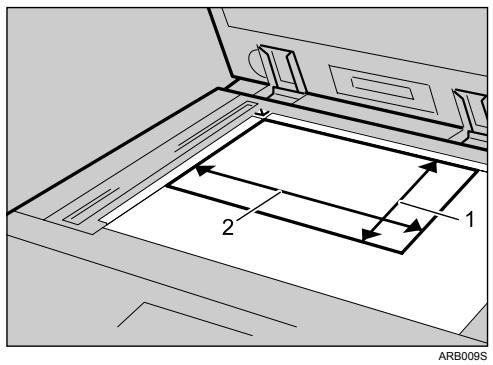
1 Vertical size
2 Horizontal size
5 Enter the vertical size of the original (Vert.) with the number keys, and then press the [OK] key.
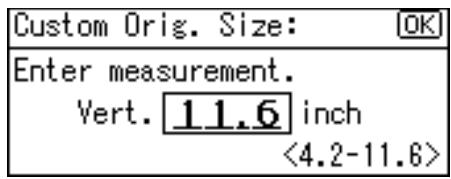
The "Programmed" message appears.
When the custom size originals settings are registered, <□*Ready> appears on the top of the copy display.
![<□>Ready 18%×14 [100%] 100% R/E Auto R/E](/content/2025/01/136347/images/28e528c8a769168008ab47ad90f3aa01a942727dab5c0ebdf7f368047886b160.jpg)
Note
☐ This function is not available in Auto Paper Select mode.
☐ If you make a mistake in step 4 or 5, press the [Clear/Stop] key, and then enter the value again.
☐ To cancel the size you have set, press the 【Clear Modes】key.
Specifying the Original Size When the Bypass Tray is Selected
You can select either regular or custom for the size of the original when the bypass tray is selected.
Regular sizes
When placing regular size originals on the exposure glass or in the ARDF, select the size of the originals from the regular sizes shown on the display.
1 Select the bypass tray using [▲] or [▼].
![Ready Bypass(Thick) [100%] 100% R/E Auto R/E](/content/2025/01/136347/images/2da81ecc9888035cfe57ece0d236efb7242e3d634c4676468be9bbae48526c68.jpg)
2 Press the [#] key.
3 Select [Original Size] using [▲] or [▼], and then press the [OK] key.
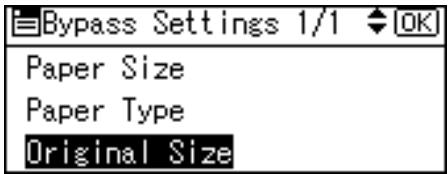
4 Select [Regular Size] using [▲] or [▼], and then press the [OK] key.
When [Auto Detect] is selected, the size of the placed original will be detected automatically.
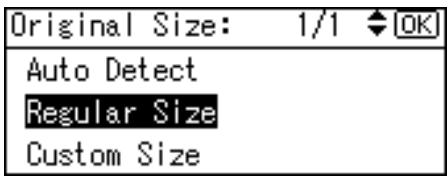
5 Select the original size using the scroll keys, and then press the [OK] key.
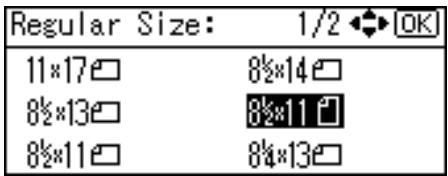
The "Programmed" message appears.
When the regular size originals settings are registered, <凹※Ready> appears on the top of the copy display.
![<凹※>Ready Bypass(Thick) [100%] 100% R/E Auto R/E](/content/2025/01/136347/images/7009699985bd8bed763057dfb7d54ac453b24bcee97d5688a052ea7d2c634f16.jpg)
Note
☐ This function is not available in Auto Paper Select mode.
☐ To cancel the size you have set, press the 【Clear Modes】key.
Custom sizes
When placing custom size originals on the exposure glass or in the ARDF, specify the size of the originals using the number keys.
Important
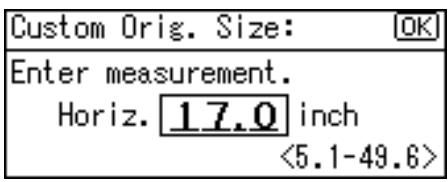
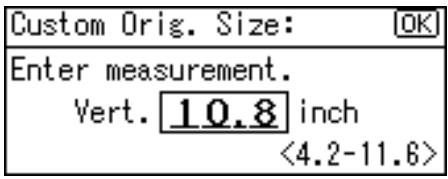
☐ Originals that have a vertical length of 105–297 mm (4.2"-11.6") and a horizontal length of 128-1,260 mm (5.1"-49.6") can be specified.
1 Select the bypass tray using [▲] or [▼].
![Ready Bypass(Thick) [100%] 100% R/E Auto R/E](/content/2025/01/136347/images/ce130cc667759a946b76b9237e50cc8622ac01d045facdb6b1480598eac5213e.jpg)
2 Press the [#] key.
3 Select [Original Size] using [▲] or [▼], and then press the [OK] key.
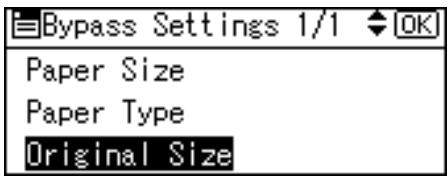
4 Select [Custom Size] using [▲] or [▼], and then press the [OK] key.
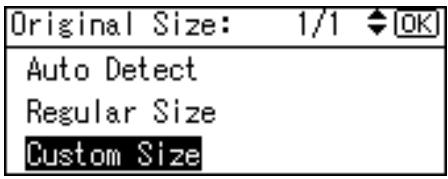
5 Enter the horizontal size of the original (Horiz.) with the number keys, and then press the [OK] key.
6 Enter the vertical size of the original (Vert.) with the number keys, and then press the [OK] key.
The "Programmed" message appears.
When the custom size originals settings are registered, <□*Ready> appears on the top of the copy display.
![< img src="Ready" Bypass(Thick) [100%] 100% R/E Auto R/E](/content/2025/01/136347/images/1b6843c5b6b683f794b1a206e455cf1ea1f7180185aa5e4dcf9b6e80e57e6219.jpg)
Note
☐ This function is not available in Auto Paper Select mode.
☐ If you make a mistake in step 5 or 6, press the [Clear/Stop] key, and then enter the value again.
☐ To cancel the size you have set, press the 【Clear Modes】key.
1
This chapter describes procedures for making copies in various modes.
Basic Procedure
This section describes the basic procedure for making copies.
Important
☐ When User Code Authentication is set, enter your user code (up to eight digits) with the number keys so that the machine accepts copy jobs. See “Authentication Information”, General Settings Guide.
☐ When Basic Authentication, Windows Authentication, LDAP Authentication, or Integration Server Authentication is set, enter your login user name and password so that the machine accepts copy jobs. Ask the administrator for the login user name and password. For details, see “When the Authentication Screen is Displayed”, About This Machine.
1 Make sure "∪Ready" appears on the screen.
If any other function is displayed, press the 【Copy】 key.
◆ Initial copy display
![Ready Auto Paper Select [100%] 100% R/E Auto R/E](/content/2025/01/136347/images/510508877a43007a3fdf7cd0f49b829a40b5de08691ed0694991e2d8f88c6152.jpg)
2 Make sure no previous settings remain.
When there are previous settings remaining, press the [Clear Modes] key.
3 Place the originals.
4 Make desired settings.
5 Enter the number of copies using the number keys.
The maximum copy quantity that can be set is 999.
The default quantity is 99.
To change the maximum copy quantity, press the [User Tools/Counter] key.
6 Press the [Start] key.
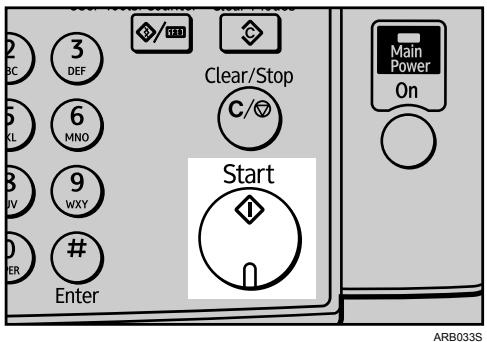
The machine starts copying.
When placing originals on the exposure glass, press the [#] key after all originals are scanned.
Copies are delivered face down.
![RICOH AFICIO MP 2500 - Press the [Start] key. - 2](/content/2025/01/136347/images/4c9c33aefcbc295e305e04f2aeee2d567dd55cd82845b5d4793e8fc0c0b33c31.jpg)
Note
□ Always log off when you have finished using the machine to prevent unauthorized users from using the machine.
☐ To stop the machine during a multicopy run, press the 【Clear/Stop】 key.
☐ To return the machine to its initial state after copying, press the 【Clear Modes】key.
☐ To clear an entered value, press the 【Clear/Stop】key.
☐ To switch between pages or selectable functions, press the scroll keys.

Reference
"Copier Features", General Settings Guide
"Accessing User Tools", General Settings Guide
"When the Authentication Screen is Displayed", About This Machine
Copying from the Bypass Tray
Use the bypass tray to copy onto OHP transparencies, thick paper, envelopes, and paper that cannot be loaded in the paper trays.
Important
☐ Paper that has a vertical length of 90-297 mm (3.55"-11.69") and a horizontal length of 148-600 mm (5.83"-23.62") can be copied from the bypass tray. However, when paper that is 433 mm (17.1") or longer is used, the paper may become wrinkled, may not be fed into the machine, or may cause paper jams.
☐ The machine can detect the following sizes as regular size paper:
- Metric version
$$ \mathrm{A} 3 \square , \mathrm{A} 4 \square , \mathrm{A} 5 \square , 8 ^ {\prime \prime} \times 1 3 ^ {\prime \prime} $$
- Inch version
$$ 1 1 ^ {\prime \prime} \times 1 7 ^ {\prime \prime} \square , 8 ^ {1} / _ {2} ^ {\prime \prime} \times 1 1 ^ {\prime \prime} \square , 5 ^ {1} / _ {2} ^ {\prime \prime} \times 8 ^ {1} / _ {2} ^ {\prime \prime} \square $$
If you want to use the size of paper other than the above, be sure to specify the size.
Reference
"Copy Paper", About This Machine
Loading Paper on the Bypass Tray
Use the bypass tray to copy onto OHP transparencies, thick paper, envelopes and paper that cannot be loaded in the paper trays.
Important
☐ When copying on OHP transparencies or paper heavier than 162 g/m^2 (about 43 lb.) you need to specify the type and size of paper.
☐ The maximum number of sheets you can load into the bypass tray depends on the paper type. Load only as much paper as can be held between the paper guides on the bypass tray.
1 Open the bypass tray.
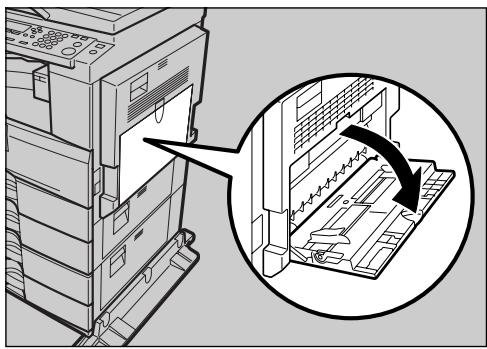
natural_image
Diagram of a server rack with an inset showing a zoomed-in view of the rack structure (no text or symbols present)BAE001S
2 Push up the paper guide release lever.
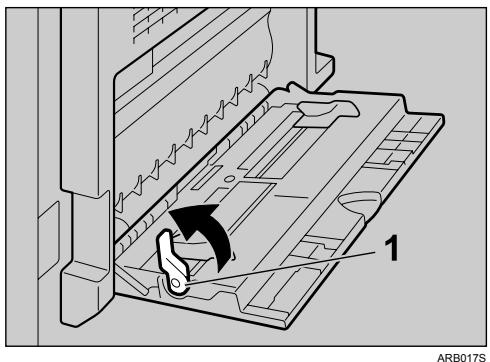
1 Paper guide release lever
3 Insert the paper face down, and then align the paper guides to the paper size.
If the guides are not flush against the paper, images might be skewed or paper misfeeds might occur.
Load only as much paper as can be held between the guides on the bypass tray. Overloading the bypass tray can result in misfeeds and skewed images.
To support A4☐, 8^1/_2 " × 11"☐ or larger paper sizes, pull out the extender.
To prevent multiple sheets from being fed at once, fan paper before placing it on the tray.
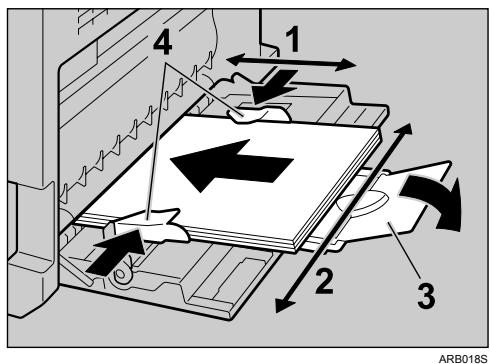
1 Horizontal size
2 Vertical size
3 Extender
4 Paper guides
4 Pull down the paper guide release lever.
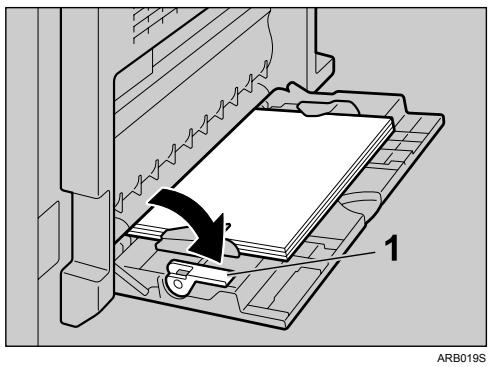
1 Paper guide release lever
The bypass tray is selected on the display.
![Ready Bypass(Thick) [100%] 100% R/E Auto R/E](/content/2025/01/136347/images/2a944daae1d7f5a37d491780356158fdafd168c05fa46f1c3bedb3291f5bb18a.jpg)
5 Select the size and type of the paper, if required.
Note
☐ If the bypass tray is not selected on the display in step 4, select it using [▲] or [▼], and then press the [#] key.
When Copying onto Regular Size Paper
Makes copies onto regular size paper from the bypass tray.
1 Select the bypass tray using [▲] or [▼].
2 Load paper face down on the bypass tray.
3 Press the [#] key.
4 Select [Paper Size] using [▲] or [▼], and then press the [OK] key.
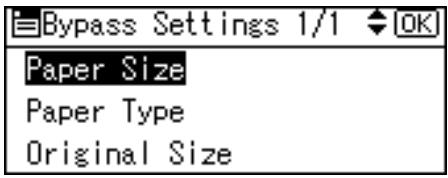
5 Select [Regular Size] using [▲] or [▼], and then press the [OK] key.
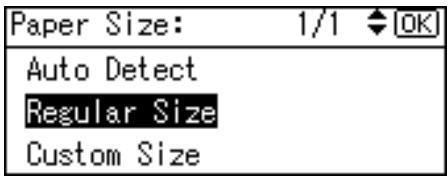
6 Select the paper size using the scroll keys, and then press the [OK] key.
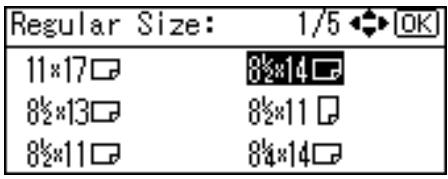
The "Programmed" message appears.
7 Select the paper type, if required.
8 Place the originals, and then press the [Start] key.
9 When the copy job is finished, press the [Clear Modes] key to clear the settings.
Reference
p.23 "Loading Paper on the Bypass Tray"
When Copying onto Custom Size Paper
Makes copies onto custom size paper from the bypass tray.
1 Select the bypass tray using [▲] or [▼].
2 Load paper face down on the bypass tray.
3 Press the [#] key.
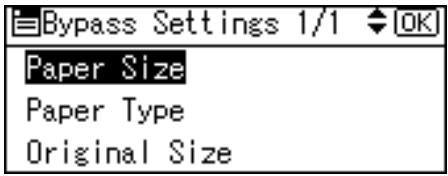
4 Select [Paper Size] using [▲] or [▼], and then press the [OK] key.
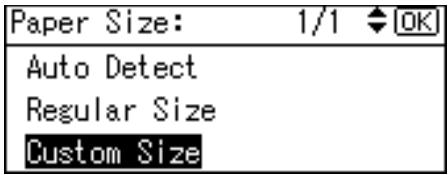
5 Select [Custom Size] using [▲] or [▼], and then press the [OK] key.
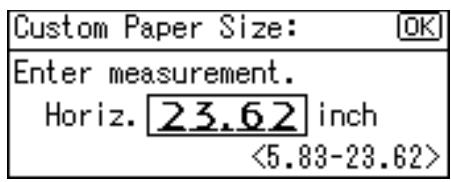
6 Enter the horizontal size of the paper (Horiz.) with the number keys, and then press the [OK] key.
7 Enter the vertical size of the paper (Vert.) with the number keys, and then press the [OK] key.
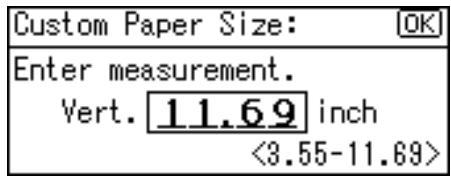
The "Programmed" message appears.
8 Select the paper type, if required.
9 Place the originals, and then press the [Start] key.
10 When the copy job is finished, press the [Clear Modes] key to clear the settings.
Note
☐ If you make a mistake in step 6 or 7, press the [Clear/Stop] key, and then enter the value again.
Reference
p.23 "Loading Paper on the Bypass Tray"
When Copying onto OHP Transparencies
When copying onto OHP transparencies, select [OHP (Transparency)] in Paper Type.
Important
☐ OHP transparencies must be loaded face down in the tray with the notched corner of the sheet in the appropriate corner of the tray.
☐ To prevent multiple sheets from being fed at once, fan OHP transparencies before placing them on the tray.
☐ Remove copied sheets from the Internal Tray one by one.
1 Select the bypass tray using [▲] or [▼].
2 Load OHP transparencies face down on the bypass tray.
3 Press the [#] key.
4 Select [Paper Type] using [▲] or [▼], and then press the [OK] key.
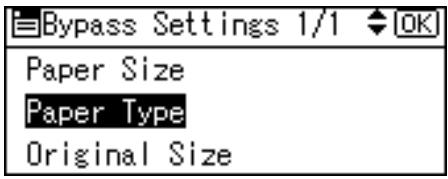
5 Select [OHP (Transparency)] using [▲] or [▼], and then press the [OK] key.
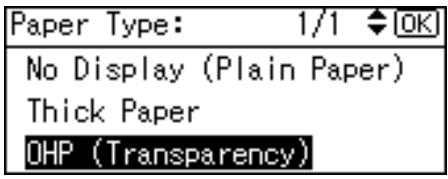
The "Programmed" message appears.
![Ready Bypass(OHP) [100%] 100% R/E Auto R/E](/content/2025/01/136347/images/0ec1932d04267d22cc4acd74f70cfe39bd880d33e6ad1c76cab7e49bed6583f4.jpg)
6 Select the paper size, if required.
7 Place the originals, and then press the [Start] key.
8 When the copy job is finished, press the [Clear Modes] key to clear the settings.
Note
☐ Printing on OHP transparencies is slower than printing on plain paper.
Reference
p.23 "Loading Paper on the Bypass Tray"
When Copying onto Thick Paper
When copying onto thick paper, select [Thick Paper] in Paper Type.
Important
☐ To prevent multiple sheets from being fed at once, fan paper before placing it on the tray.
1 Select the bypass tray using [▲] or [▼].
2 Load thick paper face down on the bypass tray.
3 Press the [#] key.
4 Select [Paper Type] using [▲] or [▼], and then press the [OK] key.
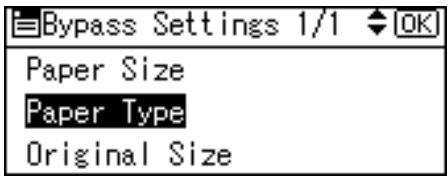
5 Select [Thick Paper] using [▲] or [▼], and then press the [OK] key.
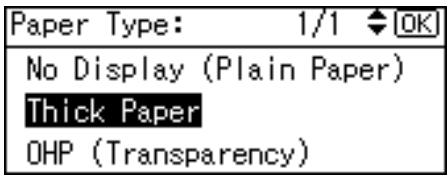
The "Programmed" message appears.
![Ready Bypass(Thick) [100%] 100% R/E Auto R/E](/content/2025/01/136347/images/a64c55cd0e13f0ee4c21e304b3c3b3a8f5d1dd75eb26d9073e0792657b6f0a10.jpg)
6 Select the paper size, if required.
7 Place the originals, and then press the [Start] key.
8 When the copy job is finished, press the [Clear Modes] key to clear the settings.
Note
☐ Printing on thick paper is slower than printing on plain paper.
Reference
p.23 "Loading Paper on the Bypass Tray"
When Copying onto Envelopes
When copying onto envelopes, select the envelope size in Paper Size, and [Thick Paper] in Paper Type.
Important
☐ Before loading envelopes, use a pen or similar to flatten their edges.
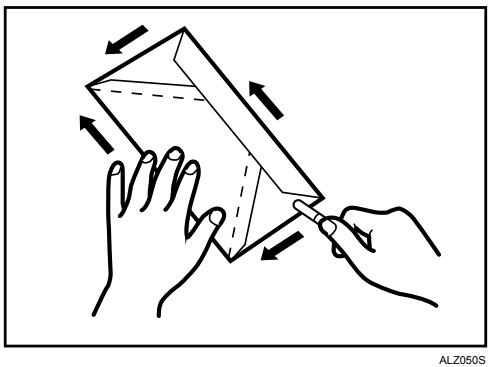
natural_image
Illustration of two hands holding a 3D cube with arrows indicating force or movement (no text or symbols)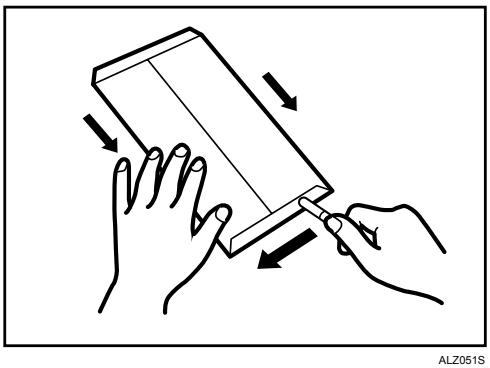
natural_image
Illustration of two hands holding a rectangular object with arrows indicating motion or force direction (no text or symbols)◆ Printable area
The following areas of envelopes can be printed on:
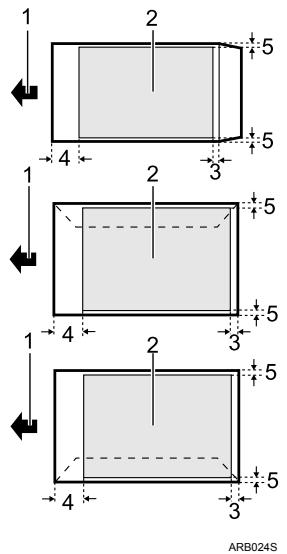
1 Feeding direction
2 Printable area
3 21 mm (0.83")
4 10 mm (0.40")
5 5 mm (0.20")
◆ Orientation of Originals and Envelopes
Originals and envelopes must be placed in the same orientation.
To minimize waste and time, check that originals and envelopes are loaded in the same orientation.
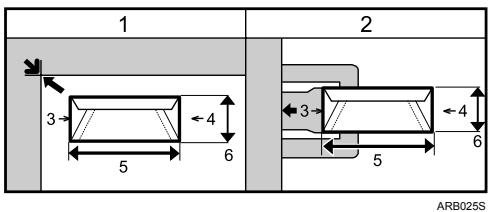
The illustration shows the orientation of originals and envelopes.
1 Original on the exposure glass
2 Envelope on the bypass tray
3 Top
4 Bottom
5 Horizontal size
6 Vertical size
1 Select the bypass tray using [▲] or [▼].
2 Load envelopes face down on the bypass tray.
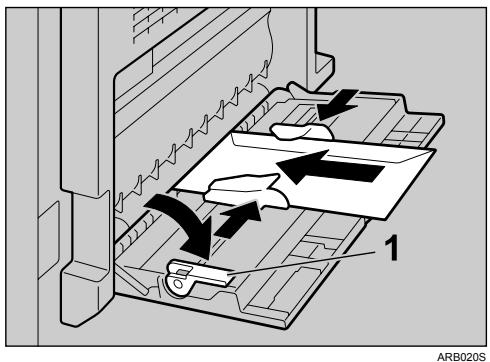
1 Paper guide release lever
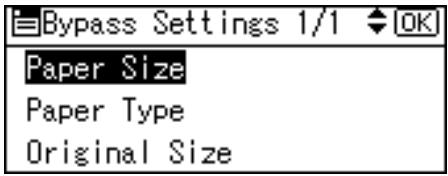
3 Press the [#] key.
4 Select [Paper Size] using [▲] or [▼], and then press the [OK] key.
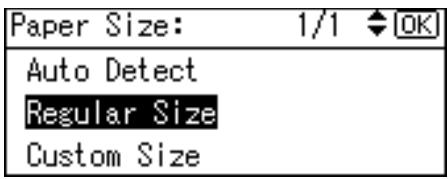
5 Select [Regular Size] using [▲] or [▼], and then press the [OK] key.
6 Select the envelope size using [▲] or [▼], and then press the [OK] key.
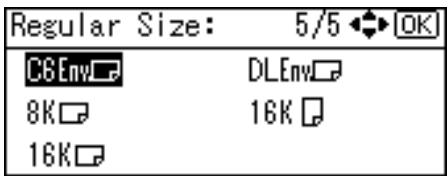
The "Programmed" message appears.
7 Press the [#] key.
8 Select [Paper Type] using [▲] or [▼], and then press the [OK] key.
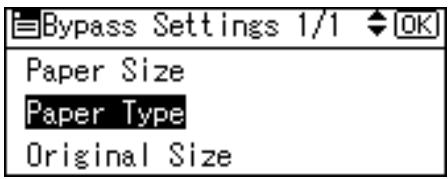
9 Select [Thick Paper] using [▲] or [▼], and then press the [OK] key.
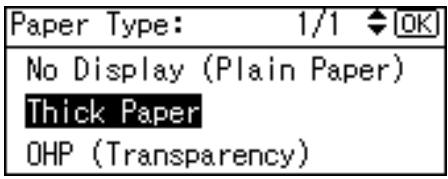
The "Programmed" message appears.
![Ready C6Env (Thick) [100%] 100% R/E Auto R/E](/content/2025/01/136347/images/04245bdeb5d287a924e5877a79fc77ffb5d59b33bad2a2deab5e6c2712b333dc.jpg)
10 Place the original, and then press the [Start] key.
When the copy job is finished, press the [Clear Modes] key to clear the settings.
Reference
p.23 "Loading Paper on the Bypass Tray"
Copy Functions
Adjusting Image Density
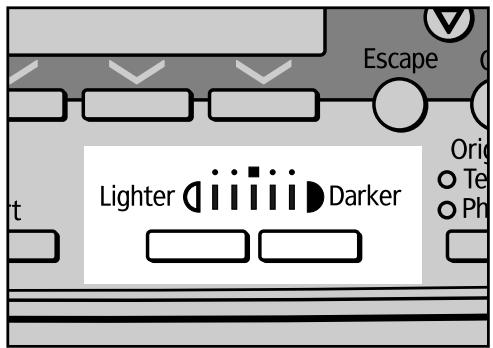
You can adjust the image density in five levels. If you want darker or lighter copies, adjust the image density accordingly.
1 Press the [Lighter] or [Darker] key to adjust the image density.
The density indicator “” moves.
ARB045S
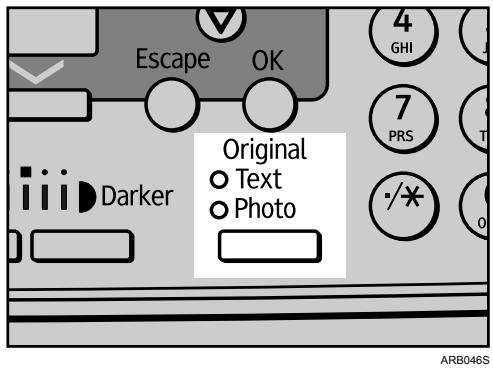
Original Type Setting
Select one of the following original types to match your originals:
Text
Select this mode when your originals contain only text (no pictures).
Photo
Delicate tones of photographs and pictures can be reproduced with this mode.
- When copying developed photographs
- When copying photographs or pictures that are printed on paper (e.g. magazines)
- When copying originals generated by color copiers

Press the [Original] key to select the original type.
The indicator of the selected original type goes on.
![RICOH AFICIO MP 2500 - Press the [Original] key to select the original type. - 2](/content/2025/01/136347/images/9008a80ceb793f57ec819f6d82db4a9b7c5ef65a0070aac942dcda7454d612ae.jpg)
Reference
"Copier Features: Original Type Setting", General Settings Guide
Selecting Copy Paper
There are two ways to select paper:
Auto Paper Select
The machine selects a suitable size of paper automatically based on the original size and reproduction ratio.
◆ Manual Paper Select
Choose a tray containing the paper you want to copy onto: the paper trays or the bypass tray.
See the following table for paper sizes and orientations that can be used with Auto Paper Select (when copying at a ratio of 100%).
◆ Metric version
| Original location | Paper size and orientation |
| Exposure glass | A3□, B4 JIS□, A4□□, B5 JIS□, A5□*1, 8 ^1 / _2 " × 13"□*2 |
| ARDF | A3□, B4 JIS□, A4□□, B5 JIS□□, A5□□, 8 ^1 / _2 " × 13"□*2 |
◆ Inch version
| Original location | Paper size and orientation |
| Exposure glass | 11" × 17"□, 81/2" × 14"□, 81/2" × 13"□, 81/2" × 11"□□, 51/2" × 81/2"*1 |
| ARDF | 11" × 17"□, 81/2" × 14"□, 81/2" × 11"□□, 51/2" × 81/2"□□ |
*1 If you want to use A5 or 5^1/2'' × 8^1/2'' with Auto Paper Select, contact your service representative.
*2 Default is 8^1/2'' × 13'' . You can select from 8'' × 13'' or 8^1/4'' × 13'' . To make 8'' × 13'' or 8^1/_4'' × 13'' detectable, contact your service representative.
Note
☐ If special paper is selected in Paper Type for all paper trays, you cannot use the Auto Paper Select function.
Reference
p.10 "Sizes difficult to detect"
Auto Paper Select
The machine selects a suitable size of paper automatically based on the original size and the reproduction ratio.
1 Make sure that [Auto Paper Select] is selected.
![Ready Auto Paper Select [100%] 100% R/E Auto R/E](/content/2025/01/136347/images/09d06ce65ebbaf069ab67092f6e8736c0185175b8915c1599b2b61a8b9347f3b.jpg)
Note
☐ If [Auto Paper Select] is not selected, select [Auto Paper Select] by using [▲] or [▼].
☐ Paper placed in the bypass tray will not be selected with Auto Paper Select.
Manual Paper Select
Choose a tray containing the paper you want to copy onto: the paper trays or the bypass tray.
1 Select a desired tray using [▲] or [▼].
The selected tray and paper size are displayed.
![Ready 18%×14 [100%] 100% R/E Auto R/E](/content/2025/01/136347/images/f177dd8bdeffc48c8d0fdff06b4be064fe5cade45ff2b1d97f8c5a923f33c54f.jpg)
Rotated Copy
If the orientation in which your original is placed (☐☐) is different from that of the paper you are copying onto, the machine automatically rotates the original image by 90^ and fits it on the paper.
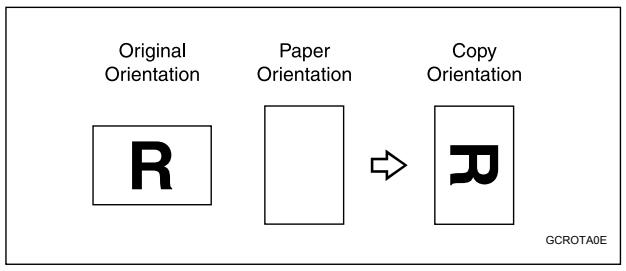
flowchart
graph LR
    A["Original Orientation"] --> B["Paper Orientation"]
    B --> C["Copy Orientation"]

Note
☐ This function works when Auto Paper Select or Auto Reduce/Enlarge is selected.
☐ The default setting for Auto Tray Switching is [On]. You cannot use the Rotated Copy function if this setting is changed to [Off].
☐ You cannot use the Rotated Copy function when enlarging onto A3 or B4 JIS, or 11" × 17" or 8 ^1 /2" × 14" size paper. In this case, place your original in the □ orientation.
| Original size and orientation | Paper size and orientation | ||||
| You cannot rotate: | 8^1/_2 × 11" or 5^1/_2 × 8^1/_2" |  GCROTA1E GCROTA1E | When enlarging to → | 8^1/_2 × 14" or 11" × 17" |  GCROTA2E GCROTA2E |
| However, you can use: | 8^1/_2 × 11" or 5^1/_2 × 8^1/_2" |  GCROTA3E GCROTA3E | When enlarging to → | 8^1/_2 × 14" or 11" × 17" |  GCROTA4E GCROTA4E |

Reference
p.23 "Copying from the Bypass Tray"
p.37 "Auto Paper Select"
p.42 "Auto Reduce/Enlarge"
"Copier Features: Auto Tray Switching", General Settings Guide
Preset Reduce/Enlarge
You can select a preset reduce or enlarge ratio for copying.
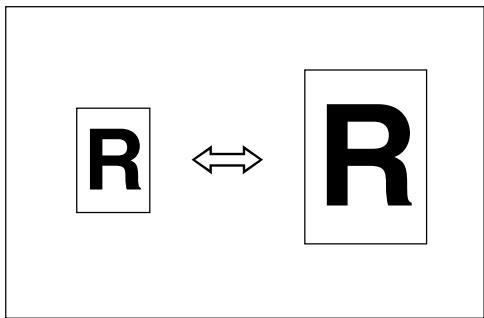
Base Point
The base point of Reduce/Enlarge differs depending on how the original is scanned. When the original is set on the exposure glass, the upper left corner will be the base point. When it is set in the ARDF, the bottom left corner of the original will be the base point. The figure below is the resulting copy images that differ depending on how the original is scanned.
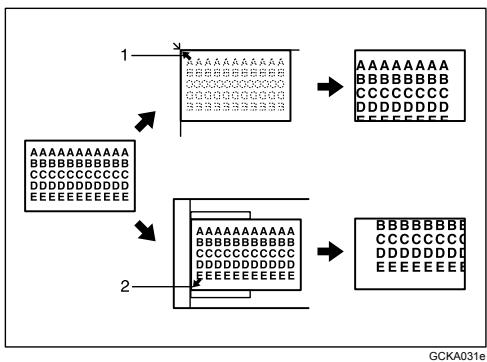
flowchart
graph TD
    A["1: AAAAAAAAAA\nXXXXXXXXXX\N\nXXXXXXXXXX\N"] --> B["2: AAAAAAAAAA\nXXXXXXXXXX\N\nXXXXXXXXXX\N\nXXXXXXXXXX\N"]
    B --> C["3: AAAAAAAAAA\nXXXXXXXXXX\N\nXXXXXXXXXX\N\nXXXXXXXXXX\N\nXXXXXXXXXX\N"]
    C --> D["4: AAAAAAAAAA\nXXXXXXXXXX\N\nXXXXXXXXXX\N\nXXXXXXXXXX\N\nXXXXXXXXXX\N\nXXXXXXXXXX\N"]
1 Base point when placing on the exposure glass
2 Base point when placing in the ARDF
1 Press [R/E].
![Ready Auto Paper Select [100%] 100% R/E Auto R/E](/content/2025/01/136347/images/2d54115b6ddb6b29d9542f041dc5d0471e52dedae76f7cc16ddfe1733ea512da.jpg)
2 Press [Reduce] or [Enlarge].
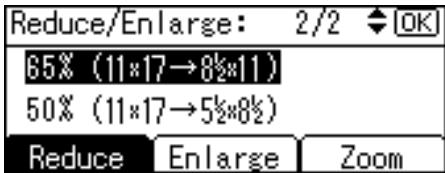
3 Select a ratio using [▲] or [▼], and then press the [OK] key. The "Programmed" message appears.
4 Place the originals, and then press the [Start] key.
![RICOH AFICIO MP 2500 - Press [Reduce] or [Enlarge]. - 2](/content/2025/01/136347/images/21d67dd3cbaa7ef679d9e0653c3dd845100e0c28c51fb75c2c49507fbc25895d.jpg)
Reference
"Copier Features: Reproduction Ratio", General Settings Guide "Copier Features: Preset R/E Priority", General Settings Guide
Zoom
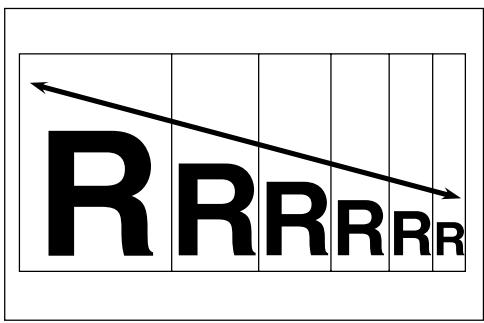
You can change the reproduction ratio in increments of 1%.
Selecting a ratio using the scroll keys
Select a ratio using [▲] or [▼].
1 Press [R/E].
![Ready Auto Paper Select [100%] 100% R/E Auto R/E](/content/2025/01/136347/images/376d20dd4cf2385903ff0427a09b4bef59ec7d04202bbce6ea1aa9d40bb354f5.jpg)
2 Select a preset ratio which is close to the desired ratio with [Enlarge] or [Reduce], and then press [Zoom].
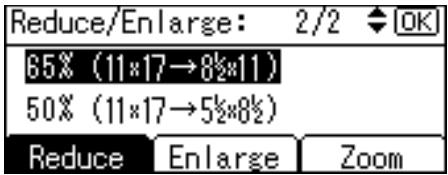
3 Specify a ratio using [▲] or [▼], and then press the [OK] key.
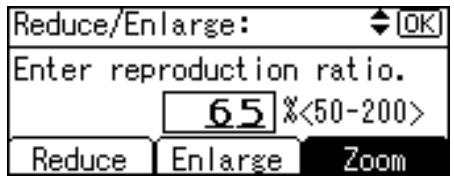
Pressing [▲] or [▼] changes the ratio in increments of 1%. Pressing and holding down the relevant key changes the ratio in increments of 10%.
The "Programmed" message appears.
4 Place the original, and then press the [Start] key.
Note
☐ If you make a mistake in step 3, readjust it using [▲] or [▼].
Entering a ratio with the number keys
Select a ratio using the number keys.
1 Press [R/E].
![Ready Auto Paper Select [100%] 100% R/E Auto R/E](/content/2025/01/136347/images/2f86890cde36945e90bd08c8b5ca3ad1d6786e1a7464c8840bec7553c8bca09b.jpg)
2 Press [Zoom].
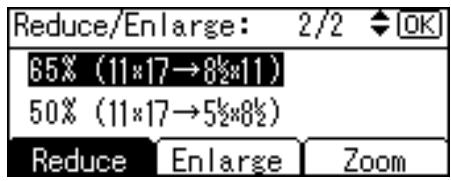
3 Enter the desired ratio with the number keys, and then press the [OK] key.
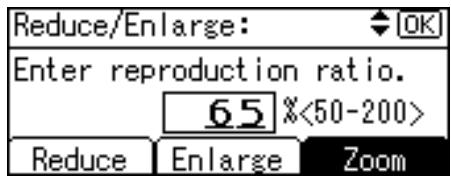
The "Programmed" message appears.
4 Place the original, and then press the [Start] key.
Note
☐ If you make a mistake in step 3, press the [Clear/Stop] key, and then enter the value again.
Auto Reduce/Enlarge
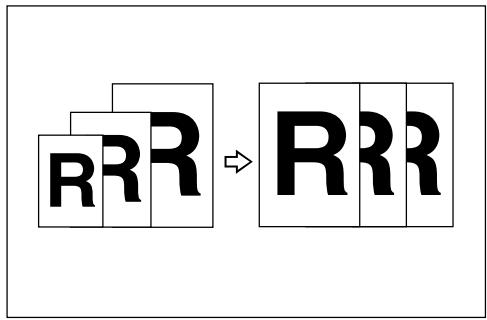
The machine automatically selects an appropriate reproduction ratio based on the paper and original sizes you select.
Important
☐ You cannot use the bypass tray with this function.
☐ When using Auto Reduce/Enlarge, see the following table for paper sizes and orientations you can use:
◆ Metric version
| Where original is placed | Paper size and orientation |
| Exposure glass | A3□, B4 JIS□, A4□□, B5 JIS□, A5□*1, 8 ^1/_2 " × 13"□*2 |
| ARDF | A3□, B4 JIS□, A4□□, B5 JIS□□, A5□□, 8 ^1/_2 " × 13"□*2 |
◆ Inch version
| Where original is placed | Paper size and orientation |
| Exposure glass | 11" × 17" , 8^1/_2" × 14" , 8^1/_2" × 13" , 8^1/_2" × 11" , 5^1/_2" × 8^1/_2" *1 |
| ARDF | 11" × 17" , 8^1/_2" × 14" , 8^1/_2" × 11" , 5^1/_2" × 8^1/_2" |
*1 If you want to use A5 or 5^1/2 × 8^1/2 with this function, contact your service representative.
*2 Default is 8^1/2'' × 13'' . You can select from 8'' × 13'' or 8^1/4'' × 13'' . To make 8'' × 13'' or 8^1/_4'' × 13'' detectable, contact your service representative.
1 Press [Auto R/E].
![Ready Auto Paper Select [100%] 100% R/E Auto R/E](/content/2025/01/136347/images/7d58f5512889930a78df6b747c7fa7d7d12408ee91bf909cb00115644230dc53.jpg)
2 Select the paper size using [▲] or [▼].
![Ready 18%×14 [Auto Reduce/Enlarge] 100% R/E Auto R/E](/content/2025/01/136347/images/277c36e69a8b622cb896ee270c2dd9d338a137540606c62f76bb9bea96ec0d44.jpg)
3 Place the originals, and then press the [Start] key.
The machine automatically selects an appropriate ratio and then begins copying.
Sort
The machine assembles copies as sets in sequential order.
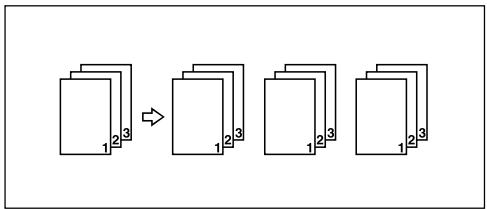
flowchart
graph TD
    A["Step 1: 1, 2, 3"] --> B["Step 2: 1, 2, 3"]
    B --> C["Step 3: 1, 2, 3"]
    C --> D["Step 4: 1, 2, 3"]
When the finisher is installed
1 Press the [Sort/Staple] key.
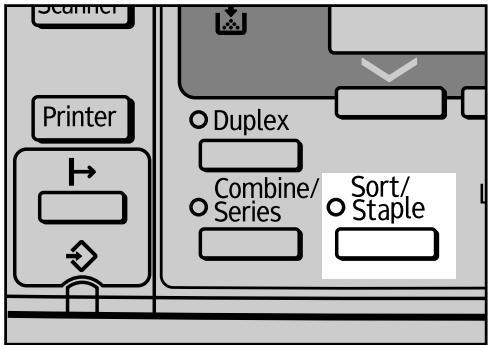
AZB028S
The indicator goes on.
2 Select [Sort and Staple] using [▲] or [▼], and then press the [OK] key.
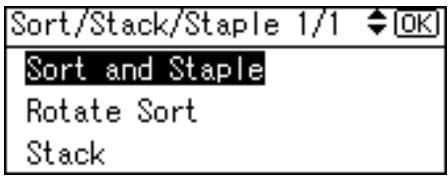
3 Select [Sort Only] using [▲] or [▼], and then press the [OK] key.
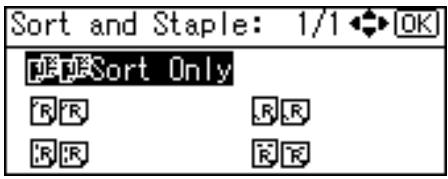
The "Programmed" message appears.
4 Enter the number of copy sets using the number keys.
5 Place the originals.
When placing originals on the exposure glass, start with the first page to be copied. When placing originals in the ARDF, set the first page on the top.
6 Press the [Start] key.
When placing originals on the exposure glass, press the [#] key after all originals are scanned.
![RICOH AFICIO MP 2500 - Select [Sort and Staple] using [▲] or [▼], and then press the [OK] key. - 3](/content/2025/01/136347/images/2d86eb6e2ff9ad5662fd2cd500e13844adb9310420210ea70f3b2cf873ceffb5.jpg)
Note
☐ To display the screen in step 2, select [On] for [Rotate Sort] with Copier Features in User Tools.
☐ To cancel this function in step 1, press the [Sort/Staple] key again. Make sure the indicator goes off.

Reference
"Copier Features: Auto Tray Switching", General Settings Guide "Tray Paper Settings: Paper Type: Tray 1-4", General Settings Guide
When the finisher is not installed
1 Press the [Sort] key.
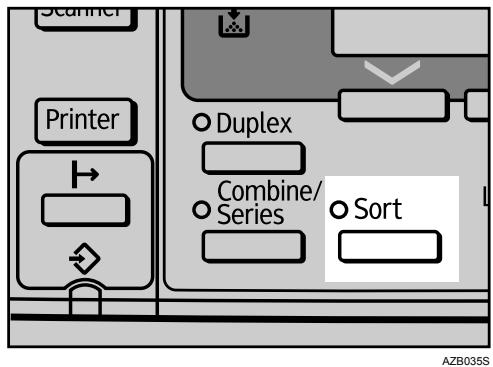
2 Select [Sort] using [▲] or [▼], and then press the [OK] key.
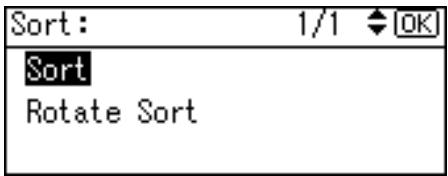
The "Programmed" message appears.
3 Enter the number of copy sets using the number keys.
4 Place your originals.
5 Press the [Start] key.
Note
☐ To cancel this function in step 1, press the [Sort] key again. Make sure the indicator goes off.
Reference
"Copier Features: Auto Tray Switching", General Settings Guide "Tray Paper Settings: Paper Type: Tray 1-4", General Settings Guide
Changing the number of sets
You can change the number of copy sets during copying.
Important
☐ This function can only be used when the Sort function is turned on.
1 While copying, press the [Clear/Stop] key.
2 Press [Sets].
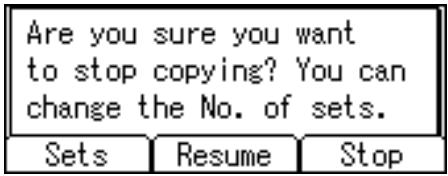
3 Enter the number of copy sets with the number keys, and then press [Resume].
![Enter the number of sets, then press [Resume]. 5 < 2-99> Sets Resume Stop](/content/2025/01/136347/images/be17b2592d019c6821769390055ffb281c4cc2b3fbeb794097615410dc9885f0.jpg)
Copying starts again.
Note
☐ The number of sets you can enter in step 3 differs depending on when the 【Clear/Stop】 key is pressed.
Rotate Sort
Every other copy set is rotated by 90 degrees (☐☐) and delivered to the copy tray.
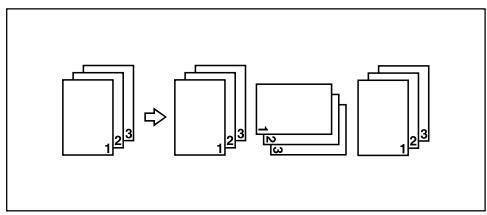
flowchart
graph TD
    A["Step 1: 2, 3"] --> B["Step 2: 1, 2, 3"]
    B --> C["Step 3: 1, 2, 3"]
    C --> D["Step 4: 1, 2, 3"]
Important
☐ To use the Rotate Sort function, two paper trays loaded with paper of the same size and type, but in different orientation (☐), are required. See “Tray Paper Settings: Tray Paper Size: Tray 1-4”, General Settings Guide.
☐ You cannot use the bypass tray with Rotate Sort.
1 Press the [Sort/Staple] key.
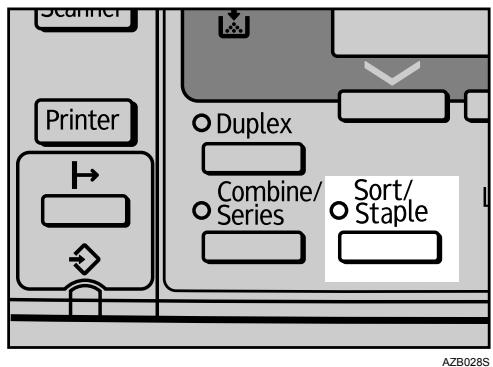
The indicator goes on.
2 Select [Rotate Sort], and then press the [OK] key.
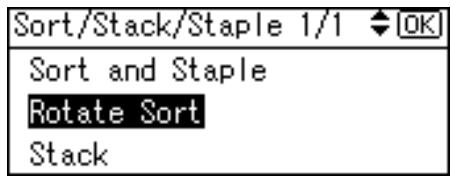
The "Programmed" message appears.
3 Enter the number of copy sets using the number keys.
4 Place the originals.
When placing originals on the exposure glass, start with the first page to be copied. When placing originals in the ARDF, set the first page on the top.
5 Press the [Start] key.
When placing originals on the exposure glass, press the [#] key after all originals are scanned.

Note
☐ To display the screen in step ⑦, select [On] for [Rotate Sort] with Copier Features in User Tools.
☐ To cancel this function in step 1, press the 【Sort/Staple】 key again. Make sure the indicator goes off.
☐ Paper will be delivered shift-sorted when you specify the Finisher Shift Tray as the output tray, even if you have specified Rotate Sort copy.

Reference
"Copier Features: Rotate Sort", General Settings Guide "Copier Features: Rotate Sort: Auto Continue", General Settings Guide "Copier Features: Auto Tray Switching", General Settings Guide "Tray Paper Settings: Paper Type: Tray 1-4", General Settings Guide
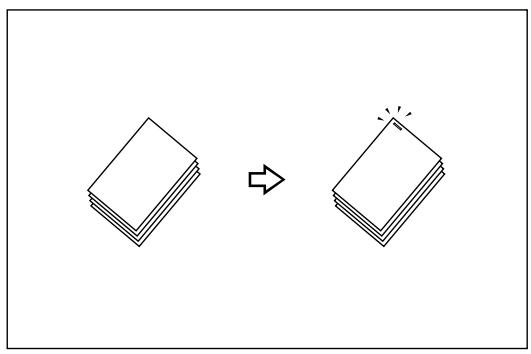
Stack
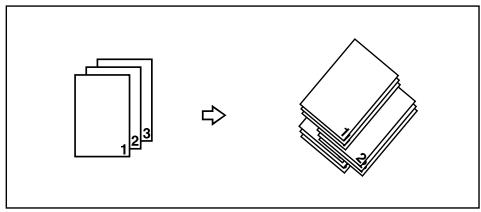
This function groups together copies of each page in a multi-page original. If a finisher is installed, each time the copies of one page are delivered, the next copy is shifted when delivered so you can separate each job by page.
flowchart
graph TD
    A["1"] --> B["2"]
    B --> C["3"]
    C --> D["4"]
    D --> E["5"]
    E --> F["6"]
    style A fill:#f9f,stroke:#333
    style B fill:#f9f,stroke:#333
    style C fill:#f9f,stroke:#333
    style D fill:#f9f,stroke:#333
    style E fill:#f9f,stroke:#333
    style F fill:#f9f,stroke:#333

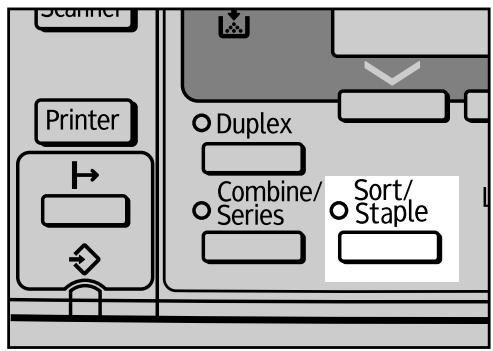
Press the【Sort/Staple】key.
AZB028S
The indicator goes on.
2 Select [Stack] using [▲] or [▼], and then press the [OK] key.
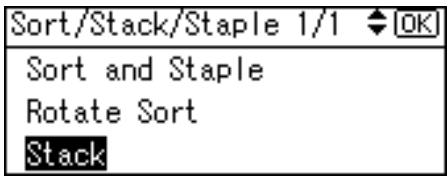
The "Programmed" message appears.
3 Enter the number of copy sets using the number keys.
4 Place the originals.
When placing originals on the exposure glass, start with the first page to be copied. When placing originals in the ARDF, set the first page on the top.
5 Press the [Start] key.
When placing originals on the exposure glass, press the [#] key after all originals are scanned.

Note
☐ To cancel this function in step 1, press the [Sort/Staple] key again. Make sure the indicator goes off.
☐ If you copy using this function and select the paper that can be shift-sorted, the machine automatically outputs copies (including single page jobs) to the Finisher Shift Tray, even if another output tray is specified in the User Tools menu. For details about this function, see “Supplementary Information”.

Reference
p.17 "Specifying the Original Size When the Bypass Tray is Selected" "Copier Features: Rotate Sort", General Settings Guide "Copier Features: Rotate Sort: Auto Continue", General Settings Guide "Copier Features: Auto Tray Switching", General Settings Guide "Tray Paper Settings: Paper Type: Tray 1-4", General Settings Guide
Staple
Each copy set can be stapled together.
natural_image
Two stacked paper sheets with an arrow indicating transformation (no text or symbols)Important
☐ You cannot use the bypass tray with this function.
❖ Stapling position and original setting
Place all the originals in the ARDF in the orientation in which they can be read normally. When placing the original on the exposure glass, keep the same orientation, but set the original facing downwards. When there is copy paper that is identical in size and orientation to your original, the staple positions are as follows:
◆ 500-sheet finisher
| Original location | Stapling*1position | |||
| Exposure glass | ARDF | |||
| Top Slant/Left | ||||
| Bottom Slant/Left | ||||
| Left 2 *3 | ||||
| Top 2 *3 | ||||
BAN019S
*1 This table shows the stapling positions, not the orientation of delivery.
*2 Left 2 □ and Top 2□ are not available for larger than A4 size paper.
*3 It is recommended to use this function together with the [Auto Paper Select] or [Auto Reduce/Enlarge] function.
1 Press the [Sort/Staple] key.
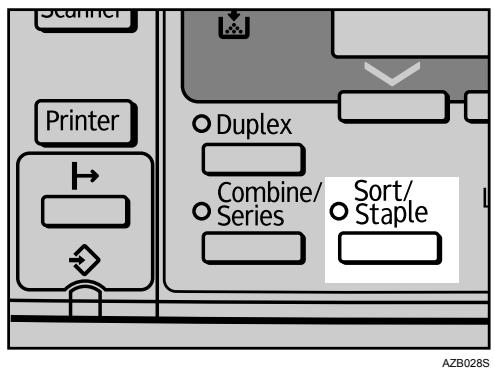
The indicator goes on.
2 Select [Sort and Staple] using [▲] or [▼], and then press the [OK] key.
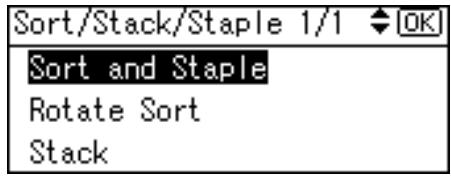
3 Select the staple position using the scroll keys, and then press the [OK] key.
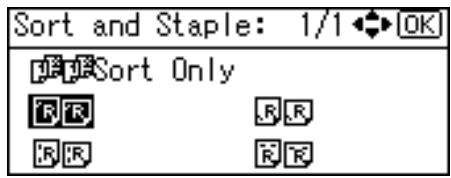
4 Select the original orientation using the scroll keys, and then press the [OK] key.
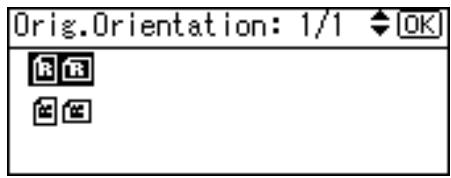
The "Programmed" message appears.
5 Enter the number of copy sets using the number keys.
6 Place the originals.
When placing originals on the exposure glass, start with the first page to be copied. When placing originals in the ARDF, set the first page on the top.
7 Press the [Start] key.
When placing originals on the exposure glass, press the [#] key after all originals are scanned.
![RICOH AFICIO MP 2500 - Press the [Start] key. - 1](/content/2025/01/136347/images/e5b888f941d29fb82d26b6d33989cb2f4ec53996b4d9629dfcd4f9ed88171592.jpg)
Note
☐ To cancel this function in step 1, press the [Sort/Staple] key again. Make sure the indicator goes off.
☐ To display the screen in step 4, select [Always Specify] for [Orientation] with Copier Features in User Tools. If [Do not Specify] is selected, proceed to step 5.

Reference
p.67 "Supplementary Information" "Specifications for Options", About This Machine "Copier Features: Rotate Sort", General Settings Guide "Copier Features: Rotate Sort: Auto Continue", General Settings Guide "Copier Features: Auto Tray Switching", General Settings Guide "Copier Features: Orientation", General Settings Guide "Tray Paper Settings: Paper Type: Tray 1-4", General Settings Guide
Duplex
There are two types of Duplex available.

Important
☐ You cannot use the bypass tray with this function.
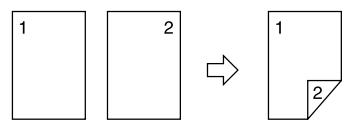
◆ 1 Sided → 2 Sided
Copies 2 one-sided pages to 1 two-sided page.
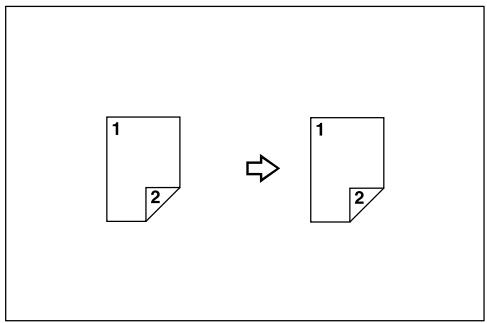
◆ 2 Sided → 2 Sided
Copies 1 two-sided page to 1 two-sided page.
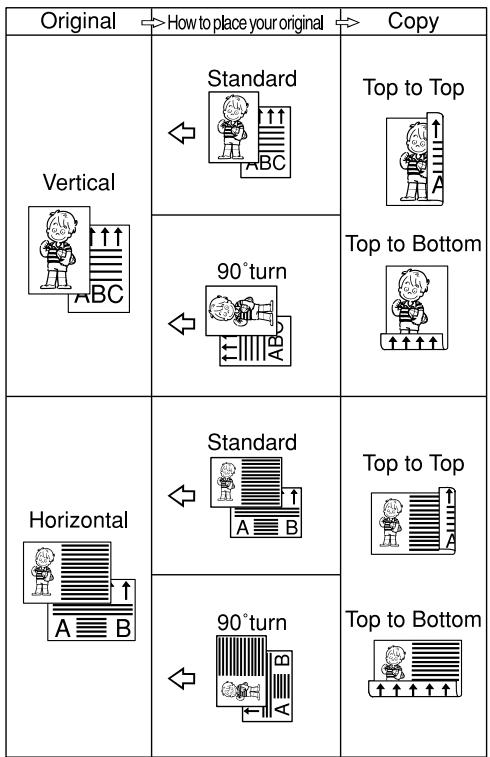
Original orientation and completed copies
The resulting copy image will differ according to the orientation in which you place the originals (vertical □ or horizontal □).
The table shows the orientation of images on the front and back of copies, not the orientation of delivery.
GCRYOU1E
1 Press the [Duplex] key.

AZB033S
The indicator goes on.
2 Select the duplex mode using [▲] or [▼], and then press the [OK] key.
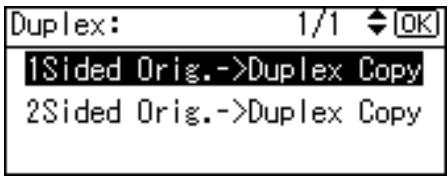
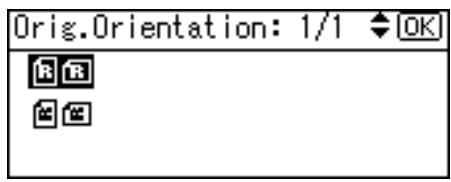
3 Select the original orientation using [▲] or [▼], and then press the [OK] key.
4 Select the duplex orientation using [▲] or [▼], and then press the [OK] key.
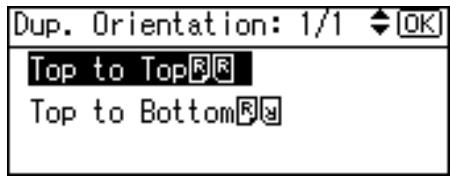
The "Programmed" message appears.
5 Place the originals.
When placing originals on the exposure glass, start with the first page to be copied. When placing originals in the ARDF, set the first page on the top.
6 Press the [Start] key.
When placing originals on the exposure glass, press the [#] key after all originals are scanned.
Note
☐ The paper weight that can be used with duplex copying is 64-105 g/m ^2 (20-28 lb.)
☐ To cancel the Duplex function in step 1, press the [Duplex] key again. Make sure the indicator goes off.
☐ To display the screens in steps 3 and 4, select [Always Specify] for [Orientation] with Copier Features in User Tools. If [Do not Specify] is selected, proceed to step 5.
☐ You can change the margins of duplex copies.
Reference
"Copier Features: Duplex Margin", General Settings Guide
"Copier Features: Orientation", General Settings Guide
One-Sided Combine
Combines several pages to one side of a sheet.
There are four types of One-Sided Combine available.
Important
☐ You cannot use the bypass tray with this function.
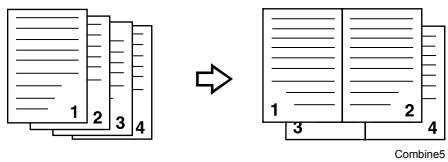
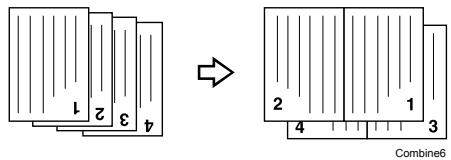
◆ 1 Sided 2 Pages → Combine 1 Side
Copies 2 one-sided originals to one side of a sheet.
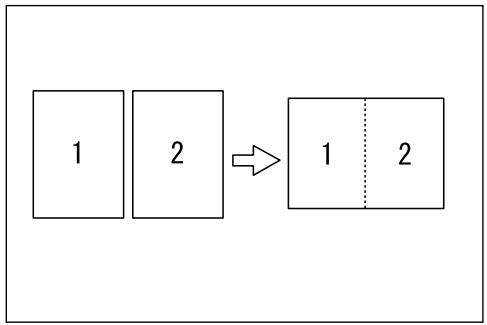
flowchart
graph LR
    A["1"] --> B["2"]
    B --> C["1"]
    C --> D["2"]
GCSHVY7J
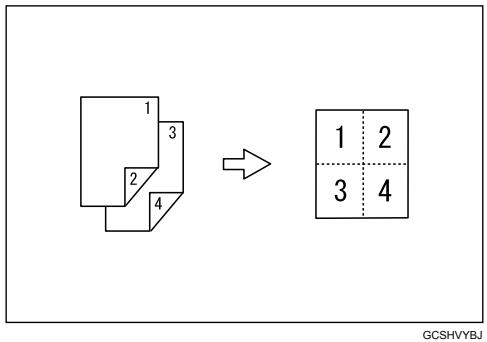
◆ 1 Sided 4 Pages → Combine 1 Side
Copies 4 one-sided originals to one side of a sheet.
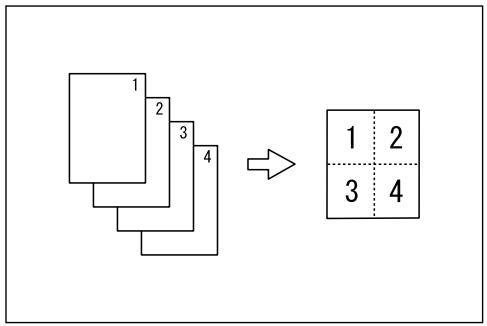
flowchart
graph TD
    A["Layer 1"] --> B["Layer 2"]
    A --> C["Layer 3"]
    A --> D["Layer 4"]
    B --> E["→"]
    C --> E
    D --> E
    E --> F["4x4 Grid"]
    style F fill:#f9f,stroke:#333
GCSHVY8J
◆ 2 Sided 1 Page → Combine 1 Side
Copies 1 two-sided original to one side of a sheet.
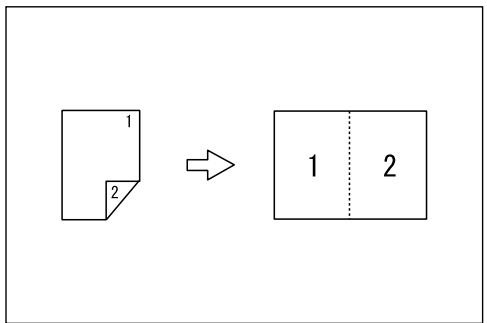
flowchart
graph LR
    A["2D Object"] --> B["2D Object"]
GCSHVYOJ
◆ 2 Sided 2 Pages → Combine 1 Side
Copies 2 two-sided originals to one side of a sheet.
flowchart
graph LR
    A["3D Block"] --> B["4x4 Grid"]
    style A fill:#f9f,stroke:#333
    style B fill:#ccf,stroke:#333
Original orientation and image position of Combine
Open to left (☐) originals
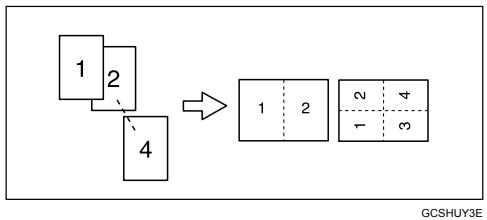
flowchart
graph TD
    A["1\n2\n4"] --> B["1\n2\n1\n3\n4"]
    style A fill:#f9f,stroke:#333
    style B fill:#ccf,stroke:#333
    style C fill:#cfc,stroke:#333
Open to top (☐) originals
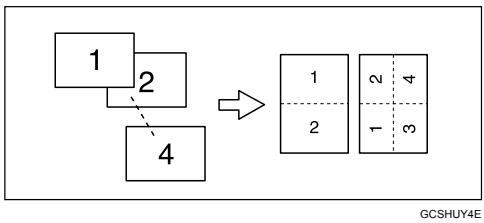
flowchart
graph TD
    A["1\n2\n4"] --> B["4"]
    B --> C["1\n2\n4"]
    C --> D["1\n2\n4"]
    style A fill:#f9f,stroke:#333
    style B fill:#ccf,stroke:#333
    style C fill:#cfc,stroke:#333
    style D fill:#fcc,stroke:#333
Placing originals (originals placed in the ARDF)
• Originals read from left to right
• Originals read from top to bottom
1 Press the【Combine/Series】key.
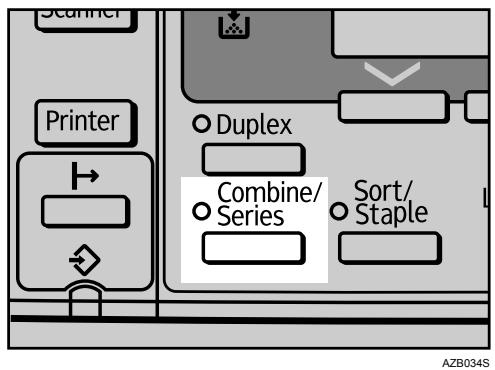
The indicator goes on.
2 Select the combine mode using [▲] or [▼], and then press the [OK] key.
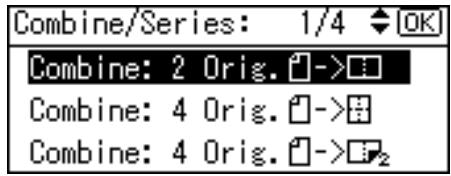
3 Select the original orientation using [▲] or [▼], and then press the [OK] key.
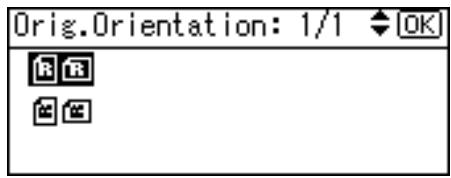
The "Programmed" message appears.
4 Select the paper size using [▲] or [▼].
![Ready 18%*14 [Auto Reduce/Enlarge] 100% R/E Auto R/E](/content/2025/01/136347/images/7fb51cc1025cdd9f13077840e12b680e1824c4eb56ff195c3e4d487b8332332b.jpg)
5 Place the originals, and then press the [Start] key.
Note
☐ To cancel the One-Sided Combine function in step 1, press the 【Combine/Series】key again. Make sure the indicator goes off.
☐ To display the screen in step 3, select [Always Specify] for [Orientation] with Copier Features in User Tools. If [Do not Specify] is selected, proceed to step 4.
Reference
"Copier Features: Orientation", General Settings Guide
Two-Sided Combine
Combines various pages of originals onto one two-sided sheet.
There are four types of Two-Sided Combine.
Important
☐ You cannot use the bypass tray with this function.
◆ 1 Sided 4 Pages → Combine 2 Sides
Copies 4 one-sided originals to one sheet with two pages per side.
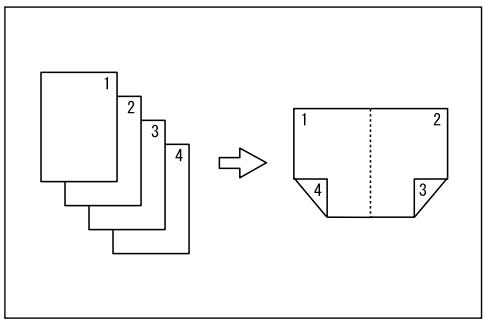
flowchart
graph TD
    A["1"] --> B["2"]
    B --> C["3"]
    C --> D["4"]
    D --> E["2"]
    style A fill:#f9f,stroke:#333
    style E fill:#bbf,stroke:#333
GCSHVY9J
◆ 1 Sided 8 Pages → Combine 2 Sides
Copies 8 one-sided originals to one sheet with four pages per side.
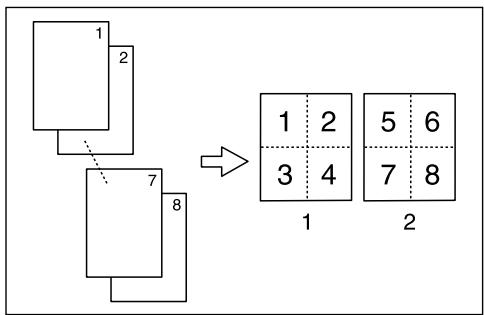
flowchart
graph TD
    A["1\n2"] --> B["7\n8"]
    B --> C["1\n2\n3\n4"]
    C --> D["5\n6\n7\n8"]
    D --> E["2"]
GCSHVYAE
1 Front
2 Back
◆ 2 Sided 2 Pages → Combine 2 Sides
Copies 2 two-sided originals to one sheet with two pages per side.
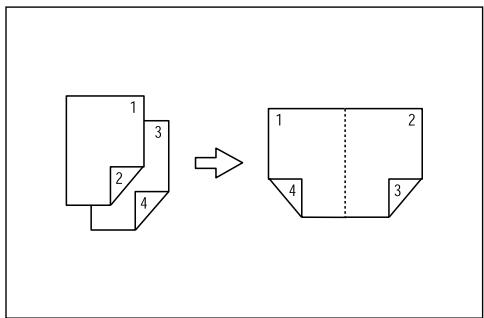
GCSHVY1E
◆ 2 Sided 4 Pages → Combine 2 Sides
Copies 4 two-sided originals to one sheet with four pages per side.
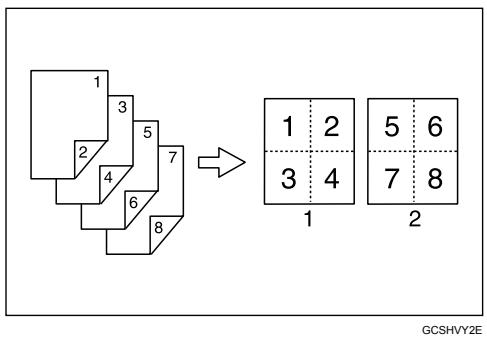
flowchart
graph TD
    A["3-7 Step"] --> B["1-2-3-4-6-8-"]
    B --> C["5-7-8-"]
    D["1-2-3-4-7-8-"] --> E["5-7-8-"]
1 Front
2 Back
1 Press the [Combine/Series] key.
The indicator goes on.
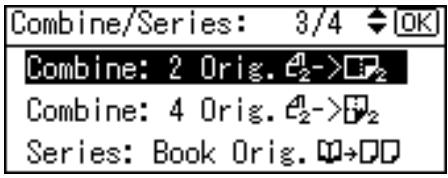
2 Select the combine mode using [▲] or [▼], and then press the [OK] key.
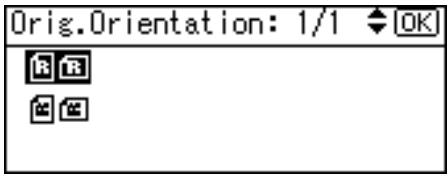
3 Select the original orientation using [▲] or [▼], and then press the [OK] key.
4 Select the duplex orientation using [▲] or [▼], and then press the [OK] key.
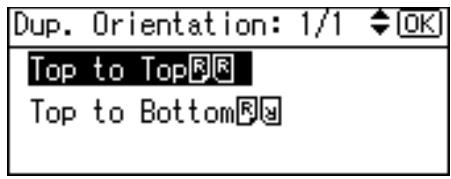
The "Programmed" message appears.
5 Select the paper size using [▲] or [▼].
![Ready 18%×14 [Auto Reduce/Enlarge] 100% R/E Auto R/E](/content/2025/01/136347/images/8d1b85e4eb51561a329bcb2459d758491c0b1cdb46fa600f0c7f6d471d70bf23.jpg)
6 Place the originals, and then press the [Start] key.
Note
☐ To cancel the Two-Sided Combine function in step 1, press the 【Combine/Series】key again. Make sure the indicator goes off.
☐ To display the screens in steps 3 and 4, select [Always Specify] for [Orientation] with Copier Features in User Tools. If [Do not Specify] is selected, proceed to step 5.
Reference
"Copier Features: Orientation", General Settings Guide
Series Copies
You can separately copy the front and back of a two-sided original or two facing pages of a bound original onto two sheets.
Important
☐ See the following table for original and paper sizes when using a 100% ratio with the Book→1 Sided function.
Metric version
| Original | Paper for 1-sided copy |
| A3 | A4 × 2 sheets |
| B4 JIS | B5 JIS × 2 sheets |
| A4 | A5 × 2 sheets |
Inch version
| Original | Paper for 1-sided copy |
| 11" × 17" | 8 ^1 / _2 " × 11" ☐ × 2 sheets |
| 8 ^1 / _2 " × 11" | 5 ^1 / _2 " × 8 ^1 / _2 " ☐ × 2 sheets |
☐ You cannot use the Book→1 Sided function from the ARDF.
☐ You cannot use the bypass tray with the Book→1 Sided function.
◆ Book → 1 Sided
Copies two facing pages of a bound original (book) to two separate pages.
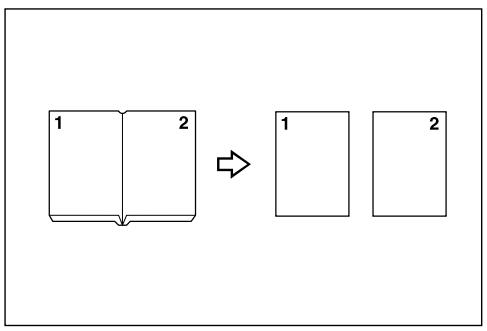
flowchart
graph LR
    A["1"] --> B["1"]
    C["2"] --> D["2"]
CP2B0100
◆ 2 Sided→1 Sided
Copies each side of a two-sided original to two separate pages.
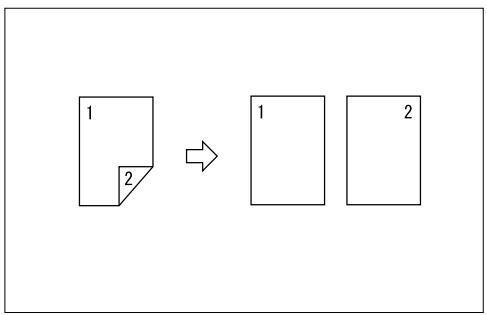
flowchart
graph LR
    A["1"] --> B["2"]
    B --> C["1"]
    C --> D["2"]
1 Press the [Combine/Series] key.
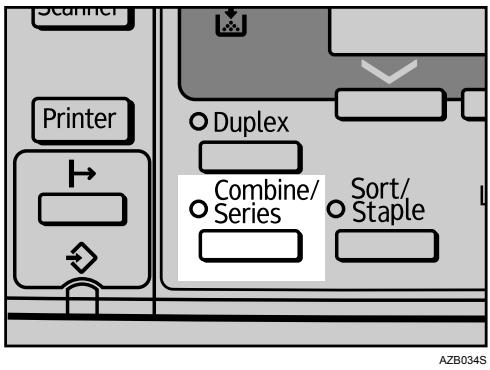
The indicator goes on.
2 Select [Series: Book Orig.] or [Series:2Sided Orig.] using [▲] or [▼], and then press the [OK] key.
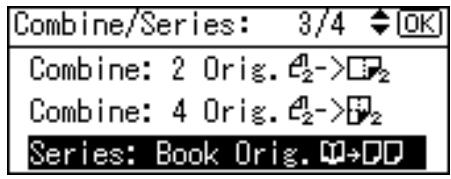
When selecting [Series: Book Orig.], proceed to step 4.
3 Select the original orientation using [▲] or [▼], and then press the [OK] key.
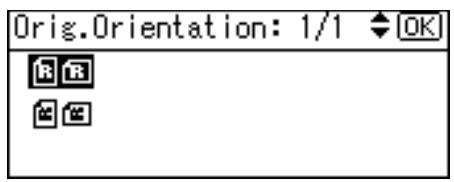
The "Programmed" message appears.
![Ready Auto Paper Select [100%] 100% R/E Auto R/E](/content/2025/01/136347/images/b61788939249f10cee4b4c9aa8838c180ee0dc3eb12c8c4302002b9fad337e68.jpg)
Proceed to step 5.
4 Select the paper size using [▲] or [▼].
![Ready 1 8%×11 [100%] 100% R/E Auto R/E](/content/2025/01/136347/images/6afead8b179d5dfbf51d6b6836dc984722bd1161c1c19f5007ce986e2ded21b5.jpg)
5 Place the originals, and then press the [Start] key.
Note
☐ To cancel the Series Copies function in step 1, press the [Combine/Series] key again. Make sure the indicator goes off.
☐ To display the screen in step 3, select [Always Specify] for [Orientation] with Copier Features in User Tools. If [Do not Specify] is selected, proceed to step 4.
Reference
"Copier Features: Orientation", General Settings Guide
This chapter describes the copy machine's specifications and the function compatibility.
Combination Chart
The combination chart given below shows which modes can be used together.
Blank : These modes can be used together.
×: These modes cannot be used together. The first mode selected will be the mode you are working in.
● : These modes cannot be used together. The second mode selected will be the mode you are working in.
The following shows the combinations of functions.
| Functions | Second mode selected | |||||||||||||||||||||||||||
| Auto Paper Select | Manual Paper Select | Custom Size Originals | Regular Size Originals | Bypass Tray | Manual Image Density | Text Mode | Photo Mode | Auto Reduce/Enlarge | Zoom | 1 sided ↑ | Combine 1 sided | 1 sided ↑ | Combine 2 sided | 2 sided ↑ | Combine 1 sided | 2 sided ↑ | Combine 2 sided | Book → Series 1 sided | 2 sided → Series 1 sided | 1 sided ↑ 2 sided | 2 sided ↑ 2 sided | Sort | Rotate Sort | Stack | Staple (1 Position) | Staple (2 Position) | ||
| First mode selected | Auto Paper Select | ● | × | × | ● | ● | ● | ● | ● | ● | ● | ● | ||||||||||||||||
| Manual Paper Select | ● | *5 | ||||||||||||||||||||||||||
| Custom Size Originals | × | ● | *1 | *1 | *1 | *1 | ||||||||||||||||||||||
| Regular Size Originals | × | ● | ||||||||||||||||||||||||||
| Bypass Tray | ● | *3 | *3 | *3 | *3 | *3 | *3 | *3 | *3 | *2 | *3 | *3 | *3 | |||||||||||||||
| Manual Image Density | ||||||||||||||||||||||||||||
| Text Mode | ● | |||||||||||||||||||||||||||
| Photo Mode | ● | |||||||||||||||||||||||||||
| Auto Reduce/Enlarge | × | *3 | ● | *4 | *4 | *4 | *4 | ● | ||||||||||||||||||||
| Zoom | ● | ● | ● | ● | ● | |||||||||||||||||||||||
| 1 sided → Combine 1 sided | × | *3 | ● | ● | ● | ● | ● | ● | ● | ● | ||||||||||||||||||
| 1 sided → Combine 2 sided | × | *3 | ● | ● | ● | ● | ● | ● | ● | ● | ||||||||||||||||||
| 2 sided → Combine 1 sided | × | *1 | *3 | ● | ● | ● | ● | ● | ● | ● | ● | |||||||||||||||||
| 2 sided → Combine 2 sided | × | *1 | *3 | ● | ● | ● | ● | ● | ● | ● | ||||||||||||||||||
| Book → Series 1 sided | × | *3 | × | ● | ● | ● | ● | ● | ● | ● | ||||||||||||||||||
| 2 sided → Series 1 sided | *1 | ● | ● | ● | ● | ● | ● | ● | ||||||||||||||||||||
| 1 sided → 2 sided | *3 | ● | ● | ● | ● | ● | ● | ● | ||||||||||||||||||||
| 2 sided → 2 sided | *1 | *3 | ● | ● | ● | ● | ● | ● | ● | |||||||||||||||||||
| Sort | *2 | ● | ● | ● | ● | ● | ||||||||||||||||||||||
| Rotate Sort | *3 | ● | ● | ● | ● | ● | ||||||||||||||||||||||
| Stack | ● | ● | ● | ● | ● | |||||||||||||||||||||||
| Staple (1 Position) | *3 | *6 | ● | ● | ● | ● | ● | |||||||||||||||||||||
| Staple (2 Position) | *5 | *3 | *6 | ● | ● | ● | ● | ● | ||||||||||||||||||||
BAN020S
*1 Originals longer than 432 mm (17 in) cannot be used with the two-sided original function.
*2 This combination is not available on paper longer than 432 mm (17 in).
*3 An error message appears if you specify these combinations. You cannot make copies until one of the functions is canceled.
*4 Auto Reduce/Enlarge can be set to [On] by selecting the combine function.
*5 The following function incompatibility messages appear if you select two conflicting functions, and copying is not possible until one of the functions is disabled:
Combination of "Staple: Left 2" and "90° turn" ×.
Combination of "Staple: Top 2" and "Standard orientation" ×.
*6 If you select "90° turn" for the Staple function, this function is disabled. (The first mode selected will be the mode you are working in.)
Supplementary Information
The following describes the detailed specifications of the respective functions.
◆ Bypass Tray Copy
- The following paper sizes can be selected.
$$ \begin{array}{l} \text {A3☐, A4☐☐, A5☐☐, A6☐, B4 JIS☐, B5 JIS☐☐, B6 JIS☐, 11"×17"☐,} \ \text {8^ {1} / {2} "×14"☐, 8^ {1} / {4} "×14"☐, 8^ {1} / {2} "×13"☐, 8^ {1} / {4} "×13"☐, 8"×13"☐,} \ \text {8^ {1} / {2} "×11"☐, 7^ {1} / {4} "×10^ {1} / {2} "☐, 5^ {1} / {2} "×8^ {1} / {2} "☐, 8K☐, 16K☐☐,} \ \text {C6 Envelope☐, C5 Envelope☐, DL Envelope☐, 4^ {1} / {8} "×9^ {1} / {2} "☐,} \ \text {3^ {7} / {8} "×7^ {1} /_ {2} "☐, Custom Size.} \end{array} $$
- When the beeper is turned off, it will not sound if you insert paper into the bypass tray.
◆ Preset Reduce/Enlarge
- You can select one of seven preset ratios (three enlargement ratios, four reduction ratios). To change a ratio assigned to Preset Reduce/Enlarge, use Copier Features in User Tools.
- Any ratio can be specified as a User R/E Ratio.
- The machine's preset Reduce/Enlarge ratios are listed below.
◆ Metric version
| Ratio (%) | Original → Paper size |
| 200 *1 (enlarge area by 4) | A5→A3 |
| 141 *1 (enlarge area by 2) | A4→A3, A5→A4 |
| 122 *1 | 8" × 13"→A3, A4→B4 JIS |
| 115 | B4 JIS→A3 |
| 93 *1 | -- |
| 87 | A3→B4 JIS |
| 82 *1 | 8" × 13"→A4, B4 JIS→8" × 13" |
| 71 *1 (reduce area by 1/2) | A3→A4, A4→A5 |
| 65 | A3→8" × 13" |
| 50 *1 (reduce area by 1/4) | A3→A5, 8" × 13"→A5 |
*1 Default settings
◆ Inch version
| Ratio (%) | Original → Paper size |
| 200 (enlarge area by 4) | 5^1/_2" × 8^1/_2" 11" × 17" |
| 155 *1 (enlarge area by 2) | 5^1/_2" × 8^1/_2" 8^1/_2" × 14" |
| 129 *1 | 8^1/_2" × 11" 11" × 17" |
| 121 *1 | 8^1/_2" × 14" 11" × 17" |
| 93 *1 | -- |
| 85 | 8" × 13" 8^1/_2" × 11" |
| 78 *1 | 8^1/_2" × 14" 8^1/_2" × 11" |
| 73 | 11" × 15" 8^1/_2" × 11" |
| 65 *1 | 11" × 17" 8^1/_2" × 11" |
| 50 *1 (reduce area by ^1/_4 ) | 11" × 17" 5^1/_2" × 8^1/_2" |
*1 Default settings
- You can select a ratio regardless of the size of an original or paper. With some ratios, parts of the image might not be copied or margins will appear on copies.
Zoom
- The reproduction ratios you can specify are 50–200 %.
- You can select a ratio regardless of the size of an original or paper. With some ratios, parts of the image might not be copied or margins will appear on copies.
Sort, Rotate Sort, Stack
- For details the stackable paper sizes and the orientation, see “Specifications for Options”, About This Machine.
- Paper sizes and orientations that can be used in the Rotate Sort function are as follows:
$$ \mathrm{A} 4 \square \square , \mathrm{B} 5 \mathrm{JIS} \square \square , \mathrm{A} 5 \square \square , 8 ^ {1} / _ {2}" \times 1 1" \square \square , 7 ^ {1} / _ {4}" \times 1 0 ^ {1} / _ {2}" \square \square , 1 6 \mathrm{K} \square \square $$
- The number of copies that can be placed on the tray is as follows. When the number of copies exceeds capacity, remove copies from the tray.
- Internal Tray Bridge unit installed: 125 sheets Bridge unit not installed: 250 sheets
• Upper Internal Tray (1 bin tray) 125 sheets
- 500-sheet finisher (On the Finisher Shift Tray, stack unstapled paper)
A4, 8^1/2'' × 11'' or smaller: 500 sheets
B4 JIS, 8^1/2'' × 14'' or larger: 250 sheets
- 500-sheet finisher (On the Finisher Shift Tray, stack stapled paper) A4 ☐, B5 JIS ☐, 8^1/2 " × 11" ☐: 2-leaf binding...55 copies, 50-leaf binding ...9 copies
A3☐, B4 JIS☐, 11" × 17"☐, 8 ^1 / 2 " × 14"☐: 2-leaf binding...33 copies, 30-leaf binding ...8 copies
- When using the Rotate Sort or Staple functions, the capacity may be reduced.
- Installing the finisher to the machine also reduces the number of paper it can house.
- If you use the Rotate sort function when the finisher is installed, the machine shift-sorts and then outputs the copies to the Finisher Shift Tray.
- If you copy using the Stack function and select the paper can be shift-sorted, the machine automatically outputs copies (including single page jobs) to the Finisher Shift Tray, even if another output tray is specified in the User Tools menu.
- Paper sizes and orientation that can be shift-sorted are as follows: A3□, B4□, A4□□, B5□□, 11" × 17"□, 8 ^1 / 2 " × 14"□, 8 ^1 / 2 " × 11"□□, 7 ^1 / 4 " × 10 ^1 / 2 "□□, 8 ^1 / 2 " × 13"□, 8 ^1 / 4 " × 13"□, 8 ^1 / _4 " × 14"□, 8K□, 16K□
Staple
- The following type of paper cannot be stapled:
- Postcard
- Translucent paper
- Thick Paper
- OHP transparencies
• Label paper (adhesive labels) - Curled paper
• Paper of low stiffness
• Paper of mixed sizes
- In the following cases, copies will be delivered to the Finisher Shift Tray without stapling:
- When the number of sheets for one set is over stapler capacity.
- When memory reaches 0% during copying.
- Even if an output tray other than the Finisher Shift Tray has been specified in the User Tools menu, if you copy with Staple, the machine automatically outputs the copies to the Finisher Shift Tray (including single page jobs).
- Paper sizes and orientation that can be used in the Staple function and the stapler capacity are as follows:
- 500-sheet finisher A3☐, B4 JIS☐. 11" × 17"☐, 8 ^1 / 2 " × 13"☐, 8 ^1 / 4 " × 13"☐, 8 ^1 / 2 " × 14"☐, 8 ^1 / 4 " × 14"☐: 30 sheets A4☐, B5 JIS☐, 8 ^1 / 2 " × 11"☐, 7 ^1 / 4 " × 10 ^1 / _2 "☐, 16K☐: 50 sheets
- When the number of copies exceeds tray capacity, copying stops. If this happens, remove the copies from the Finisher Shift Tray, and then resume copying. The tray capacity for the stapled sheets is as follows: (paper weight: 80 g/m ^2 , 20 lb.)
- 500-sheet finisher A4 ☐, B5 JIS ☐, 8^1/2 " × 11" ☐: 2-leaf binding...55 copies, 50-leaf binding ...9 copies A3☐, B4 JIS☐, 11" × 17"☐, 8^1/2 " × 14"☐: 2-leaf binding...33 copies, 30-leaf binding ...8 copies
- You cannot change stapling positions during copying.
- When the original image is rotated, the staple orientation changes by 90^ .
- The maximum original image size that can be rotated is as follows: Metric version: A4, Inch version: 8^1/_2'' × 11''
- When using the Staple function with Combine, or Auto Reduce / Enlarge function, "Blank part will appear." message may appear depending on the orientation of originals and paper you placed. In this case, change the paper orientation.
- When "Staple: Left 2", "Staple: Top 2" is selected, the following settings are useful to rotate images appropriately:
• [Auto Reduce/Enlarge] or [Auto Paper Select]
• [Auto Tray Switching] in the User Tool's Copier Features
Duplex
- The following paper sizes and orientations can be duplexed. A3□, B4 JIS□, A4□□, B5 JIS□□, A5□□, 11" × 17"□, 8" × 13"□, 8 ^1 / 2 " × 13"□, 8 ^1 / 4 " × 13"□, 8 ^1 / 2 " × 14"□, 8 ^1 / 4 " × 14"□, 8 ^1 / 2 " × 11"□□, 7 ^1 / 4 " × 10 ^1 / _2 "□□, 8K□, 16K□□
- You cannot use the following paper with this function:
• Paper smaller than A5 ( 7^1/4 " × 10^1/2 ")
• Paper thicker than 105 g/m ^4 (28 lb.)
• Paper thinner than 64 g/m ^2 (20 lb.)
- Translucent paper
- Label paper (adhesive labels)
- OHP transparencies
- Thick paper
- Envelopes
- When an odd number of originals is placed in the ARDF, the back of the last page of copied paper is blank.
- During copying, the image is shifted to allow for the binding margin.
Combine
- The machine selects the reproduction ratio automatically based on the paper size and number of original pages to be combined on each copy page.
- The selectable reproduction ratios are 50–200 %.
- If the calculated ratio is under the minimum ratio, it is automatically adjusted to within the available range. However, with some ratios, parts of the image might not be copied.
- You cannot use custom size paper.
- If the orientation of originals is different from that of the paper, the machine will automatically rotate the image by 90^ to make copies properly.
- If the number of originals placed is less than the number specified for combining, the last page segment is left blank as shown.
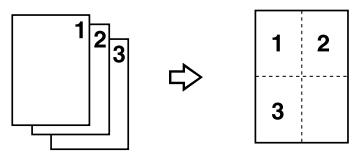
flowchart
graph TD
    A["Rectangle with three labeled edges"] --> B["2x2 Grid with four cells: top-left, bottom-left, middle-right, bottom-right"]
    style A fill:#f9f,stroke:#333
    style B fill:#ccf,stroke:#333
◆ Duplex Margin
- If you set a binding margin that is too wide, parts of the image may not be copied.
INDEX
1 Sided 2 Pages to Combine 1 Side, 55
1 Sided 4 Pages to Combine 1 Side, 55
1 Sided 4 Pages to Combine 2 Sides, 58
1 Sided 8 Pages to Combine 2 Sides, 58
1 Sided to 2 Sided, 52
2 Sided 1 Page to Combine 1 Side, 55
2 Sided 2 Pages to Combine 1 Side, 55
2 Sided 2 Pages to Combine 2 Sides, 58
2 Sided 4 Pages to Combine 2 Sides, 58
2 Sided to 1 Sided, 61
2 Sided to 2 Sided, 52
A
Adjusting Image Density, 34
APS/ Auto R/E Priority, 5
ARDF, 2, 8, 13
Auto Paper Select, 8, 36, 37
Auto Reduce/Enlarge, 42
Auto Sort, 5
Auto Tray Switching, 5
B
Base Point, 39
Basic Authentication, 21
Basic procedure for making copies, 21
Book to 1 Sided, 61
Bypass Tray, 17, 23
Bypass Tray Copy, 67
C
Changing the Number of Sets, 46
Combination Chart, 65
Combine, 55, 58, 67
Combine/Series key, 56, 58, 61
Combining Multiple Pages onto a Single Page, v
Control Panel, 4
Copier Features, 5
Copy Functions, 34
Copying, 21
Copying from the Bypass Tray, 23
Copying onto Custom Size Paper, 26
Copying onto Envelopes, vi, 30
Copying onto OHP transparencies, 27
Copying onto Regular Size Paper, 25
Copying onto Thick Paper, 28
Copying Originals Such as Books, vi
Copy key, 21
Copy Paper, 36
Custom size originals, 15, 18
Custom Size Paper, 26
D
Darker key, 34
Detectable sizes, 8
Display, 3
Document guide, 13
Duplex, 52, 67
Duplex key, 52
Duplex Margin, 5, 67
Duplex Mode Priority, 5
E
Enlarge, 39, 42
Envelopes, 30
Escape key, 4
Exposure glass, 8, 12
Extender, 23
F
Functions Requiring Optional Configurations, 2
H
Horizontal size, 15, 18, 23, 26
How to Read This Manual, 1
|
Image Position of Combine, 55
Initial copy display, 3, 21
Integration Server Authentication, 21
K
Keys on the Control Panel, 4
L
LDAP Authentication, 21
Letterhead Setting, 5
Lighter key, 34
Limit mark, 13
Loading Paper on the Bypass Tray, 23
M
Manual Paper Select, 36, 37
Maximum scanning area, 8
Max. Number of Sets, 5
Missing Image Area, 10
N
Non-compatible originals for the ARDF, 8
Number keys, 15, 18, 21, 26, 41, 43, 46
0
OHP transparencies, 27
OK key, 4
One-Sided Combine, 55
Orientation, 5
Orientation of Originals and Envelopes, 30
Original Count Display, 5
Original key, 35
Original Orientation, 11, 52, 55
original orientation, 50
Originals, 7
Original size, 7, 8
Original Type Setting, 5, 35
Original weight, 7
P
Paper, 36
Paper guide release lever, 23
Paper guides, 23
Paper Tray, 14
Photo, 35
Placing custom size originals, 15, 18
Placing Originals, 7, 11
Placing Originals in the ARDF, 13
Placing Originals on the Exposure Glass, 12
Placing regular size originals, 14, 17
Position, 50
Positioning mark, 8
Preset Reduce/Enlarge, 39, 67
Preset R/E Priority, 5
Printable area, 10, 30
R
Ratio, 40, 41, 67
Reading the Display, 4
Recommended originals, 7
Reduce, 39, 42
Regular size originals, 14, 17
Regular Size Paper, 25
Reproduction Ratio, 5
Rotated Copy, 38
Rotate Sort, 5, 43, 47, 67
S
Scroll keys, 4, 40
Selecting a Paper Tray, 14
Selecting Copy Paper, 36
Selecting the Bypass Tray, 17
Selection keys, 4
Series Copies, 61
Sizes Detectable by the Auto Paper Select, 8
Sizes difficult to detect, 10
Sort, 43, 67
Sort key, 43
Stack, 48
Staple, 50
stapler, 50
Stapling position and original setting, 50
Supplementary Information, 67
Symbols, 1
T
Text, 35
The finisher is installed, 43
The finisher is not installed, 45
Thick paper, 28
Two-Sided Combine, 58
Types of Duplex Copies, iii
U
User Code Authentication, 21
User Tools, 5
Using the Keys on the Control Panel, 4
V
Vertical size, 15, 18, 23, 26
W
What You Can Do with This Machine, iii
Windows Authentication, 21
Z
Zoom, 40, 67
In accordance with IEC 60417, this machine uses the following symbols for the main power switch:
| means POWER ON.
○ means POWER OFF.
means STAND BY.
Trademarks
Windows ^® is a registered trademark of Microsoft Corporation in the United States and/or other countries.
Adobe, Acrobat, Acrobat Reader, PostScript, and Reader are either registered trademarks or trademarks of Adobe Systems Incorporated in the United States and/or other countries.
Other product names used herein are for identification purposes only and might be trademarks of their respective companies. We disclaim any and all rights to those marks.
natural_image
Abstract pattern of white hexagons on a dark background, no text or symbols present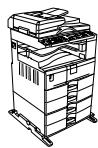
- Operating Instructions Copy Reference
- Introduction
- Important
- Notes:
- Caution:
- Manuals for This Machine
- About This Machine
- ◆ General Settings Guide
- Troubleshooting
- ◆ Security Reference
- ◆ Copy Reference
- ◆ Facsimile Reference
- ◆ Printer Reference
- Scanner Reference
- Network Guide
- Other manuals
- Note
- What You Can Do with This Machine
- Reference
- Types of Duplex Copies
- Combining Multiple Pages onto a Single Page
- Copying Originals Such as Books
- Copying onto Envelopes
- TABLE OF CONTENTS
- Manuals for This Machine....i
- What You Can Do with This Machine......iii
- How to Read This Manual ....1
- Functions Requiring Optional Configurations....2
- Display .... 3
- User Tools Menu (Copier Features) 5
- Placing Originals
- Originals ....7
- Placing Originals....11
- Copying
- Basic Procedure....21
- Copying from the Bypass Tray....23
- Copy Functions....34
- Appendix
- Combination Chart....65
- Supplementary Information 67
- INDEX....72
- How to Read This Manual
- Symbols
- WARNING:
- Functions Requiring Optional Configurations
- Display
- Reading the Display
- Selection keys
- 2.【Escape】key
- [OK] key
- Scroll keys
- User Tools Menu (Copier Features)
- Originals
- Sizes and Weights of Recommended Originals
- ◆ Metric version
- ◆ Inch version
- Non-compatible originals for the ARDF
- Sizes Detectable by Auto Paper Select
- Metric version
- Maximum scanning area
- ◆ Exposure glass
- ARDF
- Sizes difficult to detect
- Missing Image Area
- Placing Originals
- Original Orientation
- Placing Originals on the Exposure Glass
- Placing Originals in the ARDF
- When placing custom size originals:
- Sensors
- Specifying the Original Size When a Paper Tray is Selected
- Regular sizes
- Select the original size using the scroll keys, and then press the [OK] key.
- Custom sizes
- Select a desired paper tray using [▲] or [▼].
- Press the [#] key.
- Specifying the Original Size When the Bypass Tray is Selected
- Select the original size using the scroll keys, and then press the [OK] key.
- Select the bypass tray using [▲] or [▼].
- Basic Procedure
- Press the [Start] key.
- Copying from the Bypass Tray
- Loading Paper on the Bypass Tray
- Open the bypass tray.
- Push up the paper guide release lever.
- Insert the paper face down, and then align the paper guides to the paper size.
- Pull down the paper guide release lever.
- Select the size and type of the paper, if required.
- When Copying onto Regular Size Paper
- When Copying onto Custom Size Paper
- When Copying onto OHP Transparencies
- When Copying onto Thick Paper
- When Copying onto Envelopes
- ◆ Printable area
- ◆ Orientation of Originals and Envelopes
- Copy Functions
- Adjusting Image Density
- Original Type Setting
- Text
- Photo
- Press the [Original] key to select the original type.
- Selecting Copy Paper
- Auto Paper Select
- ◆ Manual Paper Select
- Manual Paper Select
- Rotated Copy
- Preset Reduce/Enlarge
- Base Point
- Press [R/E].
- Press [Reduce] or [Enlarge].
- Zoom
- Selecting a ratio using the scroll keys
- Entering a ratio with the number keys
- Auto Reduce/Enlarge
- Press [Auto R/E].
- Select the paper size using [▲] or [▼].
- Place the originals, and then press the [Start] key.
- Sort
- When the finisher is installed
- Press the [Sort/Staple] key.
- Select [Sort and Staple] using [▲] or [▼], and then press the [OK] key.
- When the finisher is not installed
- Press the [Sort] key.
- Select [Sort] using [▲] or [▼], and then press the [OK] key.
- Enter the number of copy sets using the number keys.
- Place your originals.
- Press the [Start] key.
- Changing the number of sets
- Rotate Sort
- Stack
- Staple
- Select the staple position using the scroll keys, and then press the [OK] key.
- Select the original orientation using the scroll keys, and then press the [OK] key.
- Enter the number of copy sets using the number keys.
- Place the originals.
- Press the [Start] key.
- Duplex
- Original orientation and completed copies
- Press the [Duplex] key.
- One-Sided Combine
- ◆ 2 Sided 2 Pages → Combine 1 Side
- Original orientation and image position of Combine
- Press the【Combine/Series】key.
- Select the combine mode using [▲] or [▼], and then press the [OK] key.
- Select the original orientation using [▲] or [▼], and then press the [OK] key.
- Select the paper size using [▲] or [▼].
- Place the originals, and then press the [Start] key.
- Two-Sided Combine
- ◆ 2 Sided 4 Pages → Combine 2 Sides
- Press the [Combine/Series] key.
- Series Copies
- Inch version
- ◆ Book → 1 Sided
- ◆ 2 Sided→1 Sided
- Select [Series: Book Orig.] or [Series:2Sided Orig.] using [▲] or [▼], and then press the [OK] key.
- Combination Chart
- Supplementary Information
- ◆ Bypass Tray Copy
- ◆ Preset Reduce/Enlarge
- Sort, Rotate Sort, Stack
- Combine
- ◆ Duplex Margin
- INDEX
- A
- B
- C
- D
- E
- F
- H
- |
- K
- L
- M
- N
- 0
- P
- R
- S
- T
- U
- V
- W
- Z
- Trademarks
Brand : RICOH
Model : AFICIO MP 2500
Category : Multifunction Printer