
AFICIO MP 1500 - Multifunction Printer RICOH - Free user manual and instructions
Find the device manual for free AFICIO MP 1500 RICOH in PDF.


| Product type | Laser monochrome multifunction printer |
| Brand | RICOH |
| Model | AFICIO MP 1500 |
| Main functions | Print, copy, scan, fax (optional) |
| Paper format | A4, A5, B5, Letter, Legal, Envelopes |
| Print speed | Up to 15 ppm (pages per minute) |
| Print resolution | 600 x 600 dpi |
| Paper tray capacity | 250 sheets standard, 100 sheets output |
| Monthly duty cycle | Up to 5,000 pages |
| Connectivity | USB 2.0, Ethernet 10/100 Base-TX (optional) |
| Dimensions (W x D x H) | 470 x 390 x 380 mm |
| Weight | Approximately 13 kg |
| Power supply | 220-240 V, 50/60 Hz |
| Power consumption | Approximately 800 W operating, 10 W standby |
| Noise level | Approximately 53 dB(A) (operating), 30 dB(A) (standby) |
| Maintenance and cleaning | Clean the corona charger and drum regularly with a soft cloth |
| Spare parts and repairability | Toner cartridge, drum, fuser unit, maintenance kit available |
| General information | User manual available for download on the manufacturer's website |
Frequently Asked Questions - AFICIO MP 1500 RICOH
User questions about AFICIO MP 1500 RICOH
0 question about this device. Answer the ones you know or ask your own.
Ask a new question about this device
Download the instructions for your Multifunction Printer in PDF format for free! Find your manual AFICIO MP 1500 - RICOH and take your electronic device back in hand. On this page are published all the documents necessary for the use of your device. AFICIO MP 1500 by RICOH.
USER MANUAL AFICIO MP 1500 RICOH
natural_image
Abstract geometric pattern composed of hexagonal tiles on a gradient background (no text or symbols)MP 1500
MP 1500
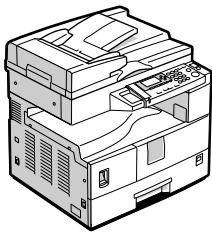
Afício™ MP 1500
IS 2315
Operating Instructions
natural_image
Isometric line drawing of a computer case with internal components (no text or symbols)1 Getting Started
2 Placing Originals
3 Copying
4 User Tools
5 Troubleshooting
6 Other Functions
7 Remarks
8 Security
9 Specifications
Introduction
This manual contains detailed instructions and notes on the operation and use of this machine. For your safety and benefit, read this manual carefully before using the machine. Keep this manual in a handy place for quick reference.
Important
Contents of this manual are subject to change without prior notice. In no event will the company be liable for direct, indirect, special, incidental, or consequential damages as a result of handling or operating the machine.
Notes:
Some illustrations in this manual might be slightly different from the machine.
Certain options might not be available in some countries. For details, please contact your local dealer.
Laser Safety:
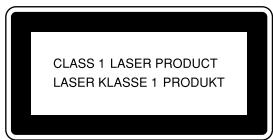
This machine is considered a class 1 laser device, safe for office/EDP use. The machine contains a 5-milliwatt, 760-800 nanometer wavelength, GaAlAs laser diode. Direct (or indirect reflected) eye contact with the laser beam might cause serious eye damage. Safety precautions and interlock mechanisms have been designed to prevent any possible laser beam exposure to the operator.
The following label is attached on the back side of the machine.
Caution:
Use of controls or adjustments or performance of procedures other than those specified in this manual might result in hazardous radiation exposure.
Two kinds of size notation are employed in this manual. With this machine refer to the metric version.
For good copy quality, the supplier recommends that you use genuine toner from the supplier.
The supplier shall not be responsible for any damage or expense that might result from the use of parts other than genuine parts from the supplier with your office products.
Power Source
220V-240V, 50/60Hz, 7A or more
Please be sure to connect the power cord to a power source as above. For details about power source, see p.65 "Power Connection".
TABLE OF CONTENTS
Copyrights and Trademarks .... 1
Trademarks....1
Notice....2
How to Read This Manual ....3
Safety Information ....4
Safety During Operation....4
Positions of Labels and Hallmarks for ⚠WARNING and ⚠CAUTION Labels....6
ENERGY STAR Program....7
1. Getting Started
Guide to Components 9
Options 11
External Options....11
Control Panel....12
Display 13
Reading the Display and Using Keys....14
Turning On the Power 15
Turning On the Main Power 15
Turning On the Power 15
Turning Off the Power 16
Turning Off the Main Power 16
Saving Energy....16
2. Placing Originals
Originals 17
Sizes and Weights of Recommended Originals....17
Missing Image Area 18
Placing Originals....19
Original Orientation 19
Placing Originals on the Exposure Glass....19
Placing Originals in the ADF 20
3. Copying
Basic Procedure....23
Copying from the Bypass Tray....24
Copier Functions ......28
Adjusting Image Density 28
Selecting Original Type Setting....28
Selecting Copy Paper 28
Preset Reduce/Enlarge 29
Zoom 29
Sort 30
Changing the number of sets....31
4. User Tools
User Tools Menu ( System Settings )....33
User Tools Menu ( Copier Settings )......35
Accessing User Tools 36
Changing Default Settings 36
Quitting User Tools 37
Settings You Can Change with User Tools 38
System Settings 38
Copier Features 42
User Code....44
Registering a New User Code....44
Changing a User Code....45
Deleting a User Code....45
Displaying the Counter for Each User Code 46
Printing the Counter for Each User Code....47
Clearing the Counter 47
5. Troubleshooting
If Your Machine Does Not Operate As You Want....49
If You Cannot Make Clear Copies....50
If You Cannot Make Copies As You Want ....51
When Memory Is Full 51
Loading Paper 52
Loading Paper....52
Orientation-Fixed Paper or Two-Sided Paper 53
Adding Toner....54
Handling Toner....54
Toner Storage 54
Used Toner 54
Removing Toner....55
Inserting Toner....56
% Clearing Misfeeds ....57
Changing the Paper Size....59
Changing the Paper Size of the Paper Tray 59
6. Other Functions
Other Functions....61
Displaying the Total Counter....61
Changing the Language....61
7. Remarks
Do's and Don'ts....63
Where to Put Your Machine....64
Machine Environment 64
Moving....64
Power Connection....65
Access to the Machine 66
Maintaining Your Machine 67
Cleaning the Exposure Glass....67
Cleaning the Exposure Glass Cover 67
Cleaning the ADF 67
8. Security
Security......69
Primary Security Functions 69
Operating Environment and Notes....70
Operating Environment 70
For Administrator....70
9. Specifications
Main Unit....71
Options 74
Exposure Glass Cover 74
Auto Document Feeder (ADF) 74
Combination Chart....75
Supplementary Information 76
Copy Paper 78
Recommended Paper Sizes and Types....78
Unusable Paper 79
Paper Storage 80
INDEX......81
Copyrights and Trademarks
Trademarks
Microsoft ^® , Windows ^® and Windows NT ^® are registered trademarks of Microsoft Corporation in the United States and/or other countries.
Acrobat ^® is a registered trademark of Adobe Systems Incorporated.
Bluetooth ^™ is a trademark of the Bluetooth SIG, Inc. (Special Interest Group) and is used by RICOH Company Limited under license.
Copyright ©2001 Bluetooth SIG, Inc.
The Bluetooth Trademarks are owned by Bluetooth SIG, Inc. USA.
Other product names used herein are for identification purposes only and might be trademarks of their respective companies. We disclaim any and all rights to those marks.
The proper names of the Windows operating systems are as follows:
- The product name of Windows® 95 is Microsoft® Windows® 95
- The product name of Windows ^ 98 is Microsoft ^ Windows ^ 98
- The product name of Windows® Me is Microsoft® Windows® Millennium Edition (Windows Me)
- The product names of Windows® 2000 are as follows: Microsoft® Windows® 2000 Professional Microsoft® Windows® 2000 Server Microsoft® Windows® 2000 Advanced Server
- The product names of Windows® XP are as follows: Microsoft® Windows® XP Home Edition Microsoft® Windows® XP Professional
- The product names of Windows Server™ 2003 are as follows: Microsoft® Windows Server™ 2003 Standard Edition Microsoft® Windows Server™ 2003 Enterprise Edition Microsoft® Windows Server™ 2003 Web Edition
- The product names of Windows NT® 4.0 are as follows: Microsoft® Windows NT® Workstation 4.0 Microsoft® Windows NT® Server 4.0
Important
Do not copy or print any item for which reproduction is prohibited by law.
Copying or printing the following items is generally prohibited by local law: bank notes, revenue stamps, bonds, stock certificates, bank drafts, checks, passports, driver's licenses.
The preceding list is meant as a guide only and is not inclusive. We assume no responsibility for its completeness or accuracy. If you have any questions concerning the legality of copying or printing certain items, consult with your legal advisor.
Symbols
The following set of symbols is used in this manual.
WARNING:
This symbol indicates a potentially hazardous situation that might result in death or serious injury when you misuse the machine without following the instructions under this symbol. Be sure to read the instructions, all of which are described in the Safety Information section.
CAUTION:
This symbol indicates a potentially hazardous situation that might result in minor or moderate injury or property damage that does not involve personal injury when you misuse the machine without following the instructions under this symbol. Be sure to read the instructions, all of which are described in the Safety Information section.
* The statements above are notes for your safety.
Important
If this instruction is not followed, paper might be misfed, originals might be damaged, or data might be lost. Be sure to read this.
Preparation
This symbol indicates information or preparations required prior to operating.
Note
This symbol indicates precautions for operation, or actions to take after abnormal operation.
Limitation
This symbol indicates numerical limits, functions that cannot be used together, or conditions in which a particular function cannot be used.
Reference
This symbol indicates a reference.
[ ]
Keys that appear on the machine's display panel.
【 】
Keys built into the machine's control panel.
Safety Information
When using this machine, the following safety precautions should always be followed.
Safety During Operation
In this manual, the following important symbols are used:

WARNING:
Indicates a potentially hazardous situation which, if instructions are not followed, could result in death or serious injury.

CAUTION:
Indicates a potentially hazardous situation which, if instructions are not followed, may result in minor or moderate injury or damage to property.

WARNING:
- Disconnect the power plug (by pulling the plug, not the cable) if the power cable or plug becomes frayed or otherwise damaged.
- To avoid hazardous electric shock or laser radiation exposure, do not remove any covers or screws other than those specified in this manual.
- Turn off the power and disconnect the power plug (by pulling the plug, not the cable) if any of the following occurs:
- You spill something into the machine.
- You suspect that your machine needs service or repair.
- The external housing of your machine has been damaged.
- Do not incinerate spilled toner or used toner. Toner dust might ignite when exposed to an open flame.
- Disposal can take place at our authorized dealer.
- Dispose of the used toner bottle in accordance with the local regulations.
- Connect the machine only to the power source described on the inside front cover of this manual. Connect the power cord directly into a wall outlet and do not use an extension cord.
- Do not damage, break or make any modifications to the power cord. Do not place heavy objects on it. Do not pull it hard nor bend it more than necessary. These actions could cause an electric shock or fire.

CAUTION:
- Protect the machine from dampness or wet weather, such as rain and snow.
- Unplug the power cord from the wall outlet before you move the machine. While moving the machine, you should take care that the power cord will not be damaged under the machine.
- When you disconnect the power plug from the wall outlet, always pull the plug (not the cable).
- Do not allow paper clips, staples, or other small metallic objects to fall inside the machine.
- Keep toner (used or unused) and toner bottle out of the reach of children.
- For environmental reasons, do not dispose of the machine or expended supply waste at household waste collection points. Disposal can take place at an authorized dealer.
- The inside of the machine could be very hot. Do not touch the parts with a label indicating the "hot surface". Otherwise, an injury might occur.
- Keep the machine away from humidity and dust. Otherwise a fire or an electric shock might occur.
- Do not place the machine on an unstable or tilted surface. If it topples over, an injury might occur.
- Before moving the machine, be sure to pull all four handles fully out. If not, an injury might occur. After moving the machine, return the four handles to their original positions.
- When the optional paper tray unit is installed, do not push the upper part of the main unit horizontally. An injury might occur if the paper tray unit becomes detached from the main unit.
- If you use the machine in a confined space, make sure there is a continuous air turnover.
- Keep the machine away from flammable liquids, gases, and aerosols. A fire or an electric shock might occur.
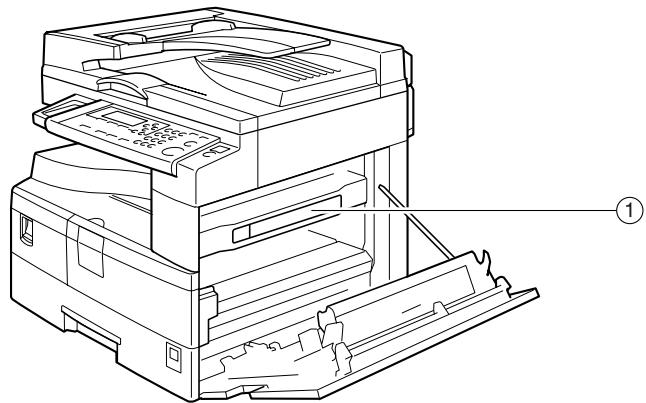
Positions of Labels and Hallmarks for
⚠ WARNING and ⚠ CAUTION Labels
This machine has labels for ⚠WARNING and ⚠CAUTION at the positions shown below. For safety, please follow the instructions and handle the machine as indicated.
①

APH002S
ENERGY STAR Program
ENERGY STAR®

As an ENERGY STAR Partner, we have determined that this machine model meets the ENERGY STAR Guidelines for energy efficiency.
The ENERGY STAR Guidelines intend to establish an international energy-saving system for developing and introducing energy-efficient office equipment to deal with environmental issues, such as global warming.
When a product meets the ENERGY STAR Guidelines for energy efficiency, the Partner shall place the ENERGY STAR logo onto the machine model.
This product was designed to reduce the environmental impact associated with office equipment by means of energy-saving features, such as Low-power mode.
- Low Power mode
This product automatically lowers its power consumption 1 minute after finishing the last copy job. To make copies, you have to press the operation switch first.
For details about how to change the interval between last job and Low Power mode, see p.39 "Energy Saver Timer".
- Off mode
To conserve energy, this product automatically turns off 1 minute after finishing the last copy job. In this manual, the Off mode is called the Auto Off mode. For details about how to change the interval between last job and Auto Off mode, see p.39 "Auto Off Timer".

Note
- If you want to operate this product while it is in either of these modes, do one of the following:
- Turn on the operation switch.
- Place originals in the ADF (Auto Document Feeder).
- Lift the exposure glass cover or ADF.
Specifications
| Off mode | Power consumption | less than 1 W |
| Default interval | 1 minute | |
| Recovery time | Less than 10 seconds |
Recycled Paper
In accordance with the ENERGY STAR Program, we recommend use of recycled paper which is environmentally friendly. Please contact your sales representative for recommended paper.
1. Getting Started
Guide to Components
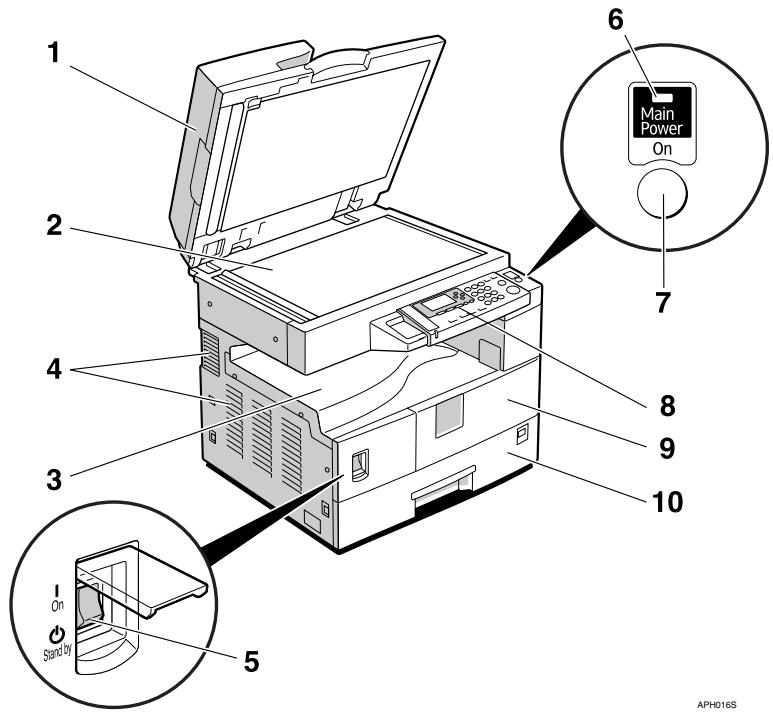
- Exposure glass cover (optional) or ADF (optional).
See p.11 "External Options"
(The illustration shows the ADF.)
- Exposure glass
Place originals here face down.
- Internal tray
Copied paper is delivered here.
- Ventilation holes
Prevents overheating. Do not obstruct the ventilation holes by placing objects near them or leaning things against them. If the machine overheats, a fault might occur.
- Main power switch
If the machine does not operate after turning on the operation switch, check the main power switch is turned on. If it is off, turn it on.
- Main power indicator
Lights when the main power switch is turned on, and goes off when the switch is turned off.
- Operation switch (On indicator)
Press to turn the power on (the On indicator lights). To turn the power off, press again (the On indicator goes off).
- Control panel
See p.12 "Control Panel".
9. Front cover
Open to access the inside of the machine.
10. Paper tray
Load paper here.
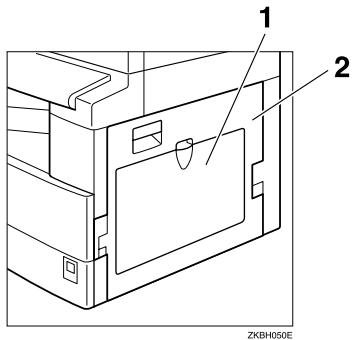
1. Bypass tray
Use to copy onto OHP transparencies, adhesive labels, translucent paper, envelopes, and custom size paper.
2. Right cover
Open this cover to remove jammed paper fed from the paper tray.
Options
External Options
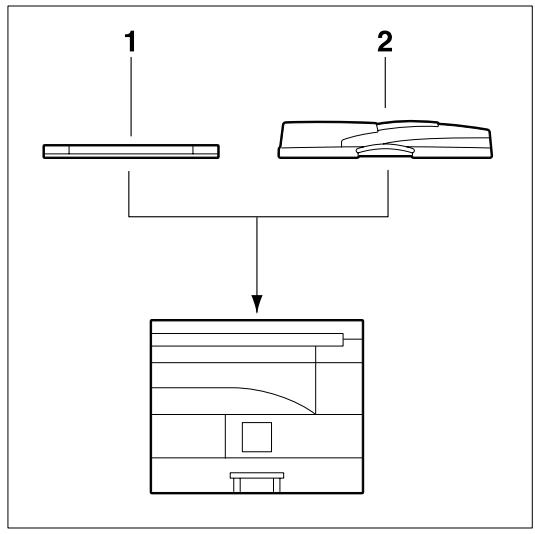
flowchart
graph TD
    A["Component 1"] --> C["Rectangular Area"]
    B["Component 2"] --> C
    C --> D["End"]
ZKBP060E
1. Exposure glass cover
Lower this cover over originals.
2. ADF
Place stacks of originals here.
They will feed in automatically.
Control Panel
This illustration shows the control panel of the machine with options fully installed.
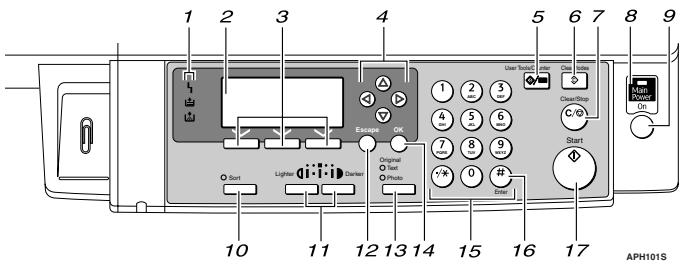
1. Indicators
Display errors and machine status.
4: Error indicator. See p.57 "Clearing Misfeeds".
☑: Load Paper indicator. See p.52 “☑ Loading Paper”.
☑: Add Toner indicator. See p.54 “☑ Adding Toner”.
2. Display
Displays operation status and messages.
3. Selection keys
Correspond to items on the display. Press to select the corresponding item.
4. Scroll keys
Press to select an item.
[▲]: scroll upward
【▼】: scroll downward
【▶】: scroll right
【◀】: scroll left

Reference
See p.14 "Reading the Display and Using Keys".
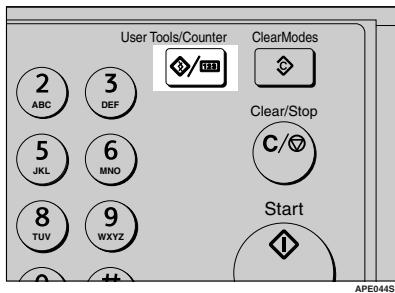
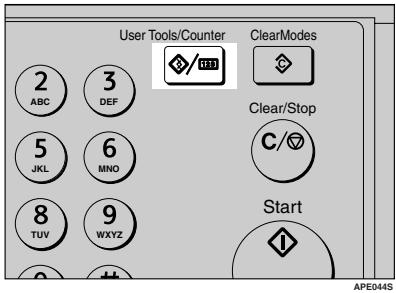
5. 【User Tools/Counter】key
- User Tools
Press to change default or operation parameters according to requirement. See p.36 "Accessing User Tools". - Counter
Press to check or print the counter value. See p.61 "Other Functions".
6. 【Clear Modes】key
Press to clear the current settings.
7. 【Clear/Stop】key
- Clear:
Clears an entered numeric value. - Stop:
Stops a job in progress, such as scanning, or printing.
8. Main power indicator
The main power indicator lights when the main power switch is turned on.

Important
☐ Do not turn off the main power switch while the On indicator is lit or blinking. Doing so may damage the memory.

Reference
p.15 "Turning On the Power"
9. Operation switch (On indicator)
Press to turn the power on. The On indicator lights. To turn the power off, press again.

Note
☐ This key is inactivate during scanning or while setting defaults.

Reference
p.15 "Turning On the Power"
10. [Sort] key
Automatically sorts copies.
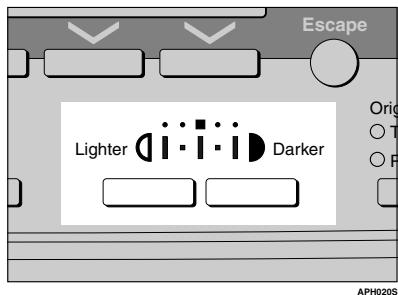
Press to change the image density setting. Select the image density in three increments, Lighter to Darker.
12. 【Escape】key
Press to cancel an operation or return to the previous display.
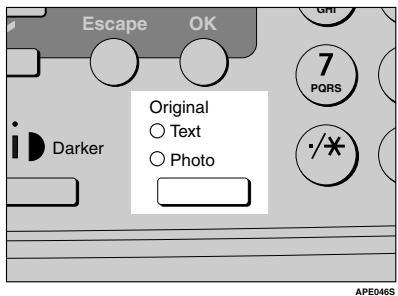
13. 【Original Type】key
Press to select the original type registered in [Original Type 1 (Text)] or [Original Type 2 (Photo)]. When the original type is selected, the corresponding indicator lights.
14. [OK] key
Press to set a selected item or an entered numeric value.
15. Number keys
Press to enter numeric values.
16.【#】key
Press to set a selected item or an entered numeric value.
17. 【Start】key
Press to start copying, printing, or scanning or sending.
Display
The display panel shows machine status, error messages, and function menus.

Important
☐ A force or impact of more than 30 N (about 3 kgf) will damage the display.
◆ Initial copy display
![Ready 1A4 [100%] 100% R/E 1 2 3 4](/content/2025/01/136333/images/fd88c48a5faf5436d3a16d8b8447ace9c2eacf248cc91008ca4ef6e69613c621.jpg)
AAI024S
- Operational status or messages
-
Messages and the selected tray appear here. Currently selected items appear in brackets.
-
Number of copies set.
- Reduce/Enlarge ratio function for non-fixed ratios.
When you select or specify an item on the display, it is highlighted like 100%
Reading the Display and Using Keys
This section explains how to read the display and use the Selection keys.
![Ready 1目A4 [ ] [100%] 100% R/E Escape OK APH102S](/content/2025/01/136333/images/0d06cb734de0be7ec6f406ef236bc80344c68ad2fc9ae436299addfb01e851e2.jpg)
1. Selection keys
Correspond to items at the bottom line on the display.
Example: The Copy display
- When the instruction "press [100%]" appears in this manual, press the left selection key.
- When the instruction "press [R/E]" appears in this manual, press the centre selection key.
2. 【Escape】key
Press to cancel an operation or return to the previous display.
3. [OK] key
Press to set a selected item or an entered numeric value.
4. Scroll keys
Press to move the cursor in each direction, step by step.
When the [▲], [▼], [◀], or [▶] key appears in this manual, press the scroll key of the same direction.
Common key operations
The following keys are common to all screens:
Key list
| [Cancel] | Deletes a selected function or entered values, and then the previous display returns. |
| [Exit] | The previous display returns. |
| [Stop] | Stops a job in progress. |
| [Yes] | Acknowledges a selected function or an entered values. |
| [Stop] | Cancels a selected function or entered values, and then the previous display returns. |
Turning On the Power
This machine has two power switches.
❖ Operation switch (right side of the control panel)
Press to activate the machine. When the machine has finished warming up, you can operate the machine.
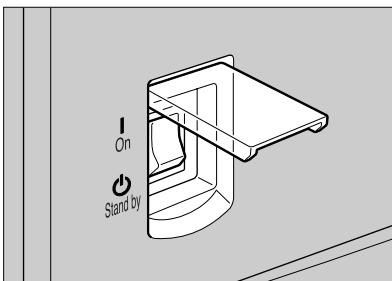
❖ Main power switch (left side of the machine)
Turning off this switch makes the main power indicator on the right side of the control panel go off. When this is done, machine power is completely off.

Note
☐ This machine automatically enters Energy Saver mode or turns itself off if you do not use it for a while.
Turning On the Main Power
1 Make sure the power cord is firmly plugged into the wall outlet.
2 Turn on the main power switch.
The main power indicator goes on.
AAI049S
Important
☐ Do not turn off the main power switch immediately after turning it on. Doing so may result in damage to the memory, leading to malfunctions.
Turning On the Power
1 Press the operation switch.
The On indicator goes on.
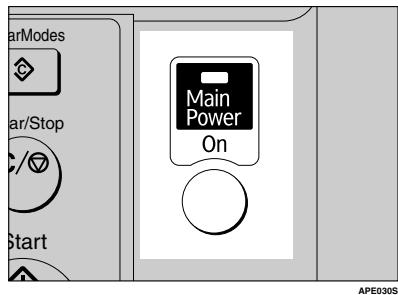
Note
☐ If the power does not come on when the operation switch is pressed, check the main power switch is on. If it is off, turn it on.
Turning Off the Power
1 Press the operation switch. The On indicator goes off.
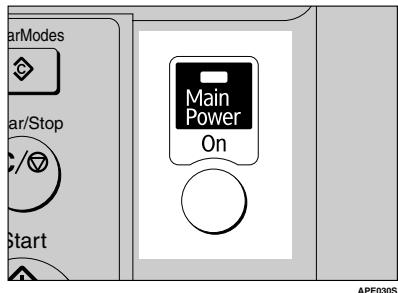
Turning Off the Main Power
Important
☐ Do not turn off the main power switch when the On indicator is lit or blinking. Doing so may result in damage to the memory.
☐ Be sure to turn off the main power switch before pulling out the power plug. Not doing this may result in damage to the memory.
1 Be sure the On indicator is not lit.
2 Turn off the main power switch.
The main power indicator goes out.
Saving Energy
Auto Off / Low Power
The machine automatically turns itself off when the job is finished, after a certain period of time has elapsed. This function is called “Auto Off”.
Note
☐ You can change the Auto Off time.
☐ The Auto Off Timer function will not operate in the following cases:
- When a warning message appears
- When the service call message appears
- When paper is jammed
- When the cover is open
- When the “Add toner” message appears
- When toner is being replenished
- When the User Tools screen is displayed
- When fixed warm-up is in progress
2. Placing Originals
Originals
Sizes and Weights of Recommended Originals
◆ Metric version
| Original location | Original size | Original weight |
| Exposure glass | Up to A3 | -- |
| ADF | One-sided originals:A3□ - A5 □□ | 40–128 g/m2 |
◆ Inch version
| Original location | Original size | Original weight |
| Exposure glass | Up to 11" × 17" | -- |
| ADF | One-sided originals:11" × 17"□ - 5 ^1 / _2 " × 8 ^1 / _2 "□□ | 11–34 lb. |
Note
☐ About 30 originals can be placed in the ADF.
Non-compatible originals for the ADF
Placing the following types of originals in the ADF can cause paper misfeeds or result in damage to the originals. Place these originals on the exposure glass instead.
- Originals other than those specified on p.17 "Sizes and Weights of Recommended Originals"
- Stapled or clipped originals
• Perforated or torn originals - Curled, folded, or creased originals
- Pasted originals
- Originals with any kind of coating, such as art paper, aluminum foil, carbon paper, or conductive paper
• Originals with perforated lines
• Originals with indexes, tags, or other projecting parts - Sticky originals such as translucent paper
- Thin, highly flexible originals
- Thick originals such as postcards
- Bound originals such as books
- Transparent originals such as OHP transparencies or translucent paper

Note
☐ The original might become dirty if it is written with a pencil or a similar tool.
Missing Image Area
Even if you place originals in the ADF, or on the exposure glass correctly, 4 mm (0.2") margins on all four sides might not be copied.
Placing Originals

Note
☐ Take care to place originals only after any correction fluid and ink has completely dried. Not taking this precaution could cause marks on the exposure glass that will be copied onto paper.

Reference
For original sizes you can set, see p.17 "Originals".
Original Orientation
You can set the original orientation in the following ways.
This function is useful for copying torn or large originals.

Note
☐ Originals should normally be aligned to the rear left corner. However, some copy functions may produce different results depending on the orientation of the originals. For details, see the explanations of each function.
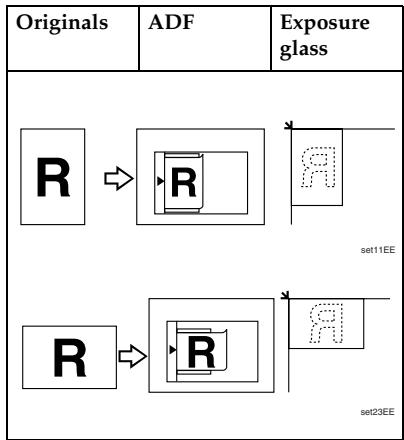
flowchart
graph TD
    A["Originals"] --> B["ADF"]
    B --> C["Exposure glass"]
    subgraph Input
        D["R"] --> E["Set 11EE"]
        F["R"] --> G["Set 23EE"]
    end
Placing Originals on the Exposure Glass
1 Lift the exposure glass cover or ADF.

Important
☐ Do not lift the exposure glass cover or ADF forcefully. If you do, the ADF cover might open or be damaged.

Note
☐ Be sure to lift the exposure glass cover or ADF by more than 30^ . Otherwise, the size of the original might not be detected correctly.
2 Place the original face down on the exposure glass. It should be aligned with the rear left corner.
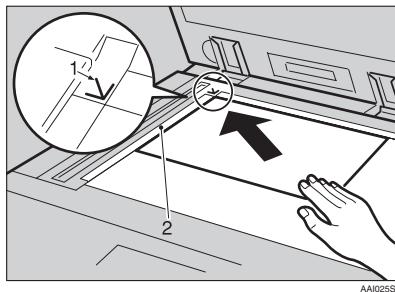
-
Positioning mark
-
Left scale

Note
☐ Start with the first page to be copied.
3 Lower the exposure glass cover or ADF.
Placing Originals in the ADF
Settings should be made in the following situations:
When placing custom size originals: p.20 "Placing custom size originals"
Note
☐ Do not stack originals over the limit mark on the side fence of the ADF.
☐ The last page should be on the bottom.
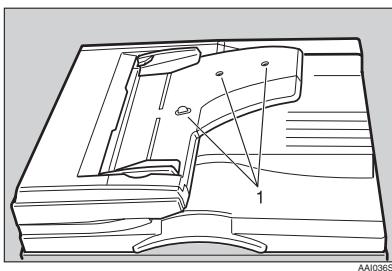
☐ Do not cover the sensors with your hands, or place objects on them. Doing so could cause the size to be detected incorrectly, or the paper misfeed error message to appear. Also, do not place anything on the cover, as this too could cause a malfunction.
ADF
natural_image
Technical line drawing of a mechanical component with labeled parts (no text or symbols beyond label)1. Sensor
1 Set the document guide to the original size.
2 Align the edges of the originals and place them in the ADF with the side to be copied facing up.

1. Limit mark
2. Document guide
Note
☐ Straighten curls in the originals before placing them in the ADF.
☐ To prevent multiple sheets feeding in at once, fan the originals before placing them in the ADF.
☐ Set the original squarely.
Placing custom size originals
When placing custom size originals in the ADF, specify the size of the originals.
Note
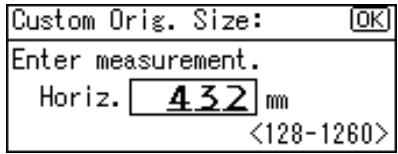
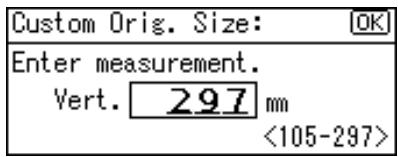
☐ Paper that has a vertical length of 105–297 mm (4.2"-11.6") and a horizontal length of 128–1260 mm (5.1"-49.6") can be placed with this function.
1 Select the paper tray using [▲] or [▼], and then press the [#] key.
![Ready 1A4 [100%] 100% R/E](/content/2025/01/136333/images/614aa5f7414861b2489894552942c07c515fc203db72ca7b4e971e6d9f5b48bf.jpg)
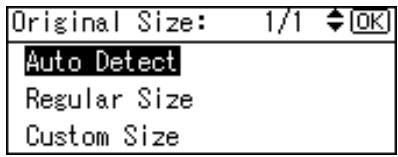
2 Select [Custom Size] using [▲] or [▼] key, and then press the [OK] key.
Note
☐ When [Auto Detect] is selected, the size of the placed original will be detected automatically.
3 Enter the horizontal size of the original using the number keys, and then press the [OK] key.
Note
☐ If you make a mistake, press the [Clear/Stop] key, and then enter the value again.
4 Enter the vertical size of the original using the number keys, and then press the [OK] key.
The "Programmed" message appears with your set original size.
When the custom size originals settings are registered, <1*>Ready appears on the top of copy display.
![<#>Ready 1A4 [100%] 100% R/E](/content/2025/01/136333/images/79170002b54d075ebb4fc7de71e17804a57aba73f40b8ceab45c74fac41fbf7c.jpg)
Note
☐ To cancel the size you have set, press the [Clear Modes] key.
Placing regular size originals
1 Select the paper tray using [▲] or [▼] key, and then press the [#] key.
![Ready 1A4 [100%] 100% R/E](/content/2025/01/136333/images/ecc30d084d8a88b078af26117cbf9b7ffefb1d582b424ee6be76bcfc183e381b.jpg)
2 Select [Regular Size] using [▲] or [▼] key, and then press the [OK] key.
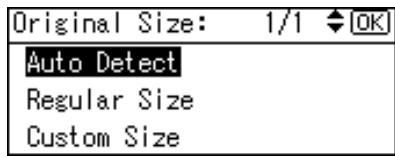
Note
☐ When [Auto Detect] is selected, the size of the placed original will be detected automatically.
3 Select the paper size using the scroll keys, and then press [OK] key.
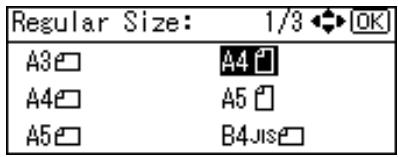
The "Programmed" message appears.
When the regular size originals settings are registered,
![< img src="Ready" 1 A4 [100%] 100% R/E](/content/2025/01/136333/images/ee272147fef90033996cf666222a60c429cba96adb89a9c48d5dd740638de6ce.jpg)

Note
☐ To cancel the size you have set, press the 【Clear Modes】key.
Basic Procedure
1 If the machine has user codes set, enter a user code (up to eight digits) using the number keys, and then press the [OK] or [#] key.
The machine is ready to copy.

Reference
For user codes, see p.40 "Key Operator Tools".
2 Make sure "◯ Ready" appears on the display.
◆ Initial copy display
![Ready 1[A4] [100%] 100% R/E](/content/2025/01/136333/images/b9f522d3646eb051f56d694403c79c4747c53a031f860aac0f91e248ff12d0c5.jpg)
3 Make sure no previous settings remain.

Note
☐ When there are previous settings remaining, press the【Clear Modes】key and enter again.
4 Place your originals.

Reference
p.19 "Placing Originals"
5 Make the necessary settings.

Reference
See the explanations for each function.
6 Enter the number of copies using the number keys.
![Ready 1A4 [100%] 100% R/E](/content/2025/01/136333/images/7d266b5fd006158461dbdbffa3e17bef65d4c41f78650c42389237d3fd970cc0.jpg)

Note
☐ The maximum copy quantity that can be set is 99.
7 Press the [Start] key.
Copying starts.

Note
☐ Copies are delivered face down.

How to operate
❖ To switch between pages or select functions:
Press the scroll key.
❖ To stop the machine during a multi-copy run:
Press the【Clear/Stop】key.
To return the machine to the initial condition after copying:
Press the [Clear Modes] key.
◆ To clear an entered value.
Press the【Clear/Stop】key.
Copying from the Bypass Tray
Use the bypass tray to copy onto OHP transparencies, thick paper, envelopes and copy paper that cannot be loaded in the paper tray.

Important
☐ Paper longer than 433 mm may become wrinkled, may not feed in, and may jam.

Note
☐ If you do not use standard size copy paper, or if you use special paper, you should enter its vertical and horizontal dimensions. See p.20 "Placing custom size originals". The sizes you can enter are as follows:
| Metric version | Vertical: 90–297 mmHorizontal: 148–600 mm |
| Inch version | Vertical: 3.55"-11.69"Horizontal: 5.83"-23.62" |
☐ The machine can automatically detect the following sizes as regular size copy paper:
| Metric version | A3□, A4□□, A5□□, 8" × 13"□ |
| Inch version | 11" × 17"□, 8 ^1 / _2 " × 11"□□, 5 ^1 / _2 " × 8 ^1 / _2 "□, 8 ^1 / _2 " × 14"□ |
☐ When copying onto OHP transparencies or paper heavier than 105 g/m ^2 (about 28 lb.), you need to specify the paper type. See p.26 "When copying onto special paper".
☐ The maximum number of sheets you can load at the same time depends on paper type. The maximum number of sheets should not exceed the upper limit.
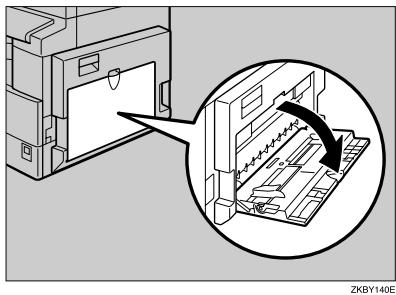
1 Open the bypass tray.
2 Push up the paper guide release lever.
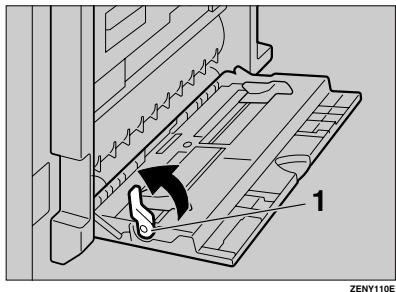
- Paper guide release lever
3 Insert the paper with the side you want to copy facing down, and then adjust the paper guide with the paper size.
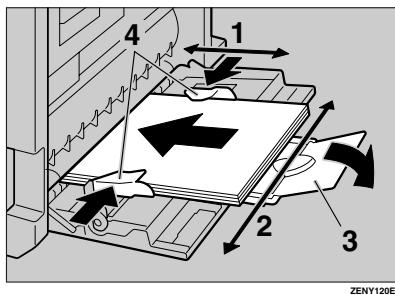
- Horizontal size
- Vertical size
- Extender
- Paper guides
Note
☐ If the guides are not flush against the copy paper, images might be skewed or paper misfeeds might occur.
☐ Do not stack paper over the limit mark, otherwise images might be skewed or paper misfeeds might occur.
☐ Swing out the extender to support paper sizes larger than A4☐, 8^1/_2 " × 11"☐.
☐ Fan paper to get air between the sheets and avoid a multi-sheet feed.
4 Pull down the paper guide release lever (step 2).
The bypass tray is selected on the display.
![Ready Byp. [100%] 100% R/E](/content/2025/01/136333/images/a08d9d718e901e81343f84d6bd5fe43265139af99c01b8ce391e25c8f5b49b0d.jpg)
Note
☐ If [Byp.] is not selected on the display, select [Byp.] using [▲] or [▼], and then press the [#] key.
5 Select the paper size and type.
When copying onto regular size paper
① Select [Paper Size] using [▲] or [▼], and then press the [OK] key.
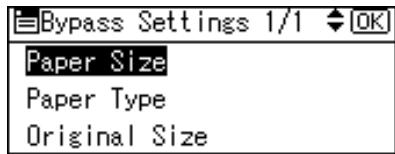
② Select [Regular Size] using [▲] or [▼], and then press the [OK] key.
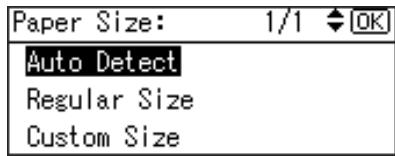
③ Select the paper size using the scroll keys, and then press the [OK] key.
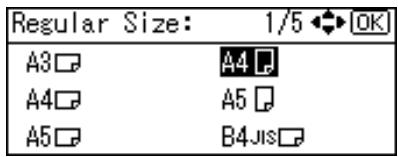
The “Programmed” message appears.
When copying onto custom size paper
Important
☐ You should specify the size of copy paper to avoid paper misfeeds.
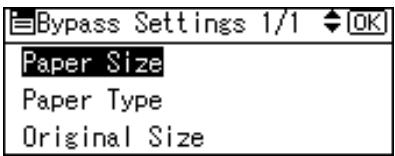
① Select [Paper Size] using [▲] or [▼], and then press the [OK] key.
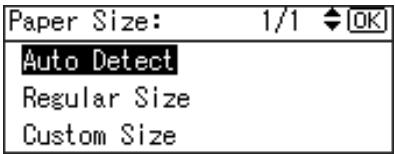
② Select [Custom Size] using [▲] or [▼], and then press the [OK] key.
③ Enter the horizontal size of the original using the number keys, and then press the [OK] key.
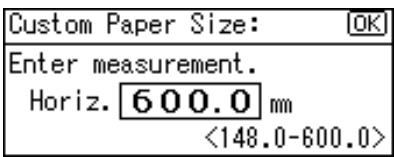
Note
☐ If you make a mistake, press the【Clear/Stop】key, and then enter the value again.
④ Enter the vertical size of the original using the number keys, and then press the [OK] key.

The "Programmed" message appears.
When copying onto special paper
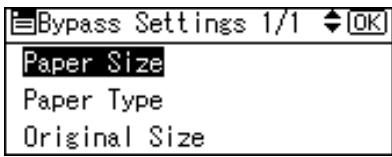
① Select [Paper Type] using [▲] or [▼], and then press the [OK] key.
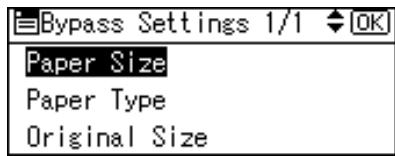
② Select the paper type, and then press the [OK] key.
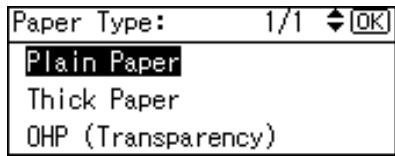
The "Programmed" message appears.
When copying onto envelopes
① Select [Paper Size] using [▲] or [▼], and then press the [OK] key.
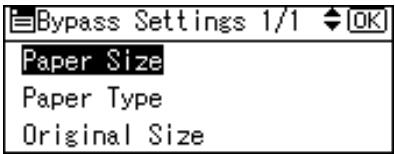
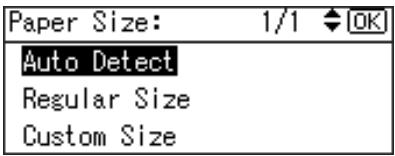
② Select [Regular Size] using [▲] or [▼], and then press the [OK] key.
③ Select the envelope size from [C6 env□] [C5 env□] [DL env□], and then press the [OK] key.
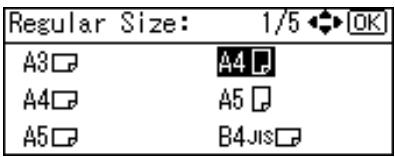
The "Programmed" message appears.
④ Press the [#] key.
![Ready C6Env [100%] 100% R/E](/content/2025/01/136333/images/b29d6f6f2632287051492e106966a8925282f8ac155c82887a95f8f75772c419.jpg)
⑤ Select [Paper Type] using [▲] or [▼], and then press the [OK] key.
⑥ Select [Thick Paper] using [▲] or [▼], and then press the [OK] key.
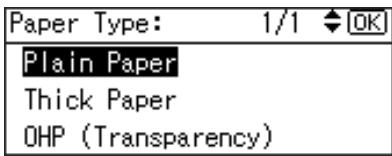
The "Programmed" message appears.
6 Place your originals, and then press the [Start] key.
Note
☐ When copying onto OHP transparencies, remove copied sheets one by one.
Copier Functions
Adjusting Image Density
You can adjust copy image density to match your originals.
If you require darker or lighter copies, adjust image density accordingly.
1 Press the [Lighter] or [Darker] key to adjust the density.
Selecting Original Type Setting
Select one of the following two types to match your originals:
Text
Select this when your originals contain only text (no pictures).
Photo
This can reproduce delicate tones of photographs and pictures.
Reference
p.42 "Original Type Setting"
1 Press the [Original Type] key and select the original type.
Note
☐ Press the 【Original Type】key to go through the following types:
| Upper indicator lit | Text |
| Lower indicator lit | Photo |
Selecting Copy Paper
Choose the tray containing the paper you want to copy onto: a paper tray or the bypass tray.
1 Select the paper tray or bypass tray using [▲] or [▼].
The selected tray and the paper size appear.
![Ready 1[A4] [100%] 100% R/E](/content/2025/01/136333/images/dde01e3fe27ae88615644bb1ac719feee902bcc6a0de42677c84fd589b3300ae.jpg)
Reference
p.24 "Copying from the Bypass Tray"
Preset Reduce/Enlarge
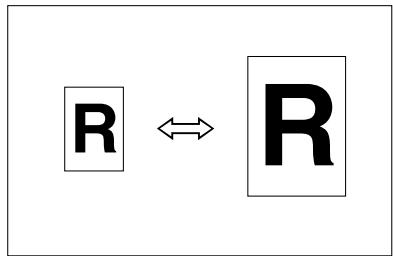
You can select a preset ratio for copying.
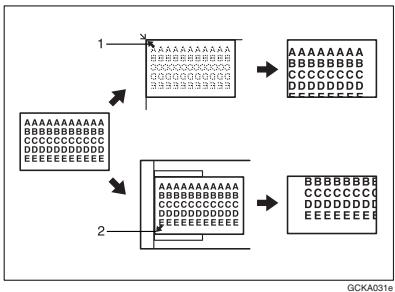
Base Point
The base point of Reduce/Enlarge differs depending on how the original is scanned. When the original is placed on the exposure glass, the upper left corner is the base point. When placed in the ADF, the bottom left corner is the base point.
flowchart
graph TD
    A["1"] --> B["2"]
    B --> C["3"]
    C --> D["4"]
    D --> E["5"]
    E --> F["6"]
    F --> G["7"]
    G --> H["8"]
    H --> I["9"]
    I --> J["10"]
    J --> K["11"]
    K --> L["12"]
    L --> M["13"]
    M --> N["14"]
    N --> O["15"]
    O --> P["16"]
    P --> Q["17"]
    Q --> R["18"]
    R --> S["19"]
    S --> T["20"]
    T --> U["21"]
    U --> V["22"]
    V --> W["23"]
    W --> X["24"]
    X --> Y["25"]
    Y --> Z["26"]
- Base point when placing on the exposure glass.
- Base point when placing in the ADF.
Reference
Related default settings
p.43 "Reproduction Ratio"
p.43 "Preset R/E Priority"
1 Press [R/E].
![Ready 1A4 [100%] 100% R/E](/content/2025/01/136333/images/803541116c43bbd4360ae16f3ff596c7f98fe654cdfc0bc3950b7786ef7986b2.jpg)
2 Press [Reduce] or [Enlarge].
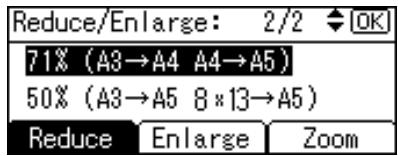
3 Select a ratio using [▲] or [▼], and then press the [OK] key.
The "Programmed" message appears.
4 Place your originals, and then press the [Start] key.
Zoom
You can change the reproduction ratio in increments of 1%.
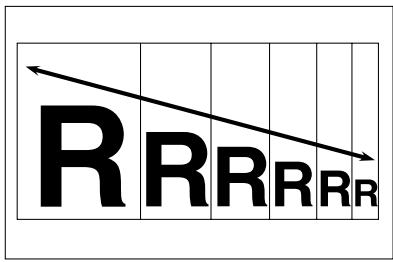
Note
☐ You can also select a preset ratio close to the desired ratio using [Reduce] or [Enlarge], and then adjust the ratio using [▲] or [▼].
1 Press [R/E].
![Ready 1A4 [100%] 100% R/E](/content/2025/01/136333/images/32d15f9a54761ecdea99b4231438296c05f2d3289b8de9377439bdd9232c32f8.jpg)
2 Press [Zoom].
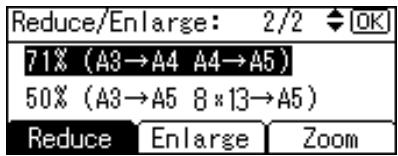
3 Enter the ratio.
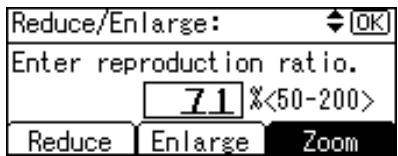
To select the ratio using [▲] and [▼]
① Adjust the ratio using [▲] or [▼].
Note
☐ If you have incorrectly entered the ratio, readjust using [▲] or [▼].
☐ To change the ratio in increments of 10%, press and hold down [▲] or [▼].
② Press the [OK] key.
The “Programmed” message appears.
To enter the ratio using the number keys
① Enter the desired ratio using the number keys.
② Press the [OK] key.
The “Programmed” message appears.
4 Place your originals, and then press the [Start] key.
Sort
You can scan originals into memory and automatically sort copies.
Sort
Copies are assembled as sequentially ordered sets.
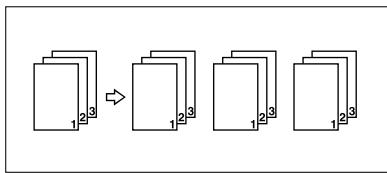
flowchart
graph TD
    A["1-2-3"] --> B["1-2-3"]
    B --> C["1-2-3"]
    C --> D["1-2-3"]
1 Press the [Sort] key.

Note
☐ When canceling the Sort function, press the [Sort] key, and make sure the [Sort] key indicator is off.
2 Enter the number of copy sets using the number keys.
![Ready 1A4 [100%] 100% R/E](/content/2025/01/136333/images/1e0aee74e52c9bfd1f0bbc8e7e21660009335d1c7d3592173cea0bfe1b191fb3.jpg)
3 Place your originals.
Note
☐ When placing originals on the exposure glass, start from the first page to be copied. When placing originals in the ADF, set the first page on top.
4 Press the [Start] key.
Note
☐ When placing originals on the exposure glass, press the [#] key after all originals are scanned.
Changing the number of sets
You can change the number of copy sets during copying.
Note
☐ This function can only be used when the Sort function is selected.
1 While "copying..." is displayed, press the [Clear/Stop] key.
2 Press [Sets].
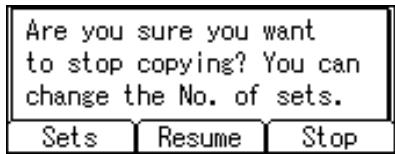
3 Enter the number of copy sets with the number keys, and then press [Resume].
![Enter the number of sets, then press [Resume]. 5 < 2-99> Sets Resume Stop](/content/2025/01/136333/images/54b8a351968a9a49410be084c85eee957ef9efe218717ed682df574be897b5eb.jpg)
Copying starts again.
Note
☐ The number of sets you can enter differs depending on when the [Clear/Stop] key is pressed.
User Tools Menu ( System Settings )
❖ General Features (See p.38 “General Features”.)
| Default | |
| Copy Count Display | Up |
| Display Contrast | Centre |
| Key Repeat | On |
| Measurement Unit | Metric version: mm |
| Inch verion: inch |
◆ Tray Paper Settings (See p.38 “Tray Paper Settings”.)
| Default | |
| Tray Paper Size: Tray 1 | Metric version: 8^1/2 " ×11" ☐ |
| Inch version: A4☐ | |
| Paper Type: Bypass tray | Thick Paper |
◆ Timer Settings (See p.39 “Timer Settings”.)
| Default | |
| Auto Off Timer | 1 min. |
| Energy Saver Timer | 1 min. |
| System Auto Reset Timer | 60 sec. |
| Copier Auto Reset Timer | 60 sec. |
❖ Key Operator Tools (See p.40 “Key Operator Tools”.)
| Default | ||
| User Code Man.: Copier | Off | |
| Key Counter Management | Off | |
| Key Operator Code | Off | |
| Display/Print Counter | — | |
| Counter per User Code | Display | — |
| — | ||
| Clear | — | |
| Program/ChangeUserCode | Program | — |
| Change | — | |
| Delete | — | |
| AOF (Always On) | On | |
User Tools Menu ( Copier Settings )
❖ Copier Features (See p.42 “Copier Features”.)
| Default | |
| Original Type Setting | Original Type 1 (Text): Text Mode 1 |
| Original Type 2 (Photo): Photo Mode 1 | |
| Max. Number of Sets | 99 sheets |
| Original Count Display | Off |
| Reproduction Ratio | Metric version:Ratio 1: 50%Ratio 2: 71%Ratio 3: 82%Ratio 4: 93%Ratio 5: 122%Ratio 6: 141%Ratio 7: 200% |
| Inch version:Ratio 1: 50%Ratio 2: 65%Ratio 3: 78%Ratio 4: 93%Ratio 5: 121%Ratio 6: 129%Ratio 7: 155% | |
| Preset R/E Priority | Metric version: 71% |
| Inch version: 65% | |
| Letterhead Setting | Off |
Accessing User Tools
This section is for key operators in charge of this machine.
User Tools allow you to change or set defaults.

Note
☐ Operations for system settings differ from normal operations. Always quit User Tools when you have finished. See p.37 "Quitting User Tools".
☐ Selected settings are highlighted.
☐ Any changes you make with User Tools remain in effect even if the main power switch or operation switch is turned off, or the [Clear Modes] key is pressed.
Changing Default Settings

Note
☐ If a key operator code is already set, the key operator code entry display appears. Enter the key operator code, and then press the [OK] key. See p.40 "Key Operator Code".
1 Press the [User Tools/Counter] key.
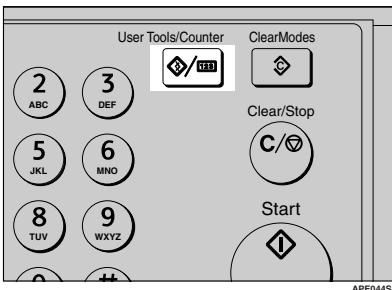
2 Select [System Settings] or [Copier Features] using [▲] or [▼], and then press the [OK] key.
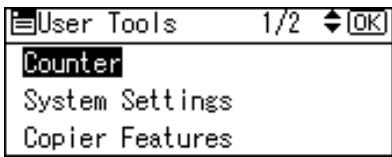
3 Select the menu using [▲] or [▼], and then press the [OK] key.
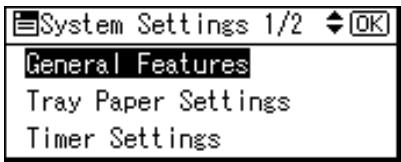

Reference
p.33 "User Tools Menu (System Settings)" p.35 "User Tools Menu (Copier Settings)".
4 Select the item using [▲] or [▼], and then press the [OK] key.
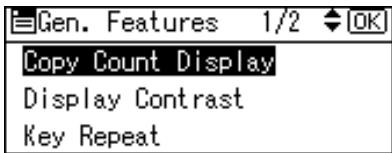
5 Change settings by following instructions on the display, and then press the [OK] key.

Note
☐ To cancel changes made to settings and return to the initial display, press the 【User Tools/Counter】 key.
Quitting User Tools
1 Press the [User Tools/Counter] key.
APE044S
Settings You Can Change with User Tools

Reference
To access User Tools, see p.36 "Accessing User Tools".
System Settings
General Features
◆ Copy Count Display
The copy counter can be set to show the number of copies made (count up), or the number of copies yet to be made (count down).

Note
☐ Default: Up (count up)
◆ Display Contrast
You can adjust the brightness of the display.
Key Repeat
You can select whether or not to use the key repeat function.

Note
☐ Default: On
◆ Measurement Unit
You can switch the measurement between "mm" and "inch".

Note
Default:
• Metric version: mm
- Inch version: inch
Tray Paper Settings
◆ Tray Paper Size: Tray 1
Select the size of the paper loaded in the paper tray.
- The paper sizes you can set for Tray 1 are as follows:
A3□, B4JIS (Japanese Industrial Standard)□, A4□□, B5JIS□□, A5□, 11" × 17"□, 8 ^1 / 2 " × 14"□, 8 ^1 / 2 " × 13"□, 8 ^1 / 4 " × 14"□, 8 ^1 / 4 " × 13"□, 8" × 13"□, 8 ^1 / 2 " × 11"□□, 7 ^1 / 4 " × 10 ^1 / 2 "□□, 5 ^1 / 2 " × 8 ^1 / _2 "□, 8K□, 16K□

Important
☐ If the specified paper size differs from the actual size of the paper loaded in the paper tray, a misfeed might occur because the correct paper size was not detected.

Note
Default:
• Metric version: 8^1/_2 " × 11"
- Inch version: A4
☐ If the paper size set for the selector in the paper tray is different from the paper size for this setting, the paper size of the selector has priority.
☐ If you load paper of a size not indicated on the paper size selector in the paper tray, set the selector to “*”.

Reference
p.59 "Changing the Paper Size"
◆ Paper Type: Bypass tray
Set the display so you can see what type of paper is loaded in the bypass tray.
- The paper types you can set for the bypass tray are as follows:
• recycled paper, special paper, colour paper, letterhead, prepunched paper, label paper, bond paper, thick paper, OHP, cardstock

Note
☐ Default: Thick Paper
☐ Paper types you can set in the bypass tray for machines with the copy function only are plain paper, thick paper and OHP.
Timer Settings
Auto Off Timer
After a specified period has passed, following job completion, the machine automatically turns off, in order to conserve energy. This function is called “Auto Off”. The machine status after the Auto Off operation is referred to as “Off mode”. For the Auto Off Timer, specify the time to elapse before Auto Off.

Note
☐ Default: 1 min.
☐ The time can be set from 1 to 240 minutes, using the number keys.
☐ From "Off mode", the machine is ready to use within 10 seconds.
☐ Auto Off may not work when error messages appear.
◆ Energy Saver Timer
The machine automatically enters Low Power mode automatically after a job is finished, and the selected time elapsed.

Note
☐ Default: 1 min.
☐ The time can be set from 1 to 240 minutes, using the number key.
☐ Energy Saver may not work when error messages appear.
◆ System Auto Reset Timer
The System Reset setting automatically switches the screen to the copier display when no operations are in progress, or when an interrupted job is cleared. This setting determines the system reset interval.

Note
☐ Default: On, 60 sec.
☐ The time can be set from 10 to 999 seconds, using the number keys.
◆ Copier Auto Reset Timer
Specify the time to elapse before copier modes reset.

Note
☐ If [Off] is selected, the machine does not automatically switch to the user code entry screen.
☐ Default: On, 60 sec.
☐ The time can be set from 10 to 999 seconds, using the number keys.
Key Operator Tools
The key operator must set the following items. For settings or more information, contact the key operator.
It is recommended that the key operator program a key operator code when performing the settings. See p.40 "Key Operator Code".
◆ User Code Man.: Copier
Allows you to control who uses the machine by setting codes for users. User codes must be registered for user code management.

Note
☐ Default: Off
◆ Key Counter Management
Use the key counter to specify whether users are restricted or not.

Note
☐ Default: Off
☐ [Key Counter Management] will only be displayed when the key counter is set.
◆ Key Operator Code
Specify whether or not to use passwords (max. eight digits) to control Key Operator Tools settings for key operator code.
Note
☐ Default: Off
☐ If you select [On], enter the key operator code (max. eight digits) using the number keys, and then select [On:Partial] or [On:All] to set the access limit.
- If you selected [On:Partial] A key operator code is only required for the Timer Settings and Key Operator Tools for System Settings.
- If you selected [On:All] A key operator code is required to access all items in System Settings and Copier Features.
☐ If you select [On:All], you must enter a key operator code to access the Key Operator Code display.
◆ Display/Print Counter
Allows you to view and print the number of prints.
- Display/Print Counter Displays the number of prints for each function (Total, Copier and A3/DLT).
- Print Counter List Prints out a list of the number of prints made under each function.
• To print the counter list
① Press the 【User Tools/Counter】key.
APE044S
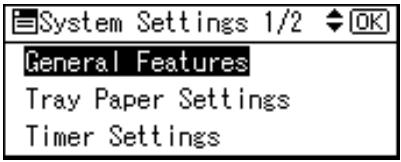
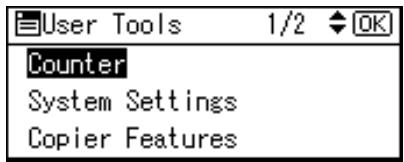
② Select [System Settings] using [▲] or [▼], and then press the [OK] key.
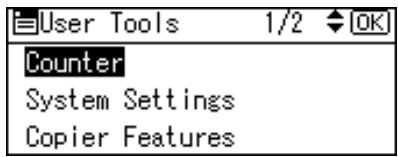
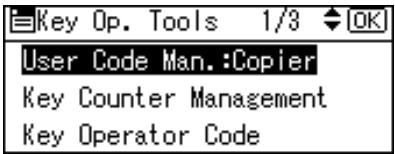
③ Select [Key Operator Tools] using [▲] or [▼], and then press the [OK] key.
④ Select [Display/Print Counter] using [▲] or [▼], and then press the [OK] key.
⑤ Press [Print].
| Counter: | 1/1 OK |
| Total | 2 |
| A3/DLT | 0 |
⑥ Press the 【Start】key.
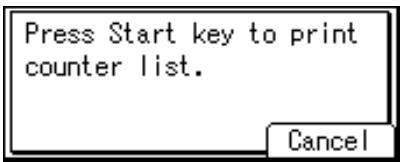
⑦ Press the 【User Tools/Counter】key.
◆ Counter per User Code
Allows you to view and print the numbers of prints accessed with user codes, and to set those values to 0.
Note
☐ Press [▲] and [▼] to show all the numbers of prints.
☐ The number of prints may differ from the counter value shown in Display/Print Counter.
- Print counter per user code Prints the number of prints made under each user code.
- Clear counter per user code Sets the number of prints made under each user code to 0.
☐ Print list for each user code, see p.47 "Printing the Counter for Each User Code".
- Print counter for all user codes Prints the number of prints made under all user codes.
- Clear counter for all user codes Sets the number of prints made under all user codes to 0.
◆ Program/Change User Code
You can register, change, and delete user codes. For details about these operations, see p.44 "User Code".
Note
☐ You can register up to 50 user codes.
◆ AOF (Always On)
Specify whether or not to use Auto Off.
Note
☐ Default: On
Copier Features
Original Type Setting
You can adjust copy finish quality level according to original type. You can choose these functions after selecting [Original Type 1 (Text)] or [Original Type 2 (Photo)].
• Text Mode 1
normal text originals
- Text Mode 2
newspapers, semi-transparent originals (reverse side print faintly visible)
- Photo Mode 1
text/photo images containing mostly photo areas
- Photo Mode 2
text/photo images containing mostly text areas
• Photo Mode 3
actual photographic paper
- Special Mode 1
Highly transparent originals (reverse side clearly visible), or light text on a coloured background. Also for originals with very grainy backgrounds (some newspapers) and light text.
- Special Mode 2
originals with coloured text and lines
- Special Mode 3
photo images created by dithering (visible dots), such as newspaper photos - normal resolution
- Special Mode 4
photo images created by dithering (visible dots), such as newspaper photos - coarse resolution
- Special Mode 5 normal text originals (reproducing the background)

Note
Default:
• Original Type 1 (Text): Text Mode 1
- Original Type 2 (Photo): Photo Mode 1
Max. Number of Sets
The maximum copy quantity can be set between 1 and 99 using number keys.

Note
☐ Default: 99 sheets
Original Count Display
You can set to display the count of originals and copying pages on the display when [On] is selected.

Note
☐ Default: Off
Reproduction Ratio
You can select which reduce, enlarge, or input ratio is shown on the display with priority when [Reduce] or [Enlarge] is selected.

Note
Default:
- Metric version:
• Ratio 1: 50%
• Ratio 2: 71%
• Ratio 3: 82%
• Ratio 4: 93%
• Ratio 5: 122%
• Ratio 6: 141%
• Ratio 7: 200%
- Inch version:
• Ratio 1: 50%
• Ratio 2: 65%
• Ratio 3: 78%
• Ratio 4: 93%
• Ratio 5: 121%
• Ratio 6: 129%
• Ratio 7: 155%
Preset R/E Priority
You can set the ratio with priority when [R/E] is selected.

Note
Default:
• Metric version: 71%
- Inch version: 65%
Letterhead Setting
If you select [On] for this function, the machine rotates the image correctly.

Note
☐ Default: Off
☐ Orientation-fixed (top to bottom) paper might not print correctly, depending on how the originals and paper are placed.

Reference
When using letterhead paper, check its orientation is correct. See p.53 "Orientation-Fixed Paper or Two-Sided Paper".
User Code
Register user codes to restrict copier functions to certain users, and check on their use of copier functions:
Registering a New User Code
1 Press the [User Tools/Counter] key.
2 Select [System Settings] using [▲] or [▼], and then press the [OK] key.
3 Select [Key Operator Tools] using [▲] or [▼], and then press the [OK] key.
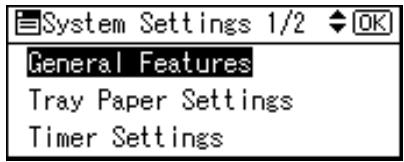
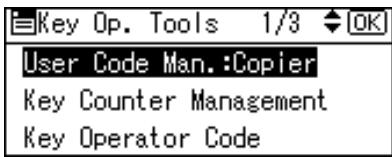
4 Select [Program/Change User Code] using [▲] or [▼], and then press the [OK] key.
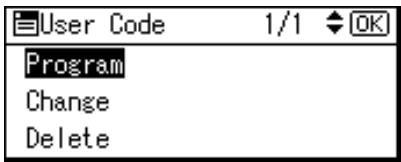
5 Select [Program] using [▲] or [▼], and then press the [OK] key.
6 Enter the user code using the number keys, and then press the [OK] or [#] key.
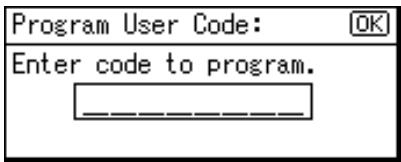
The “Programmed” message appears, and then the “User Code” display returns.
7 Press the [User Tools/Counter] key.
Changing a User Code

Note
□ Even if you change a user code, the counter value will not be cleared.
1 Press the [User Tools/Counter] key.
2 Select [System Settings] using [▲] or [▼], and then press the [OK] key.
3 Select [Key Operator Tools] using [▲] or [▼], and then press the [OK] key.
4 Select [Program/Change User Code] using [▲] or [▼], and then press the [OK] key.
5 Select [Change] using [▲] or [▼], and then press the [OK] key.
6 Enter the registered user code you want to change using the number keys, and then press the [OK] or [#] key.
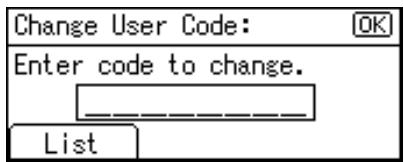

Note
☐ When you select the user code from the User Code List, press [List]. Select the user code you want to change using [▲] or [▼], and then press the [OK] key twice.
7 Enter the new user code using the number keys, and then press the [OK] or [#] key.
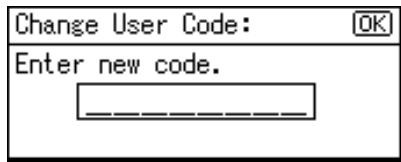
The “Programmed” message appears, and then the “User Code” display returns.
8 Press the【User Tools/Counter】key.
Deleting a User Code
Important
☐ This operation also deletes user codes registered to multiple functions. User control via the deleted user code is no longer possible.
1 Press the [User Tools/Counter] key.
2 Select [System Settings] using [▲] or [▼], and then press the [OK] key.
3 Select [Key Operator Tools] using [▲] or [▼], and then press the [OK] key.
4 Select [Program/Change User Code] using [▲] or [▼], and then press the [OK] key.
5 Select [Delete] using [▲] or [▼], and then press the [OK] key.
6 Select [Per User Code] or [All User Codes] using [▲] or [▼], and then press the [OK] key.
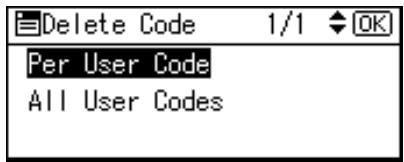
When selecting [All User Codes], a confirmation message appears. Press [Yes], and then proceed to step 9.
7 Enter the registered user code you want to delete using the number keys, and then press the [OK] or [#] key.
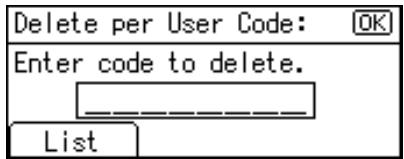
Note
☐ When you select the user code from the User Code List, press [List]. Select the user codes you want to delete using [▶], and then press the [OK] key.
A confirmation message appears.
8 Press [Yes].
The “Deleted.” message appears, and then the “User Code” display returns.
9 Press the [User Tools/Counter] key.
Displaying the Counter for Each User Code
You can check the counter for each user code.
1 Press the [User Tools/Counter] key.
2 Select [System Settings] using [▲] or [▼], and then press the [OK] key.
3 Select [Key Operator Tools] using [▲] or [▼], and then press the [OK] key.
4 Select [Counter per User Code] using [▲] or [▼], and then press the [OK] key.
5 Select [Display] using [▲] or [▼], and then press the [OK] key.
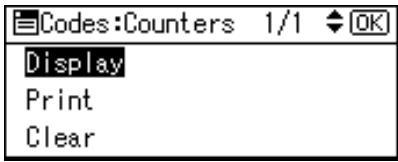
The counter for each user code will be displayed.
6 Press the [User Tools/Counter] key.
Printing the Counter for Each User Code
You can print out the counter for each user code.
1 Press the [User Tools/Counter] key.
2 Select [System Settings] using [▲] or [▼], and then press the [OK] key.
3 Select [Key Operator Tools] using [▲] or [▼], and then press the [OK] key.
4 Select [Counter per User Code] using [▲] or [▼], and then press the [OK] key.
5 Select [Print] using [▲] or [▼] and then press the [OK] key.
6 Press the [Start] key.
The counter list prints out.
7 Press the [User Tools/Counter] key.
Clearing the Counter
1 Press the [User Tools/Counter] key.
2 Select [System Settings] using [▲] or [▼], and then press the [OK] key.
3 Select [Key Operator Tools] using [▲] or [▼], and then press the [OK] key.
4 Select [Counter per User Code] using [▲] or [▼], and then press the [OK] key.
5 Select [Clear] using [▲] or [▼], and then press the [OK] key.
A confirmation message appears.
6 Press [Yes]. The "Counter has been cleared." message appears, and then the "Codes:Counters" display returns.
7 Press the [User Tools/Counter] key.
4
5. Troubleshooting
If Your Machine Does Not Operate As You Want
The following chart gives explanations of common problems and messages. If other messages appear, follow the instructions displayed.
| Problem | Causes | Solutions |
| “Please wait.” appears. | This message appears when you turn on the operation switch or change the toner bottle. | Wait for the machine to get ready. |
| The display is off. | The machine is in Energy Saver mode. | Turn on the operation switch. |
| The operation switch is turned off. | ||
| Nothing happens when the operation switch is turned on. | The main power switch is turned off. | Turn on the main power switch. |
| The user code entry display appears. | Users are restricted by user management. | Enter the user code (up to eight digits), and then press the [OK] or [#] key. |
| Misfeeds occur frequently. | The tray's side fences may not be locked. | Check the side fences are locked. p.59 “Changing the Paper Size”. |
| The tray's end fence may not be set properly. | Check the end fence is set properly. See p.59 “Changing the Paper Size”. | |
| You may have loaded paper of a size not shown on the paper size selector. | When using paper of a size that cannot be detected automatically, use Tray Paper Settings to set the paper size. See p.38 “Tray Paper Size: Tray 1” and p.78 “Copy Paper”. | |
| An error message remains, even if misfed paper is removed. | When a misfeed message appears, it remains until you open and close the cover, as required. | Clear misfed paper, and then open and close the front cover. See p.57 “Clearing Misfeeds”. |
| You forgot your key operator code. | — | Contact your service representative. |
| “Max. number of sets is *” appears. | The number of copies exceeds maximum copy quantity. | You can change the maximum copy quantity. See p.42 “Max. Number of Sets”. |
If You Cannot Make Clear Copies
| Problem | Causes | Solutions |
| Copies appear dirty. | Image density is too dark. | Adjust the image density. See p.28 “Adjusting Image Density”. |
| The reverse side of an original image is copied. | Image density is too dark. | Adjust the image density. See p.28 “Adjusting Image Density”. |
| A shadow appears on copies if you use pasted originals. | Image density is too dark. | Adjust the image density. See p.28 “Adjusting Image Density”.Change the orientation of the original.Put mending tape over the pasted areas. |
| The same copy area is dirty whenever making copies. | The exposure glass or ADF is dirty. | Clean them. See p.67 “Maintaining Your Machine”. |
| Copies are too light. | Image density is too light. | Adjust the image density. See p.28 “Adjusting Image Density”. |
| The paper is not appropriate. | Use the recommended paper.Note□ A light copy may result when you use damp or rough grain paper. | |
| Toner bottle is almost empty. | Add toner. See p.54 “Adding Toner”. | |
| Parts of the paper are not copied. | The original is not placed correctly. | Place originals correctly. See p.19 “Placing Originals”. |
| An improper paper size is selected. | Select the proper paper size. | |
| Copies are blank. | The original is not placed correctly. | When using the exposure glass, place originals face down. When using the ADF, place them face up. See p.19 “Placing Originals”. |
A moiré pattern is produced on copies. | Your original has a dot pattern image or many lines. | Place the original on the exposure glass at a slight angle. |
If You Cannot Make Copies As You Want
This section explains causes and remedies when copy results are not as expected.
Basic
| Problem | Causes | Solutions |
| You cannot combine several functions. | Selected functions cannot be used together. | Check the combination of functions and make the settings again.○Referencep.75 “Combination Chart” |
When Memory Is Full
| Messages | Causes | Solutions |
| Reset * orig., then press [Resume] to scan and copy the remaining originals.[Stop] [Resume] | The machine checks if the remaining originals should be copied, after the scanned original has been printed. | To continue copying, remove all copies, and then press [Resume]. To stop copying, press [Stop]. |
| Press [Resume] to scan and copy remaining originals. | The machine checks if the remaining originals should be copied, after the scanned original has been printed. | To continue copying, remove all copies, and then press [Resume]. To stop copying, press [Stop]. |

Loading Paper
Loading Paper

Note
☐ You can change the paper size.
☐ This illustration shows the paper tray.
Pull the paper tray out slowly until it stops.
Square the paper and load it in the tray.


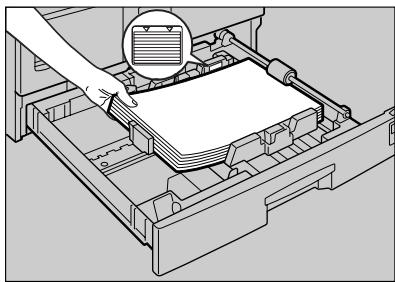
natural_image
Illustration of a printer's internal structure with a hand inserting a paper into the cover (no text or symbols visible)APH009S

Important
☐ Check the top of the stack is not higher than the limit mark inside the tray.

Note
☐ Fan the paper before loading.
☐ Straighten curled or warped paper before loading.
☐ When using paper tray 1, before loading paper, push down the metal plate.
3 Push the paper tray in, until it stops.
Orientation-Fixed Paper or Two-Sided Paper
Orientation-fixed (top to bottom) or two-sided paper (for example, letterhead paper, prepunched paper, or copied paper) might not print correctly, depending on how the originals and paper are placed.

Reference
p.43 "Letterhead Setting"

Note
☐ Select [On] in [Letterhead Setting] under [Copier Features] (User Tools), and then place the original and paper as shown below.
◆ Original Orientation
| Exposure glass | ADF | ||
 | 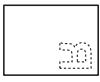 |  |  |
◆ Loaded paper orientation
| Copy mode | Paper tray | Bypass tray | |
Loaded paper orientation | 1 Sided |  |  |
Loaded paper orientation | 1 Sided |  | 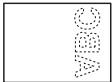 |
APH004S

Adding Toner
When 🖼️ appears, it is time to add toner.
Handling Toner
WARNING:
- Do not incinerate used toner or toner containers. Toner dust might ignite when exposed to an open flame. Dispose of used toner containers in accordance with local regulations.
CAUTION:
- Keep toner (used or unused) and toner containers out of reach of children.
Important
☐ Faults may occur if you use toner other than the recommended type.
☐ When adding toner, do not turn off the operation switch. If you do, settings will be lost.
□ Always add toner when the machine instructs you.
☐ Do not repeatedly install and remove toner bottles. This will result in toner leakage.
☐ Do not shake the removed toner bottle. Remaining toner might scatter.
Note
☐ You can make about 50 copies even after the ⚙ symbol begins flashing, but replace toner early to prevent poor copy quality.
Toner Storage
When storing toner, the following precautions should always be followed:
- Store toner containers in a cool, dry place free from direct sunlight.
- Store on a flat surface.
Used Toner
Note
☐ Toner cannot be re-used.
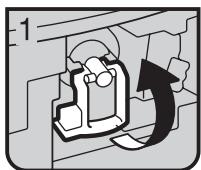
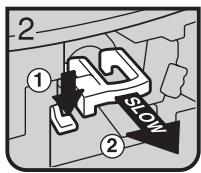
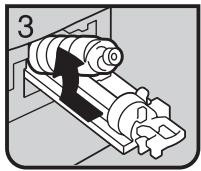
Removing Toner
natural_image
Mechanical component diagram showing a piston and crankshaft mechanism (no text or labels)ZAAX040E
ZAAX050E
natural_image
Mechanical assembly diagram showing a cylindrical component mounted on a base with a clamped mechanism (no text or symbols)ZAAX060E
• 1: Open the front cover of the machine.
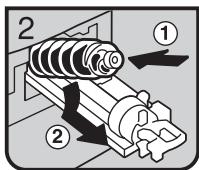
• 2: Lift the green lever.
- 3: Push the green lever, and then gently pull out the holder.
- 4: Press the toner bottle back to raise its top, and then gently pull it out.
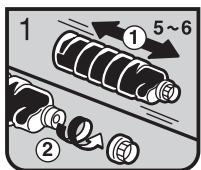
Inserting Toner
ZAAX070E
ZAAX080E
ZAAX090E
natural_image
Diagram of a mechanical device with directional arrows and labeled part '4' (no readable text or symbols)ZAAX100E
- 1: Hold the new bottle horizontally and shake it from side to side five or six times. 2: Remove the black cap.
Note
☐ Do not remove the black cap before shaking.
☐ Do not remove the inner cap.
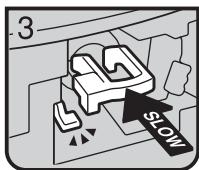
- 3: Put the toner bottle on the holder, and then pull its top forward.
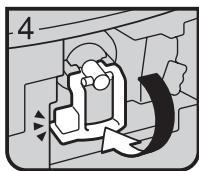
• 4: Push in the green lever until it clicks.
• 5: Press down the green lever.
• 6: Close the machine's front cover.
Clearing Misfeeds

CAUTION:
- The fusing section of this machine might be very hot. Caution should be taken when removing misfed paper.

Important
☐ When clearing misfeeds, do not turn off the power switch. If you do, your copy settings are cleared.
☐ To prevent misfeeds, do not leave any torn scraps of paper inside the machine.
☐ If paper misfeeds occur repeatedly, contact your service representative.

Note
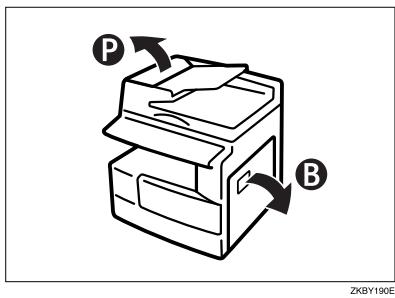
☐ More than one misfeed area may be indicated. If this is the case, check every applicable area. Refer to the following charts: A, B, P, R, Y, Z.
☐ You can find a sticker explaining how to remove misfed paper inside the right cover.
☐ When the machine instructs you to reset originals, reset them in the feeding position. The display will show you the number of originals to return.
When P is lit
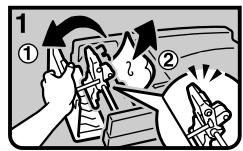
- Open the cover of the ADF and remove the misfed original.
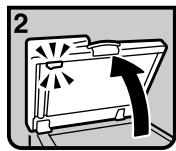
natural_image
Diagram of a file folder with an arrow pointing to it, no text or symbols present- Lift the ADF.
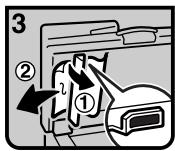
- Pull the green knob of upper left corner and remove misfed original.
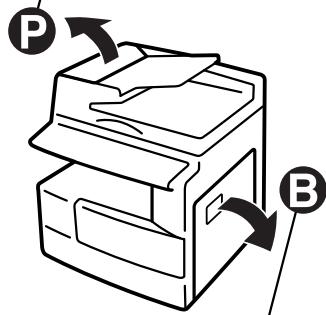
When B is lit
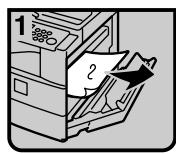
- Open the right cover and remove the misfed paper.
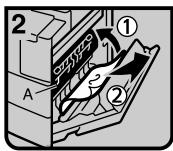
- Close the A cover and remove the misfed paper.
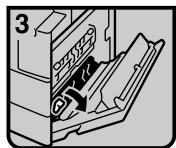
- Pull down the blue knob.
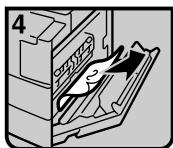
natural_image
Diagram of a printer's internal structure with a paper airplane inside, showing no text or symbols.- Remove the misfed paper.
- Close the right cover.
Changing the Paper Size

Preparation
Be sure to select the paper size with User Tools and the paper size selector. If you do not, misfeeds might occur. See p.38 "Tray Paper Size: Tray 1".

Reference
For details about paper sizes and types, see p.78 "Copy Paper".
Changing the Paper Size of the Paper Tray
1 Make sure the paper tray is not in use.
2 Pull the paper tray out slowly until it stops.

Note
☐ Remove any remaining copy paper.
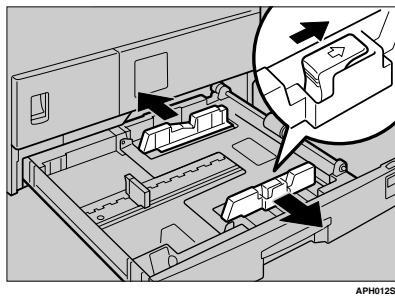
3 While pressing the release lever, adjust the back fence.
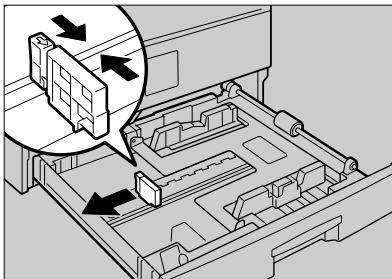
natural_image
Diagram of a printer internal structure with arrows indicating assembly or movement (no text or symbols present)APH010S
When using 11"×17"size paper
① Pull the back fence off from the tray.
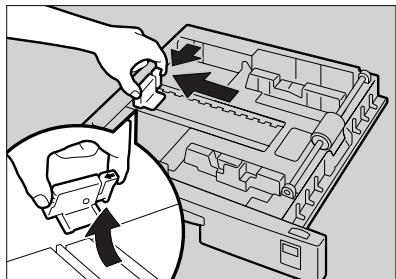
natural_image
Illustration of a hand inserting a component into an electronic device (no text or symbols visible)ZENY410E
② Place it in the corner pocket on the left.
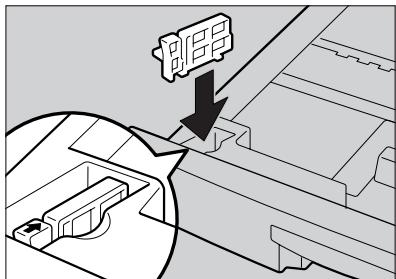
ZENY420E
4 Press down the release button.
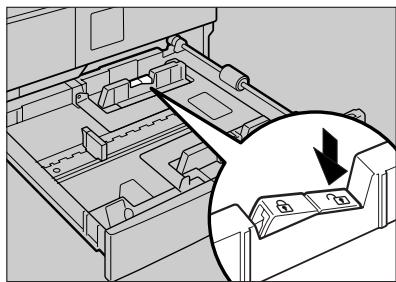
natural_image
Technical line drawing of a mechanical assembly with a magnified inset showing a component detail (no text or symbols)APH011S
5 While pressing the release lever, adjust the side fences.
natural_image
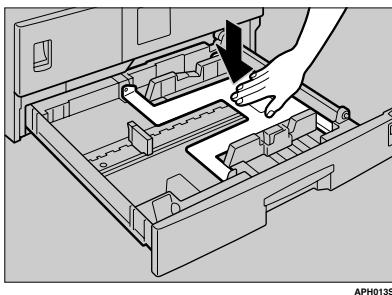
Technical diagram of a mechanical assembly with arrows indicating motion or force direction (no text or symbols present)6 Push the metal plate down.
natural_image
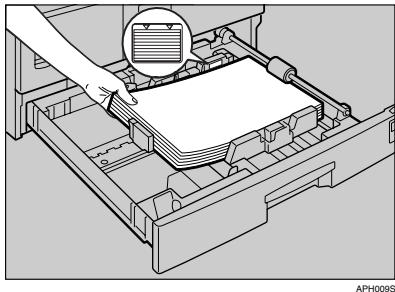
Diagram of a hand pressing down an open mechanical device into a rack (no text or symbols visible)7 Square the paper and set it in the tray.
natural_image
Illustration of a printer or printer stacker with a hand inserting a card into the cover (no text or symbols visible)Important
☐ Be sure to set the paper under the roller.
☐ Do not stack paper over the limit mark.
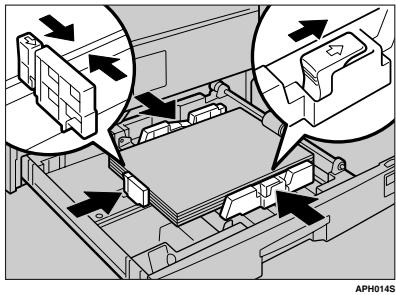
8 While pressing the release lever, adjust the side and back fences to the new paper size.
Important
☐ When setting small quantities of copy paper, be careful not to squeeze in the side fence too much or paper will not feed in properly.
9 Press down the lock button.
10 Adjust the tray size to the new paper size using the paper size selector.
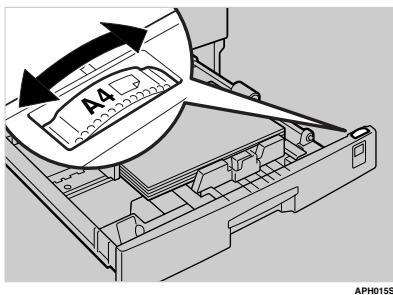
Note
☐ Be sure to set the correct size, otherwise a paper jam might occur.
1 Push the paper tray in until it stops.
6. Other Functions
Other Functions
Displaying the Total Counter
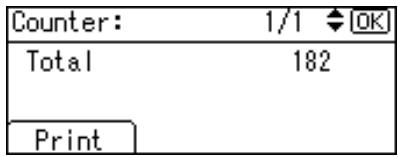
You can display the total counter value used for all functions.
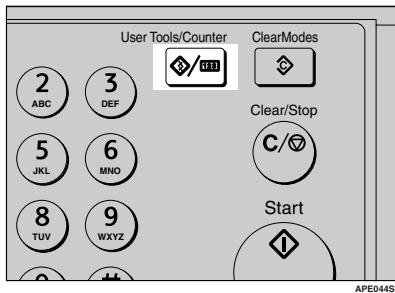
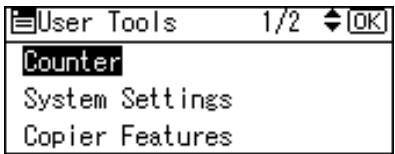
1 Press the [User Tools/Counter] key.
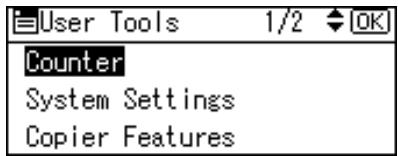
2 Select [Counter] using [▲] or [▼], and then press the [OK] key.
3 To print the counter list, press [Print].
Note
☐ To print the counter list, set the paper size to larger than A4 or 8^1/_2 " × 11".
4 Press the [Start] key.
A counter list prints out.
5 Press the [User Tools/Counter] key.
Changing the Language
You can change the language used on the display. English is set as default.
1 Press the [User Tools/Counter] key.
2 Select [Language] using [▲] or [▼], and then press the [OK] key.
3 Select the language using [▲] or [▼], and then press the [OK] key.
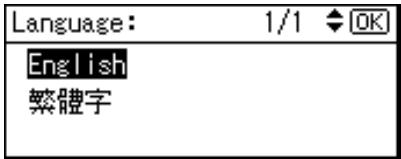
The “Programmed” message appears, and then the “User Tools” display returns.
4 Press the [User Tools/Counter] key.
6
Do's and Don'ts
CAUTION:
- Unplug the power cord from the wall outlet before you move the machine. While moving the machine, you should take care that the power cord will not be damaged under the machine.
Important
☐ Do not turn the power off while the On indicator is lit or blinking. Doing so may damage the memory.
☐ Before unplugging the power cord or turning off the main power switch, make sure remaining memory space is at 100%, as shown on the display. See p.16 "Turning Off the Power" and p.16 "Turning Off the Main Power".
- When you use this machine for a long time in a confined space without good ventilation, you may detect an odd smell. To keep the workplace comfortable, we recommend that you keep it well ventilated.
- Do not touch areas on or around the fusing unit. These areas get hot.
- After making copies continuously, the exposure glass may become warm—this is not a malfunction.
- The area around the ventilation hole might feel warm. This is caused by exhaust air and is not a malfunction.
- When the machine is not in use and in stand-by mode, you may hear a small noise inside. This is caused by the image stabilization process and is not a malfunction.
- Do not turn off the operation switch while copying. Make sure all copying has finished first.
- The machine might not produce good copy images if condensation forms inside as a result of rapid temperature change.
- Do not open the covers of the machine while copying. If you do, misfeeds might occur.
- Do not move the machine during copying.
- If you operate the machine improperly or a machine failure occurs, settings might be lost. Be sure to make a note of your machine settings.
- The manufacturer shall not be liable for any loss or damage resulting from mechanical failure, loss of settings, or use of the machine.
Where to Put Your Machine
Machine Environment
Choose your machine's location carefully. Environmental conditions greatly affect its performance.
Optimum environmental conditions

CAUTION:
- Keep the machine away from humidity and dust. Otherwise a fire or an electric shock might occur.
- Do not place the machine on an unstable or tilted surface. If it topples over, an injury might occur.

CAUTION:
- Make sure the room where you are using the machine is well ventilated and spacious. Good ventilation is especially important when the machine is used heavily.
• Temperature: 10-32 °C (50-89.6 °F) (humidity to be 54% at 32 °C, 89.6 °F)
- Humidity: 15-80% (temperature to be 27 °C, 80.6 °F at 80%)
• A strong and level base.
- The machine must be level within 5 mm, 0.2 inches: both front to rear, and left to right.
- To avoid possible buildup of ozone, be sure to locate this machine in a large well ventilated room that has an air turnover of more than 30 m^3/hr/person .
Environments to avoid
- Locations exposed to direct sunlight or other sources of strong light (more than 1,500 lux).
- Locations directly exposed to cool air from an air conditioner or heated air from a heater. (Sudden temperature changes can cause condensation to form inside the machine.)
- Locations close to machines generating ammonia, such as a diazo copy machine.
- Places where the machine will be subject to frequent strong vibration.
- Dusty areas.
- Areas with corrosive gases.
Moving

CAUTION:
- Unplug the power cord from the wall outlet before you move the machine. While moving the machine, you should take care that the power cord will not be damaged under the machine.

CAUTION:
- Before moving the machine, be sure to pull all four handles fully out. If not, an injury might occur. After moving the machine, return the four handles to their original positions.
Important
☐ Be careful when moving the machine. Take the following precautions:
- Turn off the main power. See p.16 "Turning Off the Main Power".
- Unplug the power cord from the wall outlet. When you pull out the plug from the socket, grip the plug to avoid damaging the cord, thereby reducing the risk of fire or electric shock.
- Close all covers and trays, including the front cover and bypass tray.
☐ Do not take off the holding stand.
☐ Protect the machine from strong shocks. Impact can damage the memory.
Power Connection
WARNING:
- Connect the machine only to the power source described on the inside front cover of this manual. Connect the power cord directly into a wall outlet and do not use an extension cord.
- Do not damage, break or make any modifications to the power cord. Do not place heavy objects on it. Do not pull it hard nor bend it more than necessary. These actions could cause an electric shock or fire.
CAUTION:
- Unplug the power cord from the wall outlet before you move the machine. While moving the machine, you should take care that the power cord will not be damaged under the machine.
CAUTION:
- When you disconnect the power plug from the wall outlet, always pull the plug (not the cable).
- When the main power switch is in the stand-by position, the optional anti-condensation heaters are on. In an emergency, unplug the machine's power cord.
- When you unplug the power cord, the anti-condensation heaters turn off.
- Make sure the plug is inserted firmly in the wall outlet.
- Voltage must not fluctuate by more than 10%.
- The wall outlet shall be installed near the machine and shall be easily accessible.
Access to the Machine
Place the machine near the power source, providing the clearance areas shown.
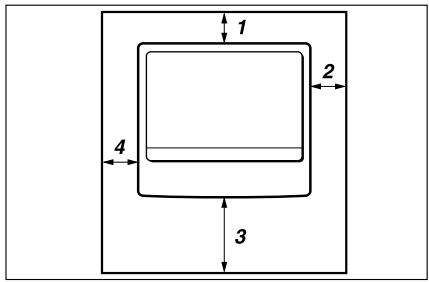
CP9991EE
- Rear: 5 cm (2") or more
- Right: 25 cm (10") or more
- Front: 75 cm (29.6") or more
- Left: 15 cm (6") or more

Note
☐ For the required space when options are installed, contact your service representative.
Maintaining Your Machine
If the exposure glass, exposure glass cover or ADF belt is dirty, copy clarity may be reduced. Clean these parts if they are dirty.
◆ Cleaning the machine
Wipe the machine with a soft, damp cloth. Then wipe it with a dry cloth to remove the water.
Important
☐ Do not use chemical cleaner or organic solvents such as thinner or benzene. If such substances get inside the machine or melt plastic parts, a failure might occur.
☐ Do not clean parts other than those explicitly specified in this manual. Other parts should only be cleaned by your service representative.
Cleaning the Exposure Glass
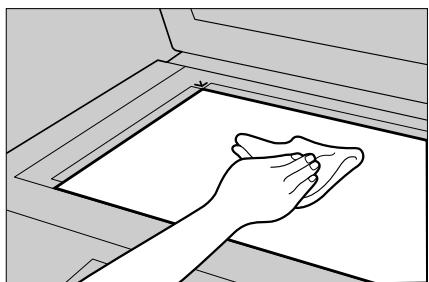
natural_image
Line drawing of a hand cleaning a tiled surface (no text or symbols)ND1C0200
Cleaning the Exposure Glass Cover
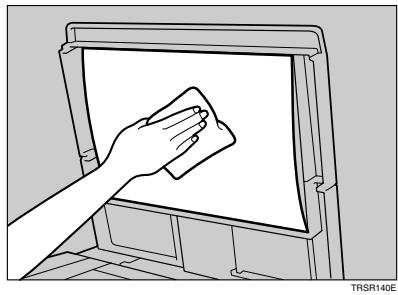
natural_image
Line drawing of a hand cleaning a whiteboard with a cloth (no text or symbols)Cleaning the ADF
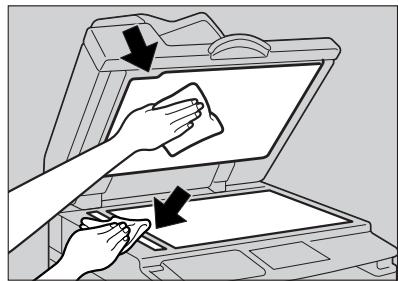
natural_image
Illustration of hands cleaning a laptop screen with a cloth (no text or symbols)ZAAH211E
7
Security
Confidential information is always at risk of being copied without permission or subject to unauthorized access through the network. To protect documents from such intrusion, not only can passwords be set, but also the Extended Security function can be used to strengthen security.
For those who require increased document protection, we recommend the Extended Security function.
Primary Security Functions
◆ Protecting Image Data Remaining in Memory
Protects image data remaining in memory. When a copy job is completed, or a job is canceled, the data is secure.
◆ Authenticating Administrator
Protects essential functions for administrating document security using an access code. See p.40 "Key Operator Code".
Operating Environment and Notes
Security for this machine is assured on the premises that the machine is used under the following conditions:
Operating Environment
- The condition of the machine is normal. (For example, it is not damaged, modified, or lacking components.)
- The machine is managed by an administrator with thorough knowledge of the machine and capable of providing the proper conditions under which users can use the machine safely.
For Administrator
- Security of this machine cannot be assured if any hardware component is detached or replaced with an inappropriate component. If these things have the possibility of occurring, other security measures are necessary.
- Avoid using a single number or consecutive numbers for a key operator code such as “00000000” or “12345678”. Since the numbers like this are easy to guess, using them will not provide the appropriate level of security.
- User code is a function to help manage the use of the machine. It is not to protect confidential documents from others.
9. Specifications
Main Unit
◆ Configuration: Desktop
◆ Photosensitivity type: OPC drum
❖ Original scanning:
One-dimensional solid scanning system through CCD
❖ Copy process:
Dry electrostatic transfer system
❖ Development:
Dry two-component magnetic brush development system
❖ Fusing:
Heating roll pressure system
◆ Resolution: 600 dpi
◆ Exposure glass:
Stationary original exposure type
❖ Original reference position: Rear left corner
✿ Warm-up time:
From the main power switch
15 seconds or less (20 °C)
From the operation switch
10 seconds or less (20 °C)
❖ Originals:
Sheet/book/objects
Maximum original size: A3□, 11" × 17" □
◆ Copy paper size:
- Tray: A3□ - A5□, 11" × 17"□ - 5 ^1 / 2 " × 8 ^1 / 2 "□
- Bypass: A3☐ - A6☐, 11" × 17"☐ - 5 ^1 / 2 " × 8 ^1 / 2 "☐
- Bypass (custom size): Vertical: 90 – 297 mm, 3.55" – 11.69" Horizontal: 148 – 600 mm, 5.83" – 23.62"
◆ Copy paper weight:
- Paper tray (Standard size): 60 – 90 g/m ^2 , 16 – 24 lb
- Bypass tray: 52 - 162g / m^2 , 14 - 43lb
◆ Non-reproduction area:
- Leading edge: 2 ± 1.5 ~mm (0.08 ± 0.06 inch)
- Trailing edge: more than 0.5 mm (0.02 inch)
• Left edge: 2 ± 1.5 mm ( 0.08 ± 0.06 inch)
• Right edge: more than 0.5 mm (0.02 inch)
First copy time:
6.5 seconds or less
(A4□, 8^1/_2 " × 11" □ 100%, feeding from Tray 1)
◆ Copying speed:
15 copies/minute (A4 □, 8^1/_2 " × 11" □)
◆ Reproduction ratio:
Preset reproduction ratios:
| — | Metric version | Inch version |
| Enlargement | 200% | 155% |
| 141% | 129% | |
| 122% | 121% | |
| Full Size | 100% | 100% |
| Reduction | 93% | 93% |
| 82% | 78% | |
| 71% | 65% | |
| 50% | 50% |
Zoom: From 50% to 200% in 1% steps.
◆ Continuous copying count:
1 - 99 copies
◆ Copy paper capacity:
- Tray 1: 250 sheets (80 g/m ^2 , 20 lb)
- Bypass: 100 sheets (80 g/m ^2 , 20 lb)
Power consumption:
| Warm up | Less than 1,280 W |
| Stand-by | About 110 W |
| During printing | About 440 W |
| Maximum | Less than 1,280 W |
◆ Dimensions (W × D × H up to exposure glass):
550 × 568 × 420mm, 21.65'' × 22.36'' × 16.54''
| Stand-by | 40 dB (A) |
| During printing | 59 dB (A) |
• Sound pressure level ^*2
| Stand-by | 26 dB (A) |
| During printing | 46 dB (A) |
*1 The above measurements made in accordance with ISO 7779 are actual values.
^*2 Measured at the position of the operator.
Weight:
35 kg (78 lb) or less

Note
☐ Specifications are subject to change without notice.
Options
Exposure Glass Cover
Lower this over originals.
Auto Document Feeder (ADF)
Mode:
ADF mode
◆ Original size:
- A3□ - A5□
- 11" × 17" □ - 5 ^1 / 2 " × 8 ^1 / 2 " □ □
◆ Original weight:
One-sided originals: 52 - 105 g/m ^2 (14 - 28 lb)
◆ Number of originals to be set:
30 sheets (80 g/m², 20 lb)
◆ Maximum power consumption:
less than 25 W (power is supplied from the main unit.)
◆ Dimensions (W × D × H):
550 × 470 × 90 ~mm, 21.7'' × 18.6'' × 3.6''
Weight:
7 kg (15 lb) or less

Note
☐ Specifications are subject to change without notice.
Combination Chart
The combination chart below shows which functions can be used together. When you read the chart, see the following table:
| ○ | These functions can be used together. |
| ● | These functions cannot be used together. The second function selected will be the function you are working in. |
The following shows the combinations of functions.
*1 This function cannot be combined copy paper longer than 432 mm (☐).
APH005S
Supplementary Information
◆ Bypass Tray Copy
- The following paper sizes can be selected as standard sizes: A3□, A4□□, A5□□, B4 JIS□, B5 JIS□□, B6 JIS□, 11"×17"□, 8 ^1 / 2 "×14"□, 8 ^1 / 2 "×11"□, 5 ^1 / 2 "×8 ^1 / 2 "□, 7 ^1 / 4 "×10 ^1 / 2 "□, 8"×13"□, 8 ^1 / 2 "×13"□, 8 ^1 / 4 "×13"□, 8K□, 16K□□, 4 ^1 / 8 "×9 ^1 / 2 "□, 3 ^7 / 8 "×7 ^1 / 2 "□", C5 Env□, C6 Env□, DL Env□
- When the beeper is turned off, it will not sound if you insert paper into the bypass tray.
◆ Preset Enlarge/Reduce
- You can select one of 7 preset ratios (3 enlargement ratios, 4 reduction ratios).
- You can select a ratio regardless of the size of an original or copy paper. With some ratios, parts of the image might not be copied or margins will appear on copies.
- Copies can be reduced or enlarged as follows:
◆ Metric version
| Ratio (%) | Original → Copy paper size |
| 200 (enlarge area by 4) | A5→A3 |
| 141 (enlarge area by 2) | A4→A3, A5→A4 |
| 122 | F→A3, A4→B4 JIS |
| 115 | B4 JIS→A3 |
| 93 | -- |
| 82 | F→A4, B4 JIS→A4 |
| 71 (reduce area by ^1/_2 ) | A3→A4, A4→A5 |
| 65 | A3→F |
| 50 (reduce area by ^1/_4 ) | A3→A5, F→A5 |
◆ Inch version
| Ratio (%) | Original → Copy paper size |
| 200 (enlarge area by 4) | 5^1/_2 ′′ × 8^1/_2 ′′→11′′ × 17′′ |
| 155 (enlarge area by 2) | 5^1/_2 ′′ × 8^1/_2 ′′→ 8^1/_2 ′′ × 14′′ |
| 129 | 8^1/_2 ′′ × 11′′→11′′ × 17′′ |
| 121 | 8^1/_2 ′′ × 14′′→11′′ × 17′′ |
| 93 | -- |
| 85 | F→ 8^1/_2 ′′ × 11′′ |
| 78 | 8^1/_2 ′′ × 14′′→ 8^1/_2 ′′ × 11′′ |
| 73 | 11′′ × 15′′→ 8^1/_2 ′′ × 11′′ |
| 65 | 11′′ × 17′′→ 8^1/_2 ′′ × 11′′ |
| 50 (reduce area by ^1/_4 ) | 11′′ × 17′′→ 5^1/_2 ′′ × 8^1/_2 ′′ |
Zoom
- The reproduction ratios you can specify are 50–200%.
- You can select a ratio regardless of the size of an original or copy paper. With some ratios, parts of the image might not be copied or margins will appear on copies.
Copy Paper
Recommended Paper Sizes and Types
The following limitations apply to each tray:
| Metric version | Inch version | Paper weight | Paper capacity | ||
| Paper tray 1 | A3□, B4JIS□, A4□, B5JIS□, A5□, 11" × 17"□, 8^1/_2 " × 14"□, 8^1/_2 " × 13"□, 8^1/_4 " × 14"□, 8^1/_4 " × 13"□, 8" × 13"□, 8^1/_2 " × 11"□, 7^1/_4 " × 10^1/_2 " □, 5^1/_2 " × 8^1/_2 " □, 8K□ *3 , 16K□ □ *4 Note□ You can specify the paper size with the user tools or the paper size selector. See p.59 “Changing the Paper Size”. | 60 – 90 g/m2, 16 – 24 lb | 250 sheets *1 | ||
| Bypass tray | Standard Sizes | A3□, B4JIS□ | 52 – 162 g/m2, 14 – 43 lb | 10 sheets *1 | |
| A4□, B5JIS□, A5□, B6JIS□ | 100 sheets *1 | ||||
| 11" × 17"□ *2, 8^1/_2 " × 14"□, 8^1/_2 " × 13"(F4)□, 8^1/_4 " × 14"□, 8^1/_4 " × 13"□, 8" × 13"(F)□, 8^1/_2 " × 11"□, 7^1/_4 " × 10^1/_2 " □, 5^1/_2 " × 8^1/_2 " □, 8K□ *3 , 16K□ □ *4 | |||||
| A3□, B4JIS□ | 60 – 157 g/m2, 16 – 42 lb | 10 sheets *1 | |||
| A4□, B5JIS□, A5□, B6JIS□ | 40 sheets *1 | ||||
| 11" × 17"□, 8^1/_2 " × 14"□, 8^1/_2 " × 13"□, 8^1/_4 " × 13"□, 8" × 13"□, 8^1/_2 " × 11"□, 7^1/_4 " × 10^1/_2 " □, 5^1/_2 " × 8^1/_2 " □, 8K□ *3 , 16K□ □ *4 Note□ You can specify the paper size. | |||||
| Custom sizes *5 | Translucent paper (A3□, B4JIS□), OHP transparencies | 10 sheets | |||
| Translucent paper (A4□, B5JIS□) | 40 sheets | ||||
| Adhesive labels (B4JIS□, A4□) | 1 sheet | ||||
| Envelope (C5, C6, DL, Monarch, Commercial #10) | 10 sheets | ||||
*1 Paper weight: 80 g/m², 20 lb
*2 When you set custom size paper in the bypass tray, You can specify the size.
*3 8K(Ba-Kai) = 267 × 390 mm, 10.6" × 15.4"
*4 16K(Shi-Lui-Kai) = 195 × 267 mm, 7.7" × 10.6"
*5 Set one sheet at a time for your needs.
Important
☐ If you use damp or curled paper, a misfeed might occur. In such a case, try turning over the paper stack in the paper tray. If there is no improvement, change to copy paper with less curl.
Note
☐ When using the bypass tray, we recommend you set the copy paper direction to ☐.
Reference
To change the paper size, see p.59 "Changing the Paper Size".
Unusable Paper
CAUTION:
- Do not use aluminum foil, carbon paper, or similar conductive paper to avoid a fire or machine failure.
Important
☐ Do not use any of the following kinds of paper or a fault might occur:
- Art paper
- Aluminum foil
- Carbon paper
- Conductive paper
☐ Do not use copy paper that has been already copied on. Otherwise, a paper misfeed might occur.
Note
☐ Do not use any of the following kinds of paper or a misfeed might occur.
- Bent, folded, or creased paper
- Torn paper
- Slippery paper
- Perforated paper
- Rough paper
- Thin paper that has low stiffness
• Paper with a dusty surface
☐ If you make copies on rough grain paper, the copy image might come out blurred.
☐ Do not use paper already copied or printed on.
Paper Storage

Note
☐ When storing paper, the following precautions should always be followed:
- Do not store paper where it will be exposed to direct sunlight.
- Avoid storing paper in humid areas (humidity: 70% or less).
- Store on a flat surface.
☐ Keep open reams of papers in the package, and store as you would unopened paper.
☐ Under conditions of high temperature and high humidity, or low temperature and low humidity conditions, store papers in a plastic bag.
INDEX
A
Accessing user tools (System Settings), 36
Adding toner, 54
ADF, 11
Adjusting
image density, 28
AOF (Always On), 41
Auto Document feeder (ADF), 74
Auto Off / Low Power, 16
Auto off timer, 39
Auto reset timer
copier, 39
B
Basic procedure, 23
Bypass tray, 10
C
Changing a user code, 45
Changing default settings, 36
Changing the language, 61
Changing the paper size, 59
Changing the Paper Size of the Paper Tray, 59
Cleaning ADF or ARDF, 67
exposure glass, 67
exposure glass cover, 67
Clearing misfeeds, 57
Clearing the counter, 47
Combination chart, 75
Common key operations, 14
Control Panel, 9
Control panel, 12
Copier Features
letterhead setting, 43
max. number of sets, 42
original count display, 42
original type setting, 42
preset r/e priority, 43
reproduction ratio, 43
Copy Count Display, 38
Copy functions, 28
adjusting image density, 28
preset reduce/enlarge, 29
selecting copy paper, 28
selecting original type setting, 28
sort, 30
zoom, 29
Copying, 23
Copying from bypass tray, 24
onto custom size paper, 26
onto envelops, 27
onto regular size paper, 25
onto special paper, 26
Copy paper, 78
Counter per User Code, 41
D
Deleting a user code, 45
Display, 13
Display Contrast, 38
Displaying the counter for each user code, 46
Displaying the total counter, 61
Display/Print Counter, 40
Do's and Don'ts, 63
E
Energy Saver Timer, 39
Environment, 64
Exposure glass, 9
Exposure glass cover, 11, 74
External options, 11
F
For administrator, 70
Front cover, 10
G
General Features, 38
Guide to components, 9
H
Handling toner, 54
|
If your machine does not operate as you want, 49
Inserting toner, 56
Internal tray, 9
K
Key Counter Management, 40
Key Operator Code, 40
Key Operator Tools, 40
Key Repeat, 38
L
Loading paper, 52
M
Machine environment, 64
Main power indicator, 9
Main power switch, 9, 15
Maintaining, 67
Main unit, 71
Measurement Unit, 38
Missing image area, 18
Moving, 64
N
Non-compatible originals for the ADF or ARDF, 18
0
Operating environment, 70
Operating environment and notes, 70
Operation switch, 15
Operation switch (On indicator), 9
Options, 11, 74
Orientation-Fixed Paper or Two-Sided Paper, 53
Original orientation, 19
Originals, 17
Other functions, 61
P
Paper
loading, 52
Paper Storage, 80
Paper tray, 10
Paper type
Bypass tray, 39
Photo, 28
Placing
custom size originals, 20
originals, 19, 20, 21
originals in ADF/ARDF, 20
originals on exposure glass, 19
regular size originals, 21
Placing Originals, 17
Power connection, 65
Primary security functions, 69
Printing the counter for each user code, 47
Program/Change User Code, 41
Q
Quitting user tools, 37
R
Reading the display and using keys, 14
Recommended paper sizes and types, 78
Registering a new user code, 44
Remarks, 63
Removing toner, 55
Right cover, 10
S
Safety information, 4
Saving energy, 16
Security, 69
Selecting copy paper, 28 original type setting, 28
Settings you can change with user tools, 38
Sizes of recommended originals, 17
Sort, 30
Sort key, 13
Specifications, 71
Supplementary information, 76
Supplementary informations bypass tray copy, 76 preset enlarge/reduce, 76 zoom, 77
T
Text, 28
Timer settings, 39
Toner
adding, 54
handling, 54
inserting, 56
removing, 55
storage, 54
used, 54
Toner storage, 54
Tray paper settings, 38
Tray paper size, 38
Troubleshooting, 49
memory is full, 51
you cannot make clear copies, 50
you cannot make copies as you want, 51
Turning Off
main power, 16
power, 16
Turning On, 15
main power, 15
power, 15
U
Unusable paper, 79
Used toner, 54
User code, 44
User Code Man.: Copier, 40
User Tools Menu ( Copier Settings ), 35
User Tools Menu ( System Settings ), 33
V
Ventilation holes, 9
W
Weights
of recommended originals, 17
MEMO
In accordance with IEC 60417, this machine uses the following symbols for the main power switch:
I means POWER ON.
means STAND BY.
natural_image
Abstract pattern of white hexagons on a dark background, no text or symbols presentOperating Instructions
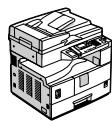
- Operating Instructions
- Introduction
- Important
- Notes:
- Laser Safety:
- Caution:
- Power Source
- TABLE OF CONTENTS
- Copyrights and Trademarks .... 1
- Notice....2
- How to Read This Manual ....3
- Safety Information ....4
- Positions of Labels and Hallmarks for ⚠WARNING and ⚠CAUTION Labels....6
- ENERGY STAR Program....7
- Getting Started
- Guide to Components 9
- Options 11
- Control Panel....12
- Turning On the Power 15
- Placing Originals
- Originals 17
- Placing Originals....19
- Copying
- Basic Procedure....23
- Copying from the Bypass Tray....24
- Copier Functions ......28
- User Tools
- Troubleshooting
- Other Functions
- Remarks
- Do's and Don'ts....63
- Where to Put Your Machine....64
- Maintaining Your Machine 67
- Security
- Security......69
- Operating Environment and Notes....70
- Specifications
- Main Unit....71
- Options 74
- Combination Chart....75
- Supplementary Information 76
- Copy Paper 78
- INDEX......81
- Copyrights and Trademarks
- Trademarks
- Symbols
- WARNING:
- Preparation
- Note
- Limitation
- Reference
- Safety Information
- Safety During Operation
- Positions of Labels and Hallmarks for
- ⚠ WARNING and ⚠ CAUTION Labels
- ENERGY STAR Program
- Recycled Paper
- Guide to Components
- Front cover
- Paper tray
- Bypass tray
- Right cover
- Options
- External Options
- Exposure glass cover
- ADF
- Control Panel
- Indicators
- Display
- Selection keys
- Scroll keys
- 【User Tools/Counter】key
- 【Clear Modes】key
- 【Clear/Stop】key
- Main power indicator
- Operation switch (On indicator)
- [Sort] key
- 【Escape】key
- 【Original Type】key
- [OK] key
- Number keys
- 16.【#】key
- 【Start】key
- Display
- ◆ Initial copy display
- Reading the Display and Using Keys
- Selection keys
- 【Escape】key
- [OK] key
- Common key operations
- Turning On the Power
- Turning On the Main Power
- Turning Off the Power
- Turning Off the Main Power
- Saving Energy
- Auto Off / Low Power
- Originals
- Sizes and Weights of Recommended Originals
- Non-compatible originals for the ADF
- Missing Image Area
- Placing Originals
- Original Orientation
- Placing Originals on the Exposure Glass
- Placing Originals in the ADF
- ADF
- Sensor
- Limit mark
- Document guide
- Placing custom size originals
- Placing regular size originals
- Basic Procedure
- How to operate
- Copying from the Bypass Tray
- When copying onto envelopes
- Copier Functions
- Adjusting Image Density
- Selecting Original Type Setting
- Selecting Copy Paper
- Preset Reduce/Enlarge
- Base Point
- Zoom
- Press [R/E].
- Press [Zoom].
- Enter the ratio.
- ② Press the [OK] key.
- Place your originals, and then press the [Start] key.
- Sort
- Press the [Sort] key.
- Changing the number of sets
- User Tools Menu ( System Settings )
- User Tools Menu ( Copier Settings )
- Accessing User Tools
- Changing Default Settings
- Quitting User Tools
- Press the [User Tools/Counter] key.
- Settings You Can Change with User Tools
- System Settings
- General Features
- ◆ Copy Count Display
- ◆ Display Contrast
- Key Repeat
- ◆ Measurement Unit
- Tray Paper Settings
- ◆ Tray Paper Size: Tray 1
- ◆ Paper Type: Bypass tray
- Timer Settings
- Auto Off Timer
- ◆ Energy Saver Timer
- ◆ System Auto Reset Timer
- ◆ Copier Auto Reset Timer
- Key Operator Tools
- ◆ User Code Man.: Copier
- ◆ Key Counter Management
- ◆ Key Operator Code
- ◆ Display/Print Counter
- ◆ Counter per User Code
- ◆ Program/Change User Code
- ◆ AOF (Always On)
- Copier Features
- Original Type Setting
- Default:
- Max. Number of Sets
- Original Count Display
- Reproduction Ratio
- Preset R/E Priority
- Letterhead Setting
- User Code
- Registering a New User Code
- Changing a User Code
- Deleting a User Code
- Displaying the Counter for Each User Code
- Printing the Counter for Each User Code
- Clearing the Counter
- If Your Machine Does Not Operate As You Want
- If You Cannot Make Copies As You Want
- Loading Paper
- Orientation-Fixed Paper or Two-Sided Paper
- Adding Toner
- Handling Toner
- Toner Storage
- Used Toner
- Removing Toner
- Inserting Toner
- Clearing Misfeeds
- When P is lit
- When B is lit
- Changing the Paper Size
- Changing the Paper Size of the Paper Tray
- Other Functions
- Displaying the Total Counter
- Changing the Language
- Do's and Don'ts
- Where to Put Your Machine
- Machine Environment
- Optimum environmental conditions
- Environments to avoid
- Moving
- Power Connection
- Access to the Machine
- Maintaining Your Machine
- ◆ Cleaning the machine
- Cleaning the Exposure Glass
- Cleaning the Exposure Glass Cover
- Cleaning the ADF
- Security
- Primary Security Functions
- Operating Environment and Notes
- Operating Environment
- For Administrator
- Main Unit
- ◆ Copy paper size:
- ◆ Copy paper weight:
- ◆ Non-reproduction area:
- First copy time:
- ◆ Copying speed:
- ◆ Reproduction ratio:
- ◆ Continuous copying count:
- ◆ Copy paper capacity:
- Power consumption:
- ◆ Dimensions (W × D × H up to exposure glass):
- Weight:
- Exposure Glass Cover
- Auto Document Feeder (ADF)
- Combination Chart
- Supplementary Information
- ◆ Bypass Tray Copy
- ◆ Preset Enlarge/Reduce
- Copy Paper
- Recommended Paper Sizes and Types
- Unusable Paper
- Paper Storage
- INDEX
- A
- B
- C
- D
- E
- F
- G
- H
- |
- K
- L
- M
- N
- 0
- P
- Q
- R
- S
- T
- U
- V
- W
Brand : RICOH
Model : AFICIO MP 1500
Category : Multifunction Printer