
AVR-2105 - AV amplifier DENON - Free user manual and instructions
Find the device manual for free AVR-2105 DENON in PDF.


| Product type | Audio-video amplifier |
| Brand | DENON |
| Model | AVR-2105 |
| Channels | 7.1 (7 channels + subwoofer) |
| Output power | 100 W per channel (8 ohms, 20 Hz – 20 kHz, 0.08 % THD) |
| Frequency response | 20 Hz – 20 kHz (±0.5 dB) |
| Signal-to-noise ratio | 100 dB |
| Dimensions (W × H × D) | 434 × 171 × 417 mm |
| Weight | 12.5 kg |
| Power supply | 230 V / 50 Hz |
| Power consumption | 500 W (standby: 0.3 W) |
| Video inputs | 5 composite inputs, 2 S-Video inputs, 2 component inputs |
| Audio inputs | 6 analog inputs, 3 digital inputs (2 optical, 1 coaxial) |
| Outputs | 7.1 pre-amplified channels, 2 subwoofer outputs, headphone output, recording outputs |
| Supported audio formats | Dolby Digital, DTS, Dolby Pro Logic II, DTS Neo:6, PCM stereo |
| Tuner | AM/FM with 30 presets |
| Main functions | Multi-channel amplification, surround decoding, universal remote control, automatic speaker calibration |
| Maintenance and cleaning | Clean with a soft dry cloth. Do not use chemical or abrasive products. |
| Safety | Do not open the device. Disconnect in case of storm or prolonged non-use. Avoid humidity and high temperatures. |
| Spare parts and repairability | Contact DENON customer service. Serial number located on the back of the unit. |
| General information | 82-page user manual available in PDF format. Compatible with DENON universal remote controls. |
Frequently Asked Questions - AVR-2105 DENON
User questions about AVR-2105 DENON
0 question about this device. Answer the ones you know or ask your own.
Ask a new question about this device
Download the instructions for your AV amplifier in PDF format for free! Find your manual AVR-2105 - DENON and take your electronic device back in hand. On this page are published all the documents necessary for the use of your device. AVR-2105 by DENON.
USER MANUAL AVR-2105 DENON
We greatly appreciate your purchase of this unit.
To be sure you take maximum advantage of all the features this unit has to offer, read these instructions carefully and use the set properly. Be sure to keep this manual for future reference should any questions or problems arise.
POUR LES LECTEURS FRANCAIS PAGE 2,74\~PAGE 148
The lightning flash with arrowhead symbol, within an equilateral triangle, is intended to alert the user to the presence of uninsulated "dangerous voltage" within the product's enclosure that may be of sufficient magnitude to constitute a risk of electric shock to persons.

The exclamation point within an equilateral triangle is intended to alert the user to the presence of important operating and maintenance (servicing) instructions in the literature accompanying the appliance.
WARNING: TO REDUCE THE RISK OF FIRE OR ELECTRIC SHOCK, DO NOT EXPOSE THIS APPLIANCE TO RAIN OR MOISTURE.
FOR CANADA MODEL ONLY
CAUTION
TO PREVENT ELECTRIC SHOCK, MATCH WIDE BLADE OF PLUG TO WIDE SLOT, FULLY INSERT.
FCC INFORMATION (For US customers)
1.PRODUCT
This product complies with Part 15 of the FCC Rules. Operation is subject to the following two conditions: (1) this product may not cause harmful interference, and (2) this product must accept any interference received, including interference that may cause undesired operation.
2. IMPORTANT NOTICE: DO NOT MODIFY THIS PRODUCT
This product, when installed as indicated in the instructions contained in this manual, meets FCC requirements. Modification not expressly approved by DENON may void your authority, granted by the FCC, to use the product.
3. NOTE
This product has been tested and found to comply with the limits for a Class B digital device, pursuant to Part 15 of the FCC Rules. These limits are designed to provide reasonable protection against harmful interference in a residential installation.
This product generates, uses and can radiate radio frequency energy and, if not installed and used in accordance with the instructions, may cause harmful interference to radio communications. However, there is no guarantee that interference will not occur in a particular installation. If this product does cause harmful interference to radio or television reception, which can be determined by turning the product OFF and ON, the user is encouraged to try to correct the interference by one or more of the following measures:
- Reorient or relocate the receiving antenna.
- Increase the separation between the equipment and receiver.
- Connect the product into an outlet on a circuit different from that to which the receiver is connected.
- Consult the local retailer authorized to distribute this type of product or an experienced radio/TV technician for help.
- POUR LES MODELE CANADIEN UNIQUEMENT
ATTENTION
POUR ÉVITER LES CHOCS ÉLECTRIQUES, INTERODUIRE LA LAME LA PLUS LARGE DE LA FICHE DANS LA BORNE CORRESPONDANTE DE LA PRESE ET POUSSER JUSQU' AU FOND.
■ NOTE ON USE / OBSERVATIONS RELATIVES A L'UTILISATION
- Read Instructions - All the safety and operating instructions should be read before the product is operated.
- Retain Instructions - The safety and operating instructions should be retained for future reference.
- HeedWarnings - All warnings on the product and in the operating instructions should be adhered to.
- Follow Instructions - All operating and use instructions should be followed.
- Cleaning - Unplug this product from the wall outlet before cleaning. Do not use liquid cleaners or aerosol cleaners.
- Attachments - Do not use attachments not recommended by the product manufacturer as they may cause hazards.
- Water and Moisture - Do not use this product near water - for example, near a bath tub, wash bowl, kitchen sink, or laundry tub; in a wet basement; or near a swimming pool; and the like.
- Accessories - Do not place this product on an unstable cart, stand, tripod, bracket, or table. The product may fall, causing serious injury to a child or adult, and serious damage to the product. Use only with a cart, stand, tripod, bracket, or table recommended by the manufacturer, or sold with the product. Any mounting of the product should follow the manufacturer's instructions, and should use a
mounting accessory recommended by the manufacturer.
- A product and cart combination should be moved with care. Quick stops, excessive force, and uneven surfaces may cause the product and cart combination to overturn.

- Ventilation – Slots and openings in the cabinet are provided for ventilation and to ensure reliable operation of the product and to protect it from overheating, and these openings must not be blocked or covered. The openings should never be blocked by placing the product on a bed, sofa, rug, or other similar surface. This product should not be placed in a built-in installation such as a bookcase or rack unless proper ventilation is provided or the manufacturer's instructions have been adhered to.
- Power Sources - This product should be operated only from the type of power source indicated on the marking label. If you are not sure of the type of power supply to your home, consult your product dealer or local power company. For products intended to operate from battery power, or other sources, refer to the operating instructions.
- Grounding or Polarization - This product may be equipped with a polarized alternating-current line plug (a plug having one blade wider than the other). This plug will fit into the power outlet only one way. This is a safety feature. If you are unable to insert the plug fully into the outlet, try reversing the plug. If the plug should still fail to fit, contact your electrician to replace your obsolete outlet. Do not defeat the safety purpose of the polarized plug.
- Power-Cord Protection - Power-supply cords should be routed so that they are not likely to be walked on or pinched by items placed upon or against them, paying particular attention to cords at plugs, convenience receptacles, and the point where they exit from the product.
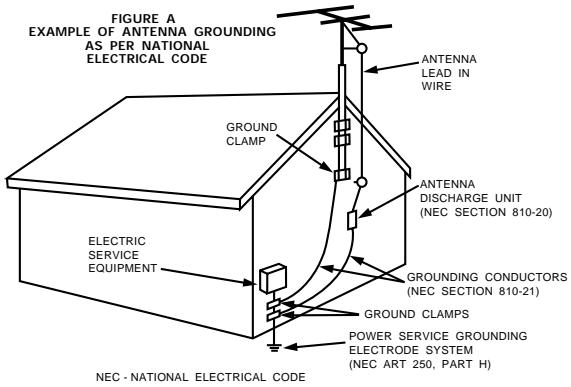
- Outdoor Antenna Grounding - If an outside antenna or cable system is connected to the product, be sure the antenna or cable system is grounded so as to provide some protection against voltage surges and built-up static charges. Article 810 of the National Electrical Code, ANSI/NFPA 70, provides information with regard to proper grounding of the mast and supporting structure, grounding of the lead-in wire to an antenna discharge unit, size of grounding conductors, location of antenna-discharge unit, connection to grounding electrodes, and requirements for the grounding electrode. See Figure A.
- Lightning - For added protection for this product during a lightning storm, or when it is left unattended and unused for long periods of time, unplug it from the wall outlet and disconnect the antenna or cable system. This will prevent damage to the product due to lightning and power-line surges.
- Power Lines - An outside antenna system should not be located in the vicinity of overhead power lines or other electric light or power circuits, or where it can fall into such power lines or circuits. When installing an outside antenna system, extreme care should be taken to keep from touching such power lines or circuits as contact with them might be fatal.
- Overloading – Do not overload wall outlets, extension cords, or integral convenience receptacles as this can result in a risk of fire or electric shock.
- Object and Liquid Entry - Never push objects of any kind into this product through openings as they may touch dangerous voltage points or short-out parts that could result in a fire or electric shock. Never spill liquid of any kind on the product.
- Servicing - Do not attempt to service this product yourself as opening or removing covers may expose you to dangerous voltage or other hazards. Refer all servicing to qualified service personnel.
- Damage Requiring Service - Unplug this product from the wall outlet and refer servicing to qualified service personnel under the following conditions:
a) When the power-supply cord or plug is damaged,
b) If liquid has been spilled, or objects have fallen into the product,
c) If the product has been exposed to rain or water,
d) If the product does not operate normally by following the operating instructions. Adjust only those controls that are covered by the operating instructions as an improper adjustment of other controls may result in damage and will often require extensive work by a qualified technician to restore the product to its normal operation,
e) If the product has been dropped or damaged in any way, and
f) When the product exhibits a distinct change in performance – this indicates a need for service.
- Replacement Parts - When replacement parts are required, be sure the service technician has used replacement parts specified by the manufacturer or have the same characteristics as the original part. Unauthorized substitutions may result in fire, electric shock, or other hazards.
- Safety Check – Upon completion of any service or repairs to this product, ask the service technician to perform safety checks to determine that the product is in proper operating condition.
- Wall or Ceiling Mounting - The product should be mounted to a wall or ceiling only as recommended by the manufacturer.
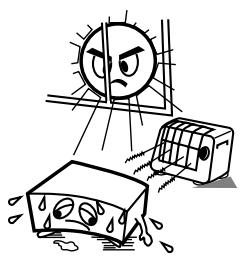
- Heat - The product should be situated away from heat sources such as radiators, heat registers, stoves, or other products (including amplifiers) that produce heat.
INTRODUCTION
Thank you for choosing the DENON AVR-2105/885 Digital A / V Surround Receiver. This remarkable component has been engineered to provide superb surround sound listening with home theater sources such as DVD, as well as providing outstanding high fidelity reproduction of your favorite music sources.
As this product is provided with an immense array of features, we recommend that before you begin hookup and operation that you review the contents of this manual before proceeding.
TABLE OF CONTENTS
1 Before Using 5
2 Cautions on Installation. 5
3 Cautions on Handling 5
4 Features 6
5 Connections. 7-15
6 Part Names and Functions 16, 17
7 Using the Remote Control Unit 18
8 Setting up the System. 19-33
9 Remote Control Unit. 34~38
10 Operation. 39~44
11 Multi Zone 45-47
12 Surround 48~56
13 DSP Surround Simulation 57~60
14 Listening to the Radio 61~64
15 Last Function Memory. 64
16 Initialization of the Microprocessor 64
17 Additional Information 65~71
18 Troubleshooting. 72
19 Specifications. 73
■ ACCESSORIES
Check that the following parts are included in addition to the main unit:
① Operating instructions. 1
② Warranty 1
③ Service station list
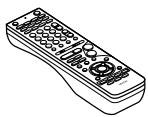
④ Remote control unit (RC-980)
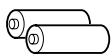
⑤ R6P/AA batteries 2
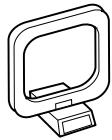
⑥ AM loop antenna
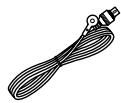
⑦ FM indoor antenna 1
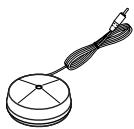
⑧ Omnidirectional microphone 1
(4)
(5)
6
7
8
1 BEFORE USING
Pay attention to the following before using this unit:
- Moving the set
To prevent short circuits or damaged wires in the connection cords, always unplug the power cord and disconnect the connection cords between all other audio components when moving the set.
- Before turning the power switch on
Check once again that all connections are proper and that there are not problems with the connection cords. Always set the power switch to the standby position before connecting and disconnecting connection cords.
- Store this instructions in a safe place.
After reading, store this instructions along with the warranty in a safe place.
2 CAUTIONS ON INSTALLATION
Noise or disturbance of the picture may be generated if this unit or any other electronic equipment using microprocessors is used near a tuner or TV.
If this happens, take the following steps:
Install this unit as far as possible from the tuner or TV.
- Set the antenna wires from the tuner or TV away from this unit's power cord and input/output connection cords.
- Noise or disturbance tends to occur particularly when using indoor antennas or 300 Ω/ohms feeder wires. We recommend using outdoor antennas and 75 Ω/ohms coaxial cables.
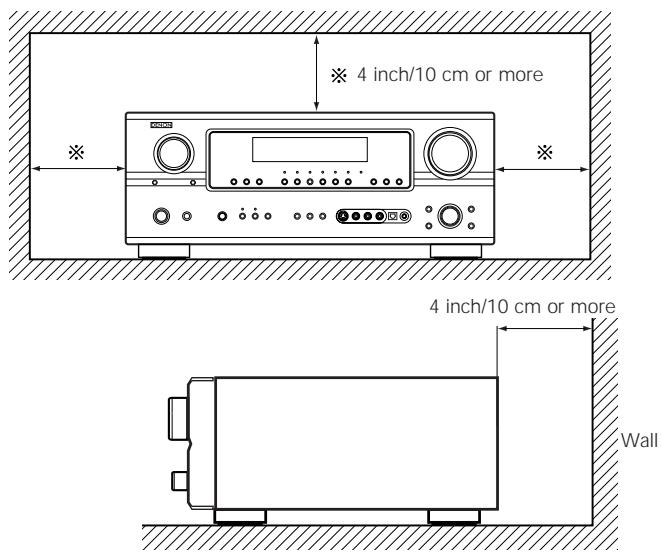
For heat dispersal, leave at least 4 inch/10 cm of space between the top, back and sides of this unit and the wall or other components.
- Note that the illustrations in this instructions may differ from the actual set for explanation purposes.
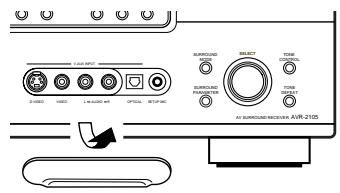
V. AUX terminal
The AVR-2105/885's front panel is equipped with a V. AUX terminal. Remove the cap covering the terminal when you want to use it.
3 CAUTIONS ON HANDLING
- Switching the input function when input jacks are not connected
A clicking noise may be produced if the input function is switched when nothing is connected to the input jacks. If this happens, either turn down the MASTER VOLUME control or connect components to the input jacks.
- Muting of PRE OUT jacks, HEADPHONE jack and SPEAKER terminals
The PRE OUT jacks, HEADPHONE jack and SPEAKER terminals include a muting circuit. Because of this, the output signals are greatly reduced for several seconds after the power switch is turned on or input function, surround mode or any other-set-up is changed. If the volume is turned up during this time, the output will be very high after the muting circuit stops functioning. Always wait until the muting circuit turns off before adjusting the volume.
- Whenever the unit is in the STANDBY state, the apparatus is still connected on AC line voltage.
Please be sure to turn the power off (■off) when you leave home for, say, a vacation.
4 FEATURES
1. Dolby Digital
Using advanced digital processing algorithms, Dolby Digital provides up to 5.1 channels of wide-range, high fidelity surround sound. Dolby Digital is the default digital audio delivery system for DVD and North American DTV.
2. Dolby Pro Logic IIx compatibility
Dolby Pro Logic IIx furthers the matrix decoding technology of Dolby Pro Logic II to decode audio signals recorded on two channels into up to 7.1 playback channels, including the surround back channel. Dolby Pro Logic IIx also allows 5.1-channel sources to be played in up to 7.1 channels.
The mode can be selected according to the source. The Music mode is best suited for playing music, the Cinema mode for playing movies, and the Game mode for playing games. The Game mode can only be used with 2-channel audio sources.
3. Dolby Pro Logic II Game mode compatibility
In addition to the previously offered Music and Cinema modes, the AVR-2105/885 also offers a Game mode optimum for games.
4. DTS (Digital Theater Systems)
DTS provides up to 5.1 channels of wide-range, high fidelity surround sound, from sources such as laser disc, DVD and specially-encoded music discs.
5. DTS-ES Extended Surround and DTS Neo:6
The AVR-2105/885 can be decoded with DTS-ES Extended Surround, a multi-channel format developed by Digital Theater Systems Inc.
The AVR-2105/885 can be also decoded with DTS Neo:6, a surround mode allowing 6.1 channels playback of regular stereo sources.
6. DTS 96/24 compatibility
The AVR-2105/885 can be decoded with sources recorded in DTS 96/24, a multi-channel digital signal format developed by Digital Theater Systems Inc.
DTS 96/24 sources can be played in the multi-channel mode on the AVR-2105/885 with high sound quality of 96kHz / 24 bits or 88.2 kHz/24 bits.
7. Auto Setup
Use of the microphone for setup applications measures the presence of speakers, the distance to the speakers, and other information, and permits automatic setup. The characteristics of each speaker can also be corrected.
8. Multi Zone Music Entertainment System
Multi Source Function:
This unit's Multi Source function lets you select different audio sources for listening. Different sources can thus be enjoyed in the main room (MAIN) and the subroom (ZONE2) simultaneously.
9. Future Sound Format Upgrade Capability via Eight Channel Outputs
For future multi-channel audio format(s), the AVR-2105/885 is provided with 5.1 channel (five main channels, plus one low frequency effects channel) inputs, along with a full set of 7.1 channel pre-amp outputs, controlled by the 8 channel master volume control. This assures future upgrade possibilities for any future multi-channel sound format.
10.Front input Terminal
The unit is equipped with a Front Input connector for the convenient connection of a video camera or other equipment.
11. Video Conversion Function
The AVR-2105/885 is equipped with a function for up-converting video signals.
Because of this, the AVR-2105/885's MONITOR OUT jack can be connected to the monitor (TV) with a set of cables offering a higher quality connection, regardless of how the player and the AVR-2105/885's video input jacks are connected.
12. Component Video Switching
In addition to composite video and "S" video switching, the AVR2105/885 provides 3 sets of component video (Y, P_B / C_B, P_R / C_R) inputs, and one set of component video outputs to the television, for superior picture quality.
13.Auto Surround Mode
This function stores the surround mode last used for an input signal in the memory and automatically sets that surround mode the next time that signal is input.
14.Preset Memory Tuning
56-Station AM/FM Random Preset Memory tuning.
15. On Screen Display
Troublesome operations such as adjusting the delay time and other parameters according to the listening environment are greatly simplified. The various parameters can be set simply by selecting the graphic displayed on the monitor screen according to the listening room's system environment.
5 CONNECTIONS
- Do not plug in the AC cord until all connections have been completed.
- Be sure to connect the left and right channels properly (left with left, right with right).
- Insert the plugs securely. Incomplete connections will result in the generation of noise.
-
Use the AC OUTLETS for audio equipment only. Do not use them for hair driers, etc.
-
Note that binding pin plug cords together with AC cords or placing them near a power transformer will result in generating hum or other noise.
- Noise or humming may be generated if a connected audio equipment is used independently without turning the power of this unit on. If this happens, turn on the power of the this unit.
Connecting the audio components
- When making connections, also refer to the operating instructions of the other components.
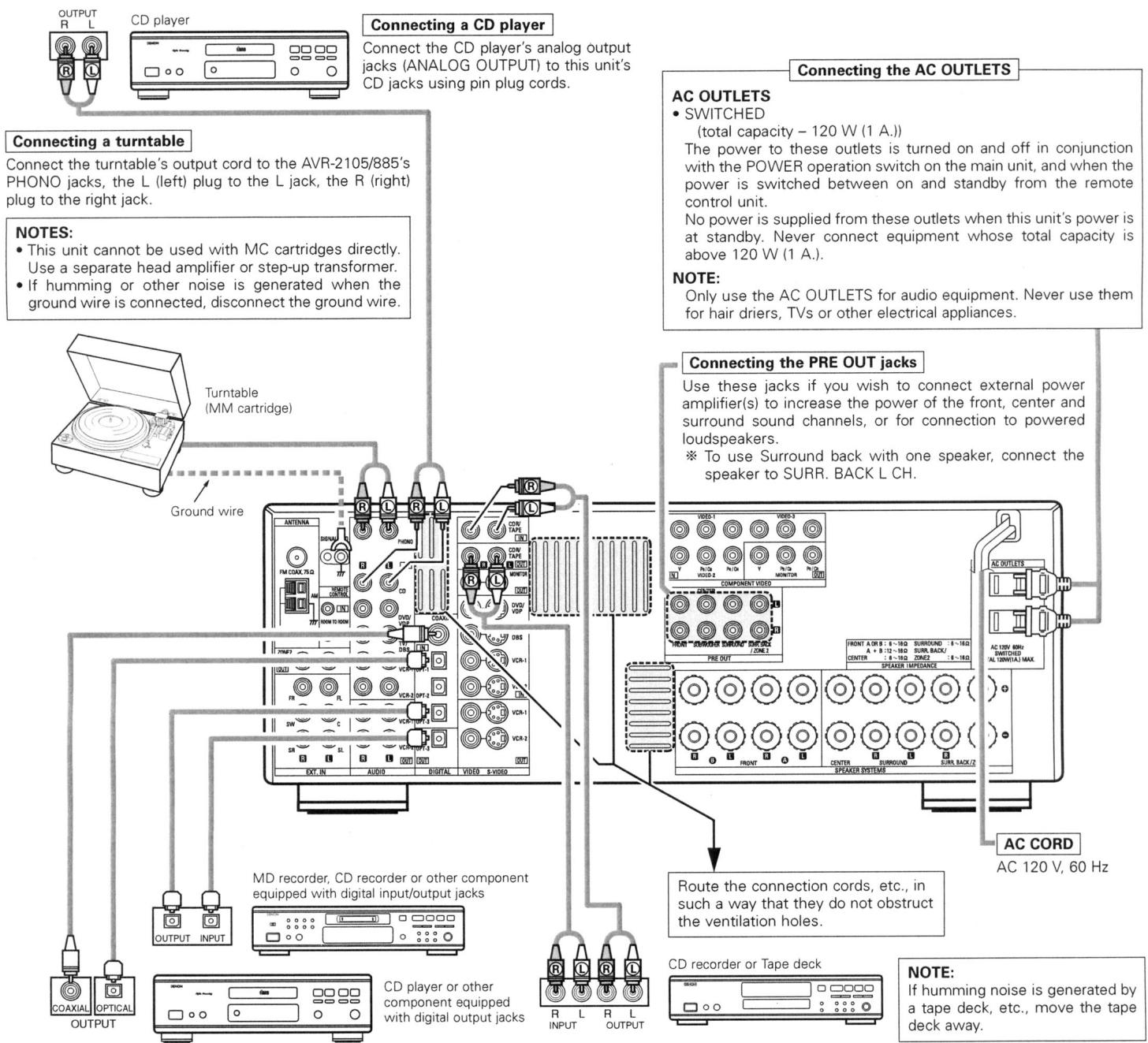
Connecting the DIGITAL jacks
Use these for connections to audio equipment with digital output. Refer to
"Setting the Digital in Assignment". (See page 29)
NOTES:
- Use 75 Ω/ohms cable pin cords for coaxial connections.
- Use optical cables for optical connections, removing the cap before connecting.
Connecting a tape deck
Connections for recording:
Connect the tape deck's recording input jacks (LINE IN or REC) to this unit's tape recording (CDR/TAPE OUT) jacks using pin plug cords.
Connections for playback:
Connect the tape deck's playback output jacks (LINE OUT or PB) to this unit's tape playback (CDR/TAPE IN) jacks using pin plug cords.
Connecting video components
To connect the video signal, connect using a 75 ohms video signal cable cord. Using an improper cable can result in a drop in video quality.
- When making connections, also refer to the operating instructions of the other components.
- The AVR-2105/885 is equipped with a function for up-converting video signals.
The signal connected to the video signal terminal is output to the S-Video and component video monitor out terminals.
- The REc OUT terminals have no conversion function, so when recording only connect the video terminals.
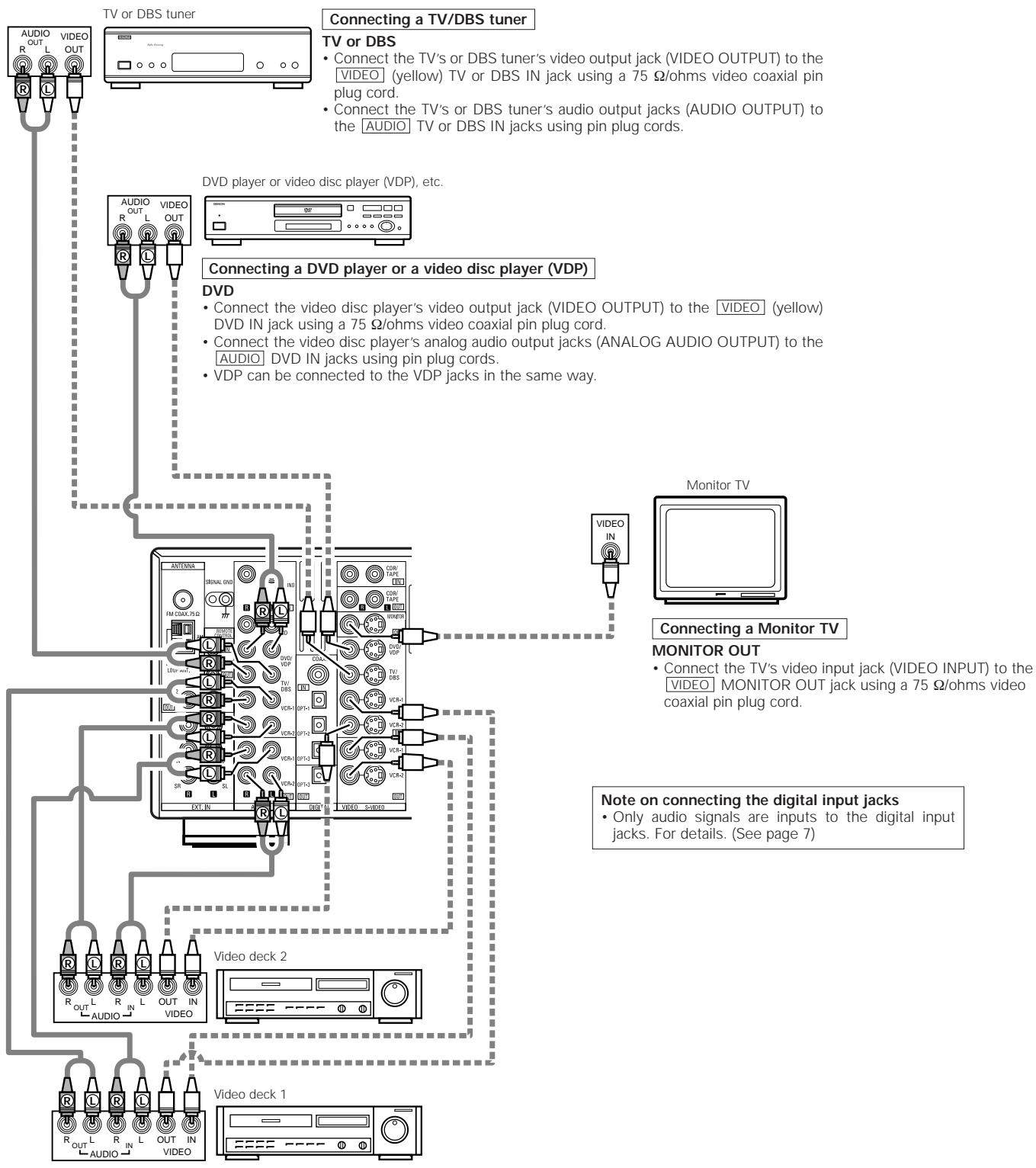
Connecting a video decks
- There are two sets of video deck (VCR) jacks, so two video decks can be connected for simultaneous recording or video copying.
Video input/output connections: - Connect the video deck's video output jack (VIDEO OUT) to the [VIDEO] (yellow) VCR-1 IN jack, and the video deck's video input jack (VIDEO IN) to the [VIDEO] (yellow) VCR-1 OUT jack using 75 Ω/ohms video coaxial pin plug cords.
Connecting the audio output jacks - Connect the video deck's audio output jacks (AUDIO OUT) to the AUDIO VCR-1 IN jacks, and the video deck's audio input jacks (AUDIO IN) to the AUDIO VCR-1 OUT jacks using pin plug cords.
※ Connect the second video deck to the VCR-2 jacks in the same way.
Connecting the video components equipped with S-Video jacks
- When making connections, also refer to the operating instructions of the other components.
- A note on the S input jacks
The input selectors for the S inputs and Video inputs work in conjunction with each other.
- The AVR-2105/885 is equipped with a function for converting video signals.
- The signal connected to the S-Video signal terminal is output to the composite video and component video monitor out terminals.
- The REC OUT terminals have no conversion function, so when recording only connect the S-Video terminals.
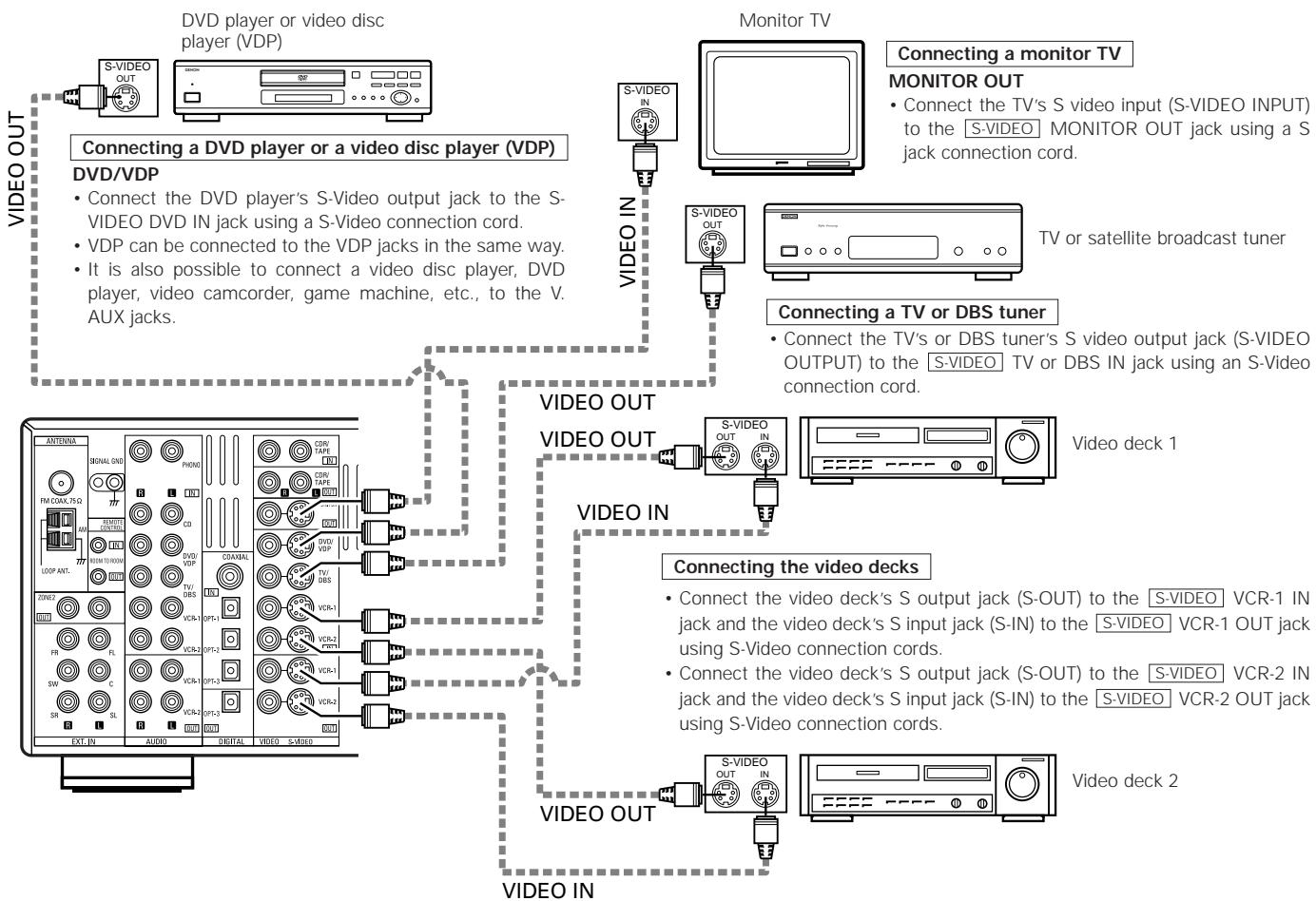
Connect the components' audio inputs and outputs as described on page 8.
Connecting the Video Component Equipped with Color Difference (Component - Y, PR/CR, PB/CB) Video Jacks
- When making connections, also refer to the operating instructions of the other components.
The signals input to the color difference (component) video jacks are not outputs to the VIDEO output jack (yellow) or the S-Video output jack.
Some video sources with component video outputs are labeled Y, CB, CR or Y, Pb, Pr or Y, R-Y, B-Y. These terms all refer to component video color difference output. - The function assigned to the component video input can be changed at the system setup. For details, see "Setting the Video Input Mode". (See page 29)
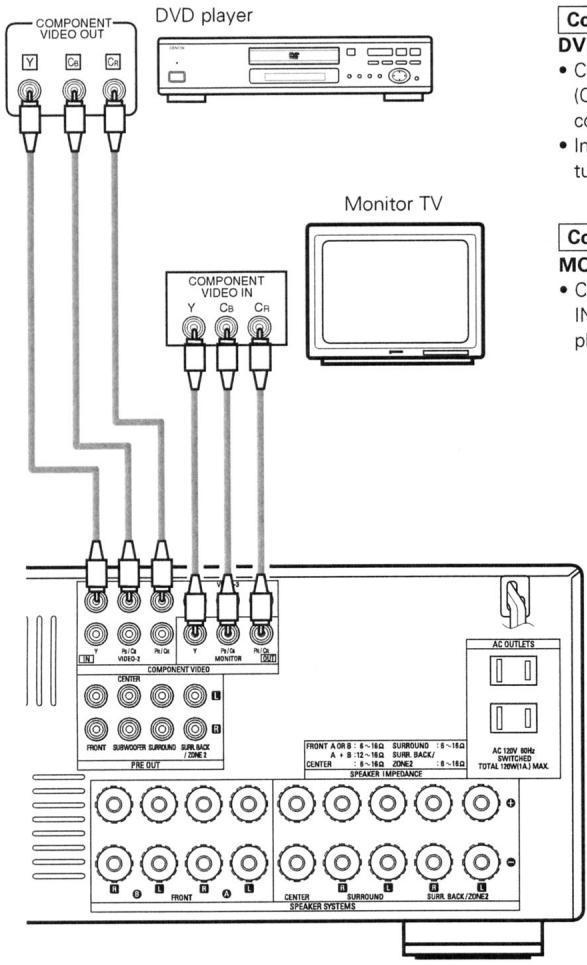
Connecting a DVD player DVD IN jackets
- Connect the DVD player's color difference (component) video output jacks (COMPONENT VIDEO_OUTPUT) to the COMPONENTVIDEO-1 IN jack using 75Ω/ohms coaxial video pin-plug cords.
- In the same way, another video source with component video outputs such as a TV/DBS tuner, etc., can be connected to the VIDEO-2 color difference (component) video jacks.
Connecting a monitor TV
MONITOR OUT jack
-
Connect the TV's color difference (component) video input jacks (COMPONENT VIDEO INPUT) to the COMPONENT MONITOR OUT jack using 75 Ω/ohms coaxial video pinplug cords.
-
The color difference input jacks may be indicated differently on some TVs, monitors or video components ("CR, CB and Y", "R-Y, B-Y and Y", "Pr, Pb and Y", etc.). For details, carefully read the operating instructions included with the TV or other component.
MONITOR OUT jacks
The AVR-2105/885 is equipped with a function for up-converting video signals.
Because of this, the AVR-2105/885's MONITOR OUT jack can be connected to the monitor (TV) with a set of cables offering a higher quality connection, regardless of how the player and the AVR-2105/885's video input jacks are connected.
Generally speaking, connections using the component video jacks offer to highest quality playback, followed by connections using the S-Video jacks, then connections using regular video jacks (yellow).
NOTE:
- Down-converting from the component video signal to the S-Video and composite video signal is not possible, so when not using the component video monitor output terminal connect the player using the S-Video or composite video input terminal.
The Video Conversion Function
With the AVR-2105/885, the Video signal and the S-video signal which were inputted are converted mutually. And also the Video signal and the S-Video signal which were inputted are converted into a higher quality.
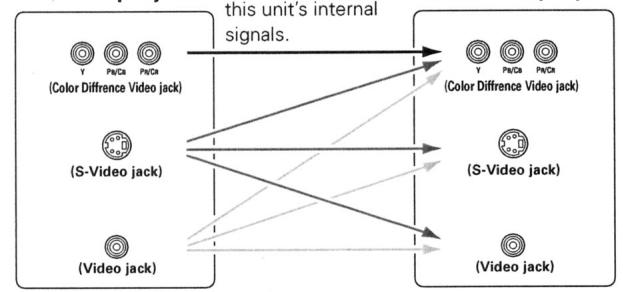
This unit's input jacks The flow of the This unit's output jacks
Cautions on the video conversion function:
When the component video terminals are used to connect the AVR-2105/885 with a TV (or monitor, projector, etc.) and the video (yellow) or S-Video terminals are used to connect the AVR-2105/885 with a VTR, depending on the combination of the TV and VTR the picture may flicker in the horizontal direction, be distorted, be out of sync not display at all when playing video tapes.
If this happens, connect a commercially available video stabilizer, etc., with a TBC (time base corrector) function between the AVR-2105/885 and the VTR, or if your VTR has a TBC function, turn it on.
Connecting the antenna terminals
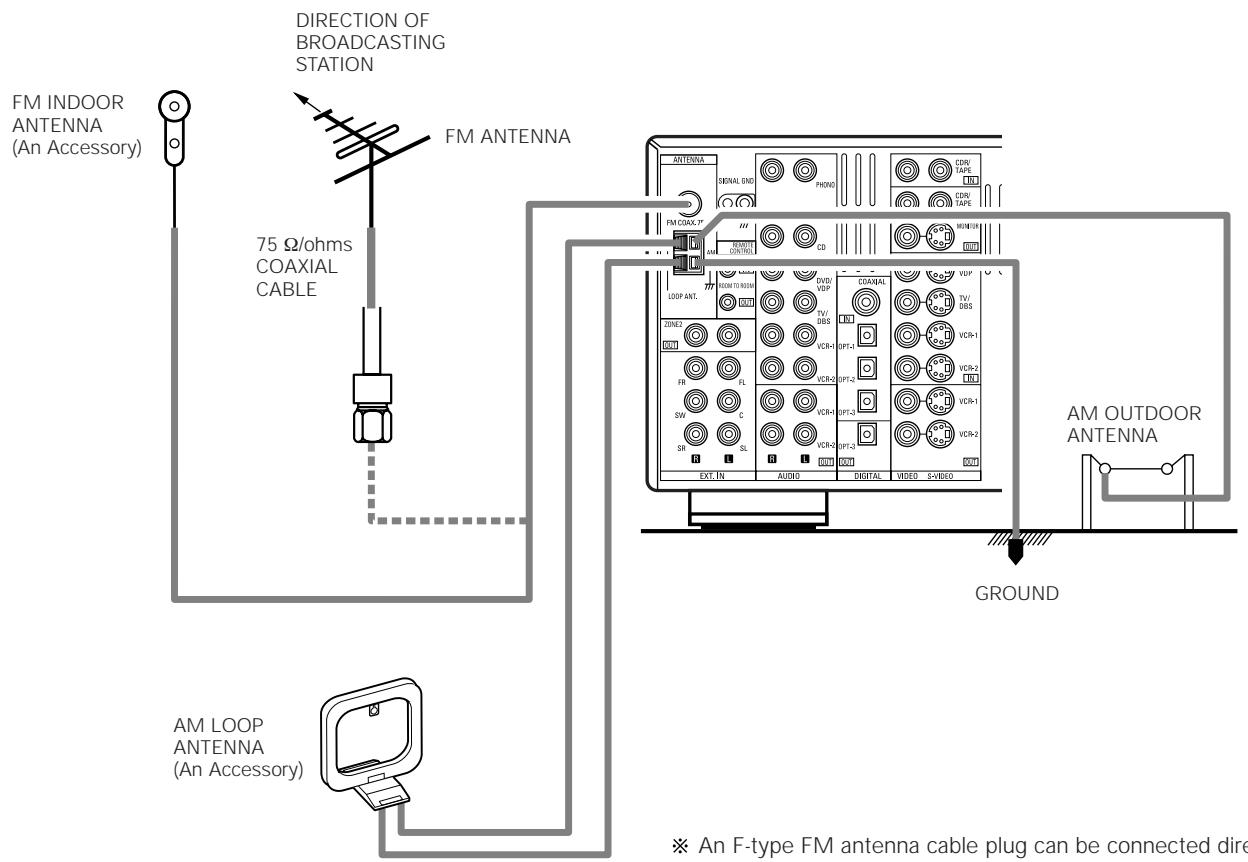
AM loop antenna assembly
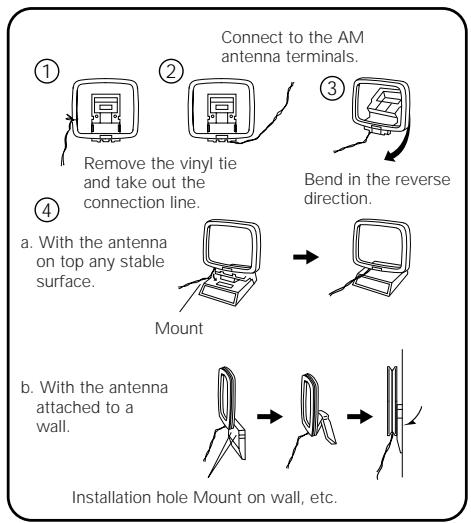
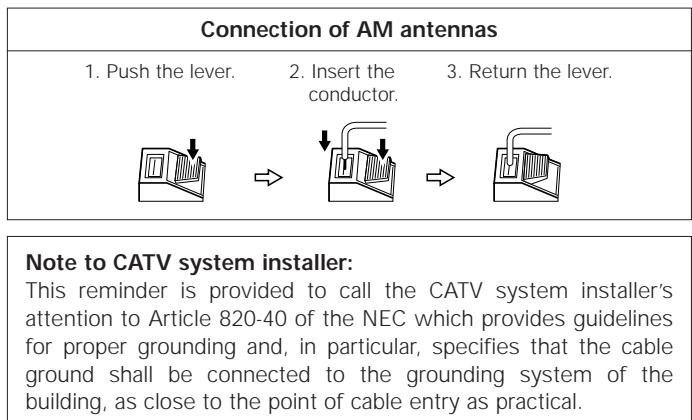
NOTES:
- Do not connect two FM antennas simultaneously.
- Even if an external AM antenna is used, do not disconnect the AM loop antenna.
- Make sure AM loop antenna lead terminals do not touch metal parts of the panel.
Connecting the external input (EXT. IN) jacks
- These jacks are for inputting multi-channel audio signals from an outboard decoder, or a component with a different type of multi-channel decoder, such as a DVD Audio player, a multi-channel SACD player, or other future multi-channel sound format decoder.
- When making connections, also refer to the operating instructions of the other components.
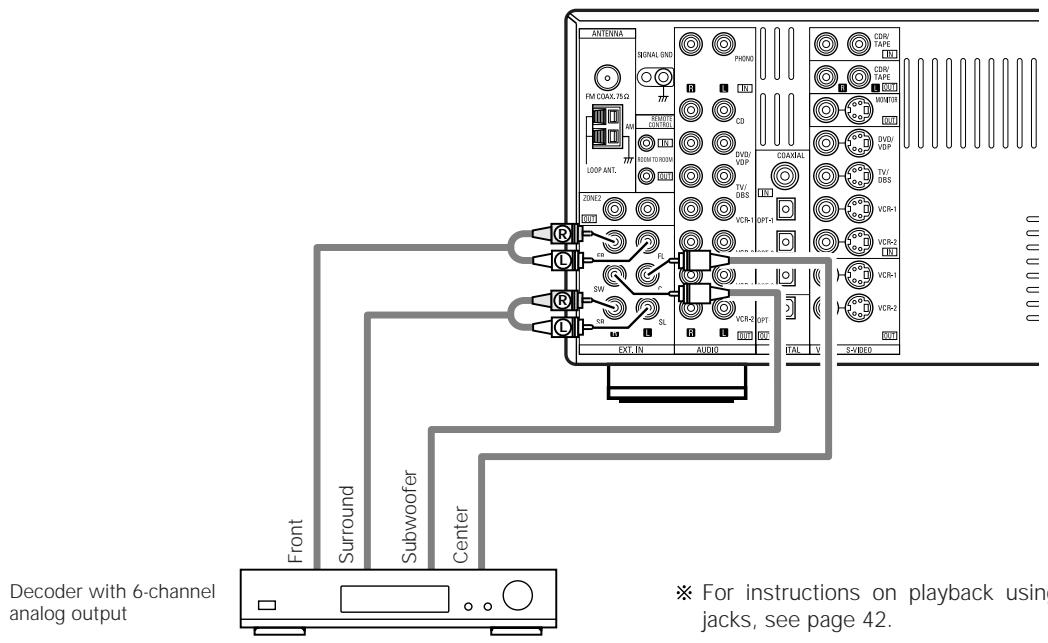
※ For instructions on playback using the external input (EXT. IN) jacks, see page 42.
Connecting the video component equipped with V.AUX jacks
- To connect the video signal, connect using a 75 Ω/ohms video signal cable cord.
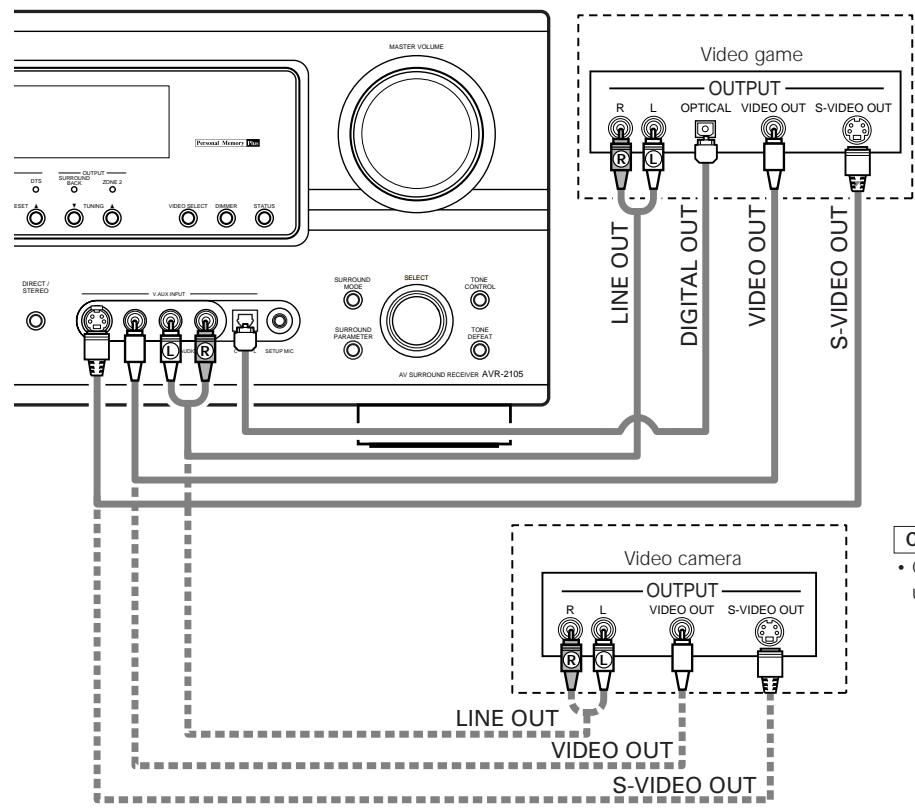
Connecting a Video game component
- Connect the Video game component's output jacks to this unit's V. AUX INPUT jacks.
Connecting a video camera component
- Connect the video camera component's output jacks to this unit's V. AUX INPUT jacks.
Connecting the MULTI ZONE jacks
※ For instructions on operations using the MULTI ZONE FUNCTIONS. (See page 45 ~ 47)
[1] ZONE 2 FIXED OUT CONNECTIONS
- If another pre-main (integrated) amplifier is connected, the ZONE2 Fixed-out (variable/fixed level) jacks can be used to play a different program source in ZONE2 the same time. (See page 47)
![DENON AVR-2105 - [1] ZONE 2 FIXED OUT CONNECTIONS - 1](/content/2025/01/135495/images/f79f2cf2d4ab5f05cdd18993f72b88374142cb9bb319285556ebfa9e390752ad.jpg)
[2] ZONE2 SPEAKER OUT and PREOUT CONNECTIONS
- If another power amplifier or pre-main (integrated) amplifier is connected, the ZONE2 output terminals can be used to play a different program source in ZONE2 the same time.
- ZONE2 SPEAKER OUT can be used when "ZONE2" is selected at System Setup Menu "Power Amp Assign". In this case, Surround Back Speaker OUT cannot be used for MAIN ZONE. (See page 32)
NOTE:
- The settings must be changed to use this speaker for ZONE2. See page 32.
Speaker system connections
- Connect the speaker terminals with the speakers making sure that like polarities are matched (⊕ with ⊕, ⊙ with ⊙). Mismatching of polarities will result in weak central sound, unclear orientation of the various instruments, and the sense of direction of the stereo being impaired.
- When making connections, take care that none of the individual conductors of the speaker cord come in contact with adjacent terminals, with other speaker cord conductors, or with the rear panel.
NOTE:
NEVER touch the speaker terminals when the power is on.
Doing so could result in electric shocks.
Speaker Impedance
- When speaker systems A and B are use separately, speakers with an impedance of 6 to 16 / ohms can be connected for use as front speakers.
- Be careful when using two pairs of front speakers (A + B) at the same time, since use of speakers with an impedance of 12 to 16 Ω/ohms.
- Speakers with an impedance of 6 to 16/ohms can be connected for use as center and surround and surround back speakers.
- The protector circuit may be activated if the set is played for long periods of time at high volumes when speakers with an impedance lower than the specified impedance are connected.
Connecting the speaker cords
- Loosen by turning counterclockwise.
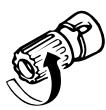
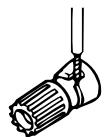
- Insert the cord.
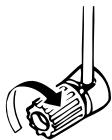
- Tighten by turning clockwise.

Connecting banana plugs
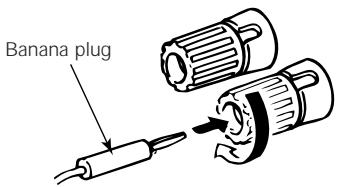
Turn clockwise to tighten, then insert the banana plug.
Protector circuit
- This unit is equipped with a high-speed protection circuit. The purpose of this circuit is to protect the speakers under circumstances such as when the output of the power amplifier is inadvertently short-circuited and a large current flows, when the temperature surrounding the unit becomes unusually high, or when the unit is used at high output over a long period which results in an extreme temperature rise.
When the protection circuit is activated, the speaker output is cut off and the power supply indicator LED flashes. Should this occur, please follow these steps: be sure to switch off the power of this unit, check whether there are any faults with the wiring of the speaker cables or input cables, and wait for the unit to cool down if it is very hot. Improve the ventilation condition around the unit and switch the power back on.
If the protection circuit is activated again even though there are no problems with the wiring or the ventilation around the unit, switch off the power and contact a DENON service center.
Note on speaker impedance
- The protector circuit may be activated if the set is played for long periods of time at high volumes when speakers with an impedance lower than the specified impedance (for example speakers with an impedance of lower than 4/ohms ) are connected. If the protector circuit is activated, the speaker output is cut off. Turn off the set's power, wait for the set to cool down, improve the ventilation around the set, then turn the power back on.
Connections
- When making connections, also refer to the operating instructions of the other components.
Connection jack for subwoofer with built-in amplifier (super woofer), etc.
- Precautions when connecting speakers
If a speaker is placed near a TV or video monitor, the colors on the screen may be disturbed by the speaker's magnetism. If this should happen, move the speaker away to a position where it does not have this effect.
6 PART NAMES AND FUNCTIONS
Front Panel
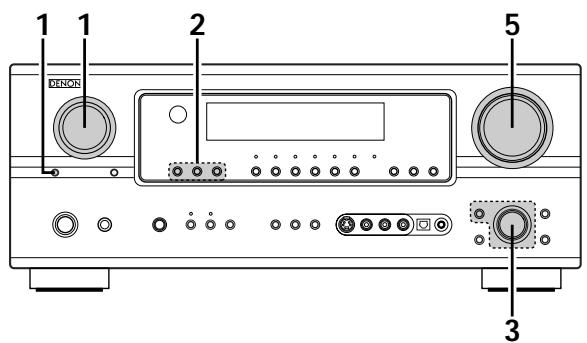
- For details on the functions of these parts, refer to the pages given in parentheses ( ).
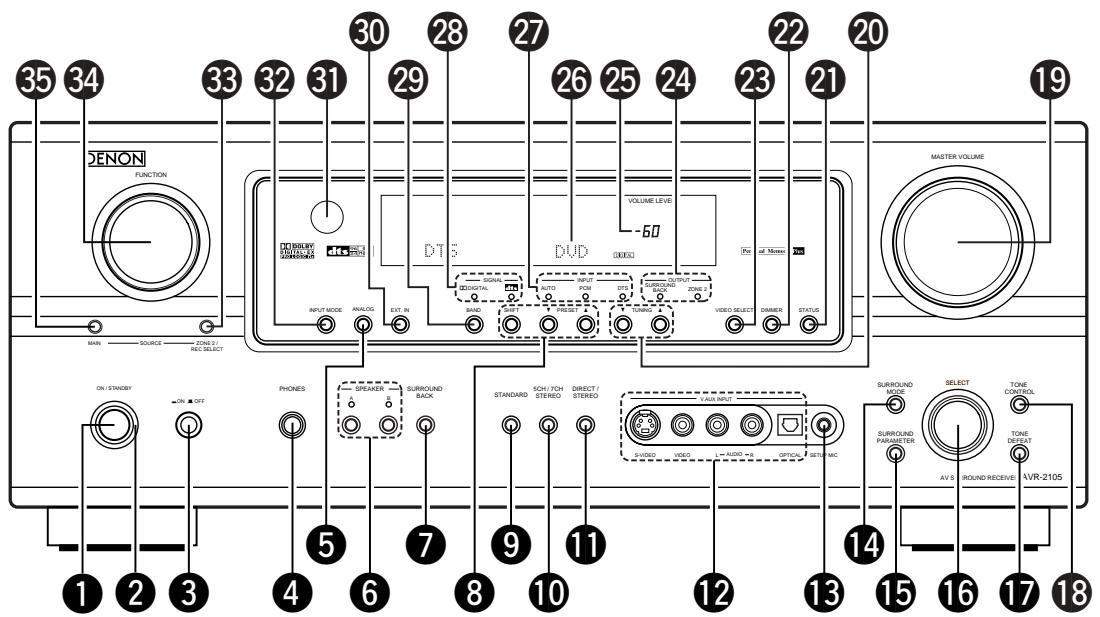
1 Power ON/STANDBY switch (21, 39, 61)
Power indicator. (21, 39)
3 Power switch (21, 39)
4 Headphones jack (PHONES) (43)
5 ANALOG button. (40, 42)
6 SPEAKER A/B buttons (39, 64)
7 SURROUND BACK button (54)
8 Preset station select buttons. (63)
9 STANDARD button. (48, 50, 52, 54)
10 5CH/7CH STEREO button. (58)
11 DIRECT/STEREO button. (42)
12 V. AUX INPUT terminals (5, 12)
13 SETUP MIC jack. (22)
14 SURROUND MODE button. (41)
15 SURROUND PARAMETER button (50, 58)
16 SELECT knob (41, 51, 59)
17 TONE DEFEAT button. (43)
18 TONE CONTROL button (43)
19 MASTER VOLUME control (41)
20 TUNING (up) / (down) buttons. (62)
STATUS button. (44)
DIMMER button. (44)
23VIDEO SELECT button. (43)
24 OUTPUT indicator (47, 54)
25 MASTER VOLUME indicator. (41)
26 Display
27 INPUT mode indicator. (41)
28 SIGNAL indicator. (41)
29 BAND button. (62)
30EXT.INbutton (40,42)
31 Remote control sensor. (18)
32 INPUT MODE button (40, 42)
33 ZONE2/REC SELECT button. (44, 47)
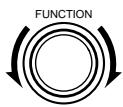
34 FUNCTION knob (40, 44, 47)
35 MAIN button. (40)
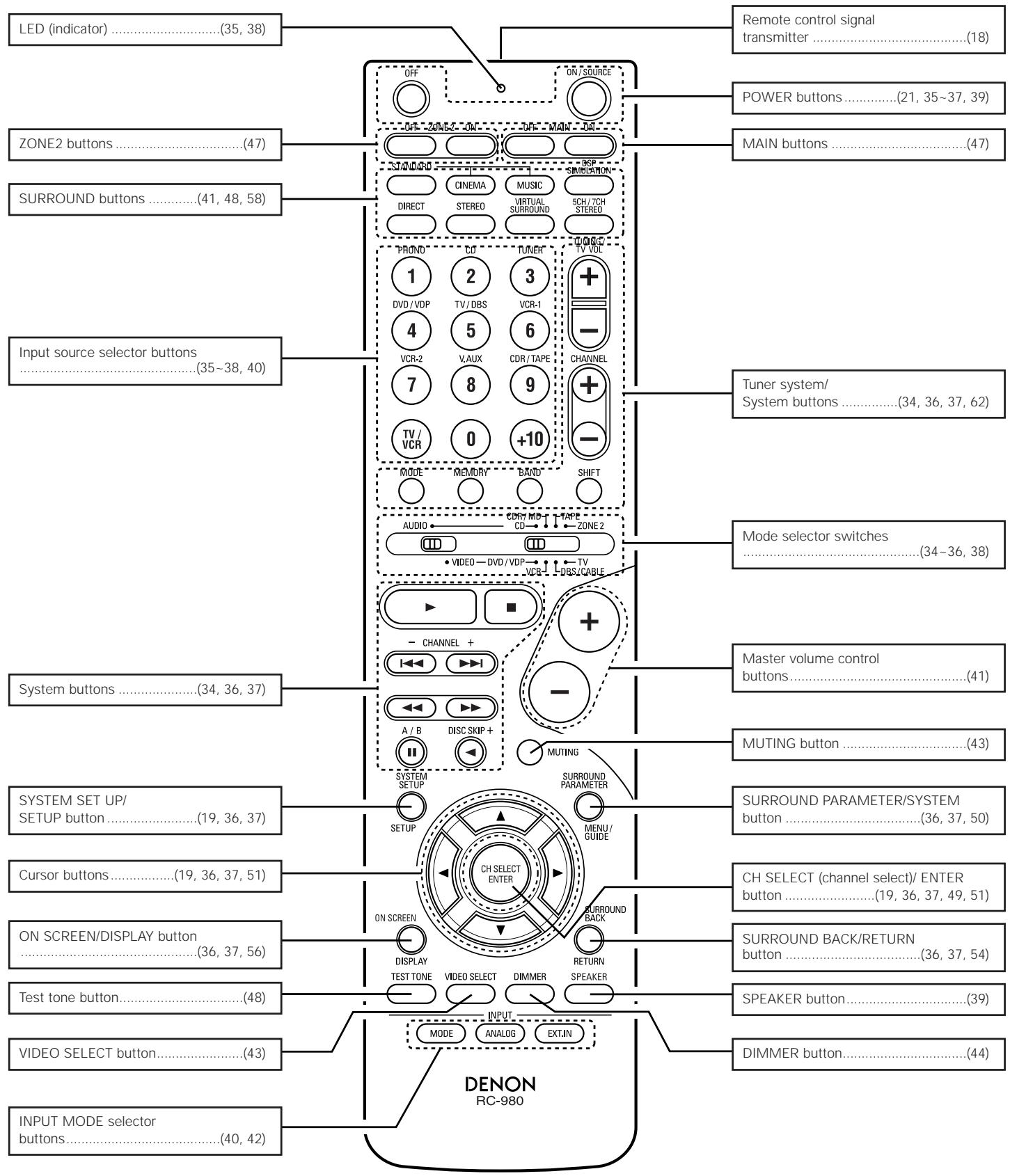
Remote control unit
- For details on the functions of these parts, refer to the pages given in parentheses ( ).
7 USING THE REMOTE CONTROL UNIT
Following the procedure outlined below, insert the batteries before using the remote control unit.
Range of operation of the remote control unit
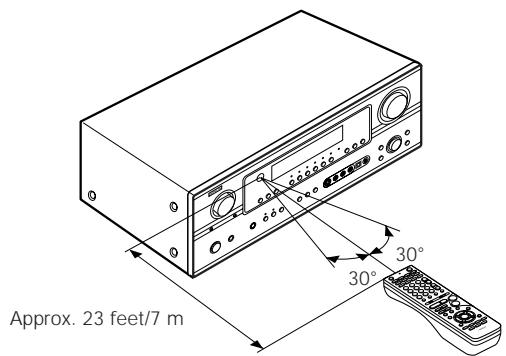
Point the remote control unit at the remote control sensor as shown on the diagram at the left.
NOTES:
- The remote control unit can be used from a straight distance of approximately 23 feet/7 meters, but this distance will shorten or operation will become difficult if there are obstacles between the remote control unit and the remote control sensor, if the remote control sensor is exposed to direct sunlight or other strong light, or if operated from an angle.
- Neon signs or other devices emitting pulse-type noise nearby may result in malfunction, so keep the set as far away from such devices as possible.
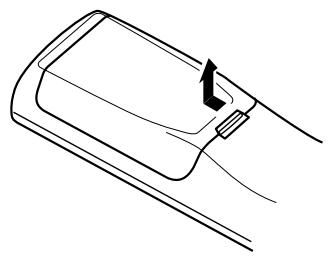
Inserting the batteries
① Press as shown by the arrow and slide off.
② Insert the R6P/AA batteries properly, as shown on the diagram.
③ Close the lid.
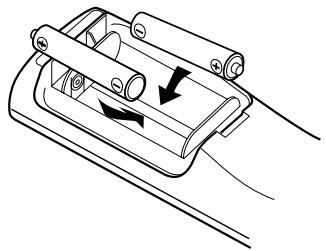
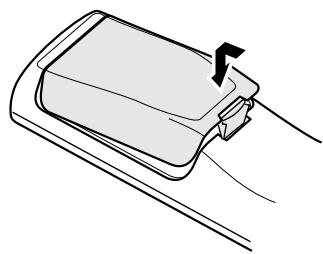
NOTES:
- Use only R6P/AA batteries for replacement.
- Be sure the polarities are correct. (See the illustration inside the battery compartment.)
- Remove the batteries if the remote control transmitter will not be used for an extended period of time.
- If batteries leak, dispose of them immediately. Avoid touching the leaked material or letting it come in contact with clothing, etc. Clean the battery compartment thoroughly before installing new batteries.
- Have replacement batteries on hand so that the old batteries can be replaced as quickly as possible when the time comes.
- Even if less than a year has passed, replace the batteries with new ones if the set does not operate even when the remote control unit is operated nearby the set. (The included battery is only for verifying operation. Replace it with a new battery as soon as possible.)
8 SETTING UP THE SYSTEM
- Once all connections with other AV components have been completed as described in "CONNECTIONS" (see pages 7 to 15), make the various settings described below on the monitor screen using the AVR-2105/885's on-screen display function. These settings are required to set up the listening room's AV system centered around the AVR-2105/885.
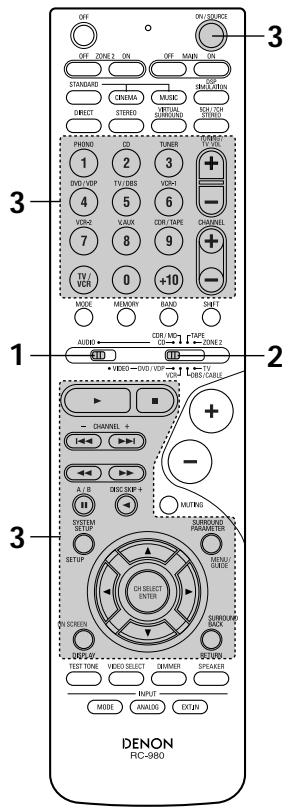
Use the following buttons to set up the system
1
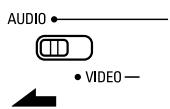
Set the slide switch to "AUDIO".
2
Use the following buttons to set up the system:
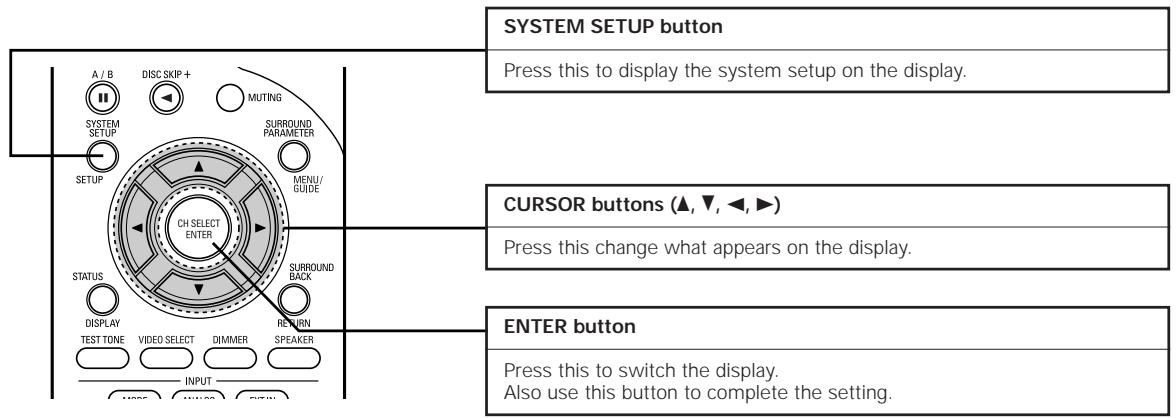
- System setup items and default values (set upon shipment from the factory)
| System setup | Default settings | |||||||||||
| Auto Setup | Power Amp Assignment | Set this to switch the surround back channel's power amplifier for use for zone2. | SURROUND BACK | |||||||||
| Speaker Configuration | Input the combination of speakers in your system and their corresponding sizes (SMALL for regular speakers, LARGE for full-size, full-range) to automatically set the composition of the signals output from the speakers and the frequency response. | Front Sp. | Center Sp. | Surround Sp. | Surround Back Sp. | Subwoofer | ||||||
| Large | Small | Small | Small / 2 spkrs | Yes | ||||||||
| Delay Time | This parameter is for optimizing the timing with which the audio signals are produced from the speakers and subwoofer according to the listening position. | Front L | Front R | Center | Surround L | Surround R | Surround Back L | Surround Back R | Subwoofer | |||
| 12 ft | 12 ft | 12 ft | 10 ft | 10 ft | 10 ft | 10 ft | 12 ft | |||||
| Subwoofer Mode | This selects the subwoofer speaker for playing deep bass signals. | Subwoofer mode = LFE (Normal) | ||||||||||
| Crossover Frequency | Set the frequency (Hz) below which the bass sound of the various speakers is to be output from the subwoofer. | 80 Hz | ||||||||||
| Test Tone | This adjusts the volume of the signals output from the speakers and subwoofer for the different channels in order to obtain optimum effects. | Front L | Front R | Center | Surround L | Surround R | Surround Back L | Surround Back R | Subwoofer | |||
| 0 dB | 0 dB | 0 dB | 0 dB | 0 dB | 0 dB | 0 dB | 0 dB | |||||
| Digital In Assignment | This assigns the digital input jacks for the different input sources. | Input source | CD | DVD/VDP | TV/DBS | VCR-1 | VCR-2 | CDR/TAPE | ||||
| Digital Inputs | COAXIAL | OPTICAL 1 | OPTICAL 2 | OFF | OFF | OPTICAL 3 | ||||||
| Component In Assignment | This assigns the component video input jacks for the different video input sources. | Input source | DVD/VDP | TV/DBS | VCR-1 | VCR-2 | V. AUX | — | ||||
| Component Inputs | VIDEO 1 | VIDEO 2 | VIDEO 3 | OFF | OFF | — | ||||||
| Video Input Mode | Set the input signal to be output from the monitor output terminal. | AUTO | ||||||||||
| Auto Surround Mode | Auto surround mode function setting. | Auto Surround Mode = ON | ||||||||||
| Ext. In SW Level | Set the Ext. In Subwoofer channel playback level. | Ext. In SW Level = +15 dB | ||||||||||
| Power AMP Assignment | Set this to switch the surround back channel's power amplifier for use for Zone 2. | Surround Back | ||||||||||
| On Screen Display | This sets whether or not to display the on-screen display that appears on the monitor screen when the controls on the remote control unit or main unit are operated.A setting to prevent flickering. | On Screen Display = ON /Mode 1 | ||||||||||
| System setup | Default settings | ||
| Auto Tuner Presets | FM stations are received automatically and stored in the memory. | A1 ~ A8 | 87.5 / 89.1 / 98.1 / 107.9 / 90.1 / 90.1 / 90.1 MHz |
| B1 ~ B8 | 520 / 600 / 1000 / 1400 / 1500 / 1710 kHz, 90.1 / 90.1 MHz | ||
| C1 ~ C8 | 90.1 MHz | ||
| D1 ~ D8 | 90.1 MHz | ||
| E1 ~ E8 | 90.1 MHz | ||
| F1 ~ F8 | 90.1 MHz | ||
| G1 ~ G8 | 90.1 MHz | ||
NOTES:
- The on-screen display signals are output with priority to the S-VIDEO MONITOR OUT jack during playback of a video component. For example, if the TV monitor is connected to both the AVR-2105/885's S-Video and video monitor output jacks and signals are input to the AVR-2105/885 from a video source (VDP, etc.) connected to both the S-Video and video input jacks, the on-screen display signals are output with priority to the S-Video monitor output. If you wish to output the signals to the video monitor output jack, do not connect a cord to the S-VIDEO MONITOR OUT jack. (For details, see page 33.)
- The AVR-2105/885's on-screen display function is designed for use with high resolution monitor TVs, so it may be difficult to read small characters on TVs with small screens or low resolutions.
- The setup menu is not displayed when headphone are being used.
Speaker system layout
Basic system layout
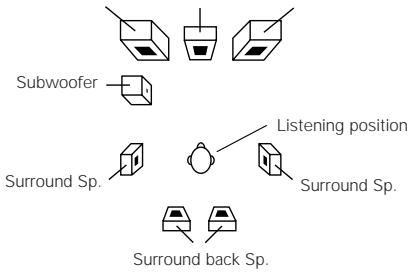
- The following is an example of the basic layout for a system consisting of 8 speaker systems and a television monitor:
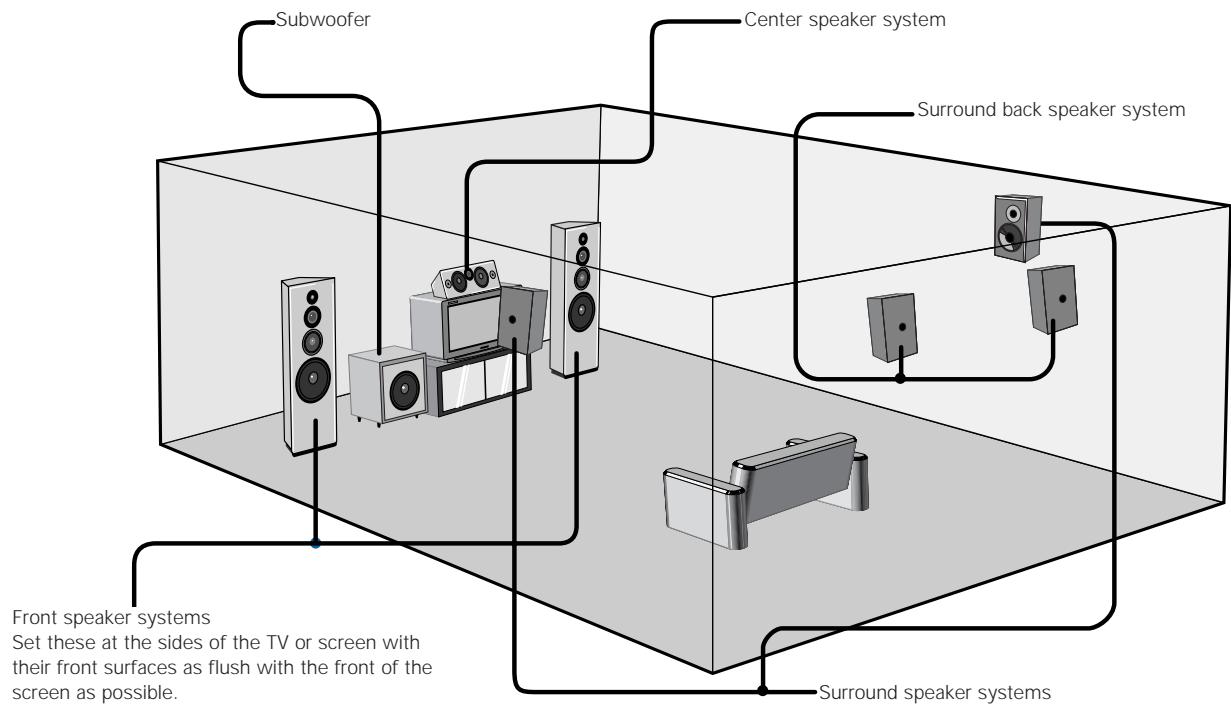
| Before setting up the system | ||
| 1 | Refer to “CONNECTIONS” (pages 7 to 15) and check that all connections are correct. | |
| 2 | ON OFF Main unit (Primary) | Press the Power switch (button). • ON The power turns on and indicator is light. Set the power switch to this position to turn the power on and off from the included remote control unit. • OFF The power turns off and indicator is off. In this position, the power cannot be turned on and off from the remote control unit. |
| 3 | ON / STANDBY Main unit (Remote control unit) | Turn on the power. Press the Power ON/STANDBY switch (button). |
| 4 | SYSTEM SETUP SETUP | Press the SYSTEM SETUP button to enter the setting. *SYSTEM SET UP NOTE: Please make sure the “AUDIO” position of the slide switch on the remote control unit. |
| 5 | CH SELECT ENTER | Press the ENTER or (down) button to switch to the Auto Setup. |
NOTE:
Press the SYSTEM SETUP button again to finish system set up. System set up can be finished at any time. The changes to the settings made up to that point are entered.
Auto setup
The Auto Setup function of this unit performs an analysis of the speaker system to permit an appropriate automatic setting.
※ When performing Auto Setup, an optional microphone is required for the setup.
■ Measurement and setting details
① : This sets the speaker connection mode, polarity, and bass reproduction ability.
② : This sets the optimum delay time from each speaker corresponding to the listening position.
③ : This sets the volume that is output from each speaker.
NOTE:
- A loud test tone is output during the measurement. Please consider this should you be planning night time measurements, and consider not allowing small children into the listening room at this time.
Connecting the microphone for Auto Setup
1 Connect the microphone for Auto Setup to the Setup Mic connector on the front panel of the unit.
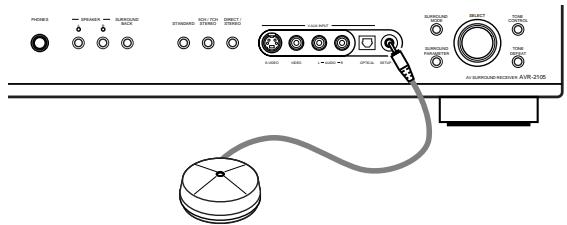
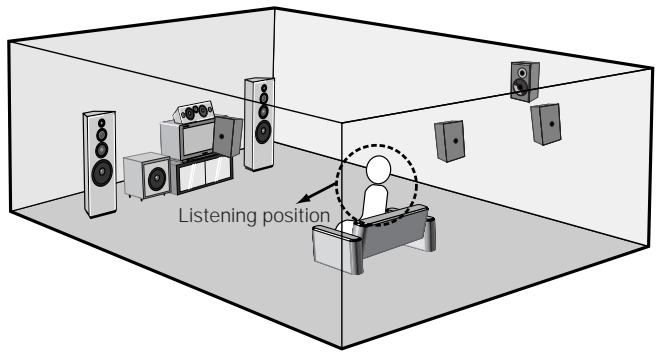
2 Place the microphone for Auto Setup at the actual listening position which will be at the same height as your ears. Use a tripod or level surface at positioning.
Setting the Auto Setup
- Use the (left) button to switch the Auto Setup mode.
- Press the ENTER or (down) button to switch to the speaker configuration set up.
System Setup>1 Auto Setup : Yes
1 AutoSet YES
Check the "Power Amp Assign" setting.
- When "Surround Back" is selected, the test tone during Auto Setup will be output from the Surround Back speaker.
- When "ZONE2" is selected, change the setting to "ZONE2" The test tone during Auto Setup is set so that it will not be output to ZONE2 (Another room).
① Select the Power Amp Assign setting.
(Remote control unit)
Auto Setup
Connect Microphone
Power Amp Assign S.BACK ZONE2
Start<Cancel
AutoSet SB>
② Select "Surround Back" or "ZONE2".
(Remote control unit)
NOTE:
- When "ZONE2" is selected at System Setup Menu "Power Amp Assign", surround back speaker is not displayed.
3 ① Select the "Start".
(Remote control unit)
Auto Setup
Connect Microphone
Power Amp Assign S.BACK:ZONE2
Start<Cancel
AutoSet Start
② Press the (left) button to start Auto Setup.
(Remote control unit)
Start the measurements. Measurement of each channel is performed as follows.
Display

NOTES:
- Measurement is canceled when MASTER VOLUME is operated while the Auto Setup is performed.
- Set the volume to halfway and set the crossover frequency to the maximum or Low pass filter off if your subwoofer speaker can adjust the output volume and the crossover frequency.
※1 Only the front speakers (A) is measured. Even if the front speakers (B) is set, the setting automatically switches to the front speakers (A) once measurements are completed.
※2 Subwoofer speaker is measured twice.
※3 When "ZONE2" is selected, this is not displayed. After each channel is measured, "Calculating" appears. The display switches to Auto Setup check screen automatically.

About automatic retry
Remeasurement starts automatically to receive proper result of measurement.
Remeasurement is performed to 2 times, and "Retry1" or "Retry2" is displayed on screen during remeasurement.
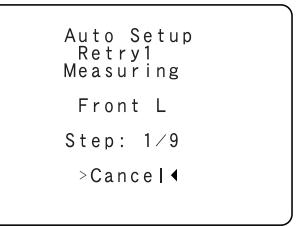
About the error message
These error screens will be displayed when performing the measurements of Auto Setup and the automatic measurements can not be completed because of the speaker arrangement, measurement environment, or other factors. Please check the following matters, reset the pertinent items, and measure again.
When there is too much noise in the room, the speakers may not be detected properly. Should this happen, perform the measurements when the noise level is low, or switch off the power of the equipment that is producing the noise for the duration of the measurements.
① This screen will be displayed when the speakers required for producing suitable reproduction have not been detected.
- The front L and front R speakers were not properly detected.
- Only one channel of the surround speakers was detected.
Sound was output from the R channel when only one surround back speaker was connected. - The surround back was detected, but the surround speaker was not detected.
Check that the pertinent speakers are properly connected (see page 15).
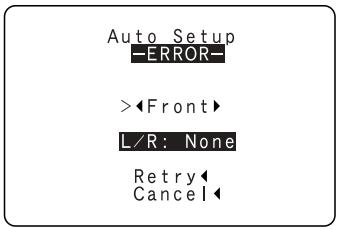
② This screen will be displayed when the speaker polarity is connected in reverse.
Check the polarity of the pertinent speakers.
For some speakers, the screen below may be displayed even though the speakers are properly connected.
If so, select "Skip".

FRont
Retry
Cancel
Skip
(3) This screen will be displayed when accurate measurements cannot be made due to the input level to the microphone being too high.
Set up the speakers so that their position is farther away from the listening position.
Lower the volume of the subwoofer speaker.
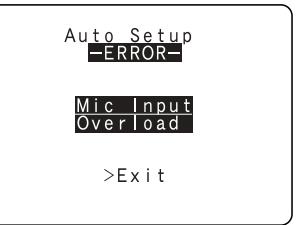
④ This screen will be displayed when the measurement microphone is not connected, or when all of the speakers have not been detected.
Connect the measurement microphone to the microphone connector.
Check the speaker connections.
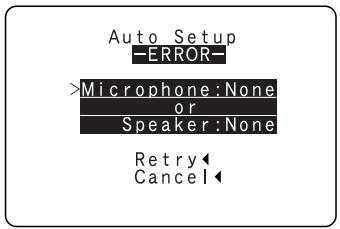
| Check of the measurement results | ||||
| 1 | Select the items. The measurement results of each item can be checked here. A. Set SpCont. CK | Auto Setup - Complete- >Speaker Config. Check Delay Time Check Channel Level Check Store Retry Cancel | ||
| 2 | Press the ENTER button and display the verification screen. [Speaker Config. Check] | [Channel Level Check] | ||
| 3 | CH SELECT ENTER (Remote control unit) | Speaker Config. Check Front Sp. Large Center Sp. Small Surround Sp. Small S. Back Sp. Small Subwoofer Yes | Delay Time Check Front L 12.0ft Front R 12.0ft Center L 12.0ft Surr. L 10.0ft Surr. R 10.0ft S. Back L 10.0ft S. Back R 10.0ft Subwoofer 12.0ft | |
| NOTE: ·When measurements have been made using the measurement microphone, speakers with a built-in filter such as subwoofer might be set with a value that differs from the physical distance because of the internal electrical delay. | ||||
| If the check ends, press the ENTER button again. | ||||
| 4 | (CH SELECT ENTER (Remote control unit) | Select from the following three items based on the measurement results. ·Store: Set with the checked measurement value. ·Retry: Perform the measurement again. ·Cancel: Cancel the checked measurement value. | ||
| A. Set <Store | ||||
| 5 | (Remote control unit) | When the "Store" is selected, all parameters are stored up and switch to the SUBWOOFER MODE setting. | Auto Setup Parameter Storing | |
Setting the type of speakers
- Set up in function of your speaker systems. Performing this setup optimizes the system.
- The composition of the signals output to the different channels and the frequency response are adjusted automatically according to the combination of speakers actually being used.
1
Set whether or not speakers are connected and, if so, their size parameters.
- To select the speaker
Front Sp.
Center Sp. Front Sp.

- To select the parameter
2 FRONT LARGE
2
Press the ENTER or (down) button to enter the settings and switch to the SPEAKER DISTANCE setting.
Parameters
Large.........Select this when using speakers that have sufficient performance for reproducing bass sound below the frequency set for the Crossover Frequency mode.
Small.........Select this when using speakers that do not have sufficient performance for reproducing bass sound below the frequency set for the Crossover Frequency mode. When this is set, bass sound with a frequency below the frequency set for the Crossover Frequency mode is sent to the subwoofer.
None.........Select this when no speakers are installed.
Yes/No.........Select "Yes" when a subwoofer is installed, "No" when a subwoofer is not installed.
2spkrs/1spkr ....Set the number of speakers to be used for the surround back channel.
If the subwoofer has sufficient low frequency playback capacity, good sound can be achieved even when "Small" is set for the front, center and surround speakers.
Setting the delay time
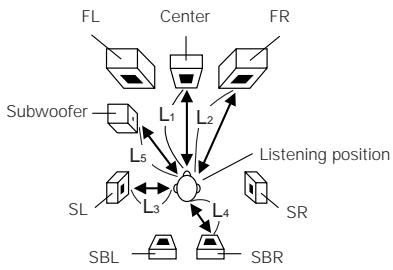
- Input the distance between the listening position and the different speakers to set the delay time for the surround mode.
Preparations:
Measure the distances between the listening position and the speakers (L1 to L5) on the diagram at the right).
L1: Distance between center speaker and listening position
L2: Distance between front speakers and listening position
L3: Distance between surround speakers and listening position
L4: Distance between surround back speaker and listening position
L5: Distance between subwoofer and listening position
CAUTION:
※ Please note that the difference for every speaker should be 15 ft or less.
NOTES:
- No setting when "None" has been selected for the Speaker Configuration setting.
- Surround back is not displayed when ZONE 2 is set with the POWER AMP ASSIGN setting.
1
Select the speaker to be set.
8 FRONT L 124
Delay Time
8 Front L
9 Front R
10 Center
11 Surr. L
12 Surr. R
13 S.Back L
14 S.Back R
15 Subwoofer
12f t 12f t 12f t 10f t 10f t 10f t 10f t 12f t
2

Set the distance between the speaker and listening position.
The distance changes in units of 1 foot (0.1 meters) each time the button is pressed. Select the value closest to the measured distance.
3
Press the ENTER or (down) button to enter the setting and switch the SUBWOOFER MODE setting.
Setting the Subwoofer mode and Crossover Frequency
This screen is not displayed when not using a subwoofer.
- Set the crossover frequency and subwoofer mode according to the speaker system being used.
1 Select the "Subwoofer Mode".
Select the setting.
LESN MODE NORM
16 Subwoofer Mode
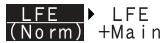
17 Crossover Frequency
80Hz
2 Select the "Crossover Frequency" mode.
Select the frequency.
- 40 / 60 / 80 / 100 / 120 / 150 / 200 / 250 Hz can be selected.
170R. OVER 80Hz
16 Subwoofer Mode
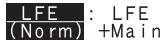
17 Crossover Frequency
80Hz
Press the ENTER or (down) button to enter the setting and switch to the Test Tone setting.
NOTES:
- Assignment of low frequency signal range —
- The signals produced from the subwoofer channel are LFE signals (during playback of Dolby Digital or DTS signals) and the low frequency signal range of channels set to "SMALL" in the setup. The low frequency signal range of channels set to "LARGE" are produced from those channels.
Crossover Frequency
- When "Subwoofer" is set to "Yes" at the "Speaker Configuration Setting", set the frequency (Hz) below which the bass sound of the various speakers is to be output from the subwoofer (the crossover frequency).
- For speakers set to "Small", sound with a frequency below the crossover frequency is cut, and the cut bass sound is output from the subwoofer instead.
NOTE: For ordinary speaker systems, we recommend setting the crossover frequency to 80Hz . When using small speakers, however, setting the crossover frequency to a high frequency may improve frequency response for frequencies near the crossover frequency.
Subwoofer mode
- The subwoofer mode setting is only valid when "Large" is set for the front speakers and "YES" is set for the subwoofer in the "Speaker Configuration" settings (see page 25).
- When the "LFE+MAIN" playback mode is selected, the low frequency signal range of channels set to "Large" are produced simultaneously from those channels and the subwoofer channel. In this playback mode, the low frequency range expands more uniformly through the room, but depending on the size and shape of the room, interference may result in a decrease of the actual volume of the low frequency range.
- Selection of the "LFE" play mode will play the low frequency signal range of the channel selected with "Large" from that channel only. Therefore, the low frequency signal range that are played from the subwoofer channel are only the low frequency signal range of LFE (only during Dolby Digital or DTS signal playback) and the channel specified as "Small" in the setup menu.
- Select the play mode that provides bass reproduction with quantity.
- When the subwoofer is set to "Yes", bass sound is output from the subwoofer regardless of the subwoofer mode setting in surround modes other than Dolby/DTS.
- In surround modes other than Dolby Digital and DTS, if the subwoofer is set to "YES", the low frequency portion is always output to the subwoofer channel. For details, refer to "Surround Modes and Parameters" on page 60.
| Setting the Test Tone | ||
| · Use this setting to adjust to that the playback level between the different channel is equal. · From the listening position, listen to the test tones produced from the speakers to adjust the level. · The level can also be adjusted directly from the remote control unit. (For details, see page 48.) | ||
| 1 | · Use the (left) button to the Test Tone. · Press the ENTER or (down) button to switch to the Digital In Assignment. | Test Tone >18 Test Tone: Yes |
| 18 T.TONE YES | ||
| 2 | Set the mode. Select "Auto" or "Manual". T.TONE AUTO · Auto: Adjust the level while listening to the test tones produced automatically from the different speakers. · Manual: Select the speaker from which you want to produce the test tone to adjust the level. | >Test Tone Auto Manual Front L 0.0dB Center R 0.0dB Front R 0.0dB Surr. R 0.0dB S Back R 0.0dB S Back L 0.0dB Surr. L 0.0dB Subwoofer 0.0dB |
| 3 | Press the (down) button to start Test Tone. | |
| 4 | a. If the "Auto" mode is selected: Test tones are automatically emitted from the different speakers. The test tones are emitted from the different speakers in the following order, at 4-second intervals the first time and second time around, 2-second intervals the third time around and on: FL C FR SR SBR SBL SL SW ※ When the surround back speaker setting is set to "1spkr" for "Speaker Configuration", this is set to "SB". Use the CURSOR left and right buttons to adjust all the speakers to the same volume. The volume can be adjusted between -12 dB and +12 dB in units of 0.5 dB. b. When the "Manual" mode is selected Use the CURSOR up and down to select the speaker for which you want to output test tones, then use the CURSOR left and right to adjust so that the volume of the test tones from the various speakers is the same. | Test Tone Auto Manual >Front L (-11.5dB) Center R 0.0dB Front R 0.0dB Surr. R 0.0dB S Back R 0.0dB S Back L 0.0dB Subwoofer 0.0dB |
| 5 | After completing the adjustment, press the ENTER button. | |
| 6 | Press the ENTER or (down) button to enter the setting and switch the DIGITAL input setting. | |
NOTES:
- When you adjust the channel levels while in the TEST TONE mode, the channel level adjustments made will affect all surround modes. Consider this mode a Master Channel Level adjustment mode.
- You can adjust the channel levels for each of the following surround modes: DIRECT, STEREO, STANDARD (DOLBY/DTS SURROUND), 5/7 CH STEREO, MONO MOVIE, ROCK ARENA, JAZZ CLUB, VIDEO GAME, MATRIX and VIRTUAL.
Setting the Digital In Assignment
- This setting assigns the digital input jacks of the AVR-2105/885 for the different input sources.
1
Select the digital input jack to be assigned to the input source.
To select the digital input jack
19 COAX
CD
Digital In Assignment
19 COAXIAL : CD
20 OPTICAL1: DVD/VDF
21 OPTICAL2: TV/DBS
22 OPTICAL3: CDR/TAPE
2
To select the input source
Select "OFF" if nothing is connected.
3
Press the ENTER or (down) button to enter the setting and switch the Component Video input setting.
NOTE:
PHONO, TUNER and V. AUX cannot be selected.
Setting the Component In Assignment
- This setting assigns the color difference (component) video input jacks of the AVR-2105/885 for the different input sources.
1
Select the component (Y, PB/CB and PR/CR) video input terminal to be assigned to the input source.
- Component video terminal selection
1 1111
DVD
Component In Assign.
23VIDEO1 :DVD/VDPI
24VIDEO2 : TV/DBS
25VIDEO3 : VCR-1
2
- Input source selection
Select "OFF" if nothing is connected.
3
Press the ENTER or (down) button to enter the setting and switch the Video Input Mode setting.
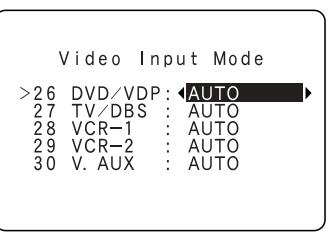
Setting the Video Input Mode
- Set the input signal to be output from the monitor output terminals.
Select the input source to be set.
26 DVD AUTO
Select the mode (input signal).
Press the ENTER or (down) button to switch the Auto Surround Mode setting.
AUTO: When there are multiple input signals, the input signals are detected and the input signal to be output from the video monitor output terminal is selected automatically in the following order: component video, S-Video, composite video.
Component: The signal connected to the component video terminal is always played.
Video conversion is not conducted, so no image is output from the monitor output terminal when there is no input signal to the component terminal.
S-Video: The signal connected to the S-Video terminal is always played.
The S-Video input signal is converted and output from the composite and component monitor output terminal.
Video: The signal connected to the composite video terminal is always played.
The composite video input signal is up-converted and output from the S-Video and component monitor output terminals.
Setting the Auto Surround Mode
For the three kinds of input signals as shown below, the surround mode played the last is stored in the memory. At next time it the same signal inputs, the memorized surround mode is automatically selected and the signal is played.
Note that the surround mode setting is also stored separately for the different input function.
| SIGNAL | Default Auto Surround Mode | |
| ① | Analog and PCM 2-channel signals | STEREO |
| ② | 2-channel signals of Dolby Digital, DTS or other multichannel format | Dolby PLIIx Cinema |
| ③ | Multichannel signals of Dolby Digital, DTS or other multichannel format | Dolby or DTS Surround |
1

Select "ON" if you want to use the auto surround mode, "OFF" if you do not want to use it.
31 AUTOSURF. ON
31 Auto Surround Mode
ON OFF
2
Press the ENTER or (down) button to switch the Ext. In SW Level setting.
Setting the Ext. In SW Level
Set the playback level of the analog input signal connected to the Ext. In terminal.
1

Select desired setting.
- Select according to the specifications of the player being used. Also refer to the player's operating instructions.
- +15dB (default) recommended. (0, + 5, 10 and +15 can be selected.)
32EXT.IN54+15
32 Ext. In SW Level
Subwoofer Level
+15dB
2
Press the ENTER or (down) button to switch the Power Amp Assignment setting.
Power Amp Assignment
Setting the power amplifier assignment
- Make this setting to switch the power amplifier for the surround back channel to ZONE2.
- If ZONE2 is selected, the signal that selected at ZONE2 is output at "SURR. BACK/ZONE2" PREOUT terminals.
Select "Surround Back" to use as the surround back channel, "Zone2" to use as Zone 2 out.
33AMP 5.BACK
33 Power Amp Assignment
S. BACK ZONE 2
Press the ENTER or (down) button to switch the On Screen Display setting.
Setting the On Screen Display (OSD)
- Use this to turn the on-screen display (messages other than the menu screens) on or off.
- Sets the on-screen display's display mode.
Mode 1: Prevents flickering of the on-screen display when there is no video signal.
Mode 2: Flickering is not prevented.
Use this mode if the on-screen display does not appear in the mode 1, as may happen according to the TV being used.
Select "ON" or "OFF".
3405D 0N
On Screen Display
34 ON OFF
35 MODE1 : MODE2
Select the On Screen Display Mode.
Select the "MODE1" or "MODE2".
35 05D MODE1
On Screen Display
34 ON:OFF
35 MODE1 MODE2
Press the ENTER or (down) button to switch the Auto Preset Memory setting.
Auto Tuner Presets
Use this to automatically search for FM broadcasts and store up to 56 stations at preset channels A1 to 8, B1 to 8, C1 to 8, D1 to 8, E1 to 8, F1 to 8 and G1 to 8.
NOTE:
- If an FM station cannot be preset automatically due to poor reception, use the "Manual tuning" operation to tune in the station, then preset it using the manual "Preset memory" operation.
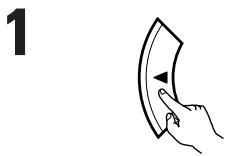
Use the CURSOR button to select "Yes". "Search" flashes on the screen and searching begins. "Completed" appears once searching is completed. The display automatically switches to screen.
1 1 1 1 1 1 1 1 1 1 1 1 1 1 1 1 1 1 1
36 Auto Preset Memory
Auto Tuning And
Preset Station Memory
Storing Preset Memory
Start Yes
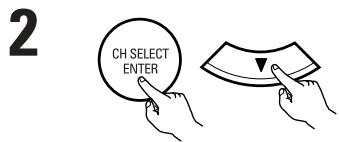
Press the ENTER or (down) button if you want to start the settings over from the beginning.
After setting up the system
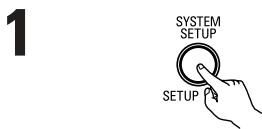
Press the SYSTEM SETUP button to finish system set up.
This completes the system setup operations. Once the system is set up, there is no need to make the settings again unless other components or speakers are connected to or the speaker layout is changed.
- On-screen display signals
| Signals input to the AVR-2105/885 | On-screen display signal output | ||||
| VIDEO signal input jack (yellow) | S-video signal input jack | Video signal output to VIDEO MONITOR OUT jack (yellow) | Video signal output to S-Video MONITOR OUT jack | Video signal output to Color Difference (Component) Video MONITOR OUT jack | |
| 1 | × | × | ○ | ○ | ○ |
| 2 | ○ | × | ○ | ○ | ○ |
| 3 | × | ○ | ○ | ○ | ○ |
| 4 | ○ | ○ | × | ○ | ○ |
(○: Signal ×: No signal)
(On-screen signals output
× : On-screen signals not output)
NOTE:
- When a component video signal is input and when the "Video Input Mode" is set to the component fixed mode at Input setup, the on-screen display is only displayed when the System Setup, Surround Parameters and On Screen buttons are operated.
9 REMOTE CONTROL UNIT
Operating DENON audio components
- Turn on the power of the different components before operating them.
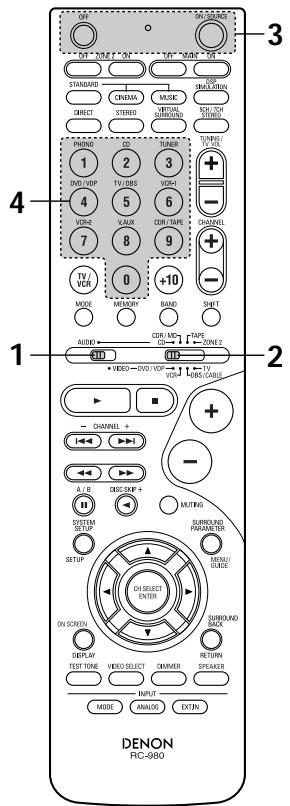
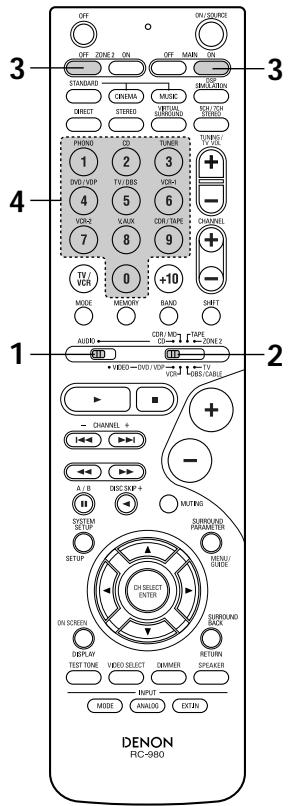
1 Set mode switch 1 to "AUDIO".
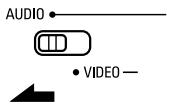
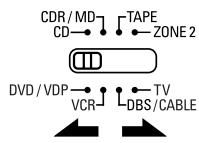
2 Set mode switch 2 to the position for the component to be operated. (CD, CDR/MD or Tape deck)
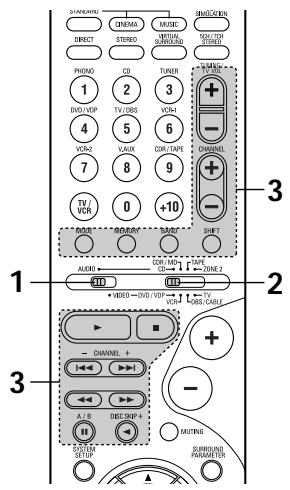
Operate the audio component.
-
For details, refer to the component's operating instructions.
※ While this remote control is compatible with a wide range of infrared controlled components, some models of components may not be operated with this remote control. -
CD player (CD) and CD recorder and MD recorder (CDR/MD) system buttons
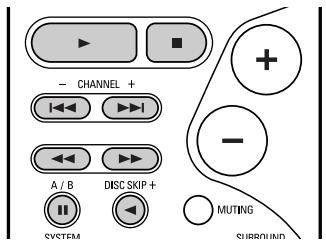
: Manual search (forward and reverse)
:Stop
Play
Auto search (cue)
:Pause
DISC : Switch discs
SKIP+ (for CD changers only)
- Tape deck (TAPE) system buttons
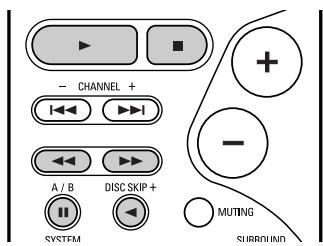
: Rewind
Fast-forward
:Stop
Forward play
: Reverse play
A/B : Switch between decks A and B
- Tuner system buttons
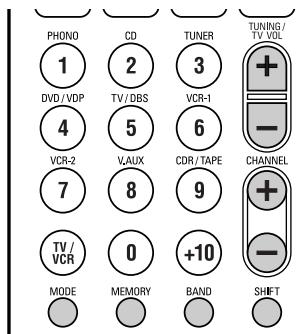
SHIFT : Switch preset channel range
CHANNEL : Preset channel
+,- up/down
TUNING : Frequency
+,- up/down
BAND : Switch between the AM and FM bands
MODE : Switch between auto and mono
MEMORY : Preset memory
NOTE:
- TUNER can be operated when the switch is at "AUDIO" position.
Preset memory
DENON and other makes of components can be operated by setting the preset memory.
This remote control unit can be used to operate components of other manufacturers by registering the manufacturer of the component as shown on the List of Preset Codes (pages 144~148).
Operation is not possible for some models.
1 Set mode switch 1 to "AUDIO" or "VIDEO".
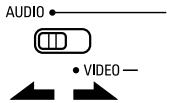
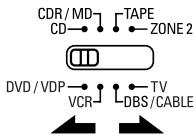
Set the AUDIO side for the CD, Tape deck or CDR/MD position, to the VIDEO side for the DVD/VDP, DBS/CABLE, VCR or TV position.
2 Set mode switch 2 to the component to be registered.
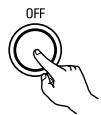
Press the ON/SOURCE button and the OFF button at the same time.
Indicator flash.
4 ① ② ③ Referring to the included List of Preset Codes, use the number ④ ⑤ ⑥ buttons to input the preset code (a 3-digit number) for the manufacturer of the component whose signals you want to store in the memory.
5 To store the codes of another component in the memory, repeat steps 1 to 4.
NOTES:
- The signals for the pressed buttons are emitted while setting the preset memory. To avoid accidental operation, cover the remote control unit's transmitting window while setting the preset memory.
- Depending on the model and year of manufacture, this function cannot be used for some models, even if they are of makes listed on the included list of preset codes.
- Some manufacturers use more than one type of remote control code. Refer to the included list of preset codes to change the number and check.
- The preset memory can be set for one component only among the following: CDR/MD, DVD/VDP and DBS/CABLE.
The preset codes are as follows upon shipment from the factory and after resetting:
TV, VCR. HITACHI
CD, TAPE . DENON
CDR/MD . DENON (CDR)
DVD/VDP . DENON (DVD)
DBS/CABLE ABC (CABLE)
Operating component stored in the preset memory
1 Set mode switch 1 to "AUDIO" or "VIDEO".
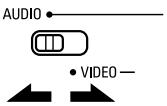
Set the AUDIO side for the CD, tape deck or CDR/MD position, to the VIDEO side for the DVD/VDP, DBS/CABLE, VCR or TV position.
2 Set mode switch 2 to the component you want to operate.
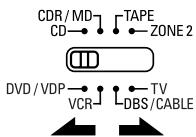
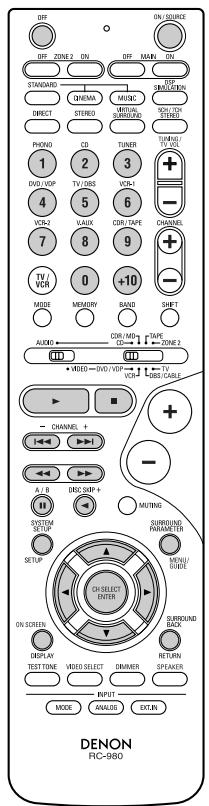
Operate the component.
- For details, refer to the component's operating instructions.
※ Some models cannot be operated with this remote control unit.
1. Digital video disc player (DVD) system buttons
POWER : Power on/standby
(ON/SOURCE)
OFF : DENON DVD Power off
: Manual search
forward and reverse)
:Stop
Play
Auto search
(to beginning of track)
:Pause
0~9,+10:10key
DISCSKIP+:Discskip
(for DVD changer only)
DISPLAY : Switch display
MENU : Menu
RETURN : Return
SETUP : Setup
, , , :Cursorup,down,leftandright
ENTER : Enter setting
NOTE:
- Some manufacturers use different names for the DVD remote control buttons, so also refer to the instructions on remote control for that component.
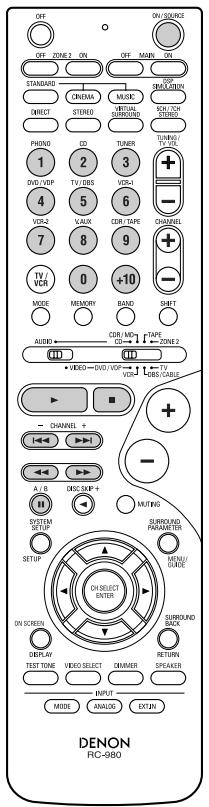
2. Video disc player (VDP) system buttons
POWER : Power on/standby
(ON/SOURCE)

Manual search
forward and reverse)
Stop
Play
Auto search (cue)
Pause
10 key
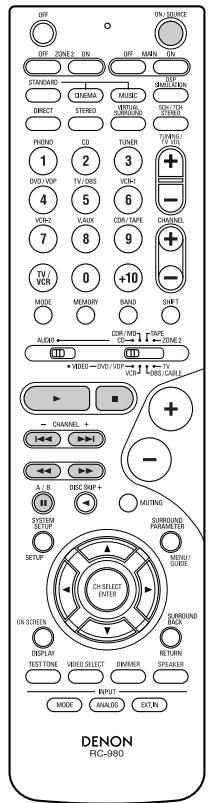
3. Video deck (VCR) system buttons
| POWER : Power on/standby (ON/SOURCE) |
| ←,→ : Manual search (forward and reverse) |
| ■ : Stop |
| ▶ : Play |
| ■ : Pause |
| Channel+, - : Channels |
4. Digital broadcast satellite (DBS) tuner and cable (CABLE) system buttons
| POWER : Power on/standby (ON/SOURCE) | |
| MENU : Menu | |
| RETURN : Return | |
| ▲,▼,▲▼ | : Cursor up, down, l |
| ENTER : Enter | |
| CHANNEL : Switch channels | |
| +, - | |
| 0~9, +10 | : Channels |
| DISPLAY : Switch display | |
| VOL +, - : Volume up/down | |
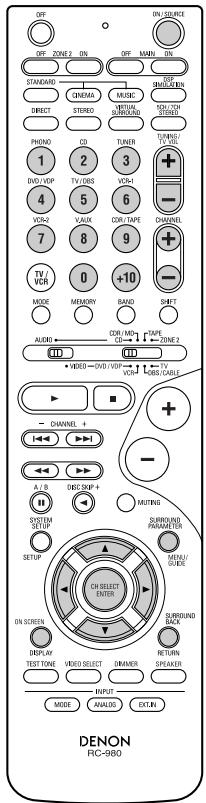
5. Monitor TV (TV) system buttons
| POWER : Power on/standby (ON/SOURCE) | |
| MENU : Menu | |
| RETURN : Return | |
| ▲,▼,▲▼ | : Cursor up, down, left and right |
| ENTER : Enter | |
| CHANNEL : Switch channels | |
| +, - | |
| 0~9, +10 : Channels | |
| DISPLAY : Switch display | |
| TV/VCR : Switch between TV and video player | |
| TV VOL : Volume up/down | |
| +, - | |
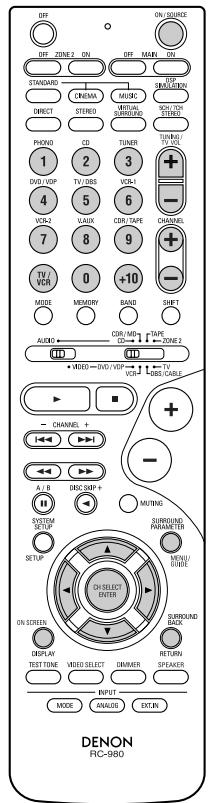
NOTES:
- For this CD, CDR, MD and TAPE components, buttons can be operated in the same way as for Denon audio components (page 34).
- The TV can be operated when the switch is at DVD/VDP, VCR, TV position.
Punch Through
- "Punch Through" is a function allowing you to operate the PLAY, STOP, MANUAL SEARCH and AUTO SEARCH buttons on the CD, TAPE, CDR/MD, DVD/VDP or VCR components when in the DBS/CABLE or TV mode. By default, nothing is set.
1 Set mode switch 1 to "VIDEO".
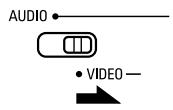
2 Set mode switch 2 to the component to be registered (DBS/CABLE or TV).
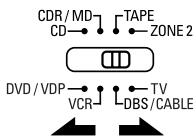
Press the OFF (ZONE2) button and the ON (MAIN) button at the same time.
Indicator flash.
4 ① ② ③ Input the number of the component you want to set. (See Table 1)
Table 1
| No. | |
| CD | 1 |
| TAPE | 2 |
| CDR/MD | 3 |
| DVD/VDP | 4 |
| VCR | 5 |
| No setting | 0 |
Before operating
Preparations:
Check that all connections are proper.

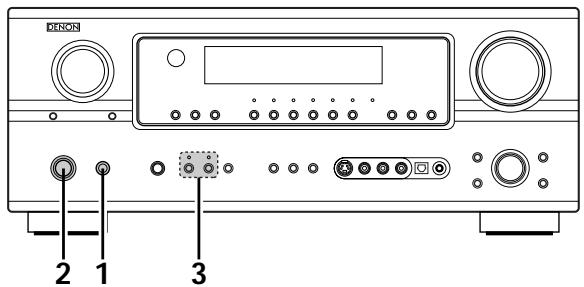
Press the Power switch (button).
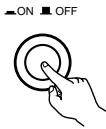
(Main unit)
ON
The power turns on and indicator is light.
Set the power switch to this position to turn the power on and off from the included remote control unit.
OFF
The power turns off and indicator is off.
In this position, the power cannot be turned on and off from the remote control unit.

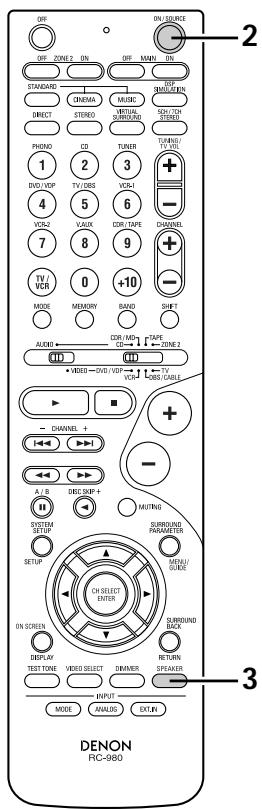
Turn on the power.
Press the Power ON/STANDBY switch (button).
ON/STANDBY
(Main unit)
(Remote control unit)
When pressed, the power turns on and the display lights. The sound is muted for several seconds, after which the unit operates normally. When pressed again, the power turns off, the standby mode is set and the display turns off.

Select the front speakers.
Press the SPEAKER A or B button to turn the speaker on.
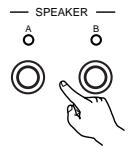
(Main unit)
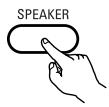
(Remote control unit)
- The front speaker A, B setting can be also changed with the SPEAKER button on the remote control unit.
Playing the input source
1 Select the input source to be played. Example: CD
(Main unit)
(Remote control unit)
※ To select the input source when ZONE2/REC OUT is selected, press the MAIN button then operate the input function selector.

(Main unit)
Select the input mode.
- Selecting the analog mode
- Press the ANALOG button to switch to the analog input.
(Main unit)
(Remotecnrolunit)
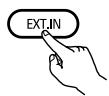
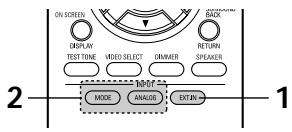
- Selecting the external input (EXT. IN) mode Press the EXT. IN to switch the external input.
(Main unit)
(Remote control unit)
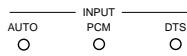
- Selecting the AUTO, PCM and DTS modes The mode switches as shown below each time the INPUT MODE button is pressed.
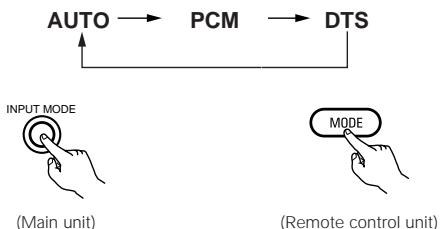
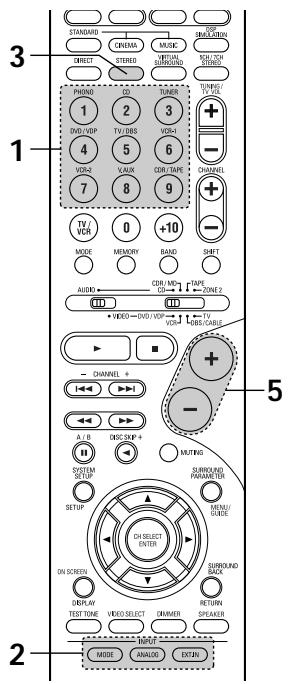
Input mode selection function
Different input modes can be selected for the different input sources. The selected input modes for the separate input sources are stored in the memory.
① AUTO (auto mode)
In this mode, the types of signals being input to the digital and analog input jacks for the selected input source are detected and the program in the AVR-2105/885's surround decoder is selected automatically upon playback. This mode can be selected for all input sources other than PHONO and TUNER.
The presence or absence of digital signals is detected, the signals input to the digital input jacks are identified and decoding and playback are performed automatically in DTS, Dolby Digital or PCM (2 channel stereo) format. If no digital signal is being input, the analog input jacks are selected.
Use this mode to play Dolby Digital signals.
② PCM (exclusive PCM signal playback mode)
Decoding and playback are only performed when PCM signals are being input.
Note that noise may be generated when using this mode to play signals other than PCM signals.
③ DTS (exclusive DTS signal playback mode)
Decoding and playback are only performed when DTS signals are being input.
(4) ANALOG (exclusive analog audio signal playback mode)
The signals input to the analog input jacks are decoded and played.
(5) EXT. IN (external decoder input jack selection mode)
The signals being input to the external decoder input jacks are played without passing through the surround circuitry.
NOTE:
- Note that noise will be output when CDs or LDs recorded in DTS format are played in the "PCM" (exclusive PCM signal playback) or "ANALOG" (exclusive PCM signal playback) mode. Select the AUTO or DTS mode when playing signals recorded in DTS.
Notes on playing a source encoded with DTS
- Noise may be generated at the beginning of playback and while searching during DTS playback in the AUTO mode. If so, play in the DTS mode.
- In some rare cases the noise may be generated when you preform the operation to stop playback of a DTS-CD or DTS-LD.
2 Select the play mode.
Press the SURROUND MODE button, then turn the SELECT knob.
Example: Stereo
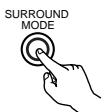
(Main unit)
(Remote control unit)
※ To select the surround mode while adjusting the surround parameters, tone defeat or tone control, press the surround mode button then operate the selector.
(Main unit)
Start playback on the selected component.
- For operating instructions, refer to the component's manual.
Adjust the volume.

The volume level is displayed on the master volume level display.
(Main unit)
(Remote control unit)
The volume can be adjusted within the range of -70 to 0 to 18dB , in steps of 0.5dB . However, when the channel level is set as described on page 48, if the volume for any channel is set at +0.5dB or greater, the volume cannot be adjusted up to 18dB . (In this case the maximum volume is adjusted to "18 dB — (Maximum value of channel level)".
Input mode when playing DTS sources
- Noise will be output if DTS-compatible CDs or LDs are played in the "ANALOG" or "PCM" mode.
When playing DTS-compatible sources, be sure to connect the source component to the digital input jacks (OPTICAL/COAXIAL) and set the input mode to "DTS".
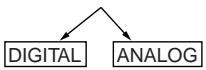
Input mode display
- In the AUTO mode
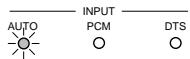
- In the DIGITAL PCM mode
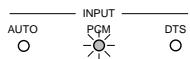
- In the DIGITAL DTS mode
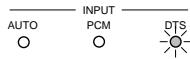
- In the ANALOG mode
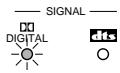
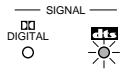
One of these lights, depending on the input signal.


Input signal display
DOLBY DIGITAL
DTS
- PCM
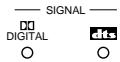
The DIGITAL indicator lights when digital signals are being input properly. If the DIGITAL indicator does not light, check whether the digital input component setup (page 29) and connections are correct and whether the component's power is turned on.
NOTE:
- The DIGITAL indicator will light when playing CD-ROMs containing data other than audio signals, but no sound will be heard.
Playback using the external input (EXT. IN) jacks
1 Set the external input (EXT. IN) mode.
Press the EXT. IN button to switch the external input.
(Main unit)
(Remote control unit)
Once this is selected, the input signals connected to the FL (front left), FR (front right), C (center), SL (surround left) and SR (surround right) channels of the EXT. IN jacks are output directly to the front (left and right), center and surround (left and right) speaker systems as well as the pre-out jacks without passing through the surround circuitry.
In addition, the signal input to the SW (subwoofer) jack is output to the PRE OUT SUBWOOFER jack.
Cancelling the external input mode
To cancel the external input (EXT. IN) setting, press the INPUT MODE (AUTO, PCM, DTS) or ANALOG button to switch to the desired input mode. (See page 40.)
(Main unit)
(Remote control unit)
- When the input mode is set to the external input (EXT. IN), the play mode (DIRECT, STEREO, STANDARD (DOLBY/CTS SURROUND), 5CH/7CH STEREO or DSP SIMULATION) cannot be selected.
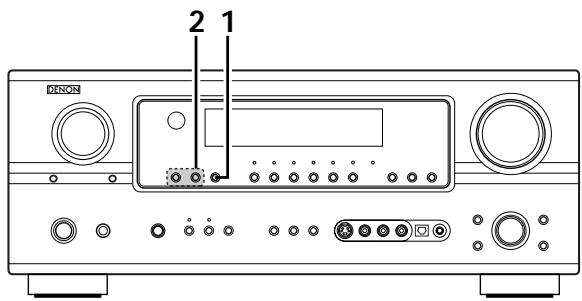
NOTES:
- In play modes other than the external input mode, the signals connected to EXT. IN jacks cannot be played. In addition, signals cannot be output from channels not connected to the input jacks.
- The external input mode can be set for any input source. To watch video while listening to sound, select the input source to which the video signal is connected, then set this mode.
- If the subwoofer output level seems to high, set the "SW ATT." surround parameter to "ON".
Playing audio sources (CDs and DVDs)
The AVR-2105/885 is equipped with two 2-channel playback modes exclusively for music.
Select the mode to suit your tastes.
DIRECT mode
Use this mode to achieve good quality 2-channel sound while watching images. In this mode, the audio signals bypass such circuits as the tone circuit and are transmitted directly, resulting in good quality sound.
DIRECT/
STEREO

(Main unit)
STEREO mode
Use this mode to adjust the tone and achieve the desired sound while watching images.
DIRECT

(Remote control unit)
DIRECT/
STEREO

(Main unit)
STEREO
(Remote control unit)
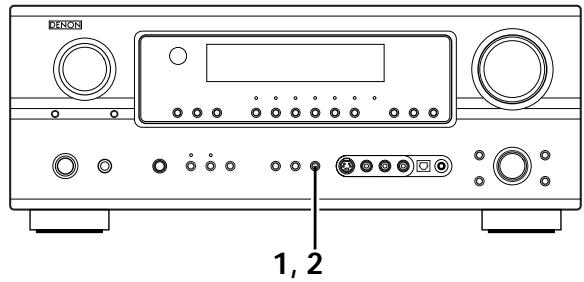
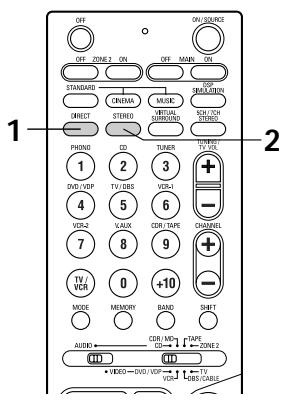
After starting playback
[1] Adjusting the sound quality (tone)
The tone control function will not work in the direct mode.
1 The tone switches as follows each time the TONE CONTROL button is pressed.
![DENON AVR-2105 - [1] Adjusting the sound quality (tone) - 1](/content/2025/01/135495/images/f58d00e1fa416937b9b94a3d43f948f9cf39a4912e94d270fb01b8557c22c946.jpg)
(Main unit)
![DENON AVR-2105 - [1] Adjusting the sound quality (tone) - 2](/content/2025/01/135495/images/719b849ab932c6f9a6e17430584059a3f5afa8f373996870a991c093e945ec4f.jpg)
2 With the name of the volume to be adjusted selected, turn the SELECT knob to adjust the level.
![DENON AVR-2105 - [1] Adjusting the sound quality (tone) - 3](/content/2025/01/135495/images/d6156c687a3d82373775fce66888b55dc4e040653376a35e75e6c7581ae77a96.jpg)
(Main unit)
- To increase the bass or treble: Turn the control clockwise. (The bass or treble sound can be increased to up to +6 dB in steps of 1 dB.)
- To decrease the bass or treble: Turn the control counterclockwise. (The bass or treble sound can be decreased to up to -6 dB in steps of 1dB .)
[2] Listening over headphones
Plug the headphones' plug into the jack.
※ Connect the headphones to the PHONES jack.
The pre-out output (including the speaker output) is automatically turned off when headphones are connected.
![DENON AVR-2105 - [2] Listening over headphones - 1](/content/2025/01/135495/images/8dc0f004251ba0c3965d8b40fe171c312d6de9bedfd7f26df5918ec6a6b057ad.jpg)
[3] Turning the sound off temporarily (muting)
1 Use this to turn off the audio output temporarily.
Press the MUTING button.
※ Cancelling MUTING mode.
- Press the MUTING button again.
- Muting will also be cancelled when MASTER VOL is adjusted up or down.
![DENON AVR-2105 - [3] Turning the sound off temporarily (muting) - 1](/content/2025/01/135495/images/fff92f0e751b36dfb6a272d182fc345f1ed0b5d92ad92f5a30aaf79331a79db5.jpg)
[4] Combining the currently playing sound with the desired image
1 Simulcast playback Use this switch to monitor a video source other than the audio source.
Press the VIDEO SELECT button repeatedly until the desired source appears on the display.
Cancelling simulcast playback.
- Select "SOURCE" using the video select button.
- Switch the program source to the component connected to the video input jacks.
![DENON AVR-2105 - [4] Combining the currently playing sound with the desired image - 1](/content/2025/01/135495/images/5428c0af52160639d83bcd082e2d4b2a90398ba2e11a04ea776c7847d090d4c4.jpg)
(Main unit)
![DENON AVR-2105 - [4] Combining the currently playing sound with the desired image - 2](/content/2025/01/135495/images/38e56e85978f43826e0e7fb28f34c549edeb1410e1013afbb5df28a81f7b85d0.jpg)
(Remote control unit)
![DENON AVR-2105 - [4] Combining the currently playing sound with the desired image - 3](/content/2025/01/135495/images/0af69a8a426205da0020a657d0084d946ed1eab34a7691888494e5e6656384e0.jpg)
3 If you do not want the bass and treble to be adjusted, turn on the tone defeat mode.
![DENON AVR-2105 - [4] Combining the currently playing sound with the desired image - 4](/content/2025/01/135495/images/9ecde9eb193e1b8e00f4830ec983cd7f9a965bd365986381f0d80603cfcb3b9a.jpg)
(Main unit)
NOTE:
To prevent hearing loss, do not raise the volume level excessively when using headphones.
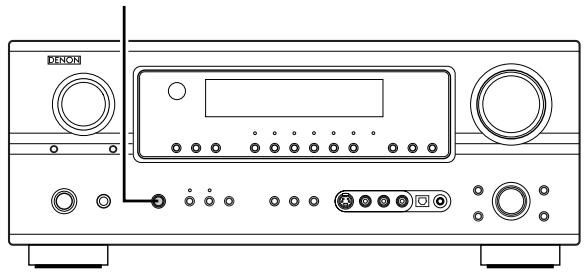
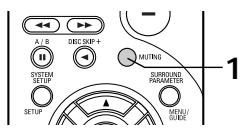
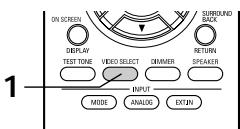
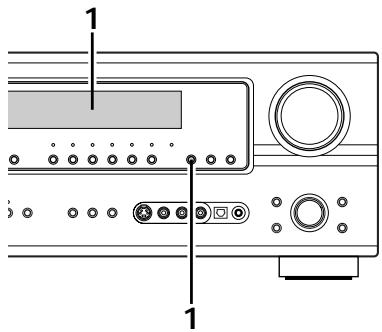

Display
[5] Checking the currently playing program source, etc.
1 On screen display
Each time an operation is performed, a description of that operation appears on the display connected to the unit's VIDEO MONITOR OUT jack. Also, the unit's operating status can be checked during playback by pressing the remote control unit's ON SCREEN/DISPLAY button.
Such information as the position of the input selector and the surround parameter settings is output in sequence.
Front panel display
- Descriptions of the unit's operations are also displayed on the front panel display. In addition, the display can be switched to check the unit's operating status while playing a source by pressing the STATUS button.
Using the dimmer function
- Use this to change the brightness of the display.
The display brightness changes in four steps (bright, medium, dim and off) by pressing the main unit's DIMMER button repeatedly.
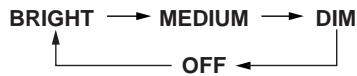
(Remote control unit)
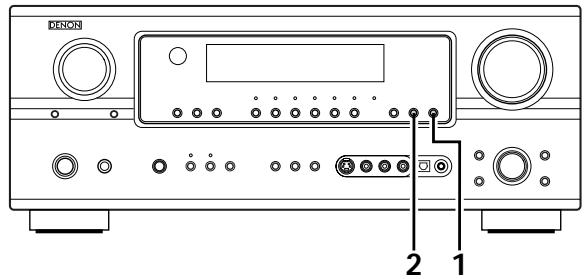
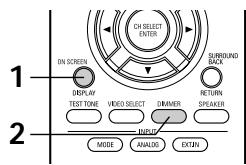
Multi-source recording
Playing one source while recording another (REC OUT mode)
Press the ZONE2/REC SELECT button. The display switches as follows each time the button is pressed.
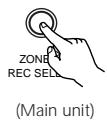

2 With "RECOUT SOURCE" displayed, turn the FUNCTION knob to select the source you wish to record.
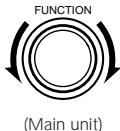
Set the recording mode.
- For operating instructions, refer to the manual of the component on which you want to record.
4 To cancel, turn the function knob and select "SOURCE".
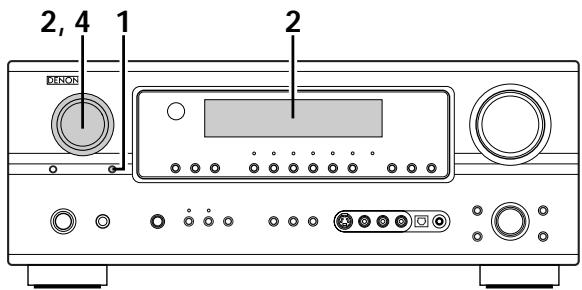
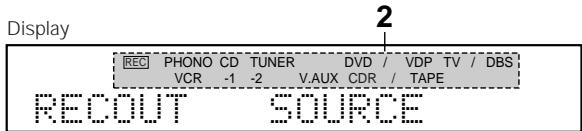
NOTES:
- Recording sources other than digital inputs selected in the REC OUT mode are also output to the ZONE2 audio output jacks.
- Digital signals are not output to the REC SOURCE or audio output jacks.
- The DIGITAL IN's signal selected with the function selector knob are output to the DIGITAL OUT (OPTICAL) jack.
Multi-zone playback with multi-source
- When the outputs of the "ZONE2" OUT terminals are wired and connected to integrated amplifiers installed in other rooms, different sources can be played in rooms other than the main zone in which this unit and the playback devices are installed. (Refer to ZONE2 on the diagram below.)
- ZONE 2 SPEAKER OUT and PRE OUT can be used when "ZONE2" is selected at System Setup Menu "Power Amp Assignment". In this case, Surround Back Speaker Out cannot be used for MAIN ZONE.
- When a sold separately room-to-room remote control unit (DENON RC-616, 617 or 618) is wired and connected between the main zone and zone2, the remote-controllable devices in the main zone can be controlled from zone2 using the remote control unit.
NOTES:
- For the AUDIO outputs, use high quality pin-plug cords and wire in such a way that there is no humming or noise.
- For instructions on installation and operation of separately sold devices, refer to the devices' operating instructions.
- When the main unit is set to the recording output mode, zone2 remote control key cannot be operated.
- 7.1-channel playback using the surround back speaker is possible in the MAIN ZONE.
- To use the ZONE2 line output, turn on the ZONE2 button (remote control unit).
- The ZONE2 OUT terminal's output level cannot be adjusted with the remote control unit.
System configuration and connections example.
Using external amplifier
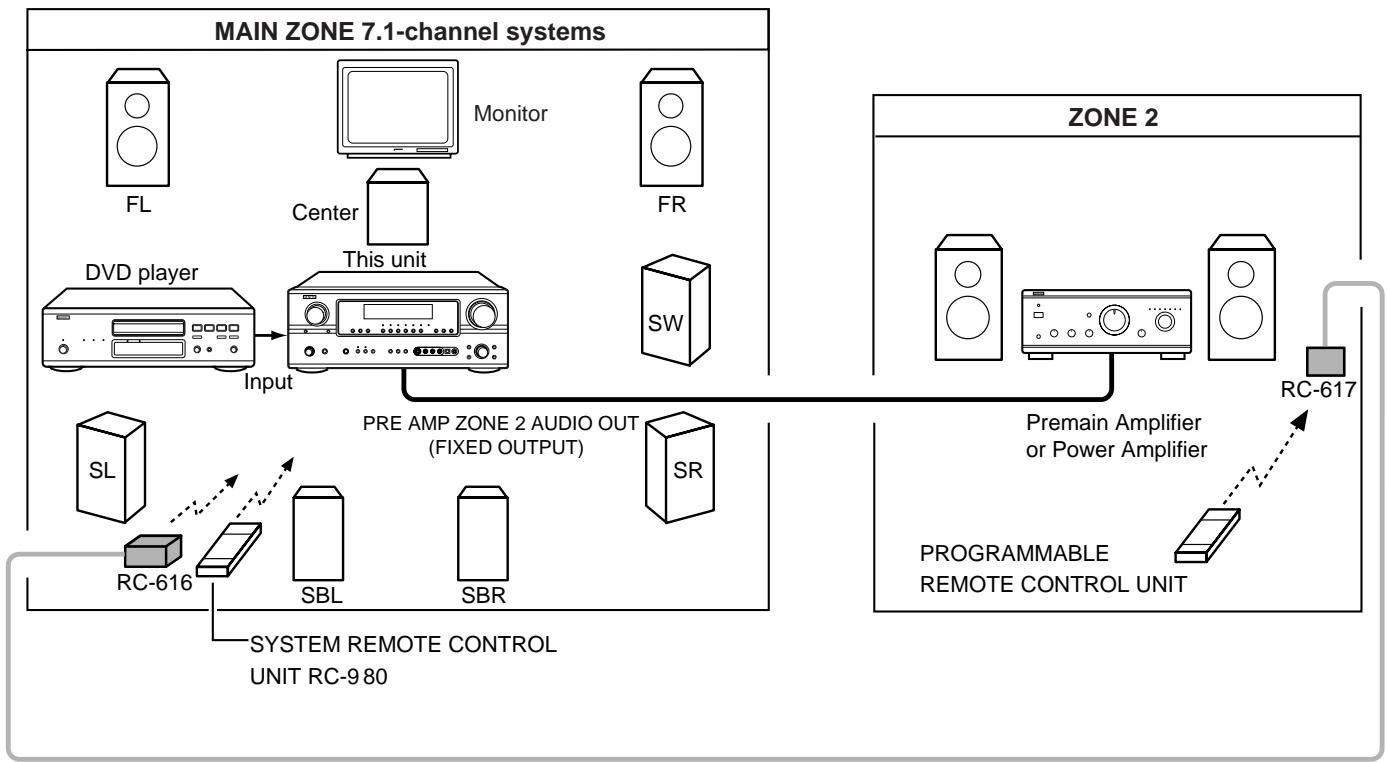

ROOM-TO-ROOM REMOTE CONTROL SYSTEM
(separately sold) control line

MULTI SOURCE AUDIO signal cable
Refer to CONNECTIONS on pages 7 to 15.
When using the SURR.BACK/ZONE2 amplifier as the ZONE2.
- The SPEAKER OUT, LINE OUT and PRE OUT terminals can be used simultaneously in ZONE2.
- To use the ZONE2, turn on the ZONE2 button (remote control unit).
The output of ZONE2 SPEAKER OUT & SURR BACK RCA terminals can be adjusted via the remote control unit's ZONE2 VOLUME + and - buttons.
System configuration and connections example.
Using this unit's internal amplifier as the ZONE2.
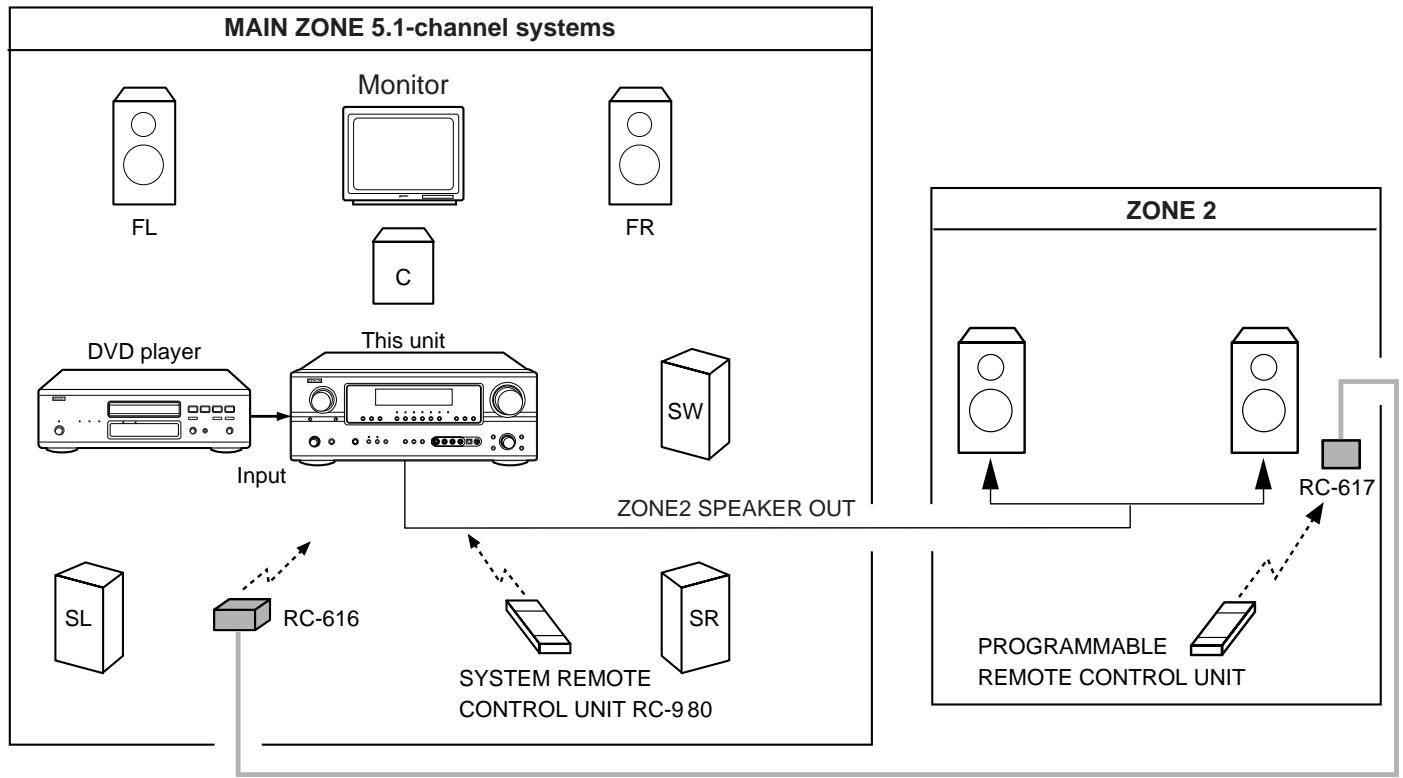

ROOM-TO-ROOM REMOTE CONTROL SYSTEM
separately sold) control line

MULTI SOURCE AUDIO signal cable

SPEAKER cable
Refer to CONNECTIONS on pages 7 to 15.
Multi-source playback
[1] Outputting a program source to an amplifier, etc., in a different room (ZONE2 mode)
Press the ZONE2/REC SELECT button. The display switches as follows each time the button is pressed.
![DENON AVR-2105 - [1] Outputting a program source to an amplifier, etc., in a different room (ZONE2 mode) - 1](/content/2025/01/135495/images/7a9eb306159cb946e6a1c7024787f435c65a381bd70b536f419f6ca882675a41.jpg)
(Main unit)
2 With "ZONE2 SOURCE" displayed, turn the FUNCTION knob and select the source you wish to record.
![DENON AVR-2105 - [1] Outputting a program source to an amplifier, etc., in a different room (ZONE2 mode) - 2](/content/2025/01/135495/images/fe71e6c65da6535abbd61854cd07b73ccbf2f4242da9b8d51c49f6b5ccc3448a.jpg)
(Main unit)
Start playing the source to be output.
- For operating instructions, refer to the manuals of the respective components.
4 To cancel, turn the function knob and select "SOURCE".
![DENON AVR-2105 - [1] Outputting a program source to an amplifier, etc., in a different room (ZONE2 mode) - 3](/content/2025/01/135495/images/eb2609b96388171ac7c3dee47374e7babf033ea967eb549b7cb8a29feb2f6b96.jpg)
(Main unit)
![DENON AVR-2105 - [1] Outputting a program source to an amplifier, etc., in a different room (ZONE2 mode) - 4](/content/2025/01/135495/images/9fb3bd2683e02d7fe6d9881c91a4299220eca4d0cd8e9491c9b4dcea06e8b0a8.jpg)
![DENON AVR-2105 - [1] Outputting a program source to an amplifier, etc., in a different room (ZONE2 mode) - 5](/content/2025/01/135495/images/7774d8102c1d6641fd289366ea9412943d32baa008693ebadb87a6bd77f40cdd.jpg)
NOTES:
- The signals of the source selected in the ZONE2 mode are also output from the VCR-1, VCR-2 and CDR/TAPE recording output terminals.
Digital signals are not output to the ZONE2 output jacks.
[2] Remote control unit operations during multi-source playback (selecting the source)
1 Set the slide switch to "AUDIO" and "ZONE2".
![DENON AVR-2105 - [2] Remote control unit operations during multi-source playback (selecting the source) - 1](/content/2025/01/135495/images/030be0c7ebc2e0829cf59400922e9d622e7fcbed278a4b2a92c686d0c8e6bc72.jpg)
![DENON AVR-2105 - [2] Remote control unit operations during multi-source playback (selecting the source) - 2](/content/2025/01/135495/images/98ae90a0e22d22541715df7269ffa0f49d7e09afccd68e58042492c5f8214a47.jpg)
(Remote control unit)
Press the ZONE2 "ON" button.
※ To cancel the ZONE2 mode. Press the ZONE2 "OFF" button.
![DENON AVR-2105 - [2] Remote control unit operations during multi-source playback (selecting the source) - 3](/content/2025/01/135495/images/9df727c2d617a226bb8a05e6921b92adc057134598f4d1fc750f6b4853dddd7c.jpg)
(Remote control unit)
Press the input source button.
- The ZONE2 source switches directly.
4 The output level of the ZONE 2 SPEAKER OUT terminals can be controlled using the VOLUME + and - buttons on the remote control unit.
![DENON AVR-2105 - [2] Remote control unit operations during multi-source playback (selecting the source) - 4](/content/2025/01/135495/images/68604d3d652157de3946e90720c473669c6d84d0f7e1565bd5e83ec69ecbb344.jpg)
(Remote control unit)
※ DEFAULT SETTING (ZONE2 VOLUME LEVEL) : - - - dB (MINIMUM)
When the ZONE2 SOURCE function is set to TUNER, the preset channel can be selected using the CHANNEL + and - buttons on the remote control unit. (This is only possible when the main unit in the ZONE2 mode.)
![DENON AVR-2105 - [2] Remote control unit operations during multi-source playback (selecting the source) - 5](/content/2025/01/135495/images/67f2eda932a3ec3363d87ddc028da2e4b18f87a025403dc097c48d4b52ea163b.jpg)
(Remotecnrolunit)
![DENON AVR-2105 - [2] Remote control unit operations during multi-source playback (selecting the source) - 6](/content/2025/01/135495/images/d83f89e57f313cbf0e3fd8cc584c272e3b6e2bc83076cb71b07205fd716fa7bd.jpg)
![DENON AVR-2105 - [2] Remote control unit operations during multi-source playback (selecting the source) - 7](/content/2025/01/135495/images/210298eac67407a50a62b088c52bedf443f3bcd5d5a0f853926dc156259ab5d9.jpg)
The main zone output can be turned on and off with the MAIN ON/OFF button.
12 SURROUND
Before playing with the surround function
- Before playing with the surround function, be sure to use the test tones to adjust the playback level from the different speakers. This adjustment can be performed with the system setup (see page 19) or from the remote control unit, as described below.
- Adjusting with the remote control unit using the test tones is only possible in the "Auto" mode and only effective in the STANDARD (DOLBY/CTS SURROUND) modes. The adjusted levels for the different modes are automatically stored in the memory.
1 Set the STANDARD (DOLBY/DTS SURROUND) modes.

STANDARD
(Main unit)
(Remote control unit)
Press the TEST TONE button.
Test tones are output from the different speakers. Use the channel volume adjust buttons to adjust so that the volume of the test tones is the same for all the speakers.
(Remote control unit)
After completing the adjustment, press the TEST TONE button again.

(Remote control unit)
(Remote control unit)
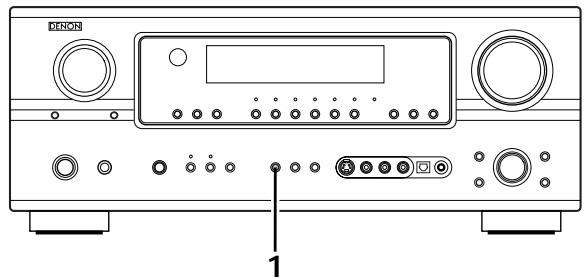
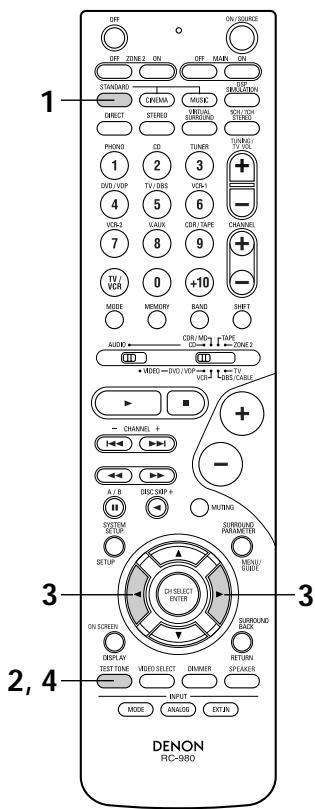
After adjusting using the test tones, adjust the channel levels either according to the playback sources or to suit your tastes, as (described) below.
1 Select the speaker whose level you want to adjust.
The channel switches as shown below each time the button is pressed.

※ When the surround back speaker setting is set to "1sp" for "Speaker Configuration", this is set to "SB".
※“SB”appears only when“POWERAMPASSIGN”setting is SURR.BACKmode.
NOTE: Please make sure the "AUDIO" position of the slide switch on the remote control unit.
2 Adjust the level of the selected speaker.

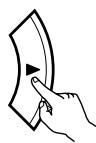
※ Default setting of channel level is 0 dB.
※ The level of the selected speaker can be adjusted within the range of +12 to -12dB using the cursor buttons.
※ SW channel level can be turned off by decreasing one step from -12dB
OFF -12 dB +12 dB
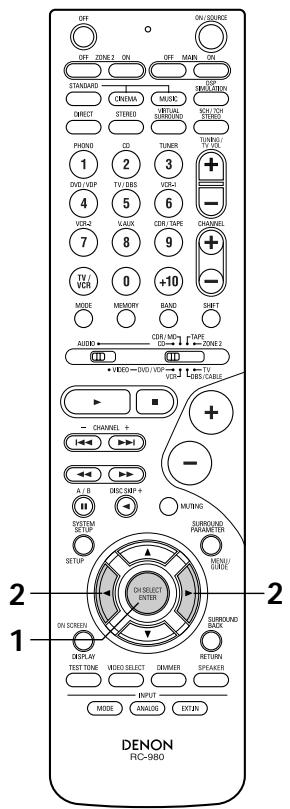
Dolby Pro Logic IIx (Pro Logic II) mode
To play in the PL IIx mode, set "S. BackSp" at the Speaker Configuration setting to "1Sp" or "2Sp".
To play in the PL IIx mode, set "Surround Back" at the Power Amp Assign setting.
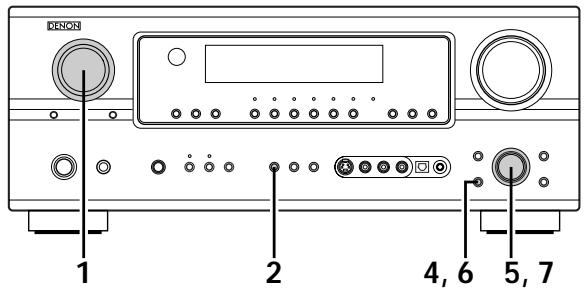
1 Select the function to which the component you want to play is connected.
Example: DVD
(Main unit)
(Remote control unit)
2 Select the Dolby Surround Pro Logic IIx mode.

STANDARD
(Main unit)
(Remote control unit)
- The Dolby Pro Logic II indicator lights.

Display
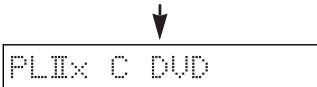
Light
PROLOGICII
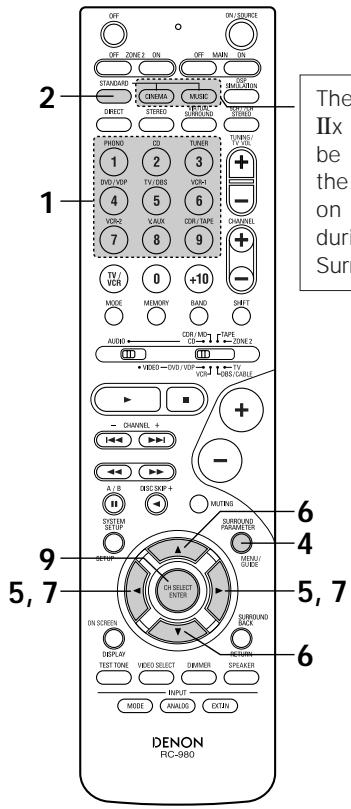
The Dolby Surround Pro Logic IIx Cinema or Music mode can be chosen directly by pressing the CINEMA or MUSIC button on the remote control unit during playback in the Dolby Surround Pro Logic IIx mode.
3 Play a program source with the DOLEBY SURROUND mark.
- For operating instructions, refer to the manuals of the respective components.
4 SURROUND PARAMETER Select the surround parameter mode.

SURROUND
(Main unit)
SURROUND PARAMETER
(Remote control unit)
-DOL BY PLI LIX- >MODE PLILX CINEMAI
CINEMA EQ
D. COMP.
LFE 0dB
Ione Defeat
ON : OFF
SB CH OUT
Default
ON
Yes

Select the optimum mode for the source.
(Main unit)

(Remote control unit)
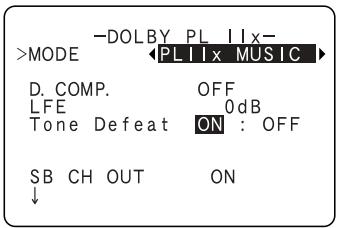
- When the "SB CH OUT" parameter is set to "ON". (Set "S. BACK" at system set up to "SMALL" or "LARGE".)
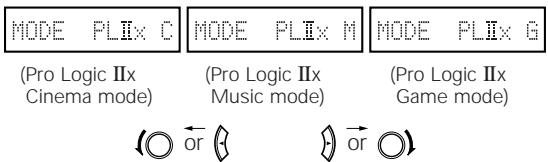
- When the "SB CH OUT" parameter is set to "OFF". (Set "S. BACK" at system set up to "NONE".)
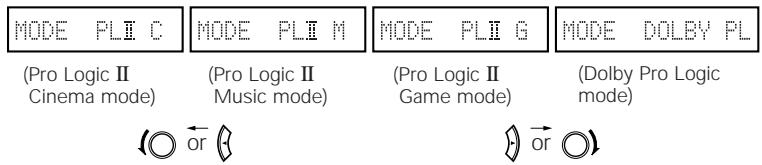

Select the various parameters. (See "Surround parameters ①" for a description of the various parameters.)
(Main unit)
(Remote control unit)
(Remote control unit)
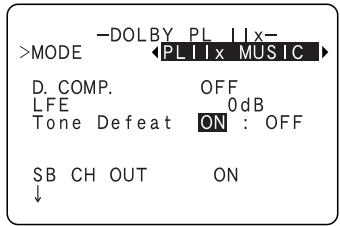
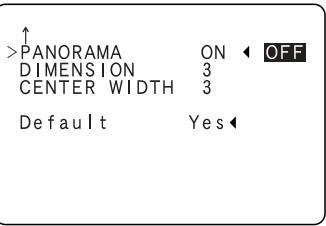

(Main unit)
(Remote control unit)
Set the various surround parameters.

When the surround parameters are set using the buttons on the main unit, stop operating buttons after completing the settings. The settings are automatically finalized and the normal display reappears after several seconds.

(Remote control unit)
Press the ENTER button to finish surround parameter mode.
NOTE:
- When making parameter settings, the display will return to the regular condition several seconds after the last button was pressed and the setting will be completed.
DTS NEO:6 mode
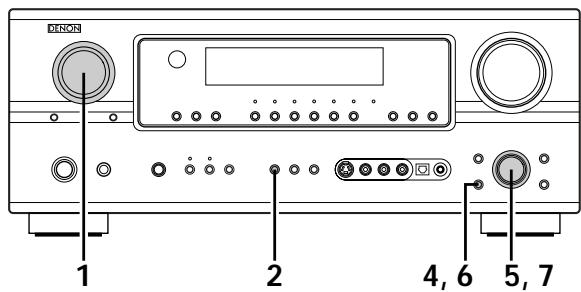
1 Select the function to which the component you want to play is connected.
Example: DVD
(Main unit)
(Remote control unit)
2 Select the DTS NEO:6 mode.

STANDARD
(Main unit)
(Remote control unit)
- The mode switches as shown below each time the button is pressed.

3 Play a program source.
4 Select the surround parameter mode.

SURROUND PARAMETER
(Main unit)

SURROUND PARAMETER
(Remote control unit)
Display
MODE cinema
-PTS
MODE
CINEMA EQ. D.COMP
D.C LEE
Tone Defeat
0:6-
CINEMAI ON
ON OFF
OPF 0dE
ON :
SB CH OUT
Default
ON
Yes
※ To perform this operation from the remote control unit, check that the mode selector switch is set to "AUDIO".
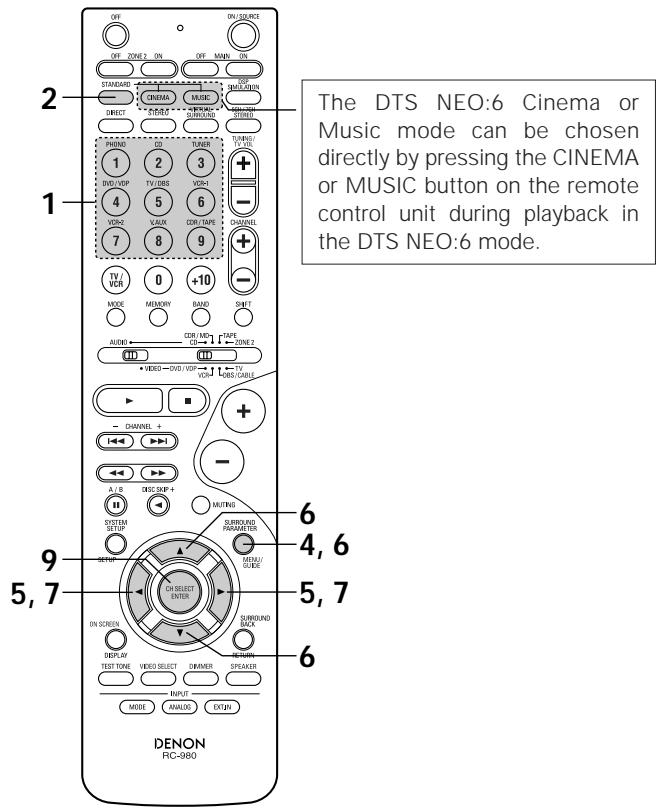
The DTS NEO:6 Cinema or Music mode can be chosen directly by pressing the CINEMA or MUSIC button on the remote control unit during playback in the DTS NEO:6 mode.
5 Select the optimum mode for the source.
(Main unit)

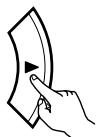
(Remote control unit)
IODE cinema

MODE music
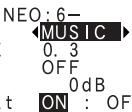
SB CH OUT Default
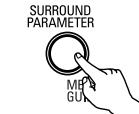
(Remote control unit)
(Remote control unit)
6 Select the various parameters.
(Main unit)
(Main unit)
(Remote control unit)
7 Set the various surround parameters.

When the surround parameters are set using the buttons on the main unit, stop operating buttons after completing the settings. The settings are automatically finalized and the normal display reappears after several seconds.
(Main unit)
9 Press the ENTER button to finish surround parameter mode.
(Remote control unit)
NOTE:
- When making parameter settings, the display will return to the regular condition several seconds after the last button was pressed and the setting will be completed.
Surround parameters ①
Pro Logic IIx and Pro Logic II Mode:
- The Cinema mode is for use with stereo television shows and all programs encoded in Dolby Surround.
- The Music mode is recommended as the standard mode for auto sound music systems (no video), and is optional for A/V systems.
- The Pro Logic mode offers the same robust surround processing as original Pro Logic in case the source contents is not of optimum quality.
- The Game mode for playing games. The game mode can only be used with 2-channel audio sources.
Select one of the modes ("Cinema", "Music", "Pro Logic" or "Game").
Panorama Control:
This mode extends the front stereo image to include the surround speakers for an exciting "wraparound" effect with side wall imaging.
Select "OFF" or "ON".
Dimension Control:
This control gradually adjust the soundfield either towards the front or towards the rear.
The control can be set in 7 steps from 0 to 6.
Center Width Control:
This control adjust the center image so it may be heard only from the center speaker; only from the left/right speakers as a phantom image; or from all three front speakers to varying degrees.
The control can be set in 8 steps from 0 to 7.
DTS NEO:6 Mode:
Cinema
This mode is optimum for playing movies. Decoding is performed with emphasis on separation performance to achieve the same atmosphere with 2-channel sources as with 6.1-channel sources.
This mode is effective for playing sources recorded in conventional surround formats as well, because the in-phase component is assigned mainly to the center channel (C) and the reversed phase component to the surround (SL, SR and SB channels).
Music
This mode is suited mainly for playing music. The front channel (FL and FR) signals bypass the decoder and are played directly so there is no loss of sound quality, and the effect of the surround signals output from the center (C) and surround (SL, SR and SB) channels add a natural sense of expansion to the sound field.
CENTER IMAGE (0.0 to 1.0: default 0.3):
The center image parameter for adjusting the expansion of the center channel in the DTS NEO:6 MUSIC mode has been added.
Dolby Digital mode (only with digital input) and DTS Surround (only with digital input)
1 Select the input source.
Playback with a digital input
① Select an input source set to digital (COAXIAL/OPTICAL) (see page 29).
Example: DVD
(Main unit)
(Remote control unit)
② Set the input mode to "AUTO" or DTS.
(Main unit)
(Remote control unit)
2 Select the STANDARD (Dolby/DTS Surround) mode.

STANDARD
(Main unit)
(Remote control unit)
When performing this operation from the main unit's panel, press the SURROUND MODE button, then turn the SELECT knob and select Dolby Pro Logic IIx or DTS NEO:6.
(Main unit)
(Main unit)
3 Operate the SURROUND BACK button to switch Surround Back CH ON/OFF.
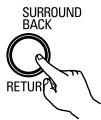
(Remote control unit)
- Lights when the SURROUND BACK button is on.
4 Play a program source with the DOLBY mark. DIGITAL
DIGITAL

Light
- The Dolby Digital indicator lights when playing Dolby Digital sources.

Light
- The DTS indicator lights when playing DTS sources.
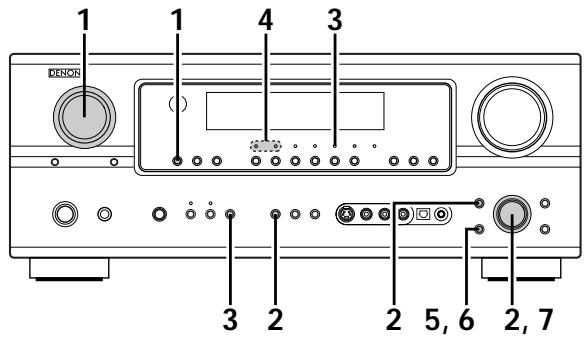
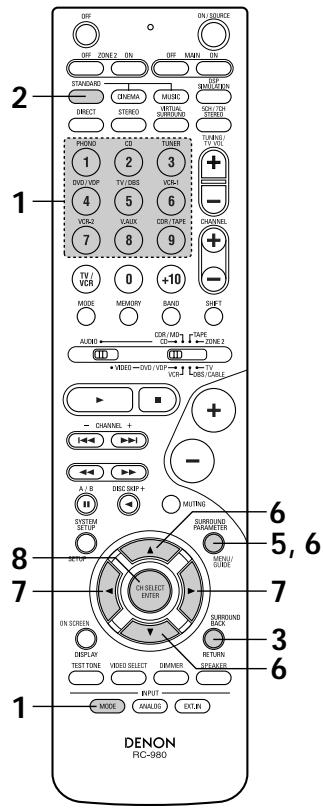
Display the surround parameter menu.
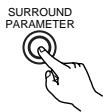
(Main unit)
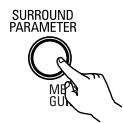
(Remote control unit)
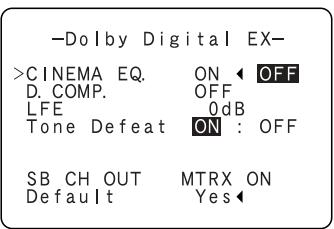
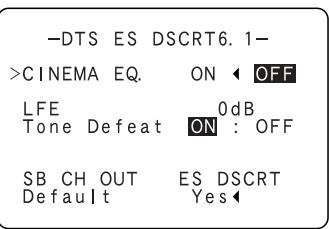
6 Select the various parameters.
(Main unit)
(Remote control unit)
(Remote control unit)
7 Adjust the parameter settings.
(Main unit)

(Remote control unit)
Press the ENTER button to finish surround parameter mode.
(Remotecnol unit)
NOTE:
- When making parameter settings, the display will return to the regular condition several seconds after the last button was pressed and the setting will be completed.
Dialogue Normalization
The dialogue normalization function is activated automatically when playing Dolby Digital program sources.
Dialogue normalization is a basic function of Dolby Digital which automatically normalizes the dialog level (standard level) of the signals which are recorded at different levels for different program sources, such as DVD, DTV and other future formats that will use Dolby Digital.
These contents can be verified with the STATUS and ON SCREEN buttons.
Display

The number indicates the normalization level when the currently playing program is normalized to the standard level.
Checking the input signal
The input signal can be checked by pressing the remote control unit's ON SCREEN button.
ON SCREEN
(Remote control unit)
Mode:Dolby Digital EX
SIGNAL:DOLBY DIGITAL
f s :48kHz
FORMAT:3/3/.1
OFFSET:-4dB
FLAG :MATRIX
OSD-1
SIGNAL: Displays the type of signal (DTS, DOLBY DIGITAL, PCM, etc.).
fs: Displays the input signal's sampling frequency.
FORMAT: Displays the input signal's number of channels.
"Number of front channels/Number of surround channels/LFE on/off"
"SURROUND" is displayed for 2-channel signal sources recorded in Dolby Surround.
OFFSET: Displays the dialog normalization offset value.
FLAG: Displays the special identification signal recorded in the input signal.
" MATRIX" is displayed when matrix processing is conducted on the surround back
channel, "DISCRETE" is displayed when discrete processing is conducted.
Not displayed when no identification signal is recorded.
In addition, screen information is displayed in the following order when the ON SCREEN button is pressed repeatedly:
OSD-1 Input signal
OSD-2 Input/output
OSD-3 Auto surround mode
OSD-4~10 Tuner preset stations
Mode: DTS ES DSCRT6.1
SIGNAL:DTS
fs :48kHz
FORMAT:3/3/.1
FLAG :DISCRETE
OSD-1
NOTE:
OSD-3: This is displayed when the auto surround mode is set to "ON" and the input mode is set to "Auto".
It is not displayed when the input mode is set to "Analog" or "EXT.IN".
Surround parameters ②
CINEMA EQ. (Cinema Equalizer):
The Cinema EQ function gently decreases the level of the extreme high frequencies, compensating for overly-bright sounding motion picture soundtracks. Select this function if the sound from the front speakers is too bright.
This function only works in the Dolby Pro Logic IIx, Dolby Digital, DTS Surround and DTS NEO:6 modes. (The same contents are set for all operating modes.)
D.COMP. (Dynamic Range Compression):
Motion picture soundtracks have tremendous dynamic range (the contrast between very soft and very loud sounds). For listening late at night, or whenever the maximum sound level is lower than usual, the Dynamic Range Compression allows you to hear all of the sounds in the soundtrack (but with reduced dynamic range). (This only works when playing program sources recorded in Dolby Digital or DTS.) Select one of the four parameters ("OFF", "LOW", "MID" (middle) or "HI" (high)). Set to OFF for normal listening.
LFE (Low Frequency Effect):
This sets the level of the LFE (Low Frequency Effect) sounds included in the source when playing program sources recorded in Dolby Digital or DTS.
If the sound produced from the subwoofer sounds distorted due to the LFE signals when playing Dolby Digital or DTS sources when the peak limiter is turned off with the subwoofer peak limit level setting (system setup menu), adjust the level as necessary.
Program source and adjustment range:
- Dolby Digital: -10 dB to 0 dB
- DTS Surround: -10 dB to 0 dB
※ When DTS encoded movie software is played, it is recommended that the LFE LEVEL be set to 0 dB for correct DTS playback.
※ When DTS encoded music software is played, it is recommended that the LFE LEVEL be set to -10 dB for correct DTS playback.
TONE:
This adjusts the tone control. This can be set individually for the separate shroud mode other than Pure direct and direct mode.
SB CH OUT (Surround Back):
(1) (Multi channel source)
"OFF".Playback is conducted without using the surround back speaker.
"NON MTRX" ....The same signals those of the surround channels are output from the surround back channels.
"MTRX ON" ......Surround back channel is reproduced using digital matrix processing.
"ES MTRX" .......When playing DTS signals, the surround back signals undergo digital matrix processing for playback.
"ES DSCRT" .......When a signal identifying the source as a discrete 6.1-channel source is included in the DTS signals, the surround back signals included in the source are played.
"PL IIx Cinema".Processing is performed with the Cinema mode of the PL IIx decoder and the Surround Back channel is reproduced.
"PL IIx Music" ....Processing is performed with the Music mode of the PL IIx decoder and the Surround Back channel is reproduced.
(2) (2ch source)
"OFF" .Playback is conducted without using the surround back speaker.
"ON".......Playback is conducted using the surround back speaker.
NOTE: This operation can be performed directly using the SURROUND BACK button on the main unit's panel.
- This unit is equipped with a high performance DSP (Digital Signal Processor) which uses digital signal processing to synthetically recreate the sound field. One of 7 preset surround modes can be selected according to the program source and the parameters can be adjusted according to the conditions in the listening room to achieve a more realistic, powerful sound.
Surround modes and their features
| 1 | 5CH/7CH STEREO | The front left channel signals are output to the surround and surround back signal left channels, the front right channel signals are output to the surround and surround back signal right channels, and the in-phase component of the left and right channels is output to the center channel. Use this mode to enjoy stereo sound. |
| 2 | MONO MOVIE (NOTE 1) | Select this when watching monaural movies for a greater sense of expansion. |
| 3 | ROCK ARENA | Use this mode to achieve the feeling of a live concert in an arena with reflected sounds coming from all directions. |
| 4 | JAZZ CLUB | This mode creates the sound field of a live house with a low ceiling and hard walls. This mode gives jazz a very vivid realism. |
| 5 | VIDEO GAME | Use this to enjoy video game sources. |
| 6 | MATRIX | Select this to emphasize the sense of expansion for music sources recorded in stereo. Signals consisting of the difference component of the input signals (the component that provides the sense of expansion) processed for delay are output from the surround channel. |
| 7 | VIRTUAL | Select this mode to enjoy a virtual sound field, produced from the front 2-channel speakers or headphones. |
- Depending on the program source being played, the effect may not be very noticeable.
In this case, try other surround modes, without worrying about their names, to create a sound field suited to your tastes.
NOTE 1: When playing sources recorded in monaural, the sound will be one-sided if signals are only input to one channel (left or right), so input signals to both channels. If you have a source component with only one audio output (monophonic camcorder, etc.) obtain a "Y" adapter cable to split the mono output to two outputs, and connect to the L and R inputs.
Personal Memory Plus
This set is equipped with a personal memorize function that automatically memorizes the surround modes and input modes selected for the input different sources. When the input source is switched, the modes set for that source last time it was used are automatically recalled.
The surround parameters, tone control settings and playback level balance for the different output channels are memorized for each surround mode.
DSP surround simulation
- To operate the surround mode and surround parameters from the remote control unit.
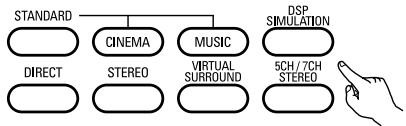
1 Select the surround mode for the input channel.
(Remote control unit)
The surround mode switches in the following order each time the DSP SIMULATION button is pressed:

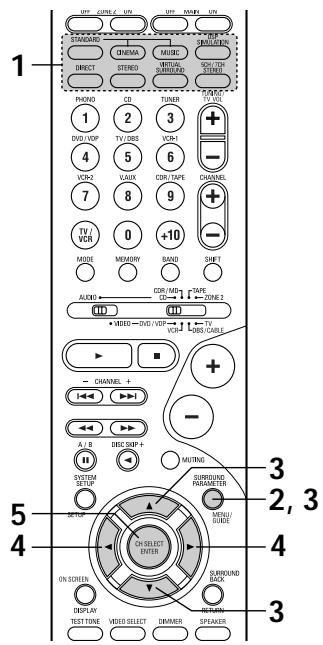
2 To enter the surround parameter setting mode, press the SURROUND PARAMETER button.
- The surround parameter switches in the following order each time the SURROUND PARAMETER button is pressed for the different surround modes.
-ROCK ARENA
ROOM SIZE
EFFECT 10
(Remote control unit)
Tone Defeat ON : OFF
SB CH OUT ON Default Yes
3 SURROUND PARAMETER
(Remote control unit)
(Remotecnrolunit)
4 Adjust the parameter settings.
(Remote control unit)
Adjust the parameter settings.
Press the ENTER button to finish surround parameter mode.
(Remote control unit)
Press the ENTER button to finish surround parameter mode.
NOTE:
-
When making parameter settings, the display will return to the regular condition several seconds after the last button was pressed and the setting will be completed.
-
Operating the surround mode and surround parameters from the main unit's panel.
1 Turn the SELECT knob to select the surround mode.

(Main unit)
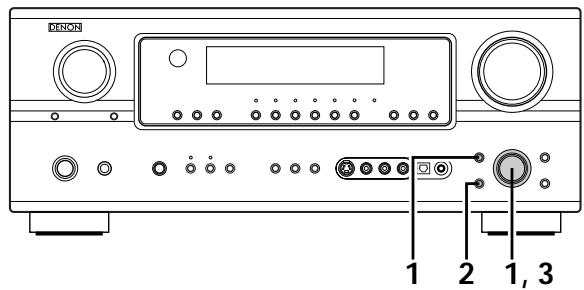
- When turned clockwise

- When turned counterclockwise

To select the surround mode while adjusting the surround parameters, tone defeat or tone control, press the SURROUND MODE button then operate the selector.
(Main unit)
Press the SURROUND PARAMETER button.
Press and hold in the surround parameter button to select the parameter you want to set.
- The parameters which can be set differ for the different surround modes. (Refer to "Surround Modes and Parameters" on page 60.)
(Main unit)
3 Display the parameter you want to adjust, then turn the SELECT knob to set it.
NOTE:
- When making parameter settings, the display will return to the regular condition several seconds after the last button was pressed and the setting will be completed.
Surround parameters ③
ROOM SIZE:
This sets the size of the sound field.
There are five settings: "small", "med.s" (medium-small), "medium", "med.l" (medium-large) and "large". "small" recreates a small sound field, "large" a large sound field.
EFFECT LEVEL:
This sets the strength of the surround effect.
The level can be set in 15 steps from 1 to 15. Lower the level if the sound seems distorted.
DELAY TIME:
In the matrix mode only, the delay time can be set within the range of 0 to 110 ms.
Surround modes and parameters
| Mode | Signals and adjustability in the different modes | ||||||||
| Channel output | When playing Dolby Digital signals | When playing DTS signals | When playing PCM signals | When playing ANALOG signals | |||||
| FRONT L/R | CENTER | SURROUND L/R | SURROUND BACK L/R | SUBWOOFER | |||||
| DIRECT | ○ | × | × | × | ◎ | ○ | ○ | ○ | ○ |
| STEREO | ○ | × | × | × | ◎ | ○ | ○ | ○ | ○ |
| EXTERNAL INPUT | ○ | ◎ | ◎ | ◎ | ◎ | × | × | × | ○ |
| DOLBY PRO LOGIC II | ○ | ◎ | ◎ | ◎ | ◎ | ○* | ○* | ○ | ○ |
| DOLBY PRO LOGIC IIx | ○ | ◎ | ◎ | ◎ | ◎ | ○* | ○ | ○ | ○ |
| DTS NEO:6 | ○ | ◎ | ◎ | ◎ | ◎ | ○* | ○* | ○ | ○ |
| DOLBY DIGITAL | ○ | ◎ | ◎ | ◎ | ◎ | ○ | × | × | × |
| DTS SURROUND | ○ | ◎ | ◎ | ◎ | ◎ | × | ○ | × | × |
| 5CH/7CH STEREO | ○ | ◎ | ◎ | ◎ | ◎ | ○ | ○ | ○ | ○ |
| ROCK ARENA | ○ | ◎ | ◎ | ◎ | ◎ | ○ | ○ | ○ | ○ |
| JAZZ CLUB | ○ | ◎ | ◎ | ◎ | ◎ | ○ | ○ | ○ | ○ |
| VIDEO GAME | ○ | ◎ | ◎ | ◎ | ◎ | ○ | ○ | ○ | ○ |
| MONO MOVIE | ○ | ◎ | ◎ | ◎ | ◎ | ○ | ○ | ○ | ○ |
| MATRIX | ○ | ◎ | ◎ | ◎ | ◎ | ○ | ○ | ○ | ○ |
| VIRTUAL | ○ | × | × | × | ◎ | ○ | ○ | ○ | ○ |
| ○: Signal / Adjustable×: No signal◎: Turned on or off by speaker configuration setting | ○: Able×: Unable* Only for 2 ch contents | ||||||||
This unit is equipped with a function for automatically searching for FM broadcast stations and storing them in the preset memory. The "Auto tuner preset" operation can also be performed at "System setup". (See page 33.)
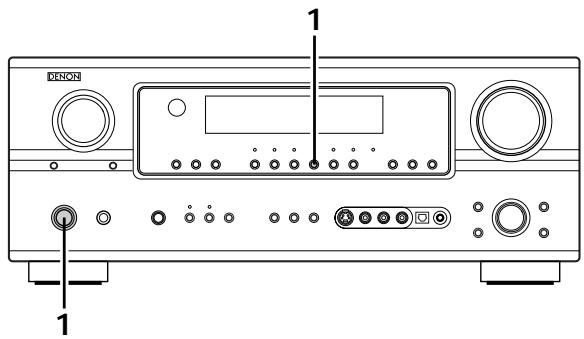
When the main unit's power operation switch turn on while pressing the set's PRESET (+) button the unit automatically begins searching for FM broadcast stations.
ON/STANDBY
2 When the first FM broadcast station is found, that station is stored in the preset memory at channel A1. Subsequent stations are automatically stored in order at preset channels A1 to A8, B1 to B8, C1 to C8, D1 to D8, E1 to E8, F1 to F8 and G1 to G8 for a maximum of 56 stations.
3 Channel A1 is tuned in after the auto preset memory operation is completed.
NOTES:
- If an FM station cannot be preset automatically due to poor reception, use the "Manual tuning" operation to tune in the station, then preset it using the manual "Preset memory" operation.
- To interrupt this function, press the power operation button.
DEFAULTVALUE
| AUTO TUNER PRESETS | |
| A1 ~ A8 | 87.5/89.1/98.1/107.9/90.1/90.1/90.1 MHz |
| B1 ~ B8 | 520/600/1000/1400/1500/1710 kHz/90.1/90.1 MHz |
| C1 ~ C8 | 90.1 MHz |
| D1 ~ D8 | 90.1 MHz |
| E1 ~ E8 | 90.1 MHz |
| F1 ~ F8 | 90.1 MHz |
| G1 ~ G8 | 90.1 MHz |
Auto tuning
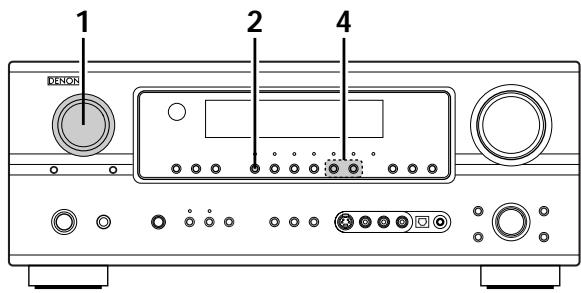
1 Set the input source to "TUNER".
(Main unit)
(Remote control unit)
2 Watching the display, press the BAND button to select the desired band (AM or FM).
(Main unit)
(Remote control unit)
Press the MODE button to set the auto tuning mode.

(Remote control unit)
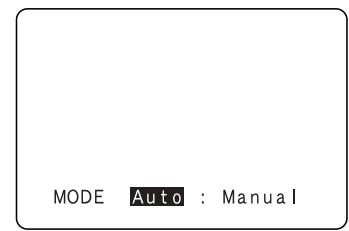
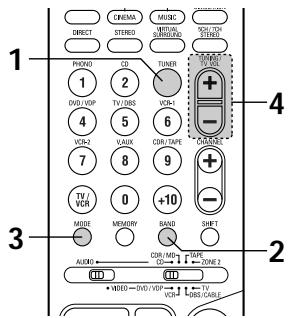
Press the TUNING (+) or (-) button.
(Main unit)
(Remote control unit)
Automatic searching begins, then stops when a station is tuned in.
NOTE:
- When in the auto tuning mode on the FM band, the "STEREO" indicator lights on the display when a stereo broadcast is tuned in. At open frequencies, the noise is muted and the "TUNED" and "STEREO" indicators turn off.
Manual tuning
1 Set the input function to "TUNER".
2 Watching the display, press the BAND button to select the desired band (AM or FM).
Press the MODE button to set the manual tuning mode. Check that the display's "AUTO" indicator turns off.
Press the TUNING (+) or (-) button to tune in the desired station. The frequency changes continuously when the button is held in.
NOTE:
- When the manual tuning mode is set, FM stereo broadcasts are received in monaural and the "STEREO" indicator turns off.
Preset stations
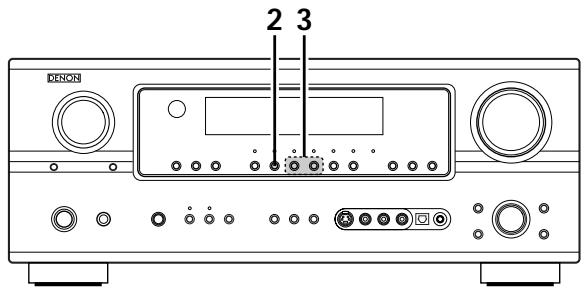
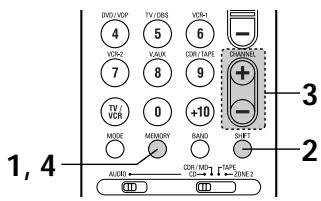
Preparations:
Use the "Auto tuning" or "Manual tuning" operation to tune in the station to be preset in the memory.

(Remotecnrolunit)
Press the MEMORY button.

Press the SHIFT button and select the desired memory block (A to G).
(Main unit)
(Remote control unit)
NOTE: Please make sure the "AUDIO" position of the slide switch on the remote control unit.

Press the PRESET (+) or (-) button to select the desired preset channel (1 to 8).
(Main unit)
(Remote control unit)

(Remote control unit)
Press the MEMORY button again to store the station in the preset memory.
※ To preset other channels, repeat steps 1 to 4.
A total of 56 broadcast stations can be preset -8 stations (channels 1 to 8) in each of blocks A to G.
Checking the preset stations
- The preset (broadcast) stations can be checked on the on screen display.
Press the ON SCREEN/DISPLAY button repeatedly until the "Tuner Preset Stations" screen appears on the OSD.
(Remote control unit)
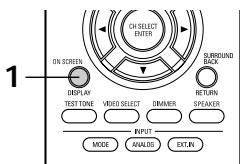
Tuner Preset Stations
A1
FN
8
7.5
OM
Hz
A2
EN
18
9
ON
Hz
A
1
10
3.
ON
A3
H
9
8.
ON
A4
E1
110
7
A4
10
.
A5
F
19
0.
A6
F
19
0.
A7
E
9
0
A8
F
0
0.
A0
F
19
0.
QSD-4
Recalling preset stations
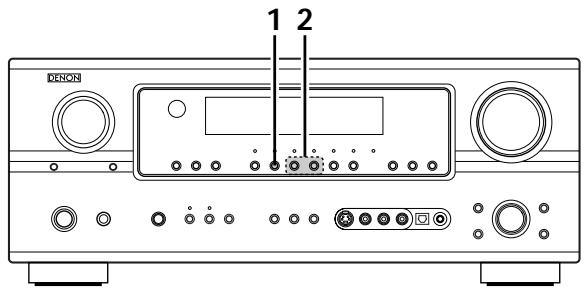
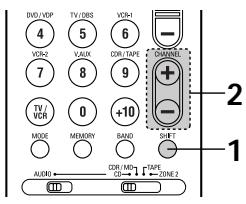
1 Watching the display, press the SHIFT button to select the preset memory block.
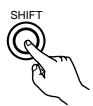
(Main unit)
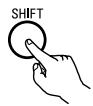
(Remote control unit)
NOTE: Please make sure the "AUDIO" position of the slide switch on the remote control unit.
2 Watching the display, press the PRESET (+) or (-) button to select the desired preset channel.
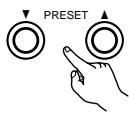
(Main unit)
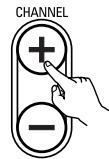
(Remote control unit)
15 LAST FUNCTION MEMORY
This unit is equipped with a last function memory which stores the input and output setting conditions as they were immediately before the power is switched off.
This function eliminates the need to perform complicated resettings when the power is switched on.
- The unit is also equipped with a back-up memory. This function provides approximately one week of memory storage when the main unit's power switch is off and with the power cord disconnected.
16 INITIALIZATION OF THE MICROPROCESSOR (RESET)
When the indication of the display is not normal or when the operation of the unit does not show the reasonable result, the initialization of the microprocessor is required by the following procedure.
1 Switch off the unit using the main unit's power switch.
2 Hold the following SPEAKER A button and B button, and turn the main unit's power switch.
3 Check that the entire display is flashing with an interval of about 1 second, and release your fingers from the 2 buttons and the microprocessor will be initialized.
NOTES:
- If step 3 does not work, start over from step 1.
- If the microprocessor has been reset, all the button settings are reset to the default values (the values set upon shipment from the factory).
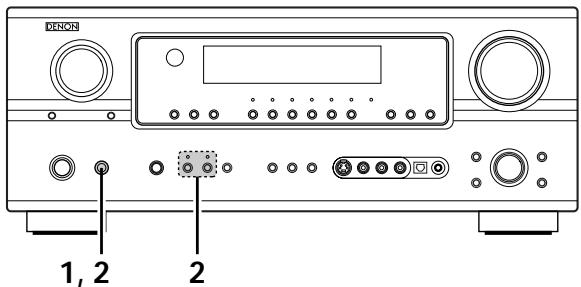
17 ADDITIONAL INFORMATION
Optimum surround sound for different sources
There are currently various types of multi-channel signals (signals or formats with more than two channels).
Types of multi-channel signals
Dolby Digital, Dolby Pro Logic, DTS, high definition 3-1 signals (Japan MUSE Hi-Vision audio), DVD-Audio, SACD (Super Audio CD), MPEG multi-channel audio, etc.
"Source" here does not refer to the type of signal (format) but the recorded content. Sources can be divided into two major categories.
Types of sources
- Movie audio
Signals created to be played in movie theaters. In general sound is recorded to be played in movie theaters equipped with multiple surround speakers, regardless of the format (Dolby Digital, DTS, etc.).
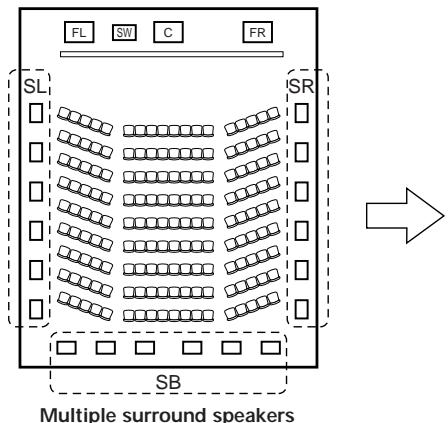
Movie theater sound field
(For 6.1-channel system)
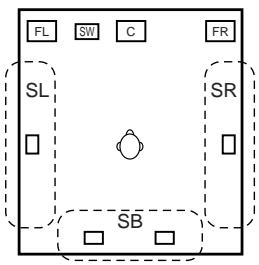
Listening room sound field
In this case it is important to achieve the same sense of expansion as in a movie theater with the surround channels. To do so, in some cases the number of surround speakers is increased (to four or eight) or speakers with bipolar or dipolar properties are used.
/SL: Surround L channel
SR: Surround R channel
SB: Surround back channel (1 spkr or 2 spkrs)
- Other types of audio These signals are designed to recreate a 360^ sound field using three to five speakers.
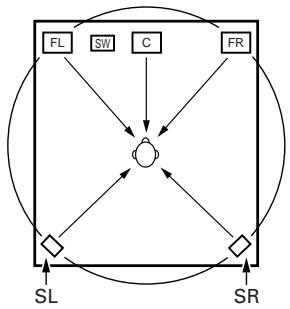
In this case the speakers should surround the listener from all sides to create a uniform sound field from 360^ . Ideally the surround speakers should function as "point" sound sources in the same way as the front speakers.
These two types of sources thus have different properties, and different speaker settings, particularly for the surround speakers, are required in order to achieve the ideal sound.
The AVR-2105/885 is equipped the function of surround speakers selection that makes it possible to change the settings according to the combination of surround speakers being used and the surrounding environment in order to achieve the ideal surround sound for all sources. This means that you can connect a pair of bipolar or dipolar surround speakers (mounted on either side of the prime listening position), as well as a separate pair of direct radiating (monopolar) speakers placed at the rear corners of the listening room.
Surround back speakers
A 6.1-channel system is a conventional 5.1-channel system to which the "surround back" (SB) channel has been added. This makes it easy to achieve sound positioned directly behind the listener, something that was previously difficult with sources designed for conventional multi surround speakers. In addition, the acoustic image extending between the sides and the rear is narrowed, thus greatly improving the expression of the surround signals for sounds moving from the sides to the back and from the front to the point directly behind the listening position.
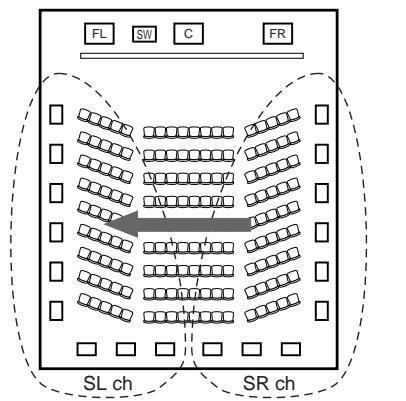
Change of positioning and acoustic image with 5.1-channel systems
Movement of acoustic image from SR to SL
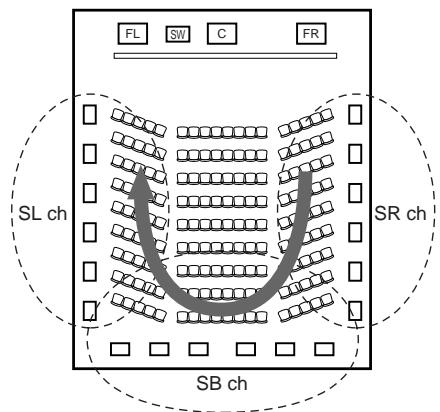
Change of positioning and acoustic image with 6.1-channel systems
Movement of acoustic image from SR to SB to SL
With this set, speaker(s) for 1 or 2 channels are required to achieve a 6.1-channel system (DTS-ES, etc.). Adding these speakers, however, increases the surround effect not only with sources recorded in 6.1 channels but also with conventional 2- to 5.1-channel sources. The WIDE SCREEN mode is a mode for achieving surround sound with up to 7.1 channels using surround back speakers, for sources recorded in conventional Dolby Surround as well as Dolby Digital 5.1-channel and DTS Surround 5.1-channel sources. Furthermore, all the Denon original surround modes (see page 57) are compatible with 7.1-channel playback, so you can enjoy 7.1-channel sound with any signal source.
Number of surround back speakers
Though the surround back channel only consists of 1 channel of playback signals for 6.1-channel sources (DTS-ES, etc.), we recommend using two speakers. When using speakers with dipolar characteristics in particular, it is essential to use two speakers.
Using two speakers results in a smoother blend with the sound of the surround channels and better sound positioning of the surround back channel when listening from a position other than the center.
■ Placement of the surround left and right channels when using surround back speakers
Using surround back speakers greatly improves the positioning of the sound at the rear. Because of this, the surround left and right channels play an important role in achieving a smooth transition of the acoustic image from the front to the back. As shown on the diagram above, in a movie theater the surround signals are also produced from diagonally in front of the listeners, creating an acoustic image as if the sound were floating in space.
To achieve these effects, we recommend placing the speakers for the surround left and right channels slightly more towards the front than with conventional surround systems. Doing so sometimes increases the surround effect when playing conventional 5.1-channel sources in the 6.1 surround or DTS-ES Matrix 6.1 mode. Check the surround effects of the various modes before selecting the surround mode.
Speaker setting examples
Here we describe a number of speaker settings for different purposes. Use these examples as guides to set up your system according to the type of speakers used and the main usage purpose.
1. DTS-ES compatible system (using surround back speakers)
(1) Basic setting for primarily watching movies
This is recommended when mainly playing movies and using regular single way or 2-way speakers for the surround speakers.
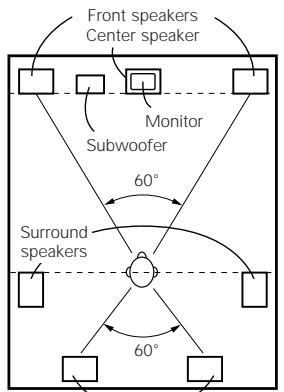
Surround back speakers
As seen from above
- Set the front speakers with their front surfaces as flush with the TV or monitor screen as possible. Set the center speaker between the front left and right speakers and no further from the listening position than the front speakers.
- Consult the owner's manual for your subwoofer for advice on placing the subwoofer within the listening room.
- If the surround speakers are direct-radiating (monopolar) then place them slightly behind and at an angle to the listening position and parallel to the walls at a position 2 to 3 feet (60 to 90~cm ) above ear level at the prime listening position.
- When using two surround back speakers, place them at the back facing the front at a narrower distance than the front left and right speakers. When using one surround back speaker, place it at the rear center facing the front at a slightly higher position 0 to 0.7 feet (0 to 20cm ) than the surround speakers.
- We recommend installing the surround back speaker(s) at a slightly downward facing angle. This effectively prevents the surround back channel signals from reflecting off the monitor or screen at the front center, resulting in interference and making the sense of movement from the front to the back less sharp.
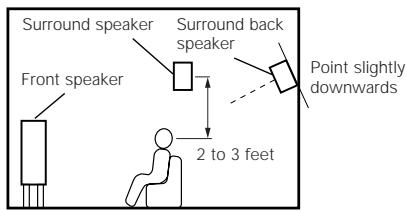
As seen from the side
(2) Setting for primarily watching movies using diffusion type speakers for the surround speakers
For the greatest sense of surround sound envelopment, diffuse radiation speakers such as bipolar types, or dipolar types, provide a wider dispersion than is possible to obtain from a direct radiating speaker (monopolar). Place these speakers at either side of the prime listening position, mounted above ear level.
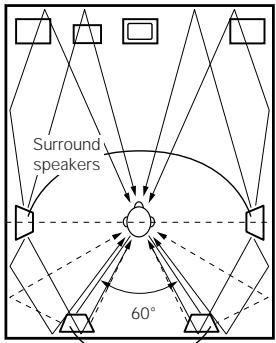
Path of the surround sound from the speakers to the listening position
Surround back speakers
As seen from above
- Set the front speakers, center speaker and subwoofer in the same positions as in example (1).
- It is best to place the surround speakers directly at the side or slightly to the front of the viewing position, and 2 to 3 feet (60 to 90 cm) above the ears.
- Same as surround back speaker installation method (1).
Using dipolar speakers for the surround back speakers as well is more effective.
- The signals from the surround channels reflect off the walls as shown on the diagram at the left, creating an enveloping and realistic surround sound presentation.
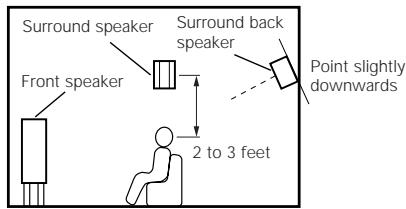
As seen from the side
2. When not using surround back speakers
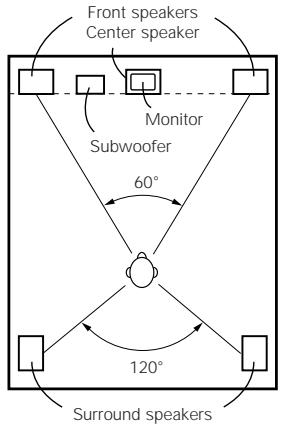
As seen from above
- Set the front speakers with their front surfaces as flush with the TV or monitor screen as possible. Set the center speaker between the front left and right speakers and no further from the listening position than the front speakers.
- Consult the owner's manual for your subwoofer for advice on placing the subwoofer within the listening room.
- If the surround speakers are direct-radiating (monopolar) then place them slightly behind and at an angle to the listening position and parallel to the walls at a position 2 to 3 feet (60 to 90~cm ) above ear level at the prime listening position.
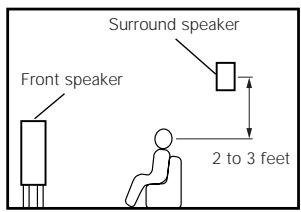
As seen from the side
Surround
The AVR-2105/885 is equipped with a digital signal processing circuit that lets you play program sources in the surround mode to achieve the same sense of presence as in a movie theater.
Dolby Surround
(1) Dolby Digital
Dolby Digital is the multi-channel digital signal format developed by Dolby Laboratories.
Dolby Digital consists of up to "5.1" channels - front left, front right, center, surround left, surround right, and an additional channel exclusively reserved for additional deep bass sound effects (the Low Frequency Effects - LFE - channel, also called the ".1" channel, containing bass frequencies of up to 120 Hz).
Unlike the analog Dolby Pro Logic format, Dolby Digital's main channels can all contain full range sound information, from the lowest bass, up to the highest frequencies - 22 kHz. The signals within each channel are distinct from the others, allowing pinpoint sound imaging, and Dolby Digital offers tremendous dynamic range from the most powerful sound effects to the quietest, softest sounds, free from noise and distortion.
Dolby Digital and Dolby Pro Logic
| Comparison of home surround systems | Dolby Digital | Dolby Pro Logic |
| No. recorded channels (elements) | 5.1 ch | 2 ch |
| No. playback channels | 5.1 ch | 4 ch |
| Playback channels (max.) | L, R, C, SL, SR, SW | L, R, C, S (SW - recommended) |
| Audio processing | Digital discrete processing Dolby Digital encoding/decoding | Analog matrix processing Dolby Surround |
| High frequency playback limit of surround channel | 20 kHz | 7 kHz |
Dolby Digital compatible media and playback methods
Marks indicating Dolby Digital compatibility: DOLBY DIGITAL
The following are general examples. Also refer to the player's operating instructions.
| Media | Dolby Digital output jacks | Playback method (reference page) |
| LD (VDP) | Coaxial Dolby Digital RF output jack ※1 | Set the input mode to “AUTO”. (Page 40) |
| DVD | Optical or coaxial digital output (same as for PCM) ※2 | Set the input mode to “AUTO”. (Page 40) |
| Others (satellite broadcasts, CATV, etc.) | Optical or coaxial digital output (same as for PCM) | Set the input mode to “AUTO”. (Page 40) |
※ 1 Please use a commercially available adapter when connecting the Dolby Digital RF output jack of the LD player to the digital input jack. Please refer to the instruction manual of the adapter when making connection.
※2 Some DVD digital outputs have the function of switching the Dolby Digital signal output method between "bit stream" and "(convert to) PCM". When playing in Dolby Digital surround on the AVR-2105/885, switch the DVD player's output mode to "bit stream". In some cases players are equipped with both "bit stream + PCM" and "PCM only" digital outputs. In this case connect the "bit stream + PCM" jacks to the AVR-2105/885.
(2) Dolby Pro Logic IIx
- Dolby Pro Logic IIx furthers the matrix decoding technology of Dolby Pro Logic II to decode audio signals recorded on two channels into up to 7.1 playback channels, including the surround back channel. Dolby Pro Logic IIx also allows 5.1-channel sources to be played in up to 7.1 channels.
The mode can be selected according to the source. The Music mode is best suited for playing music, the Cinema mode for playing movies, and the Game mode for playing games. The Game mode can only be used with 2-channel audio sources.
(3) Dolby Pro Logic II
- Dolby Pro Logic II is a new multi-channel playback format developed by Dolby Laboratories using feedback logic steering technology and offering improvements over conventional Dolby Pro Logic circuits.
- Dolby Pro Logic II can be used to decode not only sources recorded in Dolby Surround (※) but also regular stereo sources into five channels (front left, front right, center, surround left and surround right) to achieve surround sound.
- Whereas with conventional Dolby Pro Logic the surround channel playback frequency band was limited, Dolby Pro Logic II offers a wider band range (20 Hz to 20 kHz or greater). In addition, the surround channels were monaural (the surround left and right channels were the same) with previous Dolby Pro Logic, but Dolby Pro Logic II they are played as stereo signals.
- Various parameters can be set according to the type of source and the contents, so it is possible to achieve optimum decoding (see page 60).
※ Sources recorded in Dolby Surround
These are sources in which three or more channels of surround have been recorded as two channels of signals using Dolby Surround encoding technology.
Dolby Surround is used for the sound tracks of movies recorded on DVDs, LDs and Video cassettes to be played on stereo VCRs, as well as for the stereo broadcast signals of FM radio, TV, satellite broadcasts and cable TV.
Decoding these signals with Dolby Pro Logic II makes it possible to achieve multi-channel surround playback. The signals can also be played on ordinary stereo equipment, in which case they provide normal stereo sound.
There are two types of DVD Dolby surround recording signals.
① 2-channel PCM stereo signals
② 2-channel Dolby Digital signals
When either of these signals is input to the AVR-2105/885, the surround mode is automatically set to Dolby Pro Logic II when the "DOLBY/CTS SURROUND" mode is selected.
Sources recorded in Dolby Surround are indicated with the logo mark shown below.
Dolby Surround support mark: DOLBY SURROUND
Manufactured under license from Dolby Laboratories.
"Dolby", "Pro Logic" and the double-D symbol are trademarks of Dolby Laboratories.
DTS Digital Surround
Digital Theater Surround (also called simply DTS) is a multi-channel digital signal format developed by Digital Theater Systems.
DTS offers the same "5.1" playback channels as Dolby Digital (front left, front right and center, surround left and surround right) as well as the stereo 2-channel mode. The signals for the different channels are fully independent, eliminating the risk of deterioration of sound quality due to interference between signals, crosstalk, etc.
DTS features a relatively higher bit rate as compared to Dolby Digital (1234 kbps for CDs and LDs, 1536 kbps for DVDs) so it operates with a relatively low compression rate. Because of this the amount of data is great, and when DTS playback is used in movie theaters, a separate CD-ROM synchronized with the film is played.
With LDs and DVDs, there is of course no need for an extra disc; the pictures and sound can be recorded simultaneously on the same disc, so the discs can be handled in the same way as discs with other formats.
There are also music CDs recorded in DTS. These CDs include 5.1-channel surround signals (compared to two channels on current CDs). They do not include picture data, but they offer surround playback on CD players that are equipped with digital outputs (PCM type digital output required).
DTS surround track playback offers the same intricate, grand sound as in a movie theater, right in your own listening room.
DTS compatible media and playback methods
Marks indicating DTS compatibility: and

SURROUND
The following are general examples. Also refer to the player's operating instructions.
| Media | Dolby Digital output jacks | Playback method (reference page) |
| CD | Optical or coaxial digital output (same as for PCM) ※2 | Set the input mode to “AUTO” or “DTS” (page 40). Never set the mode to “ANALOG” or “PCM”. ※1 |
| LD (VDP) | Optical or coaxial digital output (same as for PCM) ※2 | Set the input mode to “AUTO” or “DTS” (page 40). Never set the mode to “ANALOG” or “PCM”. ※1 |
| DVD | Optical or coaxial digital output (same as for PCM) ※3 | Set the input mode to “AUTO” or “DTS” (page 40). |
※ 1 DTS signals are recorded in the same way on CDs and LDs as PCM signals. Because of this, the un-decoded DTS signals are output as random "hissy" noise from the CD or LD player's analog outputs. If this noise is played with the amplifier set at a very high volume, it may possibly cause damage to the speakers. To avoid this, be sure to switch the input mode to "AUTO" or "DTS" before playing CDs or LDs recorded in DTS. Also, never switch the input mode to "ANALOG" or "PCM" during playback. The same holds true when playing CDs or LDs on a DVD player or LD/DVD compatible player. For DVDs, the DTS signals are recorded in a special way so this problem does not occur.
※ 2 The signals provided at the digital outputs of a CD or LD player may undergo some sort of internal signal processing (output level adjustment, sampling frequency conversion, etc.). In this case the DTS-encoded signals may be processed erroneously, in which case they cannot be decoded by the AVR-2105/885, or may only produce noise. Before playing DTS signals for the first time, turn down the master volume to a low level, start playing the DTS disc, then check whether the DTS indicator on the AVR-2105/885 (see page 41) lights before turning up the master volume.
※3 A DVD player with DTS-compatible digital output is required to play DTS DVDs. A DTS Digital Output logo is featured on the front panel of compatible DVD players. Recent DENON DVD player models feature DTS-compatible digital output – consult the player's owner's manual for information on configuring the digital output for DTS playback of DTS-encoded DVDs.
MANUFACTURED UNDER LICENSE FROM DIGITAL THEATER SYSTEMS, INC.
U.S. PAT. NO'S. 5,451,942; 5,956,674; 5,974,380; 5,978,762; 6,226,616; 6,487,535 AND OTHER U.S. AND WORLD-WIDE PATENTS ISSUED AND PENDING.
"DTS", "DTS-ES", "Neo:6", AND "DTS 96/24" ARE TRADEMARKS OF DIGITAL THEATER SYSTEMS, INC. © 1996, 2003 DIGITAL THEATER SYSTEMS, INC. ALL RIGHTS RESERVED.
DTS-ES Extended Surround™
DTS-ES Extended Surround is a new multi-channel digital signal format developed by Digital Theater Systems Inc. While offering high compatibility with the conventional DTS Digital Surround format, DTS-ES Extended Surround greatly improves the 360-degree surround impression and space expression thanks to further expanded surround signals. This format has been used professionally in movie theaters since 1999.
In addition to the 5.1 surround channels (FL, FR, C, SL, SR and LFE), DTS-ES Extended Surround also offers the SB (Surround Back, sometimes also referred to as "surround center") channel for surround playback with a total of 6.1 channels. DTS-ES Extended Surround includes two signal formats with different surround signal recording methods, as described below.
DTS-ES™ Discrete 6.1
DTS-ES Discrete 6.1 is the newest recording format. With it, all 6.1 channels (including the SB channel) are recorded independently using a digital discrete system. The main feature of this format is that because the SL, SR and SB channels are fully independent, the sound can be designed with total freedom and it is possible to achieve a sense that the acoustic images are moving about freely among the background sounds surrounding the listener from 360 degrees.
Though maximum performance is achieved when sound tracks recorded with this system are played using a DTS-ES decoder, when played with a conventional DTS decoder the SB channel signals are automatically down-mixed to the SL and SR channels, so none of the signal components are lost.
DTS-ES™ Matrix 6.1
With this format, the additional SB channel signals undergo matrix encoding and are input to the SL and SR channels beforehand. Upon playback they are decoded to the SL, SR and SB channels. The performance of the encoder used at the time of recording can be fully matched using a high precision digital matrix decoder developed by DTS, thereby achieving surround sound more faithful to the producer's sound design aims than with conventional 5.1- or 6.1-channel systems.
In addition, the bit stream format is 100% compatible with conventional DTS signals, so the effect of the Matrix 6.1 format can be achieved even with 5.1-channel signal sources. Of course it is also possible to play DTS-ES Matrix 6.1 encoded sources with a DTS 5.1-channel decoder.
When DTS-ES Discrete 6.1 or Matrix 6.1 encoded sources are decoded with a DTS-ES decoder, the format is automatically detected upon decoding and the optimum playing mode is selected. However, some Matrix 6.1 sources may be detected as having a 5.1-channel format, so the DTS-ES Matrix 6.1 mode must be set manually to play these sources.
(For instructions on selecting the surround mode, see page 54.)
The DTS-ES decoder includes another function, the DTS Neo:6 surround mode for 6.1-channel playback of digital PCM and analog signal sources.
DTS Neo:6™ surround
This mode applies conventional 2-channel signals to the high precision digital matrix decoder used for DTS-ES Matrix 6.1 to achieve 6.1-channel surround playback. High precision input signal detection and matrix processing enable full band reproduction (frequency response of 20Hz to 20kHz or greater) for all 6.1 channels, and separation between the different channels is improved to the same level as that of a digital discrete system.
DTS Neo:6 surround includes two modes for selecting the optimum decoding for the signal source.
DTS Neo:6 Cinema
This mode is optimum for playing movies. Decoding is performed with emphasis on separation performance to achieve the same atmosphere with 2-channel sources as with 6.1-channel sources.
This mode is effective for playing sources recorded in conventional surround formats as well, because the in-phase component is assigned mainly to the center channel (C) and the reversed phase component to the surround (SL, SR and SB channels).
- DTS Neo:6 Music
This mode is suited mainly for playing music. Changes in the sound quality are reduced by decoding with emphasis on the front channel signals (FL and FR), and a natural sense of expansion is given to the sound field by the effect of the surround signals output from the center (C) and surround (SL, SR and SB) channels.
DTS 96/24
The sampling frequency, number of bits and number of channels used for recording of music, etc., in studios has been increasing in recent years, and there are a growing number of high quality signal sources, including 96 kHz/24 bit 5.1-channel sources.
For example, there are high picture/sound quality DVD video sources with 96 kHz/24 bit stereo PCM audio tracks.
However, because the data rate for these audio tracks is extremely high, there are limits to recording them on two channels only, and since the quality of the pictures must be restricted it is common to only include still pictures.
In addition, 96 kHz/24 bit 5.1-channel surround is possible with DVD audio sources, but DVD audio players are required to play them with this high quality.
DTS 96/24 is a multi-channel digital signal format developed by Digital Theater Systems Inc. in order to deal with this situation.
Conventional surround formats used sampling frequencies of 48 or 44.1kHz , so 20kHz was about the maximum playback signal frequency. With DTS 96/24, the sampling frequency is increased to 96 or 88.2kHz to achieve a wide frequency range of over 40kHz .
In addition, DTS 96/24 has a resolution of 24 bits, resulting in the same frequency band and dynamic range as 96 kHz/24 bit PCM.
As with conventional DTS Surround, DTS 96/24 is compatible with a maximum of 5.1 channels, so sources recorded using DTS 96/24 can be played in high sampling frequency, multiple channel audio with such normal media as DVD videos and CDs.
Thus, with DTS 96/24, the same 96 kHz/24 bit multi-channel surround sound as with DVD-Audio can be achieved while viewing DVD-Video images on a conventional DVD-Video player (※1). Furthermore, with DTS 96/24 compatible CDs, 88.2 kHz/24 bit multi-channel surround can be achieved using normal CD/LD players (※1).
Even with the high quality multi-channel signals, the recording time is the same as with conventional DTS surround sources.
What's more, DTS 96/24 is fully compatible with the conventional DTS surround format, so DTS 96/24 signal sources can be played with a sampling frequency of 48kHz or 44.1kHz on conventional DTS or DTS-ES surround decoders ( ※2 ).
※1: A DVD player with DTS digital output capabilities (for CD/LD players, a player with digital outputs for conventional DTS CDs/LDs) and a disc recorded in DTS 96/24 are required.
※2: The resolution is 24 or 20 bits, depending on the decoder.
18 TROUBLESHOOTING
If a problem should arise, first check the following.
1.Are the connections correct?
2. Have you operated the receiver according to the Operating Instructions?
3. Are the speakers, turntable and other components operating property?
If this unit is not operating properly, check the items listed in the table below. Should the problem persist, there may be a malfunction. Disconnect the power immediately and contact your store of purchase.
| Symptom | Cause | Measures | Page | |
| Common problems when listening to the CD, records, tapes and FM broadcasts, etc. | DISPLAY not lit and sound not produced when power switch set to on. | • Power cord not plugged in securely. | • Check the insertion of the power cord plug. • Turn the power on with the remote control unit after turning the POWER switch on. | 7 39 |
| DISPLAY lit but sound not produced. | • Speaker cords not securely connected. • Improper position of the audio function button. • Volume control set to minimum. • MUTING is on. • Digital signals not input Digital input selected. | • Connect securely. • Set to a suitable position. • Turn volume up to suitable level. • Switch off MUTING. • Input digital signals or select input jacks to which digital signals are being input. | 14, 15 40 41 43 41 | |
| DISPLAY not lit and power indicator is flashing rapidly. | • Speaker terminals are short-circuited. • Block the ventilation holes of the set. • The unit is operating at continuous high power conditions and/or inadequate ventilation. | • Switch power off, connect speakers properly, then switch power back on. • Turn off the set's power, then ventilate it well to cool it down. Once the set is cooled down, turn the power back on. • Turn off the set's power, then ventilate it well to cool it down. Once the set is cooled down, turn the power back on. | 14, 15 5, 14 5, 14 | |
| Sound produced only from one channel. | • Incomplete connection of speaker cords. • Incomplete connection of input/output cords. | • Connect securely. • Connect securely. | 14, 15 7 ~ 15 | |
| Positions of instruments reversed during stereo playback. | • Reverse connections of left and right speakers or left and right input/output cords. | • Check left and right connections. | 15 | |
| When playing records | Humming noise produced when record is playing. | • Ground wire of turntable not connected properly. • Incomplete PHONO jack connection. • TV or radio transmission antenna nearby. | • Connect securely. • Connect securely. • Contact your store of purchase. | 7 7 — |
| Howling noise produced when volume is high. | • Turntable and speaker systems too close together. • Floor is unstable and vibrates easily. | • Separate as much as possible. • Use cushions to absorb speaker vibrations transmitted by floor. If turntable is not equipped with insulators, use audio insulators (commonly available). | — — | |
| Sound is distorted. | • Stylus pressure too weak. • Dust or dirt on stylus. • Cartridge defective. | • Apply proper stylus pressure. • Check stylus. • Replace cartridge. | — — | |
| Volume is weak. | • MC cartridge being used. | • Replace with MM cartridge or use a head amplifier or step-up transformer. | 7 | |
| Remote control unit | This unit does not operate properly when remote control unit is used. | • Batteries dead. • Remote control unit too far from this unit. • Obstacle between this unit and remote control unit. • Different button is being pressed. • ⊕ and ⊕ ends of battery inserted in reverse. | • Replace with new batteries. • Move closer. • Remove obstacle. • Press the proper button. • Insert batteries properly. | 18 18 18 — 18 |
19 SPECIFICATIONS
Audio section
- Power amplifier Rated output:
Front: 90 W + 90 W (8 Ω/ohms, 20 Hz ~ 20 kHz with 0.08% T.H.D.)
125 W + 125 W (6 Ω/ohms, 1 kHz with 0.7% T.H.D.)
Center: 90 W (8 Ω/ohms, 20 Hz ~ 20 kHz with 0.08% T.H.D.)
125 W (6 Ω/ohms, 1 kHz with 0.7% T.H.D.)
Surround: 90 W + 90 W (8 Ω/ohms, 20 Hz ~ 20 kHz with 0.08% T.H.D.)
125 W + 125 W (6 Ω/ohms, 1 kHz with 0.7% T.H.D.)
Surround Back: 90 W + 90 W (8 Ω/ohms, 20 Hz ~ 20 kHz with 0.08% T.H.D.)
125 W + 125 W (6 Ω/ohms, 1 kHz with 0.7% T.H.D.)
120 W x 2 ch (8 Ω/ohms)
170 W x 2 ch (4 Ω/ohms)
200 W x 2 ch (2 Ω/ohms)
Front: A or B 6~16 Ω/ohms
A + B 12 ~ 16 Ω/ohms
Center, Surround, Surr.Back: 6 ~ 16 Ω/ohms
Dynamic power:
Output terminals:
- Analog
Input sensitivity / input impedance:
Frequency response:
S/N:
Distortion:
Rated output:
- Phono equalizer (PHONO input - REC OUT)
Input sensitivity:
RIAA deviation:
Signal-to-noise ratio:
Rated output / Maximum output:
Distortion factor:
200 mV / 47 kΩ/kohms
10 Hz ~ 100 kHz: +1, -3 dB (DIRECT mode)
100 dB (IHF-A weighted) (DIRECT mode)
0.008% (20 Hz ~ 20 kHz) (DIRECT mode)
1.2V
2.5mV
± 1 dB (20 Hz to 20 kHz)
74 dB (A weighting, with 5 mV input)
150mV/7V
0.03% (1 kHz, 3 V)
Video section
- Standard video jacks
Input / output level and impedance:
Frequency response:
- S-video jacks
Input / output level and impedance:
Frequency response:
Color component video jacks
Input / output level and impedance:
1 Vp-p, 75 Ω/ohms
5 Hz ~ 10 MHz — +1, -3 dB
Y (brightness) signal — 1 Vp-p, 75 Ω/ohms
C (color) signal — 0.286 Vp-p, 75 Ω/ohms
5 Hz ~ 10 MHz — +1, -3 dB
Y (brightness) signal — 1 Vp-p, 75 Ω/ohms
P_B / C_B (blue) signal — 0.7 Vp-p, 75 Ω/ohms
PR / CR (red) signal — 0.7Vp-p, 75 Ω/ohms
DC ~ 100 MHz — +0, -3 dB
Tuner section
[FM] (note: V at 75 /ohms 0dBf = 1× 10^-15W)
87.50 MHz ~ 107.90 MHz
1.0 V (11.2 dBf)
MONO 1.6 V (15.3 dBf)
STEREO 23 V (38.5 dBf)
MONO 77 dB (IHF-A weighted)
STEREO 72 dB (IHF-A weighted)
MONO 0.15% (1kHz)
STEREO 0.3% (1kHz)
[AM]
520 kHz ~ 1710 kHz
18 μV
General
Power supply:
Power consumption:
Maximum external dimensions:
Weight:
AC 120 V, 60 Hz
5.3 A
1 W Max. (Standby)
434 (W) x 171 (H) x 417 (D) mm (17-3/32" x 6-47/64" x 16-27/64")
13.3 kg (29 lbs 5 oz)
Remote control unit (RC-980)
Batteries:
External dimensions:
Weight:
R6P/AA Type (three batteries)
55 (W) x 225 (H) x 34.5 (D) mm (2-11/64" x 8-55/64" x 1-9/64")
165 g (Approx. 5.8 oz) (including batteries)
LIST OF PRESET CODES / LISTE DE CODES PRÉRÉGLÉS
DVD
| Denon | 014, * [111] |
| Aiwa | 009 |
| Hitachi | 010 |
| JVC | 006, 011 |
| Konka | 012, 013 |
| Magnavox | 005 |
| Mitsubishi | 004 |
| Panasonic | 014 |
| Philips | 005, 015, 016, 017 |
| Pioneer | 003, 008 |
| Sanyo | 018 |
| Sony | 002, 019, 020 |
| Toshiba | 001, 021, 022 |
| Zenith | 023 |
VDP
| Denon | 028, 029, 112 |
| Magnavox | 026 |
| Mitsubishi | 028 |
| Panasonic | 029, 030 |
| Philips | 026 |
| Pioneer | 028, 031 |
| RCA | 032 |
| Sony | 033, 034, 035, 036 |
VCR
| Admiral | 081 |
| Aiko | 095 |
| Aiwa | 009 |
| Akai | 026, 027, 070, 072, 082, 083, 084 |
| Alba | 055 |
| Amstrad | 009 |
| ASA | 042 |
| Asha | 087 |
| Audio Dynamic | 005, 085 |
| Audiovox | 088 |
| Beaumark | 087 |
| Broksonic | 086, 093 |
| Calix | 088 |
| Candle | 006, 087, 088, 089, 090 |
| Canon | 049, 057 |
| Capehart | 025, 055, 056, 071 |
| Carver | 015 |
| CCE | 095 |
| Citizen | 006, 007, 087, 088, 089, 090, 095 |
| Craig | 007, 087, 088, 091, 115 |
| Curtis Mathes | 006, 049, 073, 080, 087, 090, 092 |
| Cybernex | 087 |
| Daewoo | 025, 055, 059, 074, 089, 093, 095, 096 |
| Daytron | 025, 055 |
| DBX | 005, 085 |
| Dumont | 053 |
| Dynatech | 009 |
| Electrohome | 001, 088, 097 |
| Electrophonic | 088 |
| Emerson | 001, 009, 017, 027, 086, 088, 089, 092, 093, 097, 100, 101, 102, 103, 104, 117 |
| Fisher | 009, 028, 031, 053, 054, 091, 099, 115 |
| GE | 007, 011, 049, 050, 051, 052, 073, 080, 087 |
| Go Video | 047, 048 |
| Goldstar | 000, 006, 012, 062, 088 |
| Gradiente | 094 |
| Grundig | 042 |
| Harley Davidson | 094 |
| Harman Kardon | 040, 062 |
| Hi-Q | 091 |
| Hitachi | 009, 013, 023, 026, 058, * [108], 109, 110, 111 |
| JC Penny | 004, 005, 007, 023, 028, 049, 062, 085, 087, 088 |
| Jensen | 013, 026 |
| JVC | 004, 005, 006, 026, 029, 043, 044, 045, 046, 085 |
| Kenwood | 004, 005, 006, 026, 029, 033, 045, 085, 090 |
| Kodak | 088 |
| Lloyd | 009, 094 |
| LXI | 088 |
| Magnavox | 015, 016, 042, 049, 063, 106 |
| Magnin | 087 |
| Marantz | 004, 005, 006, 015, 042, 049, 085, 090 |
| Marta | 088 |
| MEI | 049 |
| Memorex | 009, 033, 049, 053, 060, 081, 087, 088, 091, 094, 115 |
| Metz | 123, 124, 125, 126, 127, 128 |
| MGA | 001, 017, 027, 041, 097 |
| MGN Technology | 087 |
| Midland | 011 |
| Minolta | 013, 023 |
| Mitsubishi | 001, 003, 008, 013, 014, 017, 027, 029, 039, 040, 041, 045, 097 |
| Motorola | 081 |
| Montgomery Ward | 001, 002, 007, 009, 049, 063, 081, 115, 117 |
| MTC | 009, 087, 094 |
| Multitech | 007, 009, 011, 087, 090, 094 |
| NAD | 038 |
| NEC | 004, 005, 006, 018, 026, 029, 045, 061, 062, 085 |
| Nikko | 088 |
| Noblex | 087 |
| Optimus | 081, 088 |
| Optonica | 021 |
| Panasonic | 024, 049, 064, 066, 067, 068, 069, 107 |
| Perdio | 009 |
| Pentax | 009, 013, 023, 058, 090 |
| Philco | 015, 016, 049 |
| Philips | 015, 021, 042, 049, 105 |
| Pilot | 088 |
| Pioneer | 005, 013, 029, 036, 037, 038, 045, 085 |
| Portland | 025, 055, 090 |
| Proscan | 063, 080 |
| Pulsar | 060 |
| Quartz | 033 |
| Quasar | 034, 035, 049 |
| Radio Shack | 001, 002, 021, 081, 087, 088, 091, 094, 097, 098, 115 |
| Radix | 088 |
| Randex | 088 |
| RCA | 007, 013, 019, 023, 058, 063, 064, 065, 073, 080, 082, 087 |
| Realistic | 009, 021, 031, 033, 049, 053, 081, 087, 088, 091, 094, 097, 098 |
| Ricoh | 055 |
| Salora | 033, 041 |
| Samsung | 007, 011, 051, 059, 070, 083, 087, 089, 113 |
| Sanky | 081 |
| Sansui | 005, 026, 029, 045, 061, 085, 114 |
| Sanyo | 032, 033, 053, 087, 091, 115, 116 |
| SBR | 042 |
| Scott | 017, 020, 086, 089, 093, 117 |
| Sears | 013, 023, 028, 031, 033, 053, 054, 088, 091, 098, 099, 115 |
| Sentra | 055 |
| Sharp | 001, 002, 021, 097 |
| Shogun | 087 |
| Sony | 075, 076, 077, 078, 079, 121, 122 |
| STS | 023 |
| Sylvania | 009, 015, 016, 017, 041, 049, 094 |
| Symphonic | 009, 094 |
| Tandy | 009 |
| Tashiko | 009, 088 |
| Tatung | 004, 026, 030 |
| Teac | 004, 009, 026, 094 |
| Technics | 024, 049 |
| Teknika | 009, 010, 022, 049, 088, 094 |
| TMK | 087, 092 |
| Toshiba | 013, 017, 020, 041, 059, 089, 098, 099, 117 |
| Totevision | 007, 087, 088 |
| Unirech | 087 |
| Vector Research | 005, 062, 085, 089, 090 |
| Victor | 005, 045, 046, 085 |
| Video Concepts | 005, 027, 085, 089, 090 |
| Videosonic | 007, 087 |
| Wards | 013, 021, 023, 087, 088, 089, 091, 094, 097, 118, 119, 120 |
| XR-1000 | 094 |
| Yamaha | 004, 005, 006, 026, 062, 085 |
| Zenith | 060, 078, 079 |
TV
| Admiral | 045, 121 |
| Adventure | 122 |
| Aiko | 054 |
| Akai | 016, 027, 046 |
| Alleron | 062 |
| A-Mark | 007 |
| Amtron | 061 |
| Anam | 006, 007, 036 |
| Anam National | 061, 147 |
| AOC | 003, 007, 033, 038, 039, 047, 048, 049, 133 |
| Archer | 007 |
| Audiovox | 007, 061 |
| Bauer | 155 |
| Belcor | 047 |
| Bell & Howell | 045, 118 |
| Bradford | 061 |
| Brockwood | 003, 047 |
| Candle | 003, 030, 031, 032, 038, 047, 049, 050, 122 |
| Capehart | 003 |
| Celebrity | 046 |
| Circuit City | 003 |
| Citizen | 029, 030, 031, 032, 034, 038, 047, 049, 050, 054, 061, 095, 122, 123 |
| Concerto | 031, 047, 049 |
| Colortyme | 003, 047, 049, 135 |
| Contec | 013, 051, 052, 061 |
| Cony | 051, 052, 061 |
| Craig | 004, 061 |
| Crown | 029 |
| Curtis Mathes | 029, 034, 038, 044, 047, 049, 053, 095, 118 |
| Daewoo | 027, 029, 039, 048, 049, 054, 055, 106, 107, 137 |
| Daytron | 003, 049 |
| Dimensia | 044 |
| Dixi | 007, 015, 027 |
| Electroband | 046 |
| Electrohome | 029, 056, 057, 058, 147 |
| Elta | 027 |
| Emerson | 029, 051, 059, 060, 061, 062, 118, 123, 124, 139, 148 |
| Envision | 038 |
| Etron | 027 |
| Fisher | 014, 021, 063, 064, 065, 118 |
| Formenti | 155 |
| Fortress | 012 |
| Fujitsu | 004, 062 |
| Funai | 004, 062 |
| Futuretech | 004 |
| GE | 020, 036, 037, 040, 044, 058, 066, 088, 119, 120, 125, 147 |
| Goldstar | 000, 015, 029, 031, 039, 048, 051, 056, 057, 067, 068, 069, 116 |
| Grundy | 062 |
| Hitachi | 029, 031, 051, 052, 070, 111, 112, 113, 124, *[134] |
| Hitachi Pay TV | 151 |
| Infinity | 017, 071 |
| Janeil | 122 |
| JBL | 017, 071 |
| JC Penny | 020, 034, 039, 040, 041, 044, 048, 050, 058, 066, 069, 076, 088, 090, 095, 125, 136, 159 |
| JCB | 046 |
| JVC | 019, 051, 052, 072, 073, 091, 117, 126 |
| Kawasho | 018, 046 |
| Kenwood | 038, 056, 057 |
| Kloss | 010, 032 |
| Kloss Novabeam | 005, 122, 127, 131 |
| KTV | 074, 123 |
| Loewe | 071 |
| Logik | 144 |
| Luxman | 031 |
| LXI | 008, 014, 017, 024, 040, 044, 063, 071, 075, 076, 077, 118, 125 |
| Magnavox | 005, 010, 017, 030, 033, 038, 050, 056, 071, 078, 079, 085, 089, 108, 109, 110, 127, 131, 132, 145 |
| Marantz | 015, 017, 071, 080 |
| Matsui | 027 |
| Memorex | 014, 027, 045, 083, 118, 144 |
| Metz | 160, 161, 162, 163 |
| MGA | 001, 039, 048, 056, 057, 058, 065, 081, 083 |
| Midland | 125 |
| Minutz | 066 |
| Mitsubishi | 001, 016, 039, 048, 056, 057, 058, 065, 081, 082, 083, 105 |
| Montgomery Ward | 011, 020, 144, 145, 146 |
| Motorola | 121, 147 |
| MTC | 031, 034, 039, 048, 095 |
| NAD | 008, 075, 076, 128 |
| National | 002, 036, 061, 147 |
| National Quenties | 002 |
| NEC | 031, 038, 039, 048, 057, 084, 086, 135, 147 |
| Nikko | 054 |
| NTC | 054 |
| Optimus | 128 |
| Optonica | 011, 012, 093, 121 |
| Orion | 004, 139 |
| Panasonic | 002, 009, 017, 036, 037, 071, 141, 143, 147 |
| Philco | 005, 010, 030, 050, 051, 056, 079, 085, 127, 131, 132, 145, 147 |
| Philips | 005, 015, 017, 050, 051, 056, 078, 087, 088, 089, 131, 132, 147 |
| Pioneer | 124, 128, 142 |
| Portland | 054 |
| Price Club | 095 |
| Proscan | 040, 044, 125 |
| Proton | 035, 051, 092, 129 |
| Pulsar | 042 |
| Quasar | 036, 037, 074, 141 |
| Radio Shack | 011, 044, 063, 093, 118 |
| RCA | 040, 044, 125, 130, 137, 151, 152 |
| Realistic | 014, 063, 093, 118 |
| Saisho | 027 |
| Samsung | 003, 015, 034, 053, 055, 057, 094, 095, 136, 153 |
| Sansui | 139 |
| Sanyo | 013, 014, 021, 022, 063, 064, 081, 096 |
| SBR | 015 |
| Schneider | 015 |
| Scott | 062 |
| Sears | 008, 014, 021, 022, 023, 024, 025, 040, 052, 057, 062, 063, 064, 065, 073, 075, 076, 097, 098, 125, 159 |
| Sharp | 011, 012, 013, 026, 093, 099, 100, 104, 121 |
| Siemens | 013 |
| Signature | 045, 144 |
| Simpson | 050 |
| Sony | 043, 046, 138, 146, 150 |
| Sounddesign | 030, 050, 062 |
| Spectricon | 007, 033 |
| Squareview | 004 |
| Supre-Macy | 032, 122 |
| Supreme | 046 |
| Sylvania | 005, 010, 017, 030, 078, 079, 085, 089, 101, 127, 131, 132, 145, 155 |
| Symphonic | 004, 148 |
| Tandy | 012, 121 |
| Tatung | 036, 124 |
| Technics | 037 |
| Teknika | 001, 030, 032, 034, 052, 054, 078, 083, 095, 144, 156, 157 |
| Tera | 035, 129 |
| Toshiba | 008, 014, 034, 063, 075, 076, 095, 097, 136, 158, 159 |
| Universal | 020, 066, 088 |
| Victor | 019, 073, 126 |
| Video Concepts | 016 |
| Viking | 032, 122 |
| Wards | 005, 045, 066, 078, 085, 088, 089, 093, 102, 103, 131, 132, 148 |
| Zenith | 042, 114, 115, 140, 144, 149 |
| Zonda | 007 |
CABLE
| ABC | 006, * [007], 008, 009 |
| Archer | 010, 011 |
| Century | 011 |
| Citizen | 011 |
| Colour Voice | 012, 013 |
| Comtronic | 014 |
| Eastern | 015 |
| Garrard | 011 |
| Gemini | 030, 033, 034 |
| General Instrument | 030, 031, 032 |
| Hytex | 006 |
| Jasco | 011 |
| Jerrold | 009, 016, 017, 026, 032 |
| Magnavox | 018 |
| Movie Time | 019 |
| NSC | 019 |
| Oak | 000, 006, 020 |
| Panasonic | 001, 005 |
| Philips | 011, 012, 013, 018, 021 |
| Pioneer | 002, 003, 022 |
| RCA | 029 |
| Regency | 015 |
| Samsung | 014, 023 |
| Scientific Atlanta | 004, 024, 025 |
| Signal | 014 |
| SL Marx | 014 |
| Starcom | 009 |
| Stargate | 014 |
| Teleview | 014 |
| Tocom | 007, 016 |
| TV86 | 019 |
| Unika | 011 |
| United Artists | 006 |
| Universal | 010, 011 |
| Viewstar | 018, 019 |
| Zenith | 027, 028 |
DBS (SATELLITE)
| Alphastar | 054 |
| Chaparral | 035, 036 |
| Dishnet | 053 |
| Drake | 037, 038 |
| Echostar Dish | 062, 066 |
| GE | 048, 055, 056 |
| General Instruments | 039, 040, 041 |
| Grundig | 070, 071, 072, 073 |
| Hitachi | 058, 059 |
| Hughes Network | 063, 064, 065, 069 |
| JVC | 057 |
| Kathrein | 074, 075, 076, 083 |
| Magnavox | 060 |
| Nokia | 070, 080, 084, 085, 086 |
| Philips | 060 |
| Primestar | 051 |
| Proscan | 048, 055, 056 |
| RCA | 048, 055, 056, 068 |
| Realistic | 042 |
| Sierra I | 036 |
| Sierra II | 036 |
| Sierra III | 036 |
| Sony | 049, 067 |
| STS1 | 043 |
| STS2 | 044 |
| STS3 | 045 |
| SRS4 | 046 |
| Technisat | 077, 078, 079, 081, 082 |
| Toshiba | 047, 050 |
| Uniden | 061 |
CD
| Denon | *[111] |
| Aiwa | 001, 035, 043 |
| Burmster | 002 |
| Carver | 003, 035 |
| Emerson | 004, 005, 006, 007 |
| Fisher | 003, 008, 009, 010 |
| JVC | 018, 019 |
| Kenwood | 011, 012, 013, 014, 017 |
| Magnavox | 006, 015, 035 |
| Marantz | 016, 028, 035 |
| MCS | 016, 024 |
| Onkyo | 025, 027 |
| Optimus | 017, 020, 021, 022, 023 |
| Philips | 014, 032, 033, 035 |
| Pioneer | 006, 022, 030 |
| Sears | 006 |
| Sony | 023, 031 |
| Teac | 002, 009, 028 |
| Technics | 016, 029, 036 |
| Wards | 035, 037 |
| Yamaha | 038, 039, 040, 041 |
| Zenith | 042 |
CDR
| Denon | *[111], 112 |
| Philips | 112 |
MD
| Denon | 113 |
| Kenwood | 003, 004 |
| Onkyo | 007 |
| Sharp | 005 |
| Sony | 006 |
TAPE
| Denon | *[111] |
| Aiwa | 001, 002 |
| Carver | 002 |
| Harman/Kardon | 002, 003 |
| JVC | 004, 005 |
| Kenwood | 006 |
| Magnavox | 002 |
| Marantz | 002 |
| Onkyo | 016, 018 |
| Optimus | 007, 008 |
| Panasonic | 012 |
| Philips | 002 |
| Pioneer | 007, 008, 009 |
| Sony | 013, 014, 015 |
| Technics | 012 |
| Victor | 004 |
| Wards | 007 |
| Yamaha | 010, 011 |
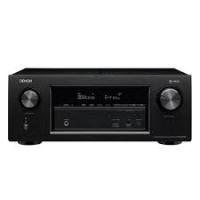
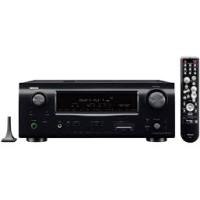
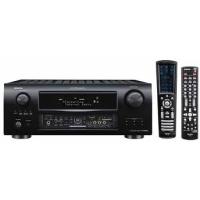
- FOR CANADA MODEL ONLY
- CAUTION
- FCC INFORMATION (For US customers)
- 1.PRODUCT
- IMPORTANT NOTICE: DO NOT MODIFY THIS PRODUCT
- NOTE
- - POUR LES MODELE CANADIEN UNIQUEMENT
- ATTENTION
- ■ NOTE ON USE / OBSERVATIONS RELATIVES A L'UTILISATION
- INTRODUCTION
- TABLE OF CONTENTS
- ■ ACCESSORIES
- BEFORE USING
- - Moving the set
- - Before turning the power switch on
- - Store this instructions in a safe place.
- CAUTIONS ON INSTALLATION
- AUX terminal
- CAUTIONS ON HANDLING
- FEATURES
- Dolby Digital
- Dolby Pro Logic IIx compatibility
- Dolby Pro Logic II Game mode compatibility
- DTS (Digital Theater Systems)
- DTS-ES Extended Surround and DTS Neo:6
- DTS 96/24 compatibility
- Auto Setup
- Multi Zone Music Entertainment System
- Future Sound Format Upgrade Capability via Eight Channel Outputs
- 10.Front input Terminal
- Video Conversion Function
- Component Video Switching
- 13.Auto Surround Mode
- 14.Preset Memory Tuning
- On Screen Display
- CONNECTIONS
- Connecting the audio components
- Connecting the DIGITAL jacks
- NOTES:
- Connecting a tape deck
- Connections for recording:
- Connections for playback:
- Connecting video components
- Connecting a video decks
- Connecting the video components equipped with S-Video jacks
- Connecting the Video Component Equipped with Color Difference (Component - Y, PR/CR, PB/CB) Video Jacks
- Connecting a DVD player DVD IN jackets
- Connecting a monitor TV
- MONITOR OUT jack
- MONITOR OUT jacks
- NOTE:
- The Video Conversion Function
- Cautions on the video conversion function:
- Connecting the antenna terminals
- AM loop antenna assembly
- Connecting the external input (EXT. IN) jacks
- Connecting the video component equipped with V.AUX jacks
- Connecting a Video game component
- Connecting a video camera component
- Connecting the MULTI ZONE jacks
- [1] ZONE 2 FIXED OUT CONNECTIONS
- [2] ZONE2 SPEAKER OUT and PREOUT CONNECTIONS
- Speaker system connections
- Speaker Impedance
- Connecting the speaker cords
- Protector circuit
- Note on speaker impedance
- Connections
- - Precautions when connecting speakers
- PART NAMES AND FUNCTIONS
- Front Panel
- Remote control unit
- USING THE REMOTE CONTROL UNIT
- Range of operation of the remote control unit
- Inserting the batteries
- SETTING UP THE SYSTEM
- Use the following buttons to set up the system
- Speaker system layout
- Auto setup
- ■ Measurement and setting details
- Connecting the microphone for Auto Setup
- Setting the Auto Setup
- About automatic retry
- About the error message
- Setting the type of speakers
- Parameters
- Setting the delay time
- Preparations:
- CAUTION:
- Setting the Subwoofer mode and Crossover Frequency
- - Assignment of low frequency signal range —
- Crossover Frequency
- Subwoofer mode
- Setting the Digital In Assignment
- 1
- 2
- 3
- Setting the Component In Assignment
- Setting the Video Input Mode
- Setting the Auto Surround Mode
- Setting the Ext. In SW Level
- Power Amp Assignment
- Setting the power amplifier assignment
- Setting the On Screen Display (OSD)
- Auto Tuner Presets
- After setting up the system
- - On-screen display signals
- REMOTE CONTROL UNIT
- Operating DENON audio components
- Preset memory
- Operating component stored in the preset memory
- Digital video disc player (DVD) system buttons
- Video disc player (VDP) system buttons
- Video deck (VCR) system buttons
- Digital broadcast satellite (DBS) tuner and cable (CABLE) system buttons
- Monitor TV (TV) system buttons
- Punch Through
- Before operating
- Playing the input source
- Select the input source to be played. Example: CD
- Select the input mode.
- Input mode selection function
- Notes on playing a source encoded with DTS
- Select the play mode.
- Example: Stereo
- Start playback on the selected component.
- Adjust the volume.
- Input mode when playing DTS sources
- Input mode display
- Input signal display
- Playback using the external input (EXT. IN) jacks
- Playing audio sources (CDs and DVDs)
- After starting playback
- [1] Adjusting the sound quality (tone)
- [2] Listening over headphones
- [3] Turning the sound off temporarily (muting)
- [4] Combining the currently playing sound with the desired image
- [5] Checking the currently playing program source, etc.
- On screen display
- Front panel display
- Using the dimmer function
- Multi-source recording
- Playing one source while recording another (REC OUT mode)
- Set the recording mode.
- Multi-zone playback with multi-source
- Multi-source playback
- [1] Outputting a program source to an amplifier, etc., in a different room (ZONE2 mode)
- [2] Remote control unit operations during multi-source playback (selecting the source)
- SURROUND
- Before playing with the surround function
- Dolby Pro Logic IIx (Pro Logic II) mode
- DTS NEO:6 mode
- Select the optimum mode for the source.
- Select the various parameters.
- Set the various surround parameters.
- Surround parameters ①
- Pro Logic IIx and Pro Logic II Mode:
- Panorama Control:
- Dimension Control:
- Center Width Control:
- DTS NEO:6 Mode:
- Cinema
- Music
- CENTER IMAGE (0.0 to 1.0: default 0.3):
- Dolby Digital mode (only with digital input) and DTS Surround (only with digital input)
- Select the input source.
- Select the STANDARD (Dolby/DTS Surround) mode.
- Operate the SURROUND BACK button to switch Surround Back CH ON/OFF.
- Play a program source with the DOLBY mark. DIGITAL
- Display the surround parameter menu.
- Adjust the parameter settings.
- Press the ENTER button to finish surround parameter mode.
- Dialogue Normalization
- Checking the input signal
- Surround parameters ②
- CINEMA EQ. (Cinema Equalizer):
- D.COMP. (Dynamic Range Compression):
- LFE (Low Frequency Effect):
- TONE:
- SB CH OUT (Surround Back):
- Personal Memory Plus
- DSP surround simulation
- To enter the surround parameter setting mode, press the SURROUND PARAMETER button.
- SURROUND PARAMETER
- Adjust the parameter settings.
- Surround parameters ③
- ROOM SIZE:
- EFFECT LEVEL:
- DELAY TIME:
- DEFAULTVALUE
- Auto tuning
- Manual tuning
- Preset stations
- Checking the preset stations
- Recalling preset stations
- LAST FUNCTION MEMORY
- INITIALIZATION OF THE MICROPROCESSOR (RESET)
- ADDITIONAL INFORMATION
- Optimum surround sound for different sources
- Types of multi-channel signals
- Types of sources
- - Movie audio
- Surround back speakers
- Number of surround back speakers
- ■ Placement of the surround left and right channels when using surround back speakers
- Speaker setting examples
- DTS-ES compatible system (using surround back speakers)
- Basic setting for primarily watching movies
- Setting for primarily watching movies using diffusion type speakers for the surround speakers
- When not using surround back speakers
- Surround
- Dolby Surround
- Dolby Digital
- Dolby Digital and Dolby Pro Logic
- Dolby Digital compatible media and playback methods
- Dolby Pro Logic IIx
- Dolby Pro Logic II
- DTS Digital Surround
- DTS-ES Extended Surround™
- DTS-ES™ Discrete 6.1
- DTS-ES™ Matrix 6.1
- DTS Neo:6™ surround
- DTS Neo:6 Cinema
- - DTS Neo:6 Music
- DTS 96/24
- TROUBLESHOOTING
- SPECIFICATIONS
- Audio section
- Video section
- Tuner section
- [AM]
- General
- Remote control unit (RC-980)
- LIST OF PRESET CODES / LISTE DE CODES PRÉRÉGLÉS
- TV
Brand : DENON
Model : AVR-2105
Category : AV amplifier