
SQUEEZEBOX LIMITED EDITION - Network music player LOGITECH - Free user manual and instructions
Find the device manual for free SQUEEZEBOX LIMITED EDITION LOGITECH in PDF.
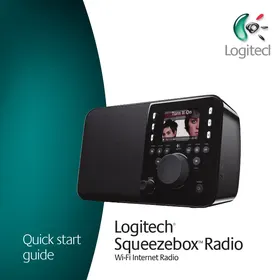

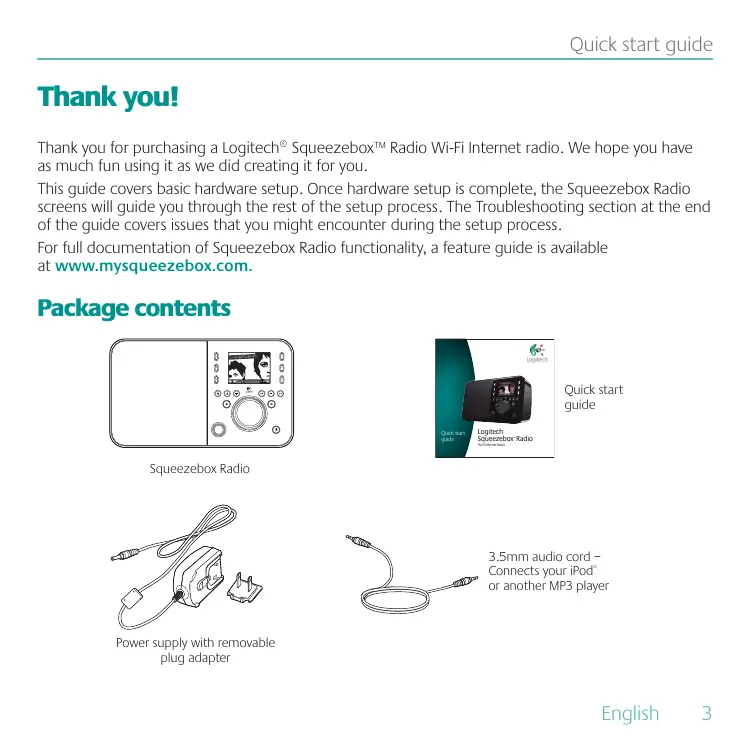


| Product Type | Network Music Player |
| Brand | LOGITECH |
| Model | Squeezebox Limited Edition |
| Dimensions (W x H x D) | 12 x 18 x 8 cm (estimated) |
| Weight | 0.5 kg (estimated) |
| Power Supply | AC adapter 100-240V, output 5V/2A |
| Display | Color LCD screen |
| Network Connectivity | Wi-Fi 802.11 b/g, Ethernet 10/100 |
| Audio Inputs | 3.5 mm jack (line input) |
| Audio Outputs | 3.5 mm headphone jack, built-in speakers |
| Main Functions | Internet radio, network music playback, alarm, wake-up, presets, music services |
| Control | Adjustment knob, dedicated buttons, optional remote control |
| Rechargeable Battery | Compartment for optional battery pack (not included) |
| Warranty | 2 years |
| Safety | Compliant with CE, UL, IEC 60950-1 standards |
| Maintenance and Cleaning | Clean with a soft, dry cloth, avoid moisture |
| Spare Parts | Available at www.logitech.com/support |
| Operating Temperature | 0°C to 40°C |
| Operating Humidity | 10% to 90% non-condensing |
| Package Contents | Player, AC adapter, 3.5 mm audio cable, quick start guide |
Frequently Asked Questions - SQUEEZEBOX LIMITED EDITION LOGITECH
User questions about SQUEEZEBOX LIMITED EDITION LOGITECH
0 question about this device. Answer the ones you know or ask your own.
Ask a new question about this device
Download the instructions for your Network music player in PDF format for free! Find your manual SQUEEZEBOX LIMITED EDITION - LOGITECH and take your electronic device back in hand. On this page are published all the documents necessary for the use of your device. SQUEEZEBOX LIMITED EDITION by LOGITECH.
USER MANUAL SQUEEZEBOX LIMITED EDITION LOGITECH
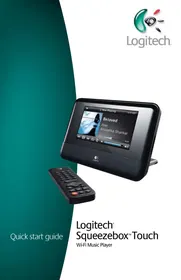
Thank you for purchasing a Logitech® Squeezebox™ Radio Wi-Fi Internet radio. We hope you have as much fun using it as we did creating it for you.
This guide covers basic hardware setup. Once hardware setup is complete, the Squeezebox Radio screens will guide you through the rest of the setup process. The Troubleshooting section at the end of the guide covers issues that you might encounter during the setup process.
For full documentation of Squeezebox Radio functionality, a feature guide is available at www.mysqueezebox.com.
Package contents
Squeezebox Radio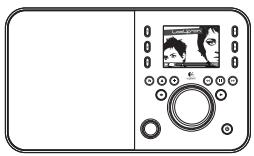
Quick start guide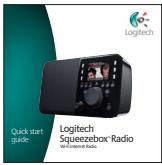
Power supply with removable plug adapter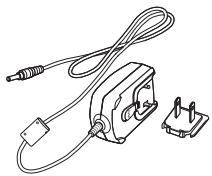
3.5mm audio cord Connects your iPod or another MP3 player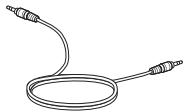
Getting help
For more information about your Squeezebox, go to www.mysqueezebox.com.
Optional Accessory Pack (www.logitech.com)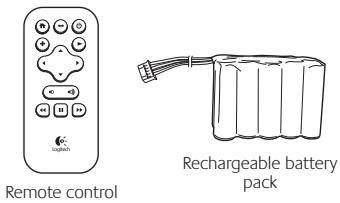
What you need to get started
To start using your Squeezebox Radio, you will need:
- A broadband Internet connection (for example, DSL or cable modem)
- The name and password of your wireless network, or a wired Ethernet connection
Find a good location
The compact size of the Squeezebox Radio makes it very easy to enjoy music anywhere in your home or office. Just make sure the location has Wi-Fi coverage or an Ethernet connection and a power outlet (not required if you have the optional rechargeable battery pack).
A typical Squeezebox Radio setup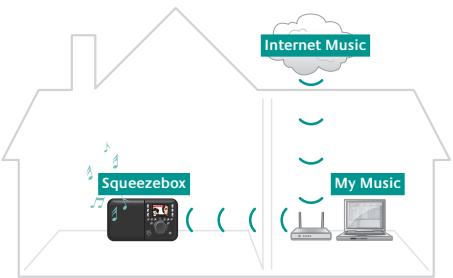
| If you will be adding Squeezebox Radio to a wireless network, make sure that your Squeezebox is within range of your wireless network. | |
| <···> | If you will be setting up a wired connection, locate Squeezebox Radio within reach of an Ethernet jack. |
- Ethernet cable not included.
Squeezebox Radio at a glance
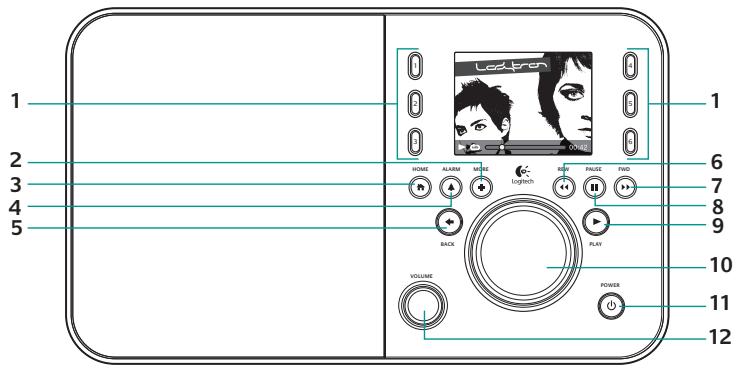
- Preset buttons
- More
- Home
- Alarm
- Back
- Rewind
- Forward
- Pause/Stop
- Play
- Pushbutton knob
- Power
- Volume Push to Mute
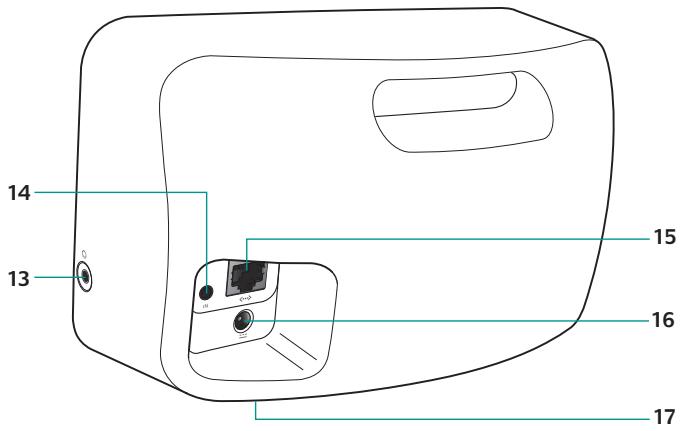
- Headphones
- 3.5 mm line-in
- Ethernet
- Power connection
- Rechargeable battery compartment
Connect Squeezebox Radio
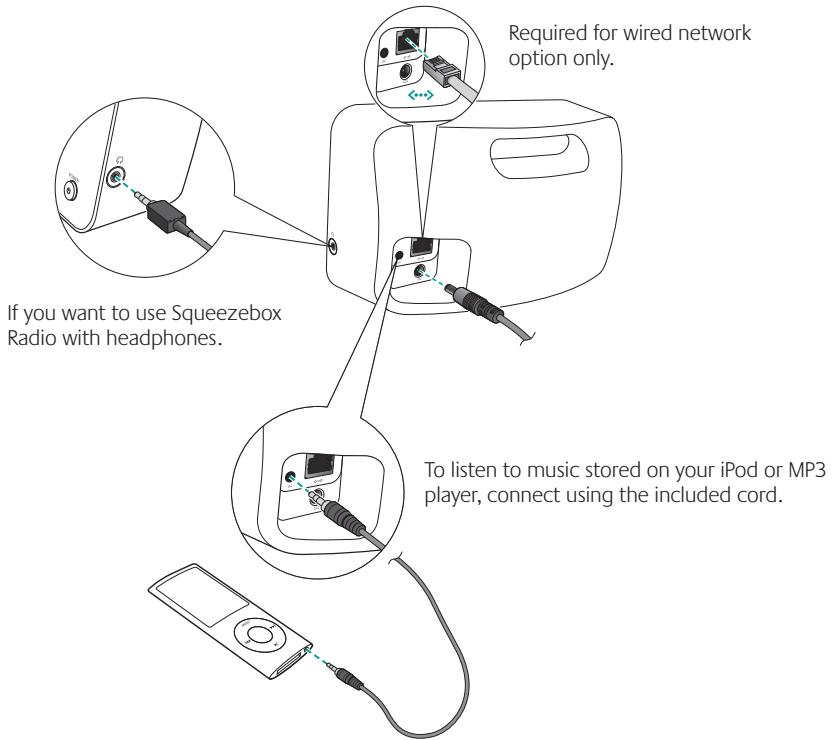
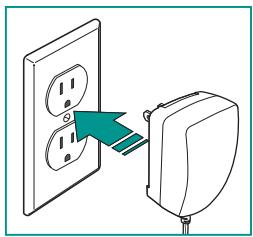
Plug in Squeezebox
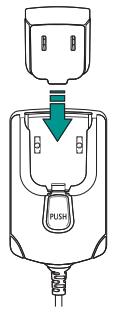
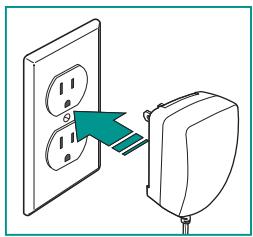
After plugging in your Squeezebox Radio, it will automatically turn on after a few seconds.
Squeezebox Radio startup screen
Go to on-screen setup
To complete the setup process, make sure your router is on, and it has an internet connection. Follow the simple on-screen steps using the push-button knob.
Begin the on-screen setup process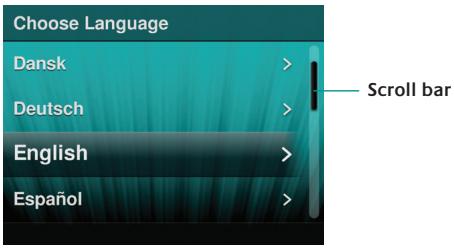
Using your Squeezebox Radio
Playing music from the internet
As a Squeezebox Radio user, you can browse and add music services and other add-on applications directly from the Squeezebox Radio, or by visiting www.mysqueezebox.com.
Playing music from your computer
After you've completed the setup process, go to www.mysqueezebox.com and download Squeezebox software. Squeezebox Radio can then play music that you have stored on your computer. Files that are in iTunes or another music library are scanned and indexed. After that, you simply select your computer name from the My Music screen on your Squeezebox, navigate to the tune you want, and play.
To learn more, download the Squeezebox Radio Feature Guide at www.mysqueezebox.com.
Troubleshooting
Reboot your Squeezebox Radio
To reboot your Squeezebox Radio, press and hold the Power button until the unit turns off; then touch the Power button to restore power.
Factory reset your Squeezebox Radio
To factory reset your Squeezebox Radio, press and hold the Power button until the unit turns off; then touch the Power button to restore power. Immediately press and hold the More button until a "Factory Reset" message appears on the screen.
Alternatively, go to Home > Settings > Advanced > Factory Reset > Continue. The Logitech logo will come up, followed by a Factory Reset message.
I don't have my wireless network name and password
If you don't know your network name and password, and you have a wireless network:
- Check to see if you have them written down somewhere.
- Ask someone else in your home if they know them.
- Contact the person who set up your home network.
- Check your router manual.
- Contact your router manufacturer for assistance.
As part of the setup process, you need the name and password that were assigned to your wireless network when it was installed. A network name is sometimes referred to as an SSID, and a password is sometimes referred to as a wireless key, or security key.
Can't find my network
If your network does not appear in the list of wireless networks:
- Make sure Squeezebox Radio is within range of your wireless network.
- Go to your computer to make sure your network is working.
- If your router is configured not to broadcast your network name (SSID), select Other Networks at the bottom of the list of networks, and enter yours.
- Unplug your router, wait 30 seconds, and plug it back in.
- Refer to your router documentation or contact the manufacturer for assistance.
Password not accepted
If your password was not accepted:
- Try entering it again. There could be a typo.
- Convert your password from ASCII to hexadecimal. If your network password is not accepted, it could be in ASCII format. (This only applies to WEP passwords that are either 5 or 13 characters in length.)
For more information, see our Knowledge Base at www.mysqueezebox.com/support.
Network connection not made
If Squeezebox Radio does not connect to your home network:
- Confirm that you have selected the correct network name.
- Try selecting your network name again, or rename your network. If yours has a common name such as linksys, there could be multiple networks of that name in your neighborhood. One way to avoid this issue is to rename your wireless network to a more unique name.
- Turn off MAC filtering. If your router is using MAC filtering, turn it off or add the MAC address on the bottom of your Squeezebox to the router's table of allowed devices.
- Unplug your router, wait 30 seconds, plug it back in and try the setup process again.
- Contact your router vendor for assistance.
- Squeezebox Radio normally relies on a DHCP server to provide an IP address during setup. If you prefer to use a static IP address, you can do it one of two ways:
a. Set up and connect your Squeezebox as normal using DHCP. After setup is complete, go to the Settings screen and change the IP address by entering it manually. b. Enter a static IP address. If your router is not set to use DHCP to assign IP addresses, your Squeezebox will display an Address Problem screen. From there, you can enter your IP address, subnet mask, gateway address, and DNS server address. For help with this, contact the person who set up your wireless network, or your router vendor.* For more information on how to set a static IP address, go to: www.mysqueezebox.com/support.
Music is not playing
If music is not playing:
- Check the volume on your Squeezebox Radio.
- Add exceptions to your firewall software. If you are listening to music from your computer (using Squeezebox software), make sure there are no firewall warnings on your screen and make sure your firewall has the proper exceptions. Required exceptions include: port 3483 UDP, port 3483 TCP, and port 9000 TCP.
- As a test, try playing a different song or radio station.
- If Squeezebox Radio says "Stopped," check your Internet connection.
- You may be trying to play DRM (Digital Rights Management) encoded iTunes files. You can upgrade your iTunes library to the DRM-free format. Please visit www.apple.com iTunes for more information.
I can't find my music collection in My Music
If you want to play the music collection that is stored on your computer but your computer name does not appear in My Music:
- Make sure that you've installed Squeezebox software from www.mysqueezebox.com.
- Make sure Squeezebox software is running.
- Windows - Hover your mouse pointer over the software icon in your task bar. If you don't see "Squeezebox software Running," right-click on the icon and select Start Squeezebox software.
- Macintosh - Click on System Preferences, and click on Squeezebox software. If the button displays Start Server, click it. If the button is labeled Stop Server, the application is already running.
- If you are using a third-party firewall such as Trend Micro, Norton, McAfee or OneCare, please see our Knowledge Base at www.mysqueezebox.com/support and search for articles on your specific firewall. If your firewall is not covered by our Knowledge Base, add exceptions for three ports as follows: port 3483 UDP, port 3483 TCP, and port 9000 TCP. For information on how to make this change in your firewall software, search the internet for "exceptions, ports, ," or contact technical support for your firewall software.
- If your network uses multiple routers or Voice over IP (VoIP) or you're on a corporate network that has a complex or segmented network configuration, ensure that your computer and Squeezebox Radio are on the same network segment. This allows Squeezebox Radio to automatically connect to Squeezebox software on your computer.
Safety information

CAUTION ELECTRIC SHOCK HAZARD
- Do not use this apparatus near water.
- Do not block any ventilation openings. Install in accordance with the manufacturer's instructions.
- Do not push objects into apparatus vents or slots because fire or electric shock hazards could result.
- Maintain a minimum distance of at least 6 inches around apparatus for sufficient ventilation.
- Ventilation should not be impeded by covering the ventilation openings with items, such as newspapers, tablecloths, curtains, etc.
- No naked (open) flame sources, such as lighted candles, should be placed on or near the apparatus.
- Place apparatus in a stable location so it will not fall causing product damage or bodily harm.
- Do not install near any heat sources such as radiators, heat registers, stoves, or other apparatus (including amplifiers) that produce heat.
- Do not defeat the safety purpose of the polarized plug. A polarized plug has two blades with one wider than the other. The wide blade is provided for your safety. If the provided plug does not fit into your outlet, consult an electrician for replacement of the obsolete outlet.
- Protect the power cord from being walked on or pinched particularly at plugs, convenience receptacles, and the point where they exit from the apparatus.
- Only use attachments/accessories specified by the manufacturer.
- Unplug this apparatus during lightning storms or when unused for long periods of time.
- Refer all servicing to qualified service personnel. Servicing is required when the apparatus has been damaged in any way, such as power-supply cord or plug is damaged, liquid has been spilled or objects have fallen into the apparatus, the apparatus has been exposed to rain or moisture, does not operate normally, or has been dropped.
- The apparatus shall be disconnected from the mains by unplugging the power cord of the apparatus from the AC mains receptacle.
- The socket-outlet shall be installed near the equipment and shall be easily accessible.
WARNING:
TO REDUCE THE RISK OF FIRE OR ELECTRIC SHOCK, DO NOT EXPOSE THIS APPARATUS TO RAIN OR MOISTURE.
Battery Warning
Caution: risk of explosion and personal injury if batteries are replaced by incorrect type. Do not open, mutilate, or expose to conducting materials (metal), moisture, liquid, fire, or heat (above 54°C or 130°F). Doing so may cause batteries to leak or explode, resulting in personal injury. Dispose of spent, leaking, or damaged batteries according to manufacturer instructions and local laws. Do not use or charge batteries (lithium-ion rechargeables) if leaking, discolored, or deformed. Do not mix battery types. Do not charge alkaline batteries. Do not leave rechargeable batteries discharged or unused for extended periods. Battery life varies with usage. When replacing, remove all spent batteries, and do not mix old batteries with new. When device is not in use for extended periods, remove batteries to avoid leakage and store away from children in a cool, dry place at room temperature.
Power Supply Warning
Caution electric shock hazard! Warning: to reduce risk of electric shock, do not expose power supply to rain, moisture, liquid, or heat sources (e.g., radiators, heat registers, stoves, amplifiers, etc.) For indoor use only. Do not use any other power supply with product. Do not use a damaged power supply or attempt to repair one. Inspect power supply regularly for cable, plug, or casing damage.
Operating and Storage Conditions
Operating Conditions: 0.0 to +40.0 °C, 10 - 90% Non-condensing
Non-Operating Conditions: -40.0 to +70.0 °C, 10 - 95% (Excluding rain)
Logitech Compliance
Your product has been tested to IEC, EN, and UL 60950-1 standards. It should only be used with other certified product
For additional compliance information, go to http://www.logitech.com/compliance.
The use of this product is authorized in the following countries: AT, CY, BE, BGR, DK, UK, FI, FR, DE, GR, HU, IE, IT*, LU, NL, PT, ES, SE, IS, LI, NO, CH, CZ, PL, RO, SK, SI, EE, LV, LT, MT
- General license required for outdoor use. ** For indoor use only.
Cordless (radio transmitter) products: Hereby, Logitech Ireland Service Limited, Ballincollig Cork, Ireland, declares that this radio-frequency peripheral is in compliance with the essential requirements and other relevant provisions of Directive 1999/5/EC.
The Declaration of Conformity can be retrieved by accessing the following website address:
http://www.logitech.com/compliance
Once accessed, go to the relevant product part number to retrieve the CE Declaration of Conformity.
A message about the environment and disposal of this product

To help conserve resources and protect our health and the environment, we—and your government—use this symbol to remind you that you are obliged to treat electronic equipment, including batteries, separately from regular household waste. For more information on designated disposal/recycling centers,
please contact your local government.
Logitech hardware product limited warranty
Logitech warrants that your Logitech hardware product shall be free from defects in material and workmanship for two (2) years, beginning from the date of purchase. Except where prohibited by applicable law, this warranty is nontransferable and is limited to the original purchaser. This warranty gives you specific legal rights, and you may also have other rights that vary under local laws.
Logitech's entire liability and your exclusive remedy for any breach of warranty shall be, at Logitech's option, (1) to repair or replace the hardware, or (2) to refund the price paid, provided that the hardware is returned to the point of purchase or such other place as Logitech may direct with a copy of the sales receipt or dated itemized receipt. Shipping and handling charges may apply, except where prohibited by applicable law. Logitech may, at its option, use new or refurbished or used parts in good working condition to repair or replace any hardware product. Any replacement hardware product will be warranted for the remainder of the original warranty period or thirty (30) days, whichever is longer or for any additional period of time that may be applicable in your jurisdiction.
This warranty does not cover problems or damage resulting from (1) accident, abuse, misapplication, or any unauthorized repair, modification or disassembly; (2) improper operation or maintenance, usage not in accordance with product instructions or connection to improper voltage supply; or (3) use of consumables, such as replacement batteries, not supplied by Logitech except where such restriction is prohibited by applicable law.
How to obtain warranty support. Before submitting a warranty claim, we recommend you visit the support section at www.logitech.com/support for technical assistance. Valid warranty claims are generally processed through the point of purchase during the first thirty (30) days after purchase; however, this period of time may vary depending on where you purchased your product - please check with Logitech or the retailer where you purchased your product for details. Warranty claims that cannot be processed through the point of purchase and any other product related questions should be addressed directly to Logitech. The addresses and customer service contact information for Logitech can be found in the documentation accompanying your product and on the web at www.logitech.com/support.
Limitation of liability. LOGITECH SHALL NOT BE LIABLE FOR ANY SPECIAL, INDIRECT, INCIDENTAL OR CONSEQUENTIAL DAMAGES WHATSOEVER, INCLUDING BUT NOT LIMITED TO LOSS OF PROFITS, REVENUE OR DATA (WHETHER DIRECT OR INDIRECT) OR COMMERCIAL LOSS FOR BREACH OF ANY EXPRESS OR IMPLIED WARRANTY ON YOUR PRODUCT EVEN IF LOGITECH HAS BEEN ADVISED OF THE POSSIBILITY OF SUCH DAMAGES.
Duration of implied warranties. EXCEPT TO THE EXTENT PROHIBITED BY APPLICABLE LAW, ANY IMPLIED WARRANTY OR CONDITION OF MERCHANTABILITY OR FITNESS FOR A PARTICULAR PURPOSE OF THIS HARDWARE PRODUCT IS LIMITED IN DURATION TO THE DURATION OF THE APPLICABLE LIMITED WARRANTY PERIOD FOR YOUR PRODUCT.
Additional Rights. Some states do not allow limitations on how long an implied warranty lasts, or allow the exclusion or limitation of incidental or consequential damages, so the above limitations or exclusion may not apply to you. This warranty gives you specific legal rights, and you may also have other rights that vary from State to State or by country or other jurisdiction.
National Statutory Rights. Consumers have legal rights under applicable national legislation governing the sale of consumer goods. Such rights are not affected by the warranties in this Limited Warranty.
No Other Warranties. No Logitech dealer, agent, or employee is authorized to make any modification, extension, or addition to this warranty.
Warranty Periods. Please note that in the European Union, any warranty period less than two years shall be increased to two years.
Logitech address: Logitech Europe S.A. - CH-1110 Marges - Switzerland
Thank you!
WARNING: RISK OF ELECTRIC SHOCK
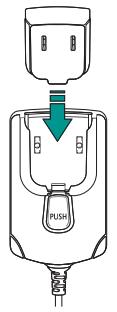
Connect Squeezebox
AT, CY, BE, BGR, DK, UK, FI, KR, DE, GR, HI, IE, IT**, LU, NL, PT, ES, SE, IS, LI, NO, CH, CZ, PL, RO, SK, SI, EE, LV, LT MT
www.mysqueezebox.com.
Package contents
Squeezebox radio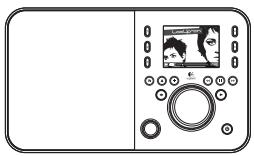
Quick Guide
AT, CY, BE, BGR, DK, UK, FI, KR, DE, GR, HI, IE, IT**, LU, NL, PT, ES, SE, IS, LI, NO, CH, CZ, PL, RO, SK, SI, EE, LV, LT, MT
Operating Instructions
Insert the power cord into the socket.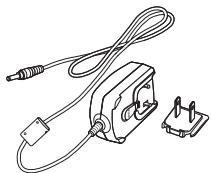
3.5 mm audio cable - allows you to connect your player to another audio device.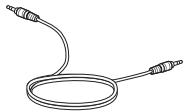
Technical support
Additional information about Squeezebox is available on the website www.mysqueezebox.com.
Package contents
(www.logitech.com)
Everything you need to start using the device
To operate Squeezebox Radio you need:
- Broadband Internet connection (e.g., DSL or cable modem)
- User account and password for your wireless network or wired connection to an Ethernet network
Proper placement
The compact size of Squeezebox Radio allows you to listen to music in any room of your home or office. Just make sure that in that room there is access to the Internet via Wi-Fi or a connection to an Ethernet network, as well as a power outlet (the latter is not necessary if you have an optional rechargeable battery).
- Ethernet cable is included in the delivery package.
External view of Squeezebox Radio
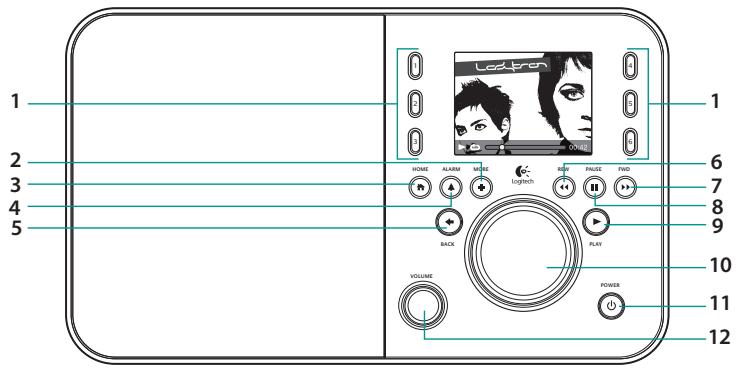
- Buttons for preliminary setup 2. Additional information
- Home screen
4. Alarm clock 5. Back 6. Scroll back 7. Forward 8. Play/Pause
- Playback
- Rotary knob 11. Power
- Volume Push to Mute
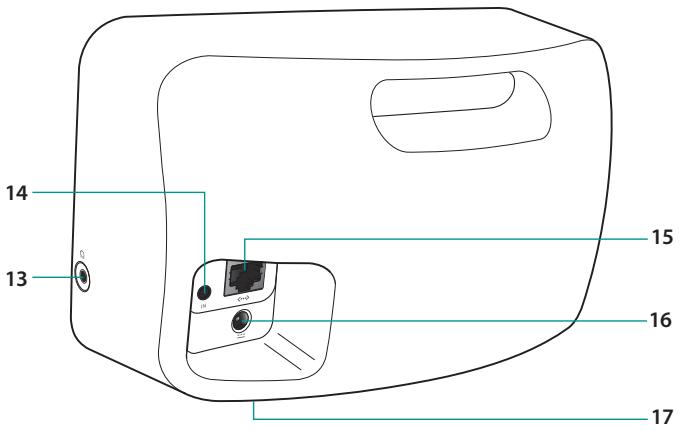
13. Headphones 14. 3.5 mm line input 15. Ethernet
16. Power connection 17. Battery compartment __SUPPRIMER__
If you don't know the network name or password for the wireless network
If you are connecting to a wireless network and you don't know the network name or password, do the following:
- Check if this information is written somewhere
- Ask the people living with you if they know the network name or password for the wireless network.
- Contact the person who set up your wireless network for you.
- Refer to the router's user guide.
- Contact the router manufacturer for technical support.
During setup, you may need to use the password or PIN that is printed on the router. The network name may also be called the SSID, and the password may be called the wireless key or security key.
Cannot find network
If the network does not appear in the list of wireless networks, perform the following steps:
- Make sure the Squeezebox Radio is within range of the wireless network.
- Check the data on your computer to make sure the network is working.
- If the router's manufacturer does not broadcast the network name (SSID), select the Other Networks option and enter the name of your network.
- Turn off the router, wait 30 seconds, then turn it on again.
- Refer to the router's documentation or contact the router manufacturer's technical support.
Password not accepted
If the password is not accepted:
1. Try entering the password again. It may have been entered incorrectly. 2. Check the password rules for your network. If your network rules were not followed, the password may have been entered in the wrong format (for example, only for networks that contain 5 or 13 characters).
For more information, visit our website at www.mysqueezebox.com/support.
Unable to connect to the network.
If you cannot connect Squeezebox Radio to your home network:
- Make sure you have selected the correct network name.
- Repeat the network name selection and try renaming your network to a simple name (for example, Linksys). If there are multiple networks with the same name in the vicinity, the only way to solve this problem is to choose a new unique name for your network.
- Disable MAC filtering. If your router uses MAC filtering, disable it or add the MAC address shown on the bottom of Squeezebox to the router's list of allowed devices.
- Turn off the router, wait 30 seconds, then turn it back on and repeat the setup process.
- Contact your router manufacturer for technical support.
- Squeezebox Radio was assigned an IP address by the DHCP server during setup. If you prefer to use a static IP address, you can do so in the following ways.
a. Install and connect Squeezebox as usual, using DHCP. After setup is complete, go to the "Settings" screen and change the IP address by entering it manually. b. Enter a static IP address. If your router does not use DHCP for IP address assignment, the Squeezebox screen will show "Address Problem". On this screen, you can enter your IP address, subnet mask, gateway address, and DNS server address. For further technical assistance, contact the person who configured your wireless network or your router manufacturer.* Additional information about static IP address setup is available on our website: www.mysqueezebox.com/support.
Music is not playing
If music is not playing:
- Check the volume level set on Squeezebox Radio.
- Add exceptions in the firewall. On the left, select the music stored on your computer (using the Squeezebox software), it will increase, and on the screen there is no warning about exceptions, but in the firewall, the necessary exceptions are set. Required exceptions: port 3483 UDP, port 3483 TCP, port 9000 TCP. 3. To verify, enable another music composition and radio station.
- If the message "Stopped" appears on the Squeezebox Radio screen, check the internet connection.
- You may be trying to play DRM (Digital Rights Management) encoded iTunes files. You can upgrade your iTunes library to the DRM-free format. Please visit www.apple.com iTunes for more information.
Cannot find music recordings on the "My Music" screen.
If the music files are stored on your computer, but they do not appear on the "My Music" screen of your computer:
- Make sure you have installed the Squeezebox software, which can be downloaded from the website www.mysqueezebox.com.
- Make sure the Squeezebox software is running.
Windows - Move the mouse cursor over the program icon on the taskbar. If you do not see the message "Squeezebox software Running", right-click the icon and select "Start Squeezebox software". Macintosh - Click "System Preferences", then Squeezebox Software. If the button "Start Server" appears, click it. If the button says "Stop Server", the server is already running.
- If you use a firewall from a third-party manufacturer, such as Trend Micro, Norton, McAfee, or OneCare, consult the materials on our website about the Squeezebox firewall, dedicated to that firewall. If you do not know which firewall you are using, add exceptions for the following three ports: port 3483 UDP, port 3483 TCP, and port 9000 TCP. To find information on how to add exceptions in your firewall settings, search for "exceptions, ports," or contact the technical support of the firewall manufacturer.
- If your network has multiple routers or VoIP (Voice over IP) phones, or you are in a corporate network with a complex configuration, make sure that Squeezebox Radio is on the same subnet as your computer. This will allow Squeezebox Radio to connect to the Squeezebox software installed on your computer.
Safety Instructions

WARNING! RISK OF ELECTRIC SHOCK
Do not use the device near water. Do not cover or block the ventilation openings. Install the device in accordance with the manufacturer's instructions. Do not place the device near heat sources such as radiators, heat registers, stoves, or other apparatus (including amplifiers) that produce heat. The ventilation should not be impeded by covering the ventilation openings with items such as newspapers, tablecloths, curtains, etc. Do not place the device near naked flames, such as lighted candles. Place the device in a well-ventilated location to prevent the possibility of fire or electric shock. - Do not install the device near heat sources such as batteries, heaters, stoves, or other apparatus (including amplifiers) that produce heat. Note that the plug is designed for safety. The plug has a wide blade and a narrow blade. The wide blade is for safety. If the plug does not fit into the outlet, consult an electrician for replacement of the obsolete outlet.
outlet.
Avoid overloading the power outlet and extension cords, as this may result in fire or electric shock. Use only the specified power cord. The device should be serviced by qualified personnel. If the device is damaged (for example, if the power cord or plug is damaged, liquid has been spilled into the device, objects have fallen into the device, the device has been exposed to rain or moisture, or it does not operate normally), unplug it from the power outlet and refer servicing to qualified personnel. - The device should be unplugged from the power outlet during lightning storms or when unused for long periods of time. The power outlet should be installed near the device and easily accessible.
CAUTION.
To reduce the risk of electric shock, do not expose the device to rain or moisture.
Precautions when handling the battery.
WARNING! RISK OF EXPLOSION IF BATTERY IS REPLACED BY AN INCORRECT TYPE. DO NOT OPEN, DO NOT DEFORM, DO NOT ALLOW CONTACT WITH CONDUCTIVE MATERIALS (METAL), DO NOT EXPOSE TO MOISTURE, LIQUIDS, HEAT, OR HIGH TEMPERATURES (ABOVE 54°C). SUCH ACTIONS MAY LEAD TO LEAKAGE OR EXPLOSION OF THE BATTERY OR INJURY TO HEALTH. DISPOSE OF USED, LEAKING, OR DAMAGED BATTERIES IN ACCORDANCE WITH THE MANUFACTURER'S INSTRUCTIONS AND LOCAL LAWS. DO NOT USE OR CHARGE NON-RECHARGEABLE BATTERIES. IF THE DEVICE IS NOT USED FOR A LONG TIME, REMOVE THE BATTERIES TO AVOID RISK OF LEAKAGE. DO NOT MIX BATTERIES OF DIFFERENT TYPES OR BRANDS. DO NOT USE DAMAGED BATTERIES. DO NOT LEAVE BATTERIES UNATTENDED OR UNUSED FOR LONG PERIODS. BATTERY LIFE DEPENDS ON USAGE PATTERNS. WHEN REPLACING BATTERIES, REPLACE ALL BATTERIES AT THE SAME TIME, DO NOT MIX OLD AND NEW BATTERIES. IF THE DEVICE HAS NOT BEEN USED FOR A LONG TIME, REMOVE THE BATTERIES TO AVOID RISK OF LEAKAGE. STORE BATTERIES IN A COOL, DRY PLACE AWAY FROM CHILDREN.
Power Supply Warning
Warning! Danger of Electric Shock
Electric Shock! To reduce the risk of electric shock, do not expose the power supply to rain, moisture, liquids, or heat sources (such as radiators, heaters, stoves, amplifiers, etc.). Only for indoor use. Do not use other power supplies with the device. Do not use damaged power supplies or attempt to repair them. Regularly inspect the power supply for damage to cables and connectors.
Storage and Operating Conditions
Storage: -40 to +40 degrees Celsius, 10-90% (without condensation)
Operating: -40 to +70 degrees Celsius, 10-95% (without condensation)
Compliance with Logitech Product Standards
This product complies with the requirements of the standards IEC, EN, and UL 60950-1. It should be used only with other certified products.
Additional compliance information can be found on the website: http://www.logitech.com/compliance.
Use of this device is permitted in the following countries:
AT, CY, BE, BGR, DK, KF, FI, FR, DE, GR, HUI, IE, IT, LU, NL, PT, ES, SE, IS, LI, NO, CH, CZ, PL, RO, SK, SI, EE, LV, LT, MT
Requires indoor use only. *For use only indoors.
The wireless device (operating on radio frequencies) manufactured by Logitech Health Service Limited, (address: Ballincollig, Cork, Ireland) declares that this device complies with the essential requirements and other relevant provisions of Directive 1999/5/EC.
The CE declaration of conformity can be viewed by visiting the website at:
http://www.logitech.com/compliance
To view the compliance information for this product, please visit the corresponding website.
Disposal of Waste Equipment by Users in Private Households in the European Union

This symbol on the product or its packaging indicates that this product must not be disposed of with other household wastes. Instead, it is your responsibility to dispose of your waste equipment by handing it over to a designated collection point for the recycling of waste electrical and electronic equipment. The separate collection and recycling of your waste equipment at the time of disposal will help to conserve natural resources and ensure that it is recycled in a manner that protects human health and the environment. For more information about where you can drop off your waste equipment for recycling, please contact your local city office, your household waste disposal service, or the shop where you purchased the product.
Additional information about recycling and disposal can be obtained from your local authorities.
Logitech Hardware Limited Warranty
Logitech warrants that your Logitech hardware product shall be free from defects in materials and workmanship for a period of two (2) years from the date of purchase. Except as provided by applicable law, this warranty is non-transferable and applies only to the original purchaser. This warranty gives you specific legal rights, and you may also have other rights that vary from state to state or country to country.
LIMITATION OF LIABILITY: TO THE FULLEST EXTENT PERMITTED BY APPLICABLE LAW, LOGITECH'S TOTAL LIABILITY ARISING OUT OF OR IN CONNECTION WITH THIS WARRANTY OR THE PRODUCT SHALL NOT EXCEED THE PURCHASE PRICE OF THE PRODUCT. EXCEPT AS EXPRESSLY PROVIDED IN THIS WARRANTY, LOGITECH SHALL NOT BE LIABLE FOR ANY INDIRECT, INCIDENTAL, SPECIAL, CONSEQUENTIAL, OR PUNITIVE DAMAGES, INCLUDING BUT NOT LIMITED TO LOSS OF PROFITS, REVENUE, OR DATA, OR DAMAGES ARISING FROM THE USE OR INABILITY TO USE THE PRODUCT, EVEN IF LOGITECH HAS BEEN ADVISED OF THE POSSIBILITY OF SUCH DAMAGES. SOME JURISDICTIONS DO NOT ALLOW THE EXCLUSION OR LIMITATION OF INCIDENTAL OR CONSEQUENTIAL DAMAGES, SO THE ABOVE LIMITATION OR EXCLUSION MAY NOT APPLY TO YOU.
This warranty does not cover any damages arising from (1) accidents, misuse, abuse, or unauthorized repair or modification; (2) improper installation, operation, or maintenance, or use not in accordance with the product's user guide, or connection to an improper voltage or power source; or (3) consumable parts, such as batteries, unless damage occurs due to a defect in materials or workmanship of the product. Except as provided by applicable law, this warranty is void if the product is used in a commercial or business setting.
The warranty obligations are limited. The warranty service is formalized, as a rule, through the dealer where the purchase was made, within the first 30 (thirty) days for the buyer. However, this period may vary depending on the location of the product verification. Please clarify this information with the Logitech company or the retail outlet where the product was verified. The warranty service, which I cannot provide, is formalized by the retail outlet, as well as all other issues related to the product verification, must be addressed directly to the Logitech company. The address and contact information of the Logitech company, provided with the verified product, can be found on the website logitech.com/support.
Limitation of liability. Logitech is not liable for any actual damage caused, including but not limited to indirect or consequential damages, loss of profits, loss of data, or any other indirect or consequential damages arising from the use or inability to use the product, even if Logitech has been advised of the possibility of such damages.
The warranty is provided by the manufacturer, distributor, or retailer in accordance with the laws of the country of purchase, and the warranty obligations are limited to the repair or replacement of the product, subject to the terms and conditions of the warranty.
Additional rights. If applicable law does not allow the limitation of liability, the consumer may have additional rights.
The warranty is governed by the laws of the country of purchase, and the warranty does not affect the consumer's statutory rights.
No warranty. Logitech does not warrant that the operation of the product will be uninterrupted or error-free.
Warranty period. Please note that in the European Union, the warranty period may be extended up to two years.
Logitech address. Logitech Europe S.A. - CH-1110 Morges - Switzerland
Thank you!
AT, CY, BE, BGR, DK, UK, FI, FR, DE, GR, HU, IE, IT *, LU, NL, PT, ES, SE, US, NI, OH, CZ, PL, RO, SK, SI, EE, LV, LT, MT
- For use in public spaces, a general license is required. ** Only for use in private spaces.
© 2009 Logitech. All rights reserved. Logitech, the Logitech logo, and other Logitech marks are owned by Logitech and may be registered. All other trademarks are the property of their respective owners. Logitech assumes no responsibility for any errors that may appear in this manual. Information contained herein is subject to change without notice.
Apple, Mac, and Macintosh are trademarks of Apple Inc., registered in the U.S. and other countries.
620-002301.003

- PACKAGE CONTENTS
- GETTING HELP
- WHAT YOU NEED TO GET STARTED
- FIND A GOOD LOCATION
- SQUEEZEBOX RADIO AT A GLANCE
- CONNECT SQUEEZEBOX RADIO
- PLUG IN SQUEEZEBOX
- GO TO ON-SCREEN SETUP
- USING YOUR SQUEEZEBOX RADIO
- PLAYING MUSIC FROM THE INTERNET
- PLAYING MUSIC FROM YOUR COMPUTER
- TROUBLESHOOTING
- REBOOT YOUR SQUEEZEBOX RADIO
- FACTORY RESET YOUR SQUEEZEBOX RADIO
- I DON'T HAVE MY WIRELESS NETWORK NAME AND PASSWORD
- CAN'T FIND MY NETWORK
- PASSWORD NOT ACCEPTED
- NETWORK CONNECTION NOT MADE
- MUSIC IS NOT PLAYING
- I CAN'T FIND MY MUSIC COLLECTION IN MY MUSIC
- SAFETY INFORMATION
- CAUTION ELECTRIC SHOCK HAZARD
- WARNING
- BATTERY WARNING
- POWER SUPPLY WARNING
- OPERATING AND STORAGE CONDITIONS
- LOGITECH COMPLIANCE
- A MESSAGE ABOUT THE ENVIRONMENT AND DISPOSAL OF THIS PRODUCT
- LOGITECH HARDWARE PRODUCT LIMITED WARRANTY
- THANK YOU
- WARNING: RISK OF ELECTRIC SHOCK
- CONNECT SQUEEZEBOX
- TECHNICAL SUPPORT
- EVERYTHING YOU NEED TO START USING THE DEVICE
- PROPER PLACEMENT
- EXTERNAL VIEW OF SQUEEZEBOX RADIO
- IF YOU DON'T KNOW THE NETWORK NAME OR PASSWORD FOR THE WIRELESS NETWORK
- CANNOT FIND NETWORK
- UNABLE TO CONNECT TO THE NETWORK
- CANNOT FIND MUSIC RECORDINGS ON THE "MY MUSIC" SCREEN
- SAFETY INSTRUCTIONS
- WARNING! RISK OF ELECTRIC SHOCK
- CAUTION
- PRECAUTIONS WHEN HANDLING THE BATTERY
- WARNING! DANGER OF ELECTRIC SHOCK
- STORAGE AND OPERATING CONDITIONS
- COMPLIANCE WITH LOGITECH PRODUCT STANDARDS
- DISPOSAL OF WASTE EQUIPMENT BY USERS IN PRIVATE HOUSEHOLDS IN THE EUROPEAN UNION
- LOGITECH HARDWARE LIMITED WARRANTY
Brand : LOGITECH
Model : SQUEEZEBOX LIMITED EDITION
Category : Network music player