
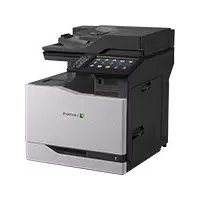
X642E - Multifunction Printer LEXMARK - Free user manual and instructions
Find the device manual for free X642E LEXMARK in PDF.


| Product Type | Monochrome Laser Multifunction Printer |
| Brand | Lexmark |
| Model | X642E |
| Main Functions | Copy, Print, Fax, Scan, Email, FTP |
| Print Technology | Monochrome Laser |
| Maximum Print Resolution | 600 dpi (Image Quality 2400 dpi) |
| Copy Resolution | 600 dpi |
| Scan Resolution | 600 dpi |
| Standard Memory | 128 MB |
| Maximum Memory | 640 MB |
| Paper Input Capacity | 500 sheets (standard tray), Multipurpose Feeder (MPF), optional 2000-sheet tray |
| Supported Paper Sizes | Letter, Legal, A4, Executive (from 114 x 139.4 mm to 215.9 x 355.6 mm) |
| Paper Weight (ADF) | 52 to 120 g/m² |
| Duplex | Automatic (duplex device can be installed) |
| Display | Touchscreen LCD with backlight, contrast adjustment |
| Connectivity | Ethernet, USB (host and device), Parallel, Serial, Telephone (RJ-11) |
| Security | Advanced password, menu access restriction, disable SNMPv1/v2, IPSec, 802.1x authentication |
| Noise Level (ISO 7779) | Printing 56 dBA, Copying 56 dBA, Scanning 52 dBA, Ready 30 dBA |
| Maintenance | Clean scanner glass, replace toner cartridge, maintenance kit (rollers, fuser unit) |
| Standards and Certifications | Class A, CE, ENERGY STAR, WEEE, compliant with Class I laser directives |
Frequently Asked Questions - X642E LEXMARK
User questions about X642E LEXMARK
0 question about this device. Answer the ones you know or ask your own.
Ask a new question about this device
Download the instructions for your Multifunction Printer in PDF format for free! Find your manual X642E - LEXMARK and take your electronic device back in hand. On this page are published all the documents necessary for the use of your device. X642E by LEXMARK.
USER MANUAL X642E LEXMARK
Lexmark and Lexmark with diamond design are trademarks of Lexmark International, Inc., registered in the United States and/or other countries.
© 2006 Lexmark International, Inc.
All rights reserved.
740 West New Circle Road
Lexington, Kentucky 40550
Mai 2006
www.lexmark.com
Edition: May 2006
The following paragraph does not apply to any country where such provisions are inconsistent with local law: LEXMARK INTERNATIONAL, INC., PROVIDES THIS PUBLICATION "AS IS" WITHOUT WARRANTY OF ANY KIND, EITHER EXPRESS OR IMPLIED, INCLUDING, BUT NOT LIMITED TO, THE IMPLIED WARRANTY OF MERCHANTABILITY OR FITNESS FOR A PARTICULAR PURPOSE. Some states do not allow disclaimer of express or implied warranties in certain transactions; therefore, this statement may not apply to you.
This publication could include technical inaccuracies or typographical errors. Changes are periodically made to the information herein; these changes will be incorporated in later editions. Improvements or changes in the products or the programs described may be made at any time. Comments about this publication may be addressed to Lexmark International, Inc., Department F95/032-2, 740 West New Circle Road, Lexington, Kentucky 40550, U.S.A. In the United Kingdom and Eire, send to Lexmark International Ltd., Marketing and Services Department, Westhorpe House, Westhorpe, Marlow Bucks SL7 3RQ. Lexmark may use or distribute any of the information you supply in any way it believes appropriate without incurring any obligation to you. To obtain additional copies of publications related to this product, visit the Lexmark Web site at www.lexmark.com.
References in this publication to products, programs, or services do not imply that the manufacturer intends to make these available in all countries in which it operates. Any reference to a product, program, or service is not intended to state or imply that only that product, program, or service may be used. Any functionally equivalent product, program, or service that does not infringe any existing intellectual property right may be used instead. Evaluation and verification of operation in conjunction with other products, programs, or services, except those expressly designated by the manufacturer, are the user's responsibility.
2006 Lexmark International, Inc.
All rights reserved.
Trademarks
Lexmark, Lexmark with diamond design, MarkNet, MarkVision, and PrintCryption are trademarks of Lexmark International, Inc., registered in the United States and/or other countries.
Operation ReSource and LEXFAX are service marks of Lexmark International, Inc.
PCL® is a registered trademark of the Hewlett-Packard Company. PCL is Hewlett-Packard Company's designation of a set of printer commands (language) and functions included in its printer products. This MFP is intended to be compatible with the PCL language. This means the MFP recognizes PCL commands used in various application programs, and that the MFP emulates the functions corresponding to the commands.
Details relating to compatibility are included in the Technical Reference.
Other trademarks are the property of their respective owners.
UNITED STATES GOVERNMENT RIGHTS
This software and any accompanying documentation provided under this agreement are commercial computer software and documentation developed exclusively at private expense.
www.lexmark.com/recycle
Federal Communications Commission (FCC) compliance information statement
Part 15
The X642e machine types 7002-003, 7002-004, 7002-005, 7002-006 have been tested and found to comply with the limits for a Class A digital device, pursuant to Part 15 of the FCC Rules. Operation is subject to the following two conditions: (1) this device may not cause harmful interference, and (2) this device must accept any interference received, including interference that may cause undesired operation.
The FCC Class A limits are designed to provide reasonable protection against harmful interference when the equipment is operated in a commercial environment. This equipment generates, uses, and can radiate radio frequency energy and, if not installed and used in accordance with the instruction manual, may cause harmful interference to radio communications. Operation of this equipment in a residential area is likely to cause harmful interference, in which case the user will be required to correct the interference at his own expense.
The manufacturer is not responsible for any radio or television interference caused by using other than recommended cables or by unauthorized changes or modifications to this equipment. Unauthorized changes or modifications could void the user's authority to operate this equipment.
Note : To assure compliance with FCC regulations on electromagnetic interference for a Class A computing device, use a properly shielded and grounded cable such as Lexmark part number 1329605 for parallel attach or 12A2405 for USB attach. Use of a substitute cable not properly shielded and grounded may result in a violation of FCC regulations.
Industry Canada compliance statement
This Class A digital apparatus meets all requirements of the Canadian Interference-Causing Equipment Regulations ICES-003.
This equipment complies with Part 68 of the FCC rules and the requirements adopted by the Administrative Council for Terminal Attachments (ACTA). On the back of this equipment is a label that contains, among other information, a product identifier in the format US:AAAEQ##TXXXX. If requested, this number must be provided to your telephone company.
This equipment uses the RJ-11C Universal Service Order Code (USOC) jack.
A plug and jack used to connect this equipment to the premises' wiring and telephone network must comply with the applicable FCC Part 68 rules and requirements adopted by the ACTA. A compliant telephone cord and modular plug is provided with this product. It is designed to be connected to a compatible modular jack that is also compliant. See the Setup Sheet for more information.
The Ringer Equivalence Number (REN) is used to determine the number of devices that may be connected to a telephone line. Excessive RENs on a telephone line may result in the devices not ringing in response to an incoming call. In most but not all areas, the sum of RENs should not exceed five (5.0). To be certain of the number of devices that may be connected to a line, as determined by the total RENs, contact your local telephone company. For products approved after July 23, 2001, the REN for this product is part of the product identifier that has the format US:AAAEQ##TXXXX. The digits represented by ## are the REN without a decimal point (for example, 03 is a REN of 0.3). For earlier products, the REN is shown separately on the label.
If this equipment causes harm to the telephone network, the telephone company will notify you in advance that temporary discontinuance of service may be required. If advance notice is not practical, the telephone company will notify the customer as soon as possible. You will also be advised of your right to file a complaint with the FCC.
The telephone company may make changes in its facilities, equipment, operations or procedures that could affect the operation of this equipment. If this happens, the telephone company will provide advance notice in order for you to make necessary modifications to maintain uninterrupted service.
If you experience trouble with this equipment, for repair or warranty information, contact Lexmark International, Inc. at www.Lexmark.com or your Lexmark representative. If the equipment is causing harm to the telephone network, the telephone company may request that you disconnect the equipment until the problem is resolved.
This equipment contains no user serviceable parts. For repair and warranty information, contact Lexmark International, Inc. See the previous paragraph for contact information.
Connection to party line service is subject to state tariffs. Contact the state public utility commission, public service commission, or corporation commission for information.
If your home has specially wired alarm equipment connected to the telephone line, ensure the installation of this equipment does not disable your alarm equipment. If you have questions about what will disable alarm equipment, consult your telephone company or a qualified installer.
Telephone companies report that electrical surges, typically lightning transients, are very destructive to customer terminal equipment connected to AC power sources. This has been identified as a major nationwide problem. It is recommended that the customer install an appropriate AC surge arrester in the AC outlet to which this device is connected. An appropriate AC surge arrester is defined as one that is suitably rated, and certified by UL (Underwriter's Laboratories), another NRTL (Nationally Recognized Testing Laboratory), or a recognized safety certification body in the country/region of use. This is to avoid damage to the equipment caused by local lightning strikes and other electrical surges.
The Telephone Consumer Protection Act of 1991 makes it unlawful for any person to use a computer or other electronic device, including fax machines, to send any message unless said message clearly contains in a margin at the top or bottom of each transmitted page or on the first page of the transmission, the date and time it is sent and an identification of the business or other entity, or other individual sending the message, and the telephone number of the sending machine or such business, other entity, or individual. (The telephone number provided may not be a 900 number or any other number for which charges exceed local or long-distance transmission charges.)
See the section in this publication entitled Configuration du télécopieur in order to program this information into your fax machine.
Notice to users of the Canadian telephone network
This product meets the applicable Industry Canada technical specifications.
The Ringer Equivalence Number (REN) is an indication of the maximum number of terminals allowed to be connected to a telephone interface. The terminus of an interface may consist of any combination of devices, subject only to the requirement that the sum of the RENs of all the devices does not exceed five. The modem REN is located on the rear of the equipment on the product labeling.
Telephone companies report that electrical surges, typically lightning transients, are very destructive to customer terminal equipment connected to AC power sources. This has been identified as a major nationwide problem. It is recommended that the customer install an appropriate AC surge arrester in the AC outlet to which this device is connected. An appropriate AC surge arrester is defined as one that is suitably rated, and certified by UL (Underwriter's Laboratories), another NRTL (Nationally Recognized Testing Laboratory), or a recognized safety certification body in the country/region of use. This is to avoid damage to the equipment caused by local lightning strikes and other electrical surges.
This equipment uses CA11A telephone jacks.
Notice to users of the New Zealand telephone network
The following are special conditions for the Facsimile User Instructions.
The grant of a telepermit for any item of terminal equipment indicates only that Telecom has accepted that the item complies with minimum conditions for connection to its network. It indicates no endorsement of the product by Telecom, nor does it provide any sort of warranty. Above all, it provides no assurance that any item will work correctly in all respects with another item of tele permitted equipment of a different make or model, nor does it imply that any product is compatible with all of Telecom's network services.
This equipment shall not be set up to make automatic calls to the Telecom's 111 Emergency Service.
This equipment may not provide for the effective hand-over of a call to another device connected to the same line.
This equipment should not be used under any circumstances that may constitute a nuisance to other Telecom customers.
Some parameters required for compliance with Telecom's telepermit requirements are dependent on the equipment associated with this device. The associated equipment shall be set to operate within the following limits for compliance to Telecom's specifications:
- There shall be no more than 10 call attempts to the same number within any 30 minute period for any single manual call initiation, and
- The equipment shall go on-hook for a period of not less than 30 seconds between the end of one attempt and the beginning of the next call attempt.
- The equipment shall be set to ensure that automatic calls to different numbers are spaced such that there is not less than 5 seconds between the end of one call attempt and the beginning of another.
South Africa telecommunications notice
This modem must be used in conjunction with an approved surge protection device when connected to the PSTN.
Using this product in Germany
This product requires a German billing tone filter (Lexmark part number 14B5123) to be installed on any line which receives metering pulses in Germany. Metering pulses may or may not be present on analog lines in Germany. The subscriber may request that metering pulses be placed on the line, or can have them removed by calling the German network provider. Normally, metering pulses are not provided unless specifically requested by the subscriber at the time of installation.
Phone: 01805-000115 (Technical Support)
E-mail: internet@lexmark.de
KCLASS 1 LASER APPARAT
instructions relatives aux supports
d'impression 103
interface directe USB 71
Internet Protocol Security 142
K
kit photoconducteur
recyclage 132
L
LCD, contraste 136
LCD, luminosite 136
spécifications relatives aux supports
d'impression
- Edition: May 2006
- Trademarks
- UNITED STATES GOVERNMENT RIGHTS
- Federal Communications Commission (FCC) compliance information statement
- Part 15
- Industry Canada compliance statement
- Notice to users of the Canadian telephone network
- Notice to users of the New Zealand telephone network
- South Africa telecommunications notice
- Using this product in Germany
- KCLASS 1 LASER APPARAT
- K
- L
Brand : LEXMARK
Model : X642E
Category : Multifunction Printer