
PX-110 - Digital piano CASIO - Free user manual and instructions
Find the device manual for free PX-110 CASIO in PDF.
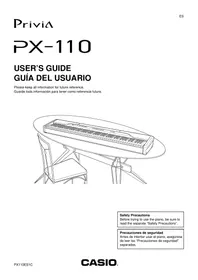


| Product Type | Digital Piano |
| Brand | CASIO |
| Model | PX-110 |
| Keyboard | 88 keys with touch response |
| Maximum Polyphony | 32 notes |
| Built-in Tones | 11 (including Grand Piano 1, 2, Electric Piano, Harpsichord, Vibraphone, Organ, Strings, Bass) |
| Digital Effects | Reverb (4 types), Chorus (4 types), DSP, Brilliance |
| Metronome | Time signatures: 0, 2, 3, 4, 5, 6; Tempo: 30 to 255 |
| Auto Accompaniment | 20 rhythms, Normal, CASIO CHORD, FINGERED, FULL RANGE CHORD modes |
| Music Library | 60 built-in songs |
| Song Memory | Real-time recording, 2 tracks, capacity of about 10,000 notes |
| Pedals | Damper and Soft/Sostenuto (selectable), jack for optional SP-30 pedal unit |
| Connectivity | 2 headphone jacks (stereo mini-jack), 2 pedal jacks (standard jack), MIDI IN/OUT, pedal unit connector, DC 12V input |
| Speakers | 2 x (12 cm x 6 cm oval), power 8.0 W + 8.0 W |
| Power Supply | AD-12 AC adaptor (12 V DC, 18 W) |
| Dimensions (W x D x H) | 132.3 x 27.8 x 13.2 cm |
| Weight | Approximately 11.9 kg |
| Included Accessories | Music stand, AC adaptor |
| Maintenance and Cleaning | Clean with a soft, slightly damp cloth (mild soapy water). Do not use solvents. |
| Safety | Do not expose to water or humidity. Disconnect during storms or prolonged non-use. Use only the specified adaptor. |
| Spare Parts and Repairability | Internal lithium battery (5-year lifespan) replaceable by CASIO authorized service center. |
Frequently Asked Questions - PX-110 CASIO
User questions about PX-110 CASIO
0 question about this device. Answer the ones you know or ask your own.
Ask a new question about this device
Download the instructions for your Digital piano in PDF format for free! Find your manual PX-110 - CASIO and take your electronic device back in hand. On this page are published all the documents necessary for the use of your device. PX-110 by CASIO.
USER MANUAL PX-110 CASIO
Please keep all information for future reference.
Before trying to use the piano, be sure to read the separate "Safety Precautions".
IMPORTANT SAFETY INSTRUCTIONS
- Read these instructions.
- Keep these instructions.
- Heed all warnings.
- Follow all instructions.
- Do not use this apparatus near water.
- Clean only with dry cloth.
- Do not block any ventilation openings. Install in accordance with the manufacturer's instructions.
- Do not install near any heat sources such as radiators, heat registers, stoves, or other apparatus (including amplifiers) that produce heat.
- Do not defeat the safety purpose of the polarized or grounding-type plug. A polarized plug has two blades with one wider than the other. A grounding type plug has two blades and a third grounding prong. The wide blade or the third prong are provided for your safety. If the provided plug does not fit into your outlet, consult an electrician for replacement of the obsolete outlet.
- Protect the power cord from being walked on or pinched particularly at plugs, convenience receptacles, and the point where they exit from the apparatus.
- Only use attachments/accessories specified by the manufacturer.
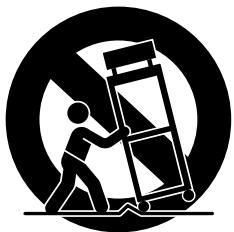
- Use only with the cart, stand, tripod, bracket, or table specified by the manufacturer, or sold with the apparatus. When a cart is used, use caution when moving the cart/apparatus combination to avoid injury from tip-over.
- Unplug this apparatus during lightning storms or when unused for long periods of time.
- Refer all servicing to qualified service personnel. Servicing is required when the apparatus has been damaged in any way, such as power-supply cord or plug is damaged, liquid has been spilled or objects have fallen into the apparatus, the apparatus has been exposed to rain or moisture, does not operate normally, or has been dropped.
The apparatus shall not be exposed to dripping or splashing and that no objects filled with liquids, such as vases, shall be placed on the apparatus.
The power indicator being unlit does not mean the apparatus is completely disconnected from the MAINS. When you need to have the apparatus completely disconnected from the MAINS, you must unplug the power cord. For that purpose, locate the apparatus in a way that secures easy access to the power cord.
NOTICE
This equipment has been tested and found to comply with the limits for a Class B digital device, pursuant to Part 15 of the FCC Rules. These limits are designed to provide reasonable protection against harmful interference in a residential installation. This equipment generates, uses and can radiate radio frequency energy and, if not installed and used in accordance with the instructions, may cause harmful interference to radio communications. However, there is no guarantee that interference will not occur in a particular installation. If this equipment does cause harmful interference to radio or television reception, which can be determined by turning the equipment off and on, the user is encouraged to try to correct the interference by one or more of the following measures:
- Reorient or relocate the receiving antenna.
- Increase the separation between the equipment and receiver.
- Connect the equipment into an outlet on a circuit different from that to which the receiver is connected.
- Consult the dealer or an experienced radio/TV technician for help.
FCC WARNING
Changes or modifications not expressly approved by the party responsible for compliance could void the user's authority to operate the equipment.
Important!
Please note the following important information before using this product.
- Before using the AD-12 Adaptor to power the unit, be sure to check the AC Adaptor for any damage first. Carefully check the power cord for breakage, cuts, exposed wire and other serious damage. Never let children use an AC adaptor that is seriously damaged.
- The product is not intended for children under 3 years.
- Use only CASIO AD-12 adaptor. The AC adaptor is not a toy.
- Be sure to disconnect the AC adaptor before cleaning the product.
This mark applies in EU countries only.

CASIO Europe GmbH Bornbarch 10, 22848 Norderstedt, Germany
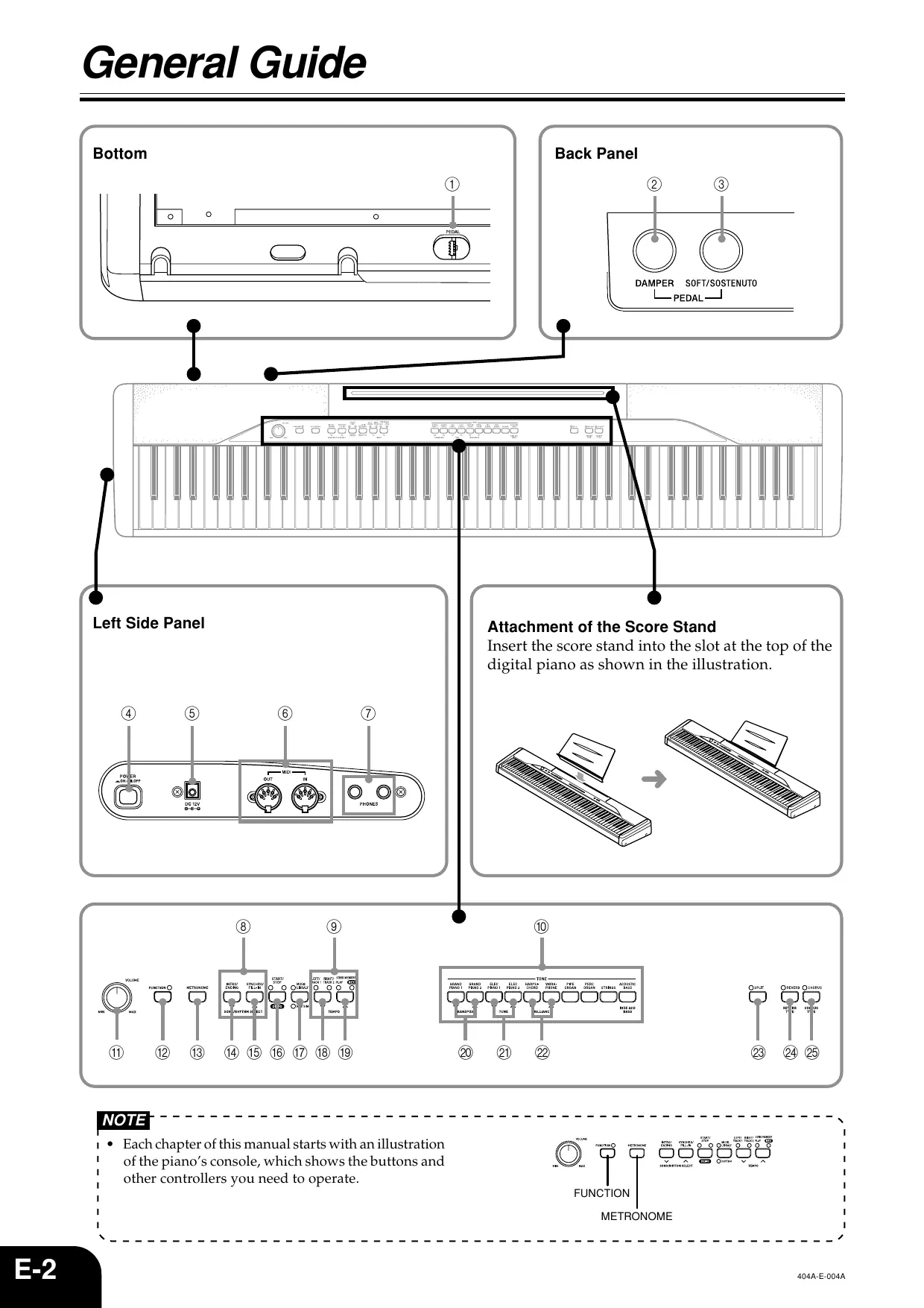
General Guide E-2
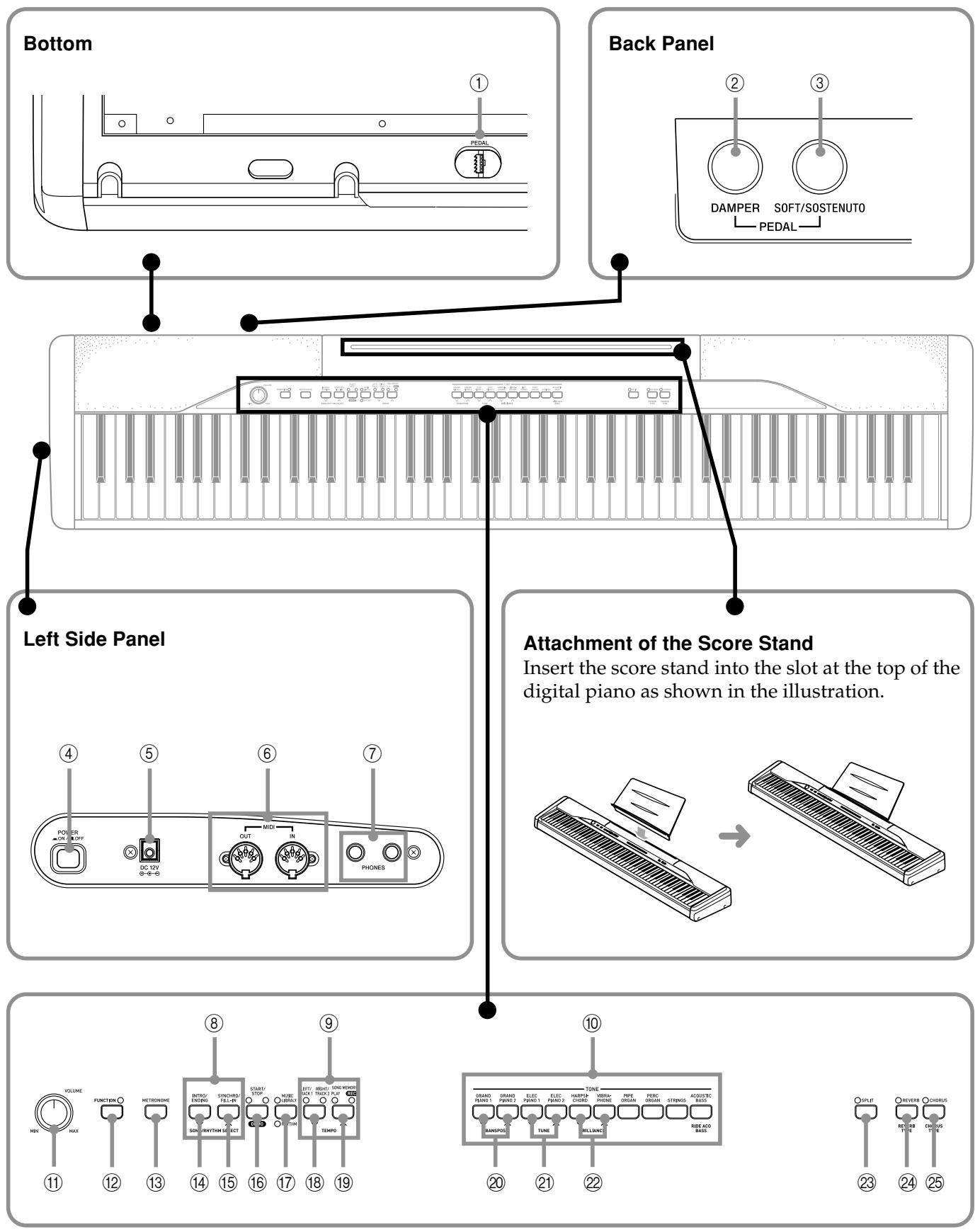
Attachment of the Score Stand E-2
About the FUNCTION button. E-3
Numeric Input Keys and + / - Keys E-4
Playing Back All the Music Library Tunes .. E-4
Power Supply .E-4
Using the AC Adaptor E-4
Connections E-5
Connecting Headphones E-5
Connecting to a PEDAL Jack E-5
Playing with Different Tones...E-6
Selecting and Playing a Tone E-6
Adjusting the Brilliance of a Tone E-6
Layering Two Tones E-6
Assigning Different Tones to the Left and Right Sides of the Keyboard. E-7
Using Tone Effects E-7
Using the Piano's Pedals. E-8
Using the Built-in Metronome E-9
Playing Rhythms. E-10
Using Auto Accompaniment. E-11
Learning to Play the Music Library Tunes E-14
Playing a Music Library Tune . E-14
Practicing a Music Library Tune . E-15
Recording to and Playing Back from Song Memory .E-16
Recording Your Keyboard Play...... E-17
Playing Back from Song Memory E-18
Deleting Song Memory Data E-19
Other Settings E-20
Adjusting Accompaniment and Built-in Tune Volume E-20
Changing the Keyboard Touch E-20
Changing the Piano Key. E-21
Changing the Pitch of the Piano to Match Another Instrument E-21
Using Digital Piano Setup Memory. E-21
Using MIDI . E-21
Troubleshooting. E-23
Specifications. E-24
Operational Precautions ......E-25
Locating the Unit E-25
Care of the Unit. E-25
Lithium Battery E-25
Setting Control Key Chart.....E-26
Appendix A-1
Tone List A-1
Rhythm List. A-1
Song List A-1
Fingered Chord Chart. A-2
MIDI Implementation Chart
Company and product names used in this manual may be registered trademarks of others.
NOTE
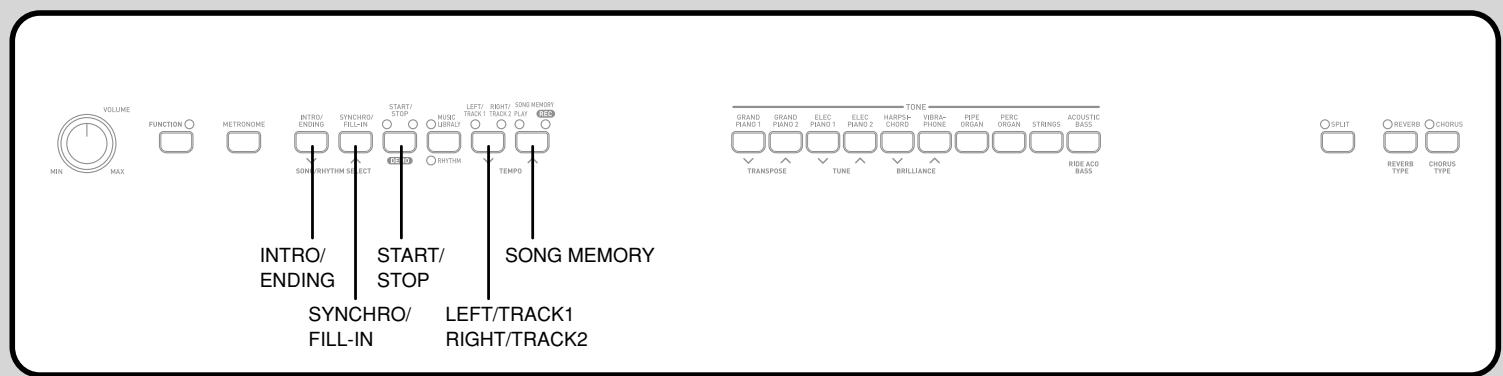
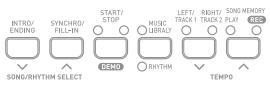
Each chapter of this manual starts with an illustration of the piano's console, which shows the buttons and other controllers you need to operate.
① PEDAL connector ② DAMPER PEDAL jack ③ SOFT/SOSTENUTO PEDAL jack ④ POWER button ⑤ DC 12V jack ⑥ MIDI OUT/IN terminals ⑦ PHONES jacks ⑧ SONG/RHYTHM SELECT buttons ⑨ TEMPO buttons ⑩ TONE buttons ⑪ VOLUME knob ⑫ FUNCTION button ⑬ METRONOME button
⑭ INTRO/ENDING button ⑮ SYNCHRO/FILL-IN button ⑯ START/STOP, DEMO button ⑰ MUSIC LIBRARY, RHYTHM button ⑱ LEFT/TRACK 1 RIGHT/TRACK 2 button ⑲ SONG MEMORY button ⑳ TRANSPOSE buttons ㉑ TUNE buttons ㉒ BRILLIANCE buttons ㉓ SPLIT button ㉔ REVERB, REVERB TYPE button ㉕ CHORUS, CHORUS TYPE button
NOTE
- Key, button, and other names are indicated in the text of this manual using bold type.
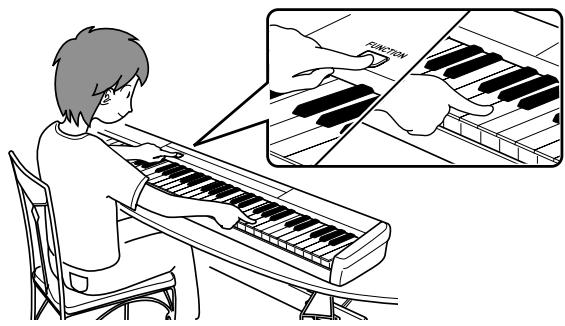
About the FUNCTION button
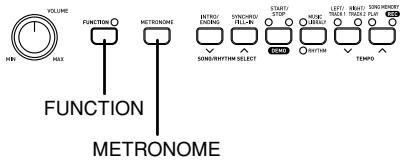
The FUNCTION button makes it possible to perform a variety of useful functions. Note the following general information about using the FUNCTION button.
- An indicator lamp above the FUNCTION button flashes while it is depressed. The lamp goes out when you release the FUNCTION button.
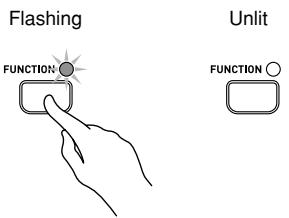
- The FUNCTION button is always used in combination with another button or keyboard key. You hold down the FUNCTION button as you press another button or keyboard key.
- The indicator lamp above the button flashes for a few seconds at high speed to let you know that the setting is complete. Example: "Adjusting the Brilliance of a Tone" on page E-6
- For details about all the keyboard key functions you can perform with the FUNCTION button, see "Setting Control Key Chart" on page E-26.
Numeric Input Keys and +/- Keys
- For a moment after you hold down the FUNCTION button and then press another button to activate a function, you can use certain keyboard keys to input numbers or to increase (+) and decrease (-) setting values.
- Since the keyboard keys operate as switches at this time, notes do not sound when you press keyboard keys.
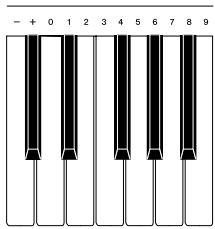
See "To adjust the tempo" on page E-10 for an actual example.
Power Supply
You can power this digital piano by plugging it into a standard household power outlet.
Be sure you turn off power and unplug the power cord from the electrical outlet whenever the digital piano is not in use.
Using the AC Adaptor
Make sure that you use only the AC adaptor specified for this digital piano.
Specified AC Adaptor: AD-12
[Left Side Panel]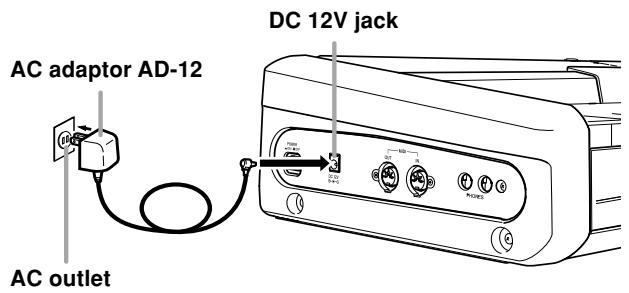
Playing Back All the Music Library Tunes
The following procedure plays back the Music Library tunes in sequence.
While holding down the FUNCTION button, press the DEMO button at the same time.
- This starts sequential playback of the Music Library tunes.
- You can play along with the Music Library tunes on the keyboard, if you want. The tone assigned to the keyboard is the one that is preset for the Music Library tune that is playing.
Press the DEMO button again to stop Music Library tune play.
Note the following important precautions to avoid damage to the power cord.
During Use
- Never pull on the cord with excessive force.
- Never repeatedly pull on the cord.
- Never twist the cord at the base of the plug or connector.
- The power cord should not be stretched tight while it is in use.
During Movement
- Before moving the digital piano, be sure to unplug the AC adaptor from the power outlet.
• During Storage
- Loop and bundle the power cord, but never wind it around the AC adaptor.
IMPORTANT!
- Make sure that the product is turned off before connecting or disconnecting the AC adaptor.
- Using the AC adaptor for a long time can cause it to become warm to the touch. This is normal and does not indicate malfunction.
IMPORTANT!
- Whenever connecting external equipment, first set the VOLUME knob of the digital piano and the volume controller of the external equipment to relatively low volume settings. You can later adjust volume to the level you want after connections are complete.
- Be sure also to refer to the documentation that comes with the external equipment for its proper connection procedures.
Connecting Headphones
Connect commercially available headphones to the digital piano's PHONES jacks. This cuts off the built-in speakers, which means you can practice even late at night without disturbing others. To protect your hearing, make sure that you do not set the volume level too high when using headphones.
[Left Side Panel]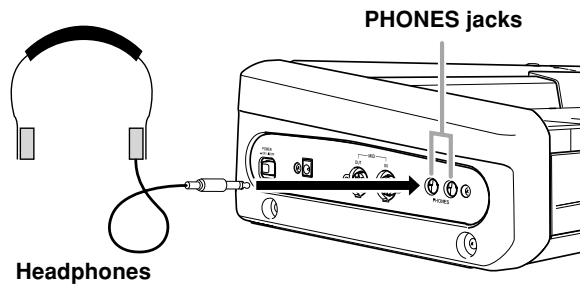
Connecting to a PEDAL Jack
Depending on the type of operation you want the pedal (SP-3) to perform, connect the pedal's cable to the digital piano's PEDAL DAMPER jack or PEDAL SOFT/SOSTENUTO jack. If you want to use both jacks at the same time, you need to purchase another optionally available pedal.
See "Using the Piano's Pedals" on page E-8 for information about using a pedal.
[Back Panel]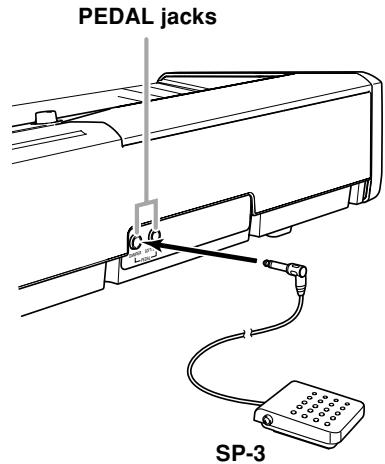
PEDAL connector
You can connect the optionally available Pedal Unit (SP-30) to the PEDAL connector. You can then use the pedals for expression that is similar to that available on an acoustic piano.
[Bottom]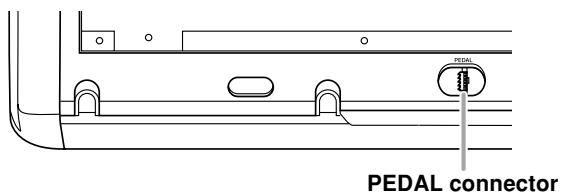
Accessories and Options
Use only the accessories and options specified for this digital piano. Use of non-authorized items creates the danger of fire, electric shock, and personal injury.
Selecting and Playing a Tone
The piano comes with 11 built-in tones.
Press the POWER button.
POWER button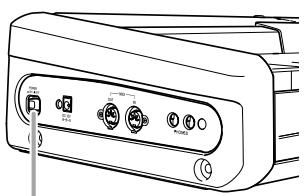
Use the VOLUME knob to adjust the volume level. Press the TONE button of the tone you want to select.
- This causes the indicator lamp above the TONE button to light.
4 Now try playing something on the keyboard.
NOTE
- Hold down the FUNCTION button and press the ACOUSTIC BASS button to select the RIDE ACO BASS tone.
- Changing the tone selection causes DSP to switch automatically to the default setting for the newly selected tone. This causes any notes that are sounding at the time of the change to be interrupted momentarily. The DSP will be set to the default setting for the newly selected tone when the note resumes. (*See page E-8)
Adjusting the Brilliance of a Tone
You can adjust the clarity and sharpness of a tone to suit your music and personal preferences.
1. While holding down the FUNCTION button, press the BRILLIANCE buttons to adjust the brilliance of a tone to the level you want.
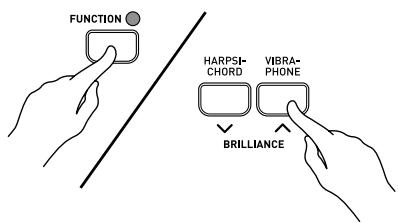
[ ] : produces a more mellow sound [ ] : produces a brighter sound
- To return the brilliance setting to its initial default, hold down the FUNCTION button and press both BRILLIANCE buttons at the same time.
Layering Two Tones
Use the following procedure to layer two tones so they sound at the same time.
Of the two TONE buttons you press to layer two tones, the one on the left is the main tone, while the one on the right is the layered tone.
Simultaneously press the TONE buttons of the two tones you want to layer.
Example: Press the GRAND PIANO 2 button and the STRINGS button at the same time.
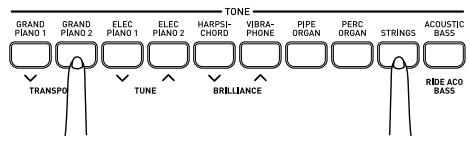
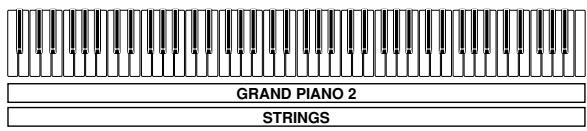
- The tones are now layered.
VOLUME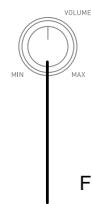
METRONOME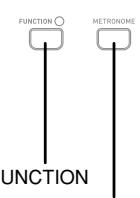


TEMPO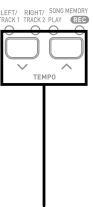
BRILLIANCE TONE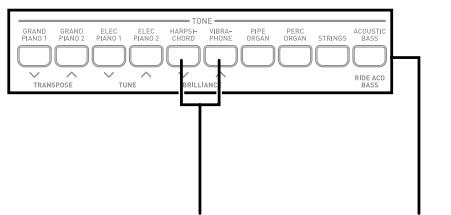
SPLIT CHORUS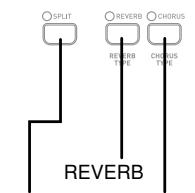
2 After you are finished using the layered tones, press one of the TONE buttons again to unlayer them.
Adjusting the Volume Balance between Two Layered Tones
While holding down the FUNCTION button, use the keyboard keys shown below to adjust the volume of the layered tones.
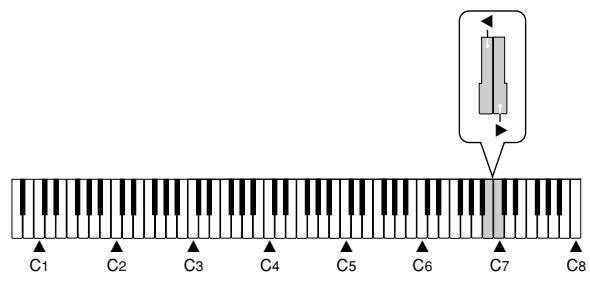

- To return the volume setting to its initial default, hold down the FUNCTION button and press both keys at the same time.
Assigning Different Tones to the Left and Right Sides of the Keyboard
You can assign different tones to keys on the left side and the right side of the keyboard.
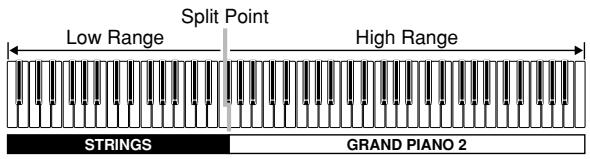
Press the TONE button of the tone you want to select for the high (right) range.
Example: GRAND PIANO 2
Press the SPLIT button.
- This causes the SPLIT indicator lamp to light.
Press the TONE button of the tone you want to select for the low (left) range.
- The keyboard is now split between the two tones.
Example: STRINGS
4 After you are finished using the split keyboard, press the SPLIT button again to unsplit it.
- This causes the SPLIT indicator lamp to go out.
Specifying the Keyboard Tone Split Point
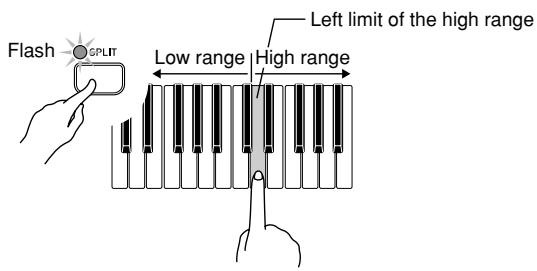
While holding down the SPLIT button, press the keyboard key where you want the left limit of the high range (right) tone to be.
NOTE
- The split point setting also controls the point where the keyboard splits between the accompaniment keyboard (pages E-12, 13) and the melody keyboard. Moving the split point also affects the sizes of the accompaniment keyboard and the melody keyboard.
Using Tone Effects
Reverb: Makes your notes resonate
Chorus: Adds more breadth to your notes
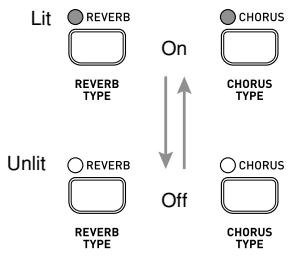
Turning Effects On and Off
Each press of the REVERB or CHORUS button toggles the setting as shown below.
- You can determine the status of the effects by checking the REVERB and CHORUS indicator lamps.
Changing the Effect Type
There are four reverb and four chorus types.
1 Turn on the effect you want to change. 2 While holding down the FUNCTION button, press the REVERB or CHORUS button to cycle through the effect type settings as shown below.
[Reverb]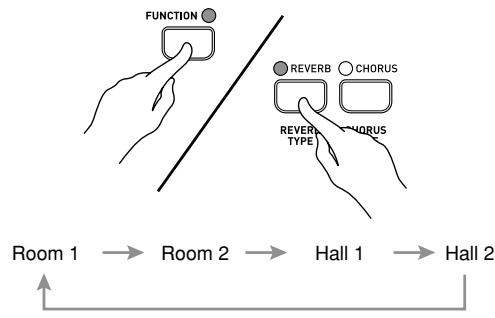
[Chorus]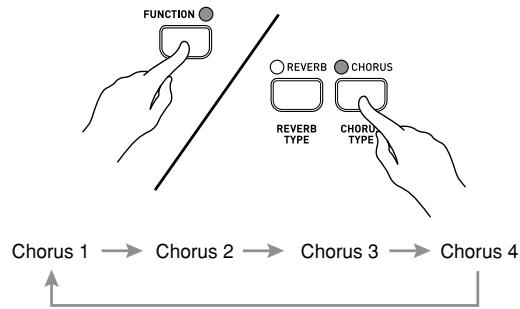
About DSP
DSP makes it possible to digitally produce complex acoustic effects.
The DSP is assigned to each tone whenever you turn on digital piano power.
Turning DSP On and Off
While holding down the FUNCTION button, press one of the keyboard keys shown below to turn DSP on or off.
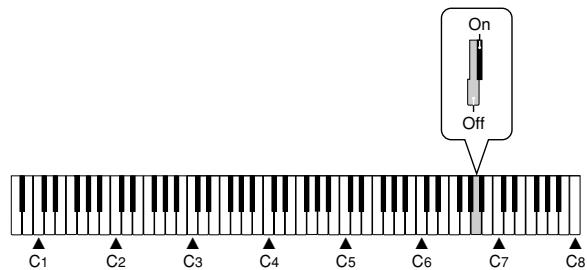
NOTE
- Under initial default settings, DSP is on for the main tone, and layer and split are turned off. DSP can be applied to only one part as shown below.
| Main Tone | Layer Tone | Split Tone | |
| Initial Defaults | On | Off | Off |
| Layer Tone DSP On | Off | On | Off |
| Split Tone DSP On | Off | Off | On |
- You can turn chorus on or off for each main tone, layer tone, and split tone part.
- You cannot turn reverb on or off for each main tone, layer tone, and split tone part.
Using the Piano's Pedals
The digital piano is equipped with two pedal jacks, one for a damper pedal and one for a soft/sostenuto pedal.
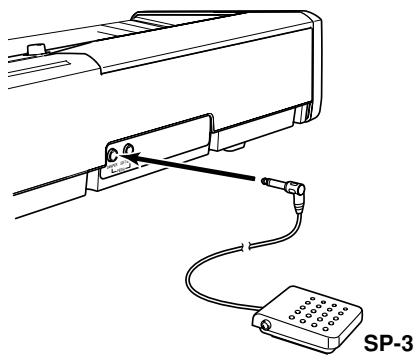
Pedal functions
- Damper Pedal
Pressing the damper pedal while playing will cause the notes you play to reverberate for a very long time. When GRAND PIANO 1 or 2 is selected as the tone, using this pedal causes note to reverberate just like the pedal on an acoustic grand piano.
- Soft Pedal
Pressing this pedal while playing weakens notes played on the keyboard after the pedal was pressed, and makes them sound softer.
- Sostenuto Pedal
Only the notes of the keys that are depressed when this pedal is pressed are sustained until the pedal is released.
Selecting the Pedal Function
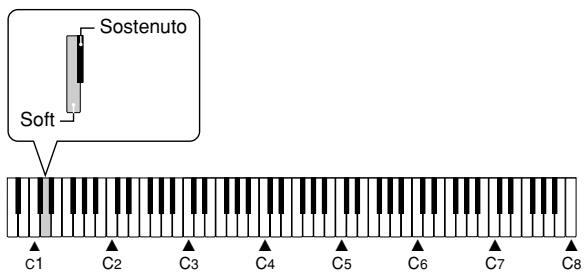
A pedal connected to the piano's PEDAL jack can operate as either a soft pedal or a sostenuto pedal. When you turn on the digital piano, the pedal is initially configured for soft pedal operation. You can perform the following operation to select either soft or sostenuto for the pedal operation.

While holding down the FUNCTION button, use the keyboard keys shown below to select either soft or sostenuto.
Adjusting the Effect Applied when the Damper Pedal is Pressed Half Way (With optional SP-30 only)
You can specify to what extent the damper effect should be applied when you press the damper pedal half way. A setting in the range of 0 (no effect) to 42 (same effect as full press) can be specified.

While holding down the FUNCTION button, press one of the keyboard keys shown below to specify the setting you want.
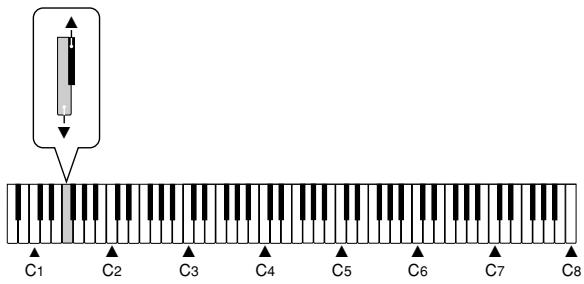
: Decreases the effect : Increases the effect - To return the volume setting to its initial default, hold down the FUNCTION button and press both of the keys at the same time.
Using the Built-in Metronome
You can use the metronome to sound a count that helps keep you in proper time.
NOTE
- If you want to use layer/split in combination with the metronome, first press the RHYTHM button so the rhythm lamp (under the button) is lit.

Press the METRONOME button.
This starts the metronome.

While holding down the FUNCTION button, use the keyboard keys shown below to specify how many beats there are per measure.
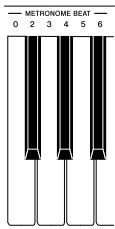
- The first value of the beat can be set to a value of 2 through 6. The bell (indicating the first beat of a measure) does not sound while a value of 0 is specified. All beats are indicated by a click sound. This setting lets you practice with a steady beat, without worrying about how many beats there are in each measure.

While holding down the FUNCTION button, use the TEMPO [√] and [▲] buttons to change the tempo (speed) of the metronome.
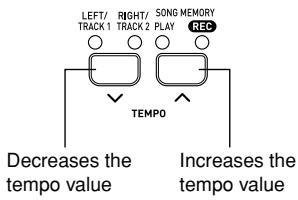
- You can also use keyboard keys to change the tempo setting (see page E-10).

Press the METRONOME button again to stop the metronome.
You can select from among 20 built-in rhythms. Rhythms 0 through 9 include percussion instrument sounds, but rhythms 10 through 19 do not. See the next page for information about how to use rhythms 10 through 19.
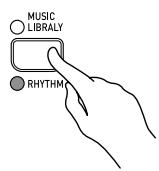
Press the RHYTHM button so the RHYTHM indicator lamp (below the button) is lit.
Each press of the button toggles between the upper indicator lamp and lower indicator lamp.
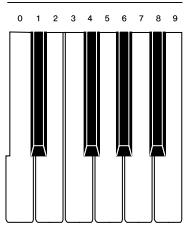
2 While holding down the FUNCTION button, use the keyboard keys shown below to input a rhythm number.
- If you want your accompaniment rhythm to include percussion instrument sounds, select a rhythm in the range of 0 through 9.
Press the START/STOP button. - This starts the rhythm. 4 Press the START/STOP button again to stop the rhythm.
NOTE
- You can also cycle through the available rhythms in step 2 by holding down the FUNCTION button and pressing the SONG/RHYTHM SELECT [√] or [▲] button.
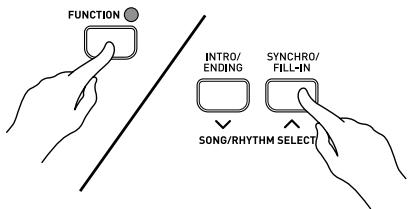
- Pressing the two SONG/RHYTHM SELECT buttons at the same time selects rhythm 0.
To adjust the tempo
While holding down the FUNCTION button, use the TEMPO [√] and [A] buttons to change the tempo (speed).
- To return to its standard tempo setting, press the TEMPO [√] and [▲] buttons at the same time.
NOTE
You can also use keyboard keys to change the tempo setting.
(1) While holding down the FUNCTION button, press the TEMPO button. (2) While keeping the FUNCTION button depressed, use the keyboard keys shown below to input a number.
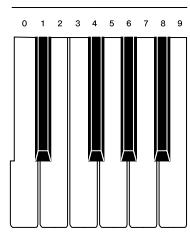
- Tempo Range: 30 to 255
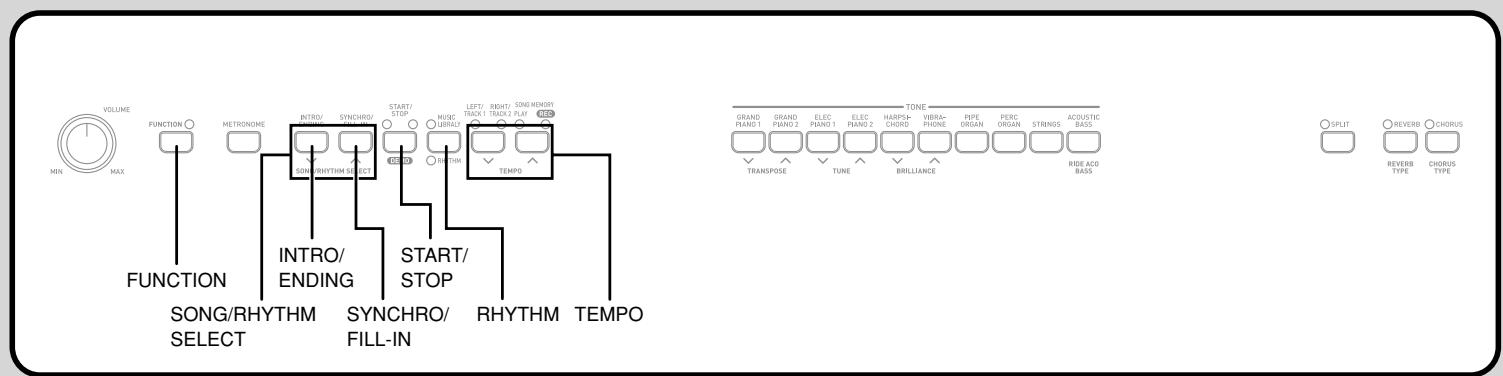
Using Auto Accompaniment
With auto accompaniment, the keyboard automatically plays rhythm, bass, and chord parts in accordance with chords you select using simplified keyboard fingerings, or chords you play. Auto accompaniment makes it feel like you have your own private backup group with you all the time.
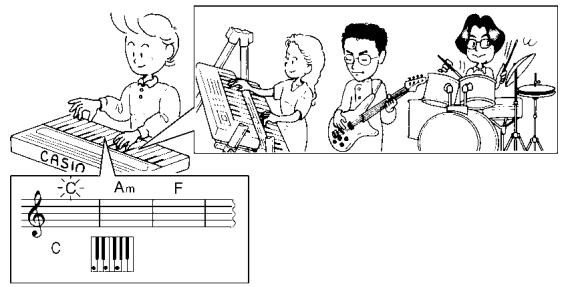
NOTE
- Rhythms 10 through 19 consist of chord accompaniments only without any drum or rhythm sounds. These rhythms do not sound unless CASIO CHORD, FINGERED, or FULL RANGE CHORD is selected as the accompaniment mode. With such rhythms, make sure that CASIO CHORD, FINGERED, or FULL RANGE CHORD is selected before you try playing chords.
To play with auto accompaniment
PREPARATION
- Select the rhythm you want to use and adjust the tempo.

Select one of the three chord modes (MODE).
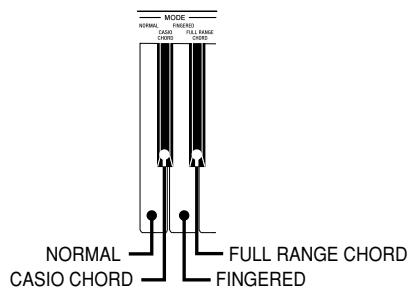
Here we will select the CASIO CHORD mode. - See page E-12 for information about how to use the chord modes.

Press the SYNCHRO/FILL-IN button.
- This configures the piano so rhythm and chord accompaniment will start automatically when you press any keys within the accompaniment keyboard range.

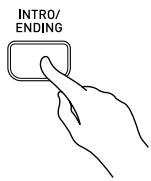
Press the INTRO/ENDING button.
- This configures the piano so accompaniment starts with an intro pattern.

Use a CASIO CHORD fingering to play the first chord within the accompaniment keyboard range.
- This will cause the intro pattern for the selected rhythm to play, followed by the auto accompaniment rhythm and chord pattern.

Use CASIO CHORD fingerings to play other chords.
- See "How to Play Chords" on page E-12 for information about how to finger chords with the various chord modes.
- You can insert a fill-in pattern while an auto accompaniment is playing by pressing the SYNCHRO/FILL-IN button. A fill-in helps to change the mood of the auto accompaniment pattern.

To stop auto accompaniment play, press the INTRO/ENDING button.
- This will play an ending pattern for the selected rhythm before stopping auto accompaniment play.
NOTE
- You can start or stop auto accompaniment play without an intro or ending pattern by pressing the START/STOP button in steps 3 and 6.
- You can adjust the volume of auto accompaniment. For more information see "Adjusting Accompaniment and Built-in Tune Volume" on page E-20.
How to Play Chords
The way you finger chords depends on the current chord mode.
■ Normal
In this mode there is no auto accompaniment, so you can play all of piano's keys for standard-fingering chords or melody notes.
CASIO CHORD
This method of chord play makes it possible for anyone to easily play chords, regardless of previous musical knowledge and experience. The following describes the CASIO CHORD "Accompaniment keyboard" and "Melody keyboard", and tells you how to play CASIO CHORDs.
CASIO CHORD Accompaniment Keyboard and Melody Keyboard
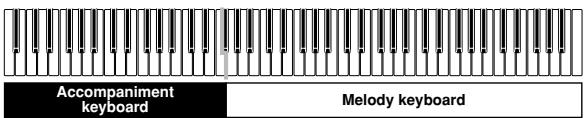
IMPORTANT!
- The accompaniment keyboard can be used for playing chords only. No sound will be produced if you try playing single melody notes on the accompaniment keyboard.
- The split point (page E-7) is the point that separates the Auto Accompaniment area and the melody area of the keyboard. You can change the location of the split point, which also changes the sizes of the keyboard areas.
Chord Types
CASIO CHORD accompaniment lets you play four types of chords with minimal fingering.
| Chord Types | Example |
| Major chords Press one accompaniment key. Note that the chord produced when you press an accompaniment keyboard key does not change octave, regardless of which key you use to play it. | C Major (C) JOYCE FERMAAB BCCODE E |
| Minor chords (m) To play a minor chord, keep the major chord key depressed and press any other accompaniment keyboard key located to the right of the major chord key. | C minor (Cm) JOYCE FERMAAB BCCODE E |
| Seventh chords (7) To play a seventh chord, keep the major chord key depressed and press any other two accompaniment keyboard keys located to the right of the major chord key. | C seventh (C7) JOYCE FERMAAB BCCODE E |
| Minor seventh chords (m7) To play a minor seventh chord, keep the major chord key depressed and press any other three accompaniment keyboard keys located to the right of the major chord key. | C minor seventh (Cm7) JOYCE FERMAAB BCCODE E |
NOTE
- It makes no difference whether you press black or white keys to the right of a major chord key when playing minor and seventh chords.
FINGERED
In this mode, you specify chords by playing them as you would on a piano, inside the accompaniment keyboard range. To specify a C-chord, you would play C-E-G.
FINGERED Accompaniment Keyboard and Melody Keyboard
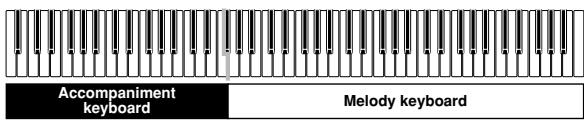
IMPORTANT!
- The accompaniment keyboard can be used for playing chords only. No sound will be produced if you try playing single melody notes on the accompaniment keyboard.
- The split point (page E-7) is the point that separates the Auto Accompaniment area and the melody area of the keyboard. You can change the location of the split point, which also changes the sizes of the keyboard areas.
C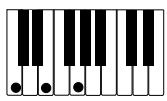
Cm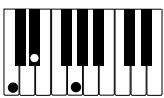
Cdim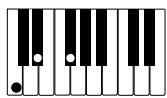
Caug *1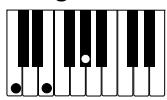
Csus4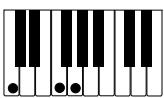
C7*2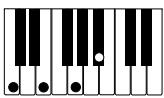
Cm7*2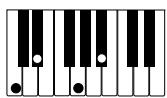
Cmaj7*2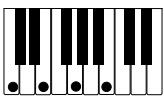
Cm75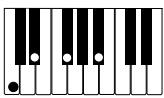
C75*1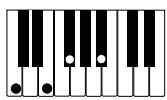
C7sus4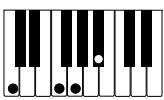
Cadd9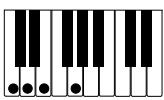
Cmadd9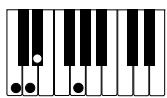
CmM7 *2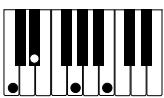
Cdim7*1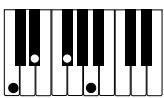
NOTE
- See the "Fingered Chord Chart" on page A-2 for details on playing chords with other roots.
1: Inverted fingerings cannot be used. The lowest note is the root. 2: The same chord can be played without pressing the 5th G.
NOTE
Except for the chords specified in note*1 above, inverted fingerings (i.e. playing E-G-C or G-C-E instead of C-E-G) will produce the same chords as the standard fingering. Except for the exception specified in note*2 above, all of the keys that make up a chord must be pressed. Failure to press even a single key will not play the desired FINGERED chord.
■ FULL RANGE CHORD
This accompaniment method makes it possible to play a total of 38 chord variations: the 15 available with FINGERED plus 23 additional variations. The keyboard interprets any input of three or more keys that matches a FULL RANGE CHORD pattern to be a chord. Any multi-key input that is not a FULL RANGE CHORD pattern is interpreted as melody play. Because of this, there is no need for a separate accompaniment keyboard, and the entire keyboard from end-to-end can be used for both melody and chords.
FULL RANGE CHORD Accompaniment Keyboard and Melody Keyboard

Chords Recognized by This Piano
The following table identifies patterns that are recognized as chords by FULL RANGE CHORD.
| Pattern Type | Number of Chord Variations |
| FINGERED | The 15 chord patterns shown under "FINGERED" on page E-12. |
| Standard Fingerings | 23 standard chord fingerings. The following are examples of the 23 chords available with C as the bass note. C6·Cm6·C69 DbC D E F G A b C B B C D m C D m Fm Gm A m B m Ddim C A b F7 C Fm7 Gm7 A badd9 C C C C C C |
Example: To play the chord C major and C/E.
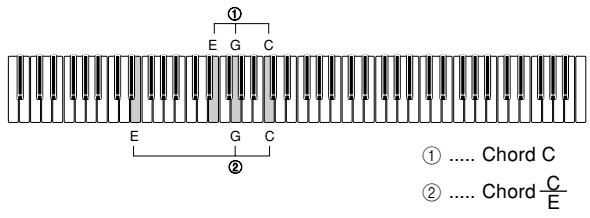
NOTE
- If there are more than six semitones between the lowest note and the next note to the right, the lowest note is interpreted as a bass note.
Learning to Play the Music Library Tunes
Playing a Music Library Tune
Your piano comes with 60 Music Library tunes built in. See the Song List on page A-1 of this manual for more information.

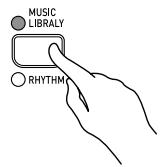
Press the MUSIC LIBRARY button so the MUSIC LIBRARY indicator lamp (above the button) is lit.
Each press of the button toggles between the upper indicator lamp and lower indicator lamp.

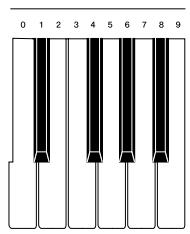
While holding down the FUNCTION button, press the keyboard keys shown below to input a tune number.

Press the START/STOP button.
- This starts the playback of the tune.

Press the START/STOP button again to stop tune playback.
NOTE
- You can also cycle through the available tunes in step 2 by holding down the FUNCTION button and pressing the SONG/RHYTHM SELECT [√] or [▲] button.
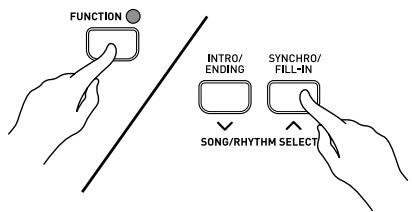
- Pressing the two SONG/RHYTHM SELECT buttons at the same time selects tune 0.
- You cannot use layer or split while playing a built-in tune.
Turning the Count On and Off
Use the following procedure to turn the count that sounds at the beginning of a song on and off.

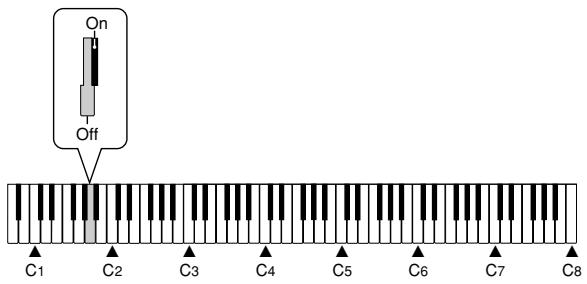
While holding down the FUNCTION button, press one of the keyboard keys shown below to turn the count tone on or off.

Practicing a Music Library Tune
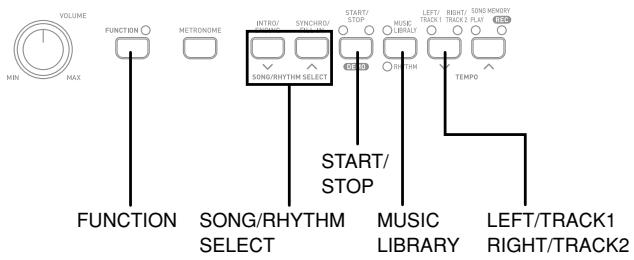
You can turn off the left hand part or right hand part of a Music Library tune and play along on the piano.
PREPARATION
- Select the tune you want to practice and adjust the tempo (See "To adjust the tempo" on page E-10).
- The maximum tempo setting for each tune is double the initial default tempo of the tune.
- A number of tunes have tempo changes part way through in order to produce specific musical effects.
1 Use the LEFT/TRACK 1 RIGHT/TRACK 2 button to turn parts on or off.
- The indicator lamps above the button show the current on/off status of the parts.
Press the START/STOP button. - This starts playback of the tune, without the part you selected in step 1. 3 Play the missing part on the piano's keyboard. 4 Press the START/STOP button again to stop song playback.
Recording to and Playing Back from Song Memory
You can store the notes you play in Song Memory for later playback.
NOTE
- You cannot use layer or split with Song Memory record operation.
- The metronome beat setting changes to 0 automatically while you are using Song Memory. This setting is fixed and cannot be changed.
Tracks
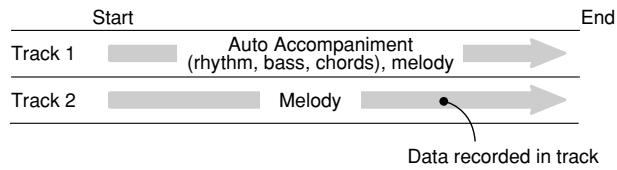
The song memory of this piano records and plays back notes much like a standard tape recorder. There are two tracks, each of which can be recorded separately. Besides notes, each track can be assigned its own tone number. During playback you can adjust the tempo to change the speed of playback.
Song Memory Capacity
- You can store a total of up to about 10,000 notes (Track 1 + Track 2) in Song Memory.
- Recording stops automatically if the number of notes in Song Memory exceeds the maximum while you are recording. This is indicated by the REC indicator lamp turning off.
Other Song Memory Data
The following data is included when recording to Song Memory: keyboard play, selected tone, tempo setting (Track 1 only), pedal operations, reverb and chorus settings, DSP on/off setting, brilliance setting, accompaniment volume setting, selected rhythm (Track 1 only), chord mode (Track 1 only), and intro/ fill-in/ending control (Track 1 only).
Recorded Data Storage
This digital piano has a lithium battery to supply power to retain memory contents even while power is off.* The life of the lithium battery is five years after the date of manufacture of the digital piano. Be sure to contact your CASIO service provider about having the lithium battery replaced every five years.
- Never turn off piano power while a record operation is in progress.
IMPORTANT!
- If the data recorded in a single track uses up all the available Song Memory capacity, you will not be able to record anything in the other track.
- Recording new data to a track automatically deletes any data previously stored in that track.
- Turning off power while a record operation is in progress deletes anything recorded up to that point.
- CASIO COMPUTER CO., LTD. shall not be held responsible for any losses by you or any third party due to loss of data caused by malfunction or repair of this digital piano, or by battery replacement.
SONG MEMORY Button Operation
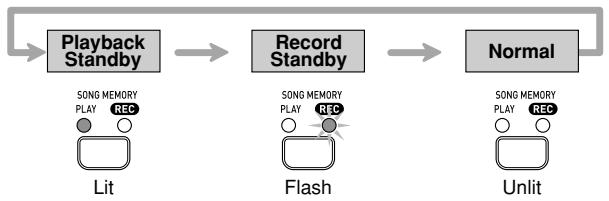
Each press of the SONG MEMORY button cycles through the functions shown below.
Recording Your Keyboard Play
You can record to either track with or without playback of the other track.
To record to one track without playing back the other
When recording a different tune to Track 2 after recording to Track 1, make sure you carefully read the notes under steps 1 and 2 before actually performing the steps.

Press the SONG MEMORY button so the PLAY indicator lamp is lit.
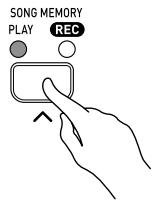
- Select the tone and effects you want to use in your recording, and configure the tempo and beat settings.
NOTE
- If you are recording a different tune to Track 2 after recording to Track 1, press the LEFT/TRACK 1 RIGHT/TRACK 2 button to turn off the L/T1 indicator lamp.
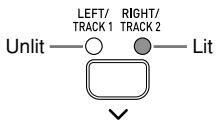

Press the SONG MEMORY button so the REC indicator lamp is flashing.
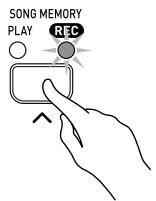
- At this time the LEFT/TRACK 1 indicator lamp should also be flashing. This indicates that the piano is standing by for recording to Track 1.
NOTE
- If you want to record to Track 2, press the LEFT/TRACK 1 RIGHT/TRACK 2 button here. This will cause the RIGHT/TRACK 2 indicator lamp to flash, which indicates that the piano is standing by for recording to Track 2.
- If you want to use the metronome during recording, press the METRONOME button to start it.
- If you want to use a rhythm and/or auto accompaniment during recording (to Track 1 only), select the rhythm and chord mode.

Start playing something on the keyboard.
- This will automatically start recording.
- Actually, there are a variety of different ways to start the record operation. See "Starting the Record Operation" below for more information.

When you are finished, press the START/STOP button to stop recording.
- If you are using a rhythm, you can stop recording with an ending pattern by pressing the INTRO/ENDING button.
- Stopping recording causes the REC indicator lamp to go out, and indicator lamp above the button of the track to which you recorded to light.
- To play back the track you just recorded, press the START/STOP button again.

After you are finished recording or playing back, press the SONG MEMORY button so the PLAY lamp or REC lamp turns off.
Starting the Record Operation
You can use any of the following methods to start a record operation in step 2 of the above procedure.
■ When recording to Track 1 with rhythm or auto accompaniment
- Press the START/STOP button to start recording.
- Press the SYNCHRO/FILL-IN button to put the piano into synchro start standby. Recording will start when you finger a chord in the accompaniment range of the keyboard.
- Press the INTRO/ENDING button to put the piano into synchro start standby. Recording will start and an intro pattern will play when you finger a chord in the accompaniment range of the keyboard.
■ When recording to Track 1 without rhythm or auto accompaniment - Recording will start as soon as you play anything on the keyboard. When recording to Track 2 - Press the START/STOP button or play something on the keyboard to start recording.
To record to a track while playing back from the other
After you finish recording, you can play back Track 1 and Track 2 at the same time.
Example: To record to Track 2 while playing back the contents of Track 1
Press the SONG MEMORY button so the PLAY indicator lamp is lit.
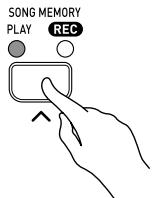
- Select the tone and effects you want to use while recording.
Press the LEFT/TRACK 1 RIGHT/TRACK 2 button so LEFT/TRACK 1 indicator is lit.
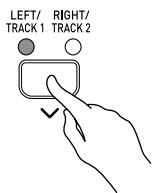
Press the SONG MEMORY button again.
- This causes the LEFT/TRACK 1 indicator lamp to flash. Press the LEFT/TRACK 1 RIGHT/TRACK 2 button, so it causes the RIGHT/TRACK 2 indicator lamp to flash, which indicates that the piano is standing by for recording to Track 2. 4 Press the START/STOP button or play something on the keyboard to start simultaneous playback from Track 1 and recording to Track 2. When you are finished, press the START/ STOP button again to stop recording.
Playing Back from Song Memory
Press the SONG MEMORY button so the PLAY indicator lamp is lit.
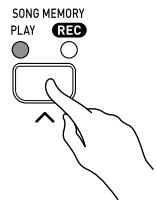
Use the LEFT/TRACK 1 RIGHT/TRACK 2 button to select the track you want to play back.
- The indicator lamps above the button show the currently selected track.
- To play back Track 1, the LEFT/TRACK 1 indicator lamp should be lit.
- To play back Track 2, the RIGHT/TRACK 2 indicator lamp should be lit.
- To play back Track 1 and Track 2, both the indicator lamps should be lit.
Press the START/STOP button.
- This starts playback of the track you selected.
- You can change the tempo setting as a track is playing.
- As a track is playing, you can turn the metronome on or off using the METRONOME button.
- You cannot change the tone setting during playback.
- Press the START/STOP button again to stop playback.
Deleting Song Memory Data
IMPORTANT!
- The procedure below deletes all of the data from the selected track. Note that the delete operation cannot be undone. Check to make sure you really do not need the data in Song Memory before you perform the following steps.
Press the SONG MEMORY button so the REC indicator lamp is flashing.
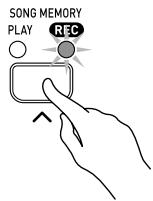
Use the LEFT/TRACK 1 RIGHT/TRACK 2 button to select the track you want to delete.
- The indicator lamps above the button show the currently selected track.
- To delete Track 1, the LEFT/TRACK 1 indicator lamp should be flashing.
- To delete Track 2, the RIGHT/TRACK 2 indicator lamp should be flashing.
Hold down the SONG MEMORY button until the REC indicator lamp stops flashing and remains lit.
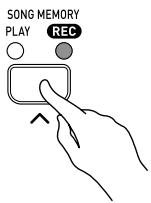
4 Press the LEFT/TRACK 1 RIGHT/TRACK 2 button.
- This deletes the selected track and enters the standby state.
Adjusting Accompaniment and Built-in Tune Volume
Perform the following operation to change the volume level of the rhythm and chord accompaniment or built-in tune.

While holding down the FUNCTION button, use the keyboard keys shown below to raise (▲) or lower (▼) the accompaniment or tune volume.
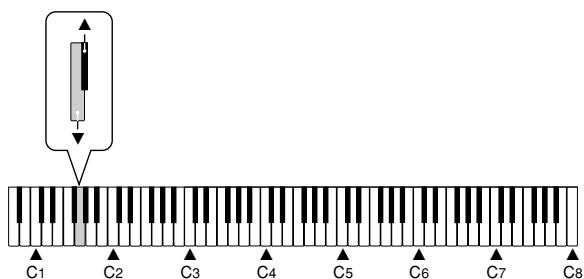
▲ Raises the accompaniment or tune volume ▼ Lowers the accompaniment or tune volume
Changing the Keyboard Touch
This setting changes the relative touch of the keyboard keys.

While holding down the FUNCTION button, press one of the keyboard keys shown below.
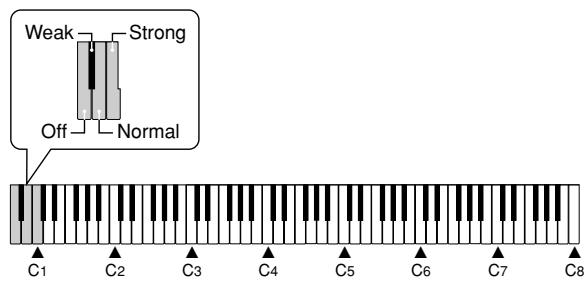
Off
Weak (Strong sound is produced even when relatively light pressure is applied.)
Normal
Strong (Normal sound is produced even when relatively strong pressure is applied.)
FUNCTION


Changing the Piano Key
Use this setting to raise or lower the overall key of the keyboard in semitone steps.

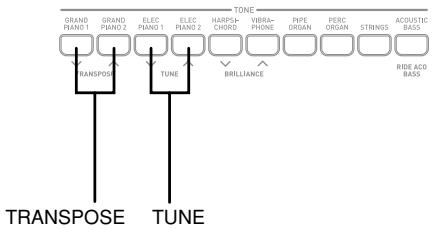
Holding down the FUNCTION button, press the TRANSPOSE buttons to raise or lower the overall key of the keyboard.
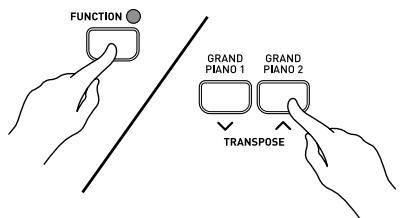

]: Raise

]: Lower
NOTE
- To return the piano key to C, hold down the FUNCTION button and press the TRANSPOSE [√] and [▲] buttons at the same time.
- After using Transpose to raise the keyboard to a high key, notes played at the highest range of the keyboard may not sound properly for certain tones.
Changing the Pitch of the Piano to Match Another Instrument
Use this setting to raise or lower the overall pitch of the piano. The setting range is plus or minus 50 cents (100 cents = 1 semitone) from the standard pitch of A4 = 440.0 Hz.

Holding down the FUNCTION button, press the TUNE buttons to raise or lower the overall pitch of the piano.
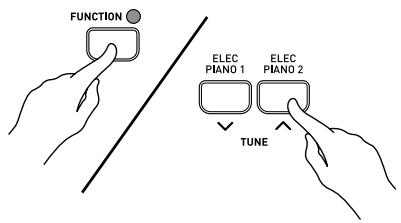

: Raise

: Lower
- Each press of the button changes the current setting by approximately 1 cent (1/100 semitone).
NOTE
- Holding down the FUNCTION button and pressing the TUNE buttons [√] and [▲] at the same time returns tuning to the standard A4 = 440.0 Hz.
Using Digital Piano Setup Memory
When setup memory is turned on, the digital piano will remember its setup* whenever you turn it off. If you turn off setup memory, settings will be cleared when you turn off the digital piano.
■ Turning power off in the Music Library Mode: The next time you turn on the digital piano, the following settings will be configured in accordance with setup memory: tune selection, keyboard touch, pedal type, damper pedal setting, metronome beat, layered tone volume balance, split point, send channel. ■ Turning off the digital piano while in the rhythm mode: The next time you turn on the digital piano and enter the rhythm mode, non-local control setting (see "Using MIDI" below) will be configured in accordance with setup memory.

While holding down the FUNCTION button, press one of the keyboard buttons shown below to turn setup memory on or off.
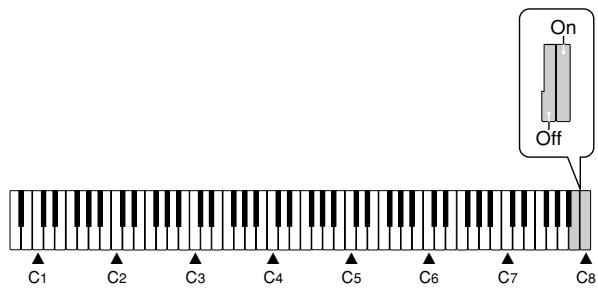
Using MIDI
What is MIDI?
The letters MIDI stand for Musical Instrument Digital Interface, which is the name of a worldwide standard for digital signals and connectors that makes it possible to exchange musical data between musical instruments and computers (machines) produced by different manufacturers.
NOTE
- For detailed information about MIDI Implementation, visit the CASIO website at: http://world.casio.com/.
MIDI Connections
Send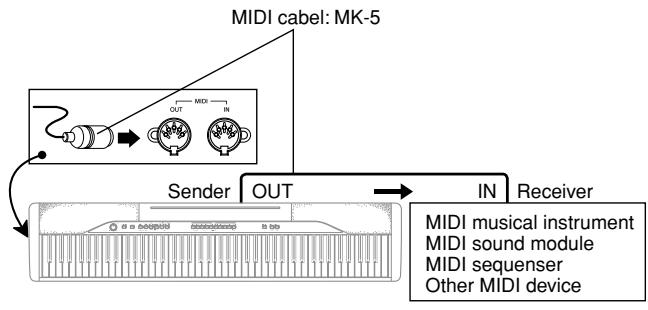
Receive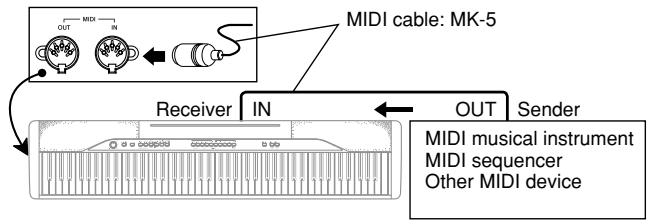
MIDI Settings
1 Send Channel
Use this setting to specify one of the MIDI channels (1 through 16) as the Send Channel for sending MIDI messages to an external device.
2 Accomp/Song MIDI Out
Use this setting to specify whether or not MIDI messages for the piano's auto accompaniment and song memory playback should be sent.
MIDI IN Chord Judge
Specifies whether chord judge should be performed on accompaniment range MIDI Note On messages received from an external device.
Local Control
This setting controls whether or not power is cut off internally from the piano's keyboard and sound source. Turning off Local Control cuts off power to the keyboard and source, which means that the piano does not produce any sound when played. This comes in handy when you want to turn off the piano's keyboard and use its auto accompaniment feature to accompany an external sequencer or other device.
While holding down the FUNCTION button, press one of the keyboard keys shown below to configure the setting you want.
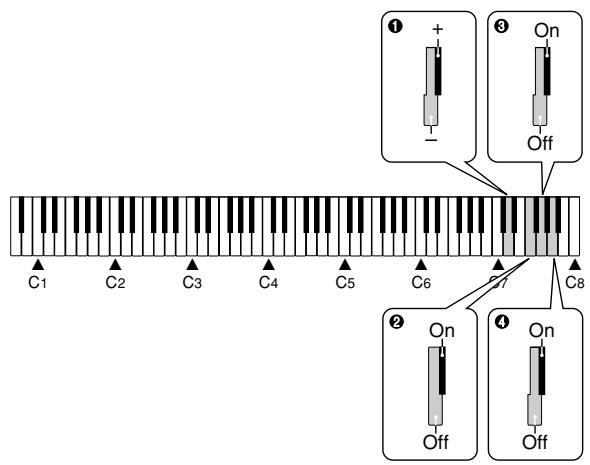
1 Send Channel
- :Decreases value +: Increases value
Accomp/Song MIDI Out
Off
On
MIDI IN Chord Judge
Off
On
Local Control
Off
On
| Symptom | Possible Cause | Action | Reference |
| No sound produced when keyboard keys are pressed. | 1. VOLUME knob set to MIN.2. Headphones connected to the digital piano.3. Local Control turned off.4. Check the current accompaniment mode setting. Normally, the accompaniment keyboard will not produce any note while CASIO CHORD or FINGERED is selected as the accompaniment mode. | 1. Move the VOLUME knob more towards MAX.2. Disconnect the headphones from the digital piano.3. Turn on Local control.4. Change the accompaniment mode to NORMAL. | Page E-6Page E-5Page E-22Page E-12 |
| Keyboard out of tune. | 1. The piano key is set to a value other than C.2. Incorrect pitch setting of the piano. | 1. Change the piano key setting to C, or turn the digital piano power off and then back on again.2. Correct the pitch setting, or turn the digital piano power off and then back on again. | Page E-21Page E-21 |
| No sound produced by demo tune play. | 1. VOLUME knob set to MIN.2. Headphones connected to the digital piano. | 1. Move the VOLUME knob more towards MAX.2. Disconnect the headphones from the digital piano. | Page E-6Page E-5 |
| Memory contents deleted. | Lithium battery is dead. | Contact your CASIO Service Provider for replacement of the lithium battery. | Page E-25 |
| No sound produced by connected external MIDI sound source when the digital piano keys are pressed. | 1. The digital piano Send Channel does not match the Send Channel of the MIDI sound source.2. Volume or expression setting of the external sound source is set to 0. | 1. Change the Send Channel settings so they are identical.2. Change the volume or expression setting of the external sound source to an appropriate value. | Page E-22See the documentation that comes with the external sound source. |
| A tone's quality and volume sounds slightly different depending where it is played on the keyboard. | This is an unavoidable result of the digital sampling process,* and does not indicate malfunction.* Multiple digital samples are taken for the low range, middle range, and high range of the original musical instrument. Because of this, there may be a very slight difference in tonal quality and volume between sample ranges. | ||
| Model: | PX-110 | ||
| Keyboard: | 88 piano keys (with touch response) | ||
| Polyphony: | 32 notes, maximum | ||
| Tones: | 11; with layer, split | ||
| Digital Effects: | Reverb (4 types), Chorus (4 types), DSP, Brilliance | ||
| Metronome: | • Time Signatures: 0, 2, 3, 4, 5, 6 • Tempo Range: 30 to 255 | ||
| Auto Accompaniment: | • Number of Rhythms: 20 • Tempo Range: 30 to 255 • Controllers: START/STOP, INTRO/ENDING, SYNCHRO/FILL-IN • Modes: Normal, CASIO CHORD, FINGERED, FULL RANGE CHORD • Accompaniment Volume: Adjustable | ||
| Music Library: | • Number of Tunes: 60 • Tune Volume: Adjustable • Demo: Sequential looping of all 60 preset tunes • Part On/Off: Left hand, right hand | ||
| Song Memory: | • Operations: Real-time recording, playback • Capacity: Approximately 10,000 notes (2 tracks total) • Memory Backup: Built-in lithium battery (Battery Life: 5 years) | ||
| Pedals: | Damper, Soft/Sostenuto (Selectable) | ||
| Other Functions: | • Touch: 3 types, off • Transpose: 1 octave (F# to C to F) • Tuning: A4 = 440.0Hz ±50 cents (adjustable) | ||
| MIDI: | 16 multi-timbre receive | ||
| Input/Output: | • Headphones: Stereo mini jacks × 2 Output Impedance: 170Ω Output Voltage: 5.5V (RMS) MAX • Pedal: Standard jacks × 2 • Power: 12V DC • MIDI (OUT) (IN) • Pedal connector (for optional SP-30 only) | ||
| Speakers: | (12cm × 6cm OVAL) × 2 (Output: 8.0W + 8.0W) | ||
| Power Supply: | AC Adaptor: AD-12 | ||
| Power Consumption: | 12V --- 18W | ||
| Dimensions: | 132.3 × 27.8 × 13.2 cm (52 1/16 × 10 15/16 × 5 3/16 inch) | ||
| Weight: | Approximately 11.9 kg (26.2 lbs) | ||
- Design and specifications are subject to change without notice.
Locating the Unit
Avoid the following locations.
- Areas exposed to direct sunlight and high humidity
- Areas subjected to very low temperatures
- Near a radio, TV, video deck, or tuner (unit can cause interference with audio or video signals)
Care of the Unit
- Never use benzene, alcohol, thinner or other such chemicals to clean the exterior of the unit.
- To clean the keyboard, use a soft cloth dampened with a weak solution of a mild neutral detergent and water. Wring out all excess moisture from the cloth before wiping.
Lithium Battery
This unit is equipped with a lithium battery to provide power needed to retain memory contents while unit power is turned off. Should the lithium battery go dead, all memory contents will be lost whenever you turn unit power off. The normal life of the lithium battery is five years from the time that the battery was installed. Be sure to periodically contact your retailer or authorized service provider to have the lithium battery replaced. Note that you will be charged separately for lithium battery replacement.
- Note that CASIO COMPUTER CO., LTD. shall not be held liable for any damages or losses or any claims by third parties arising from corruption or loss of data caused by malfunction or repair of the unit, or from battery replacement.
You may notice lines in the finish of the case of this product. These lines are the result of the molding process used to shape the plastic of the case. They are not cracks or breaks in the plastic, and are no cause for concern.
NOTE
- Unauthorized reproduction of this manual in its entirety or in part is expressly forbidden. All rights reserved.
- CASIO COMPUTER CO., LTD. shall not be held liable for any damages or losses or any claims by third parties arising from use of this product or this manual.
- The contents of this manual are subject to change without notice.
While the FUNCTION button is depressed, the keyboard keys can be used to perform a variety of different setting functions. * A value next to a note name indicates the relative position of the note on the keyboard as shown below.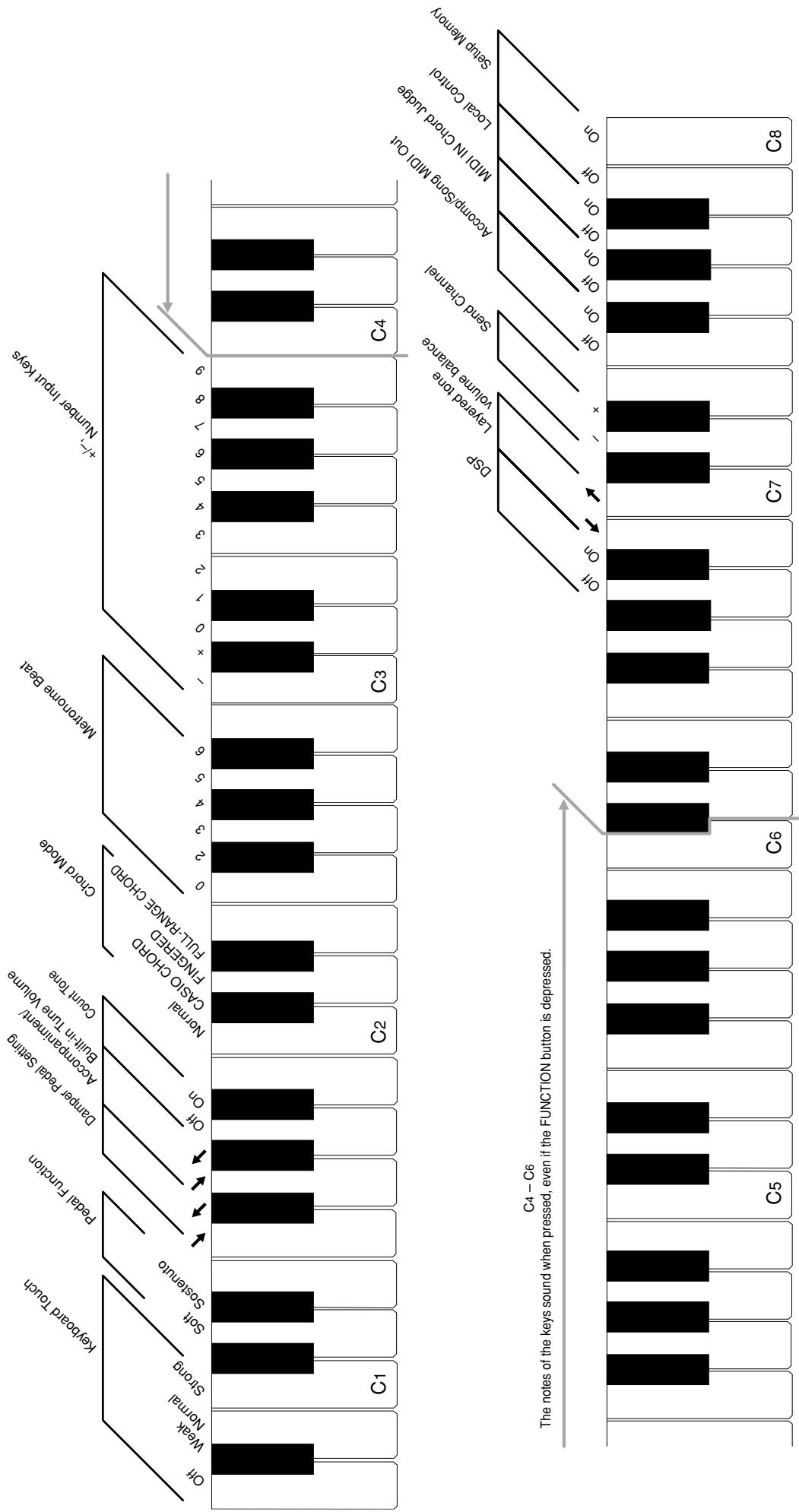
Tone List / Lista de sonidos
| Tone Name/Nombre desonidos | MaximumPolyphony/Polifonia[maxima] | ProgramChange/Cambiodeprograma | Bank SelectMSB/MSB de selección debanco |
| GRAND PIANO 1 | 16 | 0 | 100 |
| GRAND PIANO 2 | 32 | 1 | 100 |
| ELEC PIANO 1 | 32 | 4 | 48 |
| ELEC PIANO 2 | 16 | 5 | 48 |
| HARPSICHORD | 32 | 6 | 48 |
| VIBRAPHONE | 32 | 11 | 48 |
| PIPE ORGAN | 32 | 19 | 48 |
| PERC ORGAN | 16 | 17 | 48 |
| STRINGS | 32 | 49 | 48 |
| ACOUSTIC BASS | 32 | 32 | 48 |
| RIDE ACO BASS | 16 | 32 | 49 |
Rhythm List / Lista de ritmos
| No./N° | Rhythm Name/Nombre de ritmo |
| 00 | PIANO BALLAD 1 |
| 01 | PIANO BALLAD 2 |
| 02 | PIANO BALLAD 3 |
| 03 | EP BALLAD 1 |
| 04 | EP BALLAD 2 |
| 05 | BLUES BALLAD |
| 06 | MELLOW JAZZ |
| 07 | JAZZ COMBO |
| 08 | RAGTIME |
| 09 | BOOGIE-WOOGIE |
| 10 | ARPEGGIO 1 |
| 11 | ARPEGGIO 2 |
| 12 | ARPEGGIO 3 |
| 13 | PIANO BALLAD 4 |
| 14 | 6/8 MARCH |
| 15 | MARCH |
| 16 | 2 BEAT |
| 17 | WALTZ 1 |
| 18 | WALTZ 2 |
| 19 | WALTZ 3 |
NOTE
- Rhythms 10 through 19 consist of chord accompaniments only, without any drums or other percussion instruments. These rhythms do not sound unless CASIO CHORD, FINGERED, or FULL RANGE CHORD is selected as the accompaniment mode. With such rhythms, make sure that CASIO CHORD, FINGERED, or FULL RANGE CHORD is selected before you try playing chords.
NOTE
Mode 1: OMNI ON, POLY
Mode 2: OMNI ON, MONO
O: Yes
Mode 3: OMNI OFF, POLY
Mode 4: OMNI OFF, MONO
X: No

This recycle mark indicates that the packaging conforms to the environmental protection legislation in Germany.
- IMPORTANT SAFETY INSTRUCTIONS
- NOTICE
- FCC WARNING
- IMPORTANT
- GENERAL GUIDE E
- POWER SUPPLY .E
- CONNECTIONS E
- PLAYING WITH DIFFERENT TONES...E
- PLAYING RHYTHMS. E
- LEARNING TO PLAY THE MUSIC LIBRARY TUNES E
- RECORDING TO AND PLAYING BACK FROM SONG MEMORY .E
- OTHER SETTINGS E
- TROUBLESHOOTING. E
- SPECIFICATIONS. E
- OPERATIONAL PRECAUTIONS ......E
- SETTING CONTROL KEY CHART.....E
- APPENDIX A
- MIDI IMPLEMENTATION CHART
- NOTE
- ABOUT THE FUNCTION BUTTON
- NUMERIC INPUT KEYS AND +/- KEYS
- POWER SUPPLY
- USING THE AC ADAPTOR
- SPECIFIED AC ADAPTOR: AD
- PLAYING BACK ALL THE MUSIC LIBRARY TUNES
- CONNECTING HEADPHONES
- CONNECTING TO A PEDAL JACK
- PEDAL CONNECTOR
- ACCESSORIES AND OPTIONS
- SELECTING AND PLAYING A TONE
- ADJUSTING THE BRILLIANCE OF A TONE
- LAYERING TWO TONES
- ADJUSTING THE VOLUME BALANCE BETWEEN TWO LAYERED TONES
- ASSIGNING DIFFERENT TONES TO THE LEFT AND RIGHT SIDES OF THE KEYBOARD
- SPECIFYING THE KEYBOARD TONE SPLIT POINT
- USING TONE EFFECTS
- TURNING EFFECTS ON AND OFF
- CHANGING THE EFFECT TYPE
- ABOUT DSP
- TURNING DSP ON AND OFF
- USING THE PIANO'S PEDALS
- PEDAL FUNCTIONS
- DAMPER PEDAL
- SOFT PEDAL
- SOSTENUTO PEDAL
- SELECTING THE PEDAL FUNCTION
- ADJUSTING THE EFFECT APPLIED WHEN THE DAMPER PEDAL IS PRESSED HALF WAY (WITH OPTIONAL SP-30 ONLY)
- USING THE BUILT-IN METRONOME
- TO ADJUST THE TEMPO
- USING AUTO ACCOMPANIMENT
- TO PLAY WITH AUTO ACCOMPANIMENT
- PREPARATION
- PRESS THE SYNCHRO/FILL-IN BUTTON
- PRESS THE INTRO/ENDING BUTTON
- HOW TO PLAY CHORDS
- NORMAL
- CASIO CHORD
- CASIO CHORD ACCOMPANIMENT KEYBOARD AND MELODY KEYBOARD
- CHORD TYPES
- FINGERED
- FINGERED ACCOMPANIMENT KEYBOARD AND MELODY KEYBOARD
- FULL RANGE CHORD
- FULL RANGE CHORD ACCOMPANIMENT KEYBOARD AND MELODY KEYBOARD
- CHORDS RECOGNIZED BY THIS PIANO
- LEARNING TO PLAY THE MUSIC LIBRARY TUNES
- PLAYING A MUSIC LIBRARY TUNE
- TURNING THE COUNT ON AND OFF
- PRACTICING A MUSIC LIBRARY TUNE
- RECORDING TO AND PLAYING BACK FROM SONG MEMORY
- TRACKS
- SONG MEMORY CAPACITY
- OTHER SONG MEMORY DATA
- RECORDED DATA STORAGE
- SONG MEMORY BUTTON OPERATION
- RECORDING YOUR KEYBOARD PLAY
- TO RECORD TO ONE TRACK WITHOUT PLAYING BACK THE OTHER
- STARTING THE RECORD OPERATION
- TO RECORD TO A TRACK WHILE PLAYING BACK FROM THE OTHER
- PLAYING BACK FROM SONG MEMORY
- DELETING SONG MEMORY DATA
- ADJUSTING ACCOMPANIMENT AND BUILT-IN TUNE VOLUME
- CHANGING THE KEYBOARD TOUCH
- OFF
- CHANGING THE PIANO KEY
- CHANGING THE PITCH OF THE PIANO TO MATCH ANOTHER INSTRUMENT
- USING DIGITAL PIANO SETUP MEMORY
- USING MIDI
- WHAT IS MIDI
- MIDI CONNECTIONS
- MIDI SETTINGS
- SEND CHANNEL
- ACCOMP/SONG MIDI OUT
- MIDI IN CHORD JUDGE
- LOCAL CONTROL
- LOCATING THE UNIT
- CARE OF THE UNIT
- LITHIUM BATTERY
Brand : CASIO
Model : PX-110
Category : Digital piano