
EO-SG710 - Docking Station SAMSUNG - Free user manual and instructions
Find the device manual for free EO-SG710 SAMSUNG in PDF.


 FR
FR
 BG
BG
 CS
CS
 DA
DA
 DE
DE
 EL
EL
 EN
EN
 ES
ES
 ET
ET
 FI
FI
 HU
HU
 IT
IT
 KK
KK
 KO
KO
 LT
LT
 LV
LV
 NL
NL
 NO
NO
 PL
PL
 PT
PT
 RO
RO
 RU
RU
 SK
SK
 SL
SL
 SV
SV
 TR
TR
 UK
UK
 ZH
ZH
| Product Type | Smartphone Docking Station |
| Brand | Samsung |
| Model | EO-SG710 |
| Dimensions (L x W x H) | 150 x 100 x 30 mm |
| Weight | 200 g |
| Power Supply | USB-C, 5V/2A |
| Connectivity | USB-C for data and charging, HDMI output (optional) |
| Main Functions | Smartphone charging, audio output, DeX support |
| Compatibility | Samsung Galaxy S8 and later models, other USB-C smartphones |
| Operating Temperature | 0°C to 35°C |
| Housing Material | ABS Plastic |
| Maintenance and Cleaning | Wipe with a soft, dry cloth. Do not use liquids. |
| Safety | Do not expose to water or excessive heat. Use with a certified adapter. |
| Spare Parts and Repairability | Interchangeable USB-C cable. Contact Samsung support for repairs. |
| Package Contents | Docking station, USB-C cable, quick start guide |
Frequently Asked Questions - EO-SG710 SAMSUNG
User questions about EO-SG710 SAMSUNG
0 question about this device. Answer the ones you know or ask your own.
Ask a new question about this device
Download the instructions for your Docking Station in PDF format for free! Find your manual EO-SG710 - SAMSUNG and take your electronic device back in hand. On this page are published all the documents necessary for the use of your device. EO-SG710 by SAMSUNG.
USER MANUAL EO-SG710 SAMSUNG
Please read this manual before using the device to ensure safe and proper use.
- Images may differ in appearance from the actual product. Content is subject to change without prior notice.
- Before using the Bluetooth speaker, make sure it is compatible with your device.
- The Bluetooth speaker is compatible with Wireless Power Consortium (WPC) certified devices.
Instructional icons

Warning: situations that could cause injury to yourself or others

Caution: situations that could cause damage to your device or other equipment

Notice: notes, usage tips, or additional information
Package contents
Check the product box for the following items:
- Bluetooth speaker
- Quick start guide

- The items supplied with the device and any available accessories may vary depending on the region or service provider.
- The supplied items are designed only for this device and may not be compatible with other devices.
- Appearances and specifications are subject to change without prior notice.
- You can purchase additional accessories from your local Samsung retailer. Make sure they are compatible with the device before purchase.
- Use only Samsung-approved accessories. Using unapproved accessories may cause performance problems and malfunctions that are not covered by the warranty.
- Availability of all accessories is subject to change depending entirely on manufacturing companies. For more information about available accessories, refer to the Samsung website.
Device layout

Buttons
| Button Function | |
| Power/Play button | Press and hold to turn the Bluetooth speaker on or off.Press to play or pause music.If your Bluetooth speaker is frozen and unresponsive, press and hold for approximately eight seconds to turn off the Bluetooth speaker. |
| Volume (+) button | Press to increase the volume during music playback.Press and hold to skip to the next song during music playback. |
| Volume (-) button | Press to decrease the volume during music playback.Press and hold to skip to the previous song during music playback. |
| Lamp brightness adjustment button | Adjust the lamp brightness. |
| Bluetooth pairing button | Press and hold to enter Bluetooth pairing mode.While in Bluetooth pairing mode, press to end the mode.When the connection is lost, press to reconnect devices. |
Indicator light
The indicator light alerts you to the Bluetooth speaker's status.
| Colour Status | |
| Flashes blue three times | The Bluetooth speaker is powering on |
| Flashes red three times | The Bluetooth speaker is powering off |
| Continuously red Charging | |
| Continuously blue Fully charged | |
| Flashes red and blue Bluetooth pairing mode | |
| Quickly flashes blue three times | Connected via Bluetooth |
| Quickly flashes red three times | Connected via Bluetooth (when the battery is low) |
| Flashes red every four seconds | The battery is low |

If the indicator light does not work as described, disconnect the charger from the Bluetooth speaker and reconnect it.
Charging the battery
Battery charging tips and precautions
- You can charge the Bluetooth speaker using the charger (sold separately).
- If the battery is completely discharged, the Bluetooth speaker cannot be turned on immediately when the charger is connected. Allow a depleted battery to charge for a few minutes before turning on the Bluetooth speaker.
- Using a power source other than the charger, such as a computer, may result in a slower charging speed due to a lower electric current.
- The Bluetooth speaker can be used while it is charging, but it may take longer to fully charge the battery.
- If the Bluetooth speaker receives an unstable power supply while charging, it may not function. If this happens, unplug the charger from the Bluetooth speaker.
- While charging, the Bluetooth speaker and the charger may heat up. This is normal and should not affect the Bluetooth speaker's lifespan or performance. If the battery gets hotter than usual, the charger may stop charging.
- If the Bluetooth speaker is not charging properly, take the Bluetooth speaker and the charger to a Samsung Service Centre.
- The charging time may vary depending on the charger specification.
Wired charging
Charge the Bluetooth speaker before using it for the first time or when it has been unused for extended periods.

Use only Samsung-approved chargers (more than 5V/1A for wired charging, more than 5V/2A for wireless charging). Unapproved chargers can cause the battery to explode or damage the Bluetooth speaker.
1 Connect the Bluetooth speaker to a charger.


Connecting the charger improperly may cause serious damage to the Bluetooth speaker. Any damage caused by misuse is not covered by the warranty.
2 After fully charging, disconnect the Bluetooth speaker from the charger.

- To save energy, unplug the charger when not in use. The charger does not have a power switch, so you must unplug the charger from the electric socket when not in use to avoid wasting power. The charger should remain close to the electric socket and be easily accessible while charging.
- The socket-outlet shall be installed near the equipment and shall be easily accessible.
Wireless charging
The Bluetooth speaker has a built-in wireless charging coil. You can charge the battery using a wireless charger (sold separately).
1 Place the Bluetooth speaker's bottom on the wireless charger.
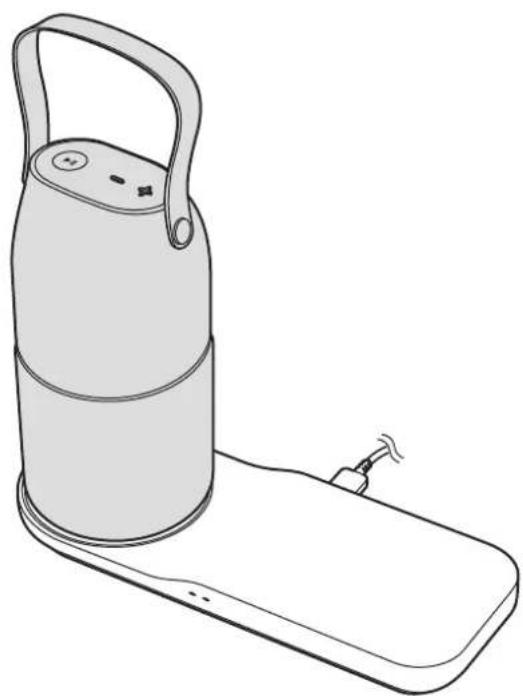
2 After fully charging, disconnect the Bluetooth speaker from the wireless charger.

- When there are foreign materials between the Bluetooth speaker and the wireless charger, the Bluetooth speaker may not charge properly.
- Use Samsung-approved wireless chargers. If you use other wireless chargers, the battery may not charge properly.
Checking the remaining battery power
When the Bluetooth speaker is connected to a mobile device via Bluetooth, you can check the Bluetooth speaker's battery level on the mobile device.
1 Pair the Bluetooth speaker to a mobile device. 2 On the connected mobile device, download and install the Lux manager app. You can download the Lux manager app from Galaxy Apps or Play Store. If you are using an iOS mobile device, you can download the app from Apple's App Store.
3 On the Apps screen of the mobile device, tap Lux manager.
If you are using an iOS mobile device, on the Home screen, tap Lux manager.
4 On the connected mobile device, drag the status bar downwards to open the notification panel.
If you are using an iOS mobile device, drag the status bar downwards to open the notification centre.
You can check the Bluetooth speaker's battery level.
If the Bluetooth speaker's battery level is not shown, on the Lux manager main screen, tap → Connection manager and tap your Bluetooth speaker's name to connect to it.
Battery saving mode
The Bluetooth speaker has a power saving feature that conserves the battery power.
If the Bluetooth speaker is not used for more than 30 minutes, such as when music playback is paused, the power saving feature will automatically activate and the speaker will be turned off.

If the Bluetooth speaker is charging or connected to a device via an audio cable, the power saving feature will not be activated.
Using the Bluetooth speaker
Turning the Bluetooth speaker on or off
Press and hold the Power/Play button to turn the Bluetooth speaker on or off.
When you turn on the Bluetooth speaker for the first time, the lamp turns on and it enters Bluetooth pairing mode.

- If your Bluetooth speaker is frozen and unresponsive, press and hold the Power/Play button for approximately eight seconds.
- Follow all posted warnings and directions from authorised personnel in areas where the use of wireless devices is restricted, such as aeroplanes and hospitals.
Connecting to another device
Notices for using Bluetooth
Bluetooth is a wireless technology standard that uses a 2.4 GHz frequency to connect to various devices over short distances. It can connect and exchange data with other Bluetooth enabled devices, such as mobile devices, computers, printers, and other digital home appliances, without connecting via cables.
- To avoid problems when connecting your Bluetooth speaker to another device, place the devices close to each other.
- Ensure that your Bluetooth speaker and the other Bluetooth device are within the Bluetooth connection range (10 m). The distance may vary depending on the environment the devices are used in.
- Ensure that there are no obstacles between the Bluetooth speaker and a connected device, including human bodies, walls, corners, or fences.
- Do not touch the Bluetooth antenna of a connected device.
- Bluetooth uses the same frequency as some industrial, scientific, medical, and low power products and interference may occur when making connections near these types of products.
- Some devices, especially those that are not tested or approved by the Bluetooth SIG, may be incompatible with your Bluetooth speaker.
- Do not use the Bluetooth feature for illegal purposes (for example, pirating copies of files or illegally tapping communications for commercial purposes).
Connecting via Bluetooth
Pair the Bluetooth speaker with a mobile device. Once the devices are paired, the Bluetooth speaker will automatically connect to the mobile device whenever you turn on the Bluetooth speaker.
1 Bluetooth speaker Press and hold the Bluetooth pairing button for more than three seconds to enter Bluetooth pairing mode.
The indicator light will flash red and blue.

When you turn on the Bluetooth speaker for the first time, it enters Bluetooth pairing mode.
2 Mobile device Activate the Bluetooth feature and search for Bluetooth devices.
For more information, refer to the other device's user manual.
3 Mobile device Tap [Speaker] Bottle Design (0000) from the list of available devices.

- The PIN for the Bluetooth speaker is the four-digit number in parenthesis displayed on the other device's Bluetooth settings screen. The number differs depending on the Bluetooth speaker.
- If the Bluetooth connection fails or the other device cannot locate the Bluetooth speaker, remove the device's information from the other device's list. Then, try to connect again.
- The Bluetooth connection range and sound quality may vary depending on the connected devices.
Disconnecting or reconnecting devices
You can end the current connection by pressing and holding the Bluetooth speaker's Bluetooth pairing button for approximately three seconds.
If the Bluetooth connection ends due to the distance between the devices, bring the devices closer together within a certain period of time. The devices will automatically reconnect.

- You can also end the connection by turning off the Bluetooth speaker or deactivating the Bluetooth feature on the connected device. When you turn on the Bluetooth speaker again and the devices are in range, or activate the Bluetooth feature on the connected device, the devices will automatically reconnect.
- If the Bluetooth connection ends because of a device malfunction, use the Bluetooth menu on the disconnected device to reconnect the devices.
- Noise may occur if the Bluetooth connection is disconnected improperly.
Connecting to other devices
After ending the connection between the Bluetooth speaker and the mobile device, you can connect the Bluetooth speaker to other devices.
1. Press and hold the Bluetooth pairing button for approximately three seconds to end the current connection and enter Bluetooth pairing mode. 2. Connect the Bluetooth speaker to another device.
Connecting via an audio cable
Connect the Bluetooth speaker to a device via an audio cable. When the Bluetooth speaker is connected via an audio cable, you can only adjust the volume.
1. Bluetooth speaker: Plug the audio cable into the audio cable jack.
2. Other device: Plug the other end of the audio cable into the audio output jack.

- If the Bluetooth speaker is simultaneously connected to a device via an audio cable and another device via Bluetooth, the Bluetooth speaker will only play audio from the device connected via Bluetooth.
- The audio cable jack is optimized for Samsung mobile devices. When you connect the Bluetooth speaker to a device other than a Samsung mobile device, playback may suddenly stop or feedback may occur depending on the volume. Adjust the volume appropriately.
Listening to music
Listen to music played on the connected device.
Press the Power/Play button to play music.
Pausing or resuming playback
Press the Power/Play button to pause or resume playback.
Adjusting the volume
Press the Volume button to adjust the volume during playback.
Skipping to other songs
Press and hold the Volume (+) button to skip to the next song during playback.
Press and hold the Volume (-) button to skip to the previous song during playback.
Using the lamp
Lux manager app introduction
To configure the lamp or use the additional lamp features, download and install the Lux manager app on your mobile device connected via Bluetooth. You can download the Lux manager app from Galaxy Apps or Play Store. If you are using an iOS mobile device, you can download the app from Apple's App Store.
On the Apps screen of the mobile device, tap Lux manager. If you are using an iOS mobile device, on the Home screen, tap Lux manager.
The Lux manager app will automatically connect to the Bluetooth speaker. If you are using an iOS mobile device, tap your Bluetooth speaker's name in the pop-up window.
If the app does not connect to your Bluetooth speaker, on the Lux manager main screen, tap → Connection manager and tap your Bluetooth speaker's name to manually connect to it.

Adjusting the lamp brightness
1 On the Apps screen of the mobile device, tap Lux manager.
If you are using an iOS mobile device, on the Home screen, tap Lux manager.
2 Tap ⊕ or ⓣ to adjust the brightness.
Or, drag your finger up or down on the screen to adjust the brightness.
Adjusting the lamp brightness with the Bluetooth speaker
To adjust the lamp brightness using the Bluetooth speaker, press the Lamp brightness adjustment button.
Or, you can use the Bluetooth speaker's motion recognition feature. Tilt the Bluetooth speaker by more than 100°. The brightness will gradually change. When the brightness changes to the desired level, turn it upright again. When the lamp brightness does not change based on motion, on the Lux manager main screen, tap ≡ → Settings and tap the switch under Motion UX to activate the motion recognition feature.
Changing the lamp colour
1 On the Apps screen of the mobile device, tap Lux manager. If you are using an iOS mobile device, on the Home screen, tap Lux manager. 2 Swipe to the left or right to select a preset colour. 3 At the bottom of the colour screen, select a colour icon.
Alternatively, tap the desired colour on the screen.
The selected colour will be applied to the lamp.
Selecting additional lamp colours
You can select additional lamp colours other than the preset colours.
1 On the Apps screen of the mobile device, tap Lux manager. If you are using an iOS mobile device, on the Home screen, tap Lux manager.
2 Tap ≡ → My colour.
3 Tap the desired colour from the picker panel.
The selected colour will be applied to the lamp.
To save the selected colour, tap ⊕.
To remove the saved colour, tap and hold the saved colour icon.
Changing the lamp colour with the Bluetooth speaker
Use the Bluetooth speaker's motion recognition feature.
Shake the Bluetooth speaker to change the lamp colour randomly. When the lamp brightness and colour do not change based on motion, on the Lux manager main screen, tap ≡ → Settings and tap the switch under Motion UX to activate the motion recognition feature.
Changing the lamp mode
You can change the lamp mode to produce various moods.
On the Apps screen of the mobile device, tap Lux manager. If you are using an iOS mobile device, on the Home screen, tap Lux manager.
Tap ≡ and select one of the following.
Light wave
When you set the lamp mode to Light wave, the lamp colour will randomly change.
The icon Ⓦ will appear in the upper-right corner of the screen.
Breathing light
When you set the lamp mode to Breathing light, the lamp brightness will change periodically so the lamp light will slowly pulse.
The ⚙️ icon will appear in the upper-right corner of the screen.
Music light
When you set the lamp mode to Music light, the lamp brightness and colour will change according to the music played. The colour will randomly change and the brightness will change according to the volume of the music played.
The Ⓜ icon will appear in the upper-right corner of the screen.

Candle mode
When you set the lamp mode to Candle mode, the lamp light flickers naturally like a candle. The ⓘ icon will appear in the upper-right corner of the screen.
Using the sleep timer
You can set the lamp to turn off automatically at a preset time.
1 On the Apps screen of the mobile device, tap Lux manager.
If you are using an iOS mobile device, on the Home screen, tap Lux manager.
2 Tap ≡ → Sleep timer.
3 Set the timer and tap Start.
At the preset time, the lamp and music will turn off.
Configuring additional options
You can customise the settings for the Bluetooth speaker and the Lux manager app.
1 On the Apps screen of the mobile device, tap Lux manager.
If you are using an iOS mobile device, on the Home screen, tap Lux manager.
2 Tap → Settings.
Connection manager
Search for the Bluetooth speaker to connect or to view the currently connected Bluetooth speaker's information.
Motion UX
Activate the motion recognition feature to change the Bluetooth speaker's lamp brightness and colour.
Information
You can view app's version information and open source licence. You can also view the user manual.
Appendix
Troubleshooting
Before contacting a Samsung Service Centre, please attempt the following solutions.
Your Bluetooth speaker does not turn on
When the battery is completely discharged, your Bluetooth speaker will not turn on. Charge the battery completely before turning on the Bluetooth speaker.
Your Bluetooth speaker freezes
If the Bluetooth speaker freezes or hangs, try to resolve it by turning off the Bluetooth speaker and then turning it on again.
If the Bluetooth speaker is still unresponsive, end the Bluetooth connection and reconnect it. To do this, press the Bluetooth pairing button for approximately three seconds. When the Bluetooth speaker enters Bluetooth pairing mode, connect the devices again, and then check the operation of the Bluetooth speaker.
If the problem is still not resolved, contact a Samsung Service Centre.
The battery does not charge properly (For Samsung-approved USB cables and chargers)
Ensure that the USB cable or the charger is connected properly.
If the problem is still not resolved, contact a Samsung Service Centre.
Another Bluetooth device cannot locate your Bluetooth speaker
- Ensure that your Bluetooth speaker is in Bluetooth pairing mode.
- Restart your Bluetooth speaker and search for the Bluetooth speaker again.
- Ensure that your Bluetooth speaker and the other Bluetooth device are within the Bluetooth connection range (10 m).
If the tips above do not solve the problem, contact a Samsung Service Centre.
Your Bluetooth speaker cannot connect to another Bluetooth device
- Ensure that your Bluetooth speaker and the other Bluetooth device are within the maximum Bluetooth range (10 m).
- On the device you want to connect with, disconnect all paired devices and try to connect again.
Bluetooth connection is often disconnected
- If there are obstacles between the devices, the operating distance may be reduced.
- Ensure that your Bluetooth speaker and the other Bluetooth device are within the maximum Bluetooth range (10 m).
- When using the Bluetooth speaker with other Bluetooth devices, the connection may be affected by electromagnetic waves. Use the Bluetooth speaker in environments with fewer wireless devices present.
The Bluetooth speaker works differently as described in the manual
Available functions may differ depending on the connected device.
The battery depletes faster than when first purchased
- When you expose the Bluetooth speaker or the battery to very cold or very hot temperatures, the useful charge may be reduced.
- The battery is consumable and the useful charge will get shorter over time.
The Bluetooth speaker gets dirty
Gently wipe the Bluetooth speaker with a soft cloth. Do not use chemicals or strong detergents. Doing so may discolour or corrode the outside the device.
Removing the battery
- To remove the battery, you must visit an authorised service centre with the provided instructions.
- For your safety, you must not attempt to remove the battery. If the battery is not properly removed, it may lead to damage to the battery and device, cause personal injury, and/or result in the device being unsafe.
- Samsung does not accept liability for any damage or loss (whether in contract or tort, including negligence) which may arise from failure to precisely follow these warnings and instructions, other than death or personal injury caused by Samsung's negligence.
1 Remove the rubber foot from the bottom of the Bluetooth speaker. 2 After removing the rubber foot, you will see four screws. Remove the four screws. 3 Remove the cover from the bottom of the Bluetooth speaker. 4 Remove the two screws located below the audio jack panel. 5 Remove the remaining four screws from the bottom of the Bluetooth speaker. 6 Remove the coil in the centre of the Bluetooth speaker. 7 Pull down the grill slightly so the audio jack panel protrudes from the Bluetooth speaker. 8 Pull and disconnect the ribbon cable to remove the audio jack panel from the Bluetooth speaker. 9 Pull the grill out to remove it completely.
10 Remove the circuit board by lifting it out of the Bluetooth speaker. 11 Remove the four screws on the board connecting the main circuit board and the battery box. 12 Unfasten the hook of the battery box to open the lower part of the box and remove the batteries.
Copyright
Copyright © 2016 Samsung Electronics
This manual is protected under international copyright laws.
No part of this manual may be reproduced, distributed, translated, or transmitted in any form or by any means, electronic or mechanical, including photocopying, recording, or storing in any information storage and retrieval system, without the prior written permission of Samsung Electronics.
Trademarks
• SAMSUNG and the SAMSUNG logo are registered trademarks of Samsung Electronics. - Bluetooth is a registered trademark of Bluetooth SIG, Inc. worldwide. • All other trademarks and copyrights are the property of their respective owners.
Getting Started

Candle Mode
Copyright © 2016 Samsung Electronics

Candle Mode
Copyright © 2016 Samsung Electronics

Candle Mode

Candle mode

Candle mode

Candle mode

Candle mode

Candle mode

Improper connection of the charger may cause serious damage to the Bluetooth speaker. Damage caused by incorrect handling is not covered by the warranty.
2 After the battery is fully charged, disconnect the Bluetooth speaker from the charger.

2 After the battery is fully charged, disconnect the Bluetooth speaker from the wireless charger.

- If there are foreign materials between the Bluetooth speaker and the wireless charger, the Bluetooth speaker may not charge properly.
- Use wireless chargers approved by Samsung. Using other wireless chargers may prevent the battery from charging properly.
Candle mode

Improperly connecting the charger may cause serious damage to the Bluetooth speaker. Any damage caused by improper use is not covered by the warranty.
Candle mode
When you set the lamp mode to Candle mode, the lamp light flickers naturally like a candle. The ⏻ icon will appear in the upper right corner of the screen.
Using the sleep timer
You can set the lamp to turn off automatically at a set time.
1 On the mobile device's apps screen, tap Lux manager. If you are using an iOS mobile device, on the home screen, tap Lux manager.
2 Tap → Sleep timer.
This manual is protected by international copyright laws.
No part of this manual may be reproduced, distributed, translated, or transmitted in any form or by any means, electronic or mechanical, including photocopying, recording, or storage in any information storage and retrieval system, without the prior written permission of Samsung Electronics.
Trademarks
- SAMSUNG and the SAMSUNG logo are registered trademarks of Samsung Electronics.
- Bluetooth® is a registered trademark of Bluetooth SIG, Inc. worldwide.
- All other trademarks and copyrights are the property of their respective owners.
Start
Read me first

Candle mode
Copyright © 2016 Samsung Electronics
This manual is protected by international copyright laws.

Candle mode

Candle mode

Candle mode
Copyright © 2016 Samsung Electronics

Candle mode
Copyright © 2016 Samsung Electronics

Candle mode
Copyright © 2016 Samsung Electronics

If you connect the charger incorrectly, this can cause serious damage to the Bluetooth speaker. Damage caused by incorrect use is not covered by the warranty.
Candle mode
Copyright © 2016 Samsung Electronics

Candle mode
Copyright © 2016 Samsung Electronics

Candle mode

Candle mode

Candle mode

Candle mode
If you set the lamp mode to Candle mode, the lamp will flicker naturally like a candle.
Copyright © 2016 Samsung Electronics

Candle mode
Copyright © 2016 Samsung Electronics

Candle mode
Copyright © 2016 Samsung Electronics
Candle flicker
Candle mode
Copyright © 2016 Samsung Electronics
tolerance that is in the

Candle mode
© Samsung Electronics, 2016.

Candle mode
© Samsung Electronics, 2016

Candle mode
Copyright © 2016 Samsung Electronics
Please read this manual before using the device to ensure safe and proper use.
- Images may differ in appearance from the actual product. Content is subject to change without prior notice.
- Before using the Bluetooth speaker, make sure it is compatible with your device.
- The Bluetooth speaker is compatible with Wireless Power Consortium (WPC) certified devices.
Instructional icons

Warning: situations that could cause injury to yourself or others

Caution: situations that could cause damage to your device or other equipment

Notice: notes, usage tips, or additional information
Package contents
Check the product box for the following items:
- Bluetooth speaker
- Quick start guide

- The items supplied with the device and any available accessories may vary depending on the region or service provider.
- The supplied items are designed only for this device and may not be compatible with other devices.
- Appearances and specifications are subject to change without prior notice.
- You can purchase additional accessories from your local Samsung retailer. Make sure they are compatible with the device before purchase.
- Use only Samsung-approved accessories. Using unapproved accessories may cause the performance problems and malfunctions that are not covered by the warranty.
- Availability of all accessories is subject to change depending entirely on manufacturing companies. For more information about available accessories, refer to the Samsung website.
Device layout

Buttons
| Button Function | |
| Power/Play button | Press and hold to turn the Bluetooth speaker on or off.Press to play or pause music.If your Bluetooth speaker is frozen and unresponsive, press and hold for approximately eight seconds to turn off the Bluetooth speaker. |
| Volume (+) button | Press to increase the volume during music playback.Press and hold to skip to the next song during music playback. |
| Volume (-) button | Press to decrease the volume during music playback.Press and hold to skip to the previous song during music playback. |
| Lamp brightness adjustment button | Adjust the lamp brightness. |
| Bluetooth pairing button | Press and hold to enter Bluetooth pairing mode.While in Bluetooth pairing mode, press to end the mode.When the connection is lost, press to reconnect devices. |
Indicator light
The indicator light alerts you to the Bluetooth speaker's status.
| Color Status | |
| Flashes blue three times | The Bluetooth speaker is powering on |
| Flashes red three times | The Bluetooth speaker is powering off |
| Continuously red Charging | |
| Continuously blue Fully charged | |
| Flashes red and blue Bluetooth pairing mode | |
| Quickly flashes blue three times | Connected via Bluetooth |
| Quickly flashes red three times | Connected via Bluetooth (when the battery is low) |
| Flashes red every four seconds | The battery is low |

If the indicator light does not work as described, disconnect the charger from the Bluetooth speaker and reconnect it.
Charging the battery
Battery charging tips and precautions
- You can charge the Bluetooth speaker using the charger (sold separately).
- If the battery is completely discharged, the Bluetooth speaker cannot be turned on immediately when the charger is connected. Allow a depleted battery to charge for a few minutes before turning on the Bluetooth speaker.
- Using a power source other than the charger, such as a computer, may result in a slower charging speed due to a lower electric current.
- The Bluetooth speaker can be used while it is charging, but it may take longer to fully charge the battery.
- If the Bluetooth speaker receives an unstable power supply while charging, it may not function. If this happens, unplug the charger from the Bluetooth speaker.
- While charging, the Bluetooth speaker and the charger may heat up. This is normal and should not affect the Bluetooth speaker's lifespan or performance. If the battery gets hotter than usual, the charger may stop charging.
- If the Bluetooth speaker is not charging properly, take the Bluetooth speaker and the charger to a Samsung Service Center.
- The charging time may vary depending on the charger specification.
Wired charging
Charge the Bluetooth speaker before using it for the first time or when it has been unused for extended periods.

Use only Samsung-approved chargers (more than 5V/1A for wired charging, more than 5V/2A for wireless charging). Unapproved chargers can cause the battery to explode or damage the Bluetooth speaker.
1 Connect the Bluetooth speaker to a charger.


Connecting the charger improperly may cause serious damage to the Bluetooth speaker. Any damage caused by misuse is not covered by the warranty.
2 After fully charging, disconnect the Bluetooth speaker from the charger.

To save energy, unplug the charger when not in use. The charger does not have a power switch, so you must unplug the charger from the electric socket when not in use to avoid wasting power. The charger should remain close to the electric socket and be easily accessible while charging.
Wireless charging
The Bluetooth speaker has a built-in wireless charging coil. You can charge the battery using a wireless charger (sold separately).
1 Place the Bluetooth speaker's bottom on the wireless charger.

2 After fully charging, disconnect the Bluetooth speaker from the wireless charger.

- When there are foreign materials between the Bluetooth speaker and the wireless charger, the Bluetooth speaker may not charge properly.
- Use Samsung-approved wireless chargers. If you use other wireless chargers, the battery may not charge properly.
Checking the remaining battery power
When the Bluetooth speaker is connected to a mobile device via Bluetooth, you can check the Bluetooth speaker's battery level on the mobile device.
1 Pair the Bluetooth speaker to a mobile device. 2 On the connected mobile device, download and install the Lux manager app. You can download the Lux manager app from Galaxy Apps or Play Store. If you are using an iOS mobile device, you can download the app from Apple's App Store.
3 On the Apps screen of the mobile device, tap Lux manager.
If you are using an iOS mobile device, on the Home screen, tap Lux manager.
4 On the connected mobile device, drag the status bar downwards to open the notification panel.
If you are using an iOS mobile device, drag the status bar downwards to open the notification center.
You can check the Bluetooth speaker's battery level.
If the Bluetooth speaker's battery level is not shown, on the Lux manager main screen, tap → Connection manager and tap your Bluetooth speaker's name to connect to it.
Battery saving mode
The Bluetooth speaker has a power saving feature that conserves the battery power.
If the Bluetooth speaker is not used for more than 30 minutes, such as when music playback is paused, the power saving feature will automatically activate and the speaker will be turned off.

If the Bluetooth speaker is charging or connected to a device via an audio cable, the power saving feature will not be activated.
Using the Bluetooth speaker
Turning the Bluetooth speaker on or off
Press and hold the Power/Play button to turn the Bluetooth speaker on or off.
When you turn on the Bluetooth speaker for the first time, the lamp turns on and it enters Bluetooth pairing mode.

- If your Bluetooth speaker is frozen and unresponsive, press and hold the Power/Play button for approximately eight seconds.
- Follow all posted warnings and directions from authorized personnel in areas where the use of wireless devices is restricted, such as airplanes and hospitals.
Connecting to another device
Notices for using Bluetooth
Bluetooth is a wireless technology standard that uses a 2.4 GHz frequency to connect to various devices over short distances. It can connect and exchange data with other Bluetooth enabled devices, such as mobile devices, computers, printers, and other digital home appliances, without connecting via cables.
- To avoid problems when connecting your Bluetooth speaker to another device, place the devices close to each other.
- Ensure that your Bluetooth speaker and the other Bluetooth device are within the Bluetooth connection range (10 m). The distance may vary depending on the environment the devices are used in.
- Ensure that there are no obstacles between the Bluetooth speaker and a connected device, including human bodies, walls, corners, or fences.
- Do not touch the Bluetooth antenna of a connected device.
- Bluetooth uses the same frequency as some industrial, scientific, medical, and low power products and interference may occur when making connections near these types of products.
- Some devices, especially those that are not tested or approved by the Bluetooth SIG, may be incompatible with your Bluetooth speaker.
- Do not use the Bluetooth feature for illegal purposes (for example, pirating copies of files or illegally tapping communications for commercial purposes).
Connecting via Bluetooth
Pair the Bluetooth speaker with a mobile device. Once the devices are paired, the Bluetooth speaker will automatically connect to the mobile device whenever you turn on the Bluetooth speaker.
1 Bluetooth speaker Press and hold the Bluetooth pairing button for more than three seconds to enter Bluetooth pairing mode.
The indicator light will flash red and blue.

When you turn on the Bluetooth speaker for the first time, it enters Bluetooth pairing mode.
2 Mobile device Activate the Bluetooth feature and search for Bluetooth devices.
For more information, refer to the other device's user manual.
3 Mobile device Tap [Speaker] Bottle Design (0000) from the list of available devices.

- The PIN for the Bluetooth speaker is the four-digit number in parenthesis displayed on the other device's Bluetooth settings screen. The number differs depending on the Bluetooth speaker.
- If the Bluetooth connection fails or the other device cannot locate the Bluetooth speaker, remove the device's information from the other device's list. Then, try to connect again.
- The Bluetooth connection range and sound quality may vary depending on the connected devices.
Disconnecting or reconnecting devices
You can end the current connection by pressing and holding the Bluetooth speaker's Bluetooth pairing button for approximately three seconds.
If the Bluetooth connection ends due to the distance between the devices, bring the devices closer together within a certain period of time. The devices will automatically reconnect.

- You can also end the connection by turning off the Bluetooth speaker or deactivating the Bluetooth feature on the connected device. When you turn on the Bluetooth speaker again and the devices are in range, or activate the Bluetooth feature on the connected device, the devices will automatically reconnect.
- If the Bluetooth connection ends because of a device malfunction, use the Bluetooth menu on the disconnected device to reconnect the devices.
- Noise may occur if the Bluetooth connection is disconnected improperly.
Connecting to other devices
After ending the connection between the Bluetooth speaker and the mobile device, you can connect the Bluetooth speaker to other devices.
1 Press and hold the Bluetooth pairing button for approximately three seconds to end the current connection and enter Bluetooth pairing mode. 2 Connect the Bluetooth speaker to another device.
Connecting via an audio cable
Connect the Bluetooth speaker to a device via an audio cable. When the Bluetooth speaker is connected via an audio cable, you can only adjust the volume.
1 Bluetooth speaker Plug the audio cable into the audio cable jack.
2 Other device Plug the other end of the audio cable into the audio output jack.

- If the Bluetooth speaker is simultaneously connected to a device via an audio cable and another device via Bluetooth, the Bluetooth speaker will only play audio from the device connected via Bluetooth.
- The audio cable jack is optimized for Samsung mobile devices. When you connect the Bluetooth speaker to a device other than a Samsung mobile device, playback may suddenly stop or feedback may occur depending on the volume. Adjust the volume appropriately.
Listening to music
Listen to music played on the connected device.
Press the Power/Play button to play music.
Pausing or resuming playback
Press the Power/Play button to pause or resume playback.
Adjusting the volume
Press the Volume button to adjust the volume during playback.
Skipping to other songs
Press and hold the Volume (+) button to skip to the next song during playback.
Press and hold the Volume (-) button to skip to the previous song during playback.
Using the lamp
Lux manager app introduction
To configure the lamp or use the additional lamp features, download and install the Lux manager app on your mobile device connected via Bluetooth. You can download the Lux manager app from Galaxy Apps or Play Store. If you are using an iOS mobile device, you can download the app from Apple's App Store.
On the Apps screen of the mobile device, tap Lux manager. If you are using an iOS mobile device, on the Home screen, tap Lux manager.
The Lux manager app will automatically connect to the Bluetooth speaker. If you are using an iOS mobile device, tap your Bluetooth speaker's name in the pop-up window.
If the app does not connect to your Bluetooth speaker, on the Lux manager main screen, tap the menu icon (three horizontal lines) and then tap Connection manager, and tap your Bluetooth speaker's name to manually connect to it.

Adjusting the lamp brightness
1. On the Apps screen of the mobile device, tap Lux manager.
If you are using an iOS mobile device, on the Home screen, tap Lux manager.
2. Tap the plus icon (+) or the minus icon (-) to adjust the brightness.
Or, drag your finger up or down on the screen to adjust the brightness.
Adjusting the lamp brightness with the Bluetooth speaker
To adjust the lamp brightness using the Bluetooth speaker, press the Lamp brightness adjustment button.
Or, you can use the Bluetooth speaker's motion recognition feature. Tilt the Bluetooth speaker by more than 100 degrees. The brightness will gradually change. When the brightness changes to the desired level, turn it upright again. When the lamp brightness does not change based on motion, on the Lux manager main screen, tap the menu icon (three horizontal lines) and then Settings, and tap the switch under Motion UX to activate the motion recognition feature.
Changing the lamp color
1 On the Apps screen of the mobile device, tap Lux manager. If you are using an iOS mobile device, on the Home screen, tap Lux manager. 2 Swipe to the left or right to select a preset color. 3 At the bottom of the color screen, select a color icon.
Alternatively, tap the desired color on the screen.
The selected color will be applied to the lamp.
Selecting additional lamp colors
You can select additional lamp colors other than the preset colors.
1 On the Apps screen of the mobile device, tap Lux manager. If you are using an iOS mobile device, on the Home screen, tap Lux manager.
2 Tap the menu icon (three horizontal lines) and then My color.
3 Tap the desired color from the picker panel.
The selected color will be applied to the lamp.
To save the selected color, tap the plus icon.
To remove the saved color, tap and hold the saved color icon.
Changing the lamp color with the Bluetooth speaker
Use the Bluetooth speaker's motion recognition feature.
Shake the Bluetooth speaker to change the lamp color randomly. When the lamp brightness and color do not change based on motion, on the Lux manager main screen, tap → Settings and tap the switch under Motion UX to activate the motion recognition feature.
Changing the lamp mode
You can change the lamp mode to produce various moods.
On the Apps screen of the mobile device, tap Lux manager. If you are using an iOS mobile device, on the Home screen, tap Lux manager.
Tap ≡ and select one of the following.
Light wave
When you set the lamp mode to Light wave, the lamp color will randomly change.
The icon Ⓦ will appear in the upper-right corner of the screen.
Breathing light
When you set the lamp mode to Breathing light, the lamp brightness will change periodically so the lamp light will slowly pulse.
The Ⓧ icon will appear in the upper-right corner of the screen.
Music light
When you set the lamp mode to Music light, the lamp brightness and color will change according to the music played. The color will randomly change and the brightness will change according to the volume of the music played.
The Ⓜ icon will appear in the upper-right corner of the screen.

Candle mode
When you set the lamp mode to Candle mode, the lamp light flickers naturally like a candle. The ⓘ icon will appear in the upper-right corner of the screen.
Using the sleep timer
You can set the lamp to turn off automatically at a preset time.
1 On the Apps screen of the mobile device, tap Lux manager.
If you are using an iOS mobile device, on the Home screen, tap Lux manager.
2 Tap ≡ → Sleep timer.
3 Set the timer and tap Start.
At the preset time, the lamp and music will turn off.
Configuring additional options
You can customize the settings for the Bluetooth speaker and the Lux manager app.
1 On the Apps screen of the mobile device, tap Lux manager.
If you are using an iOS mobile device, on the Home screen, tap Lux manager.
2 Tap ≡ → Settings.
Connection manager
Search for the Bluetooth speaker to connect or to view the currently connected Bluetooth speaker's information.
Motion UX
Activate the motion recognition feature to change the Bluetooth speaker's lamp brightness and color.
Information
You can view the app's version information and open source license. You can also view the user manual.
Appendix
Troubleshooting
Before contacting a Samsung Service Center, please attempt the following solutions.
Your Bluetooth speaker does not turn on
When the battery is completely discharged, your Bluetooth speaker will not turn on. Charge the battery completely before turning on the Bluetooth speaker.
Your Bluetooth speaker freezes
If the Bluetooth speaker freezes or hangs, try to resolve it by turning off the Bluetooth speaker and then turning it on again.
If the Bluetooth speaker is still unresponsive, end the Bluetooth connection and reconnect it. To do this, press the Bluetooth pairing button for approximately three seconds. When the Bluetooth speaker enters Bluetooth pairing mode, connect the devices again, and then check the operation of the Bluetooth speaker.
If the problem is still not resolved, contact a Samsung Service Center.
The battery does not charge properly (For Samsung-approved USB cables and chargers)
Ensure that the USB cable or the charger is connected properly.
If the problem is still not resolved, contact a Samsung Service Center.
Another Bluetooth device cannot locate your Bluetooth speaker
- Ensure that your Bluetooth speaker is in Bluetooth pairing mode.
- Restart your Bluetooth speaker and search for the Bluetooth speaker again.
- Ensure that your Bluetooth speaker and the other Bluetooth device are within the Bluetooth connection range (10 m).
If the tips above do not solve the problem, contact a Samsung Service Center.
Your Bluetooth speaker cannot connect to another Bluetooth device
- Ensure that your Bluetooth speaker and the other Bluetooth device are within the maximum Bluetooth range (10 m).
- On the device you want to connect with, disconnect all paired devices and try to connect again.
Bluetooth connection is often disconnected
- If there are obstacles between the devices, the operating distance may be reduced.
- Ensure that your Bluetooth speaker and the other Bluetooth device are within the maximum Bluetooth range (10 m).
- When using the Bluetooth speaker with other Bluetooth devices, the connection may be affected by electromagnetic waves. Use the Bluetooth speaker in environments with fewer wireless devices present.
The Bluetooth speaker works differently as described in the manual
Available functions may differ depending on the connected device.
The battery depletes faster than when first purchased
- When you expose the Bluetooth speaker or the battery to very cold or very hot temperatures, the useful charge may be reduced.
- The battery is consumable and the useful charge will get shorter over time.
The Bluetooth speaker gets dirty
Gently wipe the Bluetooth speaker with a soft cloth. Do not use chemicals or strong detergents. Doing so may discolor or corrode the outside of the device.
Copyright
Copyright © 2016 Samsung Electronics
This manual is protected under international copyright laws.
No part of this manual may be reproduced, distributed, translated, or transmitted in any form or by any means, electronic or mechanical, including photocopying, recording, or storing in any information storage and retrieval system, without the prior written permission of Samsung Electronics.
Trademarks
• SAMSUNG and the SAMSUNG logo are registered trademarks of Samsung Electronics. • Bluetooth® is a registered trademark of Bluetooth SIG, Inc. worldwide. • All other trademarks and copyrights are the property of their respective owners.
To get started

Candlelight mode
Copyright © 2016 Samsung Electronics

Candlelight mode

Candlelight mode
Copyright © 2016 Samsung Electronics
This manual is protected by international copyright laws.

Candlelight mode
© Samsung Electronics, 2016.

Candlelight mode

Candlelight mode


- INSTRUCTIONAL ICONS
- PACKAGE CONTENTS
- DEVICE LAYOUT
- INDICATOR LIGHT
- CHARGING THE BATTERY
- BATTERY CHARGING TIPS AND PRECAUTIONS
- WIRED CHARGING
- WIRELESS CHARGING
- CHECKING THE REMAINING BATTERY POWER
- BATTERY SAVING MODE
- USING THE BLUETOOTH SPEAKER
- TURNING THE BLUETOOTH SPEAKER ON OR OFF
- CONNECTING TO ANOTHER DEVICE
- NOTICES FOR USING BLUETOOTH
- CONNECTING VIA BLUETOOTH
- DISCONNECTING OR RECONNECTING DEVICES
- CONNECTING TO OTHER DEVICES
- CONNECTING VIA AN AUDIO CABLE
- LISTENING TO MUSIC
- PAUSING OR RESUMING PLAYBACK
- ADJUSTING THE VOLUME
- SKIPPING TO OTHER SONGS
- USING THE LAMP
- LUX MANAGER APP INTRODUCTION
- ADJUSTING THE LAMP BRIGHTNESS
- ADJUSTING THE LAMP BRIGHTNESS WITH THE BLUETOOTH SPEAKER
- CHANGING THE LAMP COLOUR
- SELECTING ADDITIONAL LAMP COLOURS
- CHANGING THE LAMP COLOUR WITH THE BLUETOOTH SPEAKER
- CHANGING THE LAMP MODE
- LIGHT WAVE
- BREATHING LIGHT
- MUSIC LIGHT
- CANDLE MODE
- USING THE SLEEP TIMER
- CONFIGURING ADDITIONAL OPTIONS
- CONNECTION MANAGER
- MOTION UX
- INFORMATION
- APPENDIX
- TROUBLESHOOTING
- YOUR BLUETOOTH SPEAKER DOES NOT TURN ON
- YOUR BLUETOOTH SPEAKER FREEZES
- THE BATTERY DOES NOT CHARGE PROPERLY (FOR SAMSUNG-APPROVED USB CABLES AND CHARGERS)
- ANOTHER BLUETOOTH DEVICE CANNOT LOCATE YOUR BLUETOOTH SPEAKER
- YOUR BLUETOOTH SPEAKER CANNOT CONNECT TO ANOTHER BLUETOOTH DEVICE
- BLUETOOTH CONNECTION IS OFTEN DISCONNECTED
- THE BLUETOOTH SPEAKER WORKS DIFFERENTLY AS DESCRIBED IN THE MANUAL
- THE BATTERY DEPLETES FASTER THAN WHEN FIRST PURCHASED
- THE BLUETOOTH SPEAKER GETS DIRTY
- REMOVING THE BATTERY
- COPYRIGHT
- TRADEMARKS
- GETTING STARTED
- START
- READ ME FIRST
- CHANGING THE LAMP COLOR
- SELECTING ADDITIONAL LAMP COLORS
- CHANGING THE LAMP COLOR WITH THE BLUETOOTH SPEAKER
- TO GET STARTED
- CANDLELIGHT MODE
Brand : SAMSUNG
Model : EO-SG710
Category : Docking Station