
WAM3500 - Docking Station SAMSUNG - Free user manual and instructions
Find the device manual for free WAM3500 SAMSUNG in PDF.


| Product Type | Wireless Audio Dock |
| Brand | Samsung |
| Model | WAM3500 |
| Dimensions (W x H x D) | Approx. 350 mm x 150 mm x 150 mm |
| Weight | Approx. 2.5 kg |
| Power Supply | AC adapter 12 V, 3 A |
| Connectivity | Bluetooth 4.0, Wi-Fi 802.11 b/g/n |
| Main Functions | Audio streaming, multiroom, built-in speaker, charging dock |
| Compatible with | Smartphones, Android/iOS tablets, Bluetooth devices |
| Supported Audio Codec | MP3, WMA, AAC, FLAC |
| Output Power | 2 x 20 W |
| Care and Cleaning | Clean with a soft, dry cloth. Avoid liquids. |
| Safety | Do not expose to humidity or extreme temperatures. |
| Spare Parts | AC adapter, audio cable (depending on version) |
| Repairability | Repairability index: 7.5/10 (estimate) |
| Package Contents | Dock, AC adapter, quick start guide |
Frequently Asked Questions - WAM3500 SAMSUNG
User questions about WAM3500 SAMSUNG
0 question about this device. Answer the ones you know or ask your own.
Ask a new question about this device
Download the instructions for your Docking Station in PDF format for free! Find your manual WAM3500 - SAMSUNG and take your electronic device back in hand. On this page are published all the documents necessary for the use of your device. WAM3500 by SAMSUNG.
USER MANUAL WAM3500 SAMSUNG
Speaker Main Features
Wi-Fi connection is recommended for this speaker.
Provides a wide range of sound sources, Internet radio available, and supports group play with multiple connections or stereo sound feature.
| Features Wi-Fi | WiFiTM | Bluetooth® |
| Multiroom feature | Connect multiple devices at once. | One device connection |
| Music service | Variety of music services available with theSamsung Multiroom App.Sound source serviceInternet radio (Tuneln) | App installation per music service required |

NOTE
√ Bluetooth Setup, please refer to page 11.
Checking the Components
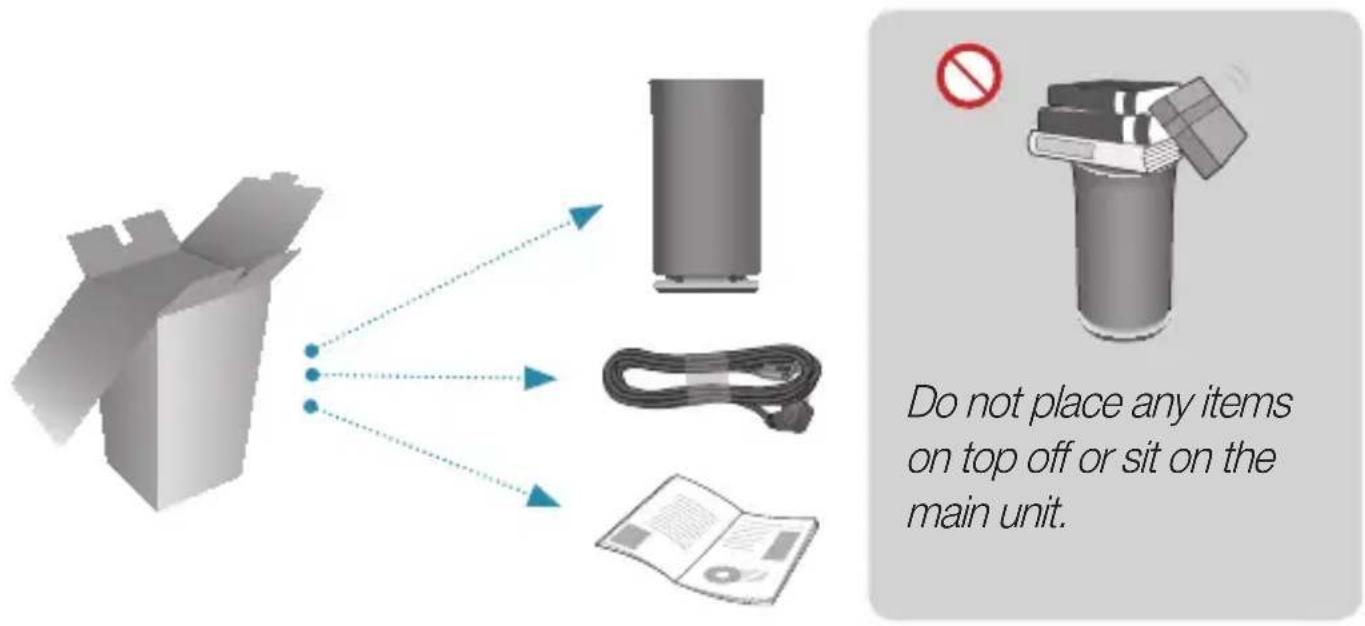
Getting Started
- Follow the installation steps in this user manual.
- Please download Samsung Multiroom app on your smart device.
Installation
- Make sure your smart device (Smart Phone, Tablet, PAD, etc) is connected to your Wi-Fi network.

NOTE
√ All the devices need to connect to the same network.

natural_image
Icon of a wireless router with Wi-Fi signal (no text or symbols)Smart device RouterRouter
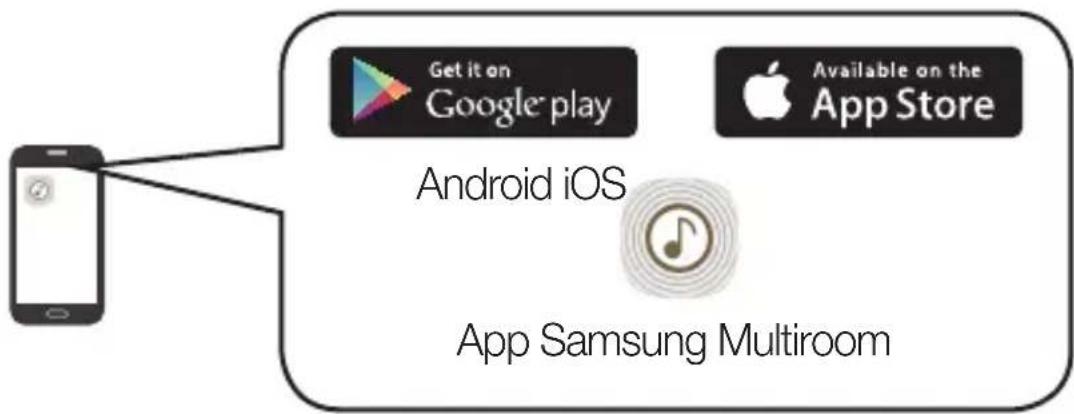
- On your smart device, download and install the Samsung Multiroom app.

flowchart
graph TD
    A["Mobile Phone"] --> B["Get it on Google play"]
    A --> C["Available on the App Store"]
    B --> D["Android iOS"]
    C --> D
    D --> E["Samsung Multiroom app"]
- Connect your speaker to power.

flowchart
graph LR
    A["<WAM5500>"] --> B["Speaker"]
    C["<WAM3500>"] --> B
    B --> D["Power"]
The power cord plug will be connected at an angle.
- Launch the Samsung Multiroom app on your smart device, and then follow the instruction on the screen to complete setup.
-Play music after speaker setup is complete.

Welcome Screen
If Auto Set-up fails, follow the on-screen instructions.

NOTE
√ If speaker setup continually fails,
Press and hold the volume (+,-) buttons on top of the speaker simultaneously for five seconds to reset the speaker.
Next, restart the app and follow the displayed instructions to configure the speaker again.

flowchart
graph TD
    A["Touch to select TV SoundConnect /Bluetooth/Wi-Fi"] --> B["SAMSUNG"]
    B --> C["Tap"]
    C --> D["Play/Pause"]
    D --> E["MODE"]
    E --> F["OLED Display"]
    F --> G["Previous Song"]
    F --> H["Swipe"]
    H --> I["Next Song"]
    I --> J["Volume button"]
    K["+"] --> L["vol"]
    M["-"] --> N["−"]

NOTES
√ Tap/Swipe : Whole area is available except MODE, Volume (-, +) key area on the TOP.
√ The speaker will enter standby mode to reduce energy consumption after 15 minutes of idle time.
SPK ADD/Wi-Fi SETUP

POWER
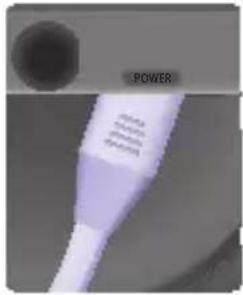
Connect the power cord plug to your speaker as shown below. It will connect at an angle.

natural_image
Close-up of a white medical or laboratory device with a circular head and a 'POWER' label (no other text or symbols visible)Notch for Power Cable
- WAM5500
SERVICE1/SERVICE2 Jack : For service only.
- WAM3500
SERVICE Jack : For service only.
Using the Samsung Multiroom App (on Main Screen)
![[Samsung] R3 My Phone ALBUMS Album A Album B Album C Album D Album E More ARTISTS GENRES FOLDERS](/content/2026/06/1286888/images/da4a06f8c74ac0da3ce926fa6c4dafa0e18f5fe8bf7deaa0ed8877fd5a59bad1.jpg)
1 View the full list of connected speakers.
2 Enter a keyword to search for the music desired.
3 Access the settings menu.
4 Select a source of music and play the music you want. Scroll left or right to view different sources of music.
5 A different screen is displayed according to the music source selected.
6 Different categories of music are listed below the bar. Scroll down to select your favourite categories of music.

NOTES
√ Some of app image might be different. Please refer to Web Manual for the detail information.
√ Sign-up or log-in may be required to access some streaming services.
√ Some Tuneln radio channels may be restricted depending on their site policies.
√ Supported streaming services are provided by third parties and may be terminated at any time.
You can add additional speakers
Use an app to add speakers to the network.
- Connect the new speaker to an electrical outlet.
- On the main screen, touch at the top left to display a list of speakers.
-
Touch More.
-
Touch Add New Speaker in the app, and then follow the instructions on the app screen.
![[Samsung] R3 My Phone ALBUMS ALL SPEAKERS [Samsung] R3 + More Find Existing Speaker Add New Speaker](/content/2026/06/1286888/images/d8a92c72ad2ab5f4a74c2af79ea118102216a585c0f8e4bac6841973d6678aeb.jpg)
Setting up a group
Group multiple speakers, connected over the same network, to play the same music via the speakers.
- On the main screen, touch ≡ at the top left to display a list of speakers.
- Touch: next to the speaker name.
- Touch Group. If you have more than two connected speakers, select the speakers you want to set up as a group, and then select Done.
![[Samsung] R3 My Phone ALBUMS](/content/2026/06/1286888/images/ae74291f28bb37ee3248461994b9c7fd4d873b81d7eb5b9741f3c73f1e6063d3.jpg)
![ALL SPEAKERS [Samsung] R1 [Samsung] R3 + More Close bum C](/content/2026/06/1286888/images/db71a11b5c0e2607fe1b38eaac83d55182132ebfeff944960005730652acbca3.jpg)
![ALL SPEAKERS [Samsung] R1 [Samsung] R3 [Samsung] R3 Group Stereo Set Rename ALL SPEAKERS GROUP My Group • [Samsung] R3 • [Samsung] R1 + More](/content/2026/06/1286888/images/f99683f6b063d6ac7607d70dae2306a1e0498ffb05af6ac37e3654bb7645f988.jpg)

NOTES
√ If two speakers are available, touch Group to automatically group the speakers.
√ You cannot use Group with Bluetooth or a TV SoundConnect connection.
Setting up Stereo Mode
√ If connecting to a Samsung Smart TV over Wi-Fi, use multiple speakers to configure a surround sound system. Refer to “Connecting to a Samsung Smart TV over Wi-Fi” for details.
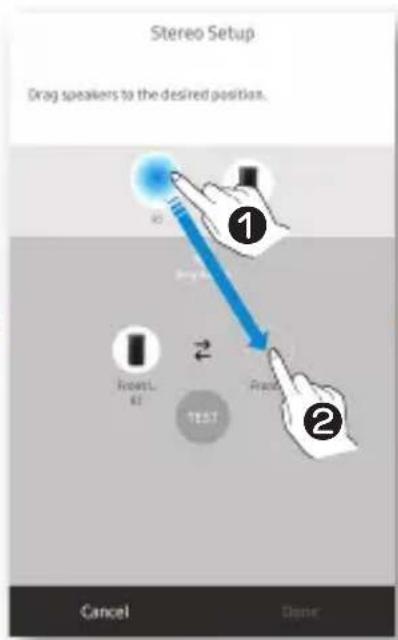
Use multiple speakers to enjoy stereo sound.
- On the main screen, touch at the top left to display a list of speakers.
- Touch: next to the speaker name.
- Touch Stereo Setup.
- Touch and hold a speaker, drag and drop it to a desired location, and then select Done.

flowchart
graph TD
    A["Group: [Samsung"] R3] --> B["Drop: Drop to [Samsung"] R3]
    B --> C["Drop: Drop to [Samsung"] R3]
    C --> D["Drop: Drop to [Samsung"] R3]
    D --> E["Drop: Drop to [Samsung"] R3]
    E --> F["Drop: Drop to [Samsung"] R3]
    F --> G["Drop: Drop to [Samsung"] R3]
    G --> H["Drop: Drop to [Samsung"] R3]
    H --> I["Drop: Drop to [Samsung"] R3]
    I --> J["Drop: Drop to [Samsung"] R3]
    J --> K["Drop: Drop to [Samsung"] R3]
    K --> L["Drop: Drop to [Samsung"] R3]
    L --> M["Drop: Drop to [Samsung"] R3]
    M --> N["Drop: Drop to [Samsung"] R3]
    N --> O["Drop: Drop to [Samsung"] R3]
    O --> P["Drop: Drop to [Samsung"] R3]
    P --> Q["Drop: Drop to [Samsung"] R3]
    Q --> R["Drop: Drop to [Samsung"] R3]
    R --> S["Drop: Drop to [Samsung"] R3]
    S --> T["Drop: Drop to [Samsung"] R3]
    T --> U["Drop: Drop to [Samsung"] R3]
    U --> V["Drop: Drop to [Samsung"] R3]
    V --> W["Drop: Drop to [Samsung"] R3]
    W --> X["Drop: Drop to [Samsung"] R3]
    X --> Y["Drop: Drop to [Samsung"] R3]
    Y --> Z["Drop: Drop to [Samsung"] R3]
    Z --> AA["Drop: Drop to [Samsung"] R3]
    AA --> AB["Drop: Drop to [Samsung"] R3]
    AB --> AC["Drop: Drop to [Samsung"] R3]
    AC --> AD["Drop: Drop to [Samsung"] R3]
    AD --> AE["Drop: Drop to [Samsung"] R3]
    AE --> AF["Drop: Drop to [Samsung"] R3]
    AF --> AG["Drop: Drop to [Samsung"] R3]
    AG --> AH["Drop: Drop to [Samsung"] R3]
    AH --> AI["Drop: Drop to [Samsung"] R3]
    AI --> AJ["Drop: Drop to [Samsung"] R3]
    AJ --> AK["Drop: Drop to [Samsung"] R3]
    AK --> AL["Drop: Drop to [Samsung"] R3]
    AL --> AM["Drop: Drop to [Samsung"] R3]
    AM --> AN["Drop: Drop to [Samsung"] R3]
    AN --> AO["Drop: Drop to [Samsung"] R3]
    AO --> AP["Drop: Drop to [Samsung"] R3]
    AP --> AQ["Drop: Drop to [Samsung"] R3]
    AQ --> AR["Drop: Drop to [Samsung"] R3]
    AR --> AS["Drop: Drop to [Samsung"] R3]
    AS --> AT["Drop: Drop to [Samsung"] R3]
    AT --> AU["Drop: Drop to [Samsung"] R3]
    AU --> AV["Drop: Drop to [Samsung"] R3]
    AV --> AW["Drop: Drop to [Samsung"] R3]
    AW --> AX["Drop: Drop to [Samsung"] R3]
    AX --> AY["Drop: Drop to [Samsung"] R3]
    AY --> AZ["Drop: Drop to [Samsung"] R3]
    AZ --> BA["Drop: Drop to [Samsung"] R3]
    BA --> BB["Drop: Drop to [Samsung"] R3]
    BB --> BC["Drop: Drop to [Samsung"] R3]
    BC --> BD["Drop: Drop to [Samsung"] R3]
    BD --> BE["Drop: Drop to [Samsung"] R3]
    BE --> BF["Drop: Drop to [Samsung"] R3]
    BF --> BG["Drop: Drop to [Samsung"] R3]
    BG --> BH["Drop: Drop to [Samsung"] R3]
    BH --> BI["Drop: Drop to [Samsung"] R3]
    BI --> BJ["Drop: Drop to [Samsung"] R3]
    BJ --> BK["Drop: Drop to [Samsung"] R3]
    BK --> BL["Drop: Drop to [Samsung"] R3]
    BL --> BM["Drop: Drop to [Samsung"] R3]
    BM --> BN["Drop: Drop to [Samsung"] R3]
    BN --> BO["Drop: Drop to [Samsung"] R3]
    BO --> BP["Drop: Drop to [Samsung"] R3]
    BP --> BQ["Drop: Drop to [Samsung"] R3]
    BQ --> BR["Drop: Drop to [Samsung"] R3]
    BR --> BS["Drop: Drop to [Samsung"] R3]
    BS --> BT["Drop: Drop to [Samsung"] R3]
    BT --> BU["Drop: Drop to [Samsung"] R3]
    BU --> BV["Drop: Drop to [Samsung"] R3]
    BV --> BW["Drop: Drop to [Samsung"] R3]
    BW --> BX["Drop: Drop to [Samsung"] R3]
    BX --> BY["Drop: Drop to [Samsung"] R3]
    BY --> BZ["Drop: Drop to [Samsung"] R3]

NOTES
√ If two speakers are connected, touch Stereo Setup to enable stereo sound mode.
√ Speaker testing and volume adjustment are optional.
√ You cannot use Stereo Setup with Bluetooth or a TV SoundConnect connection.
- Touch the MODE button on the TOP of your speaker one or more times until you hear "Bluetooth is ready.".
- Enable Bluetooth on your smart phone, and then select [Samsung] R5 or [Samsung] R3 from the Bluetooth list.
![Bluetooth My device Galaxy Note Only visible to paired devices Paired devices [Samsung] R5](/content/2026/06/1286888/images/d31010ef4795d9795bd5b155e7ed87d632f759c9e9ff46728c91612d3ab5198c.jpg)

NOTE
√ Without connection with Samsung Multiroom app, you might see "Samsung Wireless Audio" on your Bluetooth list.
- Use any music app on your device to play music on your speaker.

NOTE
√ In Bluetooth mode, the Play/Pause/Next/Prev functions are available in Bluetooth devices supporting AVRCP.
Connecting to a TV via TV SoundConnect (Bluetooth)
TV SoundConnect allows an easy wireless connection between a Samsung TV and your speaker so you can enjoy listening to your TV's sound through the speaker.
- Touch the MODE button one or more times until you hear "TV SoundConnect is ready.".

NOTE
√ TV SoundConnect can be used to connect a single speaker to a TV. (to connect multiple speakers to a TV, refer to “Connecting to a Samsung Smart TV over Wi-Fi”).
- Press and hold MODE button for 5 seconds to initialise TV SoundConnect Mode.
- A pop-up appears on the TV asking you to approve the connection. Approve to continue.

NOTES
√ Once connection completed, skip above step 2 and 3 when you connect the TV again.
√ To connect a new TV, follow above all 3 steps.
√ The TV SoundConnect (SoundShare) feature is available on several Samsung TV models released after 2012.
Connecting to a Samsung Smart TV over Wi-Fi
What is the Wi-Fi surround sound connection?
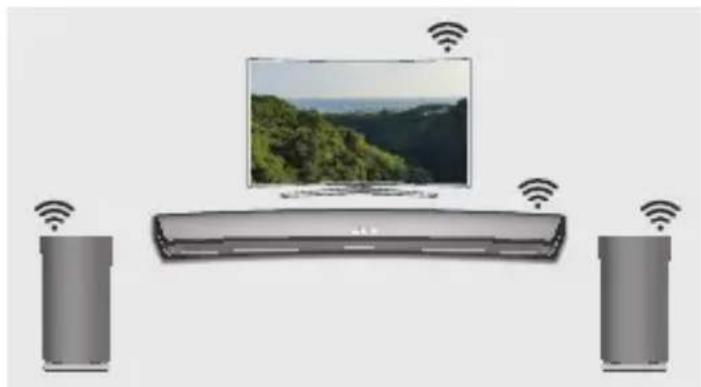
If your Samsung TV supports the Wi-Fi mode, connect the TV and audio devices on the same Wi-Fi network. You can enjoy sound experience from the surround sound system.
Playing TV sound using the Soundbar and speakers
Playing TV sound using speakers only (up to five speakers can be connected)
natural_image
Illustration of a smart air conditioner setup with two speakers and a monitor, connected to wireless signals (no text or symbols)
natural_image
Three rectangular devices connected to a central screen showing a scenic landscape (no text or symbols visible)Checklist before Connection
※ Check information for your TV model.
For connection to a TV over Wi-Fi, only Samsung Smart TVs, released after 2014, are compatible. (See the User Manual provided with your TV.)
When using a smart TV manufactured by other than Samsung,
Use a wired connection to connect between your TV and Samsung Soundbar that supports the multiroom feature. Then use the Multiroom app to set up your surround sound system.
(Refer to the Soundbar user manual at the Samsung website.)
- Check to make sure that the Soundbar and audio device are connected to a (Wi-Fi) network.

NOTE
√ Download the Samsung Multiroom app to your smart device, then follow the instructions in the app to connect the speakers and/or Soundbar to the (Wi-Fi) network.
- Check to make sure that the TV is connected to the network.
- How to check: Menu → Network → Network Status
- Check to make sure that the TV, Soundbar and speakers are connected to the same network.
Connecting to a Samsung Smart TV released in 2016
■ Connecting a single speaker or Soundbar
From the menus, select Sound Output.
Home Menu → Settings (💡) → Sound → Sound Output → Model name(Wi-Fi)
■ Connecting multiple speakers or connecting a single speaker along with the Soundbar
- On the TV menu, select Wireless Speaker Manager.
Menu → Sound → Expert Settings → Wireless Speaker Manager
2. Select Multiroom Link Type.
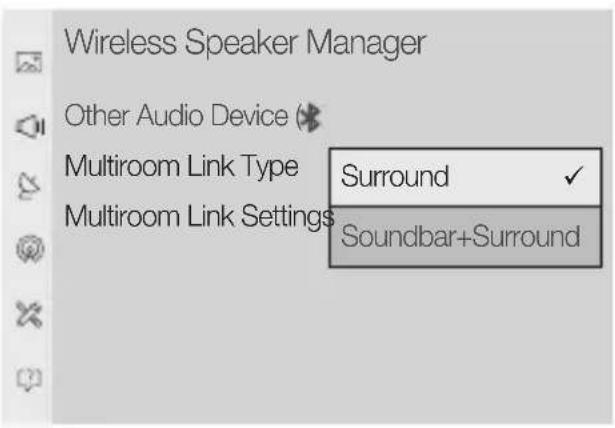
- Surround :
Set up with 2 to 5 speakers
- Soundbar+Surround :
Set up with one Soundbar and two speakers

NOTE
√ The surround sound system is not available with a combination of one Soundbar and one speaker.
3. Select Multiroom Link Settings. Select a speaker for each channel and select Save to complete configuration.
- Surround

- Soundbar+Surround

√ If a connection cannot be established, see “Checklist before Connection” on pages 13 and 14.
Connecting to a Samsung Smart TV released in 2015
■ Connecting a single speaker or Soundbar
- On the TV menu, select Speaker List.
Menu → Sound → Speaker List - Select a connected speaker from the list of speakers.


IMPORTANT
√ Soundbars are indicated by the 'Model name(Wi-Fi)'.
■ Connecting multiple speakers or connecting a single speaker along with the Soundbar
- Follow the instructions under "Connecting a single speaker or Soundbar" to connect a speaker.

IMPORTANT
√ To configure the surround sound system aligned with a Soundbar, select a Soundbar first.
Connecting to a Samsung Smart TV over Wi-Fi
- With the speaker selected, press the right directional key on the remote control. Select a speaker for each channel and select Save to complete configuration.
Connecting only a speaker
![TV Speaker R1(Wi-Fi) R3(Wi-Fi) Wi-Fi Surround Setup We've automatically configured your surround setup. You can manually edit this configuration or select Exit to cancel. Front Left Front Right [Samsung] R3 [Samsung] R1 Speaker Level Start Test ExitSave](/content/2026/06/1286888/images/684bf140e1059aa044c6a6648b870b3d544d60c0e7389d3972d4c2bb3ff3038a.jpg)
Connecting a speaker along with the Soundbar
√ The surround sound system is not available with a combination of one Soundbar and one speaker.
![TV Speaker HW-K850(HDMI) HW-K850(Wi-Fi) R3(Wi-Fi) R5(Wi-Fi) HW-K850 Music Clear Voice Sports Movie Night Surround Settings Woofer & Equaliser Surround Setup > Wi-Fi Surround Setup We've automatically configured your surround setup. You can manually edit this configuration or select Exit to cancel. Soundbar [Samsung] HW-K850 Surround Left [ Samsung ] R3 [ Samsung ] R5 Surround Right Speaker Level Start Test ExitSave](/content/2026/06/1286888/images/b8cb0284e2c06cf79fc2d582a31c51baa8cd822c1e75d221fd864bb3e3e96552.jpg)
√ If a connection cannot be established, see “Checklist before Connection” on pages 13 and 14.
Connecting to a Samsung Smart TV released in 2014
1. From the menus, select Multiroom Link - Settings.
Menu → Sound → Speaker Settings → Multiroom Link - Settings


2. Select the Multiroom Link type.
![Settings Multiroom Link ✓ Surround Multiroom Front Left Soundbar+Surround [Samsung]R5[Samsung]R3 OK Volume Level Speaker Test Edit Name](/content/2026/06/1286888/images/792c1d39c3e857459acb618500f336cb586113f5ec359c359dd70d394670365d.jpg)
- Surround :
Set up with one to five speakers
- Soundbar+Surround :
Set up with one Soundbar, or with one Soundbar and two speakers

NOTE
√ The surround sound system is not available with a combination of one Soundbar and one speaker.
Connecting to a Samsung Smart TV over Wi-Fi
- Select the number of speakers to connect. e.g., one speaker → 1CH, two speakers → 2CH
![Settings Multiroom Link 2CH Front Left [ Samsung]R3[ Samsung]R3 Front Right Front Left OK Volume Level Speaker Test Edit Name](/content/2026/06/1286888/images/0433df46221abef95109dbcb901e6d39337cd200b9ac17d97942e99306615423.jpg)
- Select the speaker in the position you want and select OK.
![Settings Multiroom Link Surround 2CH Front RightFront Left OK Volume Level Speaker Test Edit Name Settings Multiroom Link Surround 2CH Front RightFront Left ✓ [Samsung]R3 [Samsung]R3 [Samsung]R5 OK Volume Level Speaker Test Edit Name](/content/2026/06/1286888/images/77ba3fc3967fea3b1e437737809a4b671d5a8af8c5499344cb334f4fe8ea5beb.jpg)
- Set TV sound output to Multiroom Link.
√ If a connection cannot be established, see “Checklist before Connection” on pages 13 and 14.
natural_image
Simple icon of a wireless router with Wi-Fi signal (no text or symbols)Routeur
Écran Bienvenue


natural_image
Simple vertical dotted line with a blue arrowhead at the top (no text or symbols)![ALL SPEAKERS [Samsung] R1 [Samsung] R3 [Samsung] R3 Group Stereo Set Rename](/content/2026/06/1286888/images/cc7aaa0747ca0de46849fc736c756f5806b00e6758e9c7ce13db7f6669691b17.jpg)

![ALL SPEAKERS [Samsung] R1 [Samsung] R3 + More Close bum C](/content/2026/06/1286888/images/f103adc4e5876ae67972b38f1375aea3f8148a842c6051cc9f9d8ad2d422eb52.jpg)
![ALL SPEAKERS Close GROUP My Group • [Samsung] R3 • [Samsung] R1 + More](/content/2026/06/1286888/images/6567b0fa3ff669387c4aa2a2fb0c2499da488ca35352b180cf5b14290a25fc09.jpg)

REMARQUES

![[Samsung] R3](/content/2026/06/1286888/images/7c583e1a35f77a78636fa73a396787100b94a45b4ec47e5288eeac2b1dfe8c73.jpg)
![[Samsung] R3 Group Stereo Setup Rename](/content/2026/06/1286888/images/4fd52ec17a2d81514abfcffb86bcf95817e28e9d4557f8faa6d14e1db128e3e3.jpg)

REMARQUES

REMARQUE
natural_image
Illustration of a smart TV setup with two speakers and a monitor, connected to wireless signals (no text or symbols)
natural_image
Three rectangular devices with wireless signal icons above each, showing a central screen and two others (no text or symbols)natural_image
Diagram showing a 3D printer with a box, connected to a device via dotted lines, and a cable with a printed document nearby (no text or symbols present)
natural_image
Simple icon of a wireless router with signal waves (no text or symbols)Router
- Sul dispositivo smart, scaricare e installare l'app Samsung Multiroom.
flowchart
graph TD
    A["Smartphone"] --> B["Get it on Google play"]
    A --> C["Available on the App Store"]
    B --> D["Android iOS"]
    C --> D
    D --> E["App Samsung Multiroom"]


![[Samsung] R3](/content/2026/06/1286888/images/03e476255ffa56a35135b21c1fe1fba81b685d0ac506bd05caccfd1fb87e72b0.jpg)
![[Samsung] R3 Group Stereo Setup Rename](/content/2026/06/1286888/images/108f6e5e40141c6a8d713e9e3b36450be293c28692c1be5ca2cf0691c2b84b76.jpg)

NOTE

NOTA
natural_image
Illustration of a smart TV setup with two speakers and a monitor, connected to wireless signals (no text or symbols)
natural_image
Three rectangular devices with wireless signal icons above each, showing a central screen and two others (no text or symbols)Verificar os components

natural_image
Diagram showing a cardboard box connected to a cylindrical device, with cable and open book nearby (no text or symbols)
natural_image
Icon of a wireless router with signal waves (no text or symbols)Router
Ecrã Boas-vindas
Configurar um grupo
![ALL SPEAKERS [Samsung] R1 [Samsung] R3 + More Close bum C](/content/2026/06/1286888/images/1247c4e77f3d4c37b3c243249a6403a5cd2b9204624e09ea35c138bbb1dfc272.jpg)
![ALL SPEAKERS [Samsung] R1 [Samsung] R3 [Samsung] R3 Group Stereo Set Rename ALL SPEAKERS GROUP My Group • [Samsung] R3 • [Samsung] R1 + More](/content/2026/06/1286888/images/9e630aaa4cb6fbff9e1521242cbd9ee0e854e1b93f8986d6de6c2b5fecdbba45.jpg)

NOTAS
flowchart
graph TD
    A["[Samsung"] R3] --> B["[Samsung"] R3]
    B --> C["Stereo Setup"]
    C --> D["Rename"]


NOTAS

NOTA
natural_image
Illustration of a smart TV setup with two speakers and a monitor, connected to wireless signals (no text or symbols)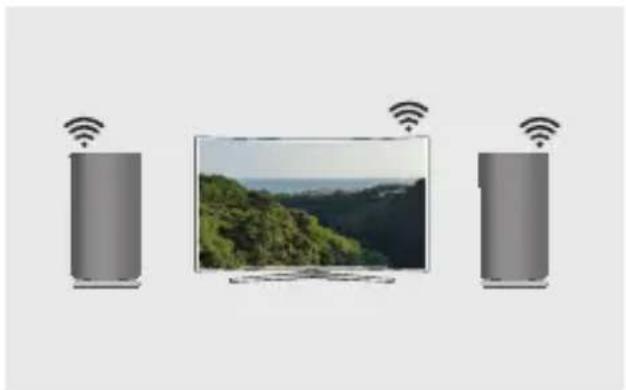
natural_image
Illustration of a smart TV connected to two speakers with wireless signals, showing outdoor landscape (no text or symbols)natural_image
Diagram showing a cardboard box, a cylindrical device, and cable with arrows indicating data flow (no text or symbols)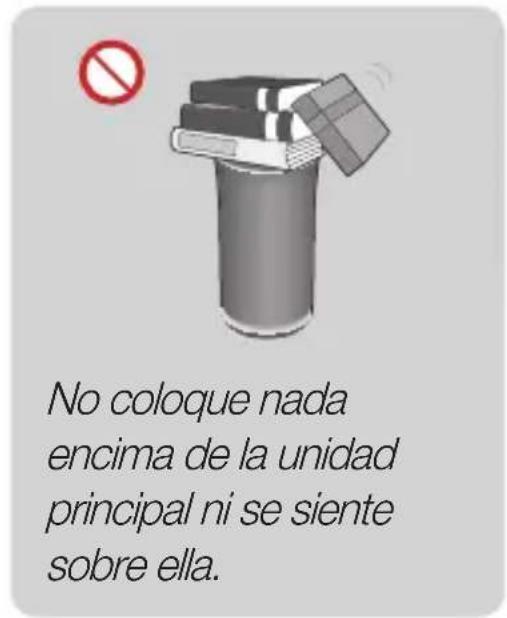
natural_image
Icon of a wireless router with Wi-Fi signal, no text or symbols presentEnrutador
flowchart
graph TD
    A["Group: [Samsung"] R3] --> B["Drop to [Samsung"] R3]
    B --> C{Drop_to["Samsung"] R3}
    C --> D["Drop to [Samsung"] R3]
    D --> E["Drop to [Samsung"] R3]
    E --> F["Drop to [Samsung"] R3]
    F --> G["Drop to [Samsung"] R3]
    G --> H["Drop to [Samsung"] R3]
    H --> I["Drop to [Samsung"] R3]
    I --> J["Drop to [Samsung"] R3]
    J --> K["Drop to [Samsung"] R3]
    K --> L["Drop to [Samsung"] R3]
    L --> M["Drop to [Samsung"] R3]
    M --> N["Drop to [Samsung"] R3]
    N --> O["Drop to [Samsung"] R3]
    O --> P["Drop to [Samsung"] R3]
    P --> Q["Drop to [Samsung"] R3]
    Q --> R["Drop to [Samsung"] R3]
    R --> S["Drop to [Samsung"] R3]
    S --> T["Drop to [Samsung"] R3]
    T --> U["Drop to [Samsung"] R3]
    U --> V["Drop to [Samsung"] R3]
    V --> W["Drop to [Samsung"] R3]
    W --> X["Drop to [Samsung"] R3]
    X --> Y["Drop to [Samsung"] R3]
    Y --> Z["Drop to [Samsung"] R3]
    Z --> AA["Drop to [Samsung"] R3]
    AA --> AB["Drop to [Samsung"] R3]
    AB --> AC["Drop to [Samsung"] R3]
    AC --> AD["Drop to [Samsung"] R3]
    AD --> AE["Drop to [Samsung"] R3]
    AE --> AF["Drop to [Samsung"] R3]
    AF --> AG["Drop to [Samsung"] R3]
    AG --> AH["Drop to [Samsung"] R3]
    AH --> AI["Drop to [Samsung"] R3]
    AI --> AJ["Drop to [Samsung"] R3]
    AJ --> AK["Drop to [Samsung"] R3]
    AK --> AL["Drop to [Samsung"] R3]
    AL --> AM["Drop to [Samsung"] R3]
    AM --> AN["Drop to [Samsung"] R3]
    AN --> AO["Drop to [Samsung"] R3]
    AO --> AP["Drop to [Samsung"] R3]
    AP --> AQ["Drop to [Samsung"] R3]
    AQ --> AR["Drop to [Samsung"] R3]
    AR --> AS["Drop to [Samsung"] R3]
    AS --> AT["Drop to [Samsung"] R3]
    AT --> AU["Drop to [Samsung"] R3]
    AU --> AV["Drop to [Samsung"] R3]
    AV --> AW["Drop to [Samsung"] R3]
    AW --> AX["Drop to [Samsung"] R3]
    AX --> AY["Drop to [Samsung"] R3]
    AY --> AZ["Drop to [Samsung"] R3]
    AZ --> BA["Drop to [Samsung"] R3]
    BA --> BB["Drop to [Samsung"] R3]
    BB --> BC["Drop to [Samsung"] R3]
    BC --> BD["Drop to [Samsung"] R3]
    BD --> BE["Drop to [Samsung"] R3]
    BE --> BF["Drop to [Samsung"] R3]
    BF --> BG["Drop to [Samsung"] R3]
    BG --> BH["Drop to [Samsung"] R3]
    BH --> BI["Drop to [Samsung"] R3]
    BI --> BJ["Drop to [Samsung"] R3]
    BJ --> BK["Drop to [Samsung"] R3]
    BK --> BL["Drop to [Samsung"] R3]
    BL --> BM["Drop to [Samsung"] R3]
    BM --> BN["Drop to [Samsung"] R3]
    BN --> BO["Drop to [Samsung"] R3]
    BO --> BP["Drop to [Samsung"] R3]
    BP --> BQ["Drop to [Samsung"] R3]
    BQ --> BR["Drop to [Samsung"] R3]
    BR --> BS["Drop to [Samsung"] R3]

NOTAS

NOTA
natural_image
Illustration of a smart TV setup with two speakers and a monitor, connected to wireless signals (no text or symbols)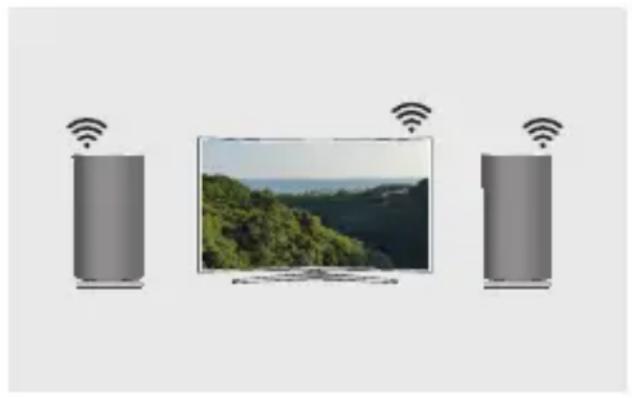
natural_image
Three rectangular devices with wireless signal icons above each, showing a central screen and two others (no text or symbols)


- Speaker Main Features
- NOTE
- Checking the Components
- Getting Started
- Installation
- If Auto Set-up fails, follow the on-screen instructions.
- NOTES
- POWER
- Using the Samsung Multiroom App (on Main Screen)
- You can add additional speakers
- Setting up a group
- Setting up Stereo Mode
- Connecting to a TV via TV SoundConnect (Bluetooth)
- Connecting to a Samsung Smart TV over Wi-Fi
- What is the Wi-Fi surround sound connection?
- Checklist before Connection
- ※ Check information for your TV model.
- When using a smart TV manufactured by other than Samsung,
- Connecting to a Samsung Smart TV released in 2016
- Select Multiroom Link Type.
- - Surround :
- - Soundbar+Surround :
- Select Multiroom Link Settings. Select a speaker for each channel and select Save to complete configuration.
- - Surround
- - Soundbar+Surround
- Connecting to a Samsung Smart TV released in 2015
- ■ Connecting a single speaker or Soundbar
- IMPORTANT
- ■ Connecting multiple speakers or connecting a single speaker along with the Soundbar
- Connecting a speaker along with the Soundbar
- Connecting to a Samsung Smart TV released in 2014
- From the menus, select Multiroom Link - Settings.
- Select the Multiroom Link type.
- REMARQUES
- REMARQUE
- NOTA
- Verificar os components
- Configurar um grupo
- NOTAS
Brand : SAMSUNG
Model : WAM3500
Category : Docking Station