
VOXTEL SM420 - Smartphone AEG - Free user manual and instructions
Find the device manual for free VOXTEL SM420 AEG in PDF.


| Product type | Smartphone |
| Brand | AEG |
| Model | VOXTEL SM420 |
| Dimensions (H x W x D) | 151 x 75 x 8.5 mm |
| Weight | 165 g |
| Screen | 5.5-inch IPS, resolution 1280 x 720 pixels |
| Operating system | Android 11 (Go edition) |
| Processor | Quad-core 1.3 GHz |
| RAM memory | 2 GB |
| Internal storage | 16 GB expandable via microSD up to 128 GB |
| Rear camera | 8 MP with LED flash |
| Front camera | 5 MP |
| Battery | Li-Ion 3000 mAh removable |
| Connectivity | 4G LTE, Wi-Fi 802.11 b/g/n, Bluetooth 4.2, GPS |
| Sensors | Accelerometer, proximity, light |
| Security | Lock by PIN code, pattern, password |
| Maintenance and cleaning | Clean with a soft, dry cloth. Do not use chemical products. |
| Spare parts and repairability | Removable battery, repair by AEG authorized center |
| Power supply | USB charger 5V/1A, micro USB plug |
| Package contents | Smartphone, battery, charger, USB cable, quick start guide |
Frequently Asked Questions - VOXTEL SM420 AEG
User questions about VOXTEL SM420 AEG
0 question about this device. Answer the ones you know or ask your own.
Ask a new question about this device
Download the instructions for your Smartphone in PDF format for free! Find your manual VOXTEL SM420 - AEG and take your electronic device back in hand. On this page are published all the documents necessary for the use of your device. VOXTEL SM420 by AEG.
USER MANUAL VOXTEL SM420 AEG


1 BECAUSE WE CARE
Thank you for purchasing this product. This product has been designed and assembled with utmost care for you and the environment. This is why we supply this product with a quick installation guide to reduce the number of paper (pages) and therefore save trees to be cut for making this paper. Thank you for supporting us to protect our environment. You can find the full user guide on www.aegtelephones.eu.
2 SAFETY AND PRECAUTIONS
When using your telephone, basic safety precautions should always be followed to reduce the risk of fire, electric shock and injury, including the following:
- Switch off the phone in the vicinity of chemical plants, gas stations and other locations containing explosive objects.
- When driving, please use the hands free calling device (to be purchased separately) to ensure safety. Please park the car on the roadside for communication except in case of emergency.
- Switch off the phone when boarding an airplane and do not switch the phone on during the flight.
- Be careful when using the mobile phone in the vicinity of devices such as pacemakers, hearing aids and other electro-medical equipment, which may be interfered by the mobile phone.
- Never attempt to disassemble the phone by yourself.
- Do not recharge the phone without battery being installed.
- Charge the phone in well-ventilated environment and keep away from inflammable and highly explosive elements.
- To avoid demagnetization, keep the handset away from magnetic substances, such as magnetic discs or credit cards.
- Keep the phone away from liquid. If soaking or erosion occurs, take the battery out and contact the supplier.
- Avoid using the phone in extremely high or low temperature environments. Never leave the phone exposed under direct sunlight, in high humidity or in a dusty environment.
- Do not use liquid or anything wet with strong detergents to clean the handset.
2.1 Medical units
The use of equipment that transmits radio signals, e.g. mobile phones, can interfere with insufficiently protected medical apparatus. Consult a doctor or the manufacturer of the apparatus to determine if it has adequate protection against external radio signals, or if you have any questions. Wherever there are notices to forbid use of mobile phones, you should comply. Hospitals and other health care facilities sometimes use equipment that can be sensitive to external radio signals.
2.2 Pacemaker
Pacemaker manufacturers recommend a distance of at least 15 cm. between a mobile phone and a pacemaker to avoid the risk of interference with the pacemaker. These recommendations are in accordance with independent research and recommendations from Wireless Technology Research. People with pacemakers should:
• not carry the unit in a breast pocket - hold the unit against the ear on the opposite side from the pacemaker to reduce the risk of interference
If you suspect that there is a risk of interference, turn off the unit and move it further away.
2.3 Emergency calls

Important!
Mobile phones use radio signals and the mobile phone network. This means that connection in all circumstances cannot be guaranteed.
Therefore you should never rely solely on a mobile phone for very important calls such as medical emergencies.

Important Safety Instructions
To prevent possible hearing damage, do not listen at high volume levels for long periods.
3 SET HANDSET LANGUAGE
- Press Menu — and ^/ to select
"Settings", then press OK.
- Press 📤/ 🕒 to select "Phone settings", then press OK.
- Press / to select "Language", then press OK.
- Press 📤/ 🕒 to select your language, press OK to confirm.
4 GETTING TO KNOW YOUR PHONE
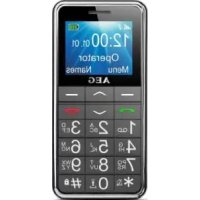
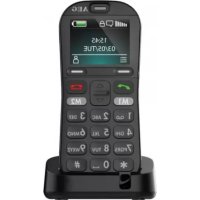
4.1 Keys and parts
| # Function | |
| 1 Earpiece | |
| 2 |  Press to adjust receiver volume during a call.Press to scroll to names and numbers in standby mode.Press to scroll through menus and settings within a menu. Press to adjust receiver volume during a call.Press to scroll to names and numbers in standby mode.Press to scroll through menus and settings within a menu. |
| 3 Left Softkey | Performs the function displayed on the screen above this key. |
| 4 Talk key | Press to answer a phone call.Press to enter the call log.Press to dial a number. |
| 5 Torch key Press and hold to turn torch on/off. | |
| 6 Right Soft-key | Performs the function displayed on the screen above this key. |
| 7 End Call/On/Off button | Press to end or reject a call.Press to return to standby mode.Press and hold to switch the phone on/off. |
| 8 | Speed Keys | Dial | Press to dial the stored M1/M2/M3 numbers. |
| 9 # Key | In standby mode: Press to input “#”.In standby mode: Press and hold to switch between user profiles.In edit mode: Press to change input method. | ||
| 10 SOS Key | Press and hold for 3 seconds to start the SOS call procedure. | ||
| 11 LED Light | Lights up when charging or when there are missed calls or messages. | ||
| 12 Torch Light | |||
| 13 Micro USB Connect to adaptor to charge. | |||
| 14 * Key | In dialling mode: Press to inp "*". Press repeatedly to input "+"/"P"/"W" accordingly.In edit mode : Press to inp symbols. | ||
4.2 Display icons and symbols
The default idle screen shows the following information:
| Meaning | |
 | Radio linkShowing the signal strength. |
 | Battery charge levelInternal segments cycle during battery charging. |
 | AlarmOn if alarm is set. |
 | Silent mode |
 | Ring onOn if only the ringer is enabled. |
 | Vibrate onOn if only the vibrate is enabled. |
 | Vibrate then ringOn if vibrate then ring is enabled. |
 | New SMSIndicates you have new text messages. |
 | Missed callOn if you have new missed calls. |
 | Bluetooth On when bluetooth is active. |
 | Photo Contact |
5 INSTALLATION AND SETUP
5.1 Install the SIM card and battery
- Switch off the phone, disconnect the power adaptor and remove the backcover.
- Remove the battery by lifting the middle part.
- Carefully slide the SIM card into the holder with the gold connectors face down and angled corner.
- Insert the Micro SD card by carefully sliding it into the holder.
- Replace the battery by aligning the gold connectors on the battery with those on the phone, and push the battery down until it clicks into place.
- Replace the back cover by placing it flat on the back of the handset and pressing until it clicks into place.
5.2 Charge the battery
Warning:
Use only supplied/approved battery and charger. Using others may be dangerous and will invalidate approvals or warranty. A battery must be fitted. Do not charge with the back cover removed.
- Connect the charger lead firmly into the micro-USB socket at the bottom of the handset, or place the handset directly in the charging cradle.
- Plug the mains power adapter into an AC mains socket. If the handset is turned on, "Charger connected" displays for a few seconds, and the battery symbol bars scroll to indicate that charging has started. If the handset is turned off, the display shows a battery symbol with the segments cycling to indicate charging has started.
- Charging the battery may take up to 4 hours.
- If "charger connected" does not display, disconnect and retry.
- The battery is fully charged when the bars within the battery symbol are continuously on. Disconnect the charger from the phone and the AC outlet. "Charger removed" displays for a few seconds to indicate the charging has stopped.
5.3 Switching on and off
To switch the phone on and off:
- To switch off, press and hold the power button until the display turns off.
- To switch on, press and hold the power button until the display turns on.
Warning:
Do not switch on when mobile phone use is prohibited or if it may cause interference or danger.
6 MAKING AND ANSWERING CALLS
6.1 To make a call
Ensure the phone is switched on and in service.
- Key in the telephone number including area code. (To add prefix "+" long press the "0" key)
- Press to dial the number on the display.
- To end calls press 📞 button.
6.2 Last number redial
- In idle mode, press 📋 to see the All calls list – a list of the last 10 numbers for each of the dialled, received and missed calls.
- Press /to go to the number you want.
- Press to dial the number.
6.3 To answer a call
- When the phone rings, Press 📋 to answer it.
6.4 Earpiece volume
- During a call, press +/− to alter the volume.
The volume level displays and stays for future calls.
7 USING THE PHONEBOOK & SPEED DIAL KEYS
You can store names and phone numbers in the Internal phone book (up to 100) and in the SIM phone book (SIM dependant).
7.1 To access the phonebook
In idle mode:
- Press Menu, select Phonebook, and OK. OR
- Press Names.
7.2 To add a new phonebook entry
- Press Menu, select Phonebook and OK.
- Press Up ⬆ and select Add new contact Or Photo contacts from the menu list, and press Options key.
- Select store To SIM or To Phone from the menu list, and press OK.
- Enter the name then press key.
- Enter the digits for the number.
- Press Options then Save to save the new contact.
Note:
When writing the name, use # to switch cases, between Upper case (ABC), lower case (abc) or Numerals (123).
7.3 To call a stored number
- Press Names (Right Soft Key) OR
- Press Menu, select Phonebook, and OK.
- Press / to find the name you want, or key the first letter of the name then /.
- Press to dial the number.
7.4 M1/M2/M3 settings
- Press Menu, press 📤/ 🖼 to select Settings then press OK.
- Press / to select Speed dial then press OK.
- Press 📤/ 🕒 to select M1/M2/M3 or the numbers 2-9, then press OK.
- To activate/deactivate the speed dial: Select Status On, press OK, then press to select ON or OFF. OR
- To set the numbers on speed dial: Select Set Numbers then press OK. Press / to select M1-M3 or the numbers 2-9 then press OK. You can either select the number from the phonebook or input a new number directly using the keypad. Press OK to store the number.
8 CALL LOGS
If a call is not answered, 1 missed call(s) and icon

displays.

on the display indicates a new missed call in
the Call log.
8.1 To view the call log entries
- From the home screen/idle mode, press to show the All Calls – a combined list of received calls, dialled calls and missed calls. OR
- Press Menu, select Call History and OK, where you can view separate lists for Missed calls, Dialled calls, Received calls, All calls or Delete call logs.
- Press 🗑️/ 🚡️ to select the calls log you wish to view, and press OK to show the selected list.
- When in a list, press /to find the call entry you want.
- Press Options to see the following list of options:
| View View details of the selected call. | |
| Call Call the selected number. | |
| Send message Send SMS to the number. | |
| Save to Phonebook | Save the selected number to your phonebook. |
| Add to Blacklist | Add the selected number to your Blacklist. |
| Edit before call Edit the selected number before call. | |
| Delete | Delete the selected number from the log. |
9 SMS TEXT MESSAGING
Send and receive text messages. These are saved in the phone memory (up to 50) or on the SIM card (SIM dependant). Received SMS are stored in the Inbox and the icon indicates new messages. Also “Unread messages” is displayed.
9.1 To access the SMS menu
- Press Menu and select Messages.
- Press OK to display the options:
| Write message | to write a new message. |
| Inbox | to go to your inbox to read received texts. |
| Drafts | to view messages in draft. |
| Outbox | to go to your outbox. (includes saved drafts). |
| Sent messages | to view the sent messages. |
| SMS Settings to | check or change SMS settings. |
9.2 To write and send a text message
- Press Menu then 📤/ 🖼 to show Messages.
- Press OK to show Write message
- Press OK again to display a flashing cursor.
- Write your message using the digit / letter keys.
Note:
When writing text, use # to switch cases, to Upper case (ABC), lower case (abc) or Numerals (123).
Note:
Use ^/√/<</> to move the cursor, Clear to delete letters and the * key for symbols or punctuation, or repeated pressing of the 1 key.
- To send, press Options and then select Send to.
- Press Select again to show Enter number.
- Press OK and enter the full number, including area code. OR
- Press 🗑️/ 🚡️ to select Add from Phonebook to choose a number from the phonebook and press OK.
- Press Options when the number is entered.
- Press Send to send the message.
9.3 To read your messages
- Press Menu then ↗/ ↙ to show Messaging and OK to select.
- Press ▼ to choose Inbox and OK to select it.
- Press 🗑/✓ to step through the messages.
- Press Options to show a list of options:
| View to read | the message and its date/time. |
| Reply to send | a reply to the message. |
| Call sender to call the message sender. | |
| Forward to forward the message to other receipent. | |
| Delete to delete the message. | |
| Delete all to delete all the Inbox messages. | |
10 SOS BUTTON

During standby mode with the display on, press and hold the SOS button for 3 seconds to start the emergency call operation. The phone outputs an emergency siren from the speaker during a countdown, before sending the emergency SMS to any of the five emergency numbers that are programmed. By default this message is „Help me!“
Then the phone makes a call to the first programmed SOS Number.
If the first number is busy or out of area, not answered within 25 seconds or not press „0“ within 25 seconds, it will try the 2nd and then the 3rd, 4th and 5th. If it still does not get through it will repeat the sequence 5 times.
Note:
You can use the emergency SOS button even if the key lock is turned on. The receiver of the SOS call need to press „0“ on his phone to confirm the call is answered and to stop the SOS procedure.
This function only works if the SOS function is turned on, and at least one SOS number exists.
To setup the SOS function:
- Press Menu to show show Settings, and then press OK to show SOS settings, press OK to see the SOS options :
| Status Switch SOS On or OFF | |
| SOS Number to program the SOS numbers | |
| SOS SMS On/OFF | to switch SMS on or off |
| SOS SMS | to edit the SMS content that is send to all SOS numbers |
| Warning tone | to activate siren when SOS key is pressed |
11 DEFAULT RESET
If you want to clear all data in your phone and reset it to the factory settings.
- Press Menu and select Settings.
- Press OK and select Restore settings.
- Press OK and input the phone password (Default = 0000).
- Select Yes to confirm the reset or No to cancel.
12 GUARANTEE AND SERVICE
The phone is under warranty for 24 months from the date of purchase shown on your sales receipt. This guarantee does not cover any faults or defects caused by accidents, misuse, fair wear and tear, neglect, lightning, tampering with the equipment, or any attempt at adjustment or repair other than through approved agents.
Please keep your sales receipt; this is your proof of guarantee.
12.1 While the unit is under Guarantee
- Pack up all parts of your phone system, using the original package.
- Return the unit to the shop where you bought it, making sure you take your sales receipt.
- Remember to include the main adapter.
12.2 After the Guarantee has expired
If the unit is no longer under Guarantee, contact us via www.aegtelephones.eu
13 TECHNICAL DETAILS
| Standard GSM Mobile | |
| Frequency Band GSM 900/DCS 1800 MHz | |
| Operating Time (with fully charged battery) | Standby: >200 hoursTalking: >4 hours |
| Charging Time <4 hours | |
| Temperature range | Operating: 0°C to 40°CStorage: -20°C to 60°C |
| Electrical power Handset | BL-5C Li-ion 3.7V DC,600mAh Battery Pack |
| Travel charger | XT-128E-5060 Input 100-240VAC 50/60Hz 0.15AOutput 5.0V DC:600mA |
| SAR Value | MaximumHead: 0.442W/kgBody: 0.517W/kg |
*Variation in operation times may occur depending on SIM card, network, and usage settings, usage style and environments.
14 CE DECLARATION C€0700
This product is in compliance with the essential requirements and other relevant provisions of the R&TTE directive 1999/5/EC.
The Declaration of conformity can be found on: www.aegtelephones.eu
15 DISPOSAL OF THE DEVICE (ENVIRONMENT)
At the end of the product lifecycle, you should not throw this product into the normal household garbage but bring the product to a collection point for the recycling of electrical and electronic equipment. The symbol on the product, user guide and/or box indicates this. Some of the product materials can be re-used if you bring them to a recycling point. By reusing some parts or raw materials from used products you make an important contribution to the protection of the environment. Please contact your local authorities in case you need more information on the collection points in your area.
Batteries must be removed before disposing of the device. Dispose of the batteries in an environmental manner according to your country regulations.
16 CLEANING AND CARE
Do not clean any part of your phone with benzene, thinners or other solvent chemicals as this may cause permanent damage which is not covered by the Guarantee.
When necessary, clean it with a damp cloth.
Keep your phone system away from hot, humid conditions or strong sunlight, and do not let it get wet.
4.2 Display icons and symbols
The default idle screen shows the following information:
*Variation in operation times may occur depending on SIM card, network, and usage settings, usage style and environments.
14 EC DECLARATION C€0700
- BECAUSE WE CARE
- SAFETY AND PRECAUTIONS
- MEDICAL UNITS
- PACEMAKER
- EMERGENCY CALLS
- IMPORTANT
- IMPORTANT SAFETY INSTRUCTIONS
- SET HANDSET LANGUAGE
- GETTING TO KNOW YOUR PHONE
- DISPLAY ICONS AND SYMBOLS
- INSTALLATION AND SETUP
- INSTALL THE SIM CARD AND BATTERY
- CHARGE THE BATTERY
- WARNING
- SWITCHING ON AND OFF
- MAKING AND ANSWERING CALLS
- TO MAKE A CALL
- LAST NUMBER REDIAL
- TO ANSWER A CALL
- EARPIECE VOLUME
- USING THE PHONEBOOK & SPEED DIAL KEYS
- TO ACCESS THE PHONEBOOK
- TO ADD A NEW PHONEBOOK ENTRY
- NOTE
- TO CALL A STORED NUMBER
- M1/M2/M3 SETTINGS
- CALL LOGS
- TO VIEW THE CALL LOG ENTRIES
- SMS TEXT MESSAGING
- TO ACCESS THE SMS MENU
- TO WRITE AND SEND A TEXT MESSAGE
- TO READ YOUR MESSAGES
- SOS BUTTON
- TO SETUP THE SOS FUNCTION
- DEFAULT RESET
- GUARANTEE AND SERVICE
- WHILE THE UNIT IS UNDER GUARANTEE
- AFTER THE GUARANTEE HAS EXPIRED
- TECHNICAL DETAILS
- CE DECLARATION C€
- DISPOSAL OF THE DEVICE (ENVIRONMENT)
- CLEANING AND CARE
- EC DECLARATION C€
Brand : AEG
Model : VOXTEL SM420
Category : Smartphone