
Aventage RX-A2060 - Receiver YAMAHA - Free user manual and instructions
Find the device manual for free Aventage RX-A2060 YAMAHA in PDF.


| Product Type | AV Receiver |
| Model | Aventage RX-A2060 |
| Brand | Yamaha |
| Channels | 9.2 |
| Power Output | 150 W per channel (8 ohms, 20 Hz-20 kHz, 0.06% THD, 2 ch driven) |
| Supported Audio Formats | Dolby Atmos, DTS:X, Dolby TrueHD, DTS-HD Master Audio, PCM, etc. |
| Video Features | 4K Ultra HD pass-through (60 fps), HDR10, Dolby Vision, BT.2020 |
| Wireless Connectivity | Wi-Fi (802.11 a/b/g/n/ac), Bluetooth, AirPlay, Spotify Connect |
| HDMI Inputs/Outputs | 8 inputs (including 1 front) / 2 outputs (Main + Zone 2) |
| Dimensions (W x H x D) | 435 x 192 x 474 mm |
| Weight | 15.6 kg |
| Power Supply | AC 120 V / 230 V, 50/60 Hz |
| Power Consumption | 490 W (standby: 0.1 W) |
| Multi-Zone Support | Zone 2, Zone 3 (analog audio), Zone 4 (HDMI) |
| Surround Calibration | YPAO R.S.C. (Reflected Sound Control) with precision EQ |
| User Interface | On-screen display, front panel display, remote control, MusicCast app |
| Maintenance | Wipe with a soft, dry cloth. Do not use solvents. |
| Safety | Do not expose to rain or moisture. Use only in well-ventilated area. |
| Spare Parts Availability | Contact Yamaha authorized service centers for replacement parts. |
| Repair Information | Refer to service manual or qualified technician. Do not disassemble. |
| General Note | Part of Yamaha Aventage series, designed for high-quality home theater. |
Frequently Asked Questions - Aventage RX-A2060 YAMAHA
User questions about Aventage RX-A2060 YAMAHA
0 question about this device. Answer the ones you know or ask your own.
Ask a new question about this device
Download the instructions for your Receiver in PDF format for free! Find your manual Aventage RX-A2060 - YAMAHA and take your electronic device back in hand. On this page are published all the documents necessary for the use of your device. Aventage RX-A2060 by YAMAHA.
USER MANUAL Aventage RX-A2060 YAMAHA
Home Audio Network with MusicCast
MusicCast is a brand new wireless musical solution from Yamaha, allowing you to share music among all of your rooms with a variety of devices. You can enjoy music from your smartphone, PC, NAS drive and music streaming service anywhere in your house with one easy-to-use app. For more details and a lineup of MusicCast compatible products, visit our website.
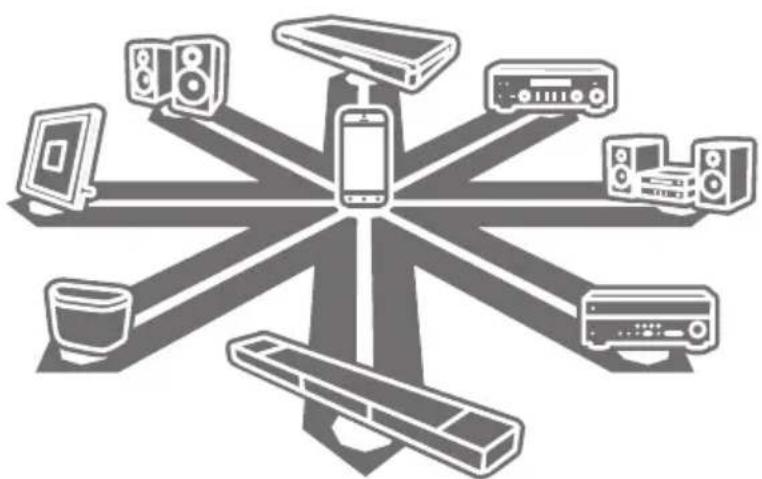
musicCast
Key features
- Seamlessly control all MusicCast compatible devices with the dedicated "MusicCast CONTROLLER" app.
- Link a MusicCast compatible device to another device in a different room and play them back simultaneously.
- Play back music from music streaming services. (The compatible music streaming services may differ depending on your region and product. Refer to the product information on our website for details.)
■ Preparation of the devices
Mobile device (smartphone, etc.)

To use the network features on the MusicCast compatible device, you need the dedicated app "MusicCast CONTROLLER" for the operation. Search for the free app "MusicCast CONTROLLER" on App Store (for iOS devices) or Google Play (for Android devices) and install it to your device.
For details, refer to the instructions for this app in each store.
Connect the mobile device in which MusicCast CONTROLLER has been installed to the wireless router in your home.
If your router supports multiple SSID's (network names), connect the mobile device to the first access point ("SSID 1", etc.)
Setting of the devices and playback
Create the following network (MusicCast Network) using the MusicCast CONTROLLER app.
![graph TD A[" wireless router "] --> B[" device with coffee cup"] A --> C[" device with microphone"] A --> D[" device with radio"] A --> E[" device with speaker"] A --> F[" device with monitor"] style A fill:#f9f,stroke:#333 style B fill:#ccf,stroke:#333 style C fill:#ccf,stroke:#333 style D fill:#cc…](/content/2026/06/1287599/images/ed028cff01c9b83dc0f2f1290f72bce0d3870c7d8b093592d9e8a9a7dafd4fe8.jpg)
1 Turn on the MusicCast compatible device.
2 Tap the MusicCast CONTROLLER app icon on your mobile device and tap "Setup."
Tip
If you have already connected a MusicCast compatible device to the network, tap "Settings" and then "Add New Device."
3 Operate the MusicCast CONTROLLER app following the onscreen instructions, then press and hold the CONNECT button of the MusicCast compatible device (or the remote control) for three seconds.
Refer to the Owner's Manual of each MusicCast compatible device for the CONNECT button.


4 Set up the network
Operate the MusicCast CONTROLLER app following the onscreen instructions to set up the network.
5 Operate the MusicCast CONTROLLER app to playback.
Tip
- If you want to install a MusicCast compatible device to a location that is out of range of the wireless router, connect another MusicCast support device to the router with a network cable to extend the range (Extend mode).
![graph TD A["Standard Mode"] --> B["Radio Station"] C["Extend Mode"] --> D["Radio Station"] B --> E["Speaker"] D --> F["Speaker"] style A fill:#f9f,stroke:#333 style C fill:#f9f,stroke:#333 style B fill:#ccf,stroke:#333 style D fill:#ccf,stroke:#333 style E fill:#dfd,stroke:#333 style F fill:#dfd,str…](/content/2026/06/1287599/images/eb7efd3a9bad01f4ef9d322a45ca28e2c6383fbbf6f1c36d1d6a8ee2f4f99547.jpg)
- Depending on where it is placed, the MusicCast compatible device may not be able to play back a high-resolution audio source. In this case, connect the device directly to the router with a network cable.
Troubleshooting
Refer also to the troubleshooting section in the relevant Owner's Manual for the MusicCast compatible device.
| Problem/Cause Remedy | |
| No sound from the MusicCast compatible device. | |
| The device is turned off. | Turn on the device. |
| Enable network standby on the device. | |
| The device is not connected to the MusicCast network. | Connect the device with the MusicCast CONTROLLER app. |
| Cannot make the connection settings on the MusicCast app. | |
| The mobile device is not connected to the wireless router at your home. | Connect the mobile device to the wireless router and start the MusicCast CONTROLLER app. |
| Disable the cellular data transmission. | |
| The MusicCast compatible device is turned off. | Turn on the MusicCast compatible device. |
| Enable network standby on the device. | |
| Cannot connect to the network. | |
| The network parameters (IP address) have not been obtained properly. | Enable the DHCP server function on your router. |
| The setting of the wireless router has been changed. | Connect all MusicCast compatible devices to the network with the MusicCast CONTROLLER app. |
| The MusicCast CONTROLLER app cannot detect a MusicCast compatible device. | |
| The mobile device is not connected to the wireless router at your home. | Connect the mobile device to the wireless router, and set the MusicCast compatible device with the MusicCast CONTROLLER app again. |
| The MusicCast compatible device is turned off. | Turn on the device. |
| Enable network standby on the device. | |
For further information, please visit our website:
http://www.yamaha.com/musiccast/
MusicCast is a trademark or registered trademark of Yamaha Corporation.
Android and Google Play are trademarks of Google Inc.
iPhone, iPad and AirPlay are trademarks of Apple Inc., registered in the U.S. and other countries.
musicCast
Appareil mobile (smartphone, etc.)
http://www.yamaha.com/musiccast/
musicCast
Hauptmerkmale
http://www.yamaha.com/musiccast/
MusicCast
Funktioner
http://www.yamaha.com/musiccast/
musicCast
http://www.yamaha.com/musiccast/
musicCast
http://www.yamaha.com/musiccast/
musicCast
http://www.yamaha.com/musiccast/
musicCast
Главные функции
http://www.yamaha.com/musiccast/
MusicCast
主要功能
http://www.yamaha.com/musiccast/
MusicCast
주요 기능
http://www.yamaha.com/musiccast/
MusicCast
主な機能
http://www.yamaha.com/musiccast/
Brand : YAMAHA
Model : Aventage RX-A2060
Category : Receiver