
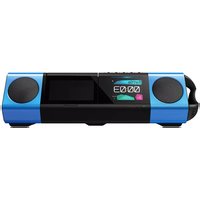
XW-BTSP70 - Docking Station PIONEER - Free user manual and instructions
Find the device manual for free XW-BTSP70 PIONEER in PDF.


| Product Type | Docking Station |
| Brand | Pioneer |
| Model | XW-BTSP70 |
| Dimensions (L x W x H) | Approx. 30 x 20 x 10 cm |
| Weight | Approx. 1.5 kg |
| Power | 12 V AC adapter |
| Wireless Connectivity | Bluetooth 4.0 |
| USB Ports | 1 USB-A port for charging |
| Audio Input | 3.5 mm jack |
| Audio Output | Built-in stereo speakers |
| Features | Bluetooth playback, USB charging, alarm, FM radio |
| Compatibility | Smartphones, tablets, MP3 players |
| Maintenance and Cleaning | Clean with a soft dry cloth. Do not use abrasive products. |
| Safety | Do not expose to moisture. Use the supplied adapter. |
| Spare Parts | AC adapter available as an option |
| Repairability | Repairability score: 6.5/10 (estimated) |
| General Information | Docking station for mobile devices with built-in speakers |
Frequently Asked Questions - XW-BTSP70 PIONEER
User questions about XW-BTSP70 PIONEER
0 question about this device. Answer the ones you know or ask your own.
Ask a new question about this device
Download the instructions for your Docking Station in PDF format for free! Find your manual XW-BTSP70 - PIONEER and take your electronic device back in hand. On this page are published all the documents necessary for the use of your device. XW-BTSP70 by PIONEER.
USER MANUAL XW-BTSP70 PIONEER
Pioneer
Wireless Speaker System
Enceinte sans fil
XW-BTSP70
Instruction Manual Manuel d'instructions Manual de Instrucciones Manuale di istruzioni Bedienungsanleitung Gebruiksaanwijzing
Bundled items / Éléments Inclus / Accesorios suministrados / Accessori in dotazione / Lieferumfang / Gebundelde artikelen

natural_image
Line drawing of an open box transforming into a rectangular device with three plug-in switches (no text or symbols)
EN 1Press the button so that the indicator blinks.
2Press and hold the button for about 3 seconds until the indicator blinks faster.
3Turn the Bluetooth ^® function on and select "XW-BTSP70" on your device.
4The indicator stops blinking and lights up. Now paired.
EN 1Press the button so that the indicator blinks.
2 Turn the Bluetooth function on and select "XW-BTSP70" on your device.
3The indicator stops blinking and lights up.
4Play back music on your device.
5Adjust the volume.
Advanced instructions
Power indicator
- (When running on the battery) The indicator lights green when the power is turned on. It turns red when the remaining charge in the battery becomes low. It goes out when the unit is on standby.
- (During recharging) The indicator blinks either red (when battery charge is low) or green, irrespective of whether the unit is on or on standby. The indicator turns green when recharging is complete.
- When the battery runs out of charge, the indicator blinks alternating between red and green.
Regarding the pairing
• The pairing mode takes about 5 minutes.
- This unit can store the data of up to eight paired devices. The information for the oldest paired device is deleted when you try to pair a ninth device. The procedure for pairing for other devices is the same as for the first device.
- All pairing information is deleted if you press and hold the Ⓧ button for 10 seconds or more. To pair a device again, first delete the pairing information for the unit on the Bluetooth enabled device.
Regarding the playback
- If the volume setting on the Bluetooth enabled device is low, the sound will not be output from this unit, so adjust the volume to an appropriate level.
- If the unit receives no input signal for 20 minutes, it switches to standby automatically (auto-standby feature). If there is no Bluetooth connection with the unit for 5 minutes, it also switches to standby automatically.
- If you are playing at near the maximum volume and the battery charge becomes low, the volume is automatically reduced.
- Due to the characteristics of Bluetooth wireless technology, the sound produced on this unit may slightly be behind the sound played on the Bluetooth enabled device.
Smart standby mode (disabled by default)
This mode enables the unit to come on automatically even if it is on standby when a Bluetooth enabled device is connected or there is a signal input through the AUDIO IN jack. This works only when the recharging AC adapter is connected. To enable this feature, while the power is on, press and hold the button for about 3 seconds until the power indicator blinks orange twice. When enabled, the power indicator will light orange when the unit is on standby. To disable this feature, press and hold the button for about 3 seconds until the power indicator blinks orange once.
- To switch the unit to standby when smart standby mode is enabled, first disable the connection with any Bluetooth enabled devices.
Multipoint feature
You can connect two Bluetooth enabled devices at the same time to this unit.
- When playing from one and you want to start play from the other, first stop the device playing. Note that the multipoint feature does not work together with the TWS feature.
- To connect a third device, you must first disable the connection of one of the connected devices.
Playing a device connected to the AUDIO IN jack
You can play the audio from an external player by connecting the audio output jack of the player to the AUDIO IN jack of this unit using a stereo mini plug cable.
- Audio input automatically switches to AUDIO IN jack connection when a cable is connected to the AUDIO IN jack. To play from a Bluetooth device again after this, either remove the cable from the AUDIO IN jack or press the button to switch to Bluetooth playback.

natural_image
Line drawing of a desktop computer connected to a laptop via cable (no text or symbols)True Wireless Stereo (TWS) feature
You can use one of these units as the speaker for the right side and one for the left side.
Setting
- Press the ⏻ button to turn the unit on. If a Bluetooth enabled device is connected, disable the connection.
- On the unit that will be on the right side, press and hold the 📂 button and the "+" button for 3 or more seconds until the muting indicator blinks orange.
- Make the TWS settings starting with the unit that will be on the right. If you have already paired devices with one of these units, make that unit the right side.
- On the unit that will be on the left side, press and hold the 📁 button and the “-” button for 3 or more seconds until the muting indicator blinks white.
- When the connection of the right and left side is completed, the muting indicator lights orange on the right side and white on the left side.
- Pair Bluetooth enabled devices with the right side device.
- To disable the TWS feature, first turn both units on, then, on either of the units, press and hold the 8 and the button for 3 or more seconds. The muting indicator goes out when the feature is disabled. The feature is also disabled automatically on the other unit, but if the muting indicator on the other unit does not go out, repeat the above disabling procedure.
Play
When you operate one of the units, the other unit also operates, allowing you to turn both off or to adjust the volume of both units at the same time.
- Connect to the unit on the right when you want to play an audio by connecting to the AUDIO IN jack with the TWS feature.
- The delay in the playback sound when using the TWS feature increases compared to when you are using just one unit. The maximum communication range (distance) is also reduced by about half.
Protection circuit
The protection circuit has worked if the power indicator is blinking red fast. Switch the unit to standby then request repairs.
Resetting the unit to its default status
If the unit stops working properly, you may be able to restore correct operation by resetting it to its default status. Turn the unit on, then press and hold the ⏻ button for 10 seconds or more until the power indicator goes out.
- If you have enabled the TWS feature, reset both of the units.
Restarting
When the unit is not responding to operations, you may be able to restore proper operation by restarting the unit. Use the point of a pin or other similarly thin item and push into the small hole (reset hole) to the left of the AUDIO IN jack.

Specifications
General
Power supply: AC 100 - 240 V, 50/60 Hz (Main unit: DC 5 V, 2.0 A) / Power consumption (when using the AC adapter for recharging the main unit): 8 W, 5 W (No-sound), 0.2 W (Stand-by) / Charging time: Approx. 4 hours / Battery operation time: Approx. 5 hours / Dimensions (W×H×D): 180 mm × 53.5 mm × 59 mm / Weight: 740 g / Audio inputs: Bluetooth, Analog AUDIO IN (stereo mini jack, φ 3.5 mm)
■ Speaker Section
Speakers used: 40 mm driver × 2
Bluetooth Section
Bluetooth standard specification: Ver. 4.0 / Maximum communication range: 10 m (Class 2) / Compatible Bluetooth profiles: A2DP / Supported Codecs: SBC, aptX® / Supported content protection technology: SCMS-T / Maximum multi point devices: 2 / Maximum multi pairing devices: 8 / TWS (True Wireless Stereo) supported
* Specifications and features are subject to change without notice.
Français
natural_image
Line drawing of a server connected to a laptop via cable (no text or symbols)natural_image
Line drawing of a server connected to a laptop via cable (no text or symbols)Función True Wireless Stereo (TWS)
natural_image
Diagram showing a computer tower connected to a laptop via cable, with arrows indicating data flow (no text or symbols present)natural_image
Line drawing of a server connected to a laptop via cable (no text or symbols)De
natural_image
Diagram showing a computer tower connected to a laptop via cable, with arrows indicating data flow (no text or symbols present)NI
True Wireless Stereo (TWS)-kenmerk
Anteros Building, Odyssey Business Park, West End Road, South Ruislip,
Middlesex, HA4 6QQ United Kingdom
Tel: +44(0)208 836 3612
6, Avenue de Marais F - 95816 Argenteuil Cedex FRANCE
Tel: +33(0)969 368 050
© 2015 Onkyo & Pioneer Corporation. All rights reserved.
"Pioneer" is a trademark of Pioneer Corporation, and is used under license.
SN 29402126
Discover the benefits of registering your product online at http://www.pioneer.co.uk (or http://www.pioneer.eu).


- Pioneer
- XW-BTSP70
- Advanced instructions
- Power indicator
- Regarding the pairing
- Regarding the playback
- Smart standby mode (disabled by default)
- Multipoint feature
- Playing a device connected to the AUDIO IN jack
- True Wireless Stereo (TWS) feature
- Setting
- Play
- Protection circuit
- Resetting the unit to its default status
- Restarting
- Specifications
- General
- ■ Speaker Section
- Bluetooth Section
- Français
- Función True Wireless Stereo (TWS)
- True Wireless Stereo (TWS)-kenmerk
Brand : PIONEER
Model : XW-BTSP70
Category : Docking Station