PhoneEasy 409gsm - Smartphone DORO - Free user manual and instructions
Find the device manual for free PhoneEasy 409gsm DORO in PDF.


User questions about PhoneEasy 409gsm DORO
0 question about this device. Answer the ones you know or ask your own.
Ask a new question about this device
Download the instructions for your Smartphone in PDF format for free! Find your manual PhoneEasy 409gsm - DORO and take your electronic device back in hand. On this page are published all the documents necessary for the use of your device. PhoneEasy 409gsm by DORO.
USER MANUAL PhoneEasy 409gsm DORO
text_image
Doro 08:29 06-07-2009 Meny Namn doro 1 QO ABC 3 DEF 4 GHI 5 JKL 6 MNO 7 PQRS 8 TUV 9 WXYZ * 0 #PhoneEasy
409gsm

text_image
1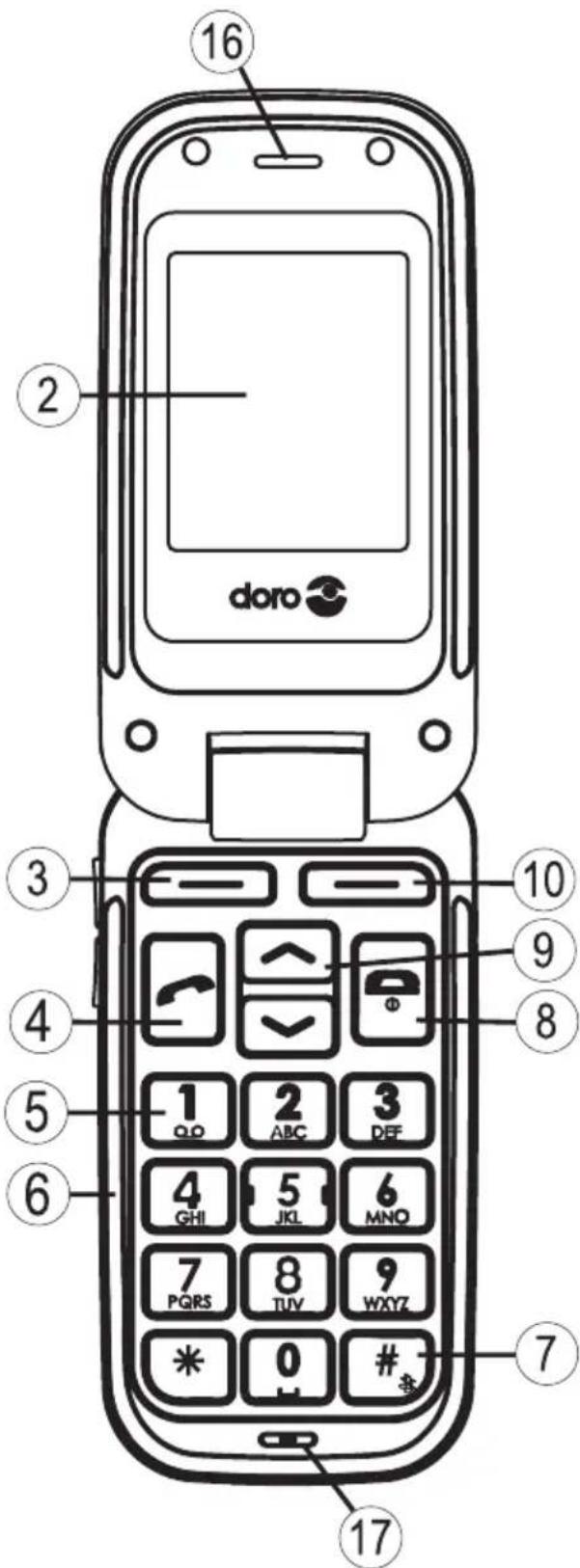
text_image
doro 16 2 3 4 5 6 7 10 9 8 1 2 3 abc DEF GHI 5 6 JKL MNO 7 PQRS 8 TUV WXYZ 0 # ## 17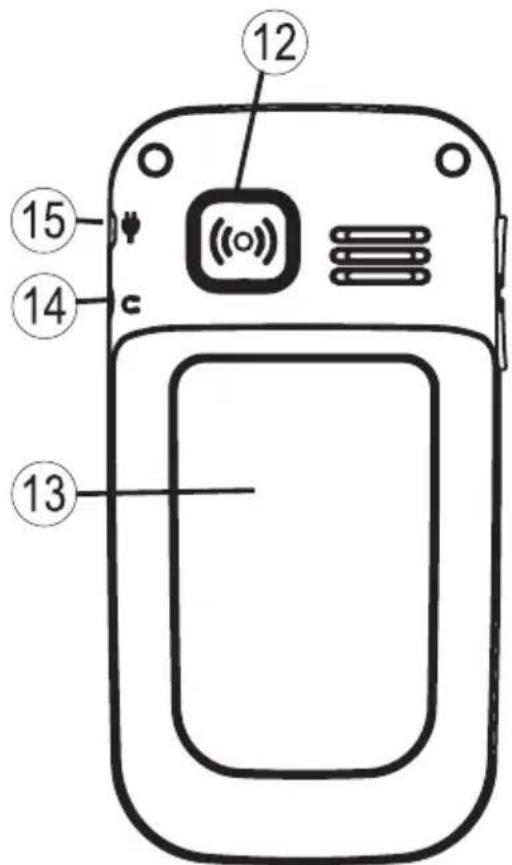
text_image
12 15 14 c ((o)) 13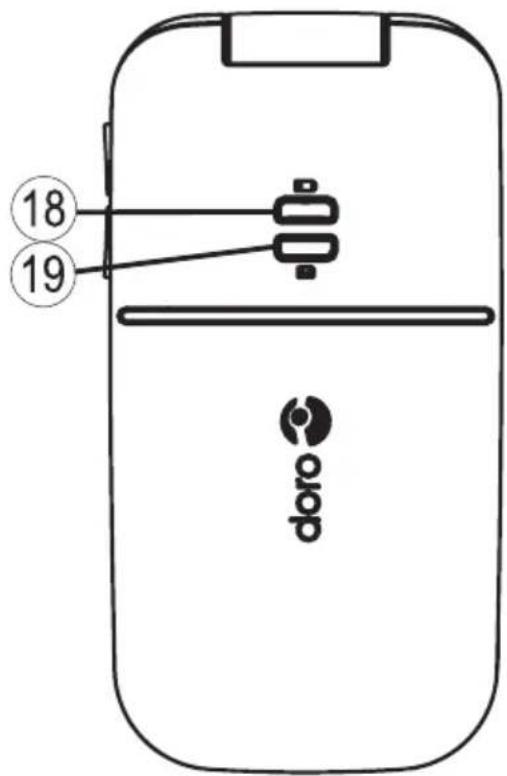
text_image
18 19 doro
text_image
Technical diagram showing two connected devices with labeled parts, including a numbered component and wiring connections.English
- Side key (volume)
- Display
- Left soft key
- Call key
- 1 / Voice mail
- Numeric keypad
-
/ Change profile
- End call/Power on/off
- Arrow keys
-
Right soft key
-
Charging contacts, for use with charging stand (not included)
- Emergency call key
- Battery cover
- Headset socket
- Charging socket
- Loudspeaker
- Microphone
- Led light (Battery level low)
- Led light (New message)
- Lanyard
Svenska
Installing the SIM card and battery.... 3
Charging 4
Phone indicators.... 4
Operation. 5
Activating the phone 5
Making a call 6
Making a call from the Phonebook 6
Receiving a call 6
Volume control 6
Display symbols 7
Additional functions 8
Call options 8
Call waiting 9
Call information 9
Call log 9
Phonebook 10
Silent mode 12
Headset 12
SOS calls 999/112/911 13
Emergency Call key 14
Alarm.... 15
Calendar 16
Calculator.... 16
Text input. 17
SMS messaging 18
Creating and sending SMS.... 18
Incoming SMS (Inbox).... 19
Outgoing SMS (Outbox) 19
Settings.... 21
Time and date.... 21
User setup 22
Tone settings (rings & tones) 23
Silent. 24
Blocking functions 25
Emergency 25
Voice mail 27
Speed dial 28
Call setup. 28
Messages 30
Network setup 30
Services.... 31
Security settings 31
Safety instructions 32
Troubleshooting 35
Care and maintenance 39
Warranty and technical data 40
Installation
Warning!
Turn off the phone and disconnect the charger before removing the battery cover.
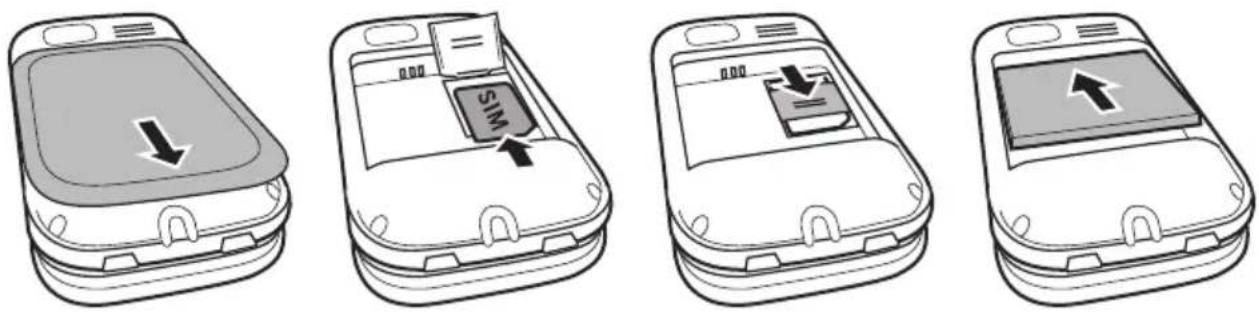
Installing the SIM card and battery
The SIM card holder is located behind the battery.
- Remove the battery cover by pressing it carefully down and sliding away from the emergency call key.
- Remove the battery if it is already installed.
- Press lightly on the cardholder and carefully slide it towards the emergency call key.
- The SIM card holder can now be folded into an upright position.
- Placing the SIM-card on the marked area of the compartment. Make sure that the SIM card's contacts are facing downwards and that the cut-off corner is placed accordingly with the marked area. See picture. Take care not to scratch or bend the contacts on the SIM card.
- Fold the SIM-card holder down and carefully slide it away from the emergency call key until it “clicks” into place.
- Insert the battery by sliding it into the battery compartment with the contacts facing towards the emergency call key.
- Replace the battery cover until it "clicks" into place.
Charging
Warning!
Only use batteries, charger and accessories that have been approved for use with this particular model. Connecting other accessories may be dangerous and may invalidate the phone's type approval and guarantee.
When the battery is running low, is displayed and a warning signal is heard. To charge the battery, connect the mains adapter to the wall socket and to the charging socket ☐.
is displayed briefly when the charger is connected to the phone, and when it is disconnected. The battery charge indicator will be animated while charging. It takes approximately 3 hours to fully charge the battery.
is displayed when charging is completed. If the phone is turned off when the charger is connected to the phone only the battery charge status indicator will be shown in the display.
Note!
To save power the LCD backlight goes off after a short while but the phone is still charging. Press any key to illuminate the display.
Full battery capacity will not be reached until the battery has been charged 3–4 times.
The ambient temperature must be in the range 0 °C to +40 °C when charging.
Batteries degrade over time, which means that call time and standby time will normally decrease with regular use.
Phone indicators
When ✉ flashes you have a new message or a missed call.
When ● flashes the batteries is running low.
Operation
Activating the phone
Press and hold the red button on the phone to turn it on/off. The following messages may be displayed:
SIM card missing or incorrectly inserted.

SIM card damaged or not valid.
If the SIM card is valid but protected with a PIN code (Personal Identification Number), PIN: is displayed. Enter the PIN code and press OK (upper left corner of keypad).
Delete with Clear (upper right corner of keypad).
Note!
If PIN and PUK codes were not provided with your SIM card, please contact your network operator.
Trials: # shows the number of PIN attempts left. When no more attempts remain, SIM blocked is displayed. The SIM card must now be unlocked with the PUK code (Personal Unblocking Key).
- Enter the PUK code and confirm with OK.
- Enter a new PIN code and confirm with OK.
Changing the language, time and date
The default language is determined by the SIM card. See Settings on how to change language, time and date.
Making a call
- Enter the phone number. Delete with Clear.
- Press 🔔 to dial. Press Abort to cancel dialling.
- Press 📞 to end the call.
Note!
When making international calls, press ✝ twice for the international prefix "+".Always use "+" before the country code (instead of 00 or similar) for best operation.
Making a call from the Phonebook
- Press Name to open the phonebook.
- Use the arrow keys ↗ to scroll through the phonebook, or quick search by pressing the key corresponding to the first letter of the entry, see Text input.
- Press Call to dial the selected entry, or press Back to return to standby mode.
Receiving a call
- Press 📋 to answer, or press Silent to switch off the ring signal and then Reject to reject the call (busy signal). Alternatively, press 📋 to reject the call directly.
- Press 📞 to end the call.
See also Call options.
Volume control
Use the side keys +/- to adjust the sound volume during a call. The volume level is indicated on the display.
English
Display symbols

Signal strength Headset connected

Ring only Battery level


Ring + vibration New SMS


Vibration only Silent


Alarm active Roaming (in other network)









SIM card missing Charger connected
SIM card error Charger disconnected
Mute Headset connected


Progressing (animated) Headset disconnected
New SMS message Handsfree on
SOS calls only Handsfree off

OK (confirmed) Warning
Query Error

Battery level low Charging (animated)
Calling Call ended
Incoming call


Searching

Missed call


Call on-hold
Additional functions
Call options
During a call the soft keys ^1 give access to additional functions:
Options (left soft key)
A menu with the following options is displayed:
| Hold single call | Hold the current call |
| End single call | End the current call (same as 📄) |
| New call | Call another number (three-party call) |
| Phonebook | Search the phonebook |
| Msg centre | Write or read SMS messages. And access File manager |
| Mute | Disable the microphone (mute) |
SPK on (right soft key)
Activates handsfree mode, which allows you to speak without holding the phone.
Speak clearly into the microphone at a maximum distance of 1 meter (3 feet). Use the side keys +/- to adjust the loudspeaker volume.
Press SPK off to return to normal mode.
Note!
The handsfree function allows only one person at a time to talk. Switching between talk/listen is triggered by the sound of the person talking. Loud noises (music, etc.) in the background may interfere with the handsfree function.
Call waiting
An alert tone will be heard if there is an incoming call while talking. To put the current call on hold and answer the incoming call, press Options.
This service must be activated, see Settings/Call setup.
Call information
During a call, the called or calling phone number and the elapsed call time is displayed.
If the identity of the caller is withheld, Unknown is displayed.
Call log
Answered, missed, and outgoing calls are saved in a combined call log. 20 calls of each type can be stored in the log. For multiple calls related to the same number, only the most recent call is saved.
Retrieving and dialling
- Press
Alternatively press Menu, scroll to 📋 and press OK.
- Use the arrow keys ↗ to scroll through the call list.

text_image
= Incoming call = Outgoing call = Missed call- Press 🔔 to dial the number or press Options for the following settings:
| View | Show details for the selected call |
| Delete | Delete the call |
| Delete all | Delete all calls in the call log |
| Save | Save the number in the Phonebook |
Phonebook
The phonebook can store 100 entries with 3 phone numbers in each entry.
Creating a phonebook entry
- Press Menu, scroll to and press OK.
- Select -New contact- and press Add.
- Enter a name for the contact, see Text input. Delete with Clear.
- Use ^/√ to select Mobile, Home number or Office number, and enter the phone number(s), then press Save.
- Press 📞 to return to standby mode.
Note!
For international phone numbers, always use "+" before the country code (instead of 00 or similar) for best operation.
Managing phonebook entries
- Press Menu, scroll to and press OK.
- Select an entry and press Options.
- Select one of the following options and press OK.
View
Show details for the selected call.
Edit
- Use ↗ to move the cursor. Delete with Clear.
- Press Save.
Add new
See Creating a phonebook entry.
Call
Press OK to call the contact.
Send SMS
Press OK to write a SMS message, see SMS messaging.
Top 10 setting
Set the entry as one of the first 10 numbers listed in the phonebook.
- Select one of the empty entries and press Add.
- Use the arrow keys ↗ to scroll through the phonebook, or quick search by pressing the key corresponding to the first letter of the entry.
- Press OK to save the selected entry, or press Back to return to the menu.
To delete a Top 10 entry, select the entry in the Top 10 list and press Options, then Delete.
Delete
Press OK to delete the selected phonebook entry. Press Yes to confirm or No to abort.
Delete all
Select From SIM or From Phone and press OK to delete all phonebook entries from the SIM card or phone memory.
Enter the phone code and press OK to confirm.
Copy all
Select From SIM and press OK to copy all phonebook entries from the SIM card to the phone memory. Press Yes to confirm or No to abort.
Select From Phone and press OK to copy all phonebook entries from the phone memory to the SIM card. Press Yes to confirm or No to abort.
Storage
Select SIM or Phone and press OK to select the default storage for new phonebook entries.
Send vCard
Select Send by SMS and press OK to send the selected phonebook entry as a vCard via SMS. Enter the phone number of the recipient (or press Search) and press OK to send.
Silent mode
Silent mode is a fixed profile with SMS and ring signals disabled, while vibration and key tone settings are unchanged. Press and hold 📋 to activate/deactivate Silent mode.
See also Settings.
Headset
When a headset is connected, the internal microphone in the phone is automatically disconnected.
When receiving a call you can use the answer key on the headset cable to answer and end calls.
Warning!
Using a headset at high volume can damage your hearing. Adjust the sound volume carefully when using a headset.
SOS calls 999/112/911
When the phone is turned on, the right soft key shows SOS before the SIM card is activated or if the phone lock is on.
Press SOS, then press Yes to automatically call the emergency service. Press No to return to the activation screen. If you pressed Yes by mistake, press Abort immediately to abort.
As long as the phone is switched on, it is always possible to place an emergency call by entering 999, 112 or 911 followed by 📞.
Most – but not all – networks accept calls to 999, 112 or 911 without a valid SIM card. Contact your network operator for more information.
Emergency Call key
The Emergency Call function must be activated before use. See Settings on how to activate this function as described above or with 3 key presses, how to enter Emergency Numbers, and how to edit the emergency SMS message.
To make an emergency call, press and hold the Emergency Call key on the back of the phone for 3 seconds, or press it two times within 1 second. The phone will send an emergency SMS text message to all phone numbers in the Emergency numbers list.
The phone will then dial the first number on the list. If the call is not answered within 25 seconds, the next number is dialled.
Dialling is repeated 3 times or until the call is answered, or until

is pressed.
Note!
When an emergency call is activated the phone is pre-set to handsfree mode.
Automatic calls to 999, 112 and 911 are normally not allowed. Do not save this number in the list of numbers to be called automatically.
Some private security companies can accept automatic calls from their clients. Always contact the security company before programming in its number.
Warning:
Do not hold the device near your ear when the handsfree mode is in use, because the volume may be extremely loud.
Alarm
- Press Menu, scroll to and press OK.
- Select On and press OK.
- Enter the alarm time using the keypad, then press OK.
- For a single occurrence, select Single and press Save.
- For a repeated alarm, select Repeated and press OK. Scroll through the list of weekdays and press On/Off to enable/disable the alarm for each weekday, then press Save.
- To edit an alarm, press Edit, then press OK.
- To stop the alarm, press Off. The alarm is now deleted.
Note!
The alarm will work even when the phone is switched off.
Do not press Yes when wireless phone use is prohibited or when it may cause interference or danger.
When the alarm goes off a signal will sound.
Press Stop to turn off the alarm or press Snooze to repeat the alarm after 9 minutes.
Calendar
-
Press Menu, scroll to and press OK.
-
Select Options.
-
Select one of the following options and press OK.
View tasks
Show tasks for the selected date.
Add task
- Enter a date for the task, then press
- Enter a time for the task, then press
- Press Edit, enter a description for the task (see Text input), then press Done.
- Press Save to save the task.
At the recorded date/time, an alert tone will be played and the task description will be shown on the display.
Jump to date
Enter the date and press OK.
Note!
The calendar will work even when the phone is switched off. Do not press Yes when wireless phone use is prohibited or when it may cause interference or danger.
Calculator
The Calculator can perform basic math operations.
- Press Menu, scroll to and press OK.
- Enter the first number. Use ⏻ to enter decimal points.
- Use the arrow keys to select an operation (+, -, x, ÷) and press OK.
- Enter the next number and press OK.
- Repeat steps 2–4 as necessary. Select = and press OK to calculate the result.
Text input
Text is entered by pressing the numerical keys repeatedly to select characters. When writing SMS messages in some languages you can use the Smart ABC (eZiType™) input method which uses a dictionary to suggest words.
See Settings on how to change input method.
Entering text
Press the key repeatedly until the desired character is shown. Wait a few seconds before entering the next character.
Press ✝ for a list of special characters. Select the desired character and press OK to enter it.
Use the side keys +/- or ↗ to move the cursor within the text.
Press ☐ to cycle upper case, lower case and numerals.
Entering text with Smart ABC
Press each key once, even if the displayed character is not the one you want. The dictionary will suggest words based on the keys you have pressed. Use the arrow keys to select a word, then press OK and continue with the next word.
If none of the suggested words are correct, press # to change to manual input mode. The icon on the top left of the display indicates the input mode:
eZi ABC
UPPER CASE with SmartABC
eZi abc
lower case with SmartABC
ABC
UPPER CASE
abc
lower case
123
Numerals
SMS messaging
Creating and sending SMS
- Press Menu, scroll to and press OK.
- Select Write message and press OK.
- Type your message (see Text input) then press Done.
- Select one of the sending options below and press OK to confirm.
| Save and send | Send the message and save it in the Outbox |
| Send only | Send the message without saving |
| Send to many | Add more recipients for the message |
If Send to many was selected, do the following:
- Select Recipients and press OK.
- Select one of the empty entries and press Edit.
- Enter a phone number or press Search to open the phonebook. After entering or selecting a number, press OK.
- Repeat step 2–3 to add additional recipients. When finished, press Done.
Note!
For international phone numbers, always use "+" before the country code (instead of 00 or similar) for best operation.
Incoming SMS (Inbox)
- Press Menu, scroll to and press OK.
- Select Inbox and press OK.
- Select a message from the list and press Read. Use √ to scroll the message up/down.
- Press Options, seesee Outgoing SMS (Outbox).
Outgoing SMS (Outbox)
- Press Menu, scroll to and press OK.
- Select Outbox and press OK.
- Select a message and press OK. Use Use / to scroll the message up/down.
- Press Options.
Send (Outbox)
Select one of the sending options and press OK to confirm, (see Creating and sending SMS).
Reply (Inbox)
Type your reply, then press Done. The message will be sent immediately.
Call
Press OK to call the contact.
Delete
Press Yes to delete the message, or No to return to the menu.
Edit
Edit the message, then press Done to show the sending options (see Creating and sending SMS).
Forward (Inbox)
Forward a message from your Inbox. Press Done to show the sending options.
Delete all
Press Yes to delete all messages in the Inbox. Press No to return to the menu.
Use number
Displays all phone numbers contained in the message as well as the number of the sender.
- Use the arrow keys to select one of the displayed numbers.
- Press Options.
- Select one of the following options and press OK.
| Call | Call the selected number |
| Save | Save the number in the phonebook |
| Send SMS | Write a new SMS message |
Settings
Note!
The settings described in this chapter are carried out in standby mode.
Time and date
Setting the time and date
- Press Menu, scroll to and press OK.
- Select Time & date and press OK.
- Select Set time and press OK.
- Enter the time (HH:MM), then press OK.
- Select Set date and press OK.
- Enter the date (DD/MM/YYYY), then press OK.
Setting the time/date format
- Press Menu, scroll to and press OK.
- Select Time & date and press OK.
- Select Set format and press OK.
- Select Time Format and press OK.
- Select 12 hours or 24 hours and press OK.
- Select Date Format and press OK.
- Select the desired date format and press OK.
Setting Auto time on/off
- Press Menu, scroll to and press OK.
- Select Time & date and press OK.
- Select Auto time and press OK.
- Select On/Off and press OK.
To set the phone to automatically update the time and date according to the current time zone, select On.
Automatic update of date and time does not change the time you have set for the alarm clock, calendar or the alarm notes. They are in local time. Updating may cause some alarms you have set to expire.
User setup
Changing the language
The default language for the phone menus, messages etc. is determined by the SIM card. You can change this to any other language supported by the phone.
- Press Menu, scroll to and press OK.
- Select User setup and press OK.
- Select Language and press OK.
- Scroll up/down to select a language, then press OK.
Display background (wallpaper)
You can select from 4 different display backgrounds.
- Press Menu, scroll to and press OK.
- Select User setup and press OK.
- Select Wallpaper and press OK.
- Scroll up/down to display the available wallpapers.
- Press OK to confirm or Back to discard changes.
Display information
In standby mode the display can present date, time, and the connected network, or just the time.
- Press Menu, scroll to and press OK.
- Select User setup and press OK.
- Select Idle display and press OK.
- Select Clock only or All info and press OK.
Display backlight
Sets the delay time before the display backlight is turned off.
- Press Menu, scroll to and press OK.
- Select User setup and press OK.
- Select LCD backlight and press OK.
- Select 15 sec, 30 sec. or 1 min. and press OK.
Tone settings (rings & tones)
Tone setup
- Press Menu, scroll to and press OK.
- Select Tone settings and press OK.
- Select Tone setup and press OK.
- Select Ring Tone and press OK.
- Select one of the available tones, the tone will be played. Press OK to confirm, or press Back to discard changes.
- Set up the Alarm, Opening tone, Closing tone, Message tone and Keypad tone in the same way.
Volume
- Press Menu, scroll to and press OK.
- Select Tone settings and press OK.
- Select Volume and press OK.
- Scroll ↗ to change the ring volume, then press OK.
Alert type (ring/vibrate)
Incoming calls can be signalled by a ring tone and/or vibration.
- Press Menu, scroll to and press OK.
- Select Tone settings and press OK.
- Select Alert type and press OK.
- Select the desired signalling mode and press OK.
Warning and error tones
Warning and error tones are used to alert the user of low battery power, phone and SIM card errors, etc.
- Press Menu, scroll to and press OK.
- Select Tone settings and press OK.
- Select Extra tone and press OK.
- Select Warning and press On/Off to enable/disable it.
- Select Error and press On/Off to enable/disable it.
- Press Done to save.
Silent
Silent profile is a fixed profile with SMS and ring signals disabled, while vibration and key tone settings are unchanged.
- Press Menu, scroll to and press OK.
- Select Silent and press OK.
- Select On/Off to enable/disable it.
- Press OK to save.
Alternatively press and hold # to activate/deactivate Silent.
Blocking functions
You can disable some functions to simplify use of the phone.
- Press Menu, scroll to and press OK.
- Select Block function and press OK.
- Select each function you want to disable and press On.
- Press Done to confirm.
Emergency
Settings for the Emergency Call key function.
See also Operation/Emergency call.
- Press Menu, scroll to and press OK.
- Select Emergency and press OK for the following settings:
Activation
Select one of the following options and press OK.
| Off | Emergency call key disabled. |
| On Normal | Emergency Call key enabled. To activate, hold key for >3 seconds, or press 2 times within 1 second. |
| On (3) | Emergency Call key enabled.To activate, press key 3 times within 1 second. |
Numbers list
The list of numbers that will be called when the Emergency Call key is pressed.
Be careful about including numbers with automatic answering in the call list, as the alarm sequence stops once the call is answered.
Some private security companies can accept automatic calls from their clients. Always contact the security company before programming in its number.
- Press Menu, scroll to and press OK.
- Select Emergency and press OK.
- Select Numbers list and press OK.
- Select Empty and press Options.
-
Select Phonebook if you want to add a contact from the Phonebook. Alternatively press Manual.
-
Press
-
Enter the number and press Save.
Repeat until you have max. 5 emergency numbers.
See Phonebook on how to add names/numbers.
To edit or delete an existing entry, select it and press Options, then select Edit or Delete and press OK.
Message
The SMS text message to be sent when the Emergency Call key is pressed. Press Edit and enter text, then press OK to save.
Alarm information
Please read this important safety information before enabling the Emergency Call function:
Voice mail
- Press Menu, scroll to and press OK.
- Select Voice mail and press OK.
- Select
and press Options. - Select Phonebook if you want to add a contact from the Phonebook.
Alternatively press Manual to add new. See Phonebook on how to add names/numbers. - Press Save to confirm.
Connect to Voice mail
- Select Options and press OK.
- Select Connect and press OK to call the voice mailbox.
Alternatively press and hold 1 to call the voice mailbox.
Edit
To edit an existing entry, select it and press Options, then select Edit and press OK.
Delete
To delete an existing entry, select it and press Options, then select Delete and press OK.
Note!
The voice mailbox number is provided by your network operator.
Speed dial
The numerical keys 0 and 2–9 can be used for speed dialling.
Adding speed dial numbers
- Press Menu, scroll to and press OK.
- Select Speed dial and press OK.
- Select 0 and press Add.
- Select an entry from the phonebook and press OK.
- Repeat to add speed dial entries for keys 2–9.
To speed dial an entry, press and hold the corresponding number key.
To edit an existing entry, select it and press Options, then select Edit or Delete and press OK.
Call setup
* Depending on network support and subscription.
- Press Menu, scroll to and press OK.
- Select Call setup and press OK for the following settings:
Caller ID
Controls display of your phone number on the recipients phone. Select an option and press OK.
| Set by network | Use default setting by the network |
| Hide ID | Never show your number |
| Send ID | Always show your number |
Call waiting
Select an option and press OK. See also Operation - Call waiting.
| Activate | Enables the function |
| Deactivate | Disables the function |
| Query status | Displays if the service is active or not |
Call divert
Set up which calls should be diverted.
Select a condition and press OK, then select Activate,
Deactivate or Query status (see Call waiting above) for each.
| Div. voice calls | Diverts all voice calls. |
| Div. unreachable | Diverts incoming calls if the phone is turned off or out of range. |
| Div. no reply | Diverts incoming calls if unanswered. |
| Divert if busy | Diverts incoming calls if the line is busy. |
| Cancel diverts | Do not divert calls |
Call barring
The phone can be restricted to disallow certain types of calls.
Note!
To change these settings a password is needed. Contact your network operator to get the password.
| Outgoing calls | Press OK then select: |
| All calls | User can answer incoming calls but not dial out. |
| Internat. calls | User can not call international numbers. |
| Int. except home | User can not call international numbers except to the country associated with the SIM card. |
| Incoming calls | Press OK then select: |
| All calls | User can dial out but not receive incoming calls. |
| When roaming | User can not receive incoming calls while roaming (operating in other networks). |
| Cancel all | Cancel all call barring (password needed) |
Answer mode
Select Open to answer and press On to be able to answer incoming calls by cover opening.
Select Any key and press On to be able to answer incoming calls by pressing any key.
Messages
SMS settings
- Press Menu, scroll to and press OK.
- Select Messages and press OK for the following settings:
Profile set
This number is needed to use the SMS function. The number can be obtained from the network operator.
- Add/edit the message service phone number. Use the side keys to move the cursor. Press Clear to erase.
- Press Save to save the new number.
Memory status
Displays the percentage of memory space used in the SIM card and phone memory.
Pref. storage
- Select SIM to store messages on the SIM card, or Phone to store messages in the phone memory.
- Press OK to confirm.
Predictive text
- Press On to enable Smart ABC/eZiType™, see Text input.
- Select a dictionary (language) and press OK to confirm.
Network setup
- Press Menu, scroll to and press OK.
- Select Network setup and press OK.
- Select one of the following options and press OK to confirm.
| Automatic | Network is selected automatically. |
| Manual | A list of available network operators is displayed (after a short delay). Select the desired operator and press OK. |
Services
This menu may contain pre-programmed services from your network provider. * Depending on network support and subscription.
Security settings
-
Press Menu, scroll to and press OK.
-
Select Security and press OK.
SIM lock
The SIM card is protected with a PIN code (Personal Identification Number). The phone can be set to ask for the PIN code on startup.
Select On/Off and press OK to enable/disable SIM card lock.
Note!
You need to input the current PIN code to disable/enable SIM lock.
Phone lock
Select On/Off and press OK to enable/disable the Phone lock.
Note!
You need to input the current Phone code to change this setting. The default Phone code is 1234.
PIN / PIN2 / Phone password
To change the PIN codes or the phone lock password:
-
Enter the current code and confirm with OK
-
Enter a new code and confirm with OK.
-
Enter the new code again and confirm with OK.
Reset
Resets the phone to the factory settings.
Input the phone lock password and press OK to reset.
Safety instructions
Warning!
The unit and the accessories can contain small parts. Keep all of the equipment out of the reach of small children.
Operating environment
Follow the rules and laws that apply wherever you are, and always turn off the unit whenever its use is prohibited or can cause interference or hazards. Only use the unit in its normal user position.
This unit complies with guidelines for radiation when it is used either in a normal position against your ear, or when it is at least 2.2 cm from your body. If the unit is carried close to your body in a case, belt holder or other holder, these holders should not contain any metal, and the product should be placed at the distance from your body specified above. Make sure that the distance instructions above are followed until the transfer is complete.
Parts of the unit are magnetic. The unit can attract metal objects. Do not keep credit cards or other magnetic media near the unit. There is a risk that information stored on them can be erased.
Medical units
The use of equipment that transmits radio signals, for example, mobile phones, can interfere with insufficiently protected medical equipment. Consult a doctor or the manufacturer of the equipment to determine if it has adequate protection against external radio signals, or if you have any questions. If notices have been put up at health care facilities instructing you to turn off the unit while you are there, you should comply. Hospitals and other health care facilities sometimes use equipment that can be sensitive to external radio signals.
Pacemakers
The Health Industry Manufacturers Association recommends that a minimum separation of 15 cm be maintained between a handheld wireless phone and a pacemaker to avoid potential interference with the pacemaker. Persons with pacemakers:
- Should always keep the phone more than 15 cm from their pacemaker when the phone is turned on
- Should not carry the phone in a breast pocket
- Should use the ear opposite the pacemaker to minimize the potential for interference
If you have any reason to suspect that interference is taking place, turn the phone off immediately.
Areas with explosion risk
Always turn off the unit when you are in an area where there is a risk of explosion. Follow all signs and instructions. There is a risk of explosion in places that include areas where you are normally requested to turn off your car engine. In these areas, sparks can cause explosion or fire which can lead to personal injury or even death.
Turn off the unit at filling stations, and any other place that has fuel pumps and auto repair facilities.
Follow the restrictions that apply to the use of radio equipment near places where fuel is stored and sold, chemical factories and places where blasting is in progress.
Areas with risk for explosion are often – but not always – clearly marked. This also applies to below decks on ships; the transport or storage of chemicals; vehicles that use liquid fuel (such as propane or butane); areas where the air contains chemicals or particles, such as grain, dust or metal powder.
Emergency calls
Important!
Mobile phones use radio signals, the mobile phone network, the terrestrial network and user-programmed functions. This means that connection cannot be guaranteed in all circumstances. Therefore, never rely only on a mobile phone for very important calls such as medical emergencies.
Hearing aids
This device should work with most hearing aid equipment in the market. However, full compatibility with all equipment can not be promised.
Vehicles
Radio signals can affect electronic systems in motor vehicles (for example, electronic fuel injection, ABS brakes, automatic cruise control, air bag systems) that have been incorrectly installed or are inadequately protected. Contact the manufacturer or its representative for more information about your vehicle or any additional equipment.
Do not keep or transport flammable liquids, gases or explosives together with the unit or its accessories. For vehicles equipped with air bags: Remember that air bags fill with air with considerable force.
Do not place objects, including fixed or portable radio equipment in the area above the airbag or the area where it might expand. Serious injuries may be caused if the mobile phone equipment is incorrectly installed and the airbag fills with air.
It is prohibited to use the unit in flight. Turn off the unit before you board a plane. Using wireless telecom units inside a plane can pose risks to air safety and interfere with telecommunications. It may also be illegal.
Specific Absorption Rate (SAR)
This device meets applicable international safety requirements for exposure to radio waves.
Doro PhoneEasy 409gsm measures 0,263 W/kg (GSM 900MHz) / 0.122 W/kg (DCS 1800MHz) measured over 10 g tissue. The maximum limit according to WHO is 2.0 W/kg measured over 10 g tissue.
Troubleshooting
| Phone cannot be switched on | |
| Battery charge low | Connect the power adapter and charge the battery for hours. |
| Battery incorrectly installed | Check the installation of the battery. |
| Failure to charge the battery | |
| Battery or charger damaged | Check the battery and charger. |
| Battery recharged in temperatures < 0°C or >40°C | Improve the charging environment. |
| Charger incorrectly connected to phone or power socket | Check the charger connections. |
| Standby time decreases | |
| Battery charge capacity too low | Install a new battery. |
| Too far from base station, phone is constantly searching for signal | Searching the network consumes battery power. Find a place with a stronger signal, or temporarily turn off the phone. |
| Failure to place or receive calls | |
| Call barring activated | Deactivate call barring. If this does not solve the problem, contact the network operator. |
| PIN code not accepted | |
| Wrong PIN code entered too many times | Enter the PUK code to change the PIN code, or contact the network operator. |
| SIM card error | |
| SIM card damaged | Check the condition of the SIM card. If it is damaged, contact the network operator. |
| SIM card incorrectly installed | Check the installation of the SIM card. Remove the card and reinstall it. |
| SIM card dirty or damp | Wipe the contact surfaces of the SIM card with a clean cloth. |
| Failure to connect to network | |
| SIM card invalid | Contact the network operator. |
| No coverage of GSM service | Contact the network operator. |
| Signal too weak | See Weak signal below. |
| Weak signal | |
| Too far from base station | Try again from another location. |
| Network congestion | Try calling at a later time. |
| Echo or noise | |
| Regional problem from bad network relay | Hang up and redial. This may switch to another network relay. |
| Failure to add a contact | |
| Phonebook memory full | Delete contacts to free up memory. |
| Failure to set a function | |
| Function not supported or subscribed from network | Contact the network operator. |
Common Questions and Answers
Following are some of the most common questions that have been asked about Doro Mobile Phones.
Q – Why hasn't the mobile phone been supplied with a SIM card?
A – Many people already have a mobile phone and wish to transfer their card over to the new phone. This has the advantage of keeping the same telephone number and if the card is subscribed to a Pay-as-you-go service then you also benefit from being able to carry over any credit that has been paid the card.
Q – Where can I get a SIM card from?
A – Any high street mobile phone shop will be able to provide you with a SIM card. Some of the major supermarket chains also provide mobile phone services and can supply a SIM card. A useful tip when choosing a SIM card / service provider however is to make sure that you have adequate signal coverage at home.
Q – Why doesn't the Doro mobile phone have a telephone number?
A – The telephone number is supplied by the service provider and will be registered onto the SIM card.
Q – Can I use the SIM card from my old mobile phone?
A – Yes as long as the SIM card is less than three years old you can transfer the card over. Some old SIM cards however are not compatible with the Doro mobile phone as they are from an earlier generation of SIM card design.
Q – Can I use a SIM card from any mobile phone company?
A – Yes. The Doro mobile phone is what is termed as an open SIM card phone and so it is not restricted to any particular service provider or mobile phone company.
Q – How do I pay for my calls?
A – There are two main types of registration with a service provider. One is a contract – this is where you sign up for agreed contract over several months / year and pay an agreed monthly fee. This is more suited to people who are using their mobile phone as part of their job for example. The other is Pay-as-you-go, sometimes abbreviated to PAYG. With this type of service you add credit to the card and top up as and when required. Topping up the card is easy, you can do this over the phone, on-line, at many shops and even some cash points allow you to do this. PAYG is more suited to less frequent users.
Q – How do I find out my credit balance?
A – The service provider of the SIM card should have provided an information pack with the card. This will give details of a short number to dial in order to check your balance. These access codes differ between mobile phone companies so please check the details specific to your service provider. Key in your number, press the talk button and the credit balance will be announced to you.
Care and maintenance
Your unit is a technically advanced product and should be treated with the greatest care. Negligence may void the warranty.
- Protect the unit from moisture. Rain/snowfall, moisture and all types of liquid can contain substances that corrode the electronic circuits. If the unit gets wet, you should remove the battery and allow the unit to dry completely before you replace it.
- Do not use or keep the unit in dusty, dirty environments. The unit's moving parts and electronic components can be damaged.
- Do not keep the unit in warm places. High temperatures can reduce the lifespan for electronic equipment, damage batteries and distort or melt certain plastics.
- Do not keep the unit in cold places. When the unit warms up to normal temperature, condensation can form on the inside which can damage the electronic circuits.
- Do not try to open the unit in any other way than that which is indicated here.
- Do not drop the unit. Do not knock or shake it either. If it is treated roughly the circuits and precision mechanics can be broken.
- Do not use strong chemicals to clean the unit.
The advice above applies to the unit, battery, mains adapter and other accessories. If the phone is not working as it should, please contact the place of purchase for service. Don't forget the receipt or a copy of the invoice.
Warranty and technical data
This product is guaranteed for a period of 12 months from the date of purchase. In the unlikely event of a fault occurring during this period, please contact the place of purchase. Proof of purchase is required for any service or support needed during the guarantee period.
This guarantee will not apply to a fault caused by an accident or a similar incident or damage, liquid ingress, negligence, abnormal usage, non-maintenance or any other circumstances on the user's part. Furthermore, this guarantee will not apply to any fault caused by a thunderstorm or any other voltage fluctuations. As a matter of precaution, we recommend disconnecting the charger during a thunderstorm.
Batteries are consumables and are not included in any guarantee.
This guarantee does not apply if batteries other than DORO original batteries are used.
Specifications
Network: GSM 900/DCS1800/PCS1900 Triple Band
Dimensions: 98 mm x 51 mm x 19 mm
Weight: 99 g (including battery)
Battery: 3.7V/800 mAh Li-ion battery
Declaration of Conformity
Doro hereby declares that Doro PhoneEasy 409gsm conforms to the essential requirements and other relevant regulations contained in the Directives 1999/5/EC (R&TTE) and 2002/95/EC (RoHS).
A copy of the Declaration of Conformity is available at www.doro.com/dofc
© 2009 Doro AB. All rights reserved.
eZiType™ is a trademark of Zi Corporation. vCard is a trademark of the Internet Mail Consortium.
Svenska
Innehåll
Installation 3
text_image
Illustration showing four different mobile phone icons with directional arrows indicating movement or change.Ladda batteriet
Varning!
© 2009 Doro AB. All rights reserved.