
KCA-HF521 - GSM hands-free kit KENWOOD - Free user manual and instructions
Find the device manual for free KCA-HF521 KENWOOD in PDF.


| Product Type | GSM Handsfree Kit |
| Brand | KENWOOD |
| Model | KCA-HF521 |
| Dimensions (L x H x D) | 196 x 96 x 30 mm |
| Weight | 528 g |
| Power Supply | 14.4 V DC (11 to 16 V) |
| Main Functions | Handsfree calling, phonebook, redial, direct dial, SMS (read, send, edit), GSM data synchronization, automatic GSM charging |
| GSM Compatibility | Nokia 6110/6210, Ericsson R320/T28/A2618, Siemens S35/M35 (with optional cables) |
| Kenwood Receiver Compatibility | CD/Cassette Tuner Amplifier, KVT-M700 (depending on model) |
| Included Accessories | Control unit, microphone, cables, screws, double-sided adhesive tape |
| Safety | Proper installation required, do not open the device, avoid direct sunlight and humidity |
| Maintenance and Cleaning | Clean with a dry cloth; do not use solvents |
| Spare Parts and Repairability | Consult an authorized Kenwood dealer for any repairs or parts |
Frequently Asked Questions - KCA-HF521 KENWOOD
User questions about KCA-HF521 KENWOOD
0 question about this device. Answer the ones you know or ask your own.
Ask a new question about this device
Download the instructions for your GSM hands-free kit in PDF format for free! Find your manual KCA-HF521 - KENWOOD and take your electronic device back in hand. On this page are published all the documents necessary for the use of your device. KCA-HF521 by KENWOOD.
USER MANUAL KCA-HF521 KENWOOD
To prevent injury and/or fire, take the following precautions:
- Ensure that the unit is securely installed. Otherwise it may fly out of place during collisions and other jolts.
- To prevent short circuits, never put or leave any metallic objects (e.g., coins or metal tools) inside the unit.
- If the unit starts to emit smoke or strange smells, turn off the power immediately and consult your Kenwood dealer
CAUTION
To prevent damage to the machine, take the following precautions:
- Do not open the covers of the unit.
- Do not install the unit in a spot exposed to direct sunlight or excessive heat or humidity. Also avoid places with too much dust or the possibility of water splashing.
- Do not use any screws except for the ones provided. The use of improper screws might result in damage to the main unit.
NOTE
If you experience problems during installation, consult your Kenwood dealer.
GSM model available for this unit
The GSM models that can be used with KCA- HF521 are as follows: (As of December/2001)
| Brand Name | Model Name | GSM Connection Cable (Option) |
| Nokia | 6110/ 6210 | CAW-NK 511 |
| Ericsson | R320/ T28/ A2618 | CAW-ES 511 |
| Siemens | S35/ M35 | CAW-SM 511 |
CAUTION
Restriction on GSM Telephone connections
- It is necessary to set the "GSM MODEL SELECT SWITCH", found on the back of the control unit, to the correct GSM model setting. See "GSM MODEL SELECT SWITCH" setting in the
pages for details of setting. - In Ericsson Models, you cannot use "@" for any entry into Phone Book or SMS. If the mark is used, it is replaced with a space. However, the "@" mark is displayed at browsing.
- It is not possible to dial a number that includes either of the characters '#' or '*'.
- The correct operation of the unit with Siemens models requires that the supplied charging adapter is plugged into the vehicles cigar lighter socket.
- If the generation of call lists is disabled on the GSM phone, then the radial functionality offered by the KCA-HF521 will be adversely affected.
- You can use the GSM telephone connection to start the automatic downloading. The downloading will be completed in several minutes. It may take more than 10 minutes to finish the downloading, depending on GSM telephone models to be connected.
Kenwood Receivers available for this unit
The receiver units that can be used with KCA-HF521 are as follows:
(As of December /2001)
CD Receiver/ Cassette Receiver
About the KCA-RC420 (Remote controller with [ ] button)
The KCA-RC420 is optional depending on the types of receiver units.
About the disc changer/ CD player/ CA-C1AX to be connected:
- No O-N switch disc changer and CA-C1AX cannot be connected directly. (Except after 2002 models)
- Two disc changer or player cannot be connected (During KCA-210A is connected).
Restriction on Receivers connected and conditions of operation
A:During memory download from GSM Telephone
B: Normal conditions
C:During a call
D: While driving (when parking brake signal is undetected)
Y:Function available
N : Function not available
| Function | CD/Cassette Receiver | KVT-M700 | |||||
| A | B | C | A | B | C | D | |
| Call from Phone Book | N | Y | N | N | Y | N | Y |
| Redialling | N | Y | N | N | Y | N | Y |
| Manual outgoing call | N | Y | N | N | Y | N | N |
| Automatic incoming call with GSM | Y* | Y | N | Y* | Y | N | Y |
| Automatic incoming call with hands-free unit | Y* | Y | N | Y* | Y | N | Y |
| Manual memory download | N | Y | N | N | Y | Y | Y |
| Phone Book data entry | N | N | N | N | Y | N | N |
| Phone Book data update | N | N | N | N | Y | N | N |
| Phone Book data deletion | N | N | N | N | Y | N | Y |
| Notification of new message (SMS) | Y | Y | Y | Y | Y | Y | Y |
| Message (SMS) browsing | N | Y | N | N | Y | N | N |
| Message (SMS) deletion | N | N | N | N | Y | N | N |
| Message (SMS) sending | N | N | N | N | Y | N | N |

*: Only the caller's phone number will be displayed.
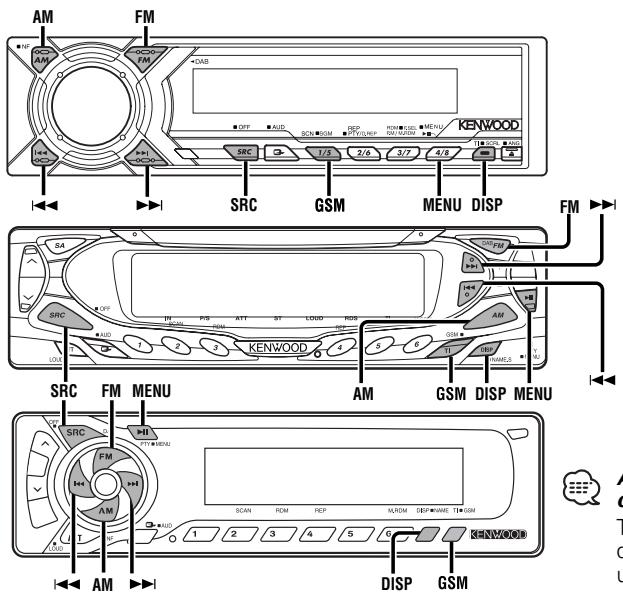
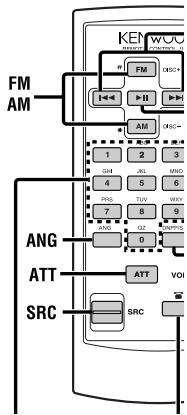
KCA-RC420
About the KCA-RC420 (Remote controller with [ ] button)
The KCA-RC420 is optional depending on the types of receiver unitsreceiver units.
Setting the Menu
Refer to the centre unit (receiver) instruction manual for Menu features.
| Display | Adjustment Item | Setting | |
| "HF WT"/"HF Wait Time"/"Wait Time" | Auto Response time Adjust | "OFF"/"Off" | Auto response function is off |
| "01"- "30" | Adjust 1 to 30 seconds | ||
| "HF MIC"/"MIC ADJ"/"HF MIC ADJ" | Microphone sensitivity adjust | "00"- "31" | Adjust level from 0 to 31 |
| "HFSP"/"HFSpeaker"/"SP SEL" | Phone voice speaker setting | "All"/"All" | Phone voice sent to the front and rear speaker. |
| "FL"/"Front-Left"/"F-Left" | Phone voice sent to the front left speaker. | ||
| "FR"/"Front-Right"/"F-Right" | Phone voice send to the front right speaker. | ||
| "GSM SYNC"/"GSM Memory SYNC" | Phone Book/ Message (SMS) data synchronize | If you have updated GSM telephone after you connected this unit to GSM telephone and synchronized the data, select [SYNC] to synchronize again. | |

Auto response time adjust:
If the time set in the GSM telephone is shorter than that set in the unit, the former will be used.
Hands Free Function
When a Call is Received
"HF CALL" / "CALL" will be displayed.
1 Accept a call
Press any button.
(Except SRC, ATT, volume, DISP and buttons)
Switching between the Name and Telephone Number
Press the [DISP] button.
Display Ex, -1
HF CALL
KENWOOD
12345678
Display Ex, -2
CALL
KENWOOD
CALL
123456789012
CAUTION
Inserting a CD or cassette tape while a call is in progress will cause the telephone to be hung up.
GSM Mode
1 Select the GSM mode
Press the [GSM] button for at least 1 second or press the [ ] button on the remote.
2 Select the mode item
Press the [GSM] button.
Each time the button is pressed the mode switches as follows: .
| GSM Mode item | Display |
| ① Phone Book Search Mode | "Initial"/"Initial Select" |
| ② Redial Mode | "Redial" |
| ③ Direct Dial Mode <Function of Remote (KCA-RC420) > | "Dial"/"Number Dial" |
| ④ SMS Mode (SMS: Short Message Service) | "SMS Mode" |
| Exit GSM Mode |
① Phone Book Search Mode
1 Select the Initial Group
Press the [FM] or [AM] button.

Initials including no corresponding name will not be displayed.
2 Select the Name
Press the [I<] or [▶▶] button.
Switching between the Name and Telephone Number
Press the [DISP] button.

- Not available if the name has not been stored.
- Not applicable if the text scroll function has been set to Auto (in menu).
Dial a selected number
Press the [GSM] button for at least 1 second or press the [ ] button on the remote.
Display Ex, -1
Initial
KENWOOD
12345678
Display Ex, -2
Initial Select KENWOOD
Initial Select 12345678
② Redial Mode
1 Switching between the Name and Telephone Number
Press the [DISP] button.
2 Dialling
Press the [GSM] button for at least 1 second or press the [ ] button on the remote.
Display Ex, -1
Redial
KENWOOD
12345678
Display Ex, -2
Redial
KENWOOD
Redial
12345678
③ Direct Dial Mode
1 Enter the telephone number
Press the number [#, [*] and + buttons on the remote.

- You can input max 32 digits
If an incorrect digit is entered, pressing the
[按钮willclearit.
2 Dialling
Press the [GSM] button for at least 1 second or press the [ ] button on the remote.
Display Ex, -1
Dial
01234567
Display Ex-2
Number Dial
01234567
④ SMS (Short Message Service) Mode
When New Message is Received
"NEW MSG"/ "New Message" will be displayed.
1 Select the Message
Press the [FM] or [AM] button.
2 Switch the Display
Press the [I<] or [▶▶] button.
Name/Number Date Message (Scrolling text) Name/Number
Name/Number ↔ Date ↔ Message (1st line)
↔ Message (2nd line) Message
(End line) ↔ Name/Number
Switching between the Name and Telephone Number.
Press the [DISP] button.
Display Ex, -1
NEW MSG
Display Ex, -1
Name
RICHARD
Number
01234567
Date
15/01/02
Message
KENWOOD
Display Ex, -2
New Message
Display Ex, 2
SMS Mode
RICHARD
SMS Mode
15/01/02
SMS Mode
KENWOOD
Phone Setup
Refer to the KVT-M700's instruction manual for menu screen features.
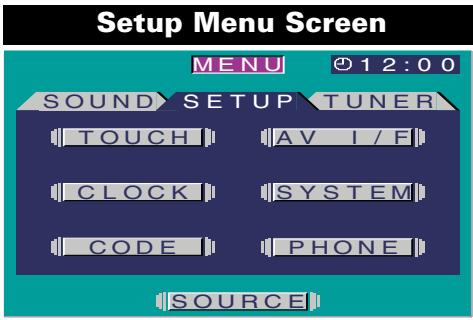
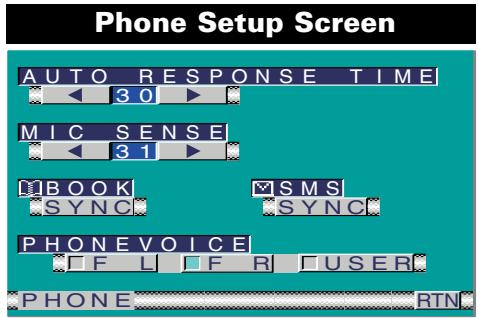
Select the Phone Setup Screen
Touch the [PHONE] button in the Setup menu screen.
| Display | Adjustment Item | Setting | |
| "AUTO RESPONSE TIME" | Auto Response time adjust | "OFF" | Auto response function is off |
| "01"- "30" | Adjust 1 to 30 seconds | ||
| "MIC SENSE" | Microphone sensitivity adjust | "00"- "31" | Adjust level from 0 to 31 |
| "PHONEVOICE" | Phone voice speaker setting | "FL" | Phone voice sent to the front left speaker. |
| "FR" | Phone voice sent to the front right speaker. | ||
| "USER" | Phone voice sent to the Balance/ Fader set. | ||

Auto response time adjust:
If the time set in the GSM telephone is shorter than that set in the unit, the former will be used.
Synchronize the Phone Book data [BOOK]
Touch the [SYNC] button.
Synchronize the Message data [SMS]
Touch the [SYNC] button.
![KENWOOD KCA-HF521 - Synchronize the Message data [SMS] - 1](/content/2025/01/124358/images/c1cf582bdd47add81c2a8f5f5e894136c9d48f73f7fc5e0a0bea91a7f07881ac.jpg)
If you have updated GSM telephone after you connected this unit to GSM telephone and synchronized the data, select [SYNC] to synchronize again.
![KENWOOD KCA-HF521 - Synchronize the Message data [SMS] - 2](/content/2025/01/124358/images/76ce2d8e3d21c0fb5ef0334950e1802188307f0c8cee2726ed0ca5523a75b4f5.jpg)
![KENWOOD KCA-HF521 - Synchronize the Message data [SMS] - 3](/content/2025/01/124358/images/c800c6090af0b1fccc704e0d44ecc0355a957759771ee50d83fc394829ef9fba.jpg)
Source Control Screen
Phone Control Screen
When a Call is Received
Phone control screen is displayed automatically.
Switch to the Phone Control Screen
Press the [TEL] button for at least 1 second.
Accept a call
Touch the [ ] Button.
Hang up
Touch the [ ] Button.
Redialling
Touch the [ ] Button.
Direct Dialling
1 Input the Telephone number
Touch the [0] - [9], [#, [*] and [+] button.

- You can input max 32 digits
- If an incorrect digit is entered, touching the [CLR] button will delete it. If the [CLR] button is pressed for at least 1 second then the whole telephone number will be deleted.
2 Dialling
Touch the [ ] Button.
Telephone number presets
Up to three preset telephone numbers can be stored.
To store the currently displayed number press the [P1] — [P3] button for at least 1 second.
Preset Call
1 Touch the [P1] — [P3] button.
2 Touch the [ ] Button.
Phone Control Screen
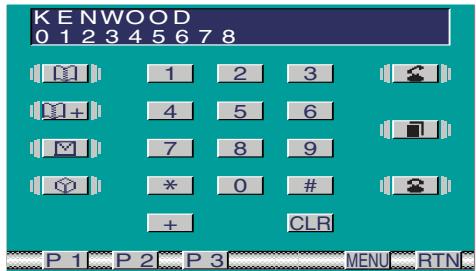
Switch to the Phone Setup
Touch the [MENU] button. (▶ Page 7)
Switch to the Initial Search Screen
Touch the [ ] button. (▶ Page 9)
Switch to the Device Select Screen
Touch the [ +] button. Page 10

A telephone number must be entered before this function becomes available.
Switch to the SMS Edit Screens
Touch the [ ] button. (Page 13)

A telephone number must be entered before this function becomes available.
Switch to the SMS Box Screen
Touch the [ ] button. (Page 12)
Phone Book Search
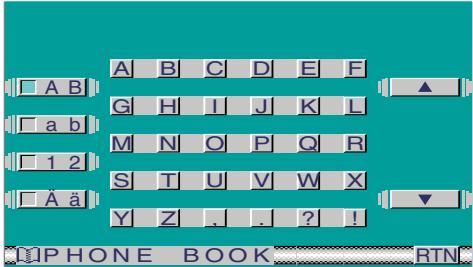
Initial Search Screen
Searching for a name
1 Select the character type
Touch the [AB], [ab], [12] or [Ää] button.
2 Select the character list
Touch the [] or [] button.

When all characters are displayed on the
character list, [] and [Δ] do not appear.
3 Select the Initial
Touch the (first) initial character.
The phone book list screen is then displayed.
Exit the Initial Search Screen
Touch the [RTN] button.
Return to the Phone control screen.
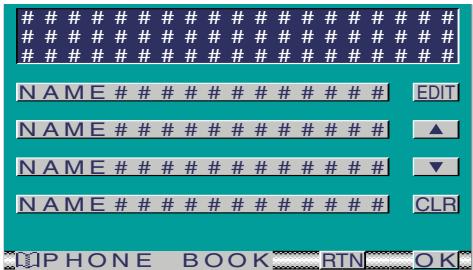
Phone book List Screen
4 Page up/down for the name list
Touch the [] or [] button.

- When all list of initial are displayed on the name list, [▼] and [▲] do not appe
- Initials including no corresponding name will not be displayed.
5 Select a name
Touch the Name list.
6 Enter the name
Touch the [OK] button.
Switch to the Phone control screen.
Phone Book data deletion
1 Select the name
Touch the Name list.
2 Data deletion
Touch the [CLR] button for at least 1 second.
Edit the Phone Book
Touch the [EDIT] button.
Switch to the Telephone number edit screen.
Page 11)
Exit the Phone book list screen
Touch the [RTN] button.
Return to the Phone control screen.
Initial Search Screen
Phone Book List Screen
Phone Book Data Entry
1 Input the Telephone number and press the [L + ] button in the Phone control screen.
Device select screen is displayed.
Device Select Screen
Choose whether to add Phone Book data to be edited to SIM Card or to Memory built in GSM.
2 Select the Device
To SIM Card:
Touch the [SIM CARD] button.
Switch to the Name edit screen.
To Memory built in GSM:
Touch the [IN MEMORY] button.
Switch to the Name edit screen.
Cancel the Device Select Screen
Touch the [RTN] button.
Return to the Phone control screen.
Name Edit Screen
3 Move the cursor to the required position.
Touch the [<] or [>] button.
4 Select the character type
Touch the [AB], [ab], [12] or [Aa] button.
5 Select the character list
Touch the [] or [] button.

When all characters are displayed on the
character list, [] and [] do not appear.
6 Select the character
Touch a character.
7 Repeat steps 3 through 6 and enter the name.

-
The number of characters whose names can be stored will differ depending on the device that is connected. Please see your GSM telephone manual for details.
-
To enter a space, touch the [SPC] button.
8 Enter the name
Touch the [OK] button.
Return to the Phone control screen.
Cancel the Name Edit Screen
Touch the [RTN] button.
Return to the Device select screen
Device Select Screen
ELECT DEVICE
SIM CARD
IN MEMORY
DIP HONE BOOK RTN
Name Edit Screen
<KENWOOD##
A B C D E F
G H I J K L
ab
12
S T U V W X
Y Z
HPhone BOOK RTN OKI
Edit Phone Book
Telephone Number Edit Screen
1 Input the Telephone number
Touch the [0] - [9], [#, [*] and [+] button.

- You can input max 32 digits
- If an incorrect digit is entered, touching the [CLR] button will delete it. If the [CLR] button is pressed for at least 1 second then the whole telephone number will be deleted.
Cancel the Telephone Number Edit Screen
Touch the [RTN] button.
Return to the Phone control screen.
2 Edit the Telephone number
Touch the [OK] button.
Switch to Name edit screen.
Name Edit Screen
3 Move the cursor to the required position.
Touch the [<] or [>] button.
4 Select the character type
Touch the [AB], [ab], [12] or [Aä] button.
5 Select the character list
Touch the [] or [] button.

When all characters are displayed on the
character list, [] and [] do not appear.
6 Select the character
Touch a character.
7 Repeat steps 3 through 6 and enter the name.

- The number of characters whose names can be stored will differ depending on the device that is connected. Please see your GSM telephone manual for details.
- To enter a space, touch the [SPC] button.
8 Enter the name
Touch the [OK] button.
Return to the Phone control screen.
Cancel the Name Edit Screen
Touch the [RTN] button.
Return to the Phone control screen.
Telephone Number Edit Screen




Name Edit Screen






Browse Messages (SMS)
When New Message is Received
"NEWMESSAGE" will be displayed in the source control screen.

The "FULL" indicator lights up to show that the memory is full of incoming messages.
1 Switch to the Phone Control Screen
Press the [TEL] button for at least 1 second in the monitor panel.
2 Select the Message List
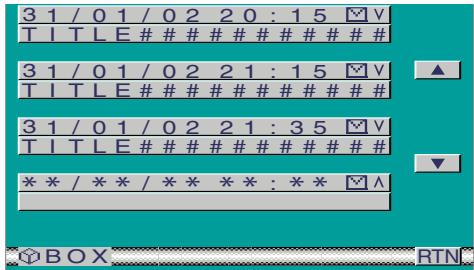
Touch the [ ] button in the phone control screen.
Message list screen is displayed.
Message List Screen
3 Page up/down for the list
Touch the [] or [] button.

- When all lists are displayed on the message list, [▼] and [▲] do not appear.
- [V]: Message in inbox
[ \ ]: Message in outbox
4 Select a message
Touch the list
Message screen is displayed.
Exit the Message List Screen
Touch the [RTN] button.
Return to the Phone control screen.
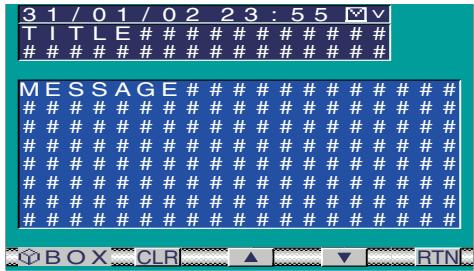
Message Screen
5 Page up/down for the message
Touch the [] or [] button.

When all messages are displayed on the message screen, [] and [] do not appear.
Delete the Message
Touch the [CLR] button for at least 1 second.
Exit the Message Screen
Touch the [RTN] button.
Return to the Message list screen.
Source Control Screen
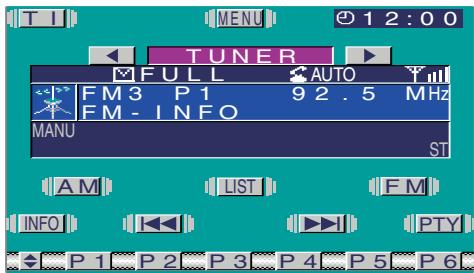
Message List Screen
Message Screen
Create Message (SMS)
1 Input the Telephone number and press the [ ] button in the Phone control screen.
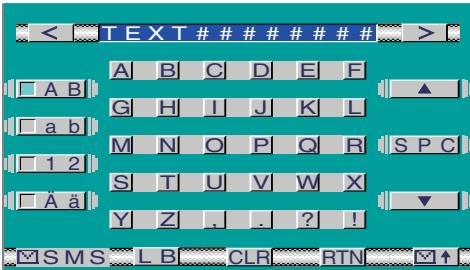
SMS Message Input Screen
2 Move the cursor to the required position.
Touch the [<] or [>] button.
3 Select the character type
Touch the [AB], [ab], [12] or [Ää] button.
4 Select the character list
Touch the [] or [] button.

When all characters are displayed on the character list, [▼] and [▲] do not appear.
5 Select character
Touch a character.
6 Repeat steps 2 through 5 and enter the message.

- You can enter up to 160 characters for each message.
- To enter a space, touch the [SPC] button.
- Touching the [CLR] button briefly will delete the last entered character. If the [CLR] button is touched for at least 1 second then all the entered text will be deleted.
7 Send the message
Touch the [ ] button.
Using the SMS Library Text
Touch the [LB] button.
SMS library text screen is displayed.
SMS Library Text Screen
1 Select the Library Text
Touch a library list item.
2 Enter the Library Text
Touch the [OK] button.
Return to the message input screen.
Cancel the Library Text screen
Touch the [RTN] button.
Return to the message input screen.
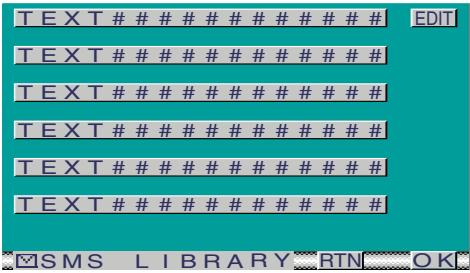
Library Text Edit
1 Select the Library Text
Touch a library list item.
2 Switch to the SMS Library Edit Screen
Touch the [EDIT] button.
SMS library edit screen is displayed.
SMS Message Input Screen
SMS Library Text Screen
SMS Library Edit Screen
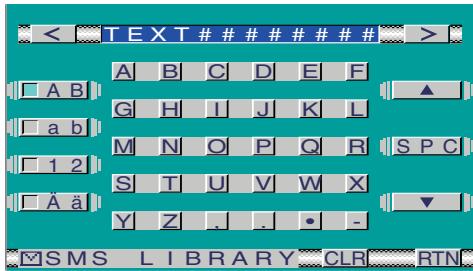
SMS Library Edit Screen
1 Perform the operation from steps 2 to 5 of Input message to edit.
2 Entry the Library Text
Touch the [RTN] button.
Return to the SMS library text screen.
Accessories
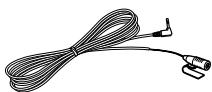
A
B
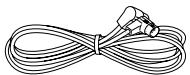

C
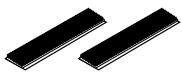
D

The use of any accessories except for those provided might result in damage to the unit. Make sure only to use the accessories shipped with the unit, as shown above.
Installation the Control Unit
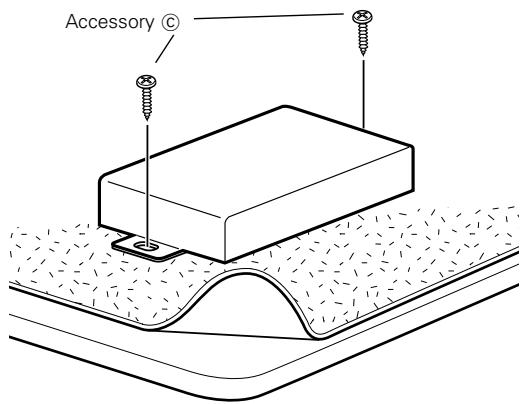
Securing to audio board
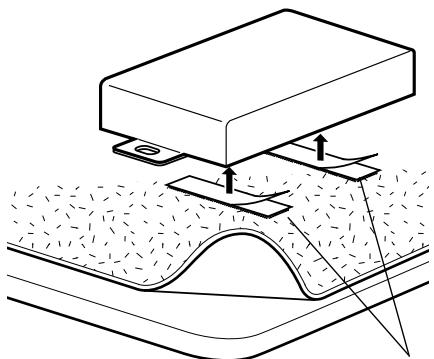
Securing to pile carpet
Accessory
CAUTION
Please do not install the unit near the dashboard, the rear tray, or other important components. Doing so could lead to injury or accident should the unit come off due to a shock and strike a person or an important component. Tapping screws should be used for mounting. (Attachment with velcro strips, although easy, can come off with a shock.)
Installation the Microphone Unit
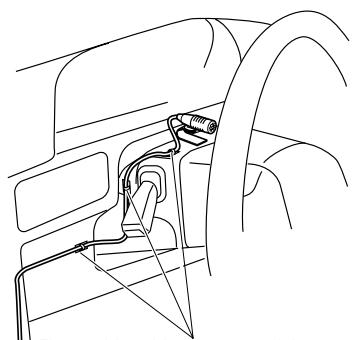
Fix a cable with a commercial item of clampper
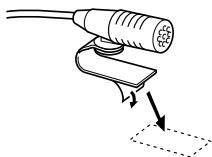
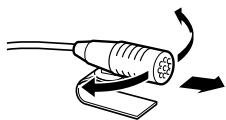
Peel the release coated paper of double-face adhesive tape to fix on the place shown in the left-hand example.
Adjust the direction of the microphone to the driver.
Connection
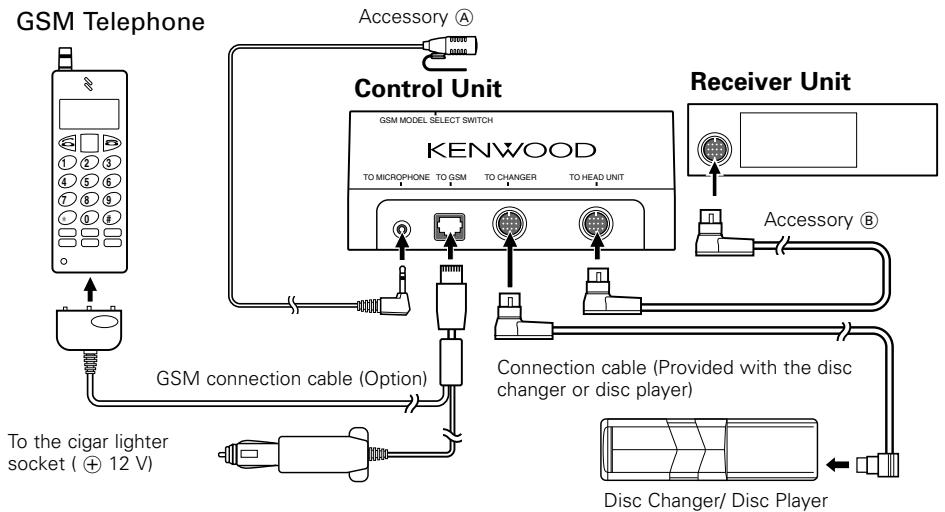
If you want to connect KCA-S210A

- Two disc Changer or Player cannot be connected.
- Connect the KCA-HF521 to the terminal labelled TO CHANGER 2.
- Set the PROTOCOL selection switch to "N" position.
"GSM MODEL SELECT SWITCH" Setting
Set the switch on the back of the control unit depending on the GSM model to be connected as shown below.
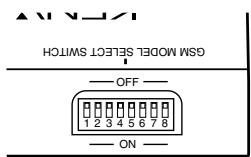

Ensure that the power is off before setting the switch.
Specifications subject to change without notice.
Operating voltage 14.4 V DC (11 to 16 V)
Size 196(W) x 96(H) x 30(D) mm
Mass 528g
Initial Select KENWOOD
Initial Select 12345678
CD-Receiver/ Kassetten-Receiver
KDC-PSW9521/KDC-M9021/KDC-8021/Z838W/Z738/Z638/KDC-MV6521/KDC-M6021/
KDC-M6021G/KDC-6021/X838
Monitor-Receiver
KVT-M700
Initial Select KENWOOD
Initial Select 12345678

CD-receiver/cassette-receiver
Initial Select KENWOOD
KENWOOD
Initial Select 12345678
12345678
NAME # # # # # # # # # # # # # EDIT
NAME###########
NAME# # # # # # # # # # # #
NAME############CLR
- To prevent injury and/or fire, take the following precautions:
- CAUTION
- To prevent damage to the machine, take the following precautions:
- NOTE
- GSM model available for this unit
- Restriction on GSM Telephone connections
- Kenwood Receivers available for this unit
- Restriction on Receivers connected and conditions of operation
- About the KCA-RC420 (Remote controller with [ ] button)
- Setting the Menu
- Hands Free Function
- When a Call is Received
- Accept a call
- Switching between the Name and Telephone Number
- GSM Mode
- Select the GSM mode
- Select the mode item
- ① Phone Book Search Mode
- Select the Initial Group
- Select the Name
- Dial a selected number
- ② Redial Mode
- Switching between the Name and Telephone Number
- Dialling
- ③ Direct Dial Mode
- Enter the telephone number
- ④ SMS (Short Message Service) Mode
- When New Message is Received
- Select the Message
- Switch the Display
- Switching between the Name and Telephone Number.
- Phone Setup
- Select the Phone Setup Screen
- Synchronize the Phone Book data [BOOK]
- Synchronize the Message data [SMS]
- Phone Control Screen
- Switch to the Phone Control Screen
- Accept a call
- Hang up
- Redialling
- Direct Dialling
- Input the Telephone number
- Telephone number presets
- Up to three preset telephone numbers can be stored.
- Preset Call
- Switch to the Phone Setup
- Switch to the Initial Search Screen
- Switch to the Device Select Screen
- Switch to the SMS Edit Screens
- Switch to the SMS Box Screen
- Phone Book Search
- Initial Search Screen
- Searching for a name
- Select the character type
- Select the character list
- Select the Initial
- Exit the Initial Search Screen
- Phone book List Screen
- Page up/down for the name list
- Select a name
- Enter the name
- Phone Book data deletion
- Select the name
- Data deletion
- Edit the Phone Book
- Exit the Phone book list screen
- Phone Book Data Entry
- Device Select Screen
- Select the Device
- Name Edit Screen
- Edit Phone Book
- Telephone Number Edit Screen
- Cancel the Telephone Number Edit Screen
- Edit the Telephone number
- Move the cursor to the required position.
- Select the character type
- Select the character list
- Select the character
- Repeat steps 3 through 6 and enter the name.
- Enter the name
- Cancel the Name Edit Screen
- Browse Messages (SMS)
- Switch to the Phone Control Screen
- Select the Message List
- Message List Screen
- Page up/down for the list
- Select a message
- Exit the Message List Screen
- Message Screen
- Page up/down for the message
- Delete the Message
- Exit the Message Screen
- Source Control Screen
- Create Message (SMS)
- SMS Message Input Screen
- SMS Library Text Screen
- Library Text Edit
- SMS Library Edit Screen
- Accessories
- Installation the Control Unit
- Installation the Microphone Unit
- Connection
- If you want to connect KCA-S210A
- "GSM MODEL SELECT SWITCH" Setting
- Specifications subject to change without notice.
- CD-Receiver/ Kassetten-Receiver
- Monitor-Receiver
Brand : KENWOOD
Model : KCA-HF521
Category : GSM hands-free kit