DH9300 - Hi-Fi System MARANTZ - Free user manual and instructions
Find the device manual for free DH9300 MARANTZ in PDF.


User questions about DH9300 MARANTZ
0 question about this device. Answer the ones you know or ask your own.
Ask a new question about this device
Download the instructions for your Hi-Fi System in PDF format for free! Find your manual DH9300 - MARANTZ and take your electronic device back in hand. On this page are published all the documents necessary for the use of your device. DH9300 by MARANTZ.
USER MANUAL DH9300 MARANTZ
Copyright 2002 lmerge Ltd. All rights reserved.
The DH9300 Music Server software and this documentation are copyright materials. No part of the Music Server software or this documentation may be reproduced, transmitted, transcribed, stored in a retrieval system, or translated into any language, or computer language, in any form or by any means without prior written permission of lmerge.

XIVA LINK
XiVA is a registered trademark of Imerge Ltd. All other product names are trademarks or registered trademarks of their respective owners.
The Internet CD database referred to in this User Guide is the Gracenote CDDB® Music Recognition Service. Gracenote is the industry standard in music recognition technology and related content delivery. For more information go to www.gracenote.com

gracenote cddb.
Gracenote is CDDB, Inc. d/b/a "Gracenote." CD-related data from Gracenote CDDB®, copyright 1999, 2000, 2001, 2002 Gracenote. Gracenote CDDB Client Software, copyright 1999, 2000, 2001, 2002 CDDB, Inc., U.S. Patents Numbers #5,987,525; #6,061,680; #6,154,773, and other patents issued or pending.
CDDB is a registered trademark of Gracenote. The Gracenote logo and the Gracenote CDDB logo are trademarks of Gracenote. Music recognition Service and MRS are service marks of Gracenote.
MPEG Layer-3 audio coding technology licensed from Fraunhofer IIS and THOMSON multimedia.
The information in this guide is believed to be correct as of the date of publication. However our policy is one of continuous development and so the information in this guide is subject to change without notice, and does not represent a commitment on the part of Marantz.
This guide was designed and produced by lmerge Ltd.
XIVA™ NEW MEDIA BROUGHT TO LIFE
XiVA™ is a highly portable software framework that powers next-generation media appliances. XiVA blends hard disk technology, advanced software design, and embedded Internet technology to provide amazing features. Audio, video, text, graphics, and all forms of streaming new media are all brought to life through a wealth of interactive user interface options. Powerful personalised software accesses on-line content like never before. The next generation media appliance is powered by XiVA.
ENGLISH
WARRANTY
For warranty information contact your local Marantz distributor.
RETAIN YOUR PURCHASE RECEIPT
Your purchase receipt is your permanent record of a valuable purchase. It should be kept in a safe place to be referred to as necessary for insurance purposes or when corresponding with Marantz.
IMPORTANT
When seeking warranty service, it is the responsibility of the consumer to establish proof and date of purchase. Your purchase receipt or invoice is adequate for such proof.
FOR U.K. ONLY
This undertaking is in addition to a consumer's statutory rights and does not affect those rights in any way.
FRANÇAIS
GARANTIE
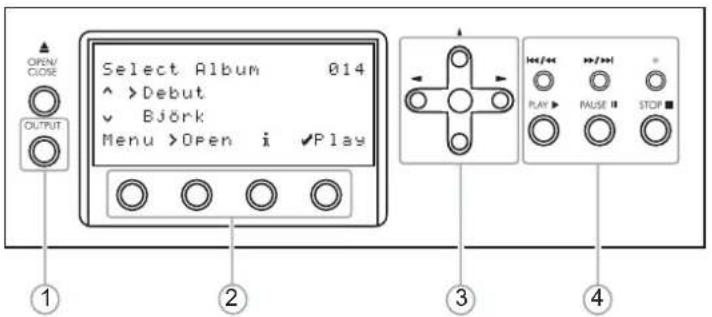
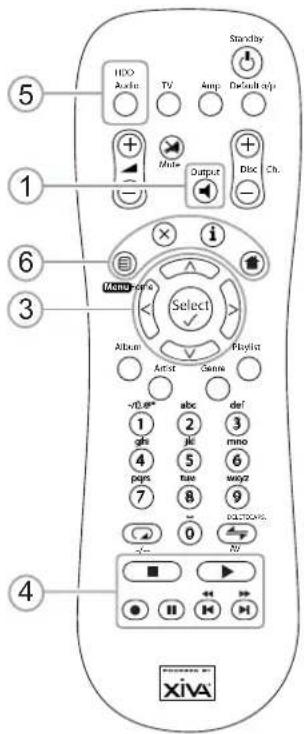
- Output button: Press this button to display information on the music currently playing. Press this button again to switch to the next output on the Music Server.
- Front panel action keys: These four keys correspond to the different actions clearly visible by reading the front panel display. For example, in the display opposite, the √ Play action key will commence playback of the selected album. The √ symbol indicates that you can also press the Select key on the remote control to commence playback.
- Navigation keys: Move up, down, left, and right through the menu system. The button in the centre selects the currently highlighted option.
- Transport keys: Controls the playback of music on the currently selected output. The Record key is an action key used on some menu screens to begin a recording or to modify a playlist.
- HDD Audio button: Press this button to control the Music Server.
-
Remote control action keys:
-
Press the menu key to display the main menu at any time.
- Press the X key whenever this symbol is displayed on the TV screen or on the front panel to cancel, exit or delete the current operation according to the information on screen.
- Press the i key whenever this symbol is displayed on the TV screen or on the front panel to edit text information, or confirm a new text entry according to the information on screen.
- Press the key to return to the 'home' page of the current function. For instance when browsing the library press this key to return to the Library menu.
RECORDING FROM A CD
- Press the OPEN/CLOSE key on the front panel to open the CD tray.
- Place a CD in the tray.
- Push the OPEN/CLOSE key on the front panel.
The CD detected prompt is displayed.
• Press the Record action key to proceed.
The Please select Auto or Custom record display then allows you to chose whether to do a quick (one touch) record or specify individual record options.
- Press the√ Auto action key to do a one touch recording.
The display confirms when the recording is finished.
Note: You can play music from your music library while you are recording a CD.
text_image
Select Album 014 ^ >Debut √ Björk Menu >Open i ✓Play OUTPUT ① ② ③ ④Fig. A - Front panel display
text_image
5 1 6 3 4 HDD Audio TV Ampl. Default ways + - Multi- Output + - Disc Ch. Menu options Select Album Artist Genre -70.00" abc def 1 2 3 qfs jlc mno 4 5 6 pqs taw wayz 7 8 9 BOLTCAVS. 0 N XIVAFig. B - Remote Control

text_image
Select Album Cafe Del Mar - Vol. Ocho - Cafe Del Mar Come With Us - Chemical Brothers Crocodile Shoes - Jimmy Nail Debut - Björk Goodbye Country - Hello Nightclub - Gr ... Greatest Hits - Eurythmics Ibiza - CD1 - Paul Oakenfold Back > Open i Info Play XivaFig. C - TV User Interface
PLAYING MUSIC
• Display the Main Menu by pressing the menu key on your Music Server remote control, or the Menu action key on the front panel.
The Main Menu will be displayed.
- Press theA andV keys to highlight Library.
- Press the√ Select action key.
The Library menu lets you choose how you want to browse your music collection. You can browse items by album, artist, genre, or playlist.
- Press the∧ and∨ keys to step between categories.
For example, if you select Albums you will see an alphabetical list of your album titles.
To play music
• Use the∧ and∨ keys to highlight the item you would like to play.
- Press the> key to view the contents of the selected item.
- Press the√ Play action key.
To stop play
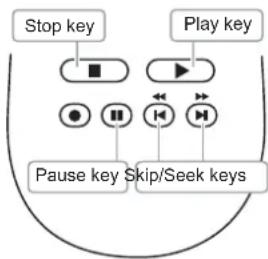
- Press the ■ key on the front panel or the Music Server remote control.
To pause play
- Press thell key on the front panel or your Music Server remote control.
flowchart
graph TD
    A["Stop key"] --> B["■"]
    C["Play key"] --> D["▶"]
    E["Pause key"] --> F["◀"]
    G["Skip/Seek keys"] --> H["◀"]
    B --> I["●"]
    D --> J["●"]
    F --> K["●"]
    H --> L["●"]
    I --> M["←"]
    J --> N["←"]
    K --> O["←"]
    L --> P["←"]
    M --> Q["→"]
    N --> R["→"]
    O --> S["→"]
    P --> T["→"]
    Q --> U["→"]
    R --> V["→"]
    S --> W["→"]
    T --> X["→"]
To skip to the next or previous track
- Press the◀ or▶ key on the front panel or your Music Server remote control.
To seek within a track
- Hold down the◀ or▶ key on the front panel or your Music Server remote control.
Play resumes from the new position when you release the key.
ENTERING TEXT
To enter text using the alphanumeric keypad
- Press the> or< keys to move the cursor to the required position.
- Use the keys on the alphanumeric keypad to enter a letter.
For example to enter S press the 7 key four times, because S is the fourth letter on the 7 key.
- Press the DELETE key on your Music Server remote control to delete letters.
- Press the CAPS key on either the front panel or your Music Server remote control to switch between upper-case and lower-case letters.
To select letters from a grid
Alternatively, the Grid provides a convenient way of selecting letters:
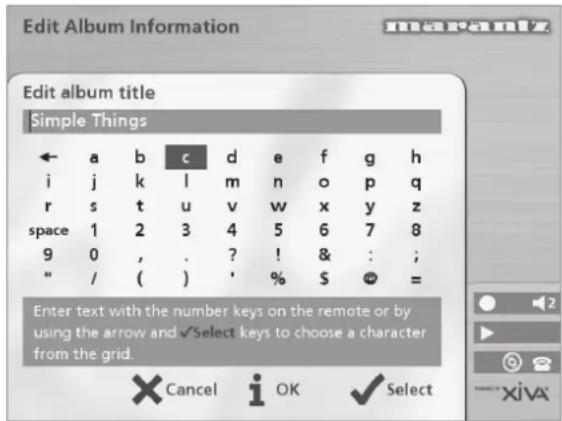
- Press theV key to move the cursor into the grid area.
The currently selected letter is highlighted:
text_image
Edit Album Information Edit album title Simple Things ← a b c d e f g h i j k l m n o p q r s t u v w x y z space 1 2 3 4 5 6 7 8 9 0 , . ? ! & : ; " / ( ) ' % $ = Enter text with the number keys on the remote or by using the arrow and √Select keys to choose a character from the grid. Cancel i OK √ Select• Use the> < ∧ or ∨ keys to move the cursor and press the √ Select action key to enter each letter.
- Use the CAPS key on either the front panel or the Music Server remote to switch between upper and lower case letters.
If at any time you need to enter text in a different part of the text field, or you want to return to entering text using the alphanumeric keypad:
- Press the key repeatedly until the cursor returns to the text field.
Finally, when you have finished entering the name:
- Press the i OK action key.
SWITCHING ON AND OFF
To switch to standby mode
Standby mode should be used when the Music Server is not being used for a short period of time. Do not remove the power from the Music Server in this mode.
- Press the POWER/Standby key on the front panel or the Standby key on the remote control.
- Press the √ Standby action key to enter standby.
To switch to off mode
Off mode should be used when the Music Server is not being used overnight (or for several days). When the unit is in off mode it consumes very little power. You can safely remove the power from the Music Server in this mode.
- Press the POWER/Standby key on the front panel or the Standby key on the remote control.
• Press the i Off action key to enter off mode.
To switch on from standby or off mode
- Press the POWER/Standby key on the front panel or the Standby key on the remote control.
CONGRATULATIONS ON YOUR PURCHASE OF THIS FINE MARANTZ PRODUCT.
MARANTZ is on the leading edge of Hard Disk Music products for the consumer market and this unit incorporates the latest technological developments.
We are sure you will be fully satisfied with the Music Server.
Thank you for your support.
WARNING:
TO REDUCE THE RISK OF FIRE OR ELECTRIC SHOCK, DO NOT EXPOSE THIS APPLIANCE TO RAIN OR MOISTURE.
Do not remove the cover from the equipment. There are no user serviceable parts inside, and opening the case will invalidate your warranty.
Do not insert anything into the equipment through the ventilation holes.
Do not handle the mains lead with wet hands.
To avoid overheating do not position the Music Server near heat sources, and ensure that the ventilation holes are not blocked.
CAUTION: This product contains a lithium battery. Danger of explosion if battery is incorrectly replaced. Replace only with the same or equivalent type recommended by Marantz. Dispose of batteries according to the manufacturer's instructions.
IMPORTANT NOTICE
[For U.S. model]
The serial number for this equipment is located on the rear panel. Please write this serial number on your enclosed warranty card and keep it in a secure area. This is for your security.
CAUTION: This product satisfies FCC regulations when shielded cables and connectors are used to connect the unit to other equipment. To prevent electromagnetic interference with electric appliances such as radios and televisions, use shielded cables and connectors for connections.
NOTE: This equipment has been tested and found to comply with the limits for a Class B digital device, pursuant to Subpart J, Part 15 of the FCC rules. These limits are designed to provide reasonable protection against harmful interference in a residential installation. This equipment generates, uses, and can radiate radio frequency energy and, if not installed and used in accordance with the instructions, may cause harmful interference to radio communications. However, there is no guarantee that interference will not occur in a particular installation. If this equipment does cause harmful interference to radio or television reception, which can be determined by turning the equipment off and on, the user is encouraged to try to correct the interference by one or more of the following measures:
– Reorient or relocate the receiving antenna.
– Increase the separation between the equipment and receiver.
- Connect the equipment into an outlet on a circuit different from that to which the receiver is connected.
- Consult the dealer or an experienced radio/TV technician for help.
Changes or modifications may cause this unit to fail to comply with Part 15 of the FCC Rules and may void the user's authority to operate the equipment.
CAUTION
- Use of controls or adjustments or performance of procedures other than those specified herein may result in hazardous radiation exposure.
- The use of optical instruments with this product will increase eye hazard.
Information to User
Alteration or modifications carried out without appropriate authorization may invalidate the user's right to operate the equipment.
[For Canadian model]
NOTE: This Class B digital apparatus complies with Canadian ICES-003.
[For European model]
NOTE: This product has been designed and type-tested to comply with the limits set out in EN55013, EN55020, EN60950, EN55022: 1998 CLASS B4, EN55024: 1998, FCC RULES PART 15 SUBPART B CLASS B. NS/N29 3548:1995 CLASS B
![MARANTZ DH9300 - [For European model] - 1](/content/2026/06/1242661/images/5fed2be0fb2247db240dcf592337034981f7124521699274034ee6e9f5657923.jpg)
CAUTION:
LASER SAFETY: This unit employs a LASER. Only a qualified person should remove the cover or attempt to service the device, due to possible eye injury.
"CAUTION-USE OF CONTROLS OR ADJUSTMENTS OR PERFORMANCE OF PROCEDURE OTHER THAN THOSE SPECIFIED HEREIN MAY RESULT IN HAZARDOUS RADIATION EXPOSURE."
COPYRIGHT
This equipment must not be used for unauthorised duplication of CDs or any other works protected by copyright. No license to infringe copyright is granted by the sale of this equipment.
Recording and playback of some material may require permission. For further information refer to the following:
– Copyright Act 1956
– Dramatic and Musical Performers Act 1958
– Performers Protection Acts 1963, and 1972
– Any subsequent statutory enactments and orders.
IMPORTANT SAFETY INSTRUCTIONS
READ INSTRUCTIONS - All the safety and operating instructions should be read before the product is operated.
KEEP INSTRUCTIONS - The safety and operating instructions should be kept for future reference.
HEED WARNINGS - All warnings on the product and in the operating instructions should be adhered to.
FOLLOW INSTRUCTIONS - All operating and use instructions should be followed.
CLEANING - Unplug this product from the wall outlet before cleaning. The product should be cleaned only with a soft dry cloth. Never clean with furniture wax, benzine, insecticides or other volatile liquids since they may corrode the cabinet.
ATTACHMENTS - Do not use attachments not recommended by the product manufacturer as they may cause hazards.
WATER AND MOISTURE - Do not use this product near water - for example near a bathtub, wash bowl, kitchen sink, or laundry tub; in a wet basement; or near a swimming pool; and the like.
ACCESSORIES - Do not place this product on an unstable cart, stand, tripod, bracket, or table. The product may fall, causing serious injury to a child or adult, and serious damage to the product. Use only with a cart, stand, tripod, bracket or table recommended by the manufacturer, or sold with the product. Any mounting of the product should follow the manufacturer's instructions and should use a mounting accessory recommended by the manufacturer.
CART - A product and cart combination should be moved with care. Quick stops, excessive force and uneven surfaces may cause the product and cart combination to overturn:
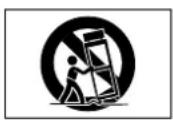
VENTILATION - Slots and openings in the cabinet are provided for ventilation and to ensure reliable operation of the product and to protect it from overheating. Do not block any ventilation openings. The openings should never be blocked by placing the product on a bed, sofa, rug or other similar surface. This product should not be placed in a built-in installation such as a bookcase or rack unless proper ventilation is provided. Install in accordance with the manufacturer's instructions.
POWER SOURCES - This product should be operated only from the type of power source indicated on the marketing label. If you are not sure of the type of power supply to your home, consult your product dealer or local power company.
LOCATION - The appliance should be installed in a stable location.
NONUSE PERIODS - The power cord of the appliance should be unplugged from the outlet when left unused for a long period of time.
GROUNDING OR POLARIZATION - If this product is equipped with a polarized alternating current line plug (a plug having one blade wider than the other), it will fit into the outlet only one way. This is a safety feature. If you are unable to insert the plug fully into the outlet, try reversing the plug. If the plug does not fit into the outlet, contact your electrician to replace your obsolete outlet. Do not defeat the safety purpose of the polarized plug. If this product is equipped with a three-wire grounding type plug, a plug having a third (grounding) pin, it will only work in a grounding type power outlet. This is a safety feature. If you are unable to insert the plug into the outlet, contact your electrician to replace your obsolete outlet. Do not defeat the safety purpose of the grounding type plug.
POWER CORD PROTECTION - Power-supply cords should be protected from being walked on or pinched particularly at plugs, convenience receptacles, and the point where they exit from the product.
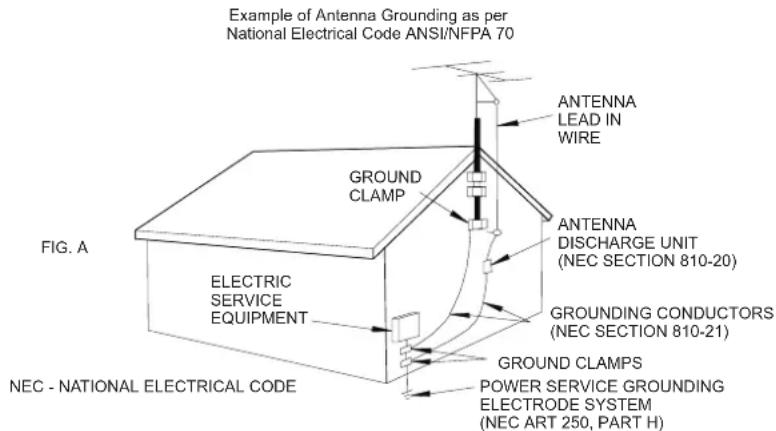
OUTDOOR ANTENNA GROUNDING - If an outside antenna or cable system is connected to the product be sure the antenna or cable system is grounded so as to provide some protection against voltage surges and built-up static charges. Article 810 of the National Electric Code. ANSI/NFPA70 provides information with regard to proper grounding of the mast and supporting structure, grounding of the lead-in wire to an antenna discharge unit, connection to grounding electrodes, and requirements for the grounding electrode. See Figure A.
LIGHTNING - For added protection for this product during a lightning storm, or when it is left unattended and unused for long periods of time, unplug it from the wall outlet and disconnect the antenna or cable system. This will prevent damage to the product due to lightning and power-line surges.
POWER LINES - An outside antenna system should not be located in the vicinity of overhead power lines or other electric light or power circuits, or where it can fall into such power lines or circuits. When installing an outside antenna system, extreme care should be taken to keep from touching such power lines or circuits as contact with them might be fatal.
OVERLOADING - Do not overload wall outlets, extension cords or integral convenience receptacles as this can result in a risk of fire or electric shock.
OBJECT AND LIQUID ENTRY - Never push objects of any kind into this product through openings as they may touch dangerous voltage points or short-out parts that could result in a fire or electric shock. Never spill liquid of any kind on the product.
SERVICING - Do not attempt to service this product yourself as opening or removing covers may expose you to dangerous voltage or other hazards. Refer all servicing to qualified service personnel.
DAMAGE REQUIRING SERVICE - Refer all servicing to qualified service personnel. Servicing is required when the apparatus has been damaged in any way, such as power-supply cord or plug is damaged, liquid has been spilled or objects have fallen into the apparatus, the apparatus has been exposed to rain or moisture, does not operate normally, or has been dropped.
REPLACEMENT PARTS - When replacement parts are required, be sure the service technician has used replacement parts specified by the manufacturer or have the same characteristics as the original part. Unauthorized substitutions may result in fire, electric shock, or other hazards.
SAFETY CHECK - Upon completion of any service or repairs to this product, ask the service technician to perform safety checks to determine that the product is in proper operating condition.
WALL OR CEILING MOUNTING - The product should not be mounted to a wall or ceiling.
HEAT - Do not install near any heat source such as radiators, heat registers, stores, or other apparatus (including amplifiers) that produce heat.
text_image
Example of Antenna Grounding as per National Electrical Code ANSI/NFPA 70 ANTENNA LEAD IN WIRE GROUND CLAMP ANTENNA DISCHARGE UNIT (NEC SECTION 810-20) ELECTRIC SERVICE EQUIPMENT GROUNDING CONDUCTORS (NEC SECTION 810-21) GROUND CLAMPS POWER SERVICE GROUNDING ELECTRODE SYSTEM (NEC ART 250, PART H) FIG. A NEC - NATIONAL ELECTRICAL CODE
text_image
CAUTION RISK OF ELECTRIC SHOCK DO NOT OPEN CAUTION: TO REDUCE THE RISK OF ELECTRIC SHOCK, DO NOT REMOVE COVER (OR BACK) NO USER-SERVICABLE PARTS INSIDE REFER TO QUALIFIED SERVICE PERSONNEL
The lightning flash with arrowhead symbol, within an equilateral triangle, is intended to alert the user to the presence of uninsulated "dangerous voltage" within the product's enclosure that may be of sufficient magnitude to constitute a risk of electric shock to persons.

The exclamation point within an equilateral triangle is intended to alert the user to the presence of important operating and maintenance (servicing) instructions in the literature accompanying the appliance.
FOREWORD
This section must be read carefully before any connection is made to the mains supply.
WARNINGS
- Do not expose the equipment to rain or moisture.
- Do not remove the cover from the equipment.
- Do not insert anything into the equipment through the ventilation holes.
- Do not cover the ventilation holes with any items such as tablecloths, newspapers, curtains, etc.
- Do not place naked flame sources, such as lighted candles, on the equipment.
- Do not handle the mains lead with wet hands.
- Allow adequate ventilation. Leave a gap of 0.1m on all sides of the unit.
- Do not splash or spill water on the unit. Do not place objects filled with liquid (such as vases) on the unit.
EQUIPMENT MAINS WORKING SETTING
Your Marantz product complies with the household power and safety requirements in your area.
IMPORTANT: (FOR UK VERSION ONLY)
This apparatus is fitted with an approved moulded 13 Amp plug. To change a fuse in this type of plug proceed as follows:
1 Remove fuse cover and fuse.
2 Fix new fuse which should be a BS1362 5A, A.S.T.A or BSI approved type.
3 Refit the fuse cover.
If the fitted plug is not suitable for your socket outlets, it should be cut off and an appropriate plug fitted in its place.
If the mains plug contains a fuse, this should have a value of 5A. If a plug without a fuse is used, the fuse at the distribution board should not be greater than 5A.
NOTE: The severed plug must be destroyed to avoid a possible shock hazard should it be inserted into a 13A socket elsewhere.
HOW TO CONNECT A PLUG
The wires in the mains lead are coloured in accordance with the following code:
BLUE - "NEUTRAL" ("N")
BROWN - "LIVE" ("L")
1 The BLUE wire must be connected to the terminal which is marked with the letter "N" or coloured BLACK.
2 The BROWN wire must be connected to the terminal which is marked with the letter "L" or coloured RED.
3 Do not connect either wires to the earth terminal in the plug which is marked by the letter "E" or by the safety earth symbol or coloured green or green-and-yellow.
Before replacing the plug cover, make certain that the cord grip is clamped over the sheath of the lead - not simply over the two wires.
PRECAUTIONS
The following precautions should be taken when operating the equipment.
GENERAL PRECAUTIONS
When installing the equipment ensure that:
– the ventilation holes are not covered.
- air is allowed to circulate freely around the equipment.
- it is placed on a vibration free surface.
- it will not be exposed to excessive heat, cold, moisture or dust.
- it will not be exposed to direct sunlight.
- it will not be exposed to electrostatic discharges.
In addition, never place heavy objects on the equipment.
If a foreign object or water does enter the equipment, contact your nearest dealer or service center.
Do not pull out the plug by pulling on the mains lead; grasp the plug.
It is advisable when leaving the house, or during a thunderstorm, to disconnect the equipment from the mains supply.
COMPACT DISCS
The glossy side shining like a rainbow is the front side of the disc, and the side on which the label is printed is the back.
Unlike conventional turntables for playing analogue discs, the DH9300 Music Server reads the information recorded on the disc from underneath without contacting it using a beam of laser light. Therefore, the performance of a compact disc will not degrade like conventional analogue records.
Handle discs carefully so as not to damage or scratch the front side.
To protect the disc avoid placing it in the following locations:
– In direct sunlight or near a source of heat like a heater.
– In a place which is damp or dirty.
– In a place which could be exposed to rain, such as near a window.
Always keep the surface of the disc clean.
Up to six billion data units are recorded on the front side of the disc. When cleaning the disc surface always be sure to use a special compact disc cleaner. Do not use a conventional record cleaner for analogue records, as this will adversely affect the disc surface.
Store discs properly by placing them in their disc cases.
Do not attach a piece of paper or sticker on the label side of the disc.
When a disc has a piece of plastic tape or rental CD label with paste protruded from the edge or when a disc has a trace of such a sticky object, do not attempt to play the disc. If such a disc is inserted into the Music Server it may cause extensive damage to the system. It may also be impossible to remove the disc.
Do not use a disc with a special shape.
Do not attempt to use a disc with a special shape such as a heart-shaped disc or octagonal disc. This may cause the system to malfunction.
DTS encoded discs
Caution - when playing DTS encoded CDs excessive noise will be heard on the analogue outputs jacks of the Music Server. To avoid possible damage to the audio system you should ensure that the correct connections are made to your amplification system for replaying this type of disc.
CAUTION
When disposing of used batteries, please comply with governmental regulations or environmental regulations or environmental public instruction's rules that apply in your country or area.
POWER BUTTON
When this button is pressed once, the power turns On and information will appear on the display. When pressed again, press the Off action key or the i key on the remote control to switch to Off mode.
When the unit is in Off mode the "Standby" indicator is lit; the apparatus is not disconnected from the AC mains supply in this mode.
INTRODUCTION
Welcome to the DH9300 Music Server from Marantz. The DH9300 is a revolutionary way of filling your home with music.
Your Music Server stores and catalogues your music collection, allowing you to select any album or track at the press of a key. You can browse through your albums and tracks using convenient on-screen menus displayed on your television, showing full album, track, and artist names downloaded from the Internet CD database. Your Music Server also lets you organise your music collection and create selections for different occasions to suit your mood.
Incredible capacity
Your Music Server is a hard disk based audio system which can store hundreds of hours of music, all with the convenience of instant access, at the touch of a key.
Convenient TV screen
Play music, record CDs, or organise your library using convenient on-screen menus which show the full album, artist, and track names, allowing you to select the one you want with a few simple selections.
Internet access for track listings
Your Music Server records the CDs from your music collection at faster than real time. It then automatically connects to a dedicated Internet CD database via the built-in modem or Ethernet connection. This database provides album and track details for a wide range of CDs. This information can be downloaded and stored with each CD you record, allowing you to select any item in your music collection by album name, artist name, track name, or genre, giving you total flexibility in the way you access and control your music collection.
Create your own playlists
Your Music Server allows you to compile personal playlists and then automatically play tracks from the playlist you have selected. Playlists let you customise your Music Server for each member of the family, or for matching the music to the occasion or mood.
Instant access, irrespective of your music collection
Whether you select a track by title, album, artist, or genre, your Music Server locates it instantly and plays it at the press of a key. All this is achieved with an extremely simple and intuitive user interface, operated using a few keys on the front panel or remote control.
SPECIFICATIONS
- General
System.... Hard Disk Based Audio Server
Power requirements.....110/220V AC 60/50Hz
Power Consumption.... 25W
Weight....7.8Kg
Dimensions..... 98mm(H) x 440mm(W) x 375mm(D)
Operating temperature.... 10-40°C
Operating humidity..... 10-90% RH (non-condensing)
- Video Outputs
- S-Video Output
Y (luminance) - Output level.... 1V /75Ω
C (colour) - Output level.... 0.3V _p-p /75Ω
Connector.... S-VIDEO jack
- Composite outputs (4 individual outputs)
Output level.... 1V /75Ω
Connector.... RCA jack
- VGA output
Output level.... 0.75V /75Ω
Connector.... 15 pin D-type F
Output resolution.... 800x600
- Audio outputs
- Analogue outputs (4 pairs of outputs)
Output level.... 2V _RMS
Output impedance.... 500Ω
Connector.... RCA jack
- Digital outputs
Optical digital output..... Optical digital jack (Toslink)
Coaxial digital output level.... 500mV _p-p /75Ω
Coaxial digital output connector.... RCA jack
– Audio inputs (not available)
- Analogue inputs
Maximum input level.... 2V _RMS
Input impedance.... 10kΩ
Connector.... RCA Jack
- Coaxial Digital input
SRC supported frequency..... 32kHz, 44.1kHz, 48kHz
Maximum input level.... 500mV _p-p /75Ω
Connector.... RCA Jack
– Analogue audio characteristics
Frequency response..... 20Hz to 20kHz
S/N ratio (@1KHz)..... more than 90dB
Dynamic range..... more than 90dB
Total harmonic distortion (@1kHz).. less than 0.005%
Channel separation (@1KHz)..... more than 100dB
- Communications
- Modem
Connector.... RJ11 (56kbit/s)
- Ethernet
Connector.... RJ45 (10 Base T/100 Base T)
- Controller
Connector.... 9 pin D-type M
- Remote in (4 individual connectors)
Maximum input level.... 5V
Connector.... RCA jack
- Modulated Remote Input
Maximum input level.... 5V
Connector.... 3.5mm jack
- Opus Connection (not available on all models)
Connector.... RJ45
• USB
Connector..... Type A USB socket
- Accessories
Stereo RCA cable.... 1
Video cable.... 1
Modem cable.... 1
Power cord.... 1
Remote control unit.... 1
AAA (R03P) dry cell batteries.... 2
Operating instructions.... 1
Warranty card (U1B model only).... 1
Note
The specifications and design of this product is subject to change without notice.
FRONT VIEW

text_image
MARTANTZ, MUSIC SERVER (CHF300) POWER/THICKER CNINE OUTPUT 5 7 8 10 11 12 H H/M H/M PLAY RHOSE STOP 9 13 14 15 XIVA 16REAR VIEW
text_image
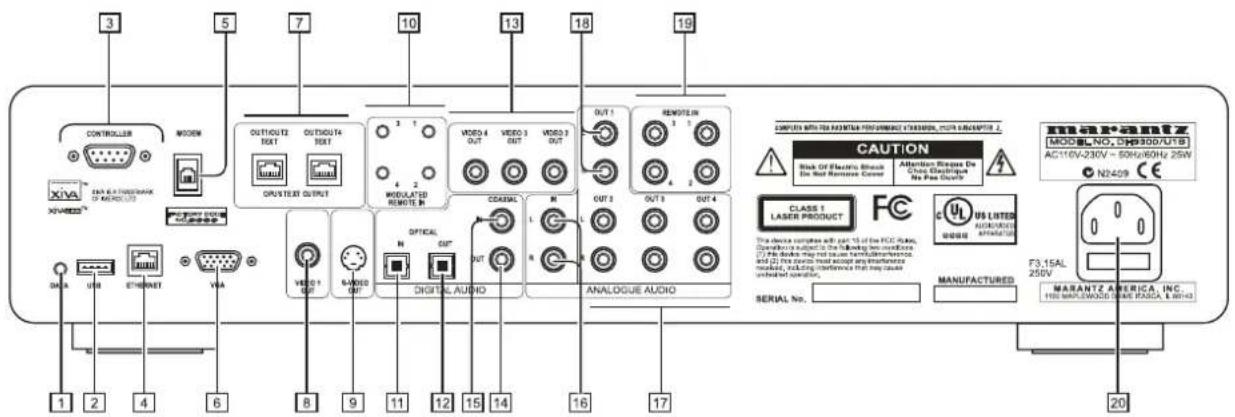
3 5 7 10 13 18 19 CONTROLLER MOSSEM OUTCUTZ OUTPUT4 OUTPUT OPUATET OUTPUT MODULATED REMOTE IN VIDEO 4 OUT VIDEO 3 OUT VIDEO 2 OUT OUT REMOTE IN OUT 1 OUT 3 OUT 4 ANALOGUE AUDIO COMPUTS WITH THE MAXIMUM PERFORMANCE SYSTEMS, POWER SUBCAPITERS 2 CAUTION Stack Of Electric Shock Die Not Removable Cover Attention Repeats Die Chip Electrator Die Free Cover CLASS 1 LASER PRODUCT FC US LITES ACCRIMETER SERIAL No. MANUFACTURED F3.15AL 250V MARANTZ AMERICA, INC. 100 WIPPLEWOOD DRIVE RADIJA, LRF43 N2409 CE DATA USB ETHERNET VIA 1 2 4 6 8 9 11 12 15 14 16 17 F3.15AL 20CONTROLS AND CONNECTIONS
This section provides information on the controls and connections available on your DH9300 Music Server.
FRONT
1 POWER/STANDBY
Press to put your Music Server into either standby or off mode, press again to switch your Music Server back on.
2 ONLINE
The online indicator is illuminated when the modem is active.
3 DISC TRAY
Insert a disc with the label side up.
4 OUTPUT button
Press the output button to display what music is playing on the currently selected output. Pressing the output button for a second time will select the next output in sequence.
5 OPEN/CLOSE button
Pressing the open/close button opens the disc tray. Place a compact disc on the tray with the label side facing up. Press the button again to close the tray.
6 ACTION buttons
Action buttons allow you to perform specific operations dependent on the current menu screen. For more information on using the action buttons see the chapter called Using the Music Server action keys p.12.
7 DISPLAY
The display shows information about the music available on the unit, the status of the Music Server (for instance if the unit is currently playing), and the current configuration of the unit.
8 SELECT button
Selects the option currently visible on the display.
9 NAVIGATION buttons
The Navigation buttons allow you to move up, down, left or right through the menus shown on the display.
10 / button
When the button is pressed briefly during playback, play restarts at the beginning of the current track. A second brief press moves to the beginning of the previous track. When the button is held for a longer period of time the music will rewind at high speed.
11 ▶ ▶l button
When the button is pressed briefly during playback, play restarts at the beginning of the next track. When the button is held for a longer period of time the music will fast forward at high speed.
12 RECORD button
The record button is an action key - on some menu screens you can use this button to begin a recording, either from the CD inside the unit, or from the input connectors. When managing playlists this button is also used to create new playlists or add tracks to an existing playlist.
13 PLAY button
Press the play button to recommence playback if the music has been stopped or paused.
14 PAUSE button
Press the pause button to interrupt playback temporarily.
15 STOP button
Press the stop button to halt playback on the current output.
16 REMOTE SENSOR
This window receives signals transmitted from the remote control unit.
REAR
1 D A T A
Allows the Music Server to send control information to other supported devices.
2USB
Allows the Music Server to communicate with supported USB devices.
3 CONTROLLER
The Controller port provides serial communication with supported devices. For instance a multiroom control system may communicate with the Music Server using the XiVA-Link protocol.
4 ETHERNET
The Ethernet port can be used to connect the Music Server to a high speed internet connection. It may also be used by supported software applications to communicate with the system. A shielded Ethernet cable should be used in conjunction with this connection.
5 MODEM
The Modem port can be used to connect the Music Server to a standard analogue telephone line for internet access (using the supplied cable).
6 VGA
The VGA connector may be used to connect a VGA monitor or a suitable Plasma screen for displaying the TV User interface.
7 OPUS CONNECTION [not available on all models]
The Opus Connection allows the Music Server to be attached to an Opus Multiroom control system for remote access.
8VIDEO 1 OUT
Connect the Video 1 composite output of the Music Server to the composite input of a suitable PAL/NTSC TV (depending on the supplied configuration) to display the TV User Interface. You may also need to switch the TV to the relevant AUX input to display the picture.
9 S-VIDEO OUT
Connect the S-VIDEO output of the Music Server to the S-VIDEO input of a suitable PAL/NTSC TV (depending on the supplied configuration) to display the TV User Interface. You may also need to switch the TV to the relevant AUX input to display the picture.
10 MODULATED REMOTE IN
The Modulated Remote In connection allows remote control information to be carried from remote rooms directly into the Music Server. The connection number is linked to the default output to be controlled; for instance remote control information received at connection 3 will control analogue output 3 of the Music Server by default. See the chapter called Using your Music Server in a multiroom system p.27.
11 DIGITAL OPTICAL IN
High Quality recordings can be made onto the Hard Disk of the Music Server using an optical connection from a suitable device (such as Minidisc or DAT).
12 DIGITAL OPTICAL OUT
The audio output can be transmitted in the form of light through an optical fibre cable and photocoupler. The optical signal transmission features low signal loss due to cables and complete isolation of the ground loop so that a very high quality output can be produced without any digital noise. The audio output of the Digital Out connector is the same as the audio output of the Analogue Audio Out 1 connector.
Connection method
Connect this jack to a D/A convertor, digital sound processor or an amplifier equipped with a Digital Optical input jack. Remove the caps from the Digital Optical Out jack and the optical input jack of the connected component and connect the two jacks through an optical fibre cable.
13VIDEO OUT 2,3,4
Additional composite outputs to allow up to 4 televisions to be connected to the Music Server. All 4 composite outputs display the same TV User interface.
14 DIGITAL AUDIO OUT - COAXIAL
By connecting this jack to a digital audio component (D/A convertor, digital sound processor etc.), digital signals from the Music Server can be transmitted directly from the system without first being converted to analogue. The audio output of the Digital Out connector is the same as the audio output of the Analogue Audio Out 1 connector.
15 DIGITAL AUDIO IN - COAXIAL
High Quality recordings can be made onto the Hard Disk of the Music Server using a coaxial connection from a suitable device (such as Minidisc or DAT).
16ANALOGUE AUDIO IN
Analogue sources (such as cassette or vinyl LP) may be recorded onto the Hard Disk of the Music Server using this connection.
17ANALOGUE AUDIO OUT 2,3,4
The DH9300 Music Server is a multiroom device allowing you to listen to different music in up to 4 different rooms all at the same time. Each analogue output should be connected to the input jacks of a pre-amplifier. For more information see the chapter called Using your Music Server in a multiroom system p.27.
18ANALOGUE OUT 1
See 17.
19 REMOTE IN
The Remote In connection allows remote control information to be carried from remote rooms directly into the Music Server. The Remote In connection number is linked to the default output to be controlled; for instance remote control information received at Remote In 3 will control analogue output 3 of the Music Server by default. For more information see the chapter called Using your Music Server in a multiroom system p.27.
20 MAINS
Connect the supplied mains lead to this connector to provide power to the unit.
USING THE REMOTE CONTROL
The remote control supplied with the Music Server is a "Universal" remote control. This means that other devices, such as a television or amplifier, may be controlled using this remote control. When you have selected to control the television the TV device button will light up each time you press a button - similarly when the Music Server is selected the HDD Audio button will light and when the Amp is selected the Amp button will light.
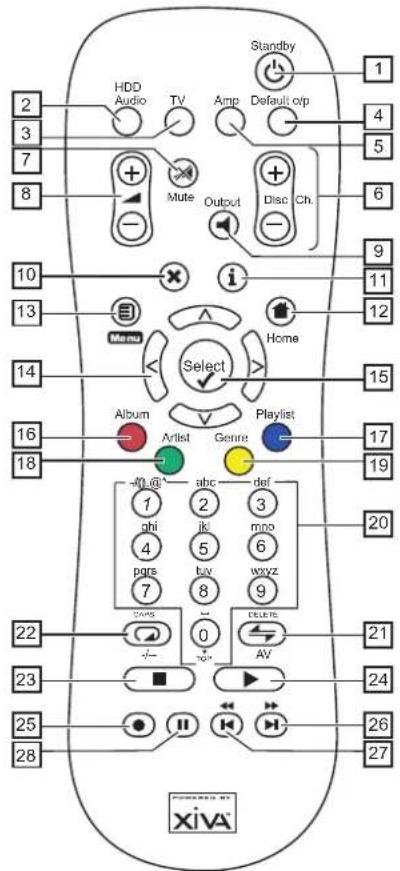
The following diagram explains the function of the keys on your Music Server remote control:
text_image
2 3 7 8 HDD Audio TV Amp Default op + Mute Output Disc Ch. - - - 10 13 14 16 18 Select Album Artist Genre Playlist -abc def 1 2 3 ghi jki mno 4 5 6 pages bay wxyz 7 8 9 GAMS - - - 22 0 - - - 23 - - - 25 ● - - - 28 Standby 1 4 5 6 9 11 12 15 17 19 20 21 24 26 27 Xiva™1. STANDBY button
Places the Music Server in/out of standby or off mode.
2. HDD Audio button
Selects the Music Server as the device to be controlled.
3. TV button
Selects the TV as the device to be controlled. For more information on configuring this remote to control your television see the chapter called Configuring your remote to control other devices p.11.
4. DEFAULT O/P button
Resets the TV user interface to controlling the default output for the room where you are located (indicated by the Remote In receiver connection). For more information on multiroom use of the Music Server see the chapter called Using your Music Server in a multiroom system p.27. If the TV device is selected this button will show/hide the on-screen clock.
5. AMP button
Selects the Amp as the device to be controlled. For more information on configuring this remote to control your amplifier see the chapter called Configuring your remote to control other devices p.11.
6. DISC/CH. buttons
Selects the next/previous album (or playlist) on your Music Server. If you have the TV device selected these buttons will select the next and previous channels.
7 MUTE button
Provided that the Music Server output volume setting is set to variable this button will mute the output of the Music Server. For more information see the chapter Advanced Settings p.25. If the TV or Amp device is selected the TV/Amp volume is muted.
8 VOLUME buttons
Provided that the Music Server output volume setting is set to variable these buttons will increase/decrease the volume of the Music Server output. For more information see the chapter Advanced Settings p.25. If the TV or Amp device is selected these buttons control the volume of the TV/Amp.
9. OUTPUT button
Press the output button to display what music is playing on the currently selected output. In certain situations pressing the output button for a second time will select the next output in sequence - for more information see the chapter called Using your Music Server in a multiroom system p.27.
10× CANCEL button
The Cancel button is an action key - on some menu screens this is used to cancel an operation which you no longer wish to continue. If the TV device is selected this button will hide text services.
11.i INFO button
The Info button is an action key - on some menu screens this is used to display additional information which may not be currently displayed; on other menu screens it may also be used to edit text on the screen. If the TV device is selected this button displays text services.
12. HOME button
The home key is an action key - it can be used to return to the top page of a particular function. For instance if you are browsing the music library and you wish to look for a different album you may use the Home key to return to the main Library menu
13. Menu button
The Menu key is an action key - pressing this key will always return the TV screen and front panel to the Main Menu. Use this button if you wish to start a new operation.
14. NAVIGATION\ <> buttons
The navigation buttons are used to move up, down, left or right through the menu pages.
13Select button
Select is used to activate the currently highlighted option. When browsing the library this key will start playback of the selected item.
16. ALBUM button
The album button can be used to jump to the album list in the music library. In TV mode this button selects the red text service option.
17. PLAYLIST button
The playlist button can be used to jump to the playlist list in the music library. In TV mode this button selects the blue text service option.
18. ARTIST button
The artist button can be used to jump to the artist list in the music library. If the TV device is selected this button selects the green text services option.
19. GENRE button
The genre button can be used to jump to the genre list in the music library. If the TV device is selected this button selects the yellow text services option.
20. NUMERIC (0 to 9) buttons
The numeric keys can be used as follows:
- When browsing the track list these buttons allow you specify the track you wish to play
- In the Music Library you may jump to an item in the list that begins with one of the letters specified at the top of each key.
- In text entry mode these keys can be used as an alphanumeric key pad (similar to a mobile phone).
If the TV device is selected the numeric buttons select which channel you wish to view.
21⇔ RANDOM (DELETE) button
The random button has the following functions:
- During playback this button toggles the random play setting on the Music Server.
- In text entry mode this button can be used to delete characters.
If the TV device is selected this button switches the TV channel to the AV input.
22 REPEAT (CAPS) button
The random button has the following functions:
- During playback this button toggles the repeat play setting on the Music Server.
- In text entry mode this button can be used to toggle between upper-case and lower-case letters.
If the TV device is selected this button switches the TV between single digit and double digit channel selection.
23. STOP button
During playback the stop button halts playback on the currently selected output of the Music Server.
24▶ PLAY button
The play button can be used to recommence playback on the currently selected output of the Music Server.
25 RECORD button
The record button is an action key - on some menu screens you can use this button to begin a recording, either from the CD inside the unit, or from the input connectors. When managing playlists this button is also used to create new playlists or add tracks to an existing playlist.
26▶▶ button
When the button is pressed briefly during playback, play restarts at the beginning of the next track. When the button is held for a longer period of time the music will fast forward at high speed.
27◀◀ button
When the button is pressed briefly during playback, play restarts at the beginning of the current track. A second brief press moves to the beginning of the previous track. When the button is held for a longer period of time the music will rewind at high speed.
28.II PAUSE button
Press the pause button to interrupt playback temporarily.
CONFIGURING YOUR REMOTE TO CONTROL OTHER DEVICES
The TV and Amp devices on the Music Server remote control may be individually configured to control a range of televisions and amplifiers from well known manufacturers.
To configure the remote to control your television
- Press the TV and select buttons simultaneously; hold them down for 1 second.
The TV button will remain lit for 20 seconds; the configuration process must be completed during this time.
- Enter the 3 digit numeric code matching the manufacturer of your television from the list in Appendix A.
- Press the TV button again.
The TV button will blink twice to indicate that the configuration has been accepted. If the TV button does not blink begin the process again, taking care to enter the number exactly as printed in the list. If the television is switched on during the configuration process, entering the correct code will cause the television to go into standby.
To configure the remote to control your amplifier.
- Press the Amp and select buttons simultaneously; hold them down for 1 second.
The Amp button will remain lit for 20 seconds; the configuration process must be completed during this time.
- Enter the 3 digit numeric code matching the manufacturer of your amplifier from the list in Appendix A.
- Press the Amp button again.
The Amp button will blink twice to indicate that the configuration has been accepted. If the Amp button does not blink begin the process again, taking care to enter the number exactly as printed in the list. If the amplifier is switched on during the configuration process, entering the correct code will cause the amplifier to go into standby.
Reassigning volume control when using the Music Server.
If the volume setting of the Music Server is set to fixed the and ✗ Mute keys will do nothing (for more information on volume output settings see the chapter called Advanced Settings p.25.). These buttons may therefore be configured to control the volume on your amplifier whilst the HDD Audio device is selected. To re-configure these keys:
- Ensure that the Amp device is correctly configured to control your amplifier (as shown above).
- Press the HDD Audio and Select buttons simultaneously; hold them down for 1 second.
The HDD Audio button will remain lit for 20 seconds; the configuration process must be completed during this time.
- Press the ✗ Mute
- Press the + key
- Press the Amp device key
The HDD Audio device key will blink twice to indicate that the configuration has been accepted. If the HDD Audio button does not blink begin the process again, taking care to press the buttons in the correct sequence. The and ✗ Mute keys should now control the amplifier when the HDD Audio device is selected.
To return the ▲ and ✗ Mute keys to their original configuration repeat the above process, pressing the HDD Audio button instead of the Amp button.
Note: The HDD Audio button always uses a device number of 000. You should never need to change this for normal operation.
Note: Do not make any connections to the Music Server while the power supply is connected and switched on.
- Connect the supplied telephone lead to a standard analogue telephone socket. Connect the other end of this cable to the socket marked Modem on the back panel of the Music Server.
- Connect the red plug of the supplied audio lead to the red Analogue Audio Out 1 socket on the back of the Music Server. Connect the adjacent white plug to the white Analogue Audio Out 1 socket on the Music Server. Connect the other end of this cable to the AUX or CD inputs on your amplifier.
- Connect the yellow plug of the supplied TV lead to the yellow Video 1 Out socket of the Music Server. For the European TV lead* connect the Scart plug to the ext. 1 or 2 socket on the rear of your TV. For the non-European TV lead connect the yellow plug to the video input on the rear of your TV.
- Connect the supplied power cord to your mains power supply.
- Switch on your television. Select the appropriate video channel to view the Music Server TV User Interface display.
* For Scart connection, the red and black plugs are not required.
SWITCHING ON AND OFF
There are two power saving modes available from the POWER/Standby button on the Music Server front panel and the button on the remote control.
If you are not using your Music Server it is strongly recommended that you place the unit into one of the two power saving modes.
Standby mode
Standby mode should be used when the Music Server is not being used for a short period of time. Putting the unit into standby takes just a few seconds; switching the unit on from standby also takes just a few seconds. Do not remove the power from the Music Server in this mode.
Off mode
Off mode should be used when the Music Server is not being used overnight (or for several days). There is a short wait whilst the unit is switched to off mode; switching the unit on from off mode may take a few minutes. When the unit is in off mode it consumes very little power. You can safely remove the power from the Music Server in this mode.
To enter standby or off mode
- Press the POWER/Standby key on the front panel or the Standby key on the remote control.
The following prompt is displayed:
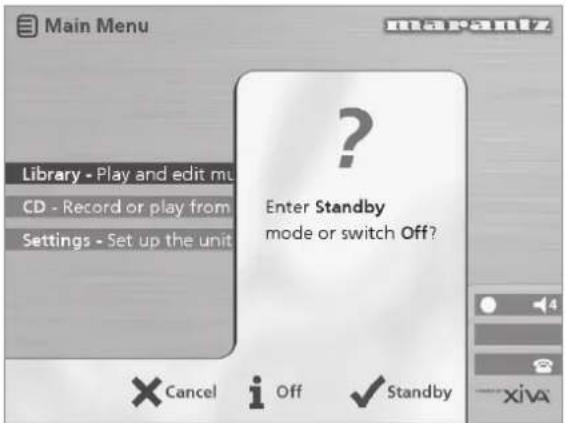
text_image
Main Menu Library - Play and edit mu CD - Record or play from Settings - Set up the unit ? Enter Standby mode or switch Off? Cancel i Off ✓ Standby XivaThe front panel display shows:

text_image
Enter standby mode or switch off? x i0ff/StbyEither:
- Press the Stby action key on the front panel or the √Select key on the remote control to switch to standby.
After a short delay the TV screen shows:
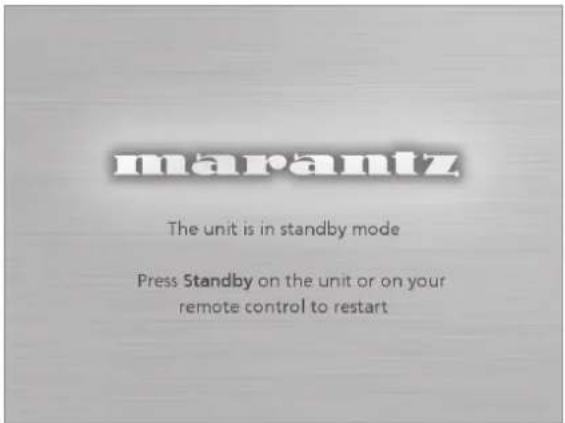
text_image
marantz The unit is in standby mode Press Standby on the unit or on your remote control to restartOr:
- Press the Off action key on the front panel or the i key on the remote control to switch to off mode.
After a short period of time the TV display and front panel display will switch off.
To switch on from standby or off mode
- Press the POWER/Standby key on the front panel or the Standby key on the remote control.
TV SCREEN AND FRONT PANEL DISPLAY
The following diagram shows the key features of a typical Music Server TV screen and front panel display:
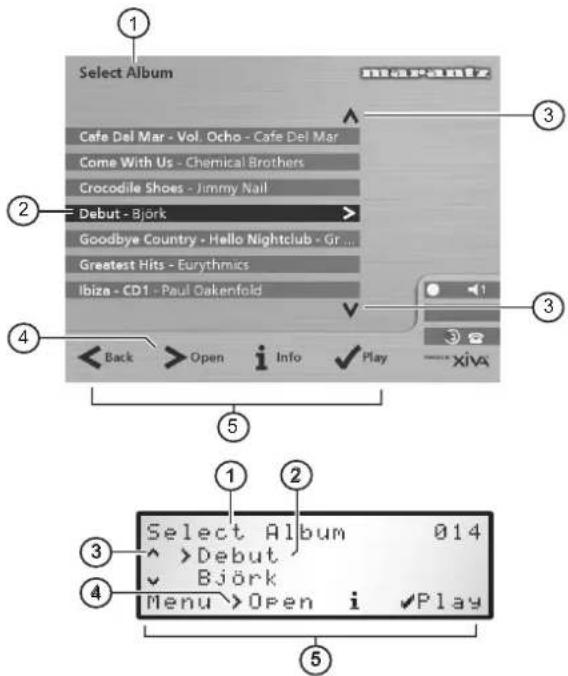
text_image
Select Album Cafe Del Mar - Vol. Ocho - Cafe Del Mar Come With Us - Chemical Brothers Crocodile Shoes - Jimmy Nail Debut - Björk Goodbye Country - Hello Nightclub - Gr ... Greatest Hits - Eurythmics Ibiza - CD1 - Paul Oakenfold Back > Open i Info Play XIVA Select Album 014 ^ >Debut ✓ Björk Menu >Open i Play ① ② ③ ④ ⑤- Indicates the title of the current screen.
- Title of the current selection, shown highlighted on the TV screen.
- Indicates that you can use the ∧ or ∨ keys to browse up and down the current menu list.
- Indicates that you can press the> key to look inside the currently selected item, such as to show the tracks in an album, or the albums by an artist or in a genre.
- Action keys available from the current menu for selection or navigation.
USING THE MUSIC SERVER ACTION KEYS
The front panel of your Music Server has four "action" keys located underneath the main display. The function of these keys changes depending on which menu you are currently viewing. The available actions are shown on the bottom line of the front panel display. For example, in the following menu the functions Menu, Open, Info, and Play are available on the corresponding keys:

text_image
Select Album 014 ^ >Debut ✓ Björk Menu >Open i ✓PlayNext to each option is a symbol indicating where a key on the Music Server remote control may be used instead of pressing the action key. By default:
• i corresponds to an information action
• ✗ corresponds to a cancel action
• √ corresponds to a select action
The TV screen also displays these actions as well as other actions available on the Music Server remote control. In the example above the TV screen shows:
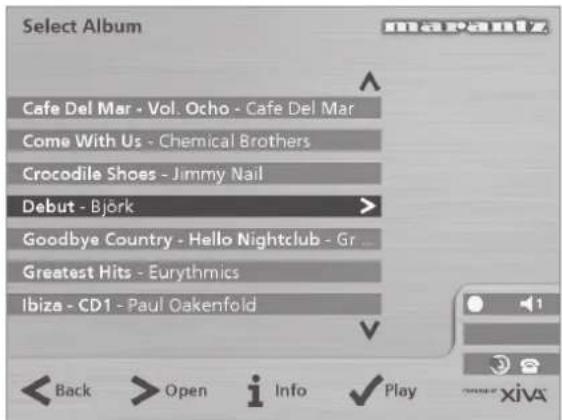
text_image
Select Album Cafe Del Mar - Vol. Ocho - Cafe Del Mar Come With Us - Chemical Brothers Crocodile Shoes - Jimmy Nail Debut - Björk Goodbye Country - Hello Nightclub - Gr Greatest Hits - Eurythmics Ibiza - CD1 - Paul OakenfoldMUSIC SERVER STATUS ICONS
The TV display shows the current status of the Music Server using a series of icons as shown below:

flowchart
graph TD
    A["1"] --> B["●"]
    B --> C["1"]
    D["3"] --> E["▶"]
    E --> F["○"]
    F --> G["↔"]
    G --> H["◎"]
    H --> I["电话"]
    J["2"] --> K["4"]
    L["5"] --> M["6"]
    N["6"] --> O["7"]
- Indicates which remote location currently has control of the TV user interface. The bar to the right shows how long the user has before the TV interface is available for other users to access. A green circle indicates that infrared is being received from the controlling location. A red circle indicates that infrared is being received from another location and will be rejected until the interface is available again. A yellow circle indicates that infrared is being received and no update is required on the TV user interface. For information on using your Music Server in a multiroom environment see the chapter called Using your Music Server in a multiroom system, p.27.
- Shows which output the user interface is currently controlling.
- Indicates the playback status of the currently selected output (e.g. play, stop, pause etc.)
- Indicates whether repeat is enabled on the current output.
- Indicates whether random is enabled on the current output.
- When the handset is lifted the unit is online, when the handset is on top of the telephone the unit is offline.
- Indicates that a disc is inside the CD tray.
REGISTERING YOUR MUSIC SERVER
Before using your Music Server you should spend some time registering your purchase. This enables you to receive technical support as well as software upgrades.
To register your Music Server
- When the welcome screen is first displayed, press theSelect key on the remote control or the Registration key on the front panel.
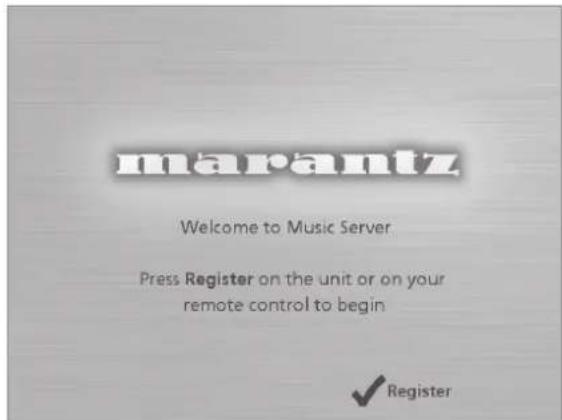
text_image
marantz Welcome to Music Server Press Register on the unit or on your remote control to begin ✓ RegisterThe following registration screen will be displayed:
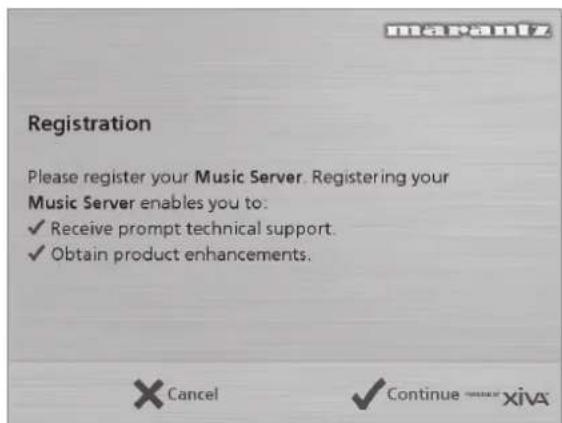
text_image
Registration Please register your Music Server. Registering your Music Server enables you to: ✓ Receive prompt technical support. ✓ Obtain product enhancements.The same information is also shown on the front panel display.
- Press theSelect key on your remote control or the Cont. action key on the front panel to display the first registration screen:

text_image
Name > Name : Address : Please enter your name (required): ← a b c d e f g h i j k l m n o p q r s t u v w x y z space 1 2 3 4 5 6 7 8 9 0 - / ( ) . @ * , ? ! & : ; " ' % Enter text with the number keys on the remote or by using the arrow and √Select keys to choose a character from the grid. × Previous i NextTo use the alphanumeric keypad
As part of the registration process you will need to enter your name and address into the Music Server. You can do this using the following keys on the remote control:
| Action How | |
| Enter Text | Use the alphanumeric keys on the remote control. For example, to type an S press the 7 key four times. |
| Switch between entering upper-case or lower-case letters | Press the action key labelled Caps or the CAPS key on the remote control. |
| Enter a space. Press the 0 key. | |
| Delete a mistake | Press the DELETE key on the remote control. |
| Move the cursor within the text | Press the< or> keys. |
Alternatively you can use the built-in alphanumeric grid to enter details:
- Press theV key to move the cursor onto the grid, then use the< > ,V , and^ keys to highlight characters, and theSelect key to select them.
- Use the^ key repeatedly to move the cursor back into the text entry box to return to normal text entry mode.
When you have completed each entry:
- Press the Next action key on the front panel or the i button on the remote.
When you have entered your name and address details you will be prompted to select your country:
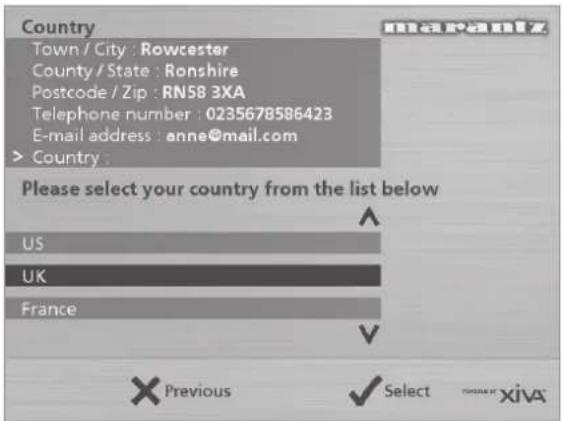
text_image
Country Town / City : Rowcester County / State : Ronshire Postcode / Zip : RN58 3XA Telephone number : 0235678586423 E-mail address : anne@mail.com > Country : Please select your country from the list below US UK France Previous Select xiva- Press the or keys to highlight your country and press the action key on the front panel or on the remote control.
To connect your Music Server to an Internet Account
The next sequence of screens helps you connect your Music Server to the Internet.
- Press the Cont. action key on the front panel or the ✓Select key on the remote to begin.
The following screen then allows you to select the options for your Internet connection:
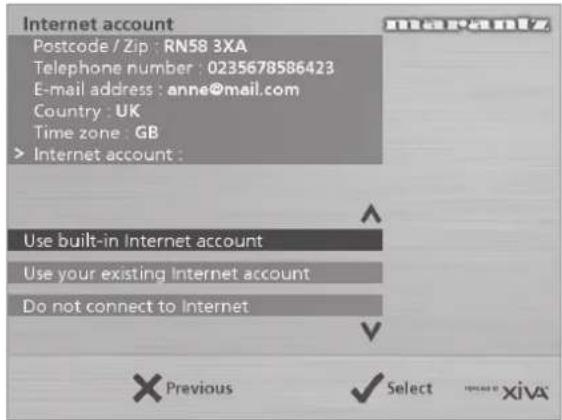
text_image
Internet account Postcode / Zip : RN58 3XA Telephone number : 0235678586423 E-mail address : anne@mail.com Country : UK Time zone : GB > Internet account : Use built-in Internet account Use your existing Internet account Do not connect to Internet Previous Select xiva- Press theV orA keys to select between the following options:
1. Using the built-in Internet account
Your Music Server will connect using a pre-installed internet account for your country.
Note: The built-in Internet account may not be available for your country.
2. Using your existing Internet account
If you are already using a computer to connect to the Internet via a telephone line, and you have an existing Internet account, you may prefer to use these account details for your Music Server. If you do not know your username, password, and Internet account telephone number you may be able to read these from your computer's settings; otherwise contact your Internet Service Provider for assistance.
Note: AOL and Compuserve accounts are not currently supported.
3. Do not connect to the Internet
You should use this option if you do not presently have access to a telephone line (you may set up a connection later).
- Press the √ action key on the front panel or the √Select key on the remote to select the option you have chosen.
- If you have selected Use built-in Internet Account, read the terms and conditions and press the Accept action key on the front panel or the √Select key on the remote control to continue.
- If you have selected Use your existing Internet Account, follow the on-screen instructions to enter your account username, password, and the telephone number of your service provider.
The Music Server will then attempt to connect to the Internet to send your registration details to Marantz.
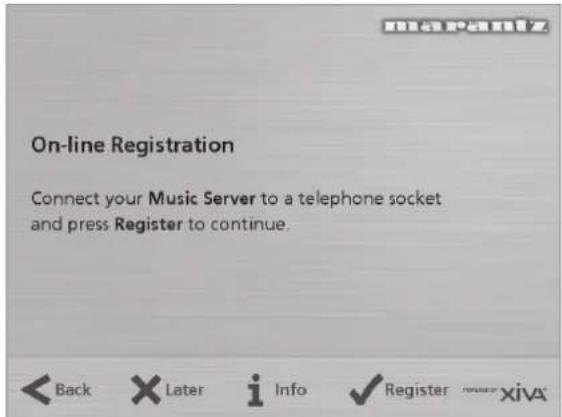
text_image
On-line Registration Connect your Music Server to a telephone socket and press Register to continue.Before proceeding, check that you have connected your Music Server to a telephone line using the cable supplied.
- Press the Registr action key on the front panel or theSelect button on the remote control.
The following screen confirms that registration was successful and your Internet account is operating successfully:

text_image
Registration Successful Thank you. Your Internet account is operating correctly and your Music Server has been successfully registered with Marantz.- Press the Cont action key on the front panel or the button on the remote control to continue.
Registration is now complete and the Main Menu will be displayed.
If the Music Server is unable to successfully connect to the Internet you will be given further details on how to connect to the Internet later.
THE MUSIC SERVER MAIN MENU
To display the Main Menu at any time during normal operation:
- Press the menu action key.
The Main Menu will be displayed on the TV screen and on the front panel display.
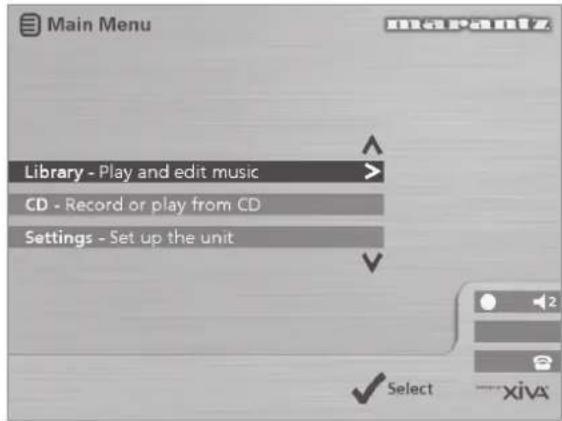
text_image
Main Menu Library - Play and edit music > CD - Record or play from CD Settings - Set up the unit Select XivaTo select an option from the main menu
- Press the^ or√ key on the front panel or Music Server remote control to step between the main menu options.
The current option is shown highlighted.
- Press the√ Select button to select the current option.
The options are as follows:
| Option Description | |
| Register | Connects to the Internet and registers your Music Server with Marantz. |
| Library | Allows you to select the music you want to play by album, artist, genre, or playlist. You may also edit the names of the music stored on the Hard Disk. |
| CD | Allows you to play a CD or record new music to the Hard Disk. |
| Settings | Allows you to configure your Music Server settings. |
| Connect | This option will be available if you have CDs in your library which are waiting to retrieve information from the Internet CD database. |
More information about each of these functions is given in the following chapters.
RECORDING MUSIC
Your Music Server allows you to record music from CDs and add it to the music library stored on the Hard Disk. It also has a built-in modem which allows it to connect to the Internet via a standard telephone line. If you provide this connection your Music Server automatically checks the Internet CD database when you record a CD, and downloads the album title, track titles, artist name, and genre for the CD. If you do not provide an Internet connection you can label the CDs you record manually.
RECORDING FROM A CD
- Press the OPEN/CLOSE key on the front panel to open the CD tray.
- Place a CD in the tray.
- Push the OPEN/CLOSE key on the front panel.
The following prompt is automatically displayed:
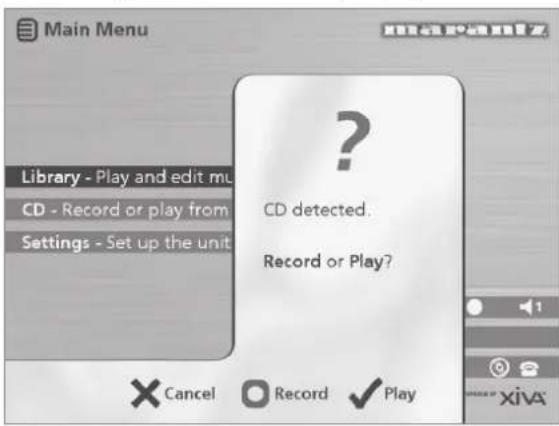
text_image
Main Menu Library - Play and edit mu CD - Record or play from Settings - Set up the unit ? CD detected. Record or Play? Cancel Record Play- Press the Record action key to record the album onto the Hard Disk.
Note: If you already have a CD in the tray, select the CD option from the Main Menu to display the contents of the disc; press the ☐ Rec. CD to begin recording.
The following display then allows you to choose whether to do an auto (one-touch) recording of the entire CD, or a custom recording which allows you to select the tracks you want to record and the recording quality:

text_image
Select CD Track Album 9 - Artist 103 1. Track 1 2. Track 2 3. Track 3 4. Track 4 5. Track 5 6. Track 6 7. Track 7 ? Please select Auto or Custom record. Cancel i Custom ✓ AutoTo make an auto (one-touch) recording
- Press the√ Auto key.
An Auto recording will automatically look up the track and artist information on an internet CD database, and then record all the tracks on the album.
The quality of the recording is specified in the Settings menu (under Recording Quality). For more information on the settings menu see the chapter called Advanced Settings p.25.
Once recording has begun your Music Server will connect to the Internet to retrieve the CD information:
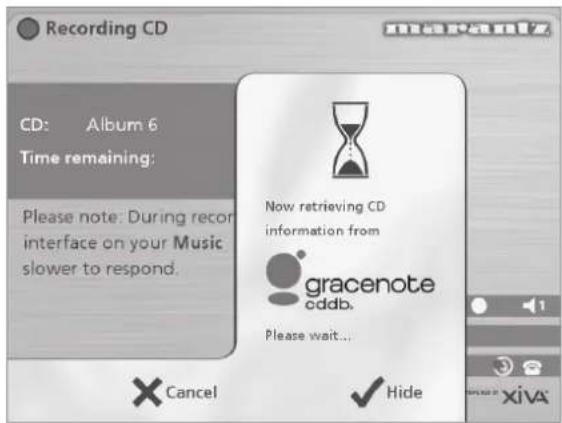
text_image
Recording CD CD: Album 6 Time remaining: Please note: During record interface on your Music slower to respond. Now retrieving CD information from gracenote cddb. Please wait... Cancel HideOnce the search has been completed you will receive a confirmation to tell you if the CD has been found.
Press the √ OK key to continue.
The following display shows the approximate progress of the recording:
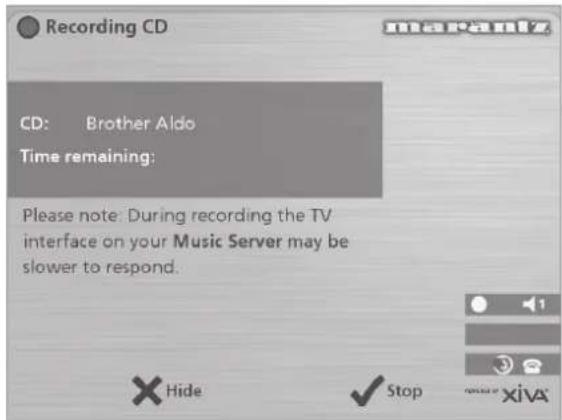
text_image
Recording CD CD: Brother Aldo Time remaining: Please note: During recording the TV interface on your Music Server may be slower to respond. × Hide ✓ Stop your xivaYou can cancel the recording at any time by pressing the √ Stop key.
Once recording is complete the following screen confirms how many tracks have been successfully recorded.

text_image
Recording CD CD: Brother Aldo Time remaining: Less t Please note: During record interface on your Music slower to respond. CD recording finished. 3 tracks recorded. OKMaking a custom recording
The custom recording option lets you choose which tracks to record, the sound quality of the recording, and allows you to enter album information.
To make a custom recording:
- Choose Custom from the "Please select Auto or Custom record" screen.
A series of screens allow you to specify each of the recording options.
Tracks
The tracks menu lets you specify which tracks you want to record:
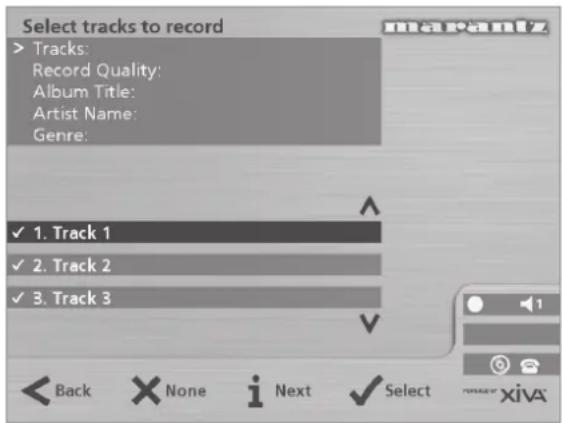
text_image
Select tracks to record > Tracks: Record Quality: Album Title: Artist Name: Genre: ✓ 1. Track 1 ✓ 2. Track 2 ✓ 3. Track 3 Back None Next Select xivaInitially all tracks are selected, as indicated by a√ in front of the track number.
- Press the√ Select key to unselect or select the highlighted track.
- Press the∧ or∨ keys to step between tracks.
- Press the ✗ None/All action key to unselect or select all of the tracks respectively.
When you have specified which tracks you want to record:
- Press thei Next key.
Record Quality
The Record Quality menu allows you to specify the recording quality:
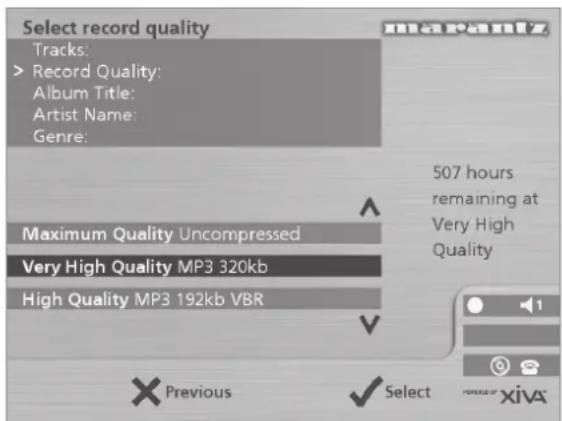
text_image
Select record quality Tracks: > Record Quality: Album Title: Artist Name: Genre: Maximum Quality Uncompressed Very High Quality MP3 320kb High Quality MP3 192kb VBR 507 hours remaining at Very High Quality Previous Select• Use the∧ or∨ keys to choose between Maximum (no compression used) or one of the MP3 compression options.
Note: The higher quality options use more space on your Music Server Hard Disk, so you will not be able to record as many CDs.
In each case the display shows the total remaining recording time available at the specified recording quality.
- Press the√ Select key to confirm your selection.
CD information
The CD information screen allows you to choose how to enter the album name, artist name, genre and tracks:
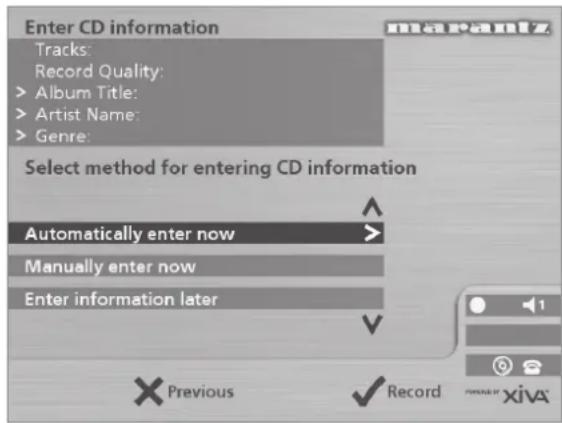
text_image
Enter CD information Tracks: Record Quality: > Album Title: > Artist Name: > Genre: Select method for entering CD information Automatically enter now > Manually enter now Enter information later Previous RecordIf you select Enter Information Later you can download the CD Information for all the CDs you have recorded by choosing Connect from the Main Menu menu at a later time.
If you select Manually enter now a series of menus prompts you to enter the album name, artist name, and track titles:

text_image
Enter album title Tracks: Record Quality: Enter album title: Album 11 ← a b c d e f g h i j k l m n o p q r s t u v w x y z space 1 2 3 4 5 6 7 8 9 0 - / ( ) . @ * , ? ! & : ; " ' % Enter text with the number keys on the remote or by using the arrow and √Select keys to choose a character from the grid. Previous i Next- Edit the album and artist name using the alphanumeric keys on your Music Server remote control or by using the text grid on the front panel.
For more information about entering and editing names see the Chapter called Entering and editing names, p.23.
After entering the album name and artist name, you will be prompted to select a genre:
• Select a genre using the∧ and∨ keys.
- Press the√ Select action key to confirm your choice.
You will finally be prompted to enter the track titles.
- Edit each track title in the usual way, and press the i Next key once each title is complete.
- Once all the entries are complete recording will commence automatically.
If you select Automatically enter now your Music Server will attempt to connect to the Internet to retrieve the correct CD information. You will receive confirmation if this search has been successful once the connection is complete. For information about setting up the Internet connection see Registering your Music Server p.13.
If you do not have an Internet connection, or the CD is not listed in the database it will be given names such as Album 35, Artist 21, and Track 1, Track 2 etc. and it will be classified in genre Unclassifiable.
CD-Text Support
If the CD you have inserted contains CD-Text information your Music Server will use this information to label the recording appropriately.
Listening to music while recording a CD
You can play music from your music library while you are recording a CD.
- If you are already playing music from the library press the ▶ Output action key to return to displaying information about the track you are playing.
- If you are not already playing music from the library or wish to change the music you are listening to, press the menu key on the Music Server remote control and select Music as normal.
For more information on selecting music for playback see the Chapter called Playing Music p.18.
At any time you can return to see the progress of your recording by selecting CD from the Main Menu.
Note: During the recording process the update of the TV display may be slightly slower.
PLAYING MUSIC
This chapter explains how to play music on your Music Server. It also explains how to search for a track in a number of alternative ways.
- Display the Main Menu by pressing the menu action key on your Music Server remote control.
• If necessary use the ∧ or ∨ keys to highlight Library. - Press the√ Select key.
The Library menu will be displayed. This lets you choose how you want to browse your music collection:
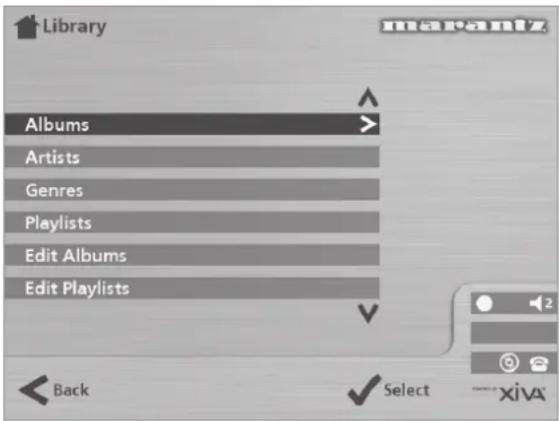
text_image
Library Albums > Artists Genres Playlists Edit Albums Edit Playlists Back Select XiVaOption Description
| Albums | Display a list of albums in the library sorted alphabetically by album title. |
| Artists | Display your music library grouped by artist name. |
| Genres Display your music library grouped by genre. | |
| Playlist Display a complete list of custom playlists. | |
| Edit Albums | Edit the album title, artist name, genre or track name of existing music in your library. |
| Edit Playlists | Use this option to create and edit custom playlists. |
Alternatively you can display the contents of a category directly by pressing the ALBUM, ARTIST, GENRE, PLAYLIST keys on your Music Server remote control.
To browse the library by album
Either:
• Use the∧ or∨ keys if necessary to highlight the Albums option in the Library Menu.
- Press the√ Select action key to confirm your selection.
or:
- Press the ALBUM key on your Music Server remote control.
The front panel display and TV screen both display the albums available in your library:
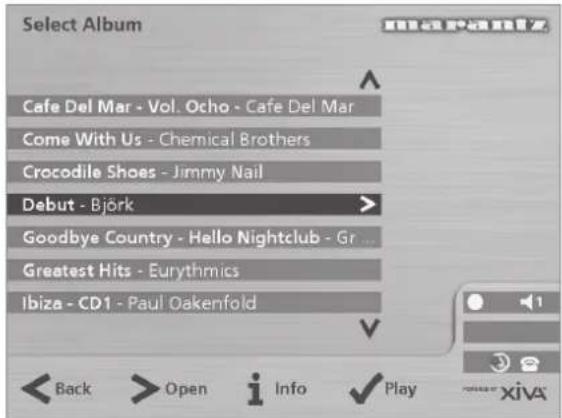
text_image
Select Album Cafe Del Mar - Vol. Ocho - Cafe Del Mar Come With Us - Chemical Brothers Crocodile Shoes - Jimmy Nail Debut - Björk Goodbye Country - Hello Nightclub - Gr... Greatest Hits - Eurythmics Ibiza - CD1 - Paul Oakenfold Back > Open i Info Play xiva- Press the∧ or∨ keys to step between albums, or press the appropriate letter on your Music Server remote control to jump directly to that position in the list.
To play the entire album:
- Press the√ Play action key to begin playback.
To select a particular track from this album:
- Press the> Open key to open the album and display the tracks it contains.
- Use the∧ or∨ keys to step between tracks, or press a key on the alphanumeric keypad to jump to that track number.
- Press the √ Play action key to play the currently selected track.
- Press the< key to return to browsing by album.
To browse the library by artist
Either:
• Use the∧ or∨ keys if necessary to highlight the Artists option in the Library menu.
- Press the√ Select action key to confirm your selection.
or:
- Press the ARTIST key on your Music Server remote control.
The front panel display and TV screen both display the artists available in your library:
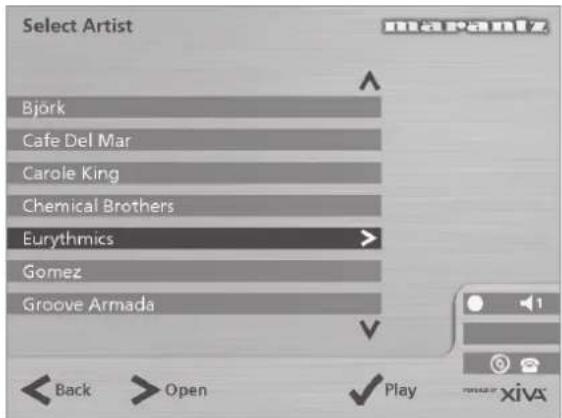
text_image
Select Artist Björk Cafe Del Mar Carole King Chemical Brothers Eurythmics Gomez Groove Armada Back Open Play XivaArtists are displayed in alphabetical order.
- Press the ∧ or ∨ keys to step between artists, or press the appropriate letter on your remote control
to jump directly to the item in the list beginning with that letter.
To play all albums by the selected artist
- Press the√ Play key to begin playback.
To play a particular album by the selected artist
- Press the> Open key to display all the available albums by the selected artist.
• Use the∧ or∨ keys to step between albums.
Either:
- Press the √ Play action key to play the currently selected album.
Or:
- Press the> Open key again to select a track from within this album.
Or:
- Press the< key to return to browsing by artist.
To browse the library by genre
Either:
• Use the∧ or∨ keys if necessary to highlight the Genres option in the Library menu.
- Press the√ Select action key to confirm your selection.
or:
- Press the GENRE key on your Music Server remote control.
The front panel and TV screen both display the genres available in your library:

text_image
Select Genre Alternative & Punk > Blues Books & Spoken Children's Music Classical Country Data Back > Open Play Xiva- Press the∧ or∨ keys to step between genres.
To play all albums in a selected genre
• Press the √ Play key to begin playback.
To play a particular album from the selected genre
- Press the> Open key to display all the available albums in the selected genre.
• Use the∧ or∨ keys to step between albums.
Either:
• Press the √ Play action key to play the currently selected album.
Or:
- Press the> Open key again to select a track from within this album.
Or:
- Press the< key to return to browsing by genre.
To Browse the library by playlist
Playlists allow you to create your own selections of tracks and save them with a name of your choice such as Party Music. For more information about creating a playlist see To create a new Playlist p.22.
Either:
• Use the∧ or∨ keys if necessary to highlight the Playlists option in the Library menu.
- Press the√ Select action key to confirm your selection.
or:
- Press the PLAYLIST key on your Music Server remote control.
The front panel and TV screen both display the Playlists available in your library:

text_image
Select Playlist Bens Mix Chill Out Dad's Favourites Top Jazz Back > Open i Info PlayNote: If you have not yet created any playlists the list will be empty.
- Press the^ or√ keys to step between playlists, or press the appropriate letter on your Music Server remote control to jump directly to the item in the list beginning with that letter.
- Press the √ Play key to begin playback.
Selecting items directly using your Music Server remote control.
You can select an album, artist, genre or playlist directly by the first letter of its title using the alphanumeric keypad on your Music Server remote control.
To select an album, artist, genre or playlist by name
- Display the appropriate library menu for the item you want to find (e.g. Select Artist menu).
- Press the alphanumeric keypad key corresponding to the first letter of the item you want to select.
For example to find the artist Santessa press the ARTIST key to display the Select Artist menu, then press the 7 key four times because S is the fourth letter on the 7 key. The front panel and TV screen show the first artist beginning with the letter S.
If there are several artists beginning with the letter S press theV key to step through until you find the artist you are looking for.
To select a track by number
- Display the list of tracks in the album or playlist.
- Press the key on the alphanumeric keypad corresponding to the track number you want to select.
Selecting an album by number
Each album you have recorded onto the Hard Disk of your Music Server is allocated a sequence number, from zero upwards. If you know the number of the album you want to listen to you can select it directly by number using the alphanumeric keys on your Music Server remote control.
- Press the 0 key followed by the number of the album.
For example, to select album 27 press ALBUM,0,2,7.
The front panel displays:

text_image
Select Item Number: 027 ✓ + 0 1 2 3 4 5 6 7 X iOK- Press the i OK action key to finish entering the album number.
- Press the √ Play action key once again to begin playing the album.
Your Music Server allows you to play a CD directly without recording it to the Hard Disk first.
To play a disc:
- Press the OPEN/CLOSE key on the front panel to open the CD tray.
- Place a CD in the tray with the label side facing upwards.
- Push the OPEN/CLOSE key on the front panel.
The following prompt is automatically displayed:
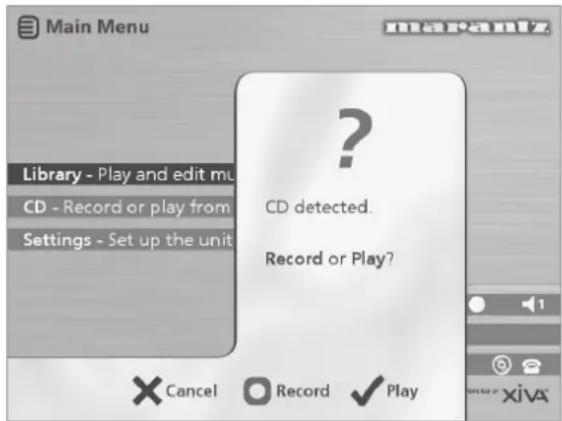
text_image
Main Menu Library - Play and edit mu CD - Record or play from Settings - Set up the unit ? CD detected. Record or Play?Alternatively if you already have a CD in the tray select the CD option from the Main Menu.
- Press the √ Play action key to begin playing the CD.
THE OUTPUT SCREEN
Whenever you select an item for playback the following screen is displayed:
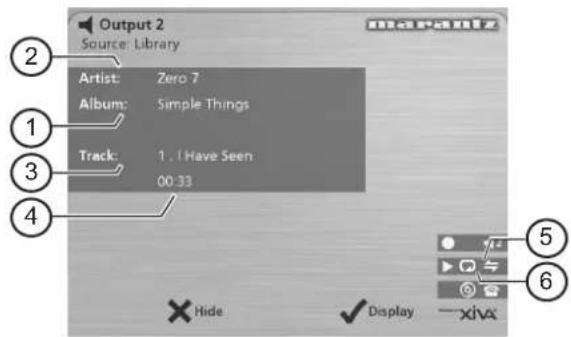
text_image
Output 2 Source: Library Artist: Zero 7 Album: Simple Things Track: 1. I Have Seen 00:33 ② ① ③ ④ ⑤ ⑥ × Hide ✓ Display — xivaThe front panel displays:

text_image
Out. 1 ▶ Playing 0‡ I Have Seen [1] 00:33 Menu XHide ✓Disp- Indicates the title of the album.
- Indicates the title of the artist.
- Indicates the name of the track currently playing.
- Displays either track time or time remaining for the current track.
- Indicates that random playback is enabled.
- Indicates that repeat playback is enabled.
- Indicates that the unit is playing from an item in the Hard Disk library.
You can display the output screen at any time by pressing the ▶ Output key. The output key may also be used to select a different output on the Music Server; for more information see the chapter called Using your Music Server in a multiroom system p.27.
To change the displayed information
You can choose what information is displayed on the TV screen and front panel display whilst playing;
- Press the √ Display action key to step between the following four options:
Track name, track number, and elapsed time for the current track:
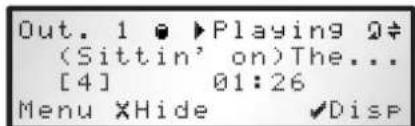
text_image
Out. 1 ▶ Playing 0‡ (Sittin' on)The... [4] 01:26 Menu XHide ✓DispTrack name, track number, and time remaining for the current track:

text_image
Out. 1 ▶ Playing 0# (Sittin' on)The... [4] -01:26 Menu XHide ✓DispAlbum name and track name:

text_image
Out. 1 ▶ Playing 0# Classic Soul Vol.1 (Sittin' on)The... Menu XHide ✓DispArtist name and track name:

text_image
Out. 1 ▶ Playing Ⓧ Various Artists (Sittin' on)The... Menu XHide ✓DispWhether you are playing music from the library or directly from the CD you can pause, stop and resume playback as well as seek and skip tracks at any time.
To pause play
- Press press key on the front panel or your Music Music Server remote control.
To stop play
- Press the's key on the front panel or your Music Server remote control.
To resume play
- Press the▶ key on the front panel or your Music Server remote control.
To skip to the next or previous track
- Press the◀ or▶ key on the front panel or your Music Server remote control.
The front panel display shows the number of each track as you skip between them.
To seek within a track
- Hold down the◀ or▶ key on the front panel or your Music Server remote control.
Play resumes from the new position when you release the key.
Random and repeat playback
Your Music Server lets you play albums, artists, genres or playlists in a random order to add variety to your music. You can also play a selection repeatedly.
To randomise the current selection
- Press the key on your Music Server remote control.
Press the→ key again to disable random playback.
To repeat the current selection
- Press the ☑ key on your Music Server remote control.
Press the 2 key again to disable repeat playback.
The front panel and TV screen indicate that both random and repeat are enabled.
This chapter describes the features built into your Music Server to help you organise the music in your music library, including information about creating playlists of your favourite tracks, deleting albums or tracks you no longer want to store, and naming albums, tracks, and artists.
USING PLAYLISTS
Your Music Server allows you to create your own selections of tracks, called playlists, and identify them with a name of your choice. For example, you could select your favourite party tracks from a number of different albums and include them in a playlist called Party Music. You can then play your selection simply by choosing the appropriate playlist from the Select Playlist menu.
To create a new playlist
- Display the Main Menu by pressing the Menu key on your Music Server remote control.
- Press the^ or√ key to highlight the Library option and press the√ Select action key.
- Press the^ or√ key to highlight the Edit Playlists option and press the√ Select action key.
The existing playlists will be displayed:
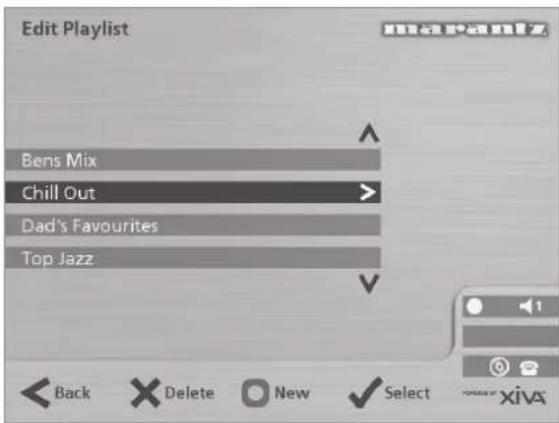
text_image
Edit Playlist Bens Mix Chill Out Dad's Favourites Top Jazz Back Delete New Select xivaIf you have not previously created a playlist this list will be empty.
• Press the ☐ New key to create a new playlist.
• The following menu then allows you to enter a name for the playlist:
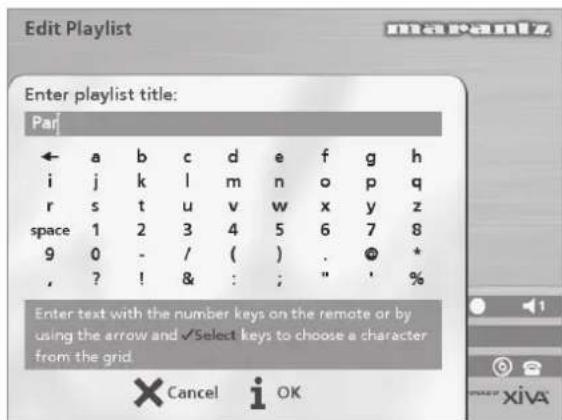
text_image
Edit Playlist Enter playlist title: Parj ← a b c d e f g h i j k l m n o p q r s t u v w x y z space 1 2 3 4 5 6 7 8 9 0 - / ( ) . * * , ? ! & : ; " ' % Enter text with the number keys on the remote or by using the arrow and √Select keys to choose a character from the grid. Cancel i OK- Enter a name for the playlist using the alphanumeric keys on your Music Server remote control or using the grid.
For more information about entering names see the chapter called Entering and editing names, p.23.
• Press the i OK action key to confirm the name you have entered.
To select items for a playlist
- Press the^ or√ key to highlight the Edit Tracks option and press the√ Select action key.
You will then be prompted to select the items that you want to include in the playlist:

text_image
Edit Playlist Track Party Music: No tracks added. There are no tracks in this playlist. To add music to this playlist press Add.- Press the Add action key.
The Add Music Menu then lets you browse through the music library to select the first item you want to add to the playlist.
You can add whole albums, complete genres, all the albums by a selected artist, another playlist, or individual tracks. For more information on browsing the music library refer to Playing Music from the Library p.18.
When you have located the album, genre, artist, playlist or track you want to add:
- Press the√ Add action key to add it to the playlist.
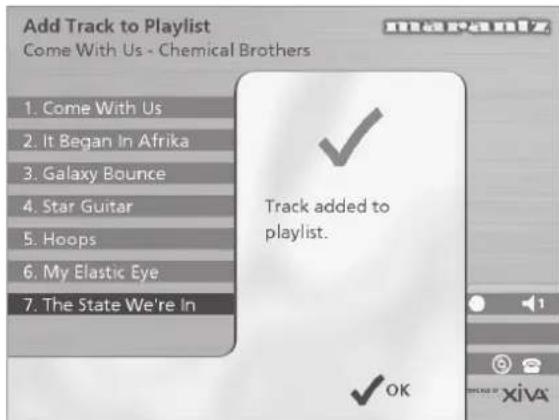
text_image
Add Track to Playlist Come With Us - Chemical Brothers 1. Come With Us 2. It Began In Afrika 3. Galaxy Bounce 4. Star Guitar 5. Hoops 6. My Elastic Eye 7. The State We're In Track added to playlist. OK• Press the √ OK action key to continue.
When you have finished compiling the playlist:
- Press the Done action key to finish adding tracks.
• Press√ OK to confirm your action.
The tracks you have added will be shown in the playlist:
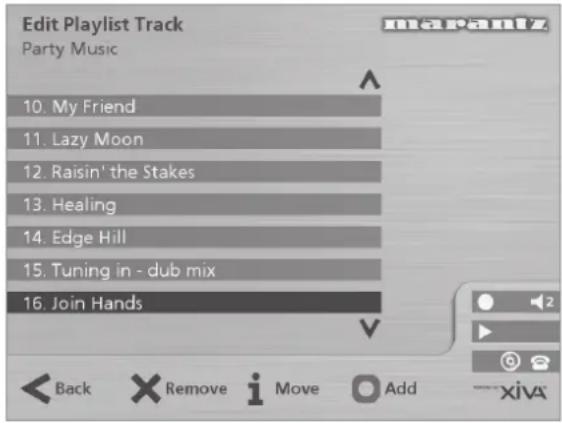
text_image
Edit Playlist Track Party Music 10. My Friend 11. Lazy Moon 12. Raisin' the Stakes 13. Healing 14. Edge Hill 15. Tuning in - dub mix 16. Join HandsEditing a Playlist
You can change a playlist at any stage by adding items, deleting tracks, or changing position of tracks in the playlist.
To add items to a playlist
Either:
- Select the playlist you want to change from the Select Playlist menu in the library.
- Press the i Info action key to display the Playlist Information menu.
- Use the∧ or∨ keys to highlight the Edit tracks option and press the√ Select action key.
Or:
- Select Edit Playlists from the Library menu and highlight the playlist you want to change.
- Press the√ Select action key to open the playlist for editing.
- Use the or keys to highlight the Edit tracks option and press the Select action key.
Once you have selected the appropriate playlist:
- Press the Add action key to add new tracks, and locate the item you want to add by browsing through the music library.
To remove a track from a playlist.
- Open the playlist as previously described.
- Press the∧ or∨ keys to highlight the track you want to remove.
- Press the ✗ Remove action key to remove the track.
- Press the√ Remove action key to confirm your choice.
To change the position of a track within a playlist.
- Open the playlist as previously described.
- Press the∧ or∨ keys to highlight the track you want to change.
• Press the i Move action key to move the track. - Press the∧ or∨ keys to move the track up or down as required.
- Press the√ Store key to confirm the new track position.
To edit album information
• Display the Main Menu by pressing the menu key on your Music Server remote control.
- Press the^ or√ key to highlight the Library option and press the√ Select action key.
Either:
- Press the^ or√ key to highlight the Edit albums option and press the√ Select action key.
- Select the album you want to edit and press the √ Select action key.
Or:
- Press the^ or√ key to highlight the Albums option and press the√ Select action key.
- Select the album you want to edit and press the i Info action key.
The following menu allows you to choose information to edit:

text_image
Album Information Title: The Silver Collection Artist: Dusty Springfield Genre: Easy Listening Edit Tracks Back i Edit- Select the item you want to edit and press the i Edit action key.
• Proceed as follows to enter a new name.
ENTERING AND EDITING NAMES
Your Music Server labels the albums, artists, tracks, and playlists in your music library with names which identify the track you are listening to, and these help you locate items when you are browsing through the library.
If you have an Internet connection, your Music Server reads the CD information automatically from the Internet CD database. Alternatively you can enter the names manually, using the front panel or your Music Server remote control. You can also edit the names at any stage to suit your own preferences.
To enter text using the alphanumeric keypad
- Press the> or< keys to move the cursor to the required position.
- Use the keys on the alphanumeric keypad to enter a letter.
For example to enter S press the 7 key four times, because S is the fourth letter on the 7 key.
- Press the DELETE key on your Music Server remote control to delete letters.
- Press the CAPS key on either the front panel or your Music Server remote control to switch between upper-case and lower-case letters.
To select letters from a grid
Alternatively, the Grid option provides a convenient way of selecting letters from a grid:
- Press theV key to move the cursor into the grid area.
The currently selected letter is highlighted:

text_image
Album Information Edit album title: Goodbye Country - Hello Nightclub ← a b c d e f g h i j k l m n o p q r s t u v w x y z space 1 2 3 4 5 6 7 8 9 0 - / ( ) . * * , ? ! & : ; " ' % Enter text with the number keys on the remote or by using the arrow and √Select keys to choose a character from the grid. Cancel i OK• Use the> < ∧ or ∨ keys to move the cursor and press the √ Select action key to enter each letter.
- Use the CAPS key on either the front panel or the Music Server remote to switch between upper and lower case letters.
If at any time you need to enter text in a different part of the text field, or you want to return to entering text using the alphanumeric keypad:
- Press the^ key repeatedly until the cursor returns to the text field.
Finally, when you have finished entering the name: - Press the i OK action key.
Deleting albums, tracks or playlists
You can delete albums, tracks or playlists you no longer want from your Music Server library.
- Display the Main Menu by pressing the menu key on your Music Server remote control.
- Press the^ or√ key to highlight the Library option and press the√ Select action key.
- Press the^ or√ key to highlight either the Edit Playlists or Edit Albums option and press the √ Select action key.
- Locate the album, playlist or track you want to delete.
- Press theX Delete action key to delete it.
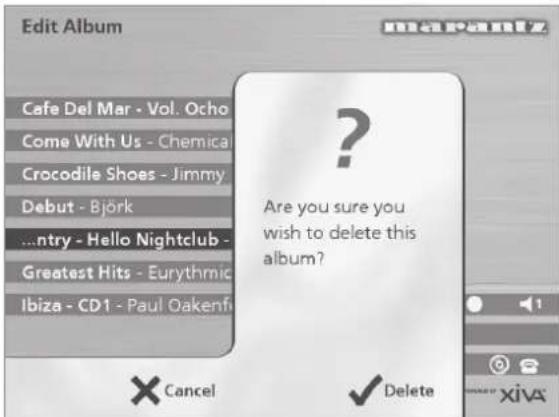
text_image
Edit Album Cafe Del Mar - Vol. Ocho Come With Us - Chemica Crocodile Shoes - Jimmy Debut - Björk ...ntry - Hello Nightclub - Greatest Hits - Eurythmic Ibiza - CD1 - Paul Oakenfi Are you sure you wish to delete this album? Cancel Delete- If you are sure you want to delete the item, press the √ Delete action key again to complete the operation.
Note: This operation will permanently remove information from your Hard Disk; you will need to re-record the album if you delete tracks or albums accidentally. However, deleting a playlist does not remove any music from the Hard Disk - the original albums are unaffected.
ADVANCED SETTINGS
This chapter describes the advanced settings that you can access from your Music Server's Settings Menu. These settings are configured automatically for you when you register your Music Server, and you should not normally need to alter them unless you want to change the configuration of your system.
To display the Settings Menu
- Display the Main Menu by pressing the menu key on your Music Server remote control.
- Press the∧ or∨ key to highlight the Settings option on the Main Menu.
- Press the √ Select action key to display the Settings menu:

text_image
Settings Menu Registration Details Internet Account Terms and Conditions Recording Quality (High) Language (English) System Information System Settings Back Select XivaThe following sections describes each of the options on the Settings menu.
Registration Details
Displays the registration details you entered when you registered your Music Server, and allows you to edit them:
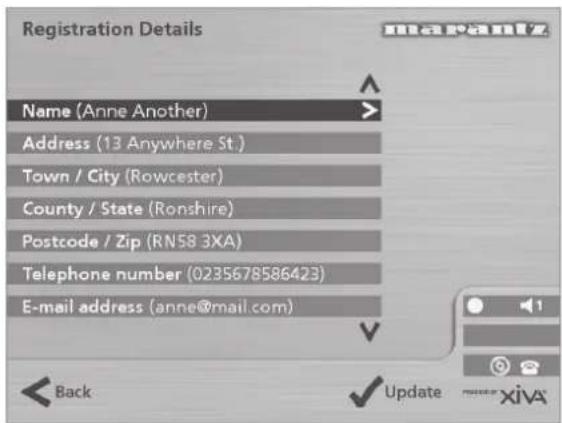
text_image
Registration Details Name (Anne Another) Address (13 Anywhere St.) Town / City (Rowcester) County / State (Ronshire) Postcode / Zip (RN58 3XA) Telephone number (0235678586423) E-mail address (anne@mail.com)If you change any of these options your revised registration details will automatically be re-transmitted the next time your Music Server connects to the Internet.
Internet Account
Displays your Internet account details and allows you to edit them:
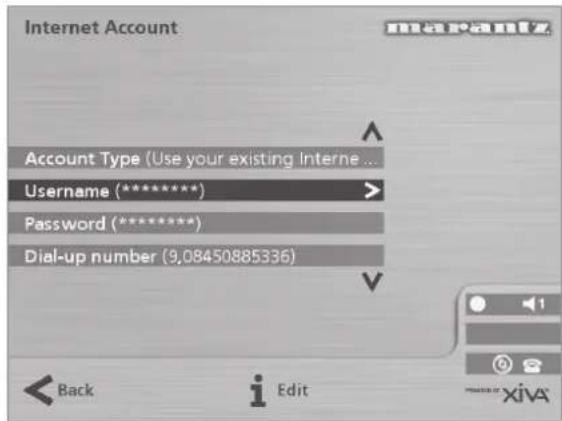
text_image
Internet Account Account Type (Use your existing Internet ... Username (**) Password (**) Dial-up number (9,08450885336)If you chose the Use Built-in Internet Account option when registering your Music Server, the Internet account details were set up automatically for you.
Terms and Conditions
Displays the sequence of terms and conditions screens that were displayed during registration, and allows you to decline or accept the following options:
- Whether you want to receive information on other Marantz products and services.
- Whether you want to receive information about music and other related products from reputable organisations.
If you change your acceptance of any of these options your revised choices will automatically be re-transmitted the next time your Music Server connects to the Internet.
Default Recording Quality
Allows you to specify the recording quality used when you record music using the Auto record option:
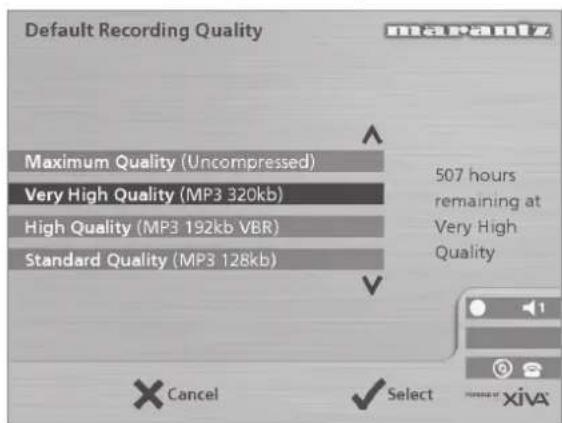
text_image
Default Recording Quality Maximum Quality (Uncompressed) Very High Quality (MP3 320kb) High Quality (MP3 192kb VBR) Standard Quality (MP3 128kb) 507 hours remaining at Very High Quality Cancel SelectFor each quality setting the screen shows the number of hours of recording time available at that setting.
Language
Allows you to select the language for the TV user interface - languages available are English, French, German, Italian, and Spanish.
System Information
Shows the serial number, production date, and software version number of your Music Server. You may need to quote these if you contact Marantz for technical support.
System Settings
Provides a series of menus to allow you to change the hardware configuration on your Music Server:
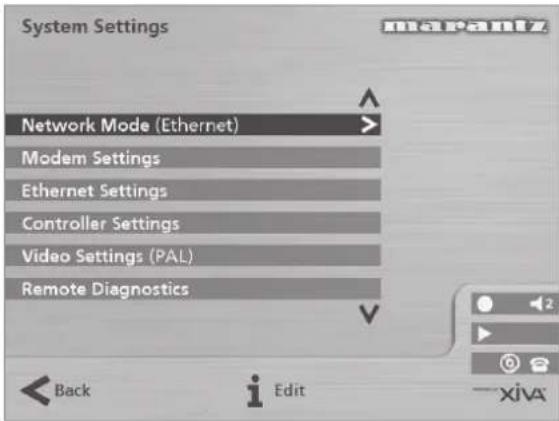
text_image
System Settings Network Mode (Ethernet) Modem Settings Ethernet Settings Controller Settings Video Settings (PAL) Remote Diagnostics Back Edit xivaThe following table summarises the settings available on each of the System Settings menus:
Option Description
| Network Mode | Specifies whether your Music Server connects to the Internet via the built-in modem or using the Ethernet port. |
| Modem Settings | Allows you to specify the following settings when connecting via the built-in modem: number of connection retries, the Assigned IP address and the Server IP address, the modem initialisation string, and whether to use tone or pulse dialling. |
| Ethernet Settings | Allows you to specify the following settings when connecting via the Ethernet port: IP address mode, IP address, IP Mask, Gateway, IP DNS1, IP DNS2. |
| Controller Settings | Specifies the communication speed for the Controller port on the rear of the unit. |
| Video settings | Specifies whether the unit is configured for PAL or NTSC use. |
| Remote Diagnostics | Select this option if instructed to set up your modem to receive incoming calls from Marantz technical support staff. |
Output Settings
The volume setting of each individual output of the Music Server may be configured as either variable or fixed.
If the volume setting is set to fixed the output level is set to maximum and the balance is set to the central position. In this mode the ▲ and ✗ Mute keys on the Music Server remote control do nothing*.
If the volume setting is set to variable the output level can be altered at any time using the ▶ and ✗ Mute keys on the Music Server remote control. A Balance option is also available from the Volume Settings menu which allows you to adjust the left/right balance.
*Note: The Music Server remote control can be configured so that when the HDD Audio device is selected the ▲ and ✗ Mute keys operate the volume and mute controls on an amplifier. For more information see the chapter called Configuring your remote to control other devices p.11.
USING MUSIC SERVER IN A MULTIROOM SYSTEM
The Music Server DH9300 is capable of playing different music in up to four rooms simultaneously. This chapter explains how the Music Server can be controlled from the remote room and how the TV interface has been designed to allow several users to access the music library.
BASIC CONFIGURATION
The rear panel of the Marantz Music Server has four Video Out connectors to allow up to four televisions to be connected directly to the Music Server as well as four independent analogue audio outputs and four Remote In data connections.
The diagram below shows the Music Server in a basic multiroom configuration. The connections required are as follows:
• Video Out 1, 2, 3 & 4 are connected to the composite input of a suitable television in each room.
Note: The same TV interface picture is distributed to all four televisions hence the order in which they are connected is not important.
• Analogue Audio 1, 2, 3 & 4 are each connected to the stereo input of an amplifier.
Note: If one of the amplifiers has a digital input the Digital Audio Out (coaxial or optical) connector may be used in preference to analogue output 1.
• Remote In 1, 2, 3, & 4 are connected to the System Control connection of a suitable amplifier.
Note: The Marantz System Control connection allows Marantz components to be linked together for integrated
remote operation. The System Control interface allows an amplifier to act as the remote control centre for an entire Marantz system; in this installation the System Control compatible amplifier acts as an infrared receiver for the remotely located Music Server.
REMOTE CONTROL USE IN A MULTIROOM SYSTEM
The multiroom Remote In connection allows the Music Server to determine which remote room is currently browsing the music library. For example if a user in room two presses a key on the Music Server remote control the TV user interface will automatically switch to the appropriate output for that room (by default this is output 2). In order to prevent users in other rooms from browsing the library, the TV interface control is given exclusively to the user in room two for a short period of time. This can be seen on the display below:
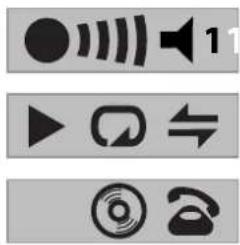
text_image
Three gray navigation and audio control icons: speaker, sound wave, play button, and telephone handsetThe number inside the circle indicates which remote currently has control of the TV interface. The bar to the right of this indicates how long the user has before the TV interface is available for other users to access. The number to the right of this indicates which output this user is currently controlling.
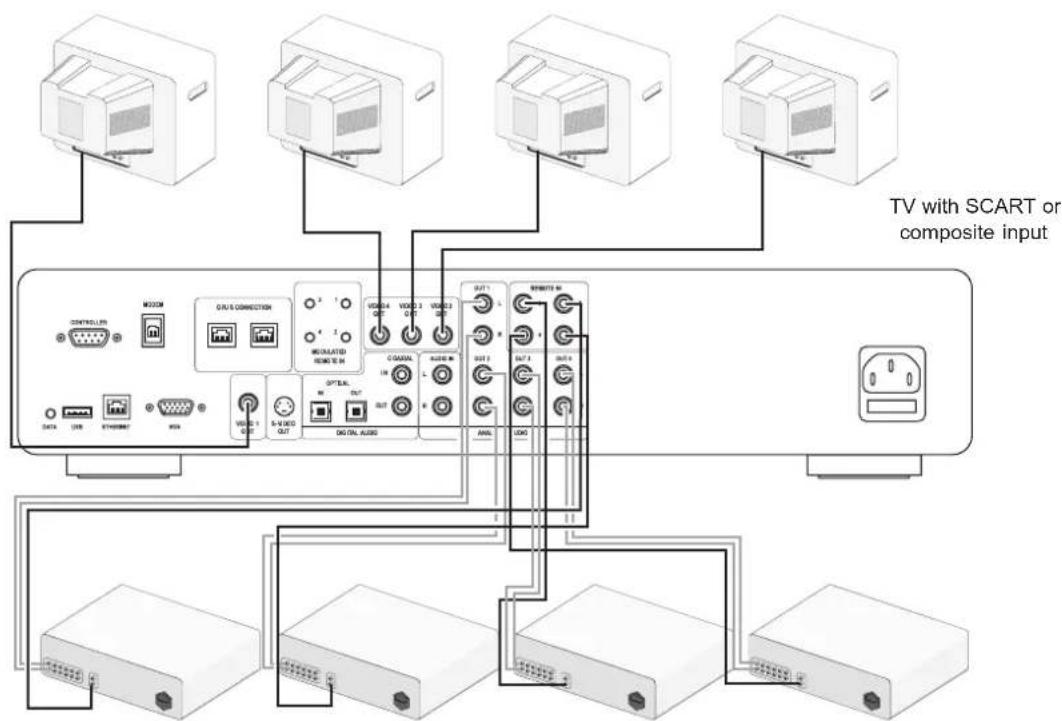
flowchart
graph TD
    A["TV with SCART or composite input"] --> B["Controller"]
    A --> C["Switch"]
    A --> D["Power Module"]
    B --> E["MO2CM"]
    C --> F["Q/R/S CONNECTION"]
    D --> G["MODULATED GROUND T/R"]
    D --> H["OPT/AL"]
    D --> I["OUT"]
    D --> J["DO/ON AL/OS"]
    E --> K["CONTROLLER"]
    F --> L["USB"]
    F --> M["SYMBOL"]
    F --> N["USB"]
    G --> O["COAM"]
    G --> P["AUXO R"]
    H --> Q["IN"]
    H --> R["L"]
    I --> S["OUT"]
    I --> T["R"]
    J --> U["ANL"]
    J --> V["L/OS"]
    K --> W["SCART"]
    L --> X["SCART"]
    M --> Y["SCART"]
    N --> Z["SCART"]
    O --> AA["SCART"]
    P --> AB["SCART"]
    Q --> AC["SCART"]
    R --> AD["SCART"]
    S --> AE["SCART"]
    T --> AF["SCART"]
    U --> AG["SCART"]
    V --> AH["SCART"]
    W --> AI["SCART"]
    X --> AJ["SCART"]
    Y --> AK["SCART"]
    Z --> AL["SCART"]
Stereo amplifier with System Control connector
THE OUTPUT BUTTON
Using the front panel output button
The output button on the front panel of the Music Server allows you to display information about the music you are currently listening to on each of the Music Server outputs. You can also use this key to control a different output of the Music Server using the keys on the front panel.
To change output on the Music Server
- Press the◀ Output key either on the front panel or on the Music Server remote.
The following screen is displayed:
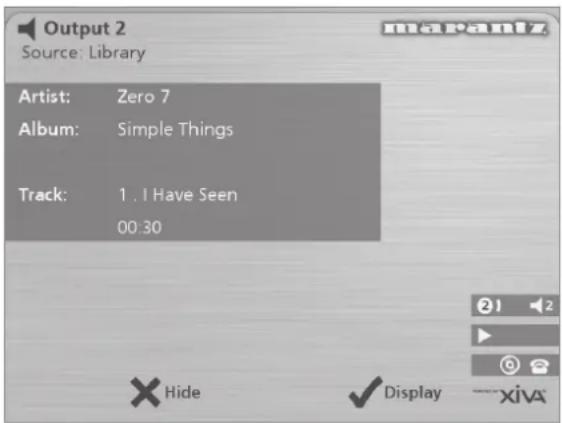
text_image
Output 2 Source: Library Artist: Zero 7 Album: Simple Things Track: 1 . I Have Seen 00:30 × Hide ✓ Display — xivaThe output screen indicates what is playing on the currently selected output.
- Press the◀ Output key again to switch to the next output.
- Once the required output number is displayed, press the ✗ Hide key to hide the output display.
Using the remote control output button
The Output button on the Music Server remote control allows you to display information about the music you are currently listening to. If remote control information is sent to the remote sensor on the front of the Music Server or to the Remote In 1 connection this button may also be used to control a different output of the Music Server (as shown above).
If remote control information is sent to Remote In connections 2, 3 and 4 the output button will only display information about the music currently playing on outputs 2, 3 and 4 respectively.
Using the Default o/p button
If remote control information is sent to the remote sensor on the front of the Music Server or to the Remote In 1 connection the user interface may be controlling any one of the four Music Server outputs (indicated by the on-screen status icons). The default o/p button can then be used to quickly return both the front panel and the TV display to controlling output 1 with Library menu displayed.
MULTIROOM CONTROL SYSTEMS
Your Music Server is also compatible with a number of leading multiroom control systems. The Controller port on the rear of the system uses a versatile protocol called XiVA-Link which allows access to most of the Music Server functions remotely.
Please contact your nearest Marantz representative for the current list of supported multiroom control systems.
GETTING HELP
TROUBLESHOOTING
If you think a malfunction has occurred, first check the points listed below. The problem is likely to have been caused by a simple operational error or a connection problem. If the problem cannot be corrected even after carrying out the following checks, consult your dealer or nearest Marantz sales office or service counter.
The front panel display does not light
- Is the mains lead plugged in properly at the wall?
- Is the mains lead plugged in properly at the back of the unit?
- Does another device operate correctly using this same mains outlet?
The system seems to be playing but no sound is heard
- Is the amplifier and speakers connected correctly?
•Is the amplifier switched on? - Is the amplifier's volume control set at the minimum level?
- Is the amplifier's selector switch set to the correct input (e.g. "CD" or "AUX")?
- Which output is the Music Server currently playing on (this is displayed on the TV screen)? Is this the output you have connected to the amplifier?
- Switch the unit to off mode, disconnect the mains supply and restart the unit.
The Music Server TV interface is not visible
- Is the TV switched on? Can other channels be viewed successfully?
- Is the TV switched to the correct AV input?
- Are you using the correct video cable to connect the TV?
The Music Server TV interface does not appear correctly
- Is the Music Server video type (PAL/NTSC) correctly configured for this TV type?
Remote control operation is not possible
- Is the remote control unit's transmitter pointed correctly at the remote sensor on the front of the Music Server?
- Is there an obstruction between the transmitter and the remote sensor?
- Are the batteries in the remote control exhausted?
- Is there another strong light (from a window etc.) striking the Music Server's remote sensor?
A CD/CD-R disc cannot be played
•Is the disc placed in upside down?
- Is the disc damaged, dirty, scratched or warped?
- Is the disc a valid audio format CD?
Some tracks of the CD cannot be recorded
- Is the disc damaged, dirty, scratched or warped?
- Are the failed tracks valid audio tracks?
OPERATING PRECAUTIONS
In the winter you may notice that condensation forms on the window of a well heated room.
Condensation may also occur inside the Music Server in the following situations:
- When the listening room is first heated.
- When the humidity in the room is high.
- When the unit is moved from a cold environment to a warm room.
In these situations it is best to leave the Music Server standing for a period of 2 hours, whilst the condensation is dispersed.
During periods of extended use you may notice that a small fan inside the unit starts to operate. This is part of normal operation to maintain a constant operating temperature inside the unit.
CLEANING OF EXTERIOR SURFACES
With proper care and cleaning, the exterior finish of your equipment will last indefinitely. Never use scouring pads, steel wool, scouring powders or harsh chemical agents (e.g. lye solution), alcohol, thinners, benzine, insecticide or other volatile substances, as these will mar the finish of the cabinet. Likewise, never use cloths containing chemical substances. If the equipment becomes dirty, wipe the external surfaces with a soft, lint-free cloth.
If the cabinet becomes heavily soiled:
- Dilute some washing-up liquid in water, in a ratio of one part detergent to six parts water
- Dip a soft, lint-free cloth in the solution and wring the cloth out until it is damp
•Wipe the equipment with the damp cloth
•Dry the equipment by wiping it with a dry cloth.
REPAIRS
Only the most competent and qualified service technicians should be allowed to service the equipment. The Marantz company and it's factory trained warranty station personnel have the knowledge and special facilities needed for the repair and calibration of this precision equipment. After the warranty period has expired, repairs will be performed for a charge if the equipment can be restored to normal operation.
In the event of difficulty, consult your dealer or write directly to the nearest location to you that is listed on the Marantz Authorised Service Station list. Please quote the model and serial number of the equipment and give a full description of what you think is abnormal about the equipment's behaviour. Please be aware that although we will endeavour to protect against loss Marantz and it's nominated service agents will not be held responsible for loss of music in any product returned for repair.
INDEX
A
ACCESSORIES 6
ACTION BUTTONS 8, 12
Cancel 10
Home 10
Info 10
Menu 10
Navigation 10
Rec 8
Select 10
ALBUM BUTTON 10, 18
ALBUMS, PLAYING 18
ALPHANUMERIC KEYPAD 23
ANALOGUE INPUT CONNECTION 9
ANALOGUE OUTPUT CONNECTION 9, 11
ARTIST BUTTON 10, 19
ARTISTS, PLAYING 19
AUTO RECORDING 16
B
BROWSING
Albums 18
Artists 19
Genres 19
Playlists 20
C
CANCEL BUTTON 10
COAXIAL DIGITAL IN CONNECTION 9
COAXIAL DIGITAL OUT CONNECTION 9
COMPOSITE TV OUTPUT CONNECTION 8, 11
CONFIGURING THE REMOTE 11
CONNECT 15
CONNECTIONS 7, 11
CONTROLLER CONNECTION 8, 26, 28
CUSTOM RECORDING 17
D
DATA CONNECTION 8
DEFAULT O/P BUTTON 9, 28
DELETING
Albums 24
Playlists 24
Tracks 24
DIGITAL OPTICAL IN CONNECTION 9
DIGITAL OPTICAL OUT CONNECTION 9
DISPLAY
Front panel 8, 12
TV 12
E
EDITING
Albums 23
Artists 23
Playlists 23
Tracks 23
EDITING NAMES 23
Alphanumeric keypad 14, 23
Grid 14, 23
ENTER TEXT 14, 23
ETHERNET CONNECTION 8, 26
F
FRONT PANEL 7
Controls 8
Display 12
G
GENRE BUTTON 10, 19
GENRES, PLAYING 19
GRID 14, 23
H
HDD AUDIO BUTTON 9
HOME BUTTON 10
|
INFO BUTTON 10
INTERNET CONNECTION 14, 25
L
LANGUAGE 25
M
MAIN MENU 15
MAINS CONNECTION 9, 11
MENU BUTTON 10
MODEM CONNECTION 8, 11, 26
MULTIROOM 27
Remote control 27
N
NAVIGATION BUTTONS 8, 10
0
OFF MODE 11
OPEN/CLOSE BUTTON 8
OUTPUT 13,28
OUTPUT BUTTON 8, 10, 28
OUTPUT SCREEN 21
OUTPUT SETTINGS 26
P
PAUSE BUTTON 8, 10
PLAY BUTTON 8,10
PLAYING MUSIC 18
Browse Albums 18
Browse Artists 19
Browse Genres 19
Browse Playlists 20
From a CD 20
From the library 18
Select a track by number 20
Select a track from an album 19
Select album by number 20
Select by letter 20
PLAYLIST BUTTON 10, 20
PLAYLISTS 22
Adding items 22, 23
Changing item positions 23
Creating 22
Editing 23
Removing items 23
PLAYLISTS, PLAYING 20
POWER/STANDBY BUTTON 8, 9, 11
R
RANDOM 10, 13, 21
REAR PANEL 7
Connections 8, 11
REC BUTTON 10
RECORDING FORMATS 25
RECORDING MUSIC 16
Auto record 16
Checking progress 18
Custom record 17
REGISTERING 13, 25
REMOTE CONTROL 9
Album 10
Amp 9
Artist 10
Cancel 10
Configuring 11
Default o/p 9
Disc/Ch. 10
Genre 10
HDD audio 9
Home 10
Info 10
Menu 10
Multiroom 13, 27
Mute 10, 11
Navigation 10
Numeric keys 10
Output 10
Pause 10
Play 10
Playlist 10
Random (Delete) 10
Record 10
Repeat (Caps) 10
Select 10
Skip back 10
Skip forward 10
Standby 9
Stop 10
TV 9
Volume 10, 11
REMOTE IN CONNECTION 9, 27
REPEAT 13, 21
REPEAT BUTTON 10
S
SWITCH TO STANDBY 8, 11, 12
SYSTEM CONTROL 27
SYSTEM INFORMATION 25
SYSTEM SETTINGS 26
T
TRACK LISTINGS 17
Automatically enter now 18
CD text 18
Enter information later 17
Manually enter now 17
TRACKS, PLAYING 19
TRANSPORT BUTTONS
Pause 8, 21
Play 8, 21
Seek 21
Skip back 8, 21
Skip forward 8, 21
Stop 8, 21
TV DISPLAY 12
VOLUME CONTROL 10, 11, 26
X
XIVA-LINK 8
CARTE DE DEMARRAGE RAPIDE
LES COMMANDES
FELICITATIONS POUR VOTRE ACHAT DE CET EXCELLENT PRODUIT MARANTZ.
10 MODULATED REMOTE IN
12 DIGITAL OPTICAL OUT
text_image
Enter standby mode or switch off? x iOff/Stbytext_image
Out. 1 ▶ Playing 0÷ Sha La La La Lee [1] 02:23 Menu XHide ✓Disptext_image
Out. 1 ▼ Playing 0‡ Various Artists (Sittin' on)The... Menu XHide ✓DispCONTROLE DE LA LECTURE
text_image
Four gray navigation icons with corresponding labels: sound wave, speaker, play button, and phoneANALOGUE IN, CONNEXION 8
ANALOGUE OUT, CONNEXION 8, 10, 26
ARRÊT, MODE 10
ARRÊT, TOUCHE 7, 9
ARTIST, TOUCHE 9, 18
ARTISTES, LECTURE 18
C
COAXIAL DIGITAL IN, CONNEXION 8
COAXIAL DIGITAL OUT, CONNEXION 8
CONFIGURATION DE LA TELECOMMANDE 10
CONNEXION 10
CONNEXION DE SORTIE ANALOGIQUE 10
CONNEXION POUR L'ALIMENTATION 10
CONTROLLER, CONNEXION 7, 25, 27
D
D'ANNULATION, TOUCHE 9
DATA, CONNEXION 7
DEFAULT O/P, TOUCHE 8, 27
DIGITAL OPTICAL IN, CONNEXION 8
DIGITAL OPTICAL OUT, CONNEXION 8
E
ENREGISTREMENT
Qualité du son 16
ENREGISTREMENT, AUTO 15
NAVIGATION, TOUCHES 7, 9
0
OBTENIR LES INFORMATIONS SUR LE CD 16
OPEN/CLOSE, TOUCHE 7
REMOTE IN, CONNEXION 8, 26
REPEAT 12, 20
REPEAT, TOUCHE 9
RÉPÉTER 12,20
S
Conector.... Conector RCA
- Salida VGA
Nivel de salida.... 0.75V _p-p /75Ω
Conector.... Conector RCA
- Salidas digitales
Salida óptica digital....Conector óptico digital (Toslink)
Nivel de salida digital coaxial.... 500mV /75Ω
Conector de salida digital coaxial..... Conector RCA
Conector.... RJ45 (10 Base T/100 Base T)
- Controlador
Conector.... Conector RCA
- Modulated Remote In
Pilas AAA (R03P).... 2
10 MODULATED REMOTE IN
12 DIGITAL OPTICAL OUT
14 COAXIAL DIGITAL OUT
text_image
Out. 1 ▶ Playing 0÷ Sha La La La Lee [1] 02:23 Menu XHide ✓Disptext_image
Out. 1 ▶ Playing 0# (Sittin' on)The... [4] 01:26 Menu XHide ✓Disptext_image
Out. 1 ▶ Playing 0‡ Various Artists (Sittin' on)The... Menu XHide ✓Disptext_image
Three gray navigation and audio control icons: speaker, play button, and phonetext_image
5 1 6 3 4 HDD Audio Te Audio Default info + - Multi Output Disc Cn Select Album Artist Gerve Paylist -VI/20" abc set 1 2 3 gha id inno 4 5 6 pass try vxyz 7 8 9 0 scumbers ✓ ✓ ✓ ✓ ✓ ✓ ✓ ✓ ✓ ✓10 MODULATED REMOTE IN
12 DIGITAL OPTICAL OUT
14 DIGITAL AUDIO OUT - KOAXIAL
text_image
Out. 4 ▶ Playing 0÷ Southside [8] -00:02 Menu XHide ✓Disptext_image
Out. 1 ▶ Playing 0# (Sittin' on)The... [4] 01:26 Menu XHide ✓Disptext_image
Out. 1 ▶ Playing 0# Various Artists (Sittin' on)The... Menu XHide ✓DispWIEDERGABESTEUERUNG
text_image
Three gray navigation icons with speaker, play, and phone symbols, numbered 1 to 8WIEDERHOLEN 12, 20, 21
X
XIVA 4
XIVA-LINK 7
Z
ZUBEHÖR 5
ZUFALL 9
ZUFÄLLIG 12, 20
ZURÜCK 7,9
GRAETZ 153,073,081,011,012,121,123,124,125
GRANADA 001, 002, 003, 004, 106, 055, 004, 031, 006, 007, 073, 043, 009, 154, 010, 032, 013, 014, 015, 016, 125
GRANDIN 010
GREAT WALL 156
GRUNDIG 085, 087, 091, 022, 073, 093, 094, 096, 076, 113, 130
HANSEATIC 055, 004, 031, 007, 081, 118, 119
HCM 001, 002, 003, 004, 004, 006, 007, 008, 009, 013, 014, 015, 016, 018
HIFI VOX 112, 135, 107, 139, 042, 059
HINARI 098, 055, 111, 008, 017, 018
HIT 146
HITACHI 062, 055, 157, 063, 031, 111, 042, 065, 081, 118, 010, 066, 120, 158, 125, 070, 040, 072
HYPER 031, 151
ICE 001, 002, 003, 004, 004, 006, 007, 008, 009, 017, 013, 014, 015, 016, 018, 151
IMPERIAL 001, 002, 003, 004, 034, 138, 143, 004, 006, 007, 146, 008, 024, 081, 009, 154, 119, 010, 013, 014, 015, 016, 121, 048, 158, 125, 097, 018, 077, 086, 114
INGELEN 153,073,081,011,012,121,123,124,125
INNO HIT 004, 031, 111, 027, 018
INTERFUNK 004, 007, 146, 042, 073, 081, 154, 012, 121, 123, 040
IRRADIO 111,021,027,018,116
ITC 158
ITS 008, 017, 018, 309, 151
ITT 153,073,117,081,011,012,121,123,124,125,126,036,079
JET POINT 152,084
JVC 055, 163, 164, 151
KAIDO 010
KAISUI 017, 156
KAPSCH 109, 081, 010, 121, 125
KARCHER 001, 002, 003, 004, 004, 006, 007, 009, 013, 014, 015, 016, 097
KAWA 151
KENDO 010
KENNEDY 088, 089, 109, 092, 081, 125, 077
KINDO 010
KNEISSEL 001, 002, 003, 004, 004, 006, 007, 009, 013, 014, 016
KOERTING 085, 146, 086,
KONKA 151
KORTING 146, 119
KRIESLER 031, 007, 146, 109, 154, 099
KUBA 081
KUBA ELECTRONIC 012
LENCO 001, 002, 003, 004, 004, 006, 007, 008, 009, 013, 014, 015, 016, 079
LENOIR 031
LIESENKOETTER 001, 002, 003, 004, 143, 004, 006, 007, 009, 013, 014, 015, 016
LIFETEC 001, 002, 003, 004, 004, 006, 007, 008, 009, 017, 013, 014, 015, 016, 079
LOEWE OPTA 001, 004, 006, 007, 146, 014
LOGIK 057
LOEWE 001, 002, 003, 004, 004, 006, 007, 146, 009, 032, 013, 014, 015, 016
LUMA 007, 109, 010, 161, 125
LUXOR 146,073,118,010,120,161,011,012,123,126,036,049,132,114,116
MAGNADYNE 146,081,158
MAGNAFON 031, 021
MAGNASONIC 001, 002, 003, 004, 004, 006, 007, 009, 013, 014, 015, 016
MARANTZ 001, 002, 003, 004, 103, 104, 004, 031, 006, 007, 146, 109, 009, 154, 013, 014, 015, 016, 099, 072, 155, 129
MARSHAL 017
MATSUI 098, 031, 043, 010, 057, 125, 018, 130
McMICHAEL 072
MEDION 001, 002, 003, 004, 004, 006, 007, 009, 013, 014, 015, 016
MEMOREX 008,018
METZ 085, 036, 087, 091, 146, 096, 131
MINERVA 085, 087, 022, 073, 096
MITSUBISHI 001, 002, 003, 004, 055, 020, 004, 006, 087, 007, 146, 045, 009, 057, 013, 014, 015, 016
MIVAR 031, 030, 075, 032, 006
MTC 004, 081, 086
MULTITECH 031, 010, 097, 018
MURPHY 125
NAONIS 088, 089, 109, 010, 125
NATIONAL 080, 137, 144, 150, 145, 081, 082, 083
NEC 055,020,156
| NECKERMANN 060, 166, 053, 001, 002, 003, 004, 085, 143, 056, 004, 031, 006, 091, 007, 146, 081, 118, 009, 119, 010, 096, 161, 013, 068, 014, 015, 016, 097 |
| NEI 001, 002, 003, 004, 004, 006, 007,009, 017, 047, 013, 014, 015, 016 |
NIKKAI 111, 043, 017
NISSAN 084
NOBLEX 127, 128
NOBLIKO 031, 021, 022
NOGAMATIC 135, 139, 042
| NOKIA 153, 001, 002, 003, 004, 004, 006, |
| 007, 149, 008, 073, 117, 081, 118, |
| 009, 010, 120, 011, 012, 013, 014, |
| 015, 016, 121, 123, 124, 125, 126, |
| 036, 079, 132, 084, 114 |
NORDMENDE 034, 035, 106, 112, 135, 139, 037, 042, 147, 040
| NORMN 001, 002, 003, 004, 004, 006, 007, 009, 013, 014, 015, 016 |
NOVA 095
OCEANIC 081, 118, 010, 012, 036
| OKANO 001, 002, 003, 004, 004, 006, 007,009, 013, 014, 015, 016, 097 |
ONCEAS 031
ONWA 008, 017, 151
| ORAVA 001, 002, 003, 004, 004, 006, 007,009, 013, 014, 015, 016 |
ORBITER 086
| ORION | 098, 001, 002, 003, 004, 004, 036, 006, 007, 111, 008, 009, 010, 017, 012, 013, 014, 015, 016, 018 |
OSAKI 043
OSIO 027
OSUME 102
| OTTO VERSAND | 153, 166, 053, 001, 002, 003, 004, 054, 035, 106, 055, 085, 063, 056, 137, 004, 006, 087, 091, 007, 145, 081, 118, 009, 119, 010, 096, 012, 013, 014, 015, 016, 158, 018, 086, 151, 318 |
P.T ACTRON 009
PAEL 031,021
| PANASONIC | 080, 137, 144, 150, 145, 081, 082, 083, 207, 131 |
PATHE CINEMA 031, 119, 033, 158
PATHE MARCONI 135, 139, 042
PERDIO 043
| PHILCO 001, 002, 003, 004, 080, 138, 004,006, 146, 024, 081, 009, 010, 013,014, 015, 016, 048, 158, 097, 077 |
| PHILIPS | 001, 002, 003, 004, 103, 104, 004, 031, 006, 091, 007, 146, 042, 109, 009, 154, 013, 014, 015, 016, 099, 072, 155, 129, 115 |
| PHILIPS(F) | 001, 002, 003, 004, 004, 006, 007, 009, 154, 013, 014, 015, 016 |
PHOENIX 031, 021, 081, 119
PHONOLA 031, 007, 146, 109, 154, 099
PIONEER 007,042
PRANDONI-PRINCE 021, 010, 125
PRIMA 111
PRINCE 021, 125
| PROFEX | 010, 018 |
| PROTECH | 007, 008 |
| PYE | 031, 007, 146, 109, 154, 099 |
| QUASAR 021, 027 | |
| QUELLE | 098, 153, 166, 053, 001, 002, 003, 004, 054, 106, 055, 085, 157, 031, 006, 087, 091, 149, 007, 111, 041, 021, 008, 020, 109, 022, 073, 023, 043, 009, 119, 094, 010, 095, 096, 057, 012, 013, 014, 025, 026, 015, 016, 121, 158, 102, 097, 018, 086, 113, 116, 138, 143, 056, 137, 088, 140, 141, 004 |
| QUESTAR | 001, 002, 003, 004, 004, 006, 007, 009, 154, 013, 014, 015, 016 |
| RADIOLA | 031, 007, 146, 109, 154, 099 |
| RADIOMARELLI | 146, 081, 045, 158, |
| RADIOTONE 001, 002, | 003, 004, 004, 006, 007, 008, 009, 013, 014, 015, 016, 018, 086 |
| RANK 026 | |
| RANK/BUSH/MURPHY 078 | |
| RBM | 026 |
| REDIFUSION | 045, 012, 125, |
| REVOX | 004 |
| REX | 088, 089, 109, 092, 010, 125 |
| ROADSTAR | 001, 002, 003, 004, 004, 006, 007, 009, 013, 014, 015, 016 |
| ROBOTRON | 108, 146 |
| ROSITA | 018 |
| RTF | 108, 146, 010, 017, 086 |
| SABA | 034, 035, 106, 112, 135, 107, 139, 146, 042, 081, 010, 032, 161, 125, 040 |
| SAISHO | 098, 031, 010, 057, 018, 309 |
| SAKIO | 008 |
| SALORA | 021, 081, 118, 119, 010, 120, 161, 011, 012, 121, 126, 036, 049, 132, 116 |
| SAMBERS | 021, 027 |
| SAMPO 082 | |
| SAMSUNG | 001, 002, 003, 004, 004, 031, 006, 007, 111, 008, 043, 009, 013, 014, 015, 016, 027, 097, 018, 127, 128, 152, 086, 084, 116 |
| SANY 042 | |
| SANYO | 153, 100, 101, 061, 055, 064, 108, 043, 095, 057, 058, 036, 102, 097, 086 |
| SAOLRA | 011 |
| SBR | 007, 154, 072 |
| SCHAUB LORENZ | 153, 073, 081, 011, 012, 121, 123, 124, 125 |
| SCHNEIDER | 001, 002, 003, 004, 088, 089, 004, 031, 006, 007, 146, 028, 109, 092, 081, 009, 154, 010, 017, 011, 012, 013, 014, 015, 016, 122, 158, 099, 151 |
| SCHNEIDER(F) | 154 |
| SEG | 058, 002, 003, 004, 004, 006, 108, 007, 111, 008, 009, 017, 013, 014, 015, 016, 158, 018 |
| SEI 098 | |
| SEI SINUDYNE | 146, 010, 012 |
SELECO 055, 088, 089, 041, 109, 092, 081, 010, 058, 125, 077
SENTRA 060, 010, 017, 068
SHARP 002, 055, 058, 102
SIAREM 055, 146, 081, 010, 058
SICATEL 033
SIEMENS 101, 001, 002, 003, 004, 085, 063, 138, 143, 141, 004, 006, 087, 090, 091, 007, 111, 142, 009, 119, 096, 013, 014, 015, 016, 102
SIERA 031, 007, 146, 109, 154, 099
SIESTA 086
SILVER 008, 017, 086
SINGER 001, 002, 003, 004, 004, 006, 007, 146, 081, 009, 013, 014, 015, 016, 077
SINUDYNE 098, 003, 146, 081
SMARAGD 130
SOLAVOX 010
SONOLOR 166, 010
SONOKO 007, 018
SONTEC 001, 002, 003, 004, 004, 007, 009, 013, 014, 015, 016
SONY 052, 053, 054, 055, 056, 057, 058
SPECTRA 079
STARLITE 018
STERN 088, 089, 041, 109, 010, 125
SUNSTAR 001, 002, 003, 004, 004, 006, 007, 009, 013, 014, 015, 016
SUPERTECH 001, 002, 003, 004, 004, 006, 007, 009, 010, 013, 014, 015, 016, 125, 018
TANDBERG 131
TANDY 031, 043, 017
TASHIKO 100,055
TATUNG 031, 043, 046, 009, 057
TEC 001, 002, 003, 004, 089, 004, 031, 006, 007, 009, 010, 013, 014, 015, 016, 158, 079, 018
TECHNISAT 001, 002, 003, 004, 004, 006, 007, 009, 013, 014, 015, 016
TECNISON 018
TEKON 018, 084
TELEAVIA 135, 107, 139, 042, 040
TELEFUNKEN 034, 035, 106, 138, 136, 140, 037, 042, 040, 050
TELETENT 004
TELETECH 018
TELETON 088, 041, 109, 081, 010
TELEUNKEN 138
TELEVIDEON 031, 021, 081, 119, 206
TENSAI 001, 002, 003, 004, 004, 006, 007, 009, 119, 017, 013, 014, 015, 016, 158, 018
TENSON 018
TESLA 146
THOMSON 034, 035, 106, 112, 135, 107, 139, 042, 081, 040, 059
THORN 153, 060, 052, 062, 001, 002, 003, 004, 034, 106, 055, 064, 004, 006, 087, 149, 007, 065, 043, 044, 009, 154, 010, 095, 120, 057, 013, 068, 058, 014, 015, 016, 072, 113, 115
THORN-FERGUSON 107, 136, 008, 022, 044, 033
TOCOM 110
TOKYO 084
TOSHIBA 060, 055, 067, 068, 026, 077, 078
TOWADA 158
TRANS CONTINENTS 021, 125
TRISTAR 017
TRIUMPH 098, 111
UHER 001, 002, 003, 004, 004, 006, 007, 028, 041, 109, 074, 009, 119, 013, 014, 015, 016
ULTRAVOX 001, 002, 003, 004, 004, 031, 006, 007, 146, 081, 009, 010, 161, 013, 014, 015, 016
UNIVERSUM 157,008,027
UNIVOX 146,033
VEGAVOX 048
VESTEL 001, 002, 003, 004, 004, 006, 007, 009, 047, 013, 014, 015, 016
VICTOR 163
VIDEOTON 042, 118, 158
VISION 001, 002, 003, 004, 004, 006, 007, 009, 119, 013, 014, 015, 016
VOXSON 146,010,125
WALTHAM 118
WATSON 001, 002, 003, 004, 143, 004, 006, 007, 009, 119, 017, 013, 014, 015, 016, 018
WATT RADIO 031, 081, 010, 033, 012
WEGA 055,146
WEGA COLOR 162
WHITE WESTINGHOUSE 001, 002, 003, 004, 004, 031, 006, 007, 146, 009, 119, 013, 014, 015, 016
WINTERNITZ 059
YOKO 001, 002, 003, 004, 004, 031, 006, 007, 008, 009, 010, 017, 013, 014, 015, 016, 158, 097, 079, 018
ZANUSSI 088, 089, 041, 109, 010, 125
ZOPPAS 088, 089, 041, 109, 125
AMP
ADC 020
ADCOM 001, 002, 003
AIWA 014, 015, 018, 019, 087, 086
AKAI 033
AMC 016, 080, 081, 083
ANGSTROM 066
ARCAM 058
AUDIO ALCHEMY 027
AUDIO TECHNICA 026
AUDIOFILE 038
B & K 45, 046
CARVER 053, 011, 037, 038, 052, 031, 032, 010, 054
CINEMA SOUND 084, 026
CLARION 090
DENON 083, 084, 085, 095, 096, 091, 092, 097, 089
FISHER 022, 031
FOSGATE 005
GE 036
GOLDSTAR 035
HAFLER 039
HARMAN KARDON 005, 125, 127, 103, 104, 098
HITACHI 021
INKEL 123
JVC 119, 120
KENWOOD 090, 099, 128, 105, 094, 121, 123, 122, 129, 106, 124, 031
KRELL 067,063
KYOCERA 020
LEXICON 006
LINN 057
LUXMAN 042, 028, 008
LXI 036
MAGNAVOX 064
MARANTZ 053, 011, 012, 116, 055, 032, 059
MERIDIAN 060, 061
MITSUBISHI 130, 131
MONDIAL 068, 062
NAKAMICHI 118,034,107
NEC 030
ONKYO 100, 133, 024, 132, 108, 101, 102
OPTIMUS 090, 041
PANASONIC 013
PARASOUND 051
PHILIPS 059, 055
PIONEER 110, 111, 114, 117, 113, 115, 112, 109
RCA 025
REALISTIC 010, 036, 044, 095
SANSUI 116,048,056,043
SANYO 022,023
SCOTT 010
SHARP 090, 093, 094
SHERWOOD 014, 047, 048, 049, 050, 041
SONY 014, 070, 071, 072, 073, 160, 075, 076, 077, 078, 079
TEAC 007,010,134,118
COUNTRY COMPANY ADDRESS
| ALGERIE Azur 2000 8, Lotissement Ben Hatadi, Alger, Algeria | ||
| ARMENIA | NGYIG Ltd. | 47 A/75 St. Lalaiants, 375000 Yerevan, Armenia |
| AUSTRALIA Jamo Australia Pty. Ltd., 24 Lionel Road, Mt. Waverley, VIC 3149, Australia | ||
| AUSTRIA | Huber & Prohaska GmbH | Taborstraße 95 / Ladostraße 1, Gebäude Hangartner, A-1200 Wien, Austria |
| BAHREIN Ambassador Stores P.O. Box 237,141, Government Avenue, Manama,Bahrein | ||
| BANGLADESH | Target | 1078, Ramjoy Mohanja Lane Asadgonj, Chittagong 4000, Bangladesh |
| BELGIUM Van der Heyden Audio N.V. Brusselbaan 278, 9320 Erembodegem, Belgium | ||
| BULGARIA | Ariescommerce GmbH | Makedonia Blvd. 16, 1606 Sofia, Bulgaria |
| CANADA | Lenbrook Industries Limited | 633 Granite Court, Pickering, Ontario |
| CHINA | Guang Chang Audio International Co., Ltd. | No.38 Yushan Road, ShiQiao, Pan Yu, Guang Dong, China |
| CYPRUS | Empire Hifi systems Ltd. | P.O. Box 5604, Nicosia, Cyprus |
| CZECH REPUBLIC | Audio International | Sokolska 41, 67902 Rajecko, OKR,Blansko, Czech Republic |
| DENMARK | Audio Nord | Dali Allé 1, 9610 Noerager, Denmark |
| DUBAI | V.V.&SONS | P.O. Box 105, Dubai, U.A.E. |
| EGYPT | Solimco | 9, El Attibaa St. Doki, Cairo, Egypt |
| ESTONIA HIFI Club Estonia | Ehte 4, 90503 Haapsalu, Estonia | |
| F.Y.R.O.M. | T.P. KODI | ul.Cedomir Kantargiev 21a, Skopje, Former Yugoslavian Republic of Macedonija |
| FINLAND | Audio Nord | Uudenmaankatu 4-6, Helsinki SF-00120, Finland |
| FRANCE | Marantz France | A division of Marantz Europe B.V., P.O. Box 301, 92 156 Suresnes Cedex, France |
| GERMANY | Marantz Deutschland | Hakenbusch 3, 49078 Osnabrück, Germany |
| GREECE | Adamco S.A. | 188, Hippocratous Street, 11471 Athens, Greece |
| HEADQUARTERS EUROPE: | Marantz Europe B.V. | P.O. Box 8744, 5605 LS Eindhoven, The Netherlands |
| HONG KONG | Marantz Asia Ltd. | Unit 1706, Metroplaza II, 223 Hing Fong Road, Kwai Fong, N.T., Kowloon, Hong Kong |
| HUNGARY | Infovox Ltd. | Terez Krt.31, 1067 Budapest, Hungary |
| ICELAND | ID Electronics Ltd. | Armula 38, 108 Reykjavik, Iceland |
| INDIA | NOVA Audio Private | 8,Punam Co-op.Society 29/30 Road#5, Union Park MUMBAI 400052, India |
| IRAN | Home Co. | 5th floor no 878 Philips Building Enghelab ave, P.O. 11365/7844 Tehran, Iran |
| IRELAND | Marantz Ireland | Clonskeagh, Dublin 14, Ireland |
| ISRAEL | Elmor Ltd. | 52 Heh Beiyar Street, Kikar Hamedina, Tel Aviv, Israel |
| ITALY | Marantz Italy | Via Casati 23, 20052 Monza (Milano), Italy, Servizio Consumatori 1678-20026, Numero Verde |
| IVORY COAST | Hifivoir | B.P. 2428, Abidjan 01, Ivory Coast |
| JAPAN | Marantz Japan Inc. | 35-1 Sagami Ohno 7-Chome, Sagamihara-shi, Kanagawa 228-8505, Japan |
| KOREA | Mk Enterprises Ltd. | 121-210, 2F Shinhan Bldg., 247-17 Seokyo-dong, Mapo-ku, Seoul, Korea |
| KUWAIT | alAlamiah Electronics Intl. | P.O. Box 8196, Salmiah 22052, Kuwait |
| LATVIA | Ace Ltd. | 61, LacPlesa Str., Riga LV 1011, Latvia |
| LEBANON | AZ Electronics S.A., 1, | P.O. Box 11 2833, Beirut, Lebanon |
| LITHUANIA | Accapella Ltd. | Ausros, Vartu G/5, Pasazo SKG., 2001 Vilnius, Lithuania |
| MALAYSIA | Wo Kee Hong Electronics Sdn. Bhd. | Suite 8.1, Level 8, Menara Genesis, No. 33, Jalan Sultan Ismail, 50250 Kuala Lumpur, Malaysia |
| MALTA | Doneo Co Ltd. | 78 The Strand, Sliema SLM07, Malta |
| MAURITIUS | SKR Electronics Ltd. | P.O. Box 685, Bell Village, Port Louis, Mauritius |
| MILITARY MARKET EUROPE | PASCO GmbH | PO BOX 1280, Sandhausen 69200, Germany |
| NETHERLANDS | Marantz Europe B.V. | P.O. Box 8744, 5605 LS Eindhoven, The Netherlands |
| NEW ZEALAND | Wildash Audio Systems | 14 Malvern Road, Mt. Albert, Auckland, New Zealand |
| NORWAY Audio Nord | Sandkervelen 64, Oslo 0483, Norway | |
| OMAN | Mustafa & Jawad Trading CO. | P.O. Box 1918, Ruwi, Oman |
| POLAND | Philips Polska Sp. z.o.o. | Al.Jerozolimskie 195b, 02 222 Warszawa, Poland |
| PORTUGAL | Corel2 | Comércio de Electrónica Lda., Av. Luís Bivar, No 85 A, 1050 Lisboa, Portugal |
| PROFESSIONAL EUROPE | Marantz Professional Products | Kingsbridge House, Padbury Oaks, 575-583 Bath Road, Longford, Middlesex UB7 0EH, U.K. |
| PROFESSIONAL U.S.A. | Marantz Professional Products | Distributed by: Superscope Technologies Inc., 1000 Corporate Blvd. Ste.D, Aurora, Illinois |
| QATAR | Almana & Partners W.W.L. | P.O. Box 49, Doha, Qatar |
| REUNION | Vision + | 180 Rue du Marechal Leclerc, 97400 Saint Denis, Ile de la Reunion |
| ROMANIA | Nova Music Entertainment | 5, Zagazului Str. Bl.1G,apt.18, sector 1,Bucharest, Romania |
| RUSSIA | Absolute Audio | 7/2, Montazhnaya Street, 107497 Moscow, Russia |
| SAUDI ARABIA | Adawlia Univ. Electr. Apl | P.O. Box 2154, Alkhobar 31952, Saudi Arabia |
| SINGAPORE | Wo Kee Hong Distribution PTE Ltd. | 130 Joo Seng Road, #03-02 Olivine Building, Singapore 368357 |
| SLOVAKIA | Bis Audio s.r.o. | Nam. SNP 10, 96001 Zvolem, Slovakia |
| SLOVENIA | Bofex | Smartinska 152, HALA V/3, 61000 Ljubljana, Slovenia |
| SOUTH AFRICA | Coherent Imports (PTY) Ltd. | P.O. Box 1614, Alberton, 1450, South Africa |
| SPAIN | Marantz Spain | Martinez Villergas 2, Apartado 2065, Madrid 28027, Spain |
| SRI LANKA | The listening Room | Mezzanine Floor, The Landmark 385, Galle Road, Colombo - 3, Sri Lanka |
| SWEDEN | Audio Nord | Almedalsvagen 4, Gotenberg 402-23, Sweden |
| SWITZERLAND | Sound Company AG | Postfach, 8010 Zürich, Switzerland |
| SYRIA | Hamzeh & Partners | Hafez Ibrahim Str. No 117, Damascus Shalan, Syria |
| TAHITI | Covecolor | Av. Prince Hinoi, Cours de l'union sacré, P.O. Box 2334, Papeete, Tahiti |
| TAIWAN | Pai-Yuing Co. Ltd. | 6th No 148 Sung Kiang Road, Taipei 10429, Taiwan R.O.C. |
| THAILAND | MRZ Standard Co. Ltd. | 746-750 Mahachai Road, Wangburapa, Bangkok 10200, Thailand |
| TUNESIA | Societe EDEVIG | 40, Avenue du Golfe Arabe, El Menzah, 1004, Tunisia |
| TURKEY | Türk Phillips Ticaret A.S. | Yukari Dudullu Organize sanayi Bolgesi, 2.Cadde no.28, 81260 Umraniye-Istanbul, Turkey |
| U.K. | Marantz Hifi UK Ltd. | Kingsbridge House, Padbury Oaks, 575-583 Bath Road, Longford, Middlesex UB7 0EH, U.K. |
| U.S.A. | Marantz America Inc. | 1100 Maplewood Drive Itasca, IL 60143, U.S.A. |
| YUGOSLAVIA | ITM Company | Omladinskih Brigada 86, 11070 Belgrade, Yugoslavia |
marantz® is a registered trademark.